System Requirements
 Note |
We recommend that you do not upgrade any underlying third-party software separately. All the necessary software components will be updated during the inline upgrade procedure. Upgrading the components outside of DCNM upgrade will cause performance issues. |
This section describes the various system requirements for proper functioning of your Cisco DCNM, Release 11.3(1).
Java Requirements
The Cisco DCNM Server is distributed with JRE 11.0.2 into the following directory:
DCNM_root_directory/java/jdk11Server Requirements
Cisco DCNM, Release 11.3(1), supports the Cisco DCNM Server on these 64-bit operating systems:
-
SAN Deployments:
-
Microsoft Windows 2016
-
Microsoft Windows 2012 R2
-
Red Hat Enterprise Linux Release 7.3, 7.4, 7.6, and 7.7
-
Open Virtual Appliance (OVA) with an integrated CentOS Linux release 7.6
-
ISO Virtual Appliance (ISO) with an integrated CentOS Linux release 7.6
-
-
IP for Media, LAN Fabric, and Classic LAN Deployments:
-
Open Virtual Appliance (OVA) with an integrated CentOS Linux release 7.6
-
ISO Virtual Appliance (ISO) with an integrated CentOS Linux release 7.6
-
Cisco DCNM Release 11.3(1) supports the following databases:
-
Oracle11g Express (XE), Standard, and Enterprise Editions, and Oracle 11g Real Application Clusters (RAC)
-
Oracle 12c Enterprise Edition (Conventional)—(Nonpluggable installation)
Note
Cisco DCNM Release 11.3(1) doesn’t support the Oracle 12c pluggable database version installation.
-
Oracle 12c RAC (nonpluggable installation)
-
PostgreSQL 9.4.5
Note |
The database size increases according to the number of nodes and ports that the DCNM manages, with Performance Manager Collections enabled. You cannot restrict the database size. If you choose an Oracle database, we recommend that you use Oracle SE or Enterprise edition, instead of Oracle XE due to table space limitations. |
Note |
You are responsible for all the support that is associated with the Oracle databases, including maintenance, troubleshooting, and recovery. We recommend that you take regular backup of the database; either daily or weekly, to ensure that all the data is preserved. |
Note |
The ISO/OVA installation only supports the embedded PostgreSQL database. |
From Release 11.2(1), Cisco DCNM supports the ISO installation on a bare-metal server (no hypervisor) on the following server platforms:
|
Server |
Product ID (PID) |
|
|---|---|---|
|
Cisco UCS C240M4 |
UCSC-C240-M4S |
32G / 500G 16 vCPUs |
|
Cisco UCS C240M4 |
UCSC-C240-M4L |
32G / 500G 16 vCPUs |
|
Cisco UCS C240 M5S |
UCSC-C240-M5SX |
32G / 500G 16 vCPUs |
|
Cisco UCS C220 M5L |
UCSC-C220-M5L |
32G / 500G 16 vCPUs |
If you are deploying Network Insights applications on the Cisco DCNM Compute cluster, refer to the app-specific Release Notes for additional CPU/memory requirements for the Computes.
Note |
Cisco DCNM can work on an alternative computing hardware as well, despite Cisco is only testing on Cisco UCS. |
Supported Hypervisors
From Release 11.3(1), Cisco DCNM supports the running of the Cisco DCNM Server on the following hypervisors., for DCNM LAN Fabric and DCNM LAN Classic Deployments:
|
Hypervisor supported |
Data Center Manager server application |
Supported deployments |
|---|---|---|
|
ESXi 6.7 P01 |
vCenter 6.7 P01 |
All |
|
ESXi 6.5 |
vCenter 6.5 |
All |
|
ESXi 6.0 |
vCenter 6.0 |
All |
|
RedHat 7.6 KVM |
Virtual Machine Manager (comes with RHEL 7.6) |
|
|
Hyper-V on Windows Server 2019 |
Hyper-V Manager (comes with Windows Server 2019) |
|
VMware Snapshot Support for Cisco DCNM
Snapshots capture the entire state of the virtual machine at the time you take the snapshot. You can take a snapshot when a virtual machine is powered on, powered off.
Note |
vCenter server is mandatory to deploy the Cisco DCNM OVA Installer. |
To take a snapshot on the VM, perform the following steps:
-
Right-click the virtual machine the inventory and select Snapshots > Take Snapshot.
-
In the Take Snapshot dialog box, enter a Name and description for the snapshot.
-
Click OK to save the snapshot.
The following snapshots are available for VMs.
-
When VM is powered off.
-
When VM is powered on, and active.
Note |
Cisco DCNM supports snapshots when VM is either powered on or powered off. DCNM doesn’t support snapshots when the Virtual Machine memory option is selected. |
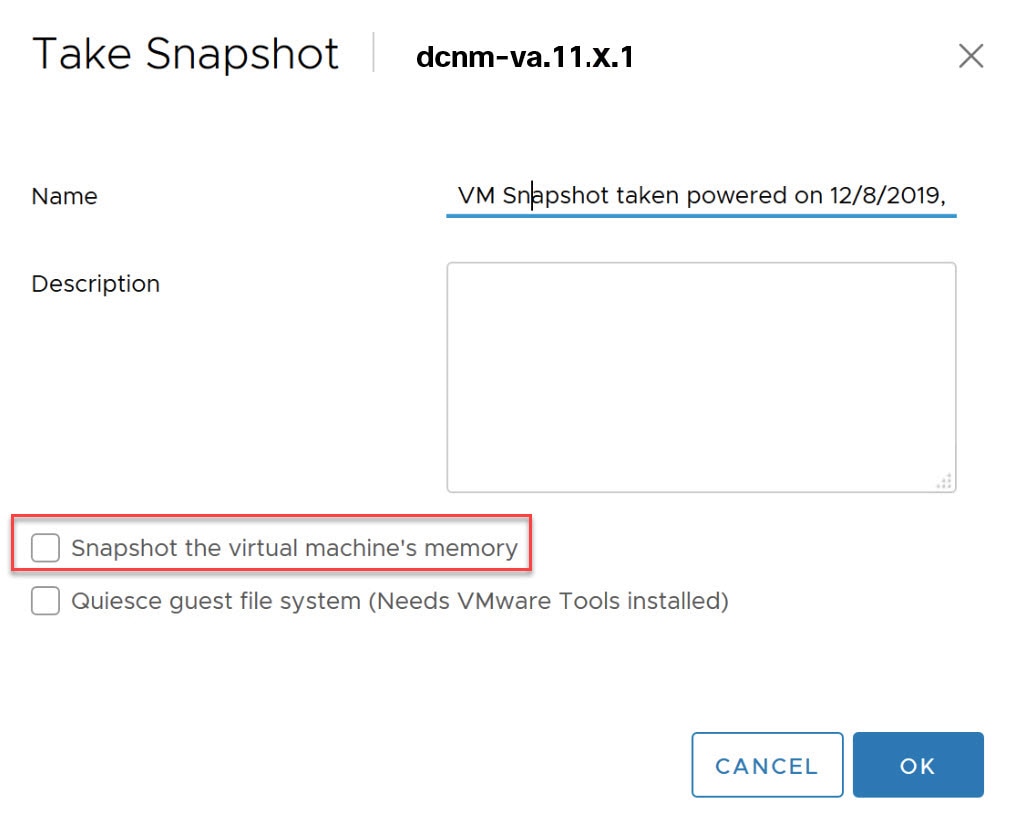
Note that the Snapshot the Virtual Machine's memory check box must not be selected, as shown in the following figure. However, it is grayed out when the VM is powered off.
You can restore VM to the state in a Snapshot.
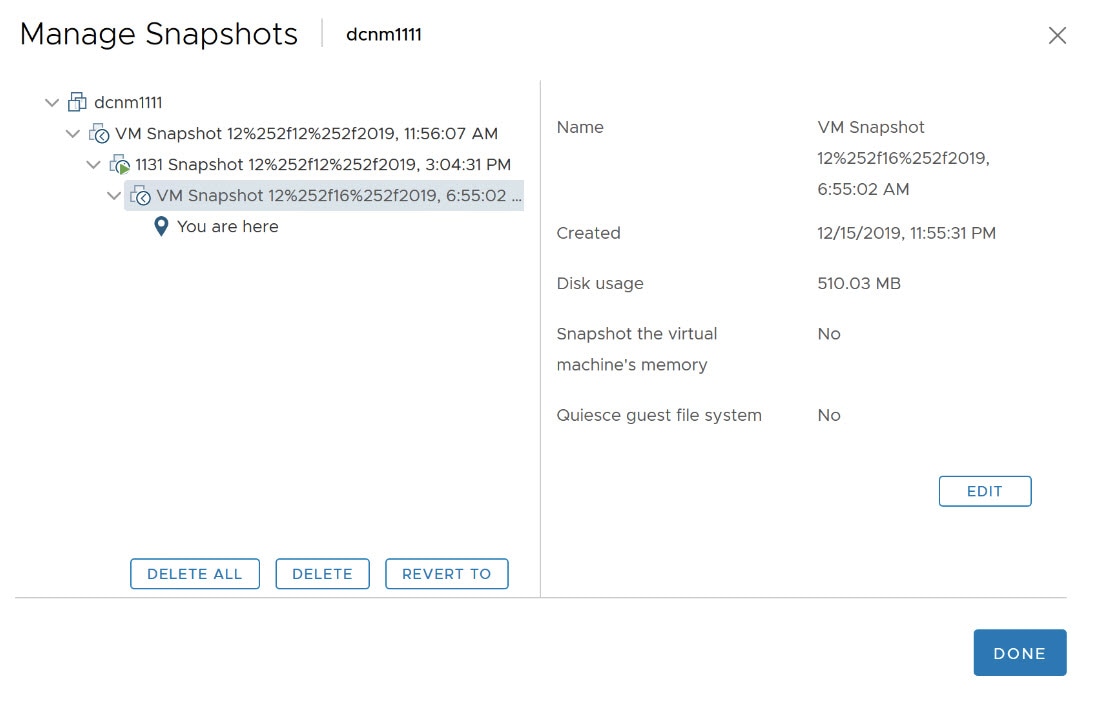
Right-click on the Virtual Machine and select Manage Snapshot. Select the snapshot to restore, and click Done.
|
VMware vSphere Hypervisor (ESXi) |
6.0 |
6.5 |
6.7 |
6.7 P01 |
|
VMware vCenter Server |
6.0 |
6.5 |
6.7 |
6.7 P01 |
Server Resource Requirements
| Deployment | Deployment Type | Small (Lab or POC) | Large (Production) | Huge (Production) | Compute |
|---|---|---|---|---|---|
| SAN |
Windows |
CPU: 8 vCPUs RAM: 24 GB DISK: 500 GB |
CPU: 16 vCPUs RAM: 32 GB DISK: 500 GB |
Not Applicable | Not Applicable |
| Linux (standalone or VM) |
CPU: 8 vCPUs RAM: 24 GB DISK: 500 GB |
CPU: 16 vCPUs RAM: 32 GB Disk: 500 GB |
With SAN Insights:
|
Not Applicable | |
|
CPU: 8 vCPUs RAM: 24 GB DISK: 500 GB |
CPU: 16 vCPUs RAM: 32 GB DISK: 500 GB |
CPU: 32vCPUs RAM: 128 GB DISK: 2 TB (with SAN Insights) |
Not Applicable |
|
| IP for Media (IPFM) |
|
CPU: 8 vCPUs RAM: 24 GB DISK: 500 GB |
CPU: 16 vCPUs RAM: 32 GB DISK: 500 GB |
CPU: 32vCPUs RAM: 128 GB DISK: 500 GB |
Not Applicable |
|
LAN Fabric Classic LAN |
|
CPU: 8 vCPUs RAM: 24 GB DISK: 500 GB |
CPU: 16 vCPUs RAM: 32 GB DISK: 500 GB |
CPU: 32vCPUs RAM: 128 GB DISK: 500 GB |
CPU: 16 vCPUs RAM: 64 GB DISK: 500 GB |
Note |
For Huge and Compute deployments, you can add extra disk. The size of the disk can range from a minimum of 32GB to a maximum of 1.5TB. |
Ensure that there is enough disk space to the root partition or mount another disk where the /tmp directory can be mounted during the installation or upgrade.
You can add additional disk space to your DCNM set up. Logon to DCNM server using SSH. Extend the disk file system using appmgr system scan-disks-and-extend-fs command.
Note |
|
Client Requirements
Cisco DCNM SAN desktop client and Cisco Device Manager support Microsoft Windows 10, Microsoft Windows 2012, Microsoft Windows 2016, and Red Hat Linux. The following table lists the minimum hardware requirements for these client systems.
|
Hardware |
Minimum Requirements |
|---|---|
|
RAM (free) |
6 GB or more |
|
CPU speed |
3 GHz or faster |
|
Disk space (free) |
20 GB |
If you install Cisco DCNM on a virtual machine, you must reserve resources equal to the server resource requirements to ensure a baseline with the physical machines.
Some Cisco DCNM features require a license. Before using the licensed features, you must install a Cisco DCNM license for each Nexus-managed or MDS-managed platform. For information about Licensing in DCNM, see https://www.cisco.com/c/en/us/td/docs/switches/datacenter/sw/11_x/licensing/cisco_dcnm_licensing_guide_11_x.html.
Supported Web Browsers
Cisco DCNM supports the following web browsers:
-
Google Chrome Version 79.0.3945.79
-
Mozilla Firefox Version 71.0 (32/64 bit)
-
Microsoft Internet Explorer Version 11.706 update version 11.0.120
Other Supported Software
The following table lists the other software that is supported by Cisco DCNM, Release 11.3(1).
|
Component |
Features |
|---|---|
|
Security |
|
|
OVA\ISO Installers |
CentOS 7.6/Linux Kernel 3.10.x |
Also, Cisco DCNM supports call-home events, fabric change events, and events that are forwarded by traps and email.
Qualified Security Certifications
| Security Certifications | Date run on DCNM 11.4(1) |
|---|---|
| Nessus | 6/29/2020 |
| Appscan | 6/29/2020 |
| Qualsys | 6/29/2020 |
 Feedback