Installing the Chassis

Safety

Before you install, operate, or service the switch, see the Regulatory, Compliance, and Safety Information for the Cisco Nexus 3000 and 9000 Series content for important Safety Information.


Warning


Statement 1071—Warning Definition

IMPORTANT SAFETY INSTRUCTIONS

Before you work on any equipment, be aware of the hazards involved with electrical circuitry and be familiar with standard practices for preventing accidents. Read the installation instructions before using, installing, or connecting the system to the power source. Use the statement number provided at the end of each warning statement to locate its translation in the translated safety warnings for this device.

SAVE THESE INSTRUCTIONS


Warning


Statement 1089—Instructed and Skilled Person Definitions

An instructed person is someone who has been instructed and trained by a skilled person and takes the necessary precautions when working with equipment.

A skilled person or qualified personnel is someone who has training or experience in the equipment technology and understands potential hazards when working with equipment.

There are no serviceable parts inside. To avoid risk of electric shock, do not open.


Warning


Statement 1074—Comply with Local and National Electrical Codes

To reduce risk of electric shock or fire, installation of the equipment must comply with local and national electrical codes.


Note


Statement 407—Japanese Safety Instruction

You are strongly advised to read the safety instruction before using the product.

https://www.cisco.com/web/JP/techdoc/pldoc/pldoc.html

When installing the product, use the provided or designated connection cables/power cables/AC adapters.


Warning


Statement 1017—Restricted Area

This unit is intended for installation in restricted access areas. Only skilled, instructed, or qualified personnel can access a restricted access area.


Warning


Statement 1091—Installation by an Instructed Person

Only an instructed person or skilled person should be allowed to install, replace, or service this equipment. See statement 1089 for the definition of an instructed or skilled person.

There are no serviceable parts inside. To avoid risk of electric shock, do not open.


Warning


Statement 1028—More Than One Power Supply

This unit might have more than one power supply connection. To reduce risk of electric shock, remove all connections to de-energize the unit.


Warning


Statement 1003—Power Disconnection

To reduce risk of electric shock or personal injury, disconnect power before removing or replacing components or performing upgrades.


Warning


Statement 1046—Installing or Replacing the Unit

To reduce risk of electric shock, when installing or replacing the unit, the ground connection must always be made first and disconnected last.

If your unit has modules, secure them with the provided screws.


Warning


Statement 1022—Disconnect Device

To reduce the risk of electric shock and fire, a readily accessible disconnect device must be incorporated in the fixed wiring.


Warning


Statement 1024—Ground Conductor

This equipment must be grounded. To reduce the risk of electric shock, never defeat the ground conductor or operate the equipment in the absence of a suitably installed ground conductor. Contact the appropriate electrical inspection authority or an electrician if you are uncertain that suitable grounding is available.


Warning


Statement 1032—Lifting the Chassis

To prevent personal injury or damage to the chassis, never attempt to lift or tilt the chassis using the handles on modules, such as power supplies, fans, or cards. These types of handles are not designed to support the weight of the unit.


Warning


Statement 1006—Chassis Warning for Rack-Mounting and Servicing

To prevent bodily injury when mounting or servicing this unit in a rack, you must take special precautions to ensure that the system remains stable. The following guidelines are provided to ensure your safety:

  • This unit should be mounted at the bottom of the rack if it is the only unit in the rack.

  • When mounting this unit in a partially filled rack, load the rack from the bottom to the top with the heaviest component at the bottom of the rack.

  • If the rack is provided with stabilizing devices, install the stabilizers before mounting or servicing the unit in the rack.


Caution


To prevent loss of input power, ensure the total maximum loads on the circuits supplying power to the switch are within the current ratings for the wiring and breakers.


Note


For AC input application, please refer to the statement below:


Warning


Statement 1005—Circuit Breaker

This product relies on the building's installation for short-circuit (overcurrent) protection. Ensure that the protective devices is rated not greater than 20A (North America), 16A (Europe), and 13A (UK).


Network Equipment-Building System (NEBS) Statements

NEBS describes the environment of a typical United States Regional Bell Operating Company (RBOC) central office. NEBS is the most common set of safety, spatial, and environmental design standards applied to telecommunications equipment in the United States. It is not a legal or regulatory requirement, but rather an industry requirement.


Note


Statement 7001—ESD Mitigation

This equipment may be ESD sensitive. Always use an ESD ankle or wrist strap before handling equipment. Connect the equipment end of the ESD strap to an unfinished surface of the equipment chassis or to the ESD jack on the equipment if provided.


Warning


Statement 7003—Shielded Cable Requirements for Intrabuilding Lightning Surge

The intrabuilding port(s) of the equipment or subassembly must use shielded intrabuilding cabling/wiring that is grounded at both ends.

The following port(s) are considered intrabuilding ports on this equipment:

The copper RJ45 Ethernet Ports.


Warning


Statement 7005—Intrabuilding Lightning Surge and AC Power Fault

The intrabuilding port(s) of the equipment or subassembly must not be metallically connected to interfaces that connect to the outside plant (OSP) or its wiring. These interfaces are designed for use as intrabuilding interfaces only (Type 2 or Type 4 ports as described in GR-1089-CORE) and require isolation from the exposed OSP cabling. The addition of primary protectors is not sufficient protection to connect these interfaces metallically to OSP wiring.

This statement applies to the intrabuilding ports listed below:

The copper RJ45 Ethernet Ports.


Warning


Statement 7008—Equipment Using Agreed Primary Protection

This product is intended to be protected by a surge protector that meets the applicable criteria of GR-974-CORE or GR-1361-CORE. Failure to use this appropriate surge protector could result in susceptibility to lightning surges or create a potential hazard due to power faults.


Note


Statement 7011—Surge Protection Device Requirements for GR-1089 Antenna Ports

Protect equipment antenna ports, that are classified as Type 6 according to GR-1089-CORE, with lightning surge protectors that are rated at a minimum of 600 V peak surge of 1.2/50 uS duration.


Warning


Statement 7012—Equipment Interfacing with AC Power Ports

Connect this equipment to AC mains that are provided with a surge protective device (SPD) at the service equipment that complies with NFPA 70, the National Electrical Code (NEC).


Note


Statement 7013—Equipment Grounding Systems—Common Bonding Network (CBN)

This equipment is suitable for installations using the CBN.


Note


Statement 7014—Installation Location Outside Plant (OSP)

This equipment is suitable for installation in OSP locations.


Note


Statement 7015—Equipment Bonding and Grounding

When you use thread-forming screws to bond equipment to its mounting metalwork, remove any paint and nonconductive coatings and clean the joining surfaces. Apply an antioxidant compound before joining the surfaces between the equipment and mounting metalwork.


Note


Statement 7016—Battery Return Conductor

Treat the battery return conductor of this equipment as DC-I.


Note


Statement 7018—System Recover Time

The equipment is designed to boot up in less than 30 minutes provided the neighboring devices are fully operational.


Note


Statement 7019—Equipment Grounding Systems—Isolated Bonding Network (IBN)

This equipment is suitable for installations using the IBN.


Note


Statement 8015—Installation Location Network Telecommunications Facilities

This equipment is suitable for installation in network telecommunications facilities.


Note


Statement 8016—Installation Location Where the National Electric Code (NEC) Applies

This equipment is suitable for installation in locations where the NEC applies.


Installation Options with Rack-Mount Kits

The rack-mount kit enables you to install the switch into racks of varying depths. Position the switch with easy access to either the port connections or the fan and power supply modules.

Install the switch using these rack-mount options:

  • Rack-mount kit (NXK-ACC-KIT-1RU) which you can order from Cisco. This option offers you easy installation, greater stability, increased weight capacity, added accessibility, and improved removability with front and rear removal.

  • Rack-mount kit (N3K-C3064-ACC-KIT) which you can order from Cisco.

The rack or cabinet that you use must meet the requirements listed in the section General Requirements for Cabinets and Racks.


Note


You are responsible for verifying that your rack and rack-mount hardware comply with the guidelines that are described in this document.


Airflow Considerations

The switch comes with fan and power supply modules that have either port-side intake or port-side exhaust airflow for cooling the switch. If you are positioning the port end of the switch in a cold aisle, verify that the switch has port-side intake fan modules with burgundy coloring. If you are positioning the fan and power supply modules in a cold aisle, verify that the switch has port-side exhaust fan modules with blue colorings. All fan modules must have the same direction of airflow.

Installation Guidelines

When installing the switch, follow these guidelines:

  • Ensure that there is adequate clearance space around the switch to allow for servicing the switch and for adequate airflow.

  • Ensure that you are positioning the switch in a rack so that it takes in cold air from the cold aisle and exhausts air to the hot aisle. If there is blue coloring on the fan modules, the switch is configured for port-side exhaust airflow and you must position the module side of the switch in a cold aisle. If there is burgundy coloring on the fan modules, the switch is configured for port-side intake airflow and you must position the port side of the switch in a cold aisle.

  • Ensure that the chassis can be adequately grounded. If the switch is not mounted in a grounded rack, we recommend connecting the system ground on the chassis directly to an earth ground.

  • Ensure that the site power meets the power requirements for the switch. If available, you can use an uninterruptible power supply (UPS) to protect against power failures.


    Caution


    Avoid UPS types that use ferroresonant technology. These UPS types can become unstable with the switch, which can have substantial current draw fluctuations because of fluctuating data traffic patterns.


  • Ensure that circuits are sized according to local and national codes. Typically, this often requires one or both of the following:

    • AC power supplies typically require at least a 15-A or 20-A AC circuit, 100 to 240 VAC, and a frequency of 50 to 60 Hz.


    Caution


    To prevent loss of input power, ensure the total maximum loads on the circuits supplying power to the switch are within the current ratings for the wiring and breakers.


    Note


    For AC input application, please refer to the statement below:


    Warning


    Statement 1005—Circuit Breaker

    This product relies on the building's installation for short-circuit (overcurrent) protection. Ensure that the protective devices is rated not greater than 20A (North America), 16A (Europe), and 13A (UK).


    Note


    For DC input application, please refer to the statement below:


    Warning


    Statement 1005—Circuit Breaker

    This product relies on the building's installation for short-circuit (overcurrent) protection. Ensure that the protective devices is rated not greater than 70A for the regular DC power supplies and 15A for the HVDC power supplies.


Unpacking and Inspecting the Switch

Before you install the switch, unpack and inspect the switch for damage or missing components. If anything is missing or damaged, contact your customer service representative immediately.


Tip


Keep the shipping container in case the chassis requires shipping at a later time.


Before you begin

Before you unpack the switch and before you handle any switch components, be sure that you are wearing a grounded electrostatic discharge (ESD) strap. To ground the strap, attach it directly to an earth ground or to a grounded rack or grounded chassis (there must be a metal-to-metal connection to the earth ground).

Procedure


Step 1

Compare the shipment to the equipment list provided by your customer service representative and verify that you have received all items, including:

  • Accessory Kit

Step 2

Check for damage and report any discrepancies or damage to your customer service representative. Have this information ready:

  • Invoice number of shipper (see packing slip)

  • Model and serial number of the damaged unit

  • Description of damage

  • Effect of damage on the installation


Installing the Switch Using the NXK-ACC-KIT-1RU Rack-Mount Kit

To install the switch, attach front and rear mounting brackets to the switch, install slider rails on the rear of the rack, slide the switch onto the slider rails, and secure the switch to the front of the rack. Typically, the front of the rack is the side easiest to access for maintenance.


Note


You supply the eight 10-32 or 12-24 screws required to mount the slider rails and switch to the rack.


Before you begin

  • Inspected the switch shipment to ensure that you have everything ordered.

  • Verify that the switch rack-mount kit includes these parts:

    • Front rack-mount brackets (2)

    • Rear rack-mount brackets (2)

    • Slider rails (2)

    • M4 x 0.7 x 8-mm Phillips countersink screws (10-12)

  • The rack is installed and secured to its location.

Procedure


Step 1

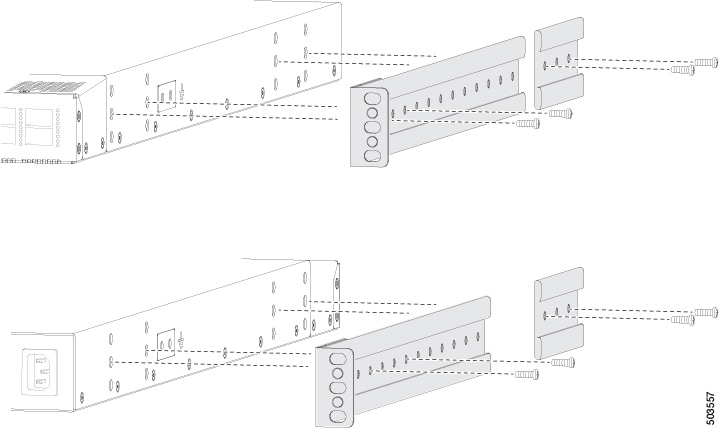
Install two front rack-mount brackets and the two rear rack-mount brackets to the switch.

  1. Determine which end of the chassis is to be located in the cold aisle.

    • If the switch has port-side intake modules (fan modules with burgundy coloring), position the switch so that its ports will be in the cold aisle.

    • If the switch has port-side exhaust modules (fan modules with blue coloring), position the switch so that its fan and power supply modules will be in the cold aisle.

  2. Position the front rack-mount bracket and the rear rack-mount bracket so that its screw holes are aligned to the screw holes on the side of the chassis.

    Note


    Align the holes in the rack-mount bracket to the holes on the side of the chassis (see the two ways to mount these brackets on a typical chassis, in the figure). The holes that you use depend on the requirements of your rack and the amount of clearance required for interface cables (3 inches [7.6 mm] minimum) and module handles (1 inch [2.5 mm] minimum).

  3. Secure the front-mount bracket and the back-mount bracket to the chassis using four M4 screws. Tighten each screw to 12 in-lb (1.36 N·m) of torque.

  4. Repeat Step 1 for the other front rack-mount bracket and the other back-mount bracket on the other side of the switch. Be sure to position that bracket the same distance from the front of the switch.

    Note


    Depending on the chassis depth, the back rack-mount bracket may not fit. In that case, you do not need the back rack-mount bracket.

Step 2

If you are not installing the chassis into a grounded rack, attach a customer-supplied grounding wire to the chassis as explained in the Grounding the Chassis section. If you are installing the chassis into a grounded rack, skip this step.

Step 3

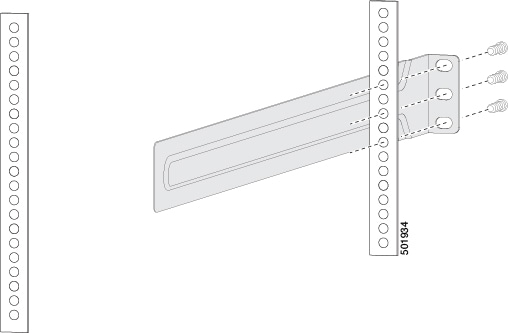
Install the slider rails on the rack or cabinet.

  1. Determine which two posts of the rack or cabinet you should use for the slider rails. Of the four vertical posts in the rack or cabinet, two will be used for the front-mount brackets attached to the easiest accessed end of the chassis. The other two posts will have the slider rails.

  2. Position a slider rail at the desired level on the back side of the rack. Use 12-24 screws or 10-32 screws, depending on the rack thread type. To attach the rails to the rack, see the figure. Tighten 12-24 screws to 30 in-lb (3.39 N·m) of torque. Tighten 10-32 screws to 20 in-lb (2.26 N m) of torque.

  3. Repeat Step 3 to attach the other slider rail to the other side of the rack.

    Make sure that the slider rails are at the same level. Use a level tool, tape measure, or carefully count the screw holes in the vertical mounting rails.

Step 4

Insert the switch into the rack and attach it.

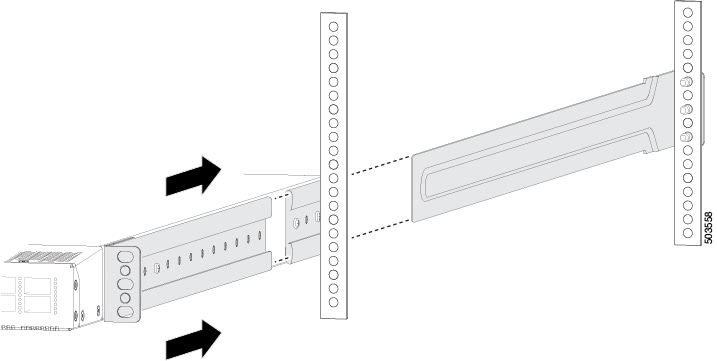
  1. Holding the switch with both hands, position the two, rear rack-mount brackets on the switch between the rack or cabinet posts that do not have slider rails attached to them (see the figure).

  2. Align the two rear rack-mount guides on either side of the switch with the slider rails installed in the rack. Slide the rack-mount guides onto the slider rails. Gently slide the switch all the way into the rack until the front rack-mount brackets come in contact with two rack or cabinet posts.

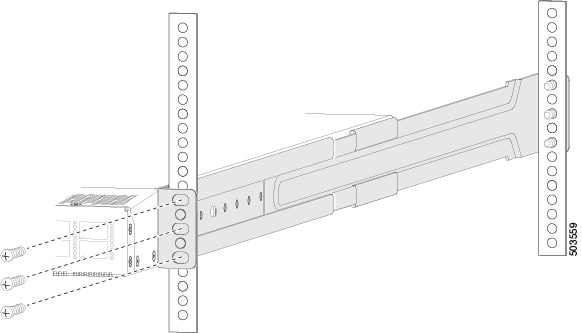
  3. Holding the chassis level, insert screws (12-24 or 10-32, depending on the rack type) in each of the two front rack-mount brackets (using a total of six screws) and into the cage nuts or threaded holes in the vertical rack-mounting rails (see the figure).

  4. Tighten the 10-32 screws to 20 in-lb (2.26 N m) or tighten the 12-24 screws to 30 in-lb (3.39 N m).

Step 5

If you attached a grounding wire to the chassis grounding pad, connect the other end of the wire to the facility ground.


Grounding the Chassis

The switch chassis is automatically grounded when you properly install the switch in a grounded rack with metal-to-metal connections between the switch and rack.


Note


Provide an electrical conducting path between the product chassis and the metal surface of the enclosure or rack in which it is mounted or to a grounding conductor. To ensure electrical continuity, use thread-forming type mounting screws that remove any paint or non-conductive coatings and establish a metal-to-metal contact. Remove any paint or other non-conductive coatings on the surfaces between the mounting hardware and the enclosure or rack. Clean the surfaces and apply an antioxidant before installation.


Ground the rack if using LVDC power supplies. If using AC or HVDC power supplies, the power cord for the chassis provides grounding.

Ground the rack if using AC power supplies. The power cord for AC power supplies provides the chassis grounding.

Ground the chassis. If you are using a 2-post rack, attach a customer-supplied grounding cable. Attach the cable to the chassis grounding pad and the facility ground. If you are using a 4-post rack, ensure that your chassis is grounded through the rack mount system or the power cable (AC or HVDC).


Warning


Statement 1024—Ground Conductor

This equipment must be grounded. To reduce the risk of electric shock, never defeat the ground conductor or operate the equipment in the absence of a suitably installed ground conductor. Contact the appropriate electrical inspection authority or an electrician if you are uncertain that suitable grounding is available.


Warning


Statement 1046—Installing or Replacing the Unit

To reduce risk of electric shock, when installing or replacing the unit, the ground connection must always be made first and disconnected last.


Before you begin

Before you can ground the chassis, connect to earth ground of the data center building.

Procedure


Step 1

Use a wire-stripping tool to remove approximately 0.75 inch (19 mm) of the covering from the end of the grounding wire. We recommend 6-AWG wire for the U.S. installations.

Step 2

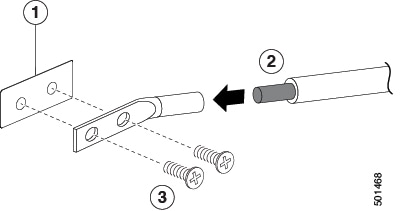
Insert the stripped end of the grounding wire into the open end of the grounding lug. Use a crimping tool to crimp the lug to the wire. See the figure. Verify that the ground wire is securely attached to the grounding lug by attempting to pull the wire out of the crimped lug (tug test).

1

Chassis grounding pad

3

2 M4 screws are used to secure the grounding lug to the chassis

2

Grounding cable, with 0.75 in. (19 mm) of insulation that is stripped from one end, which is inserted into the grounding lug and crimped in place

Step 3

Secure the grounding lug to the chassis grounding pad with two M4 screws, see figure 1. Tighten the screws to 11 to 15 in-lb (1.24 to 1.69 N m) of torque.

Step 4

Prepare the other end of the grounding wire and connect it to the facility ground.


Starting the Switch

Start the switch by connecting it to its dedicated power source. If you need n+n redundancy, connect each power supply in a switch to a different power source.


Note


This equipment is designed to boot up in less than 30 minutes, dependent on its neighboring devices being fully up and running.


Before you begin

  • The switch must be installed and secured to a rack or cabinet.

  • The switch must be adequately grounded.

  • The rack must be close enough to the dedicated power source so that you can connect the switch to the power source by using the designated power cables.

  • You have the designated power cables for the power supplies that you are connecting to the dedicated power sources.


    Note


    Depending on the outlet receptacle on your AC power distribution unit, you might need an optional jumper power cord to connect the switch to your outlet receptacle.


  • The switch is not connected to the network (this includes any management or interface connections).

  • The fan and power supply modules are fully secured in their chassis slots.

Procedure


Step 1

For any HVAC/HVDC power supply, connect it to a power source like this:

  1. Using the recommended high voltage power cable for your country or region, connect the Anderson Power Saf-D-Grid connector on the power cable to the power receptacle on the power supply. Make sure that the connector clicks when fully pushed into the receptacle.

  2. Connect the other end of the power cable to a power source.

    • When connecting to an HVAC power source, insert the plug in a receptacle for the HVAC power source.

    • When connecting to an HVDC power source, do this:

      1. Verify that the power is turned off at a circuit breaker for the power source terminals.

      2. Remove the nuts from each of the terminal posts for the power source.

      3. Place the power cable ground-wire terminal ring on the ground terminal for the power source and secure them with a terminal nut.

      4. Place the power cable negative-wire terminal ring on the negative terminal for the power source and secure them with a terminal nut.

      5. Place the power cable positive-wire terminal ring on the positive terminal for the power source and secure them with a terminal nut.

      6. If there is a safety cover for the power source terminals, place and secure it over the terminals.

      7. Turn on the power at the power source circuit breaker.

Step 2

For any DC power supply, do this:

  1. Turn off the circuit breaker for the power source.

  2. When using an LV DC power supply that does not use a lug, connect the supplied wiring harness to the source. Or connect the user-supplied wires to the LV DC power source.

  3. When using an LV DC power supply that does not use a lug, connect the attached plug of the supplied wiring harness to the power supply. Or attach the lugs of the user supplied wires to the power supply.

  4. If there is a safety cover for the power source terminals, place and secure it over the terminals.

  5. Turn on the power at the circuit breaker for the DC power source.

Step 3

Verify that the power supply LED is on and green.

Step 4

Listen for the fans; they should begin operating when the power supply is powered.

Step 5

After the switch boots, verify that these LEDs are lit:

  • On the fan modules, the Status (STA or STS) LED is green.

    If a fan module Status LED is not green, try reinstalling the fan module.

  • After initialization, the switch chassis Status (labeled as STA or STS) LED is green.

Step 6

Verify that the system software has booted and the switch has initialized without error messages.

A setup utility automatically launches the first time that you access the switch and guides you through the basic configuration. For instructions on how to configure the switch and check module connectivity, see the appropriate Cisco Nexus 9000 Series Configuration Guides.