Initial POD Setup and Overview

This chapter contains the following sections:

First-Time Access

Cisco APIC Documentation Roadmap

This table provides a list of additional documents that are useful references along with the Cisco APIC Getting Started Guide. All Cisco APIC documents are available at the APIC documents landing page.

Document

Application Centric Infrastructure Fabric Hardware Installation Guide

Cisco APIC Management, Installation, Upgrade, and Downgrade Guide

Cisco APIC Basic Configuration Guide

Cisco APIC Layer 2 Networking Configuration Guide

Cisco APIC Layer 3 Networking Configuration Guide

Cisco ACI Virtualization Guide

Cisco Application Centric Infrastructure Fundamentals

Cisco APIC Layer 4 to Layer 7 Services Deployment Guide

Simplified Approach to Configuring in Cisco APIC

Cisco APIC supports a simplified approach to configuring the ACI with an additional NX-OS style CLI interface. The existing methods of configuration using REST API and the GUI are supported as well.

In addition to the simple approach available for network administrators and other users of the NX-OS style CLI, there is intelligence embedded in this approach as compared to the GUI or the REST API. In several instances, the NX-OS style CLI can create the ACI model constructs implicitly for a user's ease of use, and they also provide validations to ensure consistency in configuration. This functionality reduces and prevents faults.

For further details about configurations and tasks, see the Cisco APIC Basic Configuration Guide and the Cisco APIC NX-OS Style Command-Line Interface Configuration Guide.

About the ACI Simulator

The ACI simulator provides real, fully-featured APIC controller software, along with a simulated fabric infrastructure of leaf switches and spine switches in one physical server. The physical server is a UCS C-series server.

The APIC controller software controls a set of five software-simulated ACI switches connected in a fabric topology. This allows the customer to explore the APIC GUI and to create configurations in the simulated fabric. Because the simulator can also be configured using the CLI or the REST API, it allows partners and customers to develop scripts and applications prior to investing in and purchasing the actual ACI switches.

Guidelines and Restrictions When Using the ACI Simulator

For details about the ACI simulator topology and connections, see the Cisco ACI Simulator Installation Guide.

When using the ACI simulator, the following guidelines and restrictions must be considered:

  • The ACI simulator GUI includes an online version under Quick Start that includes video demonstrations.

  • Do not change the following:

    • The default names in the initial setup for node names and the cluster configuration.

    • The cluster size and the number of APIC nodes.

    • The infra VLAN, which must be VLAN 4.

  • The ACI simulator uses NAT for inband management. Inband IP addresses configured by policy are not used. Instead, APIC and node inband IP addresses are internally allocated.

  • The ACI simulator does not support the following:

    • Configuring a DHCP server policy.

    • Configuring a DNS service policy.

    • Data path forwarding because the simulator includes simulated switches.

    • Cisco Discovery Protocol (CDP) between a leaf switch and a hypervisor or between a leaf switch and an unmanaged/Layer 2 switch. Only Link Layer Discovery Protocol (LLDP) is supported in these cases .

    • Configuring out-of-band management access for switches.

  • APIC out-of-band management IP/gateway cannot be modified using an out-of-band management policy and can be configured only during the APIC first-time setup screen.

  • Keep the vMotion PNIC outside the simulator network.

  • The infrastructure EPG in the infrastructure tenant is for internal use only.

  • The MP-BGP route reflector and the OSPF external routed network protocols do not work if you are using the simulator.

  • Virtual shell (VSH) and ishell commands do not work on switches. These commands are implemented on the Cisco NX-OS software, and the Cisco NX-OS software is not available on the simulator.

  • Statistics are simulated. As a result, threshold crossing alert (TCA) faults are generated in the simulator to demonstrate the fault generation on the statistics threshold crossing.

  • Create a syslog and Call Home source policy under common policy. This policy applies at the system level and sends all syslog and Call Home messages system wide. The GUI path to create syslog and Call Home under common policy are as follows: Admin / External Data Collector/ Monitoring Destinations / [Callhome | SNMP | Syslog].

  • The Cisco ACI simulator simulates faults for counters, which can cause the health score of the top-of-rack (TOR) switch to go down. The faults look like the following:
    <faultInst ack="no" cause="threshold-crossed" changeSet="" childAction="" code="F54431" 
    created="2014-01-21T17:20:13.179+00:00" descr="TCA: l2IngrBytes5min dropRate value 9049.94 raised 
    above threshold 9000 and value is recovering "dn="topology/pod-1/node-17/sys/
    ctx-[vxlan-2621440]/bd-[vxlan-15826914]/vlan-[vlan- 1031]/fault-F54431" domain="infra" 
    highestSeverity="minor" lastTransition="2014-01-21T17:22:35.185+00:00" lc="raised" modTs="never" 
    occur="1"origSeverity="minor" prevSeverity="minor" rule="tca-l2-ingr-bytes-drop-rate" 
    severity="minor" status="" subject="counter" type="operational"/> <faultInst ack="no" 
    cause="threshold-crossed" changeSet="" childAction="" code="F54447" 
    created="2014-01-21T17:20:13.244+00:00" descr="TCA: l2IngrPkts5min dropRate 
    value 3.53333 raised above threshold 10" dn="topology/pod-1/node-17
    /sys/ctx-[vxlan-2621440]/bd-[vxlan-15826914]/vlan-[vlan-1 031]/fault-F54447" 
    domain="infra" highestSeverity="warning" lastTransition="2014-01-21T19:42:37.983+00:00" 
    lc="retaining" modTs="never" occur="9" origSeverity="warning"prevSeverity="warning" 
    rule="tca-l2-ingr-pkts-drop-rate" severity="cleared" status="" subject="counter" type="operational"/> 
  • You can test L4-L7 services by connecting your service appliance using in-band management connectivity between the simulator and the appliance.

    For more details about L4-L7 services guidelines when using the simulator, see the guidelines section in the Cisco ACI Simulator Release Notes.

Installing the Cisco Application Centric Infrastructure Fabric Hardware

For details about installing the ACI fabric hardware, see the Application Centric Infrastructure Fabric Hardware Installation Guide.

Changing the BIOS Default Password

The APIC controller ships with a default BIOS password. The default password is 'password'. When the boot process starts, the boot screen displays the BIOS information on the console server.

To change the default BIOS password perform the following task:

Procedure


Step 1

During the BIOS boot process, when the screen displays Press <F2> Setup, press F2.

The Entering Setup message displays as it accesses the setup menu.
Step 2

At the Enter Password dialog box, enter the current password.

Note 

The default is 'password'.

Step 3

In the Setup Utility, choose the Security tab, and choose Set Administrator Password.

Step 4

In the Enter Current Password dialog box, enter the current password.

Step 5

In the Create New Password dialog box, enter the new password.

Step 6

In the Confirm New Password dialog box, re-enter the new password.

Step 7

Choose the Save & Exit tab.

Step 8

In the Save & Exit Setup dialog box, choose Yes.

Step 9

Wait for the reboot process to complete.

The updated BIOS password is effective.

About the APIC

The Cisco Application Centric Infrastructure (ACI) is a distributed, scalable, multitenant infrastructure with external end-point connectivity controlled and grouped through application-centric policies. The Application Policy Infrastructure Controller (APIC) is the unified point of automation, management, monitoring, and programmability for the ACI. The APIC supports the deployment, management, and monitoring of any application anywhere, with a unified operations model for the physical and virtual components of the infrastructure. The APIC programmatically automates network provisioning and control that is based on the application requirements and policies. It is the central control engine for the broader cloud network; it simplifies management and allows flexibility in how application networks are defined and automated. It also provides northbound Representational State Transfer (REST) APIs. The APIC is a distributed system that is implemented as a cluster of many controller instances.

Setting up the APIC

When the APIC is launched for the first time, the APIC console presents a series of initial setup options. For many options, you can press Enter to choose the default setting that is displayed in brackets. At any point in the setup dialog, you can restart the dialog from the beginning by pressing Ctrl-C.

Important Notes

  • If the UNIX user ID is not explicitly specified in the response from the remote authentication server, then some APIC software releases assign a default ID of 23999 to all users. If the response from the remote authentication server fails to specify a UNIX ID, all users will share the same ID of 23999 and this can result in the users being granted higher or lower privileges than the configured privileges through the RBAC policies on the APIC.

  • Cisco recommends that you assign unique UNIX user IDs in the range of 16000 to 23999 for the AV Pairs that are assigned to the users when in Bash shell (using SSH, Telnet, or Serial/KVM consoles). If a situation arises where the Cisco AV Pair does not provide a UNIX user ID, the user is assigned a user ID of 23999 or similar number from the range that also enables the user's home directories, files, and processes accessible to the remote users with a UNIX ID of 23999.

    To ensure that your remote authentication server does not explicitly assign a UNIX ID in its cisco-av-pair response, open an SSH session to the APIC and log in as an administrator (using a remote user account). Once logged in, run the following commands (replace userid with the username that you logged in with):

    • admin@apic1: remoteuser-userid> cd /mit/uni/userext/remoteuser-userid

    • admin@apic1: remoteuser-userid> cat summary

  • If you are using a Cisco Integrated Management Controller (CIMC) for your setup, use only the port-side utility console port with the breakout cable. Setup the CIMC first, and then access the APIC through the CIMC KVM or continue to access the APIC locally through the port-side utility console port. Do not use the RJ-45 console port, unless access to the port side is restricted. If you choose the CIMC KVM access, you will have remote access available later which is required during operations.

  • If you are using RJ-45 console port, connect to CIMC using SSH and enable the Serial over LAN port using the following parameters:

    • Scope SOL sol

    • Set Enabled to Yes

    • Commit

    • Exit

    After enabling, enter the command connect host to access the console. If the serial port is connected, either disconnect the serial port or ensure that the connected device has the proper configuration.

  • It is recommended not to modify any parameters using CIMC. If there are any issues, ensure that the default setting for CIMC management node is Dedicated Mode and not Shared. If Dedicated Mode is not used, it can prevent the discovery of fabric nodes.

  • Do not upgrade software or firmware using the CIMC user interface, XML, or SSH interfaces unless the modified property and software or firmware version are supported with your specific APIC version.

  • Set the NIC mode to Dedicated, when setting up the CIMC, in the CIMC Configuration Utility. After the CIMC is configured, in the CIMC GUI, verify that you have the following parameters set.

    Parameters

    Settings

    LLDP

    Disabled on the VIC

    TPM Support

    Enabled on the BIOS

    TPM Enabled Status

    Enabled

    TPM Ownership

    Owned

  • Starting with APIC release 1.2(2x), during the initial setup the system will prompt you to select IPv4, or IPv6, or dual stack configuration. Choosing dual stack will enable accessing the APIC and ACI fabric out-of-band management interfaces with either IPv4 or IPv6 addresses. While the examples in the table below use IPv4 addresses, you can use whatever IP address configuration options you chose to enable during the initial setup.

  • A minimum subnet mask of /19 is recommended.

  • Connecting the APIC (the controller cluster) to the ACI fabric requires a 10G interface on the ACI leaf. You cannot connect the APIC directly to the N9332PQ ACI leaf switch, unless you use a 40G to 10G converter (part number CVR-QSFP-SFP10G), in which case the port on the N9332PQ switch will auto-negotiate to 10G without requiring any manual configuration.

  • The fabric ID is set during the APIC controller setup and it cannot be changed unless you perform a clean reload of the fabric. To change the fabric ID, perform a clean reload on the APIC and leaf switches after changing the sam.config file. All APICs in a cluster must have the same fabric ID.

About High Availability for APIC Cluster

The High Availability functionality for an APIC cluster enables you to operate the APICs in a cluster in an active/standby mode. In an APIC cluster, the designated active APICs share the load and the designated standby APICs can act as an replacement for any of the APICs in an active cluster.

An admin user can set up the High Availability functionality when the APIC is launched for the first time. It is recommended that you have at least 3 active APICs in a cluster, and one or more standby APICs. An admin user will have to initiate the switch over to replace an active APIC with a standby APIC. See the Cisco APIC Management, Installation, Upgrade, and Downgrade Guide for more information.

Table 1. Setup for Active APIC
Name Description Default Value

Fabric name

Fabric domain name

ACI Fabric1

Fabric ID

Fabric ID

1

Number of active controllers

Cluster size

3

Note 

When setting up APIC in an active-standby mode, you must have at least 3 active APICs in a cluster.

POD ID

POD ID

1

Standby controller

Setup standby controller

NO

Controller ID

Unique ID number for the active APIC instance.

Valid range: 1-19

Controller name

Active controller name

apic1

IP address pool for tunnel endpoint addresses

Tunnel endpoint address pool

10.0.0.0/16

This value is for the infrastructure virtual routing and forwarding (VRF) only.

Default value. Do not change. Do not set up your host on the network 10.0.0.0/8.

VLAN ID for infrastructure network

Infrastructure VLAN for APIC-to-switch communication including virtual switches

Note 
Reserve this VLAN for APIC use only. The infrastructure VLAN ID must not be used elsewhere in your environment and must not overlap with any other reserved VLANs on other platforms.

4

Default value. Do not change.

IP address pool for bridge domain multicast address (GIPo)

IP addresses used for fabric multicast .

For Cisco APIC in a Cisco ACI Multi-Site topology, this GIPo address can be the same across sites.

225.0.0.0/15

Valid range: 225.0.0.0/15 to 231.254.0.0/15, prefixlen must be 15 (128k IPs)

Default value. Do not change.

IPv4/IPv6 addresses for the out-of-band management

IP address that you use to access the APIC through the GUI, CLI, or API.

This address must be a reserved address from the VRF of a customer

IPv4/IPv6 addresses of the default gateway

Gateway address for communication to external networks using out-of-band management

Management interface speed/duplex mode

Interface speed and duplex mode for the out-of-band management interface

auto

Valid values are as follows

  • auto

  • 10baseT/Half

  • 10baseT/Full

  • 100baseT/Half

  • 100baseT/Full

  • 1000baseT/Full

Note 

Do not change values

Strong password check

Check for a strong password

[Y]

Password

Password of the system administrator

This password must be at least 8 characters with one special character.

Table 2. Setup for Standby APIC
Name Description Default Value

Fabric name

Fabric domain name

ACI Fabric1

Fabric ID

Fabric ID

1

Number of active controllers

Cluster size

3

Note 

When setting up APIC in an active-standby mode, you must have at least 3 active APICs in a cluster.

POD ID

ID of the POD

1

Standby controller

Setup standby controller

Yes

Standby Controller ID

Unique ID number for the standby APIC instance .

Recommended range: >20

Controller name

Standby controller name

NA

IP address pool for tunnel endpoint addresses

Tunnel endpoint address pool

10.0.0.0/16

This value is for the infrastructure virtual routing and forwarding (VRF) only.

Default value. Do not change. Do not set up your host on the network 10.0.0.0/8.

VLAN ID for infrastructure network

Infrastructure VLAN for APIC-to-switch communication including virtual switches

Note 
Reserve this VLAN for APIC use only. The infrastructure VLAN ID must not be used elsewhere in your environment and must not overlap with any other reserved VLANs on other platforms.

4

Default value. Do not change.

IPv4/IPv6 addresses for the out-of-band management

IP address that you use to access the APIC through the GUI, CLI, or API.

This address must be a reserved address from the VRF of a customer

IPv4/IPv6 addresses of the default gateway

Gateway address for communication to external networks using out-of-band management

Management interface speed/duplex mode

Interface speed and duplex mode for the out-of-band management interface

auto

Valid values are as follows

  • auto

  • 10baseT/Half

  • 10baseT/Full

  • 100baseT/Half

  • 100baseT/Full

  • 1000baseT/Full

Note 

Do not change values

Strong password check

Check for a strong password

[Y]

Password

Password of the system administrator

This password must be at least 8 characters with one special character.

The following is a sample of the initial setup dialog as displayed on the console:

Cluster configuration ...
  Enter the fabric name [ACI Fabric1 #1]: 
  Enter the number of controllers in the fabric (1-16) [3]: 
  Enter the controller ID (1-3) [2]: 
  Enter the controller name [apic2]: 
  Enter address pool for TEP addresses [10.0.0.0/16]: 
  Enter the VLAN ID for infra network (1-4)[4]: <<< This is for the simulator APIC		 
		Enter address pool for BD multicast addresses (GIPO) [225.0.0.0/15]: 

Out-of-band management configuration ...
  Enter the IP address for out-of-band management: 192.168.10.2/24
  Enter the IP address of the default gateway [None]: 192.168.10.254
		Enter the interface speed/duplex mode [auto]:

Administrator user configuration...
  Enable strong passwords? [Y]
  Enter the password for admin:

Note

  • It can take a few minutes to login as an administrator.

  • Until the entire cluster boots up, you cannot log in to apic2 and apic3.


Provisioning IPv6 Management Addresses on APIC Controllers

IPv6 management addresses can be provisioned on the APIC controller at setup time or through a policy once the APIC controller is operational. Pure IPv4, Pure IPv6 or dual stack (i.e both IPv6 and IPv4 addresses) are supported. The following snippet is of a typical setup screen that describes how to setup dual stack (IPv6 and IPv4) addresses for out-of-band management interfaces during the setup:

Cluster configuration …
 
  Enter the fabric name [ACI Fabric1]:
  Enter the number of controllers in the fabric (1-9) [3]:
  Enter the controller ID (1-3) [1]:
  Enter the controller name [apic1]: infraipv6-ifc1
  Enter address pool for TEP addresses [10.0.0.0/16]:
  Note: The infra VLAN ID should not be used elsewhere in your environment
        and should not overlap with any other reserved VLANs on other platforms.
  Enter the VLAN ID for infra network (1-4094): 4093
  Enter address pool for BD multicast addresses (GIPO) [225.0.0.0/15]:
 
Out-of-band management configuration ...
  Enable IPv6 for Out of Band Mgmt Interface? [N]: Y (Enter Y to Configure IPv6 Address for Out of Band Management Address)
  Enter the IPv6 address [0:0:0:0:0:ffff:c0a8:a01/40]: 2001:420:28e:2020:0:ffff:ac1f:88e4/64 (IPv6 Address)
  Enter the IPv6 address of the default gateway  [None]: 2001:420:28e:2020:acc:68ff:fe28:b540 (IPv6 Gateway)
  Enable IPv4 also for Out of Band Mgmt Interface? [Y]: (Enter Y to Configure IPv4 Address for Out of Band Management Address)
  Enter the IPv4 address [192.168.10.1/24]: 172.31.136.228/21 (IPv4 Address)
  Enter the IPv4 address of the default gateway [None]: 172.31.136.1 (IPv4 Gateway)
  Enter the interface speed/duplex mode [auto]:
 
admin user configuration ...
  Enable strong passwords? [Y]:
  Enter the password for admin:
 
  Reenter the password for admin:

Accessing the GUI

Procedure


Step 1

Open one of the supported browsers:

  • Chrome version 59 (at minimum)

  • Firefox version 54 (at minimum)

  • Internet Explorer version 11 (at minimum)

  • Safari version 10 (at minimum)

Note 

A known issue exists with the Safari browser and unsigned certificates. Read the information presented here before accepting an unsigned certificate for use with WebSockets. When you access the HTTPS site, the following message appears:

“Safari can’t verify the identity of the website APIC. The certificate for this website is invalid. You might be connecting to a website that is pretending to be an APIC, which could put your confidential information at risk. Would you like to connect to the website anyway?”

To ensure that WebSockets can connect, you must do the following:

Click Show Certificate.

Choose Always Trust in the three drop-down lists that appear.

If you do not follow these steps, WebSockets will not be able to connect.

Step 2

Enter the URL: https:// mgmt_ip-address

Use the out-of-band management IP address that you configured during the initial setup. For example, https://192.168.10.1.

Note 

Only https is enabled by default. By default, http and http-to-https redirection are disabled.

Step 3

When the login screen appears, enter the administrator name and password that you configured during the initial setup.

Step 4

In the Domain field, from the drop-down list, choose the appropriate domain that is defined.

If multiple login domains are defined, the Domain field is displayed. If the user does not choose a domain, the DefaultAuth login domain is used for authentication by default. This may result in login failure if the username is not in the DefaultAuth login domain.


What to do next

To learn about the features and operation of the Application Centric Infrastructure fabric and the Application Policy Infrastructure Controller, see the available white papers and the Cisco Application Centric Infrastructure Fundamentals Guide.

Accessing the REST API

Procedure


By using a script or a browser-based REST client, you can send an API POST or GET message of the form: https:// apic-ip-address/api/ api-message-url

Use the out-of-band management IP address that you configured during the initial setup.

Note 
  • Only https is enabled by default. By default, http and http-to-https redirection are disabled.

  • You must send an authentication message to initiate an API session. Use the administrator login name and password that you configured during the initial setup.


Accessing the Object Model CLI


Note

From Cisco APIC Release 1.0 until Release 1.2, the default CLI was a Bash shell with commands to directly operate on managed objects (MOs) and properties of the Management Information Model. Beginning with Cisco APIC Release 1.2, the default CLI is a NX-OS style CLI. The object model CLI is available by typing the bash command at the initial CLI prompt.


Procedure


Step 1

From a secure shell (SSH) client, open an SSH connection to username@ ip-address .

Use the administrator login name and the out-of-band management IP address that you configured during the initial setup. For example, ssh admin@192.168.10.1.

Step 2

When prompted, enter the administrator password that you configured during the initial setup.

With Cisco APIC Releases 1.0 and 1.1, you are now in the object model CLI. With Cisco APIC Release 1.2, you are now in the NX-OS style CLI for APIC.

Step 3

With Cisco APIC Release 1.2, type bash to enter the object model CLI.

This example shows how to enter the object model CLI and how to return to the NX-OS style CLI:


$ ssh admin@192.168.10.1
Application Policy Infrastructure Controller
admin@192.168.10.1's password: cisco123
apic#             <---- NX-OS style CLI prompt
apic# bash
admin@apic1:~>    <---- object model CLI prompt
admin@apic1:~> exit
apic#

What to do next

Every user must use the shared directory called /home. This directory gives permissions for a user to create directories and files; files created within /home inherit the default umask permissions and are accessible by the user and by root. We recommend that users create a /home/userid directory to store files, such as /home/jsmith, when logging in for the first time.

For more information about accessing switches using the ACI CLI using modes of operation such as BASH or VSH, see the Cisco APIC Command Line Interface User Guide and the Cisco ACI Switch Command Reference.

For detailed information about configuring the APIC CLI, see the Cisco APIC Object Model Command Line Interface User Guide.

Accessing the NX-OS Style CLI from a Terminal

Procedure


Step 1

From a secure shell (SSH) client, open an SSH connection to APIC at username@ ip-address .

Use the administrator login name and the out-of-band management IP address that you configured during the initial setup. For example, admin@192.168.10.1.

Step 2

When prompted, enter the administrator password.


What to do next

When you enter the NX-OS style CLI, the initial command level is the EXEC level. You can stay in EXEC mode or you can type configure to enter global configuration mode. In any mode, type ? to see the available commands.

For information about using the NX-OS style CLI commands, see the Cisco APIC NX-OS Style Command-Line Interface Configuration Guide and the Cisco APIC NX-OS Style CLI Command Reference.

Overview of the GUI

Overview of the GUI

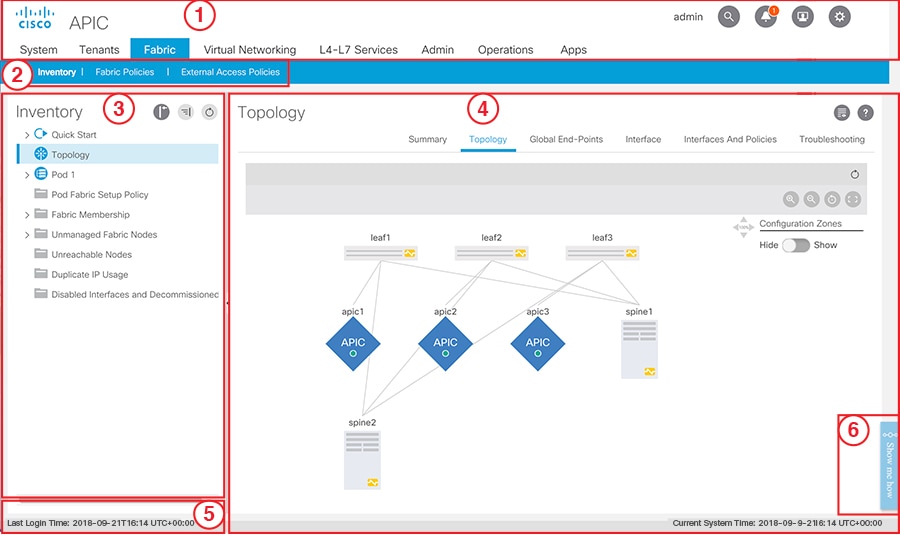
The APIC GUI is a browser-based graphical interface for configuring and monitoring the ACI fabric. The GUI is organized to provide hierarchical navigation to all components, logical and physical, of the overall system. The primary control regions of the GUI are shown in the following figure.

Figure 1. APIC GUI Regions

The functions of these regions are described in the following links:

  1. Menu bar and tool icons—See Menu Bar and Submenu Bar

  2. Submenu bar—See Menu Bar and Submenu Bar

  3. Navigation pane—See Navigation Pane

  4. Work pane—See Work Pane

  5. Last Login—Displays the date and time of the last instance of the current user's login.

  6. Show Me How—(currently inactive)

As you operate the GUI to make configuration changes and retrieve information, the GUI communicates with the underlying operating system by exchanging REST API messages. You can observe these API messages using the API Inspector tool described in Viewing an API Interchange in the GUI.


Note

The Basic UI is deprecated in Cisco APIC Release 3.1(1). Cisco does not recommend using the Basic UI for configurations.


Menu Bar and Submenu Bar

The menu bar is displayed across the top of the APIC GUI. The menu bar provides access to the main configuration tabs, along with access to tools such as search, notifications, and preferences. Immediately below the menu bar is the submenu bar, which presents specific configuration areas for each selected menu bar tab. The submenu bar tabs are different for each menu bar tab and might also differ depending upon your specific configuration or privilege level.


Tip

In the APIC GUI configuration instructions, you will see notation such as Fabric > Fabric Policies. In this example, you are asked to click the Fabric tab in the menu bar followed by the Fabric Policies tab in the submenu bar.


At the far right side of the menu bar are the following menu bar tools:

Menu Bar Tools

Description

username

The name of the currently logged in local user.

Search

Alerts

User Profile and Preferences

System Tools

The individual menu bar tabs and tools are described in the following sections.

Menu Bar Tabs

System Tab

Use the System tab to collect and display a summary of the overall system health, its history, and a table of system-level faults.

In addition, the System tab provides the following functions:

  • You can configure global system policies in the System Settings submenu.

  • You can view your licensing status in the Smart Licensing submenu.

  • You can view user sessions in the Active Sessions submenu.

Tenants Tab

Use the Tenants tab in the menu bar to perform tenant management. The submenu bar provides a list of all tenants, an Add Tenant link, and links to three built-in tenants plus up to two of the most recently used tenants.

  • A tenant contains policies that enable qualified users domain-based access control. Qualified users can access privileges such as tenant administration and networking administration.

  • A user requires read/write privileges for accessing and configuring policies in a domain. A tenant user can have specific privileges into one or more domains.

  • In a multitenancy environment, a tenant provides group user access privileges so that resources are isolated from one another (such as for endpoint groups and networking). These privileges also enable different users to manage different tenants.

The built-in tenants are:

  • The common tenant is preconfigured for defining policies that provide common behavior for all the tenants in the fabric. A policy defined in the common tenant is usable by any tenant.

  • The infra tenant is preconfigured for configuration related to the fabric infrastructure

  • The mgmt tenant is preconfigured for inband and out-of-band connectivity configurations of hosts and fabric nodes (leafs, spines, and controllers).


Note

For Layer 2 configuration of ports, you can type into the node and path fields to filter ports.


Fabric Tab

The Fabric tab contains the following tabs in the submenu bar:
  • Inventory tab—Displays the individual components of the fabric.

  • Fabric Policies tab—Displays the monitoring and troubleshooting policies and fabric protocol settings or fabric maximum transmission unit (MTU) settings.

  • External Access Policies tab—Displays the access policies that apply to the edge ports of the system. These ports are on the leaf switches that communicate externally.

Virtual Networking Tab

Use the Virtual Networking tab to view and configure the inventory of the various virtual machine (VM) managers. You can configure and create various management domains under which connections to individual management systems (such as VMware vCenters or VMware vShield) can be configured. Use the Inventory tab in the submenu bar to view the hypervisors and VMs that are managed by these VM management systems (also referred to as controllers in API).

L4-L7 Services Tab

Use the L4-L7 Services tab to perform services such as importing packages that define Layer 4 to Layer 7 devices such as a firewall, SSL offload, load balancer, context switch, SSL termination device, or intrusion prevention system (IPS). In the Inventory submenu tab, you can view existing Layer 4 to Layer 7 devices registered with the controller. The Packages submenu tab allows you to import L4-L7 device packages, which are used to define, configure, and monitor a network service device.

Admin Tab

Use the Admin tab to perform administrative functions such as authentication, authorization, and accounting functions, scheduling policies, retaining and purging records, upgrading firmware, and controlling features such as syslog, Call Home, and SNMP.

Operations Tab

The Operations tab provides the following built-in tools for planning and monitoring fabric resources.
  • Visibility & Troubleshooting—Shows the location of specified end points in the fabric and displays the traffic path, including any L4-L7 devices.

  • Capacity Dashboard—Displays the available capacity of configurable resources such as end points, bridge domains, tenants, and contexts.

  • ACI Optimizer—Enables you to enter your network requirements to determine how many leaf switches you will need for your network and to learn how to deploy each application and external EPG on each leaf without violating any constraints.

  • EP Tracker—Enables you to view virtual and bare metal endpoint connections and disconnections to leaf switches and FEXes.

  • Visualization—Provides visualization of traffic maps.

Apps Tab

The Apps tab displays all the applications installed or uploaded to APIC. The tab allows an APIC administrator to upload, enable, upgrade, install, or uninstall a packaged application in APIC.

Menu Bar Tools

Search

Click the Search icon to display the search field. The search field enables you to locate objects by name or other distinctive fields.

Figure 2. Search

In Cisco APIC Release 3.2(1), the search function is improved and allows the use of wildcards (*).

Alerts

Click the alert menu bar icon to view a list of active alerts. When system alerts are available, a numeric badge will appear on the alert icon indicating the number of active alerts. When critical system notifications are available, the alert icon will blink red. To view the alerts, click the following icon.

Figure 3. Alerts

To disable blinking of the alert icon, remove all critical alerts from the alert list. A disabled Close button on a critical alert indicates that you must first resolve the underlying issue before the alert can be cleared.

User Profile and Preferences

To configure settings and preferences for the logged in user, click the following menu bar icon and select an item from the drop-down list.

Figure 4. User Profile and Preferences

The following selections are available:

  • Favorites—Display links to menus bookmarked by the user.

    Menus that display the Favorites icon () can be bookmarked by clicking the icon. This feature is added in Cisco APIC Release 3.1(1).

  • Change My Password—Change the password of the currently logged in local user.

  • Change My SSH Keys—Change the user's public SSH key used for certificate-based login.

  • Change My X509 Certificate—Change the user's X.509-format certificate for login.

  • View My Permissions—Display the user's role-based read and write privileges for domains and accessible objects.

  • Settings—Change general GUI settings.

    • Remember Tree Selection—Enable the GUI to keep the navigation tree expanded when returning to a window. For example, if you enable this property and expand the navigation tree in the Tenants tab, click on the Fabric tab, then return to the Tenants tab, the tree will remain expanded.

    • Preserve Tree Divider Position—Enable the GUI to keep the position of the tree divider after dragging the tree divider to the desired location.

    • Disable Notification on Success—Suppress the success dialog box notification.

    • Disable Deployment Warning at Login—Disable the the Deployment Warning dialog box when logging in. See Deployment Warning and Policy Usage Information.

    • Default Page Size for Tables—Set the GUI table size.

    • Show All UI Sections—Display hidden UI configuration options.

    • Show What's New at Login—Display splash screen at login, showing recent features.

  • Change Deployment Settings—Enable and set the scope of the deployment notification. See Deployment Warning and Policy Usage Information.

  • Logout—Exit the APIC configuration GUI.

System Tools

To access the system tools, click the following menu bar icon and select an item from the drop-down list.

Figure 5. System Tools

The following selections are available:

  • Help—Display the online help.

  • Documentation—Display links to API documentation and to the APIC documentation home page.

  • Show API Inspector—Open the API Inspector, which is a built-in tool of the APIC that allows you to view the internal API messages between the GUI and the APIC operating system to execute tasks. For more information, see Viewing an API Interchange in the GUI.

  • Start Remote Logging—Forward logging information to a remote URL.

  • Object Store Browser—Open the Managed Object Browser, or Visore, which is a utility built into APIC that provides a graphical view of the managed objects (MOs) using a browser.

  • Show Debug Info—Open a status bar at the bottom of the GUI to display information such as current managed object (MO) and system time. When the status bar is open, this selection changes to Hide Debug Info.

  • About—Display the APIC version.


Note

Global system settings are configured in System > System Settings.


Navigation Pane

Use the Navigation pane, which is on the left side of the APIC GUI below the submenu bar, to navigate to all elements of the submenu category.

For each submenu category, the Navigation pane is organized as a hierarchical tree of objects, logical and physical, related to that category. These objects typically represent ports, policies, or groupings of other objects. When you select an object in the Navigation pane, details of the object display in the Work pane.


Note

In Cisco APIC Release 3.2(1), the navigation tree was reorganized in several places in order to group items such as switches, interfaces, and policies.


When you right-click an object in the Navigation pane, you might be presented with a menu of possible actions related to the object, such as one or more of the following actions:

  • Delete—Delete the object.

  • Create <type of object>—Create a new object.

  • Save as...—Download the object and its properties in JSON or XML format to a local file.

  • Post...—Export the object and its properties to an existing local file.

  • Share—Displays the URL of the object. You can copy the URL and send it to others.

  • Open In Object Store Browser—Open the object in Visore, a built-in utility that displays an object and its properties. This information may be useful in troubleshooting or for developing API tools.

  • Clone—Create a copy of the object. This action is useful for deriving a new contract or policy based on an existing contract or policy.


Note

If any container in the Navigation pane, for example Application Profiles under a Tenant, contains more than 40 profiles, you cannot click on a profile and expand it in the Navigation pane. You must select the desired profile from the Work pane and expand it.

Work Pane

Use the Work pane, which is on the right side of the APIC GUI, to display details about the component that you selected in the Navigation pane.

The Work pane includes the following elements:

  • A content area that displays tabs. These tabs enable you to access information that is related to the component that you chose in the Navigation pane. The tabs displayed in the content area depend upon the selected component.

  • A link to context-sensitive online help that is represented by a question mark icon in the upper right corner.

  • For some components, a link to conceptual information related to the component, represented by a list icon in the upper right corner.

  • For some pages, a button allowing you to bookmark the page as a Favorite, represented by a star icon in the upper right corner.

    Bookmarked links to Favorite pages are accessible from the User Profile icon in the Menu Bar. The Favorites feature is added in Cisco APIC Release 3.1(1).

Common Pages in the Work Pane

In addition to displaying specific task menus, the Work pane also displays several types of special-purpose menus described in this section.

Quick Start Pages

Many APIC menu and submenu tabs open an initial Quick Start page, which summarizes the purpose of the tab, provides links to step-by-step instructions and videos for commonly-used procedures, and provides shortcut links to commonly-used subsections within the tab. An overall Quick Start page at System > QuickStart assists you in performing common and basic procedures, providing step-by-step instructions, available concept information, and links to main functional areas in the GUI.

Dashboard Pages

Dashboard pages provide at-a-glance summaries of the status of the ACI system and major system components, including health score trends, components with below-threshold health scores, and fault counts. You can configure health score thresholds to determine when components will appear in the dashboard. The system dashboard page at System > Dashboard summarizes the health of the overall ACI system, while switch dashboard pages at Fabric > Inventory > Pod n > component > Dashboard summarize the health and faults of each spine and leaf switch.

Summary Pages

With Cisco APIC Release 3.2(1), the APIC GUI folder navigation is restructured to reduce the number of folders and to consolidate related configuration areas. As part of the reorganization, many top-level folders in the Navigation pane now display tile-based Summary pages in the Work pane that link to subfolders. Some Summary pages, such as those in Fabric > Inventory, contain tiles summarizing major components along with brief health and fault information for each component. Other Summary pages, such as those in Fabric > Fabric Policies, contain tiles that describe the configuration areas served by the contained folders.

Deployment Warning and Policy Usage Information

By configuring Deployment Warning Settings, you can enable the automatic display of policy usage information whenever you modify or delete policies that might affect other resources or policies. The policy usage information allows you to identify which resources and policies are being used by the policy that you are currently modifying or deleting. Tables display the nodes where the given policy is used and other policies that use this policy. By default, usage information is displayed within a dialog box whenever you attempt to modify a policy. Also, at any time, you can click the Show Usage button at the bottom of the screen to view the same information.

The Deployment Warning Settings dialog box allows you to enable and alter the scope of deployment notification that displays policy usage information. You can access this dialog box by selecting Change Deployment Settings in the menu bar tool User Settings and Preferences drop-down list or through a button on the Policy Usage Information dialog box.

When the Policy tab is selected in the upper right corner of the Deployment Warning Settings dialog box, you can configure the following policy options:

  • (Global) Show Deployment Warning on Delete/Modify—Enable the Deployment Warning notification for every policy deletion or modification across the APIC.

  • (Local) Show Deployment Warning on Delete/Modify—Set the rule for the Deployment Warning notification for specific policy configuration.

    • Use Global Settings—Use the setting selected for (Global) Show Deployment Warning on Delete/Modify.

    • Yes—Display the Deployment Warning notification before submitting configuration modifications on any policy change. Valid for this browser session only.

    • No—Do not display the Deployment Warning notification before submitting configuration modifications on any policy change. Valid for this browser session only.

When the History tab is selected in the upper right corner of the Deployment Warning Settings dialog box, you can view tables of Events and Audit Log entries for previous deployment warnings.

Graphical Configuration of Ports

The APIC GUI provides a graphical method for configuring ports, port channels, and virtual port channels on the leaf switches in the fabric, configure ports for dynamic breakout, and link interfaces to FEX switches. This configuration capability is present in the following GUI locations:

  • Fabric > Inventory > Topology

  • Fabric > Inventory > Pod

  • Fabric > Inventory > Pod > Leaf

  • Fabric > Inventory > Pod > Spine

In the Work pane's Interface tab, click on the + button (at the top left), select one or more switches to configure, and click Add Selected. To select multiple switches, use Ctrl+Click or Shift+Click.

The switches are graphically displayed with their ports and links. If you have configured a breakout port, a block containing the sub ports is displayed below the leaf diagram.


Note

If you accessed the Interface tab from a leaf switch, the leaf switch is automatically added.

Select the interfaces to configure. When interfaces are selected, the available configuration buttons appear. Depending on the number of selected interfaces and where they are located, you can then click one of the following buttons at the top of the page:

  • L2—Layer 2. Visible when you click one or more leaf interfaces on the switch diagrams.

  • PC—Port Channel. Visible when you click one or more leaf interfaces on the switch diagrams.

  • VPC—Virtual Port Channel. Visible when you click at least one interface on two switch diagrams.

  • FEX—Fabric Extender. Visible when you click one or more leaf interfaces on the switch diagrams.

  • Breakout—Breakout mode. Visible when you click one or more leaf interfaces on the switch diagrams.

  • Spine—Visible when you click one or more leaf interfaces on the switch diagrams.

Viewing an API Interchange in the GUI

When you perform a task in the APIC graphical user interface (GUI), the GUI creates and sends internal API messages to the operating system to execute the task. By using the API Inspector, which is a built-in tool of the APIC, you can view and copy these API messages. A network administrator can replicate these messages in order to automate key operations, or you can use the messages as examples to develop external applications that will use the API.

Procedure


Step 1

Log in to the APIC GUI.

Step 2

In the upper right corner of the APIC window, click the "welcome, <name>" message to view the drop-down list.

Step 3

In the drop-down list, choose the Show API Inspector.

The API Inspector opens in a new browser window.

Step 4

In the Filters toolbar of the API Inspector window, choose the types of API log messages to display.

The displayed messages are color-coded according to the selected message types. This table shows the available message types:

Name Description
trace Displays trace messages.
debug Displays debug messages. This type includes most API commands and responses.
info Displays informational messages.
warn Displays warning messages.
error Displays error messages.
fatal Displays fatal messages.
all Checking this checkbox causes all other checkboxes to become checked. Unchecking any other checkbox causes this checkbox to be unchecked.
Step 5

In the Search toolbar, you can search the displayed messages for an exact string or by a regular expression.

This table shows the search controls:

Name Description
Search In this text box, enter a string for a direct search or enter a regular expression for a regex search. As you type, the first matched field in the log list is highlighted.
Reset Click this button to clear the contents of the Search text box.
Regex Check this checkbox to use the contents of the Search text box as a regular expression for a search.
Match case Check this checkbox to make the search case sensitive.
Disable Check this checkbox to disable the search and clear the highlighting of search matches in the log list.
Next Click this button to cause the log list to scroll to the next matched entry. This button appears only when a search is active.
Previous Click this button to cause the log list to scroll to the previous matched entry. This button appears only when a search is active.
Filter Check this checkbox to hide nonmatched lines. This checkbox appears only when a search is active.
Highlight all Check this checkbox to highlight all matched fields. This checkbox appears only when a search is active.
Step 6

In the Options toolbar, you can arrange the displayed messages.

This table shows the available options:

Name Description
Log Check this checkbox to enable logging.
Wrap Check this checkbox to enable wrapping of lines to avoid horizontal scrolling of the log list
Newest at the top Check this checkbox to display log entries in reverse chronological order.
Scroll to latest Check this checkbox to scroll immediately to the latest log entry.
Clear Click this button to clear the log list.
Close Click this button to close the API Inspector.

Example

This example shows two debug messages in the API Inspector window:


13:13:36 DEBUG - method: GET url: http://192.0.20.123/api/class/infraInfra.json 
response: {"imdata":[{"infraInfra":{"attributes":{"instanceId":"0:0","childAction":"",
"dn":"uni/infra","lcOwn":"local","name":"","replTs":"never","status":""}}}]}

13:13:40 DEBUG - method: GET url: http://192.0.20.123/api/class/l3extDomP.json?
query-target=subtree&subscription=yes 
response: {"subscriptionId":"72057598349672459","imdata":[]} 

GUI Icons

Table 3. Frequently Displayed Icons in the APIC GUI
Icons Description

Bookmark this page

Displays online help information for the current menu page

Displays concept information for the current menu page

Quick Start

Plays a Quick Start video

Displays a Quick Start procedure

Link to related section

Topology

Pod

Collapse Tree View

Expand Tree View

Collapse All Nodes

Displays a drop-down list of actions

Refresh the displayed information

Download to a file

Upload a file

Fault, Statistics, and Health Level Icons

Table 4. Severity Levels of Faults Displayed in the APIC GUI
Icons Description

Critical—This icon displays a fault level with critical severity.

Major—This icon displays a fault level with major severity.

Minor—This icon displays a fault level with minor severity.

Warning—This icon displays a fault level that requires a warning.

Initializing the Fabric

About Fabric Initialization

You can build a fabric by adding switches to be managed by the APIC and then validating the steps using the GUI, the CLI, or the API.


Note

Before you can build a fabric, you must have already created an APIC cluster over the out-of-band network.


Example Topology

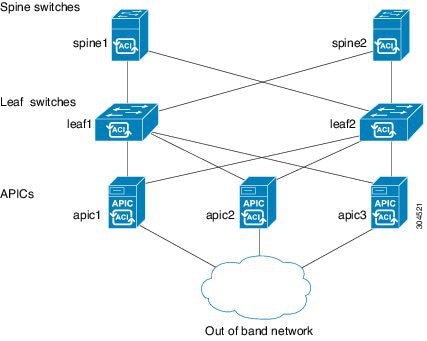
An example topology is as follows:

  • Two spine switches (spine1, spine2)

  • Two leaf switches (leaf1, leaf2)

  • Three instances of APIC (apic1, apic2, apic3)

The following figure shows an example of a fabric topology.


Note

For the actual simulator topology see the Cisco ACI Simulator Installation Guide.


Figure 6. Example Fabric Topology


Switch Discovery with the APIC

About Switch Discovery with the APIC

The APIC is a central point of automated provisioning and management for all the switches that are part of the ACI fabric. A single data center might include multiple ACI fabrics; each data center might have its own APIC cluster and Cisco Nexus 9000 Series switches that are part of the fabric. To ensure that a switch is managed only by a single APIC cluster, each switch must be registered with that specific APIC cluster that manages the fabric.

The APIC discovers new switches that are directly connected to any switch it currently manages. Each APIC instance in the cluster first discovers only the leaf switch to which it is directly connected. After the leaf switch is registered with the APIC, the APIC discovers all spine switches that are directly connected to the leaf switch. As each spine switch is registered, that APIC discovers all the leaf switches that are connected to that spine switch. This cascaded discovery allows the APIC to discover the entire fabric topology in a few simple steps.