Remediation and Quarantine

This chapter discusses tasks you must perform in APIC and in the Secure Firewall Management Center to create rules to remediate and quarantine an endpoint.

The Remediation and Quarantine Process

Remediation (definining the circumstances under which an endpoint should be quarantined) and quarantine (isolating an endpoint so it cannot communicate on the network) is a multi-step process summarized in the next section, How to Remediate and Quarantine.

How to Remediate and Quarantine

The following summarizes the tasks required to remediate and quarantine an endpoint. You perform some tasks in APIC and some in the Firewall Management Center.

Before you begin

Consult a reference such as the Endpoint Groups (EPG) Usage and Design whitepaper or the Cisco APIC Basic Configuration Guide to understand APIC-related concepts.

SUMMARY STEPS

  1. Optionally create a management contract and management contract endpoint group (EPG).
  2. Create a remediation module instance and type.
  3. Configure an access control rule that determines the conditions under which an endpoint should be quarantined.
  4. Associate the correlation rule with the remediation policy.
  5. Verify the quarantine and remediation.

DETAILED STEPS

  Command or Action Purpose

Step 1

Optionally create a management contract and management contract endpoint group (EPG).

Perform this task in APIC.

APIC uses an allow-list model where we explicitly define what traffic should be permitted. A contract is a policy construct used to define communication between EPGs.

This optional configuration enables you to initiate a connection to the quarantined uSeg EPG. For more information, see Optionally Create a Management Contract and Contract EPG.

Step 2

Create a remediation module instance and type.

Perform this task in the Firewall Management Center.

The remediation module creates, on APIC, the EPG that enables you to view and work with quarantined endpoints. The remediation module can:

  • Quarantine source endpoint, destination endpoint, or both

  • Reference a management EPG

  • Audit remediation activity only without triggering remediation or affecting production traffic

For more information, see Create a Remediation Module Instance and Type.

Step 3

Configure an access control rule that determines the conditions under which an endpoint should be quarantined.

Perform this task in the Firewall Management Center.

Determine the conditions under which you want an endpoint quarantined; for example, passing unsecure traffic. Set up an access control rule that in turn triggers the remediation policy you set up previously.

For more information, see Configure an Access Control Rule for the Remediation.

Step 4

Associate the correlation rule with the remediation policy.

Perform this task in the Firewall Management Center.

This triggers the quarantine on APIC. For more information, see Associate the Correlation Rule with the Remediation Module Instance.

Step 5

Verify the quarantine and remediation.

Verify the quarantine in APIC and verify the remediation in the Firewall Management Center.

For more information, see Verify the Quarantine in APIC and Verify the Remediation in the Firewall Management Center.

What to do next

Create an Optional Management Contract and Contract EPG

Create an Optional Management Contract and Contract EPG

You can optionally predefine an APIC traffic filtering contract in the common tenant and a management EPG in the mgmt tenant to initiate a connection to the quarantined uSeg EPG. To use this optional configuration, you must define a management EPG in APIC in its mgmt tenant, and you must define a contract in the common tenant.

For more information, see the Cisco APIC Basic Configuration Guide.

What To Do Next

Prerequisites for Creating an Optional Management Contract and Contract EPG.

Prerequisites for Creating an Optional Management Contract and Contract EPG

This task discusses how to do the following before you configure an optional management contract and contract EPG:

  • Create an application ESG.

  • Create a filter for the quarantine you wish to perform; in this example, the filter is for SSH2 traffic.

Procedure


Step 1

Log in to APIC.

Step 2

Click Tenants.

Step 3

Double-click common.

Step 4

In the left pane, expand Contracts > Filters.

Step 5

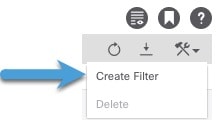
In the right pane, click Create Filter.

Step 6

Give the filter a Name like SSHv2.

Step 7

Click Submit.

Step 8

In the left pane, click Tenants > ALL TENANTS.

Step 9

Click mgmt.

Step 10

Expand Application Profiles > mgmt profile.

Step 11

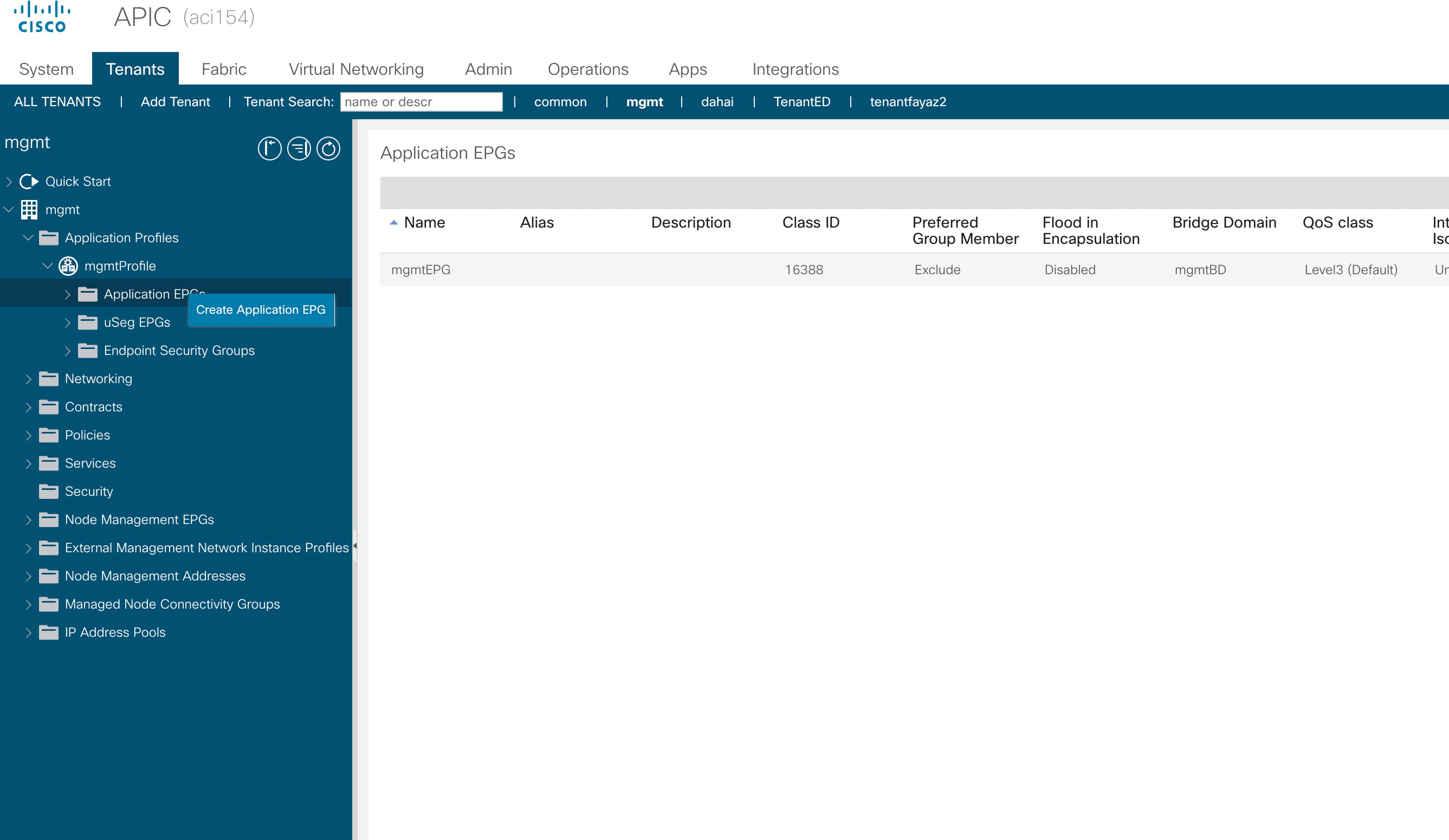
Right-click Application EPGs and click Create Application EPG.

The following figure shows an example.

Step 12

Give the EPG a Name.

Step 13

From the Bridge Domain list, click WHICH BRIDGE DOMAIN.

Step 14

Click Finish.


What to do next

Optionally Create a Management Contract and Contract EPG

Optionally Create a Management Contract and Contract EPG

If you do not wish to create contracts, skip this section and continue with Create a Remediation Module Instance and Type.

Procedure


Step 1

Log in to APIC.

Step 2

Click ALL TENANTS.

Step 3

Double-click common.

Step 4

Expand Contracts > Standard.

Step 5

Right-click Standard and then click Create Contract.

Step 6

In the Name field, enter useg_filter_contract.

Step 7

From the Scope list, click Global.

Step 8

Make other selections as desired.

Step 9

Click Submit.

Step 10

Click useg_filter_contract.

Step 11

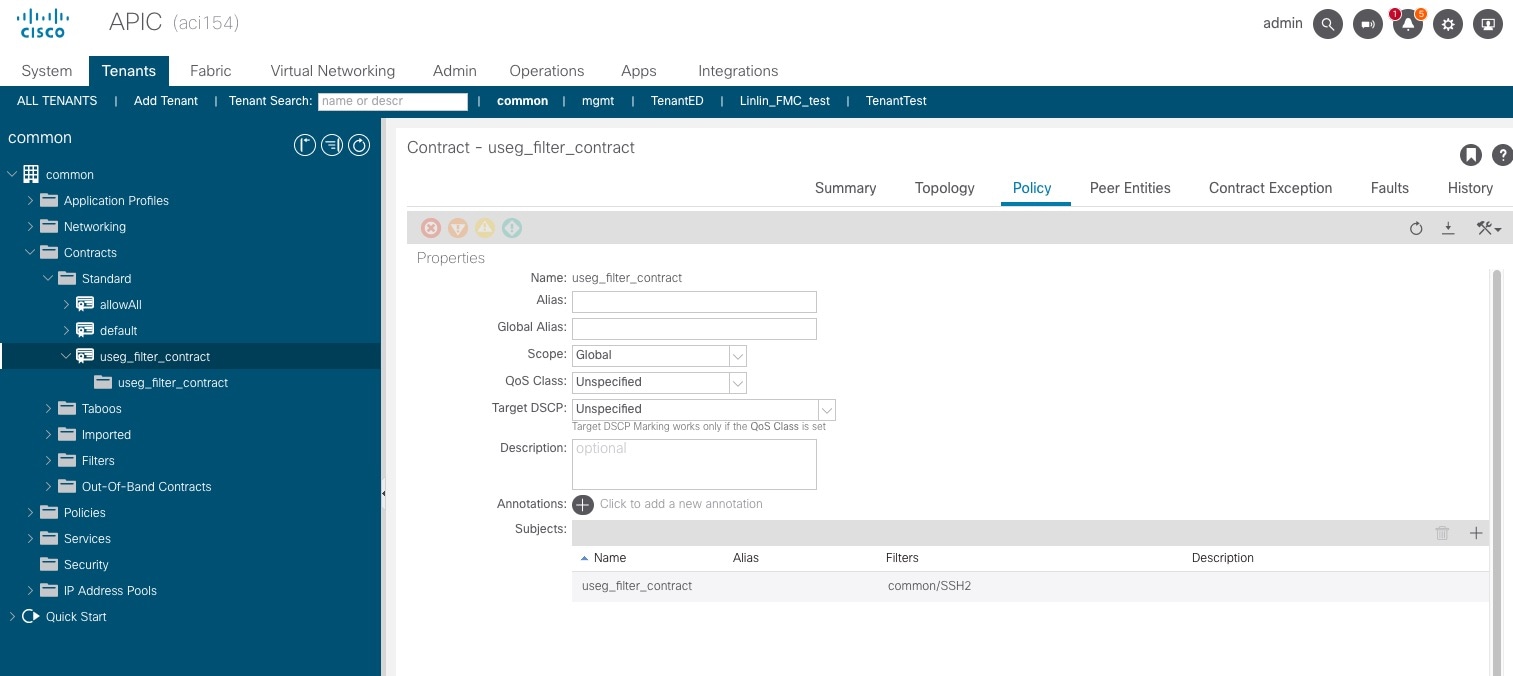
In the right pane, click the Policy tab.

The following figure shows an example.

Next define a uSeg filter contract

Step 12

Click ALL TENANTS.

Step 13

Double-click mgmt.

Step 14

Expand mgmt > Application Profiles > mgmtProfile > Application EPGs > mgmtEPG > .

Step 15

Click Contracts.

Step 16

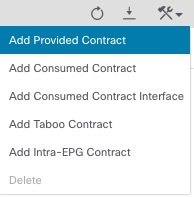
Click Add Provided Contract.

Step 17

From the Contract list, click useg_filter_contract.

Step 18

Click Submit.


What to do next

See Create a Remediation Module Instance and Type.

Create a Remediation Module Instance and Type

For the Secure Firewall Management Center to be able to detect threats and inform APIC to quarantine them, you must configure on the Secure Firewall Management Center a remediation module instance and type. For more information about remediations, see the Cisco Secure Firewall Management Center Administration Guide. You can optionally choose to quarantine the source endpoint, the destination endpoint, or both.

You can also choose to only audit endpoints without quarantining them.

Procedure


Step 1

If you haven't done so already, log in to the Firewall Management Center.

Step 2

Click Policies > Actions > Instances.

Step 3

From the Select a module type list, click APIC/Secure Firewall Remediation Module (3.0.1).

Step 4

Click Add.

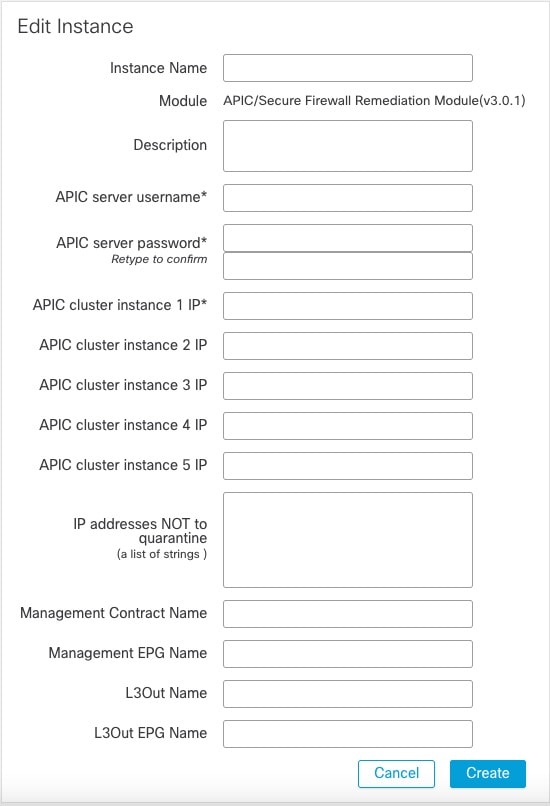
The Edit Instance page is displayed as follows.

The Secure Firewall Management Remediation Module enables you to set up the connection to the APIC server or cluster, to exclude IPs from being quarantined, to specify a management contract and EPG name, and to specify an L3Out name and L3Out EPG name

Step 5

Enter the following information:

Item

Description

Instance name

Enter a name to identify this instance. (Spaces are not allowed in the name.)

Description

(Optional.) Enter a description.

APIC server username

Enter the user name of an APIC user with admin privileges.

APIC server password

Enter and re-enter the user's password

APIC cluster instance 1 IP

Enter the IP address of the APIC server or of the first server in the cluster.

APIC cluster instance x IP

(Optional.) If your APIC cluster has more than one server, enter additional IP addresses in the provided fields.

IP addresses NOT to quarantine

(Optional.) Enter a list of individual IP addresses to always exclude from the quarantine. Separate IP addresses with Enter.

You cannot specify subnet masks.

Management Contract Name

(Optional.) Enter the name of the management contract you created in APIC.

For more information, see Create an Optional Management Contract and Contract EPG.

Management EPG Name

(Optional.) Enter the name of the EPG with which the management contract is associated.

For more information, see Create an Optional Management Contract and Contract EPG.

L3Out Name

(Optional.) The name of an L3Out target configured on APIC. If you enter a value in L3Out Name, you must also enter a value in L3Out EPG Name.

Drops traffic between a quarantined endpoint in an L3Out target and the source endpoint group while allowing traffic from the quarantined endpoint for forensic analysis purposes.

L3Out EPG Name

(Optional.) The name of an L3Out endpoint group (EPG) configured on APIC. If you enter a value in L3Out EPG Name, you must also enter a value in L3Out Name.

Audit-only

Off (default): Quarantines an infected endpoint and sends correlation status messages to the Firewall Management Center.

On: Does not quarantine an infected endpoint; instead, sends correlation status messages to the Firewall Management Center (Analysis > Correlation > Correlation Events ).

Step 6

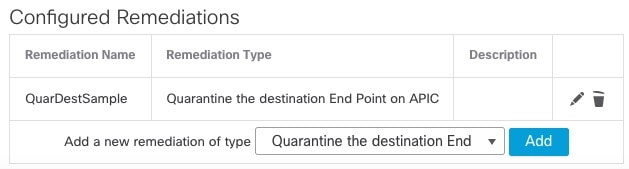
In the Configured Remediation section at the bottom of the page, click one of the following then click Add:

  • Quarantine the destination End Point on APIC

  • Quarantine the source End Point on APIC

The remediation name cannot include a space.

Following is an example of the Configured Remediation section showing a remediation.

Step 7

On the Edit Remediation page, enter the following information:

  • Remediation Name: Enter a name to identify the remediation instance.

  • (Optional.) Description: Enter a description of the remediation instance.

Step 8

Click Create.

Step 9

Click Done.

Step 10

On the Edit Instance page, optionally configure another remediation.


What to do next

See Configure an Access Control Rule for the Remediation.

Configure an Access Control Rule for the Remediation

This example shows how to create an access control rule that blocks the SSH protocol. After creating this rule, any endpoint that attempts to SSH to another endpoint in an monitored EPG, the offending node or nodes are quarantined.

Procedure


Step 1

If you haven't done so already, log in to the Firewall Management Center.

Step 2

Click Policies > Access Control heading > Access Control.

Step 3

Create a new access control policy or click Edit (edit icon) to edit an existing policy.

Step 4

If you're editing an exising policy, click Add Rule to add a rule.

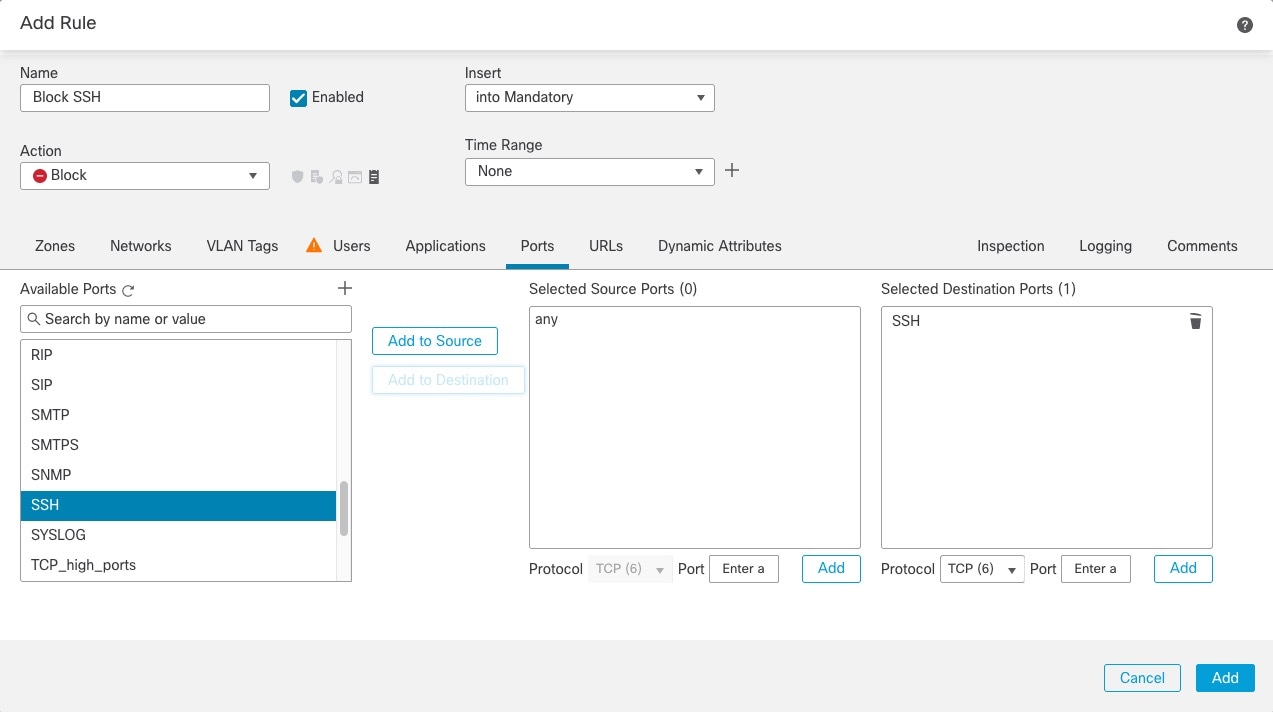
Enter the following information (Firewall Management Center version 7.2 and earlier).

Create an access control rule to trigger a remediation event that in turn causes an infected endpoint to be quarantined

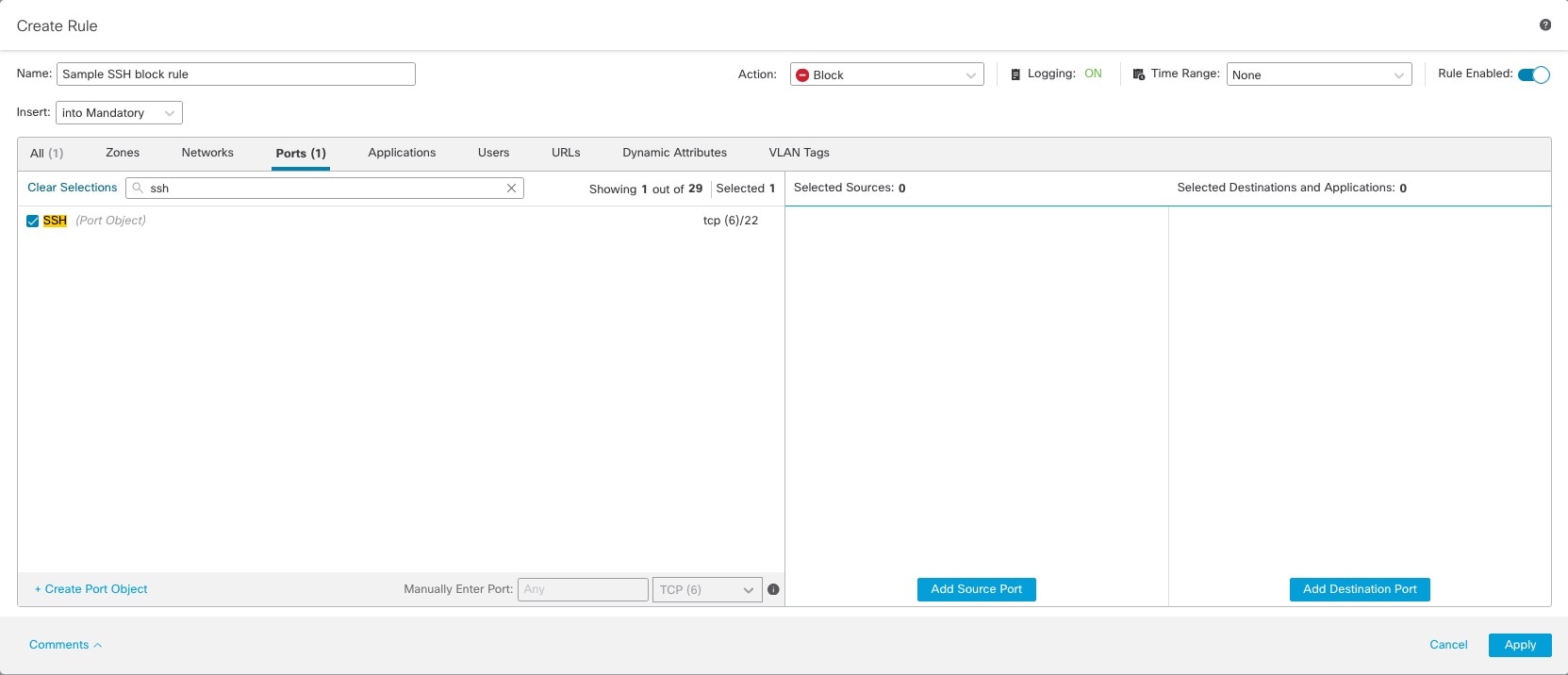
Enter the following information (Firewall Management Center version 7.3 and later).

Item

Description

Name field

Enter a name to identify this rule. Write down the name because you'll need it later.

Action list

Click Block.

Ports tab page

From the Available Ports list, scroll to SSH and click Add to Destination.

Logging tab page

Select the Log at Beginning of Connection check box.

For more information about access control rules, see the Cisco Secure Firewall Management Center Device Configuration Guide.

Step 5

Click Add.

Step 6

At the top of the page, click Save.


What to do next

See Configure a Correlation Rule for the Remediation.

Configure a Correlation Rule for the Remediation

A correlation rule provides conditions in which the system responds to threats. The following task discusses how to set up a correlation rule that is triggered at any point in the connection when your access control rule conditions are met. In particular, the sample access control policy and rule are triggered when SSH traffic is passed between a source and destination endpoint.

For more information about correlation policies and rules, see the Cisco Secure Firewall Management Center Administration Guide.

Procedure


Step 1

If you haven't done so already, log in to the Firewall Management Center.

Step 2

Click Policies > Correlation.

Step 3

Click the Rule Management tab.

Step 4

Click Create Rule.

Step 5

Enter a name to identify the rule and an optional description.

Step 6

In the Select the type of event for this rule section, click a connection event occurs and at any point of the connection.

Step 7

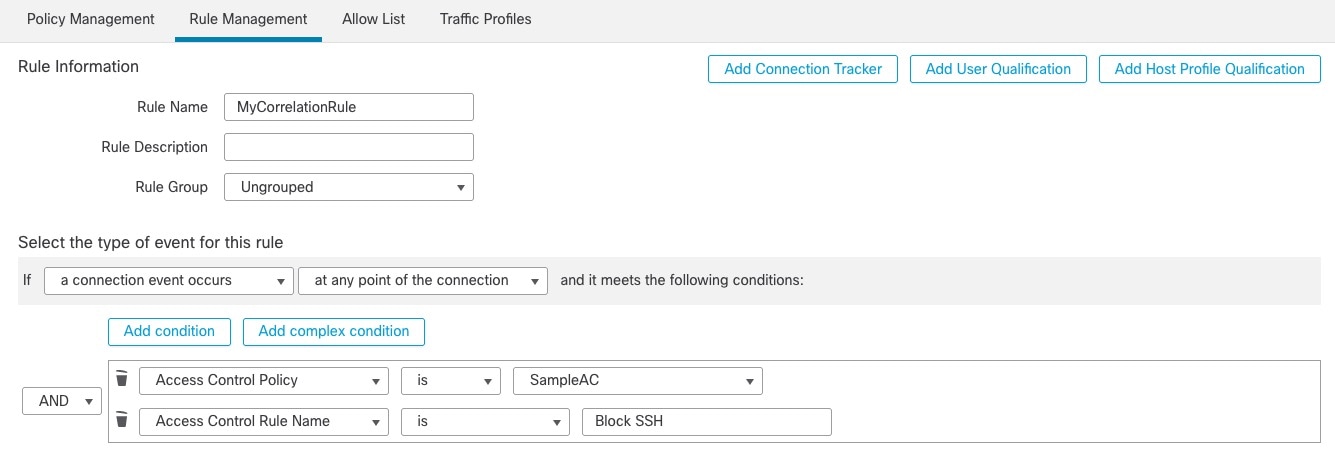
Set up the rest of the rule as shown in the following figure.

The correlation rule is triggered by your access control rule and causes the endpoint to be quarantined by APIC

Substitute the name of your access control policy and rule name for those shown in the preceding figure.

Step 8

Set other options as desired and click Save.


What to do next

See Associate the Correlation Rule with the Remediation Module Instance.

Associate the Correlation Rule with the Remediation Module Instance

The final step in configuring the Firewall Management Center for remediation and quarantine is to associate your correlation rule with your remediation policy. After you do this, when the Firewall Management Center detects a threat, the offending endpoints are quarantined in APIC.

Procedure


Step 1

If you haven't done so already, log in to the Firewall Management Center.

Step 2

Click Policies > Correlation.

Step 3

Click the Policy Management tab.

Step 4

Click Create Policy.

Step 5

Enter a policy name and optional policy description.

Step 6

Do not change Default Priority.

Step 7

Click Add Rules.

Step 8

Select the check box next to the name of the correlation rule you created earlier.

Step 9

Click Add.

Step 10

Click Responses (comment icon).

Step 11

From the Unassigned Responses list, double-click the name of your remediation policy to move it to Assigned Responses.

If the name of your remediation policy is not displayed, go back to the correlation rule and make sure the name of both the access control policy and access control rule are correct.

Step 12

Click Update.

Step 13

At the top of the page, click Save.

Step 14

Move the slider for the remediation policy to Slider enabled (slider enabled).


Verify the Remediation in the Firewall Management Center

Because remediations can fail for various reasons, complete the following steps to verify that no error messages are listed for the remediation status on the Firewall Management Center.

Procedure


Step 1

If you haven't done so already, log in to the Firewall Management Center.

Step 2

Click Analysis > Correlation > Status.

Step 3

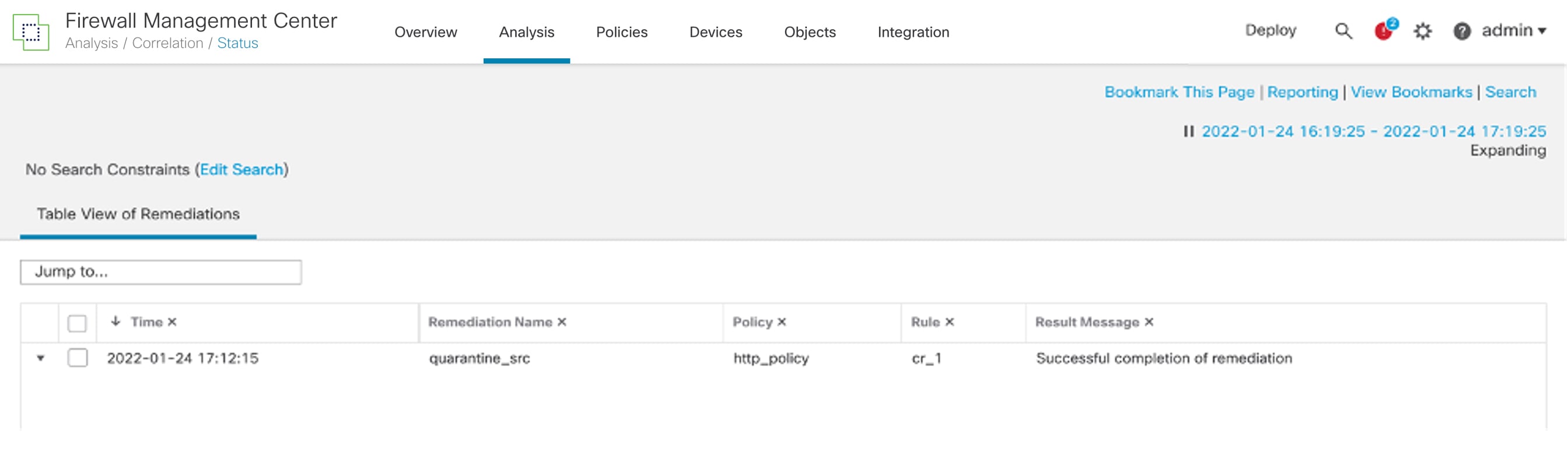
In the Remediation Status table, find the row for your policy and view the result message.

The following figure shows an example

Verify in the Secure Firewall Management Center that your remediation has no errors

Step 4

If the remediation was successful, see Verify the Quarantine in APIC.

Step 5

If an error is displayed, the endpoint might still be quarantined if subsequent remediation events are successful.

Step 6

If you see an error, see Verify the Quarantine in APIC to verify whether or not the quarantine was successful. If the quarantine was eventually successful, you can ignore all of its error messages.


What to do next

See Verify the Quarantine in APIC.

Verify the Quarantine in APIC

Before you begin

Complete the tasks discussed in Verify the Remediation in the Firewall Management Center.

Procedure


Step 1

Log in to APIC.

Step 2

Click the Tenants tab page.

Step 3

Click ALL TENANTS.

Step 4

Double-click the name of the tenant that is infected.

Step 5

Expand the infected application in the left pane.

Step 6

Click uSeg EPGs

Step 7

Click the EPG quarantine for the quarantined endpoint.

Step 8

In the right panel, click Policy > General.

Step 9

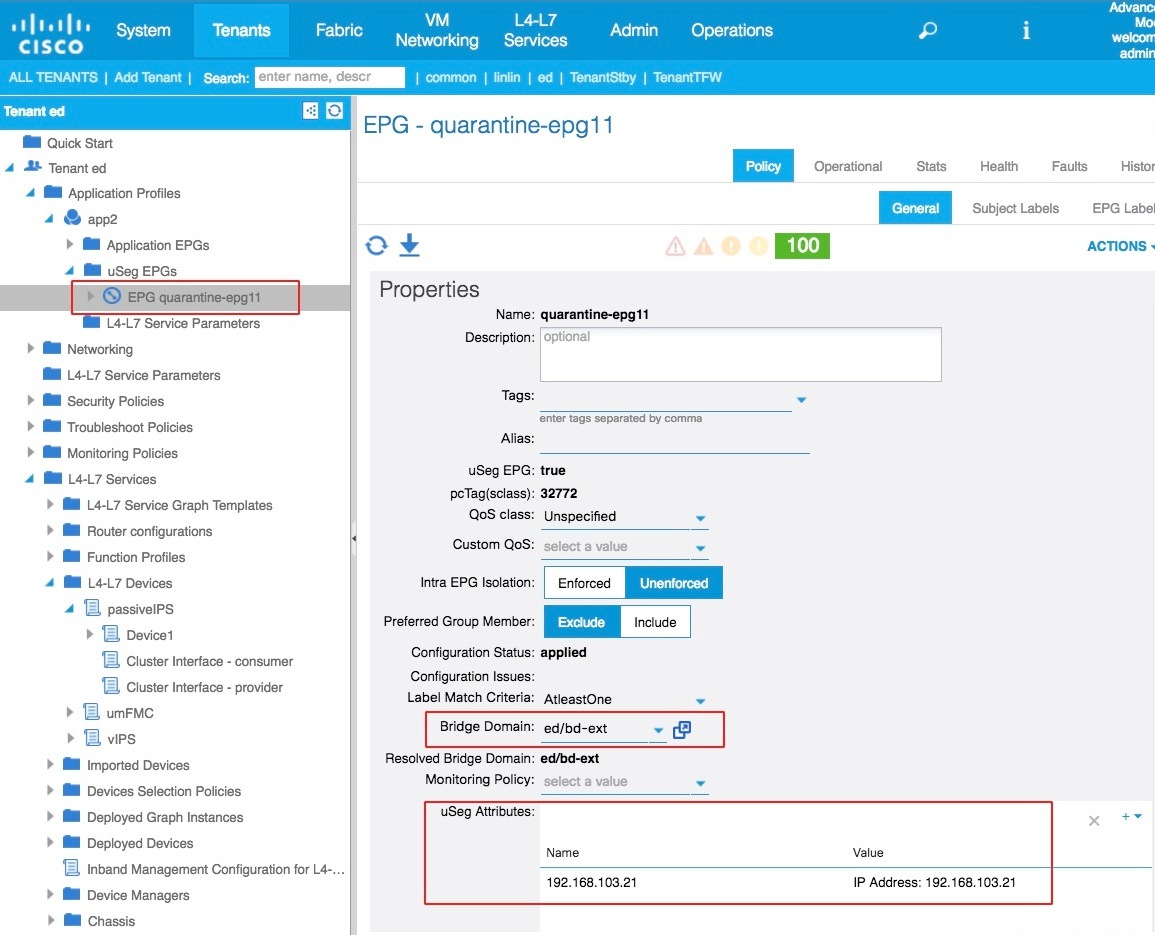
Verify that one or more uSeg attributes were created on the APIC server.

The following figure shows an example.

In APIC, verify that one or more uSeg attributes were created

The figure shows that a device at IP address 192.168.103.21 has been quarantined.

Note


For VMware DVS and Bare Metal (in bridged mode), two attributes (filters) are automatically created when an endpoint is quarantined, one attribute for the IP address and one attribute for the MAC address. Therefore, to remove the quarantine, you must delete both attributes.

Step 10

If no uSeg attributes were created, but you know that the conditions set by a correlation rule were met, the quarantine failed. To manually quarantine the IP address, see Overview of Manually Quarantining an IP Address.