Troubleshoot the Dynamic Attributes Connector

How to troubleshoot issues with the dynamic attributes connector, including using provided tools.

Troubleshoot Error Messages

Problem: Name or service not known error

This error is displayed as a tooltip when you hover the mouse over an error condition on an adapter or connector. An example follows; yours might look different.
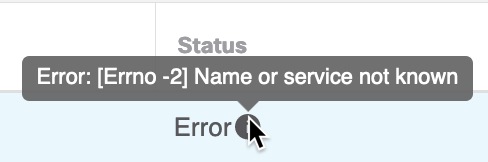
The name or service unknown error can indicate a configuration issue with a dynamic attributes connector adapter or connector

Solution: Edit the connector and check for:

  • A trailing slash on a host name

  • (On-Prem Firewall Management Center adapter only.) A scheme at the beginning of a host name (for example, https://)

  • Verify the password is correct

  • For an On-Prem Firewall Management Center adapter, verify the contents of the FMC Server Certificate field.

    For more information, see Manually Get a Certificate Authority (CA) Chain.

Problem: [X509 PEM lib]

This error is displayed as a tooltip when you hover the mouse over an error condition on a connector.
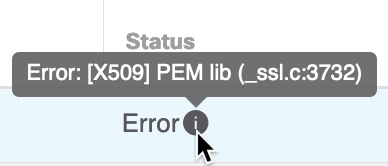
An X509 PEM lib error can indicate an issue with the certificate authority (CA) chain configured for the dynamic attributes connector

Solution: Edit the connector and check the CA chain. For more information, see Manually Get a Certificate Authority (CA) Chain.

Problem: Incorrect username or password

This error is displayed as a tooltip when you hover the mouse over an error condition on a connector.
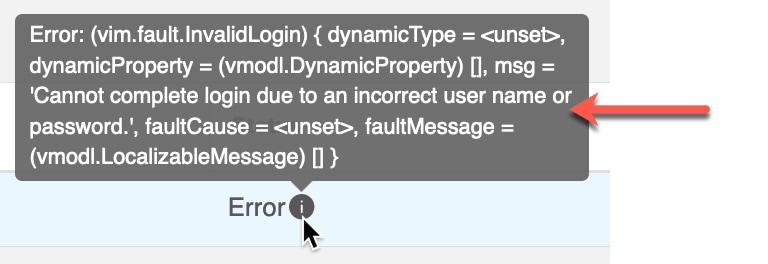
An incorrect username or password error indicates you entered the wrong password for a connector

Solution: Edit the connector and change the user name or password.

Problem: Authentication token not found in header

This error is displayed when you attempt to test the connection with an adapter user that does not have sufficient privileges on the management center:
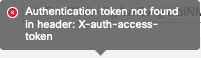
You attempted to create an adapter with a user that has insufficient privileges

Problem: Timeout or max retries error for an adapter

This error is displayed as a tooltip when you hover the mouse over an error condition on an adapter.
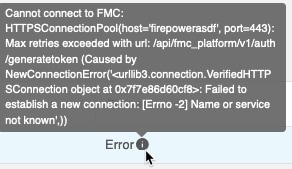
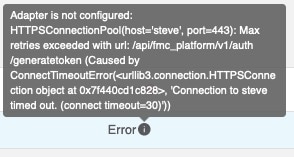
A timeout or max retries error for an adapter indicates you have configuration issues, such as the wrong management center certificate

Another indication something is wrong with the management center certificate

Solution: Do all of the following:

  • Verify the management center is running and that it can be reached from the dynamic attributes connector.

  • Verify the contents of the FMC Server Certificate field.

  • Make sure the value you entered in the IP field exactly matches the certificate's Common Name.

For more information, see Manually Get a Certificate Authority (CA) Chain.
Troubleshoot Using the Command Line

To assist you with advanced troubleshooting and working with Cisco TAC, we provide the following troubleshooting tools. To use these tools, log in as any user to the Ubuntu host on which the dynamic attributes connector is running.

Check container status

To check the status of the dynamic attributes connector Docker containers, enter the following commands:

cd ~/csdac/app
sudo ./muster-cli status

Sample output follows:

============================== CORE SERVICES =============================
      Name                     Command                  State    Ports                 
----------------------------------------------------------------------------------------------------------
muster-bee     ./docker-entrypoint.sh run ...   Up             50049/tcp, 50050/tcp     muster-etcd    etcd                             Up             2379/tcp, 2380/tcp                    
muster-ui      /docker-entrypoint.sh runs ...   Up (healthy)   0.0.0.0:443->8443/tcp,:::443->8443/tcp
muster-ui-backend   ./docker-entrypoint.sh run ...   Up             50031/tcp        
=========================== CONNECTORS AND ADAPTERS ===========================
           Name                         Command               State     Ports  
-------------------------------------------------------------------------------
muster-adapter-fmc.1         ./docker-entrypoint.sh run ...   Up      50070/tcp
muster-connector-vcenter.1   ./docker-entrypoint.sh run ...   Up      50070/tcp

Stop, start, or restart the Dynamic Attributes Connector Docker containers

If the ./muster-cli status indicates containers are down or to restart containers in the event of issues, you can enter the following commands:

Stop and restart:

cd ~/csdac/app
sudo ./muster-cli stop
sudo ./muster-cli start

Start only:

cd ~/csdac/app
sudo ./muster-cli start

Enable application debug logging and generate troubleshoot files

If advised to do so by Cisco TAC, enable debug logging and generate troubleshoot files as follows:

cd ~/csdac/app
sudo ./muster-cli debug-on
sudo ./muster-cli ts-gen

The troubleshoot file name is ts-bundle-timestamp.tar and is created in the same directory.

The following table shows the location of troubleshoot files and logs in the troubleshoot file.

Location

What it contains

/csdac/app/ts-bundle-timestamp/info

etcd database contents

/csdac/app/ts-bundle-timestamp/logs

Container log files

/csdac/app/ts-bundle-timestamp/status.log

Container status, versions, and image status

Verify dynamic objects on the

To verify your connectors are creating objects on the management center, you can use the following command on the management center as an administrator:

sudo tail f /var/opt/CSCOpx/MDC/log/operation/usmsharedsvcs.log

Example: Successful object creation

26-Aug-2021 12:41:35.912,[INFO],(DefenseCenterServiceImpl.java:1442)
com.cisco.nm.vms.api.dc.DefenseCenterServiceImpl, ajp-nio-127.0.0.1-9009-exec-10
** REST Request [ CSM ]
** ID : 18b25356-fd6b-4cc4-8d27-bbccb52a6275
** URL: POST /audit
{
  "version": "7.1.0",
  "requestId": "18b25356-fd6b-4cc4-8d27-bbccb52a6275",
  "data": {
    "userName": "csdac-centos7",
    "subsystem": "API",
    "message": "POST https://myfmc.example.com/api/fmc_config/v1/domain/e276abec-e0f2-11e3-8169-6d9ed49b625f
/object/dynamicobjects Created (201) - The request has been fulfilled and resulted in a new resource being created",
    "sourceIP": "192.0.2.103",
    "domainUuid": "e276abec-e0f2-11e3-8169-6d9ed49b625f",
    "time": "1629981695431"
  },
  "deleteList": []
}

Manually Get a Certificate Authority (CA) Chain

In the event you cannot automatically fetch the certificate authority chain, use one of the following browser-specific procedures to get a certificate chain used to connect securely to vCenter, NSX, or the Management Center.

The certificate chain is the root certificate and all subordinate certificates.

You must use one of these procedures to connect to the following:

  • vCenter or NSX

    It is not necessary to get a certificate chain for connecting to Azure or AWS.

  • Management Center

Before you use this procedure, see the section on automatically fetching the certificate authority chain in:

Get a Certificate Chain—Mac (Chrome and Firefox)

Use this procedure to get a certificate chain using the Chrome and Firefox browsers on Mac OS.

  1. Open a Terminal window.

  2. Enter the following command.

    security verify-cert -P url[:port]

    where url is the URL (including scheme) to vCenter or Management Center. For example:

    security verify-cert -P https://myvcenter.example.com

    If you access vCenter or the management center using NAT or PAT, you can add a port as follows:

    security verify-cert -P https://myvcenter.example.com:12345
  3. Save the entire certificate chain to a plaintext file.

    • Include all -----BEGIN CERTIFICATE----- and -----END CERTIFICATE----- delimiters.

    • Exclude any extraneous text (for example, the name of the certificate and any text contained in angle brackets (< and >) as well as the angle brackets themselves.

  4. Repeat these tasks for both vCenter and the Management Center.

Get a Certificate Chain—Windows Chrome

Use this procedure to get a certificate chain using the Chrome browser on Windows.

  1. Log in to vCenter or the Management Center using Chrome.

  2. In the browser address bar, click the lock to the left of the host name.

  3. Click Certificate.

  4. Click the Certification Path tab.

  5. Click the top (that is, first) certificate in the chain.

  6. Click View Certificate.

  7. Click the Details tab.

  8. Click Copy to File.

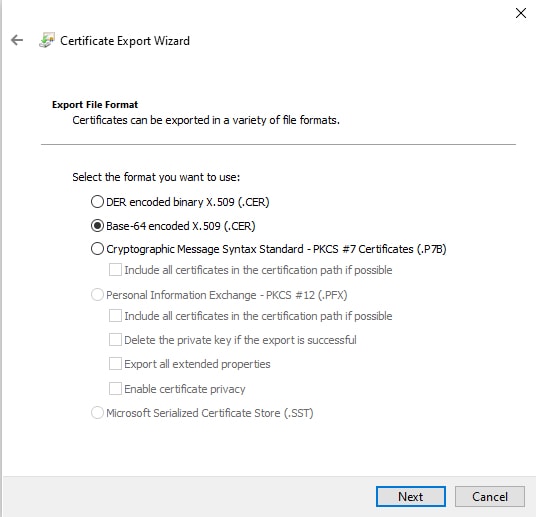
  9. Follow the prompts to create a CER-formatted certificate file that includes the entire certificate chain.

    When you're prompted to choose an export file format, click Base 64-Encoded X.509 (.CER) as the following figure shows.

    In the Certificate Export Wizard, select Base 64 encoded X.509 and export the certificate

  10. Follow the prompts to complete the export.

  11. Open the certificate in a text editor.

  12. Repeat the process for all certificates in the chain.

    You must paste each certificate in the text editor in order, first to last.

  13. Repeat these tasks for both vCenter and the FMC.

Get a Certificate Chain—Windows Firefox

Use the following procedure to get a certificate chain for the Firefox browser on either Windows or Mac OS.

  1. Log in to vCenter or the Management Center using Firefox.

  2. Click the lock to the left of the host name.

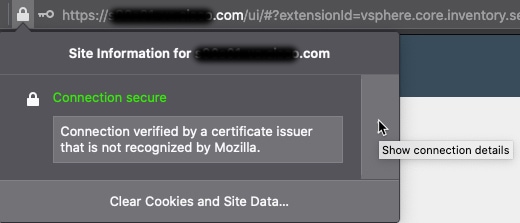
  3. Click the right arrow (Show connection details). The following figure shows an example.

    In Firefox, show the connection details to see the certificate being used to connect to the FMC

  4. Click More Information.

  5. Click View Certificate.

  6. If the resulting dialog box has tab pages, click the tab page corresponding to the top-level CA.

  7. Scroll to the Miscellaneous section.

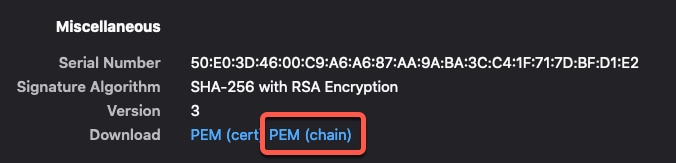
  8. Click PEM (chain) in the Download row. The following figure shows an example.

    Get the PEM chain to configure the FMC adapter

  9. Save the file.

  10. Repeat these tasks for both vCenter and the Management Center.