Rule Management: Common Characteristics

The following topics describe how to manage common characteristics of rules in various policies on the Firepower Management Center:

Introduction to Rules

Rules in various policies exert granular control over network traffic. The system evaluates traffic against rules in the order that you specify, using a first-match algorithm.

Although these rules may include other configurations that are not consistent across policies, they share many basic characteristics and configuration mechanics, including:

  • Conditions—Rule conditions specify the traffic that each rule handles. You can configure each rule with multiple conditions. Traffic must match all conditions to match the rule.

  • Action—A rule's action determines how the system handles matching traffic. Note that even if a rule does not have an Action list you can choose from, the rule still has an associated action. For example, a custom network analysis rule uses a network analysis policy as its "action." As another example, QoS rules do not have an explicit action because all QoS rules do the same thing: rate limit traffic.

  • Position—A rule's position dermines its evaluation order. When using a policy to evaluate traffic, the system matches traffic to rules in the order you specify. Usually, the system handles traffic according to the first rule where all the rule’s conditions match the traffic. (Monitor rules, which track and log but do not affect traffic flow, are an exception.) Proper rule order reduces the resources required to process network traffic, and prevents rule preemption.

  • Category—To organize some rule types, you can create custom rule categories in each parent policy.

  • Logging—For many rules, logging settings govern whether and how the system logs connections handled by the rule. Some rules (such as identity and network analysis rules) do not include logging settings because the rules neither determine the final disposition of connections, nor are they specifically designed to log connections. As another example, QoS rules do not include logging settings; you cannot log a connection simply because it was rate limited.

  • Comments—For some rule types, each time you save changes, you can add comments. For example, you might summarize the overall configuration for the benefit of other users, or note when you change a rule and the reason for the change.


Tip

A right-click menu in many policy editors provides shortcuts to many rule management options, including editing, deleting, moving, enabling, and disabling.


Rules with Shared Characteristics

This chapter documents many common aspects of the following rules and configurations. For information on non-shared configurations, see:

Rules without Shared Characteristics

Rules whose configurations are not documented in this chapter include:

Rule Condition Types

The following table describes the common rule conditions documented in this chapter, and lists the configurations where they are used.

Condition

Controls Traffic By...

Supported Rules/Configurations

Interface Conditions

Source and destination interfaces, and where supported, tunnel zones

Access control rules

Tunnel rules

Prefilter rules

SSL rules

DNS rules

Identity rules

Network analysis rules

QoS rules

Network Conditions

Source and destination IP address, and where supported, geographical location or originating client

Access control rules

Prefilter rules

SSL rules

DNS rules

Identity rules

Network analysis rules

QoS rules

Tunnel Endpoint Conditions

Source and destination tunnel endpoints for plaintext, passthrough tunnels

Tunnel rules

VLAN Conditions

VLAN tag

Access control rules

Tunnel rules

Prefilter rules

SSL rules

DNS rules

Identity rules

Network analysis rules

Port and ICMP Code Conditions

Source and destination ports, protocols, and ICMP codes

Access control rules

Prefilter rules

SSL rules

Identity rules

QoS rules

Encapsulation Conditions

Encapsulation protocol (nonencrypted)

Tunnel rules

Application Conditions (Application Control)

Application or application characteristic (type, risk, business relevance, category, and tags)

Access control rules

SSL rules

Identity rules

QoS rules

Application filters

Intelligent Application Bypass (IAB)

URL Conditions (URL Filtering)

URL, and where supported, URL characteristic (category and reputation)

Access control rules

SSL rules

QoS rules

User, Realm, and ISE Attribute Conditions (User Control)

Logged-in authoritative user of a host, or that user's realm, group, or ISE attributes

Access control rules

SSL rules (no ISE attributes)

QoS rules

Custom SGT Conditions

Custom Security Group Tag (SGT)

Access control rules

Rule Condition Mechanics

Rule conditions specify the traffic that each rule handles. You can configure each rule with multiple conditions, and traffic must match all conditions to match the rule. The available condition types depend on the rule type.

In rule editors, each condition type has its own tab page. Build conditions by choosing the traffic characteristics you want to match. In general, choose criteria from one or two lists of available items on the left, then add or combine those criteria into one or two lists of selected items on the right. For example, in URL conditions in access control rules, you can combine URL category and reputation criteria to create a single group of websites to block.

To help you build conditions, you can match traffic using various system-provided and custom configurations, including realms, ISE attributes, and various types of objects and object groups. Often, you can manually specify rule criteria.

Leave matching criteria empty whenever possible, especially those for security zones, network objects, and port objects. When you specify multiple criteria, the system must match against every combination of the contents of the criteria you specify.


Note

Failure to set up your access control rules properly can have unexpected results, including traffic being allowed that should be blocked. In general, application control rules should be lower in your access control list because it takes longer for those rules to match than rules based on IP address, for example.

Access control rules that use specific conditions (such as networks and IP addresses) should be ordered before rules that use general conditions (such as applications). If you're familiar with the Open Systems Interconnect (OSI) model, use similar numbering in concept. Rules with conditions for layers 1, 2, and 3 (physical, data link, and network) should be ordered first in your access control rules. Conditions for layers 5, 6, and 7 (session, presentation, and application) should be ordered later in your access control rules. For more information about the OSI model, see this Wikipedia article.


Source and Destination Criteria

Where a rule involves source and destination criteria (zones, networks, ports), usually you can use either or both criteria as constraints. If you use both, matching traffic must originate from one of the specified source zones, networks, or ports and leave through one of the destination zones, networks, or ports.

Items per Condition

You can add up to 50 items to each condition. For rules with source and destination criteria, you can use up to 50 of each. Traffic that matches any of the selected items matches the condition.

Simple Rule Mechanics

In rule editors, you have the following general choices. For detailed instructions on building conditions, see the topics for each condition type.

  • Choose Item—Click an item or check its check box. Often you can use Ctrl or Shift to choose multiple items, or right-click to Select All.

  • Search—Enter criteria in the search field. The list updates as you type. The system searches item names and, for objects and object groups, their values. Click reload () or clear () to clear the search.

  • Add Predefined Item—After you choose one or more available items, click an Add button or drag and drop. The system prevents you from adding invalid items: duplicates, invalid combinations, and so on.

  • Add Manual Item—Click the field under the Selected items list, enter a valid value, and click Add. When you add ports, you may also choose a protocol from the drop-down list.

  • Create Object—Click the add icon () to create a new, reusable object that you can immediately use in the condition you are building, then manage in the object manager. When using this method to add application filters on the fly, you cannot save a filter that includes another user-created filter.

  • Delete—Click the delete icon () for an item, or choose one or more items and right-click to Delete Selected.

Interface Conditions

Interface rule conditions control traffic by its source and destination interfaces.

Depedending on the rule type and the devices in your deployment, you can use predefined interface objects called security zones or interface groups to build interface conditions. Interface objects segment your network to help you manage and classify traffic flow by grouping interfaces across multiple devices; see Interface Objects: Interface Groups and Security Zones.


Tip

Constraining rules by interface is one of the best ways to improve system performance. If a rule excludes all of a device’s interfaces, that rule does not affect that device's performance.


Just as all interfaces in an interface object must be of the same type (all inline, passive, switched, routed, or ASA FirePOWER), all interface objects used in an interface condition must be of the same type. Because devices deployed passively do not transmit traffic, in passive deployments you cannot constrain rules by destination interface.

Tunnel Zones vs Security Zones

In some configurations, you can use tunnel zones instead of security zones to constrain interface conditions. Tunnel zones allow you to use prefiltering to tailor subsequent traffic handling to certain types of encapsulated connections.


Note

If a configuration supports tunnel zone constraints, a rezoned connection—a connection with an assigned tunnel zone—does not match security zone constraints. For more information, see Tunnel Zones and Prefiltering.


Rules with Interface Conditions

Rule Type

Supports Security Zones?

Supports Tunnel Zones?

Supports Interface Groups?

Access control

yes

yes

no

Tunnel and prefilter

yes

n/a; you assign tunnel zones in the prefilter policy

yes

SSL

yes

no

no

DNS (source only)

yes

no

no

Identity

yes

no

no

Network analysis

yes

no

no

QoS (routed only, required)

yes

no

yes

Example: Access Control Using Security Zones

Consider a deployment where you want hosts to have unrestricted access to the internet, but you nevertheless want to protect them by inspecting incoming traffic for intrusions and malware.

First, create two security zones: Internal and External. Then, assign interface pairs on one or more devices to those zones, with one interface in each pair in the Internal zone and one in the External zone. Hosts connected to the network on the Internal side represent your protected assets.


Note

You are not required to group all internal (or external) interfaces into a single zone. Choose the grouping that makes sense for your deployment and security policies.


Then, configure an access control rule with a destination zone condition set to Internal. This simple rule matches traffic that leaves the device from any interface in the Internal zone. To inspect matching traffic for intrusions and malware, choose a rule action of Allow, then associate the rule with an intrusion and a file policy.

Configuring Interface Conditions

Smart License

Classic License

Supported Devices

Supported Domains

Access

Any

Any

Any

Any

Admin/Access Admin/Network Admin

Before you begin
Procedure

Step 1

In the rule editor, click the tab for interface conditions:

  • Interface groups and security zones (tunnel, prefilter, QoS)—Click the Interface Objects tab.
  • Security zones (access control, SSL, DNS, identity, network analysis)—Click the Zones tab.
  • Tunnel zones (access control)—Click the Zones tab.
Step 2

Find and choose the interfaces you want to add from the Available Interface Objects or Available Zones list.

(Access control only) To match connections in rezoned tunnels, choose tunnel zones instead of security zones. You cannot use tunnel and security zones in the same rule. For more information, see Tunnel Zones and Prefiltering.

Step 3

Click Add to Source or Add to Destination, or drag and drop.

Step 4

Save or continue editing the rule.


What to do next
  • (Access control only) If you rezoned tunnels during prefiltering, configure additional rules if necessary to ensure complete coverage. Connections in rezoned tunnels do not match rules with security zone constraints. For more information, see Using Tunnel Zones.

  • Deploy configuration changes; see Deploy Configuration Changes.

Network Conditions

Network rule conditions control traffic by its source and destination IP address, using inner headers. Tunnel rules, which use outer headers, have tunnel endpoint conditions instead of network conditions.

You can use predefined objects to build network conditions, or manually specify individual IP addresses or address blocks.


Note

The system builds a separate network map for each leaf domain. In a multidomain deployment, using literal IP addresses to constrain this configuration can have unexpected results. Using override-enabled objects allows descendant domain administrators to tailor Global configurations to their local environments.

Leave matching criteria empty whenever possible, especially those for security zones, network objects, and port objects. When you specify multiple criteria, the system must match against every combination of the contents of the criteria you specify.

Geolocation in Network Conditions

Some rules can match traffic using the geographical location of the source or destination. If a rule type supports geolocation, you can mix network and geolocation criteria. To ensure you are using up-to-date geolocation data to filter your traffic, Cisco strongly recommends you regularly update the geolocation database (GeoDB).

Original Client in Network Conditions (Filtering Proxied Traffic)

For some rules, you can handle proxied traffic based on the originating client. Use a source network condition to specify proxy servers, then add an original client constraint to specify original client IP addresses. The system uses a packet's X-Forwarded-For (XFF), True-Client-IP, or custom-defined HTTP header field to determine original client IP.

Traffic matches the rule if the proxy's IP address matches the rule's source network constraint, and the original client's IP address matches the rule's original client constraint. For example, to allow traffic from a specific original client address, but only if it uses a specific proxy, create three access control rules:

Access Control Rule 1: Blocks non-proxied traffic from a specific IP address (209.165.201.1)

  • Source Networks: 209.165.201.1
  • Original Client Networks: none/any
  • Action: Block

Access Control Rule 2: Allows proxied traffic from the same IP address, but only if the proxy server for that traffic is one you choose (209.165.200.225 or 209.165.200.238)

  • Source Networks: 209.165.200.225 and 209.165.200.238
  • Original Client Networks: 209.165.201.1
  • Action: Allow

Access Control Rule 3: Blocks proxied traffic from the same IP address if it uses any other proxy server.

  • Source Networks: any
  • Original Client Networks: 209.165.201.1
  • Action: Block

Rules with Network Conditions

Rule Type

Supports Geolocation Constrains?

Supports Original Client Constraints?

Access control

yes

yes

Prefilter

no

no

SSL

yes

no

DNS (source networks only)

no

no

Identity

yes

no

Network analysis

no

no

QoS

yes

no

Configuring Network Conditions

Smart License

Classic License

Supported Devices

Supported Domains

Access

Any

Any

Any

Any

Admin/Access Admin/Network Admin

Procedure

Step 1

In the rule editor, click the Networks tab.

Step 2

Find and choose the predefined networks you want to add from the Available Networks list.

If the rule supports geolocation, you can mix network and geolocation criteria in the same rule:

  • Networks—Click the Networks sub-tab to choose networks.
  • Geolocation—Click the Geolocation sub-tab to choose geolocation objects.
Step 3

(Optional) If the rule supports original client constraints, under Source Networks, configure the rule to handle proxied traffic based on its original client:

  • Source/Proxy—Click the Source sub-tab to specify proxy servers.
  • Original Client—Click the Original Client sub-tab to add a network as an original client constraint. In proxied connections, the original client's IP address must match one of these networks to match the rule.
Step 4

Click Add to Source, Add to Original Client, or Add to Destination, or drag and drop.

Step 5

Add networks that you want to specify manually. Enter a source, original client, or destination IP address or address block, then click Add.

Note 

The system builds a separate network map for each leaf domain. In a multidomain deployment, using literal IP addresses to constrain this configuration can have unexpected results. Using override-enabled objects allows descendant domain administrators to tailor Global configurations to their local environments.

Step 6

Save or continue editing the rule.


Example: Network Condition in an Access Control Rule

The following graphic shows the network condition for an access control rule that blocks connections originating from your internal network and attempting to access resources either in North Korea or on 93.184.216.119 (example.com).

Screenshot of a sample network condition

In this example, a network object group called Private Networks (that comprises the IPv4 and IPv6 Private Networks network objects, not shown) represents your internal networks. The example also manually specifies the example.com IP address, and uses a system-provided North Korea geolocation object to represent North Korea IP addresses.

What to do next

Tunnel Endpoint Conditions

Tunnel endpoint conditions are specific to tunnel rules. They are similar to the network conditions for other rule types.

Tunnel endpoint conditions control certain types of plaintext, passthrough tunnels (see Encapsulation Conditions) by their source and destination IP address, using outer encapsulation headers. These are the IP addresses of the tunnel endpoints—the routed interfaces of the network devices on either side of the tunnel.

Tunnel rules are bidirectional by default, and handle all matching tunnels between any of the source endpoints and any of the destination endpoints. However, you can configure unidirectional tunnel rules that match source-to-destination traffic only; see Tunnel and Prefilter Rule Components.

You can use predefined network objects to build tunnel endpoint conditions, or manually specify individual IP addresses or address blocks.


Note

The system builds a separate network map for each leaf domain. In a multidomain deployment, using literal IP addresses to constrain this configuration can have unexpected results. Using override-enabled objects allows descendant domain administrators to tailor Global configurations to their local environments.

Configuring Tunnel Endpoint Conditions

Smart License

Classic License

Supported Devices

Supported Domains

Access

Any

N/A

Firepower Threat Defense

Any

Admin/Access Admin/Network Admin

Procedure

Step 1

In the rule editor, click the Tunnel Endpoints tab.

Step 2

Find and choose the predefined networks you want to add from the Available Tunnel Endpoints list.

Because tunnel endpoints are simply the IP addresses of the routed interfaces of the network devices on either side of the tunnel, you can use network objects to build tunnel endpoint conditions.

Step 3

Click Add to Source or Add to Destination, or drag and drop.

Tunnel rules are bidirectional by default so they can handle all traffic between the two endpoints. However, if you choose to Match tunnels only from source, the tunnel rule matches source-to-destination traffic only.

Step 4

Add endpoints that you want to specify manually. Enter a source or destination IP address or address block, then click Add.

Note 

The system builds a separate network map for each leaf domain. In a multidomain deployment, using literal IP addresses to constrain this configuration can have unexpected results. Using override-enabled objects allows descendant domain administrators to tailor Global configurations to their local environments.

Step 5

Save or continue editing the rule.


What to do next

VLAN Conditions

VLAN rule conditions control VLAN-tagged traffic, including QinQ (stacked VLAN) traffic. The system uses the innermost VLAN tag to filter VLAN traffic, with the exception of the prefilter policy, which uses the outermost VLAN tag in its rules.

You can use predefined objects to build VLAN conditions, or manually enter any VLAN tag from 1 to 4094. Use a hyphen to specify a range of VLAN tags.

You can specify a maximum of 50 VLAN conditions.


Note

The system builds a separate network map for each leaf domain. In a multidomain deployment, using literal VLAN tags to constrain this configuration can have unexpected results. Using override-enabled objects allows descendant domain administrators to tailor Global configurations to their local environments.

Rules with VLAN Conditions

The folllowing rule types support VLAN conditions:

  • Access control

  • Tunnel and prefilter (uses outermost VLAN tag)

  • SSL

  • DNS

  • Identity

  • Network analysis

Port and ICMP Code Conditions

Port conditions allow you to control traffic by its source and destination ports. Depending on the rule type, “port” can represent any of the following:

  • TCP and UDP—You can control TCP and UDP traffic based on the transport layer protocol. The system represents this configuration using the protocol number in parentheses, plus an optional associated port or port range. For example: TCP(6)/22.

  • ICMP—You can control ICMP and ICMPv6 (IPv6-ICMP) traffic based on its internet layer protocol plus an optional type and code. For example: ICMP(1):3:3.

  • No port—You can control traffic using other protocols that do not use ports.

Leave matching criteria empty whenever possible, especially those for security zones, network objects, and port objects. When you specify multiple criteria, the system must match against every combination of the contents of the criteria you specify.

Using Source and Destination Port Constraints

If you add both source and destination port constraints, you can only add ports that share a single transport protocol (TCP or UDP). For example, if you add DNS over TCP as a source port, you can add Yahoo Messenger Voice Chat (TCP) as a destination port but not Yahoo Messenger Voice Chat (UDP).

If you add only source ports or only destination ports, you can add ports that use different transport protocols. For example, you can add both DNS over TCP and DNS over UDP as source port conditions in a single access control rule.

Matching Non-TCP Traffic with Port Conditions

Although you can configure port conditions to match non-TCP traffic, there are some restrictions:

  • Access control rules—For Classic devices, you can match GRE-encapsulated traffic with an access control rule by using the GRE (47) protocol as a destination port condition. To a GRE-constrained rule, you can add only network-based conditions: zone, IP address, port, and VLAN tag. Also, the system uses outer headers to match all traffic in access control policies with GRE-constrained rules. For Firepower Threat Defense devices, use tunnel rules in the prefilter policy to control GRE-encapsulated traffic.

  • SSL rules—SSL rules support TCP port conditions only.

  • Identity rules—The system cannot enforce active authentication on non-TCP traffic. If an identity rule action is Active Authentication or if you check the option to Use active authentication if passive authentication cannot identify user, use TCP ports constraints only. If the identity rule action is Passive Authentication or No Authentication, you can create port conditions based on non-TCP traffic.


    Caution

    Adding the first or removing the last active authentication rule when SSL decryption is disabled (that is, when the access control policy does not include an SSL policy) restarts the Snort process when you deploy configuration changes, temporarily interrupting traffic inspection. Whether traffic drops during this interruption or passes without further inspection depends on how the target device handles traffic. See Snort® Restart Traffic Behavior for more information.

    Note that an active authentication rule has either an Active Authentication rule action, or a Passive Authentication rule action with Use active authentication if passive authentication cannot identify user selected.


  • IMCP echo—A destination ICMP port with the type set to 0 or a destination ICMPv6 port with the type set to 129 only matches unsolicited echo replies. ICMP echo replies sent in response to ICMP echo requests are ignored. For a rule to match on any ICMP echo, use ICMP type 8 or ICMPv6 type 128.

Rules with Port Conditions

The following rules support port conditions:

  • Access control

  • Prefilter

  • SSL (supports TCP traffic only)

  • Identity (active authentication supports TCP traffic only)

  • QoS

Configuring Port Conditions

Smart License

Classic License

Supported Devices

Supported Domains

Access

Any

Any

Any

Any

Admin/Access Admin/Network Admin

Procedure

Step 1

In the rule editor, click the Ports tab.

Step 2

Find and choose the predefined ports you want to add from the Available Ports list.

Step 3

Click Add to Source or Add to Destination, or drag and drop.

Step 4

Add any source or destination ports that you want to specify manually:

  • Source—Choose a Protocol, enter a single Port from 0 to 65535, and click Add.
  • Destination (non-ICMP)—Choose or enter a Protocol. If you do not want to specify a protocol, or if you choose TCP or UDP, enter a single Port from 0 to 65535. Click Add.
  • Destination (ICMP)—Choose ICMP or IPv6-ICMP from the Protocol drop down list, then choose a Type and related Code in the pop-up window that appears. For more information on ICMP types and codes, see the Internet Assigned Numbers Authority (IANA) website.
Step 5

Save or continue editing the rule.


What to do next

Encapsulation Conditions

Encapsulation conditions are specific to tunnel rules.

These conditions control certain types of plaintext, passthrough tunnels by their encapsulation protocol. You must choose at least one protocol to match before you can save the rule. You can choose:

  • GRE (47)

  • IP-in-IP (4)

  • IPv6-in-IP (41)

  • Teredo (UDP (17)/3455)

Application Conditions (Application Control)

When the system analyzes IP traffic, it can identify and classify the commonly used applications on your network. This discovery-based application awareness is the basis for application control—the ability to control application traffic.

System-provided application filters help you perform application control by organizing applications according to basic characteristics: type, risk, business relevance, category, and tags. You can create reuseable user-defined filters based on combinations of the system-provided filters, or on custom combinations of applications.

At least one detector must be enabled for each application rule condition in the policy. If no detector is enabled for an application, the system automatically enables all system-provided detectors for the application; if none exist, the system enables the most recently modified user-defined detector for the application. For more information about application detectors, see Application Detector Fundamentals.

You can use both application filters and individually specified applications to ensure complete coverage. However, understand the following note before you order your access control rules.

As part of application control, you can also use access control rules to enforce content restriction (such as Safe Search and YouTube EDU).


Note

Failure to set up your access control rules properly can have unexpected results, including traffic being allowed that should be blocked. In general, application control rules should be lower in your access control list because it takes longer for those rules to match than rules based on IP address, for example.

Access control rules that use specific conditions (such as networks and IP addresses) should be ordered before rules that use general conditions (such as applications). If you're familiar with the Open Systems Interconnect (OSI) model, use similar numbering in concept. Rules with conditions for layers 1, 2, and 3 (physical, data link, and network) should be ordered first in your access control rules. Conditions for layers 5, 6, and 7 (session, presentation, and application) should be ordered later in your access control rules. For more information about the OSI model, see this Wikipedia article.


Benefits of Application Filters

Application filters help you quickly configure application control. For example, you can easily use system-provided filters to create an access control rule that identifies and blocks all high risk, low business relevance applications. If a user attempts to use one of those applications, the system blocks the session.

Using application filters simplifies policy creation and administration. It assures you that the system controls application traffic as expected. Because Cisco frequently updates and adds application detectors via system and vulnerability database (VDB) updates, you can ensure that the system uses up-to-date detectors to monitor application traffic. You can also create your own detectors and assign characteristics to the applications they detect, automatically adding them to existing filters.

Configurations with Application Conditions

The configurations in the following table help you perform application control. The table also shows how you can constrain application control, depending on the configuration.

Configuration

Type, Risk, Relevance, Category

Tags

User-Defined Filters

Content Restriction

Access control rules

yes

yes

yes

yes

SSL rules

yes

no; automatically constrained to encrypted application traffic by the SSL Protocol tag

no

no

Identity rules (to exempt applications from active authentication)

yes

no; automatically constrained by the User-Agent Exclusion tag

no

no

QoS rules

yes

yes

yes

no

User-defined application filter in the object manager

yes

yes

no; you cannot nest user-defined filters

no

Intelligent Application Bypass (IAB)

yes

yes

yes

no

Configuring Application Conditions and Filters

Smart License

Classic License

Supported Devices

Supported Domains

Access

Any

Control

Any

Any

Admin/Access Admin/Network Admin

To build an application condition or filter, choose the applications whose traffic you want to control from a list of available applications. Optionally (and recommended), constrain the available applications using filters. You can use filters and individually specified applications in the same condition.

Before you begin
  • Adaptive profiling must be enabled (its default state) as described in Configuring Adaptive Profiles for access control rules to perform application control.

Procedure

Step 1

Invoke the rule or configuration editor:

  • Access control, SSL, QoS rule condition—In the rule editor, click the Applications tab.
  • Identity rule condition—In the rule editor, click the Realms & Settings tab and enable active authentication; see Create an Identity Rule.
  • Application filter—On the Application Filters page of the object manager, add or edit an application filter. Provide a unique Name for the filter.
  • Intelligent Application Bypass (IAB)—In the access control policy editor, click the Advanced tab, edit IAB settings, then click Bypassable Applications and Filters.
Step 2

(Optional) For an access control rule, enable content restriction features by clicking the dimmed icons for Safe Search (Safe Search icon) or YouTube EDU (YouTube EDU icon) and setting related options.

For additional configuration requirements, see Using Access Control Rules to Enforce Content Restriction.

In most cases, enabling content restriction populates the condition's Selected Applications and Filters list with the appropriate values. The system does not automatically populate the list if applications or filters related to content restriction are already present in the list when you enable content restriction.

Continue with the procedure to refine your application and filter selections, or skip to saving the rule.

Step 3

Find and choose the applications you want to add from the Available Applications list.

To constrain the applications displayed in Available Applications, choose one or more Application Filters or search for individual applications.

Tip 

Click the information icon () next to an application to display summary information and internet search links. The unlock icon () marks applications that the system can identify only in decrypted traffic.
When you choose filters, singly or in combination, the Available Applications list updates to display only the applications that meet your criteria. You can choose system-provided filters in combination, but not user-defined filters.

  • Multiple filters for the same characteristic (risk, business relevance, and so on)—Application traffic must match only one of the filters. For example, if you choose both the medium and high-risk filters, the Available Applications list displays all medium and high-risk applications.

  • Filters for different application characteristics—Application traffic must match both filter types. For example, if you choose both the high-risk and low business relevance filters, the Available Applications list displays only applications that meet both criteria.

Step 4

Click Add to Rule, or drag and drop.

Tip 

Before you add more filters and applications, click Clear Filters to clear your current choices.

The web interface lists filters added to a condition above and separately from individually added applications.
Step 5

Save or continue editing the rule or configuration.


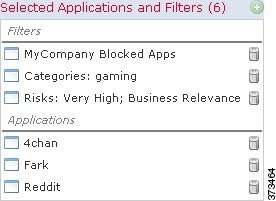
Example: Application Condition in an Access Control Rule

The following graphic shows the application condition for an access control rule that blocks a user-defined application filter for MyCompany, all applications with high risk and low business relevance, gaming applications, and some individually selected applications.

Screenshot of a sample application condition

What to do next

Application Characteristics

The system characterizes each application that it detects using the criteria described in the following table. Use these characteristics as application filters.

Table 1. Application Characteristics

Characteristic

Description

Example

Type

Application protocols represent communications between hosts.

Clients represent software running on a host.

Web applications represent the content or requested URL for HTTP traffic.

HTTP and SSH are application protocols.

Web browsers and email clients are clients.

MPEG video and Facebook are web applications.

Risk

The likelihood that the application is being used for purposes that might be against your organization’s security policy.

Peer-to-peer applications tend to have a very high risk.

Business Relevance

The likelihood that the application is being used within the context of your organization’s business operations, as opposed to recreationally.

Gaming applications tend to have a very low business relevance.

Category

A general classification for the application that describes its most essential function. Each application belongs to at least one category.

Facebook is in the social networking category.

Tag

Additional information about the application. Applications can have any number of tags, including none.

Video streaming web applications often are tagged high bandwidth and displays ads.

Guidelines and Limitations for Application Control

Ensuring that Adaptive Profiling is Enabled

If adaptive profiling is not enabled (its default state), access control rules cannot perform application control.

Automatically Enabling Application Detectors

If no detector is enabled for an application you want to detect, the system automatically enables all system-provided detectors for the application. If none exist, the system enables the most recently modified user-defined detector for the application.

Speed of Application Identification

The system cannot perform application control, including Intelligent Application Bypass (IAB) and rate limiting, before both of the following occur:

  • A monitored connection is established between a client and server

  • The system identifies the application in the session

This identification should occur in 3 to 5 packets, or after the server certificate exchange in the SSL handshake if the traffic is encrypted.

If early traffic matches all other criteria but application identification is incomplete, the system allows the packet to pass and the connection to be established (or the SSL handshake to complete). After the system completes its identification, the system applies the appropriate action to the remaining session traffic.

For access control, these passed packets are inspected by the access control policy’s default intrusion policy (not the default action intrusion policy nor the almost-matched rule’s intrusion policy).

For guidelines about rule ordering for application control, see Recommendations for Application Control.

URL Rules Before Application and Other Rules

For the most effective URL matching, place rules that include URL conditions before other rules, particularly if the URL rules are block rules and the other rules meet both of the following criteria:

  • They include application conditions.

  • The traffic to be inspected is encrypted.

Application Control for Encrypted and Decrypted Traffic

The system can identify and filter encrypted and decrypted traffic:

  • Encrypted traffic—The system can detect application traffic encrypted with StartTLS, including SMTPS, POPS, FTPS, TelnetS, and IMAPS. In addition, it can identify certain encrypted applications based on the Server Name Indication in the TLS ClientHello message, or the subject distinguished name value from the server certificate. These applications are tagged SSL Protocol; in an SSL rule, you can choose only these applications. Applications without this tag can only be detected in unencrypted or decrypted traffic.

  • Decrypted traffic—The system assigns the decrypted traffic tag to applications that the system can detect in decrypted traffic only, not encrypted or unencrypted.

Exempting Applications from Active Authorization

In an identity policy, you can exempt certain applications from active authentication, allowing traffic to continue to access control. These applications are tagged User-Agent Exclusion. In an identity rule, you can choose only these applications.

Handling Application Traffic Packets Without Payloads

When performing access control, the system applies the default policy action to packets that do not have a payload in a connection where an application is identified.

Handling Referred Application Traffic

To handle traffic referred by a web server, such as advertisement traffic, match the referred application rather than the referring application.

Controlling Application Traffic That Uses Multiple Protocols (Skype, Zoho)

Some applications use multiple protocols. To control their traffic, make sure your access control policy covers all relevant options. For example:

  • Skype—To control Skype traffic, choose the Skype tag from the Application Filters list rather than selecting individual applications. This ensures that the system can detect and control all Skype traffic the same way.

  • Zoho—To control Zoho mail, choose both Zoho and Zoho mail from the Available Application list.

Search Engines Supported for Content Restriction Features

The system supports Safe Search filtering for specific search engines only. The system assigns the safesearch supported tag to application traffic from these search engines.

Controlling Evasive Application Traffic

See Application-Specific Notes and Limitations.

Application-Specific Notes and Limitations

  • Office 365 Admin Portal:

    Limitation: If the access policy has logging enabled at the beginning as well as at the end, the first packet will be detected as Office 365 and the end of connection will be detected as Office 365 Admin Portal. This should not affect blocking.

  • Skype:

    See Guidelines and Limitations for Application Control

  • Zoho:

    See Guidelines and Limitations for Application Control

  • Evasive applications such as Bittorrent, Tor, Psiphon, and Ultrasurf:

    For evasive applications, only the highest-confidence scenarios are detected by default. If you need to take action on this traffic (such as block or implement QoS), it may be necessary to configure more aggressive detection with better effectiveness. To do this, contact TAC to review your configurations as these changes may result in false positives.

Troubleshoot Application Control Rules

If your application control rules don't function as you expect, use the guidelines discussed in this section.

We recommend controlling applications' access to the network as follows:

  • To allow or block application access from a less secure network to a more secure network: Use Port (Selected Destination Port) conditions on the access control rule

    For example, allow ICMP traffic from the internet (less secure) to an internal network (more secure.)

  • To allow or block applications being accessed by user groups: Use Application conditions on the access control rule

    For example, block Facebook from being accessed by members of the Contractors group


Note

Failure to set up your access control rules properly can have unexpected results, including traffic being allowed that should be blocked. In general, application control rules should be lower in your access control list because it takes longer for those rules to match than rules based on IP address, for example.

Access control rules that use specific conditions (such as networks and IP addresses) should be ordered before rules that use general conditions (such as applications). If you're familiar with the Open Systems Interconnect (OSI) model, use similar numbering in concept. Rules with conditions for layers 1, 2, and 3 (physical, data link, and network) should be ordered first in your access control rules. Conditions for layers 5, 6, and 7 (session, presentation, and application) should be ordered later in your access control rules. For more information about the OSI model, see this Wikipedia article.


The following table provides an example of how to set up your access control rules:

Type of control

Action

Zones, Networks, VLAN Tags

Users

Applications

Ports

URLs

SGT/ISE Attributes

Inspection, Logging, Comments

Application from less secure to more secure network when application uses a port (for example, SSH)

Your choice (Allow in this example)

Any

Any

Do not set

Available Ports : SSH

Add to Selected Destination Ports

Any

Use only with ISE.

Any

Application from less secure to more secure network when application does not use a port (for example, ICMP)

Your choice (Allow in this example)

Any

Any

Do not set

Selected Destination Ports Protocol: ICMP

Type: Any

Do not set

Use only with ISE.

Any

Application access by a user group

Your choice (Block in this example)

Your choice

Choose a user group (Contractors group in this example)

Choose the name of the application ( Facebook in this example)

Do not set

Do not set

Use only with ISE.

Your choice

URL Conditions (URL Filtering)

Use URL conditions to control the websites that users on your network can access.

For complete information, see URL Filtering.

User, Realm, and ISE Attribute Conditions (User Control)

You can perform user control with the authoritative user identity data collected by the Firepower System.

Identity sources monitor users as they log in and out, or as they authenticate using Microsoft Active Directory (AD) or LDAP credentials. You can then configure rules that use this collected identity data to handle traffic based on the logged-in authoritative user associated with a monitored host. A user remains associated with a host until the user logs off (as reported by an identity source), a realm times out the session, or you delete the user data from the system's database.

For information on the authoritative user identity sources supported in your version of the Firepower System, see About User Identity Sources.

You can use the following rule conditions to perform user control:

  • User and realm conditions—Match traffic based on the logged-in authoritative user of a host. You can control traffic based on realms, individual users, or the groups those users belong to.

  • ISE attribute conditions—Match traffic based on a user's ISE-assigned Security Group Tag (SGT), Device Type (also referred to as Endpoint Profile), or Location IP (also referred to as Endpoint Location). Requires that you configure ISE as an identity source.


Note

In some rules, custom SGT conditions can match traffic tagged with SGT attributes that were not assigned by ISE. This is not considered user control, and only works if you are not using ISE as an identity source; see Custom SGT Conditions.

Rules with User Conditions

Rule Type

Supports User and Realm Conditions?

Supports ISE Attribute Conditions?

Access control

yes

yes

SSL

yes

no

QoS

yes

yes

User Control Prerequisites

Configure Identity Sources/Authentication Methods

Configure identity sources for the types of authentication you want to perform. For more information, see About User Identity Sources.

If you configure a User Agent, TS Agent, or ISE device to monitor a large number of user groups, or if you have a very large number of users mapped to hosts on your network, the system may drop user mappings based on groups, due to your Firepower Management Center user limit. As a result, rules with realm, user, or user group conditions may not match traffic as expected.

Configure Realms

Configure a realm for each AD or LDAP server you want to monitor, including your ISE, User Agent, and TS Agent servers, and perform a user download. For more information, see Create a Realm.


Note

If you are configuring an ISE SGT attribute rule condition, configuring a realm is optional. The ISE SGT attribute rule condition can be configured in policies with or without an associated identity policy (where realms are invoked).


When you configure a realm, you specify the users and user groups whose activity you want to monitor. Including a user group automatically includes all of that group’s members, including members of any secondary groups. However, if you want to use the secondary group as a rule criterion, you must explicitly include the secondary group in the realm configuration.

For each realm, you can enable automatic download of user data to refresh authoritative data for users and user groups.

Create Identity Policies

Create an identity policy to associate the realm with an authentication method, and associate that policy with access control. For more information, see Create an Identity Policy.

Policies that perform user control on a device (access control, SSL, QoS) share an identity policy. That identity policy determines the realms, users, and groups that you can use in rules affecting traffic on those devices.

Before you configure a user condition in a QoS rule, you must make sure the devices targeted by the QoS policy are using the correct identity policy, as defined in the access control policy deployed to the devices. Because the QoS policy and access control policy deployed to the same device are not explicitly linked, the QoS rule editor can allow you to choose invalid realms, users, and groups. These invalid elements are those from identity policies that exist on the Firepower Management Center, but that are not applied to the QoS-targeted devices. If you use these elements, the system cannot determine that you made an invalid choice until deploy-time.

Configuring User and Realm Conditions

Smart License

Classic License

Supported Devices

Supported Domains

Access

Any

Control

Any

Any

Admin/Access Admin/Network Admin

You can constrain a rule by realm, or by users and user groups within that realm.

Before you begin
Procedure

Step 1

In the rule editor, click the Users tab.

Step 2

(Optional) Find and choose the realm you want to use from the Available Realms.

Step 3

(Optional) Further constrain the rule by choosing users and groups from the Available Users list.

Step 4

Click Add to Rule, or drag and drop.

Step 5

Save or continue editing the rule.


What to do next

Configuring ISE Attribute Conditions

Smart License

Classic License

Supported Devices

Supported Domains

Access

Any

Control

Any

Any

Admin/Access Admin/Network Admin

Before you begin
Procedure

Step 1

In the rule editor, click the tab for ISE attribute conditions:

  • Access control—Click the SGT/ISE Attributes tab.
  • QoS—Click the ISE Attributes tab.

You can use ISE-assigned Security Group Tags (SGTs) to constrain ISE attribute conditions. To use custom SGTs in access control rules, see Custom SGT Conditions.

Step 2

Find and choose the ISE attributes you want to use from the Available Attributes list:

  • Security Group Tag (SGT)

  • Device Type (also referred to as Endpoint Profile)

  • Location IP (also referred to as Endpoint Location)

Step 3

Further constrain the rule by choosing attribute metadata from the Available Metadata list. Or, keep the default: any.

Step 4

Click Add to Rule, or drag and drop.

Step 5

(Optional) Constrain the rule with an IP address in the Add a Location IP Address field, then click Add.

The system builds a separate network map for each leaf domain. In a multidomain deployment, using literal IP addresses to constrain this configuration can have unexpected results.

Step 6

Save or continue editing the rule.


What to do next

Troubleshoot User Control

If you notice unexpected user rule behavior, consider tuning your rule, identity source, or realm configurations. For other related troubleshooting information, see:

Rules targeting realms, users, or user groups are not matching traffic

If you configure a User Agent, TS Agent, or ISE device to monitor a large number of user groups, or if you have a very large number of users mapped to hosts on your network, the system may drop user records due to your Firepower Management Center user limit. As a result, rules with user conditions may not match traffic as expected.

Rules targeting user groups or users within user groups are not matching traffic as expected

If you configure a rule with a user group condition, your LDAP or Active Directory server must have user groups configured. The system cannot perform user group control if the server organizes the users in basic object hierarchy.

Rules targeting users in secondary groups are not matching traffic as expected

If you configure a rule with a user group condition that includes or excludes users who are members of a secondary group on your Active Directory server, your server may be limiting the number of users it reports.

By default, Active Directory servers limit the number of users they report from secondary groups. You must customize this limit so that all of the users in your secondary groups are reported to the Firepower Management Center and eligible for use in rules with user conditions.

Rules are not matching users when seen for the first time

After the system detects activity from a previously-unseen user, the system retrieves information about them from the server. Until the system successfully retrieves this information, activity seen by this user is not handled by matching rules. Instead, the user session is handled by the next rule it matches (or the policy's default action, if applicable).

For example, this might explain when:

  • Users who are members of user groups are not matching rules with user group conditions.

  • Users who were reported by a User Agent, TS Agent, or ISE device are not matching rules, when the server used for user data retrieval is an Active Directory server.

Note that this might also cause the system to delay the display of user data in event views and analysis tools.

Rules are not matching all ISE users

This is expected behavior. You can perform user control on ISE users who were authenticated by an Active Directory domain controller. You cannot perform user control on ISE users who were authenticated by an LDAP, RADIUS, or RSA domain controller.

Custom SGT Conditions

If you do not configure Cisco ISE as an identity source, you can control traffic using Security Group Tags (SGTs) that were not assigned by ISE. SGTs specify the privileges of traffic sources within a trusted network.

Custom SGT rule conditions use manually created SGT objects to filter traffic, rather than ISE SGTs obtained from the system's connection to an ISE server. These manually created SGT objects correspond to the SGT attributes on the traffic you want to control. Controlling traffic using custom SGTs is not considered user control.

Rules with Custom SGT Conditions

Only access control rules support custom SGT conditions.

ISE SGT vs Custom SGT Rule Conditions

Some rules allow you to control traffic based on assigned SGT. Depending on the rule type and your identity source configuration, you can use either ISE-assigned SGTs or custom SGTs to match traffic with assigned SGT attributes.


Note

If you use ISE SGTs to match traffic, even if a packet does not have an assigned SGT attribute, the packet still matches an ISE SGT rule if the SGT associated with the packet's source IP address is known in ISE.

Condition Type

Requires

SGTs Listed in Rule Editor

ISE SGT

ISE identity source

SGTs obtained by querying the ISE server, with automatically updated metadata

Custom SGT

No ISE identity source

Static SGT objects you create

Autotransition from Custom SGTs to ISE SGTs

If you create rules that match custom SGTs, then configure ISE as an identity source, the system:

  • Disables Security Group Tag options in the object manager. Although the system retains existing SGT objects, you cannot modify them or add new ones.

  • Retains existing rules with custom SGT conditions. However, these rules do not match traffic. You also cannot add additional custom SGT criteria to existing rules, or create new rules with custom SGT conditions.

If you configure ISE, Cisco recommends that you delete or disable existing rules with custom SGT conditions. Instead, use ISE attribute conditions to match traffic with SGT attributes.

Configuring Custom SGT Conditions

Smart License

Classic License

Supported Devices

Supported Domains

Access

Any

Control

Any

Any

Admin/Access Admin/Network Admin

The following procedure describes how to filter traffic tagged with SGT attributes that were not assigned by ISE. This is not considered user control, and only works if you are not using ISE as an identity source; see ISE SGT vs Custom SGT Rule Conditions.

Before you begin
  • Disable ISE connections. Custom SGT matching does not work if you use ISE as an identity source.

  • Configure Security Group Tag objects that correspond with the SGTs you want to match; see Creating Security Group Tag Objects.

Procedure

Step 1

In the rule editor, click the SGT/ISE Attributes tab.

Step 2

Choose Security Group Tag from the Available Attributes list.

Step 3

In the Available Metadata list, find and choose a custom SGT object.

If you choose Any, the rule matches all traffic with an SGT attribute. For example, you might choose this value if you want an access control rule to block traffic from hosts that are not configured for TrustSec.

Step 4

Click Add to Rule, or drag and drop.

Step 5

Save or continue editing the rule.


What to do next

Troubleshooting Custom SGT Conditions

If you notice unexpected rule behavior, consider tuning your custom SGT object configuration.

Security Group Tag objects unavailable

Custom SGT objects are only available if you do not configure ISE as an identity source. For more information, see Autotransition from Custom SGTs to ISE SGTs.

Searching for Rules

Smart License

Classic License

Supported Devices

Supported Domains

Access

Any

Any

Any

Any

Admin/Access Admin/Network Admin

In many policies, you can search for and within rules. The system matches your input to rule names and condition values, including objects and object groups.

You cannot search for values in a Security Intelligence or URL list or feed.

Procedure


Step 1

In the policy editor, click the Rules tab.

Step 2

Click the Search Rules prompt, enter a complete or partial search string, then press Enter.

The column for matching values is highlighted for each matching rule. A status message displays the current match and the total number of matches.
Step 3

Find the rules you are interested in.

To navigate between matching rules, click the next-match () or previous-match () icon.


What to do next

  • Before you begin a new search, click the clear icon () to clear the search and any highlighting.

Filtering Rules by Device

Smart License

Classic License

Supported Devices

Supported Domains

Access

Any

Any

feature dependent

Any

Admin/Access Admin/Network Admin

Some policy editors allow you to filter your rule view by affected devices.

The system uses a rule's interface constraints to determine if the rule affects a device. If you constrain a rule by interface (security zone or interface group condition), the device where that interface is located is affected by that rule. Rules with no interface constraint apply to any interface, and therefore every device.

QoS rules are always constrained by interface.

Procedure


Step 1

In the policy editor, click the Rules tab, then click Filter by Device.

A list of targeted devices and device groups appears.
Step 2

Check one or more check boxes to display only the rules that apply to those devices or groups. Or, check All to reset and display all of the rules.

Tip 

Hover your pointer over a rule criterion to see its value. If the criterion represents an object with device-specific overrides, the system displays the override value when you filter the rules list by only that device. If the criterion represents an object with domain-specific overrides, the system displays the override value when you filter the rules list by devices in that domain.

Step 3

Click OK.


Rule and Other Policy Warnings

Policy and rule editors use icons to mark configurations that could adversely affect traffic analysis and flow. Depending on the issue, the system may warn you when you deploy or prevent you from deploying entirely.


Tip

Hover your pointer over an icon to read the warning, error, or informational text.


Table 2. Policy Error Icons

Icon

Description

Example

error

If a rule or configuration has an error, you cannot deploy until you correct the issue, even if you disable any affected rules.

A rule that performs category and reputation-based URL filtering is valid until you target a device that does not have a URL Filtering license. At that point, an error icon appears next to the rule, and you cannot deploy until you edit or delete the rule, retarget the policy, or enable the license.

warning

You can deploy a policy that displays rule or other warnings. However, misconfigurations marked with warnings have no effect.

If you disable a rule with a warning, the warning icon disappears. It reappears if you enable the rule without correcting the underlying issue.

Preempted rules or rules that cannot match traffic due to misconfiguration have no effect. This includes conditions using empty object groups, application filters that match no applications, excluded LDAP users, invalid ports, and so on.

However, if a warning icon marks a licensing error or model mismatch, you cannot deploy until you correct the issue.

information

Information icons convey helpful information about configurations that may affect the flow of traffic. These issues do not prevent you from deploying.

With application control, the system might skip matching the first few packets of a connection against some rules, until the system identifies the application or web traffic in that connection. This allows connections to be established so that applications and HTTP requests can be identified.

Rule Performance Guidelines

In the Firepower System, rules in various policies exert granular control over network traffic. Properly configuring and ordering rules is essential to building an effective deployment. Although every organization and deployment has a unique policy and rule set, there are a few general guidelines to follow that can optimize performance while still addressing your needs.

Optimizing performance is especially important if you perform resource-intensive analysis. Complex policies and rules can command significant resources and negatively affect performance. When you deploy configuration changes, the system evaluates all rules together and creates an expanded set of criteria that target devices use to evaluate network traffic. If these criteria exceed the resources (physical memory, processors, and so on) of a target device, you cannot deploy to that device.


Note

Always order rules to suit your organization's needs. Place top-priority rules that must apply to all traffic near the top of the policy. However, rules with application or URL conditions are more likely to match traffic if you do not prioritize them. This occurs because the system may skip matching the first few packets of a connection against some rules until the system identifies the application or web traffic in that connection. This allows connections to be established so that applications and HTTP requests can be identified.


Guidelines for Simplifying and Focusing Rules

Simplify: Do Not Overconfigure

If one condition is enough to match the traffic you want to handle, do not use two.

Minimize individual rule criteria. Use as few individual elements in rule conditions as possible. For example, in network conditions use IP address blocks rather than individual IP addresses.

Combining elements into objects does not improve performance. For example, using a network object that contains 50 individual IP addresses gives you only an organizational—not a performance—benefit over including those IP addresses in the condition individually.

For recommendations related to application detection, see Recommendations for Application Control.

Focus: Narrowly Constrain Resource-Intensive Rules, Especially by Interface

As much as possible, use rule conditions to narrowly define the traffic handled by resource-intensive rules. Focused rules are also important because rules with broad conditions can match many different types of traffic, and can preempt later, more specific rules. Examples of resource-intensive rules include:

  • SSL rules that decrypt traffic—Not only the decryption, but further analaysis of the decrypted traffic, requires resources. Narrow focus, and where possible, block or choose not to decrypt encrypted traffic.

  • Access control rules that invoke deep inspection—Intrusion, file, and malware inspection requires resources, especially if you use multiple custom intrusion policies and variable sets. Make sure you only invoke deep inspection where required.

For maximum performance benefit, constrain rules by interface. If a rule excludes all of a device’s interfaces, that rule does not affect that device's performance.

Guidelines for Ordering Rules

Always order rules to suit your organization's needs. In general, you should place top-priority rules that must apply to all traffic near the top of the policy.

Exceptions are noted in the sections below.

Rule Preemption

Rule preemption occurs when a rule will never match traffic because a rule earlier in the evaluation order matches the traffic first. A rule's conditions govern whether it preempts other rules. In the following example, the second rule cannot block Admin traffic because the first rule allows it:

  • Access Control Rule 1: allow Admin users
  • Access Control Rule 2: block Admin users

Any type of rule condition can preempt a subsequent rule. The VLAN range in the first SSL rule includes the VLAN in the second rule, so the first rule preempts the second:

  • SSL Rule 1: do not decrypt VLAN 22-33
  • SSL Rule 2: block VLAN 27

In the following example, Rule 1 matches any VLAN because no VLANs are configured, so Rule 1 preempts Rule 2, which attempts to match VLAN 2:

  • Access Control Rule 1: allow Source Network 10.4.0.0/16
  • Access Control Rule 2: allow Source Network 10.4.0.0/16, VLAN 2

A rule also preempts an identical subsequent rule where all configured conditions are the same:

  • QoS Rule 1: rate limit VLAN 1 URL www.netflix.com
  • QoS Rule 2: rate limit VLAN 1 URL www.netflix.com

A subsequent rule would not be preempted if any condition is different:

  • QoS Rule 1: rate limit VLAN 1 URL www.netflix.com
  • QoS Rule 2: rate limit VLAN 2 URL www.netflix.com
Example: Ordering SSL Rules to Avoid Preemption

Consider a scenario where a trusted CA (Good CA) mistakenly issued a CA certificate to a malicious entity (Bad CA), but has not yet revoked that certificate. You want to use an SSL policy to block traffic encrypted with certificates issued by the untrusted CA, but otherwise allow traffic within the trusted CA’s chain of trust. After you upload the CA certificates and all intermediate CA certificates, configure an SSL policy with rules in the following order:

  • SSL Rule 1: Block issuer CN=www.badca.com
  • SSL Rule 2: Do not decrypt issuer CN=www.goodca.com

If you reverse the rules, you first match all traffic trusted by Good CA, including traffic trusted by Bad CA. Because no traffic ever matches the subsequent Bad CA rule, malicious traffic may be allowed instead of blocked.

Rule Actions and Rule Order

A rule's action determines how the system handles matching traffic. Improve performance by placing rules that do not perform or ensure further traffic handling before the resource-intensive rules that do. Then, the system can divert traffic that it might otherwise have inspected.

The following examples show how you might order rules in various policies, given a set of rules where none is more critical and preemption is not an issue.

If your rules include application conditions, also see Recommendations for Application Control.

Optimum Order: SSL Rules

Not only does decryption require resources, but so does further analysis of the decrypted traffic. Place SSL rules that decrypt traffic last.

  1. Monitor—Rules that log matching connections, but take no other action on traffic.

  2. Block, Block with reset—Rules that block traffic without further inspection.

  3. Do not decrypt—Rules that do not decrypt encrypted traffic, passing the encrypted session to access control rules. The payloads of these sessions are not subject to deep inspection.

  4. Decrypt - Known Key—Rules that decrypt incoming traffic with a known private key.

  5. Decrypt - Resign—Rules that decrypt outgoing traffic by re-signing the server certificate.

Optimum Order: Access Control Rules

Intrusion, file, and malware inspection requires resources, especially if you use multiple custom intrusion policies and variable sets. Place access control rules that invoke deep inspection last.

  1. Monitor—Rules that log matching connections, but take no other action on traffic.

  2. Trust, Block, Block with reset—Rules that handle traffic without further inspection. Note that trusted traffic is subject to authentication requirements imposed by an identity policy, and to rate limiting.

  3. Allow, Interactive Block (no deep inspection)—Rules that do not inspect traffic further, but allow discovery. Note that allowed traffic is subject to authentication requirements imposed by an identity policy, and to rate limiting.

  4. Allow, Interactive Block (deep inspection)—Rules associated with file or intrusion policies that perform deep inspection for prohibited files, malware, and exploits.

Content Restriction Rule Order

To avoid rule preemption in both SSL and access control policies, position rules governing YouTube restriction above rules governing Safe Search restriction.

When you enable Safe Search for an access control rule, the system adds the search engine category to the Selected Applications and Filters list. This application category includes YouTube. As a result, YouTube traffic matches to the Safe Search rule unless YouTube EDU is enabled in a rule with a higher evaluation priority.

A similar rule preemption occurs if you position an SSL rule with the safesearch supported filter higher in the evaluation order than an SSL rule with specific YouTube application conditions.

Application Rule Order

Rules with application conditions are more likely to match traffic if you move them to a lower order in your list of rules.

Access control rules that use specific conditions (such as networks and IP addresses) should be ordered before rules that use general conditions (such as applications). If you're familiar with the Open Systems Interconnect (OSI) model, use similar numbering in concept. Rules with conditions for layers 1, 2, and 3 (physical, data link, and network) should be ordered first in your access control rules. Conditions for layers 5, 6, and 7 (session, presentation, and application) should be ordered later in your access control rules. For more information about the OSI model, see this Wikipedia article.

For more information and an example, see Recommendations for Application Control.

SSL Rule Order

In general, order your rules with specific conditions (such as IP addresses and networks) before rules with general conditions (such as applications).

Allow Traffic from Certificate Pinned Sites

Some applications use a technique referred to as TLS/SSL pinning or certificate pinning, which embeds the fingerprint of the original server certificate in the application itself. As a result, if you configured a TLS/SSL rule with a Decrypt - Resign action, when the application receives a resigned certificate from a managed device, validation fails and the connection is aborted.

To confirm that TLS/SSL pinning is occurring, attempt to log in to a mobile application like Facebook. If a network connection error is displayed, log in using a web browser. (For example, you cannot log in to a Facebook mobile application but can log in to Facebook using Safari or Chrome.) You can use Firepower Management Center connection events as further proof of TLS/SSL pinning


Note

TLS/SSL pinning is not limited to mobile applications.


To allow this traffic, configure an SSL rule with the Do Not Decrypt action to match the server certificate common name or distinguished name. In the SSL policy, order this rule before all Decrypt - Resign rules that also match the traffic. You can retrieve the pinned certificate from the client's browser after a successful connection to the website. You can also view the certificate from the logged connection event, regardless of whether the connection succeeded or failed.

Prioritize ClientHello Modifications

To prioritize ClientHello modifications, place rules that match on conditions that are available in the ClientHello message before rules that match on ServerHello or server Certificate conditions.

When a managed device processes an SSL handshake, it can modify the ClientHello message to increase the likelihood of decryption. For example, it may remove compression methods because the Firepower System cannot decrypt compressed sessions.

The system only modifies ClientHello messages if it can conclusively match them to an SSL rule with a Decrypt - Resign action. The first time the system detects an encrypted session to a new server, server Certificate data is not available for ClientHello processing, which can result in an undecrypted first session. For subsequent connections from the same client, the system can match the ClientHello message conclusively to rules with server Certificate conditions and process the message to maximize decryption potential.

If you place rules that match on ServerHello or server Certificate conditions (certificate, distinguished names, certificate status, cipher suites, version) before rules that match on ClientHello conditions (zones, networks, VLAN tags, ports, users, applications, URL categories), you can preempt ClientHello modification and increase the number of undecrypted sessions.

Situation Where SSL Policy is Bypassed

The SSL policy is bypassed for any connections that match access control rules with actions of Trust, Block, or Block with reset if those rules:

  • Use security zone, network, geolocation, and port only as the traffic matching criteria.

  • Precede other rules that require inspection, such as rules that match connections based on application or URL, or allow rules that apply intrusion or file inspection.

URL Rule Order

For the most effective URL matching, place rules that include URL conditions before other rules, particularly if the URL rules are block rules and the other rules meet both of the following criteria:

  • They include application conditions.

  • The traffic to be inspected is encrypted.

Guidelines for Avoiding Intrusion Policy Proliferation

In an access control policy, you can associate one intrusion policy with each Allow and Interactive Block rule, as well as with the default action. Every unique pair of intrusion policy and variable set counts as one policy.

However, there is a maximum number of access control rules or intrusion policies that are supported by a target device. The maximum depends on a number of factors, including policy complexity, physical memory, and the number of processors on the device.

If you exceed the maximum supported by your device, you cannot deploy your access control policy and must reevaluate. You may want to consolidate intrusion policies or variable sets so you can associate a single intrusion policy-variable set pair with multiple access control rules. On some devices you may find you can use only a single variable set for all your intrusion policies, or even a single intrusion policy-variable set pair for the whole device.

Offload Large Connections (Flows)

If you deploy Firepower Threat Defense on the Firepower 4100/9300 chassis in a data center, you can enable select traffic to be offloaded to hardware, which means it is not processed by the software or CPU of your Firepower Threat Defense device.

You can identify select traffic to be offloaded to a super fast path, where traffic is switched in the NIC itself. This is called static flow offload. Offloading can help you improve performance for data-intensive applications such as large file transfers.

  • High Performance Computing (HPC) Research sites, where the Firepower Threat Defense device is deployed between storage and high compute stations. When one research site backs up using FTP file transfer or file sync over NFS, the large amount of data traffic affects all connections. Offloading FTP file transfer and file sync over NFS reduces the impact on other traffic.

  • High Frequency Trading (HFT), where the Firepower Threat Defense device is deployed between workstations and the Exchange, mainly for compliance purposes. Security is usually not a concern, but latency is a major concern.

The Firepower 4100/9300 chassis can offload connections that meet the following criteria:

  • (Static flow offload only.) They are fastpathed by the prefilter policy.

  • (Dynamic flow offload only.) Inspected flows that the inspection engine decides no longer need inspection. These flows include:

    • Flows that match an access control policy's Trust rule action.

    • Flows that are trusted by the Intelligent Application Bypass (IAB) policy either explicitly or due to exceeding flow bypass thresholds.

    • Flows that match file or intrusion policies that result in trusting the flow.

  • IPv4 addresses only.

  • TCP, UDP, GRE only.


    Note

    PPTP GRE connections are not offloaded.


  • Standard or 802.1Q tagged Ethernet frames only.

  • Switched or routed interfaces only. Not supported on passive, inline, or inline tap interfaces.

Use Static Flow Offload

To identify a flow as being eligible for offload, create a prefilter policy rule that applies the Fastpath action. Use prefilter rules for TCP/UDP, and tunnel rules for GRE. Incidentally, if you configure access control rules to apply the Trust action based on security zone, source and destination network and port matching only, and you disable Security Intelligence, flows matching those rules are also eligible for offloading.

Once a connection is established, if it is eligible to be offloaded, further processing happens in the NIC rather than in the Firepower Threat Defense software. Offloaded flows continue to receive limited stateful inspection, such as basic TCP flag and option checking. The system can selectively escalate packets to the firewall system for further processing if necessary.

Reverse flows for offloaded flows are also offloaded.

Use Dynamic Flow Offload

Dynamic flow offload is enabled by default.


Note

If more than one flow that matches dynamic flow offload conditions are queued to be offloaded at the same time, a collision occurs. In the case of a collision, only the first flow is offloaded. The other flows are processed normally. The show flow-offload flow commands display collision statistics.


Following is an example of disabling dynamic offload:

> configure flow-offload dynamic whitelist disable 
Following is an example of enabling dynamic offload:
> configure flow-offload dynamic whitelist enable

Flow Offload Limitations

Not all flows can be offloaded. Even after offload, a flow can be removed from being offloaded under certain conditions. Following are some of the limitations:

Flows that cannot be offloaded

The following types of flows cannot be offloaded.

  • Flows that use IPv6 addressing.

  • Flows for any protocol other than TCP, UDP, and GRE.


    Note

    PPTP GRE connections cannot be offloaded.


  • Flows on interfaces configured in passive, inline, or inline tap mode. Routed and switch interfaces are the only types supported.

  • Flows that require inspection by Snort or other inspection engines. In some cases, such as FTP, the secondary data channel can be offloaded although the control channel cannot be offloaded.

  • IPsec and VPN connections.

  • Flows for which you decrement the time-to-live (TTL) value.

  • Flows that require encryption or decryption.

  • Multicast flows.

  • AAA-related flows.

  • Vpath, VXLAN related flows.

  • URL filtering.

  • Tracer flows.

  • Flows tagged with security groups.

  • Reverse flows that are forwarded from a different cluster node, in case of asymmetric flows in a cluster.

  • Centralized flows in a cluster, if the flow owner is not the master.

Conditions for reversing offload

After a flow is offloaded, packets within the flow are returned to the Firepower Threat Defense device for further processing if they meet the following conditions:

  • They include TCP options other than Timestamp.

  • They are fragmented.

  • They are subject to Equal-Cost Multi-Path (ECMP) routing, and ingress packets move from one interface to another.