Configuring Service Policies and Profiles

This section includes the following topics:

Service Path Configuration Workflow

Service paths enable you to apply multiple services to VM traffic by binding a sequence of services to a specific port profile.

The following table identifies the tasks required to configure a service path, related topics, and the minimum role required for each task:

Task Related Topic Role Required

1. Confirm that the prerequisites are met.

See Prerequisites for Configuring Service Paths.

admin

2. Create the tenant and, if needed, the subordinate organization in which the service path will reside.

See Creating a Tenant.

admin

3. Add a port profile to a Nexus 1000V VSM.

Note    You can perform this step at any time before Step 6.

See Adding a Port Profile to a VSM.

admin

4. Create service nodes for inclusion in the service path.

See Creating a Service Node.

tenant-admin

5. Create a service path with service entries.

See Creating a Service Path.

tenant-admin

6. Bind the service path to the VSM port profile.

See Binding a Service Path to a Port Profile.

tenant-admin

Prerequisites for Configuring Service Paths

The following table describes the prerequisites for configuring service paths:

Item Requirement

Tenant

Has at least one of the following assigned:

  • Compute firewall

  • Edge firewall

  • vPath-enabled load balancer using Citrix NetScaler 1000V

Compute firewall

  • Has a security policy assigned.

  • Has a policy set with policies and rules for the compute firewall.

  • The policy set is bound to the compute firewall security policy.

  • A VLAN is provided if the firewall is to be used as a Layer 2 adjacent service node.

  • The VLAN exists on the VSM.

Edge firewall

  • Has an edge device profile defined.

  • Has an edge security profile defined.

  • Has a policy set with policies and rules for the edge firewall.

  • An inbound security profile is attached to the outside interface of the edge firewall.

  • A VLAN is provided on the data interface because the edge firewall can be used only as a Layer 2 adjacent service node.

  • The VLAN exists on the VSM.

Load Balancer

Has vPath enabled.

Nexus 1000V

  • Is deployed.

  • Is registered with Prime Network Services Controller.

Services

The following services are deployed:

  • VSG

  • ASA 1000V

  • Citrix NetScaler 1000V

Adding a Port Profile to a VSM

enables you to add a port profile to an enterprise VSM. You cannot add a port profile to a cloud VSM.

If an enterprise VSM has preconfigured port profiles or virtual service configurations that were created outside of , these configurations will not be displayed in the GUI.

If you create a port profile in and specify a VLAN, you must create the VLAN itself on the VSM and then add it to the necessary system and uplink port profiles. The same steps apply for VLANs that you specify while creating service devices, such as edge or compute firewalls: you must create the VLANs on the devices, and then add them to the appropriate system and uplink port profiles.

Before You Begin

Confirm the following:

  • An enterprise VSM is registered and in the applied state in by choosing Resource Management > Resources > VSMs.

  • You have admin privileges.

SUMMARY STEPS

    1.    Choose Resource Management > Resources > VSMs > vsm, then click Edit.

    2.    Above the Port Profile table, click Add.

    3.    In the Add Port Profile dialog box, enter the required information as follows, then click OK:


DETAILED STEPS
    Step 1   Choose Resource Management > Resources > VSMs > vsm, then click Edit.
    Step 2   Above the Port Profile table, click Add.
    Step 3   In the Add Port Profile dialog box, enter the required information as follows, then click OK:
    1. In the General tab, provide the following information:

      • Name

      • Description

      • State: Enabled or Disabled.

      • Type of Binding: Dynamic, Ephemeral, or Static.

      • Binding Option: Auto, AutoExpand, or None.

      • Maximum and minimum number of ports.

      • Tenant or subordinate organization in which to create the port profile.

    2. In the L2 Network Membership tab, provide the following information:

      • Capability: Bridge Domain or VLAN.

      • Mode: Access or Trunk

      • VLAN number (Access mode) or VLAN range (Trunk mode).


    The NICs table is populated automatically after you bind a service path to the port profile and the service path is used the first time. For more information about configuring a service path and binding it to a port profile, see Service Path Configuration Workflow.

    Creating a Service Node

    A service node identifies a virtual service device that can be used in a service path and provides basic configuration for that device.

    The following restrictions apply when creating a service node:
    • If you create multiple service nodes for a specific logical service device, the adjacencies must be different.
    • You cannot create service nodes under different tenants with the same data IP address, VLAN, and adjacency, even if the logical service devices are different.

    If either of these situations occurs, an error message will be generated when you attempt to bind the service path to the VSM port profile.

    Before You Begin
    Confirm the following:
    • A logical device (compute firewall, edge firewall, or load balancer) exists.

    • You have Tenant Management privileges.

    SUMMARY STEPS

      1.    Choose Policy Management > Service Policies > root > tenant > Policy Helpers > Service Node, and then click Add Service Node.

      2.    In the Add Service Node dialog box, provide the following information, and then click OK:


    DETAILED STEPS
      Step 1   Choose Policy Management > Service Policies > root > tenant > Policy Helpers > Service Node, and then click Add Service Node.
      Step 2   In the Add Service Node dialog box, provide the following information, and then click OK:
      • Name

      • Service Type: Compute Firewall, Edge Firewall, or Load Balancer.

      • Network Service: Name of the logical service device.

      • Fail Mode: Action to take if the service node loses connectivity:
        • Close—Drop the packets.

        • Open—Forward the packets.

      • Adjacency Type: Layer 2 or Layer 3.


      Creating a Service Path

      After you create service nodes, you can create a service path that uses the nodes. Traffic using the service path moves from one service node to another in the sequence that you specify.


      Note


      You cannot use a service node more than once in a service path.
      Before You Begin

      Confirm that you have Tenant Management privileges.

      SUMMARY STEPS

        1.    Choose Policy Management > Service Policies > root > tenant > Policies > Service Path, and then click Add Service Path.

        2.    In the Add Service Path dialog box, enter a name and description for the service path, and then click Add Service Entry.

        3.    In the Add Service Entry dialog box, provide the following information, and then click OK:

        4.    Add additional service entries as needed for the service path and click OK.


      DETAILED STEPS
        Step 1   Choose Policy Management > Service Policies > root > tenant > Policies > Service Path, and then click Add Service Path.
        Step 2   In the Add Service Path dialog box, enter a name and description for the service path, and then click Add Service Entry.
        Step 3   In the Add Service Entry dialog box, provide the following information, and then click OK:
        • Service type

        • Service node

        • Service profile

        The service profile identifies the policies that apply to the traffic using the service path.

        Step 4   Add additional service entries as needed for the service path and click OK.

        What to Do Next

        You must bind the service path to a port profile so that the service path can be created on the Nexus 1000V VSM. After the service path is bound to a port profile, the traffic using that port profile follows the service entries in the sequence indicated in the table.

        Binding a Service Path to a Port Profile

        Binding a service path to a port profile ensures that all traffic using that port profile will follow the configured service path. When you bind a service path to a port profile, the NICs table that is displayed in the Edit Port Profile dialog box remains empty until the service path is used for the first time. When the service path is used, the NICs table is populated automatically.

        Before You Begin

        Confirm the following:

        • A service path exists.

        • You have Tenant Management privileges.


          Step 1   Choose one of the following:
          • Resource Management > Managed Resources > root > tenant > Port Profiles Tab

          • Resource Management > Resources > VSMs > vsm > Edit

          Step 2   In the Port Profiles table, select the port profile you want to bind a service path to, then click Edit.
          Step 3   In the Service Path field, click Select.
          Step 4   In the Select Service Path dialog box, select the required service path, then click OK.
          Step 5   In the Edit Port Profile dialog Box, click Apply and then OK to apply and save the change.

          Configuring Service Policies

          This procedure describes the general steps for configuring service policies for managed resources.

          SUMMARY STEPS

            1.    Choose Policy Management > Service Policies > root > Policies > policy-type.

            2.    In the General tab, click Add policy-type.

            3.    In the dialog boxes that follow, enter the required information. For more information on each dialog box, click the online-help.


          DETAILED STEPS
            Step 1   Choose Policy Management > Service Policies > root > Policies > policy-type.
            Step 2   In the General tab, click Add policy-type.
            Step 3   In the dialog boxes that follow, enter the required information. For more information on each dialog box, click the online-help.

            The following topics provide specific details on various policies:


            Configuring ACL Policies and Policy Sets

            The following topics describe how to configure ACL policies and policy sets:

            Adding an ACL Policy

            enables you to implement access control lists based on the time of day and frequency, or inclusion in a defined group. Benefits of this feature include:
            • Providing closer control of access to network resources throughout the day or week.

            • Enhancing policy-based routing and queuing functions.

            • Automatically rerouting traffic at specific times of the day to ensure cost-effectiveness.

            SUMMARY STEPS

              1.    Choose Policy Management > Service Policies > root > Policies > ACL > ACL Policies.

              2.    In the General tab, click Add ACL Policy.

              3.    In the Add ACL Policy dialog box, enter a name and brief description for the policy, then click Add Rule.

              4.    In the Add Rule dialog box, specify the required information as described in Add ACL Policy Rule Dialog Box, then click OK.


            DETAILED STEPS
              Step 1   Choose Policy Management > Service Policies > root > Policies > ACL > ACL Policies.
              Step 2   In the General tab, click Add ACL Policy.
              Step 3   In the Add ACL Policy dialog box, enter a name and brief description for the policy, then click Add Rule.
              Step 4   In the Add Rule dialog box, specify the required information as described in Add ACL Policy Rule Dialog Box, then click OK.
              Note    All Network Port conditions in a single ACL rule must have the same value selected in the Attribute Value field. For example, you would choose FTP from the Attribute Value drop-down list for all rule conditions that specify the Attribute Name of Network Port.

              The Add Rule dialog box contains settings for time rules for ACL policies. For more information about using time ranges with ACL policies, see Time Ranges in ACL Policy Rules.


              Add ACL Policy Rule Dialog Box
              Field Description

              Name

              Rule name, containing 2 to 32 characters. The name can contain alphanumeric characters, hyphen (-), underscore (_), period (.), and colon (:). You cannot change the name after it is saved.

              Description

              Brief rule description, containing 1 to 256 characters. The name can contain alphanumeric characters, hyphen (-), underscore (_), period (.), and colon (:).

              Action to Take

              1. Click the action to take if the rule conditions are met:

                • Drop—Drops traffic or denies access.

                • Permit—Forwards traffic or allows access.

                • Reset—Resets the connection.

              2. Check the Log check box to enable logging.

              Condition Match Criteria

              Do one of the following:

              • Click match-all for the ACL Policy Rule to match all the conditions (AND).

              • Click match-any for the ACL Policy Rule to match any one condition (OR).

              Src-Dest-Service Tab

              A rule can have a service condition or a protocol condition, but not both.

              Source Conditions

              1. Click Add.

              2. Enter the required values for following:

                • Attribute Type

                • Attribute Name

                • Operator

                • Attribute Value

              3. Click OK.

              Destination Conditions

              1. Click Add.

              2. Enter the required values for following:

                • Attribute Type

                • Attribute Name

                • Operator

                • Attribute Value

              3. Click OK.

              Service

              1. Click Add.

              2. Enter the required values for following:

                • Operator

                • Protocol

                • Port

              3. Click OK.

              Protocol Tab

              Specify the protocols to which the rule applies:

              • To apply the rule to any protocol, check the Any check box.

              • To apply the rule to specific protocols:

                1. Uncheck the Any check box.

                2. From the Operator drop-down list, choose a qualifier: Equal, Not Equal, Member, Not Member, In range, or Not in range.

                3. In the Value fields, specify the protocol, object group, or range.

              Ether Type Tab

              Specify the encapsulated protocols to be examined for this rule:

              1. From the Operator drop-down list, choose a qualifier: Equal, Not equal, Greater than, Less than, Member, Not Member, In range, or Not in range.

              2. In the Value fields, specify the hexadecimal value, object group, or hexadecimal range.

              Time Range Tab

              To apply the rule all the time

              Check the Always check box.

              To apply the rule for a specific time range

              1. Uncheck the Always check box.

              2. Check the Range check box.

              3. In the Absolute Start Time fields, provide the start date and time.

              4. In the Absolute End Time fields, provide the end date and time.

              To apply the rule based on membership in an object group

              1. Uncheck the Always check box.

              2. Check the Pattern check box.

              3. From the Operator drop-down list, choose member (Member of).

              4. Do any of the following :

                • From the Select Object Group drop-down list, choose an existing object group.

                • Click Add Object Group to create a new object group.

                • Click the Resolved Object Group link to review or modify the specified object group.

              To apply the rule on a periodic basis, with the frequency you specify

              1. Uncheck the Always check box.

              2. Check the Pattern check box.

              3. From the Operator drop-down list, choose range (In range).

              4. In the Begin fields:

                1. From the Begin drop-down list, choose the beginning day of the week or the frequency of the time range.

                2. Choose the beginning hour and minute, and AM or PM.

              5. In the End fields:

                1. From the End drop-down list, choose the ending day of the week or frequency.

                2. Choose the ending hour and minute, and AM or PM.

              Note    If you choose a frequency from the Begin drop-down list, choose the same frequency from the End drop-down list. For example, choose Weekdays from both the Begin and End drop-down lists.

              Advanced Tab

              Specify any source port attributes that must be matched for the current policy to apply:

              1. Click Add.

              2. Provide the required information in the following fields, and then click OK:

                • Attribute Name

                • Operator

                • Attribute Value

              Time Ranges in ACL Policy Rules

              enables you to configure time ranges for ACL policy rules in either of the following ways:
              • By specifying a time range for the ACL policy rule.

              • By associating an ACL object group with the ACL policy rule.

              supports the following types of time ranges:
              • Periodic—Specified by day-of-week start and end times (such as Sunday to Sunday), or a frequency (such as Daily, Weekdays, or Weekends). Periodic range start and end times also include options for hours and minutes.

              • Absolute—Specified by a calendar date and time for start and end times, such as 01 Sep 2013 12:00 AM to 31 Dec 2013 12:00 AM.

              For each ACL policy rule, you can have:
              • One absolute time range.

              • Any number of periodic time ranges, or none.
                • To specify a single periodic time range, add it to an ACL policy rule.

                • To specify multiple periodic time ranges, use an ACL policy object group.

              The following figure shows the Time Range fields for an ACL policy rule.
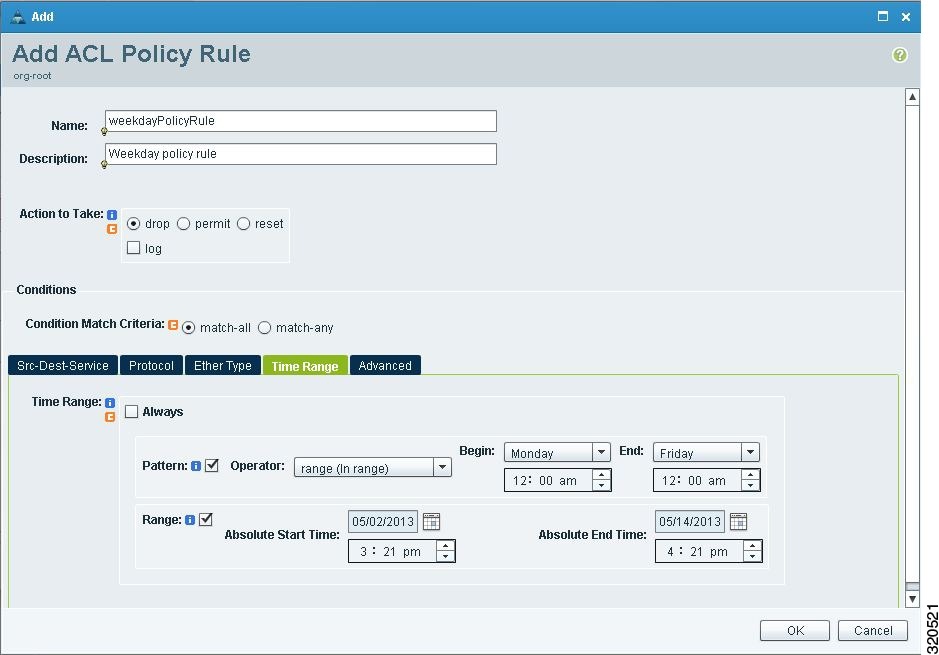
              Figure 1. Time Range Fields in an ACL Policy Rule

              Adding an ACL Policy Set

              SUMMARY STEPS

                1.    Choose Policy Management > Service Policies > root > Policies > ACL > ACL Policy Sets.

                2.    In the General tab, click Add ACL Policy Set.

                3.    In the Add ACL Policy Set dialog box, enter the required information as described in the following table, then click OK:


              DETAILED STEPS
                Step 1   Choose Policy Management > Service Policies > root > Policies > ACL > ACL Policy Sets.
                Step 2   In the General tab, click Add ACL Policy Set.
                Step 3   In the Add ACL Policy Set dialog box, enter the required information as described in the following table, then click OK:
                Field Description

                Name

                Policy set name, containing 2 to 32 characters. The name can contain alphanumeric characters, hyphen (-), underscore (_), period (.), and colon (:). You cannot change the name after it is saved.

                Description

                Policy set description, containing 1 to 256 characters. The name can contain alphanumeric characters, hyphen (-), underscore (_), period (.), and colon (:).

                Admin State

                Administrative state of the policy: enabled or disabled.

                This field is not available for all policy sets.

                Policies

                Add Policy

                Click to add a new policy.

                Available

                Policies that can be assigned to the policy set.

                Use the arrows between the columns to move policies between columns.

                Assigned

                Policies assigned to the policy set.

                Up and down arrows

                Changes the priority of the selected policies.

                Arrange the policies from highest to lowest priority, with the highest priority policy at the top of the list.


                Configuring Connection Timeout Policies

                enables you to configure connection timeout policies so that you can establish timeout limits for different traffic types.

                After you create a connection timeout policy, you can associate it with an edge security profile. For more information, see Configuring Edge Security Profiles.

                SUMMARY STEPS

                  1.    Choose Policy Management > Service Policies > root > Policies > Connection Timeout.

                  2.    In the General tab, click Add Connection Timeout Policy.

                  3.    In the Add Connection Timeout Policy dialog box:

                  4.    To add a rule to the policy, click Add Rule.

                  5.    In the Add Connection Timeout Policy Rule dialog box, provide the information as described in Add Connection Timeout Policy Rule Dialog Box.


                DETAILED STEPS
                  Step 1   Choose Policy Management > Service Policies > root > Policies > Connection Timeout.
                  Step 2   In the General tab, click Add Connection Timeout Policy.
                  Step 3   In the Add Connection Timeout Policy dialog box:
                  1. Enter a policy name and description.
                  2. Choose whether the administrative status of the policy is to be enabled or disabled.
                  Step 4   To add a rule to the policy, click Add Rule.
                  Step 5   In the Add Connection Timeout Policy Rule dialog box, provide the information as described in Add Connection Timeout Policy Rule Dialog Box.

                  Add Connection Timeout Policy Rule Dialog Box

                  Field Description

                  Name

                  Policy name.

                  Description

                  Brief policy description.

                  Action

                  Idle TCP

                  Length of time (in days, hours, minutes, and seconds) a TCP connection can remain idle before it is closed.

                  Half-Closed

                  Length of time (in days, hours, minutes, and seconds) a half-closed TCP connection can remain idle before it is freed.

                  Send Reset To Idle Connection

                  Check the check box to send a reset to the TCP endpoints when a TCP connection times out.

                  Idle UDP

                  Length of time (in days, hours, minutes, and seconds) a UDP connection can remain idle before it closes. The duration must be at least one minute, and the default value is two minutes. Enter 00:00:00:00 to disable timeout.

                  ICMP

                  Length of time (in days, hours, minutes, and seconds) an ICMP state can remain idle before it is closed.

                  Protocol

                  Not available for configuration.

                  Source Conditions

                  Destination Conditions

                  Configuring DHCP Policies

                  enables you to create the following DHCP policies and apply them to edge firewalls:
                  • DHCP relay policy

                  • DHCP server policy

                  You can also configure DHCP relay servers for inclusion in DHCP relay policies.

                  The DHCP relay and DHCP server policies can be authored at the organization level and can be applied only to the inside interface of an edge firewall. When they are applied, DHCP policies allow the edge firewall to act either as a DHCP server or a DHCP relay for all VMs in the inside network.

                  You can apply only one DHCP server or relay profile at a time to the inside interface of the edge firewall.

                  For more information, see the following topics:

                  Adding a DHCP Relay Server

                  DHCP relay servers are used to forward DHCP requests and replies between clients and servers when they are not on the same physical subnet. In contrast to IP router forwarding, where IP datagrams are switched between networks, DHCP relay servers receive DHCP messages and then generate a new message to send out on a different interface.

                  SUMMARY STEPS

                    1.    Choose Policy Management > Service Policies > root > Policies > DHCP > DHCP Relay Server.

                    2.    In the General tab, click Add DHCP Relay Server.

                    3.    In the New DHCP Relay Server dialog box, provide the information described in the Add DHCP Relay Server Dialog Box, then click OK.


                  DETAILED STEPS
                    Step 1   Choose Policy Management > Service Policies > root > Policies > DHCP > DHCP Relay Server.
                    Step 2   In the General tab, click Add DHCP Relay Server.
                    Step 3   In the New DHCP Relay Server dialog box, provide the information described in the Add DHCP Relay Server Dialog Box, then click OK.

                    Add DHCP Relay Server Dialog Box
                    Field Description

                    Name

                    Relay server name.

                    Description

                    Brief description of the relay server.

                    Relay Server IP

                    IP address of the relay server.

                    Interface Name

                    Interface to use to reach the relay server.

                    Configuring a DHCP Relay Policy

                    enables you to associate a DHCP relay server with a DHCP relay policy, as described in this procedure.

                    SUMMARY STEPS

                      1.    Choose Policy Management > Service Policies > root > Policies > DHCP > DHCP Relay.

                      2.    In the General tab, click Add DHCP Relay Policy.

                      3.    In the New DHCP Relay Policy dialog box, provide the information described in Add DHCP Relay Policy Dialog Box, then click OK.


                    DETAILED STEPS
                      Step 1   Choose Policy Management > Service Policies > root > Policies > DHCP > DHCP Relay.
                      Step 2   In the General tab, click Add DHCP Relay Policy.
                      Step 3   In the New DHCP Relay Policy dialog box, provide the information described in Add DHCP Relay Policy Dialog Box, then click OK.

                      Add DHCP Relay Policy Dialog Box
                      Name Description

                      Name

                      Policy name.

                      Description

                      Brief policy description.

                      DHCP Relay Server Assignment

                      Assign a DHCP relay server in one of the following ways:

                      • Click Add DHCP Relay Server to add a new DHCP relay server.

                      • In the Available Relay Servers list, select one of the available relay servers and move it to the Assigned Relay Servers list.

                      You must assign at least one DHCP relay server to the policy.

                      Configuring a DHCP Server Policy

                      A DHCP server policy enables you to define the characteristics of the policy, such as ping and lease timeouts, IP address range, and DNS and WINS settings.

                      SUMMARY STEPS

                        1.    Choose Policy Management > Service Policies > root > Policies > DHCP > DHCP Server.

                        2.    In the General tab, click Add DHCP Server Policy.

                        3.    In the New DHCP Server Policy dialog box, provide the information as described in Add DHCP Server Policy Dialog Box, then click OK.


                      DETAILED STEPS
                        Step 1   Choose Policy Management > Service Policies > root > Policies > DHCP > DHCP Server.
                        Step 2   In the General tab, click Add DHCP Server Policy.
                        Step 3   In the New DHCP Server Policy dialog box, provide the information as described in Add DHCP Server Policy Dialog Box, then click OK.

                        Add DHCP Server Policy Dialog Box
                        Field Description
                        General Tab

                        Name

                        Policy name.

                        Description

                        Brief policy description.

                        Ping Timeout (Milliseconds)

                        Amount of time (in milliseconds) that the DHCP server waits for a ping reply before it stops attempting to reach a pool address for client assignment.

                        The valid range is 10 to 10000 milliseconds.

                        Lease Timeout

                        Amount of time (in days, hour, minutes, and seconds) that the DHCP server allocates an IP address to a DHCP client before reclaiming and then reallocating it to another client.

                        The default value is 00:01:00:00 (one hour).

                        Edge Device Interface Using the DHCP Client for DHCP Server Auto Configuration

                        To enable DHCP server automatic configuration, enter the name of the edge device interface that uses the DHCP client. For ASA 1000V instances, this interface is always an outside interface.

                        Leaving this field empty indicates that the automatic configuration feature is disabled.

                        DNS Settings

                        DNS settings used by the edge firewall when configuring DHCP clients.

                        To add a new entry, click Add DNS Setting and add the required information.

                        WINS Servers

                        Windows Internet Naming Service (WINS) name servers that are available to DHCP clients.

                        To add a new WINS server, click Add WINS Server and enter the WINS server IP address.

                        WINS servers are listed in the order of preference, with the most preferred WINS server at the top. Select an entry in the table, and then use the arrows above the table to change server priority.

                        IP Address Range

                        Enter the following information for the DHCP address pool:

                        • Start IP Address—Beginning IP address of the pool.

                        • End IP Address—Ending IP address of the pool.

                        • Subnet Mask—Subnet mask to apply to the address pool.

                        The Advance tab allows you to add Manual and Exclude addresses. You must know the applicable MAC and IP addresses.

                        Configuring IP Audit and IP Audit Signature Policies

                        The IP audit feature provides basic Intrusion Prevention System (IPS) support for ASA 1000V instances. supports a basic list of signatures, and enables you to configure policies that specify one or more actions to apply to traffic that matches a signature.

                        The following IP audit policies are available:
                        • Audit policies

                        • Signature policies

                        When you associate an IP audit policy with a device, the policy is applied to all traffic on the outside interface of the device.

                        The following topics describe how to configure these policies.

                        Configuring IP Audit Policies

                        SUMMARY STEPS

                          1.    Choose Policy Management > Service Policies > root > Policies > IP Audit > Audit Policies.

                          2.    In the General tab, click Add IP Audit Policy.

                          3.    In the Add IP Audit Policy dialog box provide the following information:

                          • Policy name
                          • Policy description
                          • In the Admin State field, choose whether the administrative state of the policy is to be enabled or disabled.

                          4.    To add a rule to the policy, click Add Rule in the Rule Table toolbar.

                          5.    In the Add IP Audit Policy Rule dialog box, provide the information as described in Add IP Audit Policy Rule Dialog Box, then click OK in the open dialog boxes.


                        DETAILED STEPS
                          Step 1   Choose Policy Management > Service Policies > root > Policies > IP Audit > Audit Policies.
                          Step 2   In the General tab, click Add IP Audit Policy.
                          Step 3   In the Add IP Audit Policy dialog box provide the following information:
                          • Policy name
                          • Policy description
                          • In the Admin State field, choose whether the administrative state of the policy is to be enabled or disabled.
                          Step 4   To add a rule to the policy, click Add Rule in the Rule Table toolbar.
                          Step 5   In the Add IP Audit Policy Rule dialog box, provide the information as described in Add IP Audit Policy Rule Dialog Box, then click OK in the open dialog boxes.

                          Add IP Audit Policy Rule Dialog Box
                          Field Description

                          Name

                          Rule name.

                          Description

                          Brief rule description.

                          Attack-Class Action

                          Check the check boxes of the actions to take for signature type Attack if the conditions of the rule are met:

                          • Log—Send a message indicating that a packet matched the signature.

                          • Drop—Drop the packet.

                          • Reset Flow—Drop the packet and reset the connection.

                          Informational-Class Action

                          Check the check boxes of the actions to take for signature type Informational if the conditions of the rule are met:

                          • Log—Send a message indicating that a packet matched the signature.

                          • Drop—Drop the packet.

                          • Reset Flow—Drop the packet and reset the connection.

                          Protocol

                          Not available for configuration.

                          Source Conditions

                          Destination Conditions

                          Configuring IP Audit Signature Policies

                          An IP audit signature policy identifies the signatures that are enabled and disabled. By default, all signatures are enabled. You can disable a signature when legitimate traffic matches the signature in most situations, resulting in false alarms. However, disabling the signature is performed at a global level, meaning that no traffic will trigger the signature (even bad traffic) when it is disabled.

                          SUMMARY STEPS

                            1.    Choose Policy Management > Service Policies > root > Policies > IP Audit > Signature Policies.

                            2.    In the General tab, click Add IP Audit Signature Policy.

                            3.    In the Add IP Audit Signature Policy dialog box, enter a name and description for the policy.

                            4.    In the Signatures area, move signatures between the Enabled Signatures and Disabled Signatures lists as required.

                            5.    After you have made all adjustments, click OK.


                          DETAILED STEPS
                            Step 1   Choose Policy Management > Service Policies > root > Policies > IP Audit > Signature Policies.
                            Step 2   In the General tab, click Add IP Audit Signature Policy.
                            Step 3   In the Add IP Audit Signature Policy dialog box, enter a name and description for the policy.
                            Step 4   In the Signatures area, move signatures between the Enabled Signatures and Disabled Signatures lists as required.
                            Note   

                            We recommend that you do not disable signatures unless you are sure you understand the consequences of doing so.

                            You can view additional information about a signature by selecting the required signature and clicking Properties.

                            Step 5   After you have made all adjustments, click OK.

                            Configuring NAT/PAT Policies and Policy Sets

                            supports Network Address Translation (NAT) and Port Address Translation (PAT) policies for controlling address translation in the deployed network. These policies support both static and dynamic translation of IP addresses and ports.

                            enables you to configure the following policy items:
                            • NAT policy—Can contain multiple rules, which are evaluated sequentially until a match is found.


                              Note


                              Edge routers support a limited set of NAT policy options.
                            • NAT policy set—Group of NAT policies that can be associated with an edge security profile. When the profile is applied, the NAT policies are applied only to ingress traffic.

                            • PAT policy—Supports source dynamic and destination static interface PAT on edge firewalls.

                            The following topics describe how to configure NAT and PAT policies, and NAT policy sets.

                            Configuring NAT/PAT Policies

                            This procedure describes how to configure NAT/PAT policies with .

                            SUMMARY STEPS

                              1.    Choose Policy Management > Service Policies > root > Policies > NAT > NAT Policies.

                              2.    In the General tab, click Add NAT Policy.

                              3.    In the Add NAT Policy dialog box, enter a name and description for the policy.

                              4.    In the Admin State field, indicate whether the administrative state of the policy is to be enabled or disabled.

                              5.    To add a rule to the policy, click Add Rule.

                              6.    In the Add NAT Policy Rule dialog box, provide the information as described in Add NAT Policy Rule Dialog Box, then click OK in the open dialog boxes.


                            DETAILED STEPS
                              Step 1   Choose Policy Management > Service Policies > root > Policies > NAT > NAT Policies.
                              Step 2   In the General tab, click Add NAT Policy.
                              Step 3   In the Add NAT Policy dialog box, enter a name and description for the policy.
                              Step 4   In the Admin State field, indicate whether the administrative state of the policy is to be enabled or disabled.
                              Step 5   To add a rule to the policy, click Add Rule.
                              Step 6   In the Add NAT Policy Rule dialog box, provide the information as described in Add NAT Policy Rule Dialog Box, then click OK in the open dialog boxes.

                              Add NAT Policy Rule Dialog Box
                              Add NAT Policy Rule Dialog Box
                              Field Description

                              Name

                              Rule name.

                              Description

                              Brief rule description.

                              Original Packet Match Conditions

                              Source Match Conditions

                              Source attributes that must be matched for the current policy to apply.

                              To add a new condition, click Add Rule Condition.

                              Available source attributes are IP Address and Network Port.

                              Destination Match Conditions

                              Destination attributes that must be matched for the current policy to apply.

                              To add a new condition, click Add Rule Condition.

                              Available destination attributes are IP Address and Network Port.

                              Protocol

                              Specify the protocols to which the rule applies:

                              • To apply the rule to any protocol, check the Any check box.

                              • To apply the rule to specific protocols:

                                1. Uncheck the Any check box.

                                2. From the Operator drop-down list, choose a qualifier: Equal, Not equal, Member, Not Member, In range, or Not in range.

                                3. In the Value fields, specify the protocol, object group, or range.

                              NAT Action Table

                              NAT Action

                              From the drop-down list, choose the required translation option: Static or Dynamic.

                              Translated Address

                              Identify a translated address pool for each original packet match condition from the following options:

                              • Source IP Pool

                              • Source Port Pool

                              • Source IP PAT Pool

                              • Destination IP Pool

                              • Destination Port Pool

                              For example, if you specify a source IP address match condition, you must identify a Source IP Pool object group. Similarly, a destination network port match requires a Destination Port Pool object group.

                              The Source IP PAT Pool option is available only if you choose dynamic translation.

                              Click Add Object Group to add object groups for the translation actions.

                              NAT Options

                              Check and uncheck the check boxes as required:

                              • Enable Bidirectional—Check the check box for connections to be initiated bidirectionally; that is, both to and from the host. Available only for static address translation.

                              • Enable DNS—Check the check box to enable DNS for NAT.

                              • Enable Round Robin IP—Check the check box to allocate IP addresses on a round-robin basis. Available only for dynamic address translation.

                              • Disable Proxy ARP—Check the check box to disable proxy ARP. Available only for static address translation.


                              Note


                              Edge routers support a limited set of NAT policy options.

                              Configuring NAT Policy Sets

                              Policy sets enable you to group multiple policies of the same type (such as NAT, ACL, or Interface) for inclusion in a profile. NAT policy sets are groups of NAT policies that can be associated with an edge security profile.

                              SUMMARY STEPS

                                1.    Choose Policy Management > Service Policies > root > Policies > NAT > NAT Policy Sets.

                                2.    In the General tab, click Add NAT Policy Set.

                                3.    In the Add NAT Policy Set dialog box, enter a name and description for the policy set.

                                4.    In the Admin State field, indicate whether the administrative status of the policy is to be enabled or disabled.

                                5.    In the Policies area, select the policies to include in this policy set:

                                6.    Click OK.


                              DETAILED STEPS
                                Step 1   Choose Policy Management > Service Policies > root > Policies > NAT > NAT Policy Sets.
                                Step 2   In the General tab, click Add NAT Policy Set.
                                Step 3   In the Add NAT Policy Set dialog box, enter a name and description for the policy set.
                                Step 4   In the Admin State field, indicate whether the administrative status of the policy is to be enabled or disabled.
                                Step 5   In the Policies area, select the policies to include in this policy set:
                                1. In the Available list, select one or more policies and move them to the Assigned list.
                                2. Adjust the priority of the assigned policies by using the arrow keys above the list.
                                3. If required, click Add NAT Policy to add a new policy and include it in the Assigned list.

                                  For information on configuring a NAT policy, see Configuring NAT/​PAT Policies.

                                Step 6   Click OK.

                                Configuring PAT for Edge Firewalls

                                enables you to configure source and destination interface PAT for edge firewalls, such as the ASA 1000V. For more information, see the following topics.

                                Configuring Source Dynamic Interface PAT

                                enables you to configure source dynamic interface PAT for edge firewalls, such as ASA 1000Vs.

                                SUMMARY STEPS

                                  1.    Choose Policy Management > Service Policies > root > Policies > NAT > NAT Policies.

                                  2.    In the General tab, click Add NAT Policy.

                                  3.    In the Add NAT Policy dialog box, enter a name and description for the policy.

                                  4.    In the Admin State field, indicate whether the administrative state of the policy is to be enabled or disabled.

                                  5.    Click Add Rule to add a rule to this policy.

                                  6.    In the Add NAT Policy Rule dialog box, provide the information described in Add NAT Policy Rule Dialog Box with the following specific settings, then click OK:

                                  7.    Click OK.


                                DETAILED STEPS
                                  Step 1   Choose Policy Management > Service Policies > root > Policies > NAT > NAT Policies.
                                  Step 2   In the General tab, click Add NAT Policy.
                                  Step 3   In the Add NAT Policy dialog box, enter a name and description for the policy.
                                  Step 4   In the Admin State field, indicate whether the administrative state of the policy is to be enabled or disabled.
                                  Step 5   Click Add Rule to add a rule to this policy.
                                  Step 6   In the Add NAT Policy Rule dialog box, provide the information described in Add NAT Policy Rule Dialog Box with the following specific settings, then click OK:
                                  1. From the NAT Action drop-down list, choose Dynamic.
                                  2. In the Translated Address area, add a Source IP Pool object group that contains the ASA 1000V outside interface IP address.
                                  Step 7   Click OK.

                                  Configuring Destination Static Interface PAT
                                  enables you to configure destination static interface PAT for edge firewalls, such as ASA 1000Vs, as described in the following procedure.
                                  SUMMARY STEPS

                                    1.    Choose Policy Management > Service Policies > root > Policies > NAT > NAT Policies.

                                    2.    In the General tab, click Add NAT Policy.

                                    3.    In the Add NAT Policy dialog box, enter a name and description for the policy.

                                    4.    In the Admin State field, indicate whether the administrative state of the policy is to be enabled or disabled.

                                    5.    Click Add Rule to add a rule to this policy.

                                    6.    In the Add NAT Policy Rule dialog box, enter the IP address of the ASA 1000V outside interface as a rule condition for Destination Match Conditions.

                                    7.    Configure other options in the Add NAT Policy Rule dialog box as described in Add NAT Policy Rule Dialog Box, then click OK.

                                    8.    Click OK.


                                  DETAILED STEPS
                                    Step 1   Choose Policy Management > Service Policies > root > Policies > NAT > NAT Policies.
                                    Step 2   In the General tab, click Add NAT Policy.
                                    Step 3   In the Add NAT Policy dialog box, enter a name and description for the policy.
                                    Step 4   In the Admin State field, indicate whether the administrative state of the policy is to be enabled or disabled.
                                    Step 5   Click Add Rule to add a rule to this policy.
                                    Step 6   In the Add NAT Policy Rule dialog box, enter the IP address of the ASA 1000V outside interface as a rule condition for Destination Match Conditions.
                                    Step 7   Configure other options in the Add NAT Policy Rule dialog box as described in Add NAT Policy Rule Dialog Box, then click OK.
                                    Note   

                                    If any of the IP address fields includes a range that starts or ends with the IP address of the outside interface of the ASA 1000V, an error message will be displayed that identifies an overlap with the ASA 1000V interface IP address.

                                    Step 8   Click OK.

                                    Configuring Packet Inspection Policies

                                    enables you to configure policies for application-layer protocol inspection. Inspection is required for services that embed IP addressing information in the user data packet, or that open secondary channels on dynamically assigned ports. When inspection is configured, the end device performs a deep packet inspection instead of quickly passing the packet on. As a result, inspection can affect overall device throughput.

                                    Protocols Supported for Packet Inspection Policies lists the application-layer protocols supported by .

                                    SUMMARY STEPS

                                      1.    Choose Policy Management > Service Policies > root > Policies > Packet Inspection.

                                      2.    In the General tab, click Add Packet Inspection Policy.

                                      3.    In the Add Packet Inspection Policy dialog box, enter a name and description for the policy.

                                      4.    In the Admin State field, indicate whether the administrative status of the policy is enabled or disabled.

                                      5.    To add a rule to the policy, click Add Rule.

                                      6.    In the Add Packet Inspection Policy Rule Dialog box, provide the information as described in Add Packet Inspection Policy Rule Dialog Box, then click OK in the open dialog boxes.


                                    DETAILED STEPS
                                      Step 1   Choose Policy Management > Service Policies > root > Policies > Packet Inspection.
                                      Step 2   In the General tab, click Add Packet Inspection Policy.
                                      Step 3   In the Add Packet Inspection Policy dialog box, enter a name and description for the policy.
                                      Step 4   In the Admin State field, indicate whether the administrative status of the policy is enabled or disabled.
                                      Step 5   To add a rule to the policy, click Add Rule.
                                      Step 6   In the Add Packet Inspection Policy Rule Dialog box, provide the information as described in Add Packet Inspection Policy Rule Dialog Box, then click OK in the open dialog boxes.

                                      Protocols Supported for Packet Inspection Policies

                                      CTIQBE

                                      ICMP

                                      PPTP

                                      SQL *Net

                                      DCE/RPC

                                      ICMP Error

                                      RSH

                                      SunRPC

                                      DNS

                                      ILS

                                      RSTP

                                      TFTP

                                      FTP

                                      IP Options

                                      SIP

                                      WAAS

                                      H323 H225

                                      IPsec Pass-Through

                                      Skinny

                                      XDMCP

                                      H323 RAS

                                      MGCP

                                      SMTP


                                      HTTP

                                      NetBIOS

                                      SNMP

                                      Add Packet Inspection Policy Rule Dialog Box
                                      Field Description

                                      Name

                                      Rule name.

                                      Description

                                      Brief rule description.

                                      Action

                                      Under Enable Inspections, check the check boxes of protocols to be inspected if the rule conditions are met.

                                      Protocol

                                      Not available for configuration.

                                      Source Conditions

                                      Destination Conditions

                                      Configuring Routing Policies

                                      enables you to use routing policies to configure static, OSPF, and BGP routes for managed resources.


                                      Note


                                      You can configure only inside and outside interfaces on edge firewalls by using . Use the CLI to configure routes on the edge firewall management interface.

                                      After you configure a static route routing policy, you can implement the policy by:

                                      • Including the routing policy in an edge device profile.

                                      • Applying the edge device profile to an edge firewall that has managed endpoints.

                                      SUMMARY STEPS

                                        1.    Choose Policy Management > Service Policies > root > Policies > Routing.

                                        2.    In the General tab, click Add Routing Policy.

                                        3.    In the Add Routing Policy dialog box, enter a name and brief description for the routing policy.

                                        4.    To add a new static route, click Add Static Route.

                                        5.    In the Add Static Route dialog box, enter the following information:

                                        6.    Click OK.


                                      DETAILED STEPS
                                        Step 1   Choose Policy Management > Service Policies > root > Policies > Routing.
                                        Step 2   In the General tab, click Add Routing Policy.
                                        Step 3   In the Add Routing Policy dialog box, enter a name and brief description for the routing policy.
                                        Step 4   To add a new static route, click Add Static Route.
                                        Step 5   In the Add Static Route dialog box, enter the following information:
                                        1. In the Destination Network fields, enter the IP route prefix and prefix mask for the destination.
                                        2. In the Forwarding (Next Hop) fields, enter the IP address of the next hop that can be used to reach the destination network.
                                          Note    The Forwarding Interface field applies only to ASA 1000V data interfaces. Use the CLI to configure routes on the ASA 1000V management interface.
                                        3. (Optional) In the Distance Metric field, enter the distance metric.
                                        Step 6   Click OK.

                                        Configuring TCP Intercept Policies

                                        enables you to configure TCP intercept policies that you can then associate with an edge security profile. TCP intercept policies that you associate with a device via an edge security profile are applied to all traffic on the outside interface of the device.

                                        SUMMARY STEPS

                                          1.    Choose Policy Management > Service Policies > root > Policies > TCP Intercept.

                                          2.    In the General tab, click Add TCP Intercept Policy.

                                          3.    In the Add TCP Intercept Policy dialog box, enter a name and brief description for the policy.

                                          4.    In the Admin State field, indicate whether the administrative status of the policy is to be enabled or disabled.

                                          5.    To add a rule to the policy, click Add Rule.

                                          6.    In the Add TCP Intercept Policy Rule dialog box, provide the information as described in Add TCP Intercept Policy Rule Dialog Box.


                                        DETAILED STEPS
                                          Step 1   Choose Policy Management > Service Policies > root > Policies > TCP Intercept.
                                          Step 2   In the General tab, click Add TCP Intercept Policy.
                                          Step 3   In the Add TCP Intercept Policy dialog box, enter a name and brief description for the policy.
                                          Step 4   In the Admin State field, indicate whether the administrative status of the policy is to be enabled or disabled.
                                          Step 5   To add a rule to the policy, click Add Rule.
                                          Step 6   In the Add TCP Intercept Policy Rule dialog box, provide the information as described in Add TCP Intercept Policy Rule Dialog Box.

                                          Add TCP Intercept Policy Rule Dialog Box

                                          Field Description

                                          Name

                                          Rule name.

                                          Description

                                          Brief rule description.

                                          Maximum Number of Embryonic TCP Connections (0-65535)

                                          Number of embryonic TCP connections allowed overall and per client:

                                          1. In the Total field, enter the maximum number of embryonic TCP connections allowed.

                                          2. In the client field, enter the maximum number of embryonic TCP connections allowed per client.

                                          The default value 0 (zero) indicates unlimited connections.

                                          Protocol

                                          Not available for configuration.

                                          Source Conditions

                                          Not available for configuration.

                                          Destination Conditions

                                          Not available for configuration.

                                          Configuring Site-to-Site IPsec VPN Policies

                                          enables you to configure site-to-site IPsec VPNs. In addition, you can configure a crypto map policy and attach it to an edge profile. For ease of configuration and to keep logical IPsec entities separate, configuration is divided into the following sections:

                                          • Configuring Crypto Map Policies

                                          • Configuring IKE Policies

                                          • Configuring Interface Policy Sets

                                          • Configuring IPsec Policies

                                          • Configuring Peer Authentication Policies

                                          • Configuring VPN Device Policies

                                          To access VPN policies, choose Policy Management > Service Policies > root > Policies > VPN.

                                          Configuring Crypto Map Policies

                                          enables you to create crypto map policies that include:
                                          • Rules for source and destination conditions.

                                          • IP Security (IPsec) options, including an IPsec policy.

                                          • Internet Key Exchange (IKE) options, including a peer device.

                                          Crypto map policies are applied to interfaces by means of their inclusion in interface policy sets and edge security policies.

                                          SUMMARY STEPS

                                            1.    Choose Policy Management > Service Policies > root > Policies > VPN > Crypto Map Policies.

                                            2.    In the General tab, click Add Crypto Map Policy.

                                            3.    In the Add Crypto Map Policy dialog box, provide the information as described in Add Crypto Map Policy Dialog Box, then click OK.

                                            4.    To add a policy rule, click Add Rule in the General tab and provide the required information as described in Add Crypto Map Policy Rule Dialog Box.


                                          DETAILED STEPS
                                            Step 1   Choose Policy Management > Service Policies > root > Policies > VPN > Crypto Map Policies.
                                            Step 2   In the General tab, click Add Crypto Map Policy.
                                            Step 3   In the Add Crypto Map Policy dialog box, provide the information as described in Add Crypto Map Policy Dialog Box, then click OK.
                                            Step 4   To add a policy rule, click Add Rule in the General tab and provide the required information as described in Add Crypto Map Policy Rule Dialog Box.

                                            Add Crypto Map Policy Dialog Box
                                            Field Description

                                            General Tab

                                            Name

                                            Policy name.

                                            Description

                                            Brief policy description.

                                            Admin State

                                            Whether the administrative status of the policy is enabled or disabled.

                                            Rule Table

                                            Add Rule

                                            Click Add Rule to add a new rule to the current policy.

                                            IPsec Settings Tab

                                            SA Lifetime

                                            Length of time (in days, hours, minutes, and seconds) that a security association (SA) lives before expiring.

                                            SA Lifetime Traffic (KB)

                                            Volume of traffic, in kilobytes, that can pass between IPsec peers using a given SA before that association expires.

                                            Enable Perfect Forwarding Secrecy

                                            Whether or not Perfect Forward Secrecy (PFS) is enabled.

                                            PFS is a cryptographic characteristic associated with a derived shared secret value. With PFS, if one key is compromised, previous and subsequent keys are not compromised, because subsequent keys are not derived from previous keys.

                                            Diffie-Hellman Group

                                            Available if PFS is enabled.

                                            Choose the Diffie-Hellman (DH) group for this policy:

                                            • Group 1—The 768-bit DH group.

                                            • Group 2—The 1024-bit DH group.

                                            • Group 5—The 1536-bit DH group.

                                            IPsec Policies

                                            The IPsec policy that applies to the current policy.

                                            Select an existing IPsec policy or click Add IPsec Policy to create a new policy.

                                            Peer Device

                                            Peer device.

                                            Choose an existing peer or click Add Peer Device to add a new peer.

                                            In the Add Peer Device dialog box, enter the peer device IP address or hostname.

                                            Other Settings Tab

                                            Enable NAT Traversal

                                            Whether or not IPsec peers can establish a connection through a NAT device.

                                            Enable Reverse Route Injection

                                            Whether or not static routes are automatically added to the routing table and then announced to neighbors on the private network.

                                            Connection Type

                                            Connection type for this policy:

                                            • Answer-Only—Responds only to inbound IKE connections during the initial proprietary exchange to determine the appropriate peer to which to connect.

                                            • Bidirectional—Accepts and originates connections based on this policy.

                                            • Originate-Only—Initiates the first proprietary exchange to determine the appropriate peer to which to connect.

                                            Negotiation Mode

                                            Mode to use for exchanging key information and setting up SAs:

                                            • Aggressive Mode—Faster mode, using fewer packets and exchanges, but does not protect the identity of the communicating parties.

                                            • Main Mode—Slower mode, using more packets and exchanges, but protects the identities of the communicating parties.

                                            DH Group for Aggressive Mode

                                            DH group to use when in aggressive mode: Group 1, Group 2, or Group 5.

                                            Add Crypto Map Policy Rule Dialog Box
                                            Field Description

                                            Name

                                            Rule name.

                                            Description

                                            Brief rule description.

                                            VPN Action

                                            Action to take based on this rule: Permit or Deny.

                                            Protocol

                                            Protocols to examine for this rule:

                                            • To examine all protocols, check the Any check box.

                                            • To examine specific protocols:

                                              1. Uncheck the Any check box.

                                              2. From the Operator drop-down list, choose a qualifier: Equal, Not equal, Member, Not Member, In range, or Not in range.

                                              3. In the Value fields, specify the protocol, object group, or range.

                                            Source Conditions

                                            Source attributes that must be matched for the rule to apply.

                                            To add a new condition, click Add Rule Condition.

                                            Available source attributes are IP Address and Network Port.

                                            Destination Conditions

                                            Destination attributes that must be matched for the rule to apply.

                                            To add a new condition, click Add Rule Condition.

                                            Available destination attributes are IP Address and Network Port.

                                            Configuring IKE Policies

                                            The Internet Key Exchange (IKE) protocol is a hybrid protocol that implements Oakley and SKEME key exchanges inside the Internet Security Association and Key Management Protocol (ISAKMP) framework. The initial IKE implementation used the IPsec protocol, but IKE can be used with other protocols. IKE provides authentication of the IPsec peers, negotiates IPsec keys, and negotiates the IPsec Security Associations (SAs).

                                            SUMMARY STEPS

                                              1.    Choose Policy Management > Service Policies > root > Policies > VPN > IKE Policies.

                                              2.    In the General tab, click Add IKE Policy.

                                              3.    In the Add IKE Policy dialog box, enter a name and description for the policy.

                                              4.    Configure either an IKE V1 or IKE V2 policy:

                                              • IKE V1 Policy
                                                1. Click Add IKE V1 Policy.

                                                2. In the Add IKE V1 Policy dialog box, provide the information described in IKE V1 Policy Dialog Box, then click OK.

                                              • IKE V2 Policy
                                                1. Click Add IKE V2 Policy.

                                                2. In the Add IKE V2 Policy dialog box, provide the information described in IKE V2 Policy Dialog Box, then click OK.

                                              5.    Click OK.


                                            DETAILED STEPS
                                              Step 1   Choose Policy Management > Service Policies > root > Policies > VPN > IKE Policies.
                                              Step 2   In the General tab, click Add IKE Policy.
                                              Step 3   In the Add IKE Policy dialog box, enter a name and description for the policy.
                                              Step 4   Configure either an IKE V1 or IKE V2 policy:
                                              • IKE V1 Policy
                                                1. Click Add IKE V1 Policy.

                                                2. In the Add IKE V1 Policy dialog box, provide the information described in IKE V1 Policy Dialog Box, then click OK.

                                              • IKE V2 Policy
                                                1. Click Add IKE V2 Policy.

                                                2. In the Add IKE V2 Policy dialog box, provide the information described in IKE V2 Policy Dialog Box, then click OK.

                                              Step 5   Click OK.

                                              IKE V1 Policy Dialog Box
                                              Field Description

                                              DH Group

                                              Diffie-Hellman group: Group 1, Group 2, or Group 5.

                                              Encryption

                                              Encryption method: 3DES, AES, AES-192, AES-256, or DES.

                                              Hash

                                              Hash algorithm: MD5 or SHA.

                                              Authentication

                                              Authentication method is Preshared key.

                                              SA Lifetime

                                              Length of time (in days, hours, minutes, and seconds) that an SA lives before expiring.

                                              IKE V2 Policy Dialog Box
                                              Field Description

                                              DH Group

                                              Diffie-Hellman group: Group 1, Group 2, Group 5, or Group 14.

                                              Encryption

                                              Encryption method: 3DES, AES, AES-192, AES-256, or DES.

                                              Hash

                                              Hash integrity algorithm: MD5, SHA, SHA256, SHA384, or SHA512.

                                              Pseudo Random Function Hash

                                              Pseudo-random function (PRF) has algorithm: MD5, SHA, SHA256, SHA384, or SHA512.

                                              SA Lifetime

                                              Length of time (in days, hours, minutes, and seconds) that an SA lives before expiring.

                                              Configuring Interface Policy Sets

                                              Interface policy sets enable you to group multiple policies for inclusion in an edge security profile.

                                              SUMMARY STEPS

                                                1.    Choose Policy Management > Service Policies > root > Policies > VPN > Interface Policy Sets.

                                                2.    In the General tab, click Add Interface Policy Set.

                                                3.    In the Add Interface Policy Set dialog box, provide the information as described in Add Interface Policy Set Dialog Box, then click OK.


                                              DETAILED STEPS
                                                Step 1   Choose Policy Management > Service Policies > root > Policies > VPN > Interface Policy Sets.
                                                Step 2   In the General tab, click Add Interface Policy Set.
                                                Step 3   In the Add Interface Policy Set dialog box, provide the information as described in Add Interface Policy Set Dialog Box, then click OK.

                                                Add Interface Policy Set Dialog Box
                                                General Tab
                                                Field Description

                                                Name

                                                Policy set name.

                                                Description

                                                Brief description of the policy set.

                                                Admin State

                                                Administrative state of the policy set: enabled or disabled.

                                                Policies Area

                                                Add Crypto Map Policy

                                                Click to add a new policy.

                                                Available

                                                Policies that can be assigned to the policy set.

                                                Use the arrows between the columns to move policies between columns.

                                                Assigned

                                                Policies assigned to the policy set.

                                                Up and down arrows

                                                Changes the priority of the selected policies.

                                                Arrange the policies from highest to lowest priority, with the highest priority policy at the top of the list.

                                                Domain Settings Tab
                                                Field Description

                                                Enable IKE (Must check at least one)

                                                Check the appropriate check box to specify IKE V1 or IKE V2.

                                                Enable IPsec Pre-fragmentation

                                                Check the check box to fragment packets before encryption. Pre-fragmentation minimizes post-fragmentation (fragmentation after encryption) and the resulting reassembly before decryption, thereby improving performance.

                                                Do Not Fragment

                                                Available only if the Enable IPsec Pre-fragmentation check box is checked.

                                                From the drop-down list, choose the action to take with the Don't Fragment (DF) bit in the encapsulated header:

                                                • Clear

                                                • Copy

                                                • Set

                                                Configuring IPsec Policies

                                                IPsec policies define the IPsec policy objects used to create a secure IPsec tunnel for a VPN.

                                                SUMMARY STEPS

                                                  1.    Choose Policy Management > Service Policies > root > Policies > VPN > IPsec Policies.

                                                  2.    In the General tab, click Add IPsec Policy.

                                                  3.    In the Add IPsec Policy dialog box, enter a name and description for the policy.

                                                  4.    To configure an IKE V1 proposal:

                                                  5.    To configure an IKE V2 proposal:

                                                  6.    Click OK to save the policy.


                                                DETAILED STEPS
                                                  Step 1   Choose Policy Management > Service Policies > root > Policies > VPN > IPsec Policies.
                                                  Step 2   In the General tab, click Add IPsec Policy.
                                                  Step 3   In the Add IPsec Policy dialog box, enter a name and description for the policy.

                                                  You must configure ethier an IKE V1 or IKE V2 proposal for an IPsec policy.

                                                  Step 4   To configure an IKE V1 proposal:
                                                  1. In the IKE v1 Proposal Table area, click Add IPsec IKEv1 Proposal.
                                                  2. In the IPsec IKEv1 Proposal dialog box, provide the information described in IPsec IKEv1 Proposal Dialog Box, then click OK.
                                                  Step 5   To configure an IKE V2 proposal:
                                                  1. In the IKE v2 Proposal Table area, click Add IPsec IKE v2 Proposal.
                                                  2. In the IPsec IKEv2 Proposal dialog box, provide the information described in IPsec IKEv2 Proposal Dialog Box, then click OK.
                                                  Step 6   Click OK to save the policy.

                                                  IPsec IKEv1 Proposal Dialog Box
                                                  Field Description

                                                  Mode

                                                  Mode in which the IPsec tunnel operates.

                                                  In Tunnel mode, the IPsec tunnel encapsulates the entire IP packet.

                                                  ESP Encryption

                                                  Encapsulating Security Protocol (ESP) encryption method:

                                                  • 3DES—Encrypts three times according to the Data Encryption Standard (DES) using 56-bit keys.

                                                  • AES—Encrypts according to the Advanced Encryption Standard (AES) using 128-bit keys.

                                                  • AES-192—Encrypts according to the AES using 192-bit keys.

                                                  • AES-256—Encrypts according to the AES using 256-bit keys.

                                                  • DES—Encrypts according to the DES using 56-bit keys.

                                                  • Null—Null encryption algorithm. Transform sets defined with ESP-Null provide authentication without encryption; this method is typically used for testing purposes only.

                                                  ESP Authentication

                                                  Hash authentication algorithm:

                                                  • MD5—Produces a 128-bit digest.

                                                  • Null—Does not perform authentication.

                                                  • SHA—Produces a 160-bit digest.

                                                  IPsec IKEv2 Proposal Dialog Box
                                                  Field Description

                                                  ESP Encryption Algorithm Table

                                                  To add an ESP encryption method:

                                                  1. Click Add ESP Encryption Algorithm.

                                                  2. From the ESP Encryption drop-down list, choose the encryption method:

                                                    • 3DES—Encrypts three times according to the Data Encryption Standard (DES) using 56-bit keys.

                                                    • AES—Encrypts according to the Advanced Encryption Standard (AES) using 128-bit keys.

                                                    • AES-192—Encrypts according to the AES using 192-bit keys.

                                                    • AES-256—Encrypts according to the AES using 256-bit keys.

                                                    • DES—Encrypts according to the DES using 56-bit keys.

                                                    • Null—Null encryption algorithm. Transform sets defined with ESP-Null provide authentication without encryption; this method is typically used for testing purposes only.

                                                  Integrity Algorithm Table

                                                  To add an integrity algorithm:

                                                  1. Click Add Integrity Algorithm.

                                                  2. From the Integrity Algorithm drop-down list, choose the authentication algorithm:

                                                    • MD5—Produces a 128-bit digest.

                                                    • Null—Does not perform authentication.

                                                    • SHA—Produces a 160-bit digest.

                                                  Configuring Peer Authentication Policies

                                                  Use a peer authentication policy to define the method used to authenticate a peer.

                                                  SUMMARY STEPS

                                                    1.    Choose Policy Management > Service Policies > root > Policies > VPN > Peer Authentication Policies.

                                                    2.    In the General tab, click Add Peer Authentication Policy.

                                                    3.    In the Add Peer Authentication Policy dialog box, enter a name and description for the policy.

                                                    4.    Click Add Policy to Authenticate Peer.

                                                    5.    In the Add Policy to Authenticate Peer dialog box, provide the information described in Add Policy to Authenticate Peer Dialog Box, then click OK.

                                                    6.    Click OK to save the policy.


                                                  DETAILED STEPS
                                                    Step 1   Choose Policy Management > Service Policies > root > Policies > VPN > Peer Authentication Policies.
                                                    Step 2   In the General tab, click Add Peer Authentication Policy.
                                                    Step 3   In the Add Peer Authentication Policy dialog box, enter a name and description for the policy.
                                                    Step 4   Click Add Policy to Authenticate Peer.
                                                    Step 5   In the Add Policy to Authenticate Peer dialog box, provide the information described in Add Policy to Authenticate Peer Dialog Box, then click OK.
                                                    Step 6   Click OK to save the policy.

                                                    Add Policy to Authenticate Peer Dialog Box
                                                    Field Description

                                                    Peer Device (Unique)

                                                    Unique IP address or hostname of the peer.

                                                    IKEv1 Area

                                                    Local

                                                    Preshared key.

                                                    Confirm

                                                    Preshared key for confirmation.

                                                    Set

                                                    Whether or not the preshared key has been set and is properly configured (read-only).

                                                    IKEv2 Area

                                                    Local

                                                    Local preshared key.

                                                    Confirm

                                                    Local preshared key for confirmation.

                                                    Set

                                                    Whether or not the local preshared key has been set and is properly configured (read-only).

                                                    Remote

                                                    Remote preshared key.

                                                    Confirm

                                                    Remote preshared key for confirmation.

                                                    Set

                                                    Whether or not the remote preshared key has been set and is properly configured (read-only).

                                                    Configuring VPN Device Policies

                                                    A VPN device policy enables you to specify VPN global settings, such as:
                                                    • IKE policy

                                                    • IKE global settings

                                                    • IPsec global settings

                                                    • Peer authentication policy

                                                    SUMMARY STEPS

                                                      1.    Choose Policy Management > Service Policies > root > Policies > VPN > VPN Device Policies.

                                                      2.    In the General tab, click Add VPN Device Policy.

                                                      3.    In the Add VPN Device Policy dialog box, provide the information as described in Add VPN Device Policy Dialog Box.

                                                      4.    As needed, provide the information described in the following tables:

                                                      5.    Click OK to create the policy.


                                                    DETAILED STEPS
                                                      Step 1   Choose Policy Management > Service Policies > root > Policies > VPN > VPN Device Policies.
                                                      Step 2   In the General tab, click Add VPN Device Policy.
                                                      Step 3   In the Add VPN Device Policy dialog box, provide the information as described in Add VPN Device Policy Dialog Box.
                                                      Step 4   As needed, provide the information described in the following tables:
                                                      Step 5   Click OK to create the policy.

                                                      Add VPN Device Policy Dialog Box
                                                      General Tab

                                                      Note


                                                      A VPN device policy requires both an IKE policy and a peer authentication policy.


                                                      Field Description

                                                      Name

                                                      Policy name.

                                                      Description

                                                      Brief policy description.

                                                      IKE Policy

                                                      Choose an existing policy from the drop-down list, or click Add IKE Policy to add a new policy.

                                                      Peer Authentication Policy

                                                      Choose an existing policy from the drop-down list, or click Add Peer Authentication Policy to add a new policy.

                                                      IKE Settings Tab
                                                      Field Description

                                                      Enable IPsec over TCP

                                                      Whether or not IPsec traffic is allowed over TCP. If IPsec over TCP is enabled, this method takes precedence over all other connection methods.

                                                      Send Disconnect Notification

                                                      Whether or not clients are notified that sessions will be disconnected.

                                                      Allow Inbound Aggressive Mode

                                                      Whether or not inbound aggressive mode is permitted.

                                                      Wait for Termination before Rebooting

                                                      Whether or not a reboot can occur only when all active sessions have terminated voluntarily.

                                                      Threshold for Cookie Challenge (0-100 Percent)

                                                      Percentage of the maximum number of allowed Security Associations (SAs) that can be in-negotiation (open) before cookie challenges are issued for future SA negotiations.

                                                      Negotiation Threshold for Maximum SAs (0-100 Percent)

                                                      Percentage of the maximum number of allowed SAs that can be in-negotiation before additional connections are denied.

                                                      The default value is 100 percent.

                                                      IKE Identity

                                                      Phase 2 identification method:
                                                      • Automatic—Determines ISAKMP negotiation by connection type:

                                                        • IP address for a preshared key.

                                                        • Cert DN for certificate authentication.

                                                      • IP Address—IP address of the host exchanging ISAKMP identity information.

                                                      • Hostname—Fully qualified domain name of the host exchanging ISAKMP identity information.

                                                      • Key ID—String used by the remote peer to look up the preshared key.

                                                      Key for IKE Identity

                                                      The key to use for IKE identify if the IKE identification method is Key ID.

                                                      NAT Traversal

                                                      Whether or not IPsec peers can establish a connection through a NAT device.

                                                      Keep-Alive Time for NAT Traversal

                                                      Length of time (in hours, minutes, and seconds) that a tunnel can exist with no activity before the device sends keepalive messages to the peer.

                                                      Values range from 10 to 3600 seconds, with a default of 20 seconds.

                                                      IKEv2 IPsec Maximum Security Associations

                                                      Whether or not the total number of IKE V2 SAs on the node can be set.

                                                      Maximum Number of SA

                                                      Maximum number of SA connections allowed.

                                                      IKEv1 over TCP Port Table

                                                      1. Click Add IKE V1 Over TCP Port to add a new port.

                                                      2. In the Port field, enter the TCP port to use for IKE V1.

                                                      IPsec Settings Tab
                                                      Field Description

                                                      Anti Replay

                                                      Whether or not SA anti-replay is enabled.

                                                      Anti Replay Window Size

                                                      Window size to use to track and prevent duplication of packets. Using a larger window size allows the decryptor to track more packets.

                                                      SA Lifetime

                                                      Length of time (in days, hours, minutes, and seconds) that an SA can live before expiring.

                                                      SA Lifetime Volume (KB)

                                                      Volume of traffic, in kilobytes, that can pass between IPsec peers using a given SA before the association expires.

                                                      Configuring Zone-Based Firewall Policies

                                                      A zone policy defines the traffic that you want to allow or deny between zones. A zone-pair policy allows you to specify a unidirectional firewall policy between two zones. The direction is defined by specifying a source and destination zone.

                                                      A firewall zone is a group of interfaces to which a policy can be applied. By default, traffic can flow freely within that zone but all traffic to and from that zone is dropped. To allow traffic to pass between zones, you must explicitly declare it by creating a zone-pair and a policy for that zone.

                                                      This workflow is part of the Edge Router Configuration Workflow.

                                                      For more information on Zone Based Firewall policies and options, see http:/​/​www.cisco.com/​en/​US/​partner/​products/​sw/​secursw/​ps1018/​products_​tech_​note09186a00808bc994.shtml.

                                                      SUMMARY STEPS

                                                        1.    Choose Policy Management > Service Policies > tenant > Policies and select Zone Based Firewall.

                                                        2.    Choose Zone Pair Policies and add a zone pair policy. In this step you designate a source and destination zone and apply a policy map. If you have not configured a policy map, you can create one now and also configure associated class maps and rules.

                                                        3.    Choose Policy Sets and create a policy set by identifying zone pair policies.


                                                      DETAILED STEPS
                                                        Step 1   Choose Policy Management > Service Policies > tenant > Policies and select Zone Based Firewall.
                                                        Step 2   Choose Zone Pair Policies and add a zone pair policy. In this step you designate a source and destination zone and apply a policy map. If you have not configured a policy map, you can create one now and also configure associated class maps and rules.
                                                        Step 3   Choose Policy Sets and create a policy set by identifying zone pair policies.

                                                        Working with Profiles

                                                        A profile is a collection of policies. By creating a profile with policies that you select, and then applying that profile to multiple objects, such as edge firewalls, you can ensure that those objects have consistent policies.

                                                        A device must be registered to before you can apply a profile to it.

                                                        enables you to create and apply the following types of profiles:
                                                        • Compute security profiles—Compute firewall profiles that include ACL policies and user-defined attributes.

                                                        • Edge device profiles—Edge firewall profiles that include routing, VPN, DHCP, and IP Audit policies.

                                                        • Edge security profiles—Edge firewall profiles that include access and threat mitigation policies.

                                                        The following topics describe how to configure and apply profiles.

                                                        Configuring Compute Security Profiles

                                                        enables you to create compute security profiles at the root or tenant level. Creating a compute security profile at the root level enables you to apply the same profile to multiple tenants.

                                                        SUMMARY STEPS

                                                          1.    Choose Policy Management > Service Profiles > root > Compute Firewall > Compute Security Profiles.

                                                          2.    In the General tab, click Add Compute Security Profile.

                                                          3.    In the Add Compute Security Profile dialog box, provide the information as described in Add Compute Security Profile Dialog Box, then click OK.


                                                        DETAILED STEPS
                                                          Step 1   Choose Policy Management > Service Profiles > root > Compute Firewall > Compute Security Profiles.
                                                          Step 2   In the General tab, click Add Compute Security Profile.
                                                          Step 3   In the Add Compute Security Profile dialog box, provide the information as described in Add Compute Security Profile Dialog Box, then click OK.

                                                          Add Compute Security Profile Dialog Box

                                                          General Tab
                                                          Field Description

                                                          Name

                                                          Profile name. This name can be between 2 and 32 identifier characters. You can use alphanumeric characters including hyphen, underscore, period, and colon. You cannot change this name after it is saved.

                                                          Description

                                                          Brief profile description. This description can be between 1 and 256 identifier characters. You can use alphanumeric characters including hyphens, underscore, period, and colon.

                                                          Policy Set

                                                          Drop-down list of policy sets.

                                                          Add ACL Policy Set

                                                          Click the link to add an ACL policy set.

                                                          Resolved Policy Set

                                                          Click the link to edit the resolved policy set.

                                                          Resolved Policies Area

                                                          (Un)assign Policy

                                                          Click the link to assign or unassign a policy.

                                                          Name

                                                          Rule name.

                                                          Source Condition

                                                          Source condition for the rule.

                                                          Destination Condition

                                                          Destination condition for the rule.

                                                          Service/Protocol

                                                          Service or protocol to which the rule applies.

                                                          EtherType

                                                          Encapsulated protocol to which the rule applies.

                                                          Action

                                                          Action to take if the rule conditions are met.

                                                          Description

                                                          Rule description.

                                                          Attributes Tab
                                                          Field Description

                                                          Add User Defined Attribute

                                                          Opens a dialog box for adding an attribute.

                                                          Name

                                                          Attribute name.

                                                          Value

                                                          Attribute value.

                                                          Verifying Compute Firewall Policies

                                                          Use this procedure to verify active policies and optionally modify policy objects for compute firewalls.

                                                          SUMMARY STEPS

                                                            1.    Choose Resource Management > Managed Resources > root > tenant > Compute Firewalls > compute-firewall.

                                                            2.    In the Compute Security Profiles tab, select the required policy, then click Show Resolved Policies.

                                                            3.    In the Edit dialog box, click the required policy in the Resolved Policies table to view the policy details, such as source and destination conditions.

                                                            4.    To modify a policy, in the Policy Set area, either choose a different policy from the drop-down list, or click Add ACL Policy Set to configure a new policy.

                                                            5.    Click Apply to accept any changes or OK when you have finished reviewing the policies.


                                                          DETAILED STEPS
                                                            Step 1   Choose Resource Management > Managed Resources > root > tenant > Compute Firewalls > compute-firewall.
                                                            Step 2   In the Compute Security Profiles tab, select the required policy, then click Show Resolved Policies.
                                                            Step 3   In the Edit dialog box, click the required policy in the Resolved Policies table to view the policy details, such as source and destination conditions.
                                                            Step 4   To modify a policy, in the Policy Set area, either choose a different policy from the drop-down list, or click Add ACL Policy Set to configure a new policy.
                                                            Step 5   Click Apply to accept any changes or OK when you have finished reviewing the policies.

                                                            Configuring Edge Device Profiles

                                                            Edge device profiles contain the following policies in addition to a timeout value for address translation:
                                                            • DHCP

                                                            • IP audit signature

                                                            • Routing

                                                            • VPN device

                                                            You can create an edge device profile at any level of the organization hierarchy (root, tenant, virtual data center (VDC), app, or tier). Creating an edge device profile at the root level enables you to apply it to multiple edge firewalls for different tenants.

                                                            SUMMARY STEPS

                                                              1.    Choose Policy Management > Service Profiles > root > Edge Firewall > Edge Device Profiles.

                                                              2.    In the General tab, click Add Edge Device Profile.

                                                              3.    In the Add Edge Device Profile dialog box, enter the information as described in Edge Device Profile Dialog Box, then click OK.


                                                            DETAILED STEPS
                                                              Step 1   Choose Policy Management > Service Profiles > root > Edge Firewall > Edge Device Profiles.
                                                              Step 2   In the General tab, click Add Edge Device Profile.
                                                              Step 3   In the Add Edge Device Profile dialog box, enter the information as described in Edge Device Profile Dialog Box, then click OK.

                                                              Edge Device Profile Dialog Box

                                                              Field Description

                                                              General Tab

                                                              Name

                                                              Profile name.

                                                              Description

                                                              Brief profile description.

                                                              Policies Tab

                                                              Routing Policy

                                                              Choose an existing policy or click Add Routing Policy to add a new policy.

                                                              Click the Resolved Policy link to review or modify the assigned policy.

                                                              IP Audit Signature Policy

                                                              Choose an existing policy or click Add IP Audit Signature Policy to add a new policy.

                                                              Click the Resolved Policy link to review or modify the assigned policy.

                                                              VPN Device Policy

                                                              Choose an existing policy or click Add VPN Device Policy to add a new policy.

                                                              Click the Resolved Policy link to review or modify the assigned policy.

                                                              Address Translations Timeout

                                                              Length of time (in days, hours, minutes, and seconds) that a translation can remain unused before it expires.

                                                              DHCP Policy

                                                              Edge DHCP Policy

                                                              Adds a DHCP policy.

                                                              Type

                                                              Type of DHCP service: relay or server.

                                                              Interface Name

                                                              Interface to which the DHCP policy is applied.

                                                              Server/Relay Policy

                                                              DHCP policy name.

                                                              Configuring Edge Security Profiles

                                                              Edge security profiles can include any of the following:
                                                              • ACL policy sets (ingress and egress)

                                                              • Connection timeout policies

                                                              • IP audit policies

                                                              • NAT policy sets

                                                              • Packet inspection policies

                                                              • TCP intercept policies

                                                              • VPN interface policy sets

                                                              You can create an edge security profile at any level of the organizational hierarchy (root, tenant, VDC, app, or tier). Creating an edge security profile at the root level enables you to apply it to multiple edge firewalls for different tenants.

                                                              SUMMARY STEPS

                                                                1.    Choose Policy Management > Service Profiles > Edge Firewall > Edge Security Profiles.

                                                                2.    In the General tab, click Add Edge Security Profile.

                                                                3.    In the Add Edge Security Profile dialog box provide the information as described in Add Edge Security Profile Dialog Box.


                                                              DETAILED STEPS
                                                                Step 1   Choose Policy Management > Service Profiles > Edge Firewall > Edge Security Profiles.
                                                                Step 2   In the General tab, click Add Edge Security Profile.
                                                                Step 3   In the Add Edge Security Profile dialog box provide the information as described in Add Edge Security Profile Dialog Box.

                                                                Add Edge Security Profile Dialog Box

                                                                Field Description

                                                                General Tab

                                                                Name

                                                                Profile name.

                                                                Description

                                                                Brief profile description.

                                                                Ingress Tab

                                                                Policy Set

                                                                Choose an existing policy set or click Add ACL Policy Set to add a new policy set.

                                                                Click the Resolved Ingress Policy Set link to modify the assigned policy set.

                                                                Resolved Policies

                                                                Click (Un)assign Policy to assign or remove a policy for the current policy set.

                                                                Egress Tab

                                                                Policy Set

                                                                Choose an existing policy set or click Add ACL Policy Set to add a new policy set.

                                                                Click the Resolved Egress Policy Set link to modify the assigned policy set.

                                                                Resolved Policies

                                                                Click (Un)assign Policy to assign or remove a policy for the current policy set.

                                                                NAT Tab

                                                                Policy Set

                                                                Choose an existing policy set or click Add NAT Policy Set to add a new policy set.

                                                                Click the Resolved NAT Policy Set link to modify the assigned policy set.

                                                                Resolved Policies

                                                                Click (Un)assign Policy to assign or remove a policy for the current policy set.

                                                                VPN Tab

                                                                Policy Set

                                                                Choose an existing policy set or click Add Interface Policy Set to add a new policy set.

                                                                Click the Resolved VPN Interface Policy Set link to modify the assigned policy set.

                                                                Advanced Tab

                                                                Packet Inspection Policy

                                                                Choose an existing policy or click Add Packet Inspection Policy to add a new policy.

                                                                Click the Resolved Policy link to modify the assigned policy.

                                                                Connection Timeout Policy

                                                                Choose an existing policy or click Add Connection Timeout Policy to add a new policy.

                                                                Click the Resolved Policy link to modify the assigned policy.

                                                                TCP Intercept Policy

                                                                Choose an existing policy or click Add TCP Intercept Policy to add a new policy.

                                                                Click the Resolved Policy link to modify the assigned policy.

                                                                IP Audit Policy

                                                                Choose an existing policy or click Add IP Audit Policy to add a new policy.

                                                                Click the Resolved Policy link to modify the assigned policy.

                                                                Applying an Edge Device Profile

                                                                After you have created an edge device profile, you can apply the profile to multiple edge firewalls to ensure consistent policies across the firewalls.

                                                                SUMMARY STEPS

                                                                  1.    Choose Resource Management > Managed Resources > root > tenant > Edge Firewalls > edge-firewall.

                                                                  2.    In the General tab, click Select in the Edge Device Profile field.

                                                                  3.    In the Select Edge Device Profile dialog box, select the required profile, then click OK.

                                                                  4.    Click Save.


                                                                DETAILED STEPS
                                                                  Step 1   Choose Resource Management > Managed Resources > root > tenant > Edge Firewalls > edge-firewall.
                                                                  Step 2   In the General tab, click Select in the Edge Device Profile field.
                                                                  Step 3   In the Select Edge Device Profile dialog box, select the required profile, then click OK.
                                                                  Step 4   Click Save.

                                                                  Applying an Edge Security Profile

                                                                  After you have created an edge security profile, you can apply it to edge firewall instances to ensure consistent policies on the interfaces.


                                                                  Note


                                                                  Edge security profiles can be applied only on outside interfaces of edge firewalls.


                                                                  SUMMARY STEPS

                                                                    1.    Choose Resource Management > Managed Resources > root > tenant > Edge Firewalls > edge-firewall.

                                                                    2.    In the Interfaces table, select the required outside interface, then click Edit.

                                                                    3.    In the Edit dialog box, click Select in the Edge Security Profile field.

                                                                    4.    In the Select Edge Security Profile dialog box, select the required profile, then click OK.

                                                                    5.    Click OK in the open dialog boxes, then click Save.


                                                                  DETAILED STEPS
                                                                    Step 1   Choose Resource Management > Managed Resources > root > tenant > Edge Firewalls > edge-firewall.
                                                                    Step 2   In the Interfaces table, select the required outside interface, then click Edit.
                                                                    Step 3   In the Edit dialog box, click Select in the Edge Security Profile field.
                                                                    Step 4   In the Select Edge Security Profile dialog box, select the required profile, then click OK.
                                                                    Step 5   Click OK in the open dialog boxes, then click Save.

                                                                    Verifying Edge Firewall Policies

                                                                    Use this procedure to verify active policies and optionally modify policy objects for edge firewalls.

                                                                    SUMMARY STEPS

                                                                      1.    Choose Resource Management > Managed Resources > root > tenant > Edge Firewalls > edge-firewall.

                                                                      2.    In the Edge Security Profiles tab, select the required policy, then click Show Resolved Policies.

                                                                      3.    To view policy or policy set details, use the tabs in the Edit dialog box to navigate to the required policy or policy set, then click the required policy or policy set in Resolved field

                                                                      4.    To use a different policy or policy set, navigate to the required policy or policy set, then either choose a different policy or policy set from the drop-down list, or add a new policy or policy set.

                                                                      5.    Click Apply to accept any changes or OK when you have finished reviewing the policies.


                                                                    DETAILED STEPS
                                                                      Step 1   Choose Resource Management > Managed Resources > root > tenant > Edge Firewalls > edge-firewall.
                                                                      Step 2   In the Edge Security Profiles tab, select the required policy, then click Show Resolved Policies.
                                                                      Step 3   To view policy or policy set details, use the tabs in the Edit dialog box to navigate to the required policy or policy set, then click the required policy or policy set in Resolved field
                                                                      Step 4   To use a different policy or policy set, navigate to the required policy or policy set, then either choose a different policy or policy set from the drop-down list, or add a new policy or policy set.
                                                                      Step 5   Click Apply to accept any changes or OK when you have finished reviewing the policies.

                                                                      Configuring Security Profiles

                                                                      Editing a Security Profile for a Compute Firewall

                                                                      SUMMARY STEPS

                                                                        1.    Choose Policy Management > Service Profiles > root > Compute Firewalls > Compute Security Profiles.

                                                                        2.    In the General tab, select the profile you want to edit, then click Edit.

                                                                        3.    In the Edit Compute Security Profile dialog box, edit the fields as required by using the information in the following tables, then click OK.


                                                                      DETAILED STEPS
                                                                        Step 1   Choose Policy Management > Service Profiles > root > Compute Firewalls > Compute Security Profiles.
                                                                        Step 2   In the General tab, select the profile you want to edit, then click Edit.
                                                                        Step 3   In the Edit Compute Security Profile dialog box, edit the fields as required by using the information in the following tables, then click OK.
                                                                        Field Description

                                                                        Name

                                                                        Profile name.

                                                                        Description

                                                                        Brief policy description.

                                                                        Policy Set

                                                                        List of available policy sets.

                                                                        Add ACL Policy Set

                                                                        Click to add a new ACL policy set.

                                                                        Resolved Policy Set

                                                                        Click the link to view and optionally edit the resolved policy set.

                                                                        Resolved Policies

                                                                        (Un)assigned Policy

                                                                        Click to assign or unassign policies.

                                                                        Name

                                                                        Policy name.

                                                                        Source Condition

                                                                        Source condition for the policy.

                                                                        Destination Condition

                                                                        Destination condition for the policy.

                                                                        Service/Protocol

                                                                        Protocol specify by the policy.

                                                                        EtherType

                                                                        EtherType specified by the policy.

                                                                        Action

                                                                        Action to take if the specified condition is met.

                                                                        Description

                                                                        Brief policy description.

                                                                        Field Description

                                                                        Add User Defined Attribute

                                                                        Click to add a custom attribute.

                                                                        Name

                                                                        Attribute name.

                                                                        Value

                                                                        Attribute value.


                                                                        Editing a Security Profile for an Edge Firewall

                                                                        This procedure enables you to edit a security profile associated with an edge firewall.

                                                                        SUMMARY STEPS

                                                                          1.    Choose Policy Management > Service Profiles > root > Edge Firewall > Edge Security Profiles.

                                                                          2.    In the General tab, select the edge security profile that you want to edit, then click Edit.

                                                                          3.    In the Edit Edge Security Profile dialog box, edit the entries as required by using the information in the following table, then click OK.


                                                                        DETAILED STEPS
                                                                          Step 1   Choose Policy Management > Service Profiles > root > Edge Firewall > Edge Security Profiles.
                                                                          Step 2   In the General tab, select the edge security profile that you want to edit, then click Edit.
                                                                          Step 3   In the Edit Edge Security Profile dialog box, edit the entries as required by using the information in the following table, then click OK.
                                                                          Field Description

                                                                          General Tab

                                                                          Name

                                                                          Profile name (read-only).

                                                                          Description

                                                                          Brief profile description.

                                                                          ID

                                                                          Unique profile identifier (read-only).

                                                                          Ingress Tab

                                                                          Policy Set

                                                                          Choose an existing policy set or click Add ACL Policy Set to add a new policy set.

                                                                          Click the Resolved Ingress Policy Set link to modify the assigned policy set.

                                                                          Resolved Policies

                                                                          Click (Un)assign Policy to assign or remove a policy for the current policy set.

                                                                          Egress Tab

                                                                          Policy Set

                                                                          Choose an existing policy set or click Add ACL Policy Set to add a new policy set.

                                                                          Click the Resolved Egress Policy Set link to modify the assigned policy set.

                                                                          Resolved Policies

                                                                          Click (Un)assign Policy to assign or remove a policy for the current policy set.

                                                                          NAT Tab

                                                                          Policy Set

                                                                          Choose an existing policy set or click Add NAT Policy Set to add a new policy set.

                                                                          Click the Resolved NAT Policy Set link to modify the assigned policy set.

                                                                          Resolved Policies

                                                                          Click (Un)assign Policy to assign or remove a policy for the current policy set.

                                                                          VPN Tab

                                                                          Policy Set

                                                                          Choose an existing policy set or click Add Interface Policy Set to add a new policy set.

                                                                          Click the Resolved VPN Interface Policy Set link to modify the assigned policy set.

                                                                          Advanced Tab

                                                                          Packet Inspection Policy

                                                                          Choose an existing policy or click Add Packet Inspection Policy to add a new policy.

                                                                          Click the Resolved Policy link to modify the assigned policy.

                                                                          Connection Timeout Policy

                                                                          Choose an existing policy or click Add Connection Timeout Policy to add a new policy.

                                                                          Click the Resolved Policy link to modify the assigned policy.

                                                                          Threat Migration

                                                                          Choose an existing policy or click Add TCP Intercept Policy to add a new policy.

                                                                          Click the Resolved Policy link to modify the assigned policy.

                                                                          IP Audit Policy

                                                                          Choose an existing policy or click Add IP Audit Policy to add a new policy.

                                                                          Click the Resolved Policy link to modify the assigned policy.


                                                                          Deleting a Security Profile

                                                                          SUMMARY STEPS

                                                                            1.    In the Navigation pane, choose Policy Management > Security Policies> root > Security Profiles.

                                                                            2.    In the Work pane, click the security profile you want to delete.

                                                                            3.    Click Delete.

                                                                            4.    In the Confirm dialog box, click OK.


                                                                          DETAILED STEPS
                                                                            Step 1   In the Navigation pane, choose Policy Management > Security Policies> root > Security Profiles.
                                                                            Step 2   In the Work pane, click the security profile you want to delete.
                                                                            Step 3   Click Delete.
                                                                            Step 4   In the Confirm dialog box, click OK.

                                                                            Deleting a Security Profile Attribute

                                                                            SUMMARY STEPS

                                                                              1.    In the Navigation pane, choose Policy Management > Security Profiles > root > Security Profiles > security profile. The security profile is the profile that contains the attribute you want to delete.

                                                                              2.    In the Work pane, click the Attributes tab.

                                                                              3.    Click the attribute you want to delete.

                                                                              4.    Click Delete.

                                                                              5.    In the Confirm dialog box, click OK.


                                                                            DETAILED STEPS
                                                                              Step 1   In the Navigation pane, choose Policy Management > Security Profiles > root > Security Profiles > security profile. The security profile is the profile that contains the attribute you want to delete.
                                                                              Step 2   In the Work pane, click the Attributes tab.
                                                                              Step 3   Click the attribute you want to delete.
                                                                              Step 4   Click Delete.
                                                                              Step 5   In the Confirm dialog box, click OK.

                                                                              Assigning a Policy

                                                                              SUMMARY STEPS

                                                                                1.    In the Navigation pane, expand Policy Management > Security Profiles > root > Security Profiles.

                                                                                2.    Click the profile where you want to assign the policy.

                                                                                3.    In the Work pane, click the (Un)assign Policy link.

                                                                                4.    In the (Un)assign Policy dialog box, move the policy you want assigned to the Assigned list.

                                                                                5.    Click OK.


                                                                              DETAILED STEPS
                                                                                Step 1   In the Navigation pane, expand Policy Management > Security Profiles > root > Security Profiles.
                                                                                Step 2   Click the profile where you want to assign the policy.
                                                                                Step 3   In the Work pane, click the (Un)assign Policy link.
                                                                                Step 4   In the (Un)assign Policy dialog box, move the policy you want assigned to the Assigned list.
                                                                                Step 5   Click OK.

                                                                                Unassigning a Policy

                                                                                SUMMARY STEPS

                                                                                  1.    In the Navigation pane, expand Policy Management > Security Profiles > root > Security Profiles.

                                                                                  2.    Click the profile where you want to unassign the policy.

                                                                                  3.    In the Work pane, click the (Un)assign Policy link.

                                                                                  4.    In the (Un)assign Policy dialog box, move the policy you want unassigned to the Available list.

                                                                                  5.    Click OK.


                                                                                DETAILED STEPS
                                                                                  Step 1   In the Navigation pane, expand Policy Management > Security Profiles > root > Security Profiles.
                                                                                  Step 2   Click the profile where you want to unassign the policy.
                                                                                  Step 3   In the Work pane, click the (Un)assign Policy link.
                                                                                  Step 4   In the (Un)assign Policy dialog box, move the policy you want unassigned to the Available list.
                                                                                  Step 5   Click OK.

                                                                                  Configuring Security Policy Attributes

                                                                                  Configuring Object Groups

                                                                                  An object group defines a collection of condition expressions on a system-defined or user-defined attribute. An object group can be referred to in a policy rule condition when the member or not-member operator is selected. A rule condition that refers to an object group resolves to true if any of the expressions in the object group are true.

                                                                                  Object groups can be created at any level in the organizational hierarchy.

                                                                                  Adding an Object Group

                                                                                  SUMMARY STEPS

                                                                                    1.    Choose Policy Management > Service Policies > root > tenant > Policy Helpers > Object Groups.

                                                                                    2.    In the General tab, click Add Object Group.

                                                                                    3.    In the Add Object Group dialog box, complete the following fields, then click OK:


                                                                                  DETAILED STEPS
                                                                                    Step 1   Choose Policy Management > Service Policies > root > tenant > Policy Helpers > Object Groups.
                                                                                    Step 2   In the General tab, click Add Object Group.
                                                                                    Step 3   In the Add Object Group dialog box, complete the following fields, then click OK:
                                                                                    Note    You must specify an attribute type and name before adding an object group expression. With Hyper-V hypervisors, the attribute type VM is not supported and if you choose the attribute type Network, the attribute name Service is not supported.
                                                                                    Field Description

                                                                                    Name

                                                                                    Object group name.

                                                                                    This name can be between 2 and 32 identifier characters. You can use alphanumeric characters including hyphen, underscore, period, and colon. You cannot change this name after it is saved.

                                                                                    Description

                                                                                    Brief description of the object group.

                                                                                    This description can be between 1 and 256 identifier characters. You can use alphanumeric characters including hyphens, underscore, period, and colon.

                                                                                    Attribute Type

                                                                                    Available attribute types: Network, VM, User Defined, vZone, and Time Range.

                                                                                    You must configure an attribute type and name to add an object group expression.

                                                                                    Attribute Name

                                                                                    Available attribute names for the selected attribute type.

                                                                                    Expression Table

                                                                                    Add Object Group Expression

                                                                                    Click to add an object group expression.

                                                                                    Operator

                                                                                    Operator for the selected expression.

                                                                                    Value

                                                                                    Value for the selected expression.


                                                                                    Adding an Object Group Expression

                                                                                    SUMMARY STEPS

                                                                                      1.    Choose Policy Management > Service Policies > root > Policy Helpers > Object Groups.

                                                                                      2.    In the General tab, select the object group you want to add an object group expression to, then click Edit.

                                                                                      3.    In the Edit Object Group dialog box, click Add Object Group Expression.

                                                                                      4.    In the Add Object Group Expression dialog box, specify the object group expression by using the information in the following table, then click OK in the open dialog boxes.


                                                                                    DETAILED STEPS
                                                                                      Step 1   Choose Policy Management > Service Policies > root > Policy Helpers > Object Groups.
                                                                                      Step 2   In the General tab, select the object group you want to add an object group expression to, then click Edit.
                                                                                      Note   

                                                                                      For new object groups, you must specify the attribute type and name before adding an object group expression.

                                                                                      Step 3   In the Edit Object Group dialog box, click Add Object Group Expression.
                                                                                      Step 4   In the Add Object Group Expression dialog box, specify the object group expression by using the information in the following table, then click OK in the open dialog boxes.
                                                                                      Field Description

                                                                                      Attribute Name

                                                                                      Attribute (read-only).

                                                                                      Operator

                                                                                      Available operators for this attribute.

                                                                                      Attribute Value

                                                                                      Attribute value for this expression.


                                                                                      Editing an Object Group

                                                                                      SUMMARY STEPS

                                                                                        1.    Choose Policy Management > Service Policies > root > tenant > Policy Helpers > Object Groups.

                                                                                        2.    In the General tab, select the object group you want to edit, then click Edit.

                                                                                        3.    In the Edit Object Group dialog box, update the fields as follows, then click OK in the open dialog boxes:


                                                                                      DETAILED STEPS
                                                                                        Step 1   Choose Policy Management > Service Policies > root > tenant > Policy Helpers > Object Groups.
                                                                                        Step 2   In the General tab, select the object group you want to edit, then click Edit.
                                                                                        Step 3   In the Edit Object Group dialog box, update the fields as follows, then click OK in the open dialog boxes:
                                                                                        Field Description

                                                                                        Name

                                                                                        Object group name (read-only).

                                                                                        Description

                                                                                        Object group description.

                                                                                        This description can be between 1 and 256 identifier characters. You can use alphanumeric characters including hyphens, underscore, period, and colon.

                                                                                        Attribute Type

                                                                                        Specified attribute type (read-only).

                                                                                        Attribute Name

                                                                                        Specified attribute name (read-only).

                                                                                        Expression Table

                                                                                        Add Object Group Expression

                                                                                        Click to add a new object group expression.

                                                                                        Edit

                                                                                        Enables you to edit the selected object group expression.

                                                                                        Delete

                                                                                        Deletes the selected object group expression.

                                                                                        Operator

                                                                                        Expression operator.

                                                                                        Value

                                                                                        Expression attribute value.


                                                                                        Editing an Object Group Expression

                                                                                        SUMMARY STEPS

                                                                                          1.    Choose Policy Management > Service Policies > root > Policy Helpers > Object Groups.

                                                                                          2.    In the General tab, select the object group with the expression you want to edit, then click Edit.

                                                                                          3.    In the Expression table in the Edit Object Group dialog box, select the expression you want to edit, then click Edit.

                                                                                          4.    In the Edit Object Group Expression dialog box, edit the fields as required, then click OK in the open dialog boxes.


                                                                                        DETAILED STEPS
                                                                                          Step 1   Choose Policy Management > Service Policies > root > Policy Helpers > Object Groups.
                                                                                          Step 2   In the General tab, select the object group with the expression you want to edit, then click Edit.
                                                                                          Step 3   In the Expression table in the Edit Object Group dialog box, select the expression you want to edit, then click Edit.
                                                                                          Step 4   In the Edit Object Group Expression dialog box, edit the fields as required, then click OK in the open dialog boxes.
                                                                                          Field Description

                                                                                          Attribute Name

                                                                                          Attribute name (read-only).

                                                                                          Operator

                                                                                          Available operators for this expression.

                                                                                          Attribute Value

                                                                                          Attribute value for this expression.


                                                                                          Deleting an Object Group

                                                                                          SUMMARY STEPS

                                                                                            1.    Choose Policy Management > Service Policies > root > Policy Helpers > Object Groups.

                                                                                            2.    In the General tab, select the Object Group you want to delete, then click Delete.

                                                                                            3.    When prompted, confirm the deletion.


                                                                                          DETAILED STEPS
                                                                                            Step 1   Choose Policy Management > Service Policies > root > Policy Helpers > Object Groups.
                                                                                            Step 2   In the General tab, select the Object Group you want to delete, then click Delete.
                                                                                            Step 3   When prompted, confirm the deletion.

                                                                                            Deleting an Object Group Expression

                                                                                            SUMMARY STEPS

                                                                                              1.    Choose Policy Management > Service Policies > root > Policy Helpers > Object Groups.

                                                                                              2.    In the General tab, select the object group that contains the expression you want to delete, then click Edit.

                                                                                              3.    In the Edit Object Group dialog box, select the expression that you want to delete In the Expression table, then click Delete.

                                                                                              4.    When prompted confirm the deletion.

                                                                                              5.    Click OK in the open dialog box to save the change.


                                                                                            DETAILED STEPS
                                                                                              Step 1   Choose Policy Management > Service Policies > root > Policy Helpers > Object Groups.
                                                                                              Step 2   In the General tab, select the object group that contains the expression you want to delete, then click Edit.
                                                                                              Step 3   In the Edit Object Group dialog box, select the expression that you want to delete In the Expression table, then click Delete.
                                                                                              Step 4   When prompted confirm the deletion.
                                                                                              Step 5   Click OK in the open dialog box to save the change.

                                                                                              Configuring Security Profile Dictionary

                                                                                              Adding a Security Profile Dictionary

                                                                                              SUMMARY STEPS

                                                                                                1.    Choose Policy Management > Service Policies > root > tenant > Policy Helpers > Security Profile Dictionary.

                                                                                                2.    In the General tab, click Add Security Profile Dictionary.

                                                                                                3.    In the Add Security Profile Dictionary dialog box, complete the following fields as appropriate, then click OK:


                                                                                              DETAILED STEPS
                                                                                                Step 1   Choose Policy Management > Service Policies > root > tenant > Policy Helpers > Security Profile Dictionary.
                                                                                                Step 2   In the General tab, click Add Security Profile Dictionary.
                                                                                                Step 3   In the Add Security Profile Dictionary dialog box, complete the following fields as appropriate, then click OK:
                                                                                                Field Description

                                                                                                Name

                                                                                                Name of the security profile dictionary.

                                                                                                This name can contain 1 to 16 alphanumeric characters. You cannot use spaces or any special characters, and you cannot change this name after the object has been saved.

                                                                                                Note    You can have one security profile dictionary at the root level and one for each tenant.

                                                                                                Description

                                                                                                A description of the security profile dictionary.

                                                                                                This description can be between 1 and 256 identifier characters. You can use alphanumeric characters including hyphens, underscore, period, and colon.

                                                                                                Attributes Table

                                                                                                Add Security Profile Custom Attribute

                                                                                                Click to add a new attribute.

                                                                                                Name

                                                                                                Custom attribute name.

                                                                                                Description

                                                                                                Custom attribute description.


                                                                                                Adding a Security Profile Dictionary Attribute

                                                                                                SUMMARY STEPS

                                                                                                  1.    Choose Policy Management > Service Policies > root > tenant > Policy Helpers > Security Profile Dictionary.

                                                                                                  2.    In the General tab, select the security profile dictionary that you want to add an attribute to, then click Edit.

                                                                                                  3.    In the Edit Security Profile Dictionary dialog box, click Add Security Profile Custom Attribute.

                                                                                                  4.    In the Add Security Profile Custom Attribute dialog box, complete the following fields, then click OK:


                                                                                                DETAILED STEPS
                                                                                                  Step 1   Choose Policy Management > Service Policies > root > tenant > Policy Helpers > Security Profile Dictionary.
                                                                                                  Step 2   In the General tab, select the security profile dictionary that you want to add an attribute to, then click Edit.
                                                                                                  Step 3   In the Edit Security Profile Dictionary dialog box, click Add Security Profile Custom Attribute.
                                                                                                  Step 4   In the Add Security Profile Custom Attribute dialog box, complete the following fields, then click OK:
                                                                                                  Field Description

                                                                                                  Name

                                                                                                  Attribute name.

                                                                                                  This name can be between 1 and 16 alphanumeric characters. You cannot use spaces or any special characters, and you cannot change this name after the object has been saved.

                                                                                                  Description

                                                                                                  Attribute description.

                                                                                                  This description can be between 1 and 256 identifier characters. You can use alphanumeric characters including hyphens, underscore, period, and colon.


                                                                                                  Editing a Security Profile Dictionary

                                                                                                  SUMMARY STEPS

                                                                                                    1.    Choose Policy Management > Service Policies > root > Policy Helpers > Security Profile Dictionary.

                                                                                                    2.    In the General tab, select the security profile dictionary you want to edit, then click Edit.

                                                                                                    3.    In the Edit Security Profile Dictionary dialog box, modify the fields as appropriate, then click OK:


                                                                                                  DETAILED STEPS
                                                                                                    Step 1   Choose Policy Management > Service Policies > root > Policy Helpers > Security Profile Dictionary.
                                                                                                    Step 2   In the General tab, select the security profile dictionary you want to edit, then click Edit.
                                                                                                    Step 3   In the Edit Security Profile Dictionary dialog box, modify the fields as appropriate, then click OK:
                                                                                                    Field Description

                                                                                                    Name

                                                                                                    Name of the security profile dictionary (read-only).

                                                                                                    Description

                                                                                                    Description of the security profile dictionary.

                                                                                                    Attributes

                                                                                                    Add Security Profile Custom Attribute

                                                                                                    Click to add a custom attribute.

                                                                                                    Name

                                                                                                    Attribute name.

                                                                                                    Description

                                                                                                    Attribute description.


                                                                                                    Editing a Security Profile Dictionary Attribute

                                                                                                    SUMMARY STEPS

                                                                                                      1.    Choose Policy Management > Service Policies > root > Policy Helpers > Security Profile Dictionary.

                                                                                                      2.    In the General tab, select the security profile dictionary that contains the attribute you want to edit, then click Edit.

                                                                                                      3.    In the Edit Security Profile Dictionary dialog box, select the attribute you want to edit, then click Edit.

                                                                                                      4.    In the Edit Security Custom Attribute dialog box, edit the Description field as required, then click OK in the open dialog boxes to save the change.


                                                                                                    DETAILED STEPS
                                                                                                      Step 1   Choose Policy Management > Service Policies > root > Policy Helpers > Security Profile Dictionary.
                                                                                                      Step 2   In the General tab, select the security profile dictionary that contains the attribute you want to edit, then click Edit.
                                                                                                      Step 3   In the Edit Security Profile Dictionary dialog box, select the attribute you want to edit, then click Edit.
                                                                                                      Step 4   In the Edit Security Custom Attribute dialog box, edit the Description field as required, then click OK in the open dialog boxes to save the change.

                                                                                                      Deleting a Security Profile Dictionary

                                                                                                      SUMMARY STEPS

                                                                                                        1.    Choose Policy Management > Service Policies > root > Policy Helpers > Security Profile Dictionary.

                                                                                                        2.    In the General tab, select the security profile dictionary you want to delete, then click Delete.

                                                                                                        3.    When prompted, confirm the deletion.


                                                                                                      DETAILED STEPS
                                                                                                        Step 1   Choose Policy Management > Service Policies > root > Policy Helpers > Security Profile Dictionary.
                                                                                                        Step 2   In the General tab, select the security profile dictionary you want to delete, then click Delete.
                                                                                                        Step 3   When prompted, confirm the deletion.

                                                                                                        Deleting a Security Profile Dictionary Attribute

                                                                                                        SUMMARY STEPS

                                                                                                          1.    Choose Policy Management > Service Policies > root > Policy Helpers > Security Profile Dictionary.

                                                                                                          2.    In the Edit Security Profile Dictionary dialog box, in Attributes table, select the attribute you want to delete, then click Delete.

                                                                                                          3.    When prompted, confirm the deletion.


                                                                                                        DETAILED STEPS
                                                                                                          Step 1   Choose Policy Management > Service Policies > root > Policy Helpers > Security Profile Dictionary.

                                                                                                          In the General tab, select the dictionary that contains the attribute you want to delete, then click Edit.

                                                                                                          Step 2   In the Edit Security Profile Dictionary dialog box, in Attributes table, select the attribute you want to delete, then click Delete.
                                                                                                          Step 3   When prompted, confirm the deletion.

                                                                                                          Working with vZones

                                                                                                          A virtual zone (vZone) is a logical grouping of VMs or hosts. vZones facilitate working with policies and profiles because vZones enable you to write policies based on vZone attributes by using vZone names.

                                                                                                          The high level flow for working with vZones in is as follows:

                                                                                                          1. Define a vZone, each with one or more conditions for inclusion in the vZone.

                                                                                                          2. Define a service policy with the rules based on zone or network conditions.

                                                                                                          3. Create a policy set that includes the service policy defined in Step 2.

                                                                                                          4. Create a security profile that includes the policy set created in Step 3.

                                                                                                          5. Bind the security profile to the ASA 1000V or VSG port profile.

                                                                                                          6. Assign the security profile to the ASA 1000V or VSG in .

                                                                                                          See the following topics for more information about working with vZones.

                                                                                                          Adding a vZone

                                                                                                          SUMMARY STEPS

                                                                                                            1.    Choose Policy Management > Service Policies > root > Policy Helpers > vZones.

                                                                                                            2.    In the General tab, click Add vZone.

                                                                                                            3.    In the Add vZone dialog box provide the required information as described in the following table, then click OK:


                                                                                                          DETAILED STEPS
                                                                                                            Step 1   Choose Policy Management > Service Policies > root > Policy Helpers > vZones.
                                                                                                            Step 2   In the General tab, click Add vZone.
                                                                                                            Step 3   In the Add vZone dialog box provide the required information as described in the following table, then click OK:
                                                                                                            Field Description

                                                                                                            Name

                                                                                                            vZone name. The name can be between 2 and 32 characters. You can use alphanumeric characters including hyphen, underscore, period, and colon. You cannot change the name after it is saved.

                                                                                                            Description

                                                                                                            vZone description. The description can be between 1 and 256 identifier characters. You can use alphanumeric characters including hyphens, underscore, period, and colon.

                                                                                                            Condition Match Criteria

                                                                                                            Condition match options:

                                                                                                            • Choose match-all for the zone to match all the conditions (AND).

                                                                                                            • Choose match-any for the zone to match any one condition (OR).

                                                                                                            vZone Condition

                                                                                                            Attribute Type

                                                                                                            Condition type.

                                                                                                            Attribute Name

                                                                                                            Condition attribute name.

                                                                                                            Note    vZone conditions cannot be created using the service attribute.

                                                                                                            Operator

                                                                                                            Condition operator.

                                                                                                            Attribute Value

                                                                                                            Condition attribute value.


                                                                                                            Editing a vZone

                                                                                                            SUMMARY STEPS

                                                                                                              1.    Choose Policy Management > Service Policies > root > Policy Helpers > vZones.

                                                                                                              2.    In the General tab, select the vZone that you want to edit, then click Edit.

                                                                                                              3.    In the Edit vZone dialog box in the General tab, right-click the attribute that you want to edit, and choose Edit.

                                                                                                              4.    In the Edit Zone Condition dialog box, edit the fields as required, then click OK in the open dialog boxes.


                                                                                                            DETAILED STEPS
                                                                                                              Step 1   Choose Policy Management > Service Policies > root > Policy Helpers > vZones.
                                                                                                              Step 2   In the General tab, select the vZone that you want to edit, then click Edit.
                                                                                                              Step 3   In the Edit vZone dialog box in the General tab, right-click the attribute that you want to edit, and choose Edit.
                                                                                                              Step 4   In the Edit Zone Condition dialog box, edit the fields as required, then click OK in the open dialog boxes.
                                                                                                              Field Description

                                                                                                              Name

                                                                                                              vZone name (read-only).

                                                                                                              Description

                                                                                                              Brief vZone description.

                                                                                                              Condition Match Criteria

                                                                                                              Choose the required match option:

                                                                                                              • Match-all—Match all of the criteria (AND).

                                                                                                              • Match-any—Match any one of the criteria (OR).

                                                                                                              vZone Condition

                                                                                                              Toolbar

                                                                                                              Add Zone Condition

                                                                                                              Adds a zone condition.

                                                                                                              Edit

                                                                                                              Enables you to edit the selected condition.

                                                                                                              Delete

                                                                                                              Deletes the selected condition.

                                                                                                              Filter

                                                                                                              Filters the contents by the string or value that you enter.

                                                                                                              Table

                                                                                                              Attribute Name

                                                                                                              Zone condition attribute name.

                                                                                                              Operator

                                                                                                              Zone condition operator.

                                                                                                              Attribute Value

                                                                                                              Value for the zone condition.


                                                                                                              Deleting a vZone Condition

                                                                                                              SUMMARY STEPS

                                                                                                                1.    Choose Policy Management > Service Policies > root > Policy Helpers > vZones.

                                                                                                                2.    In the General tab, select the vZone with the condition that you want to delete, then click Edit.

                                                                                                                3.    In the Edit vZone dialog box, select the condition in the vZone Condition table that you want to delete, then click Delete.

                                                                                                                4.    Confirm the deletion.

                                                                                                                5.    In the Edit vZone dialog box, click OK or Apply.


                                                                                                              DETAILED STEPS
                                                                                                                Step 1   Choose Policy Management > Service Policies > root > Policy Helpers > vZones.
                                                                                                                Step 2   In the General tab, select the vZone with the condition that you want to delete, then click Edit.
                                                                                                                Step 3   In the Edit vZone dialog box, select the condition in the vZone Condition table that you want to delete, then click Delete.
                                                                                                                Step 4   Confirm the deletion.
                                                                                                                Step 5   In the Edit vZone dialog box, click OK or Apply.

                                                                                                                Deleting a vZone

                                                                                                                SUMMARY STEPS

                                                                                                                  1.    Choose Policy Management > Service Policies > root > Policy Helpers > vZones.

                                                                                                                  2.    In the General tab, select the vZones that you want to delete, then click Delete.

                                                                                                                  3.    Confirm the deletion.


                                                                                                                DETAILED STEPS
                                                                                                                  Step 1   Choose Policy Management > Service Policies > root > Policy Helpers > vZones.
                                                                                                                  Step 2   In the General tab, select the vZones that you want to delete, then click Delete.
                                                                                                                  Step 3   Confirm the deletion.