Post-Installation Setup Tasks

Now that you have installed Open SDN Controller, complete the tasks described in the following sections to:

  • Configure support for BGP-LS/PCEP, NETCONF, and OpenFlow.

  • Integrate REST APIs with an Open SDN Controller cluster.

  • Install the Wireshark network protocol analyzer.

Setting Up BGP-LS and PCEP

In this section, we will cover how to set up BGP Link-State (BGP-LS) and Path Computation Element Protocol (PCEP) support in a single node configuration.

A BGP-LS session is required between Open SDN Controller and one or more BGP-LS speakers. BGP-LS is used to communicate the contents of the Interior Gateway Protocol (IGP) link-state database from the network up to Open SDN Controller.

A PCEP session is required between Open SDN Controller and any router running a Path Computation Client (PCC) and functioning as the head-end of an MPLS TE tunnel. PCEP is used to convey parameters that the router will use to setup an MPLS TE tunnel.

Note that if your network contains a BGP peer that sends 100,000 or more route updates, you need to update the datastore’s default configuration in order for the datastore to function properly. To do so:

  1. Navigate to the following directory: /opt/cisco/controller/etc

  2. Open the datastore configuration file (org.opendaylight.controller.cluster.datastore.cfg) in a text editor.

  3. Locate these settings and make the following changes:

    • operation-timeout-in-seconds—Change from 5 to 30 seconds.

    • shard-transaction-commit-timeout-in-seconds—Change from 30 to 600 seconds.

  4. Save the changes you have made.

    The changes will take effect immediately and do not require you to restart the controller.

Single Node Setup

The Cisco Open SDN controller comes preconfigured with both a baseline BGP-LS and PCEP configuration, as specified in the following files:
  • 31-bgp.xml

  • 41-bgp-example.xml

  • 32-pcep.xml

  • 39-pcep-provider.xml

See Sample BGP-LS and PCEP Configurations to view examples of what BGP-LS and PCEP configurations look like.

There are two ways for you to set up BGP and PCEP for use with the controller: either manually or via RESTCONF. Select a method and complete its corresponding procedure.


Note


Segment routing is not supported in this release of Open SDN Controller.


Manual Setup


    Step 1   Install the Cisco Open SDN controller. See the instructions provided earlier in this document.
    Step 2   Configure BGP-LS and BGP-LS peers by completing the procedure described at the following URL—https:/​/​wiki.opendaylight.org/​view/​BGP_​LS_​PCEP:User_​Guide

    Note the following:

    • You will also need to open 41-bgp-example.xml in a text editor and make the following changes to these settings:

      • local-peer-id: Enter the controller's IP address.

      • remote-peer-id: Enter the IP address for every route reflector or peer in your network, creating a separate entry for each entity.

      • iana-linkstate-attribute-type: Set to true to ensure that devices work properly with Cisco IOS XR 5.3.0.

    • By default, Open SDN Controller uses draft-ietf-pce-stateful-pce-07, which works well with Cisco IOS XR 5.3.0. No additional configuration is required for PCEP.

    Step 3   (Optional) Enable the TCP-MD5 modules and services that both BGP-LS and PCEP will use by completing the procedure described at the following URL—https:/​/​wiki.opendaylight.org/​view/​BGP_​LS_​PCEP:TCP_​MD5_​Guide#RESTCONF_​Configuration
    Step 4   To view BGP-LS and PCEP data, open either the BGPLS Manager or PCEP Manager application in Open SDN Controller.

    RESTCONF Setup


      Step 1   Install the Cisco Open SDN controller. See the instructions provided earlier in this document.
      Step 2   Configure BGP-LS and BGP-LS peers using RESTCONF by completing the procedure described at the following URL—https:/​/​wiki.opendaylight.org/​view/​BGP_​LS_​PCEP:User_​Guide#Configuration_​through_​RESTCONF
      Step 3   (Optional) Enable the TCP-MD5 modules and services that both BGP-LS and PCEP will use by completing the procedure described at the following URL—https:/​/​wiki.opendaylight.org/​view/​BGP_​LS_​PCEP:TCP_​MD5_​Guide#RESTCONF_​Configuration
      Step 4   To view BGP-LS and PCEP data, do one of the following:

      Setting Up NETCONF

      In this section, we will cover the following topics:
      • How to configure NETCONF support on Cisco ASR 9000 Series and IOS XRv routers

      • How to enable NETCONF support on the Cisco Open SDN controller

      • How to mount NETCONF-enabled routers to the controller

      Note that if your network has 5,000 or more NETCONF-enabled devices connected to the controller, you need to update the datastore’s default configuration in order for the datastore to function properly. To do so:

      1. Navigate to the following directory: /opt/cisco/controller/etc

      2. Open the datastore configuration file (org.opendaylight.controller.cluster.datastore.cfg) in a text editor.

      3. Locate these settings and make the following changes:

        • operation-timeout-in-seconds—Change from 5 to 30 seconds.

        • shard-transaction-commit-timeout-in-seconds—Change from 30 to 600 seconds.

      4. Save the changes you have made.

      5. Restart the controller.

      Configuring NETCONF Support on Cisco ASR 9000 Series and IOS XRv Routers


        Step 1   Verify that the following are installed on your device:
        • Cisco IOS XR software that supports both NETCONF and YANG

        • Base image—asr9k-mini-px.vm

        • asr9k-mgbl Package Installation Envelope (PIE)—asr9k-mgbl-px.pie

        • asr9k-k9sec PIE—asr9k-k9sec-px.pie

        Step 2   Activate crypto keys by opening a shell and entering the following command: crypto key generate dsa
        Step 3   Configure NETCONF over SSH:
        • ssh server v2

        • ssh server netconf port 830

        • xml agent tty

        • !

        • netconf agent tty

        • !

        • netconf-yang agent ssh

        • !

        • crypto key generate rsa

        • !

        • end

        Step 4   Configure SNMP for IOS XRv routers:

        snmp-server community <community-string> RO/RW


        Enabling NETCONF Support on the Cisco Open SDN Controller


          Step 1   Install the Cisco Open SDN controller. See the instructions provided earlier in this document.
          Step 2   Select Features from the main toolbar's Management menu and verify that NETCONF has been installed.

          Setting Up OpenFlow

          In this section, we will cover the following topics:

          • How to configure OpenFlow support on Cisco ASR 9000 Series routers and Nexus 3000 Series switches

          • How to enable OpenFlow support on the Cisco Open SDN controller

          Configuring OpenFlow Support on a Cisco ASR 9000 Series Router


            Step 1   Verify that the following are installed on your ASR 9000 Series router:
            • Cisco IOS-XR software—version 5.1.2 or later

            • Base image—asr9k-mini-px.vm

            • asr9k-k9sec Package Installation Envelope (PIE)—asr9k-k9sec-px.pie

            • asr9k-mpls PIE—asr9k-mpls-px.pie

            Step 2   Implement the OpenFlow Agent, as described at the following URL—http:/​/​www.cisco.com/​c/​en/​us/​td/​docs/​routers/​asr9000/​software/​asr9k_r5-1/​sysman/​configuration/​guide/​b-sysman-cg51xasr9k/​b-sysman-cg51xasr9k_​chapter_​01110.html
            Focus on the following sections in this document:
            • Configuring a Layer 2 Logical Switch for the OpenFlow Agent

            • Configuring a Layer 2_Layer 3 Logical Switch for the OpenFlow Agent

            • Configuring a Layer 3_VRF Logical Switch for the OpenFlow Agent

            • Configuring a Layer 3_Dual-stack Logical Switch for the OpenFlow Agent

            Note   

            The tasks you need to complete will vary, depending on the device and model type you are setting up.

            Step 3   Make the following global configuration changes:
            • router# configure terminal (to enter global configuration mode)

            • router(config)# onep (to enter OneP configuration mode)

            Step 4   Verify that a connection has been established between the ASR 9000 device and the controller by pinging one device from the other.
            Step 5   Verify that the ASR 9000 device is listed by the Inventory Manager:
            1. Log into the controller.
            2. From the Applications pane, select Inventory Manager. All of the devices associated with the controller are listed here.
            3. Locate the entry for the ASR 9000 device and confirm that its Node ID begins with openflow
            Step 6   Verify that the following flows have been installed on the controller by running the following command: router# sh openflow switch 3 flows
            The following is an example of what you will see:
            Thu Jan 15 04:06:27.684 UTC
            Logical Switch Id: 3
             Total flows: 2
             Flow: 1
               Match:             
               Actions:           drop
               Priority:          0
               Table:             0
               Cookie:            0x2b00000000000005
               Duration:          8202.287s
               Number of packets: 0
               Number of bytes:   0
              Flow: 2
               Match:             dl_type=0x88cc 
               Actions:           CONTROLLER:65535
               Priority:          100
               Table:             0
               Cookie:            0x2b00000000000009
               Duration:          8202.288s
               Number of packets: 0
               Number of bytes:   0
             router# 
             router#
            Step 7   In case the ASR 9000 device needs to be operated in Hybrid OpenFlow mode, you must remove the default flows listed in Step 6 by making the following POST requests:
            Note   

            Before every RESTCONF request you make, you must first generate a security token. See Making RESTCONF Requests for more information.

            (POST request #1)

            • URL—https://token:$token@<controller-IP-address>/controller/restconf/operations/sal-flow:remove-flow

            • Payload—
              <?xml version="1.0" encoding="UTF-8" standalone="no"?> <input xmlns="urn:opendaylight:flow:service">
                 <flow-table>0</flow-table>
                 <node xmlns:inv="urn:opendaylight:inventory">/inv:nodes/inv:node[inv:id="openflow:device-id "]</node>
                 <priority>0</priority>
              </input>

            (POST request #2)

            • URL—https://token:$token@<controller-IP-address>/controller/restconf/operations/sal-flow:remove-flow

            • Payload—
              <?xml version="1.0" encoding="UTF-8" standalone="no"?> <input xmlns="urn:opendaylight:flow:service">
                  <flow-table>0</flow-table>
                  <node xmlns:inv="urn:opendaylight:inventory">/inv:nodes/inv:node[inv:id="openflow:<device-id>"]</node>
                  <priority>100</priority>
               </input>

            Configuring OpenFlow Support on a Cisco Nexus 3000 Series Switch

            The following Nexus 3000 Series switches support OpenFlow:
            • Nexus 3016

            • Nexus 3048

            • Nexus 3064

            • Nexus 3132Q

            • Nexus 3164Q

            • Nexus 3172

            Complete the following procedure to configure OpenFlow support on any of these switches.


              Step 1   Verify that the following are installed on your Nexus 3000 Series switch:
              • Cisco NX-OS software—version 6.0(2)U3(1)

              • Base package—ofa-1.1.5-r3-n3000-SPA-k9.ova

              Step 2   Configure the Cisco Plug-in for OpenFlow, as described at the following URL: http:/​/​www.cisco.com/​c/​en/​us/​td/​docs/​switches/​datacenter/​sdn/​configuration/​b_​openflow_​agent_​nxos.html
              Note   

              The tasks you need to complete will vary, depending on the device and model type you are setting up.

              Step 3   Make the following global configuration change:
              !
              hardware profile openflow
              !
              Step 4   Make the following configuration change for each interface on the OpenFlow logical switch:
              !
              switchport mode trunk
              spanning-tree port type edge trunk
              !
              Step 5   Verify that a connection has been established between the Nexus 3000 Series switch and the controller by pinging one device from the other.
              Step 6   Verify that the Nexus 3000 Series switch is listed by the Inventory Manager:
              1. Log into the controller.
              2. From the Applications pane, select Inventory Manager. All of the devices associated with the controller are listed here.
              3. Locate the entry for the Nexus 3000 Series switch and confirm that its Node ID begins with openflow:
              Step 7   Open the following RESTCONF URL to check the flows and statistics for the OpenFlow devices you manage: https://<controller’s-IP-address>/controller/restconf/operational/opendaylight-inventory:nodes/node/openflow:openflowid

              Enabling OpenFlow Support on the Cisco Open SDN Controller


                Step 1   Install the Cisco Open SDN controller. See the instructions provided earlier in this document.
                Step 2   Select Features from the main toolbar's Management menu and verify that OpenFlow has been installed.

                Configuring OpenFlow Clusters on Cisco ASR 9000 Series Routers


                  Step 1   In your router’s configuration, specify the IP address for each controller node that will belong to the cluster:
                  openflow
                   switch 4 pipeline 132
                    interface GigabitEthernet0/0/0/1
                    interface GigabitEthernet0/0/0/2
                    controller ipv4 <controller1-IP-address> port 6653 security none
                    controller ipv4 <controller2-IP-address> port 6653 security none
                    controller ipv4 <controller3-IP-address> port 6653 security none
                   !
                  Step 2   On the switch, open a console and run the following command:

                  show openflow switch 4 controllers

                  The following information is returned:

                  Thu Apr 23 21:22:20.930 UTC
                  
                  Logical Switch Id: 4
                          Total Controllers: Not available
                          Controller: 1
                             Address             :  <controller1-IP-address>:6653
                             Protocol            :  tcp
                             VRF                 :  default
                             Local Trustpoint:   :  Not available
                             Remote Trustpoint:  :  Not available
                             Connected           :  Yes
                             Role                :  Slave
                             last_error          :  Invalid argument
                             state               :  ACTIVE
                             sec_since_connect   :  32638
                          Total Controllers: Not available
                          Controller: 1
                             Address             :  <controller2-IP-address>:6653
                             Protocol            :  tcp
                             VRF                 :  default
                             Local Trustpoint:   :  Not available
                             Remote Trustpoint:  :  Not available
                             Connected           :  Yes
                             Role                :  Unknown
                             last_error          :  Invalid argument
                             state               :  ACTIVE
                             sec_since_connect   :  32655
                          Total Controllers: Not available
                          Controller: 1
                             Address             :  <controller3-IP-address>:6653
                             Protocol            :  tcp
                             VRF                 :  default
                             Local Trustpoint:   :  Not available
                             Remote Trustpoint:  :  Not available
                             Connected           :  Yes
                             Role                :  Unknown
                             last_error          :  Invalid argument
                             state               :  ACTIVE
                             sec_since_connect   :  32655
                  Step 3   For each controller, view the values configured for the following fields:
                  • Connected—Its value should be Yes.

                  • Role—Its value should be either Master or Slave.

                  • State—Its value should be ACTIVE.

                  Note   

                  Due to an OpenFlow plugin bug (CSCup65404), the Role field does not indicate the correct role for a controller node. Until this bug is fixed, the value Slave indicates that the node is the master node and the value Unknown indicates the node is a slave node.


                  Configuring OpenFlow Clusters on Cisco Nexus 3000 Series Switches


                    Step 1   In your switch’s configuration, specify the IP address for each controller node that will belong to the cluster:
                    openflow
                      switch 1
                        protocol-version negotiate
                        logging flow-mod
                        pipeline 201
                        controller ipv4 <controller1-IP-address> port 6653 vrf management security none
                        controller ipv4 <controller2-IP-address> port 6653 vrf management security none
                        controller ipv4 <controller3-IP-address> port 6653 vrf management security none
                        of-port interface ethernet1/1
                        of-port interface ethernet1/2
                    hardware profile openflow
                    virtual-service ofan3k4
                      activate
                    Step 2   On the switch, open a console and run the following command:

                    show openflow switch 1 controllers

                    The following information is returned:

                    Logical Switch Id: 1
                    Total Controllers: 4
                      Controller: 1
                        <controller1-IP-address>:6653
                        Protocol: tcp
                        VRF: management
                        Connected: Yes
                        Role: Slave
                        Negotiated Protocol Version: OpenFlow 1.3
                        state:ACTIVE
                        sec_since_connect:8
                    
                      Controller: 2
                        <controller2-IP-address>:6653
                        Protocol: tcp
                        VRF: management
                        Connected: Yes
                        Role: Unknown
                        Negotiated Protocol Version: OpenFlow 1.3
                        state:ACTIVE
                        sec_since_connect:19
                    
                      Controller: 3
                        <controller3-IP-address>:6653
                        Protocol: tcp
                        VRF: management
                        Connected: Yes
                        Role: Unknown
                        Negotiated Protocol Version: OpenFlow 1.3
                        state:ACTIVE
                        sec_since_connect:14
                    Step 3   For each controller, view the values configured for the following fields:
                    • Connected—Its value should be Yes.

                    • Role—Its value should be either Master or Slave.

                    • State—Its value should be ACTIVE.

                    Note   

                    Due to an OpenFlow plugin bug (CSCup65404), the Role field does not indicate the correct role for a controller node. Until this bug is fixed, the value Slave indicates that the node is the master node and the value Unknown indicates the node is a slave node.


                    Example: Configuring OpenFlow Clusters on an OVS Switch

                    The following example describes how to configure an OpenFlow cluster on an OVS switch using Mininet.


                      Step 1   Open Mininet and run the following commands:
                      • sudo mn --switch ovsk,protocols=OpenFlow13

                      • sudo ovs-vsctl set-controller s1 tcp:<controller1-IP-address>:6653 tcp:<controller2-IP-address>:6653 tcp:<controller3-IP-address>:6653

                      • sudo ovs-vsctl list CONTROLLER

                      The following information is returned:

                      mininet@mininet-vm:~$ sudo ovs-vsctl list CONTROLLER
                      _uuid               : db748dc0-56fb-465a-9cee-66b8e497f64f
                      connection_mode     : []
                      controller_burst_limit: []
                      controller_rate_limit: []
                      enable_async_messages: []
                      external_ids        : {}
                      inactivity_probe    : []
                      is_connected        : true
                      local_gateway       : []
                      local_ip            : []
                      local_netmask       : []
                      max_backoff         : []
                      other_config        : {}
                      role                : slave
                      status              : {sec_since_connect="3", state=ACTIVE}
                      target              : "tcp: <controller3-IP-address>:6653"
                      
                      _uuid               : 68e7d74e-f0a9-4aa5-998b-209e00b21ff3
                      connection_mode     : []
                      controller_burst_limit: []
                      controller_rate_limit: []
                      enable_async_messages: []
                      external_ids        : {}
                      inactivity_probe    : []
                      is_connected        : true
                      local_gateway       : []
                      local_ip            : []
                      local_netmask       : []
                      max_backoff         : []
                      other_config        : {}
                      role                : slave
                      status              : {sec_since_connect="3", state=ACTIVE}
                      target              : "tcp: <controller2-IP-address>:6653"
                      
                      _uuid               : bcd393bf-e8e1-4969-b979-a3e056f17776
                      connection_mode     : []
                      controller_burst_limit: []
                      controller_rate_limit: []
                      enable_async_messages: []
                      external_ids        : {}
                      inactivity_probe    : []
                      is_connected        : true
                      local_gateway       : []
                      local_ip            : []
                      local_netmask       : []
                      max_backoff         : []
                      other_config        : {}
                      role                : master
                      status              : {sec_since_connect="3", state=ACTIVE}
                      target              : "tcp: <controller1-IP-address>:6653"
                      mininet@mininet-vm:~$
                      Step 2   Verify that either the master or slave role is assigned to each controller.

                      REST API Integration with an Open SDN Controller Cluster

                      Open SDN Controller supports both single and three node cluster deployments. A cluster provides high availability (HA) for the controller in the event of a node failure. When integrating external applications that utilize the REST API with the controller, you need to deploy an external 3rd party load balancer (either hardware or software) to distribute API requests among the controller nodes equally.

                      To eliminate the possibility of the load balancer being a single point of failure, you can deploy multiple load balancers in either a clustered or active/standby manner, depending on how the load balancers implement HA.
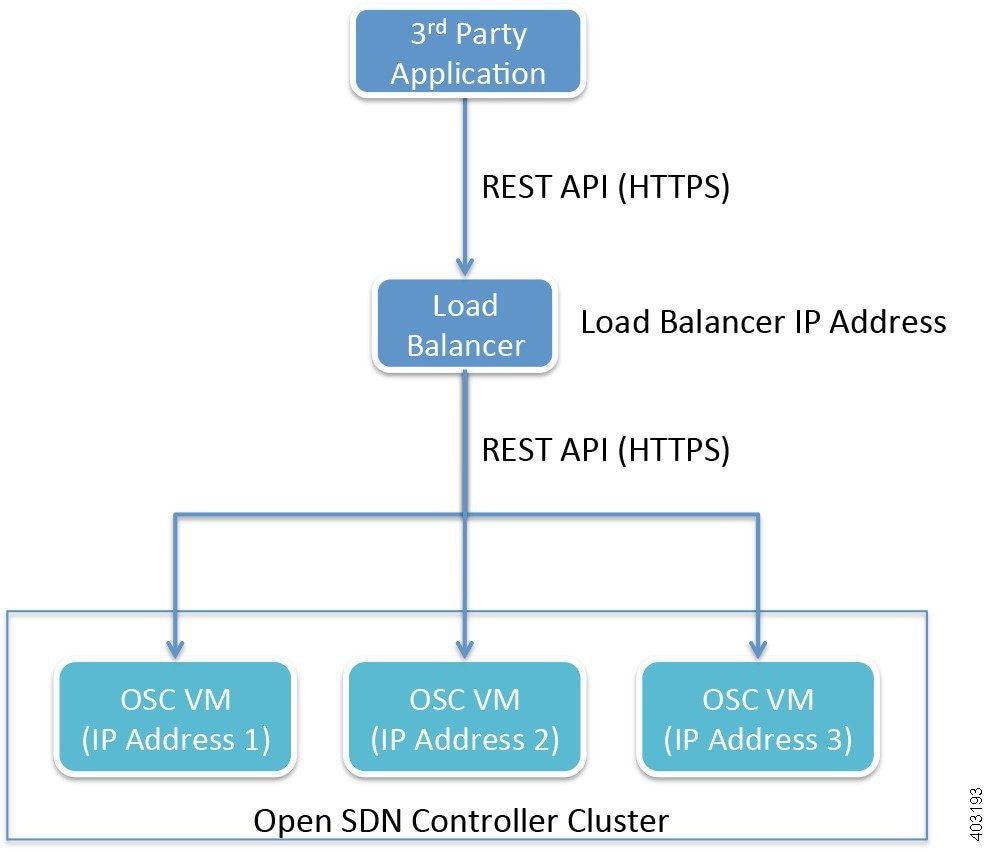
                      Figure 1. REST API Integration Flow

                      The following considerations need to be made when selecting the load balancer you want to use:

                      • HTTPS support

                      • Node failure and retry handling

                      • HA support

                      Once you have chosen a load balancer, refer to its documentation for information on how to configure it for use with the Open SDN Controller cluster. After you have done so, you will then need to register the IP address for each cluster node with the load balancer. Again, refer to the load balancer’s documentation for details.

                      Here are a few points to keep in mind when using a load balancer with a cluster:

                      • When sending REST API requests, client applications will access the load balancer’s IP address (or Virtual IP address in HA deployments).

                      • Open SDN Controller uses token-based authentication, where the initial HTTPS request uses basic authentication to obtain a token and all subsequent requests are sent with this token. This mechanism should be transparent to the load balancer.

                      • Since Open SDN Controller utilizes a common cluster-wide token cache, a REST API request does not have any session affinity and can potentially be sent to a different cluster node.

                      • The load balancer needs to be configured to pass through all HTTP methods (including the OPTIONS method).

                      • The use of a load balancer will help prevent or minimize the impact of a denial-of-service (DoS) attack.

                      Installing Wireshark

                      Before You Begin
                      • Verify that your controller has an internet connection.

                      • Download a local copy of the Wireshark source code:

                        1. Open the Wireshark download page - https:/​/​www.wireshark.org/​download.html

                        2. From the Stable Release (1.12.4) section, click the Source Code link.

                          Ensure that you are downloading the tar file named wireshark-1.12.4.tar.bz2.

                        3. Enable read/write permissions to the tar file:

                          1. Open a shell and navigate to the directory in which you downloaded the tar file.

                          2. Enter the following command:

                            chmod 777 wireshark-1.12.4.tar.bz2

                      • In the following procedure, note that <directory-1> is the local directory in which you downloaded the Wireshark source code and <directory-2> is the directory on the controller in which you placed a copy of the Wireshark source code.


                        Step 1   From an SSH client, log into the controller, entering sysadmin as the username and cisco as the password.

                        The OS Configuration Console opens.

                        Step 2   Select the Drop to shell option and then press Enter.
                        Step 3   Stop the iptables service:

                        sudo service iptables stop

                        Step 4   Enter the following commands to install the necessary libraries:
                        • sudo yum install libpcap libpcap-devel gcc cc

                        • sudo yum install bison

                        • sudo yum install flex

                        • sudo yum install glib2

                        • sudo yum install glib2-devel

                        Note   

                        Type y and then press Enter whenever you are asked whether you want to proceed.

                        Step 5   Use either cURL or SFTP to transfer the Wireshark source code to the controller.

                        (Via cURL)

                        Open the cURL tool and enter the following command:

                        • If you are behind a firewall, curl -O -x <proxy-server-address>:<proxy-port-number> https://1.na.dl.wireshark.org/src/wireshark-1.12.4.tar.bz2 –k

                        • If you are not behind a firewall, curl -O https://1.na.dl.wireshark.org/src/wireshark-1.12.4.tar.bz2 –k

                        (Via SFTP)

                        1. Open an SFTP client and enter the following command:

                          sftp sysadmin@<controller-IP-address>

                          If prompted, enter yes to continue.

                        2. Enter the controller’s password.
                        3. Enter the following command:

                          put <directory-1>/wireshark-1.12.4.tar.bz2 /<directory-2>/

                        Step 6   Configure Wireshark on your controller:
                        • bunzip2 ./wireshark-1.12.4.tar.bz2

                        • tar -xf wireshark-1.12.4.tar

                        • cd /<directory-2>/wireshark-1.12.4

                        • ./configure --disable-wireshark

                        • make

                          Note   

                          The make command takes a few minutes to complete.

                        Step 7   Verify that Wireshark installed successfully:

                        ./tshark -G protocols | grep -i openflow

                        The resulting output should look like this:

                          OpenFlow       openflow      openflow
                        		OpenFlow 1.0   openflow_v1   openflow_v1
                        		OpenFlow 1.3   openflow_v4   openflow_v4
                        		OpenFlow 1.4   openflow_v5   openflow_v5
                        Step 8   Use Tshark (terminal-based Wireshark) to capture packets on your controller.

                        For example, say you want to capture packets for interface eth0 and UDP port 1812. To do so, enter the following commands:

                        • sudo ./tshark -i eth0 -w /<directory-2>/<capture-file-name>.cap

                        • sudo ./tshark -f "udp port 1812" -i eth0 -w /<directory-2>/<capture-file-name>.cap

                        Note that the time it takes to complete this step varies, depending on the number of packets that need to be captured.

                        Step 9   Start the iptables service:

                        sudo service iptables start