| Step 1 |
Navigate to Solutions.
|
| Step 2 |
Select the Deploy HyperFlex SD-WAN solution, and click Initiate.
| Note
|
In the Executions column, click on the number to navigate to the Requests page. Here you can view recent executions of the Deploy HyperFlex
SD-WAN solution.
To view existing partially complete solutions, in the ellipsis (…) click Drafts. To edit an existing draft, select a draft
from the Drafts table view, in the ellipsis (…) click Edit.
|
|
| Step 3 |
Click Start to begin the Deploy HyperFlex SD-WAN wizard.
|
| Step 4 |
In the General page, complete the following details:
|
Field
|
Description
|
|
Organization drop-down list
|
You can make the HyperFlex SD-WAN cluster belong to either the default organization or a specific organization:
-
Default organization—Choose default to make the HyperFlex SD-WAN cluster belong to the default organization. All policies
that belong to the default organization are in the Create HyperFlex SD-WAN wizard.
-
Specific organization—To make the HyperFlex SD-WAN cluster belong to a specific organization, select the desired organization
from the drop-down. Only policies that belong to the selected organization are in the Create HyperFlex SD-WAN wizard.
|
|
Name field
|
Enter a name for the SD-WAN profile.
The name entered here is displayed on the Requests page, after the SD-WAN solution is deployed on the HyperFlex cluster.
|
|
(Optional) Description field
|
Add a description for the SD-WAN profile.
|
|
(Optional) Add Tag field
|
Add a tag key.
|
|
| Step 5 |
In the vManage Connection page, complete the following details to connect to your vManage account:
|
Field
|
Description
|
|
vManage Account
|
|
vManage Server field
|
Enter the vManage URL that the account holds information for.
|
|
Port field
|
Default is 8443.
Enter the vManage port number on which the application is running.
|
|
User field
|
Enter the local username for authenticating with the vManage server.
|
|
Password field
|
Enter the local password for authenticating with the vManager server.
|
|
Virtual Router Deployment Configuration
|
|
Deployment Size drop-down list
|
Select the scale of the SD-WAN router virtual machine deployment. This can be:
|
|
Version drop-down list
|
Select the version depending on the relationship to the solution distributable object.
|
|
Number of WANs field
|
Select the number of WAN connections required across the SD-WAN site. The number of WANs can be:
-
Single WAN—1 to 4
-
Dual WAN—2
|
|
WAN Termination Type drop-down list
|
Defines if the WAN networks are singly or dually terminated.
-
Single—Singly terminated WANs are configured only on one of the SD-WAN routers. One single WAN terminator is configured on each
vEdge router. For example, WAN 1 is configured on vEdge node 1 and WAN 2 is configured on vEdge node 2.
-
Dual—Dually terminated WANs are configured on all the SD-WAN routers.
|
|
| Step 6 |
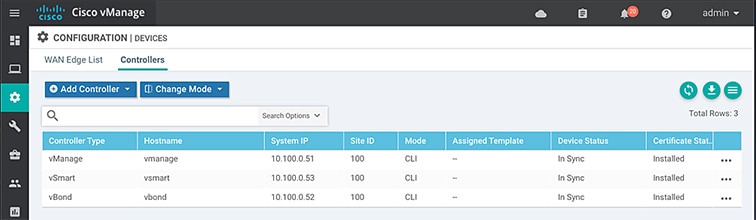
In the Virtual Router Configuration page, configure the virtual routers by providing Chassis UUID and Device Template using information from vManage.
|
Field
|
Description
|
|
Virtual Router 1 and Virtual Router 2
|
|
Chassis UUID field
|
Enter the chassis ID number of the vEdge router.
|
|
Device Template field
|
Enter the name of the Cisco vManage device template that the current device should be attached to. A device template consists
of many feature templates and has the SD-WAN router configuration. For more information, see the Systems and Interfaces Configuration Guide, Cisco SD-WAN Release 19.1, 19.2, and 19.3.
|
|
| Step 7 |
The fields in the Virtual Router Device Specific Configuration page, are dynamically generated based on the Device Template created in vManage. The fields displayed on this page will vary
depending on the device specific Feature Template.
| Attention
|
The names of the fields displayed are based on the default names of the vManage Feature Template.
|
The following table is an example of single WAN termination:
|
Field
|
Description
|
|
Virtual Router 1 and Virtual Router 2
|
|
vpn-vedge-interface
|
|
Interface Name(vpn_if_name_DualWanTermination_ge0/2.X) field
|
The name of the Interface.
|
|
IPv4 Address(vpn_if_ipv4_address) field
|
The IPv4 address can either be static or set to receive the IP address from a DHCP server.
|
|
Group ID(vpn_if_vrrp_grpid) field
|
The virtual router ID, which is a numeric identifier of the virtual router.
|
|
Priority(vpn_if_vrrp_priority) field
|
The priority level of the router. The router with the highest priority is elected as master.
|
|
IP Address(vpn_if_vrrp_vrrp_ipaddress) field
|
The IP address of the virtual router.
|
|
Interface Name(vpn_if_name_Tunnel_Interface_TLOC_Extn) field
|
The name of the interface.
|
|
IPv4 Address(vpn_if_ipv4_address) field
|
The IPv4 address can either be static or set to receive the IP address from a DHCP server.
|
|
TLOC Extension(vpn_if_tloc_extension) field
|
The name of the physical interface which is on the same router that connects to the WAN transport.
|
|
IPv4 Address(vpn_if_ipv4_address) field
|
The IPv4 address for the TLOC.
|
|
Color(vpn_if_tunnel_color_value) field
|
The color selected for the TLOC.
|
|
vpn-vedge
|
|
Address(vpn_next_hop_ip_address_0) field
|
The IP address of the next-hop router.
|
|
Address(vpn_next_hop_ip_address_0) field
|
|
Address(vpn_next_hop_ip_address_1) field
|
|
system-vedge
|
|
Hostname(system_host_name)
|
Hostname of the vEdge router.
|
|
System IP(system_system_ip)
|
System IP address of the vEdge router.
|
|
Site ID(system_site_id)
|
The site ID.
|
|
| Step 8 |
In the Hypervisors Network Configuration page, you can configure the SD-WAN port groups. The number of WANs listed on this page depend on the number of WANs selected
in the Virtual Router Deployment Configuration policy in the vManage Connection page.
|
Field
|
Description
|
|
WAN 1 Port Group Name
|
Enter the name of the WAN port group.
|
|
VLAN ID
|
Enter the VLAN ID to be added to the port group.
|
|
WAN 2 Port Group Name
|
Enter the name of the WAN port group.
|
|
VLAN ID
|
Enter the VLAN ID to be added to the port group.
|
|
LAN Port Group Name
|
Enter the name of the LAN port group.
|
|
| Step 9 |
In the HyperFlex Cluster Profile, you can use an existing HyperFlex Cluster Profile or create a new one for SD-WAN deployment.
- Click Select Pre-Created to use an existing HyperFlex Cluster Profile.
- To create a new HyperFlex Cluster profile, click Create New.
You also have the option to Skip HyperFlex Edge Cluster Profile creation for now and create it later before SD-WAN deployment.
|
| Step 10 |
In the HyperFlex Edge Cluster Configuration page, if you are creating a new HyperFlex Edge Cluster Profile, enter the appropriate values. For detailed instructions on
how to configure a HyperFlex Edge Cluster using Intersight, see the Deploying HyperFlex Edge Clusters chapter in the Cisco HyperFlex Systems Installation Guide for Cisco Intersight.
If you are using an existing HyperFlex Cluster Profile, review the HyperFlex Edge Cluster configuration details and click
Next.
|
| Step 11 |
On the Nodes Assignment page, you can assign nodes now or optionally, you can choose to assign the nodes later. To Assign nodes, click the Assign nodes check box and select the node you want to assign. Click Next.
|
| Step 12 |
In the Nodes Configuration page, you can view the IP and Hostname settings that were automatically assigned. Optionally, you can change the following
configurations manually:
|
Field
|
Description
|
|
Cluster Management IP Address
|
This IP address must belong to the management subnet.
|
|
MAC Prefix Address
|
Enter a single prefix which is within the prefix range specified in the Network Configuration policy.
|
|
Nodes
|
|
Hostname
|
The hostname of the server.
|
|
Hypervisor IP
|
IP address for the Hypervisor Management network.
|
|
Storage Controller IP
|
IP address for the HyperFlex Management network.
|
Click Next.
|
| Step 13 |
On the Summary page, you can view the following details:
-
General—Name of the SD-WAN profile, organization SD-WAN belongs to, tags used.
-
Targets—Name, Status, Model, and Serial number of the HyperFlex Edge nodes
-
HyperFlex Cluster—HyperFlex cluster configuration and node configuration details, and Errors/Warnings if any. Organization
the HyperFlex cluster belongs to, name of the HyperFlex cluster and tags used.
-
SD-WAN—Policy configuration, virtual router configuration, and Hypervisors network configuration. Details like organization
the SD-WAN belongs to, name of the SD-WAN profile, and tags used.
|
| Step 14 |
Click Validate to validate the configuration and Execute to begin the deployment. Optionally, click Validate, and then Close to complete deployment later.
Results:
On the Requests page, you can view the progress of the various configuration tasks and do one of the following:
-
Edit—You can edit the desired inputs in the HyperFlex SD-WAN deployment wizard.
-
Retry Execution from Failure—You can retry the execution from the failure point.
-
Retry Execution—You can retry the execution from the beginning.
When the deployment fails due to incorrect data, you can reenter the input data in the HyperFlex SD-WAN deployment wizard.
You may choose to retry the execution from the failure point or rerun the execution from the beginning.
Only the following input changes will take effect when you Retry Execution from Failure:
When you Retry Execution, all other inputs like HyperFlex Network Configuration, Storage Network, and IP & Hostname policies, and vEdge Router settings
will take effect.
|

 Feedback