Set Up and Monitor Your Network View

Familiarize yourself with the UI and set up your network view before managing SR policies and RSVP-TE tunnels. This section contains the following topics:

Get a Quick View in the Dashboard

The Home page displays the dashboard which provides an at-a-glance operational summary of the network being managed, including reachability and operational status of devices. Each dashlet represents different types of data belonging to the same category.
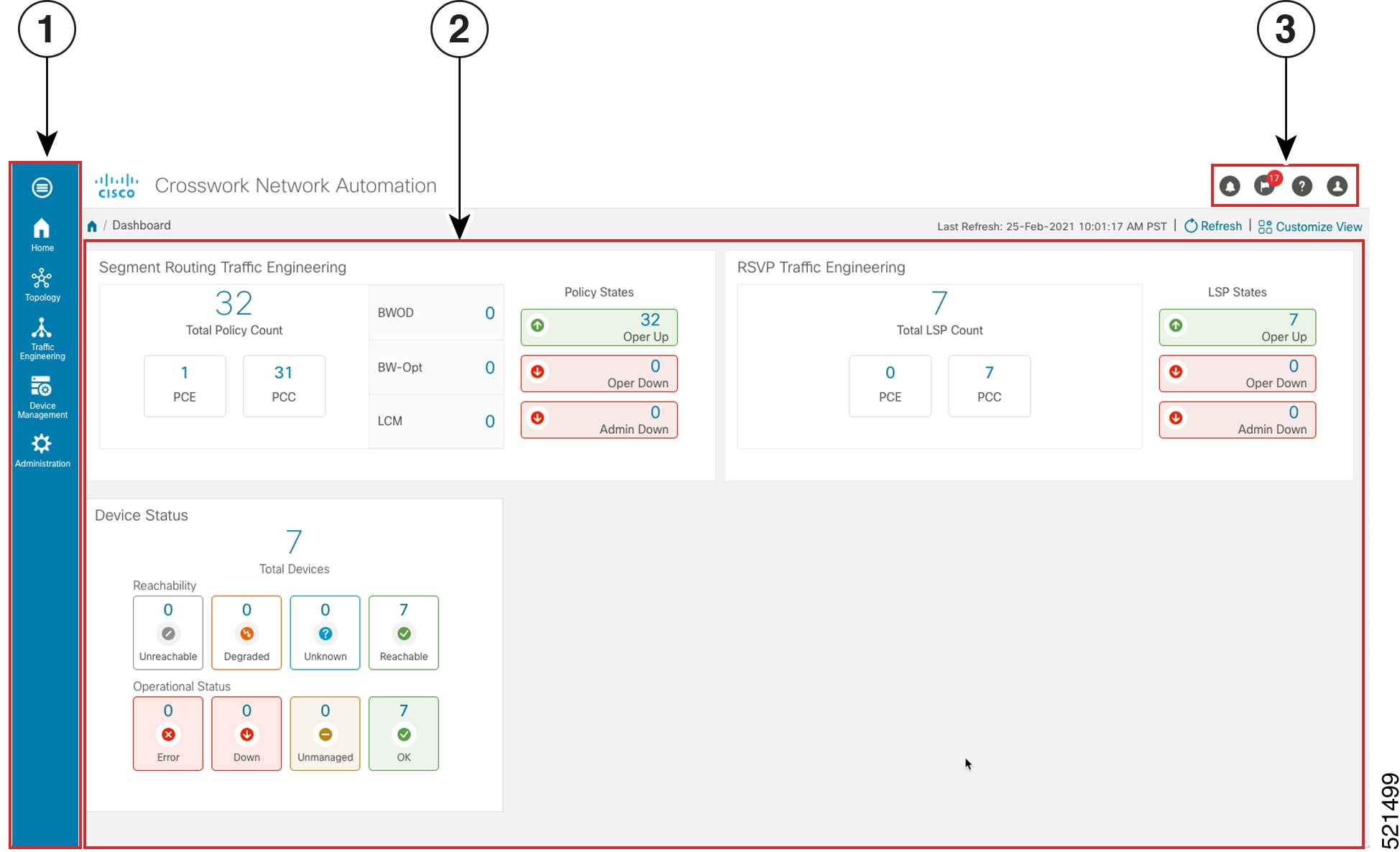
Figure 1. Crosswork Home page
Callout No. Description

1

Main Menu: The main menu allows you to navigate to installed Cisco Crosswork applications and device management and administrative tasks. Menu options may look slightly different depending on what Cisco Crosswork applications are installed.

2

Dashlets: Information varies depending on what Cisco Crosswork applications are installed.

  • To drill down for more information within a dashlet, click on a value. A window appears displaying only the filtered data you clicked on.

  • To add or change the layout of dashlets, click Customize View. Move the dashlets to your desired layout and click Save.

3

Settings icons:

Notifications icon The Alerts icon notifies you of any current error conditions related to the system operations which require attention, and provides a link to detailed information about those conditions.

Show Events icon The Events icon notifies you of new events related to system operation, and also provides access to the history of all system events.

About Crosswork iconThe About icon displays the current version of the Cisco Crosswork product.

User Account icon The User Account icon lets you view your username, change your password, and log out.
View Devices and Links on the Topology Map

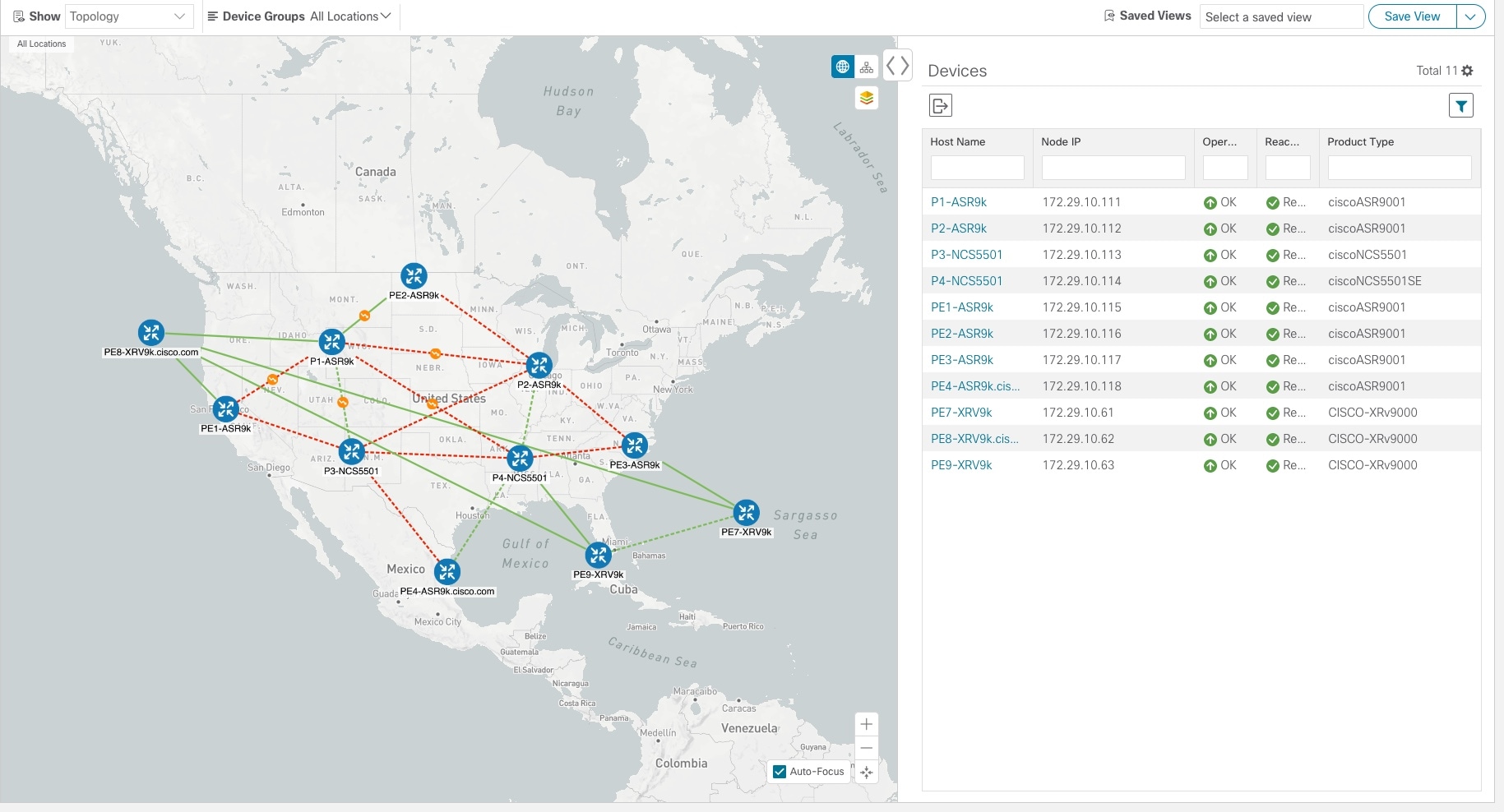
To view the network topology map, from the main menu choose Topology.

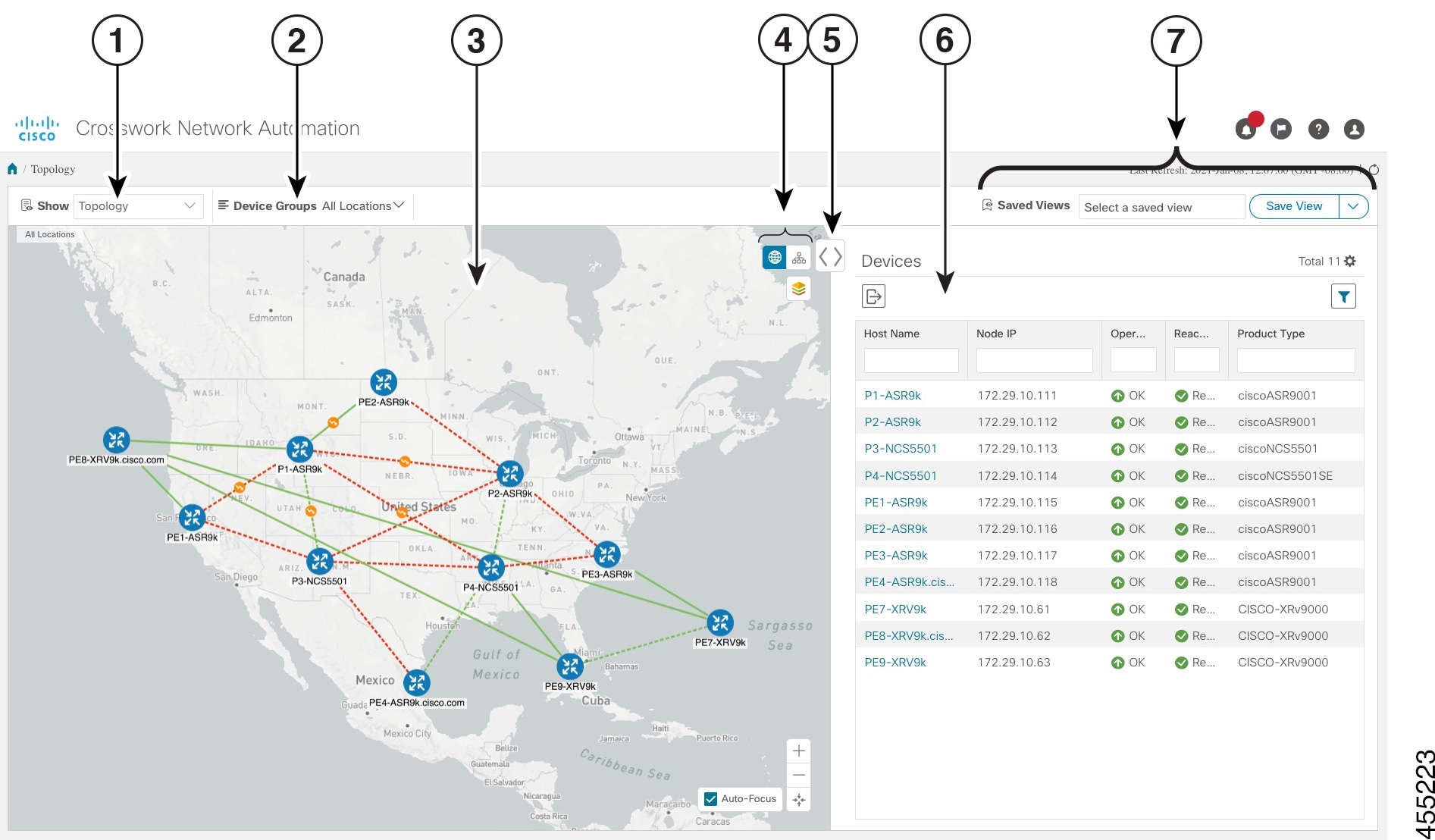
Figure 2. Cisco Crosswork UI and Topology Map
Crosswork UI and Topology Map Example
Callout No. Description

1

Topology Map View: From the Show drop-down list, click the option that displays the data that you would like to see on the map.

If Topology is selected, devices and links in the network are displayed.

If Traffic Engineering is selected, TE tunnel information is displayed.

2

Device Groups: From the drop-down list, click the group of devices that you want to focus on the topology map. All other device groups will be hidden.

3

Topology Map: The network topology can be displayed on a logical map or a geographical map, where the devices and links are shown in their geographic context. From the map, you can drill down to get detailed information about devices and links.

Devices:

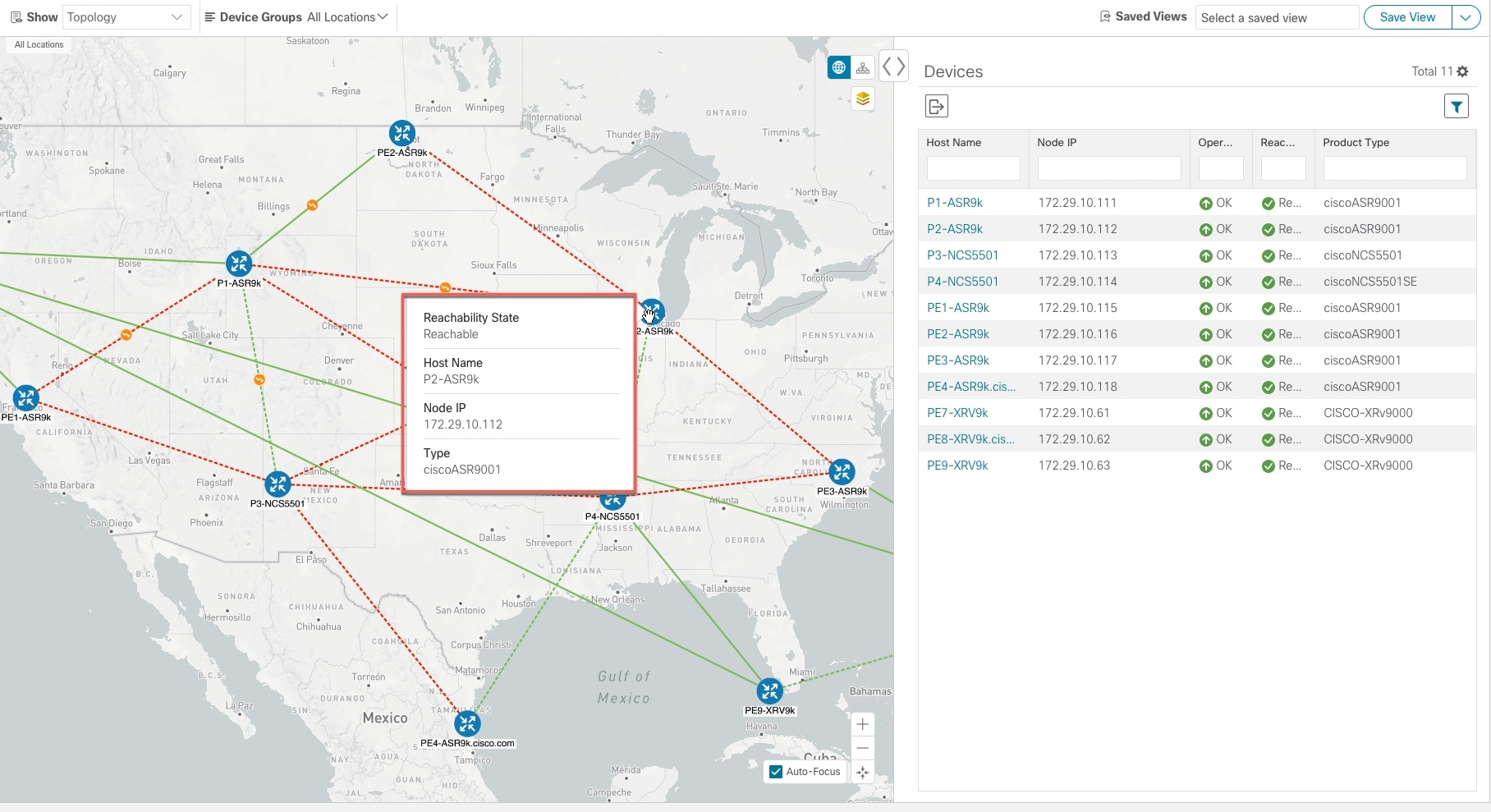
  • To view a device configuration summary, hover the mouse cursor over the device icon. A pop up window displaying the host name, state, node ID, and device type appears.

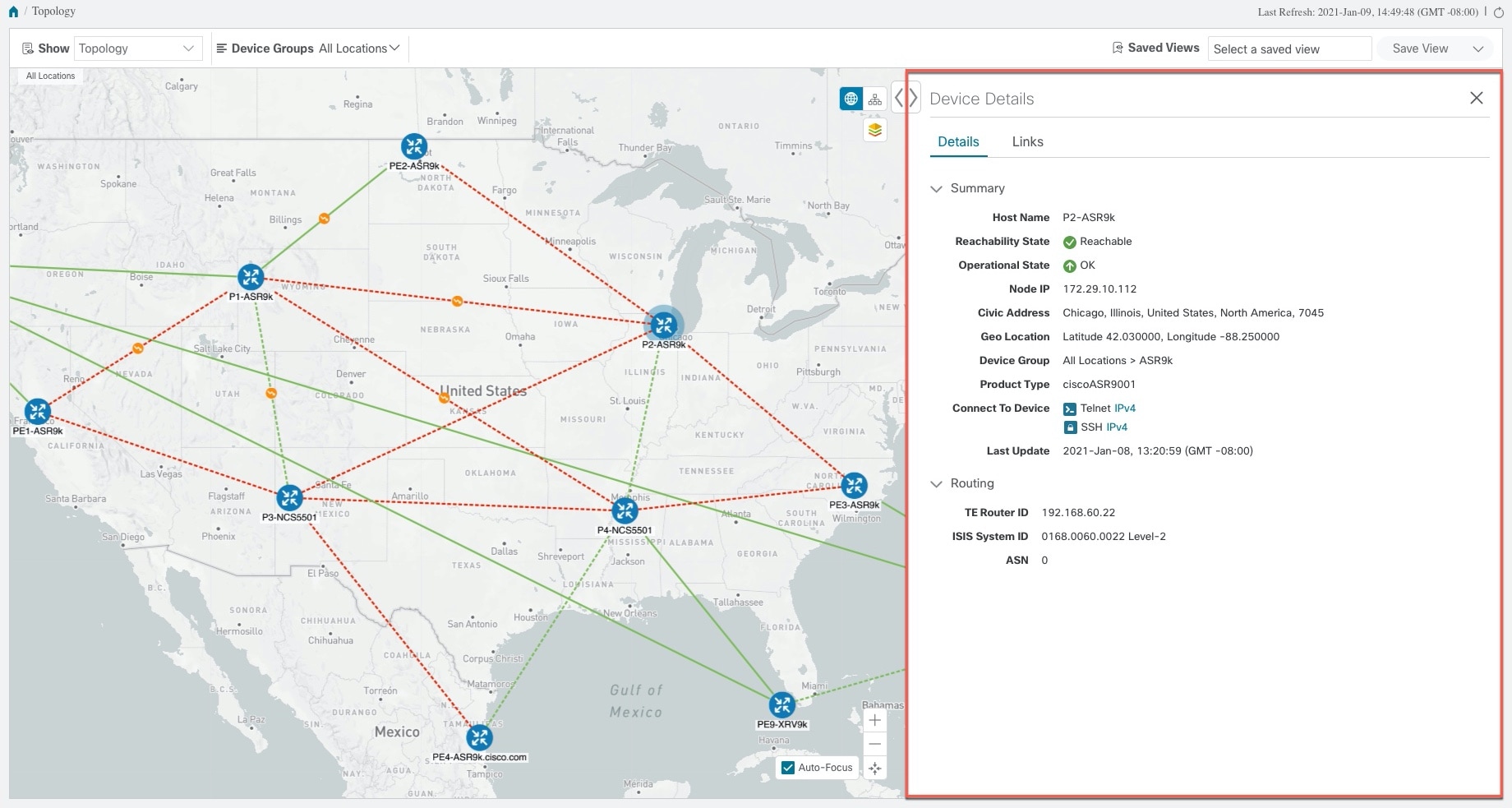
  • To view device details, click on the device icon.

  • If devices are in close physical proximity, the geographical map shows them as a cluster. The number in a blue circle (Node ID) indicates the number of devices in the cluster. Displaying devices in this manner helps prevent overlap and clutter on the map.

Links:

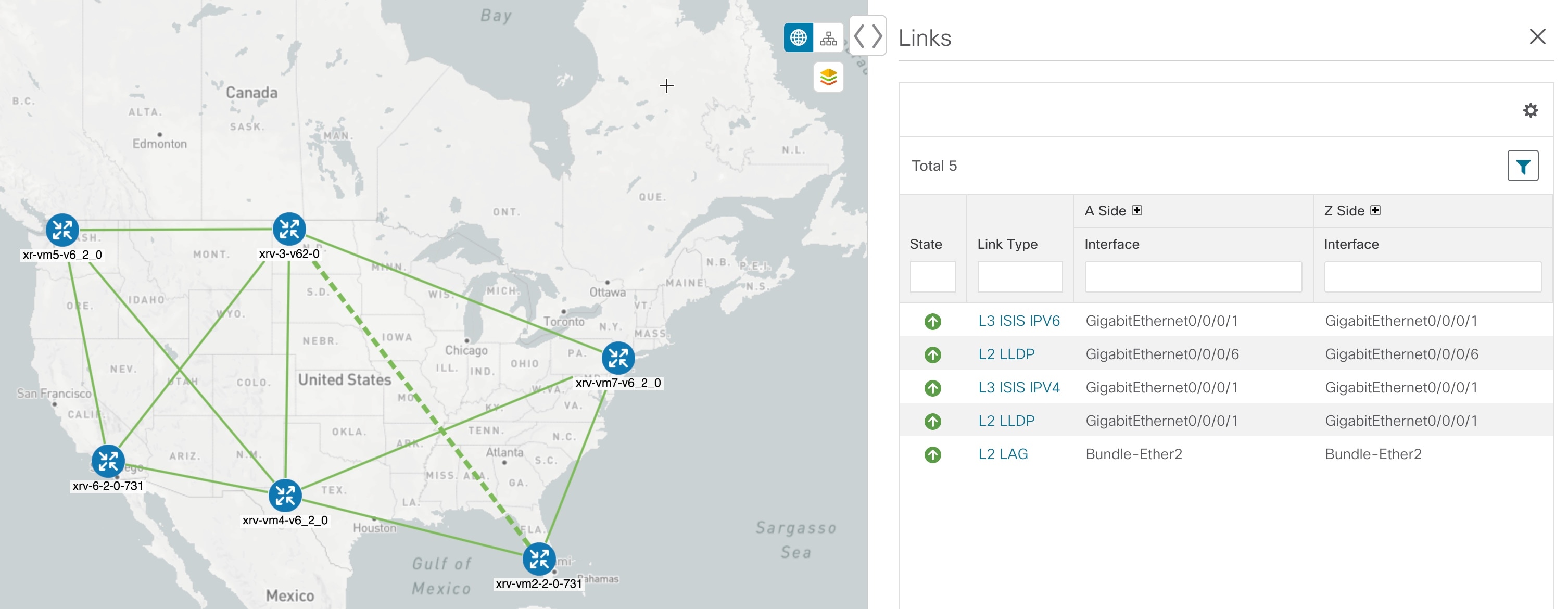
  • A solid line indicates a single link between two devices. If there is more than one link between two devices, or between a device and a cluster of devices, the line is shown dashed instead. A dashed line indicates an aggregated link that represents more than one link, or the use of multiple protocols (for example, IPv4 and IPv6) on the same physical link.

  • To view link information details, click on the link.

4

Logical View icon: The logical map shows devices and their links, positioned according to an automatic layout algorithm, ignoring their geographical location. You can change the layout algorithm.

Geographical View icon: The geographical map shows single devices, device clusters, links, and tunnels, superimposed on a map of the world. Each device location on the map reflects the device's GPS coordinates (longitude and latitude) as defined in the device inventory.

Display Preferences icon: The Display Preferences window allows you to change display settings for devices, links, utilization, and TE tunnel metrics.
5

Expand/Collapse/Hide Side Panel: Expand or collapse the contents of the side panel. Close the side panel to get a larger view of the topology map.

6

The content of this window changes depending on what Show is set to for the Topology Map and if you have selected to view more information on a device, link, SR-TE policy, or RSVP-TE tunnel.

7

Saved Custom Map Views: Lets you create a named custom view using the settings and layout for your current map, settings of the tables saved in the saved views, or display a custom view you have created previously. It also saves any filters applied to the Devices and Traffic Engineering tables.

View Device and Link Details

This example shows how you can view device and link details using the topology map.

Procedure


Step 1

From the main menu choose Topology.

Network Topology
Step 2

To quickly view the host name, reachability state, IP address and type of device, hover the mouse over the device icon.

Device Details
Step 3

To view more device details, click on the device icon.

More Device Details

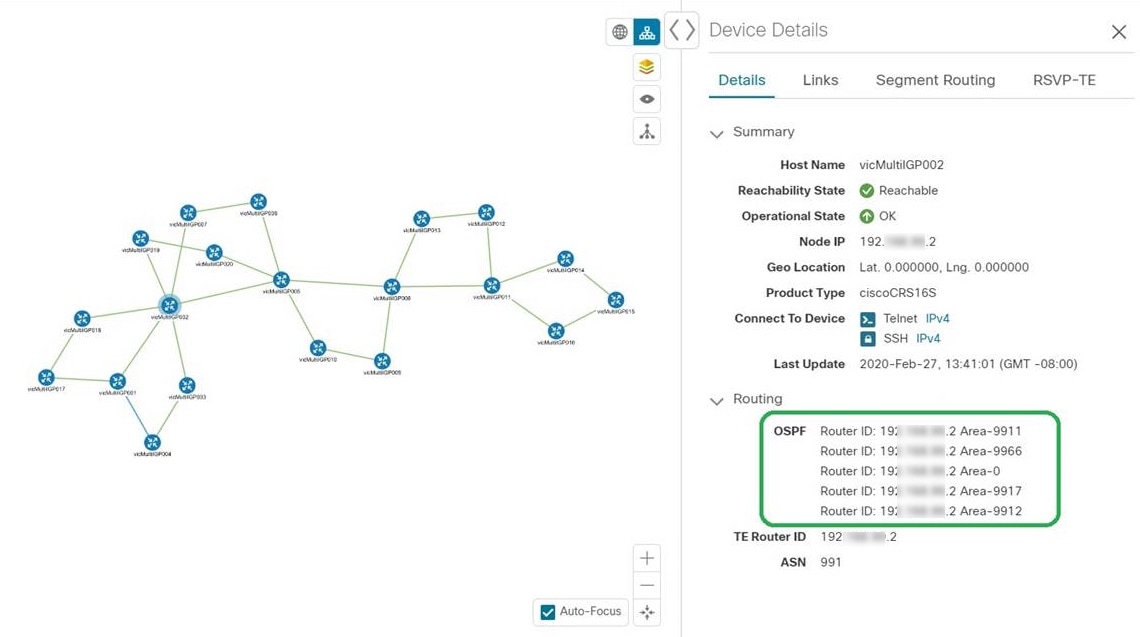
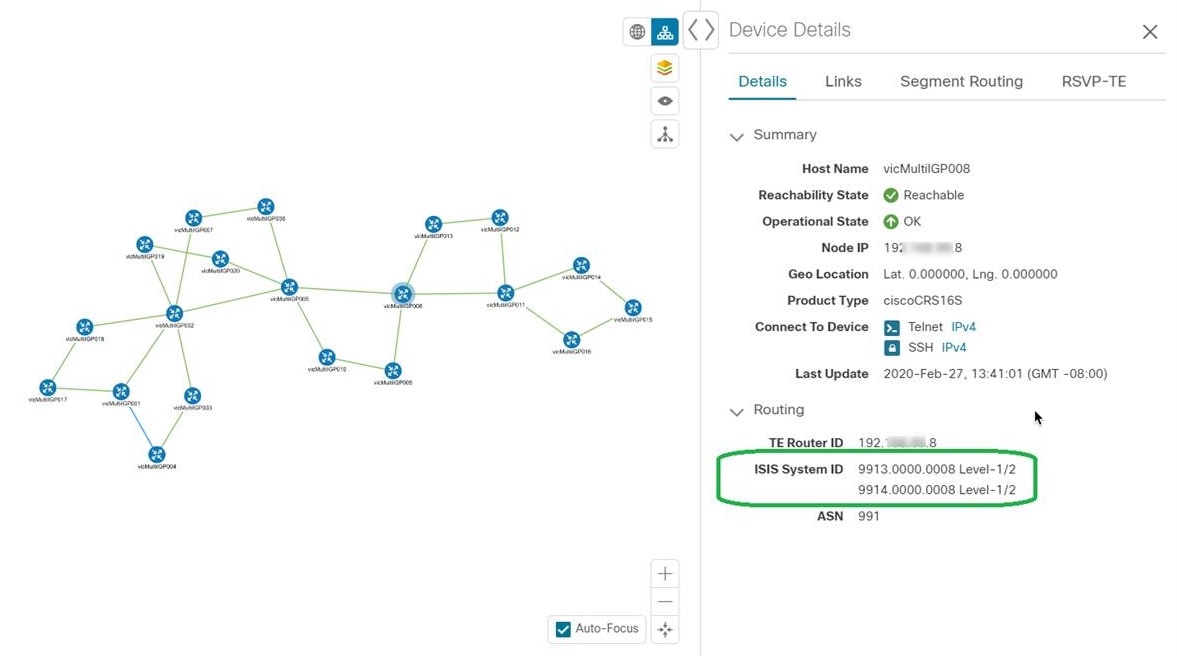
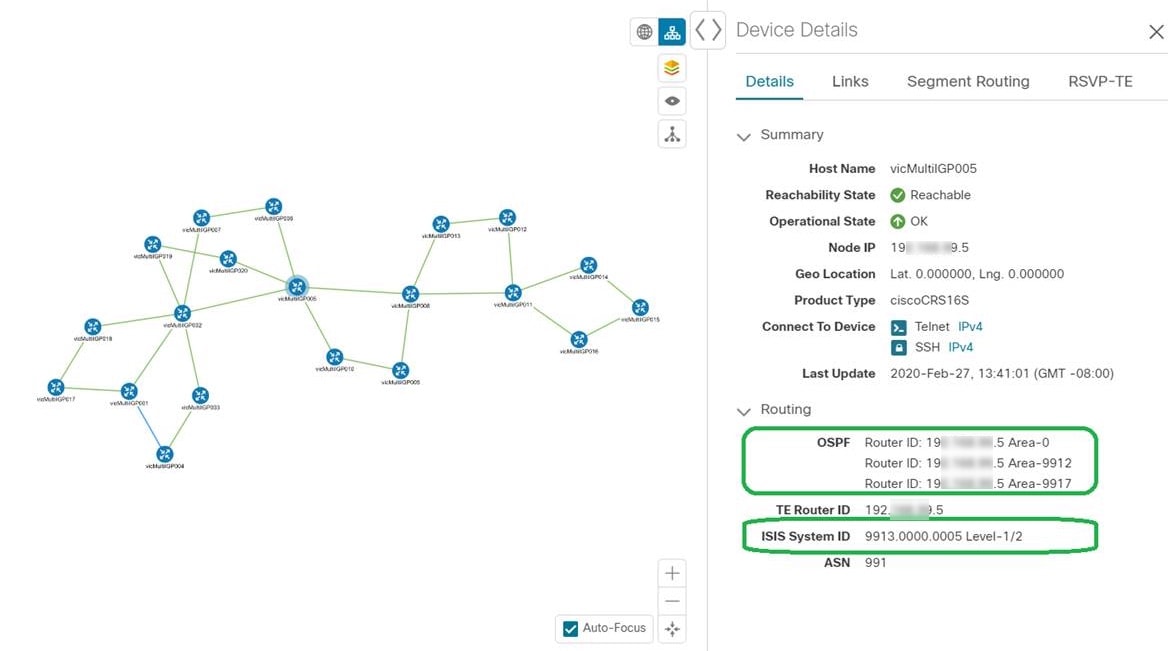
In a multiple IGP setup, you can also view all the IGP, IS-IS, and OSPF processes. See the following examples:

Figure 3. Multiple IGP: OSPF Processes
Multiple IGP: OSPF Processes
Figure 4. Multiple IGP: ISIS Processes
Multiple IGP: ISIS Processes
Figure 5. Multiple IGP: OSPF and ISIS Processes
Multiple IGP: OSPF and ISIS Processes
Step 4

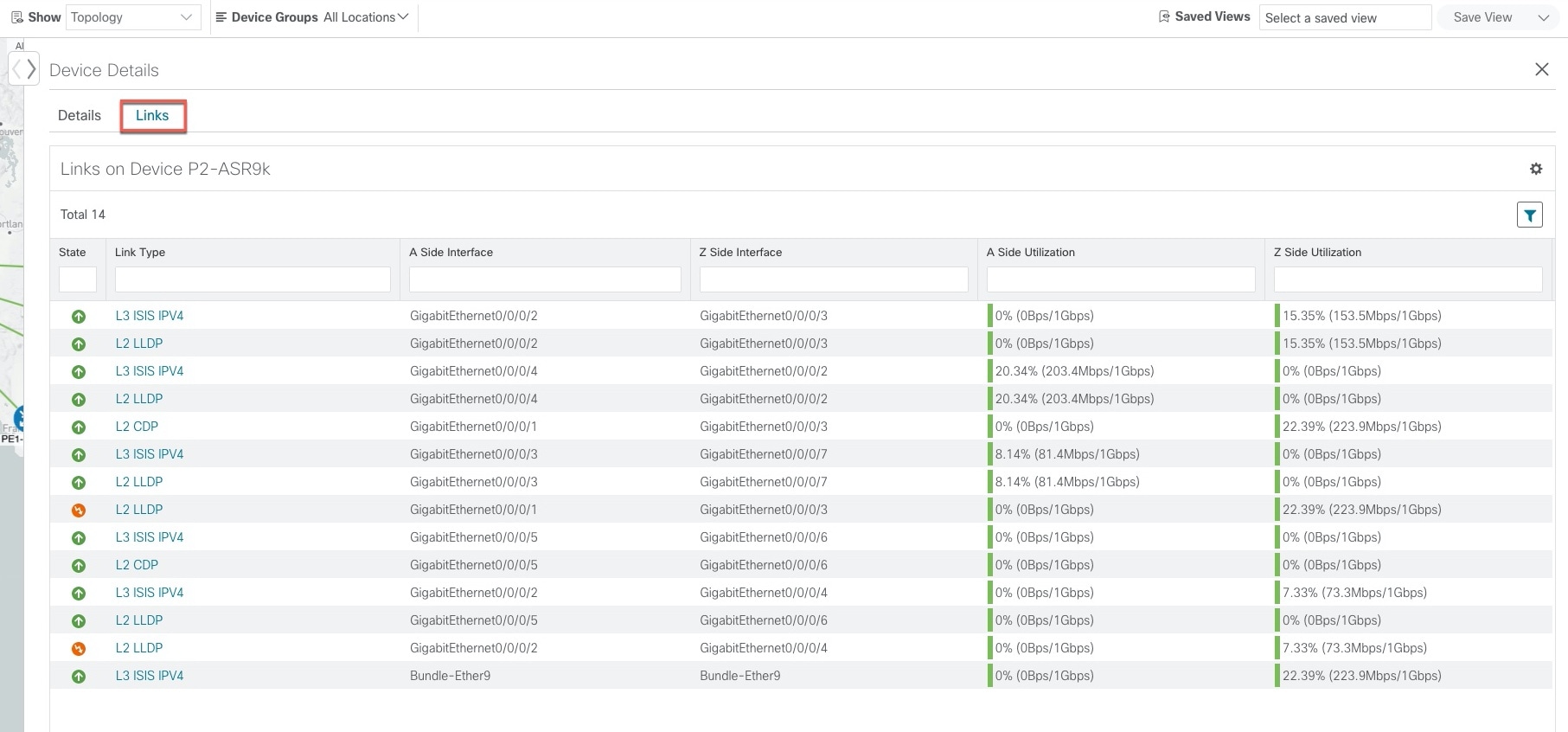
To view links on the device, click the Links tab and expand the right panel to see all the link details.

Links on Device
Step 5

Collapse the side panel and close the Device Details window.

Step 6

Click on a dashed line. A dashed line indicates an aggregated link that represents more than one link, or the use of multiple protocols (for example, IPv4 and IPv6) on the same physical link.. The links are displayed.

Aggregated Links

Use Device Groups to Filter Your Topology View

To help you identify, find, and group devices for a variety of purposes, you can create Device Groups. The Device Group window (Device Management > Groups) displays all devices and device groups they belong to. By default, all devices initially appear in the Unassigned Devices group.

This example walks you through how Device Grouping works in the geographical and logical maps.

Procedure


Step 1

From the main menu, choose Topology. By default, only devices that have Geo Location set will appear on the geographical map.

All Devices
Step 2

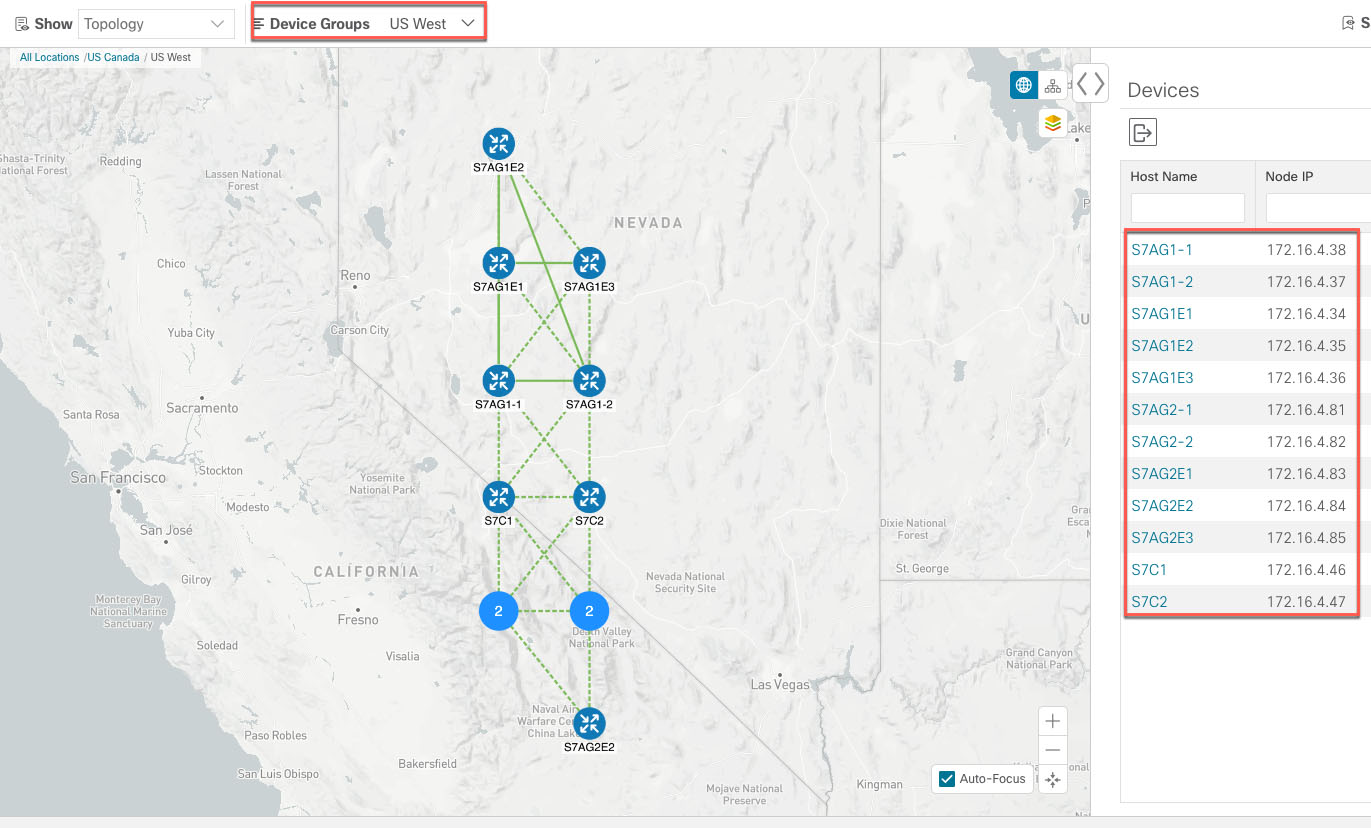
From the Device Group drop-down list select a group (US West). Only the devices in that group and related links are displayed on the geographical map. Note that the Devices table has also been filtered to list only those devices in the group.

Device Group Devices
Step 3

Click Logical View icon.

Step 4

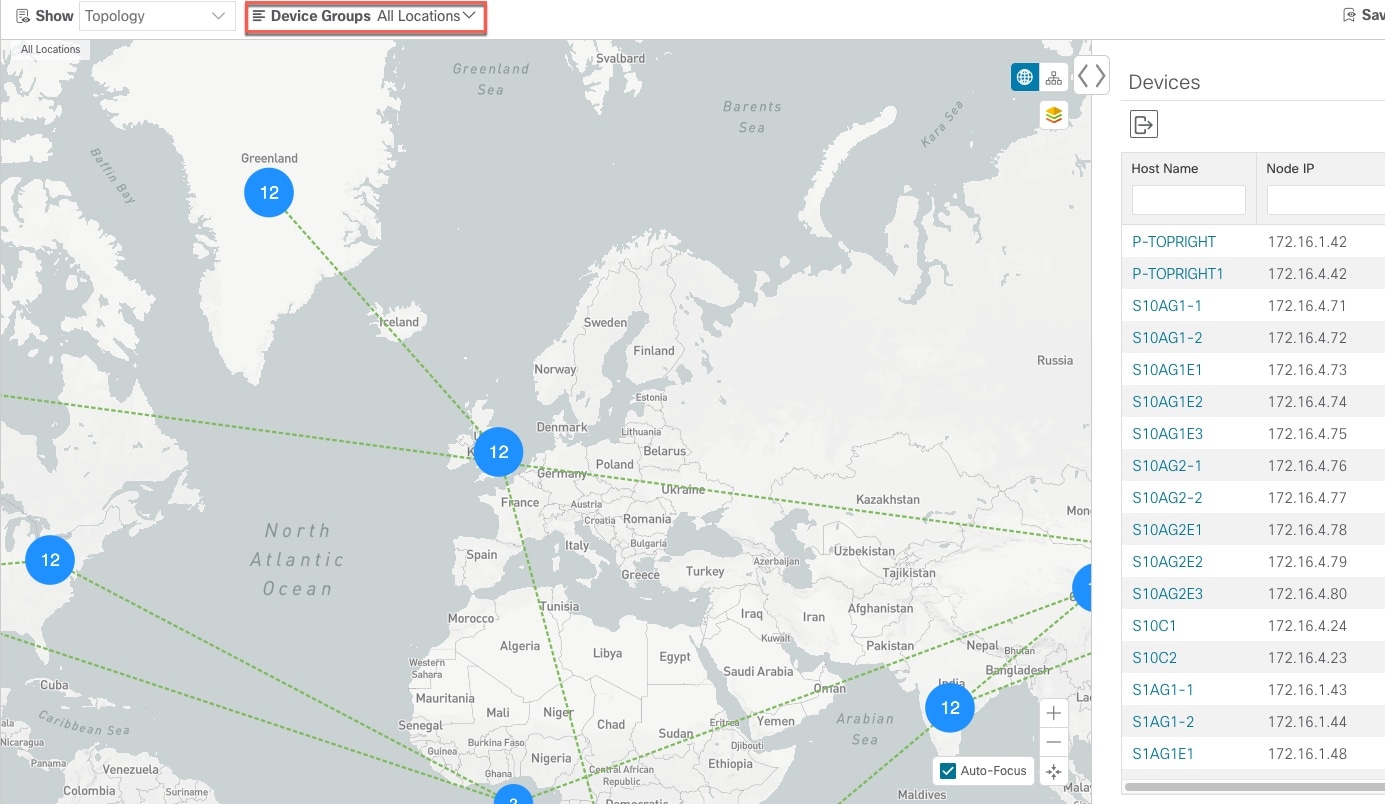
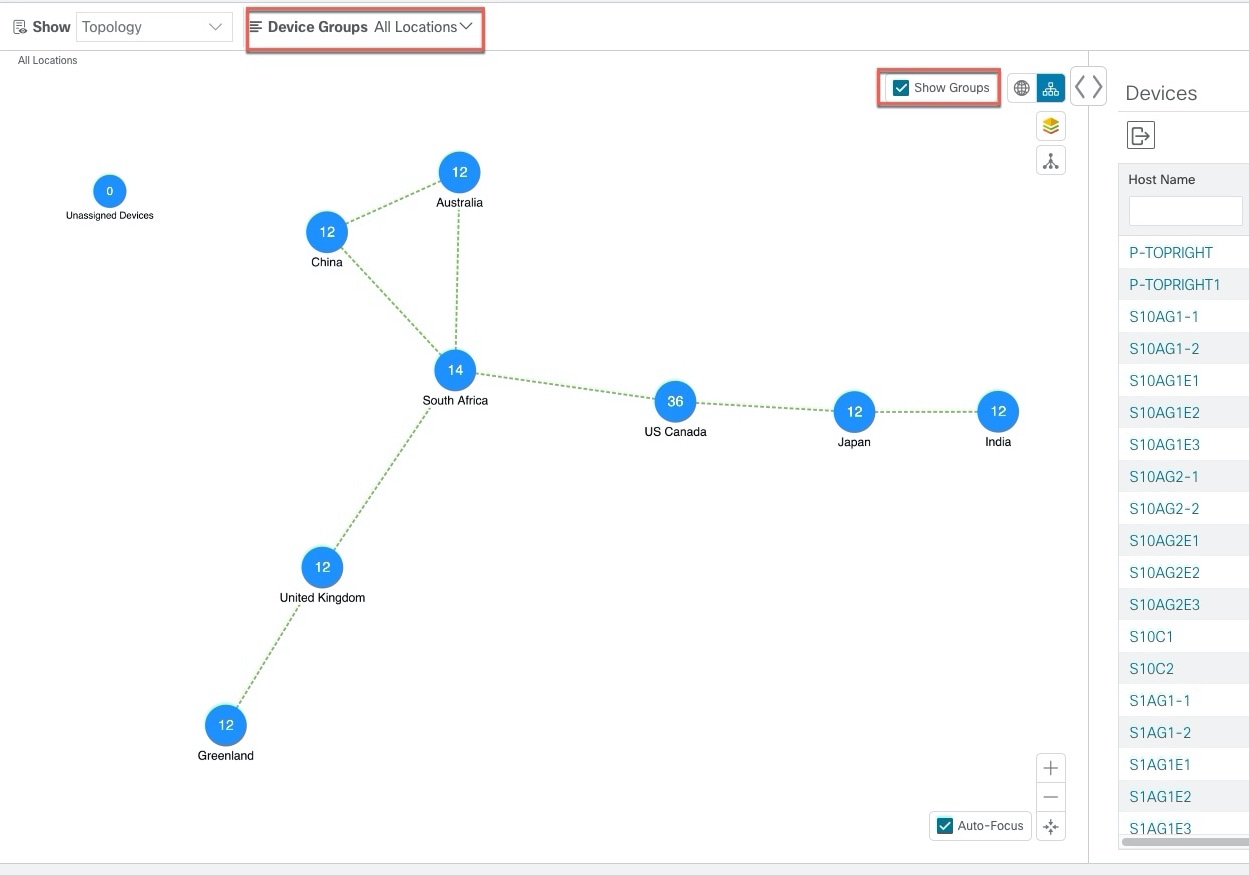
From the Device Group drop-down list, select All Locations and check Show Groups if it is not already checked. Note that you can see all device groups in this view. Device groups can be seen in this way only within the logical map.

Note 

If Show Groups checkbox is de-selected, all the device groups are expanded , and could lead to a a cluttered map.

Logical Map All Locations
Step 5

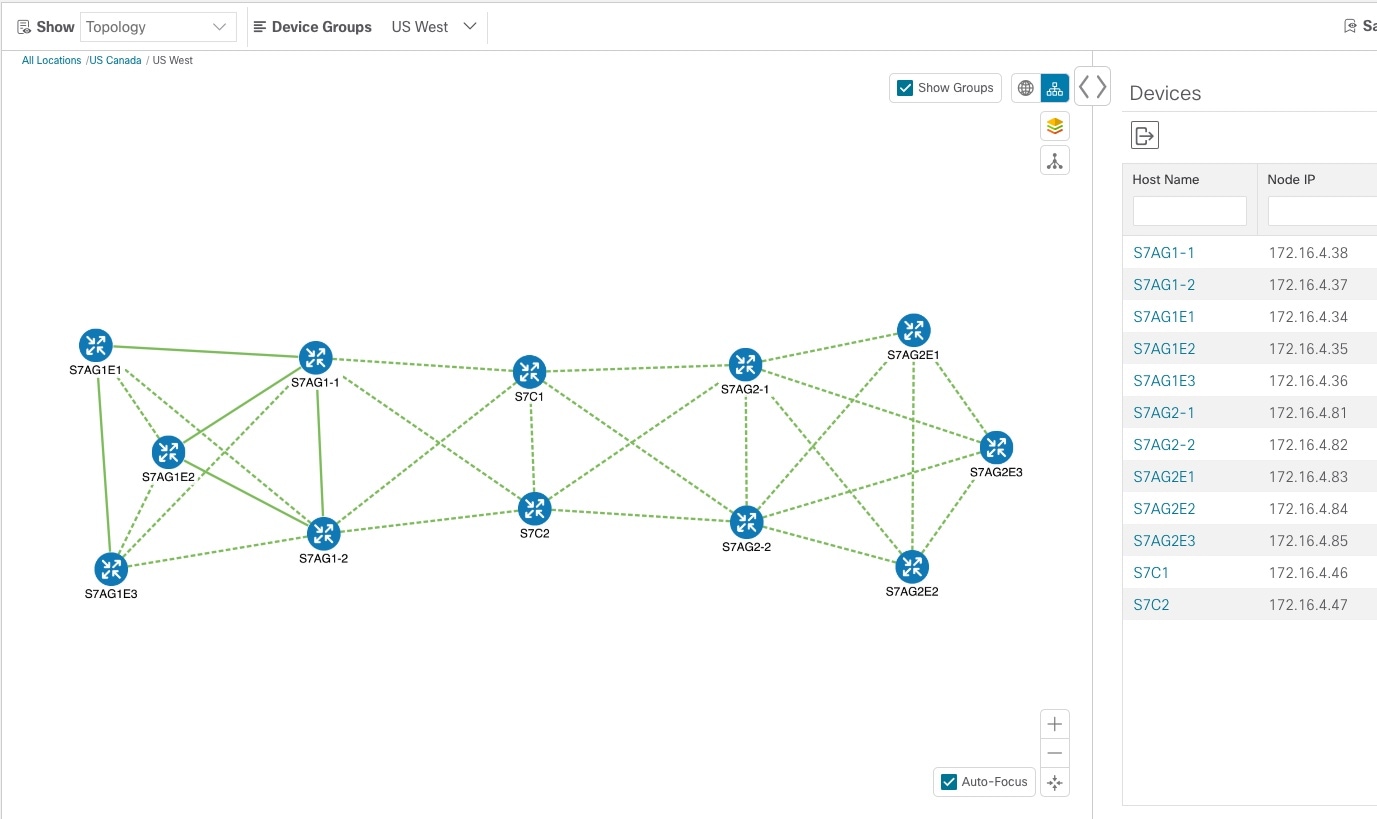
Click the US West group. Again, only devices that belong to this group are shown in the topology map and the Devices table.

Logical Map Device Groups
Step 6

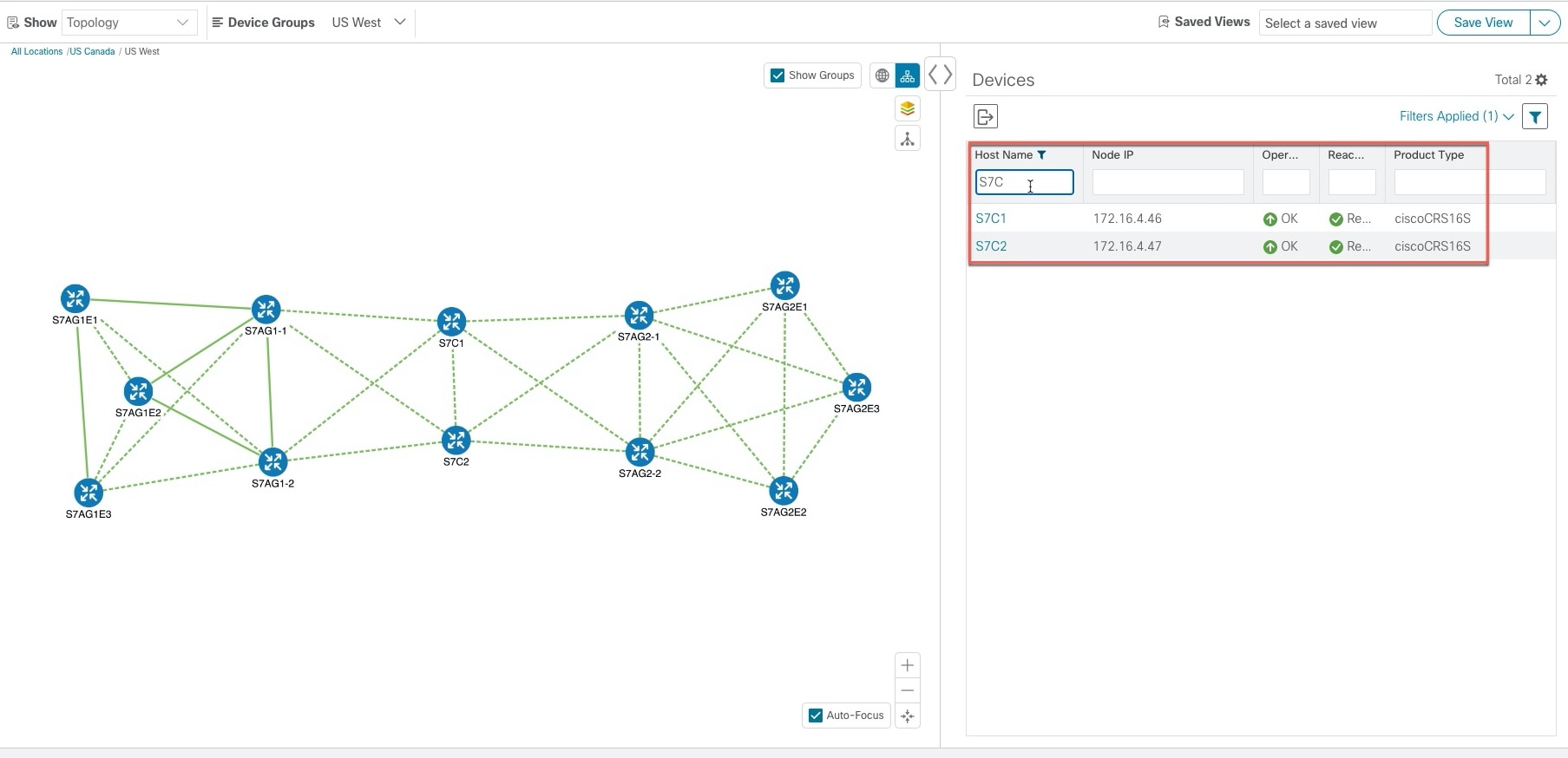
Filter devices in the Device table by entering S7C in the hostname. The Device table displays only devices that match the filtering criteria. However, filtering the Device table does not filter the devices visually on the topology map. The only way to visually filter devices on the geographical or logical maps is to use device groups.

Filtered Device List

Create and Modify Device Groups

Procedure


Step 1

From the main menu choose Device Management > Groups.

Step 2

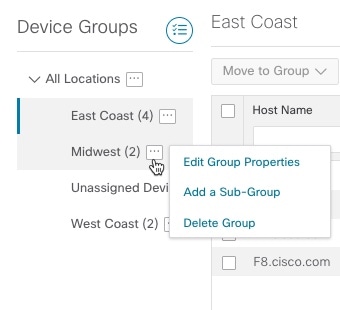
From the Device Groups tree, click next to a group.

Device Group Selector
Step 3

Choose to add, delete, or edit (rename or move) a group. If you delete a group, all devices that belong to that group are moved to the Unassigned Devices group.

Note 

Devices can belong to only one device group.

Step 4

Click Save.


Enable Dynamic Device Grouping

You can create a rule to dynamically create device groups and automatically add unassigned devices to these groups using a Regular Expression (regex) on the device hostname. Any newly added or discovered devices that matches the rule will be placed in the group.


Note

Dynamic rules do not apply to devices that already belong in groups. You must move them to Unassigned Devices if you want to include them as part of the devices that the dynamic rule will consider.


Before you begin

While you can follow examples given in the Dynamic Groups dialog, it is helpful to be familiar with Regular Expressions.

Procedure


Step 1

From the main menu choose Device Management > Groups.

Step 2

Click Manage Dynamic Groups icon.

Step 3

Click Show more details and examples to help you fill out the required Host Name and Group Name fields.

Step 4

If there are any existing devices in the Unassigned Devices group, click Test Rule to view a sampling of what type of group names will be created.

Step 5

Check the Enable Rule checkbox. After the rule is enabled, the system checks devices every minute and will either create or assign them into groups.

Step 6

Click Save.

Step 7

Groups that are created this way initially appear under Unassigned Groups (created when a rule is enabled for the first time). Move newly created groups to the corresponding group hierarchy.

Step 8

To move newly created Unassigned groups to the correct group, do the following:

  1. Select … next to All Locations and click Add a Sub-Group.

  2. Enter the New Group details and click Save.

  3. Select … next to the unassigned created dynamic group and select Edit Group Properties.

  4. Click Change Parent Group and select the appropriate group.


Customize Map Display Settings

You can configure visual settings on the topology map based on your needs and preferences. You can do the following:

Customize the Display of Links and Devices

To set device and link map display preferences, click Display Preferences icon on the topology map.

  • For devices, you can choose whether to show the device state and how the devices should be labeled. By default, the device state is shown on the map and the host name is used to label devices.

  • For links, you can choose whether to show aggregated links and how links should be colored so that you can easily see their state and utilization status. By default, aggregated links will be differentiated from single links on the map and links will be colored based on link utilization thresholds. Administrators can change the utilization thresholds and their corresponding colors.

  • For TE tunnels, you can choose whether to show IGP, TE, and delay (latency) metrics. By default, these metrics are not enabled.

Set Display Behavior of Device Groups for TE Tunnels

You can configure what is shown on the topology map when a device group is selected and a device in the selected TE tunnel does not belong in the group. To set the behavior, choose Admin > Settings > User Settings and select one of the behavior options.

By default, the user is asked each time to choose the device group view.

Save Topology Views for Easy Access

When you rearrange the devices and links on a map, your changes are not normally saved. When you open the map later, your map settings are lost.

To easily access a useful map layout, you can save it as a named custom view and quickly retrieve it, without having to rearrange the map each time. This is especially useful when managing large networks with many devices.

When you save a custom view, the following settings will be saved:

  • Whether it is a geographical or logical map.

  • Device positions in the logical map layout.

  • Device and link display settings

  • Any filters used in the Device and Traffic Engineering tables


Note

All custom views can be seen by all users. However, only users with the admin role or users that created the custom view can edit (modify, rename, or delete) the view.


Procedure


Step 1

To create a custom view:

  1. Customize the current map view until it contains only the information you want and until the layout meets your needs.

  2. When you have the view the way you want it, click Save View.

  3. Enter a unique name for the new custom view and click Save.

Step 2

To delete a custom view:

  1. Click the Saved Views field.

  2. Find the custom view you want to delete and click Custom View Delete icon.

Step 3

To edit a custom view:

  1. Click the Saved Views field.

  2. Click the custom view you want to edit. The custom view appears.

  3. Make any changes to the current view and click Save View. This overwrites the previously saved view.

Step 4

To rename or save a view with another name:

  1. Click the Saved Views drop-down list.

  2. Select the appropriate option.