Bandwidth on Demand (BWoD)

Bandwidth on Demand (BWoD) provides a bandwidth-aware Path Computation Element (PCE) in conjunction with SR-PCE for segment routing policies (SR policies). BWoD policies can be PCC-initiated (PCE-delegated), or PCE-initiated. BWoD is designed for the delivery of soft bandwidth guarantee services over SR policies. BWoD monitors network conditions and re-optimizes BWoD paths to prevent total BWoD traffic on any interface from exceeding the configured threshold percent.

BWoD does not track total interface utilization, and therefore, interfaces can still be congested if the combined BWoD traffic and non-BWoD traffic exceed the interface capacity. In addition, BWoD does not enforce the total amount of traffic entering BWoD SR policy. BWoD policies may traverse Equal Cost Multi-Path (ECMP) and assume even traffic distribution over these paths. However, actual ECMP distribution can be uneven, especially when there are large flows.


Note


Functionality described within this section is only available with certain licensing options.


This section contains the following topics:

BWoD Important Notes

Consider the following information when using BWoD:

  • You must have the Advanced RTM license package to use BWoD.

  • Role-based Access Control (RBAC) and task permissions have been introduced in this release. To provision a BWoD policy, you must have write-access to the head-end device based on Device Access Groups and assigned roles. Only BWoD admin users can modify BWoD configuration settings. For more information on RBAC and user roles, see the Cisco Crosswork Network Controller Administration Guide.

  • If BWoD cannot find a path for a policy that guarantees its requested bandwidth, BWoD will attempt to find a best effort path if this option is enabled.

  • BWoD will disable itself when an unexpected error is encountered to avoid network disruption.

  • BWoD temporarily pauses operation whenever the Optimization Engine model is unavailable due to an Optimization Engine restart or a rebuild of the topology from Topology Services. Any requests to BWoD during this time are rejected. When the model becomes available and BWoD receives 2 traffic updates from the Optimization Engine, BWoD will resume normal operation.

  • If the Policy Violation advanced field is set to Strict, then the SR Policy Traffic option should be set to Max Measured Requested.

  • After a switchover in a High Availability setup, BWoD policies created after the last cluster data synchronization will not be manageable and are considered orphaned TE policies. Crosswork will display an alarm when it finds orphan TE policies (Administration > Alarms). You can use APIs to help clear these orphan policies so that they are manageable. For more information, see API documentation on Devnet.
PCC-Initiated BWoD SR-TE Policies

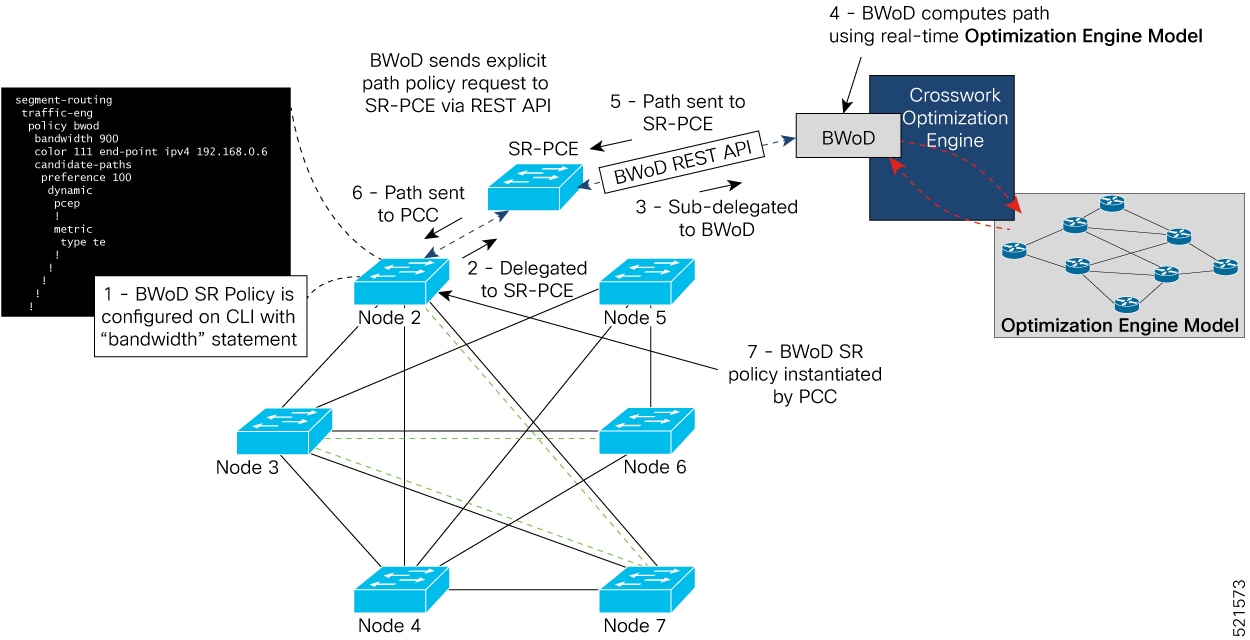
When enabled, BWoD automatically connects to all SR-PCE providers configured in Crosswork. The persistent connection is made to the SR-PCE BWoD Rest API, registering it as a PCE for bandwidth constrained SR-TE policies.

The following figure shows the PCC-initiated workflow for BWoD:

Figure 1. PCC-Initiated BWoD SR-TE Policies
PCC-Initiated BWoD SR-TE Policies
Callout No. Description

1

A BWoD policy is configured on a PCC via the CLI. For example:
segment-routing
 traffic-eng
  policy bwod
   bandwidth 900
   color 100 end-point ipv4 1.1.1.2
   candidate-paths
    preference 100
     dynamic
      pcep
      !
      metric
       type te
      !
     !
     constraints
      affinity
       exclude-any
        name RED
       !
      !
     !
    !
   !

2

The bandwidth statement is added to a PCE delegated SR policy to create a BWoD policy. Once committed, the PCC delegates the path compute to SR-PCE.

3, 4

SR-PCE then sub-delegates the policy to BWoD which attempts to compute a path that meets the bandwidth constraint.

5, 6

If a bandwidth-compliant path is found, the segment list is returned to SR-PCE which forwards it over PCEP to the PCC and the PCC instantiates it. If BWoD is unable to compute a bw-compliant path for the policy or doing so will force an existing BWoD policy to not have a bw-compliant path, best effort paths may be computed by BWoD which attempt to minimize violations. This occurrence will also trigger BWoD to issue an event to the COE events UI indicating which BWoD policies are now on best effort paths.

7

A BWoD SR-TE policy is instantiated.

Provision an SR-TE Policy to Maintain Intent-Based Bandwidth Requirements Example

Figure 2. Initial BWoD Topology Example

Initial BWoD Topology

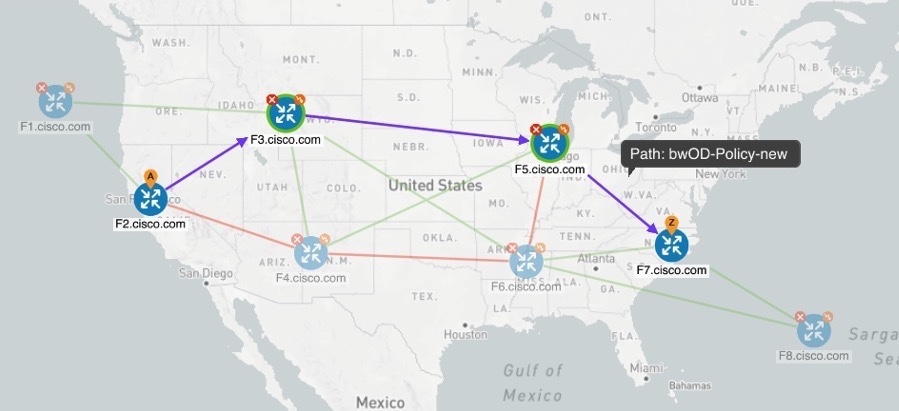
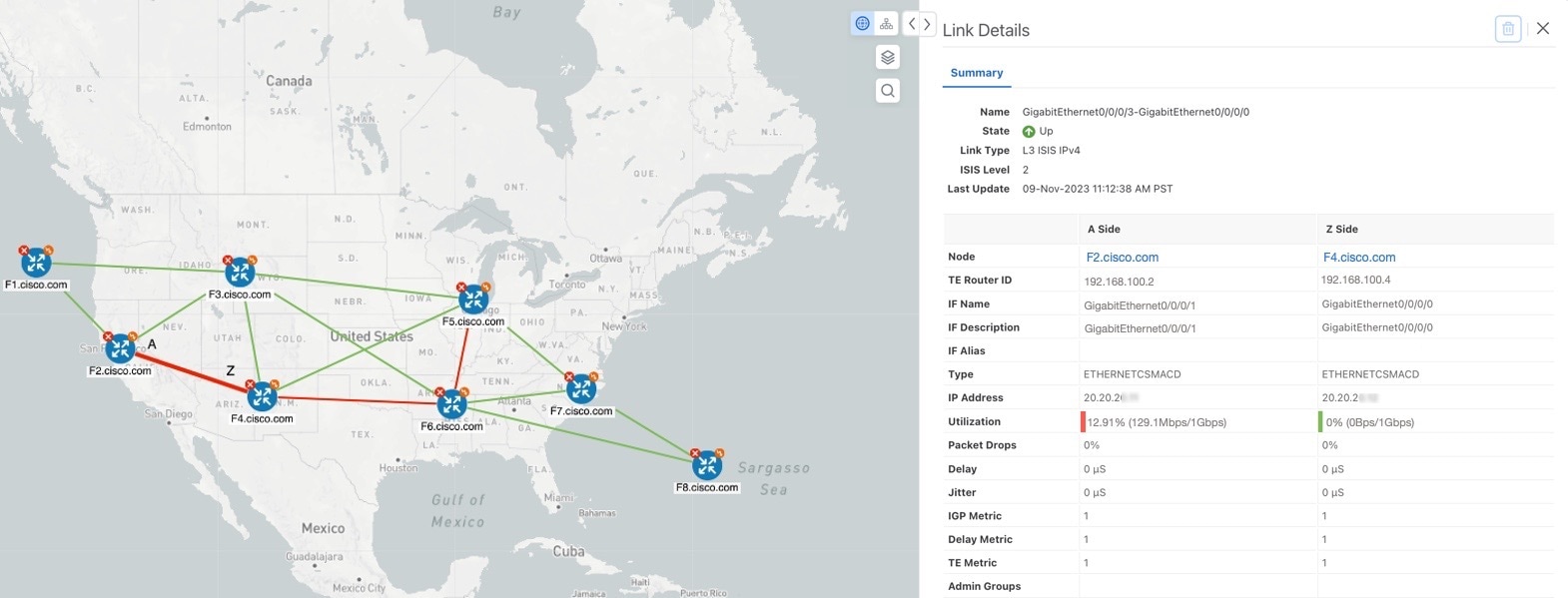
In this scenario we are using the above topology. The goal is to create a path from F2.cisco.com to F7.cisco.com that can accommodate 920 Mbps of traffic while keeping the utilization at 80%. The above example highlights the utilization on nodes F2.cisco.com and node F4.cisco.com to show that the link is being utilized and has a capacity of 1 Gbps. BWoD will initially try to find a single path that does not include this link since the addition of the requested bandwidth would exceed the utilization threshold.

Procedure


Step 1

Enable and Configure BWoD.

  1. From the main menu, choose Services & Traffic Engineering > Bandwidth on Demand > Configuration.

  2. Toggle the Enable switch to True and enter 80 to set the utilization threshold percentage. To find descriptions of other options, simply hover the mouse over Info icon.

  3. Click Commit Changes.

Step 2

Create a PCE-initiated BWoD SR-TE Policy.

  1. From the main menu, choose Traffic Engineering > SR-TE tab and click Create > PCE init.

  2. Enter the required SR-TE policy details.

  3. In the Policy Path field, click Bandwidth on Demand and enter a unique name for the BWoD path. In this case, bwOD-Policy-new.

  4. From the Optimization Objective drop-down list, select Traffic Engineering (TE) Metric.

  5. In the Bandwidth field enter the requested bandwidth. In this case, we are requesting 920 Mbps.

  6. Click Preview.


    BWoD Result 1

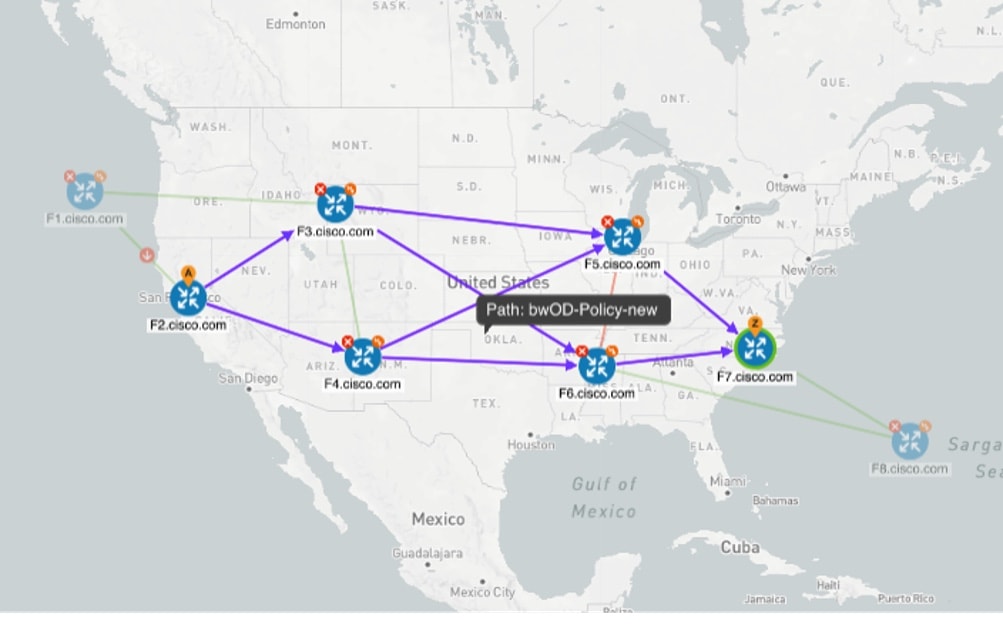
    In the below example, the BWoD SR policy uses the existing ECMP paths on the network without explicitly splitting the traffic to avoid congestion. The traffic may be distributed by ECMP, but BWoD does not influence that. It is only aware of it and takes it into consideration if it occurs on the path computed.

    BWoD Result 2
  7. If you are satisfied with the proposed SR-TE policy deployment, click Provision.

Step 3

Verify that the new BWoD SR-TE policy has been created.

  1. From the main menu, choose Traffic Engineering > SR-TE.

  2. Select the new BWoD SR-TE policy and view the SR policy details (click and choose View). Note that the Policy Type is Bandwidth on Demand.


Configure Bandwidth on Demand

There are two parts to configure Bandwidth on Demand (BWoD):

  1. Enable and configure BWoD options.

  2. Create BWoD SR policies. As long as BWoD is enabled, you can create multiple BWoD SR policies.

Procedure


Step 1

From the main menu, choose Services & Traffic Engineering > Bandwidth on Demand > Configuration.

Step 2

Toggle the Enable switch to True.

Step 3

Configure additional options. Hover the mouse pointer over Info icon to view a description of each field.

Step 4

Click Commit Changes to save the configuration.

Step 5

To create BWoD SR policies, navigate to Traffic Engineering > Traffic Engineering.

Step 6

From the SR Policy table, click Create > PCE Init.

Step 7

In addition to entering the required SR policy details, click the Bandwidth on Demand option and enter the required bandwidth.

Step 8

Click Preview to view the proposed SR policy.

Step 9

Click Provision to commit the SR policy.


Troubleshoot BWoD

The following are some of the most common error conditions for BWoD and some possible corrective actions that may fix the issue.

Table 1. Errors

Error Event Message

Possible Causes and Recommended Corrective Action

OptimaModelError

The network model used by BWoD from the Optimization Engine is corrupt or is missing key data that is needed to properly support BWoD. Possible causes include network discovery issues or synchronization problems between the Optimization Engine and Topology Services. Try restarting the Optimization Engine pod to rebuild the model.

This error can also occur if the time required to discover a policy and add it to the model after it has been deployed exceeds the Deployment Timeout option set for BWoD. The default is 30 seconds which should suffice for small to medium sized networks. However, larger networks may require additional time.

NATSTimedOutError

The deployment of a bandwidth policy through SR-PCE exceeds the Deployment Timeout option set for BWoD. Increase the Deployment Timeout option to allow for additional time for deployments in larger networks.

Traceback or other errors found in the log file

Please contact your Cisco service representative.