How to Use Cisco Smart PHY

This section describes how to use the Cisco Smart PHY application:

Configure Cisco cBR-8 for Smart PHY Application

Enable Logging

Enable logging to Cisco Smart PHY and set LCHA Traps to Smart PHY to ensure that the Smart PHY state is cBR-8 LCHA aware.

configure terminal
logging host <Smart PHY Worker node Virtual IP Address> transport [tcp|udp] port 8514
logging trap informational
cable logging layer2events

Configure Cable Service Profile-Group

Configure the Cable Service Profile-Group on the Cisco cBR-8 router. The following is a sample of how to configure the Service Profile-Group:


Note

The number for US bonding groups should be a 2 or 4.


cable profile mac-domain test_MD
 cable ip-init dual-stack
 cable privacy accept-self-signed-certificate
 cable privacy skip-validity-period
!
!
cable profile wideband-interface test_WB
 cable downstream attribute-mask 80000001
!
!
cable profile downstream test_DS
 cable rf-bandwidth-percent 20
!
!
cable profile service-group test_SG1
 cable bundle 2
 mac-domain 0 profile test_MD
  downstream sg-channel 0-23 profile test_DS
  upstream 0 sg-channel 0
  upstream 1 sg-channel 1
  upstream 2 sg-channel 2
  upstream 3 sg-channel 3
  upstream 4 sg-channel 4
  upstream 5 sg-channel 5
  us-bonding-group 1
   upstream 0
   upstream 1
   upstream 2
   upstream 3
  us-bonding-group 2
   upstream 2
   upstream 3
   upstream 4
   upstream 5
  
 wideband-interface 0 profile test_WB
  downstream sg-channel 0-23 rf-bandwidth-percent 20

Log In using a Browser

Procedure


Step 1

In the browser's address bar, enter https://<fqdn> or https://<ip_address>.nip.io

The access URL is based on the initial cluster configuration.

The Cisco Smart PHY web GUI displays the Login window. When you access Cisco Smart PHY for the first time, some browsers display a warning that the site is untrusted. When this happens, follow the prompts to add a security exception and download the self-signed certificate from the Cisco Smart PHY server. After you add the certificate, the browser accepts the Cisco Smart PHY server as a trusted site in all future login attempts.

Step 2

Log in using the password that you provided during the initial installation.

Step 3

To exit the web GUI, close the browser window or click the settings icon in the top right corner and choose Log out.

Exiting a Cisco Smart PHY web GUI session does not shut down Cisco Smart PHY on the server.

If a system administrator stops the Cisco Smart PHY server during your Cisco Smart PHY session, your session ends. When the server restarts, you should start a new Cisco Smart PHY session.

If the system administrator keeps the session idle for a long time, the Cisco Smart PHY application prompts you to re-login.


Bring Up the RPD

Procedure


Step 1

Log into the Cisco Smart PHY application.

Go to https://<fqdn> or https://<ip_address>.nip.io.

Step 2

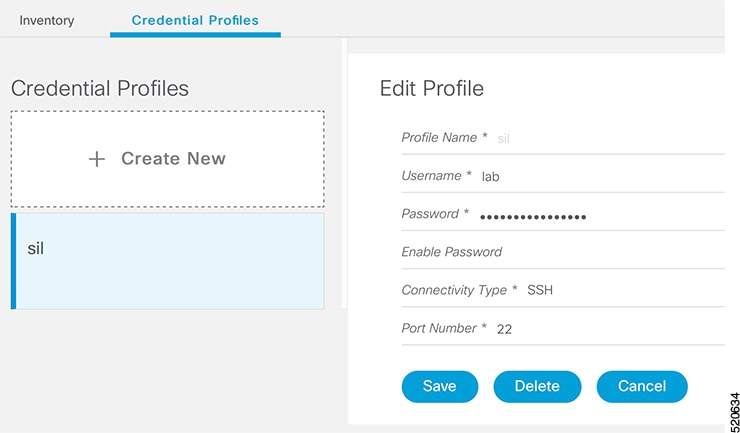
Create a Credential Profile.

  1. Choose Inventory > Credential Profiles.

  2. Enter the following details in the text fields.

    Field Name

    Description

    Profile Name

    Name of the Profile

    Username

    Username of the Cisco cBR-8 router

    Password

    Password of the Cisco cBR-8 router

    Connectivity Type

    SSH

    Port Number

    22

    Save/Delete/Cancel

    Use these buttons to complete your action.

    Note 

    The Cisco Smart PHY application requires SSH to log in directly to the exec mode on the Cisco cBR-8 router.

  3. Click Save.

Step 3

Add the Cisco cBR-8 router to the inventory and reference the credential profile.

Add a device manually or by importing from a CSV file.

  1. Choose Inventory > Inventory.

  2. To import a CSV file, click the icon, choose the file and click Import.
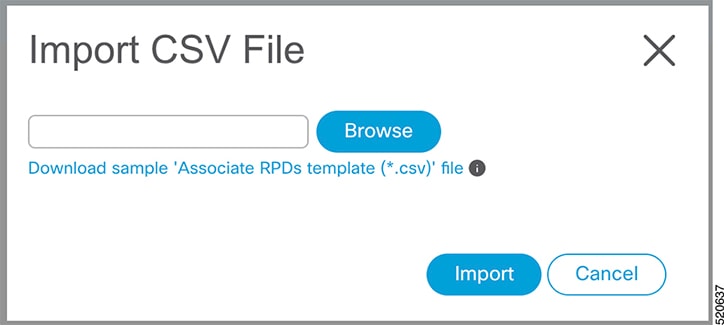
    The Import dialog box also has a link to a sample CSV file which you can download for reference. Make sure you save the edited file in CSV format.

    Set the following values for a Cisco cBR-8 device.

    • Key Type: IP address

    • IP Address: IP address on the Cisco cBR-8 router that can reach the Cisco Smart PHY application.

    • Product Type: CBR-8-CCAP-CHASS

    • Credential Profile: Specify the credential profile

    Or

    To manually add a device, click the icon and provide the required information and save.
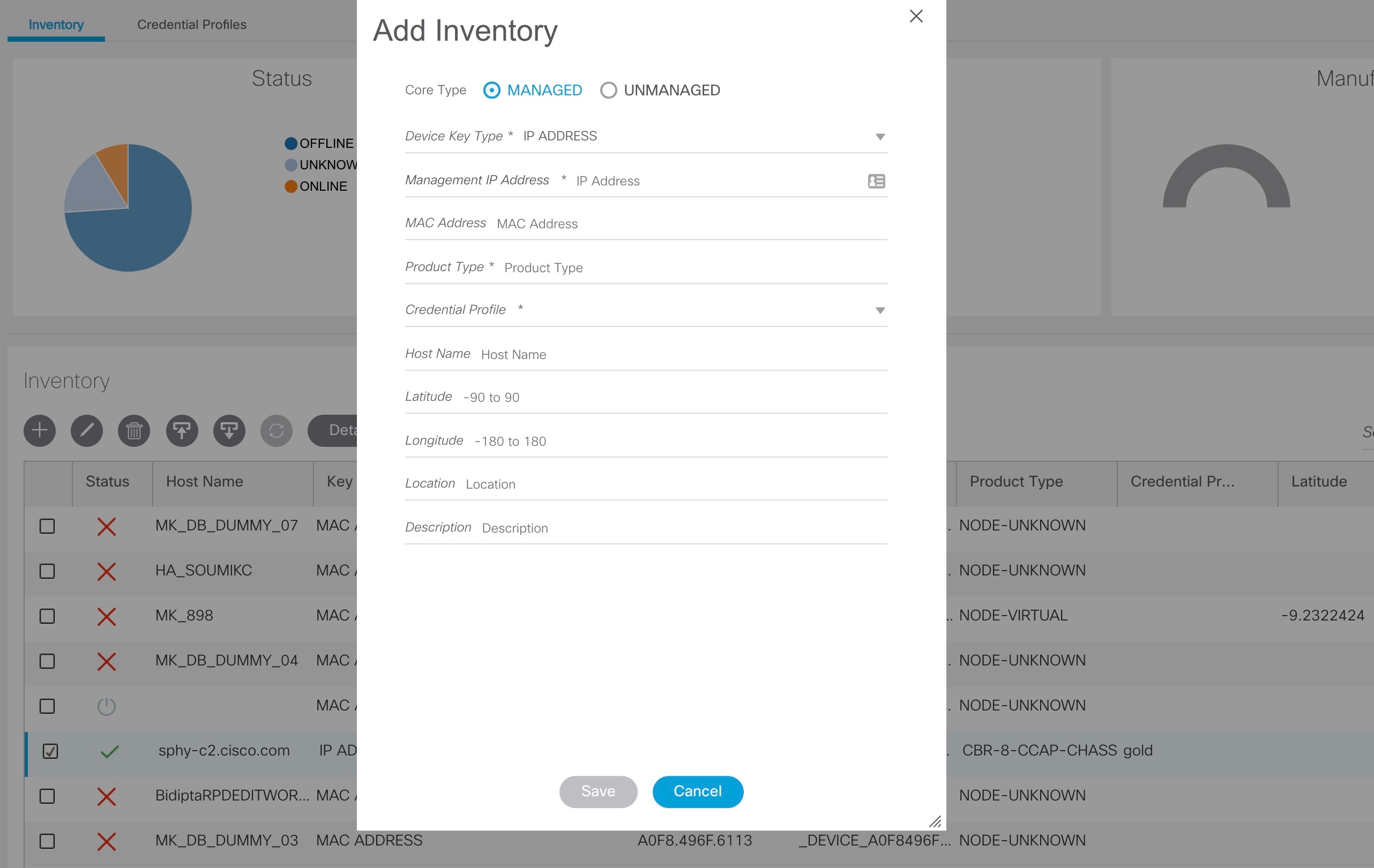
    Set the following values for the Cisco cBR-8 device.

    • Key Type—IP address

    • IP Address—Management IP address on the Cisco cBR-8 router

    • Product Type—CBR-8-CCAP-CHASS

    • Credential Profile—Specify the credential profile. Devices with the same credentials can use the same credential profile.

Step 4

Configure the Cisco cBR-8 to send syslog messages to the Cisco Smart PHY application.

The Cisco Smart PHY application uses syslog messages to monitor the state of the RPD on the Cisco cBR-8 router. Run the following command on the Cisco cBR-8 router:
logging host <Smart PHY interface connected to the Cisco cBR> transport udp port 8514
Enter the IP address of the worker node.
Step 5

Create a Service Template.

Note 

Fields not marked as optional are mandatory.

  1. Choose Cable RPD Automation > Service Definitions.

  2. Specify Profiles as preconfigured on the Cisco cBR-8 router.

    Name

    Description

    Event Profile

    RPD Event Profile Set

    R-DTI Profile

    Remote DOCSIS Timing Interface (R-DTI) Set

    Pilot Tone Profile

    Pilot tone profile.

    Cable DSG TGs

    DSG tag IDs.

    Primary Service

    Service Group Profile

    Pre-existing Cable Service Profile-Group on the Cisco cBR-8

    Enable MAC Domain Splitting

    Select the check box to split a MAC domain between two fiber-nodes that share the same downstream controller.

    Downstream Controller Profile

    Primary downstream CCAP controller profile.

    Upstream Controller Profile

    Primary upstream CCAP controller profile.

    Out Of Band

    Out-of-band profile parameters.

    Network Delay

    Network delay has two options:

    • DLM—System periodically measures the network latency between the CCAP core and the RPD, and dynamically updates the cable map advance. Range is interval in seconds. The valid range for measuring DLM is 1–420 seconds.

      Measure only—Choose to measure network latency between the CCAP core and the RPD. This option is not for updating the cable map advance. You can select this option for a service definition in use, but cannot deselect it.

    • Static—The cable map advance is adjusted by a fixed amount. The valid range is 30–100,000 microseconds.

      This range is the Converged Interconnect Network (CIN) delay in microseconds. CIN is the network between the CCAP core and RPD.

    You can change the network-delay range for a service definition in use.

    For more details, see DEPI Latency Measurement in the Service Template section in this document.

    Out Of Band

    Downstream VOM ID

    OOB 55–1 Downstream Virtual out-of-band Modulator (VOM) identification (ID).

    Downstream VOM Profile

    OOB 55–1 Downstream VOM profile.

    Upstream VARPD ID

    OOB 55–1 Upstream Virtual Advanced Return Path Demodulator (VARPD) ID.

    Upstream VARPD Profile

    OOB 55–1 Upstream VARPD profile for first logical downstream/upstream (DS/US) pairing.

    The upstream VARPD profile (upstreamVarpdProfile) and the second upstream VARPD profile (secondUpstreamVarpdProfile) can have the same value. For more details, see Common OOB 55-1 US Profile for Cisco RPD 1x2/2x2.

    Second Upstream VARPD Profile

    OOB 55–1 Upstream VARPD profile for second logical downstream/upstream (DS/US) pairing.

    The upstream VARPD profile (upstreamVarpdProfile) and the second upstream VARPD profile (secondUpstreamVarpdProfile) can have the same value. For more details, see Common OOB 55-1 US Profile for Cisco RPD 1x2/2x2.

    NDF/NDR

    Pseudowire Name (sic)

    NDF

    Narrowband digital forward (NDF) pseudowire name.

    Up to three pseudowire names, profile ID sets are supported. Values are applied to all downstream ports of the RPD.

    NDR

    NDR pseudowire name. Up to three pseudowire names, profile ID sets are supported per upstream port.

    Profile ID

    • NDF—NDF profile ID corresponding to the above NDF pseudowire.

    • NDR—NDR profile ID corresponding to above NDF pseudowire.

    NDR: Port

    Upstream port, Port 0 or Port 1, to apply Narrowband Digital Return (NDR) pseudowire name, profile set.

    Load Balance

    Paste the load balance XML text in the text field. Use the ntool to convert the XML configuration from the Cisco cBR-8 router to the required XML format.

  3. Click Save.

Step 6

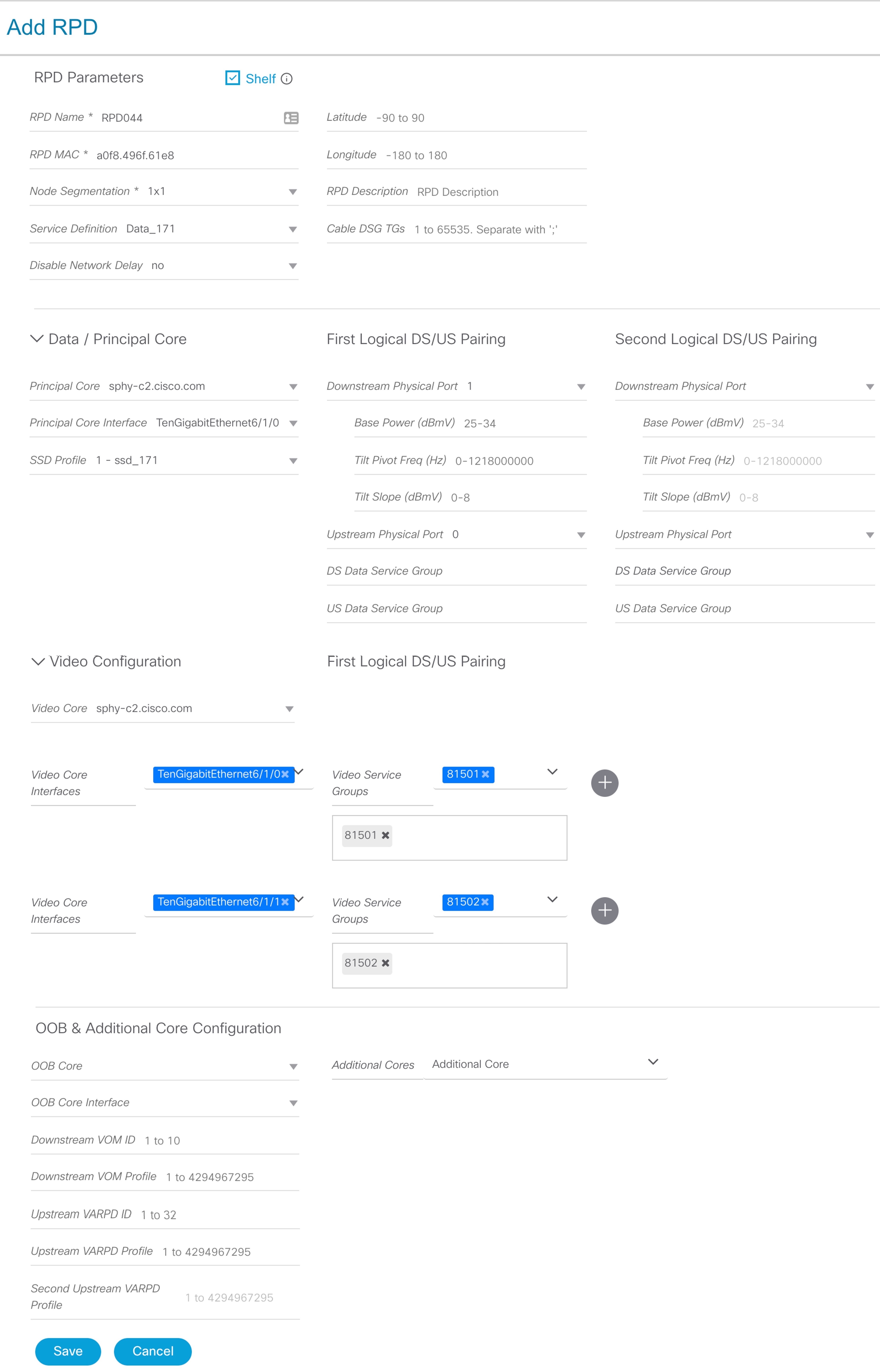
Pair an RPD with the RPD MAC address in the RPD assignment table.

If you are using the Smart PHY application on a mobile device, before you pair an RPD with the MAC address, ensure that you create a table entry for the RPD (RPD_NAME1) with the following details: RPD name, description, location, pairing with Cisco cBR-8 router, and service template.

After the initial installation of the RPD, the mobile application scans the RPD, gets an IP address, and contacts the Cisco Smart PHY application for provisioning as RPD_MAC1. You can also pair the RPD_NAME1 with the RPD_MAC1 when scanning the RPD using the mobile application.

Adding RPD through a Web GUI

Note 

Fields with an asterisk are mandatory.

Add RPD devices through the Cable RPD Automation > RPD Assignment menu options and not through the Inventory menu.

  1. Choose Cable RPD Automation > RPD Assignment.

  2. RPD Assignment can be specified manually or by importing a CSV file.

    To import a CSV file, click the icon, select the file and click Import.

    Or

    To specify RPD assignment manually, click Add or Edit.

    Field Name

    Description

    RPD Name

    Name for the RPD.

    This RPD name is also used in the cable rpd CLI command.

    RPD MAC Address

    MAC address of the RPD.

    Node Segmentation

    Node segmentation of the RPD: 1x1, 1x2, or 2x2.

    Service Definition

    Service Definition as created in the Service Definitions tab. If Cisco Smart PHY does not manage the principal CCAP core and if the Principal Core field is empty, then this Service Definition field is optional.

    Principal Core

    Name of the Cisco cBR-8 router which is the principal Converged Cable Access Platform (CCAP) Core for the RPD.

    This core must provide the RPD with data and narrowband digital forward (NDF)/narrowband digital return (NDR) services. This core may also provide the following services:

    • Out-of-band (OOB) SCTE 55–1

    • Video services: If there is no separate auxiliary Video Core

    Leave this field empty if the RPD has a principal CCAP Core that is not managed by Cisco Smart PHY.

    An unmanaged principal core is a non-cBR-8 principal core such as Cisco cnBR, which is not present in the Cisco SmartPHY inventory and to which it does not push the configuration. In this case, include the unmanaged principal core as the first item in the Additional Cores list.

    SSD Profile

    Secure Software Download (SSD) profile details for image storage.

    Disable Network Delay

    The default is value is No.

    • No—Apply network delay from service definition to RPD.

    • Yes—Do not apply network delay from service definition to RPD.

    Changing this value to yes is service impacting, if the RPD’s assigned Service Definition/Template has network-delay configured.

    Principal Core Interface

    Complete name of the TenGigabitEthernet DPIC interface to be used for Data Service.

    Leave this field empty if there is no Principal Core.

    Video Core

    Name of the Cisco cBR-8 router, which is the auxiliary CCAP core for the RPD that provides video services.

    Leave this field empty if principal core provides the video services.

    Video Core Interfaces

    List of complete names of the TenGigabitEthernet DPIC interfaces to be used for Video Services.

    OOB Core

    Name of the Cisco cBR-8 router which is the CCAP core for the RPD that provides out-of-band (OOB) SCTE 55–1 service and NDF/NDR services.

    This field must match either the Principal Core or the auxiliary Video Core. Leave this field empty if the OOB 55-1 and NDF/NDR services are not used.

    OOB Core Interface

    Complete name of the TenGigabitEthernet DPIC interface to be used for out-of-band 55-1 and NDF/NDR service.

    Leave this field empty if the OOB 55-1 and NDF/NDR services are not used.

    Downstream VOM ID

    OOB 55–1 Downstream Virtual out-of-band Modulator (VOM) Identification (ID). If present, this value overrides the value from the Service Definition.

    Downstream VOM Profile

    OOB 55–1 Downstream VOM profile. If present, this value overrides the value from the Service Definition.

    Upstream VARPD ID

    OOB 55–1 Upstream Virtual Advanced Return Path Demodulator (VARPD) ID. If present, this value overrides the value from the Service Definition.

    Upstream VARPD Profile

    OOB 55–1 Upstream VARPD profile for first logical Downstream/Upstream (DS/US) pairing. If present, this value overrides the value from the Service Definition.

    The upstream VARPD profile (upstreamVarpdProfile) and the second upstream VARPD profile (secondUpstreamVarpdProfile) can have the same value. For more details, see Common OOB 55-1 US Profile for Cisco RPD 1x2/2x2.

    Second Upstream VARPD Profile

    OOB 55–1 Upstream VARPD profile for second logical Downstream/Upstream (DS/US) pairing. If present, this value overrides the value from the Service Definition.

    The upstream VARPD profile (upstreamVarpdProfile) and the second upstream VARPD profile (secondUpstreamVarpdProfile) can have the same value. For more details, see Common OOB 55-1 US Profile for Cisco RPD 1x2/2x2.

    Cable DSG TGs

    Semicolon separated list of DOCSIS Set-Top Gateway (DSG) Tunnel Group (TG) identifications. If present, this list overrides the list from the Service Definition.

    Additional Cores

    Semi-colon separated list of additional cores to which the RPD must connect.

    For example, when an SCTE 55-2 OOB auxiliary core is required, additional cores list it here.

    Important 

    If Cisco Smart PHY does not manage the principal CCAP core and if the Principal Core field is empty, you must include the unmanaged principal core as the first item in this list.

    Latitude

    Latitude of the RPD (GPS coordinates)

    Longitude

    Longitude of the RPD (GPS coordinates)

    RPD Description

    Description for the RPD

    The description of First and Second Logical DS/US Pairing fields for adding an assignment are as follows:

    Field Name

    Description

    Downstream Physical Port

    Downstream RPD Port of the logical pairing. Always “0” for first pairing and not applicable to second pairing for 1x1 or 1x2 node segmentation. May be “0” or “1” for 2x2 node segmentation.

    Upstream Physical Port

    Upstream RPD Port of the logical pairing. May be “0” or “1.” Not applicable to second pairing for 1x1 node segmentation.

    DS Data Service Group

    All RPDs with the same data service group share the downstream controller for Data Service (Virtual Splitting for Data). Not applicable to second pairing for 1x1 or 1x2 node segmentation.

    US Data Service Group

    Upstream data service group allows multiple RPDs to share the same upstream controller for upstream data traffic. Not applicable to second pairing for 1x1 node segmentation.

    Video Service Groups

    Video service group (VSG) names. Video only travels in the downstream direction.

    Not applicable to second pairing for 1x1 or 1x2 node segmentation.

    Important 

    Cisco Smart PHY does not allow configuring a VSG on a Downstream Port 1 (ds1) with broadcast keyword through the Cisco cBR-8 CLI. If you try to configure, the CLI shows an error.

    Cisco Smart PHY maps a VSG to a video interface based on the order of the VSGs and interfaces if a VSG can map to more than one interface:

    • A VSG can map to more than one video interface if the video interface list includes both ports 0 and 2 or both ports 4 and 6 of one Cisco cBR-8 Series 8x10G Remote PHY Digital Physical Interface Card (CBR-DPIC-8X10G).

    • Cisco Smart PHY maps the first VSG to a matching Principal Core interface if present; otherwise, it maps the first VSG to the first matching video interface.

    • Cisco Smart PHY maps second, third, and fourth VSGs to the highest numbered matching video interfaces.

    Cisco Smart PHY reorders video interfaces and VSGs, so that a video interface that matches the Principal Core interface and the associated VSGs are listed first.

  3. Click Save.

After assigning the RPD MAC address to the RPD name, the RPD is provisioned on the Cisco cBR-8 router and comes online on that Cisco cBR-8 router after getting redirected by the Cisco Smart PHY application.

Step 7

In the DHCP server, enter the IPv4 or IPv6 VIP (Virtual IP address) of the CIN network in the CCAP Core field for the RPD.

After retrieving the IP address from the DHCP server, the RPDs are redirected to the Cisco Smart PHY application.

When the RPD resets, it gets the new DHCP server attributes and values from the DHCP server and connects to the Cisco Smart PHY application.

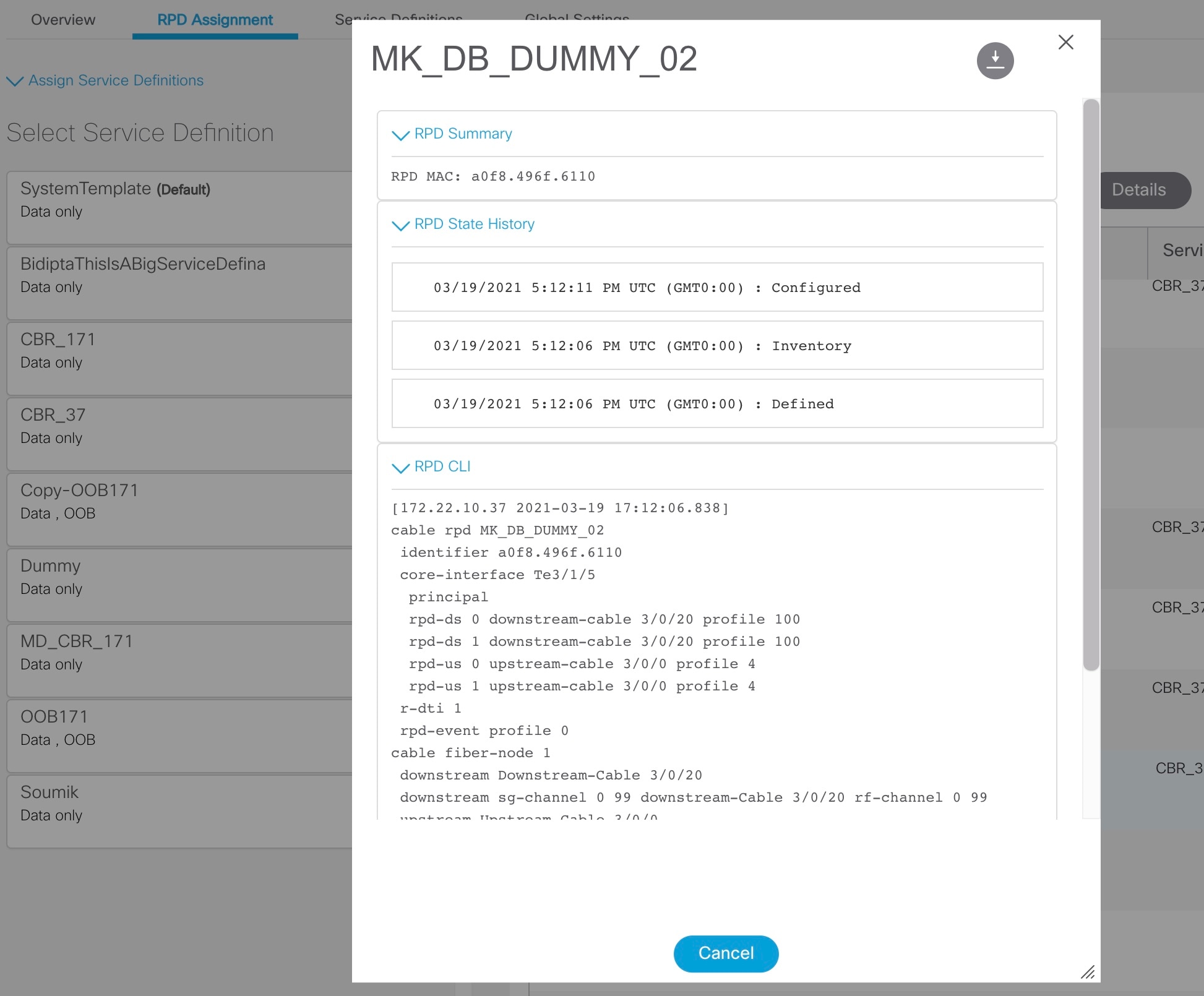
To view the details of an RPD such as the RPD Summary, RPD State History, and RPD CLI, select the check box and click the Details button.


Create a New Credential Profile

Before you begin

Make sure that the SSH and SNMP are configured on Cisco cBR-8 router.

Procedure


Step 1

Choose Inventory > Credential Profiles.

Step 2

Click Create New.

Step 3

Enter a profile name and description.

If you have many credential profiles, make the name and description as informative as possible because that information is displayed on the Credential Profiles panel.

Step 4

Enter the credentials for the profile.

When a device is added or updated using this profile, the content you specify here is applied to the device.

Step 5

Click Save.


Apply Device Credential from Credential Profiles

Using credential profiles lets you apply credential settings consistently across devices. When you add or import devices, you specify the credential profile the devices use. If you need to make a credential change, such as changing a device password, you can edit the profile to update the settings across all devices that use that profile.

Procedure


Step 1

To view the existing profiles, choose Inventory > Credential Profiles.

Step 2

Click the profile you want to view.

Credential profiles can be shared by multiple devices. Large networks might have similar credentials for hundreds of devices.

The mandatory fields are:

  • Profile Name

  • Username

  • Password

  • Connectivity Type

  • Port Number


Apply a Different Credential Profile to Existing Devices

You can use the Inventory user interface to edit device information, including changing the credential profile in the inventory record. This operation overwrites any existing association between a device and a credential profile. You can also use this operation to synchronize device configurations with new settings.

Before you begin

You need a credential profile to complete this task.

Procedure


Step 1

To view inventory, choose Inventory > Inventory.

Step 2

(Optional) In the Inventory section, filter the list of devices by entering text in the Search field or filtering on the individual headings.

Step 3

Check the check boxes of the devices you want to change, and click the Edit icon.

Step 4

Choose a different credential profile from the Credential Profile drop-down list, for example, or make other changes in the device records.

Step 5

Click Save.


Apply Different Credential Profile in Bulk

This is an alternative to changing the credential profile for devices within the Cisco Smart PHY Inventory Manager GUI. If you are changing the credential profile for a large number of devices, you may find it more efficient to make the change by using a CSV file rather than the Cisco Smart PHY UI. Export a CSV file, make the changes, and import the changed CSV file. This operation overwrites any existing association between a device and a credential profile. You can also use this operation to synchronize device configurations with new settings.

Procedure


Step 1

(Optional) To review the contents of a credential profile, choose Inventory > Credential Profiles.

Step 2

Click the profile you want to use. Else, create a new profile.

Step 3

To view device inventory, choose Inventory > Inventory.

Step 4

Choose which device records to change by including them in the CSV file.

Do one of the following:

  • Click the Export icon to include all devices.

  • Filter the list of devices by entering text in the Search field or by filtering on the individual headings, and then click the Export icon to include the filtered list of devices.

  • Check the check boxes for the device records you want to change, and then click the Export icon to include the selected devices.

Step 5

Edit and save the new CSV file. Note: You must save the file opened in MS Excel as a CSV file only.

Step 6

In the Import CSV File dialog box, click Browse, select the new CSV file, and click the Import icon.

Step 7

In the Replace Existing Node dialog box, click Yes to All.

Step 8

Click Save.


Delete a Device from the Inventory

Procedure


Step 1

Choose Inventory > Inventory.

Step 2

(Optional) In the Inventory section, filter the device list by entering text in Search or filtering specific columns.

Step 3

Check the check boxes for the devices you want to delete.

Step 4

Click delete icon ().

Step 5

In the confirmation dialog box, click Delete.

Deleting an RPD from the Inventory does not delete the corresponding RPD Assignment from the RPD Assignment table. Similarly deleting an RPD Assignment does not delete an RPD from the Inventory.


Create CSV File for Importing Devices

To add information for multiple devices to Inventory Manager, create a CSV file. Inventory Manager contains a sample template CSV file. The GUI for adding individual devices contains field information that also applies to the contents of the CSV files that you create for device import.

Procedure


Step 1

Choose Inventory > Inventory.

Step 2

In the Inventory section, click the import icon ().

You will be prompted to open or save the sample CSV file. Save the CSV file.

Step 3

Edit the CSV file and save it as a CSV file on your system. Upload this CSV file to import devices.

The mandatory fields are:

  • Key Type

  • IP Address

  • Product Type

  • Credential Profile


Export Device Information to a CSV File

When you export the device list to a file, all device information is exported into a CSV file.


Caution

The CSV file lists all the credentials for the exported devices. Handle the CSV file with care. Ensure that only users with special privileges can perform a device export.


Procedure


Step 1

Choose Inventory > Inventory.

Step 2

(Optional) In the Inventory section, filter the device list by entering text in the Search field or filtering specific columns.

Step 3

Check the check boxes for the devices you want to export.

Step 4

Click the export icon ().


Add Devices through GUI

If you have many devices to add to the Inventory Manager, you may find it more efficient to put the information in a CSV file and import the file.

Procedure


Step 1

Choose Inventory > Inventory.

Step 2

In the Inventory section, click the add icon ().

Step 3

Enter the values for the device.

The mandatory fields are:
  • Device Key Type

  • Management IP Address

  • Product Type

  • Credential Profile

Step 4

Click Save.

Step 5

(Optional) Repeat to add more devices.


Import Device Information in Bulk

Before starting this procedure, create a CSV file that contains the device information.

Procedure


Step 1

Choose Inventory > Inventory.

Step 2

Click the import icon ().

Step 3

In the Import CSV File window, click Browse, select the CSV file, and click Import.

If any primary keys are duplicates with existing device records, Inventory Manager alerts you.


Delete a Credential Profile

To delete a credential profile from Inventory Manager, disassociate the profile from any devices. Inventory Manager displays an alert if you attempt to delete a credential profile that is associated with devices.

(Optional) Check whether any devices are using the obsolete credential profile and change the credential profile before deleting the profile.

  1. Choose Inventory > Inventory.

  2. In the Inventory section, enter the obsolete credential profile name in the Search field.

  3. Check the check boxes for the devices that use the obsolete credential profile, and click Edit.

  4. Choose a different credential profile from the Credential Profile drop-down list.

  5. Click Save.

Procedure


Step 1

Choose Inventory > Credential Profiles.

Step 2

Click the profile, and click Delete.


Create a New Service Definition

Procedure


Step 1

Choose Cable RPD Automation > Service Definitions.

Step 2

Click + Create New.

Step 3

Enter a name and description.

If you have many service definitions, make the name and description as informative as possible because that information is displayed on the RPD Assignment and Overview tabs.

Step 4

(Optional) Check the Set as Default check box.

Step 5

Enter the definitions for the Service Definition.

When a device is added or updated using this service definition, the content you specify here is applied to the device. All fields that are not marked as optional are mandatory.

Step 6

Click Save or Save & Assign.


Specify RPD Assignment

Procedure


Step 1

Choose Cable RPD Automation > RPD Assignment.

RPD Assignment can be specified manually or by importing a CSV file.

Step 2

Click icon to assign a service template to an RPD.

Fill in all the fields.

To upload a CSV file, click Upload, select the file and click Import.

Step 3

Click Save.

Step 4

Click Assign.


Provision RPD for Video Support

Cisco Smart PHY can be configured to use distinct Cisco cBR-8 routers as the DOCSIS Principal core and auxiliary video core.

The DOCSIS configuration is pushed to the Principal core and the video configuration is pushed to the specified Video Auxiliary core. You can configure the OOB core to be either the Principal core or the Video Auxiliary core. The OOB 55-1 and NDF/NDR configurations are pushed to the OOB core through the OOB core interface. You can configure only the Pilot tone, SSD, and DLM on the Principal core.


Important

When integrating Viavi with RPD, NDF or NDR must be configured on the Principal Core. Viavi communicates with the core using SNMP MIBs that are only available on the Principal Core.


Cisco Smart PHY can also provision an RPD for supporting video using a standalone Cisco cBR-8 router and use Cisco cnBR or some other Core that is not managed by Cisco Smart PHY, as the Principal core.


Note

Manually, enter the IPv4 or IPv6 address of the Principal Core CIN interface that is not managed by Cisco Smart PHY as the first entry in the Additional Cores field.

If the principal core is not managed by Cisco Smart PHY and you do not have OOB 55-1 configuration on the auxiliary video core, the RPD Assignment does not require Service Definition configuration.


Note

If RPD is online with both Principal Core and separate Video Auxiliary Core, and you remove the Video Core configuration, the RPD reboots and becomes online with only the Principal Core.

If the RPD is online with only the Principal Core, and later if you configure a separate Video Auxiliary Core, the RPD does not reboot automatically. You must manually reboot the RPD to get it to redirect to the new Video Core. After the RPD reboots, it becomes online with both cores.


Caution

When you use the REST API to provision an RPD with separate video cores, you must use only version 2 (V2) RPD-pairing REST API. If you use V1 RPD-pairing API to provision an RPD with separate video cores, it may lead to data corruption. Also, version 1 (V1) of the RPD-pairing REST API does not support features such as 1x2 node segmentation, 2x2 node segmentation, OOB override, DLM, or separate video cores.


Common OOB 55-1 US Profile for Cisco RPD 1x2/2x2

The Cisco cBR-8 router supports configuring the same profile to both upstream physical RF ports in an RPD. Service providers can expand the OOB 55-1 service group on to the second US port without the need for extra hardware.

This feature is available only in the following versions of Cisco cBR-8 series routers:

  • Cisco IOS XE Fuji 16.8.1 and earlier

  • Cisco IOS XE Amsterdam 17.3.1x and later

Example
cable rpd SAME_OOB_US_PROFILE
identifier 2222.5555.2323
core-interface Te6/1/2
principal
rpd-ds 0 downstream-cable 6/0/1 profile 1
rpd-us 0 upstream-cable 6/0/1 profile 1
rpd-us 1 upstream-cable 6/0/2 profile 1
core-interface Te6/1/2
rpd-ds 0 downstream-oob-vom 1 profile 100
rpd-us 0 upstream-oob-varpd 1 profile 101
rpd-us 1 upstream-oob-varpd 1 profile 101
r-dti 1
rpd-event profile 0
cable fiber-node 2
downstream Downstream-Cable 6/0/1
downstream sg-channel 0 23 downstream-Cable 6/0/1 rf-channel 0 23
upstream Upstream-Cable 6/0/1
upstream sg-channel 0 1 upstream-Cable 6/0/1 us-channel 0 1
upstream sg-channel 2 3 peer-node-us
service-group managed md 0 Cable 6/0/1
service-group profile ram_SG1
cable fiber-node 3
downstream Downstream-Cable 6/0/1
downstream sg-channel 0 23 downstream-Cable 6/0/1 rf-channel 0 23
upstream Upstream-Cable 6/0/2
upstream sg-channel 2 3 upstream-Cable 6/0/2 us-channel 0 1
upstream sg-channel 0 1 peer-node-us
service-group managed md 0 Cable 6/0/1
service-group profile ram_SG1

In REST API, the following restrictions are applicable:

  • OOB is enabled only if the following four parameters are configured within the specified range:

    • downstreamVomId

    • downstreamVomProfile

    • upstreamVarpdId

    • upstreamVarpdProfile

  • The NDF configuration is independent of the OOB downstream and upstream configurations.

  • NDR configuration is independent of OOB downstream and upstream configurations.

REST set-service-template
{
  "autoAccept": false,
  "defaultFlag": false,
  "dlmMeasureOnly": false,
  "dsgTunnelGroupIDs": "1",
  "elementsList": [
    {
      "description": "Service profile with 1.5Gbps Data Service. 16x4 DS/US SG channels",
      "downstreamControllerProfile": 0,
      "downstreamVomId": 1,
      "downstreamVomProfile": 1,
      "eventProfile": 0,
      "mdSplitting": false,
      "rdtiConfig": 0,
      "serviceGroupName": "SGProfile",
      "serviceType": "Data",
      "svcNdfProfiles": [
        {
          "portNum": 0,
          "profileId": 100,
          "pwName": "name1"
        }
      ],
      "svcNdrProfiles": [
        {
          "portNum": 0,
          "profileId": 100,
          "pwName": "name1"
        }
      ],
      "upstreamControllerProfile": 0,
      "upstreamVarpdId": 1,
      "upstreamVarpdProfile": 1
    }
  ],
  "loadBalanceXml": "XML String",
  "name": "Gold",
  "networkDelayDlm": 10,
  "networkDelayStatic": "null",
  "pilotToneProfile": 0,
  "secondUpstreamVarpdProfile": 1
}
REST  get-service-template Response Content Type
 
{
  "autoAccept": false,
  "defaultFlag": false,
  "dlmMeasureOnly": false,
  "dsgTunnelGroupIDs": "1",
  "elementsList": [
    {
      "description": "Service profile with 1.5Gbps Data Service. 16x4 DS/US SG channels",
      "downstreamControllerProfile": 0,
      "downstreamVomId": 1,
      "downstreamVomProfile": 1,
      "eventProfile": 0,
      "mdSplitting": false,
      "rdtiConfig": 0,
      "serviceGroupName": "SGProfile",
      "serviceType": "Data",
      "svcNdfProfiles": [
        {
          "portNum": 0,
          "profileId": 100,
          "pwName": "name1"
        }
      ],
      "svcNdrProfiles": [
        {
          "portNum": 0,
          "profileId": 100,
          "pwName": "name1"
        }
      ],
      "upstreamControllerProfile": 0,
      "upstreamVarpdId": 1,
      "upstreamVarpdProfile": 1
    }
  ],
  "error": {
    "errorCode": "RecordNotFound",
    "errorMessage": "Record not found : <Record type> <identifier>",
    "errorTag": "Record not found",
    "errorType": "User"
  },
  "loadBalanceXml": "XML String",
  "name": "Gold",
  "networkDelayDlm": 10,
  "networkDelayStatic": "null",
  "pilotToneProfile": 0,
  "rpdsAssigned": 0,
  "rpdsProvisioned": false,
  "secondUpstreamVarpdProfile": 1,
  "status": "Success or Failure. If Failure check Error field for error details."
}

Configure Video Service

You can configure video service in Cisco cBR-8 router through Cisco Smart PHY by wiring the video interfaces and video service groups (VSG).

Cisco Smart PHY provides a clear mapping between VSG and video interfaces. RPD node segmentation determines the number of VSGs that you can choose for a video interface.

To add a new video interface, choose Cable RPD Automation > RPD Assignment and click the button.

You can import CSV files from the previous versions of the Cisco Smart PHY application. You can also import a database that is exported from a previous version of the Cisco Smart PHY application.

Configure VSG using API

You can also configure VSG using the Cisco Smart PHY API setrpdpairinglist.

This API is backward compatible. It has an extra videointerfaces field under port-config. The existing video service group mapping with the video interfaces remains without any changes.

Example: Sample RPD Pairing API
{
  "setrpdpairinglist": [
    {
      "name": "rpd03",
      "previousname": "rpd03",
      "macaddress": "00049f320825",
      "description": null,
      "approvalstate": "approved",
      "servicetemplate": "d8-sg-split-rdti1",
      "gpslocation": {
        "genericlocation": "",
        "latitude": "",
        "longitude": ""
      },
      "ssdprofileid": 1,
      "disablenetworkdelay": false,
      "preconfigure": true,
      "nodesegmentation": "rpd_1x1",
      "additionalcores": [
        "2004:172:30:0:2eab:a4ff:feff:f36c"
      ],
      "assignedcores": [
        {
          "servicetype": "data",
          "mgmtcore": "video-lwr-s-d8.cisco.com",
          "rpdconnectioninterface": "tengigabitethernet9/1/0",
        },
        {
          "servicetype": "video",
          "mgmtcore": "video-lwr-s-d8.cisco.com",
          "rpdconnectioninterface": "tengigabitethernet9/1/0",
        },
       {
          "servicetype": "video",
          "mgmtcore": "video-lwr-s-d8.cisco.com",
          "rpdconnectioninterface": "tengigabitethernet9/1/6",
        },
        {
          "servicetype": "oob",
          "mgmtcore": "video-lwr-s-d8.cisco.com",
          "rpdconnectioninterface": "tengigabitethernet9/1/0",
        }
      ],
      "portconfigs": [
        {
          "dsport": 0,
          "usport": 0,
          "dsservicegroup": "sg-9-0-0",
          "usservicegroup": "sg-upstream-9-0-0",
          "videoservicegroups": [
            "vsg1",  // Index 0 is read along with video interface index 0
            "vsg2",  // Index 1 is read along with video interface index 1
            "vsg3"  // Index 2 is read along with video interface index 2
          ],
          “videointerfaces”:[
            "tengigabitethernet9/1/0”, // Index 0 is read along with vsg index 0
            "tengigabitethernet9/1/6”, // Index 1 is read along with vsg index 1
            "tengigabitethernet9/1/6” // Index 2 is read along with vsg index 2
           ]
        }
      ]
    }
  ]
}

Restrictions and Limitations

  • If you use the setrpdpairinglist API without the videoInterfaces attribute under port-configs, Cisco SmartPHY performs an ambiguity resolution. This process does not provide a clear one-to-one mapping.

  • If two or more VSGs are configured under the same interface, the videointerfaces must repeat to match the one-to-one mapping.

  • Add the video interfaces under port-config also in the assigned-cores. If not, the application shows an error.

  • The size of the list of video interfaces and the VSGs must be the same.

  • Map a VSG to only one interface. However, you can map it to the same interface in a different port.

  • If you configure a video interface without mapping to a VSG, the application ignores the video interface.

Restrict Cisco Smart PHY Operations

When Cisco Smart PHY detects a Cisco cBR-8 router as offline, Cisco Smart PHY does not allow you to do the following:

  • Provision RPDs

  • Fetch SSH keys

  • Fetch Details

  • Import

However, you can edit, export, or delete the devices from the Inventory page.

Disable Southbound Communication to Cisco cBR-8 Router

You can enable or disable Cisco Smart PHY southbound communications with a Cisco cBR-8 router or a group of Cisco cBR-8 routers. You can also disable southbound communications even for offline Cisco cBR-8 routers.

Disabling the southbound communications allows the selected Cisco cBR-8 routers to undergo maintenance without interference from Cisco Smart PHY checking for liveliness or configuration sync.

When you disable southbound communication:

  • Cisco Smart PHY does not allow you to make any configuration changes through the user interface or API to those Cisco cBR-8 routers.

  • GCP does not redirect RPDs associated with those Cisco cBR-8 routers.

To resume normal operation, choose an under maintenance Cisco cBR-8 router and click the icon and confirm it.

Resuming normal operation may take some time based on your network connectiovity, as it checks the state of the router. When this check happens, the router is in the transient state of NORMALOPS_PROGRESS. After this checking is over, the router becomes online or offline based on result of the checks.

You can see the status change by clicking the Details button.


Note

The version 1 (V1) RPD-pairing REST API is not blocked when the Cisco Smart PHY application disables the southbound communication to a Cisco cBR-8 router by moving the router into maintenance mode. Only the V2 API is blocked.


Fetch SSH Keys from Cisco cBR-8

Cisco Smart PHY can fetch new SSH keys either in bulk or by choosing individual Cisco cBR-8 router using the user interface or API.

In the Inventory window, choose Cisco cBR-8 routers and click the SSH key icon (). The following pop-up message appears when the fetching process starts:
Successfully fetched SSH keys from the selected cBR-8(s)
To view the status of fetching, click the Details button.

The following statuses appear for the SSH key fetching process:

  • SSHKEYFETCH_PROGRESS: When fetching the SSH keys is in progress.

  • ONLINE_WITH_EXCEPTION: When fetching of SSH keys fails.

When the fetching process is successful, the router becomes online.

The SSH Key icon is enabled only when you choose an online Cisco cBR-8 router.

Fetch SSH Keys Using REST API

Use the following asynchronous API to Fetch the SSH keys:
rpd-service-manager/rpdorch/v1/core-topology/fetch-ssh-key
To fetch the SSH keys for all Cisco cBR-8 routers in the Cisco Smart PHY application, set the allCore parameter to true in the request message of the rpd-service-manager/rpdorch/v1/core-topology/fetch-ssh-key.
{
"allCore": true,
"ipAddressList": [
"192.0.2.1", "192.0.2.100"
]
}
Check the status of fetching the SSH keys using the following API:
inventory-manager/inventory/v1/device/query-device-list

View RPD History

Procedure


Step 1

Choose Cable RPD Automation > RPD Assignment .

Step 2

Select the RPD and click the Details button.

The RPD window shows the RPD Summary, RPD State History, RPD CLI, and RPD Automation Errors.


Database Backup

The Database Backup section includes the following entry fields:

  • Server

  • Username

  • Password

  • Directory

  • Filename (Used exclusively for the Database Import function.)

The data that you enter in the Server field determines the location of the DB operation.

  • Local backup—localhost

  • Remote operation—IP address or hostname.domain.com

Local Backup

Local backup files are saved to the /var/smartphy/backup directory on the local filesystem.

  1. Go to RPD Automation> Global Settings > Database Backup.

  2. In the Server field enter localhost.

    Leave the remaining fields blank (Username, Password, Directory, and Filename).

  3. Click the Export button.

Remote Backup

Remote backup files are saved to the remote server at the specified file path.

  1. Go to RPD Automation> Global Settings > Database Backup.

  2. In the Server field enter the IP address or the hostname.domain.com of the remote server.

    Enter the user login credentials in the Username and Password fields.

  3. In the Directory field, enter the file path on the remote server.

    Leave the Filename (Import Only) field blank.

  4. Click the Export button.

Add Users using Cisco Operations Hub CLI

The Cisco Operations Hub ops-center CLI allows the administrator to create new users.

The Cisco Operations Hub ops-center URL is https://cli.opshub-data-ops-center.{hostname}/. The administrator can log into the Cisco Operations Hub ops-center CLI using the admin username and its password that is created while installing Cisco Smart PHY application.

product opshub# smiuser show-user username admin
User: admin, Group(s): admin api-admin api-editor api-viewer li-admin, Password Expiration days: 86

Add Users

Use the following procedure to create a new user:

Procedure


Step 1

Define a new user using the following sample commands:

product opshub# smiuser add-user username <username> password <password>
message User added
product opshub#
product opshub# smiuser show-user username <username>
User: <username>, Group(s): <username>, Password Expiration days: -1

Example:

product opshub# smiuser add-user username user123 password Abcd123@
message User added
product opshub#
product opshub# smiuser show-user username user123
User: user123, Group(s): user123, Password Expiration days: -1
Step 2

Add a new user to the API group using the following commands.

Applicable groups for Cisco Smart PHY are admin and api-admin. By default, the admin user is mapped to group admin.

product opshub# smiuser assign-user-group username <username> groupname <groupname>
message User assigned to group successfully
product opshub

Example:

product opshub# smiuser assign-user-group username user123 groupname api-admin
message User assigned to group successfully
product opshub

Basic and LDAP Authentication

The Cisco Smart PHY application supports the following two different authentication mechanisms:

  • Basic authentication

  • LDAP authentication

The default method is the Basic authentication. You can configure and switch to LDAP and vice versa using the following CLI procedures.

Switch from Basic Authentication to LDAP Authentication

The Operations Hub ops-center CLI allows an administrator to configure LDAP settings for external authentication with AD (Active Directory).

Procedure


Step 1

Access the Operations Hub ops-center by using the following URL:

https://cli.opshub-data-ops-center.{Hostname}/ 
Step 2

Log in to the Operations Hub ops-center CLI.

The administrator can log into the Operations Hub ops-center CLI using the admin username and its password that is created while deploying the Operations Hub.

Example:

product opshub# config t
Entering configuration mode terminal
product opshub(config)# ldap-security ldap-server-url ******
product opshub(config)# ldap-security ldap-username-domain ******.com
product opshub(config)# ldap-security base-dn DC=******,DC=com
product opshub(config)# ldap-security ldap-filter userPrincipalName=%s@******.com
product opshub(config)# ldap-security group-attr memberOf
product opshub(config)# end
Uncommitted changes found, commit them? [yes/no/CANCEL] yes
Commit complete.
Step 3

Configure the mapping between the LDAP groups and the API groups.

Example:

product opshub(config)# ldap-security group-mapping ?
Possible completions:
  LDAP group
product opshub(config)# ldap-security group-mapping {ldap group}} ?
Possible completions:
  <NACM group>  admin  api-admin  api-editor  api-viewer
product opshub(config)# ldap-security group-mapping {ldap group}} api-admin
product opshub(config-group-mapping-crdc-docsis/api-admin)# end
Uncommitted changes found, commit them? [yes/no/CANCEL] yes
Commit complete.

Switch from LDAP Authentication to Basic Authentication

Remove the LDAP configuration from the Operations Hub ops-center to switch from LDAP authentication to basic authentication.

product opshub(config)# no ldap-security
product opshub(config)# end
Uncommitted changes found, commit them? [yes/no/CANCEL] yes
Commit complete.

Renew Kubernetes Client TLS Certificate

Cisco Smart PHY leverages Kubernetes for container orchestration. During the Cisco Smart PHY cluster deployment, Kubernetes client TLS certificates are created to secure the communication between the Kubernetes API server and kubelets. Kubernetes client TLS certificates are valid for one year.


Caution

Renew the Kubernetes client TLS certificates before they expire. Otherwise, the operation and functionality of the Cisco Smart PHY cluster will be impacted.


Administrators can check the current status of the Kubernetes certificates by running the following command in the Linux shell:
sudo openssl x509 -enddate -noout -in /data/kubernetes/pki/kubelet-client-current.pem

The certificates are valid through the date that is listed in the attribute notAfter=.

For more information on renewing the Kubernetes Client TLS Certificate, contact your Cisco Account Team.