Authentication of Wireless LAN Controller's Lobby Administrator via RADIUS Server
Available Languages
Contents
Introduction
This document explains the configuration steps involved to authenticate a lobby administrator of the wireless LAN controller (WLC) with a RADIUS server.
Prerequisites
Requirements
Ensure that you meet these requirements before you attempt this configuration:
-
Knowledge of how to configure basic parameters on WLCs
-
Knowledge of how to configure a RADIUS server, such as the Cisco Secure ACS
-
Knowledge of guest users in the WLC
Components Used
The information in this document is based on these software and hardware versions:
-
Cisco 4400 Wireless LAN Controller that runs version 7.0.216.0
-
A Cisco Secure ACS that runs software version 4.1 and is used as a RADIUS server in this configuration.
The information in this document was created from the devices in a specific lab environment. All of the devices used in this document started with a cleared (default) configuration. If your network is live, make sure that you understand the potential impact of any command.
Conventions
Refer to Cisco Technical Tips Conventions for more information on document conventions.
Background Information
A lobby administrator, also known as a lobby ambassador of a WLC, can create and manage guest user accounts on the Wireless LAN Controller (WLC). The lobby ambassador has limited configuration privileges and can access only the web pages used to manage the guest accounts. The lobby ambassador can specify the amount of time that the guest user accounts remain active. After the specified time elapses, the guest user accounts expire automatically.
Refer to Wired Guest Access using Cisco WLAN Controllers Configuration Example for more information on guest users.
In order to create a guest user account on the WLC, you need to login to the controller as a lobby administrator. This document explains how a user is authenticated into the WLC as a lobby administrator based on the attributes returned by the RADIUS server.
Note: Lobby administrator authentication can also be performed based on the lobby administrator account configured locally on the WLC. Refer to Creating a Lobby Ambassador Account for information of how to create a lobby administrator account locally on a controller.
Configure
In this section, you are presented with the information on how to configure the WLC and the Cisco Secure ACS for the purpose described in this document.
Configurations
This document uses these configurations:
-
The Management interface IP address of WLC is 10.77.244.212/27.
-
The IP address of the RADIUS server is 10.77.244.197/27.
-
The shared secret key that is used on the access point (AP) and the RADIUS server is cisco123.
-
The username and password of the lobby administrator configured in the RADIUS server are both lobbyadmin.
In the configuration example in this document, any user logging into the controller with username and password as lobbyadmin is assigned the role of a lobby administrator.
WLC Configuration
Before you start the necessary WLC configuration, ensure that your controller runs version 4.0.206.0 or later. This is due to Cisco bug ID CSCsg89868 (registered customers only) in which the web interface of the controller displays wrong web pages for the LobbyAdmin user when the username is stored in a RADIUS database. The LobbyAdmin is presented with the ReadOnly interface instead of the LobbyAdmin interface.
This bug has been resolved in WLC version 4.0.206.0. Therefore, ensure that your controller version is 4.0.206.0 or later. Refer to Wireless LAN Controller (WLC) Software Upgrade for instructions on how to upgrade your controller to the appropriate version.
In order to perform controller management authentication with the RADIUS server, ensure that the Admin-auth-via-RADIUS flag is enabled on the controller. This can be verified from the show radius summary command output.
The first step is to configure RADIUS server information on the controller and establish Layer 3 reachability between the controller and RADIUS server.
Configure RADIUS Server Information on the Controller
Complete these steps in order to configure the WLC with details about the ACS:
-
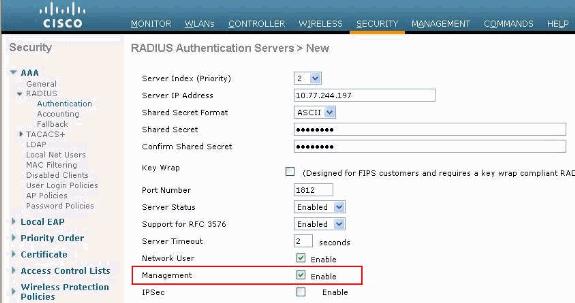
From the WLC GUI, choose the Security tab and configure the IP address and shared secret of the ACS server.
This shared secret needs to be the same on the ACS in order for the WLC to communicate with the ACS.
Note: The ACS shared secret is case sensitive. Therefore, make sure to enter the shared secret information correctly.
This figure shows an example:
-
Check the Management check box in order to allow the ACS to manage the WLC users as shown in the figure in step 1. Then, click Apply.
-
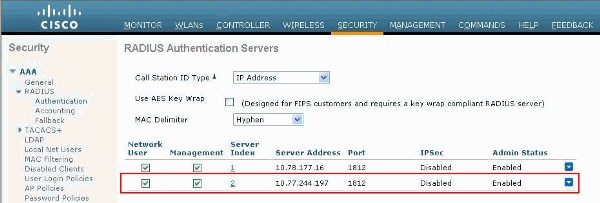
Verify the Layer 3 reachability between the controller and the configured RADIUS server with the help of the ping command. This ping option is also available on the configured RADIUS server page in the WLC GUI in the Security>RADIUS Authentication tab.
This diagram shows a successful ping reply from the RADIUS server. Therefore, Layer 3 reachability is available between the controller and RADIUS server.


RADIUS Server Configuration
Complete the steps in these sections in order to configure the RADIUS server:
Add the WLC as an AAA Client to the RADIUS Server
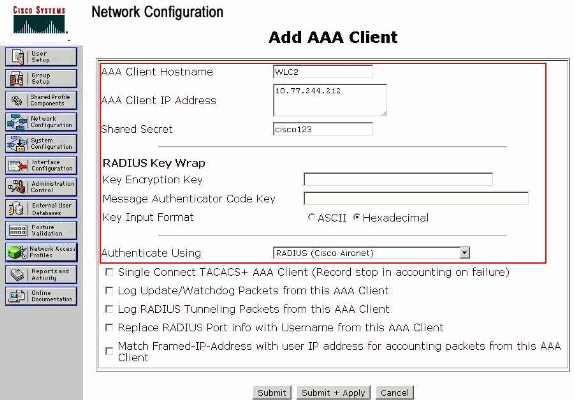
Complete these steps in order to add the WLC as an AAA client in the RADIUS server. As mentioned earlier, this document uses the ACS as the RADIUS server. You can use any RADIUS server for this configuration.
Complete these steps in order to add the WLC as an AAA client in the ACS:
-
From the ACS GUI, choose the Network Configuration tab.
-
Under AAA Clients, click Add Entry.
-
In the Add AAA Client window, enter the WLC host name, the IP address of the WLC, and a shared secret key. See the example diagram under step 5.
-
From the Authenticate Using drop-down menu, choose RADIUS (Cisco Aironet).
-
Click Submit + Restart in order to save the configuration.

Configure the Appropriate RADIUS IETF Service-Type Attribute for a Lobby Administrator
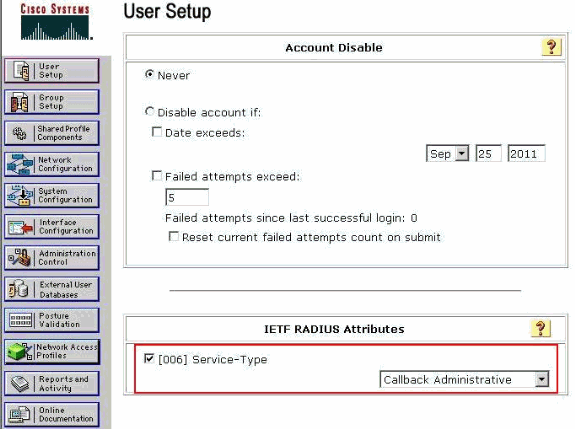
In order to authenticate a management user of a controller as a lobby administrator via the RADIUS server, you must add the user to the RADIUS database with the IETF RADIUS Service-Type attribute set to Callback Administrative. This attribute assigns the specific user the role of a lobby administrator on a controller.
This document shows the example user lobbyadmin as a lobby administrator. In order to configure this user, complete these steps on the ACS:
-
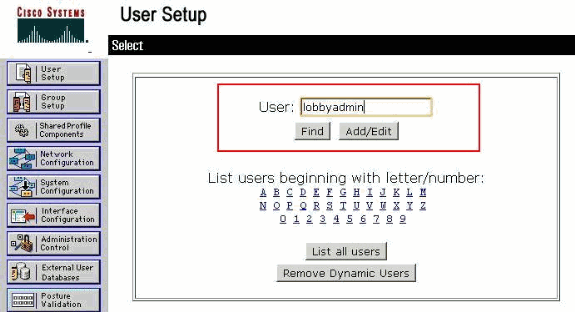
From the ACS GUI, choose the User Setup tab.
-
Enter the username to be added to the ACS as this example window shows:
-
Click Add/Edit in order to go to the User Edit page.
-
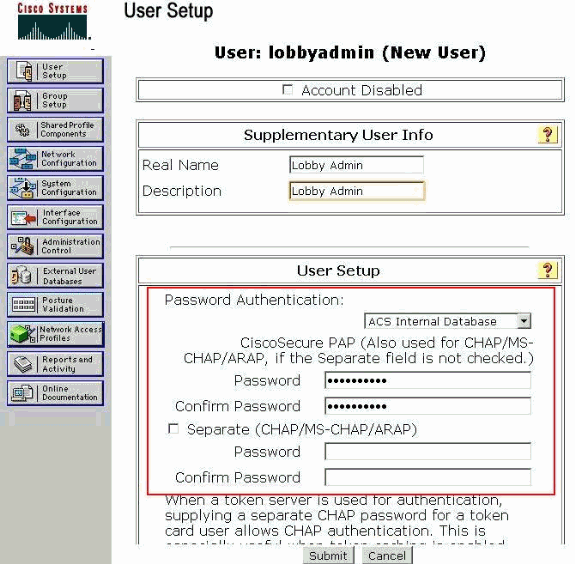
On the User Edit page, provide the Real Name, Description and Password details of this user.
In this example, the username and password used are both lobbyadmin.
-
Scroll down to the IETF RADIUS Attributes setting and check the Service-Type Attribute check box.
-
Choose Callback Administrative from the Service-Type pull-down menu and click Submit.
This is the attribute that assigns this user the role of a lobby administrator.
Sometimes, this Service-Type attribute is not visible under the user settings. In such cases, complete these steps in order to make it visible:
-
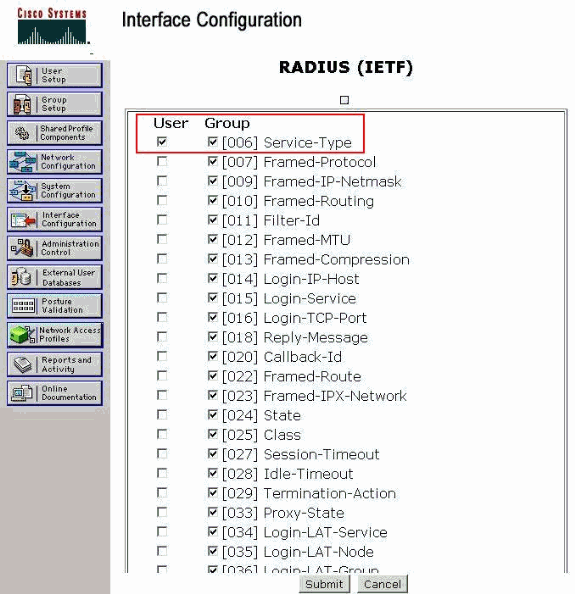
From the ACS GUI, choose Interface Configuration > RADIUS (IETF) in order to enable IETF attributes in the User Configuration window.
This brings you to the RADIUS (IETF) Settings page.
-
From the RADIUS (IETF) Settings page, you can enable the IETF attribute that needs to be visible under user or group settings. For this configuration, check Service-Type for the User column and click Submit.
This window shows an example:
Note: This example specifies authentication on a per-user basis. You can also perform authentication based on the group to which a particular user belongs. In such cases, check the Group check box so that this attribute is visible under Group settings.
Note: Also, if the authentication is on a group basis, you need to assign users to a particular group and configure the group setting IETF attributes to provide access privileges to users of that group. Refer to User Group Management for detailed information on how to configure and manage groups.
-




Verify
Use this section in order to confirm that your configuration works properly.
In order to verify that your configuration works properly, access the WLC through the GUI (HTTP/HTTPS) mode.
Note: A lobby ambassador cannot access the controller CLI interface and therefore can create guest user accounts only from the controller GUI.
When the login prompt appears, enter the username and password as configured on the ACS. If you have the configurations correct, you are authenticated successfully into the WLC as lobby administrator. This example shows how the GUI of a lobby administrator looks after successful authentication:
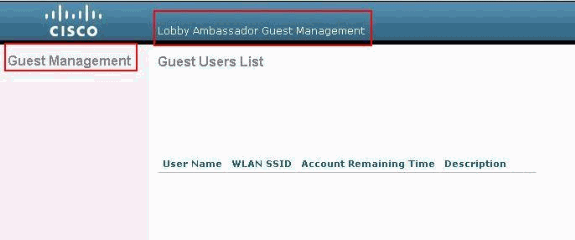
Note: You can see that a lobby administrator has no other option apart from guest user management.
In order to verify it from the CLI mode, Telnet into the controller as a read-write administrator. Issue the debug aaa all enable command at the controller CLI.
(Cisco Controller) >debug aaa all enable

(Cisco Controller) >
*aaaQueueReader: Aug 26 18:07:35.072: ReProcessAuthentication previous proto 28,
 next proto 20001
*aaaQueueReader: Aug 26 18:07:35.072: AuthenticationRequest: 0x3081f7dc
*aaaQueueReader: Aug 26 18:07:35.072:   Callback.....................................0x10756dd0
*aaaQueueReader: Aug 26 18:07:35.072:   protocolType.................................0x00020001
*aaaQueueReader: Aug 26 18:07:35.072:   proxyState...................................00:00:00:40:
00:00-00:00
*aaaQueueReader: Aug 26 18:07:35.072:   Packet contains 5 AVPs (not shown)
*aaaQueueReader: Aug 26 18:07:35.072: apfVapRadiusInfoGet: WLAN(0) dynamic int attributes srcAddr:
0x0, gw:0x0, mask:0x0, vlan:0, dpPort:0, srcPort:0
*aaaQueueReader: Aug 26 18:07:35.073: 00:00:00:40:00:00 Successful transmission of Authentication
Packet (id 39) to 10.77.244.212:1812, proxy state 00:00:00:40:00:00-00:01
*aaaQueueReader: Aug 26 18:07:35.073: 00000000: 01 27 00 47 00 00 00 00  00 00 00 00 00 00 00 00
.'.G............
*aaaQueueReader: Aug 26 18:07:35.073: 00000010: 00 00 00 00 01 0c 6c 6f  62 62 79 61 64 6d 69 6e
......lobbyadmin
*aaaQueueReader: Aug 26 18:07:35.073: 00000020: 02 12 5f 5b 5c 12 c5 c8  52 d3 3f 4f 4f 8e 9d 38
 .._[\...R.?OO..8
*aaaQueueReader: Aug 26 18:07:35.073: 00000030: 42 91 06 06 00 00 00 07  04 06 0a 4e b1 1a 20 09
B..........N....
*aaaQueueReader: Aug 26 18:07:35.073: 00000040: 57 4c 43 34 34 30 30 WLC4400
*radiusTransportThread: Aug 26 18:07:35.080: 00000000: 02 27 00 40 7e 04 6d 533d ed 79 9c b6 99 d1
f8  .'.@~.mS=.y.....
*radiusTransportThread: Aug 26 18:07:35.080: 00000010: d0 5a 8f 4f 08 06 ff ffff ff 06 06 00 00 00
0b  .Z.O............
*radiusTransportThread: Aug 26 18:07:35.080: 00000020: 19 20 43 41 43 53 3a 302f 61 65 32 36 2f 61
34  ..CACS:0/ae26/a4
*radiusTransportThread: Aug 26 18:07:35.080: 00000030: 65 62 31 31 61 2f 6c 6f62 62 79 61 64 6d 69
6e  eb11a/lobbyadmin
*radiusTransportThread: Aug 26 18:07:35.080: ****Enter processIncomingMessages: response code=2
*radiusTransportThread: Aug 26 18:07:35.080: ****Enter processRadiusResponse: response code=2
*radiusTransportThread: Aug 26 18:07:35.080: 00:00:00:40:00:00 Access-Accept received from RADIUS
server 10.77.244.212 for mobile 00:00:00:40:00:00 receiveId = 0
*radiusTransportThread: Aug 26 18:07:35.080: AuthorizationResponse: 0x13c73d50
*radiusTransportThread: Aug 26 18:07:35.080:    structureSize................................118
*radiusTransportThread: Aug 26 18:07:35.080:    resultCode...................................0
*radiusTransportThread: Aug 26 18:07:35.080:    protocolUsed.................................0x00000001
*radiusTransportThread: Aug 26 18:07:35.080:    proxyState...................................00:00:00:40:00:00-00:00
*radiusTransportThread: Aug 26 18:07:35.080:    Packet contains 3 AVPs:
*radiusTransportThread: Aug 26 18:07:35.080:        AVP[01] Framed-IP-Address........................0xffffffff (-1) (4 bytes)
*radiusTransportThread: Aug 26 18:07:35.080:        AVP[02] Service-Type.............................0x0000000b (11) (4 bytes)
*radiusTransportThread: Aug 26 18:07:35.080:        AVP[03] Class....................................
CACS:0/ae26/a4eb11a/lobbyadmin (30 bytes)
*emWeb: Aug 26 18:07:35.084: Authentication succeeded for lobbyadmin
In the highlighted information in this output, you can see that the service-type attribute 11 (Callback Administrative) is passed onto the controller from the ACS server and the user is logged in as a lobby administrator.
These commands might be of additional help:
-
debug aaa details enable
-
debug aaa events enable
-
debug aaa packets enable
Note: Refer to Important Information on Debug Commands before you use debug commands.
Troubleshoot
When you login to a controller with lobby ambassador privileges, you are not able to create a guest user account with a "0" life time value, which is an account that never expires. In these situations, you receive the Lifetime value cannot be 0 error message.
This is due to Cisco bug ID CSCsf32392 (registered customers only) , which is found mainly with WLC version 4.0. This bug has been resolved in WLC version 4.1.
Related Information
- RADIUS Server Authentication of Management Users on the Controller Configuration Example
- Cisco Unified Wireless Network TACACS+ Configuration
- Cisco Wireless LAN Controller Configuration Guide, Release 4.0 - Managing User Accounts
- ACLs on Wireless LAN Controller Configuration Example
- Wireless LAN Controller (WLC) FAQ
- ACLs on Wireless LAN Controllers: Rules, Limitations, and Examples
- External Web Authentication with Wireless LAN Controllers Configuration Example
- Wireless LAN Controller Web Authentication Configuration Example
- Guest WLAN and Internal WLAN using WLCs Configuration Example
- Technical Support & Documentation - Cisco Systems
Revision History
| Revision | Publish Date | Comments |
|---|---|---|
1.0 |
22-Jun-2007
|
Initial Release |
 Feedback