Introduction
This document describes how to configure MAC filters with wireless LAN controllers (WLCs).
Prerequisites
Requirements
Cisco recommends that you have knowledge of these topics:
Components Used
The information in this document is based on these software and hardware versions:
-
Cisco 4400 WLC that runs software version 5.2.178.0
-
Cisco 1230AG Series LAPs
-
802.11 a/b/g wireless client adapter with firmware 4.4
-
Aironet Desktop Utility (ADU) version 4.4
The information in this document was created from the devices in a specific lab environment. All of the devices used in this document started with a cleared (default) configuration. If your network is live, ensure that you understand the potential impact of any command.
Conventions
Refer to Cisco Technical Tips Conventions for more information on document conventions.
Background Information
This document describes how to configure MAC filters with wireless LAN controllers (WLCs) with a configuration example. This document also discusses how to authorize lightweight access points (LAPs) against an AAA server.
MAC Address Filter (MAC Authentication) on WLCs
When you create a MAC address filter on WLCs, users are granted or denied access to the WLAN network based on the MAC address of the client they use.
There are two types of MAC authentication that are supported on WLCs:
With local MAC authentication, user MAC addresses are stored in a database on the WLC. When a user tries to access the WLAN that is configured for MAC filtering, the client MAC address is validated against the local database on the WLC, and the client is granted access to the WLAN if the authentication is successful.
By default, the WLC local database supports up to 512 user entries.
The local user database is limited to a maximum of 2048 entries. The local database stores entries for these items:
-
Local management users, which includes lobby ambassadors
-
Local network users, which includes guest users
-
MAC filter entries
-
Exclusion list entries
-
Access point authorization list entries
All of these types of users cannot exceed the configured database size.
In order to increase the local database, use this command from the CLI:
<Cisco Controller>config database size ?
<count>        Enter the maximum number of entries (512-2048)
Alternatively, MAC address authentication can also be performed with a RADIUS server. The only difference is that the users MAC address database is stored in the RADIUS server instead of the WLC.
When a user database is stored on a RADIUS server, the WLC forwards the MAC address of the client to the RADIUS server for client validation.
Then, the RADIUS server validates the MAC address based on the database it has. If the client authentication is successful, the client is granted access to the WLAN. Any RADIUS server which supports MAC address authentication can be used.
Configure Local MAC Authentication on WLCs
To configure local MAC authentication on the WLCs:
-
Configure a WLAN and Enable MAC Filtering.
-
Configure the Local Database on the WLC with Client MAC Addresses.
Note: Before you configure MAC authentication, you must configure the WLC for basic operation and register the LAPs to the WLC. This document assumes that the WLC is already configured for basic operation and that the LAPs are registered to the WLC. If you are a new user and you want to try to set up the WLC for basic operation with LAPs, refer to Troubleshoot a Lightweight AP That Fails to Join a WLC.
Note: There is no special configuration needed on the wireless client in order to support MAC authentication.
Configure a WLAN and Enable MAC Filtering
To configure a WLAN with MAC filtering:
-
Click WLANs from the controller GUI in order to create a WLAN.
The WLANs window appears. This window lists the WLANs configured on the controller.
-
Click New in order to configure a new WLAN.
In this example, the WLAN is named MAC-WLAN and the WLAN ID is 1.
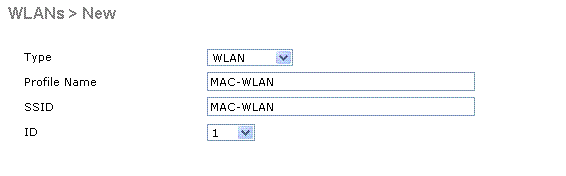 Configure WLAN Enable MAC Filtering
-
Click Apply.
-
In the WLANs > Edit window, define the parameters specific to the WLAN.
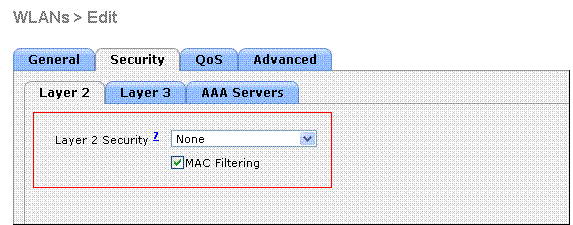 Define Parameters
-
Under Security > Layer 2 > Layer 2 Security Policies, check the MAC Filtering check box.
This enables MAC authentication for the WLAN.
-
Under General > Interface name, select the interface to which the WLAN is mapped.
In this example, the WLAN is mapped to the management interface.
-
Select the other parameters, which depend on the design requirements of the WLAN.
-
Click Apply .
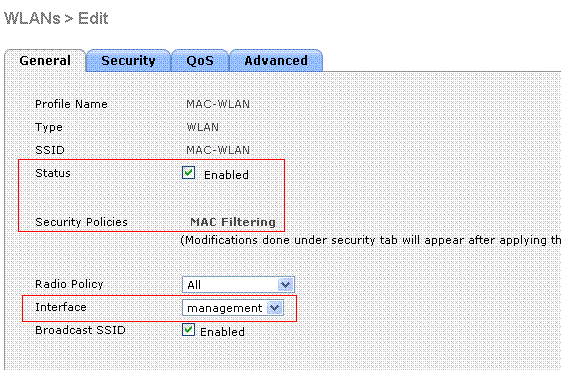 WLAN Mapped to Interface
The next step is to configure the local database on the WLC with the client MAC addresses.
Refer to VLANs on Wireless LAN Controllers Configuration Example for information on how to configure dynamic interfaces (VLANs) on WLCs.
Configure the Local Database on the WLC with Client MAC Addresses
To configure the local database with a client MAC address on the WLC:
-
Click Security from the controller GUI, and then click MAC Filtering from the left side menu.
The MAC Filtering window appears.
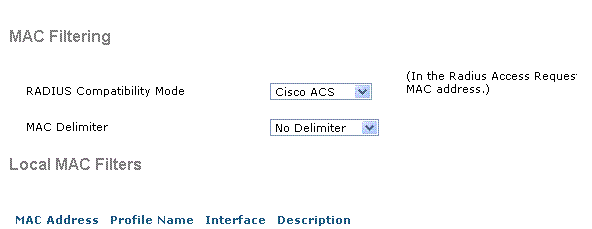 MAC Filtering Window
-
Click New in order to create a local database MAC address entry on the WLC.
-
In the MAC Filters > New window, enter the MAC address, Profile Name, Description and the Interface Name for the client.
Here is an example:
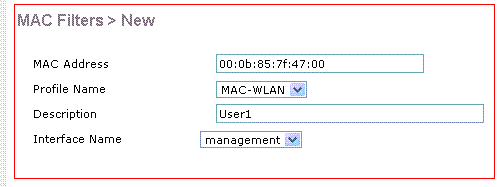 Create a Local Database for MAC Address
-
Click Apply.
-
Repeat steps 2-4 in order to add more clients to the local database.
Now, when clients connect to this WLAN, the WLC validates the clients MAC address against the local database and if the validation is successful, the client is granted access to the network.
Note: In this example, only a MAC address filter without any other Layer 2 Security mechanism was used. Cisco recommends that MAC address authentication must be used along with other Layer 2 or Layer 3 security methods. It is not advisable to use only MAC address authentication to secure your WLAN network because it does not provide a strong security mechanism.
Configure MAC Authentication with a RADIUS Server
To configure MAC authentication with a RADIUS server use these links. In this example, the Cisco Secure ACS server is used as the RADIUS server.
-
Configure a WLAN and Enable MAC Filtering
-
Configure the RADIUS Server with Client MAC Addresses
Configure a WLAN and Enable MAC Filtering
To configure a WLAN with MAC filtering:
-
Click WLANs from the controller GUI in order to create a WLAN.
The WLANs window appears. This window lists the WLANs configured on the controller.
-
Click New in order to configure a new WLAN.
In this example, the WLAN is named MAC-ACS-WLAN and the WLAN ID is 2.
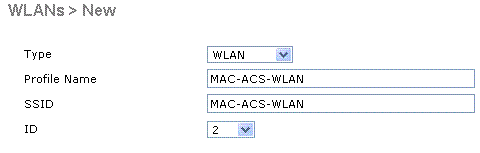 Configure a New WLAN Enable MAC Filtering
-
Click Apply.
-
In the WLANs > Edit window, define the parameters specific to the WLAN.
-
Under Security > Layer 2 > Layer 2 Security Policies, check the MAC Filtering check box.
This enables MAC authentication for the WLAN.
-
Under General > Interface name, select the interface to which the WLAN is mapped.
-
Under Security > AAA Servers > RADIUS servers , select the RADIUS server that can be used for MAC authentication.
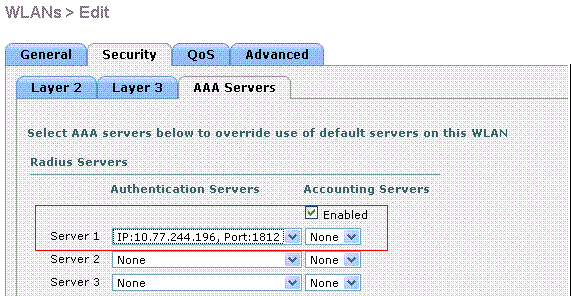 Select the RADIUS server to use for MAC Authentication.
Note: Before you can select the RADIUS server from the WLAN > Edit window, you must define the RADIUS server in the Security > Radius Authentication window and enable the RADIUS server.
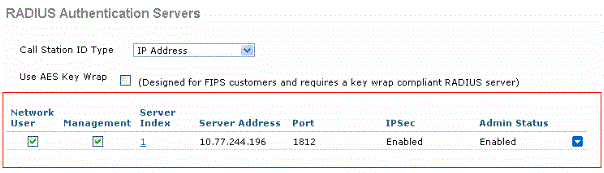 Radius Authentication Servers
-
Select the other parameters, which depend on the design requirements of the WLAN.
-
Click Apply .
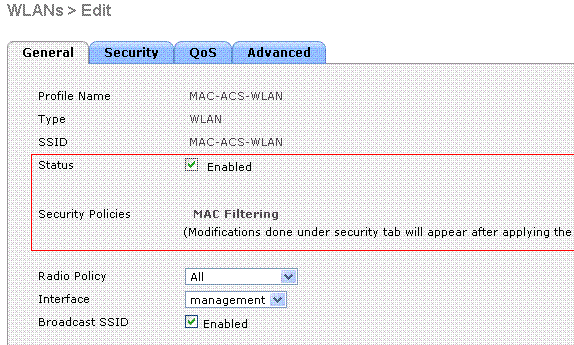 Design Requirement Parameters
-
Click Security > MAC Filtering.
-
In the MAC Filtering window, choose the type of RADIUS server under RADIUS Compatibility Mode.
This example uses Cisco ACS.
-
From the MAC Delimiter pull down menu, choose the MAC delimiter.
This example uses Colon.
-
Click Apply.
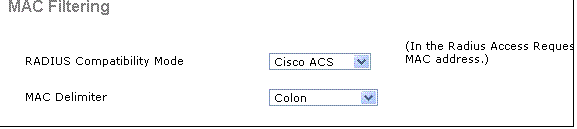 Choose the RADIUS Server Type
The next step is to configure the ACS server with the client MAC addresses.
Configure the RADIUS Server with Client MAC Addresses
To add a MAC address to the ACS:
-
Define the WLC as an AAA client on the ACS server. Click Network Configuration from the ACS GUI.
-
When the Network Configuration window appears, define the name of the WLC, the IP address, the shared secret and the authentication method (RADIUS Cisco Aironet or RADIUS Airespace).
Refer to the documentation from the manufacturer for other non-ACS authentication servers.
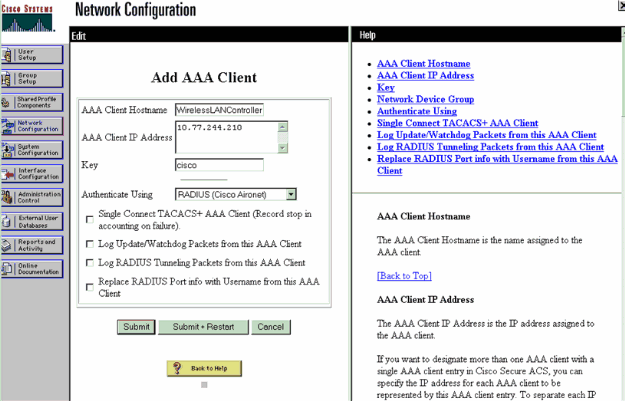 Add an AAA Client
Note: The shared secret key that you configure on the WLC, and the ACS server must match. The shared secret is case sensitive.
-
From the ACS main menu, click User Setup .
-
In the User text box, enter the MAC address in order to add to the user database.
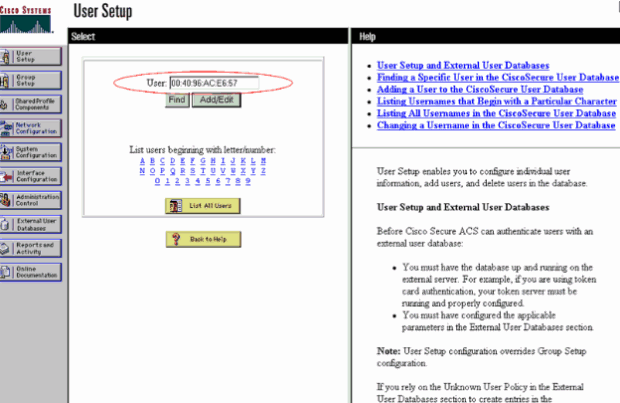 Enter the MAC address
Note: The MAC address must be exactly as it is sent by the WLC for both the username and the password. If authentication fails, check the failed attempts log to see how the MAC is reported by the WLC. Do not cut and paste the MAC address, as this can introduce phantom characters.
-
In the User Setup window, enter the MAC address in the Secure-PAP password text box.
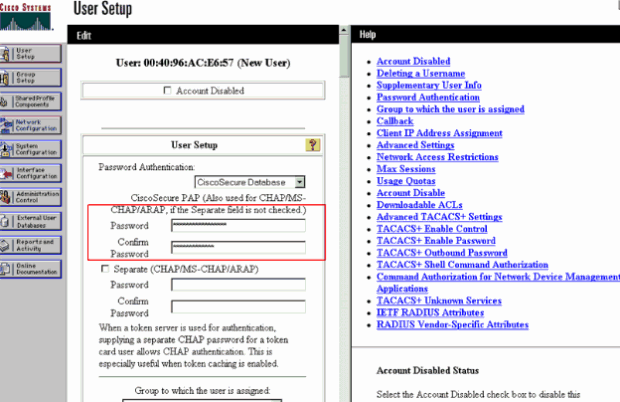 Enter MAC Address in the Secure-PAP Password Field
Note: The MAC address must be exactly as it is sent by the WLC for both the username and the password. If authentication fails, check the failed attempts log to see how the MAC is reported by the AP. Do not cut and paste the MAC address, as this can introduce phantom characters.
-
Click Submit.
-
Repeat steps 2-5 in order to add more users to the ACS database.
Now, when clients connect to this WLAN, the WLC passes the credentials to the ACS server. The ACS server validates the credentials against the ACS database. If the client MAC address is present in the database, the ACS RADIUS server returns an authentication success to the WLC, and the client can be granted access to the WLAN.
Use the CLI to Configure the MAC Filter on WLC
This document previously discussed how to use the WLC GUI to configure MAC filters. You can also use the CLI in order to configure MAC filters on the WLC. To configure the MAC filter on WLC:
-
Issue the config wlan mac-filtering enable wlan_id command in order to enable MAC filtering. Enter the show wlan command in order to verify that you have MAC filtering enabled for the WLAN.
-
config macfilter add command:
The config macfilter add command lets you add a macfilter, interface, description, and so on.
Use the config macfilter add command in order to create a MAC filter entry on the Cisco Wireless LAN controller. Use this command in order to add a client locally to a wireless LAN on the Cisco Wireless LAN controller. This filter bypasses the RADIUS authentication process.
config macfilter add <MAC_address> <WLAN_id> <Interface_name> <description> <IP_address>
Example
Enter a static MAC-to-IP address mapping. This can be done to support a passive client , that is, one that does not use DHCP and does not transmit unsolicited IP packets.
(Cisco Controller) >config macfilter add 00:E0:77:31:A3:55 1 lab02 "labconnect" 10.92.125.51
-
config macfilter ip-address command
The config macfilter ip-address command lets you map a MAC-filter to an IP address. Use this command in order to configure an IP address into the local MAC filter database:
config macfilter ip-address <MAC_address> <IP_address>
Example
(Cisco Controller) >config macfilter ip-address 00:E0:77:31:A3:55 10.92.125.51
Configure a Timeout for Disabled Clients
You can configure a timeout for disabled clients. Clients who fail to authenticate three times during attempts to associate are automatically disabled from further association attempts.
After the timeout period expires, the client is allowed to retry authentication until it associates or fails authentication and is excluded again.
Enter the config wlan exclusionlist wlan_id timeout command in order to configure the timeout for disabled clients.
The timeout value can be from 1 to 65535 seconds, or you can enter 0 in order to permanently disable the client.
Verify
To verify if the MAC filter is configured correctly:
Here is an example of the show macfilter summary command:
(Cisco Controller) >show macfilter summary

MAC Filter RADIUS Compatibility mode............. Cisco ACS
MAC Filter Delimiter............................. None

Local Mac Filter Table

MAC Address               WLAN Id          Description
-----------------------   --------------   --------------------------------
00:40:96:ac:e6:57           1              Guest


(Cisco Controller) >
Here is an example of theshow macfilter detailcommand:
(Cisco Controller) >show macfilter detail 00:40:96:ac:e6:57

MAC Address...................................... 00:40:96:ac:e6:57
WLAN Identifier.................................. 1
Interface Name................................... mac-client
Description...................................... Guest
Troubleshoot
You can use these commands to troubleshoot your configuration:
Note: Refer to Important Information on Debug Commands before you use debug commands.
-
debug aaa all enable—Provides debugging of all AAA messages.
-
debug mac addr <Client-MAC-address xx:xx:xx:xx:xx:xx>—In order to configure MAC debugging, use thedebug maccommand.
Here is an example of the debug aaa all enable command:
Wed May 23 11:13:55 2007: Looking up local blacklist 004096ace657
Wed May 23 11:13:55 2007: Looking up local blacklist 004096ace657
Wed May 23 11:13:55 2007: User 004096ace657 authenticated
Wed May 23 11:13:55 2007: 00:40:96:ac:e6:57 Returning AAA Error 'Success' (0)
                          for mobile 00:40:96:ac:e6:57
Wed May 23 11:13:55 2007: AuthorizationResponse: 0xbadff97c
Wed May 23 11:13:55 2007: 	structureSize................................76
Wed May 23 11:13:55 2007: 	resultCode...................................0
Wed May 23 11:13:55 2007: 	protocolUsed.................................0x00000008
Wed May 23 11:13:55 2007: 	proxyState...................................
                                00:40:96:AC:E6:57-00:00
Wed May 23 11:13:55 2007: 	Packet contains 2 AVPs:
Wed May 23 11:13:55 2007: 	    AVP[01] Service-Type.............................
                                    0x0000000a (10) (4 bytes)
Wed May 23 11:13:55 2007: 	    AVP[02] Airespace / Interface-Name...............
                                    staff-vlan (10 bytes)
Wed May 23 11:13:55 2007: 00:40:96:ac:e6:57 processing avps[0]: attribute 6
Wed May 23 11:13:55 2007: 00:40:96:ac:e6:57 processing avps[1]: attribute 5
Wed May 23 11:13:55 2007: 00:40:96:ac:e6:57 Applying new AAA override for
                          station 00:40:96:ac:e6:57
Wed May 23 11:13:55 2007: 00:40:96:ac:e6:57 Override values for station 00:40:96:ac:e6:57
source: 2, valid bits: 0x200 qosLevel: -1, dscp: 0xffffffff, dot1pTag: 0xffffffff,
sessionTimeout: -1	dataAvgC: -1, rTAvgC: -1, dataBurstC:

-1, rTimeBurstC: -1	vlanIfName: 'mac-client'
When a wireless client is not present in the MAC address database on the WLC (local database) or on the RADIUS server tries to associate to the WLAN, that client can be excluded. Here is an example of the debug aaa all enable command for an unsuccessful MAC authentication:
Wed May 23 11:05:06 2007: Unable to find requested user entry for 004096ace657
Wed May 23 11:05:06 2007: AuthenticationRequest: 0xa620e50
Wed May 23 11:05:06 2007: 	Callback.....................................0x807e724
Wed May 23 11:05:06 2007: 	protocolType.................................0x00000001
Wed May 23 11:05:06 2007: 	proxyState...................................
                                00:40:96:AC:E6:57-00:00
Wed May 23 11:05:06 2007: 	Packet contains 14 AVPs (not shown)
Wed May 23 11:05:06 2007: 00:40:96:ac:e6:57 Returning AAA Error 'No Server' (-7)
                          for mobile 00:40:96:ac:e6:57
Wed May 23 11:05:06 2007: AuthorizationResponse: 0xbadff7e4
Wed May 23 11:05:06 2007: 	structureSize................................28
Wed May 23 11:05:06 2007: 	resultCode...................................-7
Wed May 23 11:05:06 2007: 	protocolUsed.................................0xffffffff
Wed May 23 11:05:06 2007: 	proxyState...................................
                                00:40:96:AC:E6:57-00:00
Wed May 23 11:05:06 2007: 	Packet contains 0 AVPs:
Error: Wireless Clients that Try to Authenticate by MAC Address are Rejected; Failed Authentication Report Shows Internal Errors
When you use ACS 4.1 on a Microsoft Windows 2003 Enterprise server, clients that try to authenticate by the MAC address are rejected.
This occurs when an AAA client sends the Service-Type=10 attribute value to the AAA server. This is because of Cisco bug ID CSCsh62641.
AAA clients affected by this bug include WLCs and switches that use MAC Authentication Bypass.
The workarounds are:
Error: Not able to add a MAC filter with the WLC GUI
This can happen because of the Cisco bug ID CSCsj98722. The bug is fixed in 4.2 release of code.
If you run versions earlier than 4.2, you can upgrade the firmware to 4.2 or use these two workarounds for this issue.
-
Use the CLI in order to configure the MAC Filter with this command:
config macfilter add <MAC_address> <WLAN_id> <Interface_name>
-
From the Web GUI of the controller, choose Any WLAN under the Security tab and enter the MAC address to be filtered.
Error: Silent client not placed in run state
If DHCP required is not configured on the controller, the APs learn the IP address of wireless clients when the wireless clients send out the first IP packet or ARP.
If the wireless clients are passive devices, for example, devices that do not initiate a communication, then the APs fails to learn the IP address of the wireless devices.
As a result, the controller waits ten seconds for the client to send an IP packet.
If there is no response from the packet from the client, then the controller drops any packets to the passive wireless clients.
This issue is documented in Cisco bug ID CSCsq46427.
Note: Only registered Cisco users can access internal tools and information.
As a recommended workaround for passive devices like printers, wireless PLC pumps and so forth, set the WLAN for MAC filtering and have AAA override checked in order to allow these devices to be connected.
A MAC address filter can be created on the controller that maps the MAC address of the wireless device to an IP address.
Note: This requires MAC address filtering to be enabled on the WLAN configuration for Layer 2 Security. It also requires that Allow AAA Override is enabled in the advance settings of the WLAN configuration.
From the CLI, enter this command in order to create the MAC address filter:
config macfilter add <STA MAC addr> <WLAN_id> <Interface_name> <description> <STA IP address>
Here is an example:
(Cisco Controller) > config macfilter add 00:01:02:03:04:05 1 my_interface "Zebra Printer" 192.168.1.1
Related Information

 Feedback