Configure Catalyst Switched Port Analyzer (SPAN): Example
Available Languages
Contents
Introduction
This document describes the recent features of the Switched Port Analyzer (SPAN) that have been implemented.
Prerequisites
Catalyst Switches That Support SPAN, RSPAN, and ERSPAN
| Catalyst Switches | SPAN Support | RSPAN Support | ERSPAN Support |
|---|---|---|---|
| Catalyst Express 500 / 520 Series | Yes | No | No |
| Catalyst 6500/6000 Series | Yes | Yes | Yes Supervisor 2T with PFC4, Supervisor 720 with PFC3B or PFC3BXL running Cisco IOS® Software Release 12.2(18)SXE or later. Supervisor 720 with PFC3A that has hardware version 3.2 or later and running Cisco IOS® Software Release 12.2(18)SXE or later. |
| Catalyst 5500/5000 Series | Yes | No | No |
| Catalyst 4900 Series | Yes | Yes | No |
| Catalyst 4500/4000 Series (includes 4912G) | Yes | Yes | No |
| Catalyst 3750 Metro Series | Yes | Yes | No |
| Catalyst 3750 / 3750E /3750X Series | Yes | Yes | No |
| Catalyst 3560 / 3560E/ 3650X Series | Yes | Yes | No |
| Catalyst 3550 Series | Yes | Yes | No |
| Catalyst 3500 XL Series | Yes | No | No |
| Catalyst 2970 Series | Yes | Yes | No |
| Catalyst 2960 Series | Yes | Yes | No |
| Catalyst 2955 Series | Yes | Yes | No |
| Catalyst 2950 Series | Yes | Yes | No |
| Catalyst 2940 Series | Yes | No | No |
| Catalyst 2948G-L3 | No | No | No |
| Catalyst 2948G-L2, 2948G-GE-TX, 2980G-A | Yes | Yes | No |
| Catalyst 2900XL Series | Yes | No | No |
| Catalyst 1900 Series | Yes | No | No |
Requirements
There are no specific requirements for this document.
Components Used
This information in this document uses CatOS 5.5 as a reference for the Catalyst 4500/4000, 5500/5000, and 6500/6000 Series Switches. On the Catalyst 2900XL/3500XL Series Switches, Cisco IOS® Software Release 12.0(5)XU is used. Although this document is updated to reflect changes to SPAN, refer to your switch platform documentation release notes for the latest developments on the SPAN feature.
The information in this document was created from the devices in a specific lab environment. All of the devices used in this document started with a cleared (default) configuration. If your network is live, ensure that you understand the potential impact of any command.
Background Information
The SPAN feature, which is sometimes called port mirroring or port monitoring, selects network traffic for analysis by a network analyzer. The network analyzer can be a Cisco Switch Probe device or other Remote Monitoring (RMON) probe.
Previously, SPAN was a relatively basic feature on the Cisco Catalyst Series switches. However, the latest releases of the Catalyst OS (CatOS) introduced great enhancements and many new possibilities that are now available to the user.
This document is not intended to be an alternate configuration guide for the SPAN feature. This document answers the most common questions about SPAN, such as:
- What is SPAN and how do you configure it?
- What are the different features available (especially multiple, simultaneous SPAN sessions), and what software level is necessary to run them?
- Does SPAN affect switch performance?
Brief Description of SPAN
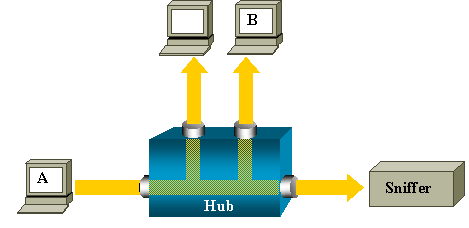
The SPAN feature was introduced on switches because of a fundamental difference that switches have with hubs. When a hub receives a packet on one port, the hub sends out a copy of that packet on all ports except on the one where the hub received the packet.
After a switch boots, it starts to build up a Layer 2 forwarding table on the basis of the source MAC address of the different packets that the switch receives. After this forwarding table is built, the switch forwards traffic that is destined for a MAC address directly to the corresponding port.
For example, to capture Ethernet traffic that is sent by host A to host B, and both are connected to a hub, just attach a sniffer to this hub. All other ports see the traffic between hosts A and B:
On a switch, after the host B MAC address is learned, unicast traffic from A to B is only forwarded to the B port. Therefore, the sniffer does not see this traffic:
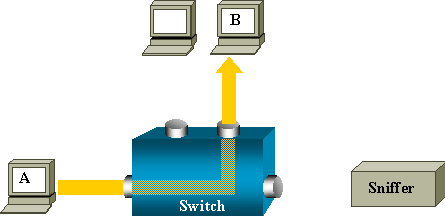
In this configuration, the sniffer only captures traffic that is flooded to all ports, such as:
- Broadcast traffic
- Multicast traffic with CGMP or Internet Group Management Protocol (IGMP) snooping disabled
- Unknown unicast traffic
Unicast flooding occurs when the switch does not have the destination MAC in its content-addressable memory (CAM) table.
The switch does not know where to send the traffic. The switch floods the packets to all the ports in the destination VLAN.
An extra feature is necessary that artificially copies unicast packets that host A sends to the sniffer port:
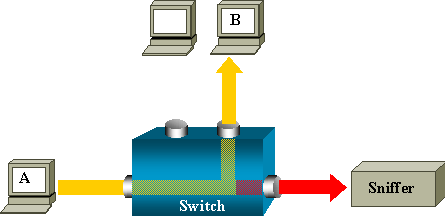
In this diagram, the sniffer is attached to a port that is configured to receive a copy of every packet that host A sends. This port is called a SPAN port.
The other sections of this document describe how you can tune this feature very precisely to do more than just monitor a port.
SPAN Terminology
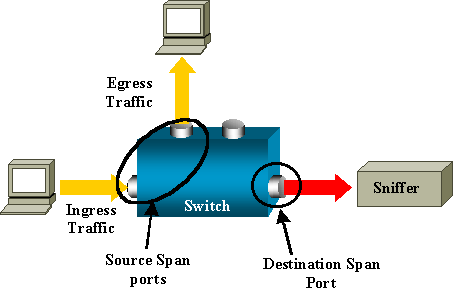
- Ingress traffic — Traffic that enters the switch.
- Egress traffic — Traffic that leaves the switch.
- Source (SPAN) port — A port that is monitored with use of the SPAN feature.
- Source (SPAN) VLAN — A VLAN whose traffic is monitored with use of the SPAN feature.
- Destination (SPAN) port — A port that monitors source ports, usually where a network analyzer is connected.
- Reflector Port — A port that copies packets onto an RSPAN VLAN.
- Monitor port — A monitor port is also a destination SPAN port in Catalyst 2900XL/3500XL/2950 terminology.
- Local SPAN — The SPAN feature is local when the monitored ports are all located on the same switch as the destination port. This feature is in contrast to Remote SPAN (RSPAN), which this list also defines.
- Remote SPAN (RSPAN) — Some source ports are not located on the same switch as the destination port.
RSPAN is an advanced feature that requires a special VLAN to carry the traffic that is monitored by SPAN between switches.
RSPAN is not supported on all switches. Check the respective release notes or configuration guide to see if you can use RSPAN on the switch that you deploy.
- Port-based SPAN (PSPAN) — The user specifies one or several source ports on the switch and one destination port.
- VLAN-based SPAN (VSPAN) — On a particular switch, the user can choose to monitor all the ports that belong to a particular VLAN in a single command.
- ESPAN — This means Enhanced SPAN version. This term has been used several times during the evolution of the SPAN to name additional features, therefore, the term is not very clear and is avoided in this document.
- Administrative source — A list of source ports or VLANs that have been configured to be monitored.
- Operational source — A list of ports that are effectively monitored. This list of ports can be different from the administrative source.
For example, a port that is in shutdown mode can appear in the administrative source, but is not effectively monitored.
Characteristics of Source Port
A source port, also called a monitored port, is a switched or routed port that you monitor for network traffic analysis. In a single local SPAN session or RSPAN source session, you can monitor source port traffic, such as received (Rx), transmitted (Tx), or bidirectional (both). The switch supports any number of source ports (up to the maximum number of available ports on the switch) and any number of source VLANs.
A source port has these characteristics:
- It can be any port type, such as EtherChannel, Fast Ethernet, Gigabit Ethernet, and so on.
- It can be monitored in multiple SPAN sessions.
- It cannot be a destination port.
- Each source port can be configured with a direction (ingress, egress, or both) to monitor. For EtherChannel sources, the monitored direction applies to all physical ports in the group.
- Source ports can be in the same or different VLANs.
- For VLAN SPAN sources, all active ports in the source VLAN are included as source ports.
VLAN Filtering
When you monitor a trunk port as a source port, all VLANs active on the trunk are monitored by default. You can use VLAN filtering to limit SPAN traffic monitoring on trunk source ports to specific VLANs.
- VLAN filtering applies only to trunk ports or to voice VLAN ports.
- VLAN filtering applies only to port-based sessions and is not allowed in sessions with VLAN sources.
- When a VLAN filter list is specified, only those VLANs in the list are monitored on trunk ports or on voice VLAN access ports.
- SPAN traffic coming from other port types is not affected by VLAN filtering, which means that all VLANs are allowed on other ports.
- VLAN filtering affects only traffic forwarded to the destination SPAN port and does not affect the switching of normal traffic.
- You cannot mix source VLANs and filter VLANs within a session. You can have source VLANs or filter VLANs, but not both at the same time.
Characteristics of Source VLAN
VSPAN is the monitoring of the network traffic in one or more VLANs. The SPAN or RSPAN source interface in VSPAN is a VLAN ID, and traffic is monitored on all the ports for that VLAN.
VSPAN has these characteristics:
- All active ports in the source VLAN are included as source ports and can be monitored in either or both directions.
- On a given port, only traffic on the monitored VLAN is sent to the destination port.
- If a destination port belongs to a source VLAN, it is excluded from the source list and is not monitored.
- If ports are added to or removed from the source VLANs, the traffic on the source VLAN received by those ports is added to or removed from the sources thaat are monitored.
- You cannot use filter VLANs in the same session with VLAN sources.
- You can monitor only Ethernet VLANs.
Characteristics of Destination Port
Each local SPAN session or RSPAN destination session must have a destination port (also called a monitoring port) that receives a copy of traffic from the source ports and VLANs.
A destination port has these characteristics:
- A destination port must reside on the same switch as the source port (for a local SPAN session).
- A destination port can be any Ethernet physical port.
- A destination port can participate in only one SPAN session at a time. A destination port in one SPAN session cannot be a destination port for a second SPAN session.
- A destination port cannot be a source port.
- A destination port cannot be an EtherChannel group.
Note: From Cisco IOS Software Release 12.2(33)SXH and later, PortChannel interface can be a destination port. Destination EtherChannels do not support the Port Aggregation Control Protocol (PAgP) or Link Aggregation Control Protocol (LACP) EtherChannel protocols; only the on mode is supported, with all EtherChannel protocol support disabled.
Note: Refer to Local SPAN, RSPAN, and ERSPAN Destinations for more information.
- A destination port can be a physical port that is assigned to an EtherChannel group, even if the EtherChannel group has been specified as a SPAN source. The port is removed from the group while it is configured as a SPAN destination port.
- The port does not transmit any traffic except that traffic required for the SPAN session unless learning is enabled. If learning is enabled, the port also transmits traffic directed to hosts that have been learned on the destination port.
Note: Refer to Local SPAN, RSPAN, and ERSPAN Destinations for more information.
- The state of the destination port is up/down by design. The interface shows the port in this state to make it evident that the port is currently not usable as a production port.
- If ingress traffic forwarding is enabled for a network security device. The destination port forwards traffic at Layer 2.
- A destination port does not participate in spanning tree while the SPAN session is active.
- When it is a destination port, it does not participate in any of the Layer 2 protocols (STP, VTP, CDP, DTP, PagP).
- A destination port that belongs to a source VLAN of any SPAN session is excluded from the source list and is not monitored.
- A destination port receives copies of sent and received traffic for all monitored source ports. If a destination port is oversubscribed, it can become congested. This congestion can affect traffic forwarding on one or more of the source ports.
Characteristics of Reflector Port
The reflector port is the mechanism that copies packets onto an RSPAN VLAN. The reflector port forwards only the traffic from the RSPAN source session with which it is affiliated. Any device connected to a port set as a reflector port loses connectivity until the RSPAN source session is disabled.
The reflector port has these characteristics:
- It is a port set to loopback.
- It cannot be an EtherChannel group, it does not trunk, and it cannot do protocol filtering.
- It can be a physical port that is assigned to an EtherChannel group, even if the EtherChannel group is specified as a SPAN source. The port is removed from the group while it is configured as a reflector port.
- A port used as a reflector port cannot be a SPAN source or destination port, nor can a port be a reflector port for more than one session at a time.
- It is invisible to all VLANs.
- The native VLAN for looped-back traffic on a reflector port is the RSPAN VLAN.
- The reflector port loops back untagged traffic to the switch. The traffic is then placed on the RSPAN VLAN and flooded to any trunk ports that carry the RSPAN VLAN.
- Spanning tree is automatically disabled on a reflector port.
- A reflector port receives copies of sent and received traffic for all monitored source ports.
SPAN on Catalyst Express 500/520
Catalyst Express 500 or Catalyst Express 520 supports only the SPAN feature. Catalyst Express 500/520 ports can be configured for SPAN only by using the Cisco Network Assistant (CNA). Complete these steps to configure the SPAN:
- Download and install CNA on the PC.
Download CNA from Software Download (registered customers only).
- Complete the steps given in Getting Started Guide for the Catalyst Express 500 Switches 12.2(25)FY to customize the switch settings for Catalyst Express 500 and 520.
- Use CNA to log into the switch and click Smartport.
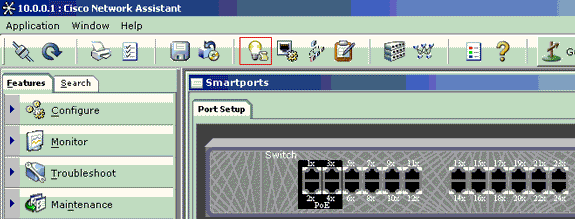
- Click any interface where you plan to connect the PC to capture the sniffer traces.
- Click Modify.
A small pop-up box appears.
- Choose the Diagnostics role for the port.
- Choose the source port and select the VLAN you plan to monitor.
If you select none, the port only receives traffic. The Ingress VLAN allows the PC connected to the Diagnostics port to send packets to the network that uses that VLAN.
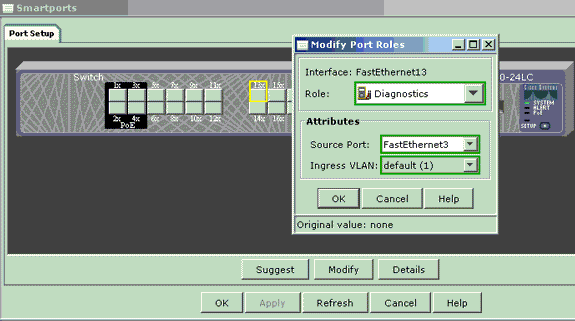
- Click OK to close the pop-up box.
- Click OK and then Apply the settings.
- You can use any Sniffer software to trace the traffic once you set up the diagnostic port.
SPAN on the Catalyst 2900XL/3500XL Switches
Features that are Available and Restrictions
The port monitoring feature is not very extensive on the Catalyst 2900XL/3500XL. Therefore, this feature is relatively easy to understand.
You can create as many local PSPAN sessions as necessary. For example, you can create PSPAN sessions on the configuration port that you have chosen to be a destination SPAN port. In this case, issue the port monitor interface command to list the source ports that you want to monitor. A monitor port is a destination SPAN port in Catalyst 2900XL/3500XL terminology.
- The main restriction is that all the ports that relate to a particular session (whether source or destination) must belong to the same VLAN.
- If you configure the VLAN interface with an IP address, then the port monitor command monitors traffic destined to that IP address only. It also monitors the broadcast traffic that is received by the VLAN interface. However, it does not capture the traffic that flows in the actual VLAN itself. If you do not specify any interface in the port monitor command, all other ports that belong to the same VLAN as the interface are monitored.
This list provides some restrictions. Refer to the command reference guide (Catalyst 2900XL/3500XL) for more information.

Note: ATM ports are the only ports that cannot be monitor ports. However, you can monitor ATM ports. The restrictions in this list apply for ports that have the port-monitor capability.
- A monitor port cannot be in a Fast EtherChannel or Gigabit EtherChannel port group.
- A monitor port cannot be enabled for port security.
- A monitor port cannot be a multi-VLAN port.
- A monitor port must be a member of the same VLAN as the port that is monitored. VLAN membership changes are disallowed on monitor ports and ports that are monitored.
- A monitor port cannot be a dynamic-access port or a trunk port. However, a static-access port can monitor a VLAN on a trunk, a multi-VLAN, or a dynamic-access port. The VLAN that is monitored is the one that is associated with the static-access port.
- Port monitoring does not work if both the monitor port and the port that is monitored are protected ports.
Be careful that a port in the monitor state does not run the Spanning Tree Protocol (STP) while the port still belongs to the VLAN of the ports that it mirrors. The port monitor can be part of a loop if, for instance, you connect it to a hub or a bridge and loop to another part of the network. In this case, you can end up in a catastrophic bridging loop condition because STP no longer protects you. See the Why Does the SPAN Session Create a Bridging Loop section of this document for an example of how this condition can happen.
Configuration Example
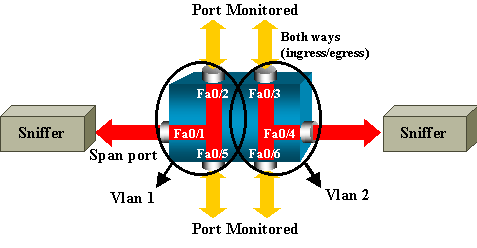
This example creates two concurrent SPAN sessions.
- Port Fast Ethernet 0/1 (Fa0/1) monitors traffic that ports Fa0/2 and Fa0/5 send and receive. Port Fa0/1 also monitors traffic to and from the management interface VLAN 1.
- Port Fa0/4 monitors ports Fa0/3 and Fa0/6.
Ports Fa0/3, Fa0/4, and Fa0/6 are all configured in VLAN 2. Other ports and the management interface are configured in the default VLAN 1.
Network Diagram
Sample Configuration on the Catalyst 2900XL/3500XL
| 2900XL/3500XL SPAN Sample Configuration |
|---|
!--- Output suppressed. |
Configuration Steps Explanation
To configure port Fa0/1 as a destination port, the source ports Fa0/2 and Fa0/5, and the management interface (VLAN 1), select the interface Fa0/1 in the configuration mode:
Switch(config)#interface fastethernet 0/1
Enter the list of ports to be monitored:
Switch(config-if)#port monitor fastethernet 0/2
Switch(config-if)#port monitor fastethernet 0/5
With this command, every packet that these two ports receive or transmit is also copied to port Fa0/1. Issue a variation of the port monitor command to configure the monitoring for the administrative interface:
Switch(config-if)#port monitor vlan 1
Note: This command does not mean that port Fa0/1 monitors the entire VLAN 1. The vlan 1 keyword simply refers to the administrative interface of the switch. This example command illustrates that the monitor of a port in a different VLAN is impossible:
Switch(config-if)#port monitor fastethernet 0/3
FastEthernet0/1 and FastEthernet0/3 are in different vlan
To finish the configuration, configure another session. This time, use Fa0/4 as a destination SPAN port:
Switch(config-if)#interface fastethernet 0/4
Switch(config-if)#port monitor fastethernet 0/3
Switch(config-if)#port monitor fastethernet 0/6
Switch(config-if)#^Z
Issue a show running command, or use the show port monitor command to check the configuration:
Switch#show port monitor
 Monitor Port Port Being Monitored
--------------------- ---------------------
FastEthernet0/1 VLAN1
FastEthernet0/1 FastEthernet0/2
FastEthernet0/1 FastEthernet0/5
FastEthernet0/4 FastEthernet0/3
FastEthernet0/4 FastEthernet0/6
Note: The Catalyst 2900XL and 3500XL do not support SPAN in the Rx direction only (Rx SPAN or ingress SPAN) or in the Tx direction only (Tx SPAN or egress SPAN). All SPAN ports are designed to capture both Rx and Tx traffic.
SPAN on the Catalyst 2948G-L3 and 4908G-L3
The Catalyst 2948G-L3 and Catalyst 4908G-L3 are fixed configuration switch routers or Layer 3 switches. The SPAN feature on a Layer 3 switch is called port snooping.
However, port snooping is not supported on these switches.
SPAN on the Catalyst 8500
A very basic SPAN feature is available on the Catalyst 8540 under the name port snooping. Refer to the current Catalyst 8540 documentation for additional information.
Port snooping lets you transparently mirror traffic from one or more source ports to a destination port.
Issue the snoop command to set up port-based traffic mirroring, or snooping. Issue the no form of this command to disable snooping:
snoop interface source_port direction snoop_direction

no snoop interface source_port
The variable source_port refers to the port that is monitored. The variable snoop_direction is the direction of traffic on the source port or ports that are monitored: receive, transmit, or both.
8500CSR#configure terminal
8500CSR(config)#interface fastethernet 12/0/15
8500CSR(config-if)#shutdown
8500CSR(config-if)#snoop interface fastethernet 0/0/1 direction both
8500CSR(config-if)#no shutdown
This example shows output from the show snoop command:
8500CSR#show snoop
Snoop Test Port Name: FastEthernet1/0/4 (interface status=SNOOPING)
Snoop option:         (configured=enabled)(actual=enabled)
Snoop direction:      (configured=receive)(actual=receive)
Monitored Port Name:
(configured=FastEthernet1/0/3)(actual=FastEthernet1/0/3)
Note: This command is not supported on Ethernet ports in a Catalyst 8540 if you run a multiservice ATM switch router (MSR) image, such as 8540m-in-mz. Instead, you must use a campus switch router (CSR) image, such as 8540c-in-mz.
SPAN on the Catalyst 2900, 4500/4000, 5500/5000, and 6500/6000 Series Switches That Run CatOS
This section is applicable only for these Cisco Catalyst 2900 Series Switches:
- Cisco Catalyst 2948G-L2 Switch
- Cisco Catalyst 2948G-GE-TX Switch
- Cisco Catalyst 2980G-A Switch
This section is applicable for Cisco Catalyst 4000 Series Switches which includes:
- Modular Chassis Switches:
- Cisco Catalyst 4003 Switch
- Cisco Catalyst 4006 Switch
- Fixed Chassis Switch:
- Cisco Catalyst 4912G Switch
Local SPAN
SPAN features have been added one by one to the CatOS, and a SPAN configuration consists of a single set span command. There is now a wide range of options that are available for the command:
switch (enable) set span
Usage: set span disable [dest_mod/dest_port|all]
       set span <src_mod/src_ports...|src_vlans...|sc0>
               <dest_mod/dest_port> [rx|tx|both]
               [inpkts <enable|disable>]
               [learning <enable|disable>]
               [multicast <enable|disable>]
               [filter <vlans...>]
               [create]
This network diagram introduces the different SPAN possibilities with the use of variations:
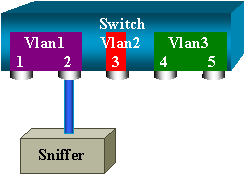
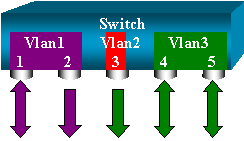
This diagram represents part of a single line card that is located in slot 6 of a Catalyst 6500/6000 Switch. In this scenario:
- Ports 6/1 and 6/2 belong to VLAN 1
- Port 6/3 belongs to VLAN 2
- Ports 6/4 and 6/5 belong to VLAN 3
Connect a sniffer to port 6/2 and use it as a monitor port in several different cases.
PSPAN, VSPAN: Monitor Some Ports or an Entire VLAN
Issue the simplest form of the set span command to monitor a single port. The syntax is set span source_port destination_port .
Monitor a Single Port with SPAN
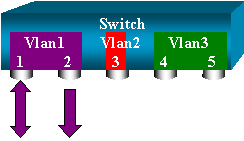
switch (enable) set span 6/1 6/2

Destination : Port 6/2
Admin Source : Port 6/1
Oper Source : Port 6/1
Direction : transmit/receive
Incoming Packets: disabled
Learning : enabled
Multicast : enabled
Filter : -
Status : active
switch (enable) 2000 Sep 05 07:04:14 %SYS-5-SPAN_CFGSTATECHG:local span
session active for destination port 6/2
With this configuration, every packet that is received or sent by port 6/1 is copied on port 6/2. A clear description of this comes up when you enter the configuration. Issue the show span command to receive a summary of the current SPAN configuration:
switch (enable) show span
Destination : Port 6/2
Admin Source : Port 6/1
Oper Source : Port 6/1
Direction : transmit/receive
Incoming Packets: disabled
Learning : enabled
Multicast : enabled
Filter : -
Status : active

Total local span sessions: 1
Monitor Several Ports with SPAN
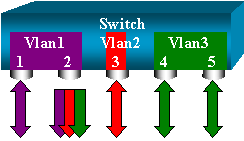
The set span source_ports destination_port command allows the user to specify more than one source port. Simply list all the ports on which you want to implement the SPAN, and separate the ports with commas. The command-line interpreter also allows you to use the hyphen to specify a range of ports.
This example illustrates this ability to specify more than one port. The example uses SPAN on port 6/1 and a range of three ports, from 6/3 to 6/5:
switch (enable) set span 6/1,6/3-5 6/2

2000 Sep 05 07:17:36 %SYS-5-SPAN_CFGSTATECHG:local span session inactive
       for destination port 6/2
       Destination : Port 6/2
       Admin Source : Port 6/1,6/3-5
       Oper Source : Port 6/1,6/3-5
       Direction : transmit/receive
       Incoming Packets: disabled
       Learning : enabled
       Multicast : enabled
       Filter : -
       Status : active
       switch (enable) 2000 Sep 05 07:17:36 %SYS-5-SPAN_CFGSTATECHG:local span
       session active for destination port 6/2
Monitor VLANs with SPAN
Eventually, the set span command allows you to configure a port to monitor local traffic for an entire VLAN. The command is set span source_vlan(s) destination_port.
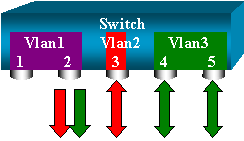
Use a list of one or more VLANs as a source, instead of a list of ports:
switch (enable) set span 2,3 6/2
           2000 Sep 05 07:40:10 %SYS-5-SPAN_CFGSTATECHG:local span session inactive
           for destination port 6/2
           Destination : Port 6/2
           Admin Source : VLAN 2-3
           Oper Source : Port 6/3-5,15/1
           Direction : transmit/receive
           Incoming Packets: disabled
           Learning : enabled
           Multicast : enabled
           Filter : -
           Status : active
           switch (enable) 2000 Sep 05 07:40:10 %SYS-5-SPAN_CFGSTATECHG:local span
           session active for destination port 6/2
With this configuration, every packet that enters or leaves VLAN 2 or 3 is duplicated to port 6/2.
Ingress/Egress SPAN
In the example in the Monitor VLANs with SPAN section, traffic that enters and leaves the specified ports is monitored.
The Direction: transmit/receive field shows this. The Catalyst 4500/4000, 5500/5000, and 6500/6000 Series Switches allow you to collect only egress (outbound) or only ingress (inbound) traffic on a particular port.
Add the rx (receive) or tx (transmit) keyword to the end of the command. The default value is both (tx and rx).
set span source_port destination_port [rx | tx | both]
In this example, the session captures all incoming traffic for VLANs 1 and 3 and mirrors the traffic to port 6/2:
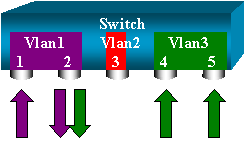
switch (enable) set span 1,3 6/2 rx
          2000 Sep 05 08:09:06 %SYS-5-SPAN_CFGSTATECHG:local span session
          inactive for destination port 6/2
          Destination : Port 6/2
          Admin Source : VLAN 1,3
          Oper Source : Port 1/1,6/1,6/4-5,15/1
          Direction : receive
          Incoming Packets: disabled
          Learning : enabled
          Multicast : enabled
          Filter : -
          Status : active
          switch (enable) 2000 Sep 05 08:09:06 %SYS-5-SPAN_CFGSTATECHG:local span
          session active for destination port 6/2
Implement SPAN on a Trunk
Trunks are a special case in a switch because they are ports that carry several VLANs. If a trunk is selected as a source port, the traffic for all the VLANs on this trunk is monitored.
Monitor a Subset of VLANs That Belong to a Trunk
In this diagram, port 6/5 is now a trunk that carries all VLANs. Imagine that you want to use SPAN on the traffic in VLAN 2 for ports 6/4 and 6/5. Simply issue this command:
switch (enable) set span 6/4-5 6/2
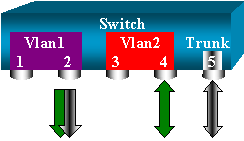
In this case, the traffic that is received on the SPAN port is a mix of the traffic that you want and all the VLANs that trunk 6/5 carries.
For instance, there is no way to distinguish on the destination port whether a packet comes from port 6/4 in VLAN 2 or port 6/5 in VLAN 1. Another possibility is to use SPAN on the entire VLAN 2:
switch (enable) set span 2 6/2
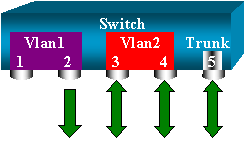
With this configuration, at least, you only monitor traffic that belongs to VLAN 2 from the trunk. The problem is that now you also receive traffic that you did not want from port 6/3.
The CatOS includes another keyword that allows you to select some VLANs to monitor from a trunk:
switch (enable) set span 6/4-5 6/2 filter 2
      2000 Sep 06 02:31:51 %SYS-5-SPAN_CFGSTATECHG:local span session inactive
       for destination port 6/2
      Destination : Port 6/2
      Admin Source : Port 6/4-5
      Oper Source : Port 6/4-5
      Direction : transmit/receive
      Incoming Packets: disabled
      Learning : enabled
      Multicast : enabled
      Filter : 2
      Status : active
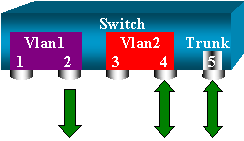
This command achieves the goal because you select VLAN 2 on all the trunks that are monitored. You can specify several VLANs with this filter option.
Trunking on the Destination Port
If you have source ports that belong to several different VLANs, or if you use SPAN on several VLANs on a trunk port, you want to identify to which VLAN a packet that you receive on the destination SPAN port belongs. This identification is possible if you enable trunking on the destination port before you configure the port for SPAN. In this way, all packets that are forwarded to the sniffer are also tagged with their respective VLAN IDs.
switch (enable) set span disable 6/2
      This command can disable your span session.
      Do you want to continue (y/n) [n]?y
      Disabled Port 6/2 to monitor transmit/receive traffic of Port 6/4-5
      2000 Sep 06 02:52:22 %SYS-5-SPAN_CFGSTATECHG:local span session
      inactive for destination port 6/2
      switch (enable) set trunk 6/2 nonegotiate isl

      Port(s) 6/2 trunk mode set to nonegotiate.
      Port(s) 6/2 trunk type set to isl.
      switch (enable) 2000 Sep 06 02:52:33 %DTP-5-TRUNKPORTON:Port 6/2 has become
        isl trunk
      switch (enable) set span 6/4-5 6/2
      Destination : Port 6/2
      Admin Source : Port 6/4-5
      Oper Source : Port 6/4-5
      Direction : transmit/receive
      Incoming Packets: disabled
      Learning : enabled
      Multicast : enabled
      Filter : -
      Status : active
      2000 Sep 06 02:53:23 %SYS-5-SPAN_CFGSTATECHG:local span session active for
      destination port 6/2
Create Several Simultaneous Sessions
Thus far, only a single SPAN session has been created. Each time that you issue a new set span command, the previous configuration is invalidated. The CatOS now has the ability to run several sessions concurrently, so it can have different destination ports at the same time. Issue the set span source destination create command to add an additional SPAN session. In this session, port 6/1 to 6/2 is monitored, and at the same time, VLAN 3 to port 6/3 is monitored:
switch (enable) set span 6/1 6/2
      2000 Sep 05 08:49:04 %SYS-5-SPAN_CFGSTATECHG:local span session inactive
      for destination port 6/2
      Destination : Port 6/2
      Admin Source : Port 6/1
      Oper Source : Port 6/1
      Direction : transmit/receive
      Incoming Packets: disabled
      Learning : enabled
      Multicast : enabled
      Filter : -
      Status : active
      switch (enable) 2000 Sep 05 08:49:05 %SYS-5-SPAN_CFGSTATECHG:local span
      session active for destination port 6/2
      switch (enable) set span 3 6/3 create
      Destination : Port 6/3
      Admin Source : VLAN 3
      Oper Source : Port 6/4-5,15/1
      Direction : transmit/receive
      Incoming Packets: disabled
      Learning : enabled
      Multicast : enabled
      Filter : -
      Status : active
      switch (enable) 2000 Sep 05 08:55:38 %SYS-5-SPAN_CFGSTATECHG:local span
      session active for destination port 6/3
Now, issue the show span command to determine if you have two sessions at the same time:
switch (enable) show span
      Destination : Port 6/2
      Admin Source : Port 6/1
      Oper Source : Port 6/1
      Direction : transmit/receive
      Incoming Packets: disabled
      Learning : enabled
      Multicast : enabled
      Filter : -
      Status : active
      ------------------------------------------------------------------------
      Destination : Port 6/3
      Admin Source : VLAN 3
      Oper Source : Port 6/4-5,15/1
      Direction : transmit/receive
      Incoming Packets: disabled
      Learning : enabled
      Multicast : enabled
      Filter : -
      Status : active
      Total local span sessions: 2
Additional sessions are created. You need a way to delete some sessions. The command is:
set span disable {all | destination_port}
Because there can only be one destination port per session, the destination port identifies a session. Delete the first session that is created, which is the one that uses port 6/2 as destination:
switch (enable) set span disable 6/2
      This command can disable your span session.
      Do you want to continue (y/n) [n]?y
      Disabled Port 6/2 to monitor transmit/receive traffic of Port 6/1
      2000 Sep 05 09:04:33 %SYS-5-SPAN_CFGSTATECHG:local span session inactive
      for destination port 6/2
You can now check that only one session remains:
switch (enable) show span
      Destination : Port 6/3
      Admin Source : VLAN 3
      Oper Source : Port 6/4-5,15/1
      Direction : transmit/receive
      Incoming Packets: disabled
      Learning : enabled
      Multicast : enabled
      Filter : -
      Status : active

    Total local span sessions: 1
Issue this command to disable all the current sessions in a single step:
switch (enable) set span disable all
  This command can disable all span session(s).
      Do you want to continue (y/n) [n]?y
      Disabled all local span sessions
      2000 Sep 05 09:07:07 %SYS-5-SPAN_CFGSTATECHG:local span session inactive
      for destination port 6/3

    switch (enable) show span
      No span session configured
Other SPAN Options
The syntax for the set span command is:
switch (enable) set span
Usage: set span disable [dest_mod/dest_port|all]
      set span <src_mod/src_ports...|src_vlans...|sc0>
               <dest_mod/dest_port> [rx|tx|both]
               [inpkts <enable|disable>]
               [learning <enable|disable>]
               [multicast <enable|disable>]
               [filter <vlans...>]
               [create]
This section briefly introduces the options that this document discusses:
- sc0 — You specify the sc0 keyword in a SPAN configuration when you need to monitor the traffic to the management interface sc0. This feature is available on the Catalyst 5500/5000 and 6500/6000 Switches, code version CatOS 5.1 or later.
- inpkts enable/disable — This option is extremely important. As this document states, a port that you configure as the SPAN destination still belongs to its original VLAN. Packets that are received on a destination port then enter the VLAN, as if this port were a normal access port. This behavior can be desired. If you use a PC as a sniffer, you want this PC to be fully connected to the VLAN. Nevertheless, the connection can be dangerous if you connect the destination port to other networking equipment that creates a loop in the network. The destination SPAN port does not run the STP, and you can end up in a dangerous bridging-loop situation. See the Why Does the SPAN Session Create a Bridging Loop section of this document to understand how this situation can occur. The default setting for this option is disable, which means that the destination SPAN port discards packets that the port receives. This discard protects the port from bridging loops. This option appears in CatOS 4.2.
- learning enable/disable — This option allows you to disable learning on the destination port. By default, learning is enabled and the destination port learns MAC addresses from incoming packets that the port receives. This feature appears in CatOS 5.2 on the Catalyst 4500/4000 and 5500/5000, and in CatOS 5.3 on the Catalyst 6500/6000.
- multicast enable/disable — As the name suggests, this option allows you to enable or disable the monitoring of multicast packets. The default is enable. This feature is available on the Catalyst 5500/5000 and 6500/6000, CatOS 5.1 and later.
- spanning port 15/1 — On the Catalyst 6500/6000, you can use port 15/1 (or 16/1) as a SPAN source. The port can monitor the traffic that is forwarded to the Multilayer Switch Feature Card (MSFC). The port captures traffic that is software-routed or directed to the MSFC.
Remote SPAN
RSPAN Overview
RSPAN allows you to monitor source ports that are spread all over a switched network, not only locally on a switch with SPAN. This feature appears in CatOS 5.3 in the Catalyst 6500/6000 Series Switches and is added in the Catalyst 4500/4000 Series Switches in CatOS 6.3 and later.
The functionality works exactly as a regular SPAN session. The traffic that is monitored by SPAN is not directly copied to the destination port, but flooded into a special RSPAN VLAN. The destination port can then be located anywhere in this RSPAN VLAN. There can even be several destination ports.
This diagram illustrates the structure of an RSPAN session:
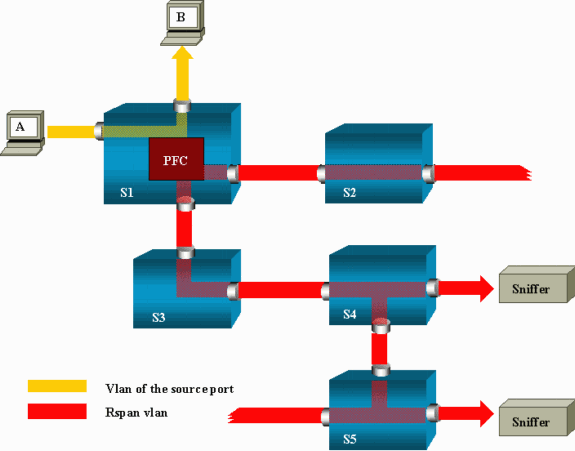
In this example, you configure RSPAN to monitor traffic that host A sends. When A generates a frame that is destined for B, the packet is copied by an application-specific integrated circuit (ASIC) of the Catalyst 6500/6000 Policy Feature Card (PFC) into a predefined RSPAN VLAN. From there, the packet is flooded to all other ports that belong to the RSPAN VLAN. All the interswitch links that are drawn here are trunks, which is a requirement for RSPAN. The only access ports are destination ports, where the sniffers are connected (here, on S4 and S5).
These are a few remarks on this design:
- S1 is called a source switch. Packets only enter the RSPAN VLAN in switches that are configured as RSPAN source. Currently, a switch can only be the source for one RSPAN session, which means that a source switch can only feed one RSPAN VLAN at a time.
- S2 and S3 are intermediate switches. They are not RSPAN sources and do not have destination ports. A switch can be intermediate for any number of RSPAN sessions.
- S4 and S5 are destination switches. Some of their ports are configured to be destination for an RSPAN session. Currently, a Catalyst 6500/6000 can have up to 24 RSPAN destination ports, for one or several different sessions. You can also notice that S4 is both a destination and an intermediate switch.
- You can see that RSPAN packets are flooded into the RSPAN VLAN. Even switches that are not on the path to a destination port, such as S2, receive the traffic for the RSPAN VLAN. You can find it useful to prune this VLAN on such S1-S2 links.
- To achieve the flooding, learning is disabled on the RSPAN VLAN.
- To prevent loops, the STP has been maintained on the RSPAN VLAN. Therefore, RSPAN cannot monitor Bridge Protocol Data Units (BPDUs).
RSPAN Configuration Example
The information in this section illustrates the setup of these different elements with a very simple RSPAN design. S1 and S2 are two Catalyst 6500/6000 Switches. To monitor some S1 ports or VLANs from S2, you must set up a dedicated RSPAN VLAN. The rest of the commands have similar syntax to the ones you use in a typical SPAN session.
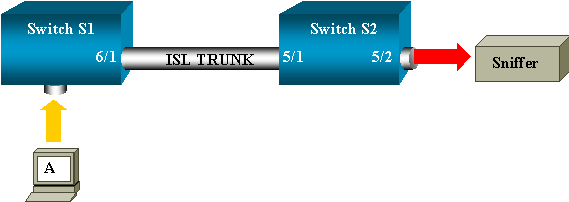
Setup of the ISL Trunk Between the Two Switches S1 and S2
To begin, put the same VLAN Trunk Protocol (VTP) domain on each switch and configure one side as trunking desirable. VTP negotiation does the rest. Issue this command on S1:
S1> (enable) set vtp domain cisco
      VTP domain cisco modified
Issue these commands on S2:
S2> (enable) set vtp domain cisco
      VTP domain cisco modified
      S2> (enable) set trunk 5/1 desirable
      Port(s) 5/1 trunk mode set to desirable.
      S2> (enable) 2000 Sep 12 04:32:44 %PAGP-5-PORTFROMSTP:Port 5/1 left bridge
       port 5/1
      2000 Sep 12 04:32:47 %DTP-5-TRUNKPORTON:Port 5/1 has become isl trunk
Creation of the RSPAN VLAN
An RSPAN session needs a specific RSPAN VLAN. You must create this VLAN. You cannot convert an existing VLAN into an RSPAN VLAN. This example uses the VLAN 100:
S2> (enable) set vlan 100 rspan
      Vlan 100 configuration successful
Issue this command on one switch that is configured as a VTP server. The knowledge of RSPAN VLAN 100 is propagated automatically in the whole VTP domain.
Configuration of Port 5/2 of S2 as an RSPAN Destination Port
S2> (enable) set rspan destination 5/2 100
      Rspan Type : Destination
      Destination : Port 5/2
      Rspan Vlan : 100
      Admin Source : -
      Oper Source : -
      Direction : -
      Incoming Packets: disabled
      Learning : enabled
      Multicast : -
      Filter : -
      Status : active
      2000 Sep 12 04:34:47 %SYS-5-SPAN_CFGSTATECHG:remote span destination session
      active for destination port 5/2
Configuration of an RSPAN Source Port on S1
In this example, incoming traffic that enters S1 via port 6/2 is monitored. Issue this command:
S1> (enable) set rspan source 6/2 100 rx
      Rspan Type : Source
      Destination : -
      Rspan Vlan : 100
      Admin Source : Port 6/2
      Oper Source : Port 6/2
      Direction : receive
      Incoming Packets: -
      Learning : -
      Multicast : enabled
      Filter : -
      Status : active
      S1> (enable) 2000 Sep 12 05:40:37 %SYS-5-SPAN_CFGSTATECHG:remote span
       source session active for remote span vlan 100
All incoming packets on port 6/2 are now flooded on the RSPAN VLAN 100 and reach the destination port that is configured on S1 via the trunk.
Verify the Configuration
The show rspan command gives a summary of the current RSPAN configuration on the switch. Again, there can only be one source RSPAN session at one time.
S1> (enable) show rspan
    Rspan Type : Source
    Destination : -
    Rspan Vlan : 100
    Admin Source : Port 6/2
    Oper Source : Port 6/2
    Direction : receive
    Incoming Packets: -
    Learning : -
    Multicast : enabled
    Filter : -
    Status : active
    Total remote span sessions: 1
Other Configurations That Are Possible with the set rspan Command
You use several command lines to configure the source and the destination with RSPAN. Apart from this difference, SPAN and RSPAN really behave in the same way. You can even use RSPAN locally, on a single switch, if you want to have several destination SPAN ports.
Feature Summary and Limitations
This table summarizes the different features that have been introduced and provides the minimum CatOS release that is necessary to run the feature on the specified platform:
| Feature | Catalyst 4500/4000 | Catalyst 5500/5000 | Catalyst 6500/6000 |
|---|---|---|---|
| inpkts enable/disable option | 4.4 | 4.2 | 5.1 |
| Multiple sessions, ports in different VLANs | 5.1 | 5.1 | 5.1 |
| sc0 option | — | 5.1 | 5.1 |
| multicast enable/disable option | — | 5.1 | 5.1 |
| learning enable/disable option | 5.2 | 5.2 | 5.3 |
| RSPAN | 6.3 | — | 5.3 |
This table provides a short summary of the current restrictions on the number of possible SPAN sessions:
| Feature | Catalyst 4500/4000 Range of Switches | Catalyst 5500/5000 Range of Switches | Catalyst 6500/6000 Range of Switches |
|---|---|---|---|
| Rx or both SPAN sessions | 5 | 1 | 2 |
| Tx SPAN sessions | 5 | 4 | 4 |
| Mini Protocol Analyzer sessions | Not supported | Not supported | 1 |
| Rx, Tx, or both RSPAN source sessions | 5 | Not supported | 1 Supervisor Engine 720 supports two RSPAN source sessions. |
| RSPAN destination | 5 | Not supported | 24 |
| Total sessions | 5 | 5 | 30 |
Refer to these documents for additional restrictions and configuration guidelines:
- Configuring SPAN & RSPAN (Catalyst 4500/4000)
- Configuring SPAN & RSPAN (Catalyst 6500/6000)
SPAN on the Catalyst 2940, 2950, 2955, 2960, 2970, 3550, 3560, 3560-E, 3750 and 3750-E Series Switches
These are guidelines for the configuration of the SPAN feature on the Catalyst 2940, 2950, 2955, 2960, 2970, 3550, 3560, 3560-E, 3750, and 3750-E Series Switches:
- The Catalyst 2950 Switches can have only one SPAN session active at a time and can monitor only source ports. These switches cannot monitor VLANs.
- The Catalyst 2950 and 3550 Switches can forward traffic on a destination SPAN port in Cisco IOS Software Release 12.1(13)EA1 and later.
- The Catalyst 3550, 3560, and 3750 Switches can support up to two SPAN sessions at a time and can monitor source ports as well as VLANs.
- The Catalyst 2970, 3560, and 3750 Switches do not require the configuration of a reflector port when you configure an RSPAN session.
- The Catalyst 3750 Switches support session configuration with the use of source and destination ports that reside on any of the switch stack members.
- Only one destination port is allowed per SPAN session, and the same port cannot be a destination port for multiple SPAN sessions. Therefore, you cannot have two SPAN sessions that use the same destination port.
The SPAN feature configuration commands are similar on the Catalyst 2950 and Catalyst 3550. However, the Catalyst 2950 cannot monitor the VLANs. You can configure the SPAN, as in this example:
C2950#configure terminal
C2950(config)#
C2950(config)#monitor session 1 source interface fastethernet 0/2

!--- This configures interface Fast Ethernet 0/2 as source port.

C2950(config)#monitor session 1 destination interface fastethernet 0/3

!--- This configures interface Fast Ethernet 0/3 as destination port.

C2950(config)#

C2950#show monitor session 1
Session 1---------
Source Ports:
    RX Only:       None
    TX Only:       None
    Both:          Fa0/2
Destination Ports: Fa0/3
C2950#
You can also configure a port as a destination for local SPAN and RSPAN for the same VLAN traffic. To monitor traffic for a particular vlan that resides in two switches directly connected, configure these commands on the switch that has the destination port. In this example, we monitor traffic from VLAN 5 that is spread across two switches:
c3750(config)#monitor session 1 source vlan < Remote RSPAN VLAN ID >
c3750(config)#monitor session 1 source vlan 5
c3750(config)#monitor session 1 destination interface fastethernet 0/3

!--- This configures interface FastEthernet 0/3 as a destination port.
On the remote switch, use this configuration:
c3750_remote(config)#monitor session 1 source vlan 5

!--- Specifies VLAN 5 as the VLAN to be monitored.

c3750_remote(config)#monitor session 1 destination remote vlan  <Remote vlan id>
In the previous example a port was configured as a destination port for both local SPAN and the RSPAN to monitor traffic for the same VLAN that resides in two switches.
| Feature | Catalyst 2950/3550 |
|---|---|
| Ingress (inpkts) enable/disable option | Cisco IOS Software Release 12.1(12c)EA1 |
| RSPAN | Cisco IOS Software Release 12.1(12c)EA1 |
| Feature | Catalyst 29401, 2950, 2955, 2960, 2970, 3550, 3560, 3750 |
|---|---|
| Rx or both SPAN sessions | 2 |
| Tx SPAN sessions | 2 |
| Rx, Tx, or both RSPAN source sessions | 2 |
| RSPAN destination | 2 |
| Total sessions | 2 |
1 The Catalyst 2940 Switches only support local SPAN. RSPAN is not supported in this platform.
SPAN on the Catalyst 4500/4000 and Catalyst 6500/6000 Series Switches That Run Cisco IOS System Software
The SPAN feature is supported on the Catalyst 4500/4000 and Catalyst 6500/6000 Series Switches that run Cisco IOS system software. Both of these switch platforms use the identical command-line interface (CLI) of, and a configuration that is similar to, the configuration that the section covers. Refer to these documents for the related configuration:
- Configuring SPAN & RSPAN (Catalyst 6500/6000)
- Configuring SPAN & RSPAN (Catalyst 4500/4000)
Configuration Example
You can configure the SPAN like in this example:
4507R#configure terminal
Enter configuration commands, one per line. End with CNTL/Z.

4507R(config)#monitor session 1 source interface fastethernet 4/2

!--- This configures interface Fast Ethernet 4/2 as source port.

4507R(config)#monitor session 1 destination interface fastethernet 4/3

!--- The configures interface Fast Ethernet 0/3 as destination port.

4507R#show monitor session 1

Session 1---------
Type : Local Session
Source Ports :
Both : Fa4/2
Destination Ports : Fa4/3

4507R#
Feature Summary and Limitations
This table summarizes the different features that have been introduced and provides the minimum Cisco IOS Software release that is necessary to run the feature on the specified platform:
| Feature | Catalyst 4500/4000 (Cisco IOS Software) | Catalyst 6500/6000 (Cisco IOS Software) |
|---|---|---|
| Ingress (inpkts) enable/disable option | Cisco IOS Software Release 12.1(19)EW | Not currently supported1 |
| RSPAN | Cisco IOS Software Release 12.1(20)EW | Cisco IOS Software Release 12.1(13)E |
1 The feature is currently not available, and the availability of these features is typically not published until release.
This table provides a short summary of the current restrictions on the number of possible SPAN and RSPAN sessions:
| Feature | Catalyst 4500/4000 (Cisco IOS Software) |
|---|---|
| Rx or both SPAN sessions | 2 |
| Tx SPAN sessions | 4 |
| Rx, Tx, or both RSPAN source sessions | 2 (Rx, Tx or both), and up to 4 for Tx only |
| RSPAN destination | 2 |
| Total sessions | 6 |
Refer to Local SPAN, RSPAN, and ERSPAN Session Limits for Catalyst 6500/6000 switches running Cisco IOS software.
In the Catalyst 6500 Series, it is important to note that egress SPAN is done on the supervisor. This allows all traffic subject to egress SPAN to be sent across the fabric to the supervisor and then to the SPAN destination port, which can use significant system resources and affect user traffic. Ingress SPAN can be done on ingress modules so SPAN performance would be the sum of all participating replication engines. The performance of the SPAN feature depends on the packet size and the type of ASIC available in the replication engine.
With releases earlier than Cisco IOS Software Release 12.2(33)SXH, a port-channel interface, an EtherChannel, cannot be a SPAN destination. With Cisco IOS Software Release 12.2(33)SXH and later, an EtherChannel can be a SPAN destination. Destination EtherChannels do not support the Port Aggregation Control Protocol (PAgP) or Link Aggregation Control Protocol (LACP) EtherChannel protocols; only the on mode is supported, with all EtherChannel protocol support disabled.
Refer to these documents for additional restrictions and configuration guidelines:
- Configuring SPAN and RSPAN (Catalyst 4500/4000)
- Configuring Local SPAN, Remote SPAN (RSPAN), and Encapsulated RSPAN (Catalyst 6500/6000)
Performance Impact of SPAN on the Different Catalyst Platforms
Catalyst 2900XL/3500XL Series
Architecture Overview
This is a very simplistic view of the 2900XL/3500XL Switches internal architecture:
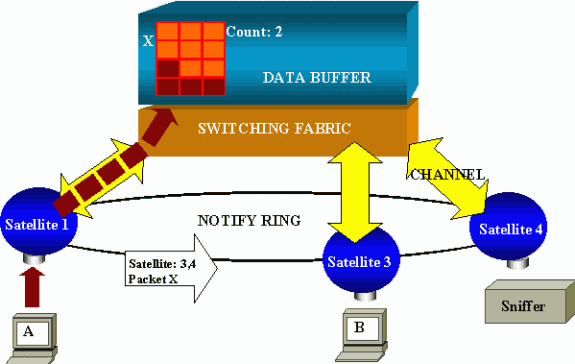
The ports of the switch are attached to satellites that communicate to a switching fabric via radial channels. On the top, all the satellites are interconnected via a high-speed notify ring that is dedicated to signaling traffic.
When a satellite receives a packet from a port, the packet is split into cells and sent to the switching fabric via one or more channels. The packet is then stored in the shared memory. Each satellite has knowledge of the destination ports. In the diagram in this section, satellite 1 knows that the packet X is to be received by satellites 3 and 4. Satellite 1 sends a message to the other satellites via the notify ring. Then, satellites 3 and 4 can start to retrieve the cells from the shared memory via their radial channels and can eventually forward the packet. Because the source satellite knows the destination, this satellite also transmits an index that specifies the number of times that this packet is downloaded by the other satellites. Each time a satellite retrieves the packet from the shared memory, this index is decremented. When the index reaches 0, the shared memory can be released.
Performance Impact
To monitor some ports with SPAN, a packet must be copied from the data buffer to a satellite an additional time. The impact on the high-speed switching fabric is negligible.
The monitoring port receives copies of transmitted and received traffic for all monitored ports. In this architecture, a packet that is destined for multiple destinations is stored in memory until all copies are forwarded. If the monitoring port is 50 percent oversubscribed for a sustained period of time, the port likely becomes congested and holds part of the shared memory. There is a possibility that one or more of the ports that are monitored also experience a slowdown.
Catalyst 4500/4000 Series
Architecture Overview
The Catalyst 4500/4000 is based on a shared-memory switching fabric. This diagram is a high-level overview of the path of a packet through the switch. The actual implementation is, in fact, much more complex:
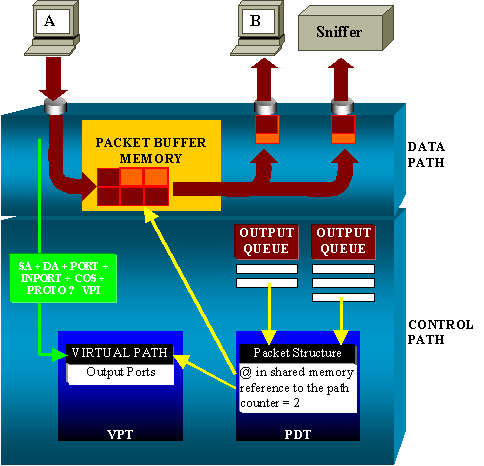
On a Catalyst 4500/4000, you can distinguish the data path. The data path corresponds to the real transfer of data within the switch, from the control path, where all the decisions are taken.
When a packet enters the switch, a buffer is allocated in the Packet Buffer Memory (a shared memory).
A packet structure that points to this buffer is initialized in the Packet Descriptor Table (PDT).
While the data is copied into shared memory, the control path determines where to switch the packet. To make this determination, a hash value is computed from this information:
- The packet source address
- Destination address
- VLAN
- Protocol type
- Input port
- Class of service (CoS) (either IEEE 802.1p tag or port default)
This value is used to find the Virtual Path Index (VPI) of a path structure in the Virtual Path Table (VPT). This virtual path entry in the VPT holds several fields that relate to this particular flow. The fields include the destination ports. The packet structure in the PDT is now updated with a reference to the virtual path and counter.
In the example in this section, the packet is to be transmitted to two different ports, so the counter initializes to 2. Finally, the packet structure is added to the output queue of the two destination ports. From there, the data copies from the shared memory into the output buffer of the port, and the packet structure counter decrements. When it reaches 0, the shared memory buffer releases.
Performance Impact
With use of the SPAN feature, a packet must be sent to two different ports, as in the example in the Architecture Overview section. The send of the packet to two ports is not an issue because the switching fabric is nonblocking.
If the destination SPAN port is congested, packets are dropped in the output queue and are correctly released from the shared memory. Therefore, there is no impact on the switch operation.
Catalyst 5500/5000 and 6500/6000 Series
Architecture Overview
On the Catalyst 5500/5000 and 6500/6000 Series Switches, a packet that is received on a port is transmitted on the internal switching bus. Every line card in the switch starts to store this packet in internal buffers.
At the same time, the Encoded Address Recognition Logic (EARL) receives the header of the packet and computes a result index. EARL sends the result index to all the line cards via the result bus. The knowledge of this index allows the line card to decide individually whether it can flush or transmit the packet as the line card receives the packet in its buffers.
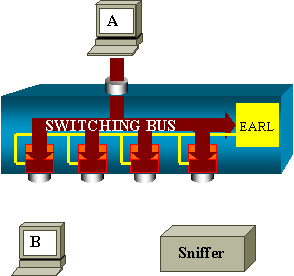
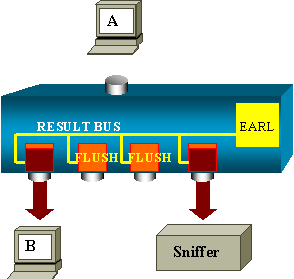
Performance Impact
Whether one or several ports eventually transmit the packet has absolutely no influence on the switch operation. Therefore, when you consider this architecture, the SPAN feature has no impact on the performance.
Frequently Asked Questions and Common Problems
Connectivity Issues Because of SPAN Misconfiguration
Connectivity issues because of the misconfiguration of SPAN occur frequently in CatOS versions that are earlier than 5.1. With these versions, only one SPAN session is possible.
The session stays in the configuration, even when you disable SPAN. With the issue of the set span enable command, a user reactivates the stored SPAN session. The action often occurs because of a typographical error, for example, if the user wants to enable STP. Severe connectivity issues can result if the destination port is used to forward user traffic.
SPAN Destination Port Up/Down
When ports are spanned for monitoring, the port state shows as UP/DOWN. When you configure a SPAN session to monitor the port, the destination interface shows the state down (monitoring), by design. The interface shows the port in this state to make it evident that the port is currently not usable as a production port. The port as up/down monitoring is normal.
Why Does the SPAN Session Create a Bridging Loop
The creation of a bridging loop typically occurs when the administrator tries to fake the RSPAN feature. Also, a configuration error can cause the problem. Example scenario:
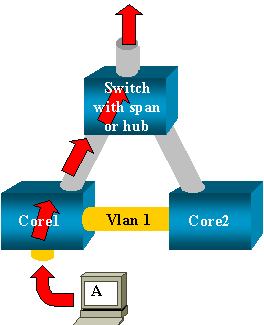
There are two core switches that are linked by a trunk. In this instance, each switch has several servers, clients, or other bridges connected to it. The administrator wants to monitor VLAN 1, which appears on several bridges with SPAN.
The administrator creates a SPAN session that monitors the whole VLAN 1 on each core switch, and, to merge these two sessions, connects the destination port to the same hub (or the same switch, with the use of another SPAN session).
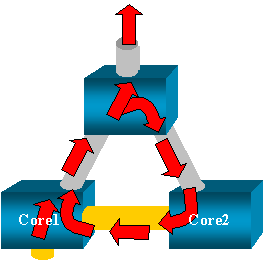
The administrator achieves the goal. Each single packet that a core switch receives on VLAN 1 is duplicated on the SPAN port and forwarded upward to the hub. A sniffer eventually captures the traffic.
The only problem is that the traffic is also reinjected into core 2 through the destination SPAN port. The reinjection of the traffic into core 2 creates a bridging loop in VLAN 1. Remember that a destination SPAN port does not run STP and is not able to prevent such a loop.
Does SPAN Impact Performances?
See these sections of this document for information about the performance impact for the specified Catalyst platforms:
- Catalyst 2900XL/3500XL Series
- Catalyst 4500/4000 Series
- Catalyst 5500/5000 and 6500/6000 Series
Can You Configure SPAN on an EtherChannel Port?
An EtherChannel does not form if one of the ports in the bundle is a SPAN destination port. If you try to configure SPAN in this situation, the switch tells you:
Channel port cannot be a Monitor Destination Port
Failed to configure span feature
You can use a port in an EtherChannel bundle as a SPAN source port.
Can You Have Several SPAN Sessions Run at the Same Time?
On the Catalyst 2900XL/3500XL Series Switches, the number of destination ports that are available on the switch is the only limit to the number of SPAN sessions.
On the Catalyst 2950 Series Switches, you can have only one assigned monitor port at any time. If you select another port as the monitor port, the previous monitor port is disabled, and the newly selected port becomes the monitor port.
On the Catalyst 4500/4000, 5500/5000, and 6500/6000 Switches with CatOS 5.1 and later, you can have several concurrent SPAN sessions.
See the Create Several Simultaneous Sessions and Feature Summary and Limitations sections of this document.
Error "% Local Session Limit Has Been Exceeded"
This message appears when the allowed SPAN session exceeds the limit for the Supervisor Engine:
% Local Session limit has been exceeded
Supervisor Engines have a limitation of SPAN sessions. Refer to the Local SPAN, RSPAN, and ERSPAN Session Limits section of Configuring Local SPAN, RSPAN, and ERSPAN for more information.
Cannot Delete a SPAN Session on the VPN Service Module, with the Error "% Session [Session No:] Used by Service Module"
With this issue, the Virtual Private Network (VPN) module is inserted into the chassis, where a switch fabric module has already been inserted.
The Cisco IOS Software automatically creates a SPAN session for the VPN service module to handle the multicast traffic.
Issue this command to delete the SPAN session that the software creates for the VPN service module:
Switch(config)#no monitor session session_number service-module
Why Are You Unable to Capture Corrupted Packets with SPAN?
You cannot capture corrupted packets with SPAN because of the way that switches operate in general. When a packet goes through a switch, these events occur:
- The packet reaches the ingress port.
- The packet is stored in at least one buffer.
- The packet is eventually retransmitted on the egress port.
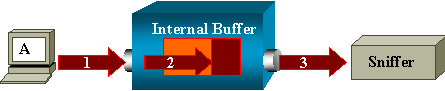
If the switch receives a corrupted packet, the ingress port usually drops the packet. Therefore, you do not see the packet on the egress port.
A switch is not completely transparent with regard to the capture of traffic. Similarly, when you see a corrupted packet on your sniffer in the scenario in this section, you know that the errors were generated at step 3, on the egress segment.
If you think that a device sends corrupted packets, you can choose to put the sending host and the sniffer device on a hub. The hub does not perform any error checks.
Therefore, unlike the switch, the hub does not drop the packets. In this way, you can view the packets.
Error: % Session 2 used by service module
If a Firewall Service Module (FWSM) was installed, for example, installed and removed later, in the CAT6500, then it automatically enabled the SPAN Reflector feature. The SPAN Reflector feature uses one SPAN session in the Switch.
If you no longer need this, you can enter the no monitor session service module command from within the config mode of CAT6500, and then immediately enter the new desired SPAN configuration.
Reflector Port Drops Packets
A reflector port receives copies of sent and received traffic for all monitored source ports. If a reflector port is oversubscribed, it could become congested. This could affect traffic forwarding on one or more of the source ports.
If the bandwidth of the reflector port is not sufficient for the traffic volume from the corresponding source ports, the excess packets are dropped.
A 10/100 port reflects at 100 Mbps. A Gigabit port reflects at 1 Gbps.
SPAN Session is Always Used With an FWSM in the Catalyst 6500 Chassis
When you use Supervisor Engine 720 with an FWSM in the chassis that runs Cisco Native IOS, by default a SPAN session is used. If you check for unused sessions with the show monitor command, session 1 is used:
Cat6K#show monitor
Session 1
---------
Type : Service Module Session
When a firewall blade is in the Catalyst 6500 chassis, this session is automatically installed for the support of hardware multicast replication because an FWSM cannot replicate multicast streams.
If multicast streams sourced behind the FWSM must be replicated at Layer 3 to multiple line cards, the automatic session copies the traffic to the supervisor through a fabric channel.
If you have a multicast source that generates a multicast stream from behind the FWSM, you need the SPAN reflector. If you place the multicast source on the outside VLAN, the SPAN reflector is not necessary. The SPAN reflector is incompatible with bridging BPDUs through the FWSM.
You can use the no monitor session service module command to disable the SPAN reflector.
Can a SPAN and an RSPAN Session Have the Same ID Within the Same Switch?
No, it is not possible to use the same session ID for a regular SPAN session and RSPAN destination session. Eah SPAN and RSPAN session must have a different session ID.
Can an RSPAN Session Work Across Different VTP Domains?
Yes. An RSPAN session can go across different VTP domains. But make sure the RSPAN VLAN is present in the databases of these VTP domains. Also, make sure that no Layer 3 device is present in path of session source to session destination.
Can an RSPAN Session Work Across WAN or Different Networks?
No. RSPAN session cannot cross any Layer 3 device as RSPAN is a LAN (Layer 2) feature. To monitor traffic across a WAN or different networks, use Encapsulated Remote SwitchPort Analyser (ERSPAN). The ERSPAN feature supports source ports, source VLANs, and destination ports on different switches, which provides remote monitoring of multiple switches across your network.
ERSPAN consists of an ERSPAN source session, routable ERSPAN GRE-encapsulated traffic, and an ERSPAN destination session.
You separately configure ERSPAN source sessions and destination sessions on different switches.
Currently, the ERSPAN feature is supported in:
- Supervisor 720 with PFC3B or PFC3BXL running Cisco IOS Software Release 12.2(18)SXE or later
- Supervisor 720 with PFC3A that has hardware version 3.2 or later and running Cisco IOS Software Release 12.2(18)SXE or later
Refer to Configuring Local SPAN, Remote SPAN (RSPAN), and Encapsulated RSPAN - Catalyst 6500 Series Cisco IOS Software Configuration Guide, 12.2SX for more information on ERSPAN.
Can a RSPAN Source Session and the Destination Session Exist on the Same Catalyst Switch?
No. RSPAN does not work when the RSPAN source session and the RSPAN destination session are on the same switch.
If an RSPAN source session is configured with a particular RSPAN VLAN and an RSPAN destination session for that RSPAN VLAN is configured on the same switch, then the RSPAN destination session's destination port cannot transmit the captured packets from the RSPAN source session due to hardware limitations. This is not supported on the 4500 Series and 3750 Series Switches.
This issue is documented in Cisco bug ID CSCeg08870 (registered customers only). Example:
monitor session 1 source interface Gi6/44
monitor session 1 destination remote vlan 666
monitor session 2 destination interface Gi6/2
monitor session 2 source remote vlan 666
The workaround for this issue is to use the regular SPAN.
Network Analyzer/Security Device Connected to SPAN Destination Port is Not Reachable
The basic characteristic of a SPAN destination port is that it does not transmit any traffic except the traffic required for the SPAN session. If you need to reach (IP reachability) the network analyzer / security device through the SPAN destination port, you need to enable ingress traffic forwarding.
When ingress is enabled, the SPAN destination port accepts incoming packets, which are potentially tagged that depends on the specified encapsulation mode, and switches them normally. When you configure a SPAN destination port, you can specify whether or not the ingress feature is enabled and what VLAN to use to switch untagged ingress packets.
The specification of an ingress VLAN is not required when ISL encapsulation is configured, as all ISL encapsulated packets that have VLAN tags. Although the port is STP forwarding, it does not participate in the STP, so use caution when you configure this feature lest a spanning-tree loop be introduced in the network. When both ingress and a trunk encapsulation are specified on a SPAN destination port, the port goes forwarding in all active VLANs. The configuration of a non-existent VLAN as an ingress VLAN is not allowed.
monitor session session_number destination interface interface [encapsulation {isl | dot1q}] ingress [vlan vlan_IDs]
This example shows how to configure a destination port with 802.1q encapsulation and ingress packets with the use of the native VLAN 7.
Switch(config)#monitor session 1 destination interface fastethernet 5/48
 encapsulation dot1q ingress vlan 7
With this configuration, traffic from SPAN sources associated with session 1 are copied out of interface Fast Ethernet 5/48, with 802.1q encapsulation.
Incoming traffic is accepted and switched, with untagged packets classified into VLAN 7.
Related Information
- How to configure SPAN and RSPAN on Cisco Catalyst 4500 switches that run Cisco IOS Software
- A SPAN Destination Port is shown as "not connected" and does not Communicate with the Rest of the Network
- Switches Product Support
- LAN Switching Technology Support
- Technical Support & Documentation
Revision History
| Revision | Publish Date | Comments |
|---|---|---|
4.0 |
31-Aug-2026
|
Recertification - Updated SEO, and Formatting. |
3.0 |
30-Aug-2024
|
Added Alt Text.
Updated Branding Requirements, SEO, Style Requirements, Machine Translation, and Formatting. |
2.0 |
11-Jul-2023
|
Recertification |
1.0 |
29-Nov-2001
|
Initial Release |

 Feedback
Contact Cisco
- Open a Support Case

- (Requires a Cisco Service Contract)