Feedback
|
Table Of Contents
Cisco Unified IP Phone 6921, 6941, and 6961 Release Notes for Firmware Release 9.1(1) (SCCP and SIP)
Automatic Port Synchronization
Cisco Unified Communications Manager Express Support
Secure Monitoring and Recording
SIP firmware support for Cisco Unified Video Advantage
Installing Cisco Unified Communications Manager
Installing Cisco Unified Communications Manager Express
Installing Firmware Release 9.1(1) for SCCP
Installing Firmware Release 9.1(1) for SIP
Resetting or Restoring the Cisco Unified IP Phone
Obtaining Documentation and Submitting a Service Request
Cisco Unified IP Phone 6921, 6941, and 6961 Release Notes for Firmware Release 9.1(1) (SCCP and SIP)
Published: January 28, 2011
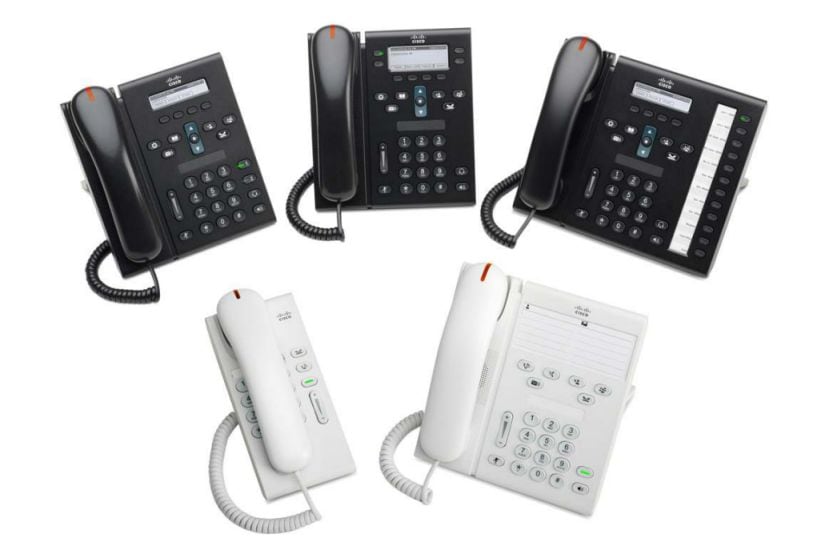
The information in this release note applies to the Cisco Unified IP Phone 6921, 6941, and 6961.
Use these release notes with Cisco Unified IP Phone 6921, 6941, and 6961 running firmware release 9.1(1). This version of firmware is compatible with Cisco Unified Communications Manager 8.5 and later.
Contents
These release notes provide the following information. You might need to notify your users about some of the information provided in this document.
•
Obtaining Documentation and Submitting a Service Request
Related Documentation
Cisco Unified IP Phone Documentation
Refer to publications that are specific to your language, phone model and Cisco Unified Communications Manager release. Navigate from the following documentation URL:
http://www.cisco.com/en/US/products/ps10326/tsd_products_support_series_home.html
Cisco Unified Communications Manager Documentation
Refer to the Cisco Unified Communications Manager Documentation Guide and other publications specific to your Cisco Unified Communications Manager release. Navigate from the following URL:
http://www.cisco.com/en/US/products/sw/voicesw/ps556/tsd_products_support_series_home.html
Cisco Unified Communications Manager Business Edition Documentation
Refer to the Cisco Unified Communications Manager Business Edition Documentation Guide and other publications that are specific to your Cisco Unified Communications Manager release. Navigate from the following URL:
http://www.cisco.com/en/US/products/ps7273/tsd_products_support_series_home.html
Cisco Unified Communications Manager Express Documentation
Refer to the Cisco Unified Communications Manager Express Documentation Guide and other publications specific to your Cisco Unified Communications Manager Express release. Navigate from the following URL:
http://www.cisco.com/en/US/products/sw/voicesw/ps4625/tsd_products_support_series_home.html
New and Changed Information
This section contains these topics:
•
Automatic Port Synchronization
•
Cisco Unified Communications Manager Express Support
•
Secure Monitoring and Recording
•
SIP firmware support for Cisco Unified Video Advantage
Automatic Port Synchronization
When the Cisco Unified Communication Manager administrator uses the Remote Port Configuration feature to set the speed and duplex function of an IP phone remotely, loss of packets can occur, if one port is slower than the other.
The Automatic Port Synchronization feature synchronizes the ports to the lowest speed among the two ports, which eliminates packet loss. When automatic port synchronization is enabled, it is recommended that both ports be configured for autonegotiate. If one port is enabled for autonegotiate and the other is at a fixed speed, the phone synchronizes to the fixed port speed.
Note
If both the ports are configured for fixed speed, the Automatic Port Synchronization feature is ineffective.
Note
The Remote Port Configuration and Automatic Port Synchronization features are compatible only with IEEE 802.3AF Power of Ethernet (PoE) switches.
Note
Switches that support only Cisco Inline Power are not compatible. Enabling this feature on phones that are connected to these types of switches could result in loss of connectivity to Cisco Unified CM, if the phone is powered by PoE.
Cisco Unified Communications Manager Express Support
Cisco Unified Communications Manager Express supports the following IP phones:
•
Cisco Unified IP Phone 6921
•
Cisco Unified IP Phone 6941
•
Cisco Unified IP Phone 6961
CUCM SIP Endpoint Support
The Cisco Unified IP phones 6921,6941,6961 SIP products will use the same portable SIP call features and SIP messaging stack that runs on the rest of the Cisco SIP Phones, while the User Interface follows the Cisco Unified IP phones 6921,6941,6961 SCCP products. Since the same software is used, the Cisco Unified IP phones 6921,6941,6961 SIP will get all the signaling and call feature flow behaviors that are compliant with Cisco UCM SIP line side specification.
Device Un-registration
The phone implements a new alarm that is sent in at the time of registration reporting diagnostic information related to the current and previous registration events, as well as, the previous deregistration event. Once the new alarm is implemented the phones, utilizing SCCP, should discontinue sending the StationAlarm message that was previously sent at the time of registration. For reference this is the alarm that includes the "Last=" string. Since this alarm is sent prior to protocol version negotiation it is understood that the newer versions of phone software always sends the newly defined StationEnhancedAlarmMessage. The older versions of the Cisco Unified Communication Manager ignores and discard the new alarm.
iLBC Support
iLBC stands for internet low bit rate codec. It is a royalty free narrow band (8kHz sampling) speech codec supporting bit rate 15.2kbps for 20ms - 38 bytes frames. In terms of quality, it compares with G.729a with the added advantage of frame independence.
iLBC has it own built-in packet loss concealment but it does not have a built-in silence suppression scheme.
K-Factor (MOS)
K-factor is a Cisco proprietary MOS-LQK listening quality metric measurement. It is part of the Voice Quality Metric set and is provided with other VQ values on the phone UI, web interface and other reports.
Note
K-factor should not be used as a basis for Service Level Agreement (SLA) and instead Concealed Seconds type metrics should be used.
K-factor is voice codec dependent and interfaces closely with the device de-jitter buffer. The supported codec in its current version are G.711, G.729, G.729a, G.729ab and iLBC.
Plus Dialing
In this release, users can now press and hold the "*" key for 1 second to add a plus "+" sign as the first digit in a phone number for international dialing.
After the phone number includes the + sign, users can go into directories, such as received calls and call history, and select and dial the entry with the + sign without having to add digits for international calls.
These Cisco Unified IP Phones support this feature:
•
Cisco Unified IP Phone 6921
•
Cisco Unified IP Phone 6941
•
Cisco Unified IP Phone 6961
Secure Monitoring and Recording
Secure Monitoring and Recording feature supports encryption of the recording and monitoring audio streams and the control signaling. A supervisor using encrypted phone will be available to monitor an agent who is using an encrypted phone or an agent who is using an unsecured phone.
A recorder connected to Cisco Unified Communication Manager through secure SIP trunk using sRTP will be available to record an agent who is using an encrypted phone or an agent who is using an unsecured phone.
However, CUCM does not allow monitoring or recording session to downgrade the overall security of the original call. Therefore, the media for those sessions have to guarantee to be the same or higher security than the agent phone's security capability.
SIP firmware support for Cisco Unified Video Advantage
The Cisco Audio Session Tunnel (CAST) protocol establishes communication between the Cisco Unified Video Advantage (CUVA) and Cisco Unified IP Phones (SIP), which enables the CUVA to support video on the PC even if the IP phone does not have video capability.When implemented on SIP phones, the CAST protocol enables communication with video applications when the PC is connected to the PC port on the phone.
The following phones support the CAST protocol:
•
Cisco Unified IP Phone 6921
•
Cisco Unified IP Phone 6941
•
Cisco Unified IP Phone 6961
Where to Find More Information
Cisco Unified IP Phone 6921, 6941, 6945, and 6961 Administration Guide for Cisco Unified Communication Manager 8.5 (SCCP and SIP).
Whisper Coaching
Silent call monitoring is a feature that allows a supervisor to discreetly listen to a conversation between an agent and a customer without allowing the agent to detect the monitoring session. Whisper coaching is an enhancement to silent call monitoring feature that allows supervisors to talk to agents during a monitoring session. This feature provides applications the ability to change the current monitoring mode of a monitoring call from Silent Monitoring to Whisper Coaching and vice versa.
To enable Whisper Coaching in the Cisco Unified Communications Manager Administration application, choose Device > Phone, locate the Cisco Unified IP Phone that you want to configure. Scroll to the Device Information Layout pane and set Built-in Bridge to On or Default. If Built-in Bridge is set to Default, in the Cisco Unified Communications Manager Administration application, choose System > Service Parameter and select the appropriate Server and Service. Scroll to the Clusterwide Parameters (Device - Phone) pane and set Built-in Bridge Enable to On.
Installation Notes
This section contains these sections:
•
Installing Cisco Unified Communications Manager
•
Installing Cisco Unified Communications Manager Express
•
Installing Firmware Release 9.1(1) for SCCP
•
Installing Firmware Release 9.1(1) for SIP
Installation Upgrade Notes
Direct upgrades, using unsigned load files, are supported to firmware releases 8.5, 9.0(x), and 9.1(1). You can use the following firmware release file for these direct upgrades. For SCCP:
•
8.5 - cmterm-69xx-sccp.9-1-1-0-uns.cop.sgn
•
9.0(x) - cmterm-69xx-sccp.9-1-1-0.cop.sgn
•
9.1(1) - cmterm-69xx-sccp.9-1-1-0.cop.sgn
For SCCP version converting to SIP:
•
8.5 - cmterm-69xx-sip.9-1-1-0-uns.cop.sgn
•
9.0(x) - cmterm-69xx-sip.9-1-1-0.cop.sgn
•
9.1(1) - cmterm-69xx-sip.9-1-1-0.cop.sgn
Note
Converting SIP to pre 911 SCCP does not work due to a known issue CSCtj89983. The workaround is to perform factory reset after upgrade comlpetes.
Note
Converting pre 9.1(1) SCCP to SIP does not support Auto-Registration due to a known issue CSCth26499.
Note
A direct upgrade from firmware release 9.0(x) to 9.1(1) is supported. After you upgrade from an earlier firmware release to 9.1(1) and for subsequent firmware releases, you can upgrade or downgrade only to signed firmware releases.
Before You Begin
Before you upgrade from Cisco Unified Communications Manager (Unified CM) 7.1(x) to 8.(0), you must upgrade to firmware release 9.1(1). Release 9.1(1) supports the upgrade since 8.5 CUCM release.
Installing Cisco Unified Communications Manager
Before using the Cisco Unified IP Phone with Cisco Unified Communications Manager, you must install the latest firmware on all Cisco Unified Communications Manager servers in the cluster.
To download and install the Cisco Unified Communications Manager version, follow these steps:
Procedure
Step 1
Go to the following URL:
http://tools.cisco.com/support/downloads/pub/Redirect.x?mdfid=278875240
Step 2
Log in to the Products > Voice and Unified Communications > IP Telephony.
Step 3
Choose Call Control > Cisco Unified Communications Manager (CallManager).
Step 4
Choose your Cisco Unified Communications Manager version.
Installing Cisco Unified Communications Manager Express
To download and install the Cisco Unified Communications Manager Express version, follow these steps:
Procedure
Step 1
Go to the following URL:
http://tools.cisco.com/support/downloads/pub/Redirect.x?mdfid=278875240
Step 2
Log in to the Products > Voice and Unified Communications > IP Telephony.
Step 3
Choose Call Control > Cisco Unified Communications Manager Express.
Step 4
Choose your Cisco Unified Communications Manager Express version from the Select a File to Download section.
Installing Firmware Release 9.1(1) for SCCP
To download and install the phone firmware, follow these steps:
Procedure
Step 1
Go to the following URL:
http://tools.cisco.com/support/downloads/go/Redirect.x?mdfid=278875240
Step 2
Log in to the Products > Voice and Unified Communications > IP Telephony > IP Phones > Cisco Unified IP Phone 6900 Series.
Step 3
Choose your phone type.
Step 4
Choose Skinny Client Control Protocol (SCCP) Software.
Step 5
Choose 9.1(1) under the Latest Releases folder.
Step 6
To download the SCCP firmware for the Cisco Unified IP Phone, choose one of the following firmware releases. Click the Download Now or Add to cart button and follow the prompts:
•
cmterm-69xx-sccp.9-1-1-0.cop.sgn
•
cmterm-69xx-sccp.9-1-1-0-uns.cop.sgn
Note
If you added the firmware file to the cart, click the Download Cart link when you are ready to download the file.
Step 7
Click the + next to the firmware file name in the Download Cart section to access additional information about this file. The hyperlink for the Readme files is in the Additional Information section, which contains installation instructions for the corresponding firmware:
•
cmterm-6921_6941_6961-sccp.9-1-1-0-readme.html
•
cmterm-6921_6941_6961-sccp.9-1-1-0-uns-readme.html
Step 8
Follow the instructions in the Readme file to install the firmware.
Installing Firmware Release 9.1(1) for SIP
To download and install the phone firmware, follow these steps:
Procedure
Step 1
Go to the following URL:
http://tools.cisco.com/support/downloads/go/Redirect.x?mdfid=278875240
Step 2
Log in to the Products > Voice and Unified Communications > IP Telephony > IP Phones > Cisco Unified IP Phone 6900 Series.
Step 3
Choose your phone type.
Step 4
Choose Session Initiation Protocol (SIP) Software.
Step 5
Choose 9.1(1) under the Latest Releases folder.
Step 6
To download the SIP firmware for the Cisco Unified IP Phone, choose one of the following firmware releases. Click the Download Now or Add to cart button and follow the prompts:
•
cmterm-69xx-sip.9-1-1-0.cop.sgn
•
cmterm-69xx-sip.9-1-1-0-uns.cop.sgn
Note
If you added the firmware file to the cart, click the Download Cart link when you are ready to download the file.
Step 7
Click the + next to the firmware file name in the Download Cart section to access additional information about this file. The hyperlink for the Readme files is in the Additional Information section, which contains installation instructions for the corresponding firmware:
•
cmterm-6921_6941_6961-sip.9-1-1-0-readme.html
•
cmterm-6921_6941_6961-sip.9-1-1-0-uns-readme.html
Step 8
Follow the instructions in the Readme file to install the firmware.
Caveats
This section contains these topics:
Using Bug Toolkit
Known problems (bugs) are graded according to severity level. These release notes contain descriptions of:
•
All severity level 1 or 2 bugs.
•
Significant severity level 3 bugs.
You can search for problems by using the Cisco Software Bug Toolkit.
To access Bug Toolkit, you need the following items:
•
Internet connection
•
Web browser
•
Cisco.com user ID and password
To use the Software Bug Toolkit, follow these steps:
Procedure
Step 1
To access the Bug Toolkit, go to http://tools.cisco.com/Support/BugToolKit/action.do?hdnAction=searchBugs.
Step 2
Log on with your Cisco.com user ID and password.
Step 3
To look for information about a specific problem, enter the bug ID number in the "Search for bug ID" field, then click Go.
Open Caveats
There are no open caveats for SIP firmware release 9.1(1). Table 1 lists open caveats for SCCP firmware release 9.1(1).
Resolved Caveats
There are no resolved caveats for SIP firmware release 9.1(1). Table 2 lists Severity 1, 2 and 3 defects that are resolved for the Cisco Unified IP Phone using SCCP firmware release 9.1(1).
For more information about an individual defect, you can access the online record for the defect by clicking the Identifier or going to the URL shown. You must be a registered Cisco.com user to access this online information.
Because defect status continually changes, be aware that Table 2 reflects a snapshot of the defects that were resolved at the time this report was compiled. For an updated view of resolved defects, access Bug Toolkit as described in the "Using Bug Toolkit" section.
Documentation Updates
This section contains recent changes to the Cisco Unified IP Phone documentation.
•
Configuring Softkey Templates
•
Resetting or Restoring the Cisco Unified IP Phone
Wireless Headset Support
The following update applies to the "Setting Up the Cisco Unified IP Phone" chapter in the Cisco Unified IP Phone 6921, 6941, and 6961 Administration Guide for Cisco Unified Communications Manager 8.5 Skinny handset.
In the section on "Audio Quality Subjective to the User," there are references to using wireless headsets with the Cisco Unified IP Phone 6921, 6941, and 6961.
There is no wireless headset support for the Cisco Unified IP Phone 6921, 6941, and 6961.
Configuring Softkey Templates
The following update applies to the "Configuring Features, Templates, Services, and Users" chapter in the Cisco Unified IP Phone 6921, 6941, and 6961 Administration Guide for Cisco Unified Communications Manager 8.5 (SCCP).
In the Configuring Softkey Templates section, Table 5-2, the Select feature entry is invalid and should be ignored.
Resetting or Restoring the Cisco Unified IP Phone
There are two general methods for resetting or restoring the Cisco Unified IP Phone:
Performing a Basic Reset
Performing a basic reset of a Cisco Unified IP Phone provides a way to recover if the phone experiences an error and provides a way to reset or restore various configuration and security settings.
Table 3 describes the ways to perform a basic reset. You can reset a phone with any of these operations after the phone has started up. Choose the operation that is appropriate for your situation.
Performing a Factory Reset
When you perform a factory reset of the Cisco Unified IP Phone, the following information is erased or reset to its default value:
•
User configuration settings—Reset to default values
•
Network setup settings—Reset to default values
•
Call histories—Erased
•
Locale information—Reset to default values
Before you perform a factory reset, ensure that the following conditions are met:
•
The phone must be on a DHCP-enabled network.
•
A valid TFTP server must be set in DHCP option 150 or option 66 on the DHCP server.
To perform a factory reset of a phone, you can press the Applications button and choose Admin Settings > Reset Settings > All.
Alternatively, you can also follow these steps:
Procedure
Step 1
While powering up the phone, press and hold #.
Step 2
When the light on the mute button and handset light strip turns off and all other lights (line button, headset button, speakerphone button and select button) stay green, press 123456789*0# in sequence.
When you press 1, the lights on the line buttons turn red. The light on the select button flash when a button is pressed.
If you press the buttons out of sequence, the lights on the line button, headset button, speakerphone button, and select button turn green. You will need to start over and press 123456789*0# in sequence again.
After you press these buttons, the phone goes through the factory reset process.
Do not power down the phone until it completes the factory reset process, and the main screen appears.
Obtaining Documentation and Submitting a Service Request
For information on obtaining documentation, submitting a service request, and gathering additional information, see the monthly What's New in Cisco Product Documentation, which also lists all new and revised Cisco technical documentation, at:
http://www.cisco.com/en/US/docs/general/whatsnew/whatsnew.html
Subscribe to the What's New in Cisco Product Documentation as a Really Simple Syndication (RSS) feed and set content to be delivered directly to your desktop using a reader application. The RSS feeds are a free service and Cisco currently supports RSS version 2.0.
Cisco and the Cisco Logo are trademarks of Cisco Systems, Inc. and/or its affiliates in the U.S. and other countries. A listing of Cisco's trademarks can be found at www.cisco.com/go/trademarks. Third party trademarks mentioned are the property of their respective owners. The use of the word partner does not imply a partnership relationship between Cisco and any other company. (1005R)
© 2010 Cisco Systems, Inc. All rights reserved.
Feedback