Table Of Contents
Configuring SPAN
Information About SPAN
SPAN Sources
Characteristics of Source Ports
SPAN Destinations
Characteristics of Destination Ports
SPAN Sessions
Virtual SPAN Sessions
Multiple SPAN Sessions
High Availability
Virtualization Support
Licensing Requirements for SPAN
Prerequisites for SPAN
Guidelines and Limitations
Default Settings
Configuring SPAN
Configuring a SPAN Session
Configuring a Virtual SPAN Session
Configuring an RSPAN VLAN
Shutting Down or Resuming a SPAN Session
Configuring MTU Truncation for Each SPAN Session
Configuring a Source Rate Limit for Each SPAN Session
Configuring the Multicast Best Effort Mode for a SPAN Session
Verifying the SPAN Configuration
Configuration Examples for SPAN
Configuration Example for a SPAN Session
Configuration Example for a Virtual SPAN Session
Configuration Example for a SPAN Session with a Private VLAN Source
Additional References
Related Documents
Standards
Feature History for SPAN
Configuring SPAN
This chapter describes how to configure an Ethernet switched port analyzer (SPAN) to analyze traffic between ports on Cisco NX-OS devices.
This chapter includes the following sections:
•
Information About SPAN
•
Licensing Requirements for SPAN
•
Prerequisites for SPAN
•
Guidelines and Limitations
•
Default Settings
•
Configuring SPAN
•
Verifying the SPAN Configuration
•
Configuration Examples for SPAN
•
Additional References
•
Feature History for SPAN
Information About SPAN
SPAN analyzes all traffic between source ports by directing the SPAN session traffic to a destination port with an external analyzer attached to it.
You can define the sources and destinations to monitor in a SPAN session on the local device.
This section includes the following topics:
•
SPAN Sources
•
SPAN Destinations
•
SPAN Sessions
•
Virtual SPAN Sessions
•
Multiple SPAN Sessions
•
High Availability
•
Virtualization Support
SPAN Sources
The interfaces from which traffic can be monitored are called SPAN sources. Sources designate the traffic to monitor and whether to copy ingress, egress, or both directions of traffic. SPAN sources include the following:
•
Ethernet ports
•
Port channels
•
The inband interface to the control plane CPU—You can monitor the inband interface only from the default VDC. Inband traffic from all VDCs is monitored.
•
VLANs—When a VLAN is specified as a SPAN source, all supported interfaces in the VLAN are SPAN sources.
•
Remote SPAN (RSPAN) VLANs
•
Fabric port channels connected to the Cisco Nexus 2000 Series Fabric Extender
•
Satellite ports and host interface port channels on the Cisco Nexus 2000 Series Fabric Extender—
These interfaces are supported in Layer 2 access mode, Layer 2 trunk mode, and Layer 3 mode.
Note
Layer 3 subinterfaces are not supported.
Note
A single SPAN session can include mixed sources in any combination of the above.
Characteristics of Source Ports
SPAN source ports have the following characteristics:
•
A port configured as a source port cannot also be configured as a destination port.
•
An RSPAN VLAN can only be used as a SPAN source.
•
If you use the supervisor inband interface as a SPAN source, the following packets are monitored:
–
All packets that arrive on the supervisor hardware (ingress)
–
All packets generated by the supervisor hardware (egress)
SPAN Destinations
SPAN destinations refer to the interfaces that monitor source ports. Destination ports receive the copied traffic from SPAN sources.
Characteristics of Destination Ports
SPAN destination ports have the following characteristics:
•
Destinations for a SPAN session include Ethernet ports or port-channel interfaces in either access or trunk mode.
•
A port configured as a destination port cannot also be configured as a source port.
•
A destination port can be configured in only one SPAN session at a time.
•
Destination ports do not participate in any spanning tree instance. SPAN output includes Bridge Protocol Data Unit (BPDU) Spanning-Tree Protocol hello packets.
•
An RSPAN VLAN cannot be used as a SPAN destination.
•
You can configure SPAN destinations to inject packets to disrupt a certain TCP packet stream in support of the Intrusion Detection System (IDS).
•
You can configure SPAN destinations to enable a forwarding engine to learn the MAC address of the IDS.
•
F1 Series module FabricPath core ports, Fabric Extender HIF ports, HIF port channels, and Fabric PO ports are not supported as SPAN destination ports.
•
Shared interfaces cannot be used as SPAN destinations.
•
VLAN ACL redirects to SPAN destination ports are not supported.
•
All SPAN destinations configured for a given session will receive all spanned traffic. For more information, see the "Virtual SPAN Sessions" section below.
SPAN Sessions
You can create up to 48 SPAN sessions designating sources and destinations to monitor.
Note
Only two SPAN sessions, two ERSPAN sessions, or one SPAN session and one ERSPAN session can be running simultaneously.
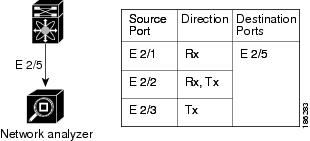
Figure 16-1 shows a SPAN configuration. Packets on three Ethernet ports are copied to destination port Ethernet 2/5. Only traffic in the direction specified is copied.
Figure 16-1 SPAN Configuration
.
Virtual SPAN Sessions
You can create a virtual SPAN session to monitor multiple VLAN sources and choose only VLANs of interest to transmit on multiple destination ports. For example, you can configure SPAN on a trunk port and monitor traffic from different VLANs on different destination ports.
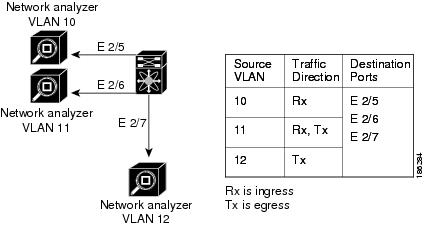
Figure 16-2 shows a virtual SPAN configuration. The virtual SPAN session copies traffic from the three VLANs to the three specified destination ports. You can choose which VLANs to allow on each destination port to limit the traffic that the device transmits on it. In Figure 16-2, the device transmits packets from one VLAN at each destination port.
Note
Virtual SPAN sessions cause all source packets to be copied to all destinations, whether the packets are required at the destination or not. VLAN traffic filtering occurs at the egress destination port level.
Figure 16-2 Virtual SPAN Configuration
.
For information about configuring a virtual SPAN session, see the "Configuring a Virtual SPAN Session" section.
Multiple SPAN Sessions
Although you can define up to 48 SPAN sessions, only two SPAN or ERSPAN sessions can be running simultaneously. You can shut down an unused SPAN session.
For information about shutting down SPAN sessions, see the "Shutting Down or Resuming a SPAN Session" section.
High Availability
The SPAN feature supports stateless and stateful restarts. After a reboot or supervisor switchover, the running configuration is applied. For more information on high availability, see the Cisco Nexus 7000 Series NX-OS High Availability and Redundancy Guide, Release 5.x.
Virtualization Support
A virtual device context (VDC) is a logical representation of a set of system resources. SPAN applies only to the VDC where the commands are entered.
Note
You can monitor the inband interface only from the default VDC. Inband traffic from all VDCs is monitored.
For information about configuring VDCs, see the Cisco Nexus 7000 Series NX-OS Virtual Device Context Configuration Guide, Release 5.x.
Licensing Requirements for SPAN
The following table shows the licensing requirements for this feature:
Product
|
License Requirement
|
Cisco NX-OS
|
SPAN requires no license. Any feature not included in a license package is bundled with the Cisco NX-OS system images and is provided at no extra charge to you. For a complete explanation of the Cisco NX-OS licensing scheme, see the Cisco NX-OS Licensing Guide.
|
Prerequisites for SPAN
SPAN has the following prerequisite:
•
You must first configure the ports on each device to support the desired SPAN configuration. For more information, see the Cisco Nexus 7000 Series NX-OS Interfaces Configuration Guide, Release 5.x.
Guidelines and Limitations
SPAN has the following configuration guidelines and limitations:
•
For SPAN session limits, see the Cisco Nexus 7000 Series NX-OS Verified Scalability Guide.
•
SPAN is not supported for management ports.
•
All SPAN replication is performed in the hardware. The supervisor CPU is not involved.
•
A destination port can only be configured in one SPAN session at a time.
•
You cannot configure a port as both a source and destination port.
•
A single SPAN session can include mixed sources in any combination of the following:
–
Ethernet ports, but not subinterfaces.
–
VLANs, which can be assigned to port channel subinterfaces
–
The inband interface to the control plane CPU
•
Destination ports do not participate in any spanning tree instance. SPAN output includes Bridge Protocol Data Unit (BPDU) Spanning-Tree Protocol hello packets.
•
When a SPAN session contains source ports that are monitored in the transmit or transmit and receive direction, packets that these ports receive may be replicated to the SPAN destination port even though the packets are not actually transmitted on the source ports. Some examples of this behavior on source ports include:
–
Traffic that results from flooding
–
Broadcast and multicast traffic
•
For VLAN SPAN sessions with both ingress and egress configured, two packets (one from ingress and one from egress) are forwarded from the destination port if the packets get switched on the same VLAN.
•
VLAN SPAN monitors only the traffic that leaves or enters Layer 2 ports in the VLAN.
•
You can monitor the inband interface only from the default VDC. Inband traffic from all VDCs is monitored.
•
You can configure an RSPAN VLAN for use only as a SPAN session source.
•
You can configure a SPAN session on the local device only.
•
Multiple SPAN destinations are not supported when an F1 Series module is present in a VDC. If multiple SPAN destinations are configured in a SPAN session, the session is disabled until the F1 Series module is powered down or moved to another VDC or the multiple SPAN destinations are reduced to a single destination.
•
A maximum of two bidirectional sessions are supported when an F1 Series module is present in a VDC.
•
A FabricPath core port is not supported as a SPAN destination when an F1 Series module is present in a VDC. However, a FabricPath core port can be configured as a SPAN source interface.
•
F1 Series modules are Layer 2 domain line cards. Packets from Layer 3 sources can be spanned and directed to an F1 Series module SPAN destination. An F1 Series module interface cannot be configured as Layer 3, but it can receive Layer 3 traffic in a SPAN destination mode.
•
When using SPAN sessions on F1 Series modules, ensure that the total amount of source traffic in a given session is less than or equal to the capacity of the SPAN destination interface or port channel for that session. If the SPAN source traffic exceeds the capacity of the SPAN destination, packet drops might occur on the SPAN source interfaces.
•
If you span a core interface when inter-VLAN routing is enabled across L2MP, it is not possible to capture the traffic egressing out of the core interface.
•
Beginning with Cisco NX-OS Release 5.2, the Cisco Nexus 2000 Series Fabric Extender interfaces and the fabric port channels connected to the Cisco Nexus 2000 Series Fabric Extender can be configured as SPAN sources. However, they cannot be configured as SPAN destinations.
Note
SPAN on Fabric Extender interfaces and fabric port channels is supported on the 32-port, 10-Gigabit M1 and M1 XL modules (N7K-M132XP-12 and N7K-M132XP-12L). SPAN runs on the Cisco Nexus 7000 Series device, not on the Fabric Extender.
•
SPAN is supported on Fabric Extender interfaces in Layer 2 access mode, Layer 2 trunk mode, and Layer 3 mode. Layer 3 subinterfaces are not supported.
•
If a port channel is the SPAN destination interface for SPAN traffic that is sourced from M1 Series modules, only a single member interface will receive traffic.
•
Cisco NX-OS does not span Link Layer Discovery Protocol (LLDP) or Link Aggregation Control Protocol (LACP) packets when the source interface is a Fabric Extender HIF (downlink) port or HIF port channel.
•
SPAN sessions cannot capture packets with broadcast or multicast MAC addresses that reach the supervisor, such as ARP requests and Open Shortest Path First (OSPF) protocol hello packets, if the source of the session is the supervisor ethernet in-band interface. To capture these packets, you must use the physical interface as the source in the SPAN sessions.
•
The rate limit percentage of a SPAN session is based on 10G for all modules (that is, 1% corresponds to 0.1G), and the value is applied per every forwarding engine instance.
•
MTU truncation and the SPAN rate limit are supported only on F1 Series modules.
Note
MTU truncation and the SPAN rate limit cannot be enabled for the same SPAN session. If you configure both for one session, only the rate limit is allowed on F1 Series modules, and MTU truncation is disabled until you disable the rate limit configuration.
•
MTU truncation on egress spanned FabricPath (core) packets is 16 bytes less than the configured value because the SPAN destination removes the core header. In addition, when trunk ports are used as the SPAN destination, the spanned ingress packets have 4 more bytes than the configured MTU truncation size.
•
For certain rate limit and packet size values, the SPAN packet rate is less than the configured value because of the internal accounting of packet sizes and internal headers.
•
Multicast best effort mode applies only to M1 Series modules.
•
SPAN does not capture pause frames in a Fibre Channel over Ethernet (FCoE) network because pause frames sent from the virtual expansion (VE) port are generated and terminated by the outermost MAC layer. For more information on FCoE, see the Cisco NX-OS FCoE Configuration Guide for Cisco Nexus 7000 and Cisco MDS 9500.
Default Settings
Table 16-1 lists the default settings for SPAN parameters.
Table 16-1 Default SPAN Parameters
Parameters
|
Default
|
SPAN sessions
|
Created in the shut state
|
MTU truncation
|
Disabled
|
Multicast best effort mode
|
Disabled
|
SPAN rate limit
|
Disabled
|
Configuring SPAN
This section includes the following topics:
•
Configuring a SPAN Session
•
Configuring a Virtual SPAN Session
•
Configuring an RSPAN VLAN
•
Shutting Down or Resuming a SPAN Session
•
Configuring MTU Truncation for Each SPAN Session
•
Configuring a Source Rate Limit for Each SPAN Session
•
Configuring the Multicast Best Effort Mode for a SPAN Session
Note
Cisco NX-OS commands for this feature may differ from those in Cisco IOS.
Configuring a SPAN Session
You can configure a SPAN session on the local device only. By default, SPAN sessions are created in the shut state.
For sources, you can specify Ethernet ports, port channels, the supervisor inband interface, VLANs, and RSPAN VLANs. You can specify private VLANs (primary, isolated, and community) in SPAN sources.
A single SPAN session can include mixed sources in any combination of Ethernet ports, VLANs, or the inband interface to the control plane CPU. You cannot specify Ethernet port subinterfaces as sources for a SPAN session.
Note
To use a Layer 3 port-channel subinterface as a SPAN source in the monitor session, you must specify the VLAN ID that you entered when configuring IEEE 802.1Q VLAN encapsulation for the subinterface as the filter VLAN. When you use the main interface and the SPAN VLAN filter to filter the 802.1Q VLANs on the subinterfaces, SPAN shows the traffic for all subinterfaces on the SPAN destination port.
When you specify the supervisor inband interface for a SPAN source, the device monitors all packets that arrive on the supervisor hardware (ingress) and all packets generated by the supervisor hardware (egress).
For destination ports, you can specify Ethernet ports or port-channels in either access or trunk mode. You must enable monitor mode on all destination ports.
BEFORE YOU BEGIN
Make sure that you are in the correct VDC. To switch VDCs, use the switchto vdc command.
You must have already configured the destination ports in access or trunk mode. For more information, see the Cisco Nexus 7000 Series NX-OS Interfaces Configuration Guide, Release 5.x.
SUMMARY STEPS
1.
config t
2.
interface ethernet slot/port[-port]
3.
switchport
4.
switchport mode [access | trunk | private-vlan]
5.
switchport monitor [ingress [learning]]
6.
(Optional) Repeat Steps 2 and 3 to configure monitoring on additional SPAN destinations.
7.
no monitor session session-number
8.
monitor session session-number
9.
description description
10.
source {interface type | vlan {number | range} [rx | tx | both]
11.
(Optional) Repeat Step 8 to configure all SPAN sources.
12.
(Optional) filter vlan {number | range}
13.
(Optional) Repeat Step 10 to configure all source VLANs to filter.
14.
destination interface type {number | range}
15.
(Optional) Repeat Step 12 to configure all SPAN destination ports.
16.
no shut
17.
(Optional) show monitor session {all | session-number | range session-range} [brief]
18.
(Optional) copy running-config startup-config
DETAILED STEPS
| |
Command
|
Purpose
|
Step 1
|
config t
Example:
switch# config t
switch(config)#
|
Enters global configuration mode.
|
Step 2
|
interface ethernet slot/port[-port]
Example:
switch(config)# interface ethernet 2/5
switch(config-if)#
|
Enters interface configuration mode on the selected slot and port or range of ports.
|
Step 3
|
switchport
Example:
switch(config-if)# switchport
switch(config-if)#
|
Configures switchport parameters for the selected slot and port or range of ports.
|
Step 4
|
switchport mode [access | trunk |
private-vlan]
Example:
switch(config-if)# switchport mode trunk
switch(config-if)#
|
Configures the switchport mode for the selected slot and port or range of ports.
• access
• trunk
• private-vlan
|
Step 5
|
switchport monitor [ingress [learning]]
Example:
switch(config-if)# switchport monitor
|
Configures the switchport interface as a SPAN destination:
• ingress Allows the SPAN destination port to inject packets that disrupt a certain TCP packet stream, for example, in networks with IDS.
• ingress learning Allows the SPAN destination port to inject packets, and allows the learning of MAC addresses, for example, the IDS MAC address.
|
Step 6
|
(Optional) Repeat Steps 2 and 3 to configure monitoring on additional SPAN destinations.
|
—
|
Step 7
|
no monitor session session-number
Example:
switch(config)# no monitor session 3
|
Clears the configuration of the specified SPAN session. The new session configuration is added to the existing session configuration.
|
Step 8
|
monitor session session-number
Example:
switch(config)# monitor session 3
switch(config-monitor)#
|
Enters the monitor configuration mode. The new session configuration is added to the existing session configuration. By default, the session is created in the shut state.
|
Step 9
|
description description
Example:
switch(config-monitor)# description
my_span_session_3
|
Configures a description for the session. By default, no description is defined. The description can be up to 32 alphanumeric characters.
|
Step 10
|
source {interface type | vlan
{1-3967,4048-4093}} [rx | tx | both]
Example 1:
switch(config-monitor)# source interface
ethernet 2/1-3, ethernet 3/1 rx
Example 2:
switch(config-monitor)# source interface
port-channel 2
Example 3:
switch(config-monitor)# source interface
sup-eth 0 both
Example 4:
switch(config-monitor)# source vlan 3, 6-8
tx
Example 5:
switch(config-monitor)# source interface
ethernet 101/1/1-3
|
Configures sources and the traffic direction in which to copy packets. You can enter a range of Ethernet ports, a port channel, an inband interface, a range of VLANs, a Cisco Nexus 2000 Series Fabric Extender interface, or a fabric port channel connected to a Cisco Nexus 2000 Series Fabric Extender.
You can configure one or more sources, as either a series of comma-separated entries or a range of numbers. You can specify up to 128 interfaces. The VLAN range is from 1 to 3967 and 4048 to 4093.
You can specify the traffic direction to copy as ingress (tx), egress (tx), or both. By default, the direction is both.
Note You can monitor the inband interface only from the default VDC. The inband traffic from all VDCs is monitored.
|
Step 11
|
(Optional) Repeat Step 8 to configure all SPAN sources.
|
—
|
Step 12
|
filter vlan {number | range}
Example:
switch(config-monitor)# filter vlan 3-5, 7
|
(Optional) Configures which VLANs to select from the configured sources. You can configure one or more VLANs, as either a series of comma-separated entries, or a range of numbers. The VLAN range is from 1 to 3967 and 4048 to 4093.
|
Step 13
|
(Optional) Repeat Step 10 to configure all source VLANs to filter.
|
—
|
Step 14
|
destination interface type {number |
range}
Example:
switch(config-monitor)# destination
interface ethernet 2/5, ethernet 3/7
|
Configures destinations for copied source packets. You can configure one or more destinations, as either a series of comma-separated entries or a range of numbers. You can specify up to 128 interfaces.
Note SPAN destination ports must be either access or trunk ports.
Note The Cisco Nexus 2000 Series Fabric Extender interfaces and the fabric port channels connected to the Cisco Nexus 2000 Series Fabric Extender cannot be configured as SPAN destinations.
|
Step 15
|
(Optional) Repeat Step 12 to configure all SPAN destination ports.
|
—
|
Step 16
|
no shut
Example:
switch(config-monitor)# no shut
|
Enables the SPAN session. By default, the session is created in the shut state.
Note Only two SPAN sessions can be running simultaneously.
|
Step 17
|
show monitor session {all | session-number
| range session-range} [brief]
Example:
switch(config-monitor)# show monitor
session 3
|
(Optional) Displays the SPAN configuration.
|
Step 18
|
copy running-config startup-config
Example:
switch(config-monitor)# copy
running-config startup-config
|
(Optional) Copies the running configuration to the startup configuration.
|
Configuring a Virtual SPAN Session
You can configure a virtual SPAN session to copy packets from source ports, VLANs, and RSPAN VLANs to destination ports on the local device. By default, SPAN sessions are created in the shut state.
For sources, you can specify ports, VLANs, or RSPAN VLANs.
For destination ports, you can specify Ethernet ports. You can choose which VLANs to allow on each destination port to limit the traffic that the device transmits on it.
BEFORE YOU BEGIN
Ensure that you are in the correct VDC (or use the switchto vdc command).
You have already configured the destination ports in trunk mode. For more information, see the Cisco Nexus 7000 Series NX-OS Interfaces Configuration Guide, Release 5.x.
You have already configured the destination ports to monitor a SPAN session with the switchport monitor command.
SUMMARY STEPS
1.
config t
2.
no monitor session session-number
3.
monitor session session-number
4.
source {interface type | vlan} {number | range} [rx | tx | both]
5.
(Optional) Repeat Step 4 to configure all virtual SPAN VLAN sources.
6.
destination interface type {number | range}
7.
(Optional) Repeat Step 6 to configure all virtual SPAN destination ports.
8.
no shut
9.
(Optional) show monitor session {all | session-number | range session-range} [brief]
10.
interface ethernet slot/port[-port]
11.
switchport trunk allowed vlan {{number | range} | add {number | range} | except {number | range} | remove {number | range} | all | none}
12.
(Optional) Repeat Steps 10 and 11 to configure the allowed VLANs on each destination port.
13.
(Optional) show interface ethernet slot/port[-port] trunk
14.
(Optional) copy running-config startup-config
DETAILED STEPS
| |
Command
|
Purpose
|
Step 1
|
config t
Example:
switch# config t
switch(config)#
|
Enters global configuration mode.
|
Step 2
|
no monitor session session-number
Example:
switch(config)# no monitor session 3
|
Clears the configuration of the specified SPAN session. New session configuration is added to the existing session configuration.
|
Step 3
|
monitor session session-number
Example:
switch(config)# monitor session 3
switch(config-monitor)#
|
Enters the monitor configuration mode. A new session configuration is added to the existing session configuration.
|
Step 4
|
source {interface type | vlan} {number |
range} [rx | tx | both]
Example:
switch(config-monitor)# source vlan 3, 6-8
tx
|
Configures sources and the traffic direction in which to copy packets. You can configure one or more sources, as either a series of comma-separated entries, or a range of numbers. You can specify up to 128 interfaces. The VLAN range is from 1 to 3967 and 4048 to 4093.
You can specify the traffic direction to copy as ingress (tx), egress (tx), or both. By default, the direction is both.
|
Step 5
|
(Optional) Repeat Step 4 to configure all virtual SPAN source VLANs.
|
—
|
Step 6
|
destination interface type {number |
range}
Example:
switch(config-monitor)# destination
interface ethernet 2/5, ethernet 3/7
|
Configures destinations for copied source packets. You can configure one or more interfaces, as either a series of comma-separated entries, or a range of numbers. The allowable range is from 1 to 128.
Note Configure destination ports as trunk ports. For more information, see the Cisco Nexus 7000 Series NX-OS Interfaces Configuration Guide, Release 5.x.
|
Step 7
|
(Optional) Repeat Step 6 to configure all virtual SPAN destination ports.
|
—
|
Step 8
|
no shut
Example:
switch(config-monitor)# no shut
|
Enables the SPAN session. By default, the session is created in the shut state.
Note Only two SPAN sessions can be running simultaneously.
|
Step 9
|
show monitor session {all | session-number
| range session-range} [brief]
Example:
switch(config-monitor)# show monitor
session 3
|
(Optional) Displays the virtual SPAN configuration.
|
Step 10
|
interface ethernet slot/port[-port]
Example:
switch(config)# interface ethernet 2/5
switch(config-if)#
|
Enters interface configuration mode on the selected slot and port or range of ports.
|
Step 11
|
switchport trunk allowed vlan {{number |
range} | add {number | range} | except
{number | range} | remove {number | range}
| all | none}
Example:
switch(config-if)# switchport trunk
allowed vlan 3-5
|
Configures the range of VLANS that are allowed on the interface. You can add to or remove from the existing VLANs, you can select all VLANs except those VLANs that you specify, or you can select all or none of the VLANs. By default, all VLANs are allowed on the interface.
You can configure one or more VLANs, as either a series of comma-separated entries, or a range of numbers. The VLAN range is from 1 to 3967 and 4048 to 4093.
|
Step 12
|
(Optional) Repeat Steps 10 and 11 to configure the allowed VLANs on each destination port.
|
—
|
Step 13
|
show interface ethernet slot/port[-port]
trunk
Example:
switch(config-if)# show interface ethernet
2/5 trunk
|
(Optional) Displays the interface trunking configuration for the selected slot and port or range of ports.
|
Step 14
|
copy running-config startup-config
Example:
switch(config-if)# copy running-config
startup-config
|
(Optional) Copies the running configuration to the startup configuration.
|
Configuring an RSPAN VLAN
You can specify a remote SPAN (RSPAN) VLAN as a SPAN session source.
BEFORE YOU BEGIN
Ensure that you are in the correct VDC (or use the switchto vdc command).
SUMMARY STEPS
1.
config t
2.
vlan vlan
3.
remote-span
4.
exit
5.
(Optional) show vlan
6.
(Optional) copy running-config startup-config
DETAILED STEPS
| |
Command
|
Purpose
|
Step 1
|
config t
Example:
switch# config t
switch(config)#
|
Enters global configuration mode.
|
Step 2
|
vlan vlan
Example:
switch(config)# vlan 901
switch(config-vlan)#
|
Enters VLAN configuration mode for the VLAN specified.
|
Step 3
|
remote-span
Example:
switch(config-vlan)# remote-span
|
Configures the VLAN as an RSPAN VLAN.
|
Step 4
|
exit
Example:
switch(config-vlan)# exit
switch(config)#
|
Exits VLAN configuration mode.
|
Step 5
|
show vlan
Example:
switch(config)# show vlan
|
(Optional) Displays the VLAN configuration. Remote SPAN VLANs are listed together.
|
Step 6
|
copy running-config startup-config
Example:
switch(config)# copy running-config
startup-config
|
(Optional) Copies the running configuration to the startup configuration.
|
Shutting Down or Resuming a SPAN Session
You can shut down SPAN sessions to discontinue the copying of packets from sources to destinations. Because only two SPAN sessions can be running simultaneously, you can shut down one session in order to free hardware resources to enable another session. By default, SPAN sessions are created in the shut state.
You can resume (enable) SPAN sessions to resume the copying of packets from sources to destinations. In order to enable a SPAN session that is already enabled but operationally down, you must first shut it down and then enable it.
You can configure the shut and enabled SPAN session states with either a global or monitor configuration mode command.
BEFORE YOU BEGIN
Ensure that you are in the correct VDC (or use the switchto vdc command).
SUMMARY STEPS
1.
config t
2.
monitor session {session-range | all} shut
3.
no monitor session {session-range | all} shut
4.
monitor session session-number
5.
shut
6.
no shut
7.
(Optional) show monitor
8.
(Optional) copy running-config startup-config
DETAILED STEPS
| |
Command
|
Purpose
|
Step 1
|
config t
Example:
switch# config t
switch(config)#
|
Enters global configuration mode.
|
Step 2
|
monitor session {session-range | all} shut
Example:
switch(config)# monitor session 3 shut
|
Shuts down the specified SPAN sessions. The session ranges from 1 to 48. By default, sessions are created in the shut state. Only two sessions can be running at a time.
|
Step 3
|
no monitor session {session-range | all}
shut
Example:
switch(config)# no monitor session 3 shut
|
Resumes (enables) the specified SPAN sessions. The session ranges from 1 to 48. By default, sessions are created in the shut state. Only two sessions can be running at a time.
Note If a monitor session is enabled but its operational status is down, then to enable the session, you must first specify the monitor session shut command followed by the no monitor session shut command.
|
Step 4
|
monitor session session-number
Example:
switch(config)# monitor session 3
switch(config-monitor)#
|
Enters the monitor configuration mode. The new session configuration is added to the existing session configuration.
|
Step 5
|
shut
Example:
switch(config-monitor)# shut
|
Shuts down the SPAN session. By default, the session is created in the shut state.
|
Step 6
|
no shut
Example:
switch(config-monitor)# no shut
|
Enables the SPAN session. By default, the session is created in the shut state.
Note Only two SPAN sessions can be running simultaneously.
|
Step 7
|
show monitor
Example:
switch(config-monitor)# show monitor
|
(Optional) Displays the status of SPAN sessions.
|
Step 8
|
copy running-config startup-config
Example:
switch(config-monitor)# copy
running-config startup-config
|
(Optional) Copies the running configuration to the startup configuration.
|
Configuring MTU Truncation for Each SPAN Session
To reduce the SPAN traffic bandwidth, you can configure the maximum bytes allowed for each replicated packet in a SPAN session. This value is called the maximum transmission unit (MTU) truncation size. Any SPAN packet larger than the configured size is truncated to the configured size.
Note
MTU truncation and the SPAN rate limit cannot be enabled for the same SPAN session. If you configure both for one session, only the rate limit is allowed on F1 Series modules, and MTU truncation is disabled until you disable the rate limit configuration.
BEFORE YOU BEGIN
Ensure that you are in the correct VDC (or use the switchto vdc command).
SUMMARY STEPS
1.
config t
2.
monitor session session-number
3.
[no] mtu mtu
4.
(Optional) show monitor session-number
5.
(Optional) copy running-config startup-config
DETAILED STEPS
| |
Command
|
Purpose
|
Step 1
|
config t
Example:
switch# config t
switch(config)#
|
Enters global configuration mode.
|
Step 2
|
monitor session session-number
Example:
switch(config)# monitor session 3
switch(config-monitor)#
|
Enters the monitor configuration mode and specifies the SPAN session for which the MTU truncation size is to be configured.
|
Step 3
|
[no] mtu mtu
Example:
switch(config-monitor)# mtu 64
|
Configures the MTU truncation size for packets in the specified SPAN session. The range is from 64 to 1500 bytes.
|
Step 4
|
show monitor session session-number
Example:
switch(config-monitor)# show monitor
session 3
|
(Optional) Displays the status of SPAN sessions, including the configuration status of MTU truncation, the maximum bytes allowed for each packet per session, and the modules on which MTU truncation is and is not supported.
|
Step 5
|
copy running-config startup-config
Example:
switch(config-monitor)# copy
running-config startup-config
|
(Optional) Copies the running configuration to the startup configuration.
|
Configuring a Source Rate Limit for Each SPAN Session
When a SPAN session is configured with multiple interfaces or VLANs as the sources in a high-traffic environment, the destination port can be overloaded, causing the normal data traffic to be disrupted at the source port. You can alleviate this problem as well as traffic overload on the source forwarding instance by configuring a source rate limit for each SPAN session.
Note
MTU truncation and the SPAN rate limit cannot be enabled for the same SPAN session. If you configure both for one session, only the rate limit is allowed on F1 Series modules, and MTU truncation is disabled until you disable the rate limit configuration.
BEFORE YOU BEGIN
Ensure that you are in the correct VDC (or use the switchto vdc command).
SUMMARY STEPS
1.
config t
2.
monitor session session-number
3.
[no] rate-limit {auto | rate-limit}
4.
(Optional) show monitor session-number
5.
(Optional) copy running-config startup-config
DETAILED STEPS
| |
Command
|
Purpose
|
Step 1
|
config t
Example:
switch# config t
switch(config)#
|
Enters global configuration mode.
|
Step 2
|
monitor session session-number
Example:
switch(config)# monitor session 3
switch(config-monitor)#
|
Enters the monitor configuration mode and specifies the SPAN session for which the source rate limit is to be configured.
|
Step 3
|
[no] rate-limit {auto | rate-limit}
Example:
switch(config-monitor)# rate-limit auto
|
Configures the source rate limit for SPAN packets in the specified SPAN session in automatic or manual mode:
• Auto mode—Automatically calculates the rate limit on a per-gigabyte basis as follows: destination bandwidth / aggregate source bandwidth. For example, if the rate limit per gigabyte is 0.5, then for every 1G of source traffic, only 0.5G of packets are spanned.
For ingress traffic, the per-gigabyte limit is applied to each forwarding engine of the F1 Series module based on how many ports are used as the SPAN source so that source can be spanned at the maximum available bandwidth. For egress traffic, the per-gigabyte limit is applied to each forwarding engine of the F1 Series module without considering how many ports are used as the SPAN source.
• Manual mode—Specifies the percentage of the maximum rate of SPAN packets that can be sent out from each forwarding engine on a line card. The range is from 1 to 100. For example, if the rate limit is 10%, the maximum rate of SPAN packets that can be sent out from each of the forwarding engines on an F1 Series module is 1G (or 10% of the 10G line rate).
|
Step 4
|
show monitor session session-number
Example:
switch(config-monitor)# show monitor
session 3
|
(Optional) Displays the status of SPAN sessions, including the configuration status of the rate limit, the percentage of the maximum SPAN rate allowed per session, and the modules on which the rate limit is and is not supported.
|
Step 5
|
copy running-config startup-config
Example:
switch(config-monitor)# copy
running-config startup-config
|
(Optional) Copies the running configuration to the startup configuration.
|
Configuring the Multicast Best Effort Mode for a SPAN Session
You can configure the multicast best effort mode for any SPAN session. By default, SPAN replication occurs on both the ingress and egress line card. When you enable the multicast best effort mode, SPAN replication occurs only on the ingress line card for multicast traffic or on the egress line card for packets egressing out of Layer 3 interfaces (that is, on the egress line card, packets egressing out of Layer 2 interfaces are not replicated for SPAN).
BEFORE YOU BEGIN
Ensure that you are in the correct VDC (or use the switchto vdc command).
SUMMARY STEPS
1.
config t
2.
monitor session session-number
3.
[no] multicast best-effort
4.
(Optional) show monitor session-number
5.
(Optional) copy running-config startup-config
DETAILED STEPS
| |
Command
|
Purpose
|
Step 1
|
config t
Example:
switch# config t
switch(config)#
|
Enters global configuration mode.
|
Step 2
|
monitor session session-number
Example:
switch(config)# monitor session 3
switch(config-monitor)#
|
Enters the monitor configuration mode and specifies the SPAN session for which the multicast best effort mode is to be configured.
|
Step 3
|
[no] multicast best-effort
Example:
switch(config-monitor)# multicast
best-effort
|
Configures the multicast best effort mode for the specified SPAN session.
|
Step 4
|
show monitor session session-number
Example:
switch(config-monitor)# show monitor
session 3
|
(Optional) Displays the status of SPAN sessions, including the configuration status of the multicast best effort mode and the modules on which the best effort mode is and is not supported.
|
Step 5
|
copy running-config startup-config
Example:
switch(config-monitor)# copy
running-config startup-config
|
(Optional) Copies the running configuration to the startup configuration.
|
Verifying the SPAN Configuration
To display the SPAN configuration, perform one of the following tasks:
Command
|
Purpose
|
show monitor session {all | session-number | range session-range} [brief]
|
Displays the SPAN session configuration.
|
For detailed information about the fields in the output from these commands, see the Cisco Nexus 7000 Series NX-OS System Management Command Reference.
Configuration Examples for SPAN
This section includes the following topics:
•
Configuration Example for a SPAN Session
•
Configuration Example for a Virtual SPAN Session
•
Configuration Example for a SPAN Session with a Private VLAN Source
Configuration Example for a SPAN Session
To configure a SPAN session, follow these steps:
Step 1
Configure destination ports in access or trunk mode, and enable SPAN monitoring.
switch(config)# interface ethernet 2/5
switch(config-if)# switchport
switch(config-if)# switchport mode trunk
switch(config-if)# switchport monitor
switch(config-if)# no shut
Step 2
Configure a SPAN session.
switch(config)# no monitor session 3
switch(config)# monitor session 3
switch(config-monitor)# source interface ethernet 2/1-3, ethernet 3/1 rx
switch(config-monitor)# source interface port-channel 2
switch(config-monitor)# source interface sup-eth 0 both
switch(config-monitor)# source vlan 3, 6-8 tx
switch(config-monitor)# source interface ethernet 101/1/1-3
switch(config-monitor)# filter vlan 3-5, 7
switch(config-monitor)# destination interface ethernet 2/5
switch(config-monitor)# no shut
switch(config-monitor)# mtu 500
switch(config-monitor)# rate-limit 10
switch(config-monitor)# multicast best-effort
switch(config-monitor)# exit
switch(config)# show monitor session 3
switch(config)# copy running-config startup-config
Configuration Example for a Virtual SPAN Session
To configure a virtual SPAN session, follow these steps:
Step 1
Configure destination ports in access or trunk mode, and enable SPAN monitoring.
switch(config)# interface ethernet 3/1
switch(config-if)# switchport
switch(config-if)# switchport mode trunk
switch(config-if)# switchport trunk allowed vlan add 100-200
switch(config-if)# switchport monitor
switch(config-if)# no shut
switch(config)# interface ethernet 3/2
switch(config-if)# switchport
switch(config-if)# switchport mode trunk
switch(config-if)# switchport trunk allowed vlan add 201-300
switch(config-if)# switchport monitor
switch(config-if)# no shut
Step 2
Configure a SPAN session.
switch(config)# no monitor session 3
switch(config)# monitor session 3
switch(config-monitor)# source vlan 100-300
switch(config-monitor)# destination interface ethernet 3/1-2
switch(config-monitor)# no shut
switch(config-monitor)# exit
switch(config)# show monitor session 3
switch(config)# copy running-config startup-config
Configuration Example for a SPAN Session with a Private VLAN Source
To configure a SPAN session that includes a private VLAN source, follow these steps:
Step 1
Configure source VLANs.
switch(config-vlan)# private-vlan primary
switch(config-vlan)# exit
switch(config)# interface ethernet 3/1
switch(config-if)# switchport
switch(config-if)# switchport access vlan 100
switch(config-if)# no shut
switch(config)# interface ethernet 3/2
switch(config-if)# switchport
switch(config-if)# switchport mode trunk
switch(config-if)# switchport trunk native vlan 100
switch(config-if)# no shut
Step 2
Configure destination ports in access or trunk mode, and enable SPAN monitoring.
switch(config)# interface ethernet 3/3
switch(config-if)# switchport
switch(config-if)# switchport mode trunk
switch(config-if)# switchport trunk allowed vlan add 100-200
switch(config-if)# switchport monitor
switch(config-if)# no shut
Step 3
Configure a SPAN session.
switch(config)# no monitor session 3
switch(config)# monitor session 3
switch(config-monitor)# source vlan 100
switch(config-monitor)# destination interface ethernet 3/3
switch(config-monitor)# no shut
switch(config-monitor)# exit
switch(config)# show monitor session 3
switch(config)# copy running-config startup-config
Additional References
For additional information related to implementing SPAN, see the following sections:
•
Related Documents
•
Standards
Related Documents
Related Topic
|
Document Title
|
VDCs
|
Cisco Nexus 7000 Series NX-OS Virtual Device Context Configuration Guide, Release 5.x
|
Fabric Extender
|
Configuring the Cisco Nexus 2000 Series Fabric Extender
|
SPAN commands: complete command syntax, command modes, command history, defaults, usage guidelines, and examples
|
Cisco Nexus 7000 Series NX-OS System Management Command Reference
|
Standards
Standards
|
Title
|
No new or modified standards are supported by this feature, and support for existing standards has not been modified by this feature.
|
—
|
Feature History for SPAN
Table 16-2 lists the release history for this feature.
Table 16-2 Feature History for SPAN
Feature Name
|
Releases
|
Feature Information
|
SPAN
|
5.2(1)
|
Added SPAN source support for Cisco Nexus 2000 Series Fabric Extender interfaces.
|
SPAN
|
5.2(1)
|
Added the ability to configure MTU truncation, the source rate limit, and the multicast best effort mode for each SPAN session.
|
SPAN
|
5.1(1)
|
Added support for F1 Series modules and increased the number of supported SPAN sessions from 18 to 48.
|
SPAN
|
5.0(2)
|
No change from Release 4.2.
|
SPAN
|
4.2(1)
|
No change from Release 4.1.
|
Guidelines and Limitations
|
4.1(3)
|
Added a table of SPAN session limits. See Table 1 on page 16-5.
|