Configuring HSRP
This chapter describes how to configure the Hot Standby Router Protocol (HSRP) on the Cisco NX-OS device.
This chapter includes the following sections:
• Licensing Requirements for HSRP
Information About HSRP
HSRP is a first-hop redundancy protocol (FHRP) that allows a transparent failover of the first-hop IP router. HSRP provides first-hop routing redundancy for IP hosts on Ethernet networks configured with a default router IP address. You use HSRP in a group of routers for selecting an active router and a standby router. In a group of routers, the active router is the router that routes packets; the standby router is the router that takes over when the active router fails or when preset conditions are met.
Many host implementations do not support any dynamic router discovery mechanisms but can be configured with a default router. Running a dynamic router discovery mechanism on every host is not feasible for a number of reasons, including administrative overhead, processing overhead, and security issues. HSRP provides failover services to these hosts.
This section includes the following topics:
•High Availability and Extended Non-Stop Forwarding
HSRP Overview
When you use HSRP, you configure the HSRP virtual IP address as the host's default router (instead of the IP address of the actual router). The virtual IP address is an IP address that is shared among a group of routers that run HSRP.
When you configure HSRP on a network segment, you provide a virtual MAC address and a virtual IP address for the HSRP group. You configure the same virtual address on each HSRP-enabled interface in the group. You also configure a unique IP address and MAC address on each interface that acts as the real address. HSRP selects one of these interfaces to be the active router. The active router receives and routes packets destined for the virtual MAC address of the group.
HSRP detects when the designated active router fails. At that point, a selected standby router assumes control of the virtual MAC and IP addresses of the HSRP group. HSRP also selects a new standby router at that time.
HSRP uses a priority mechanism to determine which HSRP-configured interface becomes the default active router. To configure an interface as the active router, you assign it with a priority that is higher than the priority of all the other HSRP-configured interfaces in the group. The default priority is 100, so if you configure just one interface with a higher priority, that interface becomes the default active router.
Interfaces that run HSRP send and receive multicast User Datagram Protocol (UDP)-based hello messages to detect a failure and to designate active and standby routers. When the active router fails to send a hello message within a configurable period of time, the standby router with the highest priority becomes the active router. The transition of packet forwarding functions between the active and standby router is completely transparent to all hosts on the network.
You can configure multiple HSRP groups on an interface.
Figure 19-1 shows a network configured for HSRP. By sharing a virtual MAC address and a virtual IP address, two or more interfaces can act as a single virtual router.
Figure 19-1 HSRP Topology With Two Enabled Routers
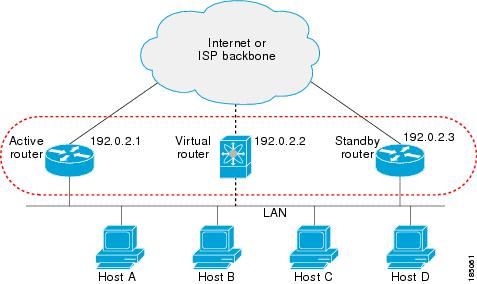
The virtual router does not physically exist but represents the common default router for interfaces that are configured to provide backup to each other. You do not need to configure the hosts on the LAN with the IP address of the active router. Instead, you configure them with the IP address (virtual IP address) of the virtual router as their default router. If the active router fails to send a hello message within the configurable period of time, the standby router takes over, responds to the virtual addresses, and becomes the active router, assuming the active router duties. From the host perspective, the virtual router remains the same.

Note In Cisco NX-OS Release 4.1(2) and later, packets received on a routed port destined for the HSRP virtual IP address will terminate on the local router, regardless of whether that router is the active HSRP router or the standby HSRP router. This includes ping and telnet traffic. Packets received on a Layer 2 (VLAN) interface destined for the HSRP virtual IP address will terminate on the active router.
HSRP Versions
Cisco NX-OS supports HSRP version 1 by default. You can configure an interface to use HSRP version 2.
HSRP version 2 has the following enhancements to to HSRP version 1:
•Expands the group number range. HSRP version 1 supports group numbers from 0 to 255. HSRP version 2 supports group numbers from 0 to 4095.
•Uses the new IP multicast address 224.0.0.102 to send hello packets instead of the multicast address of 224.0.0.2, which is used by HSRP version 1.
•Uses the MAC address range from 0000.0C9F.F000 to 0000.0C9F.FFFF. HSRP version 1 uses the MAC address range 0000.0C07.AC00 to 0000.0C07.ACFF.
•Adds support for MD5 authentication.
When you change the HSRP version, Cisco NX-OS reinitializes the group because it now has a new virtual MAC address.
HSRP version 2 has a different packet format than HSRP version 1. The packet format uses a type-length-value (TLV) format. HSRP version 2 packets received by an HSRP version 1 router are ignored.
HSRP Authentication
HSRP message digest 5 (MD5) algorithm authentication protects against HSRP-spoofing software and uses the industry-standard MD5 algorithm for improved reliability and security.
HSRP Addressing
HSRP routers communicate with each other by exchanging HSRP hello packets. These packets are sent to the destination IP multicast address 224.0.0.2 (reserved multicast address used to communicate to all routers) on UDP port 1985. The active router sources hello packets from its configured IP address and the HSRP virtual MAC address while the standby router sources hellos from its configured IP address and the interface MAC address, which may or may not be the burned-in address (BIA). The BIA is the last six bytes of the MAC address that is assigned by the manufacturer of the network interface card (NIC).
Because hosts are configured with their default router as the HSRP virtual IP address, hosts must communicate with the MAC address associated with the HSRP virtual IP address. This MAC address is a virtual MAC address, 0000.0C07.ACxy, where xy is the HSRP group number in hexadecimal based on the respective interface. For example, HSRP group 1 will use the HSRP virtual MAC address of 0000.0C07.AC01. Hosts on the adjoining LAN segment use the normal Address Resolution Protocol (ARP) process to resolve the associated MAC addresses.
HSRP version 2 uses the new IP multicast address 224.0.0.102 to send hello packets instead of the multicast address of 224.0.0.2, which is used by version 1. HSRP version 2 permits an expanded group number range of 0 to 4095 and uses a new MAC address range of 0000.0C9F.F000 to 0000.0C9F.FFFF.
HSRP Messages
Routers that are configured with HSRP exchange the following three types of multicast messages:
•Hello—The hello message conveys the HSRP priority and state information of the router to other HSRP routers.
•Coup—When a standby router wants to assume the function of the active router, it sends a coup message.
•Resign—A router that is the active router sends this message when it is about to shut down or when a router that has a higher priority sends a hello or coup message.
HSRP Load Sharing
HSRP allows you to configure multiple groups on an interface in. You can configure two overlapping HSRP groups to load share traffic from the connected hosts while providing the default router redundancy expected from HSRP. Figure 19-2 shows an example of a load-sharing HSRP configuration.
Figure 19-2 HSRP Load Sharing
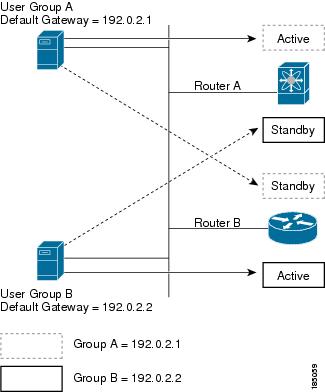
Figure 19-2 shows two routers A and B and two HSRP groups. Router A is the active router for group A, but the standby router for group B. Similarly, router B is the active router for group B and the standby router for group A. If both routers remain active, HSRP load balances the traffic from the hosts across both routers. If either router fails, the remaining router continues to process traffic for both hosts.
Object Tracking and HSRP
You can use object tracking to modify the priority of an HSRP interface based on the operational state of another interface. Object tracking allows you to route to a standby router if the interface to the main network fails.
Two objects that you can track are the line protocol state of an interface or the reachability of an IP route. If the specified object goes down, Cisco NX-OS reduces the HSRP priority by the configured amount. For more information, see the "Configuring HSRP Object Tracking" section.
vPC and HSRP
HSRP interoperates with virtual port channels (vPCs). vPCs allow links that are physically connected to two different Cisco Nexus 7000 series devices to appear as a single port channel by a third device. See the Cisco Nexus 7000 Series NX-OS Layer 2 Switching Configuration Guide, Release 4.x for more information on vPCs.
vPC forwards traffic through both the active HSRP router as well as the standby HSRP router. See the "Configuring the HSRP Priority" section.
Note You should configure HSRP on the primary vPC peer device as active and HSRP on the vPC secondary device as standby.
High Availability and Extended Non-Stop Forwarding
HSRP supports stateful restarts and stateful switchover. A stateful restart occurs when the HSRP process fails and is restarted. Stateful switchover occurs when the active supervisor switches to the standby supervisor. Cisco NX-OS applies the run-time configuration after the switchover.
If HSRP hold timers are configured for short time periods, these timers may expire during a controlled switchover or in-service software upgrade (ISSU). HSRP supports extended non-stop forwarding (NSF) to temporarily extend these HSRP hold timers during a controlled switchover or in-service software upgrade (ISSU).
With extended NSF configured, HSRP sends hello messages with the extended timers. HSRP peers update their hold timers with these new values. The extended timers prevent unnecessary HSRP state changes during the switchover or ISSU. After the switchover or ISSU event, HSRP restores the hold timers to their original configured values. If the switchover fails, HSRP restores the hold timers after the extended hold timer values expire.
See the "Configuring Extended Hold Timers for HSRP" section for more information.
Virtualization Support
HSRP supports Virtual Routing and Forwarding instances (VRFs). VRFs exist within virtual device contexts (VDCs). By default, Cisco NX-OS places you in the default VDC and default VRF unless you specifically configure another VDC and VRF.
If you change the VRF membership of an interface, Cisco NX-OS removes all Layer 3 configuration, including HSRP.
For more information, see the Cisco Nexus 7000 Series NX-OS Virtual Device Context Configuration Guide, Release 4.x and see Chapter 14 "Configuring Layer 3 Virtualization."
Licensing Requirements for HSRP
The following table shows the licensing requirements for this feature:
Prerequisites for HSRP
HSRP has the following prerequisites:
•You must enable the HSRP feature in a device before you can configure and enable any HSRP groups.
•If you configure VDCs, install the Advanced Services license and enter the desired VDC (see the Cisco Nexus 7000 Series NX-OS Virtual Device Context Configuration Guide, Release 4.x).
Guidelines and Limitations
HSRP has the following guidelines and limitations:
•You must configure an IP address for the interface that you configure HSRP on and enable that interface before HSRP becomes active.
•The virtual IP address must be in the same subnet as the interface IP address.
•We recommend that you do not configure more than one first-hop redundancy protocol on the same interface.
•HSRP version 2 does not interoperate with HSRP version 1. An interface cannot operate both version 1 and version 2 because both versions are mutually exclusive. However, the different versions can be run on different physical interfaces of the same router.
•You cannot change from version 2 to version 1 if you have configured groups above the group number range allowed for version 1 (0 to 255).
•Cisco NX-OS removes all Layer 3 configuration on an interface when you change the interface VRF membership, port channel membership, or when you change the port mode to Layer 2.
•If you configure virtual MAC addresses with vPC, you must configure the same virtual MAC address on both vPC peers.
•You cannot use the HSRP MAC address burned-in option on a VLAN interface that is a vPC member.
Configuring HSRP
This section includes the following topics:
•Configuring the HSRP Virtual MAC Address
•Configuring HSRP Object Tracking
•Configuring the HSRP Priority
•Configuring Extended Hold Timers for HSRP
Note If you are familiar with the Cisco IOS CLI, be aware that the Cisco NX-OS commands for this feature might differ from the Cisco IOS commands that you would use.
Enabling the HSRP Feature
You must globally enable the HSRP feature before you can configure and enable any HSRP groups.
BEFORE YOU BEGIN
Ensure that you are in the correct VDC (or use the switchto vdc command).
DETAILED STEPS
To enable the HSRP feature in a VDC, use the following command in global configuration mode:
|
|
|
|---|---|
feature hsrp
Example: switch(config)# feature hsrp |
Enables HSRP. |
To disable the HSRP feature in a VDC and remove all associated configuration, use the following command in global configuration mode:
|
|
|
|---|---|
no feature hsrp
Example: switch(config)# no feature hsrp |
Disables HSRP for all groups in a VDC. |
Configuring an HSRP Group
You can configure an HSRP group on an interface and configure the virtual IP address and virtual MAC address for the HSRP group.
BEFORE YOU BEGIN
Ensure that you have enabled the HSRP feature (see the "Enabling the HSRP Feature" section).
Cisco NX-OS enables an HSRP group once you configure the virtual IP address on any member interface in the group. You should configure HSRP attributes such as authentication, timers, and priority before you enable the HSRP group.
Ensure that you are in the correct VDC (or use the switchto vdc command).
SUMMARY STEPS
1. config t
2. interface type number
3. ip ip-address/length
4. hsrp group-number
5. ip [ip-address [secondary]]
6. exit
7. no shutdown
8. show hsrp [group group-number]
9. copy running-config startup-config
DETAILED STEPS
Note You should use the no shutdown command to enable the interface after you finish the configuration.
The following example shows how to configure an HSRP group on Ethernet 1/2:
switch# config t
switch(config)# interface ethernet 1/2
switch(config-if)# ip 192.0.2.2/8
switch(config-if)# hsrp 2
switch(config-if-hsrp)# ip 192.0.2.1
switch(config-if-hsrp)# exit
switch(config-if)# no shutdown
switch(config-if)# copy running-config startup-config
Configuring the HSRP Version
You can configure the HSRP version. If you change the version for existing groups, Cisco NX-OS reinitializes HSRP for those groups because the virtual MAC address changes. The HSRP version applies to all groups on the interface.
To configure the HSRP version, use the following command in interface configuration mode:
|
|
|
|---|---|
hsrp version {1 | 2}
Example: switch(config-if)# hsrp version 2 |
Configures the HSRP version. Version 1 is the default. |
Configuring the HSRP Virtual MAC Address
You can override the default virtual MAC address that HSRP derives from the configured group number.
Note You must configure the same virtual MAC address on both vPC peers of a vPC link.
To manually configure the virtual MAC address for an HSRP group, use the following command in HSRP configuration mode:
To configure HSRP to use the burned-in MAC address of the interface for the virtual MAC address, use the following command in interface configuration mode:
Authenticating HSRP
You can configure HSRP to authenticate the protocol using cleartext or MD5 digest authentication. MD5 authentication uses a key chain (see the Cisco Nexus 7000 Series NX-OS Security Configuration Guide, Release 4.x).
BEFORE YOU BEGIN
Ensure that you have enabled the HSRP feature (see the "Enabling the HSRP Feature" section).
You must configure the same authentication and keys on all members of the HSRP group.
Ensure that you have created the key chain if you are using MD5 authentication.
Ensure that you are in the correct VDC (or use the switchto vdc command).
SUMMARY STEPS
1. config t
2. interface interface-type slot/port
3. hsrp group-number
4. authentication text string
or
authentication md5 {key-chain key-chain | key-string {0 | 7} text [timeout seconds]}
5. show hsrp [group group-number]
6. copy running-config startup-config
DETAILED STEPS
The following example shows how to configure MD5 authentication for HSRP on Ethernet 1/2 after creating the key chain:
switch# config t
switch(config)# key chain hsrp-keys
switch(config-keychain)# key 0
switch(config-keychain-key)# key-string 7 zqdest
switch(config-keychain-key) accept-lifetime 00:00:00 Jun 01 2008 23:59:59 Sep 12 2008
switch(config-keychain-key) send-lifetime 00:00:00 Jun 01 2008 23:59:59 Aug 12 2008
switch(config-keychain-key) key 1
switch(config-keychain-key) key-string 7 uaeqdyito
switch(config-keychain-key) accept-lifetime 00:00:00 Aug 12 2008 23:59:59 Dec 12 2008
switch(config-keychain-key) send-lifetime 00:00:00 Sep 12 2008 23:59:59 Nov 12 2008
switch(config-keychain-key)# interface ethernet 1/2
switch(config-if)# hsrp 2
switch(config-if-hsrp)# authenticate md5 key-chain hsrp-keys
switch(config-if-hsrp)# copy running-config startup-config
Configuring HSRP Object Tracking
You can configure an HSRP group to adjust its priority based on the availability of other interfaces or routes. The priority of a device can change dynamically if it has been configured for object tracking and the object that is being tracked goes down. The tracking process periodically polls the tracked objects and notes any value change. The value change triggers HSRP to recalculate the priority. The HSRP interface with the higher priority becomes the active router if you configure the HSRP interface for preemption. HSRP supports tracked objects and track lists. See Chapter 21 "Configuring Object Tracking" for more information on track lists.
BEFORE YOU BEGIN
Ensure that you have enabled the HSRP feature (see the "Enabling the HSRP Feature" section).
Ensure that you are in the correct VDC (or use the switchto vdc command).
SUMMARY STEPS
1. config t
2. track object-id interface interface-type number {{ip | ipv6} routing | line-protocol}
or
track object-id {ip | ipv6} route ip-prefix/length reachability
3. interface interface-type slot/port
4. hsrp group-number
5. priority [value]
6. track object-number [decrement value]
7. preempt [delay minimum seconds] [reload seconds] [sync seconds]
8. show hsrp interface interface-type number
9. copy running-config startup-config
DETAILED STEPS
The following example shows how to configure HSRP object tracking on Ethernet 1/2:
switch# config t
switch(config)# track 1 interface ethernet 2/2 line-protocol
switch(config)# interface ethernet 1/2
switch(config-if)# hsrp 2
switch(config-if-hsrp)# track 1 decrement 20
switch(config-if-hsrp)# copy running-config startup-config
Configuring the HSRP Priority
You can configure the HSRP priority on an interface. HSRP uses the priority to determine which HSRP group member acts as the active router. If you configure HSRP on a vPC-enabled interface, you can optionally configure the upper and lower threshold values to control when to fail over to the vPC trunk If the standby router priority falls below the lower threshold, HSRP sends all standby router traffic across the vPC trunk to forward through the active HSRP router. HSRP maintains this scenario until the standby HSRP router priority increases above the upper threshold.
To configure the HSRP priority, use the following command in interface configuration mode:
Customizing HSRP
You can optionally customize the behavior of HSRP. Be aware that as soon as you enable an HSRP group by configuring a virtual IP address, that group is now operational. If you first enable an HSRP group before customizing HSRP, the router could take control over the group and become the active router before you finish customizing the feature. If you plan to customize HSRP, you should do so before you enable the HSRP group.
To customize HSRP, use the following commands in HSRP configuration mode:
To customize HSRP, use the following commands in interface configuration mode:
Configuring Extended Hold Timers for HSRP
You can configure HSRP to use extended hold timers to support extended NSF during a controlled (graceful) switchover or ISSU, including software upgrades and supervisor switchovers.You should configure extended hold timers on all HSRP routers. (see the "High Availability and Extended Non-Stop Forwarding" section).
Note You must configure extended hold timers on all HSRP routers if you configure extended hold timers. If you configure a non-default hold timer, you should configure the same value on all HSRP routers when you configure HSRP extended hold timers.
Note HSRP extended hold timers are not applied if you configure millisecond HSRP hello and hold timers.
To configure HSRP extended hold timers, use the following command in global configuration mode:
Use the show hsrp command or the show running-config hsrp command to display the extended hold time.
Verifying HSRP Configuration
To verify HSRP configuration information, use one of the following commands:
HSRP Example Configuration
The following example shows how to enable HSRP on an interface with MD5 authentication and interface tracking:
key chain hsrp-keys
key 0
key-string 7 zqdest
accept-lifetime 00:00:00 Jun 01 2008 23:59:59 Sep 12 2008
send-lifetime 00:00:00 Jun 01 2008 23:59:59 Aug 12 2008
key 1
key-string 7 uaeqdyito
accept-lifetime 00:00:00 Aug 12 2008 23:59:59 Dec 12 2008
send-lifetime 00:00:00 Sep 12 2008 23:59:59 Nov 12 2008
feature hsrp
track 2 interface ethernet 2/2 ip
interface ethernet 1/2
ip address 192.0.2.2/8
hsrp 1
authenticate md5 key-chain hsrp-keys
priority 90
track 2 decrement 20
ip-address 192.0.2.10
no shutdown
Default Settings
Table 19-1 lists the default settings for HSRP parameters.
Additional References
For additional information related to implementing HSRP, see the following sections:
•MIBs
Related Documents
MIBs
|
|
|
|---|---|
CISCO-HSRP-MIB |
To locate and download MIBs, go to the following URL: http://www.cisco.com/public/sw-center/netmgmt/cmtk/mibs.shtml |
Feature History for HSRP
Table 19-2 lists the release history for this feature.
 Feedback