- About This Guide
-
- Information about AAA
- Configuring the Local Database for AAA
- Configuring RADIUS Servers for AAA
- Configuring TACACS+ Servers for AAA
- Configuring LDAP Servers for AAA
- Configuring Windows NT Servers for AAA
- Configuring the Identity Firewall
- Configuring the ASA to Integrate with Cisco TrustSec
- Configuring Digital Certificates
- Index
- ASDM Requirements
- Hardware and Software Compatibility
- VPN Compatibility
- New Features
- Firewall Functional Overview
- Security Policy Overview
- Permitting or Denying Traffic with Access Rules
- Applying NAT
- Protecting from IP Fragments
- Using AAA for Through Traffic
- Applying HTTP, HTTPS, or FTP Filtering
- Applying Application Inspection
- Sending Traffic to a Module
- Applying QoS Policies
- Applying Connection Limits and TCP Normalization
- Enabling Threat Detection
- Enabling the Botnet Traffic Filter
- Configuring Cisco Unified Communications
- Firewall Mode Overview
- Stateful Inspection Overview
- Security Policy Overview
- VPN Functional Overview
- Security Context Overview
- ASA Clustering Overview
Introduction to the Cisco ASA
The Cisco ASA provides advanced stateful firewall and VPN concentrator functionality in one device, and for some models, integrated services modules such as IPS. The ASA includes many advanced features, such as multiple security contexts (similar to virtualized firewalls), clustering (combining multiple firewalls into a single firewall), transparent (Layer 2) firewall or routed (Layer 3) firewall operation, advanced inspection engines, IPsec VPN, SSL VPN, and clientless SSL VPN support, and many more features.

Note ASDM supports many ASA versions. The ASDM documentation and online help includes all of the latest features supported by the ASA. If you are running an older version of ASA software, the documentation might include features that are not supported in your version. Similarly, if a feature was added into a maintenance release for an older major or minor version, then the ASDM documentation includes the new feature even though that feature might not be available in all later ASA releases. Please refer to the feature history table for each chapter to determine when features were added. For the minimum supported version of ASDM for each ASA version, see Cisco ASA Compatibility.
ASDM Requirements
ASDM Client Operating System and Browser Requirements
Table 1-1 lists the supported and recommended client operating systems and Java for ASDM.
|
|
|
|
|||
|---|---|---|---|---|---|
|
|
|
|
|
||
Microsoft Windows (English and Japanese):
|
|||||
|
|
Java and Browser Compatibility
Table 1-2 lists compatibility caveats for Java, ASDM, and browser compatibility.
|
|
|
|
|---|---|---|
To continue using the Launcher, do one of the following:
To use Java Web Start, do one of the following:
http://java.com/en/download/help/java_blocked.xml If you already upgraded Java, and can no longer launch ASDM in order to upgrade it to Version 7.1(5.100) or later, then you can either use the CLI to upgrade ASDM, or you can use the above security exception workaround to launch the older ASDM, after which you can upgrade to a newer version. |
||
ASDM shows a yellow warning about the missing Permissions attribute |
Java 7 update 45 shows a warning when an application does not have the Permissions attribute in the JAR manifest. It is safe to ignore this warning . To prevent this warning from appearing, upgrade to ASDM 7.1(5.100) or later; this ASDM version includes the Permissions attribute, which will be required as of Java 7 Update 51. Note Due to a bug in Java, even if you upgrade to ASDM 7.1(5.100) or later, if you also do not have a trusted certificate installed on the ASA, you continue to see the yellow warning about the missing Permissions attribute. To prevent the warning from appearing, install a trusted certificate (from a known CA); or generate a self-signed certificate on the ASA by choosing Configuration > Device Management > Certificates > Identity Certificates. Launch ASDM, and when the certificate warning is shown, check the Always trust connections to websites checkbox. |
|
ASDM requires an SSL connection to the ASA. If the ASA has only the base encryption license (DES), and therefore has weak encryption ciphers for the SSL connection, you cannot launch ASDM. You must uninstall Java 7, and install Java 6 ( http://www.oracle.com/technetwork/java/javase/downloads/java-archive-downloads-javase6-419409.html ). Note that a workaround is required for weak encryption and Java 6 (see below, in this table). |
||
You may see the following error message when opening the ASDM Launcher: In this case, Java 7 is the currently-preferred Java version. Either upgrade ASDM to 7.1(4) or later, or you need to set Java 6 as the preferred Java version: Open the Java Preferences application (under Applications > Utilities), select the preferred Java version, and drag it up to be the first line in the table. |
||
Due to a Java bug, ASDM does not support usernames longer than 50 characters when using Java 6. Longer usernames work correctly for Java 7. |
||
Requires strong encryption license (3DES/AES) on ASA or workaround |
When you initially connect a browser to the ASA to load the ASDM splash screen, the browser attempts to make an SSL connection to the ASA. If the ASA has only the base encryption license (DES), and therefore has weak encryption ciphers for the SSL connection, you may not be able to access the ASDM splash screen; most current browsers do not support weak encryption ciphers. Therefore, without the strong encryption license (3DES/AES), use one of the following workarounds:
|
|
When the ASA uses a self-signed certificate or an untrusted certificate, Firefox 4 and later and Safari are unable to add security exceptions when browsing using HTTPS over IPv6. See https://bugzilla.mozilla.org/show_bug.cgi?id=633001 . This caveat affects all SSL connections originating from Firefox or Safari to the ASA (including ASDM connections). To avoid this caveat, configure a proper certificate for the ASA that is issued by a trusted certificate authority. |
||
If you change the SSL encryption on the ASA to exclude both RC4-MD5 and RC4-SHA1 algorithms (these algorithms are enabled by default), then Chrome cannot launch ASDM due to the Chrome “SSL false start” feature. We suggest re-enabling one of these algorithms (see the Configuration > Device Management > Advanced > SSL Settings pane); or you can disable SSL false start in Chrome using the --disable-ssl-false-start flag according to http://www.chromium.org/developers/how-tos/run-chromium-with-flags . |
||
For Internet Explorer 9.0 for servers, the “Do not save encrypted pages to disk” option is enabled by default (See Tools > Internet Options > Advanced). This option causes the initial ASDM download to fail. Be sure to disable this option to allow ASDM to download. |
||
On MacOS, you may be prompted to install Java the first time you run ASDM; follow the prompts as necessary. ASDM will launch after the installation completes. |
||
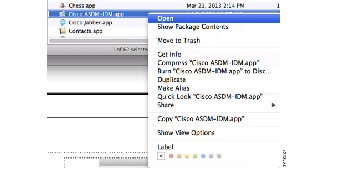
You need to allow ASDM to run because it is not signed with an Apple Developer ID. If you do not change your security preferences, you see an error screen. 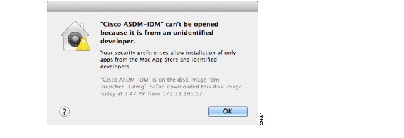
1. 
2. 
|
Hardware and Software Compatibility
For a complete list of supported hardware and software, see the Cisco ASA Compatibility :
http://www.cisco.com/en/US/docs/security/asa/compatibility/asamatrx.html
VPN Compatibility
See Supported VPN Platforms, Cisco ASA 5500 Series :
http://www.cisco.com/en/US/docs/security/asa/compatibility/asa-vpn-compatibility.html
New Features
- New Features in ASA 9.1(5)/ASDM 7.1(6)
- New Features in ASA 9.1(4)/ASDM 7.1(5)
- New Features in ASA 9.1(3)/ASDM 7.1(4)
- New Features in ASA 9.1(2)/ASDM 7.1(3)
- New Features in ASA 8.4(6)/ASDM 7.1(2.102)
- New Features in ASA 9.0(2)/ASDM 7.1(2)
- New Features in ASA 9.1(1)/ASDM 7.1(1)
Note New, changed, and deprecated syslog messages are listed in syslog messages guide.
New Features in ASA 9.1(5)/ASDM 7.1(6)
Table 1-3 lists the new features for ASA Version 9.1(5)/ASDM Version 7.1(6).
New Features in ASA 9.1(4)/ASDM 7.1(5)
Table 1-4 lists the new features for ASA Version 9.1(4)/ASDM Version 7.1(5).
New Features in ASA 9.1(3)/ASDM 7.1(4)
Table 1-5 lists the new features for ASA Version 9.1(3)/ASDM Version 7.1(4).
New Features in ASA 9.1(2)/ASDM 7.1(3)
Table 1-6 lists the new features for ASA Version 9.1(2)/ASDM Version 7.1(3).
Note Features added in 8.4(6) are not included in 9.1(2) unless they are explicitly listed in this table.
New Features in ASA 8.4(6)/ASDM 7.1(2.102)
New Features in ASA 9.0(2)/ASDM 7.1(2)
New Features in ASA 9.1(1)/ASDM 7.1(1)
Table 1-7 lists the new features for ASA Version 9.1(1)/ASDM Version 7.1(1).
Note Features added in 8.4(4.x), 8.4(5), 8.4(6), and 9.0(2) are not included in 9.1(1) unless they were listed in the 9.0(1) feature table.
Firewall Functional Overview
Firewalls protect inside networks from unauthorized access by users on an outside network. A firewall can also protect inside networks from each other, for example, by keeping a human resources network separate from a user network. If you have network resources that need to be available to an outside user, such as a web or FTP server, you can place these resources on a separate network behind the firewall, called a demilitarized zone (DMZ). The firewall allows limited access to the DMZ, but because the DMZ only includes the public servers, an attack there only affects the servers and does not affect the other inside networks. You can also control when inside users access outside networks (for example, access to the Internet), by allowing only certain addresses out, by requiring authentication or authorization, or by coordinating with an external URL filtering server.
When discussing networks connected to a firewall, the outside network is in front of the firewall, the inside network is protected and behind the firewall, and a DMZ , while behind the firewall, allows limited access to outside users. Because the ASA lets you configure many interfaces with varied security policies, including many inside interfaces, many DMZs, and even many outside interfaces if desired, these terms are used in a general sense only.
This section includes the following topics:
Security Policy Overview
A security policy determines which traffic is allowed to pass through the firewall to access another network. By default, the ASA allows traffic to flow freely from an inside network (higher security level) to an outside network (lower security level). You can apply actions to traffic to customize the security policy. This section includes the following topics:
- Permitting or Denying Traffic with Access Rules
- Applying NAT
- Protecting from IP Fragments
- Using AAA for Through Traffic
- Applying HTTP, HTTPS, or FTP Filtering
- Applying Application Inspection
- Sending Traffic to a Module
- Applying QoS Policies
- Applying Connection Limits and TCP Normalization
- Enabling Threat Detection
- Enabling the Botnet Traffic Filter
- Configuring Cisco Unified Communications
Permitting or Denying Traffic with Access Rules
You can apply an access rule to limit traffic from inside to outside, or allow traffic from outside to inside. For transparent firewall mode, you can also apply an EtherType access list to allow non-IP traffic.
Applying NAT
Protecting from IP Fragments
The ASA provides IP fragment protection. This feature performs full reassembly of all ICMP error messages and virtual reassembly of the remaining IP fragments that are routed through the ASA. Fragments that fail the security check are dropped and logged. Virtual reassembly cannot be disabled.
Using AAA for Through Traffic
You can require authentication and/or authorization for certain types of traffic, for example, for HTTP. The ASA also sends accounting information to a RADIUS or TACACS+ server.
Applying HTTP, HTTPS, or FTP Filtering
Although you can use access lists to prevent outbound access to specific websites or FTP servers, configuring and managing web usage this way is not practical because of the size and dynamic nature of the Internet. We recommend that you consider using Cisco Web Security Appliance, a dedicated web proxy that provides advanced web filtering as well as advanced threat defense, advanced malware protection, application visibility and control, insightful reporting, and secure mobility. For additional information, see http://www.cisco.com/go/websecurity .
You may also the ASA in conjunction with a third-party server running a filtering product such as Websense Enterprise.
Applying Application Inspection
Inspection engines are required for services that embed IP addressing information in the user data packet or that open secondary channels on dynamically assigned ports. These protocols require the ASA to do a deep packet inspection.
Sending Traffic to a Module
If your model supports an add-on module, then you can send traffic to the module for inspection. For more information, see the documentation for your module.
Applying QoS Policies
Some network traffic, such as voice and streaming video, cannot tolerate long latency times. QoS is a network feature that lets you give priority to these types of traffic. QoS refers to the capability of a network to provide better service to selected network traffic.
Applying Connection Limits and TCP Normalization
You can limit TCP and UDP connections and embryonic connections. Limiting the number of connections and embryonic connections protects you from a DoS attack. The ASA uses the embryonic limit to trigger TCP Intercept, which protects inside systems from a DoS attack perpetrated by flooding an interface with TCP SYN packets. An embryonic connection is a connection request that has not finished the necessary handshake between source and destination.
TCP normalization is a feature consisting of advanced TCP connection settings designed to drop packets that do not appear normal.
Enabling Threat Detection
You can configure scanning threat detection and basic threat detection, and also how to use statistics to analyze threats.
Basic threat detection detects activity that might be related to an attack, such as a DoS attack, and automatically sends a system log message.
A typical scanning attack consists of a host that tests the accessibility of every IP address in a subnet (by scanning through many hosts in the subnet or sweeping through many ports in a host or subnet). The scanning threat detection feature determines when a host is performing a scan. Unlike IPS scan detection that is based on traffic signatures, the ASA scanning threat detection feature maintains an extensive database that contains host statistics that can be analyzed for scanning activity.
The host database tracks suspicious activity such as connections with no return activity, access of closed service ports, vulnerable TCP behaviors such as non-random IPID, and many more behaviors.
You can configure the ASA to send system log messages about an attacker or you can automatically shun the host.
Enabling the Botnet Traffic Filter
Malware is malicious software that is installed on an unknowing host. Malware that attempts network activity such as sending private data (passwords, credit card numbers, key strokes, or proprietary data) can be detected by the Botnet Traffic Filter when the malware starts a connection to a known bad IP address. The Botnet Traffic Filter checks incoming and outgoing connections against a dynamic database of known bad domain names and IP addresses (the blacklist), and then logs any suspicious activity. When you see syslog messages about the malware activity, you can take steps to isolate and disinfect the host.
Configuring Cisco Unified Communications
The Cisco ASA 5500 series is a strategic platform to provide proxy functions for unified communications deployments. The purpose of a proxy is to terminate and reoriginate connections between a client and server. The proxy delivers a range of security functions such as traffic inspection, protocol conformance, and policy control to ensure security for the internal network. An increasingly popular function of a proxy is to terminate encrypted connections in order to apply security policies while maintaining confidentiality of connections.
Firewall Mode Overview
The ASA runs in two different firewall modes:
In routed mode, the ASA is considered to be a router hop in the network.
In transparent mode, the ASA acts like a “bump in the wire,” or a “stealth firewall,” and is not considered a router hop. The ASA connects to the same network on its inside and outside interfaces.
You might use a transparent firewall to simplify your network configuration. Transparent mode is also useful if you want the firewall to be invisible to attackers. You can also use a transparent firewall for traffic that would otherwise be blocked in routed mode. For example, a transparent firewall can allow multicast streams using an EtherType access list.
Stateful Inspection Overview
All traffic that goes through the ASA is inspected using the Adaptive Security Algorithm and either allowed through or dropped. A simple packet filter can check for the correct source address, destination address, and ports, but it does not check that the packet sequence or flags are correct. A filter also checks every packet against the filter, which can be a slow process.
Note The TCP state bypass feature allows you to customize the packet flow. See the TCP State Bypass section in the firewall configuration guide.
A stateful firewall like the ASA, however, takes into consideration the state of a packet:
If it is a new connection, the ASA has to check the packet against access lists and perform other tasks to determine if the packet is allowed or denied. To perform this check, the first packet of the session goes through the “session management path,” and depending on the type of traffic, it might also pass through the “control plane path.”
The session management path is responsible for the following tasks:
– Performing the access list checks
– Allocating NAT translations (xlates)
– Establishing sessions in the “fast path”
The ASA creates forward and reverse flows in the fast path for TCP traffic; the ASA also creates connection state information for connectionless protocols like UDP, ICMP (when you enable ICMP inspection), so that they can also use the fast path.
Note For other IP protocols, like SCTP, the ASA does not create reverse path flows. As a result, ICMP error packets that refer to these connections are dropped.
Some packets that require Layer 7 inspection (the packet payload must be inspected or altered) are passed on to the control plane path. Layer 7 inspection engines are required for protocols that have two or more channels: a data channel, which uses well-known port numbers, and a control channel, which uses different port numbers for each session. These protocols include FTP, H.323, and SNMP.
If the connection is already established, the ASA does not need to re-check packets; most matching packets can go through the “fast” path in both directions. The fast path is responsible for the following tasks:
– NAT translations based on existing sessions
– Layer 3 and Layer 4 header adjustments
Data packets for protocols that require Layer 7 inspection can also go through the fast path.
Some established session packets must continue to go through the session management path or the control plane path. Packets that go through the session management path include HTTP packets that require inspection or content filtering. Packets that go through the control plane path include the control packets for protocols that require Layer 7 inspection.
VPN Functional Overview
A VPN is a secure connection across a TCP/IP network (such as the Internet) that appears as a private connection. This secure connection is called a tunnel. The ASA uses tunneling protocols to negotiate security parameters, create and manage tunnels, encapsulate packets, transmit or receive them through the tunnel, and unencapsulate them. The ASA functions as a bidirectional tunnel endpoint: it can receive plain packets, encapsulate them, and send them to the other end of the tunnel where they are unencapsulated and sent to their final destination. It can also receive encapsulated packets, unencapsulate them, and send them to their final destination. The ASA invokes various standard protocols to accomplish these functions.
The ASA performs the following functions:
- Establishes tunnels
- Negotiates tunnel parameters
- Authenticates users
- Assigns user addresses
- Encrypts and decrypts data
- Manages security keys
- Manages data transfer across the tunnel
- Manages data transfer inbound and outbound as a tunnel endpoint or router
The ASA invokes various standard protocols to accomplish these functions.
Security Context Overview
You can partition a single ASA into multiple virtual devices, known as security contexts. Each context is an independent device, with its own security policy, interfaces, and administrators. Multiple contexts are similar to having multiple standalone devices. Many features are supported in multiple context mode, including routing tables, firewall features, IPS, and management. Some features are not supported, including VPN and dynamic routing protocols.
In multiple context mode, the ASA includes a configuration for each context that identifies the security policy, interfaces, and almost all the options you can configure on a standalone device. The system administrator adds and manages contexts by configuring them in the system configuration, which, like a single mode configuration, is the startup configuration. The system configuration identifies basic settings for the ASA. The system configuration does not include any network interfaces or network settings for itself; rather, when the system needs to access network resources (such as downloading the contexts from the server), it uses one of the contexts that is designated as the admin context.
The admin context is just like any other context, except that when a user logs into the admin context, then that user has system administrator rights and can access the system and all other contexts.
ASA Clustering Overview
ASA Clustering lets you group multiple ASAs together as a single logical device. A cluster provides all the convenience of a single device (management, integration into a network) while achieving the increased throughput and redundancy of multiple devices.
You perform all configuration (aside from the bootstrap configuration) on the master unit only; the configuration is then replicated to the member units.
 Feedback