Table Of Contents
Cisco IOS Software Releases Supported
Information About Software Activation on Cisco ISRs and ISRs G2
Software Packages and Features
Evaluation and Right to Use Licenses
Resource Allocation with securityk9 Technology Package License
Options for Getting and Managing Software Licenses
Installing a License Using License Call Home
Cisco Product License Registration Portal
Getting a Permanent License Using Cisco License Portal
Installing a Permanent License Using Cisco IOS CLI
Activating CME-SRST Feature License
Activating an Evaluation License
Activating a Memory Evaluation License
Activating an SNA Switching Feature License
Activating the IPS Feature License
Activating the SSL_VPN Feature License
Activating the Gatekeeper Feature License
Configuring the hseck9 Feature License
Clearing an Active Permanent Technology Package License
Verifying Licenses and Other Licensing Tasks
Lifetime RTU (After Migration)
Simple Network Management Protocol
Restoring Configuration Files on RMA Replacement Routers
First Part: Restoring Licenses
Second Part: Restoring Configurations
Software Activation on Modules
Software Activation on Cisco Integrated Services Routers and Cisco Integrated Service Routers Generation 2
First Published: October 20, 2009
Revised: April 12, 2012
This document describes the activation process for Cisco software on Cisco Integrated Services Routers (ISRs) and Cisco Integrated Service Routers Generation 2 (ISR G2). Cisco routers support Cisco IOS software entitlement and enforcement on various platforms. This document supports the following products:
Modular ISRs G2
•
Cisco 3900 Series ISR
•
Cisco 2900 Series ISR
•
Cisco 1900 Series ISR
Fixed ISRs
•
Cisco 890 Series ISR
•
Cisco 880 Series ISR
•
Cisco 860 Series ISR
Finding Support Information for Platforms and Cisco IOS and Catalyst OS Software Images
Use Cisco Feature Navigator to find information about platform support and Cisco IOS and Catalyst OS software image support. To access Cisco Feature Navigator, go to http://www.cisco.com/go/cfn. An account on Cisco.com is not required.
Contents
This document contains the following topics:
•
Cisco IOS Software Releases Supported
•
Information About Software Activation on Cisco ISRs and ISRs G2
•
Software Packages and Features
•
Options for Getting and Managing Software Licenses
•
Software Activation on Modules
Before You Begin
When you order a new router, it is shipped preinstalled with the software image and the corresponding permanent licenses for the packages and features that you specified. You do not need to activate or register the software before use.
The following prerequisites apply if you are upgrading or installing a new Cisco IOS software license on Cisco ISRs:
•
Purchase the software package or feature you want to install. You will receive a product activation key (PAK) with your purchase.
•
If you do not have a cisco.com username and password, get your username and password by registering at Cisco.com.
•
Familiarize yourself with the Cisco software licensing concepts detailed in the Cisco Software Activation Conceptual Overview chapter in Cisco IOS Software Activation Configuration Guide.
Tip
Use the show license feature command to view the software packages and features supported on your router. Table 2, Table 3, and Table 5 list the package and feature licenses available for your router.
Tip
Use the show license command in privileged EXEC mode to display information about the Cisco IOS software packages and features license level on your router.
Cisco IOS Software Releases Supported
The following Cisco IOS software releases support software activation on Cisco ISRs:
•
Cisco 3900 series, 2900 series, and 1900 series ISRs running Cisco IOS Release 15.0(1)M.
–
Cisco 3925E and Cisco 3945E ISR running Cisco IOS Release 15.1(1)T.
•
Right to Use license is supported on Cisco IOS Release 15.0(1)M4, 15.1(1)T2, 15.1(2)T2, 15.1(3)T, 15.1(4)M1, or later.
•
Cisco 800 series ISRs running Cisco IOS Release 12.4(15)XZ or later support either the non-cryptographic image or the cryptographic image.
•
Cisco 800 series ISRs running Cisco IOS Release images earlier than Cisco IOS Release 12.4(15)XZ do not support software activation.
Information About Software Activation on Cisco ISRs and ISRs G2
The Cisco IOS universal image contains all packages and features in one image. You can access the required functionality based on the license installed on your router.
Software Claim Certificate and License Activation
Software Claim Certificates are used for licenses that require software activation. The claim certificate provides the Product Activation Key (PAK) for your license and important information regarding the Cisco End User License Agreement (EULA).
In most cases, Cisco or your Cisco partner will have already activated the licenses ordered at the time of purchase and no Software Claim Certificate is provided. You can determine the licenses activated on your system by issuing the show license feature command on the router command-line interface (CLI) or with a Cisco management application such as Cisco CP or Cisco License Manager (CLM). Cisco License Manager is a free software application available at http://www.cisco.com/go/clm.
Right to Use Notification
When you order a license from Cisco, you will receive a Right to Use Notificaton. You may begin using the licensed features upon receipt of the Right to Use Notification. Keep the Right to Use Notification for your records as proof of your license purchase.
Universal Device Identifier
The universal device identifier (UDI) has two main components: the product ID (PID) and the serial number (SN). For Cisco 3900 Series platforms that use field-replaceable unit (FRU) motherboards, the motherboard PID and SN are used. All other platforms use the chassis PID and SN.
The PID and SN are printed on a label located on the back of most Cisco hardware devices or on a label tray visible on the front panel of field-replaceable motherboards. See your router's Hardware Installation Guide or Read Me First to see the location of the label.
Tip
The Cisco Product Identification (CPI) tool provides detailed illustrations and descriptions showing where to locate serial number labels on Cisco products. The Cisco Product Identification tool can be accessed at http://tools.cisco.com/Support/CPI/index.do.
The UDI can be viewed using the show license udi command in privileged Exec mode.
UDI Example
The following example shows the output from the show license udi command on a Cisco 3925 ISR:
Router#show license udiDevice# PID SN UDI-----------------------------------------------------------------------------*0 C3900-SPE100/K9 FHH13030044 C3900-SPE100/K9:FHH13030044Router#Evaluation License
Your router comes with the evaluation license, also known as a temporary license, for most packages and features supported on your router. If you want to try a new software package or feature, activate the evaluation license for that package or feature.
Right to Use License
Right to Use licenses are available on Cisco IOS Release 15.0(1)M4, 15.1(1)T2, 15.1(2)T2, 15.1(3)T, 15.1(4)M1, or later. These licenses are available on the honor system.
Permanent License
If you want to permanently activate a software package or feature on your router, you must get a new software license.
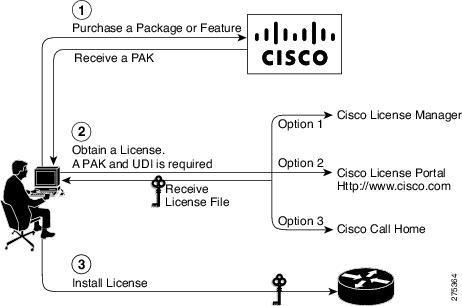
Figure 1 shows the steps for software activation.
Figure 1 Steps for Software Activation
End User License Agreement
By accessing or using the Cisco products received with your Cisco ISR or ISR G2, you agree that your use of such products is governed by the terms and conditions of the Cisco Software License and any applicable supplemental license agreement. A copy of the terms of the End User License Agreement (EULA) is available at http://www.cisco.com/en/US/docs/general/warranty/English/EU1KEN_.html.
A EULA is presented for acceptance when you activate an evaluation license.
Software Packages and Features
The Cisco IOS universal image contains all packages and features in one image. The universal image on the Cisco 1900, 2900, and 3900 series ISRs are a superset of Cisco IOS simplified technology packages.
Each package is a grouping of technology-specific features. Multiple technology package licenses can be installed and activated on the Cisco 1900, 2900, and 3900 series ISR platforms.
Individual features can be enabled or disabled by license keys. Feature licenses may be subscription-based, uncounted, or count-based licenses.
Tip
Use the show license feature command to view the technology package licenses and feature licenses supported on your router.
The Cisco 1900, 2900, and 3900 series ISRs support the following universal images:
•
universalk9—offers all IOS features supported by next generation ISRs.
•
universalk9_npe—does not support VPN payload and secure voice functionality and satisfies import considerations for CIS countries.
Table 1 lists the image names for the Cisco 1900 series, 2900 series, and 3900 series routers.
The following sections provide information on the technology package and feature licenses available on your router.
•
Evaluation and Right to Use Licenses
•
Resource Allocation with securityk9 Technology Package License
Technology Package Licenses
The features available in a technology package license may differ from platform to platform. For a list of features available in a technology package license, use the Cisco Feature Navigator at: http://www.cisco.com/go/cfn
Table 2 lists the technology package licenses supported on Cisco ISR platforms.
Table 2 Technology Package Licenses Supported on Fixed Cisco ISR Platforms
Technology Package License 860 Series 880 Series 890 SeriesAdvanced Security
Yes
Yes
—
Advanced IP Services
Yes
Yes
Yes
Table 3 lists the technology package licenses supported on Cisco ISR G2 platforms.
Table 3 Technology Package Licenses Supported on Modular Cisco ISR G2 Platforms
Technology Package License 1900 Series 2900 Series 3900 Seriesipbasek9
Yes
Yes
Yes
securityk9_npe1
Yes
Yes
Yes
securityk92
Yes
Yes
Yes
datak9
Yes
Yes
Yes
uck9 (Unified Communications)
—
Yes
Yes
1 Supported only on the universalk9_npe-mz image.
2 Supported only on the universalk9-mz image.
Feature Licenses
Note
Enabling a feature license may require that a particular technology package license be installed and enabled on the router.
The following section lists the feature licenses available on the fixed and modular Cisco ISR platforms:
•
Table 4—Feature Licenses Supported on Fixed Cisco ISR Platforms
•
Table 5—Feature Licenses Supported on Modular Cisco 1900, 2900, and 3900 Platforms
Table 4 lists the feature licenses available on the fixed Cisco ISR platforms.
Table 4 Feature Licenses Supported on Fixed Cisco ISR Platforms
Feature License 860 Series 880 Series 890 SeriesIPS (Subscription)
—
Yes
Yes
SSL_VPN1 (Counted)
—
Yes
Yes
1 The SSL_VPN features are supported only on the universalk9-mz image.
Table 5 lists the feature licenses available on Cisco ISR G2 platforms and the required technology package license.
Table 5 Feature Licenses Supported on Modular Cisco 1900, 2900, and 3900 Platforms
Feature License Required Technology Package License 1900 Series 2900 Series 3900 SeriesMemory License
—
Yes1
—
—
Gatekeeper
uck9 (Unified Communications)
—
Yes
Yes
SNA Switching (SNASw)
datak9
—
Yes
Yes
IPS (Subscription)
securityk9 or securityk9_npe
Yes
Yes
Yes
SSL_VPN2 (Counted)
securityk9
Yes
Yes
Yes
hseck93
securityk9
—
Yes4
Yes
CME-SRST
uck9 (Unified Communications)
—
Yes
Yes
1 Cisco model 1905 only.
2 The SSL_VPN features are supported only on the universalk9-mz image.
3 The hseck9 features are supported only on the universalk9-mz image.
4 Only 2921 and 2951 routers support the hseck9 feature license.
Evaluation and Right to Use Licenses
Table 6 lists the Evaluation and Right to Use licenses available on the Fixed Cisco ISRs and Cisco ISR G2 platforms.
Table 6 Evaluation and Right to Use Licenses
Technology Package or Feature Evalualtion License Right to Use License Technology PackageAdvanced Security
—
—
Advanced IP Services
Yes
Yes
ipbasek9
—
—
securityk9_npe1
Yes
Yes
securityk92
Yes
Yes
datak9
Yes
Yes
uck9 (Unified Communications)
Yes
Yes
Feature LicensesMemory License
Yes
Yes
Gatekeeper
Yes
Yes
SNA Switching (SNASw)
Yes
Yes
IPS (Subscription)
Yes
Yes
SSL_VPN3 (Counted)
Yes
Yes
hseck94
—
—
CME-SRST
Yes
Yes
1 Supported only on the universalk9_npe-mz image.
2 Supported only on the universalk9-mz image.
3 The SSL_VPN features are supported only on the universalk9-mz image.
4 The hseck9 features are supported only on the universalk9-mz image.
Resource Allocation with securityk9 Technology Package License
Table 7 shows how resources such as bandwidth, number of tunnels, and TLS sessions for voice, IPSec, and SSLVPN are allocated with a securityk9 technology package license.
Table 7 Resource Allocation with securityk9 Technology Package License
Client Tx Bandwidth1 Rx Bandwidth 2 Tunnels3 TLS SessionsVoice
Necessary bandwidth is reserved or released as needed.
Resources are reserved or released as needed.
Maximum:1000
IPSec
Dynamically uses available bandwidth.
Resources are reserved or released as needed.
NA
SSLVPN
Dynamically uses available bandwidth.
Resources are reserved or released as needed.
NA
1 The maximum bandwidth in the ingress is 85,000 Kbps.
2 The maximum bandwidth in the egress is 85,000 Kbps.
3 The maximum cumulative tunnels are 225.
To view the resource allocated on your router, use the show platform cerm-information command. The following output shows an example of the resource allocation for a securityk9 license:
Router#show platform cerm-informationCrypto Export Restrictions Manager(CERM) Information:CERM functionality: ENABLED----------------------------------------------------------------Resource Maximum Limit Available----------------------------------------------------------------Tx Bandwidth(in kbps) 85000 85000Rx Bandwidth(in kbps) 85000 85000Number of tunnels 225 225Number of TLS sessions 1000 1000Resource reservation information:D - Dynamic-----------------------------------------------------------------------Client Tx Bandwidth Rx Bandwidth Tunnels TLS Sessions(in kbps) (in kbps)-----------------------------------------------------------------------VOICE 0 0 0 0IPSEC D D 0 N/ASSLVPN D D 0 N/AStatistics information:Failed tunnels : 0Failed sessions : 0Failed tx bandwidth: 0Failed rx bandwidth: 0Failed encrypt pkts: 0Failed decrypt pkts: 0Failed encrypt pkt bytes: 0Failed decrypt pkt bytes: 0Passed encrypt pkts: 0Passed decrypt pkts: 0Passed encrypt pkt bytes: 0Passed decrypt pkt bytes: 0
Note
An hseck9 feature license provides enhanced payload encryption functionality with increased VPN tunnel counts and secure voice sessions.
Platform Limitations
Table 8 shows the maximum number of licenses allowed for SSL VPN, CME, and SRST feature licenses.
Options for Getting and Managing Software Licenses
There are multiple options for getting and managing the software licenses on your router. Use one of the following options to get and manage software licenses on your router:
•
Cisco License Manager—software application that lets you get, register, install, and manage software licenses on multiple devices on your network. See the "Cisco License Manager" section for details.
•
Cisco License Call Home—lets you interact with the Cisco Product License Registration portal directly from your router to get, install, and manage your license. See the "Cisco License Call Home" section for details.
•
Cisco Product License Registration Portal—lets you manually get and register individual software licenses through a registration portal. See the "Cisco Product License Registration Portal" section for details.
•
Cisco IOS CLI—lets you install and manage licenses using the Cisco IOS command-line interface (CLI). See the "Cisco IOS CLI" section for details.
•
RTU Migration—lets you migrate to an Existing or Lifetime RTU release and recommends steps you must perform before upgrading. See the "RTU Migration" section for details.
•
Simple Network Management Protocol—lets you install, view, and clear software licenses using Simple Network Management Protocol (SNMP). See the "Simple Network Management Protocol" section for details.
Cisco License Manager
For a network-wide deployment, the Cisco License Manager can automate all license-related work flows by securely communicating with the licensing back-end fulfillment systems at Cisco.com and deploying the obtained licenses to managed devices on a network-wide basis. The application also keeps an inventory of deployed licenses and generates license reports.
Cisco License Manager is available at no cost and can be downloaded by registered Cisco.com users from http://www.cisco.com/go/clm.
For additional information on Cisco License Manager, see the Cisco Software Activation Conceptual Overview chapter in Cisco IOS Software Activation Configuration Guide and the documents at http://www.cisco.com/en/US/products/ps7138/tsd_products_support_series_home.html.
Cisco License Call Home
You can interact directly with the Cisco Product License Registration portal from your device by using the Cisco License Call Home interface. This interface is included with the Cisco Software Activation feature and described in the Cisco Software Activation Conceptual Overview and the Configuring Cisco License Call Home chapters in Cisco IOS Software Activation Configuration Guide.
The License Call Home feature works as a client or server model. Each transaction requires a separate connection to the Cisco licensing infrastructure. The License Call Home feature displays prompts for obtaining required information, converting that information into a defined data structure, and then connecting to the Cisco licensing back-end to interact with the Cisco licensing infrastructure. A request is initiated by a License Call Home EXEC command, and the response is provided by the Cisco licensing infrastructure.
This section contains the following topics:
•
Installing a License Using License Call Home
Before You Begin
Your router must have an Internet connection and use HTTPS to connect to the Cisco licensing infrastructure.
Platform Support
Only certain platforms support the Cisco License Call Home function and must run a Cisco IOS crypto K9 image.
For information about platform support, see the Configuring Cisco License Call Home chapter in Cisco IOS Software Activation Configuration Guide.
Installing a License Using License Call Home
Note
Purchase the software feature or package you want to install. You receive a product activation key (PAK) with your purchase.
To install a license using the License Call Home feature, follow these steps:
Step 1
Use the show license call-home pak EXEC command to display the SKU list and features available for the PAK provided.
Step 2
Use the license call-home install pak command to install a license by using the Cisco License Call Home function.
a.
Complete the license installation by entering yes when prompted to install the license and then entering the information requested.
Cisco Product License Registration Portal
Use the Cisco Product License Registration Portal at http://www.cisco.com/go/license to manually perform the following licensing tasks:
•
Get a license
•
Register for an RMA license
•
Look-up a license
This section contains the following topic:
•
Getting a Permanent License Using Cisco License Portal
To get a permanent license, perform the steps detailed in this section.
Step 1
Enter the appropriate information at http://www.cisco.com/go/license.
Step 2
Download the license file or receive the license file by e-mail.
Step 3
To obtain additional licenses, repeat Step 1 and Step 2.
Cisco IOS CLI
Use the Cisco IOS CLI to install and manage the software licenses on your router. This section contains the following procedures:
•
Installing a Permanent License Using Cisco IOS CLI
•
Activating CME-SRST Feature License
•
Activating an Evaluation License
•
Activating a Memory Evaluation License
•
Activating an SNA Switching Feature License
•
Activating the IPS Feature License
•
Activating the SSL_VPN Feature License
•
Activating the Gatekeeper Feature License
•
Configuring the hseck9 Feature License
•
Clearing an Active Permanent Technology Package License
•
Verifying Licenses and Other Licensing Tasks
Installing a Permanent License Using Cisco IOS CLI
To install a permanent license, perform the steps detailed in this section.
Note
You can install multiple licenses on the Cisco 3900 series, 2900 series, and 1900 series ISRs.
SUMMARY STEPS
1.
enable
2.
license install stored-location-url
3.
reload
DETAILED STEPS
Command or Action PurposeStep 1
enable
Example:Router> enable
Enables privileged EXEC mode.
•
Enter your password if prompted.
Step 2
license install stored-location-url
Example:Router)# license install flash0:uck9-C3900-SPE150_K9-FHH12250057.xml
Installs a license file.
Step 3
reload
Example:Router# reload
(Optional) Reloads the router.
A reload is not required if an evaluation license is active.
A reload is required to activate a technology package license if an evaluation license is not active.
To activate the SNAsw feature license, perform the steps detailed in the "Activating an SNA Switching Feature License" section.
See the "Activating the IPS Feature License" section for additional information on configuring the IPS feature license.
See the "Activating the SSL_VPN Feature License" section for additional information on configuring the SSL_VPN feature license.
See the "Configuring the hseck9 Feature License" section for additional information on configuring the hseck9 feature license.
See the "Activating a Memory Evaluation License" section for additional information on configuring a memory license.
Screencast
The following screencast shows how to install a license:
http://www.cisco.com/en/US/docs/routers/access/sw_activation/license_install_demo/license_install_
demo.swf.Example
The following example shows how to install a license:
Router> enableRouter# license install flash0:uck9-C3900-SPE150_K9-FHH12250057.xmlInstalling licenses from "uck9-C3900-SPE150_K9-FHH12250057.xml"Installing...Feature:uck9...Successful:Supported1/1 licenses were successfully installed0/1 licenses were existing licenses0/1 licenses were failed to installupt-3945-1#*Jul 7 17:24:57.391: %LICENSE-6-INSTALL: Feature uck9 1.0 was installed in this device. UDI=C3900-SPE150/K9:FHH12250057; StoreIndex=15:Primary License Storage*Jul 7 17:24:57.615: %IOS_LICENSE_IMAGE_APPLICATION-6-LICENSE_LEVEL: Module name = c3900 Next reboot level = uck9 and License = uck9Router# reloadRouter# show versionCisco IOS Software, C3900 Software (C3900-UNIVERSALK9-M), Version 12.4(24.6)PI11k PI11 ENGINEERING WEEKLY BUILD, synced to V124_24_6_T9Copyright (c) 1986-2009 by Cisco Systems, Inc.Compiled Mon 15-Jun-09 15:27 by pallavikROM: System Bootstrap, Version 15.0(1r)M, RELEASE SOFTWARE (fc1)upt-3945-1 uptime is 1 day, 3 hours, 53 minutesSystem returned to ROM by power-onSystem image file is "flash0:c3900-universalk9-mz.SSA.124-24.6.PI11k"This product contains cryptographic features and is subject to UnitedStates and local country laws governing import, export, transfer anduse. Delivery of Cisco cryptographic products does not implythird-party authority to import, export, distribute or use encryption.Importers, exporters, distributors and users are responsible forcompliance with U.S. and local country laws. By using this product youagree to comply with applicable laws and regulations. If you are unableto comply with U.S. and local laws, return this product immediately.A summary of U.S. laws governing Cisco cryptographic products may be found at:http://www.cisco.com/wwl/export/crypto/tool/stqrg.htmlIf you require further assistance please contact us by sending email toexport@cisco.com.Cisco C3945 (revision 1.0) with 2025472K/71680K bytes of memory.Processor board ID FHH1226P01E3 Gigabit Ethernet interfaces4 Serial(sync/async) interfaces2 ISDN Basic Rate interfaces1 ATM interface25 terminal lines1 Virtual Private Network (VPN) ModuleDRAM configuration is 72 bits wide with parity enabled.255K bytes of non-volatile configuration memory.2000880K bytes of ATA System CompactFlash 0 (Read/Write)License Info:License UDI:-------------------------------------------------Device# PID SN-------------------------------------------------*0 C3900-SPE150/K9 FHH12250057Technology Package License Information for Module:'c3900'----------------------------------------------------------------Technology Technology-package Technology-packageCurrent Type Next reboot-----------------------------------------------------------------ipbase ipbasek9 Permanent ipbasek9security None None Noneuc uck9 Permanent uck9data None None NoneConfiguration register is 0x0Activating CME-SRST Feature License
The ISR G2 comes with a 60-day evaluation license. After 60 days, the license changes to "right to use". The customer is required to pay for the CME-SRST feature license which is valid for 12 years.
Note
CME-SRST RTU license is introduced in Cisco IOS release 15.1(3)T and higher.
Prerequisites
•
UCK9 license
•
ISR G2 already accepts UC CLIs
•
CME-SRST feature must be configured
SUMMARY STEPS
1.
show license detail cme-srst
2.
configure terminal
3.
license accept end user agreement
4.
exit
5.
show license detail cme-srst
6.
write mem
DETAILED STEPS
Example
c3945-mcqueen(config)#license accept end user agreementPLEASE READ THE FOLLOWING TERMS CAREFULLY. INSTALLING THE LICENSE ORLICENSE KEY PROVIDED FOR ANY CISCO PRODUCT FEATURE OR USING SUCHPRODUCT FEATURE CONSTITUTES YOUR FULL ACCEPTANCE OF THE FOLLOWINGTERMS. YOU MUST NOT PROCEED FURTHER IF YOU ARE NOT WILLING TO BE BOUNDBY ALL THE TERMS SET FORTH HEREIN.Use of this product feature requires an additional license from Cisco,together with an additional payment. You may use this product featureon an evaluation basis, without payment to Cisco, for 60 days. Your useof the product, including during the 60 day evaluation period, issubject to the Cisco end user license agreementhttp://www.cisco.com/en/US/docs/general/warranty/English/EU1KEN_.htmlIf you use the product feature beyond the 60 day evaluation period, youmust submit the appropriate payment to Cisco for the license. After the60 day evaluation period, your use of the product feature will begoverned solely by the Cisco end user license agreement (link above),together with any supplements relating to such product feature. Theabove applies even if the evaluation license is not automaticallyterminated and you do not receive any notice of the expiration of theevaluation period. It is your responsibility to determine when theevaluation period is complete and you are required to make payment toCisco for your use of the product feature beyond the evaluation period.Your acceptance of this agreement for the software features on oneproduct shall be deemed your acceptance with respect to all suchsoftware on all Cisco products you purchase which includes the samesoftware. (The foregoing notwithstanding, you must purchase a licensefor each software feature you use past the 60 days evaluation period,so that if you enable a software feature on 1000 devices, you mustpurchase 1000 licenses for use past the 60 day evaluation period.)Activation of the software command line interface will be evidence ofyour acceptance of this agreement.ACCEPT? [yes/no]: yesc3945-mcqueen(config)#000436: *Jan 28 17:42:44.625: %LICENSE-6-EULA_ACCEPT_ALL: The Right to Use End User License Agreement is acceptedc3945-mcqueen#show license detail cme-srstFeature: cme-srst Period left: 621 weeks 5 daysIndex: 1 Feature: cme-srst Version: 1.0License Type: EvaluationLicense State: Active, In UseEvaluation total period: 208 weeks 2 daysEvaluation period left: 205 weeks 1 dayExpiry date: Jan 04 2015 16:11:17License Count: 5000/20/0 (Active/In-use/Violation)License Priority: LowStore Index: 23Store Name: Evaluation License StorageIndex: 2 Feature: cme-srst Version: 1.0License Type: EvaluationLicense State: InactiveEvaluation total period: 208 weeks 2 daysEvaluation period left: 208 weeks 2 daysLicense Count: 5000/0/0 (Active/In-use/Violation)License Priority: LowStore Index: 22Store Name: Evaluation License StorageIndex: 3 Feature: cme-srst Version: 1.0License Type: EvaluationLicense State: InactiveEvaluation total period: 208 weeks 2 daysEvaluation period left: 208 weeks 2 daysLicense Count: 5000/0/0 (Active/In-use/Violation)License Priority: LowStore Index: 21Store Name: Evaluation License Storagec3945-mcqueen#Activating an Evaluation License
Note
Starting with Cisco IOS Releases 15.0(1)M6, 15.1(1)T4, 15.1(2)T4, 15.1(3)T2, and 15.1(4)M, Evaluation licenses are replaced with Evaluation Right To Use licenses. Evaluation Right to Use licenses automatically become Right to Use licenses after the initial evaluation period. Follow the steps detailed in this section to activate an Evaluation Right to Use license.
To activate an evaluation license in the Cisco 3900 series, 2900 series, and 1900 series routers, perform the steps detailed in this section. Evaluation licenses are activated using the license boot module module-name technology-package package-name command.
SUMMARY STEPS
1.
enable
2.
configure terminal
3.
license boot module module-name technology-package package-name
4.
exit
5.
reload
DETAILED STEPS
Screencast
The following screencast shows how to activate an evaluation license:
Example
The following example shows how to activate an evaluation license:
Router> enableRouter# configure terminalRouter(config)# license boot module c3900 technology-package dataPLEASE READ THE FOLLOWING TERMS CAREFULLY. INSTALLING THE LICENSE ORLICENSE KEY PROVIDED FOR ANY CISCO PRODUCT FEATURE OR USING SUCHPRODUCT FEATURE CONSTITUTES YOUR FULL ACCEPTANCE OF THE FOLLOWINGTERMS. YOU MUST NOT PROCEED FURTHER IF YOU ARE NOT WILLING TO BE BOUNDBY ALL THE TERMS SET FORTH HEREIN.You hereby acknowledge and agree that the product feature licenseis terminable and that the product feature enabled by such licensemay be shut down or terminated by Cisco after expiration of theapplicable term of the license (e.g., 30-day trial period). Ciscoreserves the right to terminate or shut down any such product featureelectronically or by any other means available. While alerts or suchmessages may be provided, it is your sole responsibility to monitoryour terminable usage of any product feature enabled by the licenseand to ensure that your systems and networks are prepared for the shutdown of the product feature. You acknowledge and agree that Cisco willnot have any liability whatsoever for any damages, including, but notlimited to, direct, indirect, special, or consequential damages relatedto any product feature being shutdown or terminated. By clicking the"accept" button or typing "yes" you are indicating you have read andagree to be bound by all the terms provided herein.ACCEPT? [yes/no]: yes% use 'write' command to make license boot config take effect on next bootRouter(config)#*Jul 7 00:38:56.391: %IOS_LICENSE_IMAGE_APPLICATION-6-LICENSE_LEVEL: Module name = c3900 Next reboot level = securityk9 and License = securityk9*Jul 7 00:38:56.987: %LICENSE-6-EULA_ACCEPTED: EULA for feature securityk9 1.0 has been accepted. UDI=C3900-SPE150/K9:FHH12250057; StoreIndex=1:Evaluation License StorageRouter(config)# exitRouter# reloadRouter# show versionCisco IOS Software, C3900 Software (C3900-UNIVERSALK9-M), Version 12.4(24.6)PI11k PI11 ENGINEERING WEEKLY BUILD, synced to V124_24_6_T9Copyright (c) 1986-2009 by Cisco Systems, Inc.Compiled Mon 15-Jun-09 15:27 by pallavikROM: System Bootstrap, Version 15.0(1r)M, RELEASE SOFTWARE (fc1)Router uptime is 1 day, 3 hours, 53 minutesSystem returned to ROM by power-onSystem image file is "flash0:c3900-universalk9-mz.SSA.124-24.6.PI11k"This product contains cryptographic features and is subject to UnitedStates and local country laws governing import, export, transfer anduse. Delivery of Cisco cryptographic products does not implythird-party authority to import, export, distribute or use encryption.Importers, exporters, distributors and users are responsible forcompliance with U.S. and local country laws. By using this product youagree to comply with applicable laws and regulations. If you are unableto comply with U.S. and local laws, return this product immediately.A summary of U.S. laws governing Cisco cryptographic products may be found at:http://www.cisco.com/wwl/export/crypto/tool/stqrg.htmlIf you require further assistance please contact us by sending email toexport@cisco.com.Cisco C3945 (revision 1.0) with 2025472K/71680K bytes of memory.Processor board ID FHH1226P01E3 Gigabit Ethernet interfaces4 Serial(sync/async) interfaces2 ISDN Basic Rate interfaces1 ATM interface25 terminal lines1 Virtual Private Network (VPN) ModuleDRAM configuration is 72 bits wide with parity enabled.255K bytes of non-volatile configuration memory.2000880K bytes of ATA System CompactFlash 0 (Read/Write)License Info:License UDI:-------------------------------------------------Device# PID SN-------------------------------------------------*0 C3900-SPE150/K9 FHH12250057Technology Package License Information for Module:'c3900'----------------------------------------------------------------Technology Technology-package Technology-packageCurrent Type Next reboot-----------------------------------------------------------------ipbase ipbasek9 Permanent ipbasek9security securityk9 Evaluation securityk9uc ucK9 Permanent uck9data None None NoneConfiguration register is 0x0Activating a Memory Evaluation License
To activate a memory evaluation license in the Cisco 1905 router, perform the steps detailed in this section. Evaluation licenses are activated using the license feature MEM-1900-256U512MB command.
SUMMARY STEPS
1.
enable
2.
configure terminal
3.
license feature MEM-1900-256U512MB
4.
exit
5.
reload
DETAILED STEPS
Screencast
The following screencast shows how to activate an evaluation license:
Example
The following example shows how to activate an evaluation license:
Router(config)# license feature MEM-1900-256U512MBFeature Name:MEM-1900-256U512MBPLEASE READ THE FOLLOWING TERMS CAREFULLY. INSTALLING THE LICENSE ORLICENSE KEY PROVIDED FOR ANY CISCO PRODUCT FEATURE OR USING SUCHPRODUCT FEATURE CONSTITUTES YOUR FULL ACCEPTANCE OF THE FOLLOWINGTERMS. YOU MUST NOT PROCEED FURTHER IF YOU ARE NOT WILLING TO BE BOUNDBY ALL THE TERMS SET FORTH HEREIN.You hereby acknowledge and agree that the product feature licenseis terminable and that the product feature enabled by such licensemay be shut down or terminated by Cisco after expiration of theapplicable term of the license (e.g., 30-day trial period). Ciscoreserves the right to terminate or shut down any such product featureelectronically or by any other means available. While alerts or suchmessages may be provided, it is your sole responsibility to monitoryour terminable usage of any product feature enabled by the licenseand to ensure that your systems and networks are prepared for the shutdown of the product feature. You acknowledge and agree that Cisco willnot have any liability whatsoever for any damages, including, but notlimited to, direct, indirect, special, or consequential damages relatedto any product feature being shutdown or terminated. By clicking the"accept" button or typing "yes" you are indicating you have read andagree to be bound by all the terms provided herein.ACCEPT? [yes/no]: yesRouter(config)#*Nov 17 23:48:18.891: %XFR_EXT_MEMORY_LICENSING-6-LICENSE_NOT_ACTIVATED: License MEM-1900-256U512MB will take effect af reboot.*Nov 17 23:48:19.779: %LICENSE-6-EULA_ACCEPTED: EULA for feature MEM-1900-256U512MB 1.0 has been accepted. UDI=CISCO1920B; StoreIndex=3:Evaluation License StorageRouter# license install tftp://223.255.254.254/FCW1345000B_20091118190946245.licInstalling licenses from "tftp://223.255.254.254/FCW1345000B_20091118190946245.lic"Loading colbywen/FCW1345000B_20091118190946245.lic from 223.255.254.254 (via GigabitEthernet0/0): ![OK - 1171 bytes]Installing...Feature:MEM-1900-256U512MB...Successful:Supported1/1 licenses were successfully installed0/1 licenses were existing licenses0/1 licenses were failed to installRouter#*Nov 19 00:14:48.603: %XFR_EXT_MEMORY_LICENSING-6-LICENSE_NOT_ACTIVATED: License MEM-1900-256U512MB will take effect after the system reboot.*Nov 19 00:14:48.607: %LICENSE-6-INSTALL: Feature MEM-1900-256U512MB 1.0 was installed in this device. UDI=CISCO1921/K9:FCW1345000B; StoreIndex=0:Primary License StorageActivating an SNA Switching Feature License
Note
An SNASw feature license must be activated to configure SNASw.
To activate an evaluation or permanent license for the SNA Switching (SNASw) feature, perform the steps detailed in this section. The SNASw feature license is activated using the license feature snasw command.
SUMMARY STEPS
1.
enable
2.
configure terminal
3.
license feature snasw
4.
exit
5.
show license feature
DETAILED STEPS
Example
The following example shows how to activate an SNASw feature license:
Router> enableRouter# configure terminalRouter(config)# license feature snaswRouter(config)# exitRouter# show license featureFeature name Enforcement Evaluation Subscription Enabled RightToUseipbasek9 no no no yes nosecurityk9 yes yes no yes yesuck9 yes yes no yes yesdatak9 yes yes no no yesgatekeeper yes yes no no yesLI yes no no no noSSL_VPN yes yes no no yesios-ips-update yes yes yes no yesSNASw yes yes no yes yesActivating the IPS Feature License
See the Cisco Services for IPS on IOS document on Cisco.com for information on configuring an IPS feature license.
Activating the SSL_VPN Feature License
See the SSL VPN document on Cisco.com for information on configuring the SSLVPN feature license.
Activating the Gatekeeper Feature License
See the Configuring Cisco Unified Border Element with Gatekeeper document on Cisco.com for information on configuring the Gatekeeper feature license.
Configuring the hseck9 Feature License
Activating the hseck9 Feature License
No action is required to activate the hseck9 feature license. The hseck9 feature license is active after installation.
Clearing an Active hseck9 Feature License
To clear an active hseck9 feature license, perform the steps detailed in this section.
SUMMARY STEPS
1.
enable
2.
configure terminal
3.
no license feature hseck9
4.
exit
5.
reload
6.
license clear feature-name
7.
show license detail
DETAILED STEPS
Example
The following example shows how to clear an active license:
Router> enableRouter# configure terminalEnter configuration commands, one per line. End with CNTL/Z.Router(config)# no license feature hseck9% use 'write' command to disable 'hseck9' license on next bootRouter(config)# exitRouter# reloadRouter# license clear hseck9Clearing an Active Permanent Technology Package License
To clear an active permanent license from the Cisco 3900 series, 2900 series, and 1900 series routers, perform the following tasks:
1.
Disable the Technology Package
To disable a license, perform the steps detailed in this section.
SUMMARY STEPS
1.
enable
2.
configure terminal
3.
license boot module module-name technology-package package-name disable
4.
exit
5.
reload
6.
show version
DETAILED STEPS
Clear the License
To clear the license, perform the steps detailed in this section.
SUMMARY STEPS
1.
license clear feature-name
2.
configure terminal
3.
no license boot module technology module-name technology-package package-name disable
4.
exit
5.
reload
6.
show version
DETAILED STEPS
Example
The following example shows how to clear an active license:
Router> enableRouter# configure terminalEnter configuration commands, one per line. End with CNTL/Z.Router(config)# license boot module c3900 technology-package ?datak9 data technologysecurityk9 security technologyuck9 unified communications technologyRouter(config)# license boot module c3900 technology-package uck9 disable% use 'write' command to make license boot config take effect on next bootRouter(config)# exitRouter# reloadRouter# show versionCisco IOS Software, C3900 Software (C3900-UNIVERSALK9-M), Version 12.4(24.6)PI11k PI11 ENGINEERING WEEKLY BUILD, synced to V124_24_6_T9Copyright (c) 1986-2009 by Cisco Systems, Inc.Compiled Mon 15-Jun-09 15:27 by pallavikROM: System Bootstrap, Version 15.0(1r)M, RELEASE SOFTWARE (fc1)upt-3945-1 uptime is 1 day, 3 hours, 53 minutesSystem returned to ROM by power-onSystem image file is "flash0:c3900-universalk9-mz.SSA.124-24.6.PI11k"This product contains cryptographic features and is subject to UnitedStates and local country laws governing import, export, transfer anduse. Delivery of Cisco cryptographic products does not implythird-party authority to import, export, distribute or use encryption.Importers, exporters, distributors and users are responsible forcompliance with U.S. and local country laws. By using this product youagree to comply with applicable laws and regulations. If you are unableto comply with U.S. and local laws, return this product immediately.A summary of U.S. laws governing Cisco cryptographic products may be found at:http://www.cisco.com/wwl/export/crypto/tool/stqrg.htmlIf you require further assistance please contact us by sending email toexport@cisco.com.Cisco C3945 (revision 1.0) with 2025472K/71680K bytes of memory.Processor board ID FHH1226P01E3 Gigabit Ethernet interfaces4 Serial(sync/async) interfaces2 ISDN Basic Rate interfaces1 ATM interface25 terminal lines1 Virtual Private Network (VPN) ModuleDRAM configuration is 72 bits wide with parity enabled.255K bytes of non-volatile configuration memory.2000880K bytes of ATA System CompactFlash 0 (Read/Write)License Info:License UDI:-------------------------------------------------Device# PID SN-------------------------------------------------*0 C3900-SPE150/K9 FHH12250057Technology Package License Information for Module:'c3900'----------------------------------------------------------------Technology Technology-package Technology-packageCurrent Type Next reboot-----------------------------------------------------------------ipbase ipbasek9 Permanent ipbasek9security securityk9 RightToUse securityk9uc disable Permanent disabledata None None NoneConfiguration register is 0x0Router#Router# license clear uck9*Jul 7 00:34:23.691: %SYS-5-CONFIG_I: Configured from console by consoleclear uck9Feature: uck91 License Type: PermanentLicense State: Active, Not in UseLicense Addition: ExclusiveLicense Count: Non-CountedComment:Store Index: 15Store Name: Primary License StorageAre you sure you want to clear? (yes/[no]): yesupt-3945-1#*Jul 7 00:34:31.223: %LICENSE-6-REMOVE: Feature uck9 1.0 was removed from this device. UDI=C3900-SPE150/K9:FHH12250057; StoreIndex=15:Primary License StorageRouter#Router# configure terminalRouter(config)# no license boot module c3900 technology uck9 disableRouter(config)# exitRouter# reloadRouter# show versionCisco IOS Software, C3900 Software (C3900-UNIVERSALK9-M), Version 12.4(24.6)PI11k PI11 ENGINEERING WEEKLY BUILD, synced to V124_24_6_T9Copyright (c) 1986-2009 by Cisco Systems, Inc.Compiled Mon 15-Jun-09 15:27 by pallavikROM: System Bootstrap, Version 15.0(1r)M, RELEASE SOFTWARE (fc1)upt-3945-1 uptime is 1 minuteSystem returned to ROM by reload at 00:41:07 UTC Tue Jul 7 2009System image file is "flash:c3900-universalk9-mz.SSA.124-24.6.PI11k"Last reload reason: Reload CommandThis product contains cryptographic features and is subject to UnitedStates and local country laws governing import, export, transfer anduse. Delivery of Cisco cryptographic products does not implythird-party authority to import, export, distribute or use encryption.Importers, exporters, distributors and users are responsible forcompliance with U.S. and local country laws. By using this product youagree to comply with applicable laws and regulations. If you are unableto comply with U.S. and local laws, return this product immediately.A summary of U.S. laws governing Cisco cryptographic products may be found at:http://www.cisco.com/wwl/export/crypto/tool/stqrg.htmlIf you require further assistance please contact us by sending email toexport@cisco.com.Cisco C3945 (revision 1.0) with 2025472K/71680K bytes of memory.Processor board ID FHH1226P01E3 Gigabit Ethernet interfaces4 Serial(sync/async) interfaces2 ISDN Basic Rate interfaces25 terminal lines1 Virtual Private Network (VPN) ModuleDRAM configuration is 72 bits wide with parity enabled.255K bytes of non-volatile configuration memory.2000880K bytes of ATA System CompactFlash 0 (Read/Write)License Info:License UDI:-------------------------------------------------Device# PID SN-------------------------------------------------*0 C3900-SPE150/K9 FHH12250057Technology Package License Information for Module:'c3900'----------------------------------------------------------------Technology Technology-package Technology-packageCurrent Type Next reboot-----------------------------------------------------------------ipbase ipbasek9 Permanent ipbasek9security securityk9 RightToUse securityk9uc disable None Nonedata None None NoneConfiguration register is 0x0Router#Configuring the EULA
Use the license accept end user agreement command in global configuration mode to configure a one-time acceptance of the EULA for all Cisco IOS software packages and features. After the command is issued and the EULA accepted, the EULA is automatically applied to all Cisco IOS software licenses; the EULA is not displayed and the user is not prompted to accept the EULA.
The following example shows how to configure a one-time acceptance of the EULA:
Router(config)#license accept end user agreementPLEASE READ THE FOLLOWING TERMS CAREFULLY. INSTALLING THE LICENSE ORLICENSE KEY PROVIDED FOR ANY CISCO PRODUCT FEATURE OR USING SUCHPRODUCT FEATURE CONSTITUTES YOUR FULL ACCEPTANCE OF THE FOLLOWINGTERMS. YOU MUST NOT PROCEED FURTHER IF YOU ARE NOT WILLING TO BE BOUNDBY ALL THE TERMS SET FORTH HEREIN.Use of this product feature requires an additional license from Cisco,together with an additional payment. You may use this product featureon an evaluation basis, without payment to Cisco, for 60 days. Your useof the product, including during the 60 day evaluation period, issubject to the Cisco end user license agreementhttp://www.cisco.com/en/US/docs/general/warranty/English/EU1KEN_.htmlIf you use the product feature beyond the 60 day evaluation period, youmust submit the appropriate payment to Cisco for the license. After the60 day evaluation period, your use of the product feature will begoverned solely by the Cisco end user license agreement (link above),together with any supplements relating to such product feature. Theabove applies even if the evaluation license is not automaticallyterminated and you do not receive any notice of the expiration of theevaluation period. It is your responsibility to determine when theevaluation period is complete and you are required to make payment toCisco for your use of the product feature beyond the evaluation period.Your acceptance of this agreement for the software features on oneproduct shall be deemed your acceptance with respect to all suchsoftware on all Cisco products you purchase which includes the samesoftware. (The foregoing notwithstanding, you must purchase a licensefor each software feature you use past the 60 days evaluation period,so that if you enable a software feature on 1000 devices, you mustpurchase 1000 licenses for use past the 60 day evaluation period.)Activation of the software command line interface will be evidence ofyour acceptance of this agreement.ACCEPT? [yes/no]: yesRouter(config)#*Oct 25 22:05:27.626: %LICENSE-6-EULA_ACCEPT_ALL: The Right to Use End User License Agreement is acceptedRouter(config)#Router(config)# endRouter#Verifying Licenses and Other Licensing Tasks
See the Cisco IOS Software Activation Tasks and Commands chapter of Cisco IOS Software Activation Configuration Guide for information about the following topics and more:
•
Software activation tasks, like displaying and verifying licenses
•
Software activation processes, like rehosting and RMA
Use the show license, show license all, and show license detail commands in privileged EXEC mode to see information about all Cisco IOS software licenses. The following example shows the output for the show license command:
Router# show licenseIndex 1 Feature: ipbasek9Index 2 Feature: securityk9Period left: 8 weeks 4 daysPeriod Used: 0 minute 0 secondLicense Type: EvalRightToUseLicense State: Active, In UseLicense Count: Non-CountedLicense Priority: LowIndex 3 Feature: uck9Period left: Not ActivatedPeriod Used: 0 minute 0 secondLicense Type: EvalRightToUseLicense State: Not in Use, EULA not acceptedLicense Count: Non-CountedLicense Priority: NoneIndex 4 Feature: datak9Period left: Not ActivatedPeriod Used: 0 minute 0 secondLicense Type: EvalRightToUseLicense State: Not in Use, EULA not acceptedLicense Count: Non-CountedLicense Priority: NoneIndex 5 Feature: gatekeeperPeriod left: Not ActivatedPeriod Used: 0 minute 0 secondLicense Type: EvalRightToUseLicense State: Not in Use, EULA not acceptedLicense Count: Non-CountedLicense Priority: NoneIndex 6 Feature: LIIndex 7 Feature: SSL_VPNPeriod left: Not ActivatedPeriod Used: 0 minute 0 secondLicense Type: EvalRightToUseLicense State: Not in Use, EULA not acceptedLicense Count: 0/0 (In-use/Violation)License Priority: NoneIndex 8 Feature: ios-ips-updatePeriod left: Not ActivatedPeriod Used: 0 minute 0 secondLicense Type: EvalRightToUseLicense State: Not in Use, EULA not acceptedLicense Count: Non-CountedLicense Priority: NoneIndex 9 Feature: SNASwPeriod left: Not ActivatedPeriod Used: 0 minute 0 secondLicense Type: EvalRightToUseLicense State: Not in Use, EULA not acceptedLicense Count: Non-CountedLicense Priority: NoneIndex 10 Feature: hseck9Index 11 Feature: cme-srstPeriod left: Not ActivatedPeriod Used: 0 minute 0 secondLicense Type: EvalRightToUseLicense State: Not in Use, EULA not acceptedLicense Count: 0/0 (In-use/Violation)License Priority: NoneIndex 12 Feature: WAAS_ExpressPeriod left: Not ActivatedPeriod Used: 0 minute 0 secondLicense Type: EvalRightToUseLicense State: Not in Use, EULA not acceptedLicense Count: Non-CountedLicense Priority: NoneIndex 13 Feature: UCVideoPeriod left: Not ActivatedPeriod Used: 0 minute 0 secondLicense Type: EvalRightToUseLicense State: Not in Use, EULA not acceptedLicense Count: Non-CountedLicense Priority: NoneRouter#The following sample output is from the show license detail command for the first 60 days (RTU evaluation period):
Router# show license detail datak9Index: 1 Feature: datak9 Version: 1.0License Type: EvalRightToUseLicense State: Active, In UseEvaluation total period: 8 weeks 0 daysEvaluation period left: 7 weeks 2 daysPeriod Used: 2 daysExpiry date: Dec 01 2014 06:31:36Lock type: Non Node lockedVendor info:License Addition: AdditiveLicense Generation version: 0x8100000License Count: Non-CountedLicense Priority: LowStore Index: 8Store Name: Built-in License StorageThe following sample output is from the show license detail command after the RTU evaluation period:
Router# show license detail datak9Index: 1 Feature: datak9 Version: 1.0License Type: RightToUseLicense State: Active, In UseLicense Count: Non-CountedLicense Priority: LowStore Index: 2Store Name: Built-in License StorageThe following sample output is from the show license detail command:
Router# show license allLicense Store: Primary License StorageLicense Store: Built-In License StorageStoreIndex: 0 Feature: security9k Version: 1.0License Type: EvalRightToUseLicense State: Active, In UseEvaluation total period: 8 weeks 4 daysEvaluation period left: 8 weeks 3 daysPeriod Used: 19 minutes 25 secondsTransition date: Jul 02 2011 18:36:01Lock type: Non Node lockedVendor info: <UDI><PID>NOTLOCKED</PID><SN>NOTLOCKED</SN></UDI><T>RTU</T>License Addition: AdditiveLicense Generation version: 0x8200000License Count: Non-CountedLicense Priority: LowStoreIndex: 1 Feature: uck9 Version: 1.0License Type: EvalRightToUseLicense State: Not in Use, EULA not acceptedEvaluation total period: 8 weeks 4 daysEvaluation period left: 8 weeks 4 daysPeriod Used: 0 minute 0 secondLock type: Non Node lockedVendor info: <UDI><PID>NOTLOCKED</PID><SN>NOTLOCKED</SN></UDI><T>RTU</T>License Addition: AdditiveLicense Generation version: 0x8200000License Count: Non-CountedLicense Priority: NoneStoreIndex: 2 Feature: datak9 Version: 1.0License Type: EvalRightToUseLicense State: Not in Use, EULA not acceptedEvaluation total period: 8 weeks 4 daysEvaluation period left: 8 weeks 4 daysPeriod Used: 0 minute 0 secondLock type: Non Node lockedVendor info: <UDI><PID>NOTLOCKED</PID><SN>NOTLOCKED</SN></UDI><T>RTU</T>License Addition: AdditiveLicense Generation version: 0x8200000License Count: Non-CountedLicense Priority: NoneStoreIndex: 3 Feature: gatekeeper Version: 1.0License Type: EvalRightToUseLicense State: Not in Use, EULA not acceptedEvaluation total period: 8 weeks 4 daysEvaluation period left: 8 weeks 4 daysPeriod Used: 0 minute 0 secondLock type: Non Node lockedVendor info: <UDI><PID>NOTLOCKED</PID><SN>NOTLOCKED</SN></UDI><T>RTU</T>License Addition: AdditiveLicense Generation version: 0x8200000License Count: Non-CountedLicense Priority: NoneStoreIndex: 4 Feature: SSL_VPN Version: 1.0License Type: EvalRightToUseLicense State: Not in Use, EULA not acceptedEvaluation total period: 8 weeks 4 daysEvaluation period left: 8 weeks 4 daysPeriod Used: 0 minute 0 secondLock type: Non Node lockedVendor info: <UDI><PID>NOTLOCKED</PID><SN>NOTLOCKED</SN></UDI><T>RTU</T>License Addition: AdditiveLicense Generation version: 0x8200000License Count: 0/0 (In-use/Violation)License Priority: NoneStoreIndex: 5 Feature: ios-ips-update Version: 1.0License Type: EvalRightToUseLicense State: Not in Use, EULA not acceptedEvaluation total period: 8 weeks 4 daysEvaluation period left: 8 weeks 4 daysPeriod Used: 0 minute 0 secondLock type: Non Node lockedVendor info: <UDI><PID>NOTLOCKED</PID><SN>NOTLOCKED</SN></UDI><T>RTU</T>License Addition: AdditiveLicense Generation version: 0x8200000License Count: Non-CountedLicense Priority: NoneStoreIndex: 6 Feature: SNASw Version: 1.0License Type: EvalRightToUseLicense State: Not in Use, EULA not acceptedEvaluation total period: 8 weeks 4 daysEvaluation period left: 8 weeks 4 daysPeriod Used: 0 minute 0 secondLock type: Non Node lockedVendor info: <UDI><PID>NOTLOCKED</PID><SN>NOTLOCKED</SN></UDI><T>RTU</T>License Addition: AdditiveLicense Generation version: 0x8200000License Count: Non-CountedLicense Priority: NoneStoreIndex: 7 Feature: cme-srst Version: 1.0License Type: EvalRightToUseLicense State: Not in Use, EULA not acceptedEvaluation total period: 8 weeks 4 daysEvaluation period left: 8 weeks 4 daysPeriod Used: 0 minute 0 secondLock type: Non Node lockedVendor info: <UDI><PID>NOTLOCKED</PID><SN>NOTLOCKED</SN></UDI><T>RTU</T>License Addition: AdditiveLicense Generation version: 0x8200000License Count: 0/0 (In-use/Violation)License Priority: NoneStoreIndex: 8 Feature: WAAS_Express Version: 1.0License Type: EvalRightToUseLicense State: Not in Use, EULA not acceptedEvaluation total period: 8 weeks 4 daysEvaluation period left: 8 weeks 4 daysPeriod Used: 0 minute 0 secondLock type: Non Node lockedVendor info: <UDI><PID>NOTLOCKED</PID><SN>NOTLOCKED</SN></UDI><T>RTU</T>License Addition: AdditiveLicense Generation version: 0x8200000License Count: Non-CountedLicense Priority: NoneStoreIndex: 9 Feature: UCVideo Version: 1.0License Type: EvalRightToUseLicense State: Not in Use, EULA not acceptedEvaluation total period: 8 weeks 4 daysEvaluation period left: 8 weeks 4 daysPeriod Used: 0 minute 0 secondLock type: Non Node lockedVendor info: <UDI><PID>NOTLOCKED</PID><SN>NOTLOCKED</SN></UDI><T>RTU</T>License Addition: AdditiveLicense Generation version: 0x8200000License Count: Non-CountedLicense Priority: NoneRTU Migration
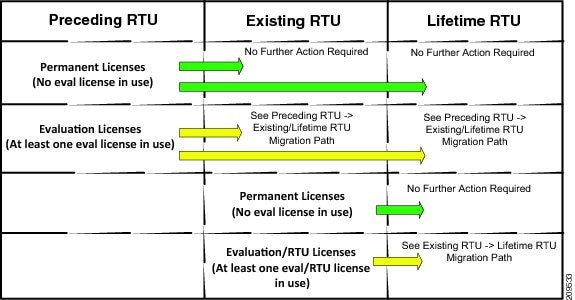
This section describes customer scenarios with regard to migrating to Existing or Lifetime RTU release and recommends actions to take before upgrading.
The initial version of RTU release (Existing RTU) contains built-in evaluation licenses valid for 12 years and Lifetime RTU licenses that are similar to permanent licenses, in that they are built into the IOS image and avoid the overhead of license installation.
Note
Permanent licenses are not affected by any IOS release upgrade.
The first course of action is to consider what release your router is running and then follow the recommended actions if any. This section contains the following topics:
•
Lifetime RTU (After Migration)
RTU Releases
The IOS software releases to consider are categorized as follows:
•
Preceding RTU
•
Existing RTU
•
Lifetime RTU
Preceding RTU
Preceding RTU releases are customers' running IOS releases with 60 days of evaluation licenses. These include the following releases:
•
15.0(1)M; 15.0(1)M1; 15.0(1)M2; 15.0(1)M3
•
15.1(1)T; 15.1(1)T1
•
15.1(2)T; 15.1(2)T1
•
Any 12.4T release
Customers running these releases with evaluation licenses and planning to upgrade to Existing or Lifetime RTU releases are affected. They should follow the recommended actions specified under Preceding RTU to Existing/Lifetime migration paths.
Existing RTU
Initial RTU support was provided in the Existing RTU releases listed below:
•
15.0(1)M4; 15.0(1)M5
•
15.1(1)T2; 15.1(1)T3
•
15.1(2)T2; 15.1(2)T3
•
15.1(3)T; 15.1(3)T1
•
15.1(4)M
Such arrangement basically provided 12-year evaluation licenses and was intended to be a temporary solution until Lifetime RTU support was available. This temporary RTU solution provided immediate relief for customers facing licensing-related overhead.
If you are running Existing RTU releases and planning to upgrade to Lifetime RTU releases, please follow the recommended actions specified under Existing RTU to Lifetime RTU migration paths.
Lifetime RTU
A Lifetime RTU release license includes the following:
1.
Initial evaluation period of 60 days
2.
Transition to Lifetime RTU license without customer intervention
RTU transition warning/complete Syslogs/Traps are provided 10 days and 5 days before transition and on the actual day of transition.
Customers running the following Lifetime RTU releases are not impacted:
•
15.0(1)M6 or later
•
15.1(1)T4 or later
•
15.1(2)T4 or later
•
15.1(3)T2 or later
•
15.1(4)M1 or later
•
15.2(1)T or later
Global EULA Acceptance
Customers migrating to Lifetime RTU are required to accept the global end user license agreement with the Exising RTU release. This is because the Lifetime RTU keys have changed and EULA needs to be accepted again to ensure a smooth transition.
Please perform the following actions when required:
Router(config)# license accept end user agreementPLEASE READ THE FOLLOWING TERMS CAREFULLY. INSTALLING THE LICENSE ORLICENSE KEY PROVIDED FOR ANY CISCO PRODUCT FEATURE OR USING SUCHPRODUCT FEATURE CONSTITUTES YOUR FULL ACCEPTANCE OF THE FOLLOWINGTERMS. YOU MUST NOT PROCEED FURTHER IF YOU ARE NOT WILLING TO BE BOUNDBY ALL THE TERMS SET FORTH HEREIN.Use of this product feature requires an additional license from Cisco,together with an additional payment. You may use this product featureon an evaluation basis, without payment to Cisco, for 60 days. Your useof the product, including during the 60 day evaluation period, issubject to the Cisco end user license agreementhttp://www.cisco.com/en/US/docs/general/warranty/English/EU1KEN_.htmlIf you use the product feature beyond the 60 day evaluation period, youmust submit the appropriate payment to Cisco for the license. After the60 day evaluation period, your use of the product feature will begoverned solely by the Cisco end user license agreement (link above),together with any supplements relating to such product feature. Theabove applies even if the evaluation license is not automaticallyterminated and you do not receive any notice of the expiration of theevaluation period. It is your responsibility to determine when theevaluation period is complete and you are required to make payment toCisco for your use of the product feature beyond the evaluation period.Your acceptance of this agreement for the software features on oneproduct shall be deemed your acceptance with respect to all suchsoftware on all Cisco products you purchase which includes the samesoftware. (The foregoing notwithstanding, you must purchase a licensefor each software feature you use past the 60 days evaluation period,so that if you enable a software feature on 1000 devices, you mustpurchase 1000 licenses for use past the 60 day evaluation period.)Activation of the software command line interface will be evidence ofyour acceptance of this agreement.ACCEPT? [yes/no]: yesRouter(config)# endJun 14 21:39:59.021: %LICENSE-6-EULA_ACCEPT_ALL: The Right to Use End User License Agreement is acceptedRouter# wrBuilding configuration...[OK]RTU Migration Paths
There are basically two IOS release migration paths a typical customer must take to upgrade to Existing or Lifetime RTU release.
1.
Preceding RTU Release —> Existing/Lifetime RTU Release
2.
Existing RTU Release —> Lifetime RTU Release
Figure 2 shows the steps for migrating to Existing or Lifetime RTU.
Figure 2 Steps for RTU Migration
Preceding RTU —> Existing/Lifetime RTU Migration Path
This procedure covers customers running IOS Preceding RTU releases with evaluation licenses that have not expired and wishing to migrate to Existing or Lifetime RTU releases.
The Existing/Lifetime RTU license keys have changed and require re-acceptance of the end user license agreement. A migration performed without the recommended upgrade procedure results in a loss of functionality related to features that relied on the presence of Preceding RTU license.
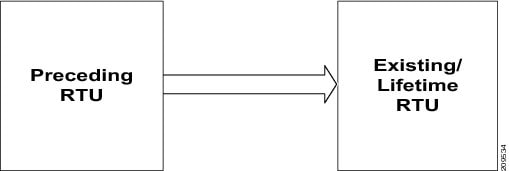
Figure 3 shows the migration path from Preceding RTU to Existing/Lifetime RTU releases.
Figure 3 Preceding RTU to Existing/Lifetime RTU Migration
Before upgrading, perform the following steps:
Step 1
On the Preceding RTU router, save the startup-config to a location of your choice—it could be a compact flash, tftp server, etc. Note: If any other configuration is required before upgrade, this must be completed and the configuration should be saved before proceeding with this step. The example below is for a tftp server.
Router# copy startup-config tftp://<tftp_server>/<user_id>/startup-configStep 2
Edit the startup-config and add the "license accept end user agreement" as shown below in bold right after the "license udi pid ...." entry.
license udi pid C3900-SPE250/K9 sn FHH1313001Ulicense accept end user agreementStep 3
Copy the startup-config back to the Preceding RTU router. The example below is for tftp a server.
Router# copy tftp://<tftp_server>/<user_id>/startup-config startup-configStep 4
Do not save the configuration.
Step 5
Reload the router, without saving the configuration, with the upgrade release, either Existing or Lifetime RTU release. After reload, you can see that the configurations related to licenses are rejected.
Step 6
Do not save the configuration.
Step 7
Immediately reload again, without saving the configuration, with the same Existing or Lifetime RTU release. After reload, all the configurations are preserved.
Step 8
Verify license-related configurationss and feature functionality.
Existing RTU —> Lifetime RTU Migration Path
This procedure covers customers running IOS Existing RTU releases with Eval/RTU licenses and wishing to upgrade to Lifetime RTU releases.
The Lifetime RTU license keys have changed and require re-acceptance of the end user license agreement. A migration performed without the recommended upgrade procedure results in a loss of functionality related to features that relied on the presence of Existing RTU release license.
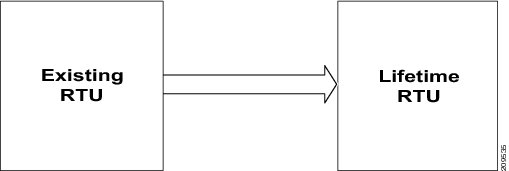
Figure 4 shows the migration path from Preceding RTU to Existing/Lifetime RTU releases.
Figure 4 Existing RTU to Lifetime RTU Migration
Before upgrading, perform the following steps:
Note
If the global "license accept end user agreement" has already been performed on the Existing RTU release router, then Steps 1 and 2 can be skipped.
Step 1
On the Existing RTU release router, configure the global end user license agreement:
Router#(config) license accept end user agreementStep 2
Save the configuration.
Router# writeStep 3
Upgrade to Lifetime RTU IOS Release.
Lifetime RTU (After Migration)
Once you migrate to a Lifetime RTU release, as the license keys have changed, the RTU license restarts from time zero. This means that for the first 60 days, the Lifetime RTU license is considered to be in evaluation mode. The show CLI output displays the "EvalRightToUse" for the initial 60 days. An example of this output is shown below.
Router# show licenseIndex 4 Feature: datak9Period left: 8 weeks 4 daysPeriod Used: 0 minute 0 secondLicense Type: EvalRightToUseLicense State: Active, In UseLicense Count: Non-CountedLicense Priority: LowAfter approximately 60 days, the Lifetime RTU license transitions to "RightToUse" without any further customer intervention. Syslogs and Traps are sent 10 days and 5 days before transition and on the actual day of transition to provide notice of pending/completion of license transition. After the transition, the show CLI output displays "RightToUse" for the License Type. An example of this output is shown below.
Router# show licenseIndex 4 Feature: datak9Period left: Life timeLicense Type: RightToUseLicense State: Active, In UseLicense Count: Non-CountedLicense Priority: LowSimple Network Management Protocol
Software licenses can be installed and managed with network management systems using Simple Network Management Protocol (SNMP). For more information on using SNMP, see Cisco IOS Software Activation Configuration Guide at http://www.cisco.com/en/US/docs/ios/csa/configuration/guide/15_0/csa_book.html.
RMA License Transfer
To transfer a software license from a failed device to a new device, go to the Cisco licensing portal at http://www.cisco.com/go/license.
Note
You need the UDI of the defective as well as the RMA router to initiate an RMA replacement license.
Note
To transfer a software license from a Cisco 3925 or Cisco 3945 ISR, use the SN and PID from the service performance engine (SPE) and not the chassis.
Restoring Configuration Files on RMA Replacement Routers
This section describes the steps for RMA replacement routers if restoration of configuration files is required. This applies to RMA replacement routers received with Lifetime RTU release installed.
Note
An RMA router is the router that is sent back to the manufacturer for RMA, while an RMA replacement router is a new router from the manufacturer.
Restoring configuration files on RMA replacement routers is a two-part process.
•
First Part: Restoring Licenses
•
Second Part: Restoring Configurations
First Part: Restoring Licenses
Perform the following steps to bring up your RMA replacement router with the required licenses:
Step 1
It is assumed that the startup-config was already saved, for example to a tftp server, compact flash, etc., before the router was sent for RMA. The example shown below is for a tftp server:
Router# copy startup-config tftp://<tftp_server>/<user_id>/startup-configStep 2
Edit the saved startup-config with any text editor of your choice. Add the "license accept end user agreement" as shown below right after the "license udi pid..." line.
license accept end user agreementStep 3
Copy the startup-config to your RMA replacement router as running config. This step is to bring back your configured licenses from the RMA router. Note that some configurations have been thrown out, although the objective here is to restore the licenses only. The example shown below is for a tftp server:
Router# copy tftp://<tftp_server>/<user_id>/startup-config running-configStep 4
Save the configuration.
Step 5
Reload the RMA replacement router.
Second Part: Restoring Configurations
Perform the following steps to restore the configurations on your RMA replacement router:
Step 1
Copy the startup-config to RMA replacement router as running config. This step will restore all the configurations. The example shown below is for a tftp server:
Router# copy tftp://<tftp_server>/<user_id>/startup-config running-configStep 2
Save the configuration.
Step 3
Verify license-related configurations and feature functionality.
For additional information on RMA license transfer, see the Cisco Software Activation Conceptual Overview chapter in Cisco IOS Software Activation Configuration Guide.
Software Activation on Modules
For information on the technology package required to support modules on the Cisco 2900 series and 3900 series ISR, see the Module Support on Cisco Integrated Services Routers Generation 2 document.
For information on software activation and software applications supported on a module, see the documentation set for the module and the software application.
Additional References
The following sections provide references related to the software activation feature.
Related Documents and Links
Related Topic Document TitleCisco License Manager
Cisco License Manager Online Help
Software Activation using Cisco IOS CLI and Cisco Call Home
Feature Documents
Cisco Software Activation QA: Gatekeeper: A Cisco Unified Border Element Component
Q&A and White paper
Software Activation Q&A for Cisco 860 and 880 Integrated Services Routers
Cisco's Integrated Services Routers Generation Two Licensing and Packaging
Data Sheets
MIBs
Description LinkUse Cisco MIB Locator to locate and download MIBs for selected platforms, Cisco software releases, and feature sets.
Technical Assistance
Cisco and the Cisco logo are trademarks or registered trademarks of Cisco and/or its affiliates in the U.S. and other countries. To view a list of Cisco trademarks, go to this URL: www.cisco.com/go/trademarks. Third-party trademarks mentioned are the property of their respective owners. The use of the word partner does not imply a partnership relationship between Cisco and any other company. (1110R)
© 2010 Cisco Systems, Inc. All rights reserved.


