CTC Enhancements, Operations, and Shortcuts
 Note |
Starting with Release 11.1.4, ONS 15454 M12 chassis and TCC3 card are not supported on the ONS 15454 DWDM and WSON software packages. You must not attempt to upgrade ONS 15454 M12 nodes from a previous release to Release 11.1.4. |
This document describes operations of the Cisco Transport Controller (CTC), the software interface for Cisco ONS 15454, Cisco ONS 15454 M2, Cisco ONS 15454 M6, Cisco NCS 2002, and Cisco NCS 2006 shelf assemblies. For CTC setup and login information, see the “Connect the PC and Log into the GUI” document.
Note |
Cisco ONS 15454 M2 chassis has reached its end-of-life status. For more information, see the Retirement Notification page. |
Note |
Starting with Release 11.1.4, ONS 15454 M12 chassis and TCC3 card are not supported on the ONS 15454 DWDM and WSON software packages. You must not attempt to upgrade ONS 15454 M12 nodes from a previous release to Release 11.1.4. |
-
Unless otherwise specified, ONS 15454 refers to ONS 15454, ONS 15454 M2, and ONS 15454 M6 platform.
-
Unless otherwise specified, ONS 15454, ONS 15454 M2, ONS 15454 M6, NCS 2002 and NCS 2006 refers to both ANSI and ETSI shelf assemblies.
-
For software releases 9.3 to 9.8, see the Cisco ONS 15454 DWDM Configuration Guide.
-
For software release 10.0 and later, see the following appropriate guides:
-
Cisco ONS 15454 DWDM Control Card Configuration Guide or Cisco NCS 2000 Series Control Card Configuration Guide
-
Cisco ONS 15454 DWDM Line Card Configuration Guide or Cisco NCS 2000 Series Line Card Configuration Guide
-
Cisco ONS 15454 DWDM Network Configuration Guide or Cisco NCS 2000 Series Network Configuration Guide
-
If network discovery is enabled on the node, CTC searches each node in the network for more recent versions of the CTC software. If a more recent version is discovered, CTC gives you the option of downloading the Java archive (JAR) files to your PC.
-
The L-BAND cards are not supported in ONS 15454 M2, ONS 15454 M6, NCS 2002, and NCS 2006 chassis.
-
Revision History
This table lists new and changed content made to this document since it was first published.
|
Date |
Change Summary |
|---|---|
|
October 2025 |
Updated for R 25.1.1 |
|
May 2020 |
Updated for R 11.1.1.2 |
|
March 2019 |
Updated for R 11.0 |
|
August 2018 |
Updated for R 10.9 |
|
December 2017 |
Updated for R 10.8 |
|
October 2017 |
Updated for R 10.7 |
|
April 2017 |
Updated for R 10.6.2 |
|
November 2016 |
Included Release 10.6.1 features. |
|
November 2014 |
Revised the part number and included Release 10.1 features. |
|
December 2013 |
Revised the part number and included Release 10.0 features. |
|
July 2012 |
Release 9.6.x—This is the first release of this publication. |
Installing or Upgrading CTC
The following sections provide information on PC and UNIX workstation requirements for installing CTC, installing CTC, and upgrading CTC.
PC and UNIX Workstation Requirements
To use CTC for ONS 15454, ONS 15454 M2, ONS 15454 M6, NCS 2002, or NCS 2006, your computer must have a web browser with the correct Java Runtime Environment (JRE) installed. The correct JRE for each CTC software release is included on the ONS 15454, ONS 15454 M2, ONS 15454 M6, NCS 2002, or NCS 2006 installation. If you are running multiple CTC software releases on a network, the JRE installed on the computer must be compatible with the different software releases.
When you change the JRE version on the JRE tab in the Preferences window, you must exit and restart CTC for the new JRE version to take effect. The following table shows JRE compatibility with ONS 15454 or NCS 2000 software releases.
|
Software Release |
JRE 1.2.2 |
JRE 1.3 |
JRE 1.4 |
JRE 5.0 |
JRE 1.6 |
JRE 1.7 |
JRE 1.8 |
JRE 1.9 |
|---|---|---|---|---|---|---|---|---|
|
ONS 15454 MSTP R6.0 |
No |
No |
Yes |
No |
No |
No |
No |
No |
|
ONS 15454 MSTP R7.0 |
No |
No |
No |
Yes |
Yes |
No |
No |
No |
|
ONS 15454 MSTP R8.0 |
No |
No |
No |
Yes |
Yes |
No |
No |
No |
|
ONS 15454 MSTP R8.5 |
No |
No |
No |
Yes |
Yes |
No |
No |
No |
|
ONS 15454 MSTP R9.0 |
No |
No |
No |
Yes |
Yes |
No |
No |
No |
|
ONS 15454 MSTP R9.1 |
No |
No |
No |
Yes |
Yes |
No |
No |
No |
|
ONS 15454 MSTP R9.2 |
No |
No |
No |
No |
Yes |
Yes |
No |
No |
|
ONS 15454 MSTP R9.2.1 and R9.2.2 |
No |
No |
No |
No |
Yes |
Yes |
No |
No |
|
ONS 15454 MSTP R9.3 |
No |
No |
No |
No |
Yes |
Yes |
No |
No |
|
ONS 15454 MSTP R9.4 |
No |
No |
No |
No |
Yes |
Yes |
No |
No |
|
ONS 15454 MSTP R9.6 |
No |
No |
No |
No |
Yes |
No |
No |
No |
|
ONS 15454 MSTP R9.6.0.3 |
No |
No |
No |
No |
Yes |
Yes |
No |
No |
|
ONS 15454 MSTP R9.8 |
No |
No |
No |
No |
Yes |
Yes |
No |
No |
|
ONS 15454 MSTP R10.0 |
No |
No |
No |
No |
Yes |
Yes |
No |
No |
|
ONS 15454 MSTP R10.5 |
No |
No |
No |
No |
No |
Yes |
Yes |
Yes |
|
ONS 15454 MSTP R10.5.2 |
No |
No |
No |
No |
No |
Yes |
Yes |
Yes |
|
ONS 15454 MSTP R10.6.1 |
No |
No |
No |
No |
No |
Yes |
Yes |
Yes |
|
ONS 15454 MSTP R10.6.2 |
No |
No |
No |
No |
No |
Yes |
Yes |
Yes |
|
ONS 15454 MSTP R10.7 |
No |
No |
No |
No |
No |
Yes |
Yes |
Yes |
|
ONS 15454 MSTP R10.8 |
No |
No |
No |
No |
No |
Yes |
No |
No |
|
ONS 15454 MSTP R10.9 |
No |
No |
No |
No |
No |
Yes |
No |
No |
|
ONS 15454 MSTP R11.0 |
No |
No |
No |
No |
No |
No |
Yes |
Yes |
|
ONS 15454 MSTP R11.1 |
No |
No |
No |
No |
No |
No |
Yes |
Yes |
|
ONS 15454 MSTP R11.1.1.2 |
No |
No |
No |
No |
No |
No |
Yes |
Yes |
|
ONS 15454 MSTP R11.1.1.3 |
No |
No |
No |
No |
No |
No |
Yes |
Yes |
Note |
To avoid network performance issues, Cisco recommends managing a maximum of 50 nodes concurrently with CTC. The 50 nodes can be on a single data communication channel (DCC) or split across multiple DCCs. Cisco does not recommend running multiple CTC sessions when managing two or more large networks. To manage more than 50 nodes, Cisco recommends using Cisco Transport Manager (CTM). If you do use CTC to manage more than 50 nodes, you can improve performance by adjusting the heap size; see the “General Troubleshooting” chapter of the Cisco ONS 15454 DWDM Troubleshooting Guide or Cisco NCS 2002 and NCS 2006 Troubleshooting Guide . You can also create login node groups; see the Connect the PC and Log into the GUI document. |
The following table lists the requirements for PCs and UNIX workstations. In addition to the JRE, the Java plug-in is also included on the ONS 15454 or NCS 2000 installation.
|
Area |
Requirements |
Notes |
||
|---|---|---|---|---|
|
Processor (PC only) |
Pentium Dual-Core processor or equivalent |
A faster CPU is recommended if your workstation runs multiple applications or if CTC manages a network with a large number of nodes and circuits. |
||
|
RAM |
2 GB RAM or more |
We recommend a minimum of 16 GB if your workstation runs multiple applications or if CTC manages a network with a large number of nodes and circuits. |
||
|
Hard drive |
20 GB hard drive with 250 MB of free space required |
CTC application files are downloaded from the TCC2/TCC2P/TCC3/TNC/TSC/TNCS/TNCS-O to your computer. These files occupy around 100MB (250MB to be safer) or more space depending on the number of versions in the network. |
||
|
Operating System |
|
Use the latest patch/Service Pack released by the OS vendor. Check with the vendor for the latest patch/Service Pack. |
||
|
Java Runtime Environment |
|
|
||
|
Web browser |
|
For the PC, use JRE 1.6 or JRE 1.7 with any supported web browser. The supported browser can be downloaded from the Web. |
||
|
Cable |
|
— |
Installing CTC
To connect to ONS 15454, ONS 15454 M2, ONS 15454 M6 or NCS 2002 and NCS 2006 using CTC, you enter the IP address in the URL field of the supported web browser (see Table 2 for a list of supported web browsers). After connecting to ONS 15454, ONS 15454 M2, ONS 15454 M6 or NCS 2002 and NCS 2006, the following occurs automatically:
-
A CTC launcher applet is downloaded from the control card (control card) to your computer.
-
The launcher determines whether your computer has a CTC release matching the release on the control card.
-
If the computer does not have CTC installed, or if the installed release is older than the control card’s version, the launcher downloads the CTC program files from the control card.
-
The launcher starts CTC. The CTC session is separate from the web browser session, so the web browser is no longer needed. Always log into latest version of the software available on the nodes (see the task "DLP-G46 Log into CTC" in the "Connect the PC and Log into the GUI" document). If you log into an ONS 15454, ONS 15454 M2, ONS 15454 M6 or NCS 2002 and NCS 2006 that is connected with older versions of CTC, CTC files are downloaded automatically to enable you to interact with those nodes. The CTC file download occurs only when necessary, such as during your first login. You cannot interact with nodes on the network that have a software version later than the node that you used to launch CTC.
Each ONS 15454, ONS 15454 M2, ONS 15454 M6 or NCS 2002 and NCS 2006 can handle up to five concurrent CTC sessions. CTC performance can vary, depending upon the volume of activity in each session, network bandwidth, and control card load.
Note |
You can also use TL1 commands to communicate with ONS 15454, ONS 15454 M2, ONS 15454 M6 or NCS 2002 and NCS 2006 through VT100 terminals and VT100 emulation software, or you can Telnet to ONS 15454, ONS 15454 M2, ONS 15454 M6 or NCS 2002 and NCS 2006 using TL1 ports 2361 and 3083. See the Cisco ONS SDH TL1 Command Guide, Cisco ONS SONET TL1 Command Guide, or Cisco NCS TL1 Command Guide for a comprehensive list of TL1 commands. |
CTC Installed on the PC or UNIX Workstation
CTC software is downloaded from the control cards and installed on your computer automatically after you connect to the ONS 15454, ONS 15454 M2, ONS 15454 M6 or NCS 2002 and NCS 2006 with a new software release for the first time. Downloading the CTC software files automatically ensures that your computer is running the same CTC software version as the control cards you are accessing. The CTC files are stored in the temporary directory designated by your computer operating system. Downloading the Java archive (JAR) files for CTC takes several minutes depending on the bandwidth of the connection between your workstation and ONS 15454, ONS 15454 M2, ONS 15454 M6 or NCS 2002 and NCS 2006.
During network topology discovery, CTC polls each node in the network to determine which one contains the most recent version of the CTC software. If CTC discovers a node in the network that has a more recent version of the CTC software than the version you are currently running, CTC generates a message stating that a later version of the CTC has been found in the network and offers to install the CTC software upgrade. After the node view appears, you can upgrade CTC by using the Tools > Update CTC menu option. If you have network discovery disabled, CTC will not seek more recent versions of the software. Unreachable nodes are not included in the upgrade discovery.
Note |
Upgrading the CTC software will overwrite your existing software. You must restart CTC after the upgrade is complete. |
CTC Installed on the Control Cards
The CTC software is preloaded on the control cards (control cards); therefore, you do not need to install software on these cards. When a new CTC software version is released, use the release-specific software upgrade document to upgrade the ONS 15454, ONS 15454 M2, ONS 15454 M6 or NCS 2002 and NCS 2006 software on the control cards. (See the section "Card Compatibility" in the chapter "Install the Control Cards" of Cisco ONS 15454 DWDM Control Card and Node Configuration Guide or Cisco NCS 2000 Series Control Card and Node Configuration Guide for control card compatibility matrix.)
When you upgrade the CTC software, the control cards store the new CTC version as the protect CTC version. When you activate the new CTC software, the control cards store the older CTC version as the protect CTC version, and the newer CTC release becomes the working version. You can view the software versions that are installed on an ONS 15454, ONS 15454 M2, ONS 15454 M6 or NCS 2002 and NCS 2006 shelf assemblies by selecting the Maintenance > Software tabs in node view (single-shelf mode) or multishelf view (multishelf mode).
Select the Maintenance > Software tabs in network view to display the software versions installed on all the network nodes.
Upgrading CTC
Upgrading the CTC software will overwrite your existing software. You must restart CTC after the upgrade is complete.
You can upgrade the CTC software using one of the following options:
-
Use the Tools > Update CTC menu option in CTC window.
-
Use the Cisco ONS 15454 Upgrade Tool. This tool allows you to view Cisco ONS 15454 Upgrade Guides based on the upgrade paths selected.
About CTC
CTC software is used to perform the Cisco ONS 15454, ONS 15454 M2, ONS 15454 M6 or NCS 2002 and NCS 2006 provisioning and administration tasks. CTC is a Java application that resides on the control cards—control cards. CTC is downloaded to your workstation the first time you log into ONS 15454, ONS 15454 M2, ONS 15454 M6 or NCS 2002 and NCS 2006 shelf assemblies with a new software release using the web interface. See the task "DLP-G46 Log into CTC" in the "Connect the PC and Log into the GUI" document to log into CTC. You can also log into CTC using the CTC launcher application (StartCTC.exe). See the Using the CTC Launcher Application to Manage Multiple ONS Nodes section for more information.
See the section "Card Compatibility" in the chapter "Install the Control Cards" of Cisco ONS 15454 DWDM Control Card and Node Configuration Guide or Cisco NCS 2000 Series Control Card and Node Configuration Guide for control card compatibility matrix.
Refer to the following as required:
-
For installing or upgrading CTC software, see the Installing or Upgrading CTC section.
-
For a detailed description of CTC window, see the CTC Windowsection.
-
For information on managing the CTC window, see the Manage the CTC Window section.
ONS 15454 or NCS 2000 Connections
You can connect to the ONS 15454, ONS 15454 M2, ONS 15454 M6, NCS 2002 and NCS 2006 shelf assemblies in multiple ways.
-
ONS 15454—You can connect your PC directly to the ONS 15454 shelf using the RJ-45 (LAN) port on the faceplate of TCC2, TCC2P, or TCC3 card or using the backplane RJ-45 LAN port.
-
ONS 15454 M6 or NCS 2006—You can connect your PC directly to the ONS 15454 M6 or NCS 2006 shelf using the RJ-45 (LAN) port on the faceplate of TNC, TNCE, TSC, TSCE, TNCS, or TNCS-O card or using the EMS RJ-45 port or using the RJ-45 Craft port. The EMS RJ-45 port and RJ-45 Craft port are present on the external connection unit (ECU) or external connection unit2 (ECU2).
-
ONS 15454 M2 or NCS 2002—You can connect your PC directly to the ONS 15454 M2 or NCS 2002 shelf using the RJ-45 (LAN) port on the faceplate of TNC, TNCE, TSC, TSCE, TNCS, or TNCS-O card or using the EMS RJ-45 port on the power module.
For the ANSI shelf, you can connect using the LAN pins on the backplane. The ETSI shelf provides a LAN connection through the RJ-45 jack on the MIC-T/C/P Front Mount Electrical Connection (FMEC). Alternatively, you can connect your PC to a hub or switch that is connected to the ONS 15454 or NCS 2000, connect to the ONS 15454 or NCS 2000 through a LAN or modem, or establish TL1 connections from a PC or TL1 terminal. The following table lists the connection methods and requirements for ONS 15454 M2 or NCS 2002 shelves.
Note |
|
|
Method |
Description |
Requirements |
|---|---|---|
|
Local craft |
Refers to onsite network connections between the CTC computer and the ONS 15454, ONS 15454 M2, ONS 15454 M6 or NCS 2002 and NCS 2006 using one of the following:
|
If you do not use Dynamic Host Configuration Protocol (DHCP), you must change the computer IP address, subnet mask, and default router, or use automatic host detection. |
|
Corporate LAN |
Refers to a connection to the ONS 15454, ONS 15454 M2, ONS 15454 M6 or NCS 2002 and NCS 2006 through a corporate or network operations center (NOC) LAN. |
|
|
TL1 |
Refers to a connection to the ONS 15454, ONS 15454 M2, ONS 15454 M6 or NCS 2002 and NCS 2006 using TL1 rather than CTC. TL1 sessions can be started from CTC, or you can use a TL1 terminal. The physical connection can be a craft connection, corporate LAN, or a TL1 terminal. |
Refer to the Cisco ONS SONET TL1 Reference Guide or the Cisco ONS SDH TL1 Reference Guide. |
|
Remote |
Refers to a connection made to the ONS 15454, ONS 15454 M2, ONS 15454 M6 or NCS 2002 and NCS 2006 using a modem. |
|
CTC GUI Enhancements
(Software Release R10.6. and later releases)
The improved CTC GUI provides enhanced user experience in compliance with the Cisco Brand 2012. The enhancements include the following:
-
New CTC Cell Highlight feature to indicate the recent changes made by the user.
-
Network view displays the IP address of the undiscovered or unreachable nodes.
(Software Release R9.6.x and later releases)
The improved CTC GUI provides enhanced user experience in compliance with the Cisco Brand 2012. The enhancements include the following:
-
New home page that provides options or shortcuts to open frequently used views and settings.
-
Navigation/Summary pane that provides options to quickly view summary, network explorer, and search circuits.
-
Circuit Explorer pane that provides a hierarchical view of all the circuits provisioned in the network.
-
Multitabbed structure for displaying views.
-
Dockable and undockable panes that are flexible to move, arrange, and resize.
-
New menu and toolbar icons that enhance the look-and-feel of the interface.
-
New look-and-feel Circuit Creation and Raman Calibration wizards.
CTC Window
When you log into a single-shelf ONS 15454, ONS 15454 M2, ONS 15454 M6 or NCS 2000 , the CTC window opens a multi-tab view—Home Page, Network View, and Node View tabs. By default, the Node View tab is active (Figure 1). When you log into a multishelf ONS 15454, ONS 15454 M6, or NCS 2000, meaning that two or more ONS 15454, ONS 15454 M6, or NCS 2000 shelves are configured to operate as one node, the Home Page, Network View, and Multishelf View tabs. By default, the Multishelf View tab is active (Figure 2). See the section Tab Views for more information on multi-tab view.
The CTC window includes a menu bar, a toolbar, a Navigation/Summary Pane, and a top and bottom pane. The top pane provides status information about the selected objects and a graphic of the current view. The bottom pane provides tabs and subtabs to view ONS 15454 or NCS 2000 information and perform ONS 15454 or NCS 2000 provisioning and maintenance tasks. The panes can be docked or undocked giving flexibility to move, arrange, and resize according to the user needs. See the section Dockable Panes for more information on dockable panes.
From the CTC window, you can display the other ONS 15454 or NCS 2000 views. In single-shelf mode, these are the network, node, and card views. In multishelf mode, these are the network, multishelf, shelf, and card views.

|
1 |
Menu bar |
6 |
Sub tabs |
|
2 |
Tool bar |
7 |
Status bar |
|
3 |
Graphic area |
8 |
Top pane |
|
4 |
Navigation/Summary Pane |
9 |
Bottom pane |
|
5 |
Tabs |

Tab Views
CTC window is organized in multi-tab view. A tab view is a convenient way to provide information in multiple pages. A tab view usually contains a row of tabs that give the visual appearance of folder tabs. When you click on a tab, the tab view displays a view page provided by that tab.
When you log into a single-shelf ONS 15454, ONS 15454 M2, ONS 15454 M6 or NCS 2002 and NCS 2006 , the CTC window opens a multi-tab view—Home Page, Network View, and Node View tabs. Opening new node view, shelf view, or card view from the Network View or Node View tab opens in a new tab. CTC allows opening 10 tabs at a time, including the default Home Page, Network View, and Node View tabs. The Home Page and Network View tabs cannot be closed. Right-click any tab and choose Close All tabs to close all the tabs or choose Close Other tabs to close all tabs except the selected tab.
Dockable Panes
The dockable panes provide options to easily move the panes to the left, right, top, bottom, or center of the window, hide or unhide panes, resize, and dock or undock a pane to its default position in the CTC window. Right-click on a pane’s title bar and chose one of the following options:
-
Close—Closes the pane. To display the tab again, select the Show Tab View option under the Window menu.
-
Floating—Any panel can be moved anywhere on the CTC window. To position a pane outside the main window, perform one of the following:
-
Right-click on the pane's title bar and check Floating.
-
Double-click on the pane's title bar.
Note
Click, hold, and drag the pane's title bar to move the pane to a new position.
To return the floating window to its most recent docked location, perform the following:
-
Right-click on the pane's title bar and uncheck Floating.
-
Double-click on the pane's title bar.
-
-
Auto Hide—Auto Hide causes a pane to slide out of the view allowing you to use a different pane. When a pane is auto-hidden, the pane is minimized, its name and icon are displayed at the bottom-left corner (for Tab view) or top-left corner (for Navigation/Summary Pane) of the CTC window. To use the panel again, move the mouse pointer over the tab so that it slides back into view.
-
To turn on Auto Hide, right-click the pane’s title bar and check Auto Hide.
-
To turn off Auto Hide, right-click the pane’s title bar and uncheck Auto Hide.
-
-
Maximize—Maximizes the pane area.
-
Dockable—Allows a pane to dock or undock. By default, all the panes in CTC window are docked. To undock any pane out of its default position, right click on a pane’s title bar and check Dockable. To dock a pane back to its default position or its most recent docked location, perform the following:
-
Right-click on the pane's title bar and uncheck Dockable.
-
Double-click on the pane's title bar.
-
Home Page Tab
The Home Page tab provides the following options or shortcuts to open frequently used views and settings. Click on any of the shortcut to open it in a new tab.
|
Icon |
Option or Shortcut |
Description |
|---|---|---|
|
Network Management area: |
||

|
Functional View |
Opens the DWDM network functional view in a new window. |

|
Circuit View |
Opens the Circuits tab. |

|
Node List |
Opens the Node List tab. The Node List tab provides a quick access to summary of software installed on different nodes in the network. |

|
Network Monitoring |
Opens the Network Monitoring tab. The Network Monitoring tab quick access to all the alarms and conditions in the network. |
|
User Settings area: |
||

|
Users |
Opens the Users tab. The Users tab lists all the users logged on to various nodes in the network. |

|
Help Content |
Displays the online help. |

|
Edit Preferences |
Displays the Preferences dialog box. |
|
General Settings area: |
||

|
|
Displays the print window. Allows to print the following:
|

|
Exit |
Closes the CTC session. |

|
Lock |
Locks the CTC window. |
Navigation/Summary Pane
The following sections explain the sub-panes in the Navigation/Summary Pane.
Summary Pane
The Summary sub-pane displays the following fields:
-
All views
-
Alarm Summary—Displays number of Critical (CR), Major (MJ), and Minor (MN) alarms.
-
-
Network View
-
Critical—Displays number of Critical (CR) alarms.
-
Major—Displays number of Major (MJ) alarms.
-
Minor—Displays number of Minor (MN) alarms.
Note
When the user selects or opens a node in the network view, the node alarm summary table is statically populated. This summary table is refreshed when the user reselects the node or selects another node in the network view.
-
-
Node View or Multishelf View
-
Node Addr—IP address of the node.
-
Booted—The Booted field indicates one of the following:
-
Date and time of the node reboot. The node reboot is caused by complete power cycle, software upgrade, or software downgrade.
-
Date and time of reset of the control cards one after the other.
-
-
User—Login user name.
-
Authority—Security level of users. The possible security levels are Retrieve, Maintenance, Provisioning, and Superuser.
-
SW Version—CTC software version.
-
Defaults—Name provided to identify the defaults list.
-
APC state—Displays Automatic Power Control (APC) status as Enabled or Disabled.
-
Side—Displays optical side of the node.
-
-
Card View
-
Eqpt—Displays the card name.
-
Status—Displays whether the card is physically inserted in the card slot.
-
Service State—Displays service state of the card.
-
Term Mode—Displays termination mode of the card.
-
Port—Displays the port status.
-
Network Explorer
The Network Explorer sub-pane shows all nodes available in the network as a tree view. Expand or collapse the Network Explorer tree to display nodes that are part of the network. Double-click the network, node, or card to open respective view in a new tab.
Quick Links
The Quick Links sub-pane provide options to quickly launch some of the frequently used views and settings. See the section Home Page Tabfor description of the links.
Circuit Explorer
The Circuit Explorer sub-pane provides a hierarchical view of all the circuits provisioned in the network. The circuits are grouped by the circuit type. The Circuit Explorer provides option to search the circuits.
Network View
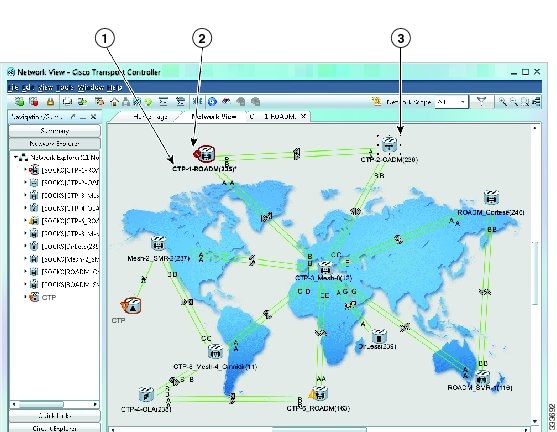
Network view allows you to view and manage ONS 15454, ONS 15454 M2, ONS 15454 M6 or NCS 2002 and NCS 2006 that have DCC connections to the node that you logged into and any login node groups you have selected, as shown in the following figure.
|
1 |
Bold letters indicate login node, asterisk indicates topology host |
2 |
Badge on the node indicates alarm status |
3 |
Dots indicate selected node |
Note |
Nodes with DCC connections to the login node do not appear if you checked the Disable Network Discovery check box in the Login dialog box. |
The graphic area in the network view tab displays a background image. The ONS 15454 or NCS 2000 node icons are displayed over the background image. A Superuser can set up the logical network view feature, which enables each user connecting to the node to see the same network view.
You can search for a node with the node name in the network view. In the Network map, press Ctrl F. The Find Node in CTC View dialog appears that contains the list of nodes. When you press *, you can navigate to all the nodes using the arrow keys. When you type the first alphabet of the node name, the first node that starts with this alphabet is highlighted. You can navigate to other nodes that start with this alphabet using the arrow keys. When you select a node in the Find Node in CTC dialog, the corresponding node is centered in the network map.
CTC Node Colors
The color of a node in network view, shown in the following table, indicates the alarm status and node status.
|
Node Icon |
Alarm Status |
Node Status |
|---|---|---|

|
No alarms |
Node is up. |

|
Minor alarms |
Node is up with minor alarms. |

|
Major alarms |
Node is up with major alarms. |

|
Critical alarms |
Node is up with critical alarms. |

|
— |
CTC cannot manage the node. |

|
— |
Node is down or unreachable is represented by its IP address. |
Network View Tabs
The following table lists the tabs and subtabs available in network view.
|
Tab |
Description |
Subtabs |
|---|---|---|
|
Alarms |
Lists current alarms (CR, MJ, MN) for the network and updates them in real time. |
— |
|
Conditions |
Displays a list of standing conditions on the network. |
— |
|
History |
Provides a history of network alarms including date, type, and severity of each alarm. |
Session, Shelf |
|
Circuits |
Creates, deletes, edits, filters, and searches for network circuits. |
Circuits, Rolls |
|
Inventory |
Displays information about the ONS 15454 or NCS 2000 equipment. |
— |
|
Provisioning |
Provisions security, alarm profiles, bidirectional line switched rings (BLSRs) (ANSI), multiplex section-shared protection rings (MS-SPRing) (ETSI), and overhead circuits. |
General, Network, OSI, Protection, Security, SNMP, Comm Channels, Timing, Alarm Profiles, Defaults, WDM-ANS, SVLAN, CFM Profiles |
|
Maintenance |
Displays the type of equipment and the status of each node in the network; displays working and protect software versions; and allows software to be downloaded. |
Database, Network, OSI, Protection, Software, Overhead XConnect, Diagnostic, Timing, Audit, Test Access, DWDM, DIS |
|
Layer2+ |
Creates, deletes, edits, Layer 2 services. |
Circuits, Topology, Provisioning |
Node Icons on the Network View Map
The following table lists the node icons on the network view map.
Note |
In the mixed configuration node with ONS 15454, ONS 15454-M6 or NCS 2000 cards, only the node controller icon will be displayed in the network view. |
|
Node Name |
Icon |
Description |
||
|---|---|---|---|---|
|
SONET SDH Hybrid OADM Hybrid line amplifier Hybrid terminal Passive hybrid terminal Amplified TDM |
|
OADM node icon is represente | ||
|
Hub |
 |
A DWDM hub node icon is represented as a three-dimensional cylinder with amplifiers. See the “Node Reference” chapter in Cisco ONS 15454 DWDM Network Configuration Guide or Cisco NCS 2000 Series Network Configuration Guide for supported configurations. No OADM cards are provisioned in a hub node. |
||
|
OADM |
 |
A DWDM OADM node icon is represented as a three-dimensional cylinder with arrows. No 32MUX-O, 32DMX-O, 32DMX, 40-MUX-C, or 40-DMX-C cards are provisioned.
|
||
|
ROADM |
 |
A reconfigurable OADM (ROADM) node icon is represented as a three-dimensional cylinder with two amplifier symbols that have arrows between them. See the “Node Reference” chapter in Cisco ONS 15454 DWDM Network Configuration Guide or Cisco NCS 2000 Series Network Configuration Guide for supported configurations. Transponders (TXPs) and muxponders (MXPs) can be installed in Slots 6 and 12. If amplification is not used, TXPs or MXPs can be installed in Slots 1 and 17. If OPT-BSTs are not installed, OSC-CSM cards are installed in Slots 2 and 16 and Slots 8 and 10 are empty. |
||
|
Terminal |
 |
A terminal node is represented as a three-dimensional cylinder with a white rectangle in the center. See the “Node Reference” chapter in Cisco ONS 15454 DWDM Network Configuration Guide or Cisco NCS 2000 Series Network Configuration Guide for supported configurations. |
||
|
Line OSC regeneration line |
 |
Line and OSC regeneration line nodes are represented as a three-dimensional cylinder with one arrow pointing west and another arrow pointing east. See the “Node Reference” chapter in Cisco ONS 15454 DWDM Network Configuration Guide or Cisco NCS 2000 Series Network Configuration Guide for supported configurations. |
||
|
Unknown |
 |
An unknown DWDM node icon is represented as a three-dimensional cylinder with one arrow pointing north. An unknown node means that the provisioned cards do not allow the node to fit any of the defined DWDM node categories. |
DCC Links
The lines show DCC connections between the nodes (see the following table). DCC connections can be green (active) or gray (fail). The lines can also be solid (circuits can be routed through this link) or dashed (circuits cannot be routed through this link). Circuit provisioning uses active/routable links. Selecting a node or span in the graphic area displays information about the node and span in the status area.
|
Color and Line Style |
State |
|---|---|
|
Green and solid |
Active/Routable |
|
Green and dashed |
Active/Nonroutable |
|
Gray and solid |
Failed/Routable |
|
Gray and dashed |
Failed/Nonroutable |
Link Consolidation
CTC provides the ability to consolidate the DCC, generic communications channel (GCC), optical transmission section (OTS), and PPC links shown in the network view into a more streamlined view. Link consolidation allows you to condense multiple inter-nodal links into a single link. The link consolidation sorts links by class, meaning that all DCC links are consolidated together, for example. you can access individual links within consolidated links using the right-click shortcut menu. Each link has an associated icon, as shown in the following table.
|
Icon |
Description |
|---|---|
 |
Data communications channel (DCC) icon |
 |
ITU-T G.709 generic communications channel (GCC) icon |
 |
OCHNC/OCH-TRAIL link (OTS) icon |
 |
Provisionable patchcord (PPC) icon |
Note |
Link consolidation is only available on non-detailed maps. Non-detailed maps display nodes in icon form instead of detailed form, meaning that the nodes appear as rectangles with ports on the sides. Refer to the Cisco NCS 2000 Series Network Configuration Guide or Cisco ONS 15454 DWDM Network Configuration Guide for more information about consolidated links. |
Node View and Shelf View
Node View is the first view that appears after you log into a single-shelf ONS 15454 or NCS 2000. Shelf View is the first view that appears after you log into a multishelf ONS 15454 or NCS 2000. When you open a shelf from multishelf view, shelf view appears that looks similar to node view. The login node is the first node shown, and it is the “home view” for the session. Multishelf view and node view allow you to manage one ONS 15454 or NCS 2000 node.
(ONS 15454 and ONS 15454 M6 only ) In multishelf mode, up to 30 shelves (for software releases R9.20 through R9.40) or 50 shelves (for R9.6.x and later releases) operate as a single node.
Multishelf and Single-Shelf Modes
In a DWDM configuration, CTC views can be displayed in one of two modes. If a node contains only one shelf, the possible views are network view, node view, and card view. This is known as single-shelf mode. In multishelf mode, a control node and subtending shelves are configured to operate as a single node. In this mode, four views are possible: network view, multishelf view, shelf view, and card view. Multishelf view is the home view for nodes that are configured in multishelf mode. Multishelf view displays all of the shelves in the node. When you open a shelf from multishelf view, shelf view appears, which looks similar to node view but does not contain the tabs and subtabs that are used for node-level operations.
CTC Cell Highlight
A user can edit multiple cells in CTC tables. From release 10.6, the changed cells will be highlighted to indicate the recent changes. It helps user to identify the changed values before applying the final changes. CTC tabs that support this feature are as follows :
-
.
-
.
-
.
-
.
-
.
-
.
-
.
-
.
-
.
-
.
-
.
CTC Card Colors
The graphic area of the CTC window depicts the ONS 15454 or NCS 2000 shelf assembly. The colors of the cards in the graphic reflect the real-time status of the physical card and slot, as shown in the following table.
|
Card Color |
Status |
|---|---|
|
Gray |
Slot is not provisioned; no card is installed. |
|
Violet |
Slot is provisioned; no card is installed. |
|
White |
Slot is provisioned; a functioning card is installed. |
|
Yellow |
Slot is provisioned; a Minor alarm condition exists. |
|
Orange |
Slot is provisioned; a Major alarm condition exists. |
|
Red |
Slot is provisioned; a Critical alarm exists. |
On the ONS 15454 or NCS 2000 ETSI, the colors of the FMEC cards reflect the real-time status of the physical FMEC cards. The following table lists the FMEC card colors. The FMEC ports shown in CTC do not change color.
Note |
You cannot preprovision FMECs. |
|
Upper Shelf FMEC Color |
Status |
|---|---|
|
White |
Functioning card is installed. |
|
Yellow |
Minor alarm condition exists. |
|
Orange (Amber) |
Major alarm condition exists. |
|
Red |
Critical alarm exists. |
The wording on a card in node view (single-shelf mode) or shelf view (multishelf mode) shows the status of a card (Active, Standby, Loading, or Not Provisioned). The following table lists the card statuses.
|
Card Status |
Description |
|---|---|
|
Act |
Card is active. |
|
Sty |
Card is in standby mode. |
|
Ldg |
Card is loading. |
|
NP |
Card is not present. |
Port color in card view, node view (single-shelf mode), and shelf view (multishelf mode) indicates the port service state. The following table lists the port colors and their service states. For more information about port service states, see Administrative and Service States document.
|
Port Color |
Service State |
Description |
|---|---|---|
|
Cyan (blue) |
Out-of-Service and Management, Loopback (OOS-MA,LPBK) (ANSI) Locked-enabled,loopback (ETSI) |
Port is in a
loopback state. On the card in node or shelf view, a line between ports
indicates that the port is in terminal loopback, as indicated by the following
icon
 or facility loopback, as indicated by the following icon  . Traffic is carried and alarm reporting is suppressed. Raised fault conditions, whether or not their alarms are reported, can be retrieved on the CTC Conditions tab or by using the TL1 RTRV-COND command. |
|
Cyan (blue) |
Out-of-Service and Management, Maintenance (OOS-MA,MT) (ANSI) Locked-enabled,maintenance (ETSI) |
Port is out-of-service for maintenance. Traffic is carried and loopbacks are allowed. Alarm reporting is suppressed. Raised fault conditions, whether or not their alarms are reported, can be retrieved on the CTC Conditions tab or by using the TL1 RTRV-COND command. Use this service state for testing or to suppress alarms temporarily. Change the state to IS-NR (ANSI)/Unlocked-enabled (ETSI); OOS-MA,DSBLD (ANSI)/Locked-enabled,disabled (ETSI); or OOS-AU,AINS (ANSI)/Unlocked-disabled,automaticInService (ETSI) when testing is complete. |
|
Gray |
Out-of-Service and Management, Disabled (OOS-MA,DSBLD) (ANSI) Locked-enabled,disabled (ETSI) |
The port is out-of-service and unable to carry traffic. Loopbacks are not allowed in this service state. |
|
Green |
In-Service and Normal (IS-NR) (ANSI) Unlocked-enabled (ETSI) |
The port is fully operational and performing as provisioned. The port transmits a signal and displays alarms; loopbacks are not allowed. |
|
Violet |
Out-of-Service and Autonomous, Automatic In-Service (OOS-AU,AINS) (ANSI) Unlocked-disabled,automaticInService (ETSI) |
The port is out-of-service, but traffic is carried. Alarm reporting is suppressed. The node monitors the ports for an error-free signal. After an error-free signal is detected, the port stays in this service state for the duration of the soak period. After the soak period ends, the port service state changes to IS-NR/Unlocked-enabled. Raised fault conditions, whether or not their alarms are reported, can be retrieved on the CTC Conditions tab or by using the TL1 RTRV-COND command. The AINS port will automatically transition to IS-NR/Unlocked-enabled when a signal is received for the length of time provisioned in the soak field. |
Display CTC Views
CTC provides four views of the ONS 15454, ONS 15454-M6, ONS network, NCS 2006 and the NCS network:
-
If the login ONS 15454, ONS 15454-M6, or NCS 2006 node is in multishelf mode, the multishelf view appears when you first log into the node. This view shows a graphic of the ONS 15454, ONS 15454-M6, or NCS 2006 racks and provides access to tabs and subtabs that you use to manage the multishelf node and its subtending shelves.
-
If the login ONS 15454, ONS 15454-M6, or NCS 2006 node is in single-shelf mode, node view appears when you first log into an ONS 15454, ONS 15454-M6, or NCS 2006. This view shows a graphic of the ONS 15454, ONS 15454-M6, or NCS 2006 shelf and provides access to tabs and subtabs that you use to manage the node. When you open a shelf from multishelf view, shelf view appears, which looks similar to node view but does not contain the tabs and subtabs that are used for node operations.
-
Card view provides access to individual ONS 15454, ONS 15454-M6, or NCS 2006 cards. This view provides a graphic of the card and provides access to tabs and subtabs that you use to manage the card.
-
Network view shows all the nodes in a ring and provides access to tabs and subtabs that you use to manage the network. A Superuser can create a network view that is identical for all users who log into the network or users can create custom views with maps.
Users can group a subset of nodes into a domain, which is used to isolate nodes or groups of nodes for easier maintenance and a more streamlined network view. Double-clicking a domain displays all the nodes that are members of the domain.Nodes connected to the domain nodes are grayed out.
The following table lists different actions for changing CTC views.
|
To Display |
Perform One of the Following |
|---|---|
|
Multishelf view (multishelf mode) |
|
|
Node view (single-shelf mode) or shelf view (multishelf mode) |
|
|
Network view |
|
|
Card view |
|
Multishelf View Card Shortcuts
If you move your mouse over cards in the multishelf view graphic, popups display additional information about the card including the card type; the card status (active or standby); the type of alarm, such as Critical, Major, or Minor (if any); the alarm profile used by the card; and for transponder (TXP) or muxponder (MXP) cards, the wavelength of the dense wavelength division multiplexing (DWDM) port.
Node View or Shelf View Shortcuts
Node View (Single-Shelf Mode) or Shelf View (Multishelf Mode) displays the following shortcut options:
-
Multishelf view card shortcuts—If you move your mouse over cards in the multishelf view graphic, popups display additional information about the card including the card type; the card status (active or standby); the type of alarm, such as Critical, Major, or Minor (if any); the alarm profile used by the card; and for transponder (TXP) or muxponder (MXP) cards, the wavelength of the dense wavelength division multiplexing (DWDM) port.
-
Card shortcuts—If you move your mouse over cards in the node view (single-shelf mode) or shelf view (multishelf mode) graphic, pop-ups display additional information about the card including the card type; the card status (active or standby); the type of alarm, such as Critical, Major, or Minor (if any); the alarm profile used by the card; and for TXP or MXP cards, the wavelength of the DWDM port. Right-click a card to reveal a shortcut menu, which you can use to open, reset, delete, or change a card. Right-click a slot to preprovision a card (that is, provision a slot before installing the card).
-
Port shortcuts—If you move your mouse over the ports in the node view (single-shelf mode) or shelf view (multishelf mode), the popup message displays information about the port type, service state, and the alarm profile used by the port. For example, the popup message displays “((EXP-RX-1-4) Service State: IS-NR, Alarm Profile: Inherited)”.
Node View or Shelf View—Port Shortcuts
If you move your mouse over the ports in the node view (single-shelf mode) or shelf view (multishelf mode), the popup message displays information about the port type, service state, and the alarm profile used by the port. For example, the popup message displays “((EXP-RX-1-4) Service State: IS-NR, Alarm Profile: Inherited)”.
Multishelf View Tabs
The following table lists the tabs and subtabs available in the multishelf view. The actions on these tabs apply to the multishelf node and its subtending shelves.
|
Tab |
Description |
Subtabs |
|---|---|---|
|
Alarms |
Lists current alarms (CR, MJ, MN) for the multishelf node and updates them in real time. |
— |
|
Conditions |
Displays a list of standing conditions on the multishelf node. |
— |
|
History |
Provides a history of multishelf node alarms including the date, type, and severity of each alarm. The Session subtab displays alarms and events for the current session. The Node subtab displays alarms and events retrieved from a fixed-size log on the node. |
Session, Node |
|
Circuits |
Creates, deletes, edits, and maps circuits. |
Circuits, Rolls |
|
Provisioning |
Provisions the ONS 15454 or NCS 2000 multishelf node. |
General, Network, OSI, Security, SNMP, Comm Channels, Alarm Profiles, Defaults, WDM-ANS, Protection, SVLAN |
|
Inventory |
Provides inventory information (part number, serial number, and Common Language Equipment Identification [CLEI] codes) for cards installed on all shelves in the multishelf node. Allows you to delete and reset cards and change the card service state. |
— |
|
Maintenance |
Performs maintenance tasks for the multishelf node. |
Database, Network, OSI, Software, Diagnostic, Audit, DWDM |
Node View or Shelf View Tabs
The following table lists the tabs and subtabs available in node view (single-shelf mode) or shelf view (multishelf mode).
|
Tab |
Description |
Subtabs |
||
|---|---|---|---|---|
|
Alarms |
Lists current alarms (CR, MJ, MN) for the node or shelf and updates them in real time. |
— |
||
|
Conditions |
Displays a list of standing conditions on the node or shelf. |
— |
||
|
History |
Provides a history of node or shelf alarms including the date, type, and severity of each alarm. The Session subtab displays alarms and events for the current session. The Node subtab displays alarms and events retrieved from a fixed-size log on the node. |
Session, Node |
||
|
Circuits |
Creates, deletes, edits, and maps circuits. |
Circuits, Rolls |
||
|
Provisioning |
Provisions the ONS 15454 or NCS 2000 single-shelf or multishelf node. |
Single-shelf mode: General, Network, OSI, Security, SNMP, Comm Channels, Alarm Profiles, Defaults, WDM-ANS Multishelf mode: General, Protection, Timing, Alarm Profiles, SVLAN, Alarm Extenders |
||
|
Inventory |
Provides inventory information (part number, serial number, and CLEI codes) for cards installed in the single-shelf or multishelf node. Allows you to delete and reset cards and change the card service state.
|
— |
||
|
Maintenance |
Performs maintenance tasks for the single-shelf or multishelf node. |
Single-shelf mode: Database, Network, OSI, Software, Diagnostic, Audit, DWDM Multishelf mode: Protection, Overhead XConnect, Diagnostic, Timing, Alarm Extenders, DIS |
||
|
Layer2+ |
Creates, deletes, edits, Layer 2 services. |
Circuits, Topology, Provisioning |
Card View
The card view provides information about individual ONS 15454 or NCS 2000 cards. Use this window to perform card-specific maintenance and provisioning. A graphic showing the ports on the card is shown in the graphic area. The status area displays the node name, slot, number of alarms, card type, equipment type, card status (active or standby), card service state if the card is present, and port service state (described in Table 7 on page 12). The information that appears and the actions that you can perform depend on the card. For more information about card service states, refer to Administrative and Service States.
Note |
CTC provides a card view for all cards except the TCC2, TCC2P, TCC3, TSC, and TSCE cards. |
Use the card view tabs and subtabs shown in the following table to provision and manage the ONS 15454 or NCS 2000. The subtabs, fields, and information shown under each tab depend on the card type selected.
|
Tab |
Description |
Subtabs |
|---|---|---|
|
Alarms |
Lists current alarms (CR, MJ, MN) for the card and updates them in real time. |
— |
|
Conditions |
Displays a list of standing conditions on the card. |
— |
|
History |
Provides a history of card alarms including date, object, port, and severity of each alarm. |
Session (displays alarms and events for the current session), Card (displays alarms and events retrieved from a fixed-size log on the card) |
|
Circuits |
Creates, deletes, edits, and search circuits. |
Circuits, Rolls |
|
Provisioning |
Provisions an ONS 15454 or NCS 2000 card. |
DS-N and OC-N cards: Line, Line Thresholds (different threshold options are available for DS-N and OC-N cards), Elect Path Thresholds, SONET Thresholds, SONET STS, Alarm Profiles TXP and MXP cards: Card, Line, Line Thresholds, Optics Thresholds, OTN, Alarm Profiles, Licensing, Pluggable Port Modules DWDM cards (subtabs depend on card type): Optical Line, Optical Chn, Optical Amplifier, Parameters, Optics Thresholds, Alarm Profiles |
|
Maintenance |
Performs maintenance tasks for the card. |
Card, Loopback, Info, Protection, J1 Path Trace, AINS Soak (options depend on the card type), Automatic Laser Shutdown, OBFL |
|
Performance (Not available for the AIC-I cards) |
Performs performance monitoring for the card. |
DS-N and OC-N cards: no subtabs TXP and MXP cards: Optics PM, Payload PM, OTN PM DWDM cards (subtabs depend on card type): Optical Line, Optical Chn, Optical Amplifier Line, OC3 Line, Parameters, Optics Thresholds |
|
Inventory |
(40-WSS, 40-WXC, OPT-PRE and OPT-BST cards) Displays an Inventory screen of the ports. |
— |
Card View—Port Shortcuts
If you right-click the ports in the card view (single-shelf mode or multishelf mode), the popup message displays the side information along with shelf, slot, and port information. For example, the popup message displays “Shelf 1, Slot 3 (40 SMR2 C), Port EXP-TX 1-1, Side C”.
Manage the CTC Window
Different navigational methods are available within the CTC window to access views and perform management actions. You can double-click and right-click objects in the graphic area and move the mouse over nodes, cards, and ports to view popup status information.
CTC Menu and Toolbar Options
The CTC window menu bar and toolbar provide primary CTC functions. The following table shows the options that are available from the CTC menu and toolbar.
|
Option |
Toolbar |
Description |
|---|---|---|
|
File menu |
||
|
Add Node |
 |
Adds a node to the current session. See the "DLP-G49 Add a Node to the Current Session or Login Group" task in the Connect the PC and Log into the GUI document. |
|
Delete Selected Node |
 |
Deletes a node from the current session. |
|
Lock CTC |
 |
Locks CTC without closing the CTC session. User name and password are required to open CTC. |
|
|
 |
Prints CTC data. See the "DLP-G113 Print CTC Data" task in the Alarm and TCA Monitoring and Management document. |
|
Export |
 |
Exports CTC data. See the "DLP-G114 Export CTC Data" task in the Alarm and TCA Monitoring and Management document. |
|
Exit |
 |
Closes the CTC session. |
|
Edit menu |
||
|
Preferences |
 |
Displays the Preferences dialog box, which shows the following tabs:
|
|
View menu |
||
|
Go To Home View |
 |
Displays the login node in node view (single-shelf mode) or multishelf view (multishelf mode). If the login node is a multishelf node controller, the multishelf view displays. |
|
Go To Network View |
 |
Displays the network view. |
|
Go To Other Node |
 |
Displays a dialog box allowing you to type in the node name or IP address of a network node that you want to view. |
|
Tools menu |
||
|
Circuits |
— |
Displays the following options:
|
|
Overhead Circuits |
— |
(SONET and SDH only) Displays the Repair IP Tunnels option, which fixes circuits that are in the PARTIAL status as a result of node IP address changes. |
|
Links |
— |
Displays the following options:
|
|
Topology Upgrade |
— |
Displays the following options:
|
|
Manage IPoDWDM |
— |
Displays the following options:
|
|
Manage VLANs |
— |
Displays a list of VLANs that have been created and allows you to delete VLANs. Not applicable to DWDM nodes. |
|
Manage TL1 Tunnels |
— |
Displays existing TL1 tunnels; allows you to create, edit, delete, open, and close the TL1 tunnels that transports the TCP traffic to and from ONS ENEs through the OSI-based GNE. |
|
Open TL1 Connection |
 |
Displays the TL1 session dialog box so you can create a TL1 session to a specific node. Refer to the Cisco ONS SDH TL1 Command Guide, Cisco ONS SONET TL1 Command Guide, or Cisco NCS TL1 Command Guide. |
|
Open IOS Connection |
 |
Displays the Cisco IOS command line interface (CLI) dialog box if a Cisco IOS capable card (ML-Series card) is installed in the node. Not applicable to DWDM nodes. |
|
Open Pseudo IOS Connection |
— |
Displays the simulated Cisco IOS command line interface (CLI) on a DWDM node. |
|
Functional View |
 |
Displays the DWDM Network Functional View (NFV) window. |
|
Update CTC |
— |
Allows you to update CTC to a newer version, if a newer version was found during network discovery. |
|
Window menu |
||
|
Reset to Default |
 |
Restores the default view position. This option can be accessed from any perspective to go back to the default initial position of any added view. After deleting a customized view, the view goes back to default position. |
|
Perspective |
 |
Add Perspective—Opens the add perspective dialogue box to create a new custom perspective. Is it possible to add views for those network elements only on the networks that support perspective feature. |
 |
Remove Perspectives—Opens a remove perspectives dialog box, where you can choose the perspective you want to delete. You can not delete the active default CTC view. |
|
 |
Remove Active Perspectives—Deletes the current customized perspective. you cannot delete the active default CTC perspective. |
|
|
Show Navigation/Summary Pane |
— |
Displays or hides the Navigation/Summary Pane. |
|
Show Tab View |
— |
Displays or hides the Tab view. |
|
Show Status Bar |
— |
Displays or hides the status bar at the bottom of the CTC window. |
|
Show Tool Bar |
— |
Displays or hides the CTC toolbar. |
|
Help menu |
||
|
Contents and Index |
— |
Displays the online help window. |
|
User Manuals |
— |
Displays the Cisco ONS 15454 or NCS 2000 documentation. |
|
About CTC |
— |
Displays the software version and the nodes in the CTC session. |
|
Toolbar |
||
|
Network Scope |
— |
Displays the selected network scope. The network scope drop-down list has three options: DWDM, TDM, or All. If you choose DWDM, DWDM and hybrid nodes appear on the network view map. If you choose TDM, TDM and hybrid nodes appear on the network view map. If you choose All, every node on the network appears on the network view map. |
|
Link Filter |
 |
Opens the Link Filter dialog box, which allows you to choose which link classes appear on the non-detail network map. The available classes vary according to the selected network scope.
|
|
— |
 |
(Toolbar only) Zooms out the network view area. |
|
— |
 |
(Toolbar only) Zooms in the network view area. |
|
— |
 |
(Toolbar only) Zooms in a selected network view area. |
|
— |
 |
Opens the CTC Alerts dialog box, which shows the status of certain CTC background tasks. When the CTC Alerts toolbar icon contains a red triangle, unread notifications exist. When there are no unread notifications, the CTC Alerts toolbar icon contains a gray triangle (see the icons in the Toolbar column for comparison). Notifications include:
You can save a notification by clicking the Save button in the CTC Alerts dialog box and navigating to the directory where you want to save the text file. By default, the CTC Alerts dialog box appears automatically. To disable automatic popup, see the "DLP-G53 Configure the CTC Alerts Dialog Box for Automatic Popup" task in the Connect the PC and Log into the GUI document. |
|
— |

|
(Toolbar only) Collapses and expands communications channel links. |
|
— |
 
|
(Pane’s title bar only) Changes between fixed and floating panes. |
|
— |
 |
(Pane’s title bar only) Click Toggle auto-hide to hide the pane. |
|
— |
 |
(Pane’s title bar only) Closes the pane. |
DWDM Network Functional View Options
To navigate to the DWDM Network Functional View (NFV) view, go to the network view in CTC and click the DWDM Functional View icon in the toolbar.
For more information on NFV and GMPLS view, see the “DWDM Network Functional View (NFV)” and “DWDM Network Functional View (GMPLS)” section respectvely in the "Node Reference" chapter of the Cisco ONS 15454 DWDM Network Configuration Guide or Cisco NCS 2000 Series Network Configuration Guide.
The following table lists the tools available in the DWDM NFV toolbar.
|
Tool |
Icon |
Description |
|---|---|---|
|
Pan |

|
Enables you to select and move the whole network view. |
|
Select |

|
Enables you to select entities by clicking on them or by dragging a rectangular area around them. |
|
Zoom in Rect |

|
Enables you to zoom in the area defined by drawing a rectangle. |
|
Zoom In |

|
Zooms in the circuit map. |
|
Zoom Out |

|
Zooms out the circuit map. |
|
Reset Nodes Zoom |

|
Resets the graphical view to the default zoom size. |
|
Fit to View |

|
Resizes the view to fit all the nodes in the graphical view. |
|
|

|
Prints the functional view data. |
|
Magnifier |

|
Displays a virtual magnifying glass which zooms in the area underneath. Hold the left mouse button to see the magnifying glass. |
|
dB (Show Power) |

|
Displays the optical power (dBm) for the card ports in the form of power balloons. This information is available only for the nodes that have the functional view open. To open the node FV, right-click the node and choose Open Node FV. Right-click the internal patchcord link and select the Flip Power Balloons option to change the position of power balloon on the selected patchcord. The power balloon is flipped and you can see the power details of the selected patchcord without the power balloons overlapping with each other. |
|
SL (Show Spanloss) |

|
Displays the span loss value on the spans. |
|
PV (Verify Patchcords) |

|
Displays the insertion loss of the patchcord. The PV calculates the input and output power of the patchcord. You can view the insertion loss of the patchchord only for those nodes that have the FV open. To open the node FV, right-click the node and choose Open Node FV. The insertion loss should not exceed 2 dBm. The patchcord lines are colored to indicate the insertion loss:
|
|
Refresh Power Info |

|
Refreshes the optical power and span loss information. The optical power and span loss information is calculated and is refreshed in the graphical display and optical power table. |
|
Close Expanded Nodes |

|
Closes all the opened nodes in the functional view. |
|
Make node invisible |

|
Hides the nodes that are not part of the selected circuit. |
|
Reset To Default |
|
Restores the panes in the network functional view to its default locations. |
CTC Mouse Options
In addition to the CTC menu bar and toolbar, you can invoke actions by double-clicking CTC window items with your mouse, or by right-clicking an item and selecting actions from shortcut menus. The following tale lists the CTC window mouse shortcuts.
|
Technique |
Description |
|---|---|
|
Double-click |
|
|
Right-click |
|
|
Move mouse cursor |
|
Multishelf View Shortcuts
The following table shows actions on ONS 15454 or NCS 2000 cards that you can perform by moving your mouse over the CTC window in multishelf view (multishelf mode).
|
Action |
Shortcut |
|---|---|
|
Display card information |
In multishelf view (multishelf mode), move your mouse over cards in the graphic to display tool tips with the card type, card status (active or standby), the highest level of alarm (if any), and the alarm profile used by the card. |
Node View or Shelf View Shortcuts
The following table shows actions that you can perform by moving your mouse in the CTC window in node (single-shelf mode) or shelf (multishelf mode) view.
|
Action |
Shortcut |
|---|---|
|
Display card information |
In node view (single-shelf mode) or shelf view (multishelf mode), move your mouse over cards in the graphic to display tool tips with the card type, card status (active or standby), the highest level of alarm (if any), and the alarm profile used by the card. |
|
Open, reset, or delete a card |
In node view (single-shelf mode) or shelf view (multishelf mode), right-click a card. Choose Open Card to display the card in card view, Delete Card to delete it, or Reset Card to reset the card. It is recommended that the card be physically removed from its slot before deleting it from CTC. |
|
Preprovision a slot |
In node view (single-shelf mode) or shelf view (multishelf mode), right-click an empty slot. Choose the card type for which you want to provision the slot from the shortcut menu. |
|
Change a card |
In node view (single-shelf mode) or shelf view (multishelf mode), right-click an OC-N card or a DS3 card, and choose Change Card. In the Change Card dialog box, choose the card type. Change Card retains all card provisioning, including data communications channel (DCC) terminations, protection, circuits, and rings. |
|
Add to perspective |
In node view (single-shelf mode) or shelf view (multishelf mode), right-click a card. Choose Add to Perspective to create a new custom perspective. |
Network View Tasks
Right-click the network view graphic area or a node, span, or domain to display shortcut menus. The following table lists the actions that are available from the network view. The options displayed depend on the node type and provisioning.
|
Action |
Task |
|---|---|
|
Open a node |
Any of the following:
|
|
Move a node icon |
Press and hold the left mouse button to drag the node icon to a new location. |
|
Reset node icon position |
Right-click a node and choose Reset Node Position from the shortcut menu. The node icon moves to the position defined by the longitude and latitude fields on the Provisioning > General tab in node view (single-shelf mode) or multishelf view (multishelf mode). |
|
Synchronize alarms |
Right-click a node and choose Synchronize Alarms from the shortcut menu to update the alarm table display. |
|
Delete a node |
Right-click a node and choose Delete Node from the shortcut menu to delete a node. The login node cannot be deleted. |
|
Open Cisco IOS connection |
Right-click a node and choose Open Pseudo IOS Connection from the shortcut menu to display the simulated Cisco IOS command line interface (CLI) on a DWDM node. |
|
Provision a circuit |
Right-click a node. From the shortcut menu, choose Provision Circuit To and choose the node where you want to provision the circuit. For circuit creation procedures, see the chapter “Create Optical Channel Circuits and Provisionable Patchcords” in the Cisco ONS 15454 DWDM Network Configuration Guide or Cisco NCS 2000 Series Network Configuration Guide. |
|
Update circuits with new node |
Right-click a node and choose Update Circuits With New Node from the shortcut menu. Use this command when you add a new node and want to pass circuits through it. |
|
Raman Installation Day0 Multi-Span |
Right-click a node and choose Raman Installation Day0 Multi-Span from the shortcut menu. Use this option to configure the Raman pump on the OPT-RAMP-C and OPT-RAMP-CE cards using the Day0 Raman Calibration wizard. To access the wizard, in the network view, right-click on a specific span and choose the Raman Installation Day0 option. You can select single or multiple spans for Raman calibration. |
|
Add to perspective view |
Right-click a node and choose Add to Perspective from the shortcut menu to create a new custom perspective. |
|
Create new domain |
Right-click on the network view and choose Create New Domain from the shortcut menu to create a new node domain. |
|
Zoom in |
Right-click on the network view and choose Zoom In from the shortcut menu to Increase the size of the graphic image. |
|
Zoom out |
Right-click on the network view and choose Zoom Out from the shortcut menu to reduce the size of the graphic image. |
|
Zoom selected area |
Right-click on the network view and choose Zoom Selected Area from the shortcut menu to increase the size of the selected area in the graphic image. |
|
Reset zoom |
Right-click on the network view and choose Reset Zoom from the shortcut menu to change the zoom level to the default. |
|
Center the view |
Right-click on the network view and choose Center View from the shortcut menu to center the graphic image. |
|
Fit content to the view |
Right-click on the network view and choose Fit Content to View from the shortcut menu to change the position of the graphic image. |
|
Set the background color |
Right-click on the network view and choose Set Background Color from the shortcut menu to change the background color. See the "DLP-G168 Change the Network View Background Color" task in the Manage the Node document to set background color. |
|
Set the background image |
Right-click on the network view and choose Set Background Image from the shortcut menu to change the background image. See the "DLP-G170 Apply a Custom Network View Background Map" task in the Manage the Node document to set background image. |
|
Remove the background image |
Right-click on the network view and choose Remove Background Image from the shortcut menu to remove the map or any image from the background. |
|
Change layout |
Right-click on the network view and choose Auto Layout from the shortcut menu to change the map placement of the node(s) based on the spring layout algorithm for node placement. This algorithm uses the visible area of the network view as the map boundary. If you have multiple nodes in your network, you might need to zoom out until all nodes are within the visible area. If you are using a disconnected graph, do not exclude nodes from the Auto Layout. A disconnected graph contains at least two nodes that are not linked by a path. |
|
Collapse or expand Links |
Right-click on the network view and choose Collapse/Expand Links from the shortcut menu to collapse or expand the links selected in the dialog box. Depending on the node configuration, you can select DCC, GCC, or OSC links. This option can also be selected from the Collapse/Expand Links icon on the network view toolbar. For more information, see Link Consolidation. |
|
Show link icons |
Right-click on the network view and choose Show Link Icons from the shortcut menu. If checked, displays the link icons. An icon representing DCC (curl), GCC (lambda), OTS (>>), or PPC (lambda with a hand) appears. For more information, see Link Consolidation. |
|
Save node icon position |
Right-click on the network view and choose Save Node Position from the shortcut menu to Saves the map placement of the node(s). |
|
Reset node icon position |
Right-click the network view and choose Reset Node Position from the shortcut menu. The node icon(s) moves to the position defined by the longitude and latitude fields on the Provisioning > General tab in node view (single-shelf mode) or multishelf view (multishelf mode). |
|
Help |
Right-click on the network view and choose Help from the shortcut menu to display CTC context-sensitive help. |
Table Display Options
Right-clicking a table column displays a shortcut menu. The following table shows table display options, which include rearranging or hiding CTC table columns and sorting table columns by primary or secondary keys.
|
Task |
Click |
Right-Click Shortcut Menu |
|---|---|---|
|
Resize column |
Click while dragging the column separator to the right or left. |
— |
|
Rearrange column order |
Click while dragging the column header to the right or left. |
— |
|
Reset sorting |
— |
Choose Reset Sorting. |
|
Sort table (primary) |
Click a column header; each click changes sort order (ascending or descending). |
Choose Sort Column. |
|
Sort table (secondary sorting keys) |
Press the Shift key and simultaneously click the column header. |
Choose Sort Column (incremental). |
|
Hide column |
— |
Choose Hide Column. |
|
Show column |
— |
Choose Show Column > column_name . |
|
Use default column order or visibility |
— |
Choose Use Default Columns Order/Visibility. |
|
Reset column order |
— |
Choose Reset Columns Order/Visibility. |
|
Display all hidden columns |
— |
Choose Reset Columns Order/Visibility. |
|
View table row count |
— |
View the number after “Row count=” (it is the last item on the shortcut menu). |
Using the CTC Launcher Application to Manage Multiple ONS Nodes
The CTC Launcher application is an executable file, StartCTC.exe, that is provided on Software CDs for Cisco ONS products. You can use CTC Launcher to log into multiple ONS nodes that are running CTC Software Release 3.3 or higher, without using a web browser. The CTC launcher application provides an advantage particularly when you have more than one NE version on the network, because it allows you to pick from all available CTC software versions. It also starts more quickly than the browser version of CTC and has a dedicated node history list.
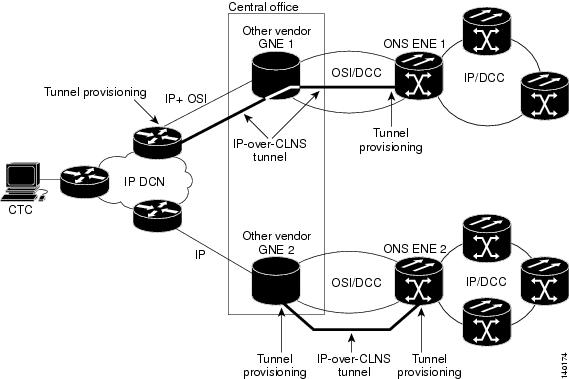
CTC Launcher provides two connection options. The first option is used to connect to ONS NEs that have an IP connection to the CTC computer. The second option is used to connect to ONS NEs that reside behind third party, OSI-based GNEs. For this option, CTC Launcher creates a TL1 tunnel to transport the TCP traffic through the OSI-based GNE.
The TL1 tunnel transports the TCP traffic to and from ONS ENEs through the OSI-based GNE. TL1 tunnels are similar to the existing static IP-over-CLNS tunnels, GRE, and Cisco IP, that can be created at ONS NEs using CTC. (Refer to the Cisco ONS product documentation for information about static IP-over-CLNS tunnels.) However, unlike the static IP-over-CLNS tunnels, TL1 tunnels require no provisioning at the ONS ENE, the third-party GNE, or DCN routers. All provisioning occurs at the CTC computer when the CTC Launcher is started.
The following figure shows examples of two static IP-over-CLNS tunnels. A static Cisco IP tunnel is created from ENE 1 through other vendor GNE 1 to a DCN router, and a static GRE tunnel is created from ONS ENE 2 to the other vender, GNE 2. For both static tunnels, provisioning is required on the ONS ENEs. In addition, a Cisco IP tunnel must be provisioned on the DCN router and a GRE tunnel provisioned on GNE 2.
The following figure shows the same network using TL1 tunnels. Tunnel provisioning occurs at the CTC computer when the tunnel is created with the CTC Launcher. No provisioning is needed at ONS NEs, GNEs, or routers.
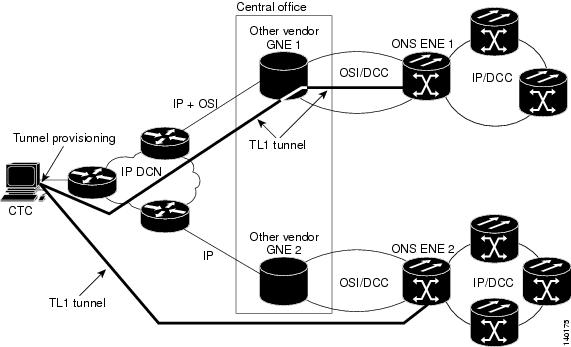
TL1 tunnels provide several advantages over static IP-over-CLNS tunnels. Because tunnel provisioning is needed only at the CTC computer, they are faster to set up. Because they use TL1 for TCP transport, they are more secure. TL1 tunnels also provide better flow control. On the other hand, IP over CLNS tunnels require less overhead and usually provide a slight performance edge over TL1 Tunnels (depending on network conditions). TL1 tunnels do not support all IP applications such as SNMP and RADIUS Authentication. The following table shows a comparison between the two types of tunnels.
|
Category |
Static IP-Over-CLNS |
TL1 Tunnel |
Comments |
|---|---|---|---|
|
Setup |
Complex |
Simple |
Requires provisioning at ONS NE, GNE, and DCN routers. For TL1 tunnels, provisioning is needed at CTC computer. |
|
Performance |
Best |
Average to good |
Static tunnels generally provide better performance than TL1 tunnels, depending on TL1 encoding used. LV+Binary provides the best performance. Other encoding will produce slightly slower TL1 tunnel performance. |
|
Support all IP applications |
Yes |
No |
TL1 tunnels do not support SNMP or RADIUS Server IP applications. |
|
ITU Standard |
Yes |
No |
Only the static IP-over-CLNS tunnels meet ITU standards. TL1 tunnels are new. |
|
Tunnel traffic control |
Good |
Very good |
Both tunnel types provide good traffic control |
|
Security setup |
Complex |
No setup needed |
Static IP-over-CLNS tunnels require careful planning. Because TL1 tunnels are carried by TL1, no security provisioning is needed. |
|
Potential to breach DCN from DCC using IP. |
Possible |
Not possible |
A potential exists to breach a DCN from a DCC using IP. This potential does not exist for TL1 tunnels. |
|
IP route management |
Expensive |
Automatic |
For static IP-over-CLNS tunnels, route changes require manual provisioning at network routers, GNEs, and ENEs. For TL1 tunnels, route changes are automatic. |
|
Flow control |
Weak |
Strong |
TL1 tunnels provide the best flow control. |
|
Bandwidth sharing among multiple applications |
Weak |
Best |
— |
|
Tunnel lifecycle |
Fixed |
CTC session |
TL1 tunnels are terminated when the CTC session ends. Static IP-over-CLNS tunnels exist until they are deleted in CTC. |
TL1 tunnel specifications and general capabilities include:
-
Each tunnel generally supports between six to eight ENEs, depending on the number of tunnels at the ENE.
-
Each CTC session can support up to 32 tunnels.
-
The TL1 tunnel database is stored locally in the CTC Preferences file.
-
Automatic tunnel reconnection when the tunnel goes down.
-
Each ONS NE can support at least 16 concurrent tunnels.
Control Card Reset
You can soft reset the control cards by using CTC or by physically resetting the card (a hard reset). A soft reset reboots the control card and reloads the operating system and the application software. Additionally, a hard reset temporarily removes power from the control card and clears all the buffer memory.
You can apply a soft reset from CTC to either an active or standby control card without affecting traffic. If you need to perform a hard reset on an active control card, put the control card into standby mode first by performing a soft reset.
Note |
Hard reset can also be performed on the TNC, TNCE, TNCS, TNCS-O, TSC, and TSCE cards through CTC and TL1 interface. Before performing the hard reset, bring the TNC, TNCE, TNCS, TNCS-O, TSC, or TSCE card to maintenance mode. |
When you reset the standby control card, the system traffic is not affected. When you reset the active control card, traffic switches to the standby card if the standby card is present and in the ready standby state. If the standby card is not in the ready standby state, traffic does not switch, and results in loss of system traffic and management connectivity until the card reboots completely.
 Caution |
When you reset the TNC, TNCE, TNCS, TNCS-O, TSC, or TSCE card on the ONS 15454, ONS 15454 M6, or NCS 2000 shelves in simplex control mode, loss of management connectivity happens until the card reboots. The system traffic loss may occur depending on the line card and traffic type. |
Note |
(Cisco ONS 15454 shelf) When a CTC reset is performed on an active TCC2, TCC2P, or TCC3 card, the AIC-I card goes through an initialization process and also resets because it is controlled by the active TCC2, TCC2P, or TCC3 card. |
Control Card Database
When dual control cards are installed in the ONS 15454, ONS 15454 M2, ONS 15454 M6 or NCS 2002 or NCS 2006 shelves, each control card hosts a separate database ; therefore, the protect card database is available if the database on the working control card fails. You can also store a backup version of the database on the workstation running CTC. This operation should be part of a regular ONS 15454, ONS 15454 M2, ONS 15454 M6 or NCS 2002 or NCS 2006 maintenance program at approximately weekly intervals, and should also be completed when preparing ONS 15454, ONS 15454 M2, ONS 15454 M6 or NCS 2002 or NCS 2006 for a pending natural disaster, such as a flood or fire.
The TNC, TNCS, TNCS-O, and TNCE cards provide 4GB of nonvolatile database storage for communication, provisioning, and system control. This allows full database recovery during power failure.
The configuration details are stored in the database of the control card. The database restore from a TNC, TNCS, TNCS-O, and TNCE cards to a TSC and TSCE cards or vice versa is not supported.
Note |
The following parameters are not backed up and restored: node name, IP address, mask and gateway, and Internet Inter-ORB Protocol (IIOP) port. If you change the node name and then restore a backed up database with a different node name, the circuits map to the new node name. We recommend keeping a record of the old and new node names. |
Software Revert
When you click Activate in the Maintenance > Software tabs after a software upgrade, the control card copies the current working database and saves it in a reserved location in the control card flash memory. If later during the upgrade you need to revert to the original working software load from the protect software load, the saved database installs automatically. You do not need to restore the database manually or recreate circuits.
The revert feature is useful if the maintenance window in which you were performing an upgrade closes while you are still upgrading CTC software. You can revert to the protect software load without losing traffic. During the next maintenance window, you can complete the upgrade and activate the new software load.
Circuits created or provisioning done after you activate a new software load (upgrade to a higher release) will be lost with a revert. The database configuration at the time of activation is reinstated after a revert. (This does not apply to maintenance reverts, such as Software R9.0.1 to Software R9.0.2, because maintenance releases retain the database during activation.)
Caution |
Cisco does not recommend reverting after changing provisioning on the node. Depending upon the particular provisioning, reverting in this case can be traffic affecting. |
To perform a supported (non-service-affecting) revert from a software release that you have just activated, the release you revert to must have been working at the time you first activated the new software on that node. Because a supported revert automatically restores the node configuration at the time of the previous activation, any configuration changes made after activation will be lost when you revert the software. Downloading the software release that you are upgrading to a second time after you have activated the new load ensures that no actual revert to a previous load can take place (the control resets, but it does not affect the traffic and does not change your database).
Note |
To perform a supported software upgrade or revert, you must consult the specific upgrade document and release notes for the release you are upgrading to (or reverting from). |
Equipment Inventory
In node view (single-shelf mode) and multishelf view (multishelf mode), the Inventory tab displays information about the ONS 15454 or NCS 2000 equipment, including:
-
Location—Identifies where the equipment is installed, either chassis or slot number.
-
Eqpt Type—Displays the type of equipment.
Note
CTC lists the 12 passive inventory ports for the ONS 15454 M6 or NCS 2006 chassis in the format USBP_SIDE_PORT (for example, CTC displays USBP_A_1 for port 1 on the left side of the chassis, and USBP_B_1 for port 1 on the right side of the chassis). These are labeled on the ONS 15454 M6 or NCS 2006 chassis from 1-12.
-
Actual Eqpt Type—Displays the specific card name.
-
Admin State—Changes the card service state unless network conditions prevent the change. For more information about card administrative states, see Administrative and Service States document.
-
IS (ANSI) or Unlocked (ETSI)—Puts the card in the In-Service and Normal (IS-NR [ANSI]) or Unlocked-enabled (ETSI) service state.
-
OOS,MA (ANSI) or Locked,maintenance (ETSI)—Puts the card in the Out-of-Service and Autonomous, Maintenance (OOS-AU,MT [ANSI]) or Unlocked-disabled,maintenance (ETSI) service state.
-
-
Service State—Displays the current card service state, which is an autonomously generated state that gives the overall condition of the card. Service states appear in the format: Primary State-Primary State Qualifier, Secondary State. For more information about card service states, see Administrative and Service States document.
-
Connected To—Displays the passive unit associated with the USB port of the ONS 15454 or NCS 2000 equipment.
-
HW Part #—Displays the hardware part number; this number is printed on the top of the card or equipment piece.
-
HW Rev—Displays the hardware revision number.
-
Serial #—Displays the equipment serial number; this number is unique to each card.
-
CLEI Code—Displays the Common Language Equipment Identifier code.
-
Bootroom Rev—Displays the boot read-only memory (ROM) revision number.
-
Product ID—Displays the manufacturing product identifier for a hardware component, such as a fan tray, chassis, or card. The Product ID column displays “N/A” for equipment existing before Software Release 4.6.
-
Version ID—Displays the manufacturing version identifier for a fan tray, chassis, or card. The Version ID column displays “N/A” for equipment existing before Software Release 4.6.
Buttons at the bottom of the Inventory tab are used to delete or reset a card when a card is selected, or to delete a PPM if a PPM is selected on the table.
Note |
After the card is upgraded using the boot code upgrade procedure, the bootstrap version is displayed in the Inventory tab in CTC. However, the boot code version is not displayed. |
Note |
|
Note |
When a ONS 15454 M2 or NCS 2000 chassis with a DC frame is power cycled by removing both the PSUs, the CTC loses connection to the node. After the connection is restored by inserting the PSUs, the power supply entries take 5–6 minutes to appear in the Inventory tab in CTC. |
Facilities View
In node view (single-shelf mode), shelf view (multishelf mode), and multishelf view (multishelf mode), the Maintenance > DWDM > All Facilities tab displays facility information for all facilities on the ONS 15454 or NCS 2000 equipment:
-
Marked—Displays a check mark if you have designated the facility for logical grouping. For information on marking a facility to group it with others, see the “NTP-G166 View the Facilities” task in the chapter “Maintain the Node” of the Cisco ONS 15454 DWDM Network Configuration Guide or Cisco NCS 2000 Series Network Configuration Guide.
-
Location—Displays the slot number, slot type, port number, and port type of the facility.
-
Admin State—Displays the administrative state of the facility.
-
Service State—Displays the service state of the facility.
-
Power—Displays the power level of the facility.
Additional References
Related Documents
Use this document in conjunction with the other release-specific documentation listed in this table:
| Link | Description |
|---|---|
| Cisco ONS Documentation Roadmap |
Provides quick access to publications of Cisco ONS releases. |
|
Cisco ONS 15454 DWDM Control Card and Node Configuration Guide |
Provides background and reference material and procedures for installation and configuration of control cards and node configuration on Cisco ONS 15454 dense wavelength division multiplexing (DWDM) systems. |
|
Cisco ONS 15454 DWDM Line Card Configuration Guide |
Provides background and reference material and procedures for installation and configuration of line cards on Cisco ONS 15454 dense wavelength division multiplexing (DWDM) systems. |
|
Cisco ONS 15454 DWDM Network Configuration Guide |
Provides background and reference material, procedures for turn up, provisioning, and maintenance of Cisco ONS 15454 dense wavelength division multiplexing (DWDM) systems. |
|
Cisco ONS 15454 DWDM Troubleshooting Guide |
Provides general troubleshooting instructions, alarm troubleshooting instructions, and a list of error messages that apply to the Cisco ONS 15454 dense wavelength division multiplexing (DWDM) systems. |
| Release Notes for Cisco ONS 15454 |
Provides information about new features and enhancements for the Cisco ONS 15454 DWDM platforms. |
| Cisco ONS 15454 Hardware Installation Guide |
Provides installation information of the Cisco ONS 15454 hardware. |
| Cisco ONS 15454 DWDM Licensing Guide |
Provides information about installing and managing Cisco ONS 15454 DWDM licenses. |
| Cisco ONS SDH TL1 Command Guide
Cisco ONS SONET TL1 Command Guide |
Provides a comprehensive list of TL1 commands. |
|
Installing the GBIC, SFP, SFP+, XFP, CXP, CFP, and CPAK Optical Modules in Cisco ONS Platforms |
Provides information about the Pluggable Port Modules support. |
| Link | Description |
|---|---|
|
Cisco NCS 2000 Series Documentation Roadmap |
Provides quick access to publications of Cisco NCS 2000 Series releases. |
|
Cisco NCS 2000 Series Control Card and Node Configuration Guide |
Provides background and reference material and procedures for installation and configuration of control cards and node configuration on Cisco NCS 2000 Series systems. |
|
Cisco NCS 2000 Series Line Card Configuration Guide |
Provides background and reference material and procedures for installation and configuration of line cards on Cisco NCS 2000 Series systems. |
|
Cisco NCS 2000 Series Network Configuration Guide |
Provides background and reference material, procedures for turn up, provisioning, and maintenance of Cisco NCS 2000 Series systems. |
|
Cisco NCS 2000 Series Troubleshooting Guide |
Provides general troubleshooting instructions, alarm troubleshooting instructions, and a list of error messages that apply to the Cisco NCS 2000 Series systems. |
|
Release Notes for Cisco NCS 2000 Series |
Provides information about new features and enhancements for the Cisco NCS 2000 Series systems. |
|
Cisco NCS 2000 Series Hardware Installation Guide |
Provides installation information of the Cisco NCS 2000 Series hardware. |
|
Cisco NCS 2000 Series Licensing Configuration Guide |
Provides information about installing and managing NCS licenses. |
|
Cisco NCS 2000 Series TL1 Command Guide |
Provides a comprehensive list of TL1 commands. |
|
Installing the GBIC, SFP, SFP+, XFP, CXP, CFP, and CPAK Optical Modules in Cisco NCS Platforms |
Provides information about the Pluggable Port Modules support. |
Technical Assistance
| Link | Description |
|---|---|
|
The Cisco Support website provides extensive online resources, including documentation and tools for troubleshooting and resolving technical issues with Cisco products and technologies. To receive security and technical information about your products, you can subscribe to various services, such as the Product Alert Tool (accessed from Field Notices), the Cisco Technical Services Newsletter, and Really Simple Syndication (RSS) Feeds. Access to most tools on the Cisco Support website requires a Cisco.com user ID and password. |
Short Description
Cisco and the Cisco logo are trademarks or registered trademarks of Cisco and/or its affiliates in the U.S. and other countries. To view a list of Cisco trademarks, go to this URL: https://www.cisco.com/c/en/us/about/legal/trademarks.html. Third-party trademarks mentioned are the property of their respective owners. The use of the word partner does not imply a partnership relationship between Cisco and any other company. (1721R)
Communications, Services, and Additional Information
-
To receive timely, relevant information from Cisco, sign up at Cisco Profile Manager.
-
To get the business results you’re looking for with the technologies that matter, visit Cisco Services.
-
To submit a service request, visit Cisco Support.
-
To discover and browse secure, validated enterprise-class apps, products, solutions and services, visit Cisco DevNet.
-
To obtain general networking, training, and certification titles, visit Cisco Press.
-
To find warranty information for a specific product or product family, access Cisco Warranty Finder.
Cisco Bug Search Tool
Cisco Bug Search Tool (BST) is a web-based tool that acts as a gateway to the Cisco bug tracking system that maintains a comprehensive list of defects and vulnerabilities in Cisco products and software. BST provides you with detailed defect information about your products and software.
CTC panel support for NCS 2000 Release 25.1.1
|
Feature Name |
Release Information |
Description |
|---|---|---|
|
Available and Removed CTC Panels |
Cisco IOS XR Release 25.1.1 |
With this release, the Cisco Optical Site Manager Web UI introduces certain functionalities, leading to the removal of specific CTC features. The removed features are now supported within the Cisco Optical Site Manager Web UI. . |
Cisco Optical Site Manager application and interfaces
A new management solution is introduced based on the Cisco Optical Site Manager application. This application runs within the SVO-LC, which is part of the NCS 2000 node architecture.
These are the key details about the new solution:
-
The Cisco Optical Site Manager application provides a Netconf/YANG-S north-bound interface.
-
Node management functionalities are accessible through the Cisco Optical Site Manager-Web UI.
-
Network management is exclusively handled by Cisco Optical Network Controller (CONC).
-
No network-level functionalities are available within the Cisco Optical Site Manager application.
|
Capabilities |
Details |
|---|---|
|
Circuit-level |
Circuit-level functionalities are retained in CTC to allow customers to access network-level features during the transition. This is necessary because Cisco Optical Site Manager has a node-level scope, while network-level operations are managed through CONC. |
|
OTN-level |
OTN-level functionalities are retained in CTC as they are not yet supported in the new solution. |
|
Node-level and card-level |
Node-level and card-level functionalities already supported by Cisco Optical Site Manager -Web UI are disabled in CTC, except for operations related to circuits and services The general approach encourages users to rely on Cisco Optical Site Manager-Web UI for node management to avoid configuration conflicts. |
The "panel automatic update" feature available in CTC R11.x.x is not supported in R25.1.1. Instead, R25.1.1 provides a refresh button that enables users to manually update the information as needed.
Note |
In release 25.1.1, CTC card-level and node-level functionalities are limited due to the availability of the Cisco Optical Site Manager web UI. The TL1 interface remains fully supported. Before making any configuration changes to the NCS 2000 cards using CTC or TL1, ensure that the Cisco Optical Site Manager interface is disabled through the device lock/unlock feature. This step is essential to avoid potential conflicts during the configuration process. |
Available panels and removed panels for NCS 2000 Release 25.1.1
In Release 25.1.1, support for certain CTC panels has been removed or disabled, and equivalent functionality is now available in the Cisco Optical Site Manager.
These tables list the available and removed panels and sub-panels in CTC:
Network view
|
Panel |
Sub-panel |
|---|---|
|
Alarms |
All |
|
Conditions |
All |
|
History |
All |
|
Circuits |
All |
|
Provisioning |
|
|
Maintenance |
|
|
OTN |
All |
|
Panel |
Sub-panel |
|---|---|
|
Provisioning |
|
|
Maintenance |
License Explorer |
|
Layer 2+ |
All |
Node view
|
Panel |
Sub-panel |
|---|---|
|
Alarms |
All |
|
Conditions |
All |
|
History |
All |
|
Circuits |
All |
|
Provisioning |
|
|
Maintenance |
|
|
Inventory |
All |
|
OTN |
All |
|
Panel |
Sub-panel |
|---|---|
|
Provisioning |
|
|
Maintenance |
|
|
Layer 2+ |
All |
Chassis view
|
Panel |
Sub-panel |
|---|---|
|
Alarms |
All |
|
Conditions |
All |
|
History |
All |
|
Circuits |
All |
|
Provisioning |
|
|
Inventory |
All |
|
Maintenance |
|
|
OTN |
All |
|
Layer 2+ |
All |
|
Panel |
Sub-panel |
|---|---|
|
Alarms |
All |
|
Provisioning |
|
|
Maintenance |
|
Card level
TXP cards
All panels are supported.
9-SMR FS / 20-SMR FS
|
Panel |
Sub-panel |
|---|---|
|
Alarms |
All |
|
Provisioning |
All |
|
Maintenance |
All |
|
Panel |
Sub-panel |
|---|---|
|
Conditions |
All |
|
History |
All |
|
Circuits |
All |
|
Inventory |
All |
|
Performance |
All |
Amplifiers (EDFA-17 / EDFA-24)
|
Panel |
Sub-panel |
|---|---|
|
Alarms |
All |
|
Provisioning |
All |
|
Inventory |
All |
|
Maintenance |
All |
|
Panel |
Sub-panel |
|---|---|
|
Conditions |
All |
|
History |
All |
|
Circuits |
All |
|
Performance |
All |
Amplifiers (EDRA-x, RAMAN-CTP, RAMAN-COP, EDFA-35, AMP-C)
All panels are supported.
Network functional view
Full support equivalent to Release 11.x.x.
 Feedback