动态访问策略

动态访问策略 (DAP) 让您能够配置解决 VPN 环境动态问题的授权。您可以设置一个与特定用户隧道或会话关联的访问控制属性集合,从而创建动态访问策略。这些属性可解决多重组成员身份和终端安全的问题。

Firewall Threat Defense 动态访问策略

Cisco Secure Firewall Threat Defense 动态访问策略是一组访问控制属性,可以

  • 解决 VPN 环境中多个组成员身份和终端安全的问题

  • 根据定义的策略授予特定用户在特定会话中的访问权限,并且

  • 适应具有影响每个 VPN 连接的多个变量的动态环境。

动态访问策略操作

VPN 网关在动态环境下运行。多个变量可能会影响每个 VPN 连接。例如,频繁更改内联网配置、每个用户在组织中可能有不同的角色,以及使用不同配置和安全级别从远程访问站点尝试登录。相比采用静态配置的网络,授权用户的任务在 VPN 环境中更为复杂。

您可以设置一个与特定用户隧道或会话关联的访问控制属性集合,从而创建动态访问策略。 Firewall Threat Defense 设备会通过从一个或多个 DAP 记录中选择或汇总属性,从而在用户身份验证期间生成 DAP。然后,设备会根据远程设备的终端安全信息,以及经过身份验证的用户的 AAA 授权信息,选择这些 DAP 记录。然后,设备会将 DAP 记录应用至用户隧道或会话。

Firewall Threat Defense 设备中权限和属性的策略实施层次结构

Firewall Threat Defense 设备支持将用户授权属性(也称为用户授权或权限)应用到 VPN 连接。从 Firewall Threat Defense 上的 DAP、外部身份验证服务器和/或授权 AAA 服务器 (RADIUS) 或从 Firewall Threat Defense 设备上的组策略应用属性。

如果 Firewall Threat Defense 设备收到来自所有来源的属性,将会对这些属性进行评估、合并,并将其应用至用户策略。如果来自 DAP、AAA 服务器或组策略的属性之间存在冲突,从 DAP 获得的属性始终会被优先考虑。

Firewall Threat Defense 设备按以下顺序应用属性:
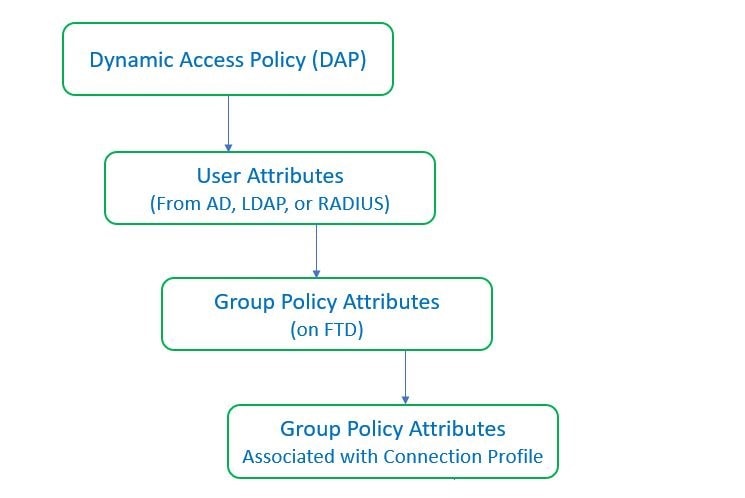
图 1. 策略实施流程
策略实施流程
  1. FTD 上的 DAP 属性 - DAP 属性优先于所有其他的属性。

  2. 外部 AAA 服务器上的用户属性 - 该服务器在用户身份验证和/或授权成功后返回这些属性。

  3. FTD 上配置的组策略 — 如果 RADIUS 服务器为用户返回 RADIUS 类属性 IETF-Class-25 (OU=group-policy) 值,Firewall Threat Defense 设备会将该用户放在名称相同的组策略中,并实施组策略中该服务器未返回的所有属性。

  4. 连接配置文件 (也称为隧道组) 分配的组策略- 连接配置文件具有该连接的初步设置,包括在进行身份验证前应用于用户的默认组策略。


Firewall Threat Defense设备不支持从默认组策略 DfltGrpPolicy 继承系统默认属性。对于用户会话,设备会使用您分配给连接配置文件的组策略上的属性,除非它们被来自 AAA 服务器的用户属性或组策略覆盖。

动态访问策略的先决条件

本文介绍了在配置 Dynamic Access Policy 功能之前必须满足的许可先决条件。

许可证先决条件

  • Firewall Threat Defense 必须至少具有以下 Secure Client 许可证之一:

    • Secure Client Premier

    • Secure Client Advantage

    • 仅限 Secure Client VPN

  • Firewall Threat Defense 基础版许可证必须允许出口控制功能。

一般先决条件

在配置动态访问策略之前,请确保您拥有 Cisco Secure Firewall 终端安全评估 软件包。您可以在 添加 Cisco Secure Firewall 终端安全评估 文件。

动态访问策略的准则与限制

在实施动态访问策略时,请考虑以下准则和限制:

  • 只有当 AAA 服务器被配置为在对远程接入 VPN 会话进行身份验证或授权时返回正确的属性时,才能匹配 DAP 中的 AAA 属性。

  • DAP 支持的最低 安全客户端Cisco Secure Firewall 终端安全评估 软件包版本为 4.6。但是强烈建议使用最新版本的 安全客户端

  • DAP 不支持集群或多实例模式。

  • 具有已分配 IPv4 或 IPv6 地址的 DAP 条件不适用于本地身份验证。

配置动态访问策略 (DAP)

创建动态访问策略

创建动态访问策略,根据 VPN 用户的终端安全状态和合规状态为他们启用条件访问控制。

动态访问策略评估终端属性和安全状态,以确定 VPN 用户的适当访问权限。这些策略与终端安全评估包配合使用,以实施安全合规。

Before you begin

在配置动态访问策略之前,请确保您拥有 Cisco Secure Firewall 终端安全评估 软件包。您可以在 添加 Cisco Secure Firewall 终端安全评估 文件。

过程


步骤 1

选择 安全连接 > 动态,然后点击创建动态访问策略

步骤 2

为 DAP 策略指定名称 (Name) 和可选的说明 (Description)

步骤 3

从下拉列表中选择 Cisco Secure Firewall 终端安全软件包 (Secure Firewall Posture Package)

步骤 4

点击保存


What to do next

要配置 DAP 记录,请参阅 创建动态访问策略记录

创建动态访问策略记录

动态访问策略 (DAP) 可以包含多个 DAP 记录,您可以在这些记录中配置用户和终端属性。您可以确定 DAP 内的 DAP 记录的优先级,以便 Firewall Threat Defense 设备在用户尝试 VPN 连接时选择和排序所需的条件。

过程


步骤 1

选择安全连接 > 动态

步骤 2

编辑现有的动态访问策略,或者点击创建动态访问策略 (Create Dynamic Access Policy) 以创建新策略,然后编辑该策略。

步骤 3

点击创建 DAP 记录 (Create DAP Record)

步骤 4

点击常规 (General)选项卡。

步骤 5

指定 DAP 记录的名称 (Name)

步骤 6

为 DAP 记录输入优先级 (Priority)

数值越低,优先级越高。

步骤 7

选择当 DAP 记录匹配时要执行的这些操作之一:

  • 继续 - 将访问策略属性应用于会话。如果有的话,接下来会评估下一个 DAP 记录(优先级较低的下一个策略行)。

  • 终止 (Terminate) - 终止会话。

  • 隔离 (Quarantine) - 隔离连接。

步骤 8

选中 在条件匹配时显示用户消息 复选框并添加用户消息。

当 DAP 记录匹配, Firewall Threat Defense 将此消息显示给用户。

步骤 9

选中对流量应用网络 ACL (Apply a Network ACL on Traffic) 复选框,然后从下拉列表中选择访问控制列表。

步骤 10

选中应用一个或多个 Secure Client 自定义属性 (Apply one or more Secure Client Custom Attributes) 复选框,然后从下拉列表中选择自定义属性对象。

步骤 11

点击保存


配置终端安全评估条件

对于 DAP 策略,可以使用唯一的终端 ID 配置文件、进程或注册表终端属性。这些 ID 可用作 Lua 脚本中的终端条件以配置 DAP 记录。

过程


步骤 1

选择安全连接 > 动态

步骤 2

点击创建动态访问策略 (Create Dynamic Access Policy) 以创建新的 DAP 策略,然后编辑策略。

步骤 3

点击 DAP 策略旁边的编辑图标。

步骤 4

点击添加终端安全评估条件 (Add Posture Assessment Criteria)

步骤 5

执行以下任一操作:

  • 配置文件终端属性:

    1. 点击文件 (File) 单选按钮。

    2. 终端 ID (Endpoint ID) 字段中,输入文件的唯一 ID。它可以是一个字符串或数字。

    3. 文件路径 (File Path) 字段中,指定文件路径。

  • 配置注册表终端属性:

    1. 点击注册表 (Registry) 单选按钮。

    2. 终端 ID (Endpoint ID) 字段中,输入注册表的唯一 ID。它可以是一个字符串或数字。

    3. 条目路径 (Entry Path) 字段中,指定文件路径。

  • 配置进程终端属性:

    1. 点击进程 (Process) 单选按钮。

    2. 终端 ID (Endpoint ID) 字段中,输入进程的唯一 ID。它可以是一个字符串或数字。

    3. 进程名称 (Process Name) 字段中,指定进程名称。


终端 ID 一旦保存,就无法编辑。

步骤 6

点击保存


What to do next

您可以使用 Lua 脚本来通过终端 ID 配置高级终端安全评估条件。有关详细信息,请参阅配置 DAP 高级设置

为 DAP 记录配置 AAA 条件设置

配置 AAA 条件设置以指定根据 AAA 授权和状态评估信息选择 DAP 记录并将其应用于用户会话的条件。

DAP 可提供一组限定的授权属性,这些属性可覆盖 AAA 提供的属性,从而补充 AAA 服务。Firewall Threat Defense 设备基于用户的 AAA 授权信息和会话的状态评估信息来选择 DAP 记录。Firewall Threat Defense 设备可根据此信息选择多个 DAP 记录,然后将其聚合以创建 DAP 授权属性。

过程


步骤 1

选择安全连接 > 动态

步骤 2

编辑现有 DAP 策略或创建新的 DAP 策略,然后编辑该策略。

步骤 3

选择 DAP 记录或创建新记录,然后编辑 DAP 记录。

步骤 4

点击 AAA 条件 (AAA Criteria)

步骤 5

选择部分之间匹配条件之一。

  • 任意 (Any) - 匹配任意条件。

  • 全部 (All) - 匹配所有条件。

  • 无 (None) - 不匹配任何设定的条件。

步骤 6

点击添加 (Add) 以添加所需的思科 VPN 条件

思科 VPN 条件包括组策略的属性、分配的 IPv4 地址、分配的 IPv6 地址、连接配置文件、用户名、用户名 2 和所需的 SCEP。

  1. 选择属性并指定

  2. 点击添加其他条件以添加更多条件。

  3. 点击保存

步骤 7

选择 LDAP 条件RADIUS 条件SAML 条件 并指定 属性 ID值 (

步骤 8

点击保存


Configure Endpoint Attribute Selection Criteria in DAP

Endpoint attributes contain information about the endpoint system environment, posture assessment results, and applications. The Firewall Threat Defense dynamically generates a collection of endpoint attributes during session establishment and stores these attributes in a database that is associated with the session. Each DAP record specifies the endpoint selection attributes that must be satisfied for the Firewall Threat Defense to choose it for a session. The Firewall Threat Defense selects only DAP records that satisfy every condition configured.

Procedure


Step 1

Choose 安全连接 > 动态, and click Create Dynamic Access Policy.

Step 2

Edit a DAP policy and then DAP record.

Note


Create a DAP policy and DAP record if not done already.

Step 3

Click Endpoint Criteria and configure the following endpoint criteria attributes:

Note


You can create multiple instances of each type of endpoint attribute. There is no limit for the number of endpoint attributes for each DAP record.

Step 4

Click Save.


Add an Anti-Malware Endpoint Attribute to a DAP

Procedure


Step 1

Edit a DAP record and select Endpoint Criteria > Anti-Malware.

Step 2

Select the Match Criteria All or Any.

Step 3

Click Add to add anti-malware attributes.

Step 4

Click Installed to indicate whether the selected endpoint attribute and its accompanying qualifiers are installed or not installed.

Step 5

Choose Enabled or Disabled to activate or deactivate real-time malware scanning.

Step 6

Select the name of the anti-malware Vendor from the list.

Step 7

Select the anti-malware Product Description.

Step 8

Choose the Version of the anti-malware product.

Step 9

Specify the number of days since the Last Update.

You can indicate that an anti-malware update must occur in less than (<) or more than (>) the number of days you specify.

Step 10

Click Save.


Add a Device Endpoint Attribute to a DAP

Procedure


Step 1

Edit a DAP record and choose Endpoint Criteria > Device.

Step 2

Select the Match Criteria All or Any.

Step 3

Click Add and select the = or operator to check the attribute to be equal to or not equal to the value you enter for the following attributes:

  • Host Name—Hostname of the device you are testing for. Use the computer’s host name only, not the fully qualified domain name (FQDN).

  • MAC Address—MAC address of the network interface card you are testing for. The address must be in the format xxxx.xxxx.xxxx where x is a hexadecimal character.

  • BIOS Serial Number—BIOS serial number value of the device you are testing for. The number format is manufacturer-specific.

  • Port Number—Listening port number of the device.

  • Secure Desktop Version—Version of the Host Scan image running on the endpoint.

  • OPSWAT Version—The OPSWAT client version.

  • Privacy Protection—None, Cache cleaner, Secure Desktop.

  • TCP/UDP Port Number—TCP or UDP port in the listening state that you are testing for.

Step 4

Click Save.


Add Secure Client Endpoint Attributes to a DAP

Procedure


Step 1

Edit a DAP record and select Endpoint Criteria > Secure Client.

Step 2

Select the Match Criteria All or Any.

Step 3

Click Add and select the = or operator to check the attribute to be equal to or not equal to the value you enter.

Step 4

Select the Client Version and Platform.

Step 5

Select the Platform Version, and specify the Device Type and Device Unique ID.

Step 6

Add the MAC Addresses the MAC Address Pool.

Note


The MAC Address must be in the format XX-XX-XX-XX-XX-XX, where each X is a hexadecimal character. You can click Add another MAC Address to add more addresses.

Step 7

Click Save.


Add NAC Endpoint Attributes to a DAP

Procedure


Step 1

Edit a DAP record and select Endpoint Criteria > NAC.

Step 2

Select the Match Criteria All or Any.

Step 3

Click Add to add NAC attributes.

Step 4

Set the operator to be equal to = or not equal to the posture token string. Enter the posture token string in the Posture Status box.

Step 5

Click Save.


Add an Application Attribute to a DAP

Procedure


Step 1

Edit a DAP record and select Endpoint Criteria > Application.

Step 2

Select the Match Criteria All or Any.

Step 3

Click Add to add application attributes.

Step 4

Choose equals ( = ) or does not equal () and specify the Client Type to indicate the type of remote access connection.

Step 5

Click Save.


Add a Personal Firewall Endpoint Attribute to a DAP

Procedure


Step 1

Edit a DAP record and select Endpoint Criteria > Personal Firewall.

Step 2

Select the Match Criteria All or Any.

Step 3

Click Add to add personal firewall attributes.

Step 4

Click Installed to indicate whether the personal firewall endpoint attribute and its accompanying qualifiers (fields below the Name/Operation/Value column) are installed or not installed.

Step 5

Choose Enabled or Disabled to activate or deactivate firewall protection.

Step 6

Select the name of the firewall Vendor from the list.

Step 7

Select the firewall Product Description.

Step 8

Select the equals ( = ) or does not equal () operator and choose the Version of the personal firewall product.

Step 9

Click Save.


Add an Operating System Endpoint Attribute to a DAP

Procedure


Step 1

Edit a DAP record and select Endpoint Criteria > Operating System .

Step 2

Select the Match Criteria All or Any.

Step 3

Click Add to add endpoint attributes.

Step 4

Select the equals ( = ) or does not equal () operator and then select the Operating System.

Step 5

Select the equals ( = ) or does not equal () operator and then specify the operating system Version.

Step 6

Click Save.


Add a Process Endpoint Attribute to a DAP

Procedure


Step 1

Edit a DAP record.

Step 2

Click the Endpoint Criteria tab.

Step 3

Click Process.

Step 4

Select the Match Criteria as All or Any.

Step 5

Click + to add the process attributes.

Step 6

Select Exists or Does not exist.

Step 7

Specify the Process Name.

Step 8

From the Endpoint ID drop-down list, choose the ID for the process or click + to configure a posture assessment criteria for the process. For more information, see 配置终端安全评估条件.

Step 9

Click Exists or Does not exist.

Step 10

Click Save.


Add a Registry Endpoint Attribute to a DAP

Scanning for registry endpoint attributes applies to Windows operating systems only.

Before you begin

Before configuring a Registry endpoint attribute, define the registry key for which you want to scan in the Host Scan window for Cisco Secure Desktop.

Procedure


Step 1

Edit a DAP record.

Step 2

Click the Endpoint Criteria tab.

Step 3

Click Registry.

Step 4

Select the Match Criteria as All or Any.

Step 5

Click + to add registry attributes.

Step 6

Select the Entry Path for the registry and specify the path.

Step 7

From the Endpoint ID drop-down list, choose the ID for the registry or click + to configure a posture assessment criteria for the registry. For more information, see 配置终端安全评估条件.

Step 8

Choose the existence of the registry, Exists or Does not exist.

Step 9

Select the registry Type from the list.

Step 10

Select the equals (=) or does not equal () operator and enter the Value of the registry key.

Step 11

Select Case insensitive to disregard the case of the registry entry while scanning.

Step 12

Click Save.


Add a File Endpoint Attribute to a DAP

Procedure


Step 1

Edit a DAP record.

Step 2

Click the Endpoint Criteria tab.

Step 3

Click File.

Step 4

Select the Match Criteria All or Any.

Step 5

Click + to add file attributes.

Step 6

Specify the File Path.

Step 7

From the Endpoint ID drop-down list, choose the ID for the file or click + to configure a posture assessment criteria for the file. For more information, see 配置终端安全评估条件.

Step 8

Choose Exists or Does not exist to indicate the presence of the file.

Step 9

Select less than (<) or greater than (>) and specify the Last Modified days for the file.

Step 10

Select the equal to ( = ) or not equal to operator and enter the Checksum.

Step 11

Click Save.


Add Certificate Authentication Attributes to a DAP

You can index each certificate to allow referencing to any of the received certificates, by the configured rules. Based on these certificate fields, you can configure DAP rules to allow or disallow connection attempts.

Procedure


Step 1

Edit a DAP record and select Endpoint Criteria > Certificate.

Step 2

Select the Match Criteria All or Any.

Step 3

Click Add to add certificate attributes.

Step 4

Select the certificate Cert1 or Cert2.

Step 5

Select the Subject and specify the subject value.

Step 6

Select the Issuer and specify the issuer value.

Step 7

Select the Subject Alternate Name and specify the subject value.

Step 8

Specify the Serial Number.

Step 9

Choose the Certificate Store: None, Machine, or User.

The VPN client sends the certificate store information.

Step 10

Click Save.


配置 DAP 高级设置

当标准 AAA 与终端属性区域无法满足要求时,此任务允许使用 Lua 脚本配置 DAP 记录的选择条件。

您可以使用高级选项卡添加 AAA 与终端属性区域以外的选择条件。例如,在您将 Firewall Threat Defense 配置为使用 AAA 属性(这些属性满足任意、所有指定条件,或者不需要满足指定条件)时,终端属性是累计的,并且必须全部满足。要让安全设备使用一个或另一个终端属性,您必须创建适当的 Lua 逻辑表达式,并在此处输入它们。

过程


步骤 1

选择安全连接 > 动态

步骤 2

创建或编辑 DAP 记录。

步骤 3

点击高级选项卡。

步骤 4

选择 ANDOR 作为要在 DAP 配置上使用的匹配条件。

步骤 5

用于高级属性匹配的 Lua 脚本 字段中添加 Lua 脚本。

步骤 6

要在 Lua 脚本中使用端点标准 ID,请执行以下操作:

  1. 将光标放在要插入终端条件 ID 的位置。

  2. 终端条件 (Endpoint Criteria) 下拉列表中选择条件 a

  3. 从相邻的下拉列表中选择相应的 ID。

示例:

在本示例中,DAPTESTFILE、LIBAGENT、vpnagent 和 DUOAGENT 已插入 Lua 脚本:

EVAL(endpoint.file["DAPTESTFILE"].exists,"EQ","true") or 
EVAL(endpoint.file["LIBAGENT"].exists,"EQ","true") and 
EVAL(endpoint.process[""vpnagent""].exists,"EQ","true") and 
EVAL(endpoint.registry[""DUOAGENT""].exists,"EQ","true")

步骤 7

点击保存


将动态访问策略与远程访问 VPN 关联

您可以将动态访问策略 (DAP) 与远程访问 VPN 策略关联,以便在 VPN 会话身份验证和授权期间匹配动态访问策略属性。您可以在 Firewall Threat Defense 上部署远程访问 VPN。

过程


步骤 1

选择安全连接 > 远程访问 VPN

步骤 2

点击要与动态访问策略关联的远程访问 VPN 策略旁边的 编辑

步骤 3

点击远程访问 VPN 中的链接以选择动态访问策略。

步骤 4

动态访问策略 下拉列表中选择策略,或点击 创建新的动态访问策略 以配置新的动态访问策略。

步骤 5

点击确定

步骤 6

点击保存以保存远程访问 VPN 策略。


当远程访问 VPN 用户尝试连接时,VPN 会检查配置的动态访问策略记录和属性。VPN 根据匹配的动态访问策略记录创建动态访问策略,并对 VPN 会话执行适当的操作。

动态访问策略历史记录

本参考提供了动态访问策略功能的版本历史记录,包括引入时间及每个版本中的变更。

功能

防火墙管理中心最低版本

Firewall Threat Defense最低版本

详细信息

轻松配置动态访问策略的安全评估条件

7.7

任意

对于 DAP 策略,可以使用唯一的终端 ID 配置文件、进程或注册表终端属性。这些 ID 可用作 Lua 脚本中的终端条件以配置 DAP 记录。

新增/修改的屏幕:

  • 设备 > 动态访问策略 > 添加/编辑策略 > 添加状态评估条件

  • 设备 (Devices) > 动态访问策略 (Dynamic Access Policy) > 添加/编辑策略 (Add/Edit Policy) > 添加/编辑 DAP 记录 (Add/Edit DAP Record) > 高级 (Advanced) > 终端条件 (Endpoint Criteria)

动态访问策略

7.0

任意

引入了此功能。