连接并注册防火墙

连接防火墙,然后将防火墙注册到防火墙管理中心

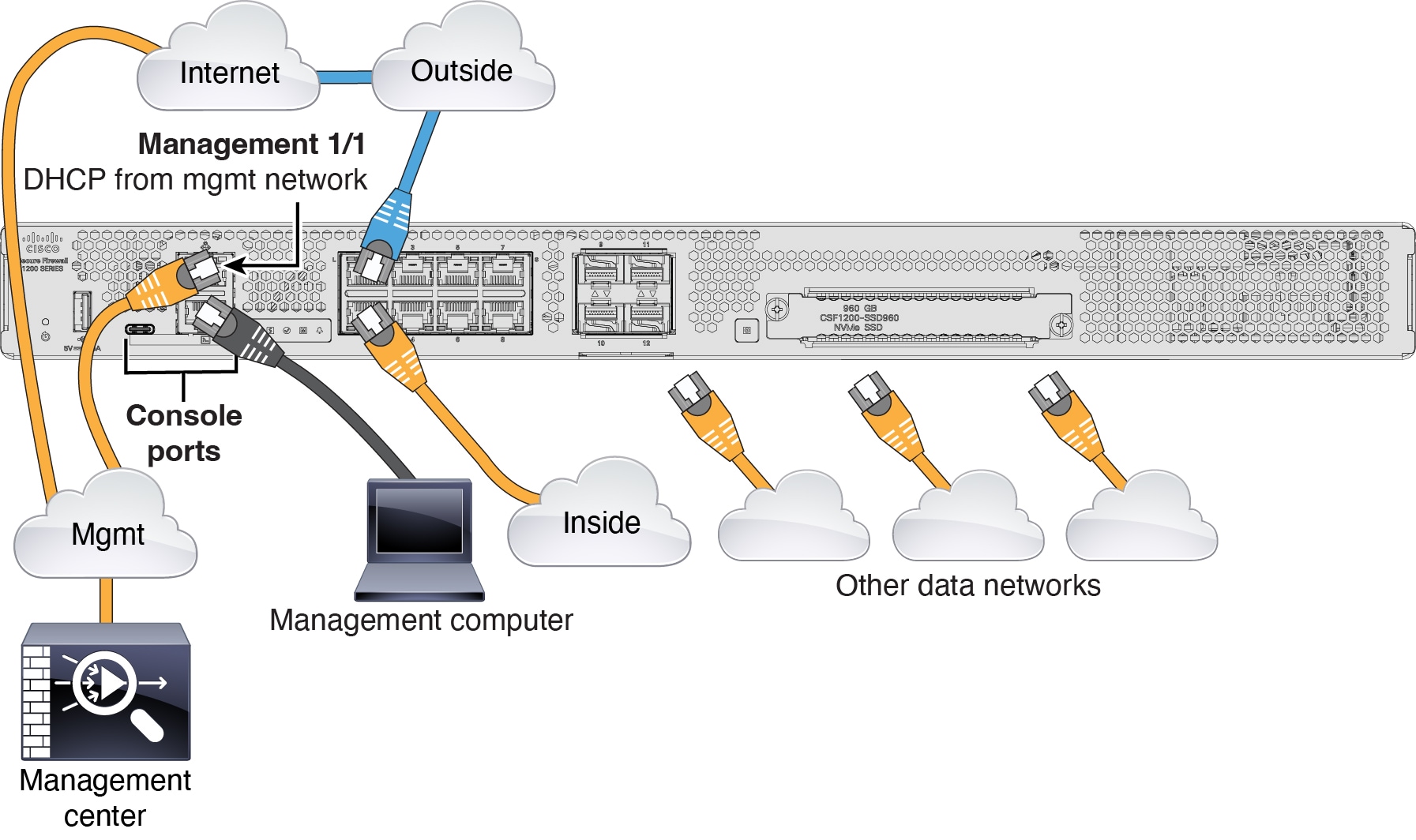
连接防火墙的电缆

防火墙管理中心 连接到专用管理 1/1 接口。管理网络需要访问互联网以进行更新。例如,您可以通过防火墙本身将管理网络与互联网连接(如连接到内部网络)。

  • 将 SFP/SFP+ 模块安装到以太网 1/9 及以上端口。

  • 有关详细信息,请参阅硬件安装指南

连接管理网络

执行初始配置

使用 Cisco Secure Firewall 设备管理器 或 CLI 来执行行初始配置。

初始配置:设备管理器

使用这种方法,在注册防火墙后,除管理接口外还将预先配置以下接口:

  • 以太网 1/1 - outside,IP 地址来自 DHCP、IPv6 自动配置

  • 以太网 1/2 - inside,192.168.95.1/24

  • 默认路由 - 通过外部接口上的 DHCP 获取

  • 其他接口 - 保留 设备管理器 中的任何接口配置。

不会保留其他设置,如内部的 DHCP 服务器、访问控制策略或安全区域。

过程


步骤 1

将计算机连接到内部接口(以太网 1/2 )

步骤 2

登录设备管理器

  1. 转至https://192.168.95.1

  2. 使用用户名 admin 和默认密码 Admin123 登录。

  3. 系统会提示您阅读并接受“一般条款”并更改管理员密码。

步骤 3

使用设置向导。

图 1. 设备设置
设备设置


具体的端口配置取决于您的型号。

  1. 配置外部接口和管理接口。

    图 2. 将防火墙连接到互联网
    将防火墙连接到互联网
    1. 外部接口地址 - 如果您计划实现高可用性,请使用静态 IP 地址。您不能使用设置向导配置 PPPoE;您可以在完成向导后配置 PPPoE。

    2. 管理接口 - 设置管理接口 IP 地址不是设置向导的一部分,但您可以设置以下选项。如果需要使用静态 IP 地址,请参阅步骤步骤 4

      DNS 服务器 - 系统管理地址的 DNS 服务器。默认值为 OpenDNS 公共 DNS 服务器。

      防火墙主机名

  2. 配置时间设置 (NTP) (Time Setting [NTP]) 并点击下一步 (Next)

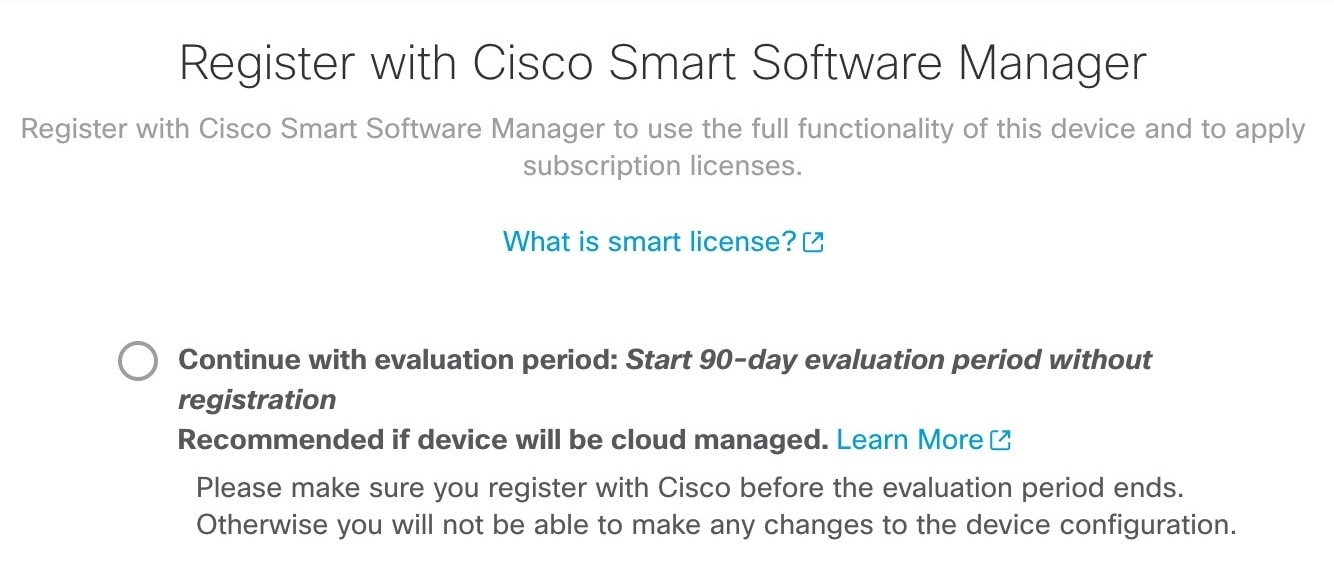
    图 3. 时间设置 (NTP)
    将防火墙连接到互联网
  3. 选择启动 90 日评估期而不注册

    将防火墙连接到互联网

    不要向智能软件管理器注册 ;所有许可均在 防火墙管理中心CDO 上执行。

  4. 点击完成

    图 4. 后续操作
    将防火墙连接到互联网
  5. 依次选择独立设备 (Standalone Device)明白 (Got It)

步骤 4

(可选) 使用静态 IP 地址来配置管理接口。请参阅设备 > 接口上的管理接口。

步骤 5

如果要配置其他接口,请选择设备 (Device),然后点击接口 (Interfaces) 摘要中的链接。

步骤 6

通过选择设备 (Device) 、 > 系统设置 (System Settings) 、 > 集中管理 (Central Management) 并点击继续 (Proceed),向 防火墙管理中心CDO 注册

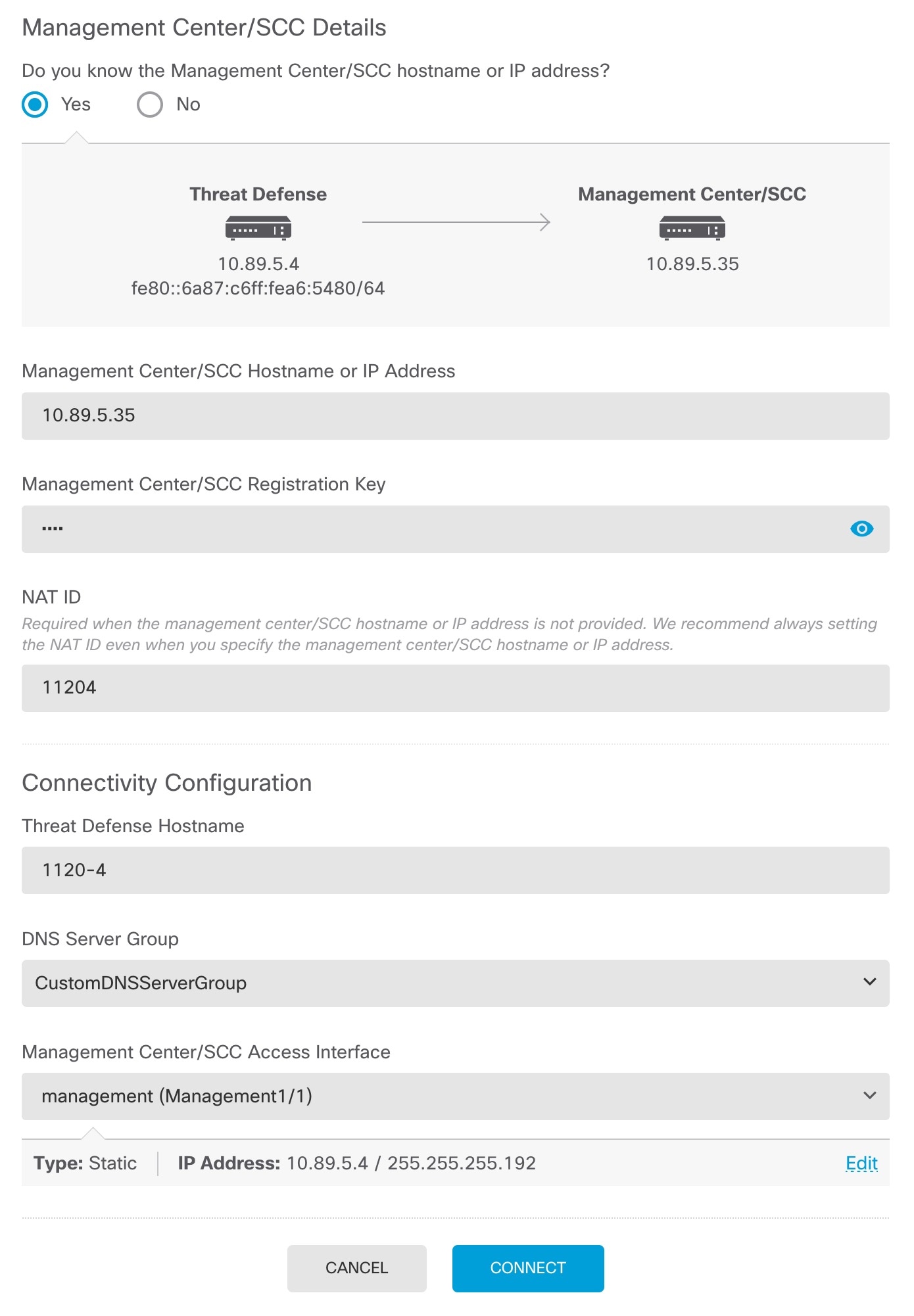
配置 管理中心/SCC/详细信息 (Management Center/SCC/Details)


较早的版本可能会显示“CDO”而不是“SCC”。

图 5. 管理中心/SCC 详细信息
管理中心/CDO 详细信息
  1. 对于 是否知道管理中心/SCC 主机名或 IP 地址,如果您可以使用 IP 地址或主机名访问 防火墙管理中心 ,请点击是 (Yes) ,如果 防火墙管理中心 位于 NAT 之后或没有公共 IP 地址或主机名,请点击否 (No)

  2. 如果选择,则输入 管理中心/SCC 主机名/IP 地址

  3. 指定 管理中心/SCC 注册密钥

    此密钥是您选择的一次性注册密钥,注册 防火墙时也要在 防火墙管理中心 上指定它。注册密钥必须为 2 到 36 个字符。有效字符包括字母数字(A–Z、a–z、0–9)和连字符 (-)。此 ID 可用于将多个防火墙注册到 防火墙管理中心

  4. 指定 NAT ID

    此 ID 是您选择的唯一一次性字符串,您还需要在 防火墙管理中心 上指定它。即使您知道两台设备的 IP 地址,我们仍建议您指定 NAT ID。NAT ID 必须介于 2 到 36 个字符之间。有效字符包括字母数字(A–Z、a–z、0–9)和连字符 (-)。此 ID 不能用于将任何其他防火墙注册到 防火墙管理中心。NAT ID 与 IP 地址结合使用,用于验证连接是否来自正确的设备;只有在对 IP 地址/NAT ID 进行身份验证后,才会检查注册密钥。

步骤 7

配置连接配置

  1. 指定威胁防御主机名

  2. 指定 DNS 服务器组

    虽然这已经设置: 选择一个现有组,或创建一个新组。默认 DNS 组名为 CiscoUmbrellaDNSServerGroup,其中包括 OpenDNS 服务器。

  3. 对于 管理中心/SCC 访问接口,点击 管理接口

步骤 8

点击连接 (Connect)

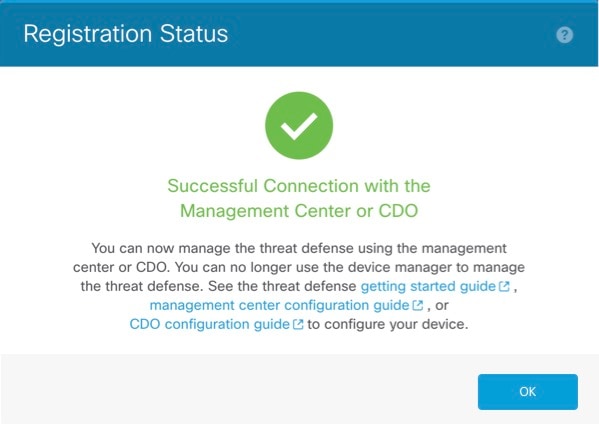
注册状态 (Registration Status) 对话框将显示 防火墙管理中心CDO 注册的当前状态。

图 6. 成功连接
成功连接

步骤 9

在状态屏幕上完成 保存管理中心/SCC 注册设置 步骤之后,转到 防火墙管理中心CDO ,然后添加防火墙。请参阅将防火墙注册到管理中心


初始配置:CLI

使用 CLI 设置脚本设置专用管理 IP 地址、网关和其他基本网络设置。

过程


步骤 1

连接控制台端口并访问 CLI。请参阅访问威胁防御 CLI

步骤 2

完成管理界面设置的 CLI 设置脚本。


除非清除配置,否则无法重复 CLI 设置脚本(例如,通过重新建立映像)。但是,可以稍后在 CLI 中使用 configure network 命令更改所有这些设置。请参阅 Cisco Secure Firewall Threat Defense 命令参考


You must accept the EULA to continue.
Press <ENTER> to display the EULA:                 
Cisco General Terms
[...]

Please enter 'YES' or press <ENTER> to AGREE to the EULA:

System initialization in progress.  Please stand by.
You must configure the network to continue.
Configure at least one of IPv4 or IPv6 unless managing via data interfaces.
Do you want to configure IPv4? (y/n) [y]:
Do you want to configure IPv6? (y/n) [y]: n

指南:为至少其中一种地址类型输入 y

Configure IPv4 via DHCP or manually? (dhcp/manual) [manual]:
Enter an IPv4 address for the management interface [192.168.45.61]: 10.89.5.17
Enter an IPv4 netmask for the management interface [255.255.255.0]: 255.255.255.192

Enter the IPv4 default gateway for the management interface [data-interfaces]: 10.10.10.1
Enter a fully qualified hostname for this system [firepower]: 1010-3
Enter a comma-separated list of DNS servers or 'none' [208.67.222.222,208.67.220.220,2620:119:35::35]:
Enter a comma-separated list of search domains or 'none' []: cisco.com
If your networking information has changed, you will need to reconnect.
Disabling IPv6 configuration: management0
Setting DNS servers: 208.67.222.222,208.67.220.220,2620:119:35::35
Setting DNS domains:cisco.com
Setting hostname as 1010-3
Setting static IPv4: 10.89.5.17 netmask: 255.255.255.192 gateway: data on management0
Updating routing tables, please wait...
All configurations applied to the system. Took 3 Seconds.
Saving a copy of running network configuration to local disk.
For HTTP Proxy configuration, run 'configure network http-proxy'

Manage the device locally? (yes/no) [yes]: no

指南:输入 no 以使用 防火墙管理中心

Setting hostname as 1010-3
Setting static IPv4: 10.89.5.17 netmask: 255.255.255.192 gateway: data on management0
Updating routing tables, please wait...
All configurations applied to the system. Took 3 Seconds.
Saving a copy of running network configuration to local disk.
For HTTP Proxy configuration, run 'configure network http-proxy'
Configuring firewall mode ...


Device is in OffBox mode - disabling/removing port 443 from iptables.
Update policy deployment information
    - add device configuration
    - add network discovery
    - add system policy

You can register the sensor to a Firepower Management Center and use the
Firepower Management Center to manage it. Note that registering the sensor
to a Firepower Management Center disables on-sensor Firepower Services
management capabilities.

When registering the sensor to a Firepower Management Center, a unique
alphanumeric registration key is always required.  In most cases, to register
a sensor to a Firepower Management Center, you must provide the hostname or
the IP address along with the registration key.
'configure manager add [hostname | ip address ] [registration key ]'

However, if the sensor and the Firepower Management Center are separated by a
NAT device, you must enter a unique NAT ID, along with the unique registration
key.
'configure manager add DONTRESOLVE [registration key ] [ NAT ID ]'

Later, using the web interface on the Firepower Management Center, you must
use the same registration key and, if necessary, the same NAT ID when you add
this sensor to the Firepower Management Center.
>

步骤 3

识别 防火墙管理中心

configure manager add {主机名 | IPv4_address | IPv6_address | DONTRESOLVE} reg_key nat_id

  • {hostname | IPv4_address | IPv6_address | DONTRESOLVE} - 指定 防火墙管理中心 的 FQDN 或 IP 地址。如果 防火墙管理中心 无法直接寻址,请使用 DONTRESOLVE,在这种情况下,防火墙必须具有可访问的 IP 地址或主机名。

  • reg_key - 指定您选择的一次性注册密钥,注册时也要在防火墙管理中心上指定它。注册密钥必须为 2 到 36 个字符。有效字符包括字母数字(A–Z、a–z、0–9)和连字符 (-)。

  • nat_id - 指定了您选择的唯一一次性字符串,您还需要在 防火墙管理中心 上指定它。NAT ID 必须介于 2 到 36 个字符之间。有效字符包括字母数字(A–Z、a–z、0–9)和连字符 (-)。此 ID 不能用于将任何其他设备注册到 防火墙管理中心

示例:


> configure manager add fmc-1.example.com regk3y78 natid56
Manager successfully configured.

将防火墙注册到管理中心

将防火墙手动注册到 防火墙管理中心

过程


步骤 1

登录防火墙管理中心

  1. 输入以下 URL。

    https://fmc_ip_address

  2. 输入您的用户名和密码。

  3. 点击登录

步骤 2

选择设备 > 设备管理

步骤 3

添加下拉菜单中,选择。

步骤 4

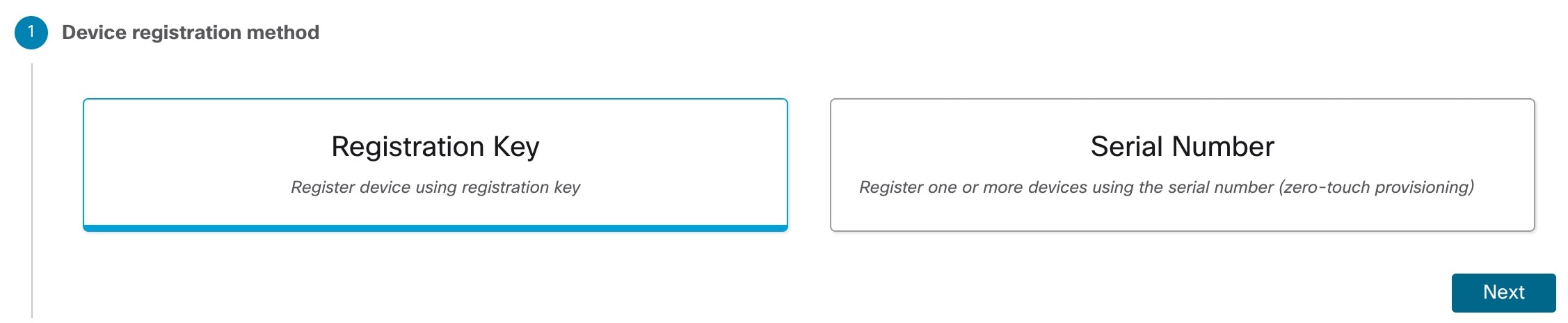
点击注册密钥 (Registration Key),然后点击下一步 (Next)

图 7. 设备注册方法
设备注册方法

步骤 5

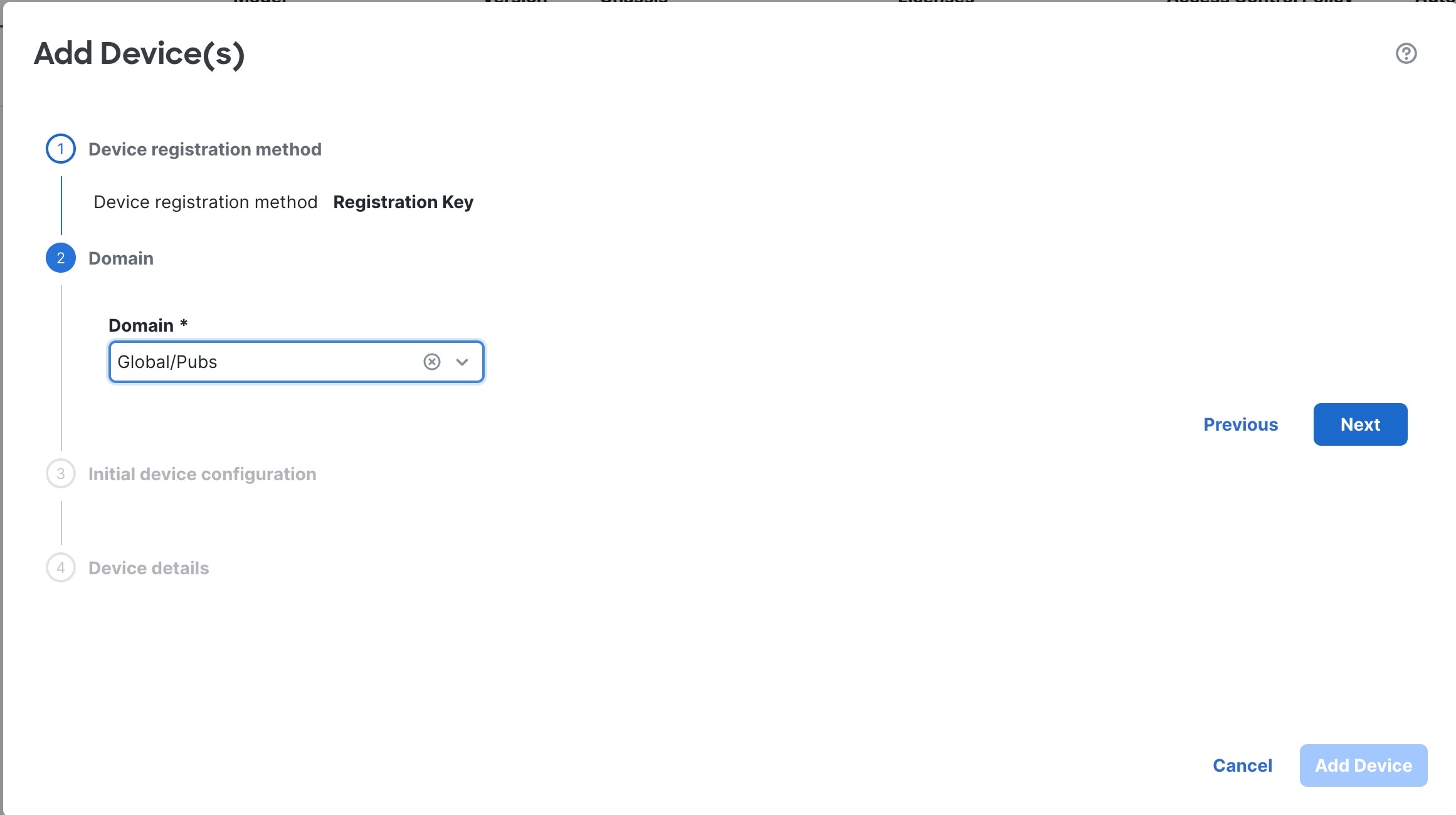
在多域环境中,从下拉列表中选择域 (Domain) ,然后点击下一步 (Next)

图 8.
域

步骤 6

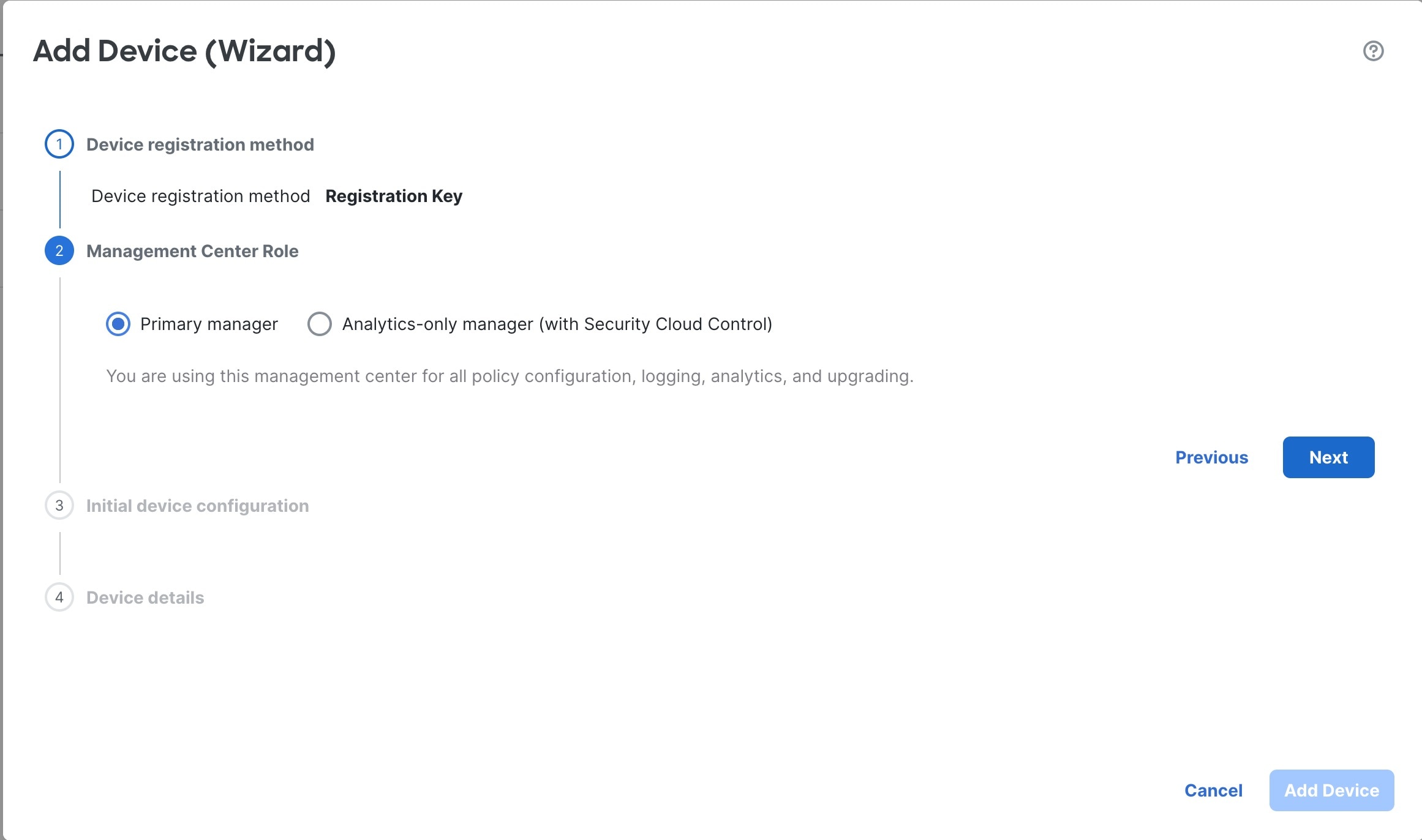
点击 主管理器

图 9. 管理中心角色
管理中心角色

步骤 7

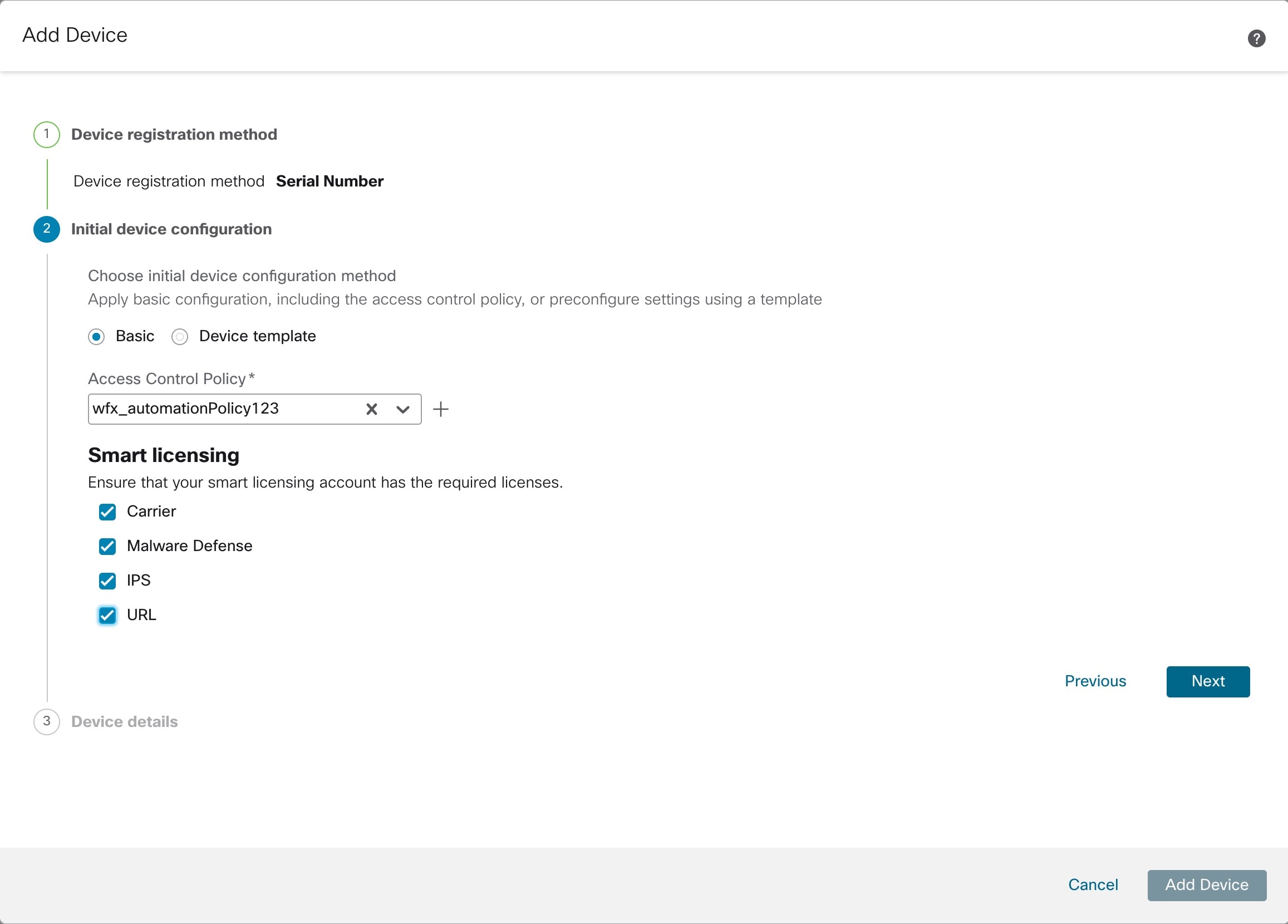
对于初始设备配置,点击基础 (Basic) 按钮。

图 10. 初始设备配置
初始设备配置
  1. 选择初始访问控制策略以在注册时部署到设备,或创建一个新策略。 除非已经拥有您知道自己需要使用的自定义策略,否则选择 创建新策略,然后选择 阻止所有流量。之后您可以更改此设置以允许流量通过;请参阅配置访问控制规则

  2. 选择要应用到设备的智能许可许可证。

    在添加设备后,您可以从系统 (System) > 许可证 (Licenses) > 智能许可证 (Smart Licenses) 页面,包括 Secure Client 远程访问 VPN 许可证来应用证书。

  3. 点击下一步 (Next)

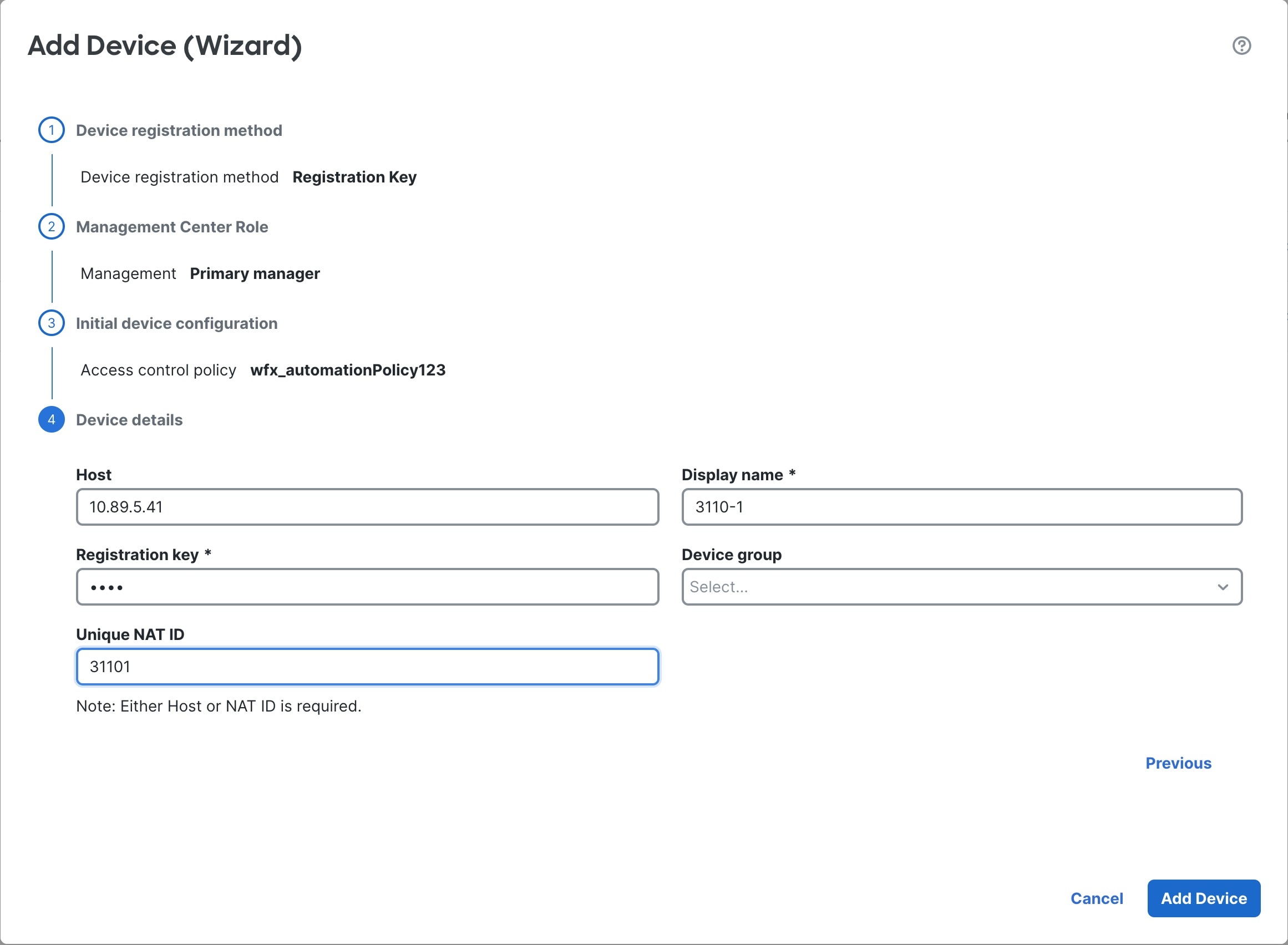
步骤 8

指定设备详细信息

图 11. 设备详细信息
设备详细信息
  1. 对于主机,输入要添加设备的 IP 地址或主机名。如果您不知道设备的 IP 地址(例如,它位于 NAT 后),请将此字段留空。

  2. 对于显示名称 (Display name),输入要在 防火墙管理中心 中显示的设备名称。之后将无法更改该名称。

  3. 对于 注册密钥 (Registration Key),输入您在初始配置中相同的注册密钥。

  4. (可选) 将设备添加到设备组

  5. 对于唯一 NAT ID,请输入初始配置中的同一 ID。

  6. 选中传输数据包 (Transfer Packets) 复选框,以便对于每个入侵事件,设备将数据包传输到 防火墙管理中心 进行检查。

    对于每个入侵事件,设备会将事件信息和触发事件的数据包发送到 防火墙管理中心 进行检查。如果禁用此选项,则只会向 防火墙管理中心 发送事件信息,而不会发送数据包。

步骤 9

点击添加设备

防火墙管理中心可能需要长达两分钟来验证设备的心跳并建立通信。如果注册成功,设备将添加到列表中。如果注册失败,您会看到一则错误消息。如果设备注册失败,请检查以下项:

  • Ping - 访问设备 CLI,然后使用以下命令 ping 防火墙管理中心 IP 地址:

    ping system ip_address

    如果 ping 不成功,使用 show network 命令检查网络设置。如果需要更改设备 IP 地址,使用 configure network {ipv4 | ipv6} manual 命令。

  • 注册密钥、NAT ID 和 防火墙管理中心IP 地址 - 确保在两个设备上使用相同的注册密钥和 NAT ID(如有使用)。可以在设备上使用 configure manager add 命令设定注册密钥和 NAT ID。

有关更多故障排除信息,请参阅 https://cisco.com/go/fmc-reg-error