cnSGW-C Rolling Software Update

Feature Summary and Revision History

Summary Data

Table 1. Summary Data

Applicable Product(s) or Functional Area

cnSGW-C

Applicable Platform(s)

SMI

Feature Default Setting

Not Applicable

Related Documentation

Not Applicable

Revision History

Table 2. Revision History
Revision Details Release

First introduced.

2021.02.0

Introduction

The cnSGW-C has a three-tier architecture consisting of Protocol, Service, and Session. Each tier includes a set of microservices (pods) for a specific functionality. Within these tiers, there exists a Kubernetes Cluster comprising of Kubernetes (K8s) master, and worker nodes (including Operation and Management (OAM) nodes).

For high availability and fault tolerance, a minimum of two K8s worker nodes are configured for each tier. You can have multiple replicas for each worker node. Kubernetes orchestrates the pods using the StatefulSets controller. The pods require a minimum of two replicas for fault tolerance.

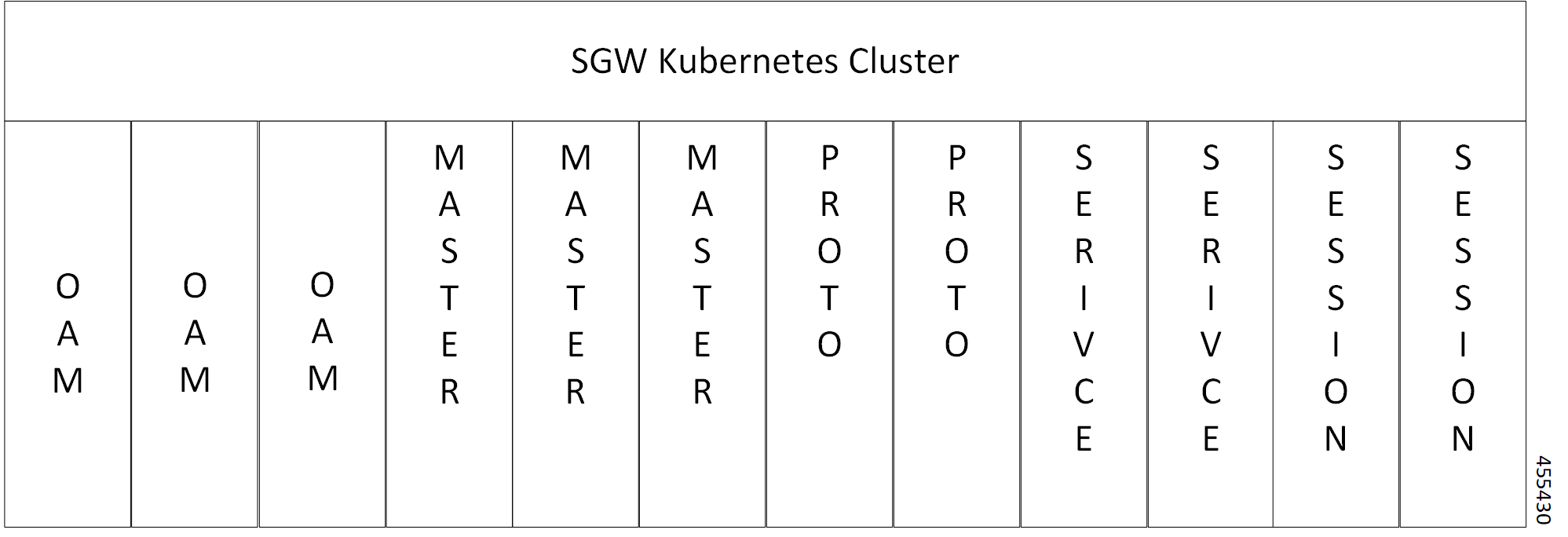
The following figure depicts cnSGW-C K8s cluster with 12 nodes.

  • Three master nodes

  • Three OAM worker nodes

  • Two Protocol worker nodes

  • Two Service worker nodes

  • Two Session (data store) worker nodes

Figure 1. cnSGW-C Kubernetes Cluster

The cnSGW-C Kubernetes cluster comprises of the following nodes:

  • The OAM worker nodes host the Ops Center pods for configuration management and metrics pods for statistics and Key Performance Indicators (KPIs).

  • The Protocol worker nodes host the cnSGW-C protocol-related pods for service-based interfaces (N11, N7, N10, N40) and UDP-based protocol interfaces (N4, S5/S8).

  • The Service worker nodes host the cnSGW-C application-related pods that perform session management processing.

  • The Session worker nodes host the database-related pods that store subscriber session data.

Updating cnSGW-C

The rolling software update is a process of updating or migrating the build from an older to a newer version or updating the patch for the prescribed deployment set of application pods.

Rolling update takes place with zero downtime by incrementally updating the pod instances with the new ones.


Note


The applications must be available when new versions are expected to be deployed with the new build versions or patches.


Update Scope

The rolling update feature is supported from an older to the newer versions within the same major release.

  • Assumptions: When updating, it is assumed that the following has not been changed between the versions:

    • Features supported in the old and the new versions.

    • Configuration addition, deletion, or modification of the existing CLI behavior.

    • Interface change within the peer or across the pods.

  • Recommendations:

    • Configuration changes are not recommended during the update process.

    • All configuration changes should be done after the update process is complete.

  • Failure Handling: The system should be downgraded manually to an older healthy build following the downgrade process for:

    • Failure during the process such as crash, and pods deployment failures.

    • Failure after the successful update such as new events or procedures.

Rolling Software Update Using the SMI Cluster Manager

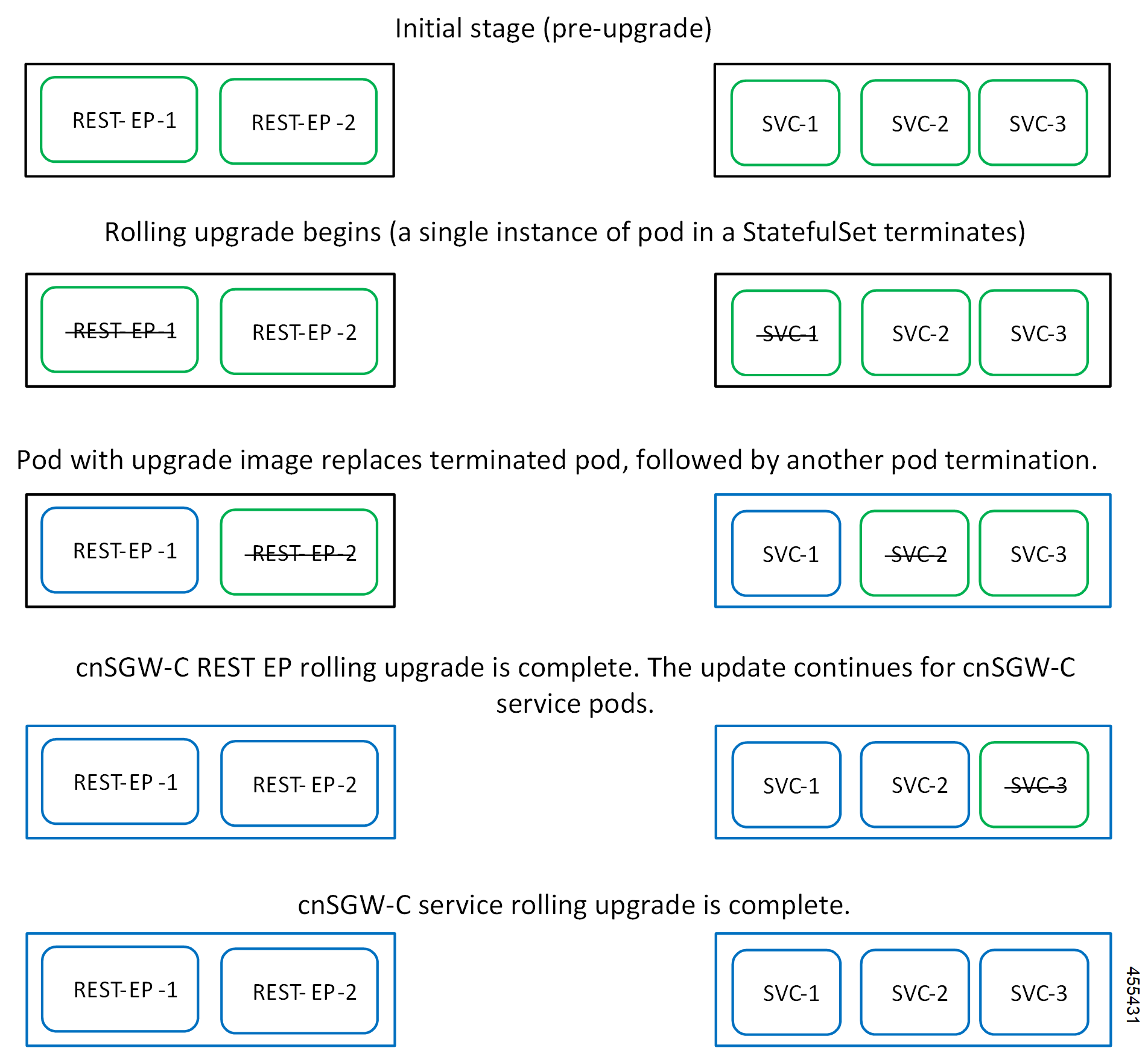
The cnSGW-C software update or in-service update procedure utilizes the K8s rolling strategy to update the pod images. In this strategy, the pods of a StatefulSet are updated sequentially to ensure that the ongoing process remains unaffected. Initially, a rolling update on a StatefulSet causes a single pod instance to terminate. A pod with an updated image replaces the terminated pod. This process continues until all the replicas of the StatefulSet are updated. The terminating pods exit gracefully after competing all the ongoing processes. Other in-service pods continue to receive and process the traffic to provide a seamless software update. You can control the software update process through the Ops Center CLI.


Note


Each pod needs a minimum of two pods for high availability. In a worst-case scenario, the processing capacity of the pod may briefly reduce to 50% while the software update is in-progress.


The following figure illustrates a cnSGW-C rolling update for cnSGW-C REST endpoint pods (two replicas) on Protocol worker nodes along with cnSGW-C Service pods (three replicas) on Service worker nodes.

Figure 2. cnSGW-C Rolling Update

Prerequisites

The prerequisites for upgrading cnSGW-C are:

  • All the nodes that include all the pods in the node that are up and running.

  • A patch version of the cnSGW-C software.


    Note


    Major versions do not support rolling update.


    Important


    Trigger rolling update only when the CPU usage of the nodes is less than 50%.


  • Intra-site HA support.

cnSGW-C Health Check

Perform a health check to ensure that all the services are running and the nodes are in the ready state.

To perform health check, use the following configuration:

  • Log in to the master node and use the following configuration:

    kubectl get pods -n smi 
    kubectl get nodes 
    kubectl get pod --all-namespaces -o wide 
    kubectl get pods -n cnsgw-wsp -o wide 
    kubectl get pods -n cee-wsp -o wide 
    kubectl get pods -n smi-vips -o wide 
    helm list 
    kubectl get pods -A | wc -l 
    

Important


Make sure that all the services are running and nodes are in the ready state before you proceed.


Backing Up the Deployment File

To create a backup configuration, logs, and deployment files, use the following configuration:

  1. Log in to the SMI Cluster Manager Node as an Ubuntu user.

  2. Create a new directory for deployment.

    Example:

    test@smicnsgw-cm01:~$ mkdir -p "temp_$(date +'%m%d%Y_T%H%M')" && cd "$_"
  3. Back up the working files into the newly created deployment directory.

  4. Untar the cnsgw deployment file.

    Example:
    test@smi1cnsgw01-cm01:~/temp_08072019_T1651$ tar -xzvf cnsgw.2020.01.0-1.SPA.tgz
    ./
    ./cnsgw_REL_KEY-CCO_RELEASE.cer
    ./cisco_x509_verify_release.py
    ./cnsgw.2020.01.0-1.tar
    ./cnsgw.2020.01.0-1.tar.signature.SPA
    ./cnsgw.2020.01.0-1.tar.SPA.README
    
  5. Verify the downloaded image.

    Example:

    test@smi1cnsgw01-cm01:~/temp_08072019_T1651$ cat cnsgw.2020.01.0-1.tar.SPA.README

    Important


    Follow the procedure mentioned in the SPA.README file to verify the build before proceeding to the next step.


Backing Up the Ops Center Configuration

To back up the Ops Center configurations, use the following configuration:

  1. Log in to the SMI Cluster Manager node as an Ubuntu user.

  2. Back up the SMI Ops Center configuration to the /home/ubuntu/smiops.backup file, using the following configuration:

    ssh -p <port_number> admin@$(kubectl get svc -n smi | grep '.*netconf.*<port_number>' | awk '{ print $4 }') "show run | nomore" > smiops.backup_$(date +'%m%d%Y_T%H%M') 
  3. Back up the CEE Ops Center configuration to the /home/ubuntu/ceeops.backup file, using the following configuration:

    ssh admin@<cee-vip> "show run | nomore" > ceeops.backup_$(date +'%m%d%Y_T%H%M') 
  4. Back up the cnSGW-C Ops Center configuration to the /home/ubuntu/cnSGWops.backup file, using the following configuration:

    ssh admin@<cnSGW-vip> "show run | nomore" > cnSGWops.backup_$(date +'%m%d%Y_T%H%M') 
Back Up CEE and cnSGW-C Ops Center Configuration

To back up the CEE and Ops Center configuration from the master node, use the following configuration:

  1. Log in to the master node as an Ubuntu user.

  2. Create a directory to backup the configuration files, using the following configuration:

    mkdir backups_$(date +'%m%d%Y_T%H%M') && cd "$_" 
  3. Back up the cnSGW-C Ops Center configuration and verify the line count of the backup files, using the following configuration:

    ssh -p <port_number> admin@$(kubectl get svc -n $(kubectl get namespaces | grep -oP 'cnSGW-(\d+|\w+)') | grep <port_number> | awk '{ print $3 }') "show run | nomore" > cnSGWops.backup_$(date +'%m%d%Y_T%H%M') && wc -l cnSGWops.backup_$(date +'%m%d%Y_T%H%M') 
    Example:
    ubuntu@pocnSGW-mas01:~/backups_09182019_T2141$ ssh -p 2024 admin@$(kubectl get svc -n $(kubectl get namespaces | grep -oP 'cnSGW-(\d+|\w+)') | grep <port_number> | awk '{ print $3 }') "show run | nomore" > cnSGWops.backup_$(date +'%m%d%Y_T%H%M') && wc -l cnSGWops.backup_$(date +'%m%d%Y_T%H%M')
    admin@<ipv4address>'s password: cnSGW-OPS-PASSWORD
    334 cnSGWops.backup
    
  4. Back up the CEE Ops Center configuration and verify the line count of the backup files, using the following configuration:

    ssh -p <port_number> admin@$(kubectl get svc -n $(kubectl get namespaces | grep -oP 'cee-(\d+|\w+)') | grep <port_number> | awk '{ print $3 }') "show run | nomore" > ceeops.backup_$(date +'%m%d%Y_T%H%M') && wc -l ceeops.backup_$(date +'%m%d%Y_T%H%M') 
    Example:
    ubuntu@pocnSGW-mas01:~/backups_09182019_T2141$ ssh -p <port_number> admin@$(kubectl get svc -n $(kubectl get namespaces | grep -oP 'cee-(\d+|\w+)') | grep <port_number> | awk '{ print $3 }') "show run | nomore" > ceeops.backup_$(date +'%m%d%Y_T%H%M') && wc -l ceeops.backup_$(date +'%m%d%Y_T%H%M')
    admin@<ipv4address>'s password: CEE-OPS-PASSWORD
    233 ceeops.backup
    
  5. Move the SMI Ops Center backup file (from the SMI Cluster Manager) to the backup directory, using the following configuration:

    scp $(grep cm01 /etc/hosts | awk '{ print $1 }'):/home/ubuntu/smiops.backup_$(date +'%m%d%Y_T%H%M') . 

    Example:

    ubuntu@pocnSGW-mas01:~/backups_09182019_T2141$ scp $(grep cm01 /etc/hosts | awk '{ print $1 }'):/home/ubuntu/smiops.backup_$(date +'%m%d%Y_T%H%M') .
    ubuntu@<ipv4address>'s password: SMI-CM-PASSWORD
    smiops.backup                                                       100% 9346    22.3MB/s   00:00                                                                            
    
  6. Verify the line count of the backup files.

    Example:

    ubuntu@pocnSGW-mas01:~/backups_09182019_T2141$ wc -l *
      233 ceeops.backup
      334 cnSGWops.backup
      361 smiops.backup
      928 total
    
Staging a New cnSGW-C Image

To stage a new cnSGW-C image before initiating the update, use the following configuration:

  1. Download and verify the new cnSGW-C image.

  2. Log in to the SMI Cluster Manager node as an Ubuntu user.

  3. Copy the image to the uploads directory.

    sudo mv <cnSGW_new_image.tar> /data/software/uploads 

    Note


    The SMI uses the new image present in the uploads directory to update.


  4. Verify whether the image is picked up by the SMI for processing from the uploads directory.

    sleep 30; ls /data/software/uploads 

    Example:

    ubuntu@pocnSGW-cm01:~/temp_08072019_T1651$ sleep 30; ls /data/software/uploads
    ubuntu@pocnSGW-cm01:~/temp_08072019_T1651$
    
  5. Verify whether the images were successfully picked up and processed.

    Example:

    auser@unknown:$ sudo du -sh /data/software/packages/*
    1.6G	/data/software/packages/cee.2019.07
    5.3G	/data/software/packages/cnSGW.2019.08-04
    16K	/data/software/packages/sample
    

    Note


    The SMI must unpack the images into the packages directory successfully to complete the staging.


Triggering the Rolling Software Upgrade

cnSGW-C utilizes the SMI Cluster Manager to perform a rolling software update.

To update cnSGW-C using SMI Cluster Manager, use the following configurations:


Important


Before you begin, ensure that cnSGW-C is up and running with the current version of the software.


  1. Log in to the SMI Cluster Manager Ops Center.

  2. Download the latest tarall from the URL.

    software-packages download url 

    NOTES:

    • software-packages download url —Specifies the software packages to be downloaded through HTTP/HTTPS.

    Example:

    SMI Cluster Manager# software-packages download <url> 
    
  3. Verify whether the tarall is loaded.

    software-packages list 

    NOTES:

    • software-packages list —Specifies the list of available software packages.

    Example:

    SMI Cluster Manager# software-packages list 
    [ cnSGW-2019-08-21 ] 
    [ sample ] 
    
  4. Update the product repository URL with the latest version of the product chart.


    Note


    If the repository URL contains multiple versions, the Ops Center automatically selects the latest version.


    configure
      cluster cluster_name
       ops-centers app_name cnSGW_instance_name
            repository url
             exit
           exit 

    Example:

    SMI Cluster Manager# config 
    SMI Cluster Manager(config)# clusters test2 
    SMI Cluster Manager(config-clusters-test2)# ops-centers cnSGW data 
    SMI Cluster Manager(config-ops-centers-cnSGW/data)# repository <url> 
    SMI Cluster Manager(config-ops-centers-cnSGW/data)# exit 
    SMI Cluster Manager(config-clusters-test2)# exit 
    
  5. To update to the latest version of the product chart, run the cluster sync command using the following command:

    clusters cluster_name actions sync run 

    Example:

    SMI Cluster Manager# clusters test2 actions sync run

NOTES:

  • cluster —Specifies the K8s cluster.

  • cluster_name —Specifies the name of the cluster.

  • ops-centers app_name instance_name —Specifies the product Ops Center and instance. app_name is the application name. instance_name is the name of the instance.

  • repository url —Specifies the local registry URL for downloading the charts.

  • actions —Specifies the actions performed on the cluster.

  • sync run —Triggers the cluster synchronization.


Important


  • The cluster synchronization updates the cnSGW-C Ops Center, which in turn updates the application pods (through helm sync command) one at a time automatically.

  • When you trigger rolling upgrade on a specific pod, the cnSGW-C avoids routing new calls to that pod.

  • The cnSGW-C honors in-progress call by waiting for 30 seconds before restarting the pod where rolling upgrade is initiated. Also, the cnSGW-C establishes all the in-progress calls completely within 30 seconds during the upgrade period (maximum call-setup time is 10 seconds).


Monitoring the Update Procedure

To monitor the status update through SMI Cluster Manager Ops Center, use the following configurations:

config 
   clusters cluster_name actions sync run debug true 
   clusters cluster_name actions sync logs 
   monitor sync-logs cluster_name 
   clusters cluster_name actions sync status 
   exit 
Example:
SMI Cluster Manager# clusters test1 actions sync run
SMI Cluster Manager# clusters test1 actions sync run debug true
SMI Cluster Manager# clusters test1 actions sync logs
SMI Cluster Manager# monitor sync-logs test1
SMI Cluster Manager# clusters test1 actions sync status

NOTES:

  • clusters cluster_name —Specifies the information about the nodes to be deployed. cluster_name is the name of the cluster.

  • actions —Specifies the actions performed on the cluster.

  • sync run —Triggers the cluster synchronization.

  • sync logs —Shows the current cluster synchronization logs.

  • sync status —Shows the current status of the cluster synchronization.

  • debug true —Enters the debug mode.

  • monitor sync logs —Monitors the cluster synchronization process.


Important


You can view the pod details after the upgrade through the CEE Ops Center. For more information on pod details, see Viewing the Pod Details section.


Viewing the Pod Details

To view the details of the current pods through CEE Ops Center, use the following command in the CEE Ops Center CLI:

cluster pods instance_name pod_name detail 

NOTES:

  • cluster pods —Specifies the current pods in the cluster.

  • instance_name —Specifies the name of the instance.

  • pod_name —Specifies the name of the pod.

  • detail—Displays the details of the specified pod.

The following example displays the details of the pod named alertmanager-0 in the cnSGW-data instance.

Example:
cee# cluster pods cnSGW-data alertmanager-0 detail
details apiVersion: "v1"
kind: "Pod"
metadata:
  annotations:
    alermanager.io/scrape: "true"
    cni.projectcalico.org/podIP: "<ipv4address/subnet>"
    config-hash: "5532425ef5fd02add051cb759730047390b1bce51da862d13597dbb38dfbde86"
  creationTimestamp: "2020-02-26T06:09:13Z"
  generateName: "alertmanager-"
  labels:
    component: "alertmanager"
    controller-revision-hash: "alertmanager-67cdb95f8b"
    statefulset.kubernetes.io/pod-name: "alertmanager-0"
  name: "alertmanager-0"
  namespace: "cnSGW"
  ownerReferences:
  - apiVersion: "apps/v1"
    kind: "StatefulSet"
    blockOwnerDeletion: true
    controller: true
    name: "alertmanager"
    uid: "82a11da4-585e-11ea-bc06-0050569ca70e"
  resourceVersion: "1654031"
  selfLink: "/api/v1/namespaces/cnSGW/pods/alertmanager-0"
  uid: "82aee5d0-585e-11ea-bc06-0050569ca70e"
spec:
  containers:
  - args:
    - "/alertmanager/alertmanager"
    - "--config.file=/etc/alertmanager/alertmanager.yml"
    - "--storage.path=/alertmanager/data"
    - "--cluster.advertise-address=$(POD_IP):6783"
    env:
    - name: "POD_IP"
      valueFrom:
        fieldRef:
          apiVersion: "v1"
          fieldPath: "status.podIP"
    image: "<path_to_docker_image>"
    imagePullPolicy: "IfNotPresent"
    name: "alertmanager"
    ports:
    - containerPort: 9093
      name: "web"
      protocol: "TCP"
    resources: {}
    terminationMessagePath: "/dev/termination-log"
    terminationMessagePolicy: "File"
    volumeMounts:
    - mountPath: "/etc/alertmanager/"
      name: "alertmanager-config"
    - mountPath: "/alertmanager/data/"
      name: "alertmanager-store"
    - mountPath: "/var/run/secrets/kubernetes.io/serviceaccount"
      name: "default-token-kbjnx"
      readOnly: true
  dnsPolicy: "ClusterFirst"
  enableServiceLinks: true
  hostname: "alertmanager-0"
  nodeName: "for-smi-cdl-1b-worker94d84de255"
  priority: 0
  restartPolicy: "Always"
  schedulerName: "default-scheduler"
  securityContext:
    fsGroup: 0
    runAsUser: 0
  serviceAccount: "default"
  serviceAccountName: "default"
  subdomain: "alertmanager-service"
  terminationGracePeriodSeconds: 30
  tolerations:
  - effect: "NoExecute"
    key: "node-role.kubernetes.io/oam"
    operator: "Equal"
    value: "true"
  - effect: "NoExecute"
    key: "node.kubernetes.io/not-ready"
    operator: "Exists"
    tolerationSeconds: 300
  - effect: "NoExecute"
    key: "node.kubernetes.io/unreachable"
    operator: "Exists"
    tolerationSeconds: 300
  volumes:
  - configMap:
      defaultMode: 420
      name: "alertmanager"
    name: "alertmanager-config"
  - emptyDir: {}
    name: "alertmanager-store"
  - name: "default-token-kbjnx"
    secret:
      defaultMode: 420
      secretName: "default-token-kbjnx"
status:
  conditions:
  - lastTransitionTime: "2020-02-26T06:09:02Z"
    status: "True"
    type: "Initialized"
  - lastTransitionTime: "2020-02-26T06:09:06Z"
    status: "True"
    type: "Ready"
  - lastTransitionTime: "2020-02-26T06:09:06Z"
    status: "True"
    type: "ContainersReady"
  - lastTransitionTime: "2020-02-26T06:09:13Z"
    status: "True"
    type: "PodScheduled"
  containerStatuses:
  - containerID: "docker://821ed1a272d37e3b4c4c9c1ec69b671a3c3fe6eb4b42108edf44709b9c698ccd"
    image: "<path_to_docker_image>"
    imageID: "docker-pullable://<path_to_docker_image>"
    lastState: {}
    name: "alertmanager"
    ready: true
    restartCount: 0
    state:
      running:
        startedAt: "2020-02-26T06:09:05Z"
  hostIP: "<host_ipv4address>"
  phase: "Running"
  podIP: "<pod_ipv4address>"
  qosClass: "BestEffort"
  startTime: "2020-02-26T06:09:02Z"
cee#

Rolling Software Update on Non-SMI Cluster

To configure the helm repository, use the following configuration:

  • Log in to cnSGW-C Ops Center and use the following configuration:

    config
     helm default-repository cn
     helm repository cn
     access-token smf-deployer.gen:AKCp5ekcX7DcBhuAmMZYfGLaHvH3E4Syr9TQDp1gjzcSjYrqsrGbXSYs5X2XYij3d9n9VfWQe
     url <old-build/new-build>
    exit

Validating the Update

The health check, current helm charts, and subscriber/peer/session information help in understanding whether the rolling update process is successful.

To validate the update, use the following steps:

  1. All pods that are deployed should be in the running state before and after an update.

    kubectl get pods -n cn
  2. Helm charts should reflect charts from the appropriate build.

    To check the helm charts currently deployed, use the following command in the cnSGW-C Ops Center.

    show helm charts
    show running-config helm repository
  3. Check subscriber, session, or peer information for retention validation, using the following configuration:

    show subscriber namespace sgw count all
    show peers all