FlexConnect Groups

Information About FlexConnect Groups

To organize and manage your FlexConnect access points, you can create FlexConnect Groups and assign specific access points to them.

All of the FlexConnect access points in a group share the same backup RADIUS server, CCKM, and local authentication configuration information. This feature is helpful if you have multiple FlexConnect access points in a remote office or on the floor of a building and you want to configure them all at once. For example, you can configure a backup RADIUS server for a FlexConnect rather than having to configure the same server on each access point.
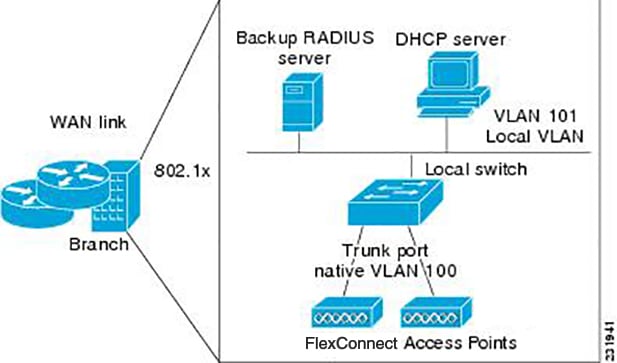
Figure 1. FlexConnect Group Deployment. The following figure shows a typical FlexConnect deployment with a backup RADIUS server in the branch office.

FlexConnect Groups and Backup RADIUS Servers

You can configure the controller to allow a FlexConnect access point in standalone mode to perform full 802.1X authentication to a backup RADIUS server. You can configure a primary backup RADIUS server or both a primary and secondary backup RADIUS server. These servers can be used when the FlexConnect access point is in of these two modes: standalone or connected.

FlexConnect Groups and CCKM

FlexConnect Groups are required for CCKM fast roaming to work with FlexConnect access points. CCKM fast roaming is achieved by caching a derivative of the master key from a full EAP authentication so that a simple and secure key exchange can occur when a wireless client roams to a different access point. This feature prevents the need to perform a full RADIUS EAP authentication as the client roams from one access point to another. The FlexConnect access points need to obtain the CCKM cache information for all the clients that might associate so they can process it quickly instead of sending it back to the controller. If, for example, you have a controller with 300 access points and 100 clients that might associate, sending the CCKM cache for all 100 clients is not practical. If you create a FlexConnect that includes a limited number of access points (for example, you create a group for four access points in a remote office), the clients roam only among those four access points, and the CCKM cache is distributed among those four access points only when the clients associate to one of them.


Note

CCKM fast roaming among FlexConnect and non-FlexConnect access points is not supported.


Note

FlexConnect Groups is needed for CCKM to work. Flex group needs to be created for CCKM, 11r , and OKC , only then the caching can happen on an AP. The group name must be same between APS for a fast roaming to happen for 11r/CCKM. The group can be different for OKC as final check is done at Cisco WLC.


FlexConnect Groups and Opportunistic Key Caching

Starting with the Cisco Wireless LAN Controller Release 7.0.116.0, FlexConnect groups accelerate Opportunistic Key Caching (OKC) to enable fast roaming of clients. OKC facilitates fast roaming by using PMK caching in access points that are in the same FlexConnect group.

OKC prevents the need to perform a full authentication as the client roams from one access point to another. FlexConnect groups store the cached key on the APs of the same group, accelerating the process. However, they are not required, as OKC will still happen between access points belonging to different FlexConnect groups and will use the cached key present on the Cisco WLC, provided that Cisco WLC is reachable and APs are in connected mode.

To see the PMK cache entries at the FlexConnect access point, use the show capwap reap pmk command. This feature is supported on Cisco FlexConnect access points only. The PMK cache entries cannot be viewed on Non-FlexConnect access points.


Note

The FlexConnect access point must be in connected mode when the PMK is derived during WPA2/802.1x authentication.


When using FlexConnect groups for OKC or CCKM, the PMK-cache is shared only across the access points that are part of the same FlexConnect group and are associated to the same controller. If the access points are in the same FlexConnect group but are associated to different controllers that are part of the same mobility group, the PMK cache is not updated and CCKM roaming will fail but OKC roaming will still work.


Note

Fast roaming works only if the APs are in the same FlexConnect group for APs in FlexConnect mode, 802.11r .


FlexConnect Groups and Local Authentication

You can configure the controller to allow a FlexConnect access point in standalone mode to perform LEAP, EAP-FAST, PEAP, or EAP-TLS authentication for up to 100 statically configured users. The controller sends the static list of usernames and passwords to each FlexConnect access point when it joins the controller. Each access point in the group authenticates only its own associated clients.

This feature is ideal for customers who are migrating from an autonomous access point network to a lightweight FlexConnect access point network and are not interested in maintaining a large user database or adding another hardware device to replace the RADIUS server functionality available in the autonomous access point.


Note

  • You can configure LEAP, EAP-FAST, PEAP, or EAP-TLS authentication only if AP local authentication is enabled.


You have to provision a certificate to the AP because the AP has to send the certificate to the client. You must download the Vendor Device Certificate and the Vendor Certification Authority Certificate to the controller. The controller then pushes these certificates to the AP. If you do not configure a Vendor Device Certificate and the Vendor CA Certificate on the controller, the APs associating with the FlexConnect group download the self-signed certificate of the controller, which may not be recognized by many wireless clients.

With EAP-TLS, AP does not recognize and accept client certificate if the client root CA is different from the AP root CA. When you use Enterprise public key infrastructures (PKI), you must download a Vendor Device Certificate and Vendor CA Certificate to the controller so that the controller can push the certificates to the AP in the FlexConnect group. Without a common client and AP root CA, EAP-TLS fails on the local AP. The AP cannot check an external CA and relies on its own CA chain for client certificate validation.

The space on the AP for the local certificate and the CA certificate is around 7 Kb, which means that only short chains are adapted. Longer chains or multiple chains are not supported.


Note

This feature can be used with the FlexConnect backup RADIUS server feature. If a FlexConnect is configured with both a backup RADIUS server and local authentication, the FlexConnect access point always attempts to authenticate clients using the primary backup RADIUS server first, followed by the secondary backup RADIUS server (if the primary is not reachable), and finally the FlexConnect access point itself (if the primary and secondary are not reachable).


For information about the number of FlexConnect groups and access point support for a Cisco WLC model, see the data sheet of the respective Cisco WLC model.

FlexConnect Groups and VLAN Support

You can configure VLAN Support and VLAN ID on a per FlexConnect group basis. This allows all APs in a FlexConnect group to inherit the VLAN configuration from the FlexConnect group including VLAN support, Native VLAN, and WLAN-VLAN mappings.

Deployment Considerations

  • When the override flag is set at the FlexConnect Group, modification of VLAN Support, Native VLAN ID, WLAN-VLAN mappings, and Inheritance-Level at the AP is not allowed.

  • An Inheritance-Level configuration is available at the FlexConnect AP. You have to set this to “Make VLAN AP Specific” to configure any AP-Specific VLAN Support, Native VLAN ID and VLAN-WLAN mappings on the AP. Note that you can modify this only when the override flag at the group is disabled.

    To achieve this on the WLC GUI, choose Wireless > All APs, click on the AP name. In the FlexConnect tab, select Make VLAN AP Specific from the drop-down list.

Upgrade and Downgrade Considerations

  • When you upgrade to Release 8.1, if the FlexConnect group has WLAN-VLAN mappings, then after an upgrade, VLAN support is enabled and native VLAN is set to 1. Otherwise, the VLAN support remains disabled on the FlexConnect group. The override flag on the FlexConnect Group is disabled.

  • When you downgrade from Release 8.1, the VLAN Support and Native VLAN ID is on a per AP basis, and the WLAN-VLAN mappings follow the previous inheritance model.

Default FlexGroup

Default FlexGroup is a container where FlexConnect access points (APs), which are not a part of an administrator-configured FlexConnect group, are added automatically when they join the Cisco Wireless Controller. The Default FlexGroup is created and stored when the controller comes up (after upgrading from an earlier release. Note that a reload of the 8.3 will not create the group again. It will only restore the existing Default FlexGroup configuration.) This group cannot be deleted or added manually. Also, you cannot manually add or delete APs to the Default FlexGroup. The APs in the Default FlexGroup inherit the common configuration of the group. Any change in the group configuration is propagated to all the APs in the group.

When a group created by an admin is deleted, all the APs from that group are moved to the Default FlexGroup and inherit the configuration of this group. Similarly, APs that are removed manually from other groups are also added to the Default FlexGroup.

When an AP from the Default FlexGroup is added to a customized group, the existing configuration (from the Default FlexGroup) is deleted and the configuration from the customized group is pushed to the AP. If there is a standby controller, the Default FlexGroup and its configuration are also synchronized to it.

The AP provides FlexConnect group name during the join process. The AP could have received this group name either through cloud provisioning or through Cisco WLC configuration. There are various scenarios involved in deciding the final FlexConnect group, when an AP joins and they are listed in the table below:

FlexConnect Group Received from AP

Status in Cisco WLC

Final Group Information/Configuration Setn to AP

Type of Entry (Based on Priority)

Group1

Group1 not present; AP entry not present in any group

Default FlexGroup

Admin

Group1

Group1 present but maximum entries reached; AP entry not present in any group

Default FlexGroup

Admin

Group1

Group1 present, but AP entry not present in any group

Group1

Cloud

Group1

Group1 present, but AP entry present as part of a different group, Group2 (added by admin)

Group2

Admin

Group1

Group1 present, but AP entry exists in a different group, Group2 learnt earlier through cloud

Group1

Cloud

No Group/Default Group

AP entry exists as part of Group2 (either through admin configuration or learnt via cloud)

Group2

Admin/Cloud

Whenever the final type of entry is cloud, the AP entry gets added to the corresponding FlexConnect group. Also, when the FlexConnect group received from AP is different from the resultant group, a trap is raised to inform the admin about the conflict. The show flexconnect group detail group-name aps command displays the conflict value.

The following features are not supported:

  • Efficient image upgrade

  • PMK cache distribution

  • Fast Roaming

The following features are supported:

  • VLAN support (native VLAN, WLAN-VLAN mapping)

  • VLAN ACL mapping

  • WebAuth, web policy, local split mapping

  • Local authentication users

  • RADIUS authentication

  • Central DHCP or NAT-PAT

  • Flex AVC

  • VLAN name ID mapping

  • Multicast override

Downgrading to an Earlier Release

The Default FlexGroup configuration is retained after downgrading from 8.3 to an earlier release (8.2 and earlier). It will be treated as a configurable group, where you can add or delete APs. However, the FlexConnect APs will not be able to join this group by default.

Upgrading from a Earlier Release

A FlexConnet AP, which is not part of any FlexConnect group, will join the Default FlexGroup and inherit configuration from the group. If a Default FlexGroup already exists in the system, it will be renamed during the upgrade, and a message is logged with the name of the renamed group.

Restrictions

  • You cannot use the following CLIs to add or delete a Defaut FlexGroup or AP to a group:

    • config flexconnect group default-flexgroup{ add | delete}

    • config flexconnect group default-flexgroup ap{ add | delete}

  • The Defaut FlexGroup does not have a default configuration.

  • When you delete an AP from the customized flex group, the VLAN support is also deleted from that AP.

  • In a default FlexGroup scenario, fast roaming is not supported.

Configuring FlexConnect Groups (GUI)


Note

If the same IPv4 ACLs is mapped to a FlexConnect group and to an AP, then the controller uses the Flex group ACL. However, if the controller is downgraded to an older version, the AP reboots to the older version and pushes the AP specific ACL. This time the controller uses the AP specific ACL ignoring the FlexConnect Group ACL.


Procedure


Step 1

Choose Wireless > FlexConnect Groups to open the FlexConnect Groups page.

This page lists any FlexConnect groups that have already been created.

Note 
If you want to delete an existing group, hover your cursor over the blue drop-down arrow for that group and choose Remove.
Step 2

Click New to create a new FlexConnect Group.

Step 3

On the FlexConnect Groups > New page, enter the name of the new group in the Group Name text box. You can enter up to 32 alphanumeric characters.

Step 4

Click Apply. The new group appears on the FlexConnect Groups page.

Step 5

To edit the properties of a group, click the name of the desired group. The FlexConnect Groups > Edit page appears.

Step 6

If you want to configure a primary RADIUS server for this group (for example, the access points are using 802.1X authentication), choose the desired server from the Primary RADIUS Server drop-down list. Otherwise, leave the text box set to the default value of None.

Note 
IPv6 RADIUS Server is not configurable. Only IPv4 configuration is supported.
Step 7

If you want to configure a secondary RADIUS server for this group, choose the server from the Secondary RADIUS Server drop-down list. Otherwise, leave the field set to the default value of None.

Step 8

Configure the RADIUS server for the FlexConnect group by doing the following:

  1. Enter the RADIUS server IP address.

  2. Choose the server type as either Primary or Secondary.

  3. Enter a shared secret to log on to the RADIUS server and confirm it.

    The maximum number of characters allowed for the shared secret is 63.

  4. Enter the port number.

  5. Click Add.

Step 9

To add an access point to the group, click Add AP. Additional fields appear on the page under Add AP.

Step 10

Perform one of the following tasks:

  • To choose an access point that is connected to this controller, select the Select APs from Current Controller check box and choose the name of the access point from the AP Name drop-down list.

    Note 

    If you choose an access point on this controller, the MAC address of the access point is automatically entered in the Ethernet MAC text box to prevent any mismatches from occurring.

  • To choose an access point that is connected to a different controller, leave the Select APs from Current Controller check box unselected and enter its MAC address in the Ethernet MAC text box.

    Note 

    If the FlexConnect access points within a group are connected to different controllers, all of the controllers must belong to the same mobility group.

Step 11

Click Add to add the access point to this FlexConnect group. The access point’s MAC address, name, and status appear at the bottom of the page.

Note 

If you want to delete an access point, hover your cursor over the blue drop-down arrow for that access point and choose Remove.

Step 12

Click Apply.

Step 13

Enable local authentication for a FlexConnect Group as follows:

  1. Ensure that the Primary RADIUS Server and Secondary RADIUS Server parameters are set to None.

  2. Select the Enable AP Local Authentication check box to enable local authentication for this FlexConnect Group. The default value is unselected.

  3. Click Apply.

  4. Choose the Local Authentication tab to open the FlexConnect > Edit (Local Authentication > Local Users) page.

  5. To add clients that you want to be able to authenticate using LEAP, EAP-FAST, PEAP, or EAP-TLS, perform one of the following:

  6. Upload a comma-separated values (CSV) file by selecting the Upload CSV File check box, clicking the Browse button to browse to an CSV file that contains usernames and passwords (each line of the file needs to be in the following format: username, password), and clicking Add to upload the CSV file. The clients’ names appear on the left side of the page under the “User Name” heading.

  7. Add clients individually by entering the client’s username in the User Name text box and a password for the client in the Password and Confirm Password text boxes, and clicking Add to add this client to the list of supported local users. The client name appears on the left side of the page under the “User Name” heading.

    Note 
    You can add up to 100 clients.
  8. Click Apply.

  9. Choose the Protocols tab to open the FlexConnect > Edit (Local Authentication > Protocols) page.

  10. To allow a FlexConnect access point to authenticate clients using LEAP, select the Enable LEAP Authentication check box.

  11. To allow a FlexConnect access point to authenticate clients using EAP-FAST, select the Enable EAP-FAST Authentication check box. The default value is unselected.

  12. To allow a FlexConnect access point to authenticate clients using PEAP Authentication, select the Enable PEAP Authentication check box.

    You can configure PEAP authentication only when AP local authentication is configured.

  13. To allow a FlexConnect access point to authenticate clients using EAP-TLS, select the Enable EAP TLS Authentication check box.

    You can configure EAP-TLS authentication only when AP local authentication is configured.

    Enabling the EAP-TLS authentication results in enabling the downloading of EAP root and device certificate to the access point. You can unselect the EAP TLS Certificate download check box if you do not want to download the certificate.

  14. Perform one of the following, depending on how you want protected access credentials (PACs) to be provisioned:

    • To use manual PAC provisioning, enter the server key used to encrypt and decrypt PACs in the Server Key and Confirm Server Key text boxes. The key must be 32 hexadecimal characters.

    • To allow PACs to be sent automatically to clients that do not have one during PAC provisioning, select the Enable Auto Key Generation check box

  15. In the Authority ID text box, enter the authority identifier of the EAP-FAST server. The identifier must be 32 hexadecimal characters.

  16. In the Authority Info text box, enter the authority identifier of the EAP-FAST server in text format. You can enter up to 32 hexadecimal characters.

  17. To specify a PAC timeout value, select the PAC Timeout check box and enter the number of seconds for the PAC to remain viable in the text box. The default value is unselected, and the valid range is 2 to 4095 seconds when enabled.

  18. Click Apply.

Step 14

In the WLAN-ACL Mapping tab, you can do the following:

  1. Under Web Auth ACL Mapping, enter the WLAN ID, choose the WebAuth ACL, and click Add to map the web authentication ACL and the WLAN.

  2. Under Local Split ACL Mapping, enter the WLAN ID, and choose the Local Split ACL, and click Add to map the Local Split ACL to the WLAN.

    Note 

    You can configure up to 16 WLAN-ACL combinations for local split tunneling. Local split tunneling does not work for clients with static IP address.

Step 15

In the Central DHCP tab, you can do the following:

  1. In the WLAN Id box, enter the WLAN ID with which you want to map Central DHCP.

  2. Select or unselect the Central DHCP check box to enable or disable Central DHCP for the mapping.

  3. Select or unselect the Override DNS check box to enable or disable overriding of DNS for the mapping.

  4. Select or unselect the NAT-PAT check box to enable or disable network address translation and port address translation for the mapping.

  5. Click Add to add the Central DHCP - WLAN mapping.

Note 

When the overridden interface is enabled for the FlexConnect Group DHCP, the DHCP broadcast to unicast is optional for locally switched clients.

Step 16

Click Save Configuration.

Step 17

Repeat this procedure if you want to add more FlexConnects.

Note 

To see if an individual access point belongs to a FlexConnect Group, you can choose Wireless > Access Points > All APs > the name of the desired access point in the FlexConnect tab. If the access point belongs to a FlexConnect, the name of the group appears in the FlexConnect Name text box.


Configuring FlexConnect Groups (CLI)


Note

If the same IPv4 ACLs is mapped to a FlexConnect group and to an AP, then the controller uses the Flex group ACL. However, if the controller is downgraded to an older version, the AP reboots to the older version and pushes the AP specific ACL. This time the controller uses the AP specific ACL ignoring the FlexConnect Group ACL.


Procedure


Step 1

Add add or delete a FlexConnect Group by entering this command:

config flexconnect group group_name {add | delete}

Step 2

Configure a primary or secondary RADIUS server for the FlexConnect group by entering this command:

config flexconect group group-name radius server auth {{add {primary | secondary} ip-addr auth-port secret} | {delete {primary | secondary}}}

The maximum number of characters allowed for the shared secret is 63.

Step 3

Add an access point to the FlexConnect Group by entering this command:

config flexconnect group_name ap {add | delete} ap_mac

Step 4

Configure local authentication for a FlexConnect as follows:

  1. Make sure that a primary and secondary RADIUS server are not configured for the FlexConnect Group.

  2. To enable or disable local authentication for this FlexConnect group, enter this command:

    config flexconnect group group_name radius ap {enable | disable}

  3. Enter the username and password of a client that you want to be able to authenticate using LEAP, EAP-FAST, PEAP, or EAP-TLS by entering this command:

    config flexconnect group group_name radius ap user add username password password

    Note 
    You can add up to 100 clients.
  4. Allow a FlexConnect access point group to authenticate clients using LEAP or to disable this behavior by entering this command:

    config flexconnect group group_name radius ap leap {enable | disable}

  5. Allow a FlexConnect access point group to authenticate clients using EAP-FAST or to disable this behavior by entering this command:

    config flexconnect group group_name radius ap eap-fast {enable | disable}

  6. To download EAP Root and Device certificate to AP, enter this command:

    config flexconnect group group_name radius ap eap-cert download

  7. Allow a FlexConnect access point group to authenticate clients using EAP-TLS or to disable this behavior by entering this command:

    config flexconnect group group_name radius ap eap-tls {enable | disable}

  8. Allow a FlexConnect access point group to authenticate clients using PEAP or to disable this behavior by entering this command:

    config flexconnect group group_name radius ap peap {enable | disable}

  9. Allow a FlexConnect access point group to authenticate clients using PEAP or to disable this behavior by entering this command:

    config flexconnect group group_name radius ap peap {enable | disable}

  10. Allow a FlexConnect access point group to authenticate clients using EAP-TLS or to disable this behavior by entering this command:

    config flexconnect group group_name radius ap eap-tls {enable | disable}

  11. Download the EAP root and device certificate by entering this command:

    config flexconnect group group_name radius ap eap-cert download

  12. Enter one of the following commands, depending on how you want PACs to be provisioned:

    • config flexconnect group group_name radius ap server-key key —Specifies the server key used to encrypt and decrypt PACs. The key must be 32 hexadecimal characters.

    • config flexconnect group group_name radius ap server-key auto —Allows PACs to be sent automatically to clients that do not have one during PAC provisioning.

  13. To specify the authority identifier of the EAP-FAST server, enter this command:

    config flexconnect group group_name radius ap authority id id

    where id is 32 hexadecimal characters.

  14. To specify the authority identifier of the EAP-FAST server in text format, enter this command:

    config flexconnect group group_name radius ap authority info info

    where info is up to 32 hexadecimal characters.

  15. To specify the number of seconds for the PAC to remain viable, enter this command:

    config flexconnect group group_name radius ap pac-timeout timeout

    where timeout is a value between 2 and 4095 seconds (inclusive) or 0. A value of 0, which is the default value, disables the PAC timeout.

Step 5

Configure a Web Policy ACL on a FlexConnect group by entering this command:

config flexconnect group group-name web-policy policy acl {add | delete} acl-name

Step 6

Configure local split tunneling on a per-FlexConnect group basis by entering this command:

config flexconnect group group_name local-split wlan wlan-id acl acl-name flexconnect-group-name {enable | disable}

Step 7

To set multicast/broadcast across L2 broadcast domain on overridden interface for locally switched clients, enter this command:

config flexconnect group group_name multicast overridden-interface {enable | disable}

Step 8

Configure central DHCP per WLAN by entering this command:

config flexconnect group group-name central-dhcp wlan-id {enable override dns | disable | delete}

Step 9

Configure the DHCP overridden interface for FlexConnect group, use the config flexconnect group flexgroup dhcp overridden-interface enable command.

Step 10

Configure policy acl on FlexConnect group by entering this command:

config flexconnect group group_name policy acl {add | delete} acl-name

Step 11

Configure web-auth acl on flexconnect group by entering this command:

config flexconnect group group_name web-auth wlan wlan-id acl acl-name {enable | disable}

Step 12

Configure wlan-vlan mapping on flexconnect group by entering this command:

config flexconnect group group_name wlan-vlan wlan wlan-id{add | delete}vlan vlan-id

Step 13

To set efficient upgrade for group, enter this command:

config flexconnect group group_name predownload {enable | disable | master | slave} ap-name retry-count maximum retry count ap-name ap-name

Step 14

Save your changes by entering this command:

save config
Step 15

See the current list of flexconnect groups by entering this command:

show flexconnect group summary

Step 16

See the details for a specific FlexConnect Groups by entering this command:

show flexconnect group detail group_name


Moving APs from a Default FlexConnect Group to Another FlexConnect Group (GUI)

Procedure


Step 1

Choose Wireless > FlexConnect Groups. The FlexConnect Groups window is displayed.

Step 2

Click the Group Name link of a FlexConnect Group. The FlexConnect Groups > Edit window is displayed.

Step 3

Click FlexConnect AP link. The FlexConnect Group AP List window is displayed.

Step 4

To move an AP that is currently in Default FlexGroup, select the corresponding Group Name from the New Group Name drop-down list, after selecting the APs from the FlexConnect APs list.

Step 5

To add an AP to the new group, click Move.

Step 6

Click Apply.

Step 7

Click Save Configuration.


Viewing APs in a Default FlexGroup (GUI)

Procedure


Step 1

Choose Wireless > FlexConnect Groups. The FlexConnect Groups window, which contains the following details, is displayed:

  • Group Name—Number of FlexConnect groups that are configured.

  • Number of APs—Number of APs in each FlexConnect group.

Step 2

Click a Group Name. The FlexConnect Groups > Edit window, which displays the FlexConnect Group details, is displayed.


Viewing Default FlexGroup Details (CLI)

Procedure


Step 1

show flexconnect group detail default-flexgroup

Displays the configuration of the Default FlexGroup and the APs that are a part of it.

Example:

(Cisco Controller) >show flexconnect group detail default-flex-group

Number of APs in Group: 1
AP Ethernet MAC Name Status Mode
-------------------- -------------------- --------------- ----------------
a8:9d:21:b2:26:88 APa89d.21b2.2688 Joined Flexconnect
Efficient AP Image Upgrade ..... Disabled
Master-AP-Mac Master-AP-Name Model Manual
Group Radius Servers Settings:
Type Server Address Port
------------- ---------------- -------
Primary Unconfigured Unconfigured
Secondary Unconfigured Unconfigured
Group Radius AP Settings:
AP RADIUS server............ Disabled
EAP-FAST Auth............... Disabled
LEAP Auth................... Disabled
EAP-TLS Auth................ Disabled
--More-- or (q)uit
EAP-TLS CERT Download....... Disabled
PEAP Auth................... Disabled
Server Key Auto Generated... No
Server Key.................. <hidden>
Authority ID................ 436973636f0000000000000000000000
Authority Info.............. Cisco A_ID
PAC Timeout................. 0
HTTP-Proxy Ip Address....... 0.0.0.0
HTTP-Proxy Port............. 0
Multicast on Overridden interface config: Disabled
DHCP Broadcast Overridden interface config: Disabled
Number of User's in Group: 0
FlexConnect Vlan-name to Id Template name: none
Group-Specific Vlan Config:
Vlan Mode.................... Disabled
Override AP Config........... Disabled
Group-Specific FlexConnect Wlan-Vlan Mapping:
WLAN ID Vlan ID
-------- --------------------
WLAN ID SSID Central-Dhcp Dns-Override Nat-Pat
Step 2

show ap config general ap-name

Displays the AP-specific syslog server settings for an AP.

Example:

(Cisco Controller) >show ap config general APa89d.21b2.2688

Cisco AP Identifier.............................. 0
Cisco AP Name.................................... APa89d.21b2.2688
Universal AP..................................... Yes
Universal AP Prime Status........................ NDP
Country code..................................... US - United States
Regulatory Domain allowed by Country............. 802.11bg:-A 802.11a:-AB
AP Country code.................................. US - United States
AP Regulatory Domain............................. 802.11bg:-A 802.11a:-A
Switch Port Number .............................. 2
MAC Address...................................... a8:9d:21:b2:26:88
IP Address Configuration......................... DHCP
IP Address....................................... 8.1.2.186
IP NetMask....................................... 255.255.255.0
Gateway IP Addr.................................. 8.1.2.1
NAT External IP Address.......................... None
CAPWAP Path MTU.................................. 1485
DHCP Release Override............................ Disabled
Telnet State..................................... Globally Disabled
Ssh State........................................ Globally Disabled
Cisco AP Location................................ default location
Cisco AP Floor Label............................. 0
Cisco AP Group Name.............................. default-group
Primary Cisco Switch Name........................
Primary Cisco Switch IP Address.................. 8.1.2.2
Secondary Cisco Switch Name......................
Secondary Cisco Switch IP Address................ Not Configured
Tertiary Cisco Switch Name.......................
Tertiary Cisco Switch IP Address................. Not Configured
Administrative State ............................ ADMIN_ENABLED
Operation State ................................. REGISTERED
Mirroring Mode .................................. Disabled
AP Mode ......................................... FlexConnect
Public Safety ................................... Disabled
ATF Mode ........................................ Disable
AP SubMode ...................................... Not Configured
Rogue Detection ................................. Enabled
AP Vlan Trunking ................................ Disabled
Remote AP Debug ................................. Disabled
Logging trap severity level ..................... informational
Logging syslog facility ......................... kern
S/W Version .................................... 8.3.15.64
Boot Version ................................... 15.2.4.0
Mini IOS Version ................................ 8.0.115.0
Stats Reporting Period .......................... 180
Stats Collection Mode ........................... normal
LED State........................................ Enabled
PoE Pre-Standard Switch.......................... Disabled
PoE Power Injector MAC Addr...................... Disabled
Power Type/Mode.................................. PoE/Full Power
Number Of Slots.................................. 2

AP Model......................................... AIR-AP3702E-UXK9
AP Image......................................... C3700-K9W8-M
IOS Version...................................... 15.3(20160217:163330)$
Reset Button..................................... Enabled
AP Serial Number................................. FCW1905N1CX
AP Certificate Type.............................. Manufacture Installed
AP LAG Configuration Status ..................... Disabled
LAG Support for AP .............................. No
Native Vlan Inheritance: ........................ AP
FlexConnect Vlan mode :.......................... Disabled
FlexConnect Group................................ default-flex-group
Group VLAN ACL Mappings
Group VLAN Name to Id Mappings
AP-Specific FlexConnect Policy ACLs :
L2Acl Configuration ............................. Not Available
FlexConnect Local-Split ACLs :
WLAN ID PROFILE NAME ACL TYPE
------- -------------------------------- --------------------------------- -------
Flexconnect Central-Dhcp Values :
WLAN ID PROFILE NAME Central-Dhcp DNS Override Nat-Pat
Type
------- --------------------------------- -------------- -------------- ---------
------
FlexConnect Backup Auth Radius Servers :
Primary Radius Server........................... Disabled
Secondary Radius Server......................... Disabled
AP User Mode..................................... AUTOMATIC
AP User Name..................................... Cisco
AP Dot1x User Mode............................... Not Configured
AP Dot1x User Name............................... Not Configured
Cisco AP system logging host..................... 255.255.255.255
AP Up Time....................................... 0 days, 19 h 26 m 09 s
AP LWAPP Up Time................................. 0 days, 15 h 28 m 46 s
Join Date and Time............................... Thu Feb 18 18:58:54 2016
Join Taken Time.................................. 0 days, 00 h 07 m 02 s
GPS Present...................................... NO
Ethernet Vlan Tag................................ Disabled
Ethernet Port Duplex............................. Auto
Ethernet Port Speed.............................. Auto
AP Link Latency.................................. Disabled
Rogue Detection.................................. Enabled
AP TCP MSS Adjust................................ Disabled
Hotspot Venue Group.............................. Unspecified
Hotspot Venue Type............................... Unspecified
DNS server IP ............................. 255.255.255.255
Step 3

show flexconnect group detail groupname aps

Displays the APs that are part of a specific group.

Example:

(Cisco Controller) >show flexconnect group detail default-flex-group aps

Number of APs in Group: 1
AP Ethernet MAC Name Status Mode
-------------------- -------------------- --------------- ----------------
a8:9d:21:b2:26:88 APa89d.21b2.2688 Joined Flexconnect

Configuring VLAN-ACL Mapping on FlexConnect Groups (GUI)

Procedure


Step 1

Choose Wireless > FlexConnect Groups.

The FlexConnect Groups page appears. This page lists the access points associated with the controller.

Step 2

Click the Group Name link of the FlexConnect Group for which you want to configure VLAN-ACL mapping.

Step 3

Click the VLAN-ACL Mapping tab.

The VLAN-ACL Mapping page for that FlexConnect group appears.

Step 4

Enter the Native VLAN ID in the VLAN ID text box.

Step 5

From the Ingress ACL drop-down list, choose the Ingress ACL.

Step 6

From the Egress ACL drop-down list, choose the Egress ACL.

Step 7

Click Add to add this mapping to the FlexConnect Group.

The VLAN ID is mapped with the required ACLs. To remove the mapping, hover your mouse over the blue drop-down arrow and choose Remove.

Note 
The Access Points inherit the VLAN-ACL mapping on the FlexConnect groups if the WLAN VLAN mapping is also configured on the groups.

Configuring VLAN-ACL Mapping on FlexConnect Groups (CLI)

Procedure

  • config flexconnect group group-name vlan add vlan-id acl ingress-acl egress acl

    Add a VLAN to a FlexConnect group and map the ingress and egress ACLs by entering this command:

Viewing VLAN-ACL Mappings (CLI)

Procedure

  • show flexconnect group detail group-name

    View FlexConnect group details.
  • show ap config general ap-name

    View VLAN-ACL mappings on the AP.

Configuring WLAN-VLAN Mapping on FlexConnect Groups (GUI)

Following are a few guidelines:
  • The individual AP settings have precedence over FlexConnect group and global WLAN settings. The FlexConnect group settings have precedence over global WLAN settings.

  • The AP level configuration is stored in flash; WLAN and FlexConnect group configuration is stored in RAM.

  • When an AP moves from one controller to another, the AP can keep its individual VLAN mappings. However, the FlexConnect group and global mappings will be from the new controller. If the WLAN SSID differs between the two controllers, then the WLAN-VLAN mapping is not applied.

  • In a downstream traffic, VLAN ACL is applied first and then the client ACL is applied. In an upstream traffic, the client ACL is applied first and then the VLAN ACL is applied.

  • The ACL must be present on the AP at the time of 802.1X authentication. If the ACL is not present on the AP, a client might be denied authentication by the AP even if the client successfully passes 802.1X authentication.

    ACL Present on AP ACL Name sent from AAA Result of 802.1X Authentication
    No No Authenticated, no ACL applied
    No Yes Authentication Denied
    Yes No Authenticated, no ACL applied
    Yes Yes Authenticated, client ACL applied
  • After client authentication, if the ACL name is changed in the RADIUS server, the client must go through a full authentication again to get the correct client ACL.

  • The WLAN-VLAN mapping on FlexConnect groups is not supported on Cisco APs 1131 and 1242.

Before you begin

Ensure that the WLAN is locally switched. The configuration is applied to the AP only if the WLAN is broadcast on the AP.

Procedure


Step 1

Choose Wireless > FlexConnect Groups.

Step 2

Click the group name.

The FlexConnect Groups > Edit page is displayed.

Step 3

Click the WLAN VLAN Mapping tab.

Step 4

Enter the WLAN ID and the VLAN ID and click Add.

The mapping is displayed in the same tab.

Step 5

Select the VLAN Support check box and specify the Native VLAN ID.

Step 6

Select the Override Native VLAN on AP check box.

  • Overrides the VLAN Support and Native VLAN ID previously configured on the access points

  • Changes the inheritance level at the AP to "Group Specific"

  • Removes AP-specific WLAN-VLAN VLAN-ACL mappings

  • Pushes the group-specific configuration including WLAN-VLAN mapping configured on the group to all the APs in the group.

Step 7

To verify that the inheritance level is Group Specific:

  1. Choose Wireless > Access Points > All APs and click the name of the AP.

  2. In the FlexConnect tab, view the Inheritance Level field.

  3. Click VLAN Mappings to view the details of WLAN-VLAN mappings.

Step 8

Click Apply.

Step 9

Click Save Configuration.


Configuring WLAN-VLAN Mapping on FlexConnect Groups (CLI)

Before you begin

Ensure that the WLAN is locally switched. The configuration is applied to the AP only if the WLAN is broadcast on the AP.

Procedure

  • config flexconnect group group-name wlan-vlan wlan wlan-id {add | delete} vlan vlan-id

    Configure WLAN-VLAN mapping on a FlexConnect group by entering this command.