AP Groups

Access Point Groups

After you create up to 512 WLANs on the controller, you can selectively publish them (using access point groups) to different access points to better manage your wireless network. In a typical deployment, all users on a WLAN are mapped to a single interface on the controller. Therefore, all users that are associated with that WLAN are on the same subnet or VLAN. However, you can choose to distribute the load among several interfaces or to a group of users based on specific criteria such as individual departments (such as Marketing) by creating access point groups. Additionally, these access point groups can be configured in separate VLANs to simplify network administration.

This section contains the following subsections:

Prerequisites for Configuring AP Groups

The following are the prerequisites for creating access point groups on a controller:
  • The required access control list (ACL) must be defined on the router that serves the VLAN or subnet.

  • Multicast traffic is supported with access point group VLANs. However, if the client roams from one access point to another, the client might stop receiving multicast traffic, unless IGMP snooping is enabled.

Restrictions on Configuring Access Point Groups

  • Suppose that the interface mapping for a WLAN in the AP group table is the same as the WLAN interface. If the WLAN interface is changed, the interface mapping for the WLAN in the AP group table also changes to the new WLAN interface.

    Suppose that the interface mapping for a WLAN in the AP group table is different from the one defined for the WLAN. If the WLAN interface is changed, then the interface mapping for the WLAN in the AP group table does not change to the new WLAN interface.

  • If you clear the configuration on the controller, all of the access point groups disappear except for the default access point group “default-group,” which is created automatically.

  • The default access point group can have up to 16 WLANs associated with it. The WLAN IDs for the default access point group must be less than or equal to 16. If a WLAN with an ID greater than 16 is created in the default access point group, the WLAN SSID will not be broadcasted. All WLAN IDs in the default access point group must have an ID that is less than or equal to 16. WLANs with IDs greater than 16 can be assigned to custom access point groups.

  • All OfficeExtend access points should be in the same access point group, and that group should contain no more than 15 WLANs. A controller with OfficeExtend access points in an access point group publishes only up to 15 WLANs to each connected OfficeExtend access point because it reserves one WLAN for the personal SSID.


    Note

    A controller with OfficeExtend access points in an access point group publishes up to 15 WLANs to each connected OfficeExtend access point because it reserves one WLAN for the personal SSID.


  • We recommend that you configure all Flex+Bridge APs in a mesh tree (in the same sector) in the same AP group and the same FlexConnect group, to inherit the WLAN-VLAN mappings properly.

  • Whenever you add a new WLAN to an AP group, radio reset occurs and if any client is in connected state, the client is deauthenticated and is required to reconnect. We recommend that you add or modify the WLAN configuration of an AP group only during maintenance windows to avoid outages.

  • The number of AP groups that you can configure cannot be more than the number of ap-count licenses on controller. For example, if your controller has 5 ap-count licenses, the maximum number of AP groups that you can configure is 5, including the default AP group.

  • If you add a WLAN to a custom AP group whose interface mapping is the same as the global WLAN-level interface mapping, interface override does not occur in the AP group for the WLAN.

    Later, if you change the interface mapping at a global WLAN level, the change is applied to the AP group level mappings for the WLAN and for all the AP groups to which the WLAN belongs.

    Workaround: If you want a different interface mapping for the WLAN at AP group level, you can remove the WLAN from the AP group and add it back with the desired interface.

Configuring Access Point Groups

Procedure


Step 1

Configure the appropriate dynamic interfaces and map them to the desired VLANs.

For example, to implement the network described in the Information About Access Point Groups section, create dynamic interfaces for VLANs 61, 62, and 63 on the controller. See the Configuring Dynamic Interfaces section for information about how to configure dynamic interfaces.
Step 2

Create the access point groups. See the Creating Access Point Groups section.

Step 3

Create a RF profile. See the Creating an RF Profile section.

Step 4

Assign access points to the appropriate access point groups. See the Creating Access Point Groups section.

Step 5

Apply the RF profile on the AP groups. See the Applying RF Profile to AP Groups section.


Creating Access Point Groups (GUI)

Procedure


Step 1

Choose WLANs > Advanced > AP Groups to open the AP Groups page.

This page lists all the access point groups currently created on the controller. By default, all access points belong to the default access point group “default-group,” unless you assign them to other access point groups.

Note 

The controller creates a default access point group and automatically populates it with the first 16 WLANs (WLANs with IDs 1 through 16, or fewer if 16 WLANs are not configured). This default group cannot be modified (you cannot add WLANs to it nor delete WLANs from it). It is dynamically updated whenever the first 16 WLANs are added or deleted. If an access point does not belong to an access point group, it is assigned to the default group and uses the WLANs in that group. If an access point joins the controller with an undefined access point group name, the access point keeps its group name but uses the WLANs in the default-group access point group.

Step 2

Click Add Group to create a new access point group. The Add New AP Group section appears at the top of the page.

Step 3

In the AP Group Name text box, enter the group’s name.

Step 4

In the Description text box, enter the group’s description.

Step 5

In the NAS-ID text box, enter the network access server identifier for the AP group.

Step 6

Click Add. The newly created access point group appears in the list of access point groups on the AP Groups page.

Note 

If you ever want to delete this group, hover your cursor over the blue drop-down arrow for the group and choose Remove. An error message appears if you try to delete an access point group that is used by at least one access point. Before deleting an access point group in controller software release 6.0 or later releases, move all access points in the group to another group. The access points are not moved to the default-group access point group as in previous releases.

Step 7

Click the name of the group to edit this new group. The AP Groups > Edit (General) page appears.

Step 8

Change the description of this access point group by entering the new text in the AP Group Description text box and click Apply.

Step 9

Choose the WLANs tab to open the AP Groups > Edit (WLANs) page. This page lists the WLANs that are currently assigned to this access point group.

Step 10

Click Add New to assign a WLAN to this access point group. The Add New section appears at the top of the page.

Step 11

From the WLAN SSID drop-down list, choose the SSID of the WLAN.

Step 12

From the Interface Name drop-down list, choose the interface to which you want to map the access point group. Choose the quarantine VLAN if you plan to enable network admission control (NAC) out-of-band support.

Note 

The interface name in the default-group access point group matches the WLAN interface.

Step 13

Select the SNMP NAC State check box to enable NAC out-of-band support for this access point group. To disable NAC out-of-band support, leave the check box unselected, which is the default value.

Step 14

Click Add to add this WLAN to the access point group. This WLAN appears in the list of WLANs that are assigned to this access point group.

Note 

If you ever want to remove this WLAN from the access point group, hover your cursor over the blue drop-down arrow for the WLAN and choose Remove.

Step 15

Repeat Step 10 through Step 14 to add any additional WLANs to this access point group.

Step 16

Choose the APs tab to assign access points to this access point group. The AP Groups > Edit (APs) page lists the access points that are currently assigned to this group as well as any access points that are available to be added to the group. If an access point is not currently assigned to a group, its group name appears as “default-group”.

Step 17

Select the check box to the left of the access point name and click Add APs to add an access point to this access point group. The access point, after it is reloaded, appears in the list of access points currently in this access point group. The AP has to be reloaded if the AP has to be moved from one group to another.

Note 

To select all of the available access points at once, select the AP Name check box. All of the access points are then selected.

Note 

If you ever want to remove an access point from the group, select the check box to the left of the access point name and click Remove APs. To select all of the access points at once, select the AP Name check box. All of the access points are then removed from this group.

Note 

If you ever want to change the access point group to which an access point belongs, choose Wireless > Access Points > All APs > ap_name > Advanced tab, choose the name of another access point group from the AP Group Name drop-down list, and click Apply.

Step 18

In the 802.11u tab, do the following:

  1. Choose a HotSpot group that groups similar HotSpot venues.

  2. Choose a venue type that is based on the HotSpot venue group that you choose.

  3. To add a new venue, click Add New Venue and enter the language name that is used at the venue and the venue name that is associated with the basic service set (BSS). This name is used in cases where the SSID does not provide enough information about the venue.

  4. Select the operating class(es) for the AP group.

  5. Click Apply.

Step 19

In the Location tab, do the following:

Note 
This step is applicable to the following modules:
  • AoA-based which is applicable for AP3600 and AP3700 with Hyperlocation module

  • PRL-based which is applicable for AP without module (AP700/AP1700/AP2600/AP2700/AP3600/AP3700) as well as AP3600 and AP3700 with NOS module

  1. Enable or disable Hyperlocation.

    Based on AP and installed module, checking the Enable Hyperlocation check box enables different location service (PRL-based or AoA-based).

  2. Enter Packet Detection RSSI Minimum (dBm) value.

    This is the minimum level at which a data packet can be heard by the WSM modules for use in location calculations. The default values is –100 db.

    We recommend that this value be increased if you want to have only strong signals used in calculating locations.

  3. Enter Scan Count Threshold for Idle Client Detection value.

    The Scan Count Threshold represent the number of off-channel scan cycles the AP will wait before sending a Block Acknowledgment Request (BAR) to idle clients. The default value of 10 corresponds to approximately 40s, depending on the number of channels in the off channel scan cycle.

  4. Enter the IPv4 address of the NTP Server.

    This is the IPv4/IPv6 address of the NTP server that all AP that are involved in this calculation need to sync to.

    We recommend that you use the same NTP server as is used by the general WLC infrastructure. The scans from multiple AP needs to be synced up for the location to be accurately calculated. An IPv4 address is required.

Note 
For more information about Cisco Hyperlocation solution, see this document.
Step 20

In the RF Profile tab, choose the RF profile for APs with 802.11a and 802.11b radios and click Apply.

Applying an RF profile results in a reboot of all the APs associated with the AP group.
Step 21

Click Save Configuration.


Creating Access Point Groups (CLI)

Procedure


Step 1

Create an access point group by entering this command:

config wlan apgroup add group_name
Note 

To delete an access point group, enter the config wlan apgroup delete group_name command . An error message appears if you try to delete an access point group that is used by at least one access point. Before deleting an access point group in controller software release 6.0 or later releases, move all access points in the group to another group. The access points are not moved to the default-group access point group as in previous releases. To see the access points in a group, enter the show wlan apgroups command. To move the access points to another group, enter the config ap group-name group_name Cisco_AP command.

Step 2

Add a description to an access point group by entering this command:

config wlan apgroup description group_name description

Step 3

Assign a WLAN to an access point group by entering this command:

config wlan apgroup interface-mapping add group_name wlan_id interface_name

Note 

To remove a WLAN from an access point group, enter the config wlan apgroup interface-mapping delete group_name wlan_id command.

Step 4

Enable or disable NAC out-of-band support for this access point group by entering this command:

config wlan apgroup nac { enable | disable} group_name wlan_id

Step 5

Configure a WLAN radio policy on the access point group by entering this command:

config wlan apgroup wlan-radio-policy apgroup_name wlan_id { 802.11a-only | 802.11bg | 802.11g-only | all}

Note 
With Release 8.0, you can store the WLAN radio policy configuration for an AP group upon a configuration upload or a download.
Step 6

Assign an access point to an access point group by entering this command:

config ap group-name group_name Cisco_AP

Note 

To remove an access point from an access point group, reenter this command and assign the access point to another group.

Step 7

To configure HotSpot for the AP group, enter this command:

config wlan apgroup hotspot {venue | operating-class}

Step 8

Save your changes by entering this command:

save config


Viewing Access Point Groups (CLI)

To view information about or to troubleshoot access point groups, use these commands:

  • See a list of all access point groups on the controller by entering this command:

    show wlan apgroups

  • See the BSSIDs for each WLAN assigned to an access point group by entering this command:

    show ap wlan {802.11a | 802.11b} Cisco_AP

  • See the number of WLANs enabled for an access point group by entering this command:

    show ap config {802.11a | 802.11b} Cisco_AP

  • Enable or disable debugging of access point groups by entering this command:

    debug group {enable | disable}
802.1Q-in-Q VLAN Tagging

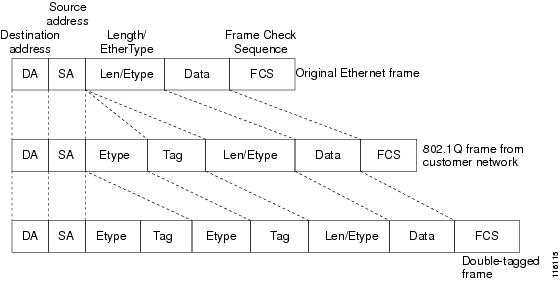
Assigning a unique range of VLAN IDs to each client can exceed the limit of 4096 VLANs. The 802.1Q-in-Q VLAN tag feature encapsulates the 802.1Q VLAN tagging within another 802.1Q VLAN tag. The outer tag is assigned according to the AP group, and the inner VLAN ID is assigned dynamically by the AAA server.

Using the 802.1Q-in-Q feature you can use a single VLAN to support multiple VLANs. With the 802.1Q-in-Q feature you can preserve VLAN IDs and segregate traffic of different VLANs. The figure below shows the untagged, 802.1Q-tagged, and 802.1Q-in-Q tagged Ethernet frames.
Figure 1. Untagged 802.1Q-Tagged and 802.1Q-in-Q Tagged Ethernet Frames


This section contains the following subsections:

Restrictions for 802.1Q-in-Q VLAN Tagging

  • You cannot enable multicast until you disable IGMP snooping.

  • 802.1Q-in-Q VLAN tagging is supported only on Layer 2 and Layer 3 intra-Controller roaming, and Layer 2 inter-Controller roaming. Layer 3 inter-Controller roaming is not supported.

  • 0x8100 is the only supported value for the EtherType field of the 802.1Q-in-Q Ethernet frame.

  • You can enable 802.1Q-in-Q VLAN tagging only on centrally switched packets.

  • You can enable only IPv4 DHCP packets and not IPv6 DHCP packets for 802.1Q-in-Q VLAN tagging.

  • The IETF attribute which is a tunnel-type is required to override the C-VLAN.

  • C-VLAN can be set with tunnel-private-group-ID /tunnel-type and tunnel-private-group-id.

Configuring 802.1Q-in-Q VLAN Tagging (GUI)

Procedure


Step 1

Choose WLANs > Advanced > AP Groups to open the AP Groups page.

Step 2

Click an AP group Name to open the corresponding AP Group > Edit page.

Step 3

Click the General tab to configure the 802.1Q-in-Q VLAN tagging details.

Step 4

Select the Enable Client Traffic QinQ check box to enable 802.1Q-in-Q VLAN tagging for the AP group.

Step 5

Select the Enable DHCPv4 QinQ check box to enable 802.1Q-in-Q VLAN tagging of IPv4 DHCP packets in the AP group.

Step 6

In the QinQ Service VLAN ID text box, enter the VLAN ID for 802.1Q-in-Q VLAN tagging.

Step 7

Click Apply.


Configuring 802.1Q-in-Q VLAN Tagging (CLI)

Procedure


Step 1

Enable or disable 802.1Q-in-Q VLAN tagging for an AP group by entering this command:

config wlan apgroup qinq tagging client-traffic apgroup_name { enable | disable}

By default, 802.1Q-in-Q tagging of client traffic for an AP group is disabled.

Step 2

Configure the service VLAN for the AP group by entering this command:

config wlan apgroup qinq service-vlan apgroup_name vlan_id

Step 3

Enable or disable IPv4 DHCP packets of the client traffic in the AP group by entering this command::

config wlan apgroup qinq tagging dhcp-v4 apgroup_name { enable | disable}

Note 
You must enable 802.1Q-in-Q tagging of client traffic before you enable 802.1Q-in-Q tagging of DHCPv4 traffic.

By default, 802.1Q-in-Q tagging of DHCPv4 traffic for an AP group is disabled.

Step 4

Enable or disable 802.1Q-in-Q VLAN tagging for EAP for Global System for Mobile Communications (GSM) Subscriber Identity Module (EAP-SIM) or EAP for Authentication and Key Agreement-authenticated client traffic in the AP group by entering this command:

config wlan apgroup qinq tagging eap-sim-aka apgroup_name { enable | disable}

When you enable 802.1Q-in-Q tagging of client traffic, the 802.1Q-in-Q tagging of EAP for Authentication and Key Agreement (EAP-AKA) and EAP-SIM traffic is enabled.

Step 5

Verify if 802.1Q-in-Q VLAN tagging is enabled by entering this command:

show wlan apgroups

(Cisco Controller) >show wlan apgroups 
Total Number of AP Groups........................ 5


Site Name........................................ CT_builing1
Site Description................................. APs for CT Building1
Venue Group Code................................. Unspecified
Venue Type Code.................................. Unspecified

NAS-identifier................................... CTB1
Client Traffic QinQ Enable....................... TRUE
DHCPv4 QinQ Enable............................... TRUE
AP Operating Class............................... Not-configured