Debugging on Cisco Access Points

Troubleshooting Access Points Using Telnet or SSH

The controller supports the use of the Telnet and Secure Shell (SSH) protocols to troubleshoot lightweight access points. Using these protocols makes debugging easier, especially when the access point is unable to connect to the controller.

  • The upgrade command cannot be used when a Telnet or SSH session is enabled.

  • You can enable a Telnet or SSH session on unjoined access points with non default credentials.

Troubleshooting Access Points Using Telnet or SSH (GUI)

Procedure


Step 1

Choose Wireless > Access Points > All APs to open the All APs page.

Step 2

Click the name of the access point for which you want to enable Telnet or SSH.

Step 3

Choose the Advanced tab to open the All APs > Details for (Advanced) page.

Step 4

Select the Telnet check box to enable Telnet connectivity on this access point. The default value is unchecked.

Step 5

Select the SSH check box to enable SSH connectivity on this access point. The default value is unchecked.

Step 6

Click Apply.

Step 7

Click Save Configuration.


Troubleshooting Access Points Using Telnet or SSH (CLI)

Procedure


Step 1

Enable Telnet or SSH connectivity on an access point by entering this command:

config ap {telnet | ssh} enable Cisco_AP

The default value is disabled.

Note 

Disable Telnet or SSH connectivity on an access point by entering this command:
config ap {telnet | ssh} disable Cisco_AP

Step 2

Save your changes by entering this command:

save config

Step 3

See whether Telnet or SSH is enabled on an access point by entering this command:

show ap config general Cisco_AP

Information similar to the following appears:


Cisco AP Identifier.............................. 5
Cisco AP Name.................................... AP33
Country code..................................... Multiple Countries:US,AE,AR,AT,AU,BH
Reg. Domain allowed by Country................... 802.11bg:-ABCENR 802.11a:-ABCEN
AP Country code.................................. US - United States
AP Regulatory Domain............................. 802.11bg:-A 802.11a:-A
Switch Port Number .............................. 2
MAC Address...................................... 00:19:2f:11:16:7a
IP Address Configuration......................... Static IP assigned
IP Address....................................... 10.22.8.133
IP NetMask....................................... 255.255.248.0
Gateway IP Addr.................................. 10.22.8.1
Domain...........................................
Name Server......................................
Telnet State..................................... Enabled
Ssh State........................................ Enabled
...


Debugging the Access Point Monitor Service

The controller sends access point status information to the Cisco 3300 Series Mobility Services Engine (MSE) using the access point monitor service.

The MSE sends a service subscription and an access point monitor service request to get the status of all access points currently known to the controller. When any change is made in the status of an access point, a notification is sent to the MSE.

This section contains the following subsection:

Debugging Access Point Monitor Service Issues (CLI)

If you experience any problems with the access point monitor service, enter this command:

debug service ap-monitor {all | error | event | nmsp | packet} {enable | disable}

where

  • all configures debugging of all access point status messages.

  • error configures debugging of access point monitor error events.

  • event configures debugging of access point monitor events.

  • nmsp configures debugging of access point monitor NMSP events.

  • packet configures debugging of access point monitor packets.

  • enable enables the debub service ap-monitor mode.

  • disable disables the debug service ap-monitor mode.

Sending Debug Commands to Access Points Converted to Lightweight Mode

You can enable the controller to send debug commands to an access point converted to lightweight mode by entering this command:

debug ap {enable | disable | command cmd} Cisco_AP

When this feature is enabled, the controller sends debug commands to the converted access point as character strings. You can send any debug command supported by Cisco Aironet access points that run Cisco IOS software in lightweight mode.

Understanding How Converted Access Points Send Crash Information to the Controller

When a converted access point unexpectedly reboots, the access point stores a crash file on its local flash memory at the time of the crash. After the unit reboots, it sends the reason for the reboot to the controller. If the unit rebooted because of a crash, the controller pulls up the crash file using existing CAPWAP messages and stores it in the controller flash memory. The crash info copy is removed from the access point flash memory when the controller pulls it from the access point.

Understanding How Converted Access Points Send Radio Core Dumps to the Controller

When a radio module in a converted access point generates a core dump, the access point stores the core dump file of the radio on its local flash memory at the time of the radio crash. It sends a notification message to the controller indicating which radio generated a core dump file. The controller sends a trap that alerts you so that you can retrieve the radio core file from the access point.

The retrieved core file is stored in the controller flash and can be uploaded through TFTP or FTP to an external server for analysis. The core file is removed from the access point flash memory when the controller pulls it from the access point.

Retrieving Radio Core Dumps (CLI)

Procedure


Step 1

Transfer the radio core dump file from the access point to the controller by entering this command:

config ap crash-file get-radio-core-dump slot Cisco_AP

For the slot parameter, enter the slot ID of the radio that crashed.

Step 2

Verify that the file was downloaded to the controller by entering this command:

show ap crash-file

Information similar to the following appears:


Local Core Files:
lrad_AP1130.rdump0   (156)

The number in parentheses indicates the size of the file. The size should be greater than zero if a core dump file is available.

Uploading Radio Core Dumps (GUI)

Procedure


Step 1

Choose Commands > Upload File to open the Upload File from Controller page.

Step 2

From the File Type drop-down list, choose Radio Core Dump.

Step 3

From the Transfer Mode drop-down list, choose from the following options:

  • TFTP
  • FTP
  • SFTP (available in the 7.4 and later releases)
Step 4

In the IP Address text box, enter the IP address of the server.

Step 5

In the File Path text box, enter the directory path of the file.

Step 6

In the File Name text box, enter the name of the radio core dump file.

Note 

The filename that you enter should match the filename generated on the controller. You can determine the filename on the controller by entering the show ap crash-file command.

Step 7

If you chose FTP as the Transfer Mode, follow these steps:

  1. In the Server Login Username text box, enter the FTP server login name.

  2. In the Server Login Password text box, enter the FTP server login password.

  3. In the Server Port Number text box, enter the port number of the FTP server. The default value for the server port is 21.

Step 8

Click Upload to upload the radio core dump file from the controller. A message appears indicating the status of the upload.


Uploading Radio Core Dumps (CLI)

Procedure


Step 1

Transfer the file from the controller to a server by entering these commands:

  • transfer upload mode {tftp | ftp | sftp}

  • transfer upload datatype radio-core-dump

  • transfer upload serverip server_ip_address

  • transfer upload path server_path_to_file

  • transfer upload filename filename

    Note 

    The filename that you enter should match the filename generated on the controller. You can determine the filename on the controller by entering the show ap crash-file command.

    Note 
    Ensure that the filename and server_path_to_file do not contain these special characters: \, :, *, ?, ", <, >, and |. You can use only / (forward slash) as the path separator. If you use the disallowed special characters in the filename, then the special characters are replaced with _ (underscores); and if you use the disallowed special characters in the server_path_to_file, then the path is set to the root path.
Step 2

If you are using an FTP server, also enter these commands:

  • transfer upload username username

  • transfer upload password password

  • transfer upload port port

    Note 

    The default value for the port parameter is 21.

Step 3

View the updated settings by entering this command:

transfer upload start

Step 4

When prompted to confirm the current settings and start the software upload, answer y.


Uploading Memory Core Dumps from Converted Access Points

By default, access points converted to lightweight mode do not send memory core dumps to the controller. This section provides instructions to upload access point core dumps using the controller GUI or CLI.

Uploading Access Point Core Dumps (GUI)

Procedure


Step 1

Choose Wireless > Access Points > All APs > access point name > and choose the Advanced tab to open the All APs > Details for (Advanced) page.

Step 2

Select the AP Core Dump check box to upload a core dump of the access point.

Step 3

In the TFTP Server IP text box, enter the IP address of the TFTP server.

Step 4

In the File Name text box, enter a name of the access point core dump file (such as dump.log ).

Step 5

Select the File Compression check box to compress the access point core dump file. When you enable this option, the file is saved with a .gz extension (such as dump.log.gz ). This file can be opened with WinZip.

Step 6

Click Apply to commit your changes.

Step 7

Click Save Configuration to save your changes.


Uploading Access Point Core Dumps (CLI)

Procedure


Step 1

Upload a core dump of the access point by entering this command on the controller:

config ap core-dump enable tftp_server_ip_address filename {compress | uncompress} {ap_name | all}

where

  • tftp_server_ip_address is the IP address of the TFTP server to which the access point sends core dump files.

    Note 

    The access point must be able to reach the TFTP server.

  • filename is the name that the access points uses to label the core file.

  • compress configures the access point to send compressed core files whereas uncompress configures the access point to send uncompressed core files.

    Note 

    When you choose compress , the file is saved with a .gz extension (for example, dump.log.gz). This file can be opened with WinZip.

  • ap_name is the name of a specific access point for which core dumps are uploaded and all is all access points converted to lightweight mode.

Step 2

Enter the save config command to save your changes.


Viewing the AP Crash Log Information

Whenever the controller reboots or upgrades, the AP crash log information gets deleted from the controller. We recommend that you make a backup of AP crash log information before rebooting or upgrading the controller.

Viewing the AP Crash Log information (GUI)

Procedure

  • Choose Management > Tech Support > AP Crash Log to open the AP Crash Logs page.

Viewing the AP Crash Log information (CLI)

Procedure


Step 1

Verify that the crash file was downloaded to the controller by entering this command:

show ap crash-file

Information similar to the following appears:


Local Core Files:
lrad_AP1130.rdump0 (156)
The number in parentheses indicates the size of the file. The size should be greater than zero if a core dump file is available.

Step 2

See the contents of the AP crash log file by entering this command:

show ap crash-file Cisoc_AP


Displaying MAC Addresses for Converted Access Points

There are some differences in the way that controllers display the MAC addresses of converted access points on information pages in the controller GUI:

  • On the AP Summary window, the controller lists the Ethernet MAC addresses of the converted access points.

  • On the AP Detail window, the controller lists the BSS MAC addresses and Ethernet MAC addresses of the converted access points.

  • On the Radio Summary window, the controller lists converted access points by radio MAC address.

Disabling the Reset Button on Access Points Converted to Lightweight Mode

You can disable the reset button on access points converted to lightweight mode. The reset button is labeled MODE on the outside of the access point.

Use this command to disable or enable the reset button on one or all converted access points associated to a controller:

config ap rst-button {enable | disable} {ap-name}

The reset button on converted access points is enabled by default.

Viewing Access Point Event Logs

Information About Access Point Event Logs

Access points log all system messages (with a severity level greater than or equal to notifications) to the access point event log. The event log can contain up to 1024 lines of messages, with up to 128 characters per line. When the event log becomes filled, the oldest message is removed to accommodate a new event message. The event log is saved in a file on the access point flash, which ensures that it is saved through a reboot cycle. To minimize the number of writes to the access point flash, the contents of the event log are written to the event log file during normal reload and crash scenarios only.

Viewing Access Point Event Logs (CLI)

Use these CLI commands to view or clear the access point event log from the controller:

  • To see the contents of the event log file for an access point that is joined to the controller, enter this command:

    show ap eventlog Cisco_AP

    Information similar to the following appears:

    
    AP event log download has been initiated
    Waiting for download to complete
    
    AP event log download completed.
     ======================= AP Event log Contents =====================
    *Sep 22 11:44:00.573: %CAPWAP-5-CHANGED: CAPWAP changed state to IMAGE
    *Sep 22 11:44:01.514: %LINEPROTO-5-UPDOWN: Line protocol on Interface Dot11Radio0, changed state to down
    *Sep 22 11:44:01.519: %LINEPROTO-5-UPDOWN: Line protocol on Interface Dot11Radio1, changed state to down
    *Sep 22 11:44:53.539: *** Access point reloading. Reason: NEW IMAGE DOWNLOAD ***
    *Mar 1 00:00:39.078: %CAPWAP-3-ERRORLOG: Did not get log server settings from DHCP.
    *Mar 1 00:00:42.142: %CDP_PD-4-POWER_OK: Full power - NEGOTIATED inline power source
    *Mar 1 00:00:42.151: %LINK-3-UPDOWN: Interface Dot11Radio1, changed state to up
    *Mar 1 00:00:42.158: %LINK-3-UPDOWN: Interface Dot11Radio0, changed state to up
    *Mar 1 00:00:43.143: %LINEPROTO-5-UPDOWN: Line protocol on Interface Dot11Radio1, changed state to up
    *Mar 1 00:00:43.151: %LINEPROTO-5-UPDOWN: Line protocol on Interface Dot11Radio0, changed state to up
    *Mar 1 00:00:48.078: %CAPWAP-3-ERRORLOG: Could Not resolve CISCO-CAPWAP-CONTROLLER
    *Mar 1 00:01:42.144: %CDP_PD-4-POWER_OK: Full power - NEGOTIATED inline power source
    *Mar 1 00:01:48.121: %CAPWAP-3-CLIENTERRORLOG: Set Transport Address: no more AP manager IP addresses remain
    *Mar 1 00:01:48.122: %CAPWAP-5-CHANGED: CAPWAP changed state to JOIN
    *Mar 1 00:01:48.122: %LINK-5-CHANGED: Interface Dot11Radio0, changed state to administratively down
    *Mar 1 00:01:48.122: %LINK-5-CHANGED: Interface Dot11Radio1, changed state to administratively down

    
  • To delete the existing event log and create an empty event log file for a specific access point or for all access points joined to the controller, enter this command:

    clear ap-eventlog {specific Cisco_AP | all}

Troubleshooting Clients on FlexConnect Access Points

FlexConnect client-based debugging allows client-specific debugging to be enabled for an AP or groups of APs. It also allows syslog server configuration to log the debug messages.

Using FlexConnect client-based debugging:
  • You can debug client connectivity issue of AP by entering a particular MAC address of a client from either WLC or AP console.

  • You can debug client connectivity issue across FlexConnect site without entering debug commands on multiple APs or enabling multiple debugs. A single debug command enables the debugs.

  • You need not enter debug command on multiple APs depending on where the client may roam to. By applying debug at the FlexConnect group level, all APs that are part of the FlexConnect group get this debug request.

  • The logs are collected centrally at syslog server by providing the IP address of the server from the WLC.


    Note

    The driver debugs are not enabled on the WLC. If you have access to the AP console, the driver debugs can be enabled.
Following are the debugging commands on the WLC CLI:
  • debug flexconnect client ap ap-name {add | delete} mac-addr1 mac-addr2 mac-addr3 mac-addr4
  • debug flexconnect client ap ap-name syslog {server-ip-address | disable}
  • debug flexconnect client group group-name {add | delete} mac-addr1 mac-addr2 mac-addr3 mac-addr4
  • debug flexconnect client group group-name syslog {server-ip-address | disable}
  • show debug
The debugging commands that can be entered on the AP console are listed below. These commands are applicable for debugging the client AP console when it is accessible. If you enter these commands on the AP console, the commands are not communicated to the WLC.
  • [no] debug condition mac-address mac-addr
  • [no] debug dot11 client

Note

In the Cisco Wireless LAN Controller Release 8.1, conditional debugging is not supported on AP702W/I/E.

Restrictions

  • WLC High Availability is not supported.

  • AP configuration is not saved across reboots.

  • Adding an AP to and deleting an AP from a FlexConnectGroup impacts the AP's FlexConnect debug state.

Troubleshooting OfficeExtend Access Points

This section provides troubleshooting information if you experience any problems with your OfficeExtend access points.

This section contains the following subsections:

Positioning OfficeExtend Access Points for Optimal RF Coverage

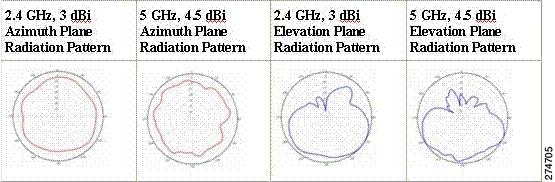
When positioning your OfficeExtend access point, consider that its RF signals are emitted in a cone shape spreading outward from the LED side of the access point. Ensure to mount the access point so that air can flow behind the metal back plate and prevent the access point from overheating.

Figure 1. OfficeExtend Access Point Radiation Patterns

Troubleshooting Common Problems

Most of the problems experienced with OfficeExtend access points are one of the following:

  • The access point cannot join the controller because of network or firewall issues.

    Resolution: Follow the instructions in the Viewing Access Point Join Information section to see join statistics for the OfficeExtend access point, or find the access point’s public IP address and perform pings of different packet sizes from inside the company.

  • The access point joins but keeps dropping off. This behavior usually occurs because of network problems or when the network address translation (NAT) or firewall ports close because of short timeouts.

    Resolution: Ask the teleworker for the LED status.

  • Clients cannot associate because of NAT issues.

    Resolution: Ask the teleworker to perform a speed test and a ping test. Some servers do not return big packet pings.

  • Clients keep dropping data. This behavior usually occurs because the home router closes the port because of short timeouts.

    Resolution: Perform client troubleshooting in Cisco Prime Infrastructure to determine if the problem is related to the OfficeExtend access point or the client.

  • The access point is not broadcasting the enterprise WLAN.

    Resolution: Ask the teleworker to check the cables, power supply, and LED status. If you still cannot identify the problem, ask the teleworker to try the following:

    • Connect to the home router directly and see if the PC is able to connect to an Internet website such as https://www.cisco.com/. If the PC cannot connect to the Internet, check the router or modem. If the PC can connect to the Internet, check the home router configuration to see if a firewall or MAC-based filter is enabled that is blocking the access point from reaching the Internet.

    • Log on to the home router and check to see if the access point has obtained an IP address. If it has, the access point’s LED normally blinks orange.

  • The access point cannot join the controller, and you cannot identify the problem.

    Resolution: A problem could exist with the home router. Ask the teleworker to check the router manual and try the following:

    • Assign the access point a static IP address based on the access point’s MAC address.

    • Put the access point in a demilitarized zone (DMZ), which is a small network inserted as a neutral zone between a company’s private network and the outside public network. It prevents outside users from getting direct access to a server that has company data.

    • If problems still occur, contact your company’s IT department for assistance.

  • The teleworker experiences problems while configuring a personal SSID on the access point.

    Resolution: Clear the access point configuration and return it to factory default settings by clicking Clear Config on the access point GUI or by entering the clear ap config Cisco_AP command and then configuring a personal SSID on an OfficeExtend Access Point. If problems still occur, contact your company’s IT department for assistance.

  • The home network needs to be rebooted.

    Resolution: Ask the teleworker to follow these steps:

    Leave all devices networked and connected, and then power down all the devices.

    Turn on the cable or DSL modem, and then wait for 2 minutes. (Check the LED status.)

    Turn on the home router, and then wait for 2 minutes. (Check the LED status.)

    Turn on the access point, and then wait for 5 minutes. (Check the LED status.)

    Turn on the client.