Planning

Cisco Jabber Softphone for VDI

The applications in the Cisco Jabber Softphone for VDI family of products are:

  • Cisco Jabber Softphone for VDI—HP Thin Pro and Ubuntu

  • Cisco Jabber Softphone for VDI—Unicon eLux

  • Cisco Jabber Softphone for VDI—Windows

  • Cisco Jabber Softphone for VDI—Dell Wyse Thin OS (Available from, and supported by Dell Wyse)
Cisco Jabber and VDI

Cisco Jabber chat and presence are supported in Virtual Desktop Infrastructure deployments. However, because of a limitation known as the hairpin effect, calling and video capability are not supported. The additional bandwidth required for calls and video creates a bottleneck at the data center.

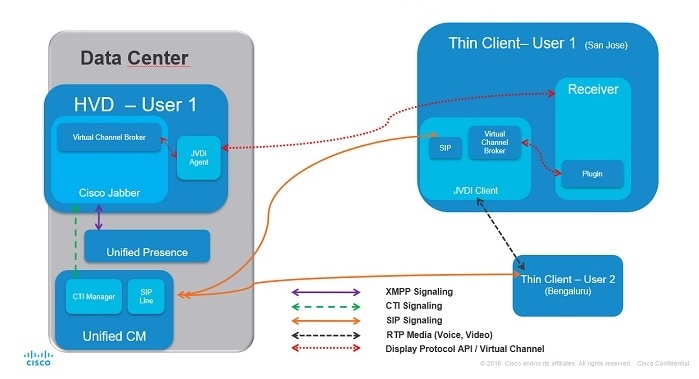
Cisco Jabber Softphone for VDI extends the Cisco collaboration experience to virtual deployments. With a supported version of Cisco Jabber for Windows, users can send and receive phone calls on their hosted virtual desktops (HVD). The Cisco Jabber Softphone for VDI software automatically detects the virtual environment. To reduce latency and to enhance media quality, Cisco Jabber Softphone for VDI streams media between the endpoints without going through the hosted virtual desktops.

Figure 1. Cisco Jabber Softphone for VDI—Data Flow
Data flow diagram.

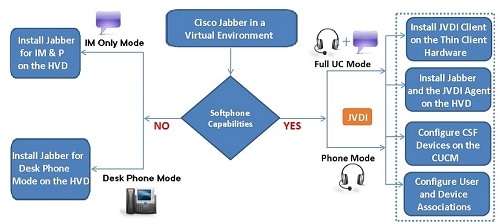
Use the following flowchart to determine whether you require Cisco Jabber Softphone for VDI.

Figure 2. Do You Need Cisco Jabber Softphone for VDI?
Flow chart.

The User Experience

Cisco Jabber Softphone for VDI detects the virtual environment at run time and Cisco Jabber starts in virtualization mode. The user experience with Cisco Jabber for Windows and Cisco Jabber Softphone for VDI is similar to the non-VDI experience. However, in a virtual environment there are some minor differences:

  • Device Selector, which is located in the Windows notification area, allows users to quickly switch their active camera and audio devices. Device management is also available from within Cisco Jabber.

  • Headset Priority—By default, Cisco Jabber adds a newly connected device to the top of the priority list, and makes the new device active. You can set the HeadsetPreference parameter so that Cisco Jabber adds new devices to the bottom of the priority list. For more information, see Parameters Reference Guide for Cisco Jabber.


    Note

    Users can override this setting in their Audio preferences.
  • Feature SupportCisco Jabber Softphone for VDI supports most Cisco Jabber for Windows features, with some exceptions. For more information, see the release notes for your platform:

    • Release Notes for Cisco Jabber Softphone for VDI—HP Thin Pro and Ubuntu

    • Release Notes for Cisco Jabber Softphone for VDI—Unicon eLux

    • Release Notes for Cisco Jabber Softphone for VDI—Windows

    Release Notes for Cisco Jabber Softphone for VDI

General Requirements

General requirements apply to all Cisco Jabber Softphone for VDI platforms.


Important

Only the components, versions, and minimum hardware requirements listed in this guide are supported. Use of unsupported components can result in a nonfunctional deployment.


Accessories

For a complete listing of recommended audio and video accessories, see Unified Communications Endpoint and Client Accessories, at http://www.cisco.com/c/en/us/products/unified-communications/uc_endpoints_accessories.html.

Ensure that all Jabra devices are running the latest firmware. You can use Jabra Direct to update the firmware.

Cisco Jabber for Windows

Cisco Jabber for Windows 12.7 running on the hosted virtual desktop (HVD).

For complete information about virtual environment compatibility, see the Cisco Jabber documentation for your release.

Cisco Unified Communications Manager

Recommended: CUCM Release 11.5(1)SU3 or later

Minimum: CUCM Release 10.5

Connection Broker—Installed on the Hosted Virtual Desktops

  • Citrix Virtual Apps and Desktops (formerly XenApp and XenDesktop) versions 7.x–7.1909, and 7.15 LTSR up to CU4

    Shared Desktop is supported only in full-screen mode. Published Application is supported in full-screen mode for Cisco Jabber Softphone for VDI—Windows.

  • VMware Horizon 6 versions 6.x–7.10

A connection broker is software that creates connections to hosted virtual desktops. A connection broker performs a number of tasks including the following:

  • Validating the username and providing a connection for the user.

  • Allowing the user to connect to a specific virtual desktop.

Operating Systems—Installed on the Hosted Virtual Desktops

  • Microsoft Windows 7 32–bit

  • Microsoft Windows 7 64–bit

  • Microsoft Windows 8 32–bit

  • Microsoft Windows 8 64–bit

  • Microsoft Windows 8.1 32–bit

  • Microsoft Windows 8.1 64 64–bit

  • Microsoft Windows 10 32–bit

  • Microsoft Windows 10 64–bit

Server Operating Systems—Installed on the Hosted Virtual Desktops

  • Microsoft Windows Server 2012 R2

  • Microsoft Windows Server 2016 R2

Port Requirements

Cisco Jabber Softphone for VDI requires the same ports as Cisco Jabber does, and the following additional port range:

Table 1. Port Usage

Port Range

Description

16384–32767

UDP Inbound and outbound traffic for RTP (audio and video streams)

You can configure the Cisco Unified Communications Manager to reduce this port range. Change the Start/Stop Media Port setting in the SIP Profile, which is associated with the CSF device.

Supported Codecs

Audio Codecs:

  • G.722

  • G.722.1 (24 and 32k)

    G.722.1 is supported on Cisco Unified Communications Manager 8.6.1 or later.

  • G.711 A-law

  • G.711 u-law

  • G.729a

  • Opus

    Opus is supported on Cisco Unified Communications Manager 11.0 or later.

Video Codec: H.264/AVC

Requirements—HP Thin Pro Thin Clients


Important

Only the components, versions, and minimum hardware requirements listed in this guide are supported. Use of unsupported components can result in a nonfunctional deployment.


HP ThinPro Platform Image

32–bit: HP ThinPro 6.2

64–bit: HP ThinPro 7.1 SP3.3 and 7.x versions

HP Thin Pro Thin Clients—Hardware

We recommend the following client hardware, which was tested with HP Thin Pro 6.2:

  • HP t520

  • HP t530

  • HP t620

  • HP t630

  • HP t730

  • HP mt21

We recommend the following client hardware, which was tested with HP Thin Pro 7.1 SP3.3:

  • HP t430

  • HP t520

  • HP t530

  • HP t630

  • HP t730

  • HP mt21

Connection Broker—Installed on the HVD

  • Citrix Virtual Apps and Desktops (formerly XenApp and XenDesktop) versions 6.x, 7.x–7 1811, and 7.15 LTSR

    Published Application and Shared Desktop are supported only in full-screen mode.

  • VMware Horizon 6 versions 6.x–7.7

A connection broker is software that creates connections to hosted virtual desktops. A connection broker performs a number of tasks including the following:

  • Validating the username and providing a connection for the user.

  • Allowing the user to connect to a specific virtual desktop.

Citrix Workspace app or VMware Horizon Client—Installed on the Thin Clients

The HP Thin Pro image includes the required Citrix and VMware versions.

The Citrix Workspace app or VMware Horizon Client provides a user interface for the corresponding connection broker.

Requirements—Ubuntu Thin Clients


Important

Only the components, versions, and minimum hardware requirements listed in this guide are supported. Use of unsupported components can result in a nonfunctional deployment.


Ubuntu Desktop Image

  • Ubuntu 14.04 32b LTS (i386)

  • Ubuntu 16.04 64b LTS (AMD64)

Ubuntu Thin Clients—Hardware

The minimum hardware requirements for thin clients are as follows:

  • Installed RAM 2 GB

  • Free Physical Memory 1 GB

  • Free Disk Space 256 MB

  • CPU: AMD G-T56N 1.65Ghz, or Intel Core2Duo T7500 2.2 GHz

  • USB 2.0 for USB camera and audio devices

Citrix Workspace app or VMware Horizon Client—Installed on the Thin Clients

  • Citrix Receiver 13.0 and later

  • Citrix Workspace app 1808 and later

  • VMware Horizon View Client versions 4.x and 5.x

The Citrix Workspace app or VMware Horizon Client provides a user interface for the corresponding connection broker.

Requirements—Unicon eLux Thin Clients


Important

Only the components, versions, and minimum hardware requirements listed in this guide are supported. Use of unsupported components can result in a nonfunctional deployment.


Unicon eLux Platform Image

  • 32–bit: Unicon eLux 5.7

  • 64–bit: Unicon eLux 6.5

The eLux packages are available from Unicon eLux. For assistance locating a download, contact eLux support.

Unicon eLux Thin Clients—Hardware

The minimum hardware requirements for thin clients are:

  • 1.6 GHz dual-core processor

  • 2 GB RAM

We recommend the following client hardware, which was tested with eLux RP 5.7.0:

  • HP T620 Dual Core / Quad Core

  • HP T630 Dual Core / Quad Core

  • HP T730

  • Cisco VXC 6215

  • Dell Wyse Z50D

Citrix Workspace App or VMware Horizon Client—Installed on the Thin Clients

Unicon eLux includes the required Citrix and VMware versions.

The Citrix Workspace app or VMware Horizon Client provides a user interface for the corresponding connection broker.

Cisco Anyconnect (Optional)

vpnsystem V4.5-1

Requirements—Windows Thin Clients


Important

Only the components, versions, and minimum hardware requirements listed in this guide are supported. Use of unsupported components can result in a nonfunctional deployment.


Microsoft Windows Thin Clients—Hardware

The minimum system requirements for thin clients are as follows:

  • Installed RAM 2 GB

  • Free Physical Memory 1 GB

  • Free Disk Space 256 MB

  • CPU Mobile AMD Sempron Processor 3600+, 2-GHz Intel Core 2 CPU, or T7400 2.16 GHz

  • DirectX 11 compatible GPU

  • USB 2.0 for USB camera and audio devices

Microsoft Windows—Installed on the Thin Clients

  • Microsoft Windows 7 32–bit

    Requires Update for Windows 7 (KB4019990)

  • Microsoft Windows 7 64–bit

    Requires Update for Windows 7 for x64–based Systems (KB4019990)

  • Microsoft Windows 8 32–bit

  • Microsoft Windows 8 64–bit

  • Microsoft Windows 8.1 32–bit

  • Microsoft Windows 8.1 64–bit

  • Microsoft Windows 10 32–bit

  • Microsoft Windows 10 64–bit

  • Windows Thin PC 32–bit


Note

Cisco Jabber Softphone for VDI for Windows does not require the Microsoft .NET Framework or any Java modules.

Windows Embedded Standard Thin Clients—Hardware

The minimum system requirements for thin clients are as follows:

  • Installed RAM 2 GB

  • Free Physical Memory 1 GB

  • Free Disk Space 256 MB

  • CPU performance affects the maximum video resolution. With Windows Embedded Standard thin clients, the expected resolution depends on the CPU:

    • Up to 720p with quad-core AMD GX-420CA SOC 2 GHz or similar

    • Up to 240p with dual-core AMD G-T56N 1.65 GHz or similar

    • Audio-only support with dual-core VIA Eden X2 U4200 1 GHz or similar CPU


    Note

    These hardware specifications are only guidelines for the expected resolutions. Other factors can affect video resolution.
  • DirectX 11 compatible GPU

  • USB 2.0 for USB camera and audio devices

Windows Embedded Standard—Installed on the Thin Clients

  • Windows Embedded Standard 7 32–bit

    Requires Update for Windows Embedded Standard 7 (KB4019990)

  • Windows Embedded Standard 7 64–bit

    Requires Update for Windows Embedded Standard 7 for 64–bit Systems (KB4019990)

  • Windows Embedded Standard 8 64–bit

    Requires Update for Windows Embedded Standard 8 for 64–bit Systems (KB4019990)

  • Windows 10 IoT Enterprise

Citrix Workspace App or VMware Horizon Client—Installed on the Thin Clients

  • Citrix Receiver (ICA) for Windows 4.4, and up to 4.12

  • Citrix Workspace App (ICA) for Windows 1808, and up to 1907


    Important

    Cisco Jabber Softphone for VDI does not support Citrix Workspace App downloaded from the Microsoft Store.


  • VMware Horizon Client for Windows 4.1.0, 4 and up to 5.0

    (Versions 4.3 and 4.4 are not supported.)

The Citrix Workspace app or VMware Horizon Client provides a user interface for the corresponding connection broker.


Important

Before you install the Cisco JVDI Client, install the Citrix Receiver or VMware Horizon Client on the thin client.

If you change from a Citrix environment to a VMware environment (or from VMware to Citrix), reinstall the Cisco JVDI Client.