Silent Monitor Service Installation and Configuration
This section provides an overview of the silent monitor service and discusses the tasks involved in installing and configuring the silent monitor service.
 Note |
|
Silent Monitor Service Overview
CTI OS Connections
To support remote silent monitoring, there can be up to nine All Event connections, including both CTI server and CTIOS server connections, subject to the following rules:
-
Two CTI server All Event connections must be dedicated to CTIOS server
-
Seven connections are available for other CTI server and CTIOS server All Events connections
-
Of these seven connections, a maximum of five can be of the same connection type (5 CTI server connections or 5 CTIOS server connections)
-
Average skills per agent should not exceed 10
How desktops Connect to Silent Monitor Services
The following is the supervisor desktop connection algorithm:
-
Connect the supervisor desktop to the silent monitor service running at port 42228 on localhost.
Note |
While CTI OS silent monitor clusters use port 42228 (the default), the silent monitor peers utilize port 42029 for communications purposes. |
The following is the agent desktop connection algorithm:
-
If the agent desktop's connection profile specifies a silent monitor server or set of silent monitor servers, randomly choose a silent monitor server to connect to using the port present in the connection profile. For more information about how you configure a connection profile to include silent monitor services, see CTI OS Server Installation.
-
Connect the agent desktop to the silent monitor service running at port 42228 on localhost.
Note |
You can use a connection profile to override port 42228. In this case, desktops use the preceding algorithms to determine the address of the silent monitor service. After the address is determined, desktops connect using the determined address and the port that is present in the connection profile. |
Configure ESXi Server
SPAN based silent monitoring service can be installed on UCS-C series servers version 5.1 and later for mobile and non-mobile agents. To install silent monitoring service on a virtual machine, perform the prerequisite steps in this topic and in the Configure LAN Switch topic, and then follow the steps in Run Silent Monitor Service Installer procedure.
Procedure
| Step 1 |
Configure a physical link from a switch to ESXi server. |
| Step 2 |
Add a virtual machine port group on ESXi server for SPAN network. |
| Step 3 |
To configure the virtual machine port group on ESXi server, perform the following steps:
|
The virtual machine port group for SPAN Port on ESXi server is configured.
What to do next
Add the created SPAN NIC to silent monitor service machine.
Configure LAN Switch
Procedure
| Step 1 |
In Cisco IOS LAN switches, configure the following ports. |
| Step 2 |
Create SPAN session to monitor gateway traffic in Cisco IOS switches using the following command: |
| Step 3 |
Create SPAN session to monitor gateway traffic in Cisco CAT OS switches using the following command: |
| Step 4 |
Verify the SPAN session using the following command: |
Upgrade Silent Monitor Service
Procedure
|
Run setup.exe from the SMService folder on the CTI OS installation media. The upgrade of the stand-alone Silent Monitor server uninstalls the existing Silent Monitor server and installs the new version. The upgrade steps are the same as a fresh installation of Silent Monitor server.
|
Run Silent Monitor Service Installer
The installer places two silent monitor service installers in the following directory:
<Install Drive>:\Program Files\Cisco Systems\CTIOS Client\CTIOS Toolkit\Win32 CIL\Silent Monitor FilesThe following installers are available and can be obtained from the Cisco.com:
- SilentMonitorInstall_nogui.exe – this executable silently
installs the silent monitor service with the following settings:
-
Installed in the directory C:\Program Files\CiscoSystems\CTIOS SilentMonitor
-
Listens on port 42228
-
No Security
This executable runs automatically when you update from one release to another. It replaces the earlier release CIL with the newer CIL. The executable installs and starts the silent monitor service so that the agent and supervisor desktops do not lose functionality. Running this executable is sufficient only if you do not wish to override the default settings or enable Security.
Note
This executable only works on the machines that have WinPCap 4.1.3 installed.
-
-
SMSelfExtractedInstallPackage.exe – this executable extracts the silent monitor service setup program into the following directory:
<Install Drive>:\Program Files\Cisco Systems\CTIOS Client\CTIOS Toolkit\Win32 CIL\Silent Monitor Files\SilentMonitorServiceInstall
Run this executable if you wish to specify a different destination directory or port, or if you want to enable Security.
Procedure
| Step 1 |
To run this executable silently: |
| Step 2 |
To run the full installation program for this executable, perform the following steps: |
Sign a Silent Monitor Server Certificate Request with Self-Signed CA
Procedure
| Step 1 |
If the self-signed CA does not exist, then run CreateSelfSignedCASetupPackage.exe and store all the files that were created by the CreateSelfSignedCASetupPackage.exe program in a safe place. This step generates CtiosRoot.pem and CtiosRootCert.pem in the same folder from where the setup is run. |
| Step 2 |
You must copy both CtiosServerKey.pem and CtiosServerReq.pem files from the CTI OS server machine located in drive:\icm\Instance name\CTIOS1\Security to the same directory as CtiosRoot.pem and CtiosRootCert.pem. |
| Step 3 |
Run SignCertificateSetupPackage.exe from the same directory where CtiosServerKey.pem, CtiosServerReq.pem, CtiosRoot.pem, and CtiosRootCert.pem reside, select CTI OS Server Certificate Request, and enter the Ctios Certificate Authority password. This step generates CtiosServer.pem file if it is successful; otherwise it displays an error message. |
| Step 4 |
Copy CtiosServer.pem and CtiosRootCert.pem back to the machine where silent monitor server resides and save them in the C:\Cisco Systems\CTIOS\Silent Monitor\Security directory. |
| Step 5 |
Delete CtiosServerkey.pem located in drive:\icm\Instance name\CTIOS1\Security from the machine where CTI OS Server is installed. |
| Step 6 |
Delete CtiosServerKey.pem, CtiosServerReq.pem, and CtiosServer.pem from the machine where SignCertificateSetupPackage.exe ran. |
| Step 7 |
If the silent monitor server machine has a peer server, then:
|
Sign a Silent Monitor Service Certificate Request with Third-Party CA
Follow these steps to sign a silent monitor service certificate request.
Procedure
| Step 1 |
Copy CtiosServerReq.pem file from the silent monitor service machine to the machine where the third-party CA resides. |
| Step 2 |
Signing silent monitor service certificate request (CtiosServerReq.pem) with third-party CA generates a silent monitor service certificate. Rename it CtiosServerCert.pem. |
| Step 3 |
The third-party CA has its certificate public information in a file. Rename this file CtiosRootCert.pem. |
| Step 4 |
Copy CtiosServerCert.pem and CtiosRootCert.pem to the machine where the silent monitor service resides and save them in the C:\Cisco Systems\CTIOS\Silent Monitor\Security directory. |
| Step 5 |
On the silent monitor service machine, copy the data in CtiosServerCert.pem and the data in CtiosServerkey.pem files into one file called CtiosServer.pem. The order is very important, so CtiosServer.pem must contain CtiosServerCert.pem data first and CtiosServerkey.pem data second. |
| Step 6 |
Delete CtiosServerCert.pem and CtiosServerkey.pem from the silent monitor service machine. |
| Step 7 |
If the silent monitor service machine has a peer server, then:
If you are installing silent monitor service on a virtual machine, perform the steps listed in Configure ESXi Server and Configure LAN Switch to complete the installation process. |
Additional Configuration Steps
This section discusses the silent monitor service configuration steps that you must perform after you install the silent monitor service. These steps are necessary to deliver silent monitor service connection information to client applications.
Rerunning CTI OS Server Setup
Rerun CTI OS Server setup to perform the following tasks:
-
To configure agents to use the Silent Monitor service.
-
To configure security for clients, so they can connect to Silent Monitor services that have security enabled.
-
To configure mobile agents. When you rerun setup, enable mobile agent and the appropriate agent mode. This modifies the connection profile information in the registry. The ShowFieldBitMask is modified to display the RAS fields on the login dialog box and the RasCallMode registry key is added.
-
To enable the default tracemark set it to 0x3.
Additional Configuration for Mobile Agent Environments
The following configuration considerations apply to environments that run mobile agent:
-
In a mobile agent environment, the silent monitor service uses a Switched Port Analyzer (SPAN) port to receive the voice traffic that passes through the agent gateway. Most of the time, this requires the computer running the silent monitor service to have two NIC cards: one to handle communications with clients, and one to receive all traffic spanned from the switch.
Some switches do allow the destination port of a SPAN configuration to act as a normal network connection and in that case, only one NIC card is enough. See the "Network Traffic Restrictions" section in www.cisco.com/en/US/products/sw/custcosw/ps1001/products_tech_note09186a008010e6ba.shtml#umnic for more information on the types of catalyst switches that don't support outgoing traffic on SPAN destination port.
For example, if the agent gateway is connected to port 1 and the NIC on the silent monitor server that receives SPAN traffic is connected on port 10, the following commands are used to configure the SPAN session:
monitor session 1 source interface fastEthernet0/1
monitor session 1 destination interface fastEthernet0/10
Refer to your switch manual for details on configuring a span port. In general, traffic to and from the agent gateway's port must be forwarded to the port that is configured to receive span traffic on the silent monitor service.
-
The SPAN source port should be set as the switch port into which the agent gateway (instead of the caller gateway) is plugged, or the silent monitor won't work in conference call scenarios.
-
There must be two gateways: one gateway for agent traffic, and another for caller traffic. If one gateway is used for agent and caller traffic, the voice traffic does not leave the gateway and cannot be silently monitored.
-
Voice traffic that does not leave the agent gateway or does not cross the agent gateway cannot be silent monitored. For example, agent-to-agent and consultation calls between mobile agents that share the same gateway cannot be silently monitored. In most mobile agent deployments, the only calls that can be reliably silent monitored are calls between agents and customers.
-
All supervisors in a mobile agent environment must have the silent monitor service installed on their desktop.
-
Agents do not need the silent monitor service configured on their desktops. However, you must configure the agent to use one or more silent monitor servers in the CTI OS Server setup program.
-
If there are agents that can be both mobile and traditional Unified CCE, there must be at least two profiles for such agents. One profile, used when logging in as Unified CCE, does not contain any silent monitor service information. A second profile, used when logging in as a mobile agent, contains information used to connect to a silent monitor server. This enables the mobile agent to use the silent monitor service on their desktop computer and provides that mobile agent with silent monitoring functionality.
Silent Monitor Service Clusters
If more than one agent gateway is present in the call center, and an agent can use either gateway to log in, silent monitor services must be clustered to support silent monitor. You must deploy a separate silent monitor server for each gateway. You must configure a SPAN port for each silent monitor server as described in the previous section. You must then run the silent monitor server installer to install and configure the two silent monitor servers as peers. After you complete this, you must set up a connection profile to instruct the agent desktops to connect to one of the peers. (For more information on the CTI OS Server installer program, see CTI OS Server Installation.) To set up a connection profile, check the "Enter peer(s) information" checkbox and fill in the IP address of the other silent monitor service in the "Hostname/ip address" text box during silent monitor service installation (for more information, see Step 3 in the section CTI OS Server Installation).
Installation of Silent Monitor Service with Windows Firewall Service Enabled
You must create a new port with the following parameters for any Windows server computer that has Windows Firewall Service enabled:
-
Port Type: Silent Monitor Service Port
-
Port Number: 42029
Note |
While CTI OS silent monitor clusters use port 42228 (the default), the silent monitor peers use port 42029 for communications purposes. |
Harden Silent Monitor Server Security
You can run the ICM Security Hardening script only on Windows Server. To apply security hardening on a Silent Monitor Server, you must perform the following manual steps:
Procedure
| Step 1 |
Run the executable SMSelfExtractedInstallPackage.exe, which the installation process installs in the following directory: This executable puts a batch file named CopySecurityHardeningFiles.bat and the SecurityTemplate directory in the current directory. |
| Step 2 |
Run CopySecurityHardeningFiles.bat. |
| Step 3 |
Go to the directory C:\CiscoUtils\SecurityTemplate. |
| Step 4 |
Run the command cscript ICMSecurityHardening.vbe HARDEN. |
Add Silent Monitor Service to Windows Firewall Exceptions
The following steps describe how to add the silent monitor service as an exception if Windows Firewall is enabled on Windows Server:
Procedure
| Step 1 |
Go to . |
||
| Step 2 |
Based on your required network settings, turn on Windows Firewall. |
||
| Step 3 |
Click Allow apps to communicate through Windows Firewall, and check the CTIOS Silent Monitor check box.
|
Silent Monitor Service Deployments
-
UCCE
-
Mobile agent
Unified CCE Deployment
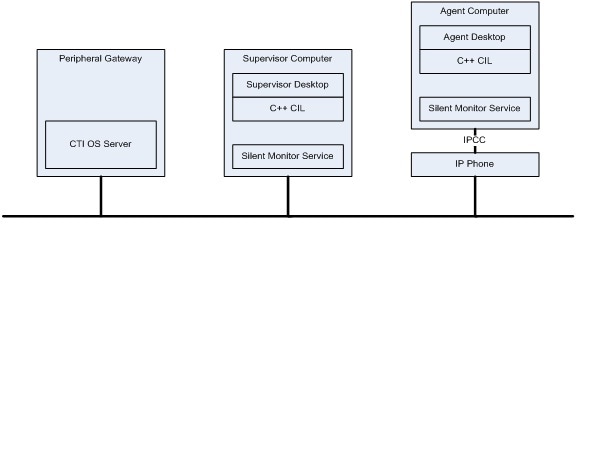
-
When customers install desktops, the silent monitor service is installed on the agent desktop computer.
-
The desktop is deployed behind the agent's phone. Silent monitor functionality is the same as before the upgrade. The only difference is that the service and not the CIL provides the silent monitor functionality.
-
If the silent monitor service needs a different configuration than the one provided by the silent installer, then you must use SMSelfExtractedInstallPackage.exe to reconfigure the service.
-
You can use a default Unified CCE connection profile for Unified CCE agents if no QoS is required. Otherwise you must configure a connection profile containing QoS settings. This works because CTI OS agent desktops attempt to connect to the localhost if no silent monitor services are configured using the connection profile.
-
You can use a default Unified CCE connection profile for Unified CCE supervisors if no QoS is required. Otherwise, you must configure a connection profile containing QoS settings. This works because CTI OS supervisor desktops attempt to connect to localhost if no silent monitor services are configured via the connection profile.
Mobile Agent Using Analog/PSTN Phone
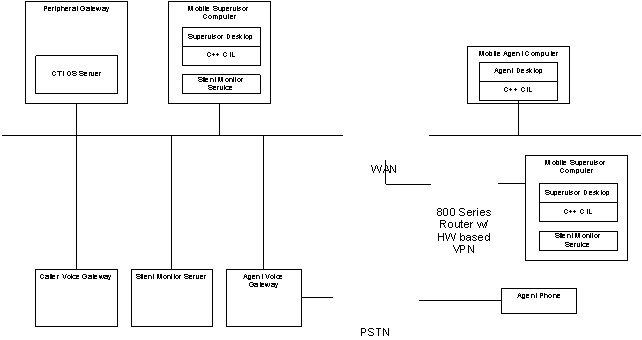
-
Install a silent monitor server on a separate computer using the SMSelfExtractedInstallPackage.exe installer:
-
Make sure to check "Silent Monitor Server" when you install the silent monitor server.
-
This computer must have two NIC cards: one to receive SPAN port traffic and the other to receive control requests from clients and to forward monitored voice streams.
-
-
Supervisors use the silent monitor service configured on supervisor's computer.
-
Connection profiles are configured to tell mobile agents how to connect to the Silent Monitor servers.
-
SPAN port is configured on the switch. Use the following steps to configure a SPAN port:
-
Locate the port on the switch where the agent voice gateway is connected.
-
Locate the port on the switch where the NIC card that receives SPAN traffic on the Silent Monitor server is connected.
-
Configure the switch to route SPAN traffic to the Silent Monitor server.
-
-
The following commands are issued in global configuration mode if the voice gateway was connected to port 10 on the switch and the silent monitor service was connected to port 15.
no monitor session 1
monitor session 1 source interface fastEthernet0/10
monitor session 1 destination interface fastEthernet0/15
Mobile Agents IP Phones Topology
In some deployments, mobile agents use IP phones homed to a Unified CM other than the Unified CM used by UCCE. The following diagram illustrates the deployment of the agent phones.
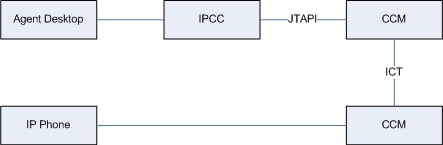
In these cases, the silent monitor deployment is the same as the equivalent UCCE Agent deployment. The only difference is the Unified CM to which the agent's phone is homed. The following sections describe how to deploy silent monitor when mobile agents use IP phones.
Mobile Agent with IP Phone
The following Silent Monitor deployment uses mobile agents with IP phones that home to a different Unified CM from Unified CCE:
-
When customers install or upgrade their desktops, the silent monitor service is silently installed on the agent desktop computer. The desktop is deployed behind the agent's phone; silent monitor functionality is the same as before the upgrade. The only difference is that the service and not the CIL provides the silent monitor functionality.
-
If the silent monitor service needs a different configuration than the one provided by the silent installer, use SMSelfExtractedInstallPackage.exe to reconfigure the service.
-
You can configure a connection profile with a registry key to allow agents and supervisors to log in as mobile agents.
 Feedback