Installation

Power On and Initial Setup

Procedure
    Step 1   Verify that the monitor and keyboard are connected as described in the Quick Start Guide.
    Step 2   Power on the monitor.
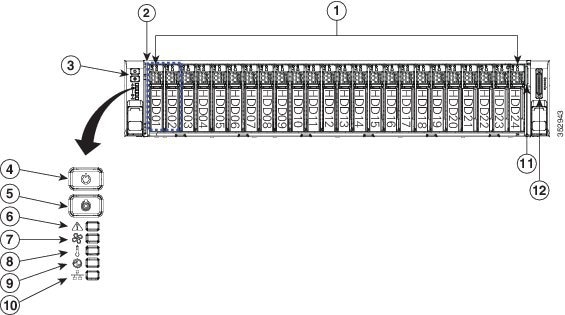
    Step 3   Verify that power is connected and the Power LED status, as shown in Figure 1 and Figure 2.
    Figure 1. Power and LED Status - BE7000M Server

    If the status of the Power LED is orange, that indicates server is off. If it is not, check the electrical and network connections. If the status of the Power LED is green, skip forward to step 5.
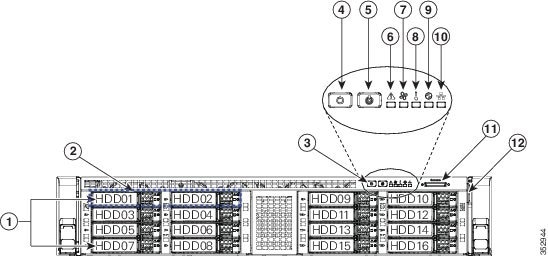


    Figure 2. Power and LED Status - BE7000H Server


    Step 4   Push the power button (3) and verify that the power button LED the disk LED disk drive change to green.
    Step 5   Watch the boot process on the monitor.
    Step 6   (Optional) Press F8 to open the CIMC Configuration window when prompted. In the CIMC Configuration window, reset the CIMC password, configure the management interface IP address, and then exit.
    Note   

    The Cisco Integrated Management Controller (CIMC) is the management interface for the C-Series Servers. CIMC runs within the server, allowing remote administration, configuration, and monitoring of the server via web or SSH command line access.

    Step 7   (Optional) If you are using CIMC for remote console access, browse to the IP address that you configured and do one of the following:
    • If you have changed the CIMC password in step 6, provide the new password.
    • If you have not changed the CIMC password in step 6, use the default username admin and password password.
    Step 8   If you use the default username and password to log in to the Cisco Integrated Management Controller screen, the system prompts you to change the password. Changing the password is mandatory.

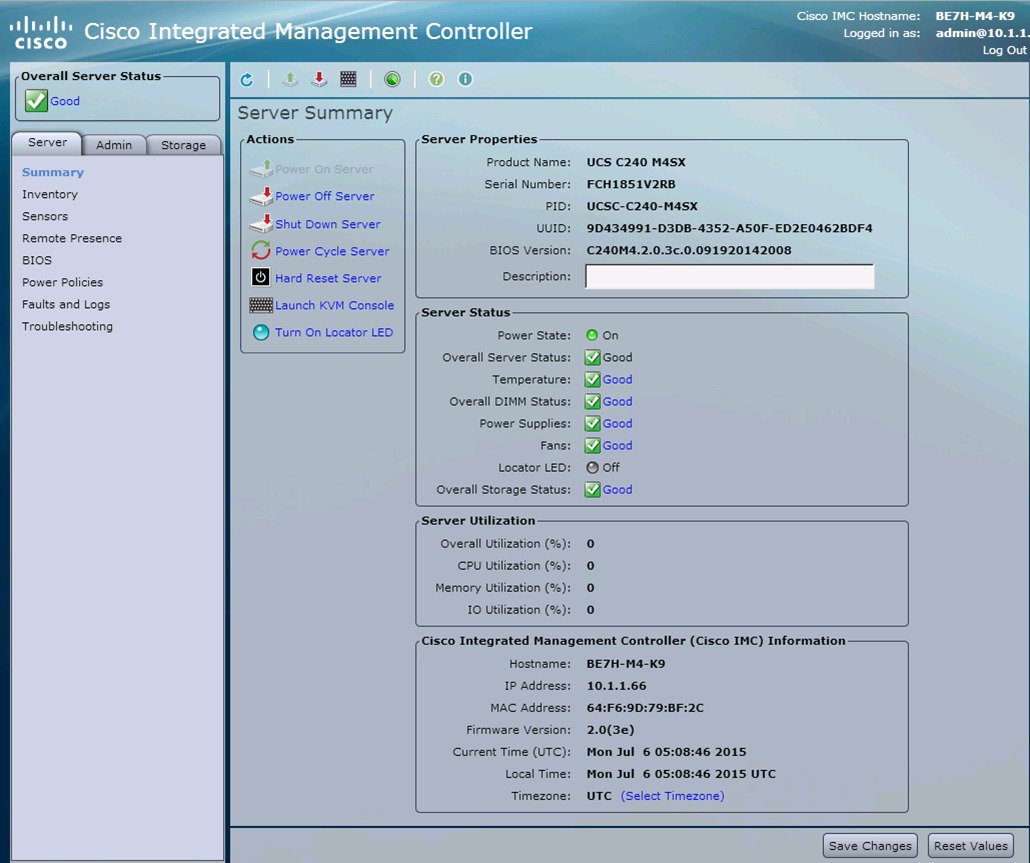
    The CIMC screen in Figure 3 offers various tasks, such as turning On Locater LED and launching KVM Console.
    Note   

    In the Server Properties section, the Product Name appears as UCS C240 M4S2 for BE7000M and as UCS C240 M4SX for BE7000H.

    Figure 3. Cisco Integrated Management Controller Web Interface


    Customize Hypervisor for Remote Access

    Follow this procedure to customize the Hypervisor (VMware vSphere Hypervisor) to enable remote access from your PC using the vSphere client.
    Procedure
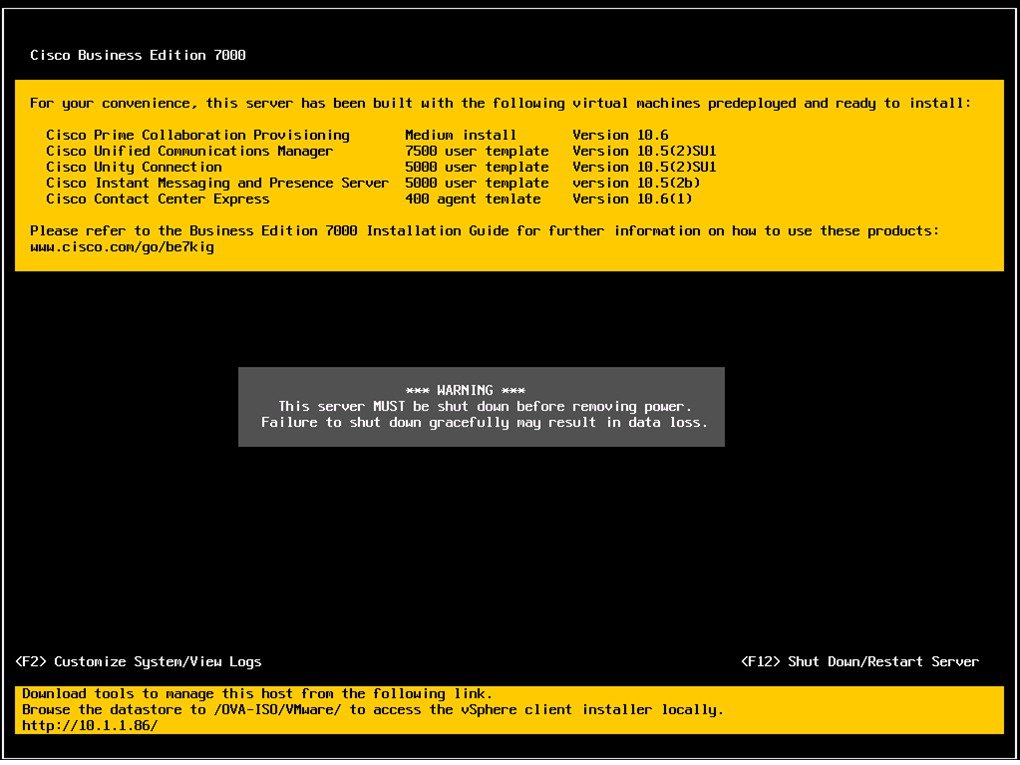
      Step 1   When the hypervisor has booted, the Direct Console User Interface displays on the monitor as shown in Figure 4.
      Figure 4. Direct Console Screen After Hypervisor Loads.
      Note    For release 10.5(1) and later, you are notified about preinstalled applications.


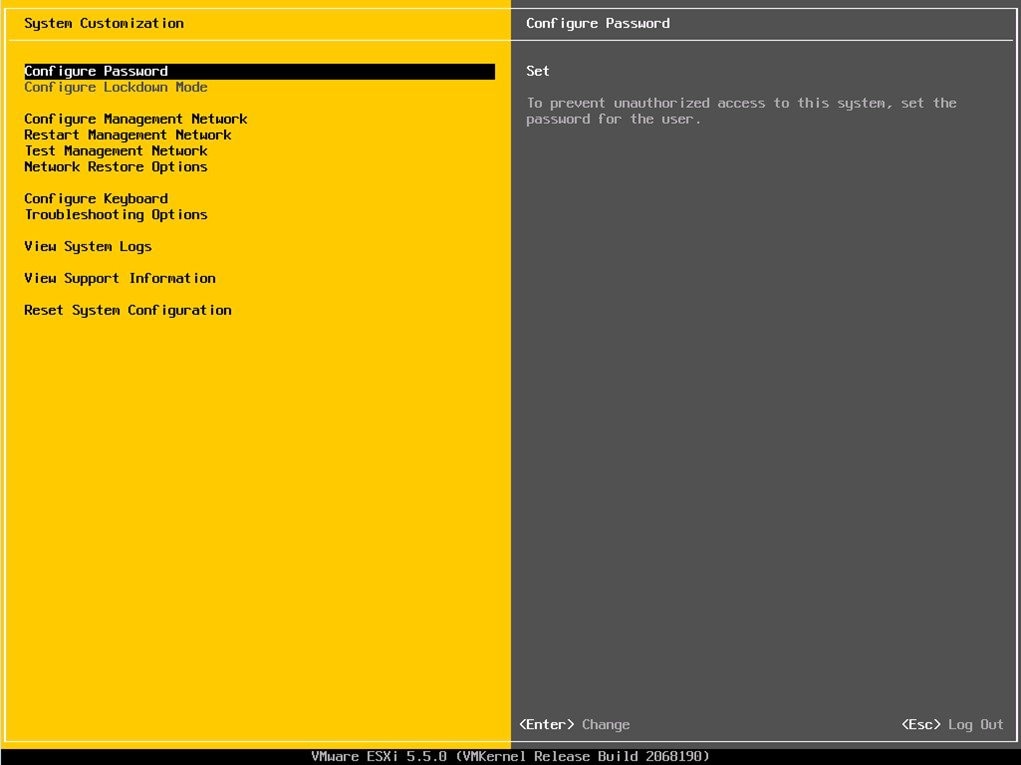
      Step 2   Press F2 to enter the System Customization menu as shown in the following figure.
      Figure 5. Hypervisor System Customization Menu. The default username is root and password is password.

      Step 3   (Recommended) Choose Configure Password to change the password.
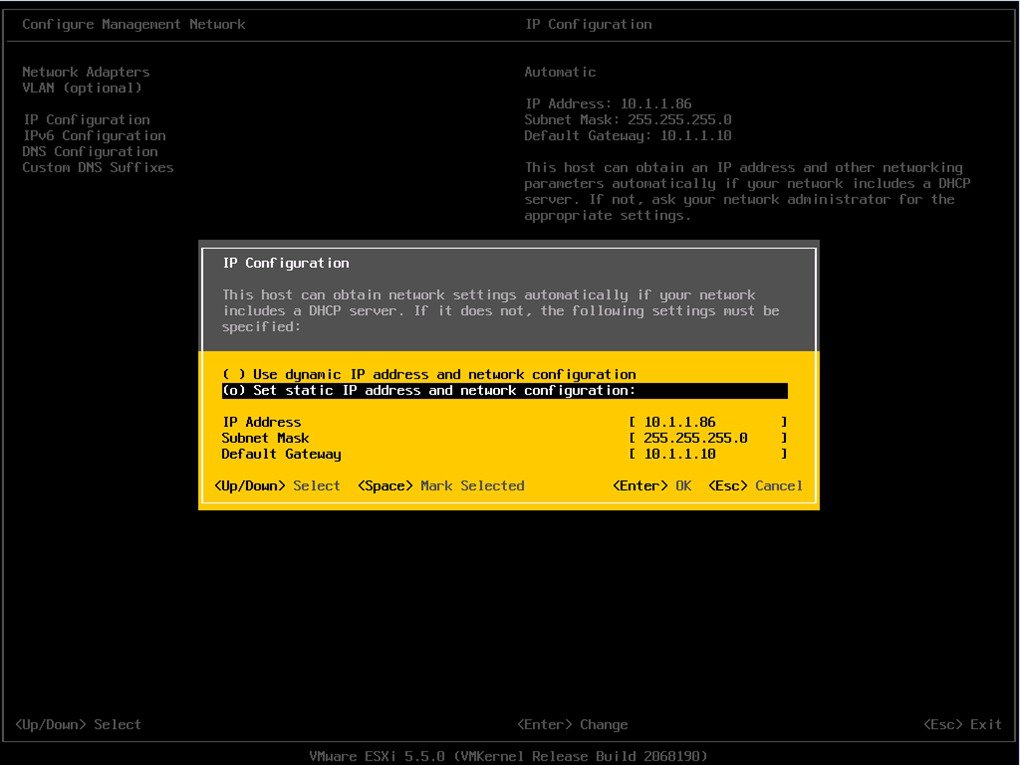
      Step 4   To assign a static IP address, enter the Configure Management Network menu, and follow the instructions on screen to change "IP Configuration" as shown in Figure 6.
      Figure 6. Assign Static IP Address to ESXi Host

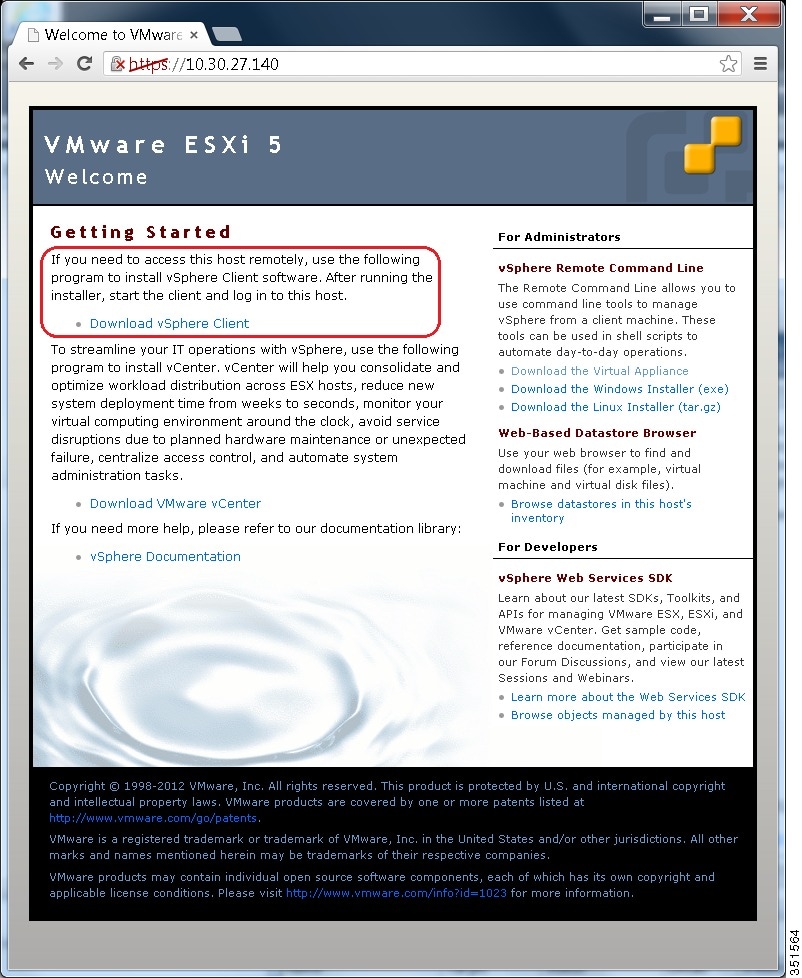
      Step 5   Connect your PC to the data network, and browse to the new Hypervisor IP address. Verify the web page as shown in Figure 7.
      Figure 7. Hypervisor Welcome Page

      Step 6   If not already installed on your PC, download and install the vSphere client from the link on the hypervisor welcome page. You need internet access to download the vSphere client from this link. If Internet access is not available, you can download the client installation file from [datastore1] /OVA-ISO/vmware. A link to browse the datastore is provided on the right of the screen shown in figure 7.

      Access and Configure Hypervisor

      Some Business Edition applications require the host to have a valid time reference. Follow these steps to access the ESXi host, configure NTP, configure fault tolerance for network interface cards (NICs) using the NIC teaming feature, view predeployed applications, and browse the datastore to verify the preloaded collaboration application software.

      Procedure
        Step 1   Launch the vSphere client application and type the IP address of the Hypervisor.
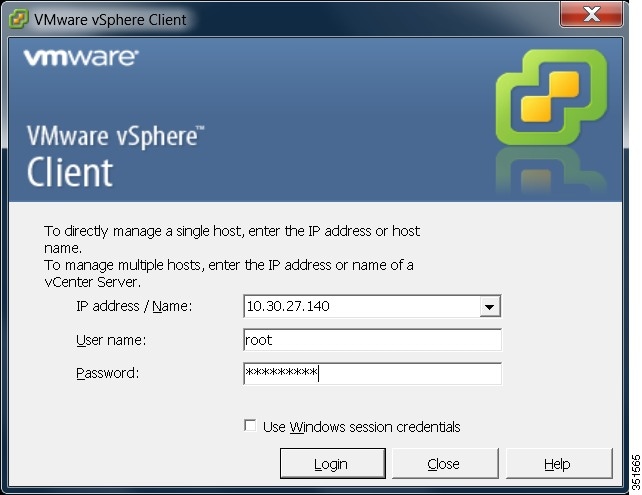
        Figure 8. Access Hypervisor Using vSphere Client

        Step 2   Use the login credentials that you previously configured.
        Step 3   (Optional) If you order BE7000 with factory-preloaded embedded license, then the BE7000 Cisco UC Virtualization Foundation license is predeployed and is therefore ready for use on delivery. If you need to reapply the license, follow these steps:
        1. Note the Master Serial Number that is shipped with the server. The Master Serial Number is the license activation key.
          Note   

          The Master Serial Number is pre-activated. You do not need to register it at http:/​/​www.VMware.com.

          Note   

          This serial number is hardcoded for a two-CPU system. You cannot combine it, or register it, with other licenses at http:/​/​www.VMware.com. You cannot change the serial number to single-CPU or greater than two-CPU.

        2. Navigate to Configuration > Software > Licensed Features, and click Edit.
        3. Select Assign a new license key to this host.
        4. Click Enter Key....
        5. Type in the Master serial number.
        6. Click OK to close configuration dialogs and apply the license.
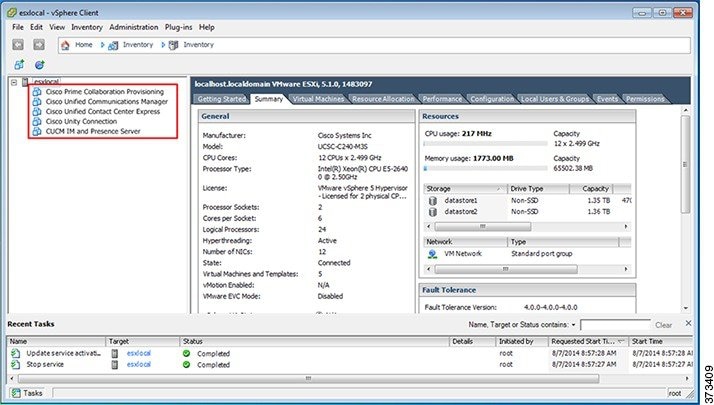
        Note    Notice the predeployed applications listed in the inventory pane of Figure 9.
        Figure 9. Configuring and Managing Hypervisor and Virtual Machines

        Step 4   Configure NTP:
        1. Navigate to Configuration > Software > Time Configuration.
        2. Click Properties to launch the Time Configuration screen.
        3. Update the Time Click Options... .
        4. Select NTP Settings.
        5. Click Add and type the IP address of NTP server. Repeat this step to add multiple NTP servers.
        6. Click OK.
        7. Select General > Start and Stop with Host.
        8. Click Start button. Click OK to close the configuration screens.
        Step 5   Configure network fault tolerance by using the NIC teaming feature in VMware:
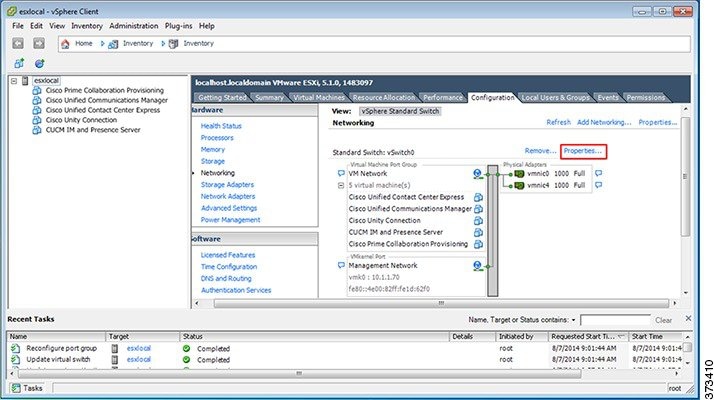
        1. Navigate to Configuration > Hardware > Networking.
        2. Click Properties for "Standard Switch: vSwitch0," as shown in the figure below.
        3. In the configuration screen vSwitch0 Properties, select the tab Network Adapters.
        4. Click Add… to add the NIC that is connected to data network.
        5. Follow the interactive configuration dialogs and close the configuration screens until you see two or more NICs are added to vSwitch0, as shown in the figure below.

        Note   

        By default, only one NIC is enabled for the Hypervisor and identified as vmnic0.

        Note    If connecting teamed NICs to a Cisco switch channel-group, ensure that the NIC teaming load balancing policy is set to Route based on IP hash. For more information about this policy and other aspects of hypervisor networking for Cisco Collaboration applications, see Deploying Expressway with Business Edition at http:/​/​www.cisco.com/​c/​dam/​en/​us/​td/​docs/​voice_ip_comm/​cucm/​BE6000/​InstallationGuide/​10_01/​Deploying_​Expressway_​with_​Business_​Edition.pdf
        Figure 10. Fault Tolerance for Business Edition Network Connectivity

        The Hypervisor is now ready to host virtualized collaboration applications. Virtual machines for seven of the most commonly used collaboration applications are predeployed on the hypervisor for you. Software for these collaboration applications and additional applications are also preloaded in the datastore for your convenience.

        Step 6   Browse the datastore:
        1. Navigate to Configuration > Hardware > Storage.
        2. Click Datastore to list the datastores in the Business Edition server.
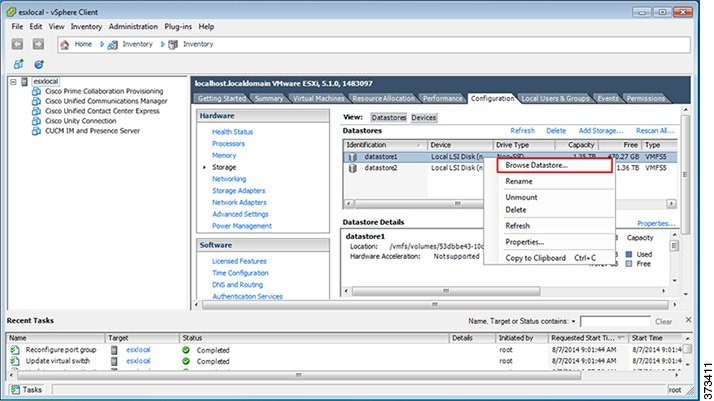
        3. Select a datastore, then right-click and select Browse Datastore as shown in Figure 11. Preloaded software is stored in the /OVA-ISO directory.
        Figure 11. Browse Datastore to View Preloaded Collaboration Virtual Machines and Preloaded Software

        Step 7   (Optional) Cisco recommends that you archive the OVA-ISO directory locally. If a server fails, the replacement product does not include preloaded content.

        What to Do Next

        Install virtual machines.

        Preloaded Files on Datastore

        In addition to a number of predeployed virtual machines, Cisco Business Edition servers are shipped with selected Collaboration application software preloaded on the datastore. Consider the following points for a basic understanding of the preloaded file types:

        ISO

        An ISO file is a DVD image containing application install files.

        OVA

        Open Virtualization Archive (OVA) is used to package and distribute the virtual machine.

        Some OVA files may include a prepared disk that includes preinstalled software (for example, cpc-provisioning-11.2.0-523-medium.ova ).

        Other OVA files do not include application software preinstalled. In this case, you must deploy the OVA template and then install the software using the ISO file that is provided on datastore (for example, cucm_11.5_vmv8_v1.0.ova and associated ISO file Bootable_UCSInstall_UCOS_11.5.1.13900-1.sgn.iso) .


        Note


        For details of which files ship with each server, see the Build Summary PDF in the datastore OVA-ISO directory, or download from here http:/​/​www.cisco.com/​c/​en/​us/​support/​unified-communications/​business-edition-6000/​products-release-notes-list.html.


        Using Predeployed Virtual Machines

        To simplify the installation of the BE7000, a number of the most popular application virtual machines have been partially for fully preinstalled, ready for you to add configuration information to complete the installation.

        To complete this process, launch the hypervisor console for the virtual machine you wish to use, power on and follow the instructions.

        Some collaboration applications (such as Unified Communications Manager, Unity Connection, UCM Instant Messaging and Presence Service and Unified Contact Center Express) also accept a configuration file to automate this process. To use this feature, follow these steps:

        Procedure
          Step 1   Create an answer file for your application using the online tool at www.cisco.com/​web/​cuc_afg/​.
          Step 2   Add this file to a virtual floppy (vFloppy) image. Name the file as UCM.flp, CUC.flp, IMP.flp or CCX.flp based on the application.
          Step 3   Copy this file to the AFG folder in the hypervisor datastore.
          Step 4   Power on the virtual machine.

          The application completes the installation automatically.


          Deploy New Virtual Machines

          The OVA template file defines the virtual machine for specific applications.
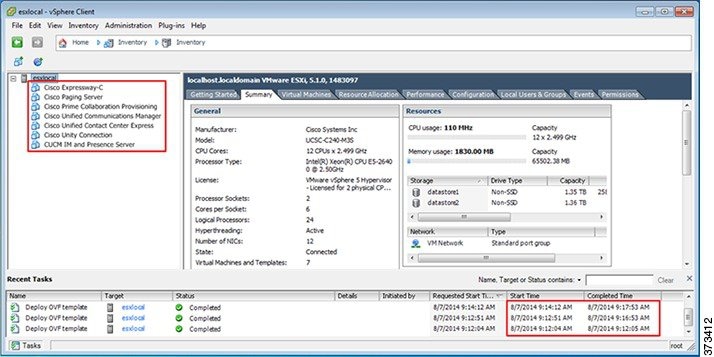
          Note the following:
          • OVA templates are deployed in seconds, while a packaged OVA may take 10-15 minutes to deploy.

          • The figure below shows the view of vSphere client after deployment of various collaboration applications virtual machines. You can also see the time that is taken to deploy the last two virtual machines.

          Figure 12. Deployed Virtual Machines for Applications Viewed in VSphere Client

          Procedure
            Step 1   On the vSphere Client, navigate to File > Deploy OVF Template.

            The Deploy OVF Template screen is launched.

            Step 2   Continue to click Next to accept license agreements if prompted.
            Step 3   Select the appropriate virtual machine size for your deployment.
            Step 4   Specify a meaningful name for the virtual machine.

            What to Do Next

            After deploying all the required virtual machines, complete installation where required and set up applications that are ready for use.

            Install Applications on Virtual Machines

            To install Unified Communications applications, including Cisco Unified Communications Manager, Cisco Unified Communications Manager IM and Presence Service, Cisco Unity Connection, Cisco Emergency responder, and Cisco Unified Contact Center Express you can either use answer files to automate the installation process, or opt for manual installation. The following procedure describes both these options to install and set up the virtualized applications that are ready for use.

            The following table describes the approximate installation time for each application:

            Application

            Approximate Installation Time (In Minutes)

            Cisco Unified Communications Manager

            60

            Cisco Unity Connection

            60

            Cisco Unified Communications Manager IM and Presence Service

            45

            Cisco Prime Collaboration Assurance and Analytics Business

            30

            Cisco Prime Collaboration Deployment

            20

            Cisco Prime Collaboration Provisioning

            15

            Cisco Emergency Responder

            45

            Cisco Unified Contact Center Express and Cisco Unified IP Interactive Voice Response

            60

            Cisco Expressway

            30

            Cisco TelePresence Video Communication Server Control

            30

            Cisco TelePresence Conductor

            30

            Cisco TelePresence Server Virtual Machine

            15

            Cisco TelePresence Management Suite

            60

            Cisco Paging Server

            15

            Cisco TelePresence Content Server

            60


            Note


            You can install multiple applications concurrently to save time.


            Procedure
              Step 1   Contact the data network administrator and make sure that you collect the network information that is described in "Preparation."
              Step 2   Plan the sequence of installing the applications to minimize the time that is required.
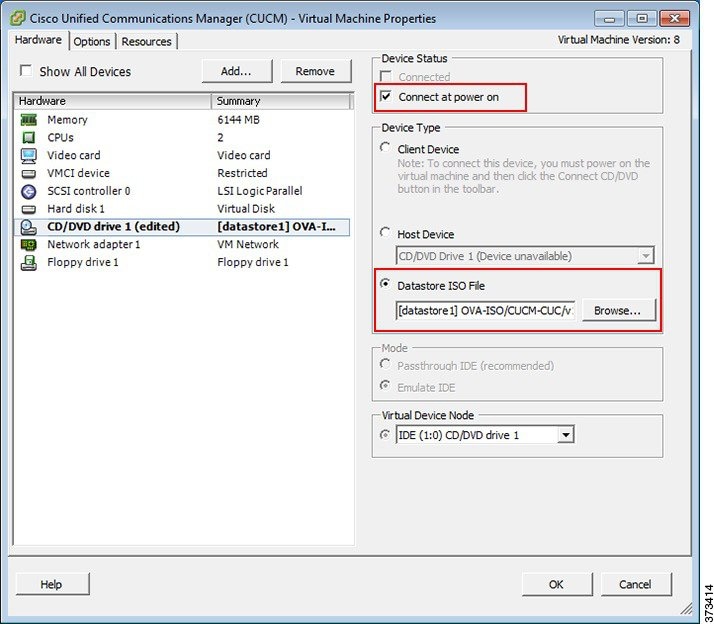
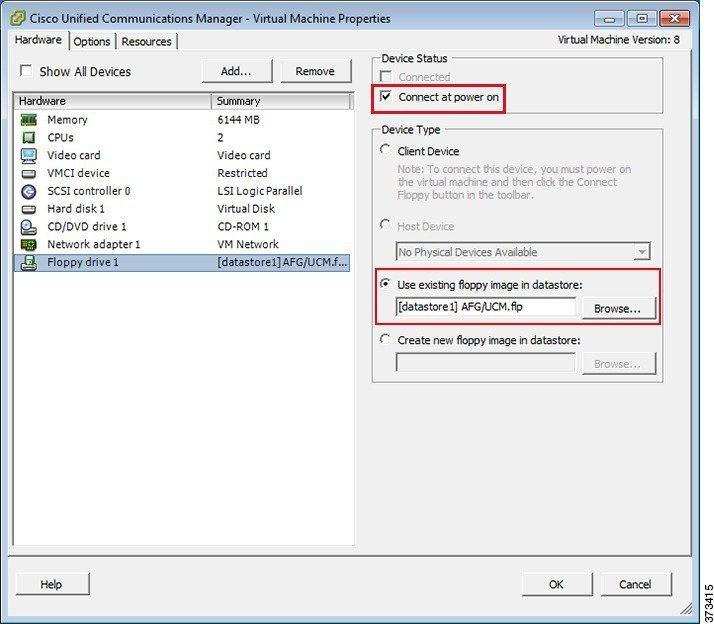
              Step 3   If you want to use the answer files, follow this step to prepare the required files. Select Edit Settings from the right-click menu as shown in Figure 14. The Virtual Machines Properties editing screen appears, as shown in the Figure 15.
              1. Go to the following URL and generate the platformconfig.xml file: http:/​/​www.cisco.com/​web/​cuc_afg/​index.html.
              2. Using any freeware virtual floppy application, convert the platformconfig.xml file to *.flp image and copy this *.flp image to the AFH/ directory in the datastore. Name the files as follows to ensure that they are used by the predeployed applications:
                • Cisco Unified Communications Manager: UCM.flp

                • Cisco Unified Communications Manager IM and Presence Service: IMP.flp

                • Cisco Unity Connection: CUC.flp

                • Cisco Unified Contact Center Express: CCX.flp

              Step 4   Using vSphere client, select an application’s virtual machine. The client changes the panel name to application name, and adds one more tab named "Getting Started". Right click to open the action menu as shown in the figure below.
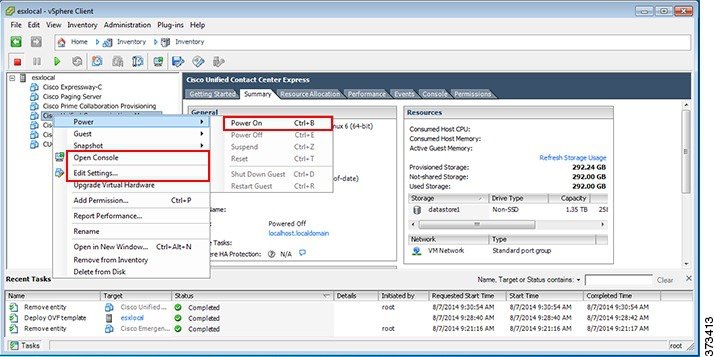
              Figure 13. Select an Application VM to Edit Settings, Associate the ISO with the VM, Power On, and Take Any Other Administrative Action


              Step 5   For VMs that are deployed using blank OVA templates, you need to edit the virtual machine CD/DVD drive settings to connect the application software ISO image from the datastore at power on. This step is not required for applications. Cisco Unified Communications Manager and Cisco Unity Connection use same ISO file (see the preloaded files for Cisco Business Edition 7000 here: http:/​/​www.cisco.com/​c/​en/​us/​support/​unified-communications/​business-edition-7000/​products-release-notes-list.html).
              Figure 14. Edit Virtual Machine Settings to Connect ISO Image of Application Software


              1. In the CD/DVD drive Device Type section, select Datastore ISO File.
              2. Browse to the datastore and select the ISO file for the application.
              3. Make sure to check the Connect at Power On checkbox.
              4. If you have created answer files in Step 3, then configure the virtual machine Floppy drive settings to connect to the appropriate flp file on power on. If you want to enter the configuration settings manually or if you are using a predeployed virtual machine, go to Step 6.
                Note    For predeployed VM, you do not need to configure the virtual machine Floppy drive settings to connect to the appropriate flp file on power on.
                Figure 15. Edit Virtual Machine Settings to Connect Floppy Drive to Read Configuration Settings from FLP File


              5. In the Options tab, choose Advanced Settings > Boot Options and select Force BIOS Setup.
              6. When you boot the virtual machine later, select the BIOS Boot menu, and then use the - key to move Removable Devices down to the bottom of the boot list to ensure that the virtual machine boots from the DVD drive.
              Step 6   To begin installation of each application, follow these steps:
              1. Power on the virtual machine, right click and choose Open Console as shown in Figure 13.
              2. If you are not using installation answer files, follow the interactive installation procedure in the console. Use the information that you collected in Step 1.
              3. Installation is complete and successful when you are able to successfully log in from the console.
              • For Prime Collaboration, type setup at the "localhost login:" prompt to configure the application and complete installation. After that, the installation script asks for network information and various credentials (passwords for admin, root, globaladmin) information.
              • For a VCS or Expressway server, set up the application by logging in using the default username (admin) and password (TANDBERG). Type y when asked "Run install wizard [n]:" and continue with interactive installation.
              Note   

              If you require detailed installation guidance, see the Installation Guide of the applications on the Cisco Business Edition 7000 Support Documents website, listed in For More Information section.


              What to Do Next

              After installing all required applications, access applications using a web browser. Add licenses and configure features as required.