Introducing Cisco
UCS Central 1.5
This chapter includes the following sections:
- Overview of Cisco UCS Central 1.5 Features
- Behavior Changes in Release 1.5
- Multi-version Management Support
- Feature Support Matrix
Overview of Cisco UCS Central 1.5 Features
Cisco UCS Central, release 1.5 allows you to take charge of the data center environment by delivering easy to use, integrated solution for managing Cisco UCS Domains from a single management point, both in data centers and remote management locations, with high availability. With Cisco UCS Central 1.5, you can efficiently manage server, storage and network policies and generate network traffic reports for your entire data center.
This release includes full support for the HTML5-based user interface, which is now the default user interface. The previous flash-based user interface is available at http://UCSCentral_IP/flex.html.
 Note | The flash-based user interface is being deprecated, and will not be supported after Cisco UCS Central release 1.5. |
Release 1.5(1a) supports the following new features in the HTML 5-based user interface:
| Feature | Functions |
|---|---|
|
Support for 160 LDAP group maps |
Allows 160 LDAP group maps to be managed from Cisco UCS Central. |
|
vNIC/vHBA pairing |
Allows you to create redundancy pairs for vNICs and vHBAs. |
|
Traffic monitoring |
Allows you to use Switched Port Analyzer (SPAN) to monitor network traffic. |
|
UUID sync |
Enables syncing of UUIDs to match operating systems on M3 and above servers. |
|
Admin host port for PCI placement |
Allows you to select an admin host port for vNICs or vHBAs attached to vCONs. |
|
Object tagging |
Allows you to create tags to organize objects, run infrastructure firmware updates, and run the hardware compatibility report. |
|
Infrastructure firmware updates with tags |
Allows you to run infrastructure firmware updates outside of domain groups. |
|
Hardware compatibility report |
Allows you to check interoperability information for Cisco UCS components and configurations. |
|
Domain registration from Cisco UCS Central. |
Allows you to register domains directly from Cisco UCS Central instead of Cisco UCS Manager. |
|
Local service profile views |
Service profiles created in Cisco UCS Manager can now be viewed in Cisco UCS Central. |
|
Enhanced error messaging |
Added additional text to clarify error messages. |
|
UI localization |
Added UI support for the following languages: |
|
Tech support enhancements |
Allows you to generate a tech support file for servers, chassis, FEX, and other options. |
Overview of Cisco UCS Central HTML 5 UI
Cisco UCS Central HTML5 based user interface provides flexibility and task based usability for your management purposes.
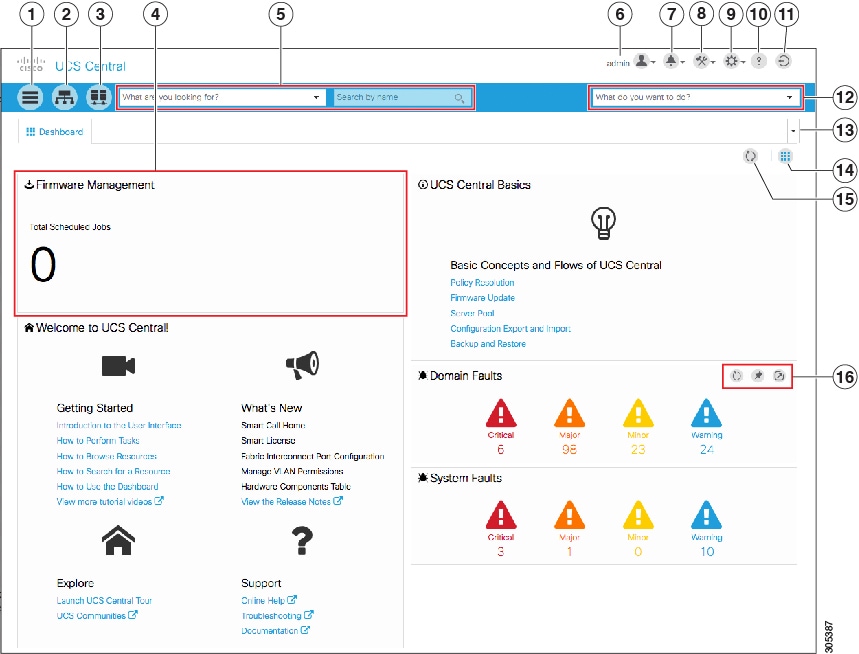
The dashboard provides a quick overview of components in the system. You can pin the components you use frequently and customize the dashboard to suit your operational requirements. You can click on any object on the dashboard to go to the related page in the system.
Using the HTML5 UI
Dashboard
You can pin dashboard widgets and customize the dashboard based on your operational requirements. The following describes the basic dashboard structure, and the navigation icons, for performing management tasks:
Behavior Changes in Release 1.5
Deprecation Announcement for Cisco UCS M-Series Modular Servers
Cisco UCS M-Series Modular Servers have been deprecated and will not be supported in Cisco UCS Central release 1.5.
Feature Support
RDM-based shared storage for Cisco UCS Central HA configurations is no longer supported with Cisco UCS Central release 1.5.
The following features that are available in the older flash-based user interface are not supported in the HTML5 user interface at this time:
Note | Any functionality introduced in Cisco UCS Central release 1.4(1a) and newer releases will be available in the HTML 5 user interface only. |
Behavior Changes Based on Design
-
You must create the global service profile template before you can create a service profile.
-
vNIC and vHBA Placement is now referred to as Interface Placement.
-
Registration Policy is now referred to as Domain Group Qualification Policy.
-
ID Range Qualification Policy is now referred to as ID Range Access Control Policy.
-
There are no qualified IP addresses for ID Range Access Control Policy.
-
Only the configuration export (all-config) and backup (full-state) options are used in Cisco UCS Central. Other backup types such as config logical and config system are not supported.
Multi-version Management Support
Cisco UCS Central provides you the ability to manage multiple Cisco UCS domains with different versions of Cisco UCS Manager at the same time. Cisco UCS Central identifies feature capabilities of each Cisco UCS domain at the time of domain registration. This ability enables you to seamlessly integrate multiple versions Cisco UCS Manager with Cisco UCS Central for management and global service profile deployment.
When you upgrade your Cisco UCS Central to a newer release, based on the features you are using, you might not have to upgrade all of your Cisco UCS Manager release versions to make sure the registered UCS domains are compatible with Cisco UCS Central.
When you register a Cisco UCS domain in Cisco UCS Central, along with the inventory information Cisco UCS Central receives the following information from the domain:
The available features are sent as a management capability matrix to Cisco UCS Central. Based on this information Cisco UCS Central builds a list of supported features for each registered domain. Based on the feature capabilities in a Cisco UCS domain, Cisco UCS Central decides if certain global management options are possible in the domain. When you perform management tasks, such as deploying a global service profile on a group of domains that include earlier versions of Cisco UCS Manager instances, based on the feature capability matrix, Cisco UCS Central does the following:
-
Delivers the task only to the supported domains.
-
Displays a version incompatibility message for the domains where the feature is not supported.
Supported Features in Cisco UCS Manager
You can view supported features in a Cisco UCS domain using the Cisco UCS Central CLI. Based on the Cisco UCS Manager versions in the registered Cisco UCS domains, Cisco UCS Central CLI builds list of supported features in the following four categories:
Management Exclusion
Multi-version support also provides you the ability to exclude some features from global management. You can log into a registered UCS domain and turn off a specific feature from Cisco UCS Manager CLI. You can disable the following global management capabilities:
-
Global service profile deployment: If you deploy global service profile on a server pool, and you have disabled global service profile deployment in one of the servers in the pool, Cisco UCS Central excludes the server from the global service profile deployment.
-
In band management: A service profile with inband management capability will not be deployed on the servers where you have excluded inband management feature.
-
Policy mapping: This will disable importing policies or policy components from this Cisco UCS domain into Cisco UCS Central.
-
Remote management: This will restrain controlling physical devices in a Cisco UCS domain from Cisco UCS Central.
You can enable these features any time using the Cisco UCS Manager CLI to restore global management capabilities in the registered Cisco UCS domains at anytime.
Feature Support Matrix
The following table provides a list of features in Cisco UCS Central, and Cisco UCS Manager release versions in which these features are supported:
Note | Some features are built in Cisco UCS Central to be compatible with upcoming Cisco UCS Manager releases. |
Feature Support for Release 1.5
|
Cisco UCS Central Features |
Supported Cisco UCS Central Versions |
Supported Cisco UCS Manager Versions |
|||
|---|---|---|---|---|---|
|
2.1 |
2.2 |
3.0 |
3.1 |
||
|
vNIC/vHBA pairing |
1.5(1a) |
No |
2.2(7) and later |
No |
No |
|
Traffic monitoring |
1.5(1a) |
No |
2.2(7) and later |
No |
3.1(1) and later |
|
UUID sync |
1.5(1a) |
No |
2.2(7) and later |
No |
No |
|
Admin host port for PCI placement |
1.5(1a) |
No |
2.2(7) and later |
No |
No |
|
Support for 160 LDAP group maps |
1.5(1a) |
No |
2.2(8) and later |
No |
No |
Feature Support for Release 1.4
|
Cisco UCS Central Features |
Supported Cisco UCS Central Versions |
Supported Cisco UCS Manager Versions |
||||
|---|---|---|---|---|---|---|
|
2.1 |
2.2 |
2.5 |
3.0 |
3.1 |
||
|
Port Configuration |
1.4(1a) |
No |
2.2(7) and later |
No |
No |
3.1(1) and later |
|
Advanced Local Storage Configuration |
1.4(1a) |
No |
2.2(7) and later |
2.5(1) and later |
No |
3.1(1) and later |
|
Multiple LUNs in Boot Policy |
1.4(1a) |
No |
2.2(7) and later |
2.5(1) and later |
No |
3.1(1) and later |
|
Consistent Device Naming |
1.4(1a) |
No |
2.2(4) and later |
2.5(1) and later |
3.0(1) and later |
3.1(1) and later |
|
Direct-Attached Storage/FC Zoning |
1.4(1a) |
No |
2.2(7) and later |
No |
No |
3.1(1) and later |
|
Advanced Host Firmware Pack |
1.4(1a) |
No |
2.2(6) and later |
No |
No |
3.1(1) and later |
|
usNIC Connection Policy |
1.4(1a) |
No |
2.2(6) and later |
No |
No |
3.1(1) and later |
|
VMQ Connection Policy |
1.4(1a) |
No |
2.2(6) and later |
No |
No |
3.1(1) and later |
|
Equipment Policies |
1.4(1a) |
No |
2.2(7) and later |
No |
No |
3.1(1) and later |
|
Maintenance Policy on Next Reboot |
1.4(1a) |
No |
2.2(8) and later |
No |
No |
3.1(1) and later |
Feature Support for Release 1.3 and earlier
|
Cisco UCS Central Features |
Supported Cisco UCS Central Versions |
Supported Cisco UCS Manager Versions |
||||
|---|---|---|---|---|---|---|
|
2.1 |
2.2 |
2.5 |
3.0 |
3.1 |
||
|
Multi-version management support and viewing supported Cisco UCS Manager features |
1.1(2a) |
No |
2.2(1b) and later |
2.5(1a) and later |
3.0(1c) and later |
3.1(1a) and later |
|
Importing policy/policy component and resources |
No |
2.2(1b) and later |
2.5(1a) and later |
3.0(1c) and later |
3.1(1a) and later |
|
|
Specifying remote location for backup image files |
No |
2.2(2b) and later |
2.5(1a) and later |
3.0(1c) and later |
3.1(1a) and later |
|
|
3rd party certificate |
No |
2.2(2c) and later |
2.5(1a) and later |
3.0(1c) and later |
3.1(1a) and later |
|
|
IPv6 inband management support |
No |
2.2(2c) and later |
2.5(1a) and later |
3.0(1c) and later |
3.1(1a) and later |
|
|
Estimate Impact on Reconnect |
1.2(1a) |
No |
2.2(3a) and later |
2.5(1a) and later |
3.0(1c) and later |
3.1(1a) and later |
|
Precision Boot Order Control |
No |
2.2(1b) and later |
2.5(1a) and later |
3.0(1c) and later |
3.1(1a) and later |
|
|
Scriptable vMedia |
1.2(1e) and later |
No |
2.2(2c) and later |
2.5(1a) and later |
3.0(2c) and later |
3.1(1a) and later |
 Feedback