Installing the Cisco R-Series Rack
Securing the Cisco R-Series Rack to the Floor
For information about how to unpack and place the Cisco R-Series Rack, refer to Unpacking a Cisco R-Series Rack. Once the Cisco R-Series Rack is off the pallet, roll it to the desired location. To assure you have enough room at the intended location, refer to the footprint diagram (Figure 2-2).
Complete the following steps to lower the leveling feet and install the front stabilizer bracket:
Step 1 Use a flat-head screwdriver to lower each of the leveling feet so that they touch the floor (refer to Figure 3-3 if needed). The rack casters support the weight of the rack, while the leveling feet prevent the rack from rolling.
 Unless you are moving the Cisco R-Series Rack, the leveling feet should always be extended.
Step 2 Remove the stabilizer plate from the bottom floor of the rack.
Step 3 Attach the stabilizer plate to the front of the Cisco R-Series Rack with the bolts in the accessory kit. (Refer to Figure 4-1, callout 1.)
Figure 4-1 Attaching the Rack to the Floor
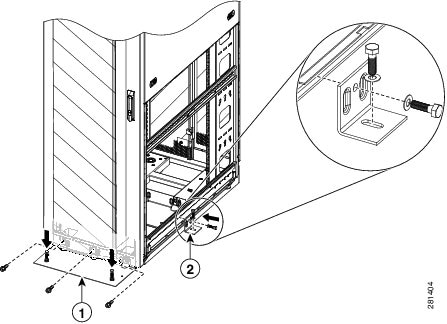
Step 4 If this is a stand-alone rack that will be loaded with less than 68 kg (150 lb.) of equipment, complete the following steps:
b. Attach the side stabilizer brackets to the center cage nut on each side of the rack using the provided hex bolts and washers. (Refer to Figure 4-1, callout 2.)
Step 5 Bolt the Cisco R-Series Rack to the floor surface through the holes in the front and side stabilizer brackets and reinstall the side panels.
The Cisco R-Series Rack itself is now installed. You may now:
- Join additional racks to the installed rack as described in “Joining Cisco R42610 Racks into a Suite”
- Install optional Cisco PDUs as described in Chapter 5, “Installing a Cisco RP-Series PDU (Optional)”
- Install devices in the rack as described in their documentation.
Joining Cisco R42610 Racks into a Suite
Available for your Cisco R42610 Racks is an optional rack joining kit (RACK-JOIN-001) with all the hardware required for you to attach two or more racks together. You do not have to remove the doors to attach the racks together. Joining racks into a suite will remove the need for the side stabilizers.
Before you join racks together in a suite, make sure that the floor will support the weight of all the equipment and the racks themselves.
To attach Cisco R42610 Racks together, follow these steps:
Step 1 Install the first rack as described in “Securing the Cisco R-Series Rack to the Floor”.
Step 2 Remove all doors as described in “Removing and Installing a Front Door” and “Removing and Installing Rear Doors”.
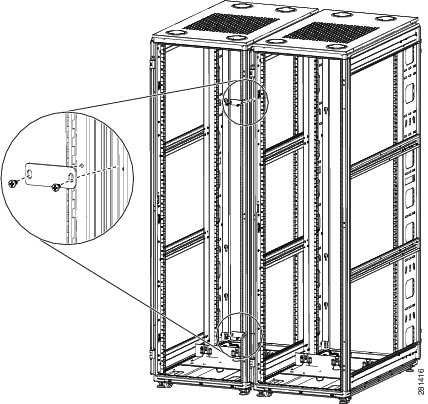
Step 3 Secure the racks together using the bracket as shown in Figure 4-2. Use two brackets in the front and two in the rear of the rack.
Figure 4-2 Connecting Two Racks
Step 4 Install the front stabilizer for the rack you have just added as described in “Securing the Cisco R-Series Rack to the Floor”.
Step 5 Repeat this procedure to attach additional racks to the suite.
Installing Devices in the Rack
Installation instructions on the optional Cisco PDUs are located in Chapter5, “Installing a Cisco RP-Series PDU (Optional)”
Refer to the documentation for the devices you intend to install. Always observe the following guidelines:
- A list of Cisco products that have been tested with Cisco R-Series Racks is maintained on an internal Cisco website. Please contact your Cisco representative to access the latest information.
- Prior to the certification of components to ship pre racked, a component must be shipped in its original packaging. The shipment of a non-certified component in a rack will void the warranty. Please contact your Cisco representative to determine whether a component has been certified to ship pre racked.
- Always install devices in the bottom of the rack first, heaviest devices in the lowest possible RU space. A top heavy rack can be extremely dangerous.
- If installed devices can slide forward, only extend one device at a time. Never extend any device that weighs over 176 pounds (80 kilograms).
- Never install devices that are not approved by independent national safety labs appropriate for your country.
- Do not use the top of a rack-mounted device as a shelf unless it is intended for that use.
 Feedback