Configuring Dual-Wire Management

This chapter includes the following sections:

Dual-Wire Management

Cisco UCS Manager supports the existing rack server integration and management option through Shared LOM, using two separate cables for data traffic and management traffic. The prerequisites for integration with Cisco UCS Manager are built into the C-Series servers. Make sure you have correct server firmware for integration with Cisco UCS Manager. If not, upgrade your server firmware before integrating the server with Cisco UCS Manager. See Cisco UCS Host Upgrade Utility, User Guide.

Requirements for Dual-wire Integration with Cisco UCS Manager

Requirements for Cluster Setup

The following are the requirements for C-series server integration with Cisco UCS Manager in cluster setup:

  • A Cisco UCS system running Cisco UCS Manager.

  • An adapter that supports dual-wire integration.


    Note

    Dual-Wire Management is supported only with Cisco VIC adapters and not with third-party adapters. Refer Supported C-Series Servers and Adapter Cards for complete adapter list.


  • Any of the Cisco UCS C-Series servers and corresponding Cisco UCS Manager release version:


    Note

    • Cisco UCS 1225, Cisco UCS 1225T, Cisco UCS 1227T , Cisco UCS 1227, Cisco UCS 1385, and Cisco UCS 1387 VICs also support dual-wire management. If you are using Cisco UCS VIC for dual-wire management, make sure the card is inserted in one of the slots as described in the following table:

      Table 1. Cisco UCS VIC Slot for Dual-wire Integration

      Server

      PCIe Slot

      Cisco UCS C22 M3 Server

      1

      Cisco UCS C24 M3 Server

      1

      Cisco UCS C220 M3 Server

      1

      Cisco UCS C240 M3 Server

      2, 5

      Cisco UCS C420 M3 Server

      1, 4, 7

      Cisco UCS C220 M4 Server

      Any x16 slot

      Cisco UCS C240 M4 Server

      Any x16 slot

      Cisco UCS C460 M4 Server

      2, 3, 4, 5, 7, 8, 9, 10

      Note 

      Slot 1 and 6 do not support installing Cisco VIC 1225.

      Cisco UCS C220 M5 Server

      Any slot

      Cisco UCS C240 M5 Server

      Any slot


  • Two Cisco UCS 6200 Series or 6300 Series FIs. The switch ports that carry server traffic must be enabled as server ports.

  • Two of the following FEX types can be used:

    • Cisco Nexus 2232PP

    • Cisco Nexus 2232TM-E

    • Cisco Nexus 2348UPQ


    Note

    • You can connect the Cisco Nexus 2232PP or 2232TM-E FEXs to the 6200 series FIs, and Cisco Nexus 2232PP or 2232 TM-E or 2348UPQ to the 6300 series FIs.

    • You must plug a power cord into each of the two power supplies in the FEX. If a power supply is not connected to power, you might see “Major” faults reported during power-on self test (POST). For example, Power supply 1 in fex 6 power: error. You can clear these errors by connecting the missing power cord to the FEX power supply.


  • Two RJ-45 Ethernet cables. The RJ-45 Ethernet cables are used to connect the management traffic paths.

  • Two 1000BASE-T SFP transceivers (GLC-T)

  • Four 10-Gb Small Form-Factor Pluggable (SFP) cables.


    Note

    • At least one cable to connect each FEX with corresponding FI.

    • At least two cables to link the data traffic path between server and FEX.

    • At least four cables for uplinks from the FEX to FIs. You can either use 10 Gb twinaxial cable or one of the following SFP type cables:

      • SFP - 10GE-SR

      • FET - 10GE


    Important

    Do not mix SFP types on an uplink. If you mix the SFP types on an uplink, a Discovery Failed error appears.


Requirement for Non-cluster Setup

If you integrate the server in a non-cluster setup along with the Cisco UCS Manager and C-series rack mount server, you need the following components :

  • One Cisco UCS 6200 Series or 6300 Series FIs. The switch ports where Fabric Extenders (FEX) are connected must be marked as server ports.

  • One of the following FEX types can be used:

    • Cisco Nexus 2232PP

    • Cisco Nexus 2232TM-E

    • Cisco Nexus 2348UPQ

  • One RJ-45 Ethernet cable. The RJ-45 Ethernet cable connects the management traffic path.

  • One 1000BASE-T SFP transceiver (GLC-T)

  • Three 10-Gb SFP cables.


    Note

    • If you are using 6200 Series FI, a minimum of four SFP cables are required.

    • Two cables for linking the data traffic path between server and FEX.

    • Four cables for uplinks from FEX to fabric interconnects. Each of these four cables used for uplink from FEX to FIs can either use supported 10-gb twinaxial cable or one of the following SFP type cables:

      • SFP - 10GE-SR

      • FET - 10GE


Connecting the C-Series Server with Cisco UCS Domain in Cluster Setup

To view illustrations on the connectivity for each C-Series Rack-Mount Server, see Physical Connectivity Illustrations for Cluster Setup.


Important

Make sure the server CIMC is set to factory default settings to integrate with Cisco UCS Manager.


Procedure


Step 1

Install the server in the rack. See the Install and Upgrade Guide for the server that you are using. The install guides are available at the following url: Install and Upgrade Guides.

Step 2

To connect the management traffic paths, do the following:

  1. Insert one GLC-T transceiver into a port of the FEX that is connected to Fabric A. You can use any port on the FEX.

  2. Insert one GLC-T transceiver into a port of the FEX that is connected to Fabric B. You can use any port on the FEX.

  3. Connect an RJ-45 Ethernet cable between a 1-Gb port on the rear panel of the server and the transceiver that you inserted into the FEX in Fabric A.

  4. Connect an RJ-45 Ethernet cable between a 1-Gb port on the rear panel of the server and the transceiver that you inserted into the FEX in Fabric B.

Step 3

To connect the data traffic paths, do the following:

  1. Connect a supported SFP cable between the adapter card in the server and a port on a FEX in Fabric A. You can use any port on the FEX.

  2. Connect a supported SFP cable between the adapter card in the server and a port on a FEX in Fabric B. You can use any port on the FEX.

Step 4

Connect the paths from the FEXes to the FIs. These paths carry both data and management traffic.

  1. Connect two a supported SFP cables between FEX A and two ports on FI A. You can use any ports on FI A, but the ports must be enabled for server traffic.

  2. Connect two a supported SFP cables between FEX B and two ports on FI B. You can use any ports on FI B, but the ports must be enabled for server traffic.

    • For information on the C-Series integration network topology and cable connections, see the Network Topology and Supported Cables section.

    • On the FEX, you can use only the right block of eight ports for uplinks.

    • The maximum number of uplinks is eight. Based on the Cisco UCS Manager FI discovery policy the port cabling requirement between the FEX and FI vary.

    • Do not mix SFP types on an uplink. If you do, you will see Discovery Failed errors.

Step 5

Attach a power cord to each power supply in your server, and then attach the power cord to a grounded AC power outlet.

Step 6

Reboot the server.


Physical Connectivity Illustrations for Cluster Setup

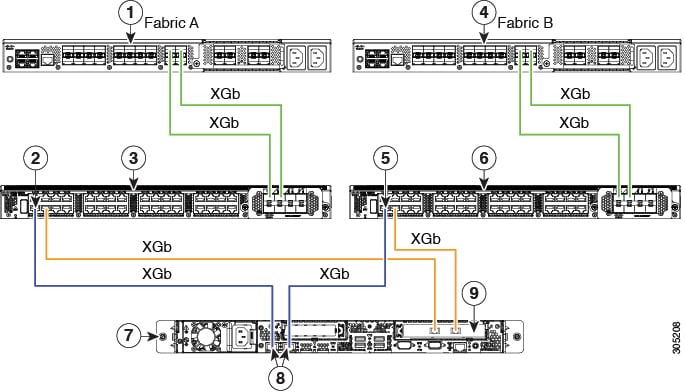
The following image shows a samples of the physical connectivity for C-Series Rack-Mount Server with Cisco UCS Domain, Cisco UCS Manager.

This image shows the cabling configuration for Cisco UCS Manager integration with a C-Series Rack-Mount Server. The paths shown in blue carry management traffic. The paths shown in gold carry data traffic.

Figure 1. Cluster Setup Cabling Configuration


Note

XGb represents a 40 Gigabit Ethernet connection or a 10 Gigabit Ethernet connection. For the 10 Gigabit Ethernet, the following cables are used:
  • 4x10 Breakout Small Form-Factor Pluggable (SFP) cables

  • 4x10 Active Optical (OAC) cables

  • 10G Small Form-Factor Pluggable (SFP) cable that uses the Qualified Security Assessor (QSA) module


1

Cisco UCS 6200 Series or 6300 FI (Fabric A)

6

Cisco Nexus 2232PP or Cisco Nexus 2232TM-E or Cisco Nexus 2348UPQ FEX (Fabric B)

2

GLC-T transceiver in FEX port (Fabric A)

7

C-Series Rack-Mount Server

3

Cisco Nexus 2232PP or Cisco Nexus 2232TM-E or Cisco Nexus 2348UPQ FEX (Fabric A)

8

1-Gb Ethernet LOM ports

4

Cisco UCS 6200 Series or 6300 FI (Fabric B)

9

10-Gb Adapter card in supported PCIe or MLOM slot.

5

GLC-T transceiver in FEX port (Fabric B)

Connecting the C-Series Server with UCS Domain in Non-cluster Setup

To connect the C-Series server with the UCS domain, complete the same steps described in Connecting the C-Series Server with Cisco UCS Domain in Non-cluster Setup. Instead of connecting two FIs and two FEXes, you will connect only one FI and one FEX.

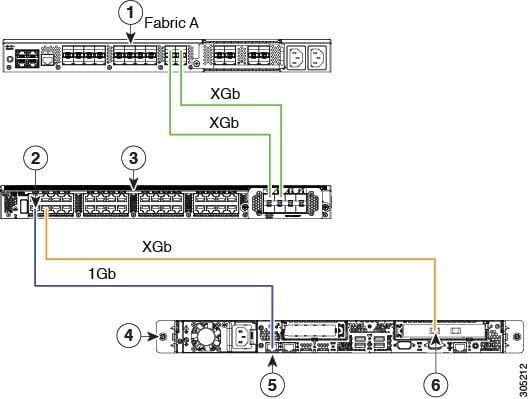
Figure 2. Dual-wire Non-Cluster Setup Example

The following illustration is an example of non-cluster setup in dual-wire management.


Note

XGb represents a 40 Gigabit Ethernet connection or a 10 Gigabit Ethernet connection. For the 10 Gigabit Ethernet, the following cables are used:
  • 4x10 Breakout Small Form-Factor Pluggable (SFP) cables

  • 4x10 Active Optical (OAC) cables

  • 10G Small Form-Factor Pluggable (SFP) cable that uses the Qualified Security Assessor (QSA) module


1

Cisco UCS 6200 Series or 6300 FI (Fabric A)

4

Cisco UCS C-series server

2

GLC-T transceiver in FEX port (Fabric A)

5

1-Gb Ethernet LOM ports

3

Cisco Nexus 2232PP or Cisco Nexus 2232TM-E or Cisco Nexus 2348UPQ FEX (Fabric A)

6

Cisco UCS VIC adapter in supported PCIe slot

Managing the Rack-Mount Server in Cisco UCS Manager after Integration

You can manage and monitor all rack-mount servers that have been integrated with a Cisco UCS domain through Cisco UCS Manager. After the integration, you can perform all rack-mount server management tasks only through the service profiles from Cisco UCS Manager GUI or Cisco UCS Manager CLI. The C-Series Rack-Mount Server Cisco IMC is not accessible when you start managing the server with Cisco UCS Manager.

Cisco UCS Manager provides information, errors, and faults for each rack-mount server that was discovered.

For more information on managing C-Series Rack-Mount Servers from Cisco UCS Manager, see the chapter on Managing Rack-Mount Servers in your release specific Cisco UCS Manager Configuration Guide.

Reverting a Server From Cisco UCS Domain Mode to Standalone Mode

When you manage a Cisco UCS C-Series server with Cisco UCS Manager software, a UCS Manager service profile is associated with the server. If you want to revert a C-Series server to standalone mode (so that it can be managed by Cisco IMC software), you must do the following actions in UCS Manager:

Procedure


Step 1

Disassociate the UCS Manager service profile from the server.

Step 2

Remove the connections from the adapter.

Step 3

Manually power on the server.

Step 4

Connect the front panel KVM connection.

Step 5

Press F8 during the boot up.

Step 6

Reset CIMC to factory defaults or stand-alone mode.

Caution 

If you do not disassociate the service profile from the server, MAC and WWN numbers assigned by UCS Manager might be kept by the server. This can cause numbering duplication and conflicts with other servers that are managed by UCS Manager. Also, if you revert a server to standalone mode without disassociating its service profile, any LSI RAID controller will not show as a bootable device in the standalone server, preventing local booting.


Special Considerations for Integrated Servers

When you connect the C-Series servers in Cisco UCS system, make sure to review the following information:

Supported FEX-to-FI Uplink Cable SFP Types

The C-Series UCSM integration requires six 10-Gb SFP cables for the following purposes:

  • Linking the data traffic paths between server and FEX - 2 cables

  • Uplinks from the FEXes to the FIs - 4 cables

    Each of the four uplinks from the FEXes to the FIs can use either a Cisco 10-Gb twinax cable, or one of the following SFP types:

    • SFP-10GE-SR

    • FET-10GE


Caution

Do not mix SFP types on an uplink. If you mix SFP types on an uplink, you will get Discovery failed errors.


Integrated Server Power States vs Service Profile Power States

Using the power button or Cisco UCS Manager, if you set the desired power status to Down for an integrated C-Series server's associated service profile, when you try to rest the server to the desired power state, the server becomes out of sync with the actual power state. This may cause the server to shut down unexpectedly at a later time.

Use the Boot Server action in Cisco UCS Manager to safely reboot a server from a power-down state.

The following table shows how the physical server power states can differ from the Cisco UCS Manager service profile power states when the power button on the server is used.

Table 2. Difference in Server Power State and Service Profile Power State

Initial Service Profile Power State

Server Initial Power State

Action From Physical Power Button

Actual Server Power State After the Action

Power State Under UCSM Equipment Tab

Desired Power State Under Service Profile

Down

Off

Push button to turn on

On

On

Down

Up

On

Push button to turn off

Off

Off

Up

Cautions and Limitations for Adapter Cards

Make sure to consider the following when using the adapter cards in Cisco UCS C-Series server integration with Cisco UCS Manager:

  • Cisco UCS Manager supports only four UCS managed adapter cards in the integrated Cisco UCS C-series servers, even if the server has more than four PCI slots. If you have more than four adapter cards in the server, after integration, the rack server discovery fails in Cisco UCS Manager.

  • When you add, remove, or replace an adapter card in a UCS-managed server, you must first decommission the server in Cisco UCS Manager. After the operation, you must then recommission the server.

  • If you install more than one adapter in the server each adapter in a cluster UCS Manager environment, each adapter must be connected to both path A and B. Attempting to connect both ports on an adapter to a single path results in a discovery failure due to an unsupported configuration. If you attempt to connect only one link from each adapter to the fabric, the server may reboot during a card failure to rediscover the data pathways. Neither of these scenarios are supported with connectivity options.

FEX Considerations

Re-acknowledge Attached Servers After a FEX Is Decommissioned/Recommissioned

Whenever you decommission or recommission a Cisco UCS FEX, all the servers that are connected to that FEX must be re-acknowledged in UCS Manager.