Configuring Smart Licensing

Prerequisites for Configuring Smart Licensing

  • You must have completed the following on Cisco Smart Software Manager:

    • Setup a Cisco Smart Account

    • Setup Virtual Account(s)

    • Created user role with proper access rights

    • Accepted the Smart Software Licensing Agreement on Cisco Smart Software Manager to register devices.

  • You must have a layer 3 connection setup on your device.

Information About Smart Licensing

Smart Licensing is a cloud-based, software license management solution that allows you to manage and track the status of your license, hardware and software usage trends. Smart Licensing also enables you to automate time-consuming, manual licensing tasks. Smart Licensing helps simplify three core functions:

  • Purchasing: The software that you have installed in your network can automatically self-register themselves.

  • Management: You can automatically track activations against your license entitlements. Additionally, there is no need to install the license file on every node. You can create license pools (virtual accounts) to reflect your organization structure. Smart Licensing offers you Cisco Smart Software Manager, a centralized portal that enables you to manage all your Cisco software licenses from one centralized website.

  • Reporting: Through the portal, Smart Licensing offers an integrated view of the licenses you have purchased and what has been actually deployed in your network. You can use this data to make better purchase decisions, based on your consumption.


Note

Licenses will be managed as smart licenses from Cisco IOS XE Fuji 16.9.1 and later. Right-To-Use Licenses will be deprecated from Cisco IOS XE Fuji 16.9.1.


Overview of Cisco Smart Software Manager

Cisco Smart Software Manager enables you to manage all of your Cisco Smart software licenses from one centralized website. With Cisco Smart Software Manager, you organize and view your licenses in groups called virtual accounts (collections of licenses and product instances). Use the Cisco Smart Software Manager to do the following tasks:

  • Create, manage or view virtual accounts.

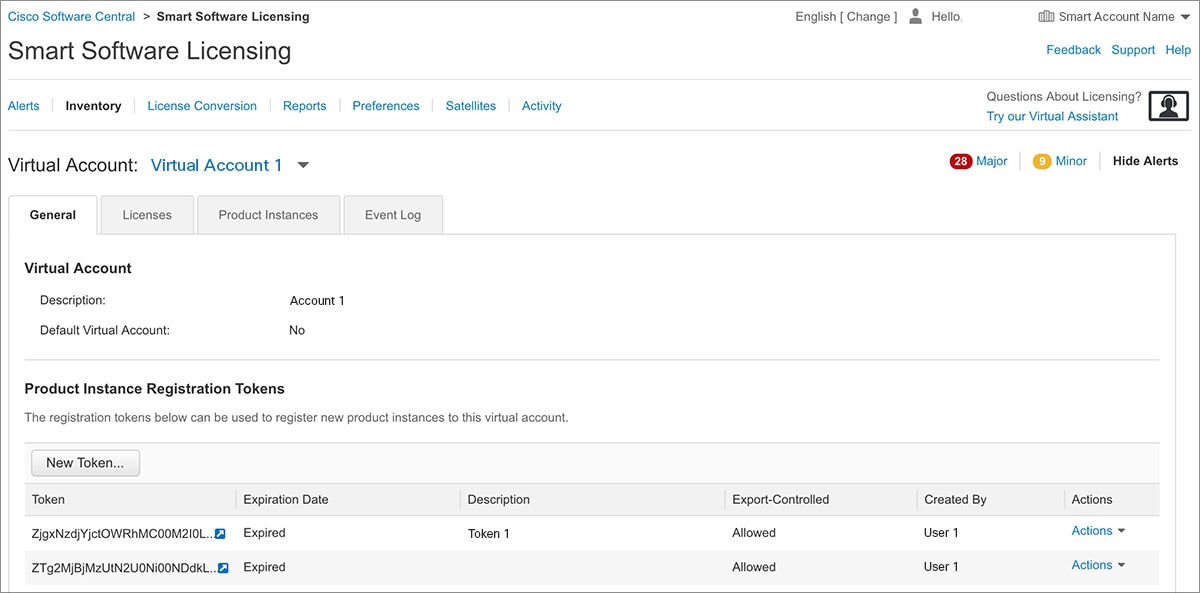
  • Create and manage Product Instance Registration Tokens.

  • Transfer licenses between virtual accounts or view licenses.

  • Transfer, remove or view product instances.

  • Run reports against your virtual accounts.

  • Modify your email notification settings.

  • View overall account information.

The Cisco Smart Software Manager Help describes the procedures for carrying out these tasks. You can access the Cisco Smart Software Manager on https://software.cisco.com/#, by clicking Smart Software Licensing link under License tab.


Note

Use Chrome 32.0, Firefox 25.0 or Safari 6.0.5 web browsers to access the Cisco Smart Software Manager. Also, ensure that Javascript 1.5 or a later version is enabled in your browser.


Connection Options to Cisco Smart Software Manager

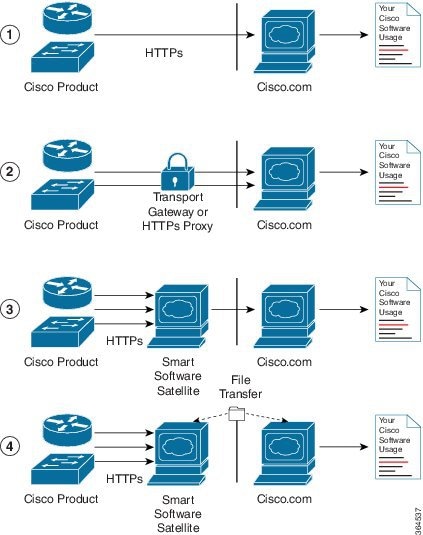
The following illustration shows the various options available to connect to Cisco Smart Software Manager:

Figure 1. Connection Options
  1. Direct cloud access: In direct cloud access connection method, Cisco products send usage information directly over the internet to Cisco.com; no additional components are needed for the connection.

  2. Direct cloud access through a HTTPs proxy: In direct cloud access through a HTTPs proxy connection method, Cisco products send usage information over the internet through a proxy server - either a Call Home Transport Gateway or off-the-shelf Proxy (such as Apache) to Cisco.com.

  3. Mediated access through an on-premises collector-connected: In mediated access through an on-premises collector-connected connection method, Cisco products send usage information to a locally-connected collector, which acts as a local license authority. Periodically, the information is exchanged to keep the databases in synchronization.

  4. Mediated access through an on-premises collector-disconnected: In the mediated access through an on-premises collector-disconnected connected method, Cisco products send usage information to a local disconnected collector, which acts as a local license authority. Exchange of human-readable information is performed occasionally (maybe once a month) to keep the databases in synchronization.

Options 1 and 2 provide an easy connection option, and options 3 and 4 provide a secure environment connection option. Smart Software Satellite provides support for options 3 and 4.

Registering a Device on Cisco Smart Software Manager

To register a device on Cisco Smart Software Manager, you must do the following tasks:

  1. Generate a unique token from the Cisco Smart Software Manager

  2. Register the device with the generated token.

On successful registration, the device will receive an identity certificate. This certificate is saved on your device and automatically used for all future communications with Cisco. Every 30 days, Cisco Smart Software Manager will attempt to renew the registration information.

Additionally, license usage data is collected and a report is sent to you every month. If required, you can configure your Call Home settings to filter out sensitive information (like hostname, username and password) from the usage report.


Note

Downgrading a device from Cisco IOS XE Fuji 16.9.1 to any prior release will migrate the smart license to traditional license. All smart license information on the device will be removed. In case the device needs to be upgraded back to Cisco IOS XE Fuji 16.9.1, the license status will remain in evaluation mode until the device is registered again in Cisco Smart Software Manager.


How to Configure Connection to Cisco Smart Software Manager and Load License Level

Configuring Connection to Cisco Smart Software Manager using using a Switch Virtual Interface (SVI)

The following steps shows how to configure a layer 3 connection using using a Switch Virtual Interface (SVI).


Note

All the configuration steps detailed below are not required, if you have a layer 3 connection already setup.


To configure the connection, perform this procedure:

SUMMARY STEPS

  1. enable
  2. configure terminal
  3. ip name-server server-address 1 [server-address 2 ….. server-address 6 ]
  4. ip name-server vrf Mgmt-vrf server-address 1 [server-address 2 ….. server-address 6 ]
  5. ip domain lookup source-interface interface-type interface-number
  6. ip domain name example.com
  7. license smart transport callhome
  8. ip http client source-interface interface-type interface-number
  9. interface vlan_id
  10. switchport access vlan vlan_id
  11. ip route ip-address ip-mask subnet mask

DETAILED STEPS

  Command or Action Purpose
Step 1

enable

Example:

Device> enable

Enables privileged EXEC mode.

Enter your password if prompted.

Step 2

configure terminal

Example:

Device# configure terminal

Enters global configuration mode.

Step 3

ip name-server server-address 1 [server-address 2 ….. server-address 6 ]

Example:

Device(config)# ip name-server 209.165.201.1 209.165.200.225 209.165.201.14 209.165.200.230

Configures DNS server.

Step 4

ip name-server vrf Mgmt-vrf server-address 1 [server-address 2 ….. server-address 6 ]

Example:

Device(config)# ip name-server vrf Mgmt-vrf 209.165.201.1 209.165.200.225 209.165.201.14 209.165.200.230

(Optional) Configures DNS server on the vrf interface.

Note 

You need to configure this as an alternative to ip name-server command.

Step 5

ip domain lookup source-interface interface-type interface-number

Example:

Device(config)# ip domain lookup source-interface Vlan100

(Optional) Enables DNS-based address translation. DNS is enabled by default. Use this command if DNS has been disabled.

Step 6

ip domain name example.com

Example:

Device(config)# ip domain name example.com

Configures domain name.

Step 7

license smart transport callhome

Example:

Device(config)# license smart transport callhome

Enables the transport mode as Call Home.

Note 

The license smart transport callhome command is mandatory.

Step 8

ip http client source-interface interface-type interface-number

Example:

Device(config)# ip http client source-interface Vlan100

Configures a source interface for the HTTP client

Step 9

interface vlan_id

Example:


Device(config)# interface Vlan100
Device(config-if)# ip address 192.0.2.10 255.255.255.0
Device(config-if)# exit

Configures a Layer 3 SVI.

Step 10

switchport access vlan vlan_id

Example:


Device(config)# interface GigabitEthernet1/0/1
Device(config-if)# switchport access vlan 100
Device(config-if)# switchport mode access
Device(config-if)# exit
Device(config)# 

Enables the VLAN for which this access port will carry traffic and sets the interface as a nontrunking nontagged single-VLAN Ethernet interface

Note 

This step needs to be configured only if switchport access mode is required.

Step 11

ip route ip-address ip-mask subnet mask

Example:


Device(config)# ip route 192.0.2.0 255.255.255.255 192.0.2.1

Configures a route on the device.

Note 

You can configure either a static route or dynamic route.

Configuring Call Home Service for Direct Cloud Access


Note

By default, the CiscoTAC-1 profile is already setup on the device. You can use the show call-home profile all command to check the profile status


Call Home service provides email-based and web-based notification of critical system events to Cisco Smart Software Manager.

To configure and enable Call Home service, perform this procedure:

SUMMARY STEPS

  1. enable
  2. configure terminal
  3. call-home
  4. contact-email-address email-address
  5. profile CiscoTAC-1
  6. destination transport-method http
  7. destination address http url
  8. active
  9. no destination transport-method email
  10. exit
  11. exit
  12. service call-home
  13. end

DETAILED STEPS

  Command or Action Purpose
Step 1

enable

Example:

Device> enable

Enables privileged EXEC mode.

Enter your password if prompted.

Step 2

configure terminal

Example:

Device# configure terminal

Enters global configuration mode.

Step 3

call-home

Example:

Device(config)# call-home

Enters Call Home configuration mode.

Step 4

contact-email-address email-address

Example:

Device(config-call-home)# contact-email-addr username@example.com

Assigns the customer's email address. Enter up to 200 characters in email address format with no spaces.

Step 5

profile CiscoTAC-1

Example:

Device(config-call-home)# profile CiscoTAC-1

By default, the CiscoTAC-1 profile is inactive. To use this profile with the Call Home service, you must enable the profile.

Step 6

destination transport-method http

Example:

Device(config-call-home-profile)# destination transport-method http

Enables the Call Home service via HTTP.

Step 7

destination address http url

Example:

Device(config-call-home-profile)# destination address http https://tools.cisco.com/its/service/oddce/services/DDCEService

Connects to Cisco Smart Software Manager.

Step 8

active

Example:

Device(config-call-home-profile)# active

Enables the destination profile.

Step 9

no destination transport-method email

Example:

Device(config-call-home-profile)# no destination transport-method email

Disables the Call Home service via email.

Step 10

exit

Example:

Device(config-call-home-profile)# exit

Exits Call Home destination profile configuration mode and returns to Call Home configuration mode.

Step 11

exit

Example:

Device(config-call-home)# exit

Exits Call Home configuration mode and returns to global configuration mode.

Step 12

service call-home

Example:

Device(config)# service call-home

Enables the Call Home feature.

Step 13

end

Example:

Device(config)# end

Returns to privileged EXEC mode.

Configuring Call Home service for On-premise Smart Software Satellite (connected or dis-connected mode)

To configure smart software satellite, refer https://www.cisco.com/c/en/us/buy/smart-accounts/software-manager-satellite.html.

To configure Call Home service for on-premise smart software satellite, perform this procedure:

SUMMARY STEPS

  1. enable
  2. configure terminal
  3. call-home
  4. profile name
  5. destination transport-method http
  6. destination address http url
  7. destination preferred-msg-format {long-text | short-text | xml }
  8. active
  9. exit
  10. end

DETAILED STEPS

  Command or Action Purpose
Step 1

enable

Example:

Device> enable

Enables privileged EXEC mode.

Enter your password if prompted.

Step 2

configure terminal

Example:

Device# configure terminal

Enters global configuration mode.

Step 3

call-home

Example:

Device(config)# call-home

Enters Call Home configuration mode.

Step 4

profile name

Example:

Device(config-call-home)# profile test1

Enters Call Home destination profile configuration mode for the specified destination profile name. If the specified destination profile does not exist, it is created.

Step 5

destination transport-method http

Example:

Device(config-call-home-profile)# destination transport-method http

Enables the HTTP message transport method.

Step 6

destination address http url

Example:

Device(config-call-home-profile)# destination address http https://url.example.com 

Configures the destination URL (Cisco Smart Software Manager) to which Call Home messages are sent.

Step 7

destination preferred-msg-format {long-text | short-text | xml }

Example:

Device(config-call-home-profile)# destination preferred-msg-format xml

(Optional) Configures a preferred message format. The default is XML.

Step 8

active

Example:

Device(config-call-home-profile)# active

Enables the destination profile. By default, a profile is enabled when it is created.

Step 9

exit

Example:

Device(config-call-home-profile)# exit

Exits Call Home destination profile configuration mode and returns to Call Home configuration mode.

Step 10

end

Example:

Device(config-call-home-profile)# end

Returns to privileged EXEC mode.

Loading License Level

The required license level(s) needs to be loaded on the device before registering. The following are the license levels available for:

Cisco Catalyst 9300, Cisco Catalyst 9400 and Cisco Catalyst 9500

  • Network Essentials

  • Network Advantage (Contains Network Essentials plus more)

Add-on licenses—These can be subscribed for a fixed term of 3, 5, and 7 years.

  • Digital Networking Architecture (DNA) Essentials

  • DNA Advantage (Contains DNA Essentials plus more)

To control the license levels, follow this procedure:

SUMMARY STEPS

  1. enable
  2. configure terminal
  3. license boot level license_level
  4. write memory
  5. end
  6. show version
  7. configure terminal
  8. reload
  9. end
  10. show version

DETAILED STEPS

  Command or Action Purpose
Step 1

enable

Example:

Device> enable

Enables privileged EXEC mode.

Enter your password if prompted.

Step 2

configure terminal

Example:

Device# configure terminal

Enters global configuration mode.

Step 3

license boot level license_level

Example:

Device(config)# license boot level network-essentials addon dna-essentials

Activates the licenses on the switch.

Step 4

write memory

Example:

Device(config)# write memory

Saves the license information on the switch.

Step 5

end

Example:

Device(config)# end

Returns to privileged EXEC mode.

Step 6

show version

Example:

Device# show version
------------------------------------------------------------------------------
Technology-package Current    Type                           Technology-package Next reboot 
------------------------------------------------------------------------------
network-essentials             Smart License                    network-essentials            
None                           Subscription Smart License       None     

Shows license level information.

Step 7

configure terminal

Example:

Device# configure terminal

Enters global configuration mode.

Step 8

reload

Example:

Device(config)# reload

Reloads the device.

Step 9

end

Example:

Device(config)# end

Returns to privileged EXEC mode.

Step 10

show version

Example:

Device# show version
------------------------------------------------------------------------------
Technology-package Current    Type                     Technology-package Next reboot                                                 
------------------------------------------------------------------------------
network-essentials            Smart License                    network-essentials            
None                          Subscription Smart License       None     

Shows license level information.

How to Register the Device in Cisco Smart Software Manager

Generating a New Token from Cisco Smart Software Manager

Tokens are generated to register new product instances to the virtual account.

Procedure


Step 1

Login to Cisco Smart Software Manager at https://software.cisco.com/#.

You must log in to the portal using Cisco provided username and password

Step 2

Select Inventory tab. Select the Virtual Account from the drop-down. Select the General tab and click the New Token.

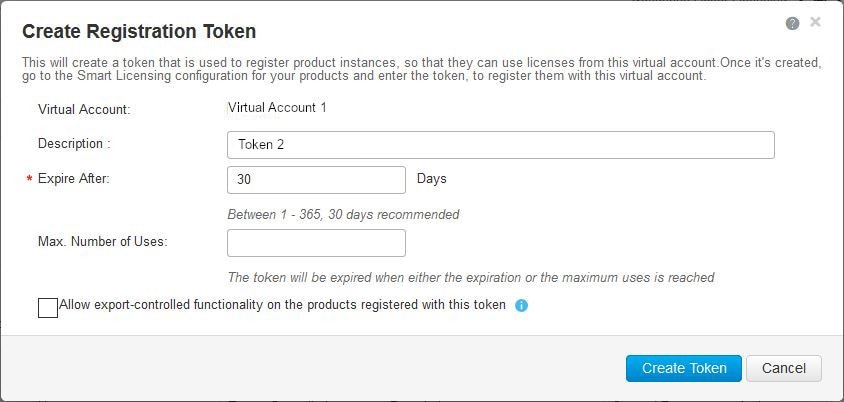
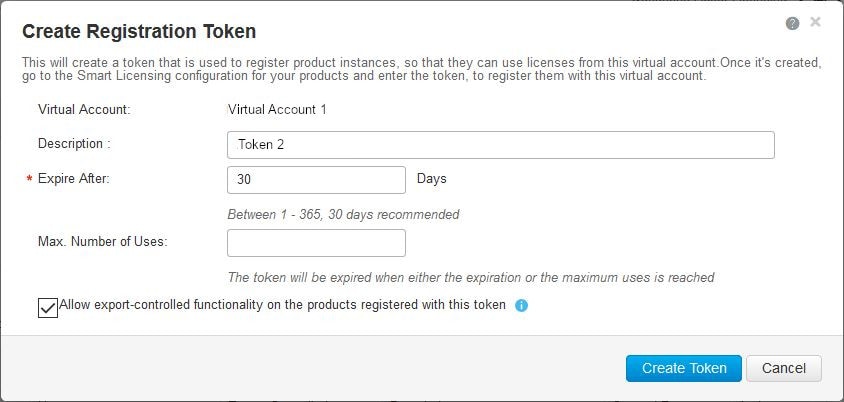
Create Registration Token page is displayed.
Step 3

Enter the token description. Enter the number of days the token must be active.

Step 4

Enable the checkbox for Allow export-controlled functionality on the products registered with this token. Click Create Token to create token. Once the token is created click Copy to copy the newly created token.


What to do next

Registering Device with Token

Registering Device with Token

To register device with token, perform this procedure:

SUMMARY STEPS

  1. enable
  2. license smart register idtoken token_ID

DETAILED STEPS

  Command or Action Purpose
Step 1

enable

Example:

Device> enable

Enables privileged EXEC mode.

Enter your password if prompted.

Step 2

license smart register idtoken token_ID

Example:

Device# license smart register idtoken $Tl4UytrNXBzbEs1ck8veUtWaG5abnZJOFdDa1FwbVRa%0AblRMbz0%3D%0A 

Registers the device with the back-end server.

De-registering Device from Cisco Smart Software Manager

When your device is taken off the inventory, shipped elsewhere for redeployment or returned to Cisco for replacement using the return merchandise authorization (RMA) process, you can use the de-register option to cancel the registration on your device. Use the following steps to cancel device registration:

SUMMARY STEPS

  1. enable
  2. license smart deregister

DETAILED STEPS

  Command or Action Purpose
Step 1

enable

Example:

Device> enable

Enables privileged EXEC mode.

Enter your password if prompted.

Step 2

license smart deregister

Example:

Device# license smart deregister 

Cancels the device registration, and sends it into evaluation mode. All smart licensing entitlements and certificates on the platform are removed.

Monitoring Smart Licensing Configuration

Use the privileged EXEC commands in the following table to monitor smart licensing configuration

Table 1. Commands to Monitor Smart Licensing Configuration

Command

Purpose

show license status

Displays the compliance status of smart licensing. Following are the possible status:

  • Enabled: Indicates that smart licensing is enabled.

  • Waiting: Indicates the initial state after your device has made a license entitlement request. The device establishes communication with Cisco and successfully registers itself with the Cisco Smart Software Manager.

  • Registered: Indicates that your device is able to communicate with the Cisco Smart Software Manager, and is authorised to initiate requests for license entitlements.

  • Authorized: Indicates that your device is in Compliance status and is authorized to use the requested type and count of licenses. The Authorization status has a lifetime of 90 days. At the end of 30 days, the device will send a new entitlement authorization request to the Cisco Smart Software Manager to renew the authorization.

  • Out Of Compliance: Indicates that one or more of your licenses are out of compliance. You must buy additional licenses.

  • Eval Mode: You must register the device with the Cisco Smart Software Manager within 90 days (of device usage), otherwise your device's evaluation period will expire.

  • Evaluation Period Expired: At the end of 90 days, if your device has not registered the device enters Evaluation Expired mode.

show license all

Displays all entitlements in use. Additionally, it shows associated licensing certificates, compliance status, UDI, and other details.

show tech-support license

Displays the detailed debug output.

show license usage

Displays the license usage information.

show license summary

Displays the summary of all active licenses.

Configuration Examples for Smart Licensing

Example: Viewing the Call Home Profile

Call Home Profile

To display the Call Home profile, use the show call-home profile all command.


Device> enable
Device# show call-home profile all
Profile Name: CiscoTAC-1
    Profile status: ACTIVE
    Profile mode: Full Reporting
    Reporting Data: Smart Call Home, Smart Licensing
    Preferred Message Format: xml
    Message Size Limit: 3145728 Bytes
    Transport Method: http
    HTTP  address(es): https://tools.cisco.com/its/service/oddce/services/DDCEService
    Other address(es): default

    Periodic configuration info message is scheduled every 1 day of the month at 09:15

    Periodic inventory info message is scheduled every 1 day of the month at 09:00

    Alert-group               Severity
    ------------------------  ------------
    crash                     debug       
    diagnostic                minor       
    environment               warning     
    inventory                 normal      

    Syslog-Pattern            Severity
    ------------------------  ------------
    APF-.-WLC_.*              warning     
    .*                        major     

Example: Viewing the License Information Before Registering

License Entitlements

To display the license entitlements, use the show license all command.


Device> enable
Device# show license all
Load for five secs: 1%/0%; one minute: 0%; five minutes: 0%
No time source, 09:28:07.210 EDT Fri Jul 13 2018

Smart Licensing Status
======================

Smart Licensing is ENABLED

Registration:
  Status: UNREGISTERED
  Export-Controlled Functionality: Not Allowed

License Authorization: 
  Status: EVAL MODE
  Evaluation Period Remaining: 68 days, 0 hours, 30 minutes, 5 seconds

Utility:
  Status: DISABLED

Data Privacy:
  Sending Hostname: yes
    Callhome hostname privacy: DISABLED
    Smart Licensing hostname privacy: DISABLED
  Version privacy: DISABLED

Transport:
  Type: Callhome

License Usage
==============

(C9300-24 DNA Advantage):
  Description: 
  Count: 3
  Version: 1.0
  Status: EVAL MODE

(C9300-24 Network Advantage):
  Description: 
  Count: 3
  Version: 1.0
  Status: EVAL MODE

Product Information
===================
UDI: PID:C9300-24U,SN:FCW2125L046

HA UDI List:
    Active:PID:C9300-24U,SN:FCW2125L046
    Standby:PID:C9300-24U,SN:FCW2125L03U
    Member:PID:C9300-24U,SN:FCW2125G01T

Agent Version
=============
Smart Agent for Licensing: 4.4.13_rel/116
Component Versions: SA:(1_3_dev)1.0.15, SI:(dev22)1.2.1, CH:(rel5)1.0.3, PK:(dev18)1.0.3

Reservation Info
================ 
License reservation: DISABLED

License Usage Information

To display the license usage information, use the show license usage command.


Device> enable
Device# show license usageLoad for five secs: 1%/0%; one minute: 0%; five minutes: 0%
No time source, 09:28:34.123 EDT Fri Jul 13 2018

License Authorization: 
  Status: EVAL MODE
  Evaluation Period Remaining: 68 days, 0 hours, 29 minutes, 38 seconds

(C9300-24 DNA Advantage):
  Description: 
  Count: 3
  Version: 1.0
  Status: EVAL MODE

(C9300-24 Network Advantage):
  Description: 
  Count: 3
  Version: 1.0
  Status: EVAL MODE

License Summary Information

To display all license summaries, use the show license summary command.


Device> enable
Device# show license summary
Load for five secs: 1%/0%; one minute: 0%; five minutes: 0%
No time source, 09:28:39.986 EDT Fri Jul 13 2018

Smart Licensing is ENABLED

Registration:
  Status: UNREGISTERED
  Export-Controlled Functionality: Not Allowed

License Authorization: 
  Status: EVAL MODE
  Evaluation Period Remaining: 68 days, 0 hours, 29 minutes, 33 seconds

License Usage:
  License                 Entitlement tag               Count Status
  -----------------------------------------------------------------------------
                          (C9300-24 DNA Advantage)          3 EVAL MODE
                          (C9300-24 Network Advan...)       3 EVAL MODE

License Status Information

To display the license status information, use the show license status command.


Device> enable
Device# show license status
Load for five secs: 1%/0%; one minute: 0%; five minutes: 0%
No time source, 09:28:37.683 EDT Fri Jul 13 2018

Smart Licensing is ENABLED

Utility:
  Status: DISABLED

Data Privacy:
  Sending Hostname: yes
    Callhome hostname privacy: DISABLED
    Smart Licensing hostname privacy: DISABLED
  Version privacy: DISABLED

Transport:
  Type: Callhome

Registration:
  Status: UNREGISTERED
  Export-Controlled Functionality: Not Allowed

License Authorization: 
  Status: EVAL MODE
  Evaluation Period Remaining: 68 days, 0 hours, 29 minutes, 35 seconds

Example: Registering the Device

Register the device

To register the device use the license smart register idtoken command.


Device> enable
Device# license smart register idtoken Tl4UytrNXBzbEs1ck8veUtWaG5abnZJOFdDa1FwbVRa%0AblRMbz0%3D%0A 

Example: Viewing the License Status After Registering

License Entitlements

To display the license entitlements, use the show license all command.


Device> enable
Device# show license all
Load for five secs: 0%/0%; one minute: 2%; five minutes: 1%
No time source, 09:31:16.387 EDT Fri Jul 13 2018

Smart Licensing Status
======================

Smart Licensing is ENABLED

Registration:
  Status: REGISTERED
  Smart Account: BU Production Test 1
  Virtual Account: Nyquist testing
  Export-Controlled Functionality: Allowed
  Initial Registration: SUCCEEDED on Jul 13 09:30:40 2018 EDT
  Last Renewal Attempt: None
  Next Renewal Attempt: Jan 09 09:30:40 2019 EDT
  Registration Expires: Jul 13 09:25:31 2019 EDT

License Authorization: 
  Status: AUTHORIZED on Jul 13 09:30:45 2018 EDT
  Last Communication Attempt: SUCCEEDED on Jul 13 09:30:45 2018 EDT
  Next Communication Attempt: Aug 12 09:30:45 2018 EDT
  Communication Deadline: Oct 11 09:25:40 2018 EDT

Utility:
  Status: DISABLED

Data Privacy:
  Sending Hostname: yes
    Callhome hostname privacy: DISABLED
    Smart Licensing hostname privacy: DISABLED
  Version privacy: DISABLED

Transport:
  Type: Callhome

License Usage
==============

C9300 DNA Advantage (C9300-24 DNA Advantage):
  Description: C9300-24P DNA Advantage
  Count: 3
  Version: 1.0
  Status: AUTHORIZED

C9300 Network Advantage (C9300-24 Network Advantage):
  Description: C9300-24P Network Advantage
  Count: 3
  Version: 1.0
  Status: AUTHORIZED

Product Information
===================
UDI: PID:C9300-24U,SN:FCW2125L046

HA UDI List:
    Active:PID:C9300-24U,SN:FCW2125L046
    Standby:PID:C9300-24U,SN:FCW2125L03U
    Member:PID:C9300-24U,SN:FCW2125G01T

Agent Version
=============
Smart Agent for Licensing: 4.4.13_rel/116
Component Versions: SA:(1_3_dev)1.0.15, SI:(dev22)1.2.1, CH:(rel5)1.0.3, PK:(dev18)1.0.3

Reservation Info
================ 
License reservation: DISABLED

License Usage Information

To display the license usage information, use the show license usage command.


Device> enable
Device# show license usage
License Authorization: 
  Status: AUTHORIZED on Jul 17 09:47:28 2018 EDT

C9300 DNA Advantage (C9300-24 DNA Advantage):
  Description: C9300-24P DNA Advantage
  Count: 3
  Version: 1.0
  Status: AUTHORIZED

C9300 Network Advantage (C9300-24 Network Advantage):
  Description: C9300-24P Network Advantage
  Count: 3
  Version: 1.0
  Status: AUTHORIZED

License Summary Information

To display all license summaries, use the show license summary command.


Device> enable
Device# show license summary
Load for five secs: 1%/0%; one minute: 1%; five minutes: 1%
No time source, 09:32:13.746 EDT Fri Jul 13 2018

Smart Licensing is ENABLED

Registration:
  Status: REGISTERED
  Smart Account: BU Production Test 1
  Virtual Account: Nyquist testing
  Export-Controlled Functionality: Allowed
  Last Renewal Attempt: None
  Next Renewal Attempt: Jan 09 09:30:40 2019 EDT

License Authorization: 
  Status: AUTHORIZED
  Last Communication Attempt: SUCCEEDED
  Next Communication Attempt: Aug 12 09:30:44 2018 EDT

License Usage:
  License                 Entitlement tag               Count Status
  -----------------------------------------------------------------------------
  C9300 DNA Advantage     (C9300-24 DNA Advantage)          3 AUTHORIZED
  C9300 Network Advantage (C9300-24 Network Advan...)       3 AUTHORIZED

License Status Information

To display the license status information, use the show license status command.


Device> enable
Device# show license status
Load for five secs: 0%/0%; one minute: 1%; five minutes: 1%
No time source, 09:32:00.191 EDT Fri Jul 13 2018

Smart Licensing is ENABLED

Utility:
  Status: DISABLED

Data Privacy:
  Sending Hostname: yes
    Callhome hostname privacy: DISABLED
    Smart Licensing hostname privacy: DISABLED
  Version privacy: DISABLED

Transport:
  Type: Callhome

Registration:
  Status: REGISTERED
  Smart Account: BU Production Test 1
  Virtual Account: Nyquist testing
  Export-Controlled Functionality: Allowed
  Initial Registration: SUCCEEDED on Jul 13 09:30:40 2018 EDT
  Last Renewal Attempt: None
  Next Renewal Attempt: Jan 09 09:30:40 2019 EDT
  Registration Expires: Jul 13 09:25:31 2019 EDT

License Authorization: 
  Status: AUTHORIZED on Jul 13 09:30:45 2018 EDT
  Last Communication Attempt: SUCCEEDED on Jul 13 09:30:45 2018 EDT
  Next Communication Attempt: Aug 12 09:30:45 2018 EDT
  Communication Deadline: Oct 11 09:25:40 2018 EDT

Additional References

Related Documents

Related Topic Document Title

Cisco Smart Software Manager Help

https://www.cisco.com/web/fw/softwareworkspace/smartlicensing/SSMCompiledHelps/

Smart Software Satellite Configuration

https://www.cisco.com/c/en/us/buy/smart-accounts/software-manager-satellite.html

Configuring DNS

https://www.cisco.com/c/en/us/td/docs/ios-xml/ios/ipaddr_dns/configuration/15-mt/dns-15-mt-book/dns-config-dns.html

Configuring Call Home service

https://www.cisco.com/c/en/us/td/docs/switches/lan/catalyst6500/ios/12-2SX/configuration/guide/book/callhome.html

Technical Assistance

Description Link

The Cisco Support website provides extensive online resources, including documentation and tools for troubleshooting and resolving technical issues with Cisco products and technologies.

To receive security and technical information about your products, you can subscribe to various services, such as the Product Alert Tool (accessed from Field Notices), the Cisco Technical Services Newsletter, and Really Simple Syndication (RSS) Feeds.

Access to most tools on the Cisco Support website requires a Cisco.com user ID and password.

http://www.cisco.com/support

Feature Information for Smart Licensing

The following table provides release information about the feature or features described in this module. This table lists only the software release that introduced support for a given feature in a given software release train. Unless noted otherwise, subsequent releases of that software release train also support that feature.

Use Cisco Feature Navigator to find information about platform support and Cisco software image support. To access Cisco Feature Navigator, go to www.cisco.com/go/cfn. An account on Cisco.com is not required.
Table 2. Feature Information for Smart Licensing

Feature Name

Releases

Feature Information

Smart Licensing

Cisco IOS XE Fuji 16.9.1

Smart Licensing is a cloud-based, software license management solution that allows you to manage and track the status of your license, hardware and software usage trends.