- Preface
- Using the Command-Line Interface
-
- Configuring Spanning Tree Protocol
- Configuring Multiple Spanning-Tree Protocol
- Configuring Optional Spanning-Tree Features
- Configuring EtherChannels
- Configuring Link-State Tracking
- Configuring Flex Links and the MAC Address-Table Move Update Feature
- Configuring UniDirectional Link Detection
- Configuring Resilient Ethernet Protocol
-
- Security Features Overview
- Preventing Unauthorized Access
- Controlling Switch Access with Passwords and Privilege Levels
- Configuring TACACS+
- Configuring RADIUS
- RADIUS Server Load Balancing
- RADIUS Change of Authorization Support
- Local AAA Server
- Configuring Kerberos
- Configuring Accounting
- Configuring Local Authentication and Authorization
- Certification Authority Interoperability
- MAC Authentication Bypass
- Password Strength and Management for Common Criteria
- AAA-SERVER-MIB Set Operation
- Configuring Secure Shell
- Secure Shell Version 2 Support
- X.509v3 Certificates for SSH Authentication
- Configuring Secure Socket Layer HTTP
- Access Control List Overview
- Configuring IPv4 Access Control Lists
- IPv6 Access Control Lists
- ACL Support for Filtering IP Options
- VLAN Access Control Lists
- Configuring DHCP
- Configuring IP Source Guard
- Configuring Dynamic ARP Inspection
- Configuring IEEE 802.1x Port-Based Authentication
- Configuring Web-Based Authentication
- Auto Identity
- Configuring Port-Based Traffic Control
- Configuring Cisco TrustSec
- Configuring FIPS
- Configuring Control Plane Policing
-
- Embedded Event Manager Overview
- Information About Writing EEM Policies Using the Cisco IOS CLI
- Writing Embedded Event Manager Policies Using Tcl
- Signed Tcl Scripts
- EEM CLI Library Command Extensions
- EEM Context Library Command Extensions
- EEM Event Registration Tcl Command Extensions
- EEM Event Tcl Command Extensions
- EEM Library Debug Command Extensions
- EEM Multiple Event Support Tcl Command Extensions
- EEM SMTP Library Command Extensions
- EEM System Information Tcl Command Extensions
- EEM Utility Tcl Command Extensions
- Index
Consolidated Platform Configuration Guide, Cisco IOS XE 15.2(5)E (Catalyst 2960-XR Switch)
Bias-Free Language
The documentation set for this product strives to use bias-free language. For the purposes of this documentation set, bias-free is defined as language that does not imply discrimination based on age, disability, gender, racial identity, ethnic identity, sexual orientation, socioeconomic status, and intersectionality. Exceptions may be present in the documentation due to language that is hardcoded in the user interfaces of the product software, language used based on RFP documentation, or language that is used by a referenced third-party product. Learn more about how Cisco is using Inclusive Language.
- Updated:
- July 28, 2016
Chapter: Configuring RADIUS
- Finding Feature Information
- Prerequisites for Configuring RADIUS
- Restrictions for Configuring RADIUS
- Information about RADIUS
- RADIUS and Switch Access
- RADIUS Overview
- RADIUS Operation
- Default RADIUS Configuration
- RADIUS Server Host
- RADIUS Login Authentication
- AAA Server Groups
- AAA Authorization
- RADIUS Accounting
- Vendor-Specific RADIUS Attributes
- RADIUS Disconnect-Cause Attribute Values
- RADIUS Progress Codes
- Vendor-Proprietary RADIUS Server Communication
- Enhanced Test Command
- How to Configure RADIUS
- Identifying the RADIUS Server Host
- Configuring Settings for All RADIUS Servers
- Configuring RADIUS Login Authentication
- Defining AAA Server Groups
- Configuring RADIUS Authorization for User Privileged Access and Network Services
- Starting RADIUS Accounting
- Verifying Attribute 196
- Configuring the Switch to Use Vendor-Specific RADIUS Attributes
- Configuring the Switch for Vendor-Proprietary RADIUS Server Communication
- Configuring a User Profile and Associating it with the RADIUS Record
- Verifying the Enhanced Test Command Configuration
- Configuration Examples for RADIUS
- Examples: Identifying the RADIUS Server Host
- Example: Using Two Different RADIUS Group Servers
- Examples: AAA Server Groups
- Troubleshooting Tips for RADIUS Progress Codes
- Examples: Configuring the Switch to Use Vendor-Specific RADIUS Attributes
- Example: Configuring the Switch for Vendor-Proprietary RADIUS Server Communication
- Example: User Profile Associated With the test aaa group Command
- Additional References for RADIUS
- Feature Information for RADIUS
Configuring RADIUS
The RADIUS security system is a distributed client/server system that secures networks against unauthorized access. In the Cisco implementation, RADIUS clients run on Cisco devices and send authentication requests to a central RADIUS server that contains all user authentication and network service access information.
- Finding Feature Information
- Prerequisites for Configuring RADIUS
- Restrictions for Configuring RADIUS
- Information about RADIUS
- How to Configure RADIUS
- Configuration Examples for RADIUS
- Additional References for RADIUS
- Feature Information for RADIUS
Finding Feature Information
Your software release may not support all the features documented in this module. For the latest caveats and feature information, see Bug Search Tool and the release notes for your platform and software release. To find information about the features documented in this module, and to see a list of the releases in which each feature is supported, see the feature information table at the end of this module.
Use Cisco Feature Navigator to find information about platform support and Cisco software image support. To access Cisco Feature Navigator, go to http://www.cisco.com/go/cfn. An account on Cisco.com is not required.
Prerequisites for Configuring RADIUS
This section lists the prerequisites for controlling Switch access with RADIUS.
General:
-
RADIUS and Authentication, Authorization, and Accounting (AAA) must be enabled to use any of the configuration commands in this chapter.
-
RADIUS is facilitated through AAA and can be enabled only through AAA commands.
-
Use the aaa new-model global configuration command to enable AAA.
-
Use the aaa authentication global configuration command to define method lists for RADIUS authentication.
-
Use line and interface commands to enable the defined method lists to be used.
-
At a minimum, you must identify the host or hosts that run the RADIUS server software and define the method lists for RADIUS authentication. You can optionally define method lists for RADIUS authorization and accounting.
-
You should have access to and should configure a RADIUS server before configuring RADIUS features on your Switch.
-
The RADIUS host is normally a multiuser system running RADIUS server software from Cisco (Cisco Secure Access Control Server Version 3.0), Livingston, Merit, Microsoft, or another software provider. For more information, see the RADIUS server documentation.
-
To use the Change-of-Authorization (CoA) interface, a session must already exist on the switch. CoA can be used to identify a session and enforce a disconnect request. The update affects only the specified session.
Restrictions for Configuring RADIUS
This topic covers restrictions for controlling Switch access with RADIUS.
General:
-
To prevent a lapse in security, you cannot configure RADIUS through a network management application.
RADIUS is not suitable in the following network security situations:
-
Multiprotocol access environments. RADIUS does not support AppleTalk Remote Access (ARA), NetBIOS Frame Control Protocol (NBFCP), NetWare Asynchronous Services Interface (NASI), or X.25 PAD connections.
-
Switch-to-switch or router-to-router situations. RADIUS does not provide two-way authentication. RADIUS can be used to authenticate from one device to a non-Cisco device if the non-Cisco device requires authentication.
-
Networks using a variety of services. RADIUS generally binds a user to one service model.
Information about RADIUS
- RADIUS and Switch Access
- RADIUS Overview
- RADIUS Operation
- Default RADIUS Configuration
- RADIUS Server Host
- RADIUS Login Authentication
- AAA Server Groups
- AAA Authorization
- RADIUS Accounting
- Vendor-Specific RADIUS Attributes
- RADIUS Disconnect-Cause Attribute Values
- RADIUS Progress Codes
- Vendor-Proprietary RADIUS Server Communication
- Enhanced Test Command
RADIUS and Switch Access
This section describes how to enable and configure RADIUS. RADIUS provides detailed accounting information and flexible administrative control over the authentication and authorization processes.
RADIUS Overview
RADIUS is a distributed client/server system that secures networks against unauthorized access. RADIUS clients run on supported Cisco routers and switches. Clients send authentication requests to a central RADIUS server, which contains all user authentication and network service access information.
Use RADIUS in these network environments that require access security:
-
Networks with multiple-vendor access servers, each supporting RADIUS. For example, access servers from several vendors use a single RADIUS server-based security database. In an IP-based network with multiple vendors’ access servers, dial-in users are authenticated through a RADIUS server that has been customized to work with the Kerberos security system.
-
Turnkey network security environments in which applications support the RADIUS protocol, such as in an access environment that uses a smart card access control system. In one case, RADIUS has been used with Enigma’s security cards to validates users and to grant access to network resources.
-
Networks already using RADIUS. You can add a Cisco Switch containing a RADIUS client to the network. This might be the first step when you make a transition to a TACACS+ server. See Figure 2: Transitioning from RADIUS to TACACS+ Services below.
-
Network in which the user must only access a single service. Using RADIUS, you can control user access to a single host, to a single utility such as Telnet, or to the network through a protocol such as IEEE 802.1x. For more information about this protocol, see Chapter 11, “Configuring IEEE 802.1x Port-Based Authentication.”
-
Networks that require resource accounting. You can use RADIUS accounting independently of RADIUS authentication or authorization. The RADIUS accounting functions allow data to be sent at the start and end of services, showing the amount of resources (such as time, packets, bytes, and so forth) used during the session. An Internet service provider might use a freeware-based version of RADIUS access control and accounting software to meet special security and billing needs.
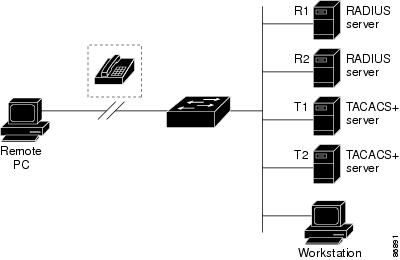
RADIUS Operation
When a user attempts to log in and authenticate to a Switch that is access controlled by a RADIUS server, these events occur:
-
The user is prompted to enter a username and password.
-
The username and encrypted password are sent over the network to the RADIUS server.
-
The user receives one of the following responses from the RADIUS server:
-
ACCEPT—The user is authenticated.
-
REJECT—The user is either not authenticated and is prompted to re-enter the username and password, or access is denied.
-
CHALLENGE—A challenge requires additional data from the user.
-
CHALLENGE PASSWORD—A response requests the user to select a new password.
The ACCEPT or REJECT response is bundled with additional data that is used for privileged EXEC or network authorization. The additional data included with the ACCEPT or REJECT packets includes these items:
-
Default RADIUS Configuration
RADIUS and AAA are disabled by default.
To prevent a lapse in security, you cannot configure RADIUS through a network management application. When enabled, RADIUS can authenticate users accessing the switch through the CLI.
RADIUS Server Host
Switch-to-RADIUS-server communication involves several components:
-
Hostname or IP address
-
Authentication destination port
-
Accounting destination port
-
Key string
-
Timeout period
-
Retransmission value
You identify RADIUS security servers by their hostname or IP address, hostname and specific UDP port numbers, or their IP address and specific UDP port numbers. The combination of the IP address and the UDP port number creates a unique identifier, allowing different ports to be individually defined as RADIUS hosts providing a specific AAA service. This unique identifier enables RADIUS requests to be sent to multiple UDP ports on a server at the same IP address.
If two different host entries on the same RADIUS server are configured for the same service—for example, accounting—the second host entry configured acts as a fail-over backup to the first one. Using this example, if the first host entry fails to provide accounting services, the %RADIUS-4-RADIUS_DEAD message appears, and then the switch tries the second host entry configured on the same device for accounting services. (The RADIUS host entries are tried in the order that they are configured.)
A RADIUS server and the switch use a shared secret text string to encrypt passwords and exchange responses. To configure RADIUS to use the AAA security commands, you must specify the host running the RADIUS server daemon and a secret text (key) string that it shares with the switch.
The timeout, retransmission, and encryption key values can be configured globally for all RADIUS servers, on a per-server basis, or in some combination of global and per-server settings.
RADIUS Login Authentication
To configure AAA authentication, you define a named list of authentication methods and then apply that list to various ports. The method list defines the types of authentication to be performed and the sequence in which they are performed; it must be applied to a specific port before any of the defined authentication methods are performed. The only exception is the default method list. The default method list is automatically applied to all ports except those that have a named method list explicitly defined.
A method list describes the sequence and authentication methods to be queried to authenticate a user. You can designate one or more security protocols to be used for authentication, thus ensuring a backup system for authentication in case the initial method fails. The software uses the first method listed to authenticate users; if that method fails to respond, the software selects the next authentication method in the method list. This process continues until there is successful communication with a listed authentication method or until all defined methods are exhausted. If authentication fails at any point in this cycle—meaning that the security server or local username database responds by denying the user access—the authentication process stops, and no other authentication methods are attempted.
AAA Server Groups
You can configure the switch to use AAA server groups to group existing server hosts for authentication. You select a subset of the configured server hosts and use them for a particular service. The server group is used with a global server-host list, which lists the IP addresses of the selected server hosts.
Server groups also can include multiple host entries for the same server if each entry has a unique identifier (the combination of the IP address and UDP port number), allowing different ports to be individually defined as RADIUS hosts providing a specific AAA service. This unique identifier enables RADIUS requests to be sent to different UDP ports on a server at the same IP address. If you configure two different host entries on the same RADIUS server for the same service, (for example, accounting), the second configured host entry acts as a fail-over backup to the first one. If the first host entry fails to provide accounting services, the network access server tries the second host entry configured on the same device for accounting services. (The RADIUS host entries are tried in the order in which they are configured.)
AAA Authorization
AAA authorization limits the services available to a user. When AAA authorization is enabled, the switch uses information retrieved from the user’s profile, which is in the local user database or on the security server, to configure the user’s session. The user is granted access to a requested service only if the information in the user profile allows it.
RADIUS Accounting
The AAA accounting feature tracks the services that users are using and the amount of network resources that they are consuming. When you enable AAA accounting, the switch reports user activity to the RADIUS security server in the form of accounting records. Each accounting record contains accounting attribute-value (AV) pairs and is stored on the security server. You can then analyze the data for network management, client billing, or auditing.
Vendor-Specific RADIUS Attributes
The Internet Engineering Task Force (IETF) draft standard specifies a method for communicating vendor-specific information between the switch and the RADIUS server by using the vendor-specific attribute (attribute 26). Vendor-specific attributes (VSAs) allow vendors to support their own extended attributes not suitable for general use. The Cisco RADIUS implementation supports one vendor-specific option by using the format recommended in the specification. Cisco’s vendor-ID is 9, and the supported option has vendor-type 1, which is named cisco-avpair. The value is a string with this format:
protocol : attribute sep value *
Protocol is a value of the Cisco protocol attribute for a particular type of authorization. Attribute and value are an appropriate attributevalue (AV) pair defined in the Cisco TACACS+ specification, and sep is = for mandatory attributes and is * for optional attributes. The full set of features available for TACACS+ authorization can then be used for RADIUS.
cisco-avpair= ”ip:addr-pool=first“
cisco-avpair= ”ip:addr-pool*first“
cisco-avpair= ”shell:priv-lvl=15“
Other vendors have their own unique vendor-IDs, options, and associated VSAs. For more information about vendor-IDs and VSAs, see RFC 2138, “Remote Authentication Dial-In User Service (RADIUS).”
Attribute 26 contains the following three elements:
The figure below shows the packet format for a VSA encapsulated “behind” attribute 26.
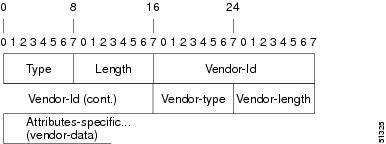
 Note | It is up to the vendor to specify the format of their VSA. The Attribute-Specific field (also known as Vendor-Data) is dependent on the vendor's definition of that attribute. |
The table below describes significant fields listed in the Vendor-Specific RADIUS IETF Attributes table (second table below), which lists supported vendor-specific RADIUS attributes (IETF attribute 26).
|
Field |
Description |
|---|---|
|
Number |
All attributes listed in the following table are extensions of IETF attribute 26. |
|
Vendor-Specific Command Codes |
A defined code used to identify a particular vendor. Code 9 defines Cisco VSAs, 311 defines Microsoft VSAs, and 529 defines Ascend VSAs. |
|
Sub-Type Number |
The attribute ID number. This number is much like the ID numbers of IETF attributes, except it is a “second layer” ID number encapsulated behind attribute 26. |
|
Attribute |
The ASCII string name of the attribute. |
|
Description |
Description of the attribute. |
|
Number |
Vendor-Specific Company Code |
Sub-Type Number |
Attribute |
Description |
||
|---|---|---|---|---|---|---|
|
MS-CHAP Attributes |
||||||
|
26 |
311 |
1 |
MSCHAP-Response |
Contains the response value provided by a PPP MS-CHAP user in response to the challenge. It is only used in Access-Request packets. This attribute is identical to the PPP CHAP Identifier. ( RFC 2548 |
||
|
26 |
311 |
11 |
MSCHAP-Challenge |
Contains the challenge sent by a network access server to an MS-CHAP user. It can be used in both Access-Request and Access-Challenge packets. ( RFC 2548 ) |
||
|
VPDN Attributes |
||||||
|
26 |
9 |
1 |
l2tp-cm-local-window-size |
Specifies the maximum receive window size for L2TP control messages. This value is advertised to the peer during tunnel establishment. |
||
|
26 |
9 |
1 |
l2tp-drop-out-of-order |
Respects sequence numbers on data packets by dropping those that are received out of order. This does not ensure that sequence numbers will be sent on data packets, just how to handle them if they are received. |
||
|
26 |
9 |
1 |
l2tp-hello-interval |
Specifies the number of seconds for the hello keepalive interval. Hello packets are sent when no data has been sent on a tunnel for the number of seconds configured here. |
||
|
26 |
9 |
1 |
l2tp-hidden-avp |
When enabled, sensitive AVPs in L2TP control messages are scrambled or hidden. |
||
|
26 |
9 |
1 |
l2tp-nosession-timeout |
Specifies the number of seconds that a tunnel will stay active with no sessions before timing out and shutting down. |
||
|
26 |
9 |
1 |
tunnel-tos-reflect |
Copies the IP ToS field from the IP header of each payload packet to the IP header of the tunnel packet for packets entering the tunnel at the LNS. |
||
|
26 |
9 |
1 |
l2tp-tunnel-authen |
If this attribute is set, it performs L2TP tunnel authentication. |
||
|
26 |
9 |
1 |
l2tp-tunnel-password |
Shared secret used for L2TP tunnel authentication and AVP hiding. |
||
|
26 |
9 |
1 |
l2tp-udp-checksum |
This is an authorization attribute and defines whether L2TP should perform UDP checksums for data packets. Valid values are “yes” and “no.” The default is no. |
||
|
Store and Forward Fax Attributes |
||||||
|
26 |
9 |
3 |
Fax-Account-Id-Origin |
Indicates the account ID origin as defined by system administrator for the mmoip aaa receive-id or the mmoip aaa send-id commands. |
||
|
26 |
9 |
4 |
Fax-Msg-Id= |
Indicates a unique fax message identification number assigned by Store and Forward Fax. |
||
|
26 |
9 |
5 |
Fax-Pages |
Indicates the number of pages transmitted or received during this fax session. This page count includes cover pages. |
||
|
26 |
9 |
6 |
Fax-Coverpage-Flag |
Indicates whether or not a cover page was generated by the off-ramp gateway for this fax session. True indicates that a cover page was generated; false means that a cover page was not generated. |
||
|
26 |
9 |
7 |
Fax-Modem-Time |
Indicates the amount of time in seconds the modem sent fax data (x) and the amount of time in seconds of the total fax session (y), which includes both fax-mail and PSTN time, in the form x/y. For example, 10/15 means that the transfer time took 10 seconds, and the total fax session took 15 seconds. |
||
|
26 |
9 |
8 |
Fax-Connect-Speed |
Indicates the modem speed at which this fax-mail was initially transmitted or received. Possible values are 1200, 4800, 9600, and 14400. |
||
|
26 |
9 |
9 |
Fax-Recipient-Count |
Indicates the number of recipients for this fax transmission. Until e-mail servers support Session mode, the number should be 1. |
||
|
26 |
9 |
10 |
Fax-Process-Abort-Flag |
Indicates that the fax session was aborted or successful. True means that the session was aborted; false means that the session was successful. |
||
|
26 |
9 |
11 |
Fax-Dsn-Address |
Indicates the address to which DSNs will be sent. |
||
|
26 |
9 |
12 |
Fax-Dsn-Flag |
Indicates whether or not DSN has been enabled. True indicates that DSN has been enabled; false means that DSN has not been enabled. |
||
|
26 |
9 |
13 |
Fax-Mdn-Address |
Indicates the address to which MDNs will be sent. |
||
|
26 |
9 |
14 |
Fax-Mdn-Flag |
Indicates whether or not message delivery notification (MDN) has been enabled. True indicates that MDN had been enabled; false means that MDN had not been enabled. |
||
|
26 |
9 |
15 |
Fax-Auth-Status |
Indicates whether or not authentication for this fax session was successful. Possible values for this field are success, failed, bypassed, or unknown. |
||
|
26 |
9 |
16 |
Email-Server-Address |
Indicates the IP address of the e-mail server handling the on-ramp fax-mail message. |
||
|
26 |
9 |
17 |
Email-Server-Ack-Flag |
Indicates that the on-ramp gateway has received a positive acknowledgment from the e-mail server accepting the fax-mail message. |
||
|
26 |
9 |
18 |
Gateway-Id |
Indicates the name of the gateway that processed the fax session. The name appears in the following format: hostname.domain-name. |
||
|
26 |
9 |
19 |
Call-Type |
Describes the type of fax activity: fax receive or fax send. |
||
|
26 |
9 |
20 |
Port-Used |
Indicates the slot/port number of the Cisco AS5300 used to either transmit or receive this fax-mail. |
||
|
26 |
9 |
21 |
Abort-Cause |
If the fax session aborts, indicates the system component that signaled the abort. Examples of system components that could trigger an abort are FAP (Fax Application Process), TIFF (the TIFF reader or the TIFF writer), fax-mail client, fax-mail server, ESMTP client, or ESMTP server. |
||
|
H323 Attributes |
||||||
|
26 |
9 |
23 |
Remote-Gateway-ID (h323-remote-address) |
Indicates the IP address of the remote gateway. |
||
|
26 |
9 |
24 |
Connection-ID (h323-conf-id) |
Identifies the conference ID. |
||
|
26 |
9 |
25 |
Setup-Time (h323-setup-time) |
Indicates the setup time for this connection in Coordinated Universal Time (UTC) formerly known as Greenwich Mean Time (GMT) and Zulu time. |
||
|
26 |
9 |
26 |
Call-Origin (h323-call-origin) |
Indicates the origin of the call relative to the gateway. Possible values are originating and terminating (answer). |
||
|
26 |
9 |
27 |
Call-Type (h323-call-type) |
Indicates call leg type. Possible values are telephony and VoIP. |
||
|
26 |
9 |
28 |
Connect-Time (h323-connect-time) |
Indicates the connection time for this call leg in UTC. |
||
|
26 |
9 |
29 |
Disconnect-Time (h323-disconnect-time) |
Indicates the time this call leg was disconnected in UTC. |
||
|
26 |
9 |
30 |
Disconnect-Cause (h323-disconnect-cause) |
Specifies the reason a connection was taken offline per Q.931 specification. |
||
|
26 |
9 |
31 |
Voice-Quality (h323-voice-quality) |
Specifies the impairment factor (ICPIF) affecting voice quality for a call. |
||
|
26 |
9 |
33 |
Gateway-ID (h323-gw-id) |
Indicates the name of the underlying gateway. |
||
|
Large Scale Dialout Attributes |
||||||
|
26 |
9 |
1 |
callback-dialstring |
Defines a dialing string to be used for callback. |
||
|
26 |
9 |
1 |
data-service |
No description available. |
||
|
26 |
9 |
1 |
dial-number |
Defines the number to dial. |
||
|
26 |
9 |
1 |
force-56 |
Determines whether the network access server uses only the 56 K portion of a channel, even when all 64 K appear to be available. |
||
|
26 |
9 |
1 |
map-class |
Allows the user profile to reference information configured in a map class of the same name on the network access server that dials out. |
||
|
26 |
9 |
1 |
send-auth |
Defines the protocol to use (PAP or CHAP) for username-password authentication following CLID authentication. |
||
|
26 |
9 |
1 |
send-name |
PPP name authentication. To apply for PAP, do not configure the ppp pap sent-name password command on the interface. For PAP, “preauth:send-name” and “preauth:send-secret” will be used as the PAP username and PAP password for outbound authentication. For CHAP, “preauth:send-name” will be used not only for outbound authentication, but also for inbound authentication. For a CHAP inbound case, the NAS will use the name defined in “preauth:send-name” in the challenge packet to the caller box.
|
||
|
26 |
9 |
1 |
send-secret |
PPP password authentication. The vendor-specific attributes (VSAs) “preauth:send-name” and “preauth:send-secret” will be used as the PAP username and PAP password for outbound authentication. For a CHAP outbound case, both “preauth:send-name” and “preauth:send-secret” will be used in the response packet. |
||
|
26 |
9 |
1 |
remote-name |
Provides the name of the remote host for use in large-scale dial-out. Dialer checks that the large-scale dial-out remote name matches the authenticated name, to protect against accidental user RADIUS misconfiguration. (For example, dialing a valid phone number but connecting to the wrong device.) |
||
|
Miscellaneous Attributes |
||||||
|
26 |
9 |
2 |
Cisco-NAS-Port |
Specifies additional vendor specific attribute (VSA) information for NAS-Port accounting. To specify additional NAS-Port information in the form an Attribute-Value Pair (AVPair) string, use the radius-server vsa send global configuration command.
|
||
|
26 |
9 |
1 |
min-links |
Sets the minimum number of links for MLP. |
||
|
26 |
9 |
1 |
proxyacl#<n> |
Allows users to configure the downloadable user profiles (dynamic ACLs) by using the authentication proxy feature so that users can have the configured authorization to permit traffic going through the configured interfaces. |
||
|
26 |
9 |
1 |
spi |
Carries the authentication information needed by the home agent to authenticate a mobile node during registration. The information is in the same syntax as the ip mobile secure host <addr> configuration command. Basically it contains the rest of the configuration command that follows that string, verbatim. It provides the Security Parameter Index (SPI), key, authentication algorithm, authentication mode, and replay protection timestamp range. |
||
RADIUS Disconnect-Cause Attribute Values
Disconnect-cause attribute values specify the reason a connection was taken offline. The attribute values are sent in Accounting request packets. These values are sent at the end of a session, even if the session fails to be authenticated. If the session is not authenticated, the attribute can cause stop records to be generated without first generating start records.
The table below lists the cause codes, values, and descriptions for the Disconnect-Cause (195) attribute.
Note | The Disconnect-Cause is incremented by 1000 when it is used in RADIUS AVPairs; for example, disc-cause 4 becomes 1004. |
RADIUS Progress Codes
The RADIUS Progress Codes feature adds additional progress codes to RADIUS attribute 196 (Ascend-Connect-Progress), which indicates a connection state before a call is disconnected through progress codes.
Attribute 196 is sent in network, exec, and resource accounting “start” and “stop” records. This attribute can facilitate call failure debugging because each progress code identifies accounting information relevant to the connection state of a call. The attribute is activated by default; when an accounting “start” or “stop” accounting record is requested, authentication, authorization, and accounting (AAA) adds attribute 196 into the record as part of the standard attribute list. Attribute 196 is valuable because the progress codes, which are sent in accounting “start” and “stop” records, facilitate the debugging of call failures.
Note | In accounting “start” records, attribute 196 does not have a value. |
|
Code |
Description |
|---|---|
|
10 |
Modem allocation and negotiation is complete; the call is up. |
|
30 |
The modem is up. |
|
33 |
The modem is waiting for result codes. |
|
41 |
The max TNT is establishing the TCP connection by setting up a TCP clear call. |
|
60 |
Link control protocol (LCP) is the open state with PPP and IP Control Protocol (IPCP) negotiation; the LAN session is up. |
|
65 |
PPP negotiation occurs and, initially, the LCP negotiation occurs; LCP is in the open state. |
|
67 |
After PPP negotiation with LCP in the open state occurs, IPCP negotiation begins. |
Note | Progress codes 33, 30, and 67 are generated and seen through debugs on the NAS; all other codes are generated and seen through debugs and the accounting record on the RADIUS server. |
Vendor-Proprietary RADIUS Server Communication
Although an IETF draft standard for RADIUS specifies a method for communicating vendor-proprietary information between the switch and the RADIUS server, some vendors have extended the RADIUS attribute set in a unique way. Cisco IOS software supports a subset of vendor-proprietary RADIUS attributes.
As mentioned earlier, to configure RADIUS (whether vendor-proprietary or IETF draft-compliant), you must specify the host running the RADIUS server daemon and the secret text string it shares with the switch. You specify the RADIUS host and secret text string by using the radius server global configuration commands.
Enhanced Test Command
The Enhanced Test Command feature allows a named user profile to be created with calling line ID (CLID) or dialed number identification service (DNIS) attribute values. The CLID or DNIS attribute values can be associated with the RADIUS record that is sent with the user profile so that the RADIUS server can access CLID or DNIS attribute information for all incoming calls.
How to Configure RADIUS
Identifying the RADIUS Server Host
To apply these settings globally to all RADIUS servers communicating with the Switch, use the three unique global configuration commands: radius-server timeout, radius-server retransmit, and radius-server key.
You can configure the Switch to use AAA server groups to group existing server hosts for authentication. For more information, see Related Topics below.
You also need to configure some settings on the RADIUS server. These settings include the IP address of the Switch and the key string to be shared by both the server and the Switch. For more information, see the RADIUS server documentation.
Follow these steps to configure per-server RADIUS server communication.If you configure both global and per-server functions (timeout, retransmission, and key commands) on the switch, the per-server timer, retransmission, and key value commands override global timer, retransmission, and key value commands. For information on configuring these settings on all RADIUS servers, see Related Topics below.
| Command or Action | Purpose | |||
|---|---|---|---|---|
| Step 1 |
enable
Example:
Switch> enable
|
Enables privileged EXEC mode. Enter your password if prompted. | ||
| Step 2 | configure
terminal
Example: Switch# configure terminal | |||
| Step 3 | radius server
name
Example:
Switch(config)# radius server ISE
|
Specifies the name of the RADIUS server configuration for Protected Access Credential (PAC) provisioning and enters RADIUS server configuration mode. The switch also supports RADIUS for IPv6. | ||
| Step 4 |
address
{ipv4
| ipv6} ip address {auth-port
port number |
acct-port
port
number}
Example:
Switch(config-radius-server)# address ipv4 10.1.1.1 auth-port 1645 acct-port 1646
|
(Optional) Specifies the RADIUS server parameters. For auth-port port-number, specify the UDP destination port for authentication requests. The default is 1645. The range is 0 to 65536. For acct-port port-number, specify the UDP destination port for authentication requests. The default is 1646. | ||
| Step 5 | key
string
Example:
Switch(config-radius-server)# key cisco123
|
(Optional) For key string, specify the authentication and encryption key used between the Switch and the RADIUS daemon running on the RADIUS server.
| ||
| Step 6 |
retransmit
value
Example:
Switch(config-radius-server)# retransmit 10
|
(Optional) Specifies the number of times a RADIUS request is resent when the server is not responding or responding slowly. The range is 1 to 100. This setting overrides the radius-server retransmit global configuration command setting. | ||
| Step 7 |
timeout
seconds
Example:
Switch(config-radius-server)# timeout 60
|
(Optional) Specifies the time interval that the Switch waits for the RADIUS server to reply before sending a request again. The range is 1 to 1000. This setting overrides the radius-server timeout global configuration command setting. | ||
| Step 8 | end
Example: Switch(config)# end | |||
| Step 9 | show running-config
Example: Switch# show running-config | |||
| Step 10 | copy running-config
startup-config
Example:
Switch# copy running-config startup-config
|
(Optional) Saves your entries in the configuration file. |
Configuring Settings for All RADIUS Servers
Beginning in privileged EXEC mode, follow these steps to configure settings for all RADIUS servers:
| Command or Action | Purpose | |||
|---|---|---|---|---|
| Step 1 | configure
terminal
Example: Switch# configure terminal | |||
| Step 2 | radius-server key
string
Example:
Switch(config)# radius-server key your_server_key
Switch(config)# key your_server_key
|
Specifies the shared secret text string used between the switch and all RADIUS servers.
| ||
| Step 3 | radius-server retransmit
retries
Example:
Switch(config)# radius-server retransmit 5
|
Specifies the number of times the switch sends each RADIUS request to the server before giving up. The default is 3; the range 1 to 1000. | ||
| Step 4 | radius-server timeout
seconds
Example:
Switch(config)# radius-server timeout 3
|
Specifies the number of seconds a switch waits for a reply to a RADIUS request before resending the request. The default is 5 seconds; the range is 1 to 1000. | ||
| Step 5 | radius-server deadtime
minutes
Example:
Switch(config)# radius-server deadtime 0
|
When a RADIUS server is not responding to authentication requests, this command specifies a time to stop the request on that server. This avoids the wait for the request to timeout before trying the next configured server. The default is 0; the range is 1 to 1440 minutes. | ||
| Step 6 | end
Example: Switch(config)# end | |||
| Step 7 | show running-config
Example: Switch# show running-config | |||
| Step 8 | copy running-config
startup-config
Example:
Switch# copy running-config startup-config
|
(Optional) Saves your entries in the configuration file. |
Configuring RADIUS Login Authentication
To secure the switch for HTTP access by using AAA methods, you must configure the switch with the ip http authentication aaa global configuration command. Configuring AAA authentication does not secure the switch for HTTP access by using AAA methods.
| Command or Action | Purpose | |
|---|---|---|
| Step 1 |
enable
Example:
Switch> enable
|
Enables privileged EXEC mode. Enter your password if prompted. |
| Step 2 | configure
terminal
Example: Switch# configure terminal | |
| Step 3 | aaa new-model
Example:
Switch(config)# aaa new-model
|
Enables AAA. |
| Step 4 | aaa authentication
login {default |
list-name}
method1 [method2...]
Example:
Switch(config)# aaa authentication login default local
|
Creates a login authentication method list.
|
| Step 5 | line [console |
tty
|
vty]
line-number [ending-line-number]
Example:
Switch(config)# line 1 4
|
Enters line configuration mode, and configure the lines to which you want to apply the authentication list. |
| Step 6 | login authentication
{default |
list-name}
Example:
Switch(config)# login authentication default
|
Applies the authentication list to a line or set of lines. |
| Step 7 | end
Example: Switch(config)# end | |
| Step 8 | show running-config
Example: Switch# show running-config | |
| Step 9 | copy running-config
startup-config
Example:
Switch# copy running-config startup-config
|
(Optional) Saves your entries in the configuration file. |
Defining AAA Server Groups
You use the server group server configuration command to associate a particular server with a defined group server. You can either identify the server by its IP address or identify multiple host instances or entries by using the optional auth-port and acct-port keywords.
Follow these steps to define AAA server groups:
| Command or Action | Purpose | |
|---|---|---|
| Step 1 |
enable
Example:
Switch> enable
|
Enables privileged EXEC mode. Enter your password if prompted. |
| Step 2 | configure
terminal
Example: Switch# configure terminal | |
| Step 3 | radius
server
name
Example:
Switch(config)# radius server ISE
|
Specifies the name of the RADIUS server configuration for Protected Access Credential (PAC) provisioning and enters RADIUS server configuration mode. The switch also supports RADIUS for IPv6. |
| Step 4 | address
{ipv4
|
ipv6} {ip-address
|
hostname}
auth-port
port-number
acct-port
port-number
Example:
Switch(config-radius-server)# address ipv4 10.1.1.1 auth-port 1645 acct-port 1646
|
Configures the IPv4 address for the RADIUS server accounting and authentication parameters. |
| Step 5 | key
string
Example:
Switch(config-radius-server)# key cisco123
|
Specifies the authentication and encryption key for all RADIUS communications between the device and the RADIUS server. |
| Step 6 | end
Example:
Switch(config-radius-server)# end
|
Exits RADIUS server configuration mode and returns to privileged EXEC mode. |
| Step 7 | show running-config
Example: Switch# show running-config | |
| Step 8 | copy running-config
startup-config
Example:
Switch# copy running-config startup-config
|
(Optional) Saves your entries in the configuration file. |
Configuring RADIUS Authorization for User Privileged Access and Network Services
Note | Authorization is bypassed for authenticated users who log in through the CLI even if authorization has been configured. |
Follow these steps to configure RADIUS authorization for user priviledged access and network services:
| Command or Action | Purpose | |
|---|---|---|
| Step 1 |
enable
Example:
Switch> enable
|
Enables privileged EXEC mode. Enter your password if prompted. |
| Step 2 | configure
terminal
Example: Switch# configure terminal | |
| Step 3 | aaa authorization network radius
Example:
Switch(config)# aaa authorization network radius
|
Configures the switch for user RADIUS authorization for all network-related service requests. |
| Step 4 | aaa authorization exec radius
Example:
Switch(config)# aaa authorization exec radius
|
Configures the switch for user RADIUS authorization if the user has privileged EXEC access. The exec keyword might return user profile information (such as autocommand information). |
| Step 5 | end
Example: Switch(config)# end | |
| Step 6 | show running-config
Example: Switch# show running-config | |
| Step 7 | copy running-config
startup-config
Example:
Switch# copy running-config startup-config
|
(Optional) Saves your entries in the configuration file. |
You can use the aaa authorization global configuration command with the radius keyword to set parameters that restrict a user’s network access to privileged EXEC mode.
The aaa authorization exec radius local command sets these authorization parameters:
Starting RADIUS Accounting
Follow these steps to start RADIUS accounting:
| Command or Action | Purpose | |
|---|---|---|
| Step 1 |
enable
Example:
Switch> enable
|
Enables privileged EXEC mode. Enter your password if prompted. |
| Step 2 | configure
terminal
Example: Switch# configure terminal | |
| Step 3 | aaa accounting network start-stop radius
Example:
Switch(config)# aaa accounting network start-stop radius
|
Enables RADIUS accounting for all network-related service requests. |
| Step 4 | aaa accounting exec start-stop radius
Example: Switch(config)# aaa accounting exec start-stop radius
|
Enables RADIUS accounting to send a start-record accounting notice at the beginning of a privileged EXEC process and a stop-record at the end. |
| Step 5 | end
Example: Switch(config)# end | |
| Step 6 | show running-config
Example: Switch# show running-config | |
| Step 7 | copy running-config
startup-config
Example:
Switch# copy running-config startup-config
|
(Optional) Saves your entries in the configuration file. |
To establishing a session with a router if the AAA server is unreachable, use the aaa accounting system guarantee-first command. This command guarantees system accounting as the first record, which is the default condition. In some situations, users might be prevented from starting a session on the console or terminal connection until after the system reloads, which can take more than 3 minutes.
To establish a console or Telnet session with the router if the AAA server is unreachable when the router reloads, use the no aaa accounting system guarantee-first command.
Verifying Attribute 196
No configuration is required to configure RADIUS Progress Codes. To verify attribute 196 in accounting “start” and “stop” records, perform the following steps.
| Command or Action | Purpose | |
|---|---|---|
| Step 1 |
enable
Example: Device> enable |
Enables privileged EXEC mode. |
| Step 2 |
debug
aaa
accounting
Example: Device# debug aaa accounting |
Displays information on accountable events as they occur. |
| Step 3 |
show
radius
statistics
Example: Device# debug aaa authorization |
Displays the RADIUS statistics for accounting and authentication packets. |
Configuring the Switch to Use Vendor-Specific RADIUS Attributes
Follow these steps to configure the switch to use vendor-specific RADIUS attributes:
| Command or Action | Purpose | |
|---|---|---|
| Step 1 |
enable
Example:
Switch> enable
|
Enables privileged EXEC mode. Enter your password if prompted. |
| Step 2 | configure
terminal
Example: Switch# configure terminal | |
| Step 3 | radius-server vsa
send [accounting |
authentication]
Example:
Switch(config)# radius-server vsa send accounting
|
Enables the switch to recognize and use VSAs as defined by RADIUS IETF attribute 26.
If you enter this command without keywords, both accounting and authentication vendor-specific attributes are used. |
| Step 4 | end
Example: Switch(config)# end | |
| Step 5 | show running-config
Example: Switch# show running-config | |
| Step 6 | copy running-config
startup-config
Example:
Switch# copy running-config startup-config
|
(Optional) Saves your entries in the configuration file. |
Configuring the Switch for Vendor-Proprietary RADIUS Server Communication
Follow these steps to configure the switch to use vendor-proprietary RADIUS server communication:
| Command or Action | Purpose | |||
|---|---|---|---|---|
| Step 1 |
enable
Example:
Switch> enable
|
Enables privileged EXEC mode. Enter your password if prompted. | ||
| Step 2 | configure
terminal
Example: Switch# configure terminal | |||
| Step 3 | radius-server host
{hostname |
ip-address}
non-standard
Example:
Switch(config)# radius-server host 172.20.30.15 non-standard
|
Specifies the IP address or hostname of the remote RADIUS server host and identifies that it is using a vendor-proprietary implementation of RADIUS. | ||
| Step 4 | radius-server key
string
Example:
Switch(config)# radius-server key rad124
|
Specifies the shared secret text string used between the switch and the vendor-proprietary RADIUS server. The switch and the RADIUS server use this text string to encrypt passwords and exchange responses.
| ||
| Step 5 | end
Example: Switch(config)# end | |||
| Step 6 | show running-config
Example: Switch# show running-config | |||
| Step 7 | copy running-config
startup-config
Example:
Switch# copy running-config startup-config
|
(Optional) Saves your entries in the configuration file. |
Configuring a User Profile and Associating it with the RADIUS Record
This section describes how to create a named user profile with CLID or DNIS attribute values and associate it with the RADIUS record.
| Command or Action | Purpose | |||
|---|---|---|---|---|
| Step 1 |
enable
Example: Device> enable |
Enables privileged EXEC mode. | ||
| Step 2 |
configure
terminal
Example: Device# configure terminal |
Enters global configuration mode. | ||
| Step 3 |
aaa
user
profile
profile-name
Example: Device(config)# aaa user profile profilename1 |
Creates a user profile. | ||
| Step 4 |
aaa
attribute
{dnis |
clid}
Example: Device# configure terminal |
Adds DNIS or CLID attribute values to the user profile and enters AAA-user configuration mode. | ||
| Step 5 |
exit
|
Exit Global Configuration mode. | ||
| Step 6 | test
aaa
group {group-name |
radius}
username
password
new-code
[profile
profile-name]
Example: Device# test aaa group radius secret new-code profile profilename1 |
Associates a DNIS or CLID named user profile with the record sent to the RADIUS server.
|
Verifying the Enhanced Test Command Configuration
To verify the Enhanced Test Command configuration, use the following commands in privileged EXEC mode:
|
Command |
Purpose |
|---|---|
Device# debug radius
|
Displays information associated with RADIUS. |
Devie# more system:running-config
|
Displays the contents of the current running configuration file. (Note that the more system:running-config command has replaced the show running-config command.) |
Configuration Examples for RADIUS
Examples: Identifying the RADIUS Server Host
This example shows how to configure one RADIUS server to be used for authentication and another to be used for accounting:
Switch(config)# radius-server host 172.29.36.49 auth-port 1612 key rad1
Switch(config)# radius-server host 172.20.36.50 acct-port 1618 key rad2
This example shows how to configure host1 as the RADIUS server and to use the default ports for both authentication and accounting:
Switch(config)# radius-server host host1
Example: Using Two Different RADIUS Group Servers
In this example, the switch is configured to recognize two different RADIUS group servers (group1 and group2). Group1 has two different host entries on the same RADIUS server configured for the same services. The second host entry acts as a fail-over backup to the first entry.
Switch(config)# radius-server host 172.20.0.1 auth-port 1000 acct-port 1001
Switch(config)# radius-server host 172.10.0.1 auth-port 1645 acct-port 1646
Switch(config)# aaa new-model
Switch(config)# aaa group server radius group1
Switch(config-sg-radius)# server 172.20.0.1 auth-port 1000 acct-port 1001
Switch(config-sg-radius)# exit
Switch(config)# aaa group server radius group2
Switch(config-sg-radius)# server 172.20.0.1 auth-port 2000 acct-port 2001
Switch(config-sg-radius)# exit
Examples: AAA Server Groups
The following example shows how to create server group radgroup1 with three different RADIUS server members, each using the default authentication port (1645) and accounting port (1646):
aaa group server radius radgroup1
 server 172.16.1.11
 server 172.17.1.21
 server 172.18.1.31
The following example shows how to create server group radgroup2 with three RADIUS server members, each with the same IP address but with unique authentication and accounting ports:
aaa group server radius radgroup2
 server 172.16.1.1 auth-port 1000 acct-port 1001
 server 172.16.1.1 auth-port 2000 acct-port 2001
 server 172.16.1.1 auth-port 3000 acct-port 3001
Troubleshooting Tips for RADIUS Progress Codes
The following example is a sample debug output from the debug ppp negotiation command. This debug output is used to verify that accounting “stop” records have been generated and that attribute 196 (Ascend-Connect-Progress) has a value of 65.
Tue Aug 7 06:21:03 2001
        NAS-IP-Address = 10.0.58.62
        NAS-Port = 20018
        Vendor-Specific = ""
        NAS-Port-Type = ISDN
        User-Name = "peer_16a"
        Called-Station-Id = "5213124"
        Calling-Station-Id = "5212175"
        Acct-Status-Type = Stop
        Acct-Authentic = RADIUS
        Service-Type = Framed-User
        Acct-Session-Id = "00000014"
        Framed-Protocol = PPP
        Framed-IP-Address = 172.16.0.2
        Acct-Input-Octets = 3180
        Acct-Output-Octets = 3186
        Acct-Input-Packets = 40
        Acct-Output-Packets = 40
        Ascend-Connect-Pr = 65
        Acct-Session-Time = 49
        Acct-Delay-Time = 0
        Timestamp = 997190463
        Request-Authenticator = Unverified
Examples: Configuring the Switch to Use Vendor-Specific RADIUS Attributes
For example, this AV pair activates Cisco’s multiple named ip address pools feature during IP authorization (during PPP IPCP address assignment):
cisco-avpair= ”ip:addr-pool=first“
This example shows how to provide a user logging in from a switch with immediate access to privileged EXEC commands:
cisco-avpair= ”shell:priv-lvl=15“
This example shows how to specify an authorized VLAN in the RADIUS server database:
cisco-avpair= ”tunnel-type(#64)=VLAN(13)”
cisco-avpair= ”tunnel-medium-type(#65)=802 media(6)”
cisco-avpair= ”tunnel-private-group-id(#81)=vlanid”
This example shows how to apply an input ACL in ASCII format to an interface for the duration of this connection:
cisco-avpair= “ip:inacl#1=deny ip 10.10.10.10 0.0.255.255 20.20.20.20 255.255.0.0”
cisco-avpair= “ip:inacl#2=deny ip 10.10.10.10 0.0.255.255 any”
cisco-avpair= “mac:inacl#3=deny any any decnet-iv”
This example shows how to apply an output ACL in ASCII format to an interface for the duration of this connection:
cisco-avpair= “ip:outacl#2=deny ip 10.10.10.10 0.0.255.255 any”
Example: Configuring the Switch for Vendor-Proprietary RADIUS Server Communication
This example shows how to specify a vendor-proprietary RADIUS host and to use a secret key of rad124 between the switch and the server:
Switch(config)# radius-server host 172.20.30.15 nonstandard
Switch(config)# radius-server key rad124
Example: User Profile Associated With the test aaa group Command
The following example shows how to configure the dnis = dnisvalue user profile “prfl1” and associate it with a test aaa group command. In this example, the debug radius command has been enabled and the output follows the configuration.
aaa user profile prfl1
  aaa attribute dnis
  aaa attribute dnis dnisvalue
  no aaa attribute clid
! Attribute not found.
  aaa attribute clid clidvalue
  no aaa attribute clid
  exit
!
! Associate the dnis user profile with the test aaa group command.
test aaa group radius user1 pass new-code profile profl1
!
!
!
! debug radius output, which shows that the dnis value has been passed to the radius ! server.
*Dec 31 16:35:48: RADIUS: Sending packet for Unique id = 0
 *Dec 31 16:35:48: RADIUS: Initial Transmit unknown id 8 172.22.71.21:1645, Access-Request, len 68
 *Dec 31 16:35:48: RADIUS: code=Access-Request id=08 len=0068
         authenticator=1E CA 13 F2 E2 81 57 4C - 02 EA AF 9D 30 D9 97 90
         T=User-Password[2]                 L=12 V=*
         T=User-Name[1]                     L=07 V="test"
         T=Called-Station-Id[30]            L=0B V="dnisvalue"
         T=Service-Type[6]                  L=06 V=Login                     [1]
         T=NAS-IP-Address[4]                L=06 V=10.0.1.81

 *Dec 31 16:35:48: RADIUS: Received from id 8 172.22.71.21:1645, Access-Accept, len 38
 *Dec 31 16:35:48: RADIUS: code=Access-Accept id=08 len=0038
Additional References for RADIUS
Related Documents
|
Related Topic |
Document Title |
|---|---|
|
Cisco IOS commands |
|
|
Cisco security commands |
|
|
IPv6 commands |
Standards and RFCs
| Standard/RFC | Title |
|---|---|
|
RFC 5176 |
RADIUS Change of Authorization (CoA) extensions |
Error Message Decoder
| Description | Link |
|---|---|
|
To help you research and resolve system error messages in this release, use the Error Message Decoder tool. |
https://www.cisco.com/cgi-bin/Support/Errordecoder/index.cgi |
MIBs
| MIB | MIBs Link |
|---|---|
|
All supported MIBs for this release. |
To locate and download MIBs for selected platforms, Cisco IOS releases, and feature sets, use Cisco MIB Locator found at the following URL: |
Technical Assistance
| Description | Link |
|---|---|
|
The Cisco Support website provides extensive online resources, including documentation and tools for troubleshooting and resolving technical issues with Cisco products and technologies. To receive security and technical information about your products, you can subscribe to various services, such as the Product Alert Tool (accessed from Field Notices), the Cisco Technical Services Newsletter, and Really Simple Syndication (RSS) Feeds. Access to most tools on the Cisco Support website requires a Cisco.com user ID and password. |
Feature Information for RADIUS
| Release | Feature Information |
|---|---|
| Cisco IOS 15.0(2)EX1 |
This feature was introduced. |
|
Cisco IOS 15.2(1)E |
The RADIUS Progress Codes feature adds additional progress codes to RADIUS attribute 196 (Ascend-Connect-Progress), which indicates a connection state before a call is disconnected through progress codes. |
|
Cisco IOS 15.2(1)E |
The Enhanced Test Command feature allows a named user profile to be created with calling line ID (CLID) or Dialed Number Identification Service (DNIS) attribute values. The CLID or DNIS attribute values can be associated with the RADIUS record that is sent with the user profile so that the RADIUS server can access CLID or DNIS attribute information for all incoming calls. The following commands were introduced or modified: aaa attribute, aaa user profile, and test aaa group |
 Feedback