Installing the Switch Chassis

Safety

Before you install, operate, or service the switch, see the Regulatory, Compliance, and Safety Information for the Cisco Nexus 3000 and 9000 Series for important Safety Information.


Warning

Statement 1071—Warning Definition

IMPORTANT SAFETY INSTRUCTIONS

This warning symbol means danger. You are in a situation that could cause bodily injury. Before you work on any equipment, be aware of the hazards involved with electrical circuitry and be familiar with standard practices for preventing accidents. Use the statement number provided at the end of each warning to locate its translation in the translated safety warnings that accompanied this device.

SAVE THESE INSTRUCTIONS


Warning

Statement 1017—Restricted Area

This unit is intended for installation in restricted access areas. A restricted access area can be accessed by skilled, instructed or qualified personnel.


Warning

Statement 1030—Equipment Installation

Only trained and qualified personnel should be allowed to install, replace, or service this equipment.


Installation Guidelines

When installing the switch, follow these guidelines:

  • Ensure that there is adequate clearance space around the switch to allow for servicing the switch and for adequate airflow.

  • Ensure that the chassis can be adequately grounded. If the switch is not mounted in a grounded rack, we recommend connecting the system ground on the chassis directly to an earth ground.

  • Ensure that the site power meets the power requirements for the switch. If available, you can use an uninterruptible power supply (UPS) to protect against power failures.


    Caution

    Avoid UPS types that use ferroresonant technology. These UPS types can become unstable with the switch, which can have substantial current draw fluctuations because of fluctuating data traffic patterns.


  • Ensure that circuits are sized according to local and national codes. Typically, this often requires one or both of the following:

    • AC power supplies typically require at least a 15-A or 20-A AC circuit, 100 to 240 VAC, and a frequency of 50 to 60 Hz.


    Caution

    To prevent loss of input power, ensure the total maximum loads on the circuits supplying power to the switch are within the current ratings for the wiring and breakers.


    Warning

    Statement 1005—Circuit Breaker

    This product relies on the building's installation for short-circuit (overcurrent) protection. Ensure that the protective devices is rated not greater than 20A (North America), 16A (Europe), and 13A (UK).


Unpacking and Inspecting the Switch

Before you install the switch, be sure to unpack and inspect the switch for damage or missing components. If anything is missing or damaged, contact your customer service representative immediately.


Tip

Keep the shipping container in case the chassis requires shipping at a later time.


Before you begin

Before you unpack the switch and before you handle any switch components, be sure that you are wearing a grounded electrostatic discharge (ESD) strap. To ground the strap, attach it directly to an earth ground or to a grounded rack or grounded chassis (there must be a metal-to-metal connection to the earth ground).

Procedure


Check for damage and report any discrepancies or damage to your customer service representative. Have the following information ready:

  • Invoice number of shipper (see packing slip)

  • Model and serial number of the damaged unit

  • Description of damage

  • Effect of damage on the installation


Attaching L-Brackets to the Chassis

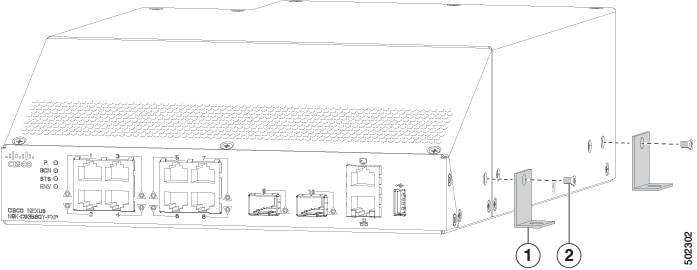
You attach two L-brackets to each side of the chassis. These brackets hold the chassis in place on a flat surface.

Before you begin

  • You must have the following tools and equipment:

    • Phillips-head screwdriver

    • L-brackets (4) and screws (4)

Procedure


Step 1

Align the hole in the L-bracket with the hole on the side of the chassis. Attach the L-bracket with a screw using a Phillips-head screwdriver. See the following figure.

1

L-bracket (4)

2

Screw (4)

Step 2

Use screws to attach the brackets to a flat surface.


Attaching Magnet to the Chassis

You attach the magnet to the bottom of the chassis. The magnet holds the chassis in place on a flat surface.

Before you begin

  • You must have the following equipment:

    • Chassis magnet

Procedure


Step 1

Align the magnet to the bottom of the chassis. Attach the magnet to the chassis. See the following figure.

1

Magnet

Step 2

Use the magnet on the bottom of the chassis to attach the chassis to a flat surface.


Grounding the Chassis

The switch chassis is automatically grounded when you properly install the switch in a grounded rack with metal-to-metal connections between the switch and rack.

You can also ground the chassis, which is required if the rack is not grounded, by attaching a customer-supplied grounding cable. Attach the cable to the chassis grounding pad and the facility ground.


Warning

Statement 1024—Ground Conductor

This equipment must be grounded. To reduce the risk of electric shock, never defeat the ground conductor or operate the equipment in the absence of a suitably installed ground conductor. Contact the appropriate electrical inspection authority or an electrician if you are uncertain that suitable grounding is available.


Warning

Statement 1046—Installing or Replacing the Unit

To reduce risk of electric shock, when installing or replacing the unit, the ground connection must always be made first and disconnected last.


Before you begin

Before you can ground the chassis, you must have a connection to the earth ground for the data center building.

Procedure


Step 1

Use a wire-stripping tool to remove approximately 0.75 inch (19 mm) of the covering from the end of the grounding wire. We recommend 6-AWG wire for the U.S. installations.

Step 2

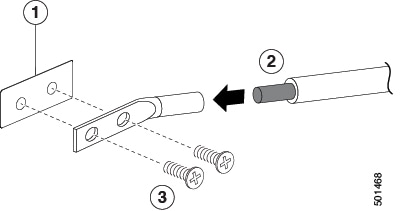
Insert the stripped end of the grounding wire into the open end of the grounding lug. Use a crimping tool to crimp the lug to the wire, see the following figure. Verify that the ground wire is securely attached to the grounding lug by attempting to pull the wire out of the crimped lug.

1

Chassis grounding pad

3

2 M4 screws are used to secure the grounding lug to the chassis

2

Grounding cable, with 0.75 in. (19 mm) of insulation that is stripped from one end, which is inserted into the grounding lug and crimped in place

Step 3

Secure the grounding lug to the chassis grounding pad with two M4 screws, see the previous figure. Tighten the screws to 11 to 15 in-lb (1.24 to 1.69 N·m) of torque.

Step 4

Prepare the other end of the grounding wire and connect it to the facility ground.


Starting the Switch

You start the switch by connecting it to its dedicated power source. If you need n+1 redundancy, you must connect each of the power supplies to one or two power sources. If you need n+n redundancy, you must connect each power supply in a switch to a different power source.

Before you begin

  • The switch must be installed and secured to a rack or cabinet.

  • The switch must be adequately grounded.

  • The rack must be close enough to the dedicated power source so that you can connect the switch to the power source by using a designated power cables.

  • You have the designated power cables for the power supplies that you are connecting to the dedicated power sources.


    Note

    Depending on the outlet receptacle on your AC power distribution unit, you might need an optional jumper power cord to connect the switch to your outlet receptacle.


  • The switch is not connected to the network (this includes any management or interface connections).

Procedure


Step 1

For the AC power supply, do the following:

  1. Using the recommended AC power cable for your country or region, connect one end to the AC power supply.

  2. Connect the other end of the power cable to the AC power source.

Step 2

Listen for the fans; they should begin operating when the power supply is powered.

Step 3

After initialization, the switch chassis Status (STS) LED is green.

Step 4

Verify that the system software has booted and the switch has initialized without error messages.

Note 

A setup utility automatically launches the first time that you access the switch and guides you through the basic configuration. For instructions on how to configure the switch and check module connectivity, see the appropriate Cisco Nexus 9000 configuration guide.