Password Recovery for the Cisco Virtual Security Gateway
This document describes how to recover a lost network administrator password for the Cisco VSG.
Creating a New Network Administrator Password
This section describes how to recover a lost password. This section includes the following topics:
- Flow Chart: Password Recovery with a Single Cisco VSG
- Flow Chart: Password Recovery with Dual Cisco VSGs
- Verifying User Privileges
- Creating a Password When You Have Network-Admin Privileges
- Creating a New Password By Booting from the CD-ROM on the Active Cisco VSG
Flow Chart: Password Recovery with a Single Cisco VSG
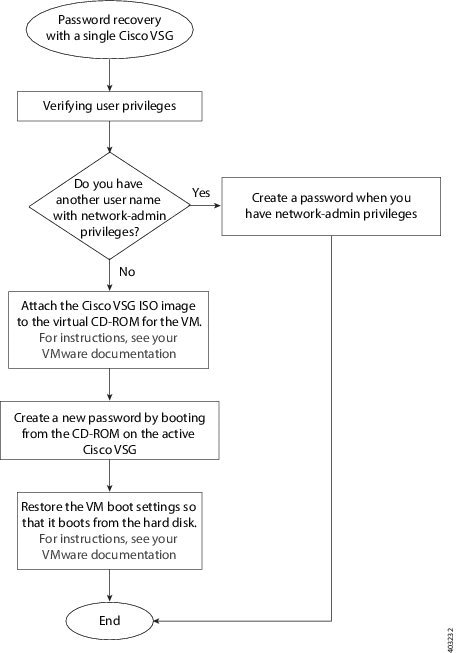
The following flow chart (see Figure 2-1) is designed to guide you through the password recovery process for a Cisco VSG that is not in high availability mode. After completing each procedure, return to the flow chart to make sure that you complete all required procedures in the correct sequence.
Figure 2-1 Password Recovery with a Single Cisco VSG
Flow Chart: Password Recovery with Dual Cisco VSGs
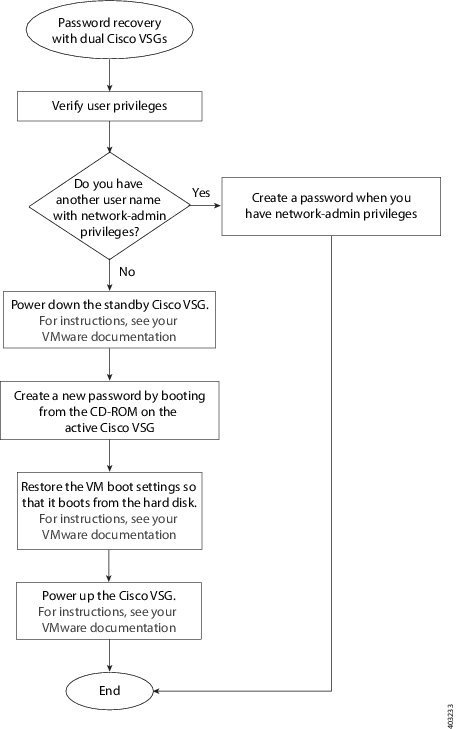
The following flow chart (see Figure 2-2) is designed to guide you through the password recovery process for Cisco VSGs that are in high availability mode. After completing each procedure, return to the flow chart to make sure you that complete all required procedures in the correct sequence.
Figure 2-2 Password Recovery with Dual Cisco VSGs
Verifying User Privileges
You can verify that your username has network admin privileges that let you create a new password.
BEFORE YOU BEGIN
Before beginning this procedure, log in to the CLI in EXEC mode.
DETAILED STEPS
Creating a Password When You Have Network-Admin Privileges
You can create a network administrator password when you have network-admin privileges.
BEFORE YOU BEGIN
Before beginning this procedure, make sure that:
- You are logged in to the CLI in EXEC mode.
- Your username has network-admin privileges. To verify your privileges, see Verifying User Privileges.
SUMMARY STEPS
DETAILED STEPS
Creating a New Password By Booting from the CD-ROM on the Active Cisco VSG
You can create a new password if you cannot start a session on the device with a username that has network-admin privileges. In this case, you must create the network administrator password by booting the Cisco Virtual Security Gateway from the CD-ROM.
BEFORE YOU BEGIN
Before beginning this procedure, make sure that the VM is booting from the CD-ROM. For more information, see your VMware documentation.

 This procedure disrupts all traffic on the device. All connections to the device will be lost for 2 to 3 minutes.
Step 1 Power off the Cisco VSG.
Step 2 Open the Cisco VSG console and map the.iso file.
Step 3 In the Edit Settings for the VSG window, under hardware, choose CD/DVD drive and check the connect at power on check box.
Step 4 Under the Options tab, choose Boot Options and check the Force BIOS Setup check box.
Step 5 Power on the VM and change the boot order to boot from the CD-ROM. Press F10 to save and exit.
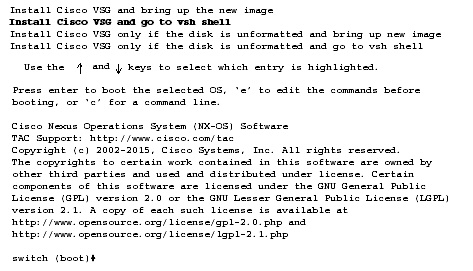
Step 6 Choose Install Cisco VSG and go to vsh shell.

Note It might take up to 5 minutes for the VM to power on.
Step 8 Load the Cisco VSG image.
In the following example, the image filename is nexus-1000v.5.2.1.VSG2.1.2c.bin :
Step 9 Use the new administrator password to log in to the Cisco VSG CLI:
Step 10 Save the running configuration to the startup configuration so that the new password persists across reboots and restarts:
Step 11 Using your VMware documentation, restore the VM boot settings so that it boots from the hard disk.
You have completed this procedure and restored the admin user password. If needed, you can create a new password. See Creating a Password When You Have Network-Admin Privileges.
 Feedback