Cisco MDS 9250i Multiservice Fabric Switch Hardware Installation Guide
Bias-Free Language
The documentation set for this product strives to use bias-free language. For the purposes of this documentation set, bias-free is defined as language that does not imply discrimination based on age, disability, gender, racial identity, ethnic identity, sexual orientation, socioeconomic status, and intersectionality. Exceptions may be present in the documentation due to language that is hardcoded in the user interfaces of the product software, language used based on RFP documentation, or language that is used by a referenced third-party product. Learn more about how Cisco is using Inclusive Language.
- Updated:
- January 22, 2014
Chapter: Installing the Cisco MDS 9250i Switch
Installing the Cisco MDS 9250i Switch
This chapter describes how to install the Cisco MDS 9250i switch and its components and includes the following information:
- Preparing for Installation
- Installing the Cisco MDS 9250i Switch Chassis in a Rack
- System Grounding
- Starting Up the Switch
- Removing and Installing a Power Supply
- Removing and Installing Fan Modules

Note Before you install, operate, or service the system, read the Regulatory Compliance and Safety Information for the Cisco MDS 9000 Family for important safety information.

Warning IMPORTANT SAFETY INSTRUCTIONS
This warning symbol indicates danger. You are in a situation that could cause physical injury. Before you work on any equipment, be aware of the hazards involved with electrical circuitry and be familiar with standard practices for preventing accidents. Use the statement number provided at the end of each warning to locate its translation in the translated safety warnings that accompanied this device. Statement 1071
SAVE THESE INSTRUCTIONS
Warning This unit is intended for installation in restricted access areas. A restricted access area can be accessed only through the use of a special tool, lock and key, or other means of security. Statement 1017
Warning Only trained and qualified personnel should be allowed to install, replace, or service this equipment. Statement 1030
Warning A readily accessible two-poled disconnect device must be incorporated in the fixed wiring. Statement 1022
Preparing for Installation
This section provides the following topics:
Unpacking and Inspecting the Switch
Warning Two people are required to lift the chassis. Grasp the chassis underneath the lower edge and lift with both hands. To prevent injury, keep your back straight and lift with your legs, not your back. To prevent damage to the chassis and components, never attempt to lift the chassis with the handles on the power supplies or on the interface processors, or by the plastic panels on the front of the chassis. These handles were not designed to support the weight of the chassis. Statement 5
 When handling switch components, wear an ESD strap and handle modules by the carrier edges only. An ESD socket is provided on the chassis. For the ESD socket to be effective, the chassis must be grounded either through the power cable, the chassis ground, or metal-to-metal contact with a grounded rack.

Tip Keep the shipping container for use when moving or shipping the chassis in the future. The shipping carton can be flattened and stored with the pallet.
Note If you purchased this product through a Cisco reseller, contact the reseller directly for technical support. If you purchased this product directly from Cisco Systems, contact Cisco Technical Support at this URL: http://www.cisco.com/en/US/support/tsd_cisco_worldwide_contacts.html
Note The switch is thoroughly inspected before shipment. If any damage occurred during transportation or any items are missing, contact your customer service representative immediately.
To inspect the shipment, follow these steps:
Step 1 Compare the shipment to the equipment list provided by your customer service representative and ensure that you have received all items, including the following:
Step 2 Check for damage and report any discrepancies or damage to your customer service representative. Keep the following information ready:
- Invoice number of shipper (see packing slip)
- Model and serial number of the damaged unit
- Description of damage
- Effect of damage on the installation
Required Equipment
Before beginning the installation, you need to obtain the following items:
- Number 1 and number 2 Phillips screwdrivers with torque capability.
- 3/16-inch flat-blade screwdriver.
- Tape measure and level.
- ESD wrist strap or other grounding device.
- Antistatic mat or antistatic foam.
- In addition to the grounding items provided in the accessory kit, you need the following items:
– Grounding cable (6 AWG recommended), sized according to local and national installation requirements; the required length depends on the proximity of the Cisco MDS 9250i switch to proper grounding facilities.
Installation Options
The Cisco MDS 9250i switch can be installed using the following methods:
– The rack-mount kit shipped with the switch
– The Telco and EIA Shelf Bracket Kit (an optional kit, purchased separately) in addition to the rack-mount kit shipped with the switch
– The rack-mount kit shipped with the switch
– The telco and EIA Shelf Bracket Kit (an optional kit, purchased separately) in addition to the rack-mount kit shipped with the switch
– The rack-mount kit shipped with the switch
– The Telco and EIA Shelf Bracket Kit (an optional kit, purchased separately)
For instructions on installing the switch using the mounting kit shipped with the switch, see the“Installing the Cisco MDS 9250i Switch Chassis in a Rack” section.
For instructions on installing the switch using the optional Telco and EIA Shelf Bracket Kit (purchased separately), see the “Rack-Mounting Guidelines” section.
Installation Guidelines
Follow these guidelines when installing the Cisco MDS 9250i switch:
- Plan your site configuration and prepare the site before installing the chassis. Cisco recommends that you use the site planning tasks listed in Appendix 1, “Site Planning and Maintenance Records.”
- Ensure that there is adequate space around the switch to allow for servicing the switch and for adequate airflow (airflow requirements are listed in Appendix B, “Technical Specifications” ).
- Ensure that the air-conditioning meets the heat dissipation requirements listed in Appendix B, “Technical Specifications”
- Ensure that the rack meets the requirements listed in Appendix 1, “Rack Requirements.”
- Ensure that the site power meets the power requirements listed in Appendix B, “Technical Specifications” You can use an uninterruptible power supply (UPS) to protect against power failures.
– The 300-W AC power supplies require a 20-A circuit.
If you are using 200/240 VAC power sources in North America, the circuits must be protected by two-pole circuit breakers. The Telco and EIA Shelf Bracket Kit (an optional kit, purchased separately) in addition to the rack-mount kit shipped with the switch.
- Record your installation and configuration information as you work. See Appendix 1, “Site Planning and Maintenance Records.”
- Use the following screw torques when installing the switch:
Installing the Cisco MDS 9250i Switch Chassis in a Rack
This section describes how to install the Cisco MDS 9250i switch in a rack that meets the requirements described in this document, using the mounting kit provided with the switch.
If the rack is on wheels, ensure that the brakes are engaged or that the rack is otherwise stabilized.
If connecting a Cisco MDS 9250i switch to a 110-VAC power system, ensure that sufficient power is provided to meet the chassis power requirements for the number of modules installed.
Warning When installing or replacing the unit, the ground connection must always be made first and disconnected last. Statement 1046
All power supplies must be grounded. The receptacles of the AC power cables used to provide power to the chassis must be the grounding type, and the grounding conductors should connect to protective earth ground at the service equipment. For a Cisco MDS 9250i switch with a DC power supply, a grounding cable must be connected to the terminal block.
If a 110-VAC input is chosen, a 110-VAC power cord (CAB-7513AC=) must be ordered separately.
Table 1-1 lists the items provided in the Cisco MDS 9250i mounting kit used for installing the switch.
|
|
|
|---|---|
To install the Cisco MDS 9250i chassis in a rack using the mounting kit provided with the switch, follow these steps:
Step 1 Install the front rack-mount bracket as follows:
a. Position one of the front rack-mount brackets against the side of the switch and align the screw holes as shown in Figure 1-1.
Figure 1-1 Installing the Rack-Mount Brackets on the Cisco MDS 9250i Multiservice Switch
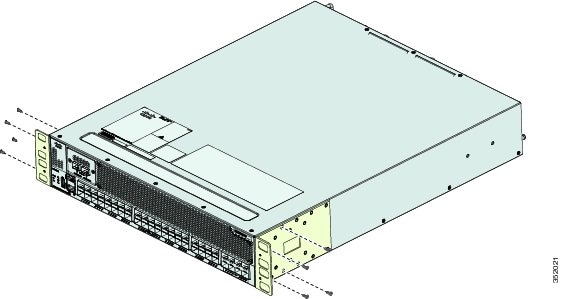
b. Attach the bracket to the switch with the four M4 screws originally provided with the bracket.
c. Repeat with the other front rack-mount bracket on the other side of the switch.
Step 2 Install the C brackets as follows:
a. Position one of the C brackets against the side of the switch and align the screw holes as shown in Figure 1-2.
Figure 1-2 Installing C Brackets on the Cisco MDS 9250i Multiservice Switch
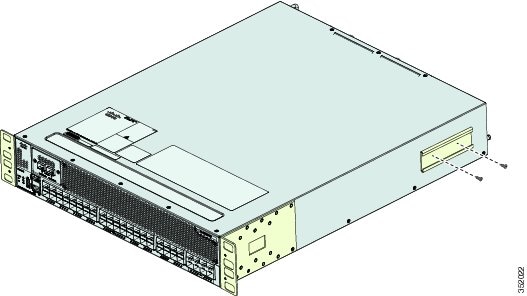
b. Attach the bracket to the switch with the two M3 screws originally provided with the bracket.
c. Repeat with the other C bracket on the other side of the switch.
Step 3 Install the slider rails in the rack. Position one of the slider rails against the rack mounting rails and align the screw holes as shown in Figure 1-3.
Figure 1-3 Installing the Slider Rails
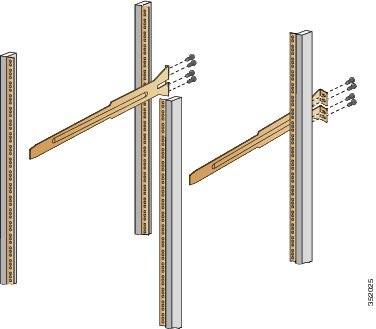
Step 4 Attach the slider rail using four 12-24 screws or four 10-32 screws, depending on the rack rail thread type. For racks with square holes, insert the 12-24 cage nuts in position behind the mounting holes in the slider rails.
a. Repeat with the other slider rail on the other side of the rack.
b. Use the tape measure and level to verify that the rails are horizontal and at the same height.
Step 5 Insert the switch into the rack:
a. By using both hands, position the switch with the back of the switch between the front rack-mounting rails as shown in Figure 1-4.
Figure 1-4 Installing the Slider Rails
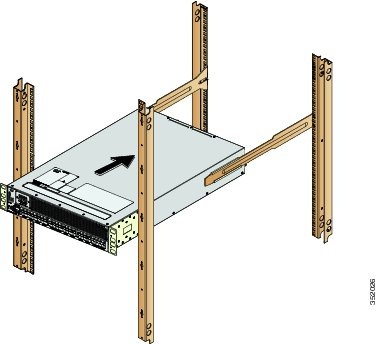
b. Align the two C brackets on either side of the switch with the slider rails installed in the rack. Slide the C brackets onto the slider rails, and then gently slide the switch all the way into the rack. If the switch does not slide easily, try realigning the C brackets on the slider rails.
Step 6 Stabilize the switch in the rack by attaching the front rack-mount brackets to the front rack-mounting rails:
a. Insert four screws (12-24 or 10-32, depending on rack type) and through the cage nuts and the holes in one of the front rack-mount brackets and into the threaded holes in the rack-mounting rail as shown in Figure 1-5.
Figure 1-5 Attaching Front Rack-Mount Brackets
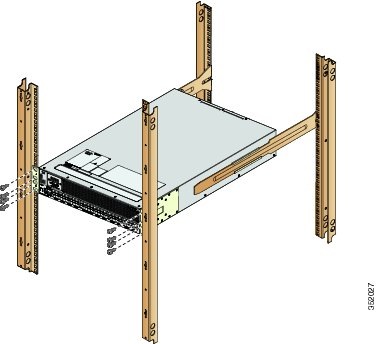
b. Repeat for the front rack-mount bracket on the other side of the switch.
If you are installing the optional cable guides, place the cable guides in front of the front rack-mount brackets, and then pass the screws through the cable guides, front rack-mount brackets, and mounting rail. You can install one or both cable guides; if installing a single cable guide, it can be installed on either side.
System Grounding
This section describes the need for system grounding and explains how to prevent damage from electrostatic discharge.
Note In all situations, grounding practices must comply with local National Electric Code (NEC) requirements or local laws and regulations.
Note Always ensure that all of the modules are completely installed and that the captive installation screws are fully tightened. In addition, ensure that all I/O cables and power cords are properly seated. These practices are normal installation practices and must be followed in all installations.
Note This system ground is also referred to as the network equipment building system (NEBS) ground.
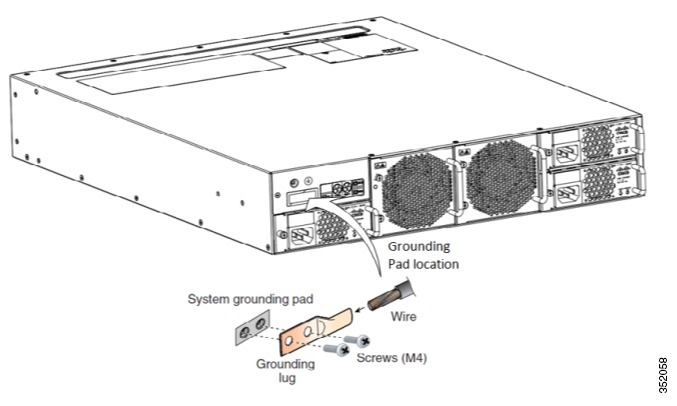
- If your chassis does not have the system ground attached, you must install the system ground lug. For installation instructions and location of the chassis system ground pads, see “Establishing the System Ground” section.
Note You do not need to attach a supplemental system ground wire to the system ground lug; the lug provides a direct path to the bare metal of the chassis.
After you install the system ground lug, follow these steps to correctly attach the ESD wrist strap:
Step 1 Attach the ESD wrist strap to bare skin as follows:
c. If you are using the ESD wrist strap supplied with the FRUs, open the wrist strap package and unwrap the ESD wrist strap. Place the black conductive loop over your wrist and tighten the strap so that it makes good contact with your bare skin.
d. If you are using an ESD wrist strap equipped with an alligator clip, open the package and remove the ESD wrist strap. Locate the end of the wrist strap that attaches to your body and secure it to your bare skin.
Step 2 Grasp the spring or alligator clip on the ESD wrist strap and momentarily touch the clip to a bare metal spot (unpainted surface) on the rack. We recommend that you touch the clip to an unpainted rack rail so that any built-up static charge is then safely dissipated to the entire rack.
Step 3 Plug the strap into the port (and alternatively clip an alligator clip onto the grounding lug screws) by attaching either the spring clip or the alligator clip to the ground lug screw as shown in Figure 1-6.
a. If you are using the ESD wrist strap that is supplied with the FRUs, squeeze the spring clip jaws open, position the spring clip to one side of the system ground lug screw head, and slide the spring clip over the lug screw head so that the spring clip jaws close behind the lug screw head.
Note The spring clip jaws do not open wide enough to fit directly over the head of the lug screw or the lug barrel.
b. If you are using an ESD wrist strap that is equipped with an alligator clip, attach the alligator clip directly over the head of the system ground lug screw or to the system ground lug barrel.
Figure 1-6 Attaching the ESD Wrist Strap to the System Ground Lug Screw
c. Follow these additional guidelines when handling modules:
– Handle carriers by available handles or edges only; avoid touching the printed circuit boards or connectors.
– Place a removed component board-side-up on an antistatic surface or in a static shielding container. If you plan to return the component to the factory, immediately place it in a static shielding container.
– Never attempt to remove the printed circuit board from the metal carrier.
For safety reasons, check the resistance value of the antistatic strap periodically. The measurement should be between 1 and 10 megohm (Mohm).
Establishing the System Ground
This section describes how to connect a system ground to the Cisco MDS 9250i switch.
Note This system ground is also referred to as the network equipment building system (NEBS) ground.
You must use the system (NEBS) ground on both AC- and DC-powered systems if you are installing this equipment in a U.S. or European Central Office.
The system (NEBS) ground provides additional grounding for EMI shielding requirements and grounding for the low-voltage supplies (DC-DC converters) on the modules and is intended to satisfy the Telcordia Technologies NEBS requirements for supplemental bonding and grounding connections. You must observe the following system grounding guidelines for your chassis:
- You must install the system (NEBS) ground connection with any other rack or system power ground connections that you make. The system ground connection is required if this equipment is installed in a U.S. or European Central Office.
- You must connect both the system (NEBS) ground connection and the power supply ground connection to an earth ground. The system (NEBS) ground connection is required if this equipment is installed in a U.S. or European Central Office.
Note The system (NEBS) ground serves as the primary safety ground for the MDS 9250i chassis that are equipped with DC-input PEMs. The DC-input power supplies for these chassis do not have a separate ground.
Required Tools and Equipment
To connect the ground system, you need the following tools and materials:
- Grounding lug—A two-hole standard barrel lug. Supports up to 6 AWG wire. Supplied as part of accessory kit.
- Grounding screws—Two M4 x 8mm (metric) pan-head screws. Supplied as part of the accessory kit.
- Grounding wire—Not supplied as part of accessory kit. The grounding wire should be sized according to local and national installation requirements. Depending on the power supply and system, a 12 AWG to 6 AWG copper conductor is required for U.S. installations. Commercially available 6 AWG wire is recommended. The length of the grounding wire depends on the proximity of the switch to proper grounding facilities.
- No. 1 Phillips screwdriver.
- Crimping tool to crimp the grounding wire to the grounding lug.
- Wire-stripping tool to remove the insulation from the grounding wire.
Starting Up the Switch
This section provides the following information:
Warning Hazardous voltage or energy is present on the backplane when the system is operating. Use caution when servicing. Statement 1034
During this procedure, wear grounding wrist straps to avoid ESD damage to the switch.
Connecting the Power Supplies
To provide power to an AC power supply in a Cisco MDS 9250i switch, follow these steps:
Step 1 Verify that the power switches on all power supplies are off.
Step 2 Plug the power cable into the power supply and tighten the screw on the power cable retainer to ensure that the cable cannot be pulled out.
Step 3 Verify that both power supplies and fan modules are installed and tighten any loose captive screws.
Note Depending on the outlet receptacle on your power distribution unit, you may need the optional jumper power cord to connect the Cisco MDS 9250i switch to your outlet receptacle.
Step 4 Connect the other end of the power cable to a power source.
Step 5 Ensure that the switch is adequately grounded and that the power cables are connected to outlets that have the required AC power voltages.
Powering Up the Switch and Verifying Component Installation
Note Do not connect the MGMT 10/100 Ethernet port to the LAN until the initial switch configuration has been performed. For instructions on configuring the switch, see the Cisco MDS 9000 Family NX-OS Fundamentals Configuration Guide.
For instructions on connecting to the console port, see the “Connecting to the Console Port” section.
To power up the switch and verify hardware operation, follow these steps:
Step 1 Power on the switch by turning the power switches on the power supplies or PEMs to the on (|) position. The switch boots automatically.
Step 2 Listen for the fans; they should begin operating as soon as the switch is powered on.
Step 3 Verify that the LED behavior is as follows when the switch has finished booting:
- Fan status LED is green.
- Each P/S LED is green.
- The Switch STATUS LED is green. If this LED is orange or red, then one or more environmental monitors is reporting a problem.
- The Ethernet port Link LEDs should not be on unless the cable is connected.
Note The LEDs for the Fibre Channel ports remain orange until the ports are enabled, and the LED for the MGMT 10/100 Ethernet port remains off until the port is connected.
If any LEDs other than the Fibre Channel port LEDs remain orange or red after the initial boot processes are complete, see Appendix B, “Technical Specifications.”
Step 4 If a component is not operating correctly, try removing and reinstalling it. If it still does not operate correctly, contact your customer service representative for a replacement.
Note If you purchased this product through a Cisco reseller, contact the reseller directly for technical support. If you purchased this product directly from Cisco Systems, contact Cisco Technical Support at this URL: http://www.cisco.com/en/US/support/tsd_cisco_worldwide_contacts.html.
Step 5 Verify that the system software has booted and the switch has initialized without error messages. If any problems occur, see the Cisco MDS 9000 Family System Messages Reference. If you cannot resolve an issue, contact your customer service representative.
Step 6 Complete the worksheets provided in Appendix 1, “Site Planning and Maintenance Records,” for future reference.
Note A setup utility automatically launches the first time you access the switch and guides you through the basic configuration. For instructions about how to configure the switch and check module connectivity, see the Cisco MDS 9000 Family NX-OS Fundamentals Configuration Guide or the Cisco Fundamentals Configuration Guide for DCNM SAN.
Removing and Installing a Power Supply
This section provides the following information:
- Removing an AC Power Supply from the Cisco MDS 9250i Switch
- Installing an AC Power Supply in the Cisco MDS 9250i Switch
A flat-blade or number 2 Phillips-head screwdriver is required to perform these procedures.
Warning Voltage is present on the backplane when the system is operating. To reduce risk of an electric shock, keep hands and fingers out of the power supply bays and backplane areas. Statement 166
Warning Power supply captive installation screws must be tight to ensure protective grounding continuity. Statement 289
Removing an AC Power Supply from the Cisco MDS 9250i Switch
Warning Voltage is present on the backplane when the system is operating. To reduce risk of an electric shock, keep hands and fingers out of the power supply bays and backplane areas. Statement 166
To remove an AC power supply from the Cisco MDS 9250i switch, follow these steps:
Step 1 Turn the power switch on the power supply to the off (0) position.
Step 2 Disconnect the power cable from the power source.
Step 3 Remove the cable retention device and disconnect the power cable from the power supply being removed.
Step 4 Grasp the power supply handle with one hand, and slide the power supply partially out of the chassis. Place your other hand underneath the power supply, and slide the power supply completely out of the chassis.
Step 5 If the power supply bay is to remain empty, install a power supply filler panel over the opening, and tighten the captive screw to 8 in-lb.
Installing an AC Power Supply in the Cisco MDS 9250i Switch
To install an AC power supply in the Cisco MDS 9250i switch, follow these steps:
Step 1 Ensure that the system (earth) ground connection has been made. See the “System Grounding” section.
Step 2 If a filler panel is installed, remove the filler panel from the power supply bay by loosening the captive screw.
Step 3 Ensure that the power switch is in the off (0) position on the power supply you are installing.
Step 4 Grasp the power supply handle with one hand, place your other hand underneath the power supply, and slide the power supply into the power supply bay. Ensure that the power supply is fully seated in the bay.
Step 5 Plug the power cable into the power supply, and place the cable retention device to ensure that the cable cannot be pulled out.
Step 6 Connect the other end of the power cable to an AC power source.
Step 7 Turn the power switch to the on (|) position on the power supply. Turning the power switch on also locks the power supply in the bay.
Step 8 Verify power supply operation by checking that the power supply LEDs are in the following states:
Removing and Installing Fan Modules
The fan module is designed to be removed and replaced while the system is operating without presenting an electrical hazard or damage to the system, provided the replacement is performed promptly.
The Cisco MDS 9250i switch has two fan modules with the abrupt stop-to-fan rotation safety feature after power is disconnected or the fan tray is removed from the chassis.
The Cisco MDS 9000 Family switches have internal temperature sensors that can shut down the system if the temperature at different points within the chassis exceed certain safety thresholds. To be effective, the temperature sensors require the presence of airflow; therefore, if both the fan modules are removed from the MDS 9250i chassis, the switch shuts down after five minutes to prevent potentially undetectable overheating. However, the switches will shut down sooner if the higher-level temperature threshold is exceeded.
This section includes the following topics:
- Removing a Fan Module on the Cisco MDS 9250i Switch
- Installing a Fan Module on the Cisco MDS 9250i Switch
Removing a Fan Module on the Cisco MDS 9250i Switch
To remove the fan module from the Cisco MDS 9250i switch, follow these steps:
Step 1 Loosen the four captive screws on the module being removed.
Step 2 Grasp the fan module with both hands and pull it outward to unseat the power connector from the backplane.
Step 3 Pull the fan module clear of the chassis.
Warning When removing the fan tray, keep your hands and fingers away from the spinning fan blades. Let the fan blades completely stop before you remove the fan tray. Statement 258
Installing a Fan Module on the Cisco MDS 9250i Switch
To install a fan module on the Cisco MDS 9250i switch, follow these steps:
Step 1 Place the fan module into the rear chassis cavity so it rests on the chassis. Lift the fan module up slightly to align the top and bottom chassis guides, then push the fan module into the chassis until it seats in the backplane and the captive screws make contact with the chassis. The fan module just snaps in.
Step 2 If the switch is powered on, listen for the fans; you should immediately hear them operating. If you do not hear them, ensure that the fan module is inserted completely in the chassis and the outside surface of the fan module is flush with the outside surface of the chassis.
Step 3 Verify that the Fan STATUS LED is green. If the LED is not green, one or more fans are faulty. If this occurs, contact your customer service representative for a replacement part.
Note If you purchased this product through a Cisco reseller, contact the reseller directly for technical support. If you purchased this product directly from Cisco Systems, contact Cisco Technical Support at this URL: http://www.cisco.com/en/US/support/tsd_cisco_worldwide_contacts.html.
 Feedback