Install OpFlex Plugin on Ubuntu with Juju

This chapter contains the following sections:

Prerequisites

This section describes the prerequisites for installing opflex plugin on Ubuntu with Juju.

  • Working knowledge of Ubuntu Linux

  • Experience in deployment of OpenStack using MAAS and Juju

  • Some experience in APIC UI maybe required

  • Working ACI Fabric

  • MAAS setup on Ubuntu Xenial with Juju2

  • Minimum of 4 servers with at least one fabric interface
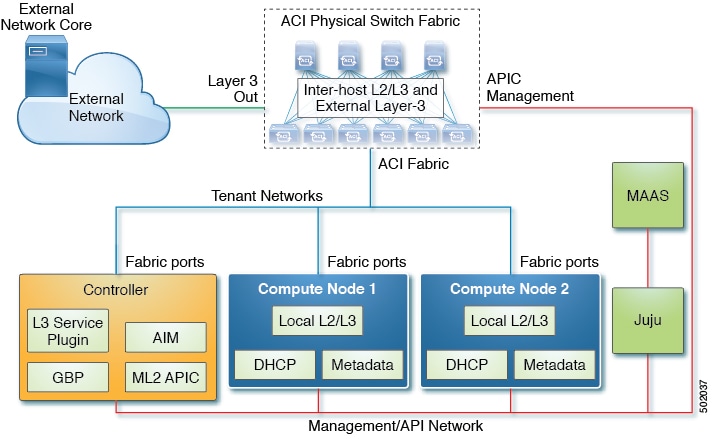
Figure 1. Typical Network Topology

Server Preparation

This section describes the server preparation.

  • The OpenStack nodes need to be connected to the leaf switches either in direct mode or VPC/bonded mode.

  • The MTU of the interfaces should be greater than 1600.

  • The bonding should be setup using 802.3ad

Site-Preparation

This section describes how to prepare the site by downloading opflex released archive file from the software download link and setting up an apt repository on the repo server. Charms support both signed and un-signed repositories.

Procedure


Step 1

Take note of the following:

  • APIC IP addresses

  • APIC credentials

  • AAEP created for deployment

    For example, my-aep in the Example of the Configuration juju-aci-ocata.yaml File.

  • Infra VLAN ID

  • opflex_peer_ip and opflex_remote_ip parameters

    The opflex_remote_ip address matches the anycast ip address assigned to interface Loopback 1023 on the leaf switches. The opflex_peer_ip address for the OpFlex peer is the anycast IP address assigned to the SVI of the infra VLAN on the leaf switches.

  • An ID string to identify this OpenStack instance (APIC_SYSTEM_ID)

  • Server interface name that is connected to fabric.

    For example, 'eth2' or 'bond0'.

Step 2

Install, configure MAAS and Juju.

For more information, see the Ubuntu documentation.

Step 3

Download the Debian packages for Openstack <Release_Name> ACI plugins gzip file matching your OpenStack, ACI release and create a Debian/Ubuntu repo.

  1. Go to the Software Download link:

    https://software.cisco.com/download/home/285968390/type

  2. Click APIC OpenStack and Container Plugins.

  3. Choose the Debian packages for Openstack <Release_Name> ACI plugins gzip file matching your OpenStack, ACI release and click the download icon.

Step 4

Untar and extract the files.

Step 5

Take note of the repo URL. The "deb http://1.11.1.1/ubuntu ocata32 main" repo URL is used as an example in the Example of the Configuration juju-aci-ocata.yaml File.

Requirements for the config juju-aci-ocata.yaml file:

  • Nodes are connected to leaf in a vPC/Linux bonding configuration. The bonded device name is "bond0". If it is a single interface, replace it with the interface name. For example, "eth1", "ens9".

  • APIC is configured with a default VLAN 3901 (infra VLAN). Replace this number with whatever VLAN is configured on APIC.

  • The AAEP created for deployment is my-aep.

  • The URL for the created package repo is "deb http://1.11.1.1/ubuntu ocata32 main".

  • APIC_SYSTEM_ID is "juju2-ostack".


Installation

This section describes how to install the opflex plugin on Ubuntu with Juju charm by downloading from the software download link, untar and extract the files on the Juju server under a directory.

Procedure


Step 1

Download the Juju charms for ACI plugins for Openstack <Release_Name> gzip file matching your OpenStack and ACI release.

  1. Go to the Software Download link:

    https://software.cisco.com/download/home/285968390/type

  2. Click APIC OpenStack and Container Plugins.

  3. Choose the Juju charms for ACI plugins for Openstack <Release_Name> matching your OpenStack, ACI release and click the download icon.

Step 2

Untar and extract the files into a directory on the Juju server. For example, /home/ubuntu/charms/xenial.

Note 

To support Openstack deployment on ACI fabric using Juju, the following charms from upstream had to be modified:

  • charm-neutron-gateway

  • charm-neutron-api

In addition, the following new charms were developed:

  • charm-neutron-api-plugin-aci (runs as sub-ordinate to neutron-api)

  • charm-neutron-aci-opflex (runs as sub-ordinate to nova-compute and charm-neutron-gateway)

  • charm-openstack-dashboard-plugin-gbp (runs as sub-ordinate to openstack-dashboard)

Additionally, when using the ACI plugin the security groups are implemented in vswitch. For the best performance, nova should be configured with NoopFirewallDriver as below. Currently, Ubuntu Juju charm does not allow that to be configured and adds an extra bridge as it uses the OVSHybridFirewallDriver and has some performance impact. You can ignore the extra bridge as it does not create or correct any issues.

Step 3

Create a configuration juju-aci-ocata.yaml file and place it in a directory. For example, /home/ubuntu.

For more information, see Example configuration juju-aci-ocata.yaml file.

Step 4

Deploy the charms and add relations. Below is a sample script for deployment of the ACI charms:

juju bootstrap maas maas-controller --config=config.yaml
juju add-machine -n 4

CONFIG=/home/ubuntu/juju-aci-ocata.yaml

juju deploy --config=$CONFIG cs:trusty/mysql --to lxd:1
juju config mysql max-connections=1300
juju deploy --config=$CONFIG rabbitmq-server --to lxd:1


sleep 120

juju deploy --config=$CONFIG keystone --to lxd:1
juju add-relation keystone:shared-db mysql:shared-db

juju deploy --config=$CONFIG glance --to lxd:1
juju add-relation glance:identity-service keystone:identity-service
juju add-relation glance:shared-db mysql:shared-db

juju deploy /home/noiro/charms/xenial/charm-neutron-api --series xenial 
--config=$CONFIG neutron-api --to 1
juju add-relation neutron-api:amqp rabbitmq-server:amqp
juju add-relation neutron-api:identity-service keystone:identity-service
juju add-relation neutron-api:shared-db mysql:shared-db

juju deploy /home/noiro/charms/xenial/charm-neutron-api-plugin-aci --series xenial 
--config=$CONFIG neutron-api-plugin-aci
juju add-relation neutron-api-plugin-aci neutron-api
juju add-relation neutron-api-plugin-aci:amqp rabbitmq-server:amqp
juju add-relation neutron-api-plugin-aci:shared-db mysql:shared-db


juju deploy /home/noiro/charms/xenial/charm-neutron-gateway --series xenial 
--config=$CONFIG neutron-gateway --to 3
juju add-relation neutron-gateway:amqp rabbitmq-server:amqp
juju add-relation neutron-gateway:neutron-plugin-api neutron-api:neutron-plugin-api

juju deploy --config=$CONFIG nova-cloud-controller --to lxd:1
juju add-relation nova-cloud-controller:amqp rabbitmq-server:amqp
juju add-relation nova-cloud-controller:identity-service keystone:identity-service
juju add-relation nova-cloud-controller:image-service glance:image-service
juju add-relation nova-cloud-controller:neutron-api neutron-api:neutron-api
juju add-relation nova-cloud-controller:shared-db mysql:shared-db
juju add-relation nova-cloud-controller:quantum-network-service 
neutron-gateway:quantum-network-service

juju deploy --config=$CONFIG nova-compute --to 2
juju add-relation nova-compute:amqp rabbitmq-server:amqp
juju add-relation nova-compute:cloud-compute nova-cloud-controller:cloud-compute
juju add-relation nova-compute:image-service glance:image-service
juju add-relation nova-compute:shared-db mysql:shared-db

juju deploy /home/noiro/charms/xenial/charm-neutron-aci-opflex --config=$CONFIG neutron-aci-opflex
juju add-relation neutron-aci-opflex:neutron-plugin-api neutron-api:neutron-plugin-api
juju add-relation neutron-aci-opflex:neutron-plugin nova-compute:neutron-plugin
juju add-relation neutron-aci-opflex:amqp rabbitmq-server:amqp
juju add-relation neutron-aci-opflex:quantum-network-service neutron-gateway:quantum-network-service

juju deploy --config=$CONFIG openstack-dashboard --to 0
juju add-relation openstack-dashboard:identity-service keystone:identity-service

juju deploy /home/noiro/charms/xenial/charm-openstack-dashboard-plugin-gbp --series xenial 
--config=$CONFIG openstack-dashboard-plugin-gbp

juju add-relation openstack-dashboard-plugin-gbp openstack-dashboard

Example of the Configuration juju-aci-ocata.yaml File

This is an example of the configuration juju-aci-ocata.yaml file.

mysql:
  max-connections: 1300
keystone:
  openstack-origin: 'cloud:xenial-ocata'
  admin-password: 'noir0123'
  log-level: 'DEBUG'
  verbose: true
  debug: true
nova-cloud-controller:
  openstack-origin: 'cloud:xenial-ocata'
  network-manager: Neutron
  console-access-protocol: novnc
neutron-gateway:
  plugin: aci
  openstack-origin: 'cloud:xenial-ocata'
  data-port: 'br-data:bond0'
  vlan-ranges: physnet1:250:300
  enable-isolated-metadata: true
  enable-metadata-network: true
  aci-repo: 'deb http://1.11.1.1/ubuntu ocata32 main'
  aci-apic-system-id: juju2-ostack
  aci-encap: vxlan
  aci-uplink-interface: bond0
  aci-infra-vlan: 3901
neutron-api:
  openstack-origin: 'cloud:xenial-ocata'
  neutron-plugin: aci
  neutron-security-groups: true
  #vlan-ranges: physnet1:250:300
neutron-aci-opflex:
  aci-repo: 'deb http://1.11.1.1/ubuntu ocata32 main'
  aci-apic-system-id: juju2-ostack
  aci-encap: vxlan
  aci-uplink-interface: bond0
  aci-infra-vlan: 3901
rabbitmq-server:
## Cinder is deployed in two parts: one for the API and scheduler
## (which can live in a container), one for the volume service (which
## cannot, at least not for the LVM/iSCSI backend)
cinder-api:
  openstack-origin: 'cloud:xenial-ocata'
  enabled-services: api,scheduler
cinder-volume:
  openstack-origin: 'cloud:xenial-ocata'
  enabled-services: volume
  # Adjust this to match the block device on your volume host
  block-device: vdb
glance:
  openstack-origin: 'cloud:xenial-ocata'
heat:
  openstack-origin: 'cloud:xenial-ocata'
mysql:
openstack-dashboard:
  openstack-origin: 'cloud:xenial-ocata'
  webroot: /
  vip_iface: bond0
nova-compute:
  openstack-origin: 'cloud:xenial-ocata'
  virt-type: kvm
##
## ACI
##
neutron-api-plugin-aci:
  aci-repo: 'deb http://1.11.1.1/ubuntu ocata32 main'
  aci-apic-hosts: 10.3.12.1
  aci-apic-username: admin
  aci-apic-password: k%jiou^
  aci-apic-entity-profile: my-aep
  aci-apic-system-id: juju2-ostack
  aci-encap: vxlan
  aci-vlan-ranges: 250:300
  aci-connection-json: '{"101": ["srv1:vpc-1-25/101-102-1-25", "srv2:vpc-1-26/101-102-1-26", 
"srv3:vpc-1-27/101-102-1-27", "srv4:vpc-1-28/101-102-1-28", "srv5:vpc-1-29/101-102-1-29"], 
"102": ["srv1:vpc-1-25/101-102-1-25", "srv2:vpc-1-26/101-102-1-26", "srv3:vpc-1-27/101-102-1-27", 
"srv4:vpc-1-28/101-102-1-28", "srv5:vpc-1-29/101-102-1-29"]}'
  aci-vpc-pairs: '101:102'
#
openstack-dashboard-plugin-gbp:
  aci-repo: 'deb http://1.11.1.1/ubuntu ocata32 main'

Adding an OpenStack External Network

This section describes how to add an OpenStack external network.

As opposed to the Classical mode, there is no need to specify any L3Out or host_pool_cidr config parameters anywhere in the ostack controller configuration.

There is a change in the command for configuring external-network (new extensions have been added) in the OpenStack to correspond to the above pre-existing L3Out and its EPG. The configuration requires the DN of the EPG for the specific the L3Out in APIC. It can be done in two ways:

Before you begin

  • An L3Out on the APIC must be pre-created along with its endpoint group (EPG).

Procedure


Step 1

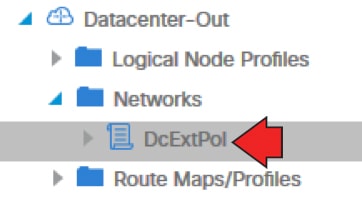
Go to the APIC and get the DN of the external network using the API-Inspector:

Step 2

Use the aimctl manager command on the Openstack-Controller to get the DN as shown below:

Example:

aimctl manager external-network-find
+---------------+----------------+------------+
| tenant_name   | l3out_name     | name       |
|---------------+----------------+------------|
| common        | Datacenter-Out | DcExtPol   |
| common        | Management-Out | MgmtExtPol |
| common        | default        | MgmtNet    |
+---------------+----------------+------------+

 aimctl manager external-network-get common Datacenter-Out DcExtPol
+-------------------------+-------------------------------------------------+
|Property                 |Value                                            |
|-------------------------+--------------------------------------------------
| tenant_name             | common                                          |
| l3out_name              | Datacenter-Out                                  |
| name                    | DcExtPol                                        |
| display_name            |                                                 |
| nat_epg_dn              |                                                 |
| provided_contract_names | []                                              |
| consumed_contract_names | []                                              |
| monitored               | True                                            |
| dn                      | uni/tn-common/out-Datacenter-Out/instP-DcExtPol | 
+---------------------------------------------------------------------------+
Note 

See the example for L3Out: Datacenter-Out.

Now the DN from above can be used to create the external network.

For Distributed NAT:

Example:

neutron net-create Datacenter-Out --router:external True --shared --apic:distinguished_names \
type=dict ExternalNetwork=uni/tn-common/out-Datacenter-Out/instP-DcExtPol

For No NAT:

Example:

neutron net-create Datacenter-Out --router:external True --shared --apic:distinguished_names \
type=dict ExternalNetwork=uni/tn-common/out-Datacenter-Out/instP-DcExtPol --apic:nat_type ""

For Floating IPs, add a subnet to external network with the desired floating IP pool cidr.

For SNAT, add a subnet to the external network as below:

Example:

neutron subnet-create Datacenter-Out 10.104.21.0/24 --name ext-subnet --disable-dhcp --gateway \
10.104.21.1 --apic:snat_host_pool True

For GBP external connectivity, first create the external segment using the SNAT subnet:

Example:

gbp external-segment-create Datacenter-Out --subnet-id <SNAT Subnet>

Now this segment can be used as usual to create the network service policy.

Example:

gbp nat-pool-create nat-pool-0 --ip-pool 10.104.31.0/24 \
--external-segment Datacenter-Out gbp network-service-policy-create --network-service-params \
type=ip_pool,name=nat-pool-0,value=nat_pool net-svc-nat-0