Cisco ACI with OpenStack Using the OpenStack Platform 12 Director Overview
Cisco Application Centric Infrastructure (ACI) is a comprehensive policy-based architecture that provides an intelligent, controller-based network switching fabric. This fabric is designed to be programmatically managed through an API interface that can be directly integrated into multiple orchestration, automation, and management tools, including OpenStack. Integrating ACI with OpenStack allows dynamic creation of networking constructs to be driven directly from OpenStack requirements, while providing additional visibility within the ACI Application Policy Infrastructure Controller (APIC) down to the level of the individual virtual machine (VM) instance.
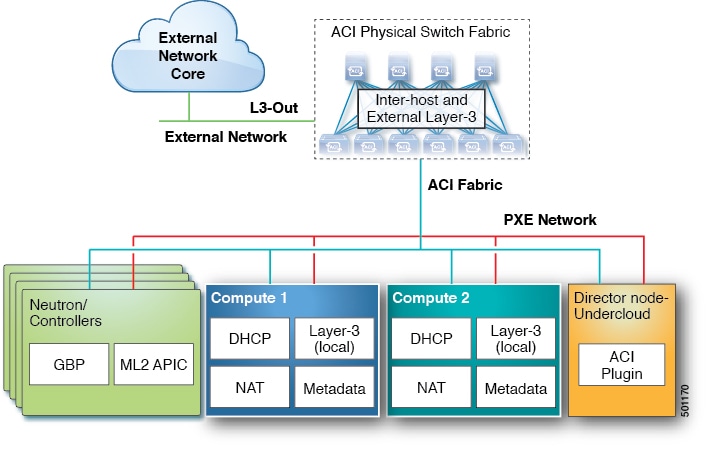
OpenStack defines a flexible software architecture for creating cloud-computing environments. The reference software-based implementation of OpenStack allows for multiple Layer 2 transports including VLAN, GRE, and VXLAN. The Neutron project within OpenStack can also provide software-based Layer 3 forwarding. When utilized with ACI, the ACI fabric provides an integrated Layer 2 and Layer 3 VXLAN-based overlay networking capability that can offload network encapsulation processing from the compute nodes onto the top-of-rack or ACI leaf switches. This architecture provides the flexibility of software overlay networking in conjunction with the performance and operational benefits of hardware-based networking.
Cisco ACI OpenStack plugin can be deployed in either ML2 or GBP mode. In Modular Layer 2 (ML2) mode, standard neutron API is used to create networks. This is the traditional way of deploying VMs and services in OpenStack. In Group Based Policy (GBP) mode, a new API is provided to describe, create, and deploy applications as policy groups without worrying about network-specific details. For more information, see the OpenStack Group-Based Policy User Guide at:

 Feedback