Example 1 - An OSPF L3Out With Two External Routers

This chapter includes the following sections:


Note

This example uses Cisco APIC release 4.2(x) and the associated GUI screens.


Example Topology

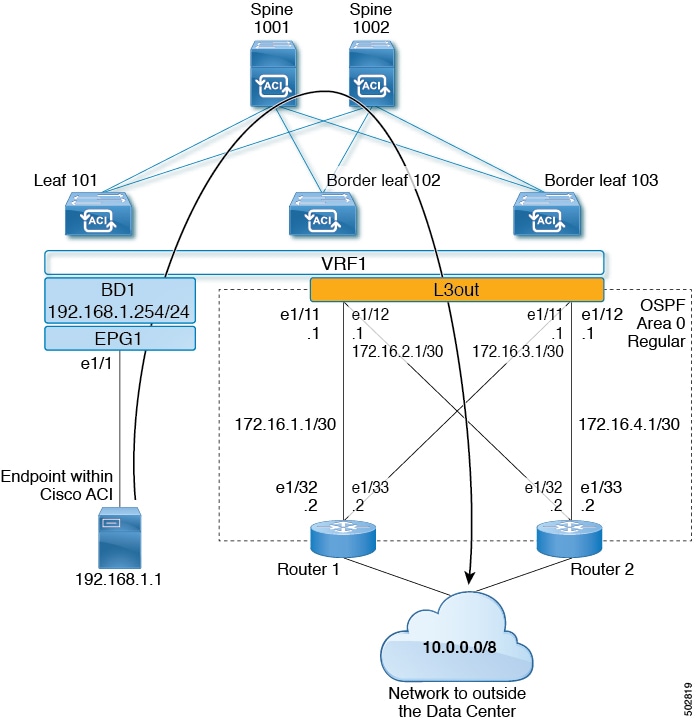
Figure 1. Example Topology for an OSPF L3Out with Two External Routers

This basic L3Out example shows you how to:

  • Configure an L3Out with the following specifications

    • with Area 0 OSPF

    • with two external routers

    • with routed interfaces

    • on two border leaf switches

  • Advertise a BD subnet using default route-map (default-export)

  • Allow communication with a contract between EPG1 and external route (10.0.0.0/8)

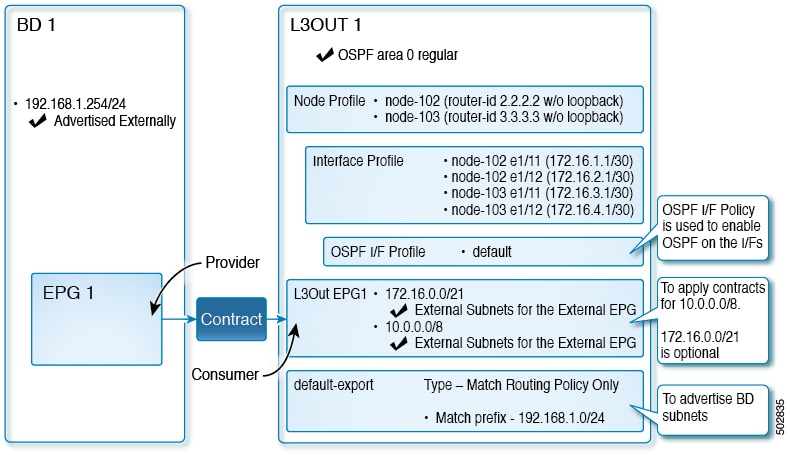
Figure 2. OSPF Configuration Diagram

The preceding diagram illustrates the configuration for the example topology in Example Topology for an OSPF L3Out with Two External Routers. The configuration flow for this example is as follows:

  1. L3Out: This creates

    • L3Out itself (OSPF parameters)

    • Node, Interface, OSPF I/F Profiles

    • L3Out EPG with External Subnets for the External EPG scope

  2. Advertise a BD subnet: This uses

    • default-export route-map

    • BD subnet with Advertise Externally scope

  3. Allow EPG - L3Out communication: This uses a contract between EPG1 and L3Out EPG1

Prerequisites

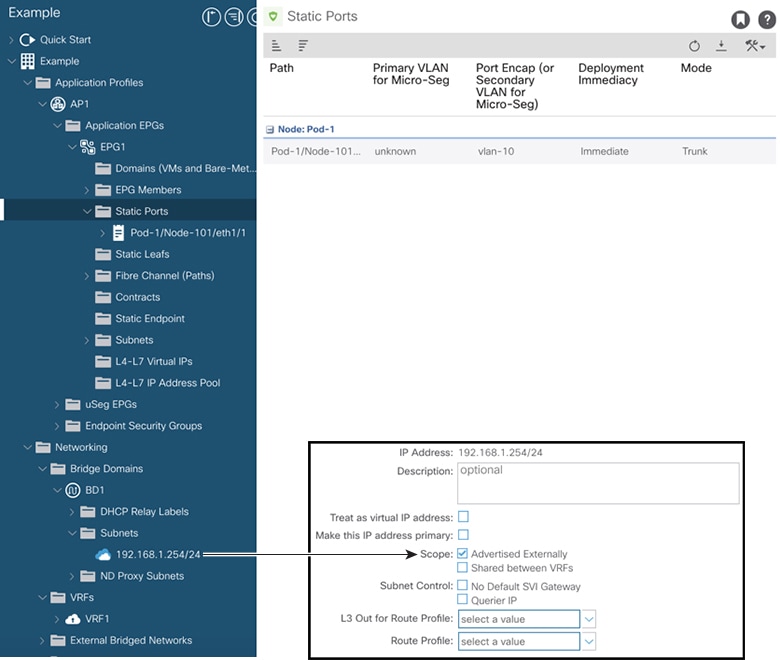
Figure 3. Example Screen of Objects Created as Prerequisites
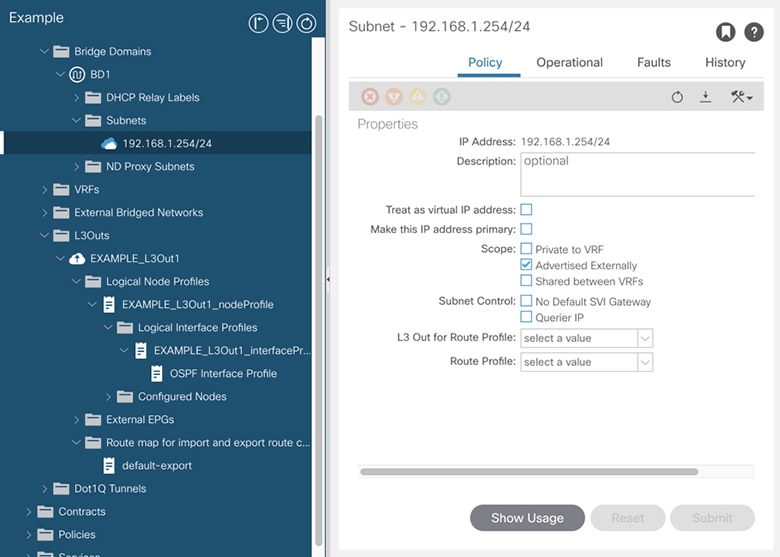
  • This configuration example focuses only on the L3Out configuration part. The other configurations such as for VRF, BD, EPG, Application Profiles, and Access Policies (Layer 3 Domain etc.) are not covered. The preceding screenshot displays the prerequisite tenant configurations that are as follows:

    • VRF1

    • BD1 with the subnet 192.168.1.254/24

    • EPG1 with a static port towards endpoints

See Completed Configurations in XML for REST API for a complete configuration example that includes VRF, BD, EPG, Application Profiles, and Access Policies on top of the L3Out configuration.

Create L3Out Using the Create L3Out Wizard

This task creates the OSPF L3Out described in Example Topology. Following this task, Cisco ACI will be configured with two border leaf switches and OSPF neighborship with two external routers as shown in Example Topology for an OSPF L3Out with Two External Routers.

Procedure


Step 1

In the GUI Navigation pane, under the Tenant Example, navigate to Networking > L3Outs.

Step 2

Right-click and choose Create L3Out.

Step 3

In the Create L3Out screen, Identity tab, perform the following actions:
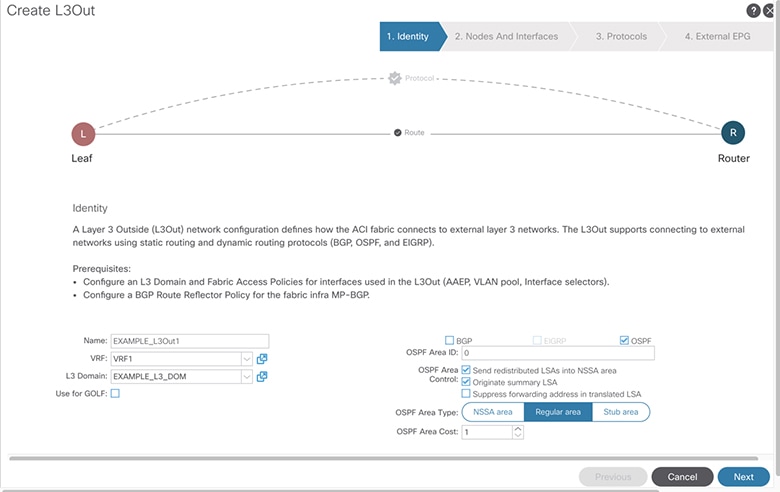
  1. In the Name field, enter the name for an L3Out. (EXAMPLE_L3Out1)

  2. In the VRF field and the L3 Domain field, choose the appropriate values. (VRF1, EXAMPLE_L3DOM)

  3. In the OSPF field, check the checkbox.

  4. In the OSPF Area ID field, choose the value 0 or the text backbone.

  5. In the OSPF Area Type field, choose Regular area.

  6. Keep the rest of the fields with their default values.

Step 4

Click Next to display the Nodes and Interfaces screen, and perform the following actions:
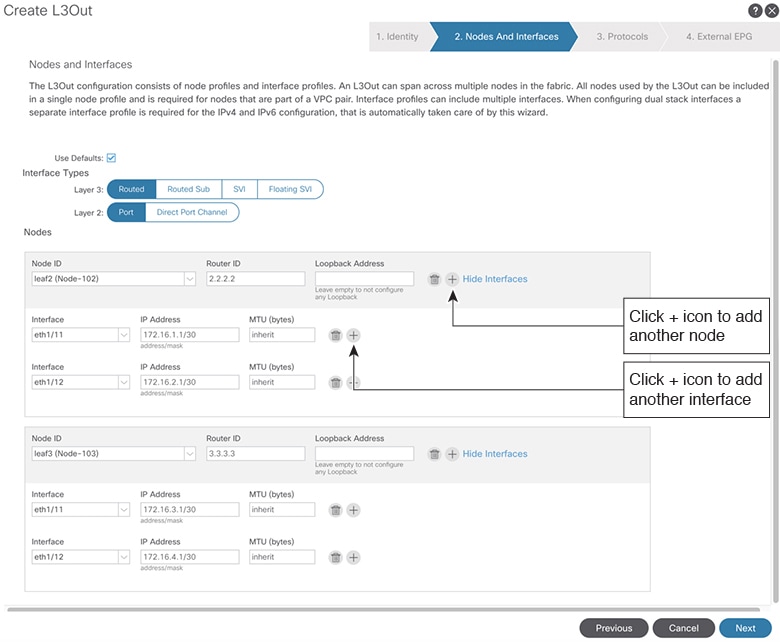
  1. In the Interface Types area, in the Layer 3 field and in the Layer 2 field, ensure that your selections match the choices in the preceding screenshot (Routed and Port).

  2. In the Nodes area, in the Node ID field, from the drop-down list, choose the appropriate node ID. (leaf2 (Node 102))

  3. In the Router ID field, enter the appropriate router ID. (2.2.2.2)

    The Loopback Address field auto populates based on the router ID value you enter. You do not require the loopback address, so delete the value and leave the field blank.

  4. In the Interface field, choose the interface ID. (eth1/11)

  5. In the IP Address field, enter the associated IP address. (172.16.1.1/30)

  6. In the MTU field, keep the default value. (inherit)

  7. Click the + icon next to the MTU field to add an additional interface for node leaf2. (Node-102)

  8. In the Interface field, choose the interface ID. (eth1/12)

  9. In the IP Address field, enter the associated IP address. (172.16.2.1/30)

  10. In the MTU field, keep the default value. (inherit)

Step 5

To add another node, click the + icon next to the Loopback Address field, and perform the following actions:

Note 

When you click the + icon, the new Nodes area is displayed below the area that you had populated earlier.

  1. In the Nodes area, in the Node ID field, from the drop-down list, choose the node ID. (leaf3 (Node-103))

  2. In the Router ID field, enter the router ID. (3.3.3.3)

    The Loopback Address field auto populates based on the router ID value you enter. You do not require the loopback address, so delete the value and leave the field blank.

  3. In the Interface field, choose the interface ID. (eth1/11)

  4. In the IP Address field, enter the IP address. (172.16.3.1/30)

  5. In the MTU field, keep the default value. (inherit)

  6. Click the + icon next to the MTU field to add an additional interface for node leaf3. (Node-103)

  7. In the Interface field, choose the interface ID. (eth1/12)

  8. In the IP Address field, enter the associated IP address. (172.16.4.1/30)

  9. In the MTU field, keep the default value. (inherit), and click Next.

    We have specified the node, interface, and IP address for each interface.
Step 6

Click Next to view the Protocols screen.

This screen allows you to specify the OSPF interface level policy to configure hello-interval, network-type, etc.
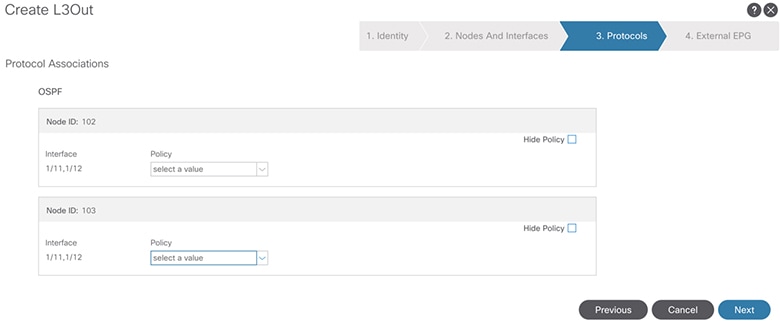
In this example, nothing is selected. Therefore, the default policy is used. The default OSPF interface profile uses Unspecified as network-type which defaults to broadcast network type. To optimize this with point-to-point network-type for sub-interface, see Change the OSPF Interface Level Parameters (Optional).

Step 7

Click Next.

The External EPG screen is displayed with L3Out EPG details. This configuration is to classify the traffic into the EPG to apply to the contract.
Step 8

In the External EPG screen, perform the following actions:
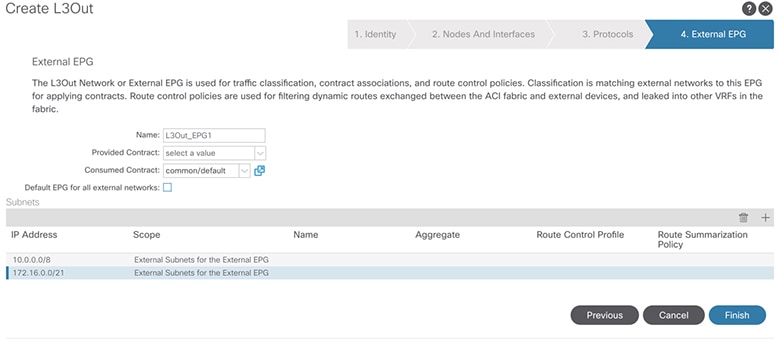
  1. In the External EPG area, Name field, enter a name for the external EPG. (L3Out_EPG1)

  2. In the Provided Contract field, do not choose a value.

    In this example, there is no provided contract for L3Out_EPG1 because a normal EPG (EPG1) is the provider.

  3. In the Consumed Contract field, choose default from the drop-down list.

Step 9

In the Default EPG for all external networks field, uncheck the checkbox, and perform the following actions:

  1. Click the + icon in the Subnets area, to display the Create Subnet dialog box.

  2. In the IP Address field, enter the subnet. (10.0.0.0/8)

  3. In the External EPG Classification field, check the checkbox for External Subnets for the External EPG. Click OK.

Step 10

Click the + icon in the Subnets area once more to display the Create Subnet dialog box, and perform the following actions:

Note 

Although this is an optional configuration, it is a best practice to specify the L3Out interface subnets in case endpoints have to communicate with those IPs.

  1. In the IP Address field, enter the subnet. (172.16.0.0/21)

    This subnet covers all the interfaces in the L3Out. This can be each individual subnet for each routed interface instead.

  2. In the External EPG Classification field, check the checkbox for External Subnets for the External EPG. Click OK.

  3. Click Finish.


The L3Out OSPF is now deployed.

Review - Create L3Out Using the Create L3Out Wizard

Review how the configuration using the wizard is presented in the Cisco APIC GUI, and verify that the configurations are accurate.

Procedure


Step 1

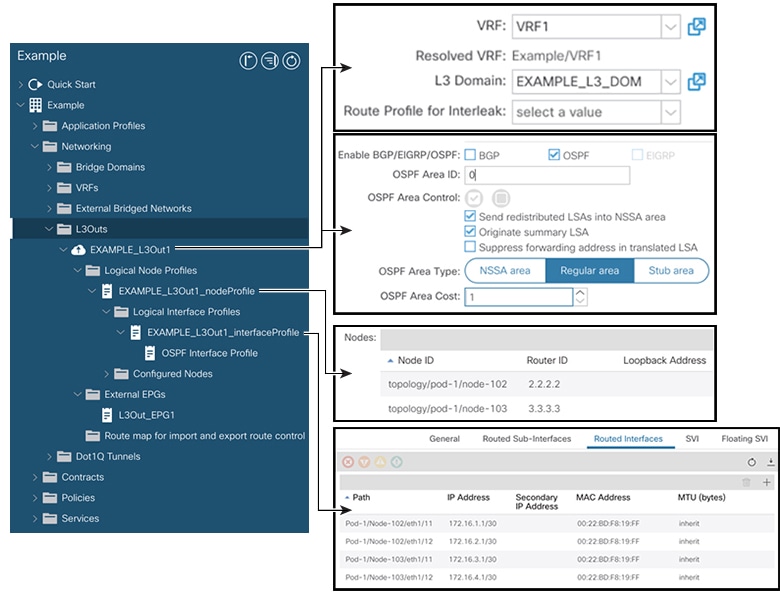
Navigate to your Tenant_name > Networking > L3Outs > EXAMPLE_L3Out1, in the Work pane, scroll to view the details as follows:

At this location in the GUI, verify the main L3Out parameters such as VRF, domain, and OSPF parameters that are configured in the Identity screen in the Create L3Out wizard.

Step 2

Verify that OSPF is enabled with the specified parameters such as Area ID and Area Type.

Step 3

Under Logical Node Profiles, EXAMPLE_L3Out1_nodeProfile is created to specify border leaf switches with their router IDs.

Step 4

Under Logical Interface Profile, EXAMPLE_L3Out1_interfaceProfile is created.

Verify the interface parameters such as interface ID, IP addresses, in this example, as routed interfaces. The default MAC addresses gets auto populated. OSPF interface profile is also created under this for OSPF interface level parameters.


The review is complete.

Configure Advertise the BD Subnet with a Route Map

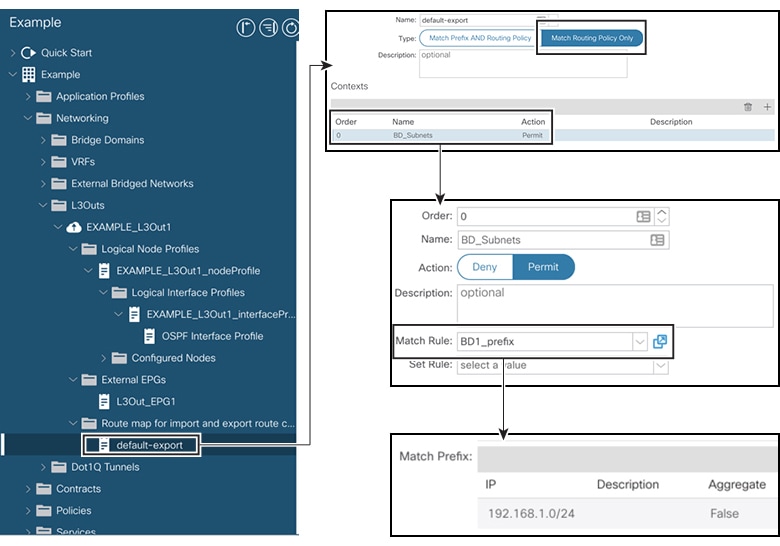
In this example, a route map, default-export, is used with the IP prefix list to advertise the BD subnet.


Note

This default-export route map will be applied to the L3Out (EXAMPLE_L3Out1) without being associated to anything specific.


Procedure


Step 1

To enable a BD subnet to be advertised, navigate to Tenant > Networks > Bridge Domains > BD1 > Subnets > 192.168.1.254/24, and select Advertised Externally scope.

Step 2

To create a route map under your L3Out (EXAMPLE_L3Out1), navigate to Route map for import and export route control.

Step 3

Right-click and choose Create Route map for import and export route control.

Step 4

In the Create Route map for import and export route control dialog box, in the Name field, choose default-export.

Step 5

In the Type field, choose Matching Route Policy Only.

Note 

Match Routing Policy Only: By choosing this Type with default-export route map, all route advertisement configuration is performed by this route map. BD associations and export route control subnets configured under the external EPG will not apply. You should configure all match rules within this route-map for all routes that will be advertised from this L3Out.

Match Prefix and Routing Policy: By choosing this Type with default-export route map, route advertisement is matched by any match rules configured in this route map in addition to any BD to L3Out associations and export route control subnets defined under the External EPG.

When using a route profile, it is recommended to use Match Routing Policy Only for a simpler configuration that is easier to maintain.

Step 6

In the Contexts area, click the + icon, to display the Create Route Control Context dialog box, and perform the following actions:

  1. In the Order field, configure the order. (0)

    In this example, we have only one order.

  2. In the Name field, enter a name for the context. (BD_Subnets)

  3. In the Action field, choose Permit.

    This enables the route map to permit the prefix we will configure.

In this example, we require the match rule that requires the IP prefix list, BD1_prefix. This IP prefix list points to the BD subnet advertised.

Step 7

In the Match Rule field, create the IP prefix-list by performing the following actions;

  1. Choose Create Match Rule for a Route-Map.

  2. In the Name field, enter a name BD1_prefix.

  3. In the Match Prefix area, click the + icon, and enter the BD subnet (192.168.1.0/24).


Verify the Contract

In this task, you verify the contract to enable communication between an endpoint (192.168.1.1) and external prefixes (10.0.0.0/8, and optionally 172.16.0.0/21). In this example, the EPG for the endpoint is EPG1 and the external EPG for external prefixes is L3Out_EPG1.

The required configuration should already be present from the Create L3Out wizard.

Procedure


Step 1

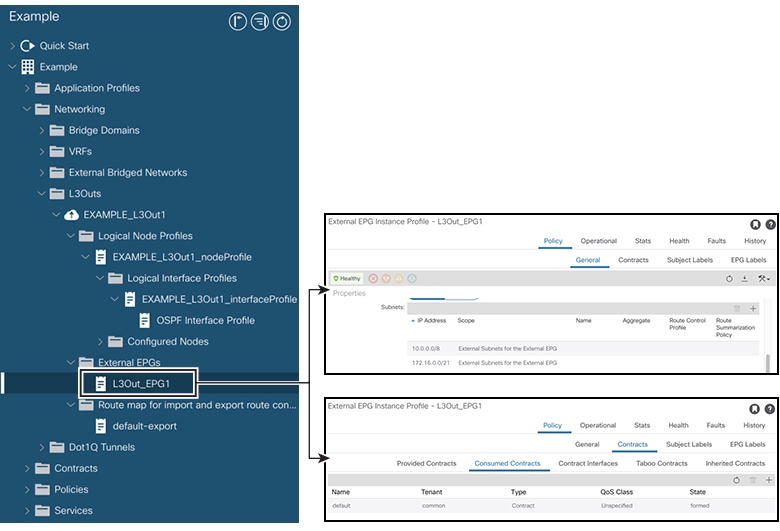
Under your L3Out, navigate to External EPGs > L3Out_EPG1.

Step 2

In the Work pane, in the External EPG Instance Profile area, under Policy > General sub-tab, look at the Properties and verify that the two subnets are displayed with External Subnets for the External EPG.

Step 3

Next, click the Contracts sub-tab and verify the contract you specified earlier is consumed correctly. In case you want to add more contracts, you can perform the actions from this location in GUI.

Step 4

Navigate to Application Profile > Application EPGs > EPG1 > Contracts, and verify that EPG1 is providing the appropriate contract.


Change the OSPF Interface Level Parameters (Optional)

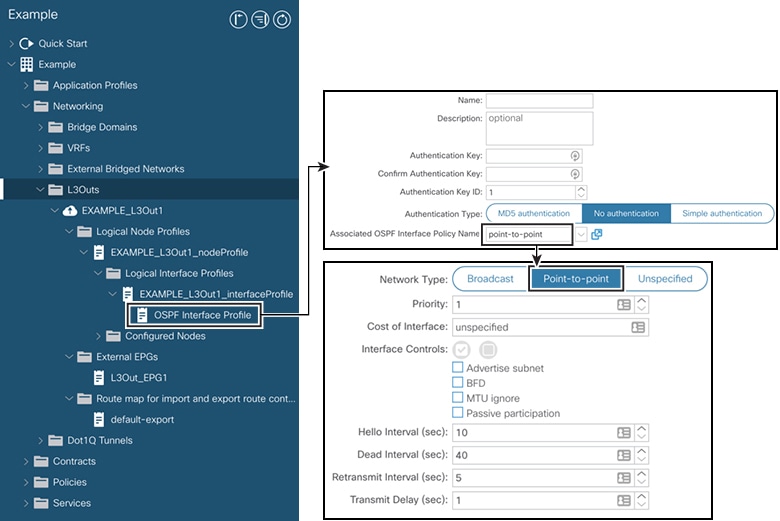
If you wish to change the OSPF interface-level parameters, such as Hello Interval, OSPF network type, then you can configure it in the OSPF Interface Profile. The node level OSPF parameters are already configured.

Procedure


Step 1

Under your L3Out, navigate to Logical Interface Profile > EXAMPLE_L3Out1_interfaceProfile > OSPF Interface Profile.

Step 2

In the Work pane, in the Properties area, choose the OSPF Interface Policy you wish to use.


This modifies your OSPF interface level parameters.