Upgrading Cisco Tetration

Supported Upgrade Paths for Cisco Tetration

The following table provides the supported upgrade paths for Cisco Tetration. You must upgrade in the specified order; you cannot skip any releases, unless otherwise specified.


Important

If you are upgrading on M4 hardware to a release older than 3.5.1.23 or 3.4.1.35, you may need to take extra steps. For details, see https://www.cisco.com/c/en/us/support/docs/field-notices/721/fn72199.html.


Table 1. Supported Upgrade Paths for Cisco Tetration
From To

3.5.1.x

3.6 or later:

See the Cisco Secure Workload Upgrade Guide, available from https://www.cisco.com/c/en/us/support/security/tetration-analytics-g1/model.html.

3.5.1.17

3.5.1.20, 3.5.1.23, 3.5.1.30, 3.5.1.31, or 3.5.1.37

3.5.1.1

3.5.1.2

3.5.1.17

3.4.1.x

3.5.1.17

3.4.1.x

3.4.1.6, 3.4.1.20, 3.4.1.28, 3.4.1.34, 3.4.1.35, or 3.4.1.40

3.3.2.x

3.4.1.1

3.3.2.x

3.3.2.5, 3.3.2.12, 3.3.2.16, 3.3.2.23, 3.3.2.28, 3.3.2.33, 3.3.2.35, 3.3.2.42, 3.3.2.50, or 3.3.2.53

3.2.1.x

3.3.2.2

3.2.1.28

3.2.1.31

3.2.1.20

3.2.1.28, 3.2.1.31, or 3.2.1.32

3.1.1.x

3.3.2.2

3.1.1.67 3.1.1.70
3.1.1.65 3.1.1.67 or 3.1.1.70
3.1.1.61 3.1.1.65, 3.1.1.67, or 3.1.1.70
3.1.1.59 3.1.1.61, 3.1.1.65, 3.1.1.67, or 3.1.1.70
3.1.1.55 3.1.1.59, 3.1.1.61, 3.1.1.65, 3.1.1.67, or 3.1.1.70
3.1.1.54 3.1.1.55, 3.1.1.59, 3.1.1.61, 3.1.1.65, 3.1.1.67, or 3.1.1.70
3.1.1.53 3.1.1.54, 3.1.1.55, 3.1.1.59, 3.1.1.61, 3.1.1.65, 3.1.1.67, or 3.1.1.70
2.3.1.x

3.1.1.53

Upgrading Cisco Tetration to Release 3.5.1.37

You can upgrade to the 3.5.1.37 release from release 3.5.1.17 or later.

Before you begin


Caution

Do not upgrade if any nodes are currently in a decommissioned state or any services are unhealthy. Contact the Cisco Technical Assistance Center to remediate any issues before continuing.


Procedure


Step 1

In the Cisco Tetration web interface, from the menu at the left side of the window, click Maintenance > Upgrade.

Step 2

Follow the instructions you see.

Address any issues found by the pre-check before continuing.

Ensure that Patch Upgrade is selected. (This is a patch upgrade.)

Step 3

Look for an email message with the following subject:

[Tetration][<cluster_name>] Patch Upgrade Initiation Link

This message includes a hyperlink that you must use to perform the upgrade.

Step 4

In the email message, click the Patch Upgrade <Cluster> link to open the Tetration Setup user interface.

Step 5

Click Choose File.

Step 6

Navigate to the patch RPM that you downloaded above, select it, and click Open.

Step 7

Click Upload.

Uploading the RPM will initiate the upgrade.

During this process, you will temporarily lose connectivity to the setup user interface.

Step 8

Wait for a few minutes to regain access to the web interface and view upgrade results.

If there is a problem with the upgrade, a red banner appears. Click the book image to view logs.

Step 9

If the upgrade was successful, click Disable Patch Upgrade Link.

Step 10

To verify the upgrade perform the following steps:

  1. Choose Maintenance > Explore.

  2. In the action drop-down list, choose POST.

  3. In the host field, enter orchestrator.service.consul.

  4. In the command field, enter ls?args=-l /local/binaries/patch-3.5.1.37.done.

  5. Leave the body field empty.

  6. Click Send.

    The response will be similar to the following:

    -rw-r--r--. 1 root root 0 Jan 14 17:21 local/binaries/patch-3.5.1.37.done

Upgrading Cisco Tetration to Release 3.5.1.31

You can upgrade to the 3.5.1.31 release from release 3.5.1.17 or later.

Before you begin


Caution

Do not upgrade if any nodes are currently in a decommissioned state or any services are unhealthy. Contact the Cisco Technical Assistance Center to remediate any issues before continuing.


Procedure


Step 1

In the Cisco Tetration web interface, from the menu at the left side of the window, click Maintenance > Upgrade.

Step 2

Follow the instructions you see.

Address any issues found by the pre-check before continuing.

Ensure that Patch Upgrade is selected. (This is a patch upgrade.)

Step 3

Look for an email message with the following subject:

[Tetration][<cluster_name>] Patch Upgrade Initiation Link

This message includes a hyperlink that you must use to perform the upgrade.

Step 4

In the email message, click the Patch Upgrade <Cluster> link to open the Tetration Setup user interface.

Step 5

Click Choose File.

Step 6

Navigate to the patch RPM that you downloaded above, select it, and click Open.

Step 7

Click Upload.

Uploading the RPM will initiate the upgrade.

During this process, you will temporarily lose connectivity to the setup user interface.

Step 8

Wait for a few minutes to regain access to the web interface and view upgrade results.

If there is a problem with the upgrade, a red banner appears. Click the book image to view logs.

Step 9

If the upgrade was successful, click Disable Patch Upgrade Link.

Step 10

To verify the upgrade perform the following steps:

  1. Choose Maintenance > Explore.

  2. In the action drop-down list, choose POST.

  3. In the host field, enter orchestrator.service.consul.

  4. In the command field, enter ls?args=-l /local/binaries/patch-3.5.1.31.done.

  5. Leave the body field empty.

  6. Click Send.

    The response will be similar to the following:

    -rw-r--r--. 1 root root 0 July 14 17:21 local/binaries/patch-3.5.1.31.done

Upgrading Cisco Tetration to Release 3.5.1.30

You can upgrade to the 3.5.1.30 release from release 3.5.1.17 or later.

Before you begin


Caution

Do not upgrade if any nodes are currently in a decommissioned state or any services are unhealthy. Contact the Cisco Technical Assistance Center to remediate any issues before continuing.


Procedure


Step 1

In the Cisco Tetration web interface, from the menu at the left side of the window, click Maintenance > Upgrade.

Step 2

Follow the instructions you see.

Address any issues found by the pre-check before continuing.

Ensure that Patch Upgrade is selected. (This is a patch upgrade.)

Step 3

Look for an email message with the following subject:

[Tetration][<cluster_name>] Patch Upgrade Initiation Link

This message includes a hyperlink that you must use to perform the upgrade.

Step 4

In the email message, click the Patch Upgrade <Cluster> link to open the Tetration Setup user interface.

Step 5

Click Choose File.

Step 6

Navigate to the patch RPM that you downloaded above, select it, and click Open.

Step 7

Click Upload.

Uploading the RPM will initiate the upgrade.

During this process, you will temporarily lose connectivity to the setup user interface.

Step 8

Wait for a few minutes to regain access to the web interface and view upgrade results.

If there is a problem with the upgrade, a red banner appears. Click the book image to view logs.

Step 9

If the upgrade was successful, click Disable Patch Upgrade Link.

Step 10

To verify the upgrade perform the following steps:

  1. Choose Maintenance > Explore.

  2. In the action drop-down list, choose POST.

  3. In the host field, enter orchestrator.service.consul.

  4. In the command field, enter ls?args=-l /local/binaries/patch-3.5.1.30.done.

  5. Leave the body field empty.

  6. Click Send.

    The response will be similar to the following:

    -rw-r--r--. 1 root root 0 July 14 17:21 local/binaries/patch-3.5.1.30.done

Upgrading Cisco Tetration to Release 3.5.1.23

You can upgrade to the 3.5.1.23 release from release 3.5.1.17 or later.


Caution

Do not upgrade if any nodes are currently in a decommissioned state or any services are unhealthy. Contact the Cisco Technical Assistance Center to remediate any issues before continuing.


You must perform the following procedure as a user with Customer Support privileges.

Before you begin

Procedure


Step 1

In the Cisco Tetration web interface, from the menu at the left side of the window, click Maintenance > Upgrade.

Step 2

Follow the instructions you see. (This is a patch upgrade.)

A user who logged in with the site administrator or customer support role will receive an email with a hyperlink that you must use to perform the upgrade. The emailʼs subject is:

[Tetration][<cluster_name>] Patch Upgrade Initiation Link

The link is titled “Patch Upgrade Cluster.”

Step 3

In the email, click the upgrade link to open the Tetration Setup user interface.

Step 4

Click Choose File.

Step 5

Navigate to the patch RPM, select it, and click Open.

Step 6

Click Upload.

A message displaying “PASSED” will appear if the upload is successful. If instead you see a message that the pipeline restart timed out, upload the RPM again until the upload succeeds.

The orchestrator reboots as a part of this upload, which causes you to lose connectivity to the setup user interface. Wait for a few minutes to regain access to the user interface.

Caution 

You do not need to initiate a full upgrade to upgrade to release 3.5.1.23. Uploading the RPM will initiate the upgrade. Ensure that you do not click Continue after the upload page and initiate an upgrade.

Step 7

In the Cisco Tetration web interface, click Disable Patch Upgrade Link.

Step 8

To verify the upgrade perform the following steps:

  1. Choose Maintenance > Explore.

  2. In the action drop-down list, choose POST.

  3. In the host field, enter orchestrator.service.consul.

  4. In the command field, enter ls?args=-l /local/binaries/patch-3.5.1.23.done.

  5. Leave the body field empty.

  6. Click Send.

    The response will be similar to the following:

    -rw-r--r--. 1 root root 0 July 14 17:21 local/binaries/patch-3.5.1.23.done

Upgrading Cisco Tetration to Release 3.5.1.20

You can upgrade to the 3.5.1.20 release from the 3.5.1.17 release.


Caution

Do not upgrade if any nodes are currently in a decommissioned state or any services are unhealthy. Contact the Cisco Technical Assistance Center to remediate any issues before continuing.


You must perform the following procedure as a user with Customer Support privileges.

Before you begin

Procedure


Step 1

In the Cisco Tetration web interface, from the menu at the left side of the window, click Maintenance > Upgrade.

Step 2

Follow the instructions you see. (This is a patch upgrade.)

A user who logged in with the site administrator or customer support role will receive an email with a hyperlink that you must use to perform the upgrade. The emailʼs subject is:

[Tetration][<cluster_name>] Patch Upgrade Initiation Link

The link is titled “Patch Upgrade Cluster.”

Step 3

In the email, click the upgrade link to open the Tetration Setup user interface.

Step 4

Click Choose File.

Step 5

Navigate to the patch RPM, select it, and click Open.

Step 6

Click Upload.

A message displaying “PASSED” will appear if the upload is successful. If instead you see a message that the pipeline restart timed out, upload the RPM again until the upload succeeds.

The orchestrator reboots as a part of this upload, which causes you to lose connectivity to the setup user interface. Wait for a few minutes to regain access to the user interface.

Caution 

You do not need to initiate a full upgrade to upgrade to release 3.5.1.20. Uploading the RPM will initiate the upgrade. Ensure that you do not click Continue after the upload page and initiate an upgrade.

Step 7

In the Cisco Tetration web interface, click Disable Patch Upgrade Link.

Step 8

To verify the upgrade perform the following steps:

  1. Choose Maintenance > Explore.

  2. In the action drop-down list, choose POST.

  3. In the host field, enter orchestrator.service.consul.

  4. In the command field, enter ls?args=-l /local/binaries/patch-3.5.1.20.done.

  5. Leave the body field empty.

  6. Click Send.

    The response will be similar to the following:

    -rw-r--r--. 1 root root 0 July 14 17:21 local/binaries/patch-3.5.1.20.done

Upgrading Cisco Tetration to Release 3.5.1.17

You can upgrade to the 3.5.1.17 release from any 3.4.1.x release, but it is recommended to upgrade to the latest 3.4.1.x patch release before upgrading to 3.5.1.17.

You can also upgrade to release 3.5.1.17 from 3.5.1.1 or 3.5.1.2.


Caution

Do not upgrade if any nodes are currently in a decommissioned state or any services are unhealthy. Contact the Cisco Technical Assistance Center (TAC) to remediate any issues before continuing.


Important change to this release

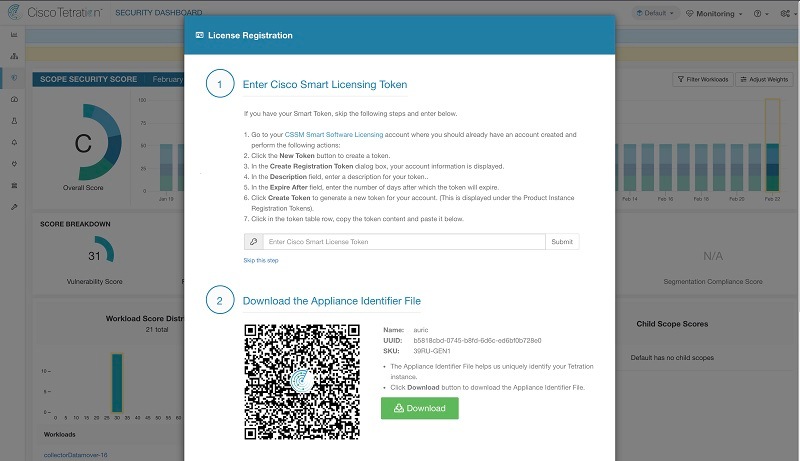
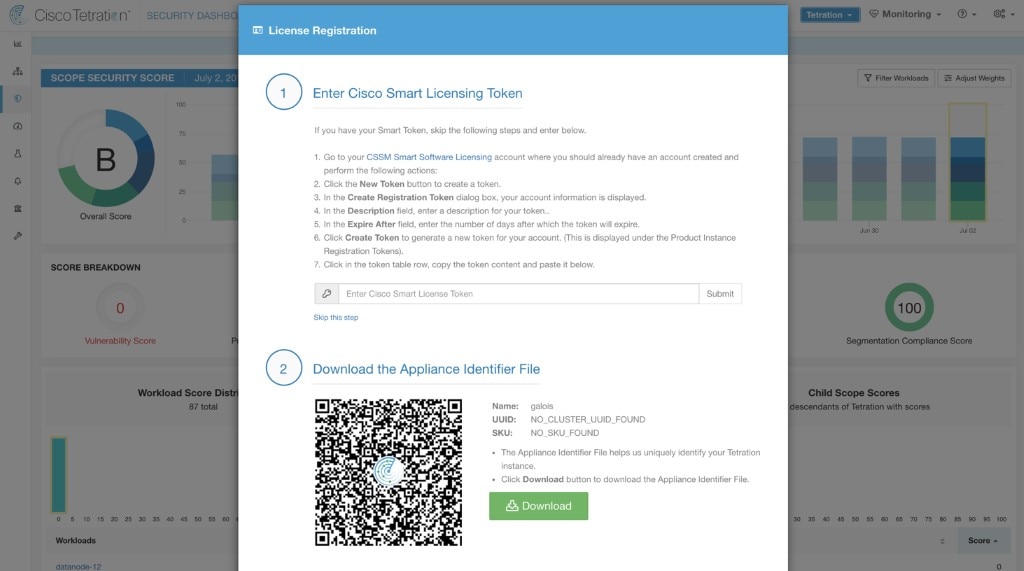
It is mandatory to register all on-premises Tetration clusters (8ru, 39ru and virtual). When you deploy or upgrade Tetration software to this release on any on-premises appliance, you will enter a 90-day evaluation period by default and you must register the cluster with Cisco within this period. Otherwise, your appliance will be considered out-of-compliance.


Note

Cisco Tetration features are not blocked due to out-of-compliance or over-use.


Prerequisites for successful registration

  • Cisco Smart Account – Required for creating the registration token

  • Active Cisco Tetration on-premises software subscription

When you receive the registration token:

  1. Copy and paste the token into the Smart License Token text field in the License Registration window, and then click the Submit button next to the text field.

  2. Click the Download button to download the cluster-identify file to local storage.

    The file-name format for the identify file is: reg_id_<cluster_name>_<cluster_uuid>.gz

    This file contains base64-encoded json data.

  3. Email this identity file to mailto:ta-entitlement@cisco.com.

    A response that contains the license key file will be sent to the same email address from which the identity file was received.

This registration interface will be available to site administration users:

Registration interface

After the license key file is applied on the cluster, the appliance state may be either in-compliance or over-use.

Before you begin

  • The RPMs that you must download from Cisco.com depend on your deployment.

    • For an 8-RU or 39-RU system, download the following RPMs:

      • tetration_os_UcsFirmware_k9-3.5.1.17.rpm

      • tetration_os_base_rpm_k9-3.5.1.17-1.el7.x86_64.rpm

      • tetration_os_adhoc_k9-3.5.1.17-1.el6.x86_64.rpm

      • tetration_os_mother_rpm_k9-3.5.1.17-1.el6.x86_64.rpm

      • tetration_os_rpminstall_k9-3.5.1.17-1.noarch.rpm

      • tetration_os_enforcement_k9-3.5.1.17-1.el6.x86_64.rpm

    • For a virtual system, download the following RPMs:

      • tetration_os_ova_k9-3.5.1.17-1.el7.x86_64.rpm

      • tetration_os_adhoc_k9-3.5.1.17-1.el6.x86_64.rpm

      • tetration_os_mother_rpm_k9-3.5.1.17-1.el6.x86_64.rpm

      • tetration_os_rpminstall_k9-3.5.1.17-1.noarch.rpm

      • tetration_os_enforcement_k9-3.5.1.17-1.el6.x86_64.rpm

  • Check to ensure the MD5 of each RPM download matches the MD5 in CCO.

  • Ensure that a “Customer Support” level account has an SSH key uploaded for troubleshooting purposes.

  • This upgrade does NOT require any new public routable IPs.

  • You must perform the procedure in this topic as a user with Customer Support privileges.

  • Google Chrome is the only supported browser for the Tetration Setup GUI (user interface), which is required for part of this procedure.

Procedure


Step 1

In the Cisco Tetration GUI, click the settings button and choose Maintenance.

Step 2

In the left pane, click Service Status.

Step 3

Look for red circles in the graph, which indicate unhealthy services. You cannot perform the upgrade if any services are unhealthy.

If any services are unhealthy, perform any necessary fixes to make the services healthy before you proceed with the upgrade.

Step 4

(Optional) To double-check that all services are healthy, click the list button at the top of the graph to switch to a tabular view of the status of each service.

  1. Click Expand All.

  2. Scroll down the page and ensure that all services are healthy.

    If any services are unhealthy, perform any necessary fixes to make the services healthy before you proceed with the upgrade.

Step 5

In the navigation pane, click Upgrade.

Step 6

Click Send Upgrade Link.

A user who logged in with the site administrator or customer support role will receive an email with a hyperlink that must be used to perform the upgrade. The emailʼs subject is as follows:

[Tetration Analytics] Upgrade Initiation Link

Optionally, you can fetch the upgrade URL from the Explore page by using the following API call:

  • Snapshot Action:POST

  • Snapshot Host:orchestrator.service.consul

  • Snapshot Path:upgrade_url

Step 7

Open the email and copy the link.

The link is titled Upgrade Cluster.

Step 8

Open a new Google Chrome browser tab, paste the link into the address field, and then press Enter.

This opens the Tetration Setup GUI, which is supported only with the Google Chrome browser.

Step 9

In the Tetration Setup GUI, you must upload the RPMs in a specific order, depending on your setup.

If you are deploying or upgrading a new Cisco Tetration Analytics cluster on 3.5.1.17, upload the RPMs in the following order.

For an 8-RU or 39-RU system, upload the following files in the given order:

  1. tetration_os_rpminstall_k9-3.5.1.17-1.noarch.rpm

  2. tetration_os_UcsFirmware_k9-3.5.1.17.rpm

  3. tetration_os_adhoc_k9-3.5.1.17-1.el6.x86_64.rpm

  4. tetration_os_mother_rpm_k9-3.5.1.17-1.el6.x86_64.rpm

  5. tetration_os_enforcement_k9-3.5.1.17-1.el6.x86_64.rpm

  6. tetration_os_base_rpm_k9-3.5.1.17-1.el7.x86_64.rpm

For a virtual system, upload the following files in the given order:

  1. tetration_os_rpminstall_k9-3.5.1.17-1.noarch.rpm

  2. tetration_os_adhoc_k9-3.5.1.17-1.el6.x86_64.rpm

  3. tetration_os_mother_rpm_k9-3.5.1.17-1.el6.x86_64.rpm

  4. tetration_os_enforcement_k9-3.5.1.17-1.el6.x86_64.rpm

  5. tetration_os_ova_k9-3.5.1.17-1.el7.x86_64.rpm

To upload each RPM, perform the following substeps

  1. Click Choose File.

  2. Navigate to an RPM, choose it, and click Open.

  3. Click Upload.

    The list of RPMs on the page does not update as you upload each RPM. This is expected.

    If you see an error after uploading the tetration_os_mother_rpm_k9-3.5.1.17-1.el6.x86_64.rpm file, wait approximately 5 to 10 minutes, then reload the page. You should see the list of uploaded RPMs after reloading the page. The error is due to the orchestrator restarting and is not an issue.

  4. Repeat these substeps for each RPM.

Step 10

Click Continue.

Step 11

If desired, change the SSH public key. Click Next whether you do or not.

Step 12

If desired, change the UI admin email address or the sentinel alert email address. Click Next whether you do or not.

Step 13

Click Next.

You cannot change any of the Layer 3 values.

Step 14

If necessary, change the values for CIMC Internal Network, CIMC Internal Network Gateway, DNS Resolver, and DNS Domain. Click Next whether you do or not.

Do not change the External Network value. If necessary, you can add additional networks at the end of this process. However, do not change or remove the existing network.

Step 15

If desired, change the NTP, SMTP, and syslog values. Click Next whether you do or not.

Do not change the syslog values in the setup UI—any changes to the syslog fields should be managed by the TAN appliance.

Step 16

Enable or disable the Strong SSL Ciphers for Agent Connections and click Next.

Step 17

Click Next.

You cannot change any of the UI values.

Step 18

Click Next.

During the deployment, do not add a remote CA for physical or ESX form factor clusters. This field is not supported in physical nor ESX clusters. During the deployment, you cannot change the fields in the Advanced section.

Step 19

Click Next.

If the cluster is configured to be a standby cluster, the cluster will deploy in standby mode which is reduced functionality only to support warm standby mode.

Step 20

Click Continue.

The upgrade process begins.

The Cisco Tetration Analytics software checks to ensure:

  • The RPM versions are correct

  • The cluster is healthy

  • The site information you provided is valid

  • The switches are configured correctly

  • Info fields are validated

  • NTP pre-sync before deployment starts

  • Name node and secondary name node are not in failed-over state

The checks will take several minutes. After the checks complete, you will receive an email with a subject similar to this:

TETRATION CLUSTER MyCluster: Verify Token

The email contains a token that you need in order to continue the upgrade.

Step 21

Copy the token from the body of the email.

Step 22

In the Tetration setup GUI, paste the token into the Validation Token field.

Do not select the Ignore instance stop failures checkbox, unless specifically instructed to do so by a Cisco employee.

Step 23

Click Continue.

The upgrade installation begins. When the green progress bar reaches 100%, the upgrade is complete. All of the instances will show the “Deployed” status.

Step 24

Verify the upgrade in the Cisco Tetration GUI:

  1. Click the settings button and choose Maintenance.

  2. In the left pane, click Upgrade.

  3. In the Upgrade History section, you should see an upgrade status of “Succeeded.”


Upgrading Cisco Tetration to Release 3.4.1.40

You can upgrade to the 3.4.1.40 release from any 3.4.1.x release.


Caution

Do not upgrade if any nodes are currently in a decommissioned state or any services are unhealthy. Contact the Cisco Technical Assistance Center to remediate any issues before continuing.


You must perform the following procedure as a user with Customer Support privileges.

Before you begin

Procedure


Step 1

In the Cisco Tetration web interface, from the menu at the left side of the window, choose Maintenance > Upgrade.

Step 2

Follow the instructions you see. (This is a patch upgrade.)

A user who logged in with the site administrator or customer support role will receive an email with a hyperlink that you must use to perform the upgrade. The emailʼs subject is:

[Tetration][<cluster_name>] Patch Upgrade Initiation Link

The link is titled, “Patch Upgrade Cluster.”

Step 3

In the email, click the upgrade link to open the Tetration Setup user interface.

Step 4

Click Choose File.

Step 5

Navigate to the patch RPM, select it, and click Open.

Step 6

Click Upload.

A message displaying “PASSED” will appear if the upload is successful. If instead you see a message that the pipeline restart timed out, upload the RPM again until the upload succeeds.

The orchestrator reboots as a part of this upload, which causes you to lose connectivity to the setup user interface. Wait for a few minutes to regain access to the user interface.

Caution 

You do not need to initiate a full upgrade to upgrade to release 3.4.1.40. Uploading the RPM will initiate the upgrade. Ensure that you do not click Continue after the upload page and initiate an upgrade.

Step 7

In the Cisco Tetration web interface, click Disable Patch Upgrade Link.

Step 8

To verify the upgrade perform the following steps:

  1. Choose Maintenance > Explore.

  2. In the action drop-down list, choose POST.

  3. In the host field, enter orchestrator.service.consul.

  4. In the command field, enter ls?args=-l /local/binaries/patch-3.4.1.40.done.

  5. Leave the body field empty.

  6. Click Send.

    The response will be similar to the following:

    -rw-r--r--. 1 root root 0 July 14 17:21 local/binaries/patch-3.4.1.40.done

Upgrading Cisco Tetration to Release 3.4.1.35

You can upgrade to the 3.4.1.35 release from any 3.4.1.x release.


Caution

Do not upgrade if any nodes are currently in a decommissioned state or any services are unhealthy. Contact the Cisco Technical Assistance Center to remediate any issues before continuing.


You must perform the following procedure as a user with Customer Support privileges.

Before you begin

Procedure


Step 1

In the Cisco Tetration web interface, from the menu at the left side of the window, choose Maintenance > Upgrade.

Step 2

Follow the instructions you see. (This is a patch upgrade.)

A user who logged in with the site administrator or customer support role will receive an email with a hyperlink that you must use to perform the upgrade. The emailʼs subject is:

[Tetration][<cluster_name>] Patch Upgrade Initiation Link

The link is titled, “Patch Upgrade Cluster.”

Step 3

In the email, click the upgrade link to open the Tetration Setup user interface.

Step 4

Click Choose File.

Step 5

Navigate to the patch RPM, select it, and click Open.

Step 6

Click Upload.

A message displaying “PASSED” will appear if the upload is successful. If instead you see a message that the pipeline restart timed out, upload the RPM again until the upload succeeds.

The orchestrator reboots as a part of this upload, which causes you to lose connectivity to the setup user interface. Wait for a few minutes to regain access to the user interface.

Caution 

You do not need to initiate a full upgrade to upgrade to release 3.4.1.35. Uploading the RPM will initiate the upgrade. Ensure that you do not click Continue after the upload page and initiate an upgrade.

Step 7

In the Cisco Tetration web interface, click Disable Patch Upgrade Link.

Step 8

To verify the upgrade perform the following steps:

  1. Choose Maintenance > Explore.

  2. In the action drop-down list, choose POST.

  3. In the host field, enter orchestrator.service.consul.

  4. In the command field, enter ls?args=-l /local/binaries/patch-3.4.1.35.done.

  5. Leave the body field empty.

  6. Click Send.

    The response will be similar to the following:

    -rw-r--r--. 1 root root 0 July 14 17:21 local/binaries/patch-3.4.1.35.done

Upgrading Cisco Tetration to the 3.4.1.34 Release

You can upgrade to the 3.4.1.34 release from any 3.4.1.x release.


Caution

Do not upgrade if any nodes are currently in a decommissioned state or any services are unhealthy. Contact the Cisco Technical Assistance Center to remediate any issues before continuing.


You must perform the following procedure as a user with Customer Support privileges.

Before you begin

Procedure


Step 1

In the Cisco Tetration web interface, from the menu at the left side of the window, choose Maintenance > Upgrade.

Step 2

Follow the instructions you see. (This is a patch upgrade.)

A user who logged in with the site administrator or customer support role will receive an email with a hyperlink that you must use to perform the upgrade. The emailʼs subject is:

[Tetration][<cluster_name>] Patch Upgrade Initiation Link

The link is titled, “Patch Upgrade Cluster.”

Step 3

In the email, click the upgrade link to open the Tetration Setup user interface.

Step 4

Click Choose File.

Step 5

Navigate to the patch RPM, select it, and click Open.

Step 6

Click Upload.

A message displaying “PASSED” will appear if the upload is successful. If instead you see a message that the pipeline restart timed out, upload the RPM again until the upload succeeds.

The orchestrator reboots as a part of this upload, which causes you to lose connectivity to the setup user interface. Wait for a few minutes to regain access to the user interface.

Caution 

You do not need to initiate a full upgrade to upgrade to release 3.4.1.34. Uploading the RPM will initiate the upgrade. Ensure that you do not click Continue after the upload page and initiate an upgrade.

Step 7

In the Cisco Tetration web interface, click Disable Patch Upgrade Link.

Step 8

To verify the upgrade perform the following steps:

  1. Choose Maintenance > Explore.

  2. In the action drop-down list, choose POST.

  3. In the host field, enter orchestrator.service.consul.

  4. In the command field, enter ls?args=-l /local/binaries/patch-3.4.1.34.done.

  5. Leave the body field empty.

  6. Click Send.

    The response will be similar to the following:

    -rw-r--r--. 1 root root 0 July 14 17:21 local/binaries/patch-3.4.1.34.done

Upgrading Cisco Tetration to the 3.4.1.28 Release

You can upgrade to the 3.4.1.28 release from any 3.4.1.x release.


Caution

Do not upgrade if any nodes are currently in a decommissioned state or any services are unhealthy. Contact the Cisco Technical Assistance Center to remediate any issues before continuing.


You must perform the following procedure as a user with Customer Support privileges.

Before you begin

Procedure


Step 1

In the Cisco Tetration GUI, click the settings button and choose Maintenance.

Step 2

In the left pane, click Upgrade.

Step 3

Click Send Patch Upgrade Link.

A user who logged in with the site administrator or customer support role will receive an email with a hyperlink that you must use to perform the upgrade. The emailʼs subject is:

[Tetration Analytics] Patch Upgrade Initiation Link

The link is titled, “Patch Upgrade Cluster.”

Step 4

In the email, click the upgrade link to open the Tetration Setup GUI.

Step 5

Click Choose File.

Step 6

Navigate to the patch RPM, select it, and click Open.

Step 7

Click Upload.

A message displaying “PASSED” will appear if the upload is successful. If instead you see a message that the pipeline restart timed out, upload the RPM again until the upload succeeds.

The orchestrator reboots as a part of this upload, which causes you to lose connectivity to the setup GUI. Wait for a few minutes to regain access to the GUI.

Caution 

You do not need to initiate a full upgrade to upgrade to release 3.4.1.28. Uploading the RPM will initiate the upgrade. Ensure that you do not click Continue after the upload page and initiate an upgrade.

Step 8

In the Cisco Tetration GUI, click Disable Patch Upgrade Link.

Step 9

To verify the upgrade perform the following steps:

  1. Click the settings button and choose Maintenance.

  2. In the navigation pane, click Explore.

  3. In the action drop-down list, choose POST.

  4. In the host field, enter orchestrator.service.consul.

  5. In the command field, enter ls?args=-l /local/binaries/patch-3.4.1.28.done.

  6. Leave the body field empty.

  7. Click Send.

    The response will be similar to the following:

    -rw-r--r--. 1 root root 0 July 14 17:21 local/binaries/patch-3.4.1.28.done

Upgrading Cisco Tetration to the 3.4.1.20 Release

You can upgrade to the 3.4.1.20 release from any 3.4.1.x release.


Caution

Do not upgrade if any nodes are currently in a decommissioned state or any services are unhealthy. Contact the Cisco Technical Assistance Center to remediate any issues before continuing.


You must perform the following procedure as a user with Customer Support privileges.

Before you begin

Procedure


Step 1

In the Cisco Tetration GUI, click the settings button and choose Maintenance.

Step 2

In the left pane, click Upgrade.

Step 3

Click Send Patch Upgrade Link.

A user who logged in with the site administrator or customer support role will receive an email with a hyperlink that you must use to perform the upgrade. The emailʼs subject is:

[Tetration Analytics] Patch Upgrade Initiation Link

The link is titled, “Patch Upgrade Cluster.”

Step 4

In the email, click the upgrade link to open the Tetration Setup GUI.

Step 5

Click Choose File.

Step 6

Navigate to the patch RPM, select it, and click Open.

Step 7

Click Upload.

A message displaying “PASSED” will appear if the upload is successful. If instead you see a message that the pipeline restart timed out, upload the RPM again until the upload succeeds.

The orchestrator reboots as a part of this upload, which causes you to lose connectivity to the setup GUI. Wait for a few minutes to regain access to the GUI.

Caution 

You do not need to initiate a full upgrade to upgrade to release 3.4.1.20. Uploading the RPM will initiate the upgrade. Ensure that you do not click Continue after the upload page and initiate an upgrade.

Step 8

In the Cisco Tetration GUI, click Disable Patch Upgrade Link.

Step 9

To verify the upgrade perform the following steps:

  1. Click the settings button and choose Maintenance.

  2. In the navigation pane, click Explore.

  3. In the action drop-down list, choose POST.

  4. In the host field, enter orchestrator.service.consul.

  5. In the command field, enter ls?args=-l /local/binaries/patch-3.4.1.20.done.

  6. Leave the body field empty.

  7. Click Send.

    The response will be similar to the following:

    -rw-r--r--. 1 root root 0 July 14 17:21 local/binaries/patch-3.4.1.20.done

Upgrading Cisco Tetration to the 3.4.1.19 Release (Deferred - do not use)


Note

Cisco Tetration 3.4.1.19, which was briefly available on Cisco.com, is deferred due to a critical software issue. For more information, see CSCvw54456 in the Cisco Bug Search Tool.


You can upgrade to the 3.4.1.19 release from any 3.4.1.x release.


Caution

Do not upgrade if any nodes are currently in a decommissioned state or any services are unhealthy. Contact the Cisco Technical Assistance Center to remediate any issues before continuing.


You must perform the following procedure as a user with Customer Support privileges.

Before you begin

Procedure


Step 1

In the Cisco Tetration GUI, click the settings button and choose Maintenance.

Step 2

In the left pane, click Upgrade.

Step 3

Click Send Patch Upgrade Link.

A user who logged in with the site administrator or customer support role will receive an email with a hyperlink that you must use to perform the upgrade. The emailʼs subject is:

[Tetration Analytics] Patch Upgrade Initiation Link

The link is titled, “Patch Upgrade Cluster.”

Step 4

In the email, click the upgrade link to open the Tetration Setup GUI.

Step 5

Click Choose File.

Step 6

Navigate to the patch RPM, select it, and click Open.

Step 7

Click Upload.

A message displaying “PASSED” will appear if the upload is successful. If instead you see a message that the pipeline restart timed out, upload the RPM again until the upload succeeds.

The orchestrator reboots as a part of this upload, which causes you to lose connectivity to the setup GUI. Wait for a few minutes to regain access to the GUI.

Caution 

You do not need to initiate a full upgrade to upgrade to release 3.4.1.19. Uploading the RPM will initiate the upgrade. Ensure that you do not click Continue after the upload page and initiate an upgrade.

Step 8

In the Cisco Tetration GUI, click Disable Patch Upgrade Link.

Step 9

To verify the upgrade perform the following steps:

  1. Click the settings button and choose Maintenance.

  2. In the navigation pane, click Explore.

  3. In the action drop-down list, choose POST.

  4. In the host field, enter orchestrator.service.consul.

  5. In the command field, enter ls?args=-l /local/binaries/patch-3.4.1.19.done.

  6. Leave the body field empty.

  7. Click Send.

    The response will be similar to the following:

    -rw-r--r--. 1 root root 0 July 14 17:21 local/binaries/patch-3.4.1.19.done

Upgrading Cisco Tetration to the 3.4.1.14 Release (Deferred - do not use)


Note

Cisco Tetration 3.4.1.14, which was briefly available on Cisco.com, is deferred due to a critical software issue. For more information, see CSCvw05529 in the Cisco Bug Search Tool.


You can upgrade to the 3.4.1.14 release from any 3.4.1.x release.


Caution

Do not upgrade if any nodes are currently in a decommissioned state or any services are unhealthy. Contact the Cisco Technical Assistance Center to remediate any issues before continuing.


You must perform the following procedure as a user with Customer Support privileges.

Before you begin

Procedure


Step 1

In the Cisco Tetration GUI, click the settings button and choose Maintenance.

Step 2

In the left pane, click Upgrade.

Step 3

Click Send Patch Upgrade Link.

A user who logged in with the site administrator or customer support role will receive an email with a hyperlink that you must use to perform the upgrade. The emailʼs subject is:

[Tetration Analytics] Patch Upgrade Initiation Link

The link is titled, “Patch Upgrade Cluster.”

Step 4

In the email, click the upgrade link to open the Tetration Setup GUI.

Step 5

Click Choose File.

Step 6

Navigate to the patch RPM, select it, and click Open.

Step 7

Click Upload.

A message displaying “PASSED” will appear if the upload is successful. If instead you see a message that the pipeline restart timed out, upload the RPM again until the upload succeeds.

The orchestrator reboots as a part of this upload, which causes you to lose connectivity to the setup GUI. Wait for a few minutes to regain access to the GUI.

Caution 

You do not need to initiate a full upgrade to upgrade to release 3.4.1.14. Uploading the RPM will initiate the upgrade. Ensure that you do not click Continue after the upload page and initiate an upgrade.

Step 8

In the Cisco Tetration GUI, click Disable Patch Upgrade Link.

Step 9

To verify the upgrade perform the following steps:

  1. Click the settings button and choose Maintenance.

  2. In the navigation pane, click Explore.

  3. In the action drop-down list, choose POST.

  4. In the host field, enter orchestrator.service.consul.

  5. In the command field, enter ls?args=-l /local/binaries/patch-3.4.1.14.done.

  6. Leave the body field empty.

  7. Click Send.

    The response will be similar to the following:

    -rw-r--r--. 1 root root 0 July 14 17:21 local/binaries/patch-3.4.1.14.done

Upgrading Cisco Tetration to the 3.4.1.6 Release

You can upgrade to the 3.4.1.6 release from any 3.4.1.x release.


Caution

Do not upgrade if any nodes are currently in a decommissioned state or any services are unhealthy. Contact the Cisco Technical Assistance Center to remediate any issues before continuing.


You must perform the following procedure as a user with Customer Support privileges.

Before you begin

Procedure


Step 1

In the Cisco Tetration GUI, click the settings button and choose Maintenance.

Step 2

In the left pane, click Upgrade.

Step 3

Click Send Patch Upgrade Link.

A user who logged in with the site administrator or customer support role will receive an email with a hyperlink that you must use to perform the upgrade. The emailʼs subject is:

[Tetration Analytics] Patch Upgrade Initiation Link

The link is titled, “Patch Upgrade Cluster.”

Step 4

In the email, click the upgrade link to open the Tetration Setup GUI.

Step 5

Click Choose File.

Step 6

Navigate to the patch RPM, select it, and click Open.

Step 7

Click Upload.

A message displaying “PASSED” will appear if the upload is successful. If instead you see a message that the pipeline restart timed out, upload the RPM again until the upload succeeds.

The orchestrator reboots as a part of this upload, which causes you to lose connectivity to the setup GUI. Wait for a few minutes to regain access to the GUI.

Caution 

You do not need to initiate a full upgrade to upgrade to release 3.4.1.6. Uploading the RPM will initiate the upgrade. Ensure that you do not click Continue after the upload page and initiate an upgrade.

Step 8

In the Cisco Tetration GUI, click Disable Patch Upgrade Link.

Step 9

To verify the upgrade perform the following steps:

  1. Click the settings button and choose Maintenance.

  2. In the navigation pane, click Explore.

  3. In the action drop-down list, choose POST.

  4. In the host field, enter orchestrator.service.consul.

  5. In the command field, enter ls?args=-l /local/binaries/patch-3.4.1.6.done.

  6. Leave the body field empty.

  7. Click Send.

    The response will be similar to the following:

    -rw-r--r--. 1 root root 0 July 14 17:21 local/binaries/patch-3.4.1.6.done

Upgrading Cisco Tetration from a 3.3.2.x Release to the 3.4.1.1 Release

You can upgrade to the 3.4.1.1 release from any of the 3.3.2.x releases.


Caution

Do not upgrade if any nodes are currently in a decommissioned state or any services are unhealthy. Contact the Cisco Technical Assistance Center to remediate any issues before continuing.


Important change to this release

It is mandatory to register all on-premise Tetration clusters (8-RU, 39-RU and virtual). When you deploy or upgrade Tetration software to this release on any on-premise appliance, you will enter a 90-day evaluation period by default and you must register the cluster with Cisco within this period. Otherwise, your appliance will be considered to be out-of-compliance.


Note

Cisco Tetration features are not blocked due to out-of-compliance or over-use.


Prerequisites for successful registration

  • Cisco Smart Account – Required for creating the registration token

  • Active Cisco Tetration on-premises software subscription

When you receive the registration token:

  1. Copy and paste the token into the Smart License Token text field in the License Registration window, and then click the Submit button next to the text field.

  2. Click the Download button to download the cluster-identify file to local storage.

    The file-name format for the identify file is: reg_id_<cluster_name>_<cluster_uuid>.gz

    This file contains base64-encoded JSON data.

  3. Email this identity file to mailto:ta-entitlement@cisco.com.

    A response that contains the license key file will be sent to the email address from which the identity file was received.

This registration interface will be available to site administration users:

Once the license key file is applied on the cluster, the appliance could be in a state of either in-compliance or over-use.


Note

You must perform the following procedure as a user with Customer Support privileges.


You must perform the following procedure as a user with Customer Support privileges.

Before you begin

The RPMs that you must download from Cisco.com depend on your deployment.

For an 8-RU or 39-RU system, download the following RPMs:

  • tetration_os_UcsFirmware_k9-3.4.1.1.rpm

  • tetration_os_base_rpm_k9-3.4.1.1-1.el7.x86_64.rpm

  • tetration_os_adhoc_k9-3.4.1.1-1.el6.x86_64.rpm

  • tetration_os_mother_rpm_k9-3.4.1.1-1.el6.x86_64.rpm

  • tetration_os_rpminstall_k9-3.4.1.1-1.noarch.rpm

For a virtual system, download the following RPMs:

  • tetration_os_ova _k9-3.4.1.1-1.el7.x86_64.rpm

  • tetration_os_adhoc_k9-3.4.1.1-1.el6.x86_64.rpm

  • tetration_os_mother_rpm_k9-3.4.1.1-1.el6.x86_64.rpm

  • tetration_os_rpminstall_k9-3.4.1.1-1.noarch.rpm

Check to ensure the MD5 of the RPM downloaded matches the MD5 in CCO.

Ensure that a “Customer Support” level account has an SSH key uploaded for troubleshooting purposes. This upgrade does NOT require any new public routable IPs.


Note

On a Tetration virtual appliance, if the error, The following unexpected VM state was found: Expected to find VM "orchestrator-1" running 1 instance, but found 0, is encountered during an upgrade, please be sure that the orchestrator-1 VM is part of the VMware folder in vCenter where the Tetration cluster is installed.


Procedure


Step 1

In the Cisco Tetration interface, click the settings button and choose Maintenance.

Step 2

In the left pane, click Service Status.

Step 3

Look for red circles in the graph, which indicate unhealthy services. You cannot perform the upgrade if any services are unhealthy.

If any services are unhealthy, perform any necessary fixes to make the services healthy before you proceed with the upgrade.

Step 4

(Optional) To double-check that all services are healthy, click the list button at the top of the graph to switch to a tabular view of the status of each service.

  1. Click Expand All.

  2. Scroll down the page and ensure that all services are healthy.

    If any services are unhealthy, perform any necessary fixes to make the services healthy before you proceed with the upgrade.

Step 5

In the navigation pane, click Upgrade.

Step 6

Click Send Upgrade Link.

A user who logged in with the site administrator or customer support role will receive an email with a hyperlink that must be used to perform the upgrade. The emailʼs subject is as follows:

[Tetration Analytics] Upgrade Initiation Link

Optionally, you can fetch the upgrade URL from the Explore page by using the following API call:

  • Snapshot Action: POST

  • Snapshot Host: orchestrator.service.consul

  • Snapshot Path: upgrade_url

Step 7

Open the email and copy the link.

The link is titled, “Upgrade Cluster.”

Step 8

Open a new Google Chrome browser tab, paste the link into the address field, and then press Enter.

This opens the Tetration Setup interface, which is supported only with the Google Chrome browser.

Step 9

In the Tetration Setup interface, you must upload the RPMs in a specific order, depending on your set-up.

If you are deploying or upgrading a new Cisco Tetration Analytics cluster on 3.4.1.1, upload the RPMs in the following order.

For an 8-RU or 39-RU system, upload the following files in this order:

  1. tetration_os_rpminstall_k9-3.4.1.1-1.noarch.rpm

  2. tetration_os_UcsFirmware_k9-3.4.1.1.rpm

  3. tetration_os_adhoc_k9-3.4.1.1-1.el6.x86_64.rpm

  4. tetration_os_mother_rpm_k9-3.4.1.1-1.el6.x86_64.rpm

  5. tetration_os_base_rpm_k9-3.4.1.1-1.el7.x86_64.rpm

For a virtual system, upload the following files in this order:

  1. tetration_os_rpminstall_k9-3.4.1.1-1.noarch.rpm

  2. tetration_os_adhoc_k9-3.4.1.1-1.el6.x86_64.rpm

  3. tetration_os_mother_rpm_k9-3.4.1.1-1.el6.x86_64.rpm

  4. tetration_os_ova_k9-3.4.1.1-1.el7.x86_64.rpm

To upload the RPMs, perform the following substeps:

  1. Click Choose File.

  2. Navigate to an RPM, select it, and click Open.

  3. Click Upload.

    The list of RPMs on the page is not updated as you upload each RPM. This is expected behavior.

    If you see an error after uploading the tetration_os_mother_rpm_k9-3.4.1.1-1.el6.x86_64.rpm file, wait approximately 5 to 10 minutes, then reload the page. You should see the list of uploaded RPMs after reloading the page. The error is due to the Orchestrator restarting and is not an issue.

  4. Repeat the previous substeps for each RPM.

Step 10

Click Continue.

Step 11

If desired, change the SSH public key. Click Next whether you do or not.

Step 12

If desired, change the UI admin email address or the sentinel alert email address. Click Next whether you do or not.

Step 13

Click Next.

You cannot change any of the Layer 3 values.

Step 14

If necessary, change the values for CIMC Internal Network, CIMC Internal Network Gateway, DNS Resolver, and DNS Domain. Click Next whether you do or not.

Do not change the External Network value. If necessary, you can add additional networks at the end of this process. However, do not change or remove the existing network.

Step 15

If desired, change the NTP, SMTP, and syslog values. Click Next whether you do or not.

Do not change the syslog values in the set-up interface—any changes to the syslog fields should be managed by the TAN appliance.

Step 16

Enable or disable the Strong SSL Ciphers for Agent Connections and click Next.

Step 17

Click Next.

You cannot change any of the interface values.

Step 18

Click Next.

During the deployment, do not add a remote CA for physical or ESX form-factor clusters. This field is not supported in physical nor ESX clusters. During the deployment, you cannot change the fields in the Advanced section.

Step 19

Click Next.

Beginning with version 3.4.1.1, a new Recovery tab is added to the site info page. The fields in this page are used to configure a cluster as a stand-by cluster for disaster-recovery purposes. These fields can be updated only during deployment, and cannot be modified during upgrade.

Step 20

Click Continue.

The upgrade process begins.

The Cisco Tetration Analytics software checks to ensure:

  • The RPM versions are correct

  • The cluster is healthy

  • The site information you provided is valid

  • The switches are configured correctly

  • Info fields are validated

  • NTP pre-sync before deployment starts

  • Name node and secondary name node are not in failed-over state

The checks will take several minutes. After the checks complete, you will receive an email with a subject similar to this:

TETRATION CLUSTER MyCluster: Verify Token

The email contains a token that you need to continue the upgrade.

Step 21

Copy the token from the body of the email.

Step 22

In the Tetration set-up interface, paste the token into the Validation Token field.

Do not check the Ignore instance stop failures checkbox, unless specifically instructed to do so by a Cisco employee.

Step 23

Click Continue.

The upgrade installation begins. When the green progress bar reaches 100%, the upgrade is complete. All of the instances will show the “Deployed” status.

Step 24

Verify the upgrade in the Cisco Tetration interface. Click the settings button and choose Maintenance.

Step 25

In the left pane, click Upgrade.

In the Upgrade History section, you should see an upgrade status of “Succeeded.”


Upgrading Cisco Tetration Cluster CIMC Version to 4.1(1g)


Note

The Cisco Tetration software release 3.4 includes the option to upgrade the installed Cisco Integrated Management Controller (CIMC) to version 4.1(1g). This upgrade is not mandatory for Tetration 3.4 software capabilities. However, if you elect to upgrade, it is highly recommended that you contact Cisco TAC in order to plan for the CIMC upgrade.


The Cisco Tetration physical appliance bundles a Unified Computing System (UCS) CIMC Host Upgrade Utility (HUU) ISO image. The firmware upgrade option on the Tetration Cluster Status page can be used to update a physical bare-metal installation to the version of UCS firmware included in the HUU ISO image bundled in the Tetration RPM files.

CIMC upgrade to version 4.1(1g) is supported for both Tetration M4 and Tetration M5 clusters.


Important

The Tetration software must be upgraded to version 3.4.1.x before this CIMC upgrade can be initiated.


Before you begin

  • A bare-metal host can have the firmware update started on it when the status is Active or Inactive, and not when the host state is Initialized or SKU Mismatch.

  • Only one bare-metal server can have its UCS firmware updated at a time.

  • In order to start the firmware update, the Tetration Orchestrator state must be Idle.

  • When the UCS firmware update is initiated, some of the functionality specific to the Cluster Status page may be temporarily affected if the consul leader, active Orchestrator, or active firmware manager (fwmgr) need to be switched to other hosts; however, these switch-overs should occur automatically.

  • During the firmware update, the firmware details for the bare-metal host being updated will not be displayed, and after the update is complete it may take up to 15 minutes for the firmware details to display again on the Cluster Status page.

  • Prior to starting the firmware update, please check the Service Status page to verify that all services are healthy.

  • Note that during the UCS firmware upgrade, the node will be shown as inactive in the Cluster Status page.

Procedure


Step 1

Choose Firmware upgrade from the Select action drop-down menu on the Tetration Cluster Status page.

Step 2

Select the server node to be updated and click Apply.

When you initiate a firmware update, fwmgr will verify that the update can continue, gracefully shut down the server if needed, and then log into the CIMC on the server and start the HUU-based firmware update.

The overall update process can take two or more hours for a Tetration M4 server, or one or more hours for a Tetration M5 server.

Once the firmware update process is initiated, the Service Status page may indicate some services are unhealthy since a bare-metal server, and all the virtual machines running on that server, are no longer active in the cluster.

After the firmware update is completed, it may take an additional 30 minutes for the server to become active in the cluster again, and additional time may be needed for all services to become healthy again. If services do not recover within two hours following a firmware update, please contact Cisco Technical Support for assistance.

Step 3

Click a server entry in the Cluster Status page to display details about that server.

Once a firmware update is initiated, you can click the View Firmware Upgrade Logs button to view the status of the firmware update. This log will display the overall status of the firmware update at the very top of the listing; this status entry will be one of the following:

  • Firmware update has been triggered – The firmware update was requested but has not yet started. During this process, fwmgr will check to ensure the services required for the firmware update are functional, and that CIMC can reach those services.

  • Firmware update is running – The firmware update has started. When a firmware update reaches this state, CIMC and HUU are in control of the update, and the Tetration cluster will report the status information it receives from CIMC about the update.

  • Firmware update has timed out – This indicates that some process in the firmware update has exceeded the time alloted to complete it. The overall firmware update process has a 240-minute time limit once it enters the Firmware update is running phase. During the firmware update, CIMC may become unreachable when it reboots into the new version; this unreachable state has a timeout of 40 minutes before the firmware update is declared as “timed out.” Once the firmware update has started, the monitoring of that update will time out after 120 minutes.

  • Firmware update has failed with an error – This indicates that an error occurred and the firmware update has failed. CIMC usually does not give an indication of success or failure, so this state usually indicates an error occurred prior to the firmware update actually running.

  • Firmware update has finished – The firmware update finished successfully. Since CIMC usually does not give an indication of success or failure, it is best to verify that the UCS firmware versions are updated once those details become available in the Cluster Status page. Note that it can take up to 15 minutes for those details to become available.

To refresh the status view, close the upgrade status window and then click the View Firmware Upgrade Logs button again.

Below the overall status in the View Firmware Upgrade Logs pop-up window, an Update progress section provides time-stamped log messages indicating the progress of the firmware update. Once the Rebooting Host In Progress status is displayed in these log messages, CIMC is in control of the update and the cluster is monitoring that update—most subsequent log messages come directly from CIMC and are only added to the list of log messages if the status of the update changes.

Below the Update progress section of the View Firmware Upgrade Logs pop-up window, a Component update status section will be shown once CIMC starts providing individual component updates. This section can give a quick overview of the status of the update of the various UCS components on the server.


Upgrading Cisco Tetration to the 3.3.2.53 Release

You can upgrade to the 3.3.2.53 release from any 3.3.2.x release.


Caution

Do not upgrade if any nodes are currently in a decommissioned state or any services are unhealthy. Contact the Cisco Technical Assistance Center to remediate any issues before continuing.


You must perform the following procedure as a user with Customer Support privileges.

Before you begin

Procedure


Step 1

In the Cisco Tetration GUI, click the settings button and choose Maintenance.

Step 2

In the left pane, click Upgrade.

Step 3

Click Send Patch Upgrade Link.

A user who logged in with the site administrator or customer support role will receive an email with a hyperlink that you must use to perform the upgrade. The emailʼs subject is:

[Tetration Analytics] Patch Upgrade Initiation Link

The link is titled, “Patch Upgrade Cluster.”

Step 4

In the email, click the upgrade link to open the Tetration Setup GUI.

Step 5

Click Choose File.

Step 6

Navigate to the patch RPM, select it, and click Open.

Step 7

Click Upload.

A message displaying “PASSED” will appear if the upload is successful. If instead you see a message that the pipeline restart timed out, upload the RPM again until the upload succeeds.

The orchestrator reboots as a part of this upload, which causes you to lose connectivity to the setup GUI. Wait for a few minutes to regain access to the GUI.

Caution 

You do not need to initiate a full upgrade to upgrade to release 3.3.2.53. Uploading the RPM will initiate the upgrade. Ensure that you do not click Continue after the upload page and initiate an upgrade.

Step 8

In the Cisco Tetration GUI, click Disable Patch Upgrade Link.

Step 9

To verify the upgrade perform the following steps:

  1. Click the settings button and choose Maintenance.

  2. In the navigation pane, click Explore.

  3. In the action drop-down list, choose POST.

  4. In the host field, enter orchestrator.service.consul.

  5. In the command field, enter ls?args=-l /local/binaries/patch-3.3.2.53.done.

  6. Leave the body field empty.

  7. Click Send.

    The response will be similar to the following:

    -rw-r--r--. 1 root root 0 July 14 17:21 local/binaries/patch-3.3.2.53.done

Upgrading Cisco Tetration to the 3.3.2.50 Release

You can upgrade to the 3.3.2.50 release from any 3.3.2.x release.


Caution

Do not upgrade if any nodes are currently in a decommissioned state or any services are unhealthy. Contact the Cisco Technical Assistance Center to remediate any issues before continuing.


You must perform the following procedure as a user with Customer Support privileges.

Before you begin

Procedure


Step 1

In the Cisco Tetration GUI, click the settings button and choose Maintenance.

Step 2

In the left pane, click Upgrade.

Step 3

Click Send Patch Upgrade Link.

A user who logged in with the site administrator or customer support role will receive an email with a hyperlink that you must use to perform the upgrade. The emailʼs subject is:

[Tetration Analytics] Patch Upgrade Initiation Link

The link is titled, “Patch Upgrade Cluster.”

Step 4

In the email, click the upgrade link to open the Tetration Setup GUI.

Step 5

Click Choose File.

Step 6

Navigate to the patch RPM, select it, and click Open.

Step 7

Click Upload.

A message displaying “PASSED” will appear if the upload is successful. If instead you see a message that the pipeline restart timed out, upload the RPM again until the upload succeeds.

The orchestrator reboots as a part of this upload, which causes you to lose connectivity to the setup GUI. Wait for a few minutes to regain access to the GUI.

Caution 

You do not need to initiate a full upgrade to upgrade to release 3.3.2.50. Uploading the RPM will initiate the upgrade. Ensure that you do not click Continue after the upload page and initiate an upgrade.

Step 8

In the Cisco Tetration GUI, click Disable Patch Upgrade Link.

Step 9

To verify the upgrade perform the following steps:

  1. Click the settings button and choose Maintenance.

  2. In the navigation pane, click Explore.

  3. In the action drop-down list, choose POST.

  4. In the host field, enter orchestrator.service.consul.

  5. In the command field, enter ls?args=-l /local/binaries/patch-3.3.2.50.done.

  6. Leave the body field empty.

  7. Click Send.

    The response will be similar to the following:

    -rw-r--r--. 1 root root 0 July 14 17:21 local/binaries/patch-3.3.2.50.done

Upgrading Cisco Tetration Analytics to the 3.3.2.42 Release

You can upgrade to the 3.3.2.42 release from any of the 3.3.2.x releases.


Caution

Do not upgrade if any nodes are currently in a decommissioned state or any services are unhealthy. Contact the Cisco Technical Assistance Center to remediate any issues before continuing.


You must perform the following procedure as a user with Customer Support privileges.

Before you begin

Procedure


Step 1

In the Cisco Tetration GUI, click the settings button and choose Maintenance.

Step 2

In the left pane, click Upgrade.

Step 3

Click Send Patch Upgrade Link.

A user who logged in with the site administrator or customer support role will receive an email with a hyperlink that you must use to perform the upgrade. The emailʼs subject is:

[Tetration Analytics] Patch Upgrade Initiation Link

The link is titled, “Patch Upgrade Cluster.”

Step 4

In the email, click the upgrade link to open the Tetration Setup GUI.

Step 5

Click Choose File.

Step 6

Navigate to the patch RPM, select it, and click Open.

Step 7

Click Upload.

A message displaying “PASSED” will appear if the upload is successful. If instead you see a message that the pipeline restart timed out, upload the RPM again until the upload succeeds.

The orchestrator reboots as a part of this upload, which causes you to lose connectivity to the setup GUI. Wait for a few minutes to regain access to the GUI.

Caution 

You do not need to initiate a full upgrade to upgrade to release 3.3.2.42. Uploading the RPM will initiate the upgrade. Ensure that you do not click Continue after the upload page and initiate an upgrade.

Step 8

In the Cisco Tetration GUI, click Disable Patch Upgrade Link.

Step 9

To verify the upgrade perform the following steps:

  1. Click the settings button and choose Maintenance.

  2. In the navigation pane, click Explore.

  3. In the action drop-down list, choose POST.

  4. In the host field, enter orchestrator.service.consul.

  5. In the command field, enter ls?args=-l /local/binaries/patch-3.3.2.42.done.

  6. Leave the body field empty.

  7. Click Send.

    The response will be similar to the following:

    -rw-r--r--. 1 root root 0 July 14 17:21 local/binaries/patch-3.3.2.42.done

Upgrading Cisco Tetration Analytics to the 3.3.2.35 Release

You can upgrade to the 3.3.2.35 release from any of the 3.3.2.x releases.


Caution

Do not upgrade if any nodes are currently in a decommissioned state or any services are unhealthy. Contact the Cisco Technical Assistance Center to remediate any issues before continuing.


You must perform the following procedure as a user with Customer Support privileges.

Before you begin

Procedure


Step 1

In the Cisco Tetration GUI, click the settings button and choose Maintenance.

Step 2

In the left pane, click Upgrade.

Step 3

Click Send Patch Upgrade Link.

A user who logged in with the site administrator or customer support role will receive an email with a hyperlink that you must use to perform the upgrade. The emailʼs subject is:

[Tetration Analytics] Patch Upgrade Initiation Link

The link is titled, “Patch Upgrade Cluster.”

Step 4

In the email, click the upgrade link to open the Tetration Setup GUI.

Step 5

Click Choose File.

Step 6

Navigate to the patch RPM, select it, and click Open.

Step 7

Click Upload.

A message displaying “PASSED” will appear if the upload is successful. If instead you see a message that the pipeline restart timed out, upload the RPM again until the upload succeeds.

The orchestrator reboots as a part of this upload, which causes you to lose connectivity to the setup GUI. Wait for a few minutes to regain access to the GUI.

Caution 

You do not need to initiate a full upgrade to upgrade to release 3.3.2.35. Uploading the RPM will initiate the upgrade. Ensure that you do not click Continue after the upload page and initiate an upgrade.

Step 8

In the Cisco Tetration GUI, click Disable Patch Upgrade Link.

Step 9

To verify the upgrade perform the following steps:

  1. Click the settings button and choose Maintenance.

  2. In the navigation pane, click Explore.

  3. In the action drop-down list, choose POST.

  4. In the host field, enter orchestrator.service.consul.

  5. In the command field, enter ls?args=-l /local/binaries/patch-3.3.2.35.done.

  6. Leave the body field empty.

  7. Click Send.

    The response will be similar to the following:

    -rw-r--r--. 1 root root 0 May 29 17:21 local/binaries/patch-3.3.2.35.done

Upgrading Cisco Tetration Analytics to the 3.3.2.33 Release

You can upgrade to the 3.3.2.33 release from any of the 3.3.2.x releases.


Caution

Do not upgrade if any nodes are currently in a decommissioned state or any services are unhealthy. Contact the Cisco Technical Assistance Center to remediate any issues before continuing.


You must perform the following procedure as a user with Customer Support privileges.

Before you begin

Procedure


Step 1

In the Cisco Tetration GUI, click the settings button and choose Maintenance.

Step 2

In the left pane, click Upgrade.

Step 3

Click Send Patch Upgrade Link.

A user who logged in with the site administrator or customer support role will receive an email with a hyperlink that you must use to perform the upgrade. The emailʼs subject is:

[Tetration Analytics] Patch Upgrade Initiation Link

The link is titled, “Patch Upgrade Cluster.”

Step 4

In the email, click the upgrade link to open the Tetration Setup GUI.

Step 5

Click Choose File.

Step 6

Navigate to the patch RPM, select it, and click Open.

Step 7

Click Upload.

A message displaying “PASSED” will appear if the upload is successful. If instead you see a message that the pipeline restart timed out, upload the RPM again until the upload succeeds.

The orchestrator reboots as a part of this upload, which causes you to lose connectivity to the setup GUI. Wait for a few minutes to regain access to the GUI.

Caution 

You do not need to initiate a full upgrade to upgrade to release 3.3.2.33. Uploading the RPM will initiate the upgrade. Ensure that you do not click Continue after the upload page and initiate an upgrade.

Step 8

In the Cisco Tetration GUI, click Disable Patch Upgrade Link.

Step 9

To verify the upgrade perform the following steps:

  1. Click the settings button and choose Maintenance.

  2. In the navigation pane, click Explore.

  3. In the action drop-down list, choose POST.

  4. In the host field, enter orchestrator.service.consul.

  5. In the command field, enter ls?args=-l /local/binaries/patch-3.3.2.33.done.

  6. Leave the body field empty.

  7. Click Send.

    The response will be similar to the following example:

    -rw-r--r--. 1 root root 0 May 20 17:21 local/binaries/patch-3.3.2.33.done

Upgrading Cisco Tetration Analytics to the 3.3.2.28 Release

You can upgrade to the 3.3.2.28 release from any of the 3.3.2.x releases.


Caution

Do not upgrade if any nodes are currently in a decommissioned state or any services are unhealthy. Contact the Cisco Technical Assistance Center to remediate any issues before continuing.


You must perform the following procedure as a user with Customer Support privileges.

Before you begin

Procedure


Step 1

In the Cisco Tetration GUI, click the settings button and choose Maintenance.

Step 2

In the left pane, click Upgrade.

Step 3

Click Send Patch Upgrade Link.

A user who logged in with the site administrator or customer support role will receive an email with a hyperlink that you must use to perform the upgrade. The emailʼs subject is:

[Tetration Analytics] Patch Upgrade Initiation Link

The link is titled, “Patch Upgrade Cluster.”

Step 4

In the email, click the upgrade link to open the Tetration Setup GUI.

Step 5

Click Choose File.

Step 6

Navigate to the patch RPM, select it, and click Open.

Step 7

Click Upload.

A message displaying “PASSED” will appear if the upload is successful. If instead you see a message that the pipeline restart timed out, upload the RPM again until the upload succeeds.

The orchestrator reboots as a part of this upload, which causes you to lose connectivity to the setup GUI. Wait for a few minutes to regain access to the GUI.

Caution 

You do not need to initiate a full upgrade to upgrade to release 3.3.2.28. Uploading the RPM will initiate the upgrade. Ensure that you do not click Continue after the upload page and initiate an upgrade.

Step 8

In the Cisco Tetration GUI, click Disable Patch Upgrade Link.

Step 9

To verify the upgrade perform the following steps:

  1. Click the settings button and choose Maintenance.

  2. In the navigation pane, click Explore.

  3. In the action drop-down list, choose POST.

  4. In the host field, enter orchestrator.service.consul.

  5. In the command field, enter ls?args=-l /local/binaries/patch-3.3.2.28.done.

  6. Leave the body field empty.

  7. Click Send.

    The response will be similar to the following example:

    -rw-r--r--. 1 root root 0 Mar 9 17:21 local/binaries/patch-3.3.2.28.done

Upgrading Cisco Tetration Analytics to the 3.3.2.23 Release

You can upgrade to the 3.3.2.23 release from any of the 3.3.2.x releases.


Caution

Do not upgrade if any nodes are currently in a decommissioned state or any services are unhealthy. Contact the Cisco Technical Assistance Center to remediate any issues before continuing.


You must perform the following procedure as a user with Customer Support privileges.

Before you begin

Procedure


Step 1

In the Cisco Tetration GUI, click the settings button and choose Maintenance.

Step 2

In the left pane, click Upgrade.

Step 3

Click Send Patch Upgrade Link.

A user who logged in with the site administrator or customer support role will receive an email with a hyperlink that you must use to perform the upgrade. The emailʼs subject is:

[Tetration Analytics] Patch Upgrade Initiation Link

The link is titled, “Patch Upgrade Cluster.”

Step 4

In the email, click the upgrade link to open the Tetration Setup GUI.

Step 5

Click Choose File.

Step 6

Navigate to the patch RPM, select it, and click Open.

Step 7

Click Upload.

A message displaying “PASSED” will appear if the upload is successful. If instead you see a message that the pipeline restart timed out, upload the RPM again until the upload succeeds.

The orchestrator reboots as a part of this upload, which causes you to lose connectivity to the setup GUI. Wait for a few minutes to regain access to the GUI.

Caution 

You do not need to initiate a full upgrade to upgrade to release 3.3.2.23. Uploading the RPM will initiate the upgrade. Ensure that you do not click Continue after the upload page and initiate an upgrade.

Step 8

In the Cisco Tetration GUI, click Disable Patch Upgrade Link.

Step 9

To verify the upgrade perform the following steps:

  1. Click the settings button and choose Maintenance.

  2. In the navigation pane, click Explore.

  3. In the action drop-down list, choose POST.

  4. In the host field, enter orchestrator.service.consul.

  5. In the command field, enter ls?args=-l /local/binaries/patch-3.3.2.23.done.

  6. Leave the body field empty.

  7. Click Send.

    The response will be similar to the following example:

    -rw-r--r--. 1 root root 0 Mar 9 17:21 local/binaries/patch-3.3.2.23.done

Upgrading Cisco Tetration Analytics to the 3.3.2.16 Release

You can upgrade to the 3.3.2.16 release from any of the 3.3.2.x releases.


Caution

Do not upgrade if any nodes are currently in a decommissioned state or any services are unhealthy. Contact the Cisco Technical Assistance Center to remediate any issues before continuing.


You must perform the following procedure as a user with Customer Support privileges.

Before you begin

Procedure


Step 1

In the Cisco Tetration GUI, click the settings button and choose Maintenance.

Step 2

In the left pane, click Upgrade.

Step 3

Click Send Patch Upgrade Link.

A user who logged in with the site administrator or customer support role will receive an email with a hyperlink that you must use to perform the upgrade. The emailʼs subject is:

[Tetration Analytics] Patch Upgrade Initiation Link

The link is titled, “Patch Upgrade Cluster.”

Step 4

In the email, click the upgrade link to open the Tetration Setup GUI.

Step 5

Click Choose File.

Step 6

Navigate to the patch RPM, select it, and click Open.

Step 7

Click Upload.

A message displaying “PASSED” will appear if the upload is successful. If instead you see a message that the pipeline restart timed out, upload the RPM again until the upload succeeds.

The orchestrator reboots as a part of this upload, which causes you to lose connectivity to the setup GUI. Wait for a few minutes to regain access to the GUI.

Caution 

You do not need to initiate a full upgrade to upgrade to release 3.3.2.16. Uploading the RPM will initiate the upgrade. Ensure that you do not click Continue after the upload page and initiate an upgrade.

Step 8

In the Cisco Tetration GUI, click Disable Patch Upgrade Link.

Step 9

To verify the upgrade perform the following steps:

  1. Click the settings button and choose Maintenance.

  2. In the navigation pane, click Explore.

  3. In the action drop-down list, choose POST.

  4. In the host field, enter orchestrator.service.consul.

  5. In the command field, enter ls?args=-l /local/binaries/patch-3.3.2.16.done.

  6. Leave the body field empty.

  7. Click Send.

    The response will be similar to the following example:

    -rw-r--r--. 1 root root 0 Feb 6 17:21 local/binaries/patch-3.3.2.16.done

Upgrading Cisco Tetration Analytics to the 3.3.2.12 Release

You can upgrade to the 3.3.2.12 release from any of the 3.3.2.x or the 3.3.2.5 releases.


Caution

Do not upgrade if any nodes are currently in a decommissioned state or any services are unhealthy. Contact the Cisco Technical Assistance Center to remediate any issues before continuing.


You must perform the following procedure as a user with Customer Support privileges.

Before you begin

Procedure


Step 1

In the Cisco Tetration GUI, click the settings button and choose Maintenance.

Step 2

In the left pane, click Upgrade.

Step 3

Click Send Patch Upgrade Link.

A user who logged in with the site administrator or customer support role will receive an email with a hyperlink that you must use to perform the upgrade. The emailʼs subject is:

[Tetration Analytics] Patch Upgrade Initiation Link

The link is titled, “Patch Upgrade Cluster.”

Step 4

In the email, click the upgrade link to open the Tetration Setup GUI.

Step 5

Click Choose File.

Step 6

Navigate to the patch RPM, select it, and click Open.

Step 7

Click Upload.

A message displaying “PASSED” will appear if the upload is successful. If instead you see a message that the pipeline restart timed out, upload the RPM again until the upload succeeds.

The orchestrator reboots as a part of this upload, which causes you to lose connectivity to the setup GUI. Wait for a few minutes to regain access to the GUI.

Caution 

You do not need to initiate a full upgrade to upgrade to release 3.3.2.12. Uploading the RPM will initiate the upgrade. Ensure that you do not click Continue after the upload page and initiate an upgrade.

Step 8

In the Cisco Tetration GUI, click Disable Patch Upgrade Link.

Step 9

To verify the upgrade perform the following steps:

  1. Click the settings button and choose Maintenance.

  2. In the navigation pane, click Explore.

  3. In the action drop-down list, choose POST.

  4. In the host field, enter orchestrator.service.consul.

  5. In the command field, enter ls?args=-l /local/binaries/patch-3.3.2.12.done.

  6. Leave the body field empty.

  7. Click Send.

    The response will be similar to the following example:

    -rw-r--r--. 1 root root 0 Aug 6 17:21 local/binaries/patch-3.3.2.12.done

Upgrading Cisco Tetration Analytics to the 3.3.2.5 Release

You can upgrade to the 3.3.2.5 release from any of the 3.3.2.x releases.


Caution

Do not upgrade if any nodes are currently in a decommissioned state or any services are unhealthy. Contact the Cisco Technical Assistance Center to remediate any issues before continuing.


You must perform the following procedure as a user with Customer Support privileges.

Before you begin

Procedure


Step 1

In the Cisco Tetration GUI, click the settings button and choose Maintenance.

Step 2

In the left pane, click Upgrade.

Step 3

Click Send Patch Upgrade Link.

A user who logged in with the site administrator or customer support role will receive an email with a hyperlink that you must use to perform the upgrade. The emailʼs subject is:

[Tetration Analytics] Patch Upgrade Initiation Link

The link is titled, “Patch Upgrade Cluster.”

Step 4

In the email, click the upgrade link to open the Tetration Setup GUI.

Step 5

Click Choose File.

Step 6

Navigate to the patch RPM, select it, and click Open.

Step 7

Click Upload.

A message displaying “PASSED” will appear if the upload is successful. If instead you see a message that the pipeline restart timed out, upload the RPM again until the upload succeeds.

The orchestrator reboots as a part of this upload, which causes you to lose connectivity to the setup GUI. Wait for a few minutes to regain access to the GUI.

Caution 

You do not need to initiate a full upgrade to upgrade to release 3.3.2.5. Uploading the RPM will initiate the upgrade. Ensure that you do not click Continue after the upload page and initiate an upgrade.

Step 8

In the Cisco Tetration GUI, click Disable Patch Upgrade Link.

Step 9

To verify the upgrade perform the following steps:

  1. Click the settings button and choose Maintenance.

  2. In the navigation pane, click Explore.

  3. In the action drop-down list, choose POST.

  4. In the host field, enter orchestrator.service.consul.

  5. In the command field, enter ls?args=-l /local/binaries/patch-3.3.2.5.done.

  6. Leave the body field empty.

  7. Click Send.

    The response will be similar to the following example:

    -rw-r--r--. 1 root root 0 Aug 6 17:21 local/binaries/patch-3.3.2.5.done

Upgrading Cisco Tetration to Release 3.2.1.32

You can upgrade to this release from any version 3.2.1.x.

Before you begin

Procedure


Step 1

In the Cisco Tetration GUI, click the settings button and choose Maintenance.

Step 2

In the left pane, click Upgrade.

Step 3

Click Send Patch Upgrade Link.

A user who logged in with the site administrator or customer support role will receive an email with a hyperlink that you must use to perform the upgrade. The emailʼs subject is:

[Tetration Analytics] Patch Upgrade Initiation Link

The link is titled, “Patch Upgrade Cluster.”

Step 4

In the email, click the upgrade link to open the Tetration Setup GUI.

Step 5

Click Choose File.

Step 6

Navigate to the patch RPM, select it, and click Open.

Step 7

Click Upload.

A message displaying “PASSED” will appear if the upload is successful. If instead you see a message that the pipeline restart timed out, upload the RPM again until the upload succeeds.

The orchestrator reboots as a part of this upload, which causes you to lose connectivity to the setup GUI. Wait for a few minutes to regain access to the GUI.

Caution 

You do not need to initiate a full upgrade to upgrade to release 3.2.1.32. Uploading the RPM will initiate the upgrade. Ensure that you do not click Continue after the upload page and initiate an upgrade.

Step 8

In the Cisco Tetration GUI, click Disable Patch Upgrade Link.

Step 9

To verify the upgrade perform the following steps:

  1. Click the settings button and choose Maintenance.

  2. In the navigation pane, click Explore.

  3. In the action drop-down list, choose POST.

  4. In the host field, enter orchestrator.service.consul.

  5. In the command field, enter ls?args=-l /local/binaries/patch-3.2.1.32.done.

  6. Leave the body field empty.

  7. Click Send.

    The response will be similar to the following:

    -rw-r--r--. 1 root root 0 December 17 17:21 local/binaries/patch-3.2.1.32.done

Upgrading Cisco Tetration Analytics to the 3.2.1.31 Release

You can upgrade to this release from version 3.2.1.20 or 3.2.1.28.

Before you begin

Procedure


Step 1

In the Cisco Tetration GUI, click the settings button and choose Maintenance.

Step 2

In the left pane, click Upgrade.

Step 3

Click Send Patch Upgrade Link.

A user who logged in with the site administrator or customer support role will receive an email with a hyperlink that you must use to perform the upgrade. The emailʼs subject is:

[Tetration Analytics] Patch Upgrade Initiation Link

The link is titled, “Patch Upgrade Cluster.”

Step 4

In the email, click the upgrade link to open the Tetration Setup GUI.

Step 5

Click Choose File.

Step 6

Navigate to the patch RPM, select it, and click Open.

Step 7

Click Upload.

A message displaying “PASSED” will appear if the upload is successful. If instead you see a message that the pipeline restart timed out, upload the RPM again until the upload succeeds.

The orchestrator reboots as a part of this upload, which causes you to lose connectivity to the setup GUI. Wait for a few minutes to regain access to the GUI.

Caution 

You do not need to initiate a full upgrade to upgrade to release 3.2.1.31. Uploading the RPM will initiate the upgrade. Ensure that you do not click Continue after the upload page and initiate an upgrade.

Step 8

In the Cisco Tetration GUI, click Disable Patch Upgrade Link.

Step 9

To verify the upgrade perform the following steps:

  1. Click the settings button and choose Maintenance.

  2. In the navigation pane, click Explore.

  3. In the action drop-down list, choose POST.

  4. In the host field, enter orchestrator.service.consul.

  5. In the command field, enter ls?args=-l /local/binaries/patch-3.2.1.31.done.

  6. Leave the body field empty.

  7. Click Send.

    The response will be similar to the following:

    -rw-r--r--. 1 root root 0 December 17 17:21 local/binaries/patch-3.2.1.31.done

Upgrading Cisco Tetration Analytics to the 3.2.1.28 Release

You can upgrade to this release from version 3.2.1.20.

Before you begin

Procedure


Step 1

In the Cisco Tetration GUI, click the settings button and choose Maintenance.

Step 2

In the left pane, click Upgrade.

Step 3

Click Send Patch Upgrade Link.

A user who logged in with the site administrator or customer support role will receive an email with a hyperlink that you must use to perform the upgrade. The emailʼs subject is:

[Tetration Analytics] Patch Upgrade Initiation Link

The link is titled, “Patch Upgrade Cluster.”

Step 4

In the email, click the upgrade link to open the Tetration Setup GUI.

Step 5

Click Choose File.

Step 6

Navigate to the patch RPM, select it, and click Open.

Step 7

Click Upload.

A message displaying “PASSED” will appear if the upload is successful. If instead you see a message that the pipeline restart timed out, upload the RPM again until the upload succeeds.

The orchestrator reboots as a part of this upload, which causes you to lose connectivity to the setup GUI. Wait for a few minutes to regain access to the GUI.

Caution 

You do not need to initiate a full upgrade to upgrade to release 3.2.1.28. Uploading the RPM will initiate the upgrade. Ensure that you do not click Continue after the upload page and initiate an upgrade.

Step 8

In the Cisco Tetration GUI, click Disable Patch Upgrade Link.

Step 9

To verify the upgrade perform the following steps:

  1. Click the settings button and choose Maintenance.

  2. In the navigation pane, click Explore.

  3. In the action drop-down list, choose POST.

  4. In the host field, enter orchestrator.service.consul.

  5. In the command field, enter ls?args=-l /local/binaries/patch-3.2.1.28.done.

  6. Leave the body field empty.

  7. Click Send.

    The response will be similar to the following:

    -rw-r--r--. 1 root root 0 March 26 17:21 local/binaries/patch-3.2.1.28.done

Upgrading Cisco Tetration Analytics from a 3.1.1.x or 3.2.1.x Release to the 3.3.2.2 Release

You can upgrade to the 3.3.2.2 release from any of the 3.1.1.x or 3.2.1.x releases.


Caution

Do not upgrade if any nodes are currently in a decommissioned state or any services are unhealthy. Contact the Cisco Technical Assistance Center to remediate any issues before continuing.


Note

For Tetration clusters upgraded from version 2.3.1.x, the signed script cmdb_mandate_vrf_id.sh.asc must be run before upgrading to version 3.3.2.2 to avoid post-upgrade policy enforcement issues with ServiceNow Configuration Database (CMDB) attributes.


Important change to this release

Beginning with this release, it is mandatory to register all on-premise Tetration clusters (8ru, 39ru and virtual). When you deploy or upgrade Tetration software to this release on any on-premise appliance, you will enter a 90-day evaluation period by default and you must register the cluster with Cisco within this period. Otherwise, your appliance will be considered to be out-of-compliance.


Note

Cisco Tetration features are not blocked due to out-of-compliance or over-use.


Prerequisites for successful registration

  • Cisco Smart Account – Required for creating the registration token

  • Active Cisco Tetration on-premises software subscription

When you receive the registration token:

  1. Copy and paste the token into the Smart License Token text field in the License Registration window, and then click the Submit button next to the text field.

  2. Click the Download button to download the cluster-identify file to local storage.

    The file-name format for the identify file is: reg_id_<cluster_name>_<cluster_uuid>.gz

    This file contains base64-encoded json data.

  3. Email this identity file to mailto:ta-entitlement@cisco.com.

    A response that contains the license key file will be sent to the same email address from which the identity file was received.

This registration interface will be available to site administration users:

Once the license key file is applied on the cluster, the appliance could be in a state of either in-compliance or over-use.

You must perform the following procedure as a user with Customer Support privileges.

Before you begin

This release includes a signed script that performs the pre-upgrade checks that you must do before upgrading. These checks can be run at any time to ensure that the cluster is ready to be upgraded. The signed script can be run at anytime with a Customer Support account. We recommend that you run this script a few days before the scheduled upgrade window.

To get the signed script, unzip the file preupgrade_check.zip and locate the signed script: preupgrade_check_3.3.2.2.sh.asc.

Signed scripts can be executed by navigating to the explore page.

  • Script Name: preupgrade_check_3.3.2.2.sh.asc

  • Snapshot Action: POST

  • Snapshot Host: orchestrator.service.consul

  • Snapshot Path: runsigned?log2file=true

  • POST Body: The signed script text

You must copy the signed script content as-is. Most editors can change part of the code; we recommend you use something such as the Linux tool cat. The results will be logged in the /local/logs/tetration/orchestrator/preupgrade_checks.log file.

The RPMs that you must download from Cisco.com depend on your deployment.

For an 8-RU or 39-RU system, download the following RPMs:

  • tetration_os_UcsFirmware_k9-3.3.2.2.rpm

  • tetration_os_base_rpm_k9-3.3.2.2-1.el7.x86_64.rpm

  • tetration_os_adhoc_k9-3.3.2.2-1.el6.x86_64.rpm

  • tetration_os_mother_rpm_k9-3.3.2.1-1.el6.x86_64.rpm

  • tetration_os_rpminstall_k9-3.3.2.2-1.noarch.rpm

For a virtual system, download the following RPM:

  • tetration_os_ova _k9-3.3.2.2-1.el7.x86_64.rpm

  • tetration_os_adhoc_k9-3.3.2.2-1.el6.x86_64.rpm

  • tetration_os_mother_rpm_k9-3.3.2.2-1.el6.x86_64.rpm

  • tetration_os_rpminstall_k9-3.3.2.2-1.noarch.rpm

Check to ensure the MD5 of the RPM downloaded matches the MD5 in CCO.

Ensure that a “Customer Support” level account has an SSH key uploaded for troubleshooting purposes. This upgrade does NOT require any new public routable IPs.

Procedure


Step 1

In the Cisco Tetration GUI, click the settings button and choose Maintenance.

Step 2

In the left pane, click Service Status.

Step 3

Look for red circles in the graph, which indicate unhealthy services. You cannot perform the upgrade if any services are unhealthy.

If any services are unhealthy, perform any necessary fixes to make the services healthy before you proceed with the upgrade.

Step 4

(Optional) To double-check that all services are healthy, click the list button at the top of the graph to switch to a tabular view of the status of each service.

  1. Click Expand All.

  2. Scroll down the page and ensure that all services are healthy.

    If any services are unhealthy, perform any necessary fixes to make the services healthy before you proceed with the upgrade.

Step 5

In the navigation pane, click Upgrade.

Step 6

Click Send Upgrade Link.

A user who logged in with the site administrator or customer support role will receive an email with a hyperlink that must be used to perform the upgrade. The emailʼs subject is as follows:

[Tetration Analytics] Upgrade Initiation Link

Optionally, you can fetch the upgrade URL from the Explore page by using the following API call:

  • Snapshot Action: POST

  • Snapshot Host: orchestrator.service.consul

  • Snapshot Path: upgrade_url

Step 7

Open the email and copy the link.

The link is titled, “Upgrade Cluster.”

Step 8

Open a new Google Chrome browser tab, paste the link into the address field, and then press Enter.

This opens the Tetration Setup GUI, which is supported only with the Google Chrome browser.

Step 9

In the Tetration Setup GUI, you must upload the RPMs in a specific order, depending on your setup.

If you are deploying or upgrading a new Cisco Tetration Analytics cluster on 3.3.2.2, upload the RPMs in the following order.

For an 8-RU or 39-RU system, upload the following files in the given order:

  1. tetration_os_rpminstall_k9-3.3.2.2-1.noarch.rpm

  2. tetration_os_UcsFirmware_k9-3.3.2.2.rpm

  3. tetration_os_adhoc_k9-3.3.2.2-1.el6.x86_64.rpm

  4. tetration_os_mother_rpm_k9-3.3.2.2-1.el6.x86_64.rpm

  5. tetration_os_base_rpm_k9-3.3.2.2-1.el7.x86_64.rpm

For a virtual system, upload the following files in the given order:

  1. tetration_os_rpminstall_k9-3.3.2.2-1.noarch.rpm

  2. tetration_os_adhoc_k9-3.3.2.2-1.el6.x86_64.rpm

  3. tetration_os_mother_rpm_k9-3.3.2.2-1.el6.x86_64.rpm

  4. tetration_os_ova_k9-3.3.2.2-1.el7.x86_64.rpm

To upload the RPMs, perform the following substeps:

  1. Click Choose File.

  2. Navigate to an RPM, choose it, and click Open.

  3. Click Upload.

    The list of RPMs on the page does not get updated as you upload each RPM. This is expected behavior.

    If you see an error after uploading the tetration_os_mother_rpm_k9-3.3.2.2-1.el6.x86_64.rpm file, wait approximately 5 to 10 minutes, then reload the page. You should see the list of uploaded RPMs after reloading the page. The error is due to the orchestrator restarting and is not an issue.

  4. Repeat the previous substeps for each RPM.

Step 10

Click Continue.

Step 11

If desired, change the SSH public key. Click Next whether you do or not.

Step 12

If desired, change the UI admin email address or the sentinel alert email address. Click Next whether you do or not.

Step 13

Click Next.

You cannot change any of the Layer 3 values.

Step 14

If necessary, change the values for CIMC Internal Network, CIMC Internal Network Gateway, DNS Resolver, and DNS Domain. Click Next whether you do or not.

Do not change the External Network value. If necessary, you can add additional networks at the end of this process. However, do not change or remove the existing network.

Step 15

If desired, change the NTP, SMTP, and syslog values. Click Next whether you do or not.

Do not change the syslog values in the setup UI—any changes to the syslog fields should be managed by the TAN appliance.

Step 16

Enable or disable the Strong SSL Ciphers for Agent Connections and click Next.

Step 17

Click Next.

You cannot change any of the UI values.

Step 18

Click Next.

During the deployment, do not add a remote CA for physical or ESX form factor clusters. This field is not supported in physical nor ESX clusters. During the deployment, you cannot change the fields in the Advanced section.

Step 19

Click Continue.

The upgrade process begins.

The Cisco Tetration Analytics software checks to ensure:

  • The RPM versions are correct

  • The cluster is healthy

  • The site information you provided is valid

  • The switches are configured correctly

  • Info fields are validated

  • Name node and secondary name node are not in failed-over state

The checks will take several minutes. After the checks complete, you will receive an email with a subject similar to this:

TETRATION CLUSTER MyCluster: Verify Token

The email contains a token that you need to continue the upgrade.

Step 20

Copy the token from the body of the email.

Step 21

In the Tetration setup GUI, paste the token into the Validation Token field.

Do not check the Ignore instance stop failures checkbox, nor the Override checkbox, unless specifically instructed to do so by a Cisco employee.

Step 22

Click Continue.

The upgrade installation begins. When the green progress bar reaches 100%, the upgrade is complete. All of the instances will show the “Deployed” status.

Step 23

Verify the upgrade in the Cisco Tetration GUI. Click the settings button and choose Maintenance.

Step 24

In the left pane, click Upgrade.

In the Upgrade History section, you should see an upgrade status of “Succeeded.”


Upgrading Cisco Tetration Analytics from the 3.1.1.53, 3.1.1.54, 3.1.1.55, 3.1.1.59, 3.1.1.61, 3.1.1.65 or 3.1.1.67 Release to the 3.1.1.70 Release

You can upgrade to the 3.1.1.70 release from the 3.1.1.53, 3.1.1.54, 3.1.1.55, 3.1.1.59, 3.1.1.61, 3.1.1.65, or 3.1.1.7 release.


Caution

Do not upgrade if any nodes are currently in a decommissioned state or any services are unhealthy. Contact the Cisco Technical Assistance Center to remediate any issues before continuing.


You must perform the following procedure as a user with Customer Support privileges.

Before you begin

  • Download the following RPM from Cisco.com:

    • tetration_os_patch_k9-3.1.1.70-1.noarch.rpm

  • Ensure that a “Customer Support” level account has an SSH key uploaded for troubleshooting purposes.

Procedure


Step 1

In the Cisco Tetration GUI, click the settings button and choose Maintenance.

Step 2

In the left pane, click Upgrade.

Step 3

Click Send Patch Upgrade Link.

A user who logged in with the site administrator or customer support role will receive an email with a hyperlink that must be used to perform the upgrade. The emailʼs subject is as follows:

[Tetration Analytics] Patch Upgrade Initiation Link

The link is titled, “Patch Upgrade Cluster.”

Step 4

In the email, click the upgrade link.

The link opens the Tetration Setup GUI.

Step 5

Click Choose File.

Step 6

Navigate to the patch RPM, choose it, and click Open.

Step 7

Click Upload.

A message displaying “PASSED” will appear if the upload is successful. If instead you see a message that the pipeline restart timed out, upload the RPM again until the upload succeeds.

The orchestrator reboots as a part of this upload, which causes you to lose connectivity to the setup GUI. Wait for a few minutes to regain access to the GUI.

Caution 

You do not need to initiate a full upgrade to upgrade to release 3.1.1.70. Uploading the RPM will initiate the upgrade. Ensure that you do not click Continue after the upload page and initiate an upgrade.

Step 8

In the Cisco Tetration GUI, click Disable Patch Upgrade Link.

Step 9

To verify the upgrade perform the following steps:

  1. Click the settings button and choose Maintenance.

  2. In the navigation pane, click Explore.

  3. In the action drop-down list, choose POST.

  4. In the host field, enter orchestrator.service.consul.

  5. In the command field, enter ls?args=-l /local/binaries/patch-3.1.1.70.done .

  6. Leave the body field empty.

  7. Click Send.

    The response will be similar to the following example:

    -rw-r--r--. 1 root root 0 Aug 6 17:21 local/binaries/patch-3.1.1.70.done

Upgrading Cisco Tetration Analytics from the 3.1.1.53, 3.1.1.54, 3.1.1.55, 3.1.1.59, 3.1.1.61, or 3.1.1.65 Release to the 3.1.1.67 Release

You can upgrade to the 3.1.1.67 release from the 3.1.1.53, 3.1.1.54, 3.1.1.55, 3.1.1.59, 3.1.1.61, or 3.1.1.65 release.


Caution

Do not upgrade if any nodes are currently in a decommissioned state or any services are unhealthy. Contact the Cisco Technical Assistance Center to remediate any issues before continuing.


You must perform the following procedure as a user with Customer Support privileges.

Before you begin

  • Download the following RPM from Cisco.com:

    • tetration_os_patch_k9-3.1.1.67-1.noarch.rpm

  • Ensure that a "Customer Support" level account has an SSH key uploaded for troubleshooting purposes

Procedure


Step 1

In the Cisco Tetration GUI, click the settings button and choose Maintenance.

Step 2

In the left pane, click Upgrade.

Step 3

Click Send Patch Upgrade Link.

A user who logged in with the site administrator or customer support role will receive an email with a hyperlink that you must use to perform the upgrade. The email's subject is as follows:

[Tetration Analytics] Patch Upgrade Initiation Link

The link is titled, "Patch Upgrade Cluster."

Step 4

In the email, click the upgrade link.

The link opens the Tetration Setup GUI.

Step 5

Click Choose File.

Step 6

Navigate to the patch RPM, choose it, and click Open.

Step 7

Click Upload.

A message displaying "PASSED" will appear if the upload is successful. If instead you see a message that the pipeline restart timed out, upload the RPM again until the upload succeeds.

The orchestrator reboots as a part of this upload, which causes you to lose connectivity to the setup GUI. Wait for a few minutes to regain access to the GUI.

Caution 

You do not need to initiate a full upgrade to upgrade to release 3.1.1.67. Uploading the RPM will initiate the upgrade. Ensure that you do not click Continue after the upload page and initiate an upgrade.

Step 8

In the Cisco Tetration GUI, click Disable Patch Upgrade Link.

Step 9

To verify the upgrade perform the following steps:

  1. Click the settings button and choose Maintenance.

  2. In the navigation pane, click Explore.

  3. In the action drop-down list, choose POST.

  4. In the host field, enter orchestrator.service.consul.

  5. In the command field, enter ls?args=-l /local/binaries/patch-3.1.1.67.done .

  6. Leave the body field empty.

  7. Click Send.

    The response will be similar to the following example:

    -rw-r--r--. 1 root root 0 Mar 6 17:21 local/binaries/patch-3.1.1.67.done

Upgrading Cisco Tetration Analytics from the 3.1.1.53, 3.1.1.54, 3.1.1.55, 3.1.1.59, or 3.1.1.61 Release to the 3.1.1.65 Release

You can upgrade to the 3.1.1.65 release from the 3.1.1.53, 3.1.1.54, 3.1.1.55, 3.1.1.59, or 3.1.1.61 release.


Caution

Do not upgrade if any nodes are currently in a decommissioned state or any services are unhealthy. Contact the Cisco Technical Assistance Center to remediate any issues before continuing.


You must perform the following procedure as a user with Customer Support privileges.

Before you begin

  • Download the following RPM from Cisco.com:

    • tetration_os_patch_k9-3.1.1.65-1.noarch.rpm

  • Ensure that a "Customer Support" level account has an SSH key uploaded for troubleshooting purposes

Procedure


Step 1

In the Cisco Tetration GUI, click the settings button and choose Maintenance.

Step 2

In the left pane, click Upgrade.

Step 3

Click Send Patch Upgrade Link.

A user who logged in with the site administrator or customer support role will receive an email with a hyperlink that you must use to perform the upgrade. The email's subject is as follows:

[Tetration Analytics] Patch Upgrade Initiation Link

The link is titled, "Patch Upgrade Cluster."

Step 4

In the email, click the upgrade link.

The link opens the Tetration Setup GUI.

Step 5

Click Choose File.

Step 6

Navigate to the patch RPM, choose it, and click Open.

Step 7

Click Upload.

A message displaying "PASSED" will appear if the upload is successful. If instead you see a message that the pipeline restart timed out, upload the RPM again until the upload succeeds.

The orchestrator reboots as a part of this upload, which causes you to lose connectivity to the setup GUI. Wait for a few minutes to regain access to the GUI.

Caution 

You do not need to initiate a full upgrade to upgrade to release 3.1.1.65. Uploading the RPM will initiate the upgrade. Ensure that you do not click Continue after the upload page and initiate an upgrade.

Step 8

In the Cisco Tetration GUI, click Disable Patch Upgrade Link.

Step 9

To verify the upgrade perform the following steps:

  1. Click the settings button and choose Maintenance.

  2. In the navigation pane, click Explore.

  3. In the action drop-down list, choose POST.

  4. In the host field, enter orchestrator.service.consul.

  5. In the command field, enter ls?args=-l /local/binaries/patch-3.1.1.65.done .

  6. Leave the body field empty.

  7. Click Send.

    The response will be similar to the following example:

    -rw-r--r--. 1 root root 0 Mar 6 17:21 local/binaries/patch-3.1.1.65.done

Upgrading Cisco Tetration Analytics from the 3.1.1.53, 3.1.1.54, 3.1.1.55, or 3.1.1.59 Release to the 3.1.1.61 Release

You can upgrade to the 3.1.1.61 release from the 3.1.1.53, 3.1.1.54, 3.1.1.55, or 3.1.1.59 release.


Caution

Do not upgrade if any nodes are currently in a decommissioned state or any services are unhealthy. Contact the Cisco Technical Assistance Center to remediate any issues before continuing.


You must perform the following procedure as a user with Customer Support privileges.

Before you begin

  • Download the following RPM from Cisco.com:

    • tetration_os_patch_k9-3.1.1.61-1.noarch.rpm

  • Ensure that a "Customer Support" level account has an SSH key uploaded for troubleshooting purposes

Procedure


Step 1

In the Cisco Tetration GUI, click the settings button and choose Maintenance.

Step 2

In the left pane, click Upgrade.

Step 3

Click Send Patch Upgrade Link.

A user who logged in with the site administrator or customer support role will receive an email with a hyperlink that you must use to perform the upgrade. The email's subject is as follows:

[Tetration Analytics] Patch Upgrade Initiation Link

The link is titled, "Patch Upgrade Cluster."

Step 4

In the email, click the upgrade link.

The link opens the Tetration Setup GUI.

Step 5

Click Choose File.

Step 6

Navigate to the patch RPM, choose it, and click Open.

Step 7

Click Upload.

A message displaying "PASSED" will appear if the upload is successful. If instead you see a message that the pipeline restart timed out, upload the RPM again until the upload succeeds.

The orchestrator reboots as a part of this upload, which causes you to lose connectivity to the setup GUI. Wait for a few minutes to regain access to the GUI.

Caution 

You do not need to initiate a full upgrade to upgrade to release 3.1.1.61. Uploading the RPM will initiate the upgrade. Ensure that you do not click Continue after the upload page and initiate an upgrade.

Step 8

In the Cisco Tetration GUI, click Disable Patch Upgrade Link.

Step 9

To verify the upgrade perform the following steps:

  1. Click the settings button and choose Maintenance.

  2. In the navigation pane, click Explore.

  3. In the action drop-down list, choose POST.

  4. In the host field, enter orchestrator.service.consul.

  5. In the command field, enter ls?args=-l /local/binaries/patch-3.1.1.61.done .

  6. Leave the body field empty.

  7. Click Send.

    The response will be similar to the following example:

    -rw-r--r--. 1 root root 0 Mar 6 17:21 local/binaries/patch-3.1.1.61.done

Upgrading Cisco Tetration Analytics from the 3.1.1.53, 3.1.1.54, or 3.1.1.55 Release to the 3.1.1.59 Release

You can upgrade to the 3.1.1.59 release from the 3.1.1.53, 3.1.1.54, or 3.1.1.55 release.


Caution

Do not upgrade if any nodes are currently in a decommissioned state or any services are unhealthy. Contact the Cisco Technical Assistance Center to remediate any issues before continuing.


You must perform the following procedure as a user with Customer Support privileges.

Before you begin

  • Download the following RPM from Cisco.com:

    • tetration_os_patch_k9-3.1.1.59-1.noarch.rpm

  • Ensure that a "Customer Support" level account has an SSH key uploaded for troubleshooting purposes

Procedure


Step 1

In the Cisco Tetration GUI, click the settings button and choose Maintenance.

Step 2

In the left pane, click Upgrade.

Step 3

Click Send Patch Upgrade Link.

A user who logged in with the site administrator or customer support role will receive an email with a hyperlink that you must use to perform the upgrade. The email's subject is as follows:

[Tetration Analytics] Patch Upgrade Initiation Link

The link is titled, "Patch Upgrade Cluster."

Step 4

In the email, click the upgrade link.

The link opens the Tetration Setup GUI.

Step 5

Click Choose File.

Step 6

Navigate to the patch RPM, choose it, and click Open.

Step 7

Click Upload.

A message displaying "PASSED" will appear if the upload is successful. If instead you see a message that the pipeline restart timed out, upload the RPM again until the upload succeeds.

The orchestrator reboots as a part of this upload, which causes you to lose connectivity to the setup GUI. Wait for a few minutes to regain access to the GUI.

Caution 

You do not need to initiate a full upgrade to upgrade to release 3.1.1.59. Uploading the RPM will initiate the upgrade. Ensure that you do not click Continue after the upload page and initiate an upgrade.

Step 8

In the Cisco Tetration GUI, click Disable Patch Upgrade Link.

Step 9

To verify the upgrade perform the following steps:

  1. Click the settings button and choose Maintenance.

  2. In the navigation pane, click Explore.

  3. In the action drop-down list, choose POST.

  4. In the host field, enter orchestrator.service.consul.

  5. In the command field, enter ls?args=-l /local/binaries/patch-3.1.1.59.done .

  6. Leave the body field empty.

  7. Click Send.

    The response will be similar to the following example:

    -rw-r--r--. 1 root root 0 Dec 14 17:21 local/binaries/patch-3.1.1.59.done

Upgrading Cisco Tetration Analytics from the 3.1.1.53 or 3.1.1.54 Release to the 3.1.1.55 Release

You can upgrade to the 3.1.1.55 release from the 3.1.1.53 or 3.1.1.54 release.


Caution

Do not upgrade if any nodes are currently in a decommissioned state or any services are unhealthy. Contact the Cisco Technical Assistance Center to remediate any issues before continuing.


You must perform the following procedure as a user with Customer Support privileges.

Before you begin

  • Download the following RPM from Cisco.com:

    • tetration_os_patch_k9-3.1.1.55-1.noarch.rpm

  • Ensure that a "Customer Support" level account has an SSH key uploaded for troubleshooting purposes

Procedure


Step 1

In the Cisco Tetration GUI, click the settings button and choose Maintenance.

Step 2

In the left pane, click Upgrade.

Step 3

Click Send Patch Upgrade Link.

A user who logged in with the site administrator or customer support role will receive an email with a hyperlink that you must use to perform the upgrade. The email's subject is as follows:

[Tetration Analytics] Patch Upgrade Initiation Link

The link is titled, "Patch Upgrade Cluster."

Step 4

In the email, click the upgrade link.

The link opens the Tetration Setup GUI.

Step 5

Click Choose File.

Step 6

Navigate to the patch RPM, choose it, and click Open.

Step 7

Click Upload.

A message displaying "PASSED" will appear if the upload is successful. If instead you see a message that the pipeline restart timed out, upload the RPM again until the upload succeeds.

The orchestrator reboots as a part of this upload, which causes you to lose connectivity to the setup GUI. Wait for a few minutes to regain access to the GUI.

Caution 

You do not need to initiate a full upgrade to upgrade to release 3.1.1.55. Uploading the RPM will initiate the upgrade. Ensure that you do not click Continue after the upload page and initiate an upgrade.

Step 8

In the Cisco Tetration GUI, click Disable Patch Upgrade Link.

Step 9

To verify the upgrade perform the following steps:

  1. Click the settings button and choose Maintenance.

  2. In the navigation pane, click Explore.

  3. In the action drop-down list, choose POST.

  4. In the host field, enter orchestrator.service.consul.

  5. In the command field, enter ls?args=-l /local/binaries/patch-3.1.1.55.done .

  6. Leave the body field empty.

  7. Click Send.

    The response will be similar to the following example:

    -rw-r--r--. 1 root root 0 Dec 14 17:21 local/binaries/patch-3.1.1.55.done

Upgrading Cisco Tetration Analytics from the 3.1.1.53 Release to the 3.1.1.54 Patch Release


Caution

Do not upgrade if any nodes are currently in a decommissioned state or any services are unhealthy. Contact the Cisco Technical Assistance Center to remediate any issues before continuing.


You must perform the following procedure as a user with Customer Support privileges.

Before you begin

  • Download the following RPM from Cisco.com:

    • tetration_os_patch_k9-3.1.1.54-1.noarch.rpm

  • Ensure that a "Customer Support" level account has an SSH key uploaded for troubleshooting purposes

Procedure


Step 1

In the Cisco Tetration GUI, click the settings button and choose Maintenance.

Step 2

In the left pane, click Upgrade.

Step 3

Click Send Patch Upgrade Link.

A user who logged in with the site administrator or customer support role will receive an email with a hyperlink that you must use to perform the upgrade. The email's subject is as follows:

[Tetration Analytics] Patch Upgrade Initiation Link

The link is titled, "Patch Upgrade Cluster."

Step 4

In the email, click the upgrade link.

The link opens the Tetration Setup GUI.

Step 5

Click Choose File.

Step 6

Navigate to the patch RPM, choose it, and click Open.

Step 7

Click Upload.

A message displaying "PASSED" will appear if the upload is successful. If instead you see a message that the pipeline restart timed out, upload the RPM again until the upload succeeds.

The orchestrator reboots as a part of this upload, which causes you to lose connectivity to the setup GUI. Wait for a few minutes to regain access to the GUI.

Caution 

You do not need to initiate a full upgrade to upgrade to release 3.1.1.54. Uploading the RPM will initiate the upgrade. Ensure that you do not click Continue after the upload page and initiate an upgrade.

Step 8

In the Cisco Tetration GUI, click Disable Patch Upgrade Link.

Step 9

To verify the upgrade perform the following steps:

  1. Click the settings button and choose Maintenance.

  2. In the navigation pane, click Explore.

  3. In the action drop-down list, choose POST.

  4. In the host field, enter orchestrator.service.consul.

  5. In the command field, enter ls?args=-l /local/binaries/patch-3.1.1.54.done .

  6. Leave the body field empty.

  7. Click Send.

    The response will be similar to the following example:

    -rw-r--r--. 1 root root 0 Nov 28 17:21 local/binaries/patch-3.1.1.54.done

Upgrading Cisco Tetration Analytics from a 2.3.1.x Release to a 3.1.1.53 Release

You can upgrade to the 3.1.1.53 release from the any of the 2.3.1.x releases.


Caution

  • Do not upgrade if any nodes are currently in a decommissioned state or any services are unhealthy. Contact the Cisco Technical Assistance Center to remediate any issues before continuing.


You must perform the following procedure as a user with Customer Support privileges.

Before you begin

This release includes a signed script that performs the pre-upgrade checks that you must do before upgrading. These checks can be run at any time to ensure that the cluster is ready to be upgraded. The signed script can be run at anytime with a Customer Support account. We recommend that you run this script a few days before the scheduled upgrade window.

Signed scripts can be executed by navigating to the explore page.

  • Script Name—preupgrade_check_3.1.1.x.sh.asc

  • Snapshot Action—POST

  • Snapshot Host—orchestrator.service.consul

  • Snapshot Path—runsigned?log2file=true

  • POST Body—The signed script text.

You must copy the signed script content as is. Most editors can change part of the code; we recommend that you use something such as the Linux tool cat. The results will be logged in the /local/logs/tetration/orchestrator/preupgrade_checks.log log file.

The RPMs that you must download from Cisco.com depend on your deployment.

For an 8-RU or 39-RU system, download the following RPMs:

  • tetration_os_UcsFirmware_k9-3.1.1.53-1.x86_64.rpm

  • tetration_os_base_rpm_k9-3.1.1.53-1.el7.x86_64.rpm

For a virtual system, download the following RPM:

  • tetration_os_ova_k9-3.1.1.53-1.noarch.rpm

For any system (8-RU, 39-RU, or virtual), you must also download the following RPMs:

  • tetration_os_adhoc_k9-3.1.1.53-1.el6.x86_64.rpm

  • tetration_os_mother_rpm_k9-3.1.1.53-1.el6.x86_64.rpm

  • tetration_os_rpminstall_k9-3.1.1.53-1.noarch.rpm

Ensure that a "Customer Support" level account has an SSH key uploaded for troubleshooting purposes.

Procedure


Step 1

In the Cisco Tetration GUI, click the settings button and choose Maintenance.

Step 2

In the left pane, click Service Status.

Step 3

Look for red circles in the graph, which indicate unhealthy services. You cannot perform the upgrade if any services are unhealthy.

If any services are unhealthy, perform any necessary fixes to make the services healthy before you proceed with the upgrade.

Step 4

(Optional) To double check that all services are healthy, click the list button at the top of the graph to switch to a tabular view of the service statuses.

  1. Click Expand All.

  2. Scroll down the page and ensure that all services are healthy.

    If any services are unhealthy, perform any necessary fixes to make the services healthy before you proceed with the upgrade.

Step 5

In the navigation pane, click Upgrade.

Step 6

Click Send Upgrade Link.

A user who logged in with the site administrator or customer support role will receive an email with a hyperlink that you must use to perform the upgrade. The email's subject is as follows:

[Tetration Analytics] Upgrade Initiation Link

Optionally, you can fetch the upgrade URL from the Explore page by using the following API:

  • Snapshot Action—POST

  • Snapshot Host—orchestrator.service.consul

  • Snapshot Path—upgrade_url

Step 7

Open the email and copy the link.

The link is titled, "Upgrade Cluster."

Step 8

Open a new Google Chrome browser tab, paste the link, and hit Enter.

This opens the Tetration Setup GUI. The Tetration Setup GUI is only supported with the Google Chrome browser.

Step 9

In the Tetration Setup GUI, you must upload the RPMs in a specific order, depending on your setup.

If you are deploying or upgrading a new Cisco Tetration Analytics cluster on 3.1.1.31, upload the following RPM:

  • tetration_os_rpminstall_k9-3.1.1.53-1.noarch.rpm

After this RPM is uploaded, the system updates the list of required files based on the platform.

For an 8-RU or 39-RU system, upload the following files in the given order:

  1. tetration_os_UcsFirmware_k9-3.1.1.53-1.x86_64.rpm

  2. tetration_os_adhoc_k9-3.1.1.53-1.el6.x86_64.rpm

  3. tetration_os_mother_rpm_k9-3.1.1.53-1.el6.x86_64.rpm

  4. tetration_os_base_rpm_k9-3.1.1.53-1.el7.x86_64.rpm

For a virtual system, upload the following files in the given order:

  1. tetration_os_ova_k9-3.1.1.31-1.noarch.rpm

  2. tetration_os_adhoc_k9-3.1.1.53-1.el6.x86_64.rpm

  3. tetration_os_mother_rpm_k9-3.1.1.53-1.el6.x86_64.rpm

To upload the RPMs, perform the following substeps:

  1. Click Choose File.

  2. Navigate to an RPM, choose it, and click Open.

  3. Click Upload.

    The list of RPMs on the page does not get updated as you upload each RPM. This is expected behavior.

    If you see an error after uploading the tetration_os_mother_rpm_k9-3.1.1.53-1.el6.x86_64.rpm file, wait approximately 5 to 10 minutes, then reload the page. You should see the list of uploaded RPMs after reloading the page. The error is due to the orchestrator restarting and is not an issue.

  4. Repeat the previous substeps for each RPM.

Step 10

Click Continue.

Step 11

If desired, change the SSH public key. Regardless whether you did or did not change the key, click Next.

Step 12

If desired, change the UI admin email address or the sentinel alert email address. Regardless whether you did or did not change the email addresses, click Next.

Step 13

Click Next.

You cannot change any of the Layer 3 values.

Step 14

If necessary, change the values for CIMC Internal Network (only for an 8-RU or 39-RU system), CIMC Internal Network Gateway (only for an 8-RU or 39-RU system), DNS Resolver, and DNS Domain. Regardless whether you did or did not change the values, click Next.

Do not change the External Network value. If necessary, you can add additional networks at the end of this process. Do not change or remove the existing network.

Step 15

If desired, change the NTP, SMTP, and syslog values. Regardless whether you did or did not change the values, click Next.

Do not change the syslog values in the setup UI. Any changes to the syslog fields should be managed by the TAN appliance.

Step 16

If necessary, change the values pertaining VMware vSphere. Pay particular attention to the VMware vSphere hostname, datastore, and datastore format (thin or thick; NFS only supports thin).

Step 17

Enable or disable the Strong SSL Ciphers for Agent Connections and click Next.

Step 18

Click Next.

You cannot change any of the UI values.

Step 19

Click Next.

During the deployment, do not add a remote CA for physical or ESX form factor clusters. This field is not supported in physical nor ESX clusters. During the deployment, you cannot change the fields in the Advanced section.

Step 20

Click Continue.

The upgrade process begins. The Cisco Tetration Analytics software checks the following things:

  • The RPM versions are correct

  • The cluster is healthy

  • The site information that you provided is valid

  • The switches are configured correctly

The checks will take several minutes. After the checks complete, you will receive an email with a subject similar to the following example:

TETRATION CLUSTER MyCluster: Verify Token

The email contains a token that you need to continue the upgrade.

Step 21

Copy the token from the body of the email.

Step 22

In the Tetration setup GUI, paste the token into the Validation Token field.

Do not put a check in the Ignore instance stop failures check box or Override check box unless specifically instructed to do so by a Cisco employee.

Step 23

Click Continue.

The upgrade begins. When the green progress bar reaches 100%, the upgrade is complete. All of the instances will have the "Deployed" status.

For a virtual system, all VMs will be destroyed and recreated, which is expected behavior. This behavior might induce load on the storage system, for which you should take into account in the change window.

Step 24

Verify the upgrade in the Cisco Tetration GUI. Click the settings button and choose Maintenance.

Step 25

In the left pane, click Upgrade.

In the Upgrade History section, you should see an upgrade status of "Succeeded."