Admin UI Configuration

This chapter provides instructions for configuring your appliance using the Admin UI. It includes the following topics:

Introduction

The Admin UI is the recommended tool for administrators to use to configure the Threat Grid Appliance. It is a Web user interface that can be used once an IP address has been configured on the Admin interface.

The configuration includes the following steps:

  • Change Admin UI Admin Password

  • Review End User License Agreement

  • Configure Network Settings

  • Install License

  • Configure NFS

  • Configure Clustering

  • Configure Email

  • Configure Notifications

  • Configure Date and Time

  • Configure System Log

  • Review and Install Configuration Settings


Note

Not all configuration steps are completed using the configuration wizard. See the Cisco Threat Grid Appliance Administration Guide for configuring settings not included in the wizard, such as SSL Certificates and Backups.


Important

The steps in the following sections should be completed in one session to reduce the chance of an interruption to the IP address during configuration.


Log In to the Admin UI

Perform the following steps to log in to the Threat Grid Admin UI.

Procedure


Step 1

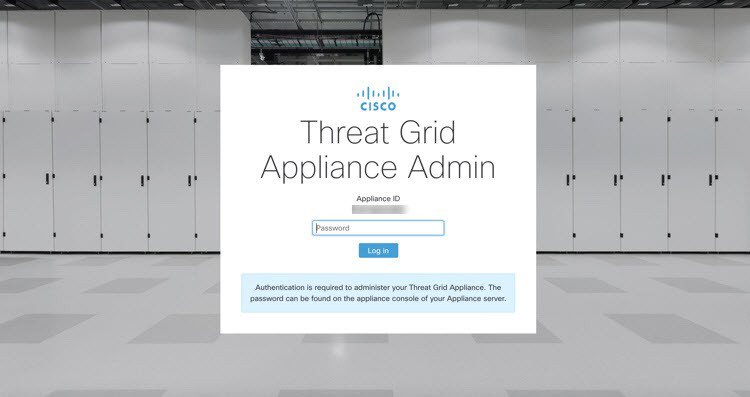
In a browser, enter the URL for the Admin UI (https://<adminIP>/ or https://<adminHostname>/) to open the Threat Grid Admin UI login screen.
Note 

The Hostname is the appliance serial number.

Figure 1. Admin UI Login Screen
Step 2

Enter the initial Admin Password that you copied from the TGSH Dialog and click Log In.


What to do next

Proceed to Change Admin Password.

Change Admin Password

The initial Admin password was generated randomly during the pre-ship Threat Grid installation and is visible as plain text in the TGSH Dialog. You must change the initial Admin password before continuing with the configuration.
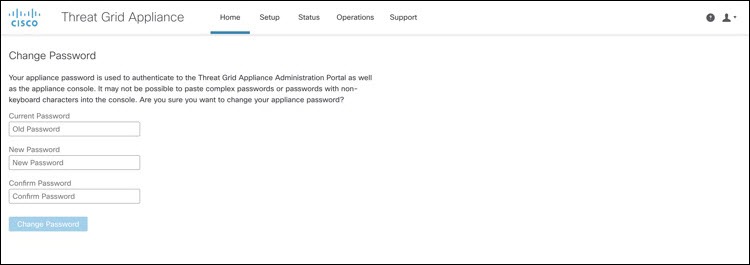
Figure 2. Change Admin Password

Procedure


Step 1

Enter the old password from the TGSH Dialog in the Current Password field. (You should have this password saved in a text file.)

Step 2

Enter a New Password and re-enter it in the Confirm New Password field.

The new password must contain the following: 8 characters minimum, one number, one special character, at least one uppercase and one lowercase character.

Step 3

Click Change Password. The password is updated.

Note 

The new password will not be displayed in visible text in the TGSH Dialog so be sure to save it somewhere.


What to do next

Proceed to Review End User License Agreement.

Review End User License Agreement

Review the license agreement and confirm that you agree to it.

Procedure


Step 1

Review the End User License Agreement.

Step 2

Scroll to the end and click I HAVE READ AND AGREE.

Note 

We recommend that you follow the configuration workflow and configure the networks before you install the license.


What to do next

Proceed to Configure Network Settings.
Configuration Wizard

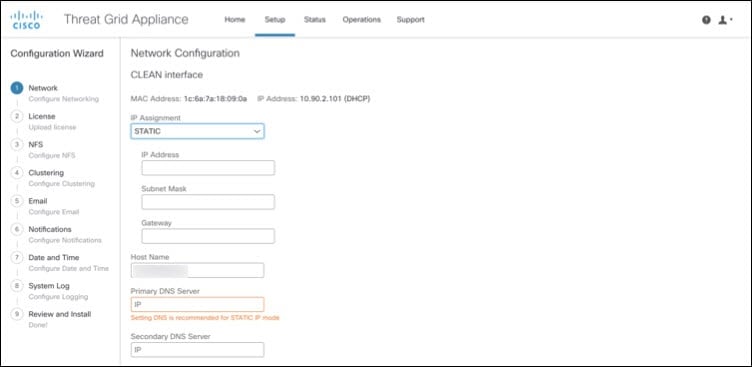
The Configuration wizard takes you through configuring your Threat Grid Appliance.

If you need to make changes after you have completed the wizard configuration, you can access the settings from the Configuration tab in the Admin UI.

Configure Network Settings

If you configured static network settings in the TGSH Dialog, the IP addresses displayed on the Network Configuration page reflect the values you entered in the TGSH Dialog during the Threat Grid Appliance network configuration.

Figure 3. Network Configuration

Procedure


Step 1

Review the IP addresses and confirm they are accurate.

Step 2

If you used DHCP for your initial connection and now need to change the Clean and Dirty IP networks to static IP addresses, follow the steps in the Using DHCP section of the Cisco Threat Grid Appliance Administration Guide.


What to do next

Proceed to Install License.

Install License

After the networks are configured, you are ready to install the Threat Grid license.

Procedure


Step 1

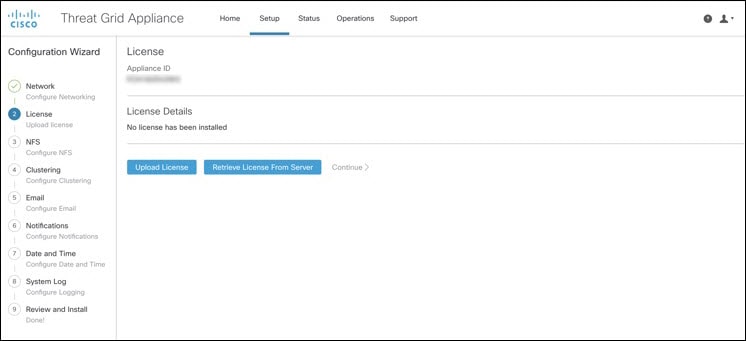
Click License in the navigation pane to open the License page.

Figure 4. License Page Prior to Installation
Step 2

Click Upload License and select the license file from your file manager.

Alternatively, you can retrieve the license from the server. If the appliance has network access when being installed, click Retrieve License From Server to get the license over the network.

Step 3

Enter your license password in the Passphrase field.

Step 4

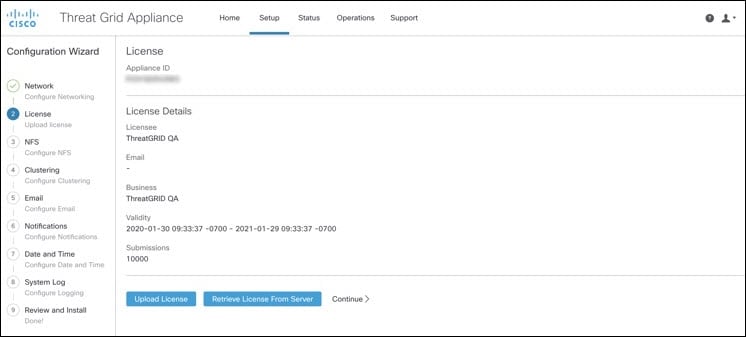
Click Save to install the license. The page refreshes and your license information is displayed.

Figure 5. License Information After Successful Installation
Step 5

Click Continue.


What to do next

Proceed to Configure NFS.

Configure NFS

The next step in the workflow is NFS configuration. This task is required for backups and for clustering. See the NFS Requirements section in the Cisco Threat Grid Appliance Administration Guide for more information.

The configuration process includes mounting the NFS store, mounting the encrypted data, and initializing the Threat Grid Appliance local datastores from the contents of the NFS store.

If you would like to skip this step or continue and return later, click Continue without NFS.

Procedure


Step 1

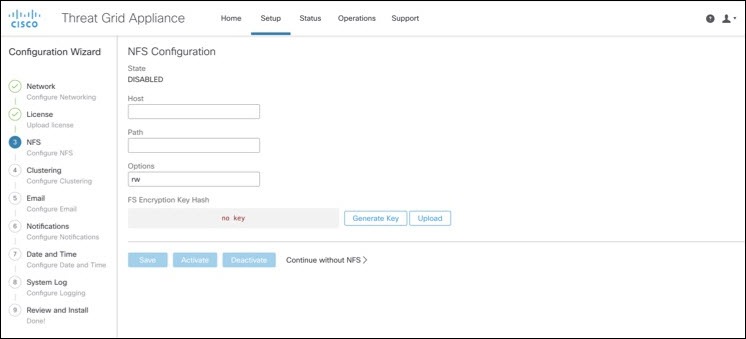
Click NFS in the navigation pane to open the NFS Configuration page.

Figure 6. NFS Configuration
Step 2

Enter the following information. Appliances in a cluster should share the same Host and Path as those set in the first cluster node.

  • Host - The NFSv4 host server. We recommend using the IP address.

  • Path - The absolute path to the location on the NFS host server under which files will be stored. This does not include the Key ID suffix, which will be added automatically.

  • Options - NFS mount options to be used, if this server requires any deviations from standard Linux defaults for NFSv4. The default is rw.

  • FS Encryption Key Hash - Click Generate Key to generate a new encryption key. You will need this key to restore backups later. (At that time, click Upload and upload the key required for the backup.)

The Status is Enabled_Pending Key.

Step 3

Click Save. The page refreshes and the Generate Key and Activate buttons become available.

Note 

If the key correctly matches the one used to create a backup, the Key ID displayed in Admin UI after upload will match the name of a directory in the configured path. Backups cannot be restored without the encryption key. The configuration process includes the process of mounting the NFS store, mounting the encrypted data, and initializing the appliance's local datastores from the NFS store's contents.

Step 4

Click Generate Key to generate a new NFS encryption key.

Step 5

Click Activate. The State changes to Active. The Upload button changes to Download.

Step 6

Click Download to download a copy of the encryption key for safekeeping.

If this appliance is the first node in a cluster, you will need the key for joining additional nodes to the cluster. If the first node has already been configured, then click Upload and choose the NFS encryption key you downloaded from the first node when you started the new cluster.

Step 7

Click Save.

The page refreshes; the Key ID is displayed and the Activate button is enabled.

Step 8

ClickActivate.

The Status changes to Active after a few seconds (lower left corner).

Step 9

When activation has succeeded, click Continue.


What to do next

Proceed to Configure Clustering.

Configure Clustering

The next step in the wizard workflow is to configure clustering. If the appliance being configured is not going to be part of a cluster, then skip to the next configuration step, Configure Email.

The main goal of clustering is to increase the sample analysis capacity of a single system. Each appliance in a cluster saves data in the shared file system, and has the same data as the other nodes in the cluster. Clustering does not increase storage capacity, and it does not increase the speed of sample analysis. Instead, clustering makes it possible to analyze more samples in the same amount of time that you can achieve with a single appliance. Because the data is the same on all nodes, sample analysis can be passed from the submitting node to another cluster node that is not as busy. Clusters can include 2-7 appliances.

Clustering also helps support recovery from failure of one or more appliances in the cluster, depending on the cluster size.

You can create a cluster with new appliances, with appliances that have had their data removed (not Wiped), or a combination of new and existing appliances. When joining a Threat Grid Appliance to a cluster, it's convenient if the NFS and clustering are configured during the initial setup. You can start a cluster post-installation from the Cluster Configuration page, but you can't join an installed appliance into an existing cluster.

For more information about clustering, see the Threat Grid Appliance Administrator Guide v2.12.

If you have questions about installing or reconfiguring clusters, contact Support for assistance.


Note

If you are joining an existing appliance to a cluster, remove existing data with the destroy-datacommand, as documented in Reset Appliance as Backup Restore Target section in the Threat Grid Appliance Administrator Guide v2.12. Do not use the Wipe Appliance feature.


Configuring First Cluster Node

Begin a cluster by configuring the first node, and then configure each additional node and join them to the cluster using the NFS key that you downloaded when you configured the first node.

If you've already configured the first node, go to Joining Additional Cluster Nodes.

Procedure

Step 1

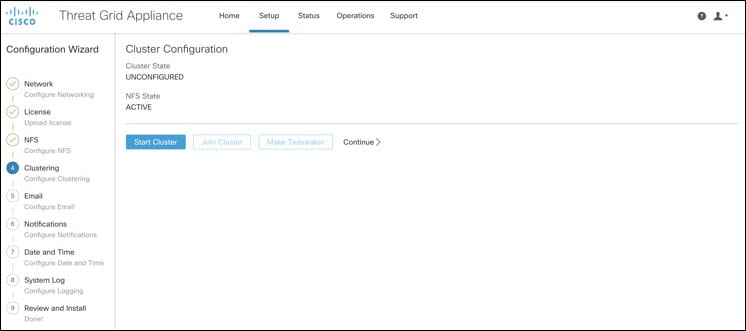
Click Clustering in the navigation pane to open the Cluster Configuration page.

Figure 7. Cluster Configuration
Step 2

Click Start Cluster and then click OK on the confirmation dialog.

The Clustering State changes to Clustered.

Step 3

Complete the remaining steps in the wizard and click Start Installation. This initiates a restore of the data in cluster mode.

Step 4

Check the health of the newcluster on the Clustering page.


What to do next

Proceed to Joining Additional Cluster Nodes

Joining Additional Cluster Nodes

This section describes how to join additional appliances to a cluster. It assumes that the first appliance in the cluster is configured as described in Configuring First Cluster Node. You can now start the configuration steps for the next node.

Procedure

Step 1

Click the Configuration tab and choose NFS to open the NFS Configuration page.

Step 2

Specify the Host and Path to match what was set in the first node in the cluster.

Step 3

Click Save. The page refreshes and the Upload button becomes available.

Step 4

In the Configuration menu, choose Clustering to open the Cluster Configuration page.

Step 5

Click Join Cluster and then click OK on the confirmation dialog.

The Cluster State changes to Clustered.

Step 6

Finish the installation. This will initiate a restore of the data in cluster mode.

Step 7

Repeat the procedure for each node you want to join to the cluster.


What to do next

Proceed to Configure Email.

Configure Email

The next step in the workflow is to configure the email host.

Procedure


Step 1

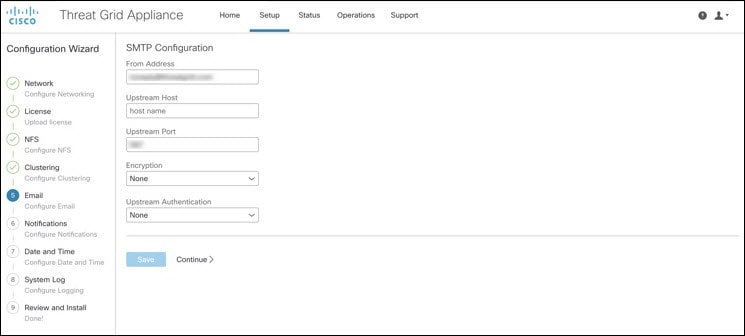
Click Email in the navigation pane to open the SMTP Configuration page.

Figure 8. SMTP Configuration
Step 2

Enter the email From Address.

Step 3

Enter the name of the Upstream Host (email host).

Step 4

Change the port from 587 to 25.

Step 5

Keep the defaults for the other settings.

Step 6

Click Save to save your settings.

Step 7

Click Continue to move to the next step in the workflow.


What to do next

Proceed to Configure Notifications.

Configure Notifications

The next step in the workflow is to configure notifications that can be delivered periodically to one or more email addresses. System notifications are displayed in the Threat Grid portal interface, but this page allows you to set up notifications that are also sent via email.

Procedure


Step 1

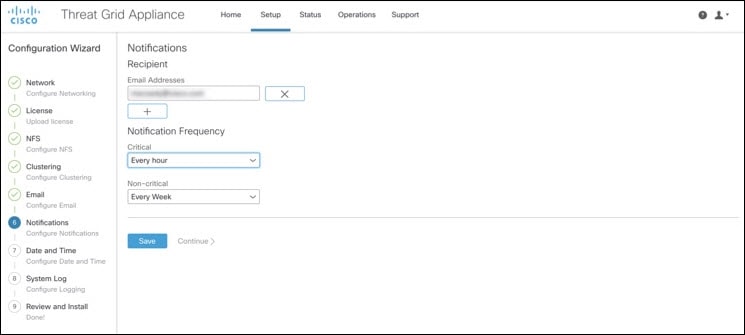
Click Notifications in the navigation pane to open the Notifications page.

Figure 9. Notifications
Step 2

Under Recipients, enter the Email Address for at least one notifications recipient. If you need to add multiple email addresses, click the + icon to add another field; repeat as needed.

Step 3

Under Notification Frequency, choose the settings for Critical and Non-critical from the drop-down lists.

Step 4

Click Save.

Step 5

Click Continue to move to the next step in the workflow.


What to do next

Proceed to Configure Date and Time.

Configure Date and Time

The next step is to specify the Network Time Protocol (NTP) servers to configure the date and time.

Procedure


Step 1

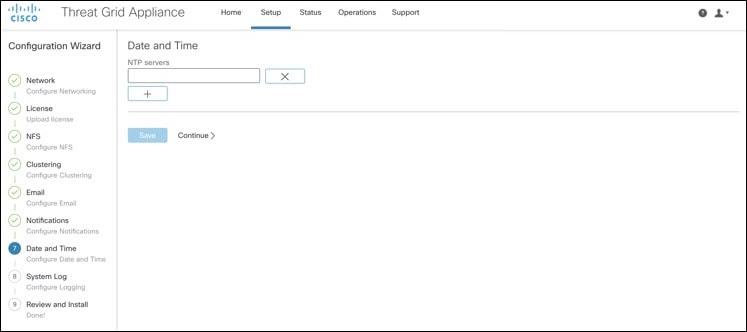
Click Date and Time in the navigation pane to open the Date and Time page.

Figure 10. Date and Time
Step 2

Enter the NTP Server(s) IP or NTP name.

If there are multiple NTP servers, click the + icon to add another field; repeat as needed.

Step 3

Click Save.

Step 4

Click Continue to move to the next step in the workflow.


What to do next

Proceed to Configure System Log.

Configure System Log

The System Log Server Information page is used to configure a system log server to receive syslog messages and Thread Grid notifications.

Procedure


Step 1

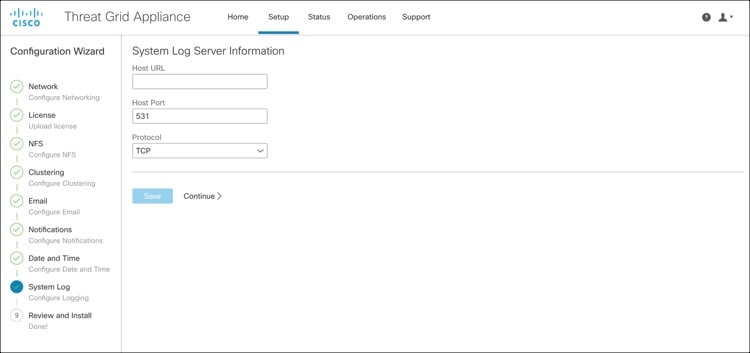
Click System Log in the navigation pane to open the System Log Server Information page.

Figure 11. System Log Server Information
Step 2

Complete the Host URL, Host Port, and Protocol fields and click Save.

Step 3

Click Continue to move to the final step in the workflow.

See the Cisco Threat Grid Appliance Administration Guide for more information.


What to do next

Proceed to Review and Install Configuration Settings.

Review and Install Configuration Settings

The final step in the workflow is to review and install your network configuration settings.

Procedure


Step 1

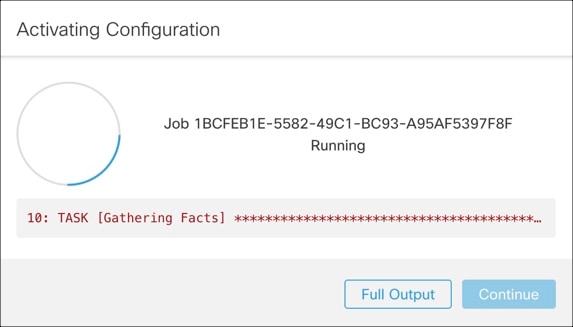
Click Review and Install in the navigation pane and then click Start Installation to begin installing the configuration scripts.

Note 

The screen displays configuration information as it is applied.

Figure 12. Activating Configuration

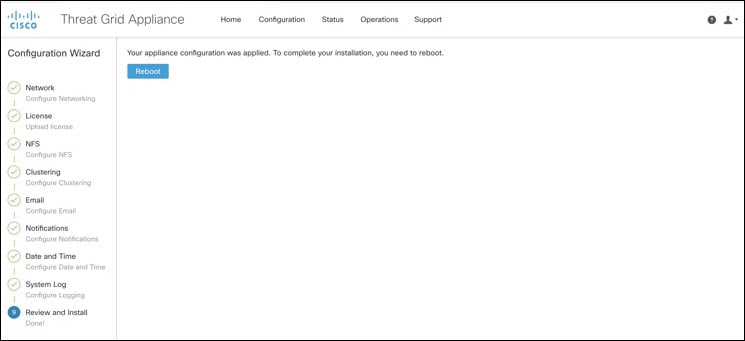
After successful installation, the State changes from Running to Successful, and the Reboot button becomes enabled (green). The configuration output is also displayed.

Figure 13. Successful Appliance Installation
Step 2

Click Reboot.

Note 

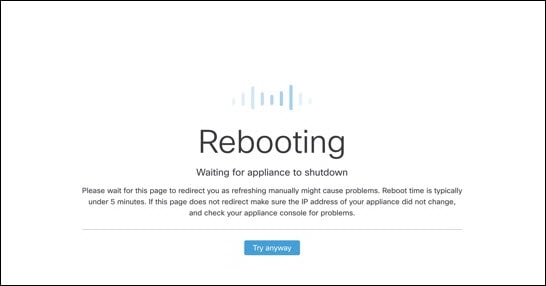
Rebooting may take up to 5 minutes. Do not make any changes while the Threat Grid Appliance is rebooting.

Figure 14. Appliance is Rebooting

After reboot, the appliance opens to the Admin UI Home page. This completes the configuration process.


Install Threat Grid Appliance Updates

After you complete the initial Threat Grid Appliance setup, we recommend that you install any available updates before continuing. Threat Grid Appliance updates are applied through the Admin UI.

Users with air-gapped implementations may contact Threat Grid Support and request a downloadable update boot image.


Note

For more information about installing updates, see the Cisco Threat Grid Appliance Administration Guide.


Procedure


Step 1

Log in to the Admin UI, if you are not already logged in.

Step 2

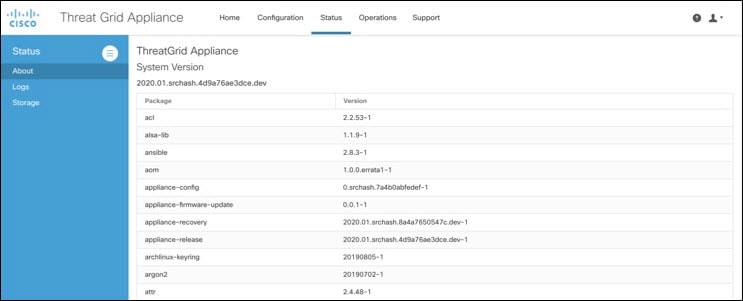
From the Operations menu, choose Update Appliance to open the Updates page, which displays the current build of the appliance.

Figure 15. Appliance Build Number
Note 

See the Cisco Threat Grid Appliance Version Lookup Table for the corresponding release version.

Step 3

Click Check for Updates.

A check is run to see if there is a more recent update/version of the Threat Grid Appliance software, and if so, downloads it. This may take some time.

Step 4

Once the updates have been downloaded, click Apply Update to install them.


Test the Appliance Setup

Once the Threat Grid Appliance is updated to the current version, you should test that it has been configured properly by submitting a malware sample to Threat Grid.

Procedure


Step 1

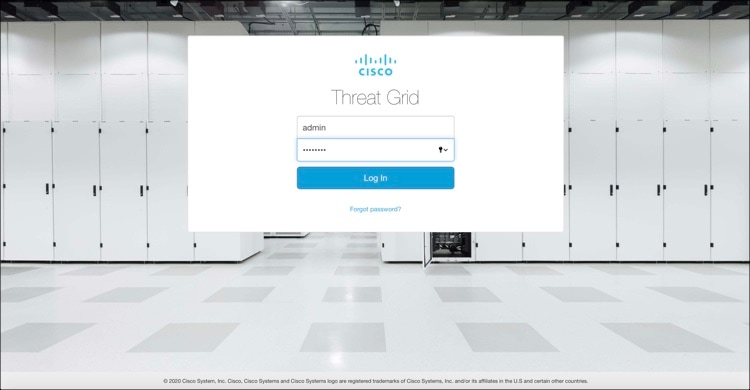
In a browser, open Threat Grid using the address you configured as the Clean interface.

The Threat Grid login page opens.

Figure 16. Threat Grid Login
Step 2

Enter the default credentials:

  • Login - admin

  • Password - Use the new password entered during the first step of the Admin UI configuation workflow. We encourage you to change it for the portal when you have a chance.

Step 3

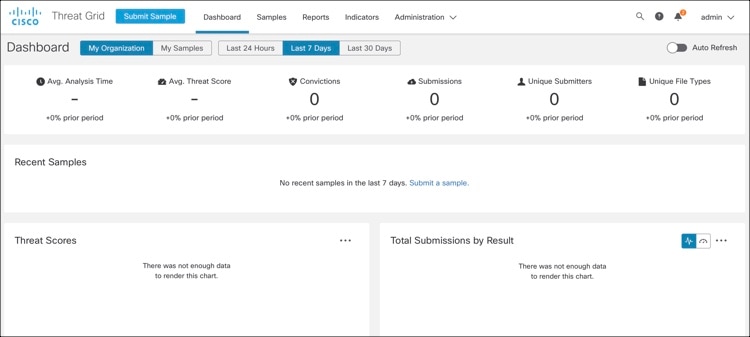
Click Log In to open the main Threat Grid dashboard. There will be no sample data available yet.

Figure 17. Threat Grid Dashboard
Step 4

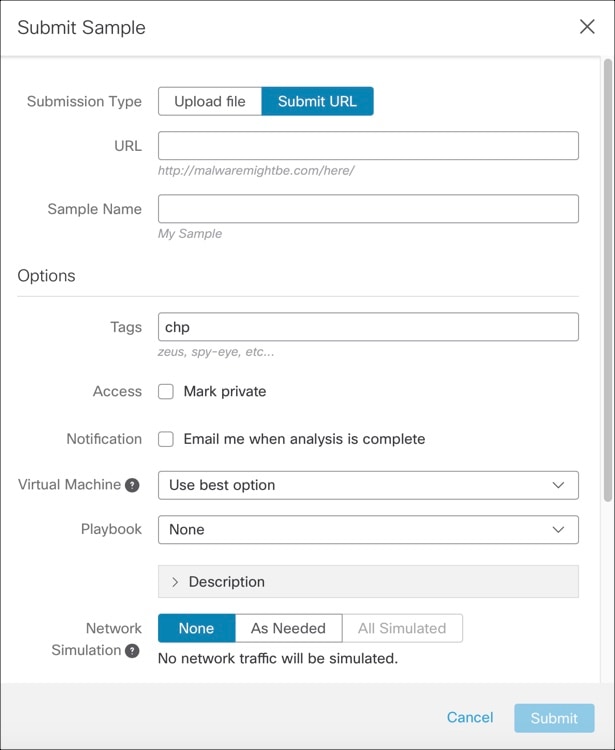
Click Submit a Sample to open the sample submission dialog.

Figure 18. Submit Sample
Note 

There is help available at the bottom of this form, describing sample submission file types, size, and other information. You can also click the ? icon located in the upper-right corner to view the Threat Grid Release Notes and online help, including complete documentation on how to submit a sample and review the analysis results.

Step 5

Upload a file or enter a URL to submit for malware analysis. Leave the other options set at the defaults if you are not yet sure what they mean.

Step 6

Click Submit.

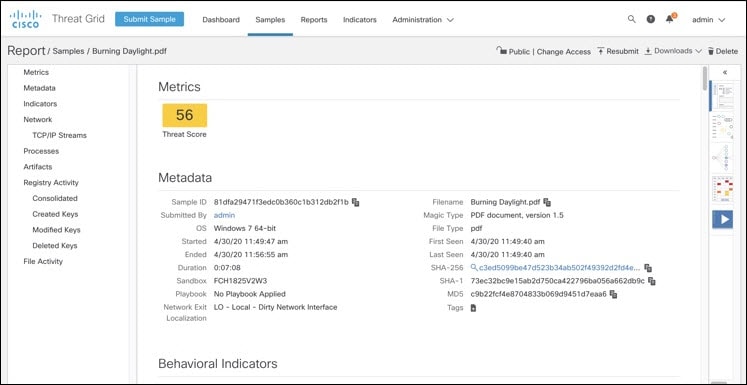
The Threat Grid sample analysis process is launched. You should see your sample going through several stages of analysis. During analysis, the sample is listed in the Samples page. Once analysis is completed, the results should be available in the Analysis Report.

Figure 19. Analysis Report

What to do next

Once the Threat Grid Appliance has been set up and initial configuration is completed, additional tasks can be performed by the appliance administrator, such as managing SSL certificates and adding users. See the Cisco Threat Grid Appliance Administration Guide for information about administrator tasks.