Organizations and Users

Threat Grid is installed on the Threat Grid Appliance with a default organization and Admin user. Once the set up and the network configuration is completed, you can create additional organization and user accounts, so users can log in and begin submitting malware samples for analysis.

Adding organizations, users, and administrators may require planning and coordination among multiple users and teams, depending on your organization. This chapter describes how to manage organizations and users in Threat Grid and includes the following topics:

Creating a New Organization

Users are always affiliated with an organization; before you can add users, you must first create the organization so you can add them to it. You must be logged in as an Admin to create a new organization, which is performed on the Managing Organizations page in the Threat Grid portal UI.


Important


You cannot delete an organization from this interface once it has been created so plan this task carefully.


Procedure


Step 1

Log into the Threat Grid portal as Admin.

Step 2

Click the Administration tab and choose Manage Organization. The Organizations page opens and shows all the organizations on the appliance.

Step 3

Click New Organization in the upper-right corner of the page to open the New Organization dialog.

Step 4

Complete the following information:

  • Name - Add a name for the organization (there is currently no size limit to the name).

  • Industry - Select the type of business from the Industry drop-down list. If none of the industries on the list are applicable, then leave it set to Unknown, and contact Threat Grid Support to request that an option be added.

  • ATS Id - Enter the Advanced Threat Services ID.

Step 5

Click Submit. The new organization is created and is now visible in the list of Organizations.
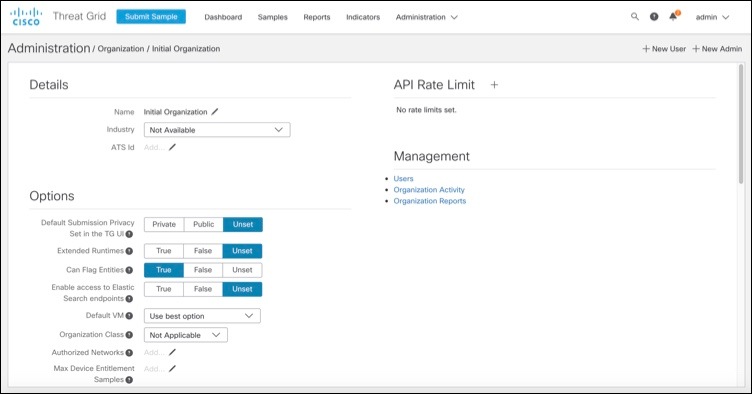
Figure 1. Organization Page for the Default Initial Organization

Step 6

Edit the newly created organization and complete the following information:

  • Options - Complete as appropriate.

  • Rate Limit - Set the default user submission rate limit.

    The API rate limit is global for the Threat Grid Appliance under the terms of the license agreement. This affects API submissions only, not manual sample submissions. The rate limit in the license applies to the organization.

    You can also set sample submission rates on individual users, as documented in the Threat Grid portal online Help.

    Rate limits are based on a 24-hour window of rolling time, not to a calendar day. When the submission limit is exhausted, the next API submission will return a 429 error and a message about how long to wait before retrying.

Once the organization is created, the Admin or Organization Admin can manage it.


Managing Users

For instructions and documentation on creating and managing user accounts, including how to add users, see the Threat Grid Portal UI online help:

In the navigation bar, click Help > Using Threat Grid Online Help > Managing Threat Grid Users.


Note


Users can only be removed via the API, and only if they have not submitted samples.

Managing device user accounts for integrating Email Security Appliances, Web Security Appliances, and other devices is described in Activating New Device User Account.


Removing Organizations and Users

Organizations and users can be removed by an admin user with the Threat Grid API. An organization can only be removed if it has no users; if it has users, you must delete them before removing the organization. However, users can only be deleted if they have not submitted any samples.

  • To remove an organization, use the Threat Grid API: /api/v3/organizations/:org-id and DELETE.

  • To remove a user, use the Threat Grid API: /api/v3/users/:user-id and DELETE.

See the Threat Grid portal online help for API endpoint details.

Activating a New Device User Account

When the Cisco Email Security Appliance, Web Security Appliance, or other Cisco Sandbox API integration connects and registers itself with a Threat Grid Appliance, a new Threat Grid user account is automatically created. The initial status of the user account is de-activated. The device user account must be manually activated by a Threat Grid Appliance administrator before it can be used for submitting malware samples for analysis.

Procedure


Step 1

Log into the Threat Grid Portal UI as Admin.

Step 2

Click the Administration tab and choose Manage Users.

Step 3

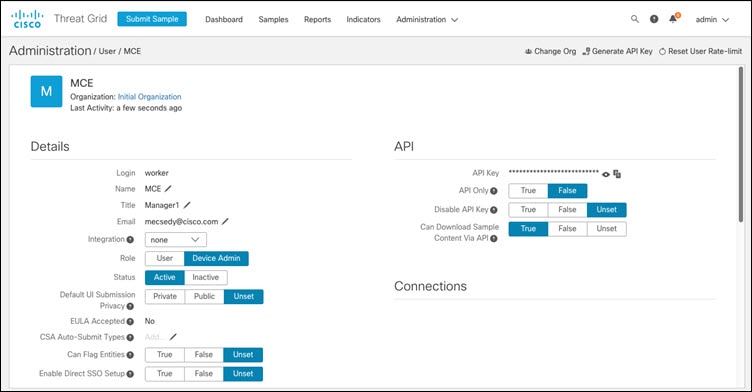
Locate the device user account and open the User Details page.

Figure 2. User Details

The user status is currently Inactive.

Step 4

Click Activate.

Step 5

On the confirmation dialog, confirm the action.

The integrating appliance or device can now communicate with the Threat Grid Appliance.