Cisco 7301 Overview
The Cisco 7301 router provides application-specific features for broadband subscriber aggregation and network application services with high processing performance.
This chapter provides a quick hardware and features overview and options installation instructions for the Cisco 7301 router. For functional information see Chapter 3, "Starting and Configuring the Router," the "Functional Overview" section on page 3-1. For system specifications and port and cabling specifications, see Appendix A, "Specifications."
This chapter includes the following sections:
• Checking the Shipping Container Contents
•Cisco 7301 Router Installation Checklist
•Installing the SFP GBIC Module

Warning This warning means danger. You are in a situation that could cause bodily injury. Before you work on any equipment, be aware of the hazards involved with electrical circuitry and be familiar with the standard practices for preventing accidents. To see translations of the warnings that appear in this publication, refer to the CRegulatory Compliance and Safety Information for the Cisco 7301 Router publication that accompanied this device. Statement 1071
Warning Before you install, operate, or service the system, read the "Preparing to Install the Cisco 7301 Router" section on page 2-1 and the Regulatory Compliance and Safety Information for the Cisco 7301 Router publication. These documents provide important safety information you should know before working with the system. Statement 200
Cisco 7301 Features
Each Cisco 7301 router consists of the following features:
•Small form-factor—One rack-unit (RU) high with stacking capability:
1.73 in. x 17.3 in. x 13.87 in. (4.39 cm x 43.9 cm x 35.23 cm). The weight is approximately 10.5 lbs (4.76 kg).
•Three native Gigabit Ethernet interfaces—six ports:
–Three optical fiber Gigabit Ethernet (1000 Mbps) ports that use a small form factor pluggable (SFP) Gigabit Interface Converter (GBIC) modules with LC connectors
–Three Gigabit Ethernet (10/100/1000 Mbps) ports with RJ-45 connectors (any three ports are available at any one time)
•Both 25-MHz and 50-MHz port adapter operation
•A 64- or 128-MB CompactFlash Disk
•SFP GBIC modules: Three Gigabit Ethernet SX, LH, ZX module options, 1000BASE-T SFP (copper) module, and several coarse wavelength-division multiplexing CWDM SFP modules
•Power supplies:
–Single or dual AC power supplies
–Single 24V DC power supply
–Dual 48V DC power supply
•BCM 1250 integrated dual processors that operates at an internal clock speed of 700 MHz
•512-KB Boot ROM
•32-MB Boot Flash
•Three SDRAM memory options: 256 MB, 512 MB, and 1 GB
•Auxiliary port
•Console port
•Online insertion and removal (OIR)—Allows you to add, replace, or remove port adapters with minimal interruption of the system
•Environmental monitoring and reporting functions—Allow you to maintain normal system operation by resolving adverse environmental conditions prior to loss of operation
•Downloadable software—Allows you to load new images into Flash memory remotely, without having to physically access the router, for fast, reliable upgrades
•Front-to-back airflow—Allows you to mount the router from either front or back into 19-inch two-post racks and 21-23-inch four-post racks
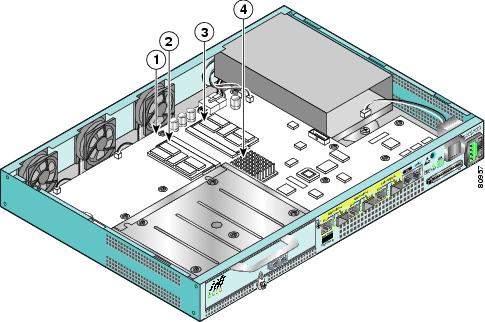
Figure 1-1 Cisco 7301 Router—Interior View
|
|
Temperature sensor 2 (U5) |
|
SODIMM 2 (J2) |
|
|
SODIMM 1 (J1) |
|
BCM 1250 Processor (U31) |
Temperature sensor 1 (U62) is on the underneath side of the board.
Cisco 7301 Hardware Overview
This section provides you with an overview of the hardware including LEDs, front and rear views, and interior part identification.
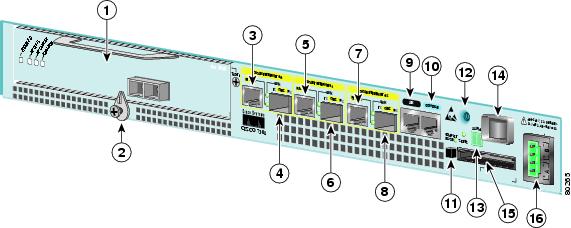
Front View
Figure 1-2 Cisco 7301 Router—Front View
LEDs
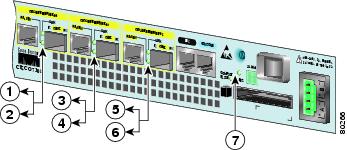
Figure 1-3 Cisco 7301 Router—LEDs
Rear View
Figure 1-4 Cisco 7301—Rear View

|
|
Fan |
|
Grounding connector |
Five internal fans draw cooling air into the chassis and across internal components to maintain an acceptable operating temperature. (See Figure 1-4.) The five fans are located at the rear of the chassis as is the chassis grounding connector that provide a chassis ground connection for ESD equipment or a two-hole grounding lug.
System Board
Internally, the system board contains the following components:
•Two SODIMM DDR-SDRAM memory modules that are available in three options: 128 MB,
256 MB, and 512 MB
•BCM 1250 processor system
•BCM 1250 integrated dual processor that operates at an internal clock speed of 700 MHz. The
BCM 1250 processor maintains and executes the system management functions for the Cisco 7301 router. The processor also performs some memory and environmental monitoring functions.
–The BCM 1250 serves as the system controller. It interconnects the processor with the double data rate synchronous dynamic random-access memory (DDR-SDRAM) controller, lightning data transport (LDT) bus, and the three direct-interface Gigabit Ethernet interfaces, and the port adapter PCI bus, which allows the port adapter access to DDR-SDRAM.
•Cache memory
The processor system has two levels of cache: primary and secondary cache that are internal to the microprocessor with secondary unified cache for data and instruction.
•Three Gigabit Ethernet interfaces: (six ports: three SFP GBIC [optical] and three RJ-45s [copper]). Any three ports are available at the same time and are linked directly to the BCM 1250 system.
•A CompactFlash Disk for storing the default Cisco IOS software image.
•Auxiliary port with full data terminal equipment (DTE) functionality.
•Boot ROM for storing sufficient code for booting the Cisco IOS software.
•Flash memory for storing the boot helper (boot loader) image.
•NVRAM for storing the system configuration and environmental monitoring logs. NVRAM uses lithium batteries to maintain its contents when disconnected from power.
•Two environmental sensors for monitoring the internal temperature of the chassis.
System Management Functions
The Cisco 7301 processor system performs the following system management functions:
•Sending and receiving routing protocol updates
•Managing tables, caches, and buffers
•Monitoring interface and environmental status
•Providing Simple Network Management Protocol (SNMP) management through the console and Telnet interface
•Accounting for and switching of data traffic
•Booting and reloading images
•Managing the port adapter (including recognition and initialization during online insertion and removal)
The Cisco 7301 router supports multiprotocol, multimedia routing and bridging with a wide variety of protocols and port adapters.
Checking the Shipping Container Contents
Use the Cisco 7301 components list to check the contents of the Cisco 7301 router shipping container. Do not discard the shipping container. You need the container if you move or ship the Cisco 7301 router in the future.
|
|
|
|
|---|---|---|
Chassis |
Cisco 7301 chassis configured with a single or dual AC or DC power supply and port adapter filler plate. |
|
Accessories: • • • • |
The following accessories might arrive in separate shipping containers: Two rack-mount brackets, one cable-management bracket, four 12-24 x 0.5-in. screws to secure the rack-mount brackets to the chassis, four 8-18 x .37-in. screws to secure the rack-mount brackets to a 19-inch rack, four 8 x .375-in. screws to secure the rack-mount brackets to a 21-23-inch rack, and one M4 x 20-mm screw to attach the cable-management bracket to the rack-mount bracket If a single AC power supply is ordered, an AC power cable-retention clip ships An AC power cable, if an AC power supply was ordered If ordered, router hardware and software documentation and the Cisco Documentation CD-ROM package1 |
|
Optional Equipment |
Examples: Port adapter, SFP GBIC modules , network interface cables, transceivers, special connectors and so on |
1 Titles and quantities of documents will vary. You must order the type and quantity of documentation sets when you order the hardware. |

Note We no longer ship the entire router documentation set automatically with each system. You must specifically order the documentation as part of the sales order. If you ordered documentation and did not receive it, we will ship the documents to you within 24 hours. To order documents, contact a customer service representative.
Cisco 7301 Router Installation Checklist
To assist you with your installation and to provide a historical record of what was done by whom, photocopy the Cisco 7301 Router Installation Checklist, Table 1-2. Indicate when each procedure or verification is completed. When the checklist is completed, place it in your site log along with the other records for your new router.
Information on replacing internal field-replaceable units (FRUs) is found in Chapter 4, "Installing and Removing Field-Replaceable Units."
|
|
|
|
|---|---|---|
Date router received |
||
Router and all accessories unpacked |
||
Types and numbers of interfaces verified |
||
Safety recommendations and guidelines reviewed |
||
Installation Checklist copied |
||
Site log established and background information entered |
||
Site power voltages verified |
||
Site environmental specifications verified |
||
Required passwords, IP addresses, device names, and so on, available |
||
Required tools available |
||
Network connection equipment available |
||
Router mounted in rack (optional) |
||
Cable-management bracket installed (optional but recommended) |
||
AC power cable(s) connected to AC source(s) and router; cable-retention clip secured |
||
DC power cable(s) connected to DC source(s) and router |
||
Network interface cables and devices connected |
||
ASCII terminal attached to console port |
||
Console port set for 9600 baud, 8 data bits, no parity, and 1 stop bits (9600 8N1) |
||
System power turned on |
||
System boot complete (STATUS LED is on) |
||
I/O ports and port adapter are operational (see Figure 1-3 for specific LED information) |
||
Correct hardware configuration displayed after system banner appears |
About the SFP GBIC Module
You may have ordered a SFP (small form-factor pluggable) Gigabit Interface Converter (GBIC) module with your Cisco 7301 router. You must install the SFP GBIC module. It is shipped separately to prevent damage during shipment. After reading this section, use the installation instructions in the "Installing the SFP GBIC Module" section the to install the SFP GBIC modules.
For ease of installation, insert the SFP GBICmodule in the router while it is powered down and before placing it in a rack.
The SFP GBIC port is a 1000-Mbps optical interface in the form of an LC-type duplex port that supports IEEE 802.3z interfaces compliant with the 1000BASEX standard. Gigabit Ethernet SFP GBIC models GLC-SX-MM, GLC-LH-SM, and GLC-ZX-SM are supported in the Cisco 7301 router, as well as the Cisco 1000BASE-T SFP. In addition, a variety of Coarse Wave Division Multiplexing (CWDM) SFPs are supportedon the Cisco 7301. The cabling information is the same for all optical SFPs.
Also see "SFP GBIC Module Configurations" section on page A-4, the Gigabit Interface Converter (GBIC) and Small Form-Factor Pluggable(SFP) GBIC Installation Inforamtion and Specifications, and the Coarse Wavelength-Division Multiplexing SFP Compatability Matrix.
For optical connection cleaning information, see the Inspection and Cleaning Procedures for Fiber-Optic Connections document.
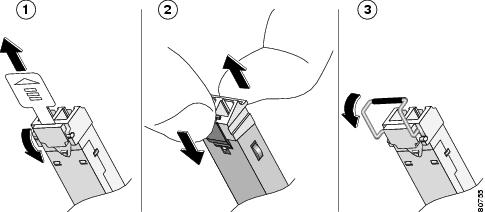
Figure 1-5 Types of SFP GBIC Module Latches
|
|
Sliding latch |
|
Swing latch |
|
|
Swing and slide latch |
Note The SFP GBIC module must be installed before you connect the cables to it.
•The SPF GBIC module has three types of latches, which are also the removal mechanism. See Figure 1-5. There is no correlation of the type of latch to the model (such as SX or LH) or technology type (such as Gigabit Ethernet) of SFP modules. Always read the label on the SFP GBIC module to determine the technology type, and model.
•You can install and remove Gigabit Ethernet SFP GBIC modules with power on to the system.
•Disconnect all cables before removing or installing a Gigabit Ethernet SFP module. We strongly recommend that you do not install or remove the SFP GBIC with optical fiber cables attached to it.
•SFP GBIC modules are keyed to prevent incorrect insertion.
Warning Invisible laser radiation may be emitted from disconnected fibers or connectors. Do not stare into beams or view directly with optical instruments. Statement 1051
Warning Class 1 laser product. Statement 1008
Warning Class 1 LED product. Statement 1027
Warning During this procedure, wear grounding wrist straps to avoid ESD damage to the card. Do not directly touch the backplane with your hand or any metal tool, or you could shock yourself. Statement 94
Installing the SFP GBIC Module
Figure 1-6 Inserting a SFP GBIC Module into the Cisco 7301 Gigabit Ethernet Port 0/1
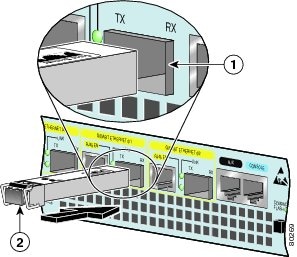
|
|
SFP GBIC port 0/1 |
|
SFP GBIC module |
Use the following procedure to install a SFP GBICmodule:
Step 1 Attach an ESD-preventive wrist strap between you and an unpainted chassis surface.
Step 2 Locate the label on the SFP GBIC module and turn the SFP GBIC module so the label is on top and the alignment groove is down.
Note The SFP GBIC module is keyed so that it cannot be inserted incorrectly.
Step 3 Insert the SFP GBIC module into SFP GBIC port 0/1, 0/2, or 0/3. The SFP GBIC module snaps into place when you have completely and properly inserted it.
Step 4 Repeat Step 2 if you are inserting a second or third SFP GBIC module.
Note Do not remove the plug from the SFP GBIC optical bores until you are ready to install the network interface optical fiber cable. Save the plug for future use.
This completes the SFP GBIC module installation procedure.
For information on removing and installing other options, see Chapter 4, "Installing and Removing Field-Replaceable Units."
For rack-mounting and cabling procedures, see Chapter 2, "Rack-Mounting, Tabletop Installation, and Cabling."
 Feedback