Perform System Upgrade and Install Feature Packages

The system upgrade and package installation processes are executed using the install commands on NCS 1004. The processes involve adding and activating the iso images (.iso) and feature packages (.rpm) on NCS 1004. These files are accessed from a network server and then activated on NCS 1004. If the installed package or SMU causes any issue, it can be uninstalled.


Note

It is recommended that you collect the output of show tech-support ncs1004 command before performing operations such as reload or CPU OIR on NCS 1004. The command provides information about the state of the system before reload or before the CPU OIR operation is performed and is useful in debugging.


The topics covered in this chapter are:

Upgrade the System

Upgrading the system is the process of installing a new version of the Cisco IOS XR operating system on the NCS 1004. NCS 1004 is pre-installed with the Cisco IOS XR image. However, you can install the new version to keep features up to date. The system upgrade operation is performed from the XR mode. However, during system upgrade, the operating systems that run both on the XR and the System Admin are upgraded.

System upgrade is done by installing a base package–Cisco IOS XR Core Bundle plus Manageability Package. Install the ISO image using install commands. For more information about the install process, see Workflow for Install Process.

For more information on upgrading the system and the RPMs, see Cisco IOS XR Flexible Packaging Configuration Guide for Cisco NCS 1000 Series.

Install Packages

Packages and software patches (SMU) can be installed on NCS 1004. Installing a package on NCS 1004 installs specific features that are part of that package. Cisco IOS XR software is divided into various software packages; this enables you to select the features to run on NCS 1004. Each package contains components that perform a specific set of NCS 1004 functions.

The naming convention of the package is <platform>-<pkg>-<pkg version>-<release version>.<architecture>.rpm.

Standard packages are:

Feature Set

Filename

Description

Composite Package

Cisco IOS XR Core Bundle + Manageability Package

ncs1004-iosxr-px-k9-7.1.1.tar

Contains required core packages, including OS, Admin, Base, Forwarding, SNMP Agent, FPD, and Alarm Correlation and Netconf-yang, Telemetry, Extensible Markup Language (XML) Parser, HTTP server packages.

Individually-Installable Optional Packages

Cisco IOS XR Security Package

ncs1004-k9sec-2.1.0.0-r711.x86_64.rpm

Support for Encryption, Decryption, IP Security (IPSec), Secure Shell (SSH), Secure Socket Layer (SSL), and Public-key infrastructure (PKI).

Workflow for Install Process

To install a package, see Install Packages. To uninstall a package, see Uninstall Packages. The workflow for installation and uninstallation processes are depicted in individual flowcharts in their respective subsections.

Install Packages

Complete this task to upgrade the system or install a patch. The system upgrade is done using an ISO image file, while the patch installation is done using packages and SMUs. This task is also used to install .tar files. The .tar file contains multiple packages and SMUs that are merged into a single file. A single .tar file can contain up to 64 individual files. The packaging format defines one RPM per component, without dependency on the card type.

Note

To install a System Admin package or a XR package, execute the install commands in System Admin EXEC mode or XR EXEC mode respectively. All the install commands are applicable in both these modes.


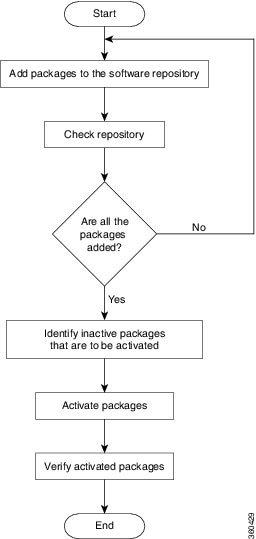
The workflow for installing a package is shown in this flowchart.

Figure 1. Installing Packages Workflow

Add packages workflow

Before you begin

  • Configure and connect to the management port. The installable file is accessed through the management port. For details about configuring the management port, see Configure Management Interface.

  • Copy the package to be installed either on NCS 1004 hard disk or on a network server to which NCS 1004 has access.

  • When ncs1004-k9sec package is not installed, use only FTP or TFTP to copy files or during the install add operation.

Procedure


Step 1

Execute one of these commands:

  • install add source <tftp transfer protocol>/package_path/ filename1 filename2 ...
  • install add source <ftp or sftp transfer protocol>//user@server:/package_path/ filename1 filename2 ...

Example:

RP/0/RP0/CPU0:ios#install add source harddisk: ncs1004-mini-x-7.1.1 ncs1004-k9sec-2.1.0.0-r711.x86_64.rpm

Thu Feb  7 11:10:51.867 UTC
Feb 07 11:10:53 Install operation 25 started by root:
 install add source harddisk: ncs1004-mini-x-7.1.1 ncs1004-k9sec-2.1.0.0-r711.x86_64.rpm
Feb 07 11:10:55 Install operation will continue in the background
Thu Feb  7 11:10:51 Install operation 25 finished successfully

Ensure to add the respective packages as appropriate.The software files are unpacked from the package and added to the software repository. This operation may take time depending on the size of the files being added. The operation is performed in asynchronous mode. The install add command runs in the background, and the EXEC prompt is returned.

Step 2

show install request

Example:

RP/0/RP0/CPU0:ios#show install request

(Optional) Displays the operation ID of the add operation and its status. The operation ID can be used later to execute the activate command.

Step 3

show install repository

Example:

RP/0/RP0/CPU0:ios#show install repository

6 package(s) in XR repository:
    ncs1004-mini-x-7.0.1
    ncs1004-mini-x-7.1.1
    ncs1004-mpls-2.0.0.0-r711
    ncs1004-k9sec-2.1.0.0-r711.x86_64
    ncs1004-xr-7.1.1
    ncs1004-mpls-te-rsvp-2.1.0.0-r711

Displays packages that are added to the repository. Packages are displayed only after the install add operation is complete.

Step 4

show install inactive

Example:

RP/0/RP0/CPU0:ios#show install inactive

6 inactive package(s) found:
    ncs1004-mini-x-7.0.1
    ncs1004-mini-x-7.1.1
    ncs1004-mpls-2.0.0.0-r711
    ncs1004-k9sec-2.1.0.0-r711.x86_64
    ncs1004-xr-7.1.1
    ncs1004-mpls-te-rsvp-2.1.0.0-r711

Displays inactive packages that are present in the repository. Only inactive packages can be activated.

Step 5

install activate package_name

Example:

RP/0/RP0/CPU0:ios#install activate ncs1004-mini-x-7.1.1 ncs1004-k9sec-2.1.0.0-r711.x86_64

Thu Feb  7 11:25:09.229 UTC
Feb 07 11:25:10 Install operation 26 started by root:
  install activate pkg ncs1004-mini-x-7.1.1 ncs1004-k9sec-2.1.0.0-r711.x86_64
Feb 07 11:25:10 Package list:
Feb 07 11:25:10     ncs1004-mini-x-7.1.1 ncs1004-k9sec-2.1.0.0-r711.x86_64
Feb 07 11:25:17 Install operation will continue in the background                                                                                                                                                
RP/0/RP0/CPU0:ios#
RP/0/RP0/CPU0:ios#Feb 07 11:25:10 Install operation 26 finished successfully

The package configurations are made active on NCS 1004. As a result, new features and software fixes take effect. This operation is performed in asynchronous mode. The install activate command runs in the background, and the EXEC prompt is returned.

Note 
After an RPM of a higher version is activated, and if it is required to activate an RPM of a lower version, use the force option. For example:
Using the traditional method, add the RPM with lower version to the repository and then force the activation:
install add source repository ncs1004-xr-7.1.1
install activate ncs1004-xr-7.1.1 force

or

Using the install update command:
install update source repository ncs1004-xr-7.1.1

If you use the operation ID, all the packages that were added in the specified operation are activated together. For example, if five packages are added in operation 8, by executing the install activate id 8 command, all the five packages are activated together. You do not have to activate the packages individually.

Step 6

show install active

Example:

RP/0/RP0/CPU0:ios#show install active

Mon Mar 11 07:31:12.302 UTC
Node 0/RP0/CPU0 [RP]
  Boot Partition: xr_lv19
  Active Packages: 5
    ncs1004-mini-x-7.1.1
    ncs1004-mpls-2.0.0.0-r711
    ncs1004-k9sec-2.1.0.0-r711.x86_64
    ncs1004-xr-7.1.1
    ncs1004-mpls-te-rsvp-2.1.0.0-r711

Displays packages that are active.

Step 7

install commit system

Example:

RP/0/RP0/CPU0:ios#install commit system

Thu Feb  7 11:34:04.207 UTC
Feb 07 11:34:05 Install operation 27 started by root:
  install commit system
Feb 07 11:34:06 Install operation will continue in the background
RP/0/RP0/CPU0:ios#Feb 07 11:34:19 Install operation 27 finished successfully

Commits the newly active software.


Installing Packages: Related Commands

Related Commands Purpose

show install log

Displays the log information for the install process; this can be used for troubleshooting in case of installation failure.

show install package

Displays the details of the packages that have been added to the repository. Use this command to identify individual components of a package.

install prepare

Makes pre-activation checks on an inactive package, to prepare it for activation.

show install prepare

Displays the list of package that have been prepared and are ready for activation.

What to do next

  • After performing a system upgrade, upgrade FPD by using the upgrade hw-module location all fpd all command from the Cisco IOS XR mode. The progress of FPD upgrade process can be monitored using the show hw-module fpd command.
  • Reload NCS 1004 if BIOS is in RLOAD REQ state. Use the hw-module location 0/RP0 reload command.

  • Verify the installation using the install verify packages command.
  • Uninstall the packages or SMUs if their installation causes any issues on NCS 1004. See Uninstall Packages.

    Note

    ISO images cannot be uninstalled. However, you can perform a system downgrade by installing an older ISO version.


(Optional) Install Prepared Packages

A system upgrade or feature upgrade is performed by activating the ISO image file, packages, and SMUs. It is possible to prepare these installable files before activation. During the prepare phase, pre-activation checks are made and the components of the installable files are loaded on to the NCS 1004 setup. The prepare process runs in the background and NCS 1004 is fully usable during this time. When the prepare phase is completed, the prepared files can be activated instantaneously. The advantages of preparing before activation are:

  • If the installable file is corrupted, the prepare process fails. This provides an early warning of the problem. If the corrupted file was activated directly, it may cause the NCS 1004 to malfunction.
  • Directly activating an ISO image for system upgrade takes considerable time during which the NCS 1004 is not usable. However, if the image is prepared before activation, the prepare process runs asynchronously. When the prepared image is activated, the activation process takes less time. As a result, the downtime is considerably reduced.

Complete this task to upgrade the system and install packages by using the prepare operation.

Procedure


Step 1

Add the required ISO image and packages to the repository.

For details, see Install Packages.
Step 2

show install repository

Example:

RP/0/RP0/CPU0:ios#show install repository

6 package(s) in XR repository:
    ncs1004-mini-x-7.0.1
    ncs1004-mini-x-7.1.1
    ncs1004-mpls-2.0.0.0-r711
    ncs1004-k9sec-2.1.0.0-r711.x86_64
    ncs1004-xr-7.1.1
    ncs1004-mpls-te-rsvp-2.1.0.0-r711

Perform this step to verify that the required installable files are available in the repository. Packages are displayed only after the "install add" operation is complete.

Step 3

Execute one of these commands:

  • install prepare package_name
  • install prepare id operation_id

Example:

RP/0/RP0/CPU0:ios#install prepare ncs1004-mini-x-7.1.1 ncs1004-k9sec-2.1.0.0-r711.x86_64

or

RP/0/RP0/CPU0:ios#install prepare id 8

The prepare process takes place. This operation is performed in asynchronous mode. The install prepare command runs in the background, and the EXEC prompt is returned.

If you use the operation ID, all the packages that were added in the specified operation are prepared together. For example, if five packages are added in operation 8, by executing the install prepare id 8 command, all the five packages are prepared together. You do not have to prepare the packages individually.

Step 4

show install prepare

Example:

RP/0/RP0/CPU0:ios#show install prepare

Displays the packages that are prepared. From the output, verify that all the required packages have been prepared.

Step 5

install activate package_name

Example:

RP/0/RP0/CPU0:ios#install activate ncs1004-mini-x-7.1.1 ncs1004-k9sec-2.1.0.0-r711.x86_64

All the packages that have been prepared are activated together to activate the package configurations on NCS 1004.

Step 6

show install active

Displays packages that are active.

Step 7

install commit system

Example:

RP/0/RP0/CPU0:ios#install commit system

Commits the recently activated software.


Installing Packages: Related Commands

Related Commands Purpose

show install log

Displays the log information for the install process; this can be used for troubleshooting in case of install failure.

show install package

Displays the details of the packages that have been added to the repository. Use this command to identify individual components of a package.

install prepare clean

Clears the prepare operation and removes the packages from the prepared state.

What to do next

  • After performing a system upgrade, upgrade FPD by using the upgrade hw-module location all fpd all command from the Cisco IOS XR mode. The progress of FPD upgrade process can be monitored using the show hw-module fpd command.
  • Reload NCS 1004 if BIOS is in RLOAD REQ state. Use the hw-module location 0/RP0 reload command.

  • Verify the installation using the install verify packages command.
  • Uninstall the packages or SMUs if their installation causes any issues on NCS 1004. See Uninstall Packages.

    Note

    ISO images cannot be uninstalled. However, you can perform a system downgrade by installing an older ISO version.


Uninstall Packages

Complete this task to uninstall a package. All the NCS 1004 functionalities that are part of the uninstalled package are deactivated. Packages that are added in the XR mode cannot be uninstalled from the System Admin mode, and vice versa.


Note

Installed ISO images cannot be uninstalled. Also, kernel SMUs that install third party SMU on host, XR mode and System Admin mode, cannot be uninstalled. However, subsequent installation of ISO image or kernel SMU overwrites the existing installation.


The workflow for uninstalling a package is shown in this flowchart.

Figure 2. Uninstalling Packages Workflow


Procedure


Step 1

show install active

Example:

RP/0/RP0/CPU0:ios#show install active

Mon Mar 11 07:31:12.302 UTC
Node 0/RP0/CPU0 [RP]
  Boot Partition: xr_lv19
  Active Packages: 5
    ncs1004-mini-x-7.1.1
    ncs1004-mpls-2.0.0.0-r711
    ncs1004-k9sec-2.1.0.0-r711.x86_64
    ncs1004-xr-7.1.1
    ncs1004-mpls-te-rsvp-2.1.0.0-r711

Displays active packages. Only active packages can be deactivated.

Step 2

Execute one of these commands:

  • install deactivate package_name
  • install deactivate id operation_id

Example:

RP/0/RP0/CPU0:ios#install deactivate ncs1004-k9sec-2.1.0.0-r711.x86_64

or

RP/0/RP0/CPU0:ios#install deactivate id 8

All the features and software patches associated with the package are deactivated. You can specify multiple package names and deactivate them simultaneously.

If you use the operation ID, all packages that were added in the specified operation are deactivated together. You do not have to deactivate the packages individually.

Step 3

show install inactive

Example:

RP/0/RP0/CPU0:ios#show install inactive

Mon Mar 11 08:07:46.504 UTC
1 inactive package(s) found:
    ncs1004-k9sec-2.1.0.0-r711.x86_64

The deactivated packages are now listed as inactive packages. Only inactive packages can be removed from the repository.

Step 4

install remove package_name

Example:

RP/0/RP0/CPU0:ios#install remove ncs1004-k9sec-2.1.0.0-r711.x86_64

The inactive packages are removed from the repository.

Use the install remove command with the id operation-id keyword and argument to remove all the packages that were added for the specified operation ID.

Step 5

show install repository

Example:

RP/0/RP0/CPU0:ios#show install repository

Mon Mar 11 08:11:55.780 UTC
4 package(s) in XR repository:
     ncs1004-xr-7.1.1 version=7.1.1 [Boot image]
     ncs1004-mini-x-7.1.1
     ncs1004-mpls-2.0.0.0-r711
     ncs1004-mpls-te-rsvp-2.1.0.0-r711

Displays packages available in the repository. The package that is removed is not displayed in the output.


What to do next

Install required packages. See Install Packages.

Upgrading the Firmware Version of Power Modules

Use the following procedure to upgrade the firmware version of the power modules.


Caution

Ensure that both the power cables are connected to the power modules during the upgrade procedure. The firmware version of power modules can be upgraded only when both the power modules are present and powered on.


Procedure


Step 1

Use the show hw-module fpd command to display information about the current FPD image version of the power modules. You can use this command to determine if you must upgrade the FPD image version.

FPD image version upgrade is not required if the status of the power module is CURRENT in the command output.

Example:

sysadmin-vm:0_RP0# show hw-module fpd
Sun Aug 11 09:15:56.274 IST
                                                               FPD Versions
                                                               =================
Location   Card type             HWver FPD device       ATR Status   Running Programd
-----------------------------------------------------------------------------------
0/0        NCS1K4-1.2T-K9        2.0   LC_CPU_MOD_FW        NEED UPGD  1.29    1.29
0/0        NCS1K4-1.2T-K9        1.0   LC_OPT_MOD_FW        CURRENT    1.09    1.09
0/1        NCS1K4-1.2T-K9        2.0   LC_CPU_MOD_FW        NEED UPGD  1.29    1.29
0/1        NCS1K4-1.2T-K9        1.0   LC_OPT_MOD_FW        CURRENT    1.09    1.09
0/3        NCS1K4-1.2T-K9        2.0   LC_CPU_MOD_FW        NEED UPGD  1.29    1.29
0/3        NCS1K4-1.2T-K9        1.0   LC_OPT_MOD_FW        CURRENT    1.09    1.09
0/RP0      NCS1K4-CNTLR-K9       4.0   CSB_IMG           S  CURRENT    0.200   0.200
0/RP0      NCS1K4-CNTLR-K9       4.0   TAM_FW               CURRENT   36.08   36.08
0/RP0      NCS1K4-CNTLR-K9       1.14  BIOS              S  CURRENT    4.20    4.20
0/RP0      NCS1K4-CNTLR-K9       4.0   CPU_FPGA             CURRENT    1.14    1.14
0/PM0      NCS1K4-AC-PSU         0.0   PO-PriMCU            NOT READY  0.00    0.00
0/PM1      NCS1K4-AC-PSU         0.0   PO-PriMCU            NEED UPGD  2.51    2.51
0/SC0      NCS1004               2.0   BP_FPGA              CURRENT    1.25    1.25
0/SC0      NCS1004               2.0   XGE_FLASH            CURRENT   18.04   18.04

In the above example, the status of one of the power modules is NEED UPGD. This status confirms that an FPD image version upgrade is required. If the power cable is not connected to a power module, the Running version of the power module is displayed as 0.0.

Step 2

Use the show fpd package command to display the FPD image version you need for each hardware component.

Example:

sysadmin-vm:0_RP0# show fpd package
Sun Aug 11 09:27:32.279 IST

=============================== ================================================
                                        Field Programmable Device Package
                                ================================================
                                               Req     SW      Min Req   Min Req
Card Type            FPD Description           Reload  Ver     SW Ver  Board Ver
=================== ========================== ====== ======= ======== =========
--------------------------------------------------------------------------------
NCS1004-K9           BP_FPGA(A)                 NO      1.25    1.25    0.0
                     XGE_FLASH(A)               YES    18.04   18.04    0.0
--------------------------------------------------------------------------------
NCS1K4-1.2T-K9       LC_CPU_MOD_FW(A)           YES     1.30    1.30    0.0
                     LC_OPT_MOD_FW(A)           YES     1.09    1.09    0.0
--------------------------------------------------------------------------------
NCS1K4-1.2T-L-K9     LC_CPU_MOD_FW(A)           YES     1.30    1.30    0.0
                     LC_OPT_MOD_FW(A)           YES     1.09    1.09    0.0
--------------------------------------------------------------------------------
NCS1K4-2KW-AC        PO-PriMCU(A)               NO      2.70    2.70    0.0
--------------------------------------------------------------------------------
NCS1K4-AC-PSU        PO-PriMCU(A)               NO      2.70    2.70    0.0
--------------------------------------------------------------------------------
NCS1K4-CNTLR         BIOS(A)                    YES     4.20    4.20    1.5
                     CSB_IMG                    YES     0.200   0.200   0.0
--------------------------------------------------------------------------------
NCS1K4-DC-PSU        PO-PriMCU(A)               NO      1.12    1.12    0.0
--------------------------------------------------------------------------------
NCS1K4-OTN-XP        LC_CPU_MOD_FW(A)           YES    19.16   19.16    0.0
                     LC_DP_MOD_FW(A)            YES     0.01    0.01    2.0
                     LC_DP_MOD_FW(A)            YES     0.01    0.01    3.0
                     LC_DP_MOD_FW(A)            YES     0.01    0.01    4.0
                     LC_DP_MOD_FW(A)            YES     0.01    0.01    5.0
--------------------------------------------------------------------------------
NCS1K4-OTN-XPL       LC_CPU_MOD_FW(A)           YES    19.16   19.16    0.0
                     LC_DP_MOD_FW(A)            YES     0.01    0.01    2.0
                     LC_DP_MOD_FW(A)            YES     0.01    0.01    3.0
                     LC_DP_MOD_FW(A)            YES     0.01    0.01    4.0
                     LC_DP_MOD_FW(A)            YES     0.01    0.01    5.0
--------------------------------------------------------------------------------
Step 3

Use the upgrade hw-module command to upgrade the FPD image of the power module.

Example:

The following example shows how to upgrade the FPD image of the power module.

sysadmin-vm:0_RP0# upgrade hw-module location 0/PM0 fpd PO-PriMCU
Step 4

Use the show hw-module fpd command to verify the upgraded firmware version of the power module.


FPD Automatic Upgrade

FPD automatic upgrade feature upgrades the FPD firmware version of all the components to the latest version along with software activation. After the software upgrade, all the FPD components are in CURRENT status, which can be checked using the show hw-module fpd command.

Once the FPD is upgraded, the FPD version is not downgraded to the previous version even if the image is rolled back to the original version.

You can enable the FPD automatic upgrade feature using the following commands.

RP/0/RP0/CPU0:ios# configure
RP/0/RP0/CPU0:ios(config)# fpd auto-upgrade enable
RP/0/RP0/CPU0:ios(config)# commit
RP/0/RP0/CPU0:ios(config)#end

To verify whether the FPD automatic upgrade feature is enabled, examine the output of the show running-config command.

RP/0/RP0/CPU0:ios#
RP/0/RP0/CPU0:ios#show running-config | inc fpd
Thu Feb  7 10:43:44.822 UTC
Building configuration...
fpd auto-upgrade enable

Example

The following example shows the output of show fpd package command before FPD automatic upgrade feature is enabled.
RP/0/RP0/CPU0:ios#show fpd package
Sun Aug 11 09:13:28.047 IST

=============================== ================================================
                                        Field Programmable Device Package
                                ================================================
                                               Req     SW      Min Req   Min Req
Card Type            FPD Description           Reload  Ver     SW Ver  Board Ver
=================== ========================== ====== ======= ======== =========
--------------------------------------------------------------------------------
NCS1004-K9           BP_FPGA(A)                 NO      1.25    1.25    0.0
                     XGE_FLASH(A)               YES    18.04   18.04    0.0
--------------------------------------------------------------------------------
NCS1K4-1.2T-K9       LC_CPU_MOD_FW(A)           YES     1.30    1.30    0.0
                     LC_OPT_MOD_FW(A)           YES     1.09    1.09    0.0
--------------------------------------------------------------------------------
NCS1K4-1.2T-L-K9     LC_CPU_MOD_FW(A)           YES     1.30    1.30    0.0
                     LC_OPT_MOD_FW(A)           YES     1.09    1.09    0.0
--------------------------------------------------------------------------------
NCS1K4-2KW-AC        PO-PriMCU(A)               NO      2.70    2.70    0.0
--------------------------------------------------------------------------------
NCS1K4-AC-PSU        PO-PriMCU(A)               NO      2.70    2.70    0.0
--------------------------------------------------------------------------------
NCS1K4-CNTLR         BIOS(A)                    YES     4.20    4.20    1.5
                     CSB_IMG                    YES     0.200   0.200   0.0
--------------------------------------------------------------------------------
NCS1K4-DC-PSU        PO-PriMCU(A)               NO      1.12    1.12    0.0
--------------------------------------------------------------------------------
NCS1K4-OTN-XP        LC_CPU_MOD_FW(A)           YES    19.16   19.16    0.0
                     LC_DP_MOD_FW(A)            YES     0.01    0.01    2.0
                     LC_DP_MOD_FW(A)            YES     0.01    0.01    3.0
                     LC_DP_MOD_FW(A)            YES     0.01    0.01    4.0
                     LC_DP_MOD_FW(A)            YES     0.01    0.01    5.0
--------------------------------------------------------------------------------
NCS1K4-OTN-XPL       LC_CPU_MOD_FW(A)           YES    19.16   19.16    0.0
                     LC_DP_MOD_FW(A)            YES     0.01    0.01    2.0
                     LC_DP_MOD_FW(A)            YES     0.01    0.01    3.0
                     LC_DP_MOD_FW(A)            YES     0.01    0.01    4.0
                     LC_DP_MOD_FW(A)            YES     0.01    0.01    5.0
--------------------------------------------------------------------------------

The following example shows the output of show hw-module fpd command.

RP/0/RP0/CPU0:ios#show hw-module fpd
Sun Aug 11 09:15:56.274 IST
                                                               FPD Versions
                                                               =================
Location   Card type             HWver FPD device       ATR Status   Running Programd
-----------------------------------------------------------------------------------
0/0        NCS1K4-1.2T-K9        2.0   LC_CPU_MOD_FW        NEED UPGD  1.29    1.29
0/0        NCS1K4-1.2T-K9        1.0   LC_OPT_MOD_FW        CURRENT    1.09    1.09
0/1        NCS1K4-1.2T-K9        2.0   LC_CPU_MOD_FW        NEED UPGD  1.29    1.29
0/1        NCS1K4-1.2T-K9        1.0   LC_OPT_MOD_FW        CURRENT    1.09    1.09
0/3        NCS1K4-1.2T-K9        2.0   LC_CPU_MOD_FW        NEED UPGD  1.29    1.29
0/3        NCS1K4-1.2T-K9        1.0   LC_OPT_MOD_FW        CURRENT    1.09    1.09
0/RP0      NCS1K4-CNTLR-K9       4.0   CSB_IMG           S  CURRENT    0.200   0.200
0/RP0      NCS1K4-CNTLR-K9       4.0   TAM_FW               CURRENT   36.08   36.08
0/RP0      NCS1K4-CNTLR-K9       1.14  BIOS              S  CURRENT    4.20    4.20
0/RP0      NCS1K4-CNTLR-K9       4.0   CPU_FPGA             CURRENT    1.14    1.14
0/PM0      NCS1K4-AC-PSU         0.0   PO-PriMCU            NOT READY  0.00    0.00
0/PM1      NCS1K4-AC-PSU         0.0   PO-PriMCU            NEED UPGD  2.51    2.51
0/SC0      NCS1004               2.0   BP_FPGA              CURRENT    1.25    1.25
0/SC0      NCS1004               2.0   XGE_FLASH            CURRENT   18.04   18.04

Advantages

FPD automatic upgrade feature helps to upgrade the firmware automatically without manual intervention.

Non-traffic Impacting Firmware Upgrade

After a software upgrade to the latest release, it is mandatory to upgrade the FPD of the line cards. Use the following procedure to upgrade the firmware version of the line cards.

Procedure


Step 1

Use the show hw-module fpd command to check the status of the FPD.

Example:

RP/0/RP0/CPU0:ios# show hw-module fpd                                          
Fri Jul 12 07:04:17.192 UTC                                                    
                                                                     FPD Versions    
                                                                     =================
Location   Card type             HWver FPD device       ATR Status   Running Programd
-----------------------------------------------------------------------------------  
0/1        NCS1K4-1.2T-K9        0.0   LC_CPU_MOD_FW        NEED UPGD 70.00   70.00  
0/1        NCS1K4-1.2T-K9        0.0   LC_OPT_MOD_FW        NEED UPGD  1.06    1.06  
0/RP0      NCS1K4-CNTLR-K9       4.0   CSB_IMG           S  CURRENT    0.200   0.200 
0/RP0      NCS1K4-CNTLR-K9       4.0   TAM_FW               CURRENT   36.08   36.08  
0/RP0      NCS1K4-CNTLR-K9       1.14  BIOS              S  CURRENT    4.10    4.10  
0/RP0      NCS1K4-CNTLR-K9       4.0   CPU_FPGA             CURRENT    1.14    1.14  
0/PM0      NCS1K4-AC-PSU         0.0   PO-PriMCU            NOT READY  0.00    0.00  
0/PM1      NCS1K4-AC-PSU         0.0   PO-PriMCU            CURRENT    2.70    2.70  
0/SC0      NCS1004               2.0   BP_FPGA              CURRENT    1.25    1.25  
0/SC0      NCS1004               2.0   XGE_FLASH            CURRENT   18.04   18.04  

Verifies the status of the FPDs of the line cards. In the above example, the status of both the FPDs (LC_CPU_MOD_FW and LC_OPT_MOD_FW) of the 1.2T line card is displayed as NEED UPGD.

Step 2

Use the upgrade hw-module command to upgrade both the FPDs of the 1.2T line card.

Example:

The following example shows how to upgrade the FPD image of a line card. The location can be individual slots or all the slots.

sysadmin-vm:0_RP0# upgrade hw-module location all

Upgrades both the FPDs of the line card. The FPD upgrade process for line cards may take several minutes (three to five minutes).

Step 3

Use the show hw-module fpd command to verify the FPD status of the line cards after the upgrade.

Example:

RP/0/RP0/CPU0:ios# show hw-module fpd                                          

Verifies the status of the FPDs after the upgrade. If the upgrade has failed, the status is displayed as UPGD_FAIL, else the FPD status is displayed as CURRENT.

Note 

FPD upgrades from R7.0.1 to later releases do not have an impact on the traffic. For R7.0.0 to R7.0.1 upgrade, traffic is impacted while upgrading LC_OPT_MOD_FW FPD.

Note 

Downgrade of LC_OPT_MOD_FW FPD from R7.1.1 to earlier releases results in traffic loss.