DHCP Server Status Dashboard

The Cisco Prime Network Registrar server status dashboard in the web user interface (web UI) presents a graphical view of the system status, using graphs, charts, and tables, to help in tracking and diagnosis. These dashboard elements are designed to convey system information in an organized and consolidated way, and include:

  • Significant protocol server and other metrics

  • Alarms and alerts

  • Database inventories

  • Server health trends

The dashboard is best used in a troubleshooting desk context, where the system displaying the dashboard is dedicated for that purpose and might be distinct from the systems running the protocol servers. The dashboard system should point its browser to the system running the protocol servers.

You should interpret dashboard indicators in terms of deviations from your expected normal usage pattern. If you notice unusual spikes or drops in activity, there could be communication failures or power outages on the network that you need to investigate.

Opening the Dashboard

The Dashboard feature is available on the regional cluster also. It provides System Metrics chart by default. It allows you to display the server specific (DHCP, DNS, and CDNS) charts for various clusters. This can be configured in the Chart Selections page.

To open the dashboard in the web UI, from the Operate menu, choose Dashboard.

Display Types

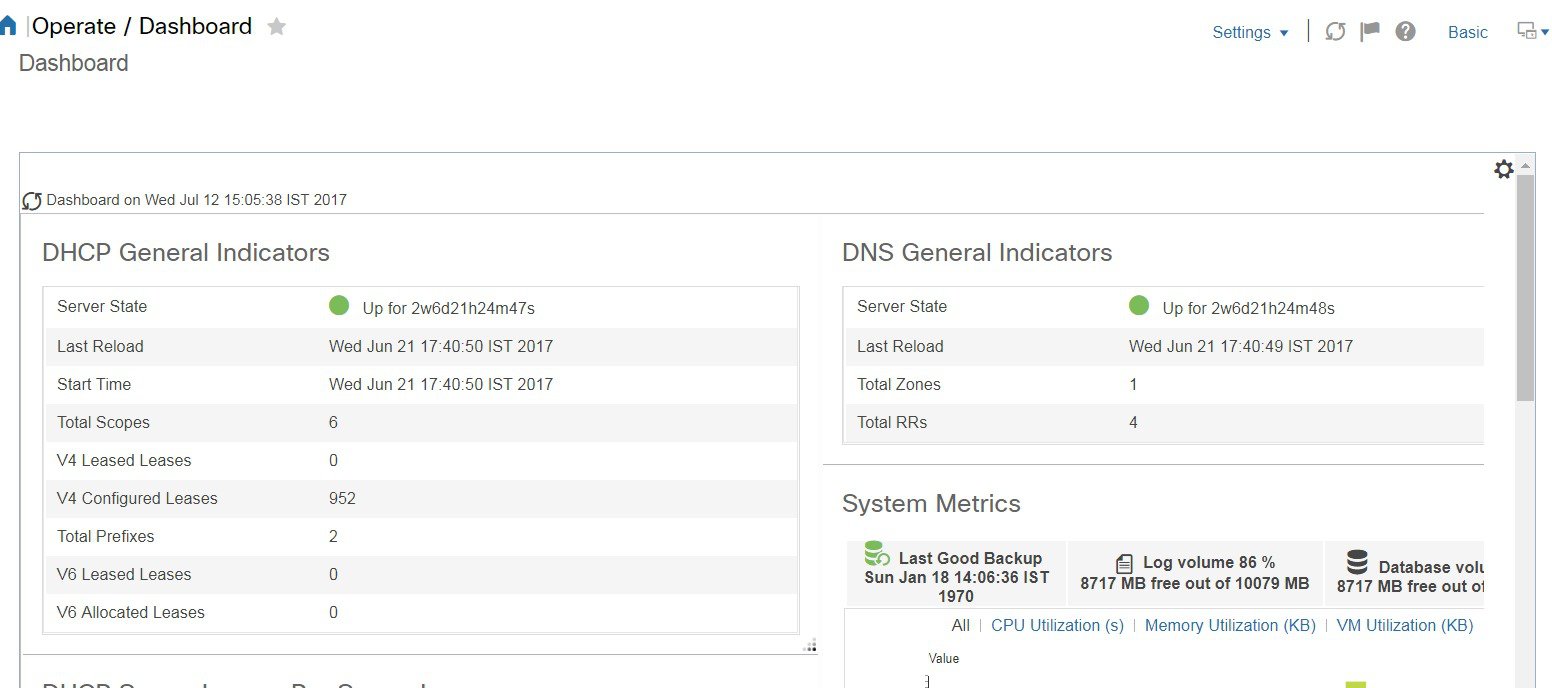
Provided you have DHCP and DNS privileges through administrator roles assigned to you, the preset display of the dashboard consists of the following tables (See the table below for an example):

  • System Metrics—See the "System Metrics" section in Cisco Prime Network Registrar 11.3 Administration Guide.

  • DHCP General Indicators—See DHCP General Indicators.

  • DNS General Indicators—See the "DNS General Indicators" section in Cisco Prime Network Registrar 11.3 Authoritative and Caching DNS User Guide.


Tip


These are just the preset selections. See Selecting Dashboard Elements to Include for other dashboard elements you can select. The dashboard retains your selections from session to session.


Figure 1. Preset Dashboard Elements


Each dashboard element initially appears as a table or a specific panel chart, depending on the element:

General Status Indicators

Note the green indicator in the Server State description in the above image. This indicates that the server sourcing the information is functioning normally. A yellow indicator indicates that server operation is less than optimum. A red indicator indicates that the server is down. These indicators are the same as for the server health on the Manage Servers page in the regular web UI.

Below mentioned are the situations, in which server will decrement the health score:

  • Server failed to configure network interfaces.

  • Server is configured for DHCPv4 (based on 'dhcp-support' attribute) but did not find any scopes on which to attempt configuration.

  • Server is configured for DHCPv6 but not DHCPv4 (based on 'dhcp-support' attribute) but did not find any Prefixes on which to attempt configuration.

  • Admin has configured links but DHCP server could not use any of them due to configuration errors.

  • Admin has configured prefixes but DHCP server could not use any of them due to configuration errors.

  • Admin has configured scopes but DHCP server could not use any of them due to configuration errors.

  • Server is dropping requests because it is out of request or response buffers.

  • Server failed to generate response because it is out of response buffers.

  • Server failed to generate client response or failover packet (e.g. packet buffer was too small to hold all of the requested DHCP options).

  • Server failed to find available lease based on client request. This could be due to many reasons including lease or client reservation, deactivated lease or scope, restrict-to-reservations, restrict-to-admin-allocation, bootp settings, etc.

  • Apart from these, memory allocation error and few socket read errors.

Graphic Indicators for Levels of Alert

Graphed lines and stacked areas in the charts follow a standard color and visual coding so that you can immediately determine key diagnostic indicators at a glance. The charts use the following color and textural indicators:

  • High alerts or warnings —Lines or areas in red, with a hatched texture.

  • All other indicators —Lines or areas in various other colors distinguish the data elements. The charts do not use green or yellow.

Magnifying and Converting Charts

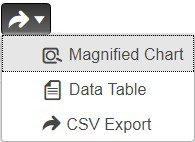
You can magnify a chart in a separate window by clicking the Chart Link icon at the bottom of the panel chart and then by clicking the Magnified Chart option (see the image below). In magnified chart view, you can choose an alternative chart type from the one that comes up initially (see Other Chart Types).
Figure 2. Magnifying Charts


Note


Automatic refresh is turned off for magnified charts. To get the most recent data, click the Refresh icon next to the word Dashboard at the top left of the page.

To convert a chart to a table, see the Displaying Charts as Tables section. You cannot convert tables to a graphic chart format.

Legends

Each chart includes a color-coded legend by default.

Tables

Dashboard elements rendered as tables have data displayed in rows and columns. The following dashboard elements are preset to consist of (or include) tables:

  • DHCP DNS Updates

  • DHCP Address Current Utilization

  • DHCP General Indicators

  • DNS General Indicators

  • Caching DNS General Indicators


Note


If you view a table in Expert mode, additional data might appear.


Line Charts

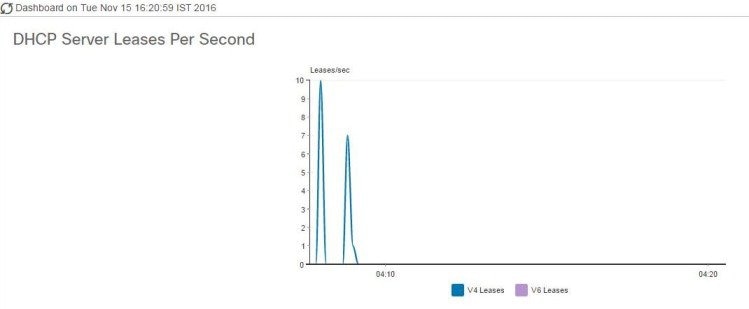
Dashboard elements rendered as line charts can include one or more lines plotted against the x and y axes. The three types of line charts are described in the following table.

Table 1. Line Chart Types

Type of Line Chart

Description

Dashboard Elements Rendered

Raw data line chart

Lines plotted against raw data.

  • Java Virtual Machine (JVM) Memory Utilization (Expert mode only)

  • DHCP Buffer Capacity

  • DHCP Failover Status (two charts)

  • DNS Network Errors

  • DNS Related Servers Errors

Delta line chart

Lines plotted against the difference between two sequential raw data.

  • DNS Inbound Zone Transfers

  • DNS Outbound Zone Transfers

Rate line chart

Lines plotted against the difference between two sequential raw data divided by the sample time between them.

  • DHCP Server Request Activity (see the image below)

  • DHCP Server Response Activity

  • DHCP Response Latency

  • DNS Query Responses

  • DNS Forwarding Errors


Tip


To get the raw data for a chart that shows delta or rate data, enter Expert mode, go to the required chart, click the Chart Link icon at the bottom of the panel chart, and then click Data Table . The Raw Data table is below the Chart Data table.


Figure 3. Line Chart Example

Area Charts

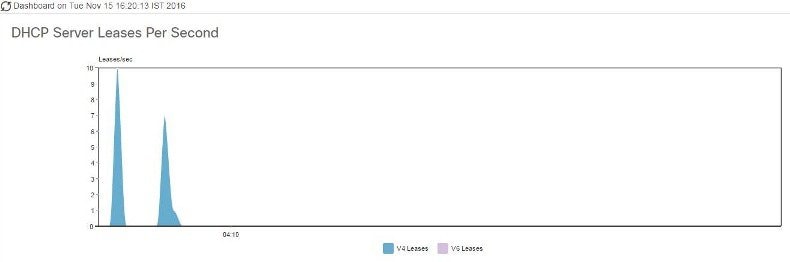
Dashboard elements rendered as area charts have multiple related metrics plotted as trend charts, but stacked one on top of the other, so that the highest point represents a cumulative value. The values are independently shaded in contrasting colors. (See the image below for an example of the DHCP Server Request Activity chart shown in Line Chart Example rendered as an area chart.)

Figure 4. Area Chart Example

They are stacked in the order listed in the legend, the left-most legend item at the bottom of the stack and the right-most legend item at the top of the stack. The dashboard elements that are pre-set to area chart are:

  • DHCP Buffer Capacity

  • DHCP Failover Status

  • DHCP Response Latency

  • DHCP Server Leases Per Second

  • DHCP Server Request Activity

  • DHCP Server Response Activity

  • DNS Inbound Zone Transfers

  • DNS Network Errors

  • DNS Outbound Zone Transfers

  • DNS Queries Per Second

  • DNS Related Server Errors

Other Chart Types

The other chart types available for you to choose are:

  • Line —One of the line charts described in Line Charts.

  • Area —Charts described in the Area Charts.

  • Column —Displays vertical bars going across the chart horizontally, with the values axis being displayed on the left side of the chart.

  • Scatter —A scatter plot is a type of plot or mathematical diagram using Cartesian coordinates to display values for typically two variables for a set of data.


Tip


Each chart type shows the data in distinct ways and in different interpretations. You can decide which type best suits your needs.


Getting Help for the Dashboard Elements

You can open a help window for each dashboard element by clicking the help icon on the table/chart window.

Customizing the Display

To customize the dashboard display, you can:

  • Refresh the data and set an automatic refresh interval.

  • Expand a chart and render it in a different format.

  • Convert a graphic chart to a table.

  • Download data to comma-separated value (CSV) output.

  • Display or hide chart legends.

  • Configure server chart types.

  • Reset to default display

Each chart supports:

  • Resizing

  • Drag and drop to new cell position

  • Minimizing

  • Closing

Each chart has a help icon with a description of the chart and a detailed help if you click the link (more...) at the bottom of the description.


Note


The changes made to the dashboard/chart will persist only if you click Save in the Dashboard window.

Refreshing Displays

Refresh each display so that it picks up the most recent polling by clicking the Refresh icon.

Setting the Polling Interval

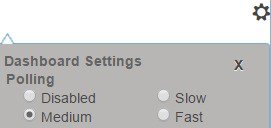
You can set how often to poll for data. Click the Dashboard Settings icon in the upper-right corner of the dashboard display. There are four options to set the polling interval of the cached data, which polls the protocol servers for updates (See the image below).
Figure 5. Setting the Chart Polling Interval


You can set the cached data polling (hence, automatic refresh) interval to:

  • Disabled—Does not poll, therefore does not automatically refresh the data.

  • Slow—Refreshes the data every 30 seconds.

  • Medium—Refreshes the data every 20 seconds.

  • Fast (the preset value)—Refreshes the data every 10 seconds.

Displaying Charts as Tables

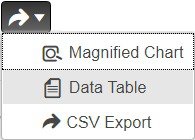
Use the Chart Link icon at the bottom of the panel chart to view the chart link options (see the image below). You can choose to display a graphic chart as a table by clicking the Data Table option.

Figure 6. Specifying Chart Conversion to Table Format


Exporting to CSV Format

You can dump the chart data to a comma-separated value (CSV) file (such as a spreadsheet). In the Chart Link controls at the bottom of the panel charts (see the above image), click the CSV Export option. A Save As window appears, where you can specify the name and location of the CSV file.

Selecting Dashboard Elements to Include

You can decide how many dashboard elements you want to display on the page. At times, you might want to focus on one server activity only, such as for the DHCP server or the DNS server, and exclude all other metrics for the other servers. In this way, the dashboard becomes less crowded, the elements are larger and more readable. At other times, you might want an overview of all server activities, with a resulting smaller element display.

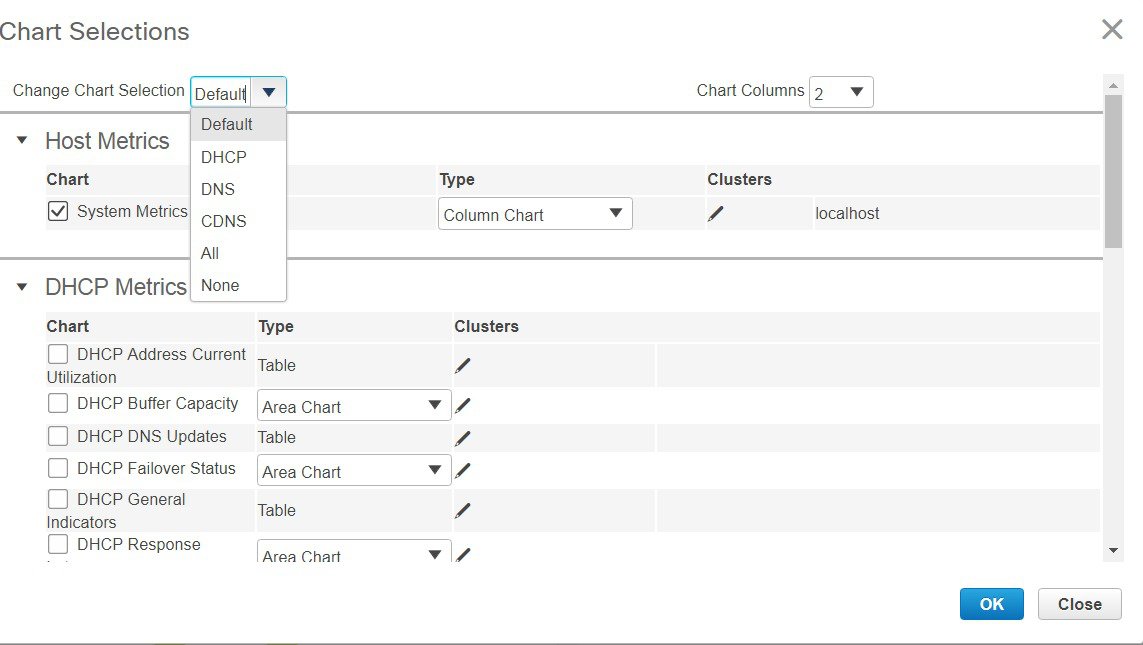
You can select the dashboard elements to display from the main Dashboard page by clicking the Dashboard Settings icon and then clicking Chart Selections in the Dashboard Settings dialog. Clicking the link opens the Chart Selection page (see Selecting Dashboard Elements).

Configuring Server Chart Types

You can set the default chart types on the main dashboard view. You can customize the server charts in the dashboard to display only the specific chart types as default.

To set up default chart type, check the check box corresponding to the Metrics chart that you want to display and choose a chart type from the Type drop-down list. The default chart types are consistent and shared across different user sessions (see the image below).


Note


You can see either the CDNS or DNS Metrics in the Dashboard Settings > Chart Selection page based on the service configured on the server.

Tip


The order in which the dashboard elements appear in the Chart Selection list does not necessarily determine the order in which the elements will appear on the page. An algorithm that considers the available space determines the order and size in a grid layout. The layout might be different each time you submit the dashboard element selections. To change selections, check the check box next to the dashboard element that you want to display.


Figure 7. Selecting Dashboard Elements


The above image displays the Charts Selection table in the regional web UI. The Clusters column is available only in regional dashboard and it displays the list of local clusters configured. You can add the local cluster by clicking the Edit icon and then by selecting the local cluster name from the Local Cluster List dialog box.

To change selections, check the check box next to the dashboard element that you want to display.

Specific group controls are available in the Change Chart Selection drop-down list, at the top of the page (see the image above). To:

  • Uncheck all check boxes, choose None .

  • Revert to the preset selections, choose Default . The preset dashboard elements for administrator roles supporting DHCP and DNS are:

    • Host Metrics: System Metrics

    • DHCP Metrics: General Indicators

    • DNS Metrics: General Indicators

  • Select the DHCP metrics only, choose DHCP (see the "DHCP Metrics" section in Cisco Prime Network Registrar 11.3 DHCP User Guide).

  • Select the DNS metrics only, choose DNS (see the "Authoritative DNS Metrics" section in Cisco Prime Network Registrar 11.3 Authoritative and Caching DNS User Guide).

  • Select the DNS metrics only, choose CDNS (see the "Caching DNS Metrics" section in Cisco Prime Network Registrar 11.3 Authoritative and Caching DNS User Guide)

  • Select all the dashboard elements, choose All .

Click OK at the bottom of the page to save your choices, or Cancel to cancel the changes.

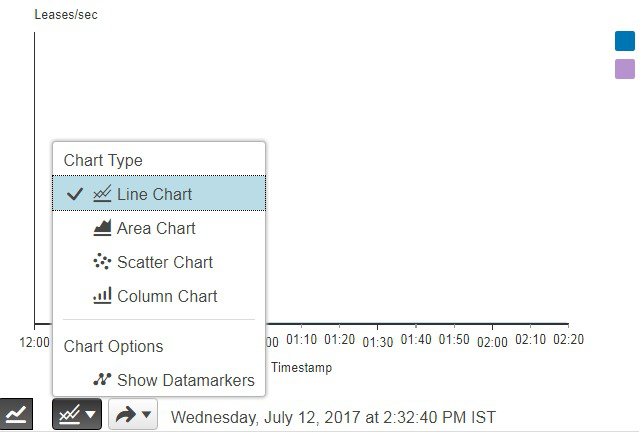
You can change the chart type by clicking the Chart Type icon at the bottom of the panel chart and then by selecting the required chart type (see the image below). The different types of chart available are: Line Chart, Column Chart, Area Chart, and Scatter Chart.
Figure 8. Selecting the Chart Type


DHCP Metrics

Following DHCP metric elements are available in the dashboard. For the complete list of DHCP server statistics, see the "DHCP Statistics" section under the "Server Statistics" appendix of Cisco Prime Network Registrar 11.3 Administration Guide.

DHCP Address Current Utilization

The DHCP Address Current Utilization dashboard element, rendered as table, shows the DHCPv4 and DHCPv6 address utilization (how many assigned addresses exist) for a particular address aggregation, which can be a scope, link, prefix, network, or network plus selection tag. The table is available if you choose DHCP Metrics: DHCP Address Current Utilization in the Chart Selections page.

The resulting table shows:

  • Name —Aggregation name (or address).
  • In Use —Number of in-use addresses.
  • Total —Total number of addresses.
  • Utilization —Percentage of utilized addresses.
  • Mode (appears in Expert mode only)—Aggregation mode (scope, link, prefix, network, or selection-tags).

How to Interpret the Data

The chart shows a table with four columns: the scope, link, or prefix name, its in-use and total addresses, and the percentage of address utilization based on the previous two columns. The chart is available only if the DHCP server enhanced-sample-counters attribute is enabled.

  • If an SNMP trap configuration in scope mode applies, the Name column displays the scope name. Otherwise, it shows the network IP address.

  • If traps are not enabled (or if the DHCP server default-free-address-config or v6-default-free-address-config attribute is not set), the network address is appended with an asterisk (* ).

  • If a selection tag applies, its name is also appended. See the "Handling SNMP Notification Events" section in Cisco Prime Network Registrar 11.3 Administration Guide for details on SNMP traps.

  • If you do not define a default-free-address-config (or v6-default-free-address-config) attribute, Cisco Prime Network Registrar creates an internal, unlisted trap configuration named default-aggregation-addr-trap-config .

Because of this, do not use the name default-aggregation-addr-trap-config for a trap configuration you create.

Troubleshooting Based on the Results

If the percentage of utilized addresses is high, the addresses reached a saturation point. It might be necessary to reassign addresses from a different scope.

Attributes Used

Following attributes from the DHCPScopeAggregationStats class are used to generate this graph:

Table 2. Attributes Used

DHCPScopeAggregationStats Attribute

Description

name

Specifies the name of the scope or prefix aggregation.

in-use-addresses

Displays the number of addresses in use.

total-addresses

Displays the total number of addresses in the aggregation.

utilized-pct

Displays the aggregation's percentage utilized.

mode

The 'scope' mode causes each scope to track its own free-address level independently. This is an IPv4 only mode.

The 'network' mode causes all of the scopes configured by this object to aggregate their free-address levels if they share a 'primary-subnet'. This is an IPv4 only mode.

The 'selection-tags' grouping causes scopes to aggregate their free-address information together if they share a primary-subnet and if their lists of selection tags match exactly. This is an IPv4 only mode.

The 'prefix' mode causes each prefix to track its own free-address level independently. This is an IPv6 only mode.

The 'link' mode causes all of the prefixes configured by this object to aggregate their free-address levels if they share a link. This is an IPv6 only mode.

The 'v6-selection-tags' grouping causes prefixes to aggregate their free-address information if they share a link, and if their lists of selection tags match exactly. This is an IPv6 only mode.

The 'countonly' and 'v6-countonly' groupings are used for the built-in aggregation objects that are used to provide top-utilized information when no traps are configured. No traps will be fired for these modes.

DHCP Buffer Capacity

The DHCP Buffer Capacity dashboard element, rendered as area chart, shows the number of allocated requests and responses, and a line chart that plots the number of requests and responses in use. The element is available if you choose DHCP Metrics: DHCP Buffer Capacity in the Chart Selections page.

The resulting table and chart plot:

  • Requests in Use —Trend in the number of in-use request buffers.
  • Responses in Use —Trend in the number of in-use response buffers.

How to Interpret the Data

The DHCP Buffer Capacity data shows the pattern in the use of DHCP request and response buffers. If the buffers begin to increase in an abnormal pattern, there are measures you can take without trying to compensate by increasing the number of allocated buffers.

Troubleshooting Based on the Results

If you see increasing and consistent exceeding of the buffer threshold, find the reason why the server is running slowly. Possible reasons include high degrees of logging, slow DHCP extensions or LDAP servers, or overload, such as with chatty clients or frequent rebooting of cable modem termination systems (CMTSs). You might need to increase the buffer sizes.

Attributes Used

Following attributes from the DHCPServerActivityStats class are used to generate this graph:

Table 3. Attributes Used

DHCPServerActivityStats Attribute

Description

request-buffers-in-use

Displays the number of request buffers the DHCP server is using at the time the statistics are calculated.

response-buffers-in-use

Displays the number of response buffers the DHCP server is using at the time the statistics are calculated.

request-buffers-allocated

Shows the number of request buffers that the server has allocated to support the failover capability.

response-buffers-allocated

Shows the number of response buffers that the server has allocated to support the failover capability.

DHCP DNS Updates

The DHCP DNS Updates dashboard element, rendered as table, shows the related DNS server and its current state, and how many pending DNS updates are occurring between it and the DHCP server. The table is available if you choose DHCP Metrics: DHCP DNS Updates in the Chart Selections page.

The resulting table shows:

  • Server —Related DNS server IP address
  • State —Related DNS server state
  • Pending Updates —Total number of pending updates

How to Interpret the Data

A high level of pending updates to a specific DNS server indicates that the server is unreachable or unavailable, or its address is wrong.

Troubleshooting Based on the Results

Check into the reachability of the associated DNS servers if the pending update rate spikes, or ensure that the address of the associated server is correct.

Attributes Used

Following attributes from the DNSRelatedServer class are used to generate this graph:

Table 4. Attributes Used

DNSRelatedServer Attribute

Description

ipaddr/ip6address

The address of the DNS server.

dns-server-state

Reports the state of the DNS server, as seen by the DHCP server. This can be SEND-UPDATE or PROBE.

A SEND-UPDATE state indicates that the DHCP server is currentlysending DNS updates to the DNS server.

A PROBE state indicates that the DHCP server either attempted to sendDNS updates and was not successful, or has not yet initiated sendingany DNS updates to the DNS server.

requests

Shows the number of DHCPREQUEST packets received in this time interval.

DHCP Failover Status

The DHCP Failover Status dashboard element rendered as two parallel trend charts that show the current and partner server state and the binding updates and acknowledgments sent and received between the two failover partners. The charts are available if you choose DHCP Metrics: DHCP Failover Status in the Chart Selections page.


Note


The failover status is only for the first failover pair in the related servers list.

The display is a table along with two rate line trend charts that shows the failover status for the first failover pair for the related servers:

  • Local State —Local DHCP server failover state along with when it occurred.
  • Partner State —Partner server failover state along with when it occurred.
  • DHCP Failover Status Updates Received —The first trend chart shows a comparison of the number of binding updates received and binding acknowledgments sent.
  • DHCP Failover Status Updates Sent —The second trend chart shows a comparison of the number of binding updates sent and binding acknowledgments received.

How to Interpret the Data

Along with some state data, the display is split into two line trend charts that are inverses of each other. Each chart compares the binding updates with the acknowledgments. The top chart pairs the binding updates received with the acknowledgments sent; the bottom chart pairs the binding updates sent with the acknowledgments received.

Troubleshooting Based on the Results

If the Partner State value is other than 10, check the configuration of the partner server. The updates sent and received data should also be fairly level.

Attributes Used

Following attributes from the FailoverRelatedServer and DHCPFailoverStats classes are used to generate this graph:

Table 5. Attributes Used

Attribute

Description

FailoverRelatedServer Attributes

state

The state which this end of the failover relationship is in.

partner-state

The last known state which the partner's end of the failoverrelationship is in.

start-time-of-state

The time at which the current failover state began.

start-time-of-partner-state

The time at which the partner's current failover state began.

DHCPFailoverStats Attributes

binding-updates-received

Displays the number of failover DHCPBNDUPD packets received in this time interval.

binding-acks-sent

Displays the number of failover DHCPBNDACK packets sent in this time interval.

v6-binding-updates-received

Displays the number of failover BNDUPD6 messages received in this time interval.

v6-binding-acks-sent

Displays the number of failover BNDUPD6 messages, where no updates were negatively acknowledged, sent in this time interval.

binding-updates-sent

Shows the number of failover DHCPBNDUPD packets sent in this time interval.

binding-acks-received

Displays the number of failover DHCPBNDACK packets received in this time interval.

v6-binding-updates-sent

Displays the number of failover BNDUPD6 messages sent in this time interval.

v6-binding-acks-received

Displays the number of failover BNDUPD6 messages, where no updates were negatively acknowledged, received in this time interval.

DHCP General Indicators

The DHCP General Indicators dashboard element, rendered as table, shows the server state, reload data, and lease counts. The table is available if you choose DHCP Metrics: DHCP General Indicators in the Chart Selections page.

The resulting table shows:

  • Server State —Up or Down (based on whether statistics are available) and its duration.
  • Last Reload —Date and time of the last server reload.
  • Start Time —Date and time of the last server process (Cisco Prime Network Registrar server agent) startup.
  • Total Scopes —Total number of configured DHCPv4 scopes.
  • V4 Leased Leases —Number of active DHCPv4 leases, including reservations.
  • V4 Configured Leases —Number of configured DHCPv4 leases, including reservations and ranges.
  • Total Prefixes —Number of configured DHCPv6 prefixes.
  • V6 Leased Leases —Number of active DHCPv6 leases, including reservations and delegated prefixes (which each count as one lease).
  • V6 Allocated Leases —Number of allocated DHCPv6 leases, including reservations and delegated prefixes (which each count as one lease).

How to Interpret the Data

The table indicates the server state, process start time (via the Cisco Prime Network Registrar server agent), and reload data, and also provides lease statistics. The top set of data compares the DHCPv4 leases actually in effect with those configured; the bottom set of data does the same for DHCPv6 leases.

Time of last reload is important for determining if recent changes to the server configuration occurred from a reload operation. It can also help pinpoint when server changes were last applied, if other indicators show a marked, unexpected behavioral change. Be sure to preserve log files since the last reload.

Troubleshooting Based on the Results

A drop or increase in leases might indicate a power or network outage, but it can also indicate a normal variation depending on lease times and usage patterns. The number of scopes or prefixes indicated might also require some evaluation and possible reconfiguration. If the server state is Down, all the DHCP chart indicators show a red status box, so no data will be available. In the case of a server that is down, restart the server.

Attributes Used

Following attributes from the DHCPServerStats and DHCPServerActivityStats classes are used to generate this graph:

Table 6. Attributes Used

Attribute

Description

server state

The server state.

DHCPServerStats Attributes

server-start-time

The time the server was started.

server-reload-time

The time the server was last reloaded.

DHCPServerActivityStats Attributes

active-leases

Shows the number of DHCPv4 leases and reservations that are currently unavailable to new clients.

configured-leases

Shows the number of DHCPv4 leases and reservations that are configured on the server. This includes all possible leases in the ranges that are defined by the configuration.

total-scopes

The number of scopes configured in the server.

active-leases

Shows the number of DHCPv6 leases, reservations and delegated prefixes that are currently unavailable to new clients.

allocated-leases

Shows the number of DHCPv6 leases, reservations, and delegated prefixes that are presently allocated in the server.

total-prefixes

The number of prefixes configured in the server.

DHCP Renewal Data

The DHCP Renewal Data dashboard element, rendered as line chart, shows the expected load of renewals on the DHCP server. This chart is available if you choose DHCP Metrics: DHCP Renewal Data in the Chart Selections page.

The resulting line chart displays:

  • Number of Clients—Number of clients renewing within specific time intervals.

DHCP Response Latency

The DHCP Response Latency dashboard element, rendered as area chart, shows the trend in the response packet latency (the time interval between the request packet and its ensuing response). The chart is available if you choose DHCP Metrics: DHCP Response Latency in the Chart Selections page.


Tip


You must also set the collect-sample-counters DHCP server attribute for this data to display, with the enhanced-sample-counters attribute also set for further granularity. These attribute values are preset. If you are concerned about achieving maximum performance, unset these attributes. (See the "Displaying Statistics" section in Cisco Prime Network Registrar 11.3 Administration Guide.)


The resulting area chart plots response latencies at the intervals:

  • Less than 50 milliseconds

  • 50 to 200 milliseconds

  • 200 to 500 milliseconds

  • 500 to 1000 milliseconds (note that if the enhanced-sample-counters attribute is not set, all values below 1 second appear in this grouping)

  • 1 to 2 seconds

  • 2 to 3 seconds

  • 3 to 4 seconds

  • More than 4 seconds

How to Interpret the Data

The chart shows the trend in response packet latency as an indicator of how long it takes to respond to incoming packets. The gradations in the latency periods are stacked.

Troubleshooting Based on the Results

High response packet latency is similar to high buffer usage for troubleshooting purposes. Look for slow LDAP servers or DHCP extensions, high levels of logging, or disk I/O bottlenecks.

Attributes Used

Following attributes from the DHCPServerActivityStats class are used to generate this graph:

Table 7. Attributes Used

DHCPServerActivityStats Attribute

Description

ack-latency-counts

An ordered list of the number of DHCPACK responses.

reply-latency-counts

An ordered list of the number of Reply responses.

DHCP Server Leases Per Second Data

The DHCP Server Leases Per Second dashboard element, rendered as area chart, shows the number of leases per second for the DHCP server. This chart is available if you choose DHCP Metrics: DHCP Server Leases Per Second in the Chart Selections page.

The resulting area chart displays:

  • V4 Leases —Number of IPv4 leases per second.
  • V6 Leases —Number of IPv6 leases per second.

Attributes Used

Following attributes from the DHCPServerActivityStats and DHCP6Stats classes are used to generate this graph:

Table 8. Attributes Used

Attribute

Description

DHCPServerActivityStats Attribute

acks

Shows the number of DHCPACK packets sent in this time interval.

DHCP6Stats Attribute

replies

Shows the number of DHCPv6 replies sent in this time interval.

DHCP Server Request Activity

The DHCP Server Request Activity dashboard element, rendered as area chart, traces the totals in the change rate of incoming DHCP packet activity. The chart is available if you choose DHCP Metrics : DHCP Server Request Activity in the Chart Selections page.

The resulting area chart plots the following trends:

  • V4 Discovers —Number of DHCPv4 discover packets.
  • V4 Requests —Number of DHCPv4 request packets.
  • V4 Other —Number of DHCPv4 release, decline, or info-request packets.
  • V4 Lease Queries —Number of DHCPv4 lease query packets.
  • V6 Solicits —Number of DHCPv6 solicit packets.
  • V6 Requests/Renews/Rebinds —Number of DHCPv6 request, renew, and rebind packets.
  • V6 Other —Number of DHCPv6 release, decline, or information-request packets.
  • V6 Lease Queries —Number of DHCPv6 lease query packets.
  • Invalid Packets —Combined number of invalid DHCPv4 and DHCPv6 packets.

How to Interpret the Data

The DHCP Server Request Activity data shows the pattern of server traffic based on incoming DHCP requests. The trend should be fairly consistent, with spikes in the number of Invalid packets being a sign that there is some misconfigured data on the network. Note that DHCPv4 and DHCPv6 invalid packet activity is grouped together.

Troubleshooting Based on the Results

Check your DHCP server configurations if there is a sudden spike in activity, especially in the number of invalid request packets. Set your server logging to report where the activity is occurring. Spikes or drops in activity can indicate network or power outages that are worth investigating. Spikes in activity can also indicate a faulty client, malicious client activity, or a recovery after a power failure or outage that results in pent-up requests.

Attributes Used

Following attributes from the DHCPServerActivityStats and DHCP6Stats classes are used to generate this graph:

Table 9. Attributes Used

Attribute

Description

DHCPServerActivityStats Attributes

discovers

Shows the number of DHCPDISCOVER packets received in this time interval.

requests

Shows the number of DHCPREQUEST packets received in this time interval.

lease-queries

Shows the number of DHCPLEASEQUERY packets received in this time interval.

invalid-packets

Shows the number of invalid DHCP packets received in this time interval.

releases

Shows the number of DHCPRELEASE packets releases received in this time interval.

declines

Shows the number of DHCPDECLINE packets declines received in this time interval.

informs

Shows the number of DHCPINFORM packets received in this time interval.

bootp-received

Displays the number of bootp packets received in this time interval.

DHCP6Stats Attributes

solicits

Shows the number of DHCPv6 solicits received in this time interval.

renews

Shows the number of DHCPv6 renews received in this time interval.

rebinds

Shows the number of DHCPv6 rebinds received in this time interval.

leasequeries

Shows the number of DHCPv6 Leasequery messages received.

invalid-packets

Shows the number of invalid DHCPv6 packets received in this time interval.

confirms

Shows the number of DHCPv6 confirms received in this time interval.

releases

Shows the number of DHCPv6 releases received in this time interval.

declines

Shows the number of DHCPv6 declines received in this time interval.

info-requests

Shows the number of DHCPv6 info-requests received in this time interval.

DHCP Server Response Activity

The DHCP Server Response Activity dashboard element, rendered as area chart, traces the totals in the change rate of outgoing DHCP packet activity. The chart is available if you choose DHCP Metrics : DHCP Server Response Activity in the Chart Selections page.

The resulting area chart plots the following trends:

  • V4 Offers —Number of DHCPv4 offer packets.
  • V4 Acks —Number of DHCPv4 acknowledgment packets.
  • V4 Other Client —Number of other outgoing DHCPv4 client packets.
  • V4 Lease Queries —Number of outgoing DHCPv4 lease query packets.
  • V6 Advertises —Number of DHCPv6 advertise packets.
  • V6 Replies —Number of DHCPv6 reply packets.
  • V6 Reconfigures —Number of DHCPv6 reconfigure packets.
  • V6 Lease Query Replies —Number of DHCPv6 lease query reply packets.
  • Total Dropped —Combined number of dropped DHCPv4 and DHCPv6 packets.

How to Interpret the Data

The DHCP Server Response Activity data shows the pattern of server traffic to answer DHCP requests. The trend should be fairly consistent, with spikes in the number of Total Dropped packets being a sign that there is some misconfigured data on the network. Note that DHCPv4 and DHCPv6 dropped packet activity is grouped together.

Troubleshooting Based on the Results

Check your DHCP server configurations if there is a sudden spike in activity, especially in the number of total dropped response packets. The response activity should match the request activity, except for the normal time shift, and the same diagnostics apply.

Attributes Used

Following attributes from the DHCPServerActivityStats and DHCP6Stats classes are used to generate this graph:

Table 10. Attributes Used

Attribute

Description

DHCPServerActivityStats Attributes

offers

Shows the number of DHCPOFFER packets sent in this time interval.

acks

Shows the number of DHCPACK packets sent in this time interval.

dropped-total

Displays the total number of DHCP packets dropped due to server or client configuration issues in this time interval.

naks

Shows the number of DHCPNAK packets sent in this time interval.

bootp-sent

Displays the number of bootp packets sent in this time interval.

lease-queries-unassigned

Displays the number of DHCPLEASEUNASSIGNED packets (message ID 11) sent in this time interval.

lease-queries-unknown

Displays the number of DHCPLEASEUNKNOWN packets (message ID 12) sent in this time interval.

lease-queries-active

Displays the number of DHCPLEASEACTIVE packets (message ID 13) sent in this time interval.

DHCP6Stats Attributes

advertises

Shows the number of DHCPv6 advertises sent in this time interval.

replies

Shows the number of DHCPv6 replies sent in this time interval.

reconfigures

Shows the number of DHCPv6 reconfigures sent in this time interval.

leasequery-replies

Shows the number of responses to DHCPv6 Leasequery messages which may or may not have been successful.

dropped-total

Displays the total number of DHCPv6 packets dropped due to server or client configuration issues in this time interval.