Managing Cisco NFVI

The following topics provide general management procedures that you can perform if your implementation is Cisco VIM by itself or if it is Cisco VIM and Cisco VIM Unified Management.

Managing Cisco NFVI Pods

You can perform OpenStack management operations on Cisco NFVI pods including addition and removal of Cisco NFVI compute and Ceph nodes, and replacement of controller nodes. Each action is mutually exclusive. You can perform only one pod management action at a time. Before you perform a pod action, ensure that the following requirements are met:

  • The node is part of an existing pod.

  • The node information exists in the setup_data.yaml file, if the pod management task is removal or replacement of a node.

  • The node information does not exist in the setup_data.yaml file, if the pod management task is to add a node.

    For more information on operations that can be performed on pods, see the Managing Hosts in Cisco VIM or NFVI Pods section.

General Guidelines for Pod Management

The setup_data.yaml file is the only user-generated configuration file that is used to install and manage the cloud. While many instances of pod management indicate that the setup_data.yaml file is modified, the administrator does not update the system generated setup_data.yaml file directly.


Note

To avoid translation errors, we recommend that you avoid copying and pasting commands from the documents to the Linux CLI.

Follow these steps to update the setup_data.yaml file:

  1. Copy the setup data into a local directory:

    [root@mgmt1 ~]# cd /root/
    [root@mgmt1 ~]# mkdir MyDir
    [root@mgmt1 ~]# cd MyDir
    [root@mgmt1 ~]# cp /root/openstack-configs/setup_data.yaml <my_setup_data.yaml>
  2. Update the setup data manually:

    [root@mgmt1 ~]# vi my_setup_data.yaml (update the targeted fields for the setup_data)
  3. Run the reconfiguration command:

    [root@mgmt1 ~]# ciscovim –-setupfile ~/MyDir/<my_setup_data.yaml>
    <pod_management_action>
    

In Cisco VIM, you can edit and enable a selected set of options in the setup_data.yaml file using the reconfigure option. After installation, you can change the values of the feature parameters. Unless specified, Cisco VIM does not allow you to undo the feature configuration.

The following table provides the list of features that you can reconfigure after installing a pod.

Features Enabled after post-pod deployment

Comment

Optional OpenStack Services

  • Heat: OpenStack Orchestration Program

  • LDAP: Works only with Keystone v3. Full or partial reconfiguration can be done. Except for domain, all attributes are reconfigurable.

  • Ironic: Baremetal workload post install

  • Container: Cloud-native workload as a technical preview

Pod Monitoring

CVIM-MON: monitoring host and service level with or without ui_access

NFVIMON: Third-party monitoring from host to service level with aid of Cisco Advance Services.

Export of EFK logs to External Syslog Server

Reduces single point of failure on management node and provides data aggregation.

NFS for Elasticsearch Snapshot

NFS mount point for Elastic-search snapshot is used so that the disk on management node does not get full.

Admin Source Networks

White list filter for accessing management node admin service over IPv4 or IPv6.

NFVBench

Tool to help measure cloud performance. Management node needs a dedicated 10G/40G Intel NIC (4x10G 710, or 2x40G XL710 Intel NIC).

EFK settings

Enables you to set EFK rotation frequency and size.

OpenStack service password

Implemented for security reasons, so that OpenStack passwords can be reset on-demand.

CIMC Password Reconfigure Post Install Implemented for security reasons, so that CIMC passwords for C-series pod, can be reset on-demand.

SwiftStack Post Install

Integration with third-party Object-Store. The SwiftStack Post Install feature works only with Keystone v2.

TENANT_VLAN_RANGES and PROVIDER_VLAN_RANGES

Ability to increase the tenant and provider VLAN ranges on a pod that is up and running. It gives customers flexibility in network planning.

DHCP reservation for VM’s MAC addresses

Allow DHCP reservation for virtual machine MAC addresses, so as to get the same IP address always regardless of the host hypervisor or operating system they are running.

Enable TRUSTED_VF on a per (SR-IOV) compute basis

Allows virtual functions to become trusted by the physical function and to perform some privileged operations such as enabling VF promiscuous mode and changing VF MAC address within the guest.

Support of ,multiple external syslog servers

Ability to offload the OpenStack logs to an external Syslog server post-install.

Replace of Failed APIC Hosts and add more leaf nodes

Ability to replace Failed APIC Hosts, and add more leaf nodes to increase the fabric influence.

Make Netapp block storage end point secure

Ability to move the Netapp block storage endpoint from Clear to TLS post-deployment

Auto-backup of Management Node

Ability to enable/disable auto-backup of Management Node. It is possible to unconfigure the Management Node.

VIM Admins

Ability to configure non-root VIM Administrators.

Ability to configure VIM admins authenticated by LDAP.

EXTERNAL_LB_VIP_FQDN

Ability to enable TLS on external_vip through FQDN.

EXTERNAL_LB_VIP_TLS

Ability to enable TLS on external_vip through an IP address.

http_proxy and/or https_proxy

Ability to reconfigure http and/or https proxy servers.

Admin Privileges for VNF Manager (ESC) from a tenant domain

Ability to enable admin privileges for VNF Manager (ESC) from a tenant domain.

SRIOV_CARD_TYPE

Mechanism to switch between 2-X520 and 2-XL710 as an SRIOV option in Cisco VIC NIC settings at a global and per compute level through reconfiguration. In the absence of per compute and global level, X520 card type is set by default.

NETAPP

Migrate NETAPP transport protocol from http to https.

Reset of KVM console passwords for servers

Aids to recover the KVM console passwords for servers.

Horizon behind NAT or with DNS alias(es)

Ability to host Horizon behind NAT or with DNS alias(es)

Login banner for SSH sessions

Support of configurable login banner for SSH sessions

Ability to add Layer 3 BGP session

Ability to switch BGP sessions from Layer 2 to Layer 3 in the presence of VXLAN configuration.

Add/remove of head-end-replication option

Ability to add or remove head-end-replication option, in the presence of VXLAN configuration

Identifying the Install Directory

If you are an administrator and want to use CLI to manage the pods, you must know the location of the installer directory. To identify the installer directory of a pod, execute the following commands:
[root@mgmt1 ~]# cd /root/
[root@mgmt1 ~]# ls –lrt | grep openstack-configs
lrwxrwxrwx.  1 root root      38 Mar 12 21:33 openstack-configs -> /root/installer-<tagid>/openstack-configs

From the output, you can understand that the OpenStack-configs is a symbolic link to the installer directory.

Verify that the REST API server is running from the same installer directory location, by executing the following commands:

# cd installer-<tagid>/tools
#./restapi.py -a status
Status of the REST API Server:   active (running) since Thu 2016-08-18 09:15:39 UTC; 9h ago
REST API launch directory: /root/installer-<tagid>/
 

Managing Hosts in Cisco VIM or NFVI Pods

In Cisco VIM, a node can participate in multiple roles based on the pod type. The following rules apply for hardware management of a node:

  1. If a node is a Micropod node that acts as controller, compute, and Ceph, the node can only go through the action of replace controller for its swap. You can perform this action on one node at a time.

  2. If a node is a hyper-converged node (that is, acting as both compute and Ceph), the node is treated as a ceph node from hardware management point of view and the node can only go through the action of add or remove of Ceph. This action can be done only on one node at a time.

  3. If a node is a standalone compute node, the node can only go through the action of add or remove of compute. You can add or remove multiple nodes at a time, but you cannot operate the pod with zero compute at any given time.

  4. If a node is a dedicated controller node, the node can only go through the action of replace controller for its swap. This action can be done only on one node at a time.

  5. If a node is a dedicated Ceph node, the node can only go through the action of add or remove of Ceph. This action can be done only on one node at a time and you cannot have a pod with less than two node Ceph at a time.

Based on the prceding rules, to perform hardware management actions on the pod, run the commands specified in the following table. If you log in as root, manually change the directory to /root/installer-xxx to get to the correct working directory for these Cisco NFVI pod commands.

Table 1. Cisco NFVI Pod Management

Action

Steps

Restrictions

Remove block_storage or compute node

  1. Remove the node information from the ROLES and SERVERS section of the setup_data.yaml file for the specific node.

  2. Enter one of the following commands.

    For compute nodes:

     ciscovim remove-computes --setupfile
    ~/MyDir/my_setup_data.yaml <"compute-1,compute-2">
    [--force]

    For storage nodes:

     ciscovim remove-storage --setupfile
    ~/MyDir/my_setup_data.yaml <"storage-1"> [--force]
    

You can remove multiple compute nodes and only one storage at a time;

The pod must have a minimum of one compute and two storage nodes after the removal action.

In Cisco VIM, the number of Ceph OSD nodes vary from 3 to 20. You can remove one OSD node at a time as part of the pod management.

Note 
  • On a Micro or edge pod expanded with standalone computes, only the standalone compute nodes can be removed. Pod management operation for storage node is not supported for Micro or edge pod

  • Compute management operations are not supported for hyper-converged nodes
  • In UMHC or NGENAHC pod, if a VM is running on the storage node, remove-storage operation fails in pre-validation and gives a warning to the user about running VM's. Use force option to forcefully remove the storage node.
  • In Ceph pod, pod management operations for compute is not supported. Removal of storage node is only allowed for servers that are exclusively available with cephosd roles.

Add block_storage or compute node

  1. Add the node information from the ROLES and SERVERS section of the setup_data.yaml file for the specific node.

  2. Enter one of the following commands.

    For compute nodes:

     ciscovim add-computes --setupfile
    ~/MyDir/my_setup_data.yaml <"compute-1,compute-2">
    

    For storage nodes:

     ciscovim add-storage --setupfile
    ~/MyDir/my_setup_data.yaml <"storage-1">
    

You can add multiple compute nodes and only one storage node at a time.

The pod must have a minimum of one compute, and two storage nodes before the addition action.

In Cisco VIM the number of ceph OSD nodes can vary from 3 to 20. You can add one OSD node at a time as part of the pod management.

Note 
  • On a Micro or edge pod expanded with standalone computes, you can add only the standalone compute nodes. Pod management operation for storage node is not supported.

  • In hyper-converged mode, compute management operations are not supported for hyper-converged nodes.

Replace controller node

  1. If the controller node is in a rack based deployment (UCS C-Series or Quanta based pod), update the CIMC info node in the SERVERS section of the setup_data.yaml file for the specific node

  2. For B-series only update the blade and chassis info

  3. Enter the following command:

     ciscovim replace-controller --setupfile
    ~/MyDir/my_setup_data.yaml <"control-1"> [--force]
    
You can replace only one controller node at a time. The pod can have a maximum of three controller nodes.

In Cisco VIM, the replace controller node operation is supported in Micro-pod.

Note 
  • While replacing the controller node, the IP address and hostname are reused. So, do not update any other controller information other than CIMC access and hardware information for C-series, and blade and chassis information for B-series

  • For Micro, edge and Ceph pod, this operation is supported on the AIO (all in one), compute-control, and cephcontrol nodes, respectively. In a Micro or edge pod, If a VM is running on the controller node, the replace controller operation fails during pre-validation and gives a warning to the user about running VM’s. Use force option to forcefully replace the controller.

When you add a compute or storage node to a rack based pod (UCS C-Series or Quanta), you can increase the management/provision address pool. Similarly, for a UCS B-Series pod, you can increase the Cisco IMC pool to provide routing space flexibility for pod networking. Along with server information, these are the only items you can change in the setup_data.yaml file after the pod is deployed. To make changes to the management or provisioning sections and/or CIMC (for UCS B-Series pods) network section, you must not change the existing address block as defined on day 0. You can add only to the existing information by adding new address pool block(s) of address pool as shown in the following example:

NETWORKING:
  :
  :

  networks:
  -
    vlan_id: 99
    subnet: 172.31.231.0/25
    gateway: 172.31.231.1
    ## 'pool' can be defined with single ip or a range of ip
    pool:
      - 172.31.231.2, 172.31.231.5 -→ IP address pool on Day-0
      - 172.31.231.7 to 172.31.231.12 -→ IP address pool ext. on Day-n
      - 172.31.231.20
    segments:
    ## CIMC IP allocation. Needs to be an external routable network
      - cimc
  -
    vlan_id: 2001
    subnet: 192.168.11.0/25
    gateway: 192.168.11.1
    rt_prefix: < Local to POD > #optional, only for segment management/provision, storage, tenant and ToR-type NCS-5500
    rt_suffix: < Region>:< pod_region_number > #optional, only for segement management/provision, storage, tenant and ToR-type NCS-5500

    ## 'pool' can be defined with single ip or a range of ip
    pool:
      - 192.168.11.2 to 192.168.11.5   -→ IP address pool on Day-0
      - 192.168.11.7 to 192.168.11.12  → IP address pool on day-n
      - 192.168.11.20 → IP address pool on day-n
    segments:
    ## management and provision goes together
      - management
   - provision
  :
  :

The IP address pool is the only change allowed in the networking space of the specified networks management/provision and/or CIMC (for B-series). The overall network must have enough address space to accommodate for future enhancement on day-0. After making the changes to servers, roles, and the corresponding address pool, you can execute the add compute/storage CLI shown above to add new nodes to the pod.

For C-series M5 pods, with Cisco NCS 5500 as ToR with splitter cable connection onto the server, along with the server (cimc_ip), and connection (tor_info, dp_tor_info, sriov_tor_info) details, you have to adjust the entry for the splitter_opt_4_10 in respective SWITCHDETAILS for the Cisco NCS 5500 ToR pairs.

For example, to add compute or storage with Cisco NCS 5500 as ToR with splitter cable, add the following entry to the respective Cisco NCS 5500:


TORSWITCHINFO:
CONFIGURE_TORS: true # Mandatory 
TOR_TYPE: NCS-5500   # Mandatory
ESI_PREFIX:91.<Pod_number>.<podregion_number>.00.00.00.00 #optional – only for NCS-5500
SWITCHDETAILS: -
hostname: <NCS-5500-1> # hostname of NCS-5500-1 
username: admin
password: <ssh_password of NCS-5500-1> 
...
splitter_opt_4_10: 'FortyGigE<C/D/X/Y>,HundredGigE<E/F/A/B>, …' # Optional for NCS-5500, only when
     splitter is needed on per switch basis (i.e. the peer switch may or may not have the entry)

ESI_PREFIX:91.<Pod_number>.<podregion_number>.00.00.00.00 #optional for NCS-5500 only

To remove a compute or a storage, delete the respective information. To replace the controller, swap the relevant port information from which the splitter cables originate.


Note

For replace controller, you can change only a subset of the server information. For C-series, you can change the server information such as CIMC IP, CIMC Username, CIMC password, rack_id, and tor_info. For B-series, you can change the rack_id, chassis_id, and blade_id, but not the server hostname and management IP during the operation of replace controller.

Recovering Cisco NFVI Pods

This section describes the recovery processes for Cisco NFVI control node and the pod that is installed through Cisco VIM. For recovery to succeed, a full Cisco VIM installation must have occurred in the past, and recovery is caused by a failure of one or more of the controller services such as Rabbit MQ, MariaDB, and other services. The management node must be up and running and all the nodes must be accessible through SSH without passwords from the management node. You can also use this procedure to recover from a planned shutdown or accidental power outage.

Cisco VIM supports the following control node recovery command:

# ciscovim cluster-recovery

The control node recovers after the network partition is resolved.


Note

It may be possible that database sync between controller nodes takes time, which can result in cluster-recovery failure. In that case, wait for some time for the database sync to complete and then re-run cluster-recovery.


To make sure that Nova services are good across compute nodes, execute the following command:

# source /root/openstack-configs/openrc
# nova service-list

To check for the overall cloud status, execute the following command:

# ciscovim cloud-sanity create test all

To view the results of cloud-sanity, use the following command:

#ciscovim cloud-sanity show result all –id <uid of the test >

In case of a complete pod outage, you must follow a sequence of steps to bring the pod back. The first step is to bring up the management node, and check that the management node containers are up and running using the docker ps –a command. After you bring up the management node, bring up all the other pod nodes. Make sure every node is reachable through password-less SSH from the management node. Verify that no network IP changes have occurred. You can get the node SSH IP access information from /root/openstack-config/mercury_servers_info.

Execute the following command sequence:

  • Check the setup_data.yaml file and runtime consistency on the management node:

    # cd /root/installer-<tagid>/tools
    # ciscovim run --perform 1,3 -y
    
    
  • Execute the cloud sanity using ciscovim command:

    #ciscovim cloud-sanity create test all
  • To view the results of cloud-sanity, use the command #ciscovim cloud-sanity show result all –id <uid of the test >

  • Check the status of the REST API server and the corresponding directory where it is running:

    # cd/root/installer-<tagid>/tools
    #./restapi.py -a status
    Status of the REST API Server:  active (running) since Thu 2016-08-18 09:15:39 UTC; 9h ago
    REST API launch directory: /root/installer-<tagid>/
    
    
  • If the REST API server is not running from the right installer directory, execute the following to get it running from the correct directory:

    # cd/root/installer-<tagid>/tools
    #./restapi.py -a setup
    
    Check if the REST API server is running from the correct target directory
    #./restapi.py -a status
    Status of the REST API Server:  active (running) since Thu 2016-08-18 09:15:39 UTC; 9h ago
    REST API launch directory: /root/new-installer-<tagid>/
    
    
  • Verify Nova services are good across the compute nodes by executing the following command:
    # source /root/openstack-configs/openrc
    # nova service-list

If cloud-sanity fails, execute cluster-recovery (ciscovim cluster-recovery), then re-execute the cloud-sanity and nova service-list steps as listed above.

Recovery of compute and OSD nodes requires network connectivity and reboot so that they can be accessed using SSH without password from the management node.

To shut down, bring the pod down in the following sequence:

  1. Shut down all VMs, then all the compute nodes. It should be noted that graceful shut down of VMs is important. Check the VM status from the output of "openstack server list --all-projects", which must show that all VMs are in SHUTOFF state before you proceed.

  2. Shut down all compute node (s).

  3. Shut down all storage nodes serially. Before proceeding to next step, ensure that you wait until the storage node shutdown is completed.

  4. Shut down all the controllers, but one at a time. Before proceeding to next step, wait for the controller node shutdown to complete.

  5. Shut down the management node.

  6. Shut down the networking gears.


Note

To shut down a node, SSH to the node or connect to CIMC KVM console and then issue the shutdown command # shutdown -h now

Bring the nodes up in reverse order, that is:

  1. Bring up the networking gears.

  2. Bring up the management node.

  3. Bring up the control nodes.

  4. Bring up the storage nodes.

  5. Wait untill the Ceph health reports are fine and then proceed to next step.

  6. Bring up the compute nodes

In each step, ensure that each node type is completely booted up before you move on to the next node type.

Run the cluster recovery command to bring up the pod post power-outage.

ciscovim cluster-recovery

Run cloud sanity using the command # ciscovim cloud-sanity.

Execute the docker cloudpulse check to ensure that all containers are up:

cloudpulse run --name docker_check
Validate the Cisco API server by running the following command:
# ciscovim run -–perform 1,3 -y

Bring up all VMs and validate if they are all up ( not in shutdown state). If any of the VMs are in down state, bring them up using the Horizon dashboard.
Managing Nova Compute Scheduler Filters and User Data

OpenStack Nova is an OpenStack component that provides on-demand access to compute resources by provisioning large networks of virtual machines (VMs). In addition to the standard Nova filters, Cisco VIM supports the following additional scheduler filters:

  • ServerGroupAffinityFilter—Ensures that an instance is scheduled onto a host from a set of group hosts. To use this filter, you must create a server group with an affinity policy and pass a scheduler hint using group as the key and the server group UUID as the value. Use the nova command-line tool and the --hint flag. For example:

    $ nova server-group-create --policy affinity group-1                
    $ nova boot --image IMAGE_ID --flavor 1 --hint group=SERVER_GROUP_UUID server-1
    
  • ServerGroupAntiAffinityFilter—Ensures that each group instance is on a different host. To use this filter, you must create a server group with an anti-affinity policy and pass a scheduler hint, using group as the key and the server group UUID as the value. Use the nova command-line tool and the --hint flag. For example:

    $ nova server-group-create --policy anti-affinity group-1                
    $ nova boot --image IMAGE_ID --flavor 1 --hint group=SERVER_GROUP_UUID server-1
    
  • SameHostFilter—Within an instance set, schedules one instance on the same host as another instance. To use this filter, pass a scheduler hint using same_host as the key and a list of instance UUIDs as the value. Use the nova command-line tool and the --hint flag. For example:

    $ nova boot --image IMAGE_ID --flavor 1 --hint same_host=INSTANCE_ID server-1
    
  • DifferentHostFilter—Within an instance set, schedules one instance on a different host than another instance. To use this filter, pass a scheduler hint using different_host as the key and a list of instance UUIDs as the value. The filter is the opposite of SameHostFilter. Use the novacommand-line tool and the --hint flag. For example:

    $ nova boot --image IMAGE_ID --flavor 1 --hint different_host=INSTANCE_ID server-1
    

In addition to scheduler filters, you can set up user data files for cloud application initializations. A user data file is a special key in the metadata service that holds a file that cloud-aware applications in the guest instance can access. For example, one application that uses user data is the cloud-init system, an open-source package that is available on various Linux distributions. The cloud-init system handles early cloud instance initializations. The typical use case is to pass a shell script or a configuration file as user data during the Nova boot, for example:

$ nova boot --image IMAGE_ID --flavor 1 --hint user-data FILE_LOC server-1

Monitoring Cisco NFVI Health with CloudPulse

You can query the state of various Cisco NFVI OpenStack endpoints using CloudPulse, an OpenStack health-checking tool. By default, the tool automatically polls OpenStack Cinder, Glance, Nova, Neutron, Keystone, Rabbit, Mariadb, and Ceph every four minutes. However, you can use a CLI REST API call from the management node to get the status of these services in real time. You can integrate the CloudPulse API into your applications and get the health of the OpenStack services on demand. You can find additional information about using CloudPulse in the following OpenStack sites:

CloudPulse has two set of tests: endpoint_scenario (runs as a cron or manually) and operator test (run manually). The supported Cloudpulse tests groups include:

  • nova_endpoint

  • neutron_endpoint

  • keystone_endpoint

  • glance_endpoint

  • cinder_endpoint

Operator tests include:

  • ceph_check—Executes the command, "ceph -f json status" on the Ceph-mon nodes and parses the output. If the result of the output is not “HEALTH_OK” ceph_check the reports for an error.

  • docker_check—Finds out if all the Docker containers are in the running state in all the nodes. It the report for an error if any containers are in the Exited state. It runs the command “docker ps -aq --filter 'status=exited'”.

  • galera_check—Executes the command, "mysql 'SHOW STATUS;” on the controller nodes and displays the status.

  • node_check—Checks if all the nodes in the system are up and online. It also compares the result of “nova hypervisor list” and finds out if all the computes are available.

  • rabbitmq_check—Runs the command, “rabbitmqctl cluster_status” on the controller nodes and finds out if the rabbitmq cluster is in quorum. If nodes are offline in the cluster rabbitmq_check the report is considered as failed.

CloudPulse servers are installed in containers on all control nodes. The CloudPulse client is installed on the management node by the Cisco VIM installer. To execute CloudPulse, source the openrc file in the openstack-configs directory and execute the following:

[root@MercRegTB1 openstack-configs]# cloudpulse --help
usage: cloudpulse [--version] [--debug] [--os-cache]
                  [--os-region-name <region-name>]
                  [--os-tenant-id <auth-tenant-id>]
                  [--service-type <service-type>]
                  [--endpoint-type <endpoint-type>]
                  [--cloudpulse-api-version <cloudpulse-api-ver>]
                  [--os-cacert <ca-certificate>] [--insecure]
                  [--bypass-url <bypass-url>] [--os-auth-system <auth-system>]
                  [--os-username <username>] [--os-password <password>]
                  [--os-tenant-name <tenant-name>] [--os-token <token>]
                  [--os-auth-url <auth-url>]
                  <subcommand> ...

To check the results of periodic CloudPulse, enter the following command:

[root@MercRegTB1 openstack-configs]# cloudpulse result
+--------------------------------------+------+-------------------+----------+---------+
| uuid                                 | id   | name              | testtype | state   |
+--------------------------------------+------+-------------------+----------+---------+
| 4f4c619a-1ba1-44a7-b6f8-3a06b5903260 | 7394 | ceph_check        | periodic | success |
| 68b984fa-2edb-4d66-9d9b-7c1b77d2322e | 7397 | keystone_endpoint | periodic | success |
| c53d5f0f-a710-4612-866d-caa896e2d135 | 7400 | docker_check      | periodic | success |
| 988d387c-1160-4601-b2ff-9dbb98a3cd08 | 7403 | cinder_endpoint   | periodic | success |
| 5d702219-eacc-47b7-ae35-582bb8e9b970 | 7406 | glance_endpoint   | periodic | success |
| 033ca2fc-41c9-40d6-b007-16e06dda812c | 7409 | rabbitmq_check    | periodic | success |
| 8476b21e-7111-4b1a-8343-afd634010b07 | 7412 | galera_check      | periodic | success |
| a06f8d6e-7b68-4e14-9b03-bc4408b55b48 | 7415 | neutron_endpoint  | periodic | success |
| ef56b26e-234d-4c33-aee1-ffc99de079a8 | 7418 | nova_endpoint     | periodic | success |
| f60021c7-f70a-44fb-b6bd-03804e5b7bf3 | 7421 | node_check        | periodic | success |
+--------------------------------------+------+-------------------+----------+---------+
To view all CloudPulse tests:
# cd /root/openstack-configs
# source openrc
# cloudpulse test-list

To run a CloudPulse test on demand:
# cd /root/openstack-configs
# source openrc
# cloudpulse run --name <test_name>
# cloudpulse run  --all-tests
# cloudpulse run --all-endpoint-tests
# cloudpulse run --all-operator-tests

To run a specific CloudPulse test on demand:
# cloudpulse run –-name neutron_endpoint
+------------+--------------------------------------+
| Property   | Value                                |
+------------+--------------------------------------+
| name       | neutron_endpoint                     |
| created_at | 2016-03-29T02:20:16.840581+00:00     |
| updated_at | None                                 |
| state      | scheduled                            |
| result     | NotYetRun                            |
| testtype   | manual                               |
| id         | 3827                                 |
| uuid       | 5cc39fa8-826c-4a91-9514-6c6de050e503 |
+------------+--------------------------------------+

To show detailed results of a specific CloudPulse run:
#cloudpulse show 5cc39fa8-826c-4a91-9514-6c6de050e503
+------------+--------------------------------------+
| Property   | Value                                |
+------------+--------------------------------------+
| name       | neutron_endpoint                     |
| created_at | 2016-03-29T02:20:16+00:00            |
| updated_at | 2016-03-29T02:20:41+00:00            |
| state      | success                              |
| result     | success                              |
| testtype   | manual                               |
| id         | 3827                                 |
| uuid       | 5cc39fa8-826c-4a91-9514-6c6de050e503 |
+------------+--------------------------------------+

To see the CloudPulse options, source the openrc file in openstack-configs dir and execute:


#cloudpulse --help

The CloudPulse project has a RESTful Http service called the Openstack Health API. Through this API cloudpulse allows the user to list the cloudpulse tests, create new cloudpulse tests and see the results of the cloudpulse results.

The API calls described in this documentation require keystone authentication. From release Cisco VIM 3.0.0 onwards, only keystone v3 is supported.

The Identity service generates authentication tokens that permit access to the Cloudpulse REST APIs. Clients obtain this token and the URL endpoints for other service APIs, by supplying their valid credentials to the authentication service. Each time you make a REST API request to Cloudpulse, you must provide your authentication token in the X-Auth-Token request header.


Note

Cloudpulse is not applicable Ceph pod.

Assessing Cisco NFVI Status with Cloud-Sanity

The cloud-sanity tool is designed to give you a quick overall status of the pods health checks. Cloud-sanity can run tests on all node types in the Pod: management, control, compute and ceph storage.

The following are test areas supported in cloud-sanity:

  1. RAID Disk health checks.

  2. Basic network connectivity between the management node and all other nodes in the Pod.

  3. Mariadb cluster size.

  4. RabbitMQ operation and status.

  5. Nova service and hypervisor list.

  6. CEPHMON operation and status.

  7. CEPHOSD operation and status.

To run the cloud-sanity tool, login to the management node and run the ciscovim command with the cloud-sanity option

Cloud-Sanity user workflow:

  1. Use “ciscovim cloud-sanity create …” command to initiate a test.

  2. Use “ciscovim cloud-sanity list …” command to view summary/status of current test jobs.

  3. Use “ciscovim cloud-sanity show … --id <ID>” command to view detail test results.

  4. Use “ciscovim cloud-sanity delete … --id <ID>” to delete test results no longer needed.

The results are maintained so that you can view them any time.

Note

Delete the results which are no longer needed.


Procedure


Step 1

To run the cloud sanity complete the following steps:

# ciscovim help cloud-sanity
usage: ciscovim cloud-sanity [--id <id>] [--skip-disk-checks] [-y]
                             create|delete|list|show test|result
                             all|control|compute|cephmon|cephosd|management

Run cloud-sanity test suite

Positional arguments:
  create|delete|list|show         The control command to perform
  test|result                     The identity of the task/action
  all|control|compute|cephmon|cephosd|management
                                  The sanity check

Optional arguments:
  --id <id>                       ID used to identify specific item to
                                  show/delete.
  --skip-disk-checks              Flag to skip running disk-checks during
                                  cloud-sanity test
  -y, --yes                       Yes option to perform the action
Step 2

To run the cloud sanity test, you need to create a test job. Once the test job is created, the system displays a message with the time and the ID when the test job was created.

Run the following command to create a test job:

# ciscovim cloud-sanity create test all
+------------+--------------------------------------+
| Field      | Value                                |
+------------+--------------------------------------+
| command    | create                               |
| created_at | 2018-03-07T15:37:41.727739           |
| id         | c000ca20-34f0-4579-a997-975535d51dda |
| result     |                                      |
| status     | not_run                              |
| test_name  | all                                  |
| updated_at | None                                 |
+------------+--------------------------------------+
The user can create different test suites based on target roles.  All, management, control, compute, cephmon and cephosd.  Only one test will be run at any time.

Example test create commands:
•	ciscovim cloud-sanity create test control
o	Runs control node tests only
•	ciscovim cloud-sanity create test compute
o	Runs compute nodes tests only
•	ciscovim cloud-sanity create test management
o	Runs management node tests only
•	ciscovim cloud-sanity create test cephmon
o	Runs cephmon tests only
•	ciscovim cloud-sanity create test cephosd
o	Runs cephosd tests only

The cloud-sanity tests use the disk-maintenance and osd-maintenance tools to assess overall health and status of the RAID disks and OSD status.

Note 

Failures detected in RAID disk health and CEPHOSD operational status can be future evaluated with the disk-maintenance and osd-maintenance tools. See the sections on those tools for information on their use.

Step 3

The ciscovim cloud-sanity list … command is used to monitor a currently running test or just view all the tests that have been run/completed in the past.

# ciscovim cloud-sanity list test all
+--------------------------------------+--------------+----------+---------------------+
| ID                                   | Sanity Check | Status   | Created             |
+--------------------------------------+--------------+----------+---------------------+
| c000ca20-34f0-4579-a997-975535d51dda | all          | Complete | 2018-03-07 15:37:41 |
| 83405cf0-e75a-4ce2-a438-0790cf0a196a | cephmon      | Complete | 2018-03-07 15:52:27 |
| 6beceb00-4029-423b-87d6-5aaf0ce087ff | cephmon      | Complete | 2018-03-07 15:55:01 |
| 2707a2e1-d1b5-4176-8715-8664a86bbf7d | cephosd      | Complete | 2018-03-07 16:11:07 |
| b30e1f49-a9aa-4f90-978a-88ba1f0b5629 | control      | Complete | 2018-03-07 16:14:29 |
| f024ff94-ac3e-4745-ba57-626b58ca766b | compute      | Running  | 2018-03-07 16:16:44 |
+--------------------------------------+--------------+----------+---------------------+

We can filter on cephmon if needed
# ciscovim cloud-sanity list test cephmon
+--------------------------------------+--------------+----------+---------------------+
| ID                                   | Sanity Check | Status   | Created             |
+--------------------------------------+--------------+----------+---------------------+
| 83405cf0-e75a-4ce2-a438-0790cf0a196a | cephmon      | Complete | 2018-03-07 15:52:27 |
| 6beceb00-4029-423b-87d6-5aaf0ce087ff | cephmon      | Complete | 2018-03-07 15:55:01 |
+--------------------------------------+--------------+----------+---------------------+

Example cloud-sanity list commands:
•	ciscovim cloud-sanity list control
•	ciscovim cloud-sanity list compute
•	ciscovim cloud-sanity list management
•	ciscovim cloud-sanity list cephmon
•	ciscovim cloud-sanity list cephosd
Step 4

This functionality allows you to view the details results of the test-sanity. Cloud-sanity test results can be passed, failed, or skipped. A skipped test is one that is not supported on this particular POD (ex. RAID test is only support with Hardware RAID.) A skipped test does not count to the overall pass/fail status.

# ciscovim cloud-sanity show test all --id c000ca20-34f0-4579-a997-975535d51dda
Cloud sanity Results
+------------+------------------------------------------------------------+---------+
| Role       | Task                                                       | Result  |
+------------+------------------------------------------------------------+---------+
| Management | Management - Disk Maintenance RAID Health **************** | PASSED  |
|            |                                                            |         |
| Management | Management - Container Version Check ********************* | PASSED  |
|            |                                                            |         |
| Management | Management - Disk Maintenance VD Health ****************** | PASSED  |
|            |                                                            |         |
| Control    | Control - Check RabbitMQ is Running ********************** | PASSED  |
|            |                                                            |         |
| Control    | Control - Check RabbitMQ Cluster Status ****************** | PASSED  |
|            |                                                            |         |
| Control    | Control - Container Version Check ************************ | PASSED  |
|            |                                                            |         |
| Control    | Control - Check MariaDB Cluster Size ********************* | PASSED  |
|            |                                                            |         |
| Control    | Control - Ping All Controller Nodes ********************** | PASSED  |
|            |                                                            |         |
| Control    | Control - Check Nova Service List ************************ | PASSED  |
|            |                                                            |         |
| Control    | Control - Ping Internal VIP ****************************** | PASSED  |
|            |                                                            |         |
| Control    | Control - Disk Maintenance RAID Health ******************* | PASSED  |
|            |                                                            |         |
| Control    | Control - Disk Maintenance VD Health ********************* | PASSED  |
|            |                                                            |         |
| Compute    | Compute - Check Nova Hypervisor List ********************* | PASSED  |
|            |                                                            |         |
| Compute    | Compute - Disk Maintenance RAID Health ******************* | PASSED  |
|            |                                                            |         |
| Compute    | Compute - Ping All Compute Nodes ************************* | PASSED  |
|            |                                                            |         |
| Compute    | Compute - Container Version Check ************************ | PASSED  |
|            |                                                            |         |
| Compute    | Compute - Disk Maintenance VD Health ********************* | PASSED  |
|            |                                                            |         |
| CephOSD    | CephOSD - Ping All Storage Nodes ************************* | PASSED  |
|            |                                                            |         |
| CephOSD    | CephOSD - Check OSD Result Without OSDinfo *************** | PASSED  |
|            |                                                            |         |
| CephOSD    | CephOSD - OSD Overall Status ***************************** | PASSED  |
|            |                                                            |         |
| CephOSD    | CephOSD - Check OSD Result With OSDinfo ****************** | PASSED  |
|            |                                                            |         |
| CephMon    | CephMon - Check Cephmon Status *************************** | PASSED  |
|            |                                                            |         |
| CephMon    | CephMon - Ceph Cluster Check ***************************** | PASSED  |
|            |                                                            |         |
| CephMon    | CephMon - Check Cephmon Results ************************** | PASSED  |
|            |                                                            |         |
| CephMon    | CephMon - Check Cephmon is Running *********************** | PASSED  |
|            |                                                            |         |
+------------+------------------------------------------------------------+---------+
[PASSED] Cloud Sanity All Checks Passed

Step 5

To delete the cloud sanity test results run the following command:

# ciscovim cloud-sanity delete test all --id c000ca20-34f0-4579-a997-975535d51dda

Perform the action. Continue (Y/N)Y
Delete of UUID c000ca20-34f0-4579-a997-975535d51dda Successful

# ciscovim cloud-sanity list test all
+--------------------------------------+--------------+----------+---------------------+
| ID                                   | Sanity Check | Status   | Created             |
+--------------------------------------+--------------+----------+---------------------+
| 83405cf0-e75a-4ce2-a438-0790cf0a196a | cephmon      | Complete | 2018-03-07 15:52:27 |
| 6beceb00-4029-423b-87d6-5aaf0ce087ff | cephmon      | Complete | 2018-03-07 15:55:01 |
| 2707a2e1-d1b5-4176-8715-8664a86bbf7d | cephosd      | Complete | 2018-03-07 16:11:07 |
| b30e1f49-a9aa-4f90-978a-88ba1f0b5629 | control      | Complete | 2018-03-07 16:14:29 |
| f024ff94-ac3e-4745-ba57-626b58ca766b | compute      | Complete | 2018-03-07 16:16:44 |
+--------------------------------------+--------------+----------+---------------------+

The cloud-sanity tests use the disk-maintenance and osd-maintenance tools to assess overall health and status of RAID disks and OSD status.

Note 

Failures detected in RAID disk health and CEPHOSD operational status can be future evaluated with the disk-maintenance and osd-maintenance tools. See the sections on those tools for information on their use.


Service Catalog URL

The OpenStack Keystone service catalog allows API clients to dynamically discover and navigate to cloud services. Cloudpulse has its own service URL which is added to the Keystone service catalog. You need to send a token request to Keystone to find the service URL of cloudpulse. The token request lists all the catalog of services available.

Get Token from Keystone

To get the token from keystone run the following commands:

Resource URI

Verb

URI

POST

http://<controller_lb_ip>:5000/v2.0/tokens

Example

JSON Request
POST / v2.0/tokens 
Accept: application/json
{
    "auth": {
        "passwordCredentials":{
                  "username": "admin", 
                  "password": "iVP1YciVKoMGId1O"
        }
    }
}

JSON Response
200 OK
Content-Type: application/json
{
  "access": {
    "token": {
      "issued_at": "2017-03-29T09:54:01.000000Z",
      "expires": "2017-03-29T10:54:01Z",
      "id": "gAAAAABY24Q5TDIqizuGmhOXakV2rIzSvSPQpMAmC7SA2UzUXZQXSH-ME98d3Fp4Fsj16G561a420B4BK0fylcykL22EcO9",
…………
……..
} 

Get Service Catalog URL for Cloudpulse

Resource URI

Verb

URI

GET

http://<controller_ip>:35357/v2.0/endpoints

Example

JSON Request
GET /v2.0/endpoints
Accept: application/json

JSON Response
200 OK
Content-Type: application/json
{"endpoints": [
     {"internalurl": "http://<controller>:9999", 
      "adminurl": "http://<controller>:9999", 
      "publicurl":"http://<controller>:9999"
}]}
} 

Cloudpulse APIs

The following are a list of APIs and the corresponding functions that the API performs. The cloudpulse APIs is accessed with the X-Auth-Token which contains the token which is received from the Keystone token generation API mentioned in the preceding panel.

List of Cloudpulse Tests

To get the list of cloudpulse tests:

Resource URI

Verb

URI

GET

http://<controller_ip>:9999/cpulse

Example

JSON Request
GET /cpulse
Accept: application/json

JSON Response
200 OK
Content-Type: application/json
{
  "cpulses": [
    {
      "name": "galera_check",
      "state": "success",
      "result":"ActiveNodes:16.0.0.37,16.0.0.17,16.0.0.27",
      "testtype": "periodic",
      "id": 4122,
      "uuid": "a1b52d0a-ca72-448a-8cc0-5bf210438d89"
    }]
}

Get detailed result of 1 test

To get detailed result of the test.

Resource URI

Verb

URI

GET

http://<controller_ip>:9999/cpulse/<uuid>

Uuid : uuid of the test

Example

JSON Request
GET /cpulse/e6d4de91-8311-4343-973b-c507d8806e94
Accept: application/json

JSON Response
200 OK
Content-Type: application/json
{
      "name": "galera_check",
      "state": "success",
      "result":"ActiveNodes:16.0.0.37,16.0.0.17,16.0.0.27",
      "testtype": "periodic",
      "id": 4122,
      "uuid": " e6d4de91-8311-4343-973b-c507d8806e94"
}


Get List of Tests Available

To get a list of available cloudpulse tests:

Resource URI

Verb

URI

GET

http://<controller_ip>:9999/cpulse/list_tests

Example

JSON Request
GET /cpulse/list_tests
Accept: application/json

JSON Response
200 OK
Content-Type: application/json
{
  "endpoint_scenario": "all_endpoint_tests\ncinder_endpoint\nglance_endpoint\nkeystone_endpoint\nneutron_endpoint\nnova_endpoint",
  "operator_scenario": "all_operator_tests\nceph_check\ndocker_check\ngalera_check\nnode_check\nrabbitmq_check"
}

Schedule a manual cloudpulse test:

To schedule a manual test of cloudpulse run the following commands:

Resource URI

Verb

URI

POST

http://<controller_ip>:9999/cpulse

Example

JSON Request
POST /cpulse
Accept: application/json
{
"name": "galera_check"
}

JSON Response
200 OK
Content-Type: application/json
{
      "name": "galera_check",
      "state": "scheduled",
      "result":"NotYetRun",
      "testtype": "manual",
      "id": 4122,
      "uuid": " e6d4de91-8311-4343-973b-c507d8806e94"
}


Remove the results of a test

To remove the results of a test.

Resource URI

Verb

URI

DELETE

http://<controller_ip>:9999/cpulse/<uuid>

Uuid : uuid of the test

Example

JSON Request
DELETE /cpulse/68ffaae3-9274-46fd-b52f-ba2d039c8654
Accept: application/json

JSON Response
204 No Content


Checking Network Connections

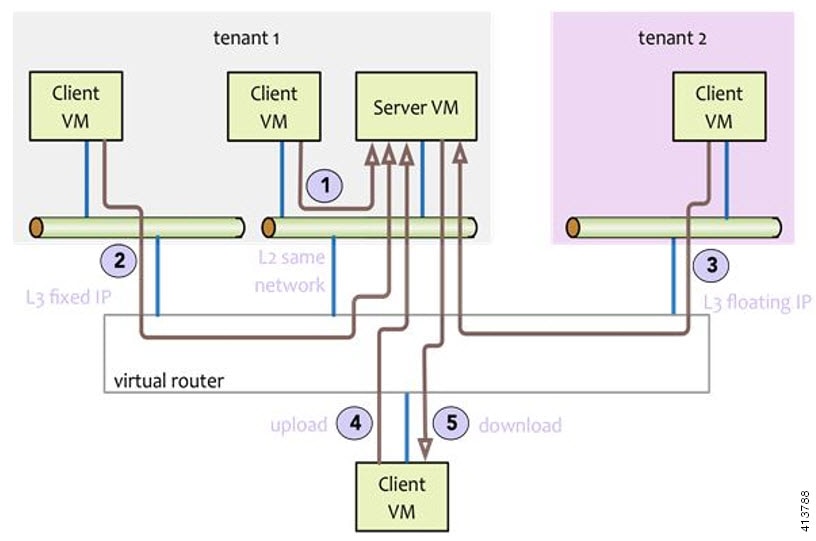
You can use Virtual Machine Through Put (VMTP) to check Layer 2 and Layer 3 data plane traffic between Cisco NFVI compute nodes. VMTP performs ping connectivity, round trip time measurement (latency), and TCP/UDP throughput measurement for the following Cisco NFVI east to west VM-to-VM flows:

  • Same network (private fixed IP, flow number 1).

  • Different network using fixed IP (same as intra-tenant L3 fixed IP, flow number 2).

  • Different network using floating IP and NAT (same as floating IP inter-tenant L3, flow number 3.)

  • When an external Linux host is available for testing north to south flows, external host to VM download and upload throughput and latency (L3/floating IP, flow numbers 4 and 5).

The following figure shows the traffic flows VMTP measures. Cloud traffic flows are checked during Cisco VIM installation and can be checked at any later time by entering the following command:

$ ciscovim run --perform 8 –y
Figure 1. VMTP Cloud Traffic Monitoring

Enabling NFVBench Post Deployment

NFVBench is a data plane performance benchmark tool for NFVI that can be optionally installed after the pod deployment.

NFVBench is used to:

  • Verify that the data plane is working properly and efficiently when using well defined packet paths that are typical of NFV service chains.

  • Measure the actual performance of your data plane so that you can estimate what VNFs can expect from the infrastructure when it comes to receiving and sending packets.

While VMTP only measures VM to VM traffic, NFVBench measures traffic flowing from an integrated software traffic generator (TRex) running on the management node to the ToR switches to test VMs running in compute nodes.

In Cisco VIM, the NFVBench (performance benchmark) is an optional tool. You can deploy NFVBench after the installation of the pod.

Before you begin

  • If you are using Quanta servers, see Installing the Management Node on the Quanta Servers section of Cisco Virtualized Infrastructure Manager Installation Guide, for the day-0 BIOS setting of the management node.

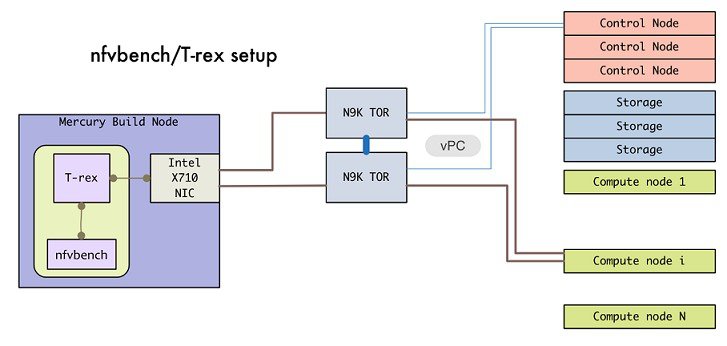
  • An extra 10 GE (Intel X710 NIC) or 40GE (Intel XL710 NIC) or 25G (xxv710 for Quanta Server) must be installed on the management node.

  • A TRex traffic generator which uses the DPDK interface to interact with Intel NIC and makes use of hardware, instead of software to generate packets. This approach is more scalable and enables NFVBench to perform tests without software limitations.

  • Wire two physical interfaces of the Intel NIC to the TOR switches (as shown in the following figure).

    Figure 2. NFVBench topology setup


Procedure

  Command or Action Purpose
Step 1

Enable the NFVBench configuration in the setup_data.yaml file.

Sample configuration files for OVS/VLAN or VPP mechanism driver:

NFVBENCH:
   enabled: True    # True or False
   tor_info: {TORa: eth1/42, TORb: eth1/42}	# mandatory
#  tor_info: {TOR: 'eth1/42,eth1/43'} # use if there is only one TOR switch
#  nic_ports: 3,4    # Optional input, indicates which 2 of the 4 available ports
                     # of 10G Intel NIC on the management node is NFVbench tool using 
                     # to send and receive traffic.
                     # Defaults to the first 2 ports of NIC (ports 1 and 2) if not specified.
                     # Port number must be between 1 and 4, one port cannot be used twice.
                     # nic_slot: <int>   # Optional, defaults to 1st set of unbonded pair of NIC ports
                     in an Intel 710 or 520 card the code finds; Via this option, one can choose 
                      to run NFVbench via XL710, 520 or X710 card
                     # Example:
                     # nic_ports: 1,4    # the first and the last port of Intel NIC are used
                    # nic_slot: 2        # # Optional, defaults to 1st set of unbonded pair of NIC ports in an 
                  Intel 710 or 520 card the code finds; Via this option, one can choose to run NFVbench 
                  via XL710, 520 or X710 card
# nic_slot: Management node slot on which the NFVbench NIC card is anchored off
# For VTS/VXLAN
#  vteps: "vtep_ip1,vtep_ip2"         # Mandatory and needed only for VTS/VXLAN. Specify separated IP pairs in tenant network and not in the tenant pool, reconfigurable
#
# For VXLAN over vxlan-tenant network
#  vteps: "vtep_ip1,vtep_ip2"         # Mandatory, specify separated IP pairs in vxlan-tenant network and not in the vxlan-tenant pool, reconfigurable
#  vnis: "vni_id1, vni_id2"           # Mandatory, specify the VNI range to be used for all vxlan networks created by NFVbench for benchmarking

Sample configuration for VTS mechanism driver:

NFVBENCH:
   enabled: True    # True or False
   tor_info: {TORa: eth1/42, TORb: eth1/42}	# mandatory
   vtep: "ip1, ip2" # Mandatory and needed only for VTS/VXLAN.
                    # Specify any pair of unused VLAN ids to be used 
                    # for VLAN to VxLAN encapsulation in TOR switch.
#  tor_info: {TOR: 'eth1/42,eth1/43'} # Use if there is only one TOR switch.
#  nic_ports: 3,4    # Optional input, indicates which 2 of the 4 available ports
                     # of 10G Intel NIC on the management node is NFVbench tool using 
                     # to send and receive traffic.
                     # Defaults to the first 2 ports of NIC (ports 1 and 2) if not specified.
                     # Port number must be between 1 and 4, one port cannot be used twice.
                     # Example:
                     # nic_ports: 1,4    # the first and the last port of Intel NIC are used
# nic_slot: 2        # # Optional, defaults to 1st set of unbonded pair of NIC ports in an Intel 710 or 520 card the code finds; Via this option, one can choose to run NFVbench via XL710 or X710 card

# Note: if nic_ports are defined, then nic_slot has to be defined and vice-versa

VTS_PARAMETERS:
   …
VTS_DAY0: '<True|False>’# Required parameter when VTS enabled
VTS_USERNAME: '<vts_username>'# Required parameter when VTS enabled
VTS_PASSWORD: '<vts_password>'# Required parameter when VTS enabled
VTS_NCS_IP: '11.11.11.111'# '<vts_ncs_ip>', mandatory when VTS enabled
VTC_SSH_USERNAME: 'admin'# '<vtc_ssh_username>', mandatory for NFVbench
VTC_SSH_PASSWORD: 'my_password'# '<vtc_ssh_password>', mandatory for NFVbench

Step 2

Configuring minimal settings of NFVBench:

# Minimal settings required for NFVbench
TORSWITCHINFO:
   CONFIGURE_TORS: <True or False>	# True if switches should be configured to support NFVbench
   …
   SWITCHDETAILS:
   - hostname: 'TORa'			# Hostname matching 'tor_info' switch name.
     username: 'admin'			# Login username for switch user.
     password: 'my_password'  # Login password for switch user.
     ssh_ip: '172.31.230.123' # SSH IP for switch.
   - hostname: 'TORb'
     username: 'admin'
     password: 'my_password'
     ssh_ip: '172.31.230.124'

TOR switches will be configured based on information provided in tor_info. Two ports specified by interfaces are configured in trunk mode. It is not required to set 'CONFIGURE_TORS' to 'True', but then manual configuration is necessary.

With VTS as mechanism driver additional settings are needed. NFVBench needs access to VTS NCS to perform cleanup after it detaches the traffic generator port from VTS. Also a pair of VTEP VLANs is required for VLAN to VxLAN mapping. Value can be any pair of unused VLAN ID.

Step 3

Reconfigure Cisco VIM to start or restart the NFVBench container. To reconfigure add necessary configuration to the setup_data.yaml file, run the reconfigure command as follows.

[root@mgmt1 ~]# cd /root/
[root@mgmt1 ~]# mkdir MyDir
[root@mgmt1 ~]# cp /root/openstack-configs/setup_data.yaml /root/MyDir/
[root@mgmt1 ~]# cd /root/
[root@mgmt1 ~]# # update the setup_data to include NFVBENCH section
[root@mgmt1 ~]# cd /root/MyDir/
[root@mgmt1 ~]# vi setup_data.yaml
[root@mgmt1 ~]# cd ~/installer-xxxx
[root@mgmt1 ~]# ciscovim reconfigure --setupfile /root/MyDir/setup_data.yaml 

After the reconfiguration, you can see that the NFVBench container is up and ready for use.

NFVBench Usage

Built-in packet paths

NFVBench can setup and stage three different packet paths.

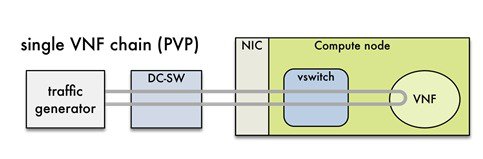
The default packet path is called PVP (Physical - VM - Physical) and represents a typical service chain made of 1 VNF/VM:

Figure 3. Single VNF chain (PVP)


The traffic generator runs inside the NFVBench container on the management node. DC-SW represents the top of rack switch(es). The VNF is a test VM that contains a fast L3 router based on FD.io VPP. This VNF image can also be configured to run an L2 forwarder based on DPDK testpmd (both options generally yield roughly similar throughput results).

Traffic is made of UDP packets generated on the 2 physical interfaces (making it a bi-directional traffic). Packets are forwarded by the switch to the appropriate compute node before arriving to the virtual switch, then to the VNF before looping back to the traffic generator on the other interface. Proper stitching of the traffic on the switch is performed by NFVbench by using the appropriate mechanism (VLAN tagging for VLAN based deployments, VxLAN VTEP in the case of VTS deployments).

The performance of the PVP packet path provides a very good indication of the capabilities and efficiency of the NFVi data plane in the case of a single service chain made of 1 VNF/VM.

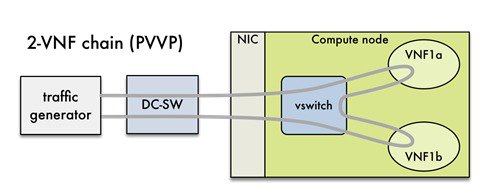
NFVBench also supports more complex service chains made of 2 VM in sequence and called PVVP (Physical-VM-VM-Physical).

In a PVVP packet path, the 2 VMs reside on the same compute node (PVVP intra node).

Figure 4. 2-VNF chain (PVVP)


NFVBench Command-Line Options and Status

You can execute most of the benchmark variants using CLI options from the shell promp on the management node. The common NFVBench command-line options are displayed using the --help option:

[root@mgmt1 ~]# nfvbench --help

Use the --status option to check the NFVbench version and see if benchmark is running:


[root@mgmt1 ~]# nfvbench –status
2018-12-19 20:29:49,656 INFO Version: 3.X.X
2018-12-19 20:29:49,656 INFO Status: idle
2018-12-19 20:29:49,704 INFO Discovering instances nfvbench-loop-vm...
2018-12-19 20:29:50,645 INFO Discovering flavor nfvbench.medium...
2018-12-19 20:29:50,686 INFO Discovering networks...
2018-12-19 20:29:50,828 INFO No matching NFVbench resources found

Using NFVBench Configuration File

More advanced use-cases require passing a yaml NFVbench configuration file. You can get the default NFVbench configuration file by using the -show-default-config option.

Navigate to the host folder mapped to a container (/root/nfvbench) and copy the default NFVBench configuration by using the following command:

[root@mgmt1 ~]# cd /root/nfvbench
[root@mgmt1 ~]# nfvbench –-show-default-config > nfvbench.cfg

Edit the configuration file to remove all the properties that are not changed and retain the properties that are required. You can then pass the edited file to NFVbench using the -c option.

Ensure that you use a container visible pathname as this file is read from the container. The /root/nfvbench folder on the host is mapped to the /tmp/nfvbench folder in the container, so that the configuration file stored under /root/nfvbench can be referenced as /tmp/nfvbench/<file> in the CLI option.

For example:
[root@mgmt1 ~]# nfvbench -c /tmp/nfvbench/nfvbench.cfg

Control Plane Verification

If you are trying NFVbench for the first time, verify that the tool can stage the default packet path properly without sending any traffic.

The --no-traffic option exercises the control plane by creating a single test service chain with one VM, but does not send any traffic.

The following command stages only the default PVP packet path (but does not generate any traffic):

[root@mgmt1 ~]# nfvbench --no-traffic

Fixed Rate Run Test

The data plane traffic test is done to generate traffic at a fixed rate for a fixed duration. For example, you can generate a total of 10000 packets per second (which is 5000 packets per second per direction) for the default duration (60 seconds), with the default frame size of 64 bytes using the following configuration:

[root@mgmt1 ~]# nfvbench

Packet Sizes

You can specify any list of frame sizes using the -frame-size option (pass as many as desired), including IMIX.

Following is an example, to run a fixed rate with IMIX and 1518 byte frames:

[root@mgmt1 ~]# nfvbench --rate 10kpps –-frame-size IMIX –-frame-size 1518

NDR and PDR Test

NDR and PDR test is used to determine the performance of the data plane in terms of throughput at a given drop rate.

  • No Drop Rate(NDR) is the highest throughput achieved while allowing zero packet drop (allows a very low drop rate usually lesser than 0.001%).

  • Partial Drop Rate (PDR) is the highest throughput achieved while allowing most at a given drop rate (typically less than 0.1%).

NDR is always less or equal to PDR.

To calculate the NDR and PDR for your pod, run the following command:

[root@mgmt1 ~]# nfvbench --rate ndr_pdr

Multi-chain Test

In multi-chain test, each chain represents an independent packet path symbolizing real VNF chain. You can run multiple concurrent chains and better simulate network conditions in real production environment. Results with single chain versus with multiple chains usually vary because of services competing for resources (RAM, CPU, and network).

To stage and measure multiple service chains at the same time, use --service-chain-count flag or shorter -scc version.

The following example shows how to run the fixed rate run test with ten PVP chains:

[root@mgmt1 ~]# nfvbench -scc 10 --rate 100kpps

The following example shows how to run the NDR/PDR test with ten PVP chains:

[root@mgmt1 ~]# nfvbench -scc 10 --rate ndr_pdr

Multi-Flow Test

In Multi-flow test, one flow is defined by a source and destination MAC/IP/port tuple in the generated packets. It is possible to have many flows per chain. The maximum number of flows that are supported is in the order of 1 million flows per direction.

The following command runs three chains with a total of 100K flows per direction (for all chains):

[root@mgmt1 ~]# nfvbench -scc 3 -fc 100k

Encapsulation

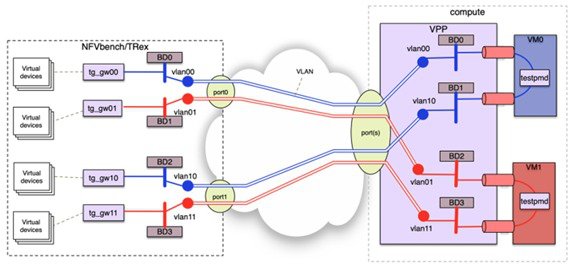
By default, NFVbench uses vlan tagging for the generated traffic and directs the traffic to the vswitch in the target compute node (OVS or VPP). The following diagram illustrates an example of NFVBench execution with two chains using VLAN and when VPP is vswitch.


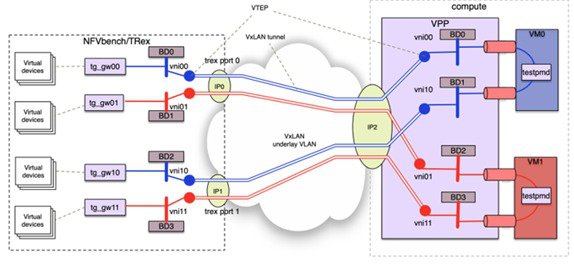
If VxLAN is enabled, it is possible to force the use of VxLAN using the –vxlan CLI option.

The provision of custom configuration allows you to specify more VxLAN options such as specific VNIs to use. For more details, check the default configuration file.

The following diagram illustrates an example of NFVBench execution with two chains using VxLAN and when VPP is vswitch.


SR-IOV

If SR-IOV is deployed, NFVbench can support to send the traffic to the test VMs that use SR-IOV instead of vswitch.

To test SR-IOV, you must have compute nodes configured to support one or more SR-IOV interfaces (also knows as PF or physical function) and OpenStack to support SR-IOV.

You need to know:

  • The name of the physical networks associated with the SR-IOV interfaces (this is a configuration in Nova compute).

  • The VLAN range that can be used on the switch ports that are wired to the SR-IOV ports. Such switch ports are normally configured in trunk mode with a range of VLAN ids enabled on that port.

For example, if two SR-IOV ports exist per compute node, two physical networks are generally configured in OpenStack with a distinct name.

The VLAN range to use is is also allocated and reserved by the network administrator and in coordination with the corresponding top of rack switch port configuration.

To enable SR-IOV test, you must provide the following configuration options to NFVbench in the configuration file.

This example instructs NFVbench to create the left and right networks of a PVP packet flow to run on two SRIOV ports named "phys_sriov0" and "phys_sriov1" using resp. segmentation_id 2000 and 2001:


sriov: true
internal_networks:
       left:
           segmentation_id: 2000
           physical_network: phys_sriov0
       right:
           segmentation_id: 2001
           physical_network: phys_sriov1

The segmentation ID fields must be different.

In case of PVVP, the middle network must be provisioned properly. The same physical network can also be shared by the virtual networks, but with different segmentation IDs.

External Chain Test

NFVBench measures the performance of chains that are pre-staged (using any means external to NFVBench). These chains can be real VNFs with L3 routing capabilities or L2 forwarding chains.

The external chain test is used when you want to use NFVBench only for traffic generation. In this case, NFVBench sends traffic from traffic generator and reports results without performing any staging or configuration.

Ensure that the setup is staged externally prior to running NFVbench by creating networks and VMs with a configuration that allows generated traffic to pass. You need to provide the name of the two edge neutron networks to which the traffic generators are to be attached, during configuration so that NFVbench can discover the associated segementation ID (VLAN or VNI).

If the external chains support only L2 forwarding, the NFVBench configuration must specify the destination MAC to use in each direction for each chain

If the external chains support IPv4 routing, the NFVBench configuration must specify the public IP addresses of the service chain end points (gateway IP) that are used to discover destination MAC using ARP.

To measure performance for external chains, use the --service-chain EXT (or -sc EXT) option:

[root@mgmt1 ~]# nfvbench -sc EXT 

NFVBench Results

You can store the NFVBench detailed results in JSON format using the below command, if you pass the --json option with a destination file name or the --std-json option with a destination folder pathname to use the standard file name generated by NFVBench.

[root@mgmt1 ~]# nfvbench -scc 3 -fc 10 -fs 64 --json /tmp/nfvbench/my.json

The above command stores the results in JSON file in /tmp/nfvbench container directory, which is mapped to the host ~/nfvbench directory. The first file is named as my.json.

Examples of NFVIBench Result Execution

VLAN Fixed Rate

The following example shows the generation of the default frame size (64B) over 100Kpps for the default duration (60s) with the default chain type (PVP), default chain count (1) and default flow count (10k):

# nfvbench –rate 100kpps -fs IMIX

The summary of NFVBench result is shown below:


Date: 2018-12-19 21:26:26
NFVBench version 3.0.4.dev2
Openstack Neutron:
  vSwitch: VPP
  Encapsulation: VLAN
Benchmarks:
> Networks:
  > Components:
    > Traffic Generator:
        Profile: trex-local
        Tool: TRex
    > Versions:
      > Traffic_Generator:
          build_date: Nov 13 2017
          version: v2.32
          built_by: hhaim
          mode: STL
          build_time: 10:58:17
      > VPP: 18.07
      > CiscoVIM: 2.4.3-15536
  > Service chain:
    > PVP:
      > Traffic:
          Profile: custom_traffic_profile
          Bidirectional: True
          Flow count: 10000
          Service chains count: 1
          Compute nodes: [u'nova:c45-compute-2']

The following NFVBench Result Execution Summary table provides the drop rate measured (in this example no drops) and latency measurements in micro-seconds (time for a packet to be sent on one port and receive back on the other port)

Table 2. NFVBench Result Execution Summary

L2 Frame Size

Drop Rate

Avg Latency (usec)

Min Latency (usec)

Max Latency (usec)

IMIX

0.0000%

28

20

330

The following NFVBench Result Configuration table provides the mode details for both forward and reverse directions, where:

  • Requested TX Rate is the rate that is requested in bps and pps.

  • Actual TX Rate is the actual rate achieved by the traffic generator. It can be lower than the requested rate if there is not enough CPU.

  • RX Rate is the rate of packets received.

Table 3. NFVBench Result Configuration

Direction

Requested TX Rate (bps)

Actual TX Rate (bps)

RX Rate (bps)

Requested TX Rate (pps)

Actual TX Rate (pps)

RX Rate (pps)

| Forward

152.7333 Mbps

152.7334 Mbps

152.7344 Mbps

50,000 pps

50,000 pps

50,000 pps

Reverse

152.7333 Mbps

152.7334 Mbps

152.7344 Mbps

50,000 pps

50,000 pps

50,000 pps

Total

305.4667 Mbps

305.4668 Mbps

305.4688 Mbps

100,000 pps

100,000 pps

100,000 pps

The Forward and Reverse Chain Packet Counters and Latency table shows the number of packets sent or received at different hops in the packet path, where:

  • TRex.TX.p0 or p1 shows the number of packets sent from each port by the traffic generator.

  • Vpp.RX.vlan.<id> shows the number of packets received on the VLAN subinterface with VLAN id <id> in the VPP vswitch.

  • Vpp.TX.veth/<id> shows the number of packets sent to the VM.

  • Vpp.RX.veth/<id> shows the number of packets received from the VM.

Table 4. Forward Chain Packet Counters and Latency

Chain

TRex.TX.p0

| vpp.RX.vlan.1547

vpp.TX.veth/2

| vpp.RX.veth/1

vpp.TX.vlan.1511

| TRex.RX.p1

Avg Lat.

Min lat.

Max lat

0

3,000,001

=>

=>

=>

=>

3,000,001

28 usec

20 usec

320 usec

Table 5. Reverse Chain Packet Counters and Latency

Chain

TRex.TX.p1

| vpp.RX.vlan.1511

vpp.TX.veth/1

vpp.RX.veth/2

vpp.TX.vlan.1547

| TRex.RX.p0

Avg Lat.

Min lat.

Max lat

0

3,000,001

=>

=>

=>

=>

3,000,001

28 usec

20 usec

330 usec


Note

‘=>’ indicates that no packets are dropped. Otherwise the value will indicate the number of packets dropped.
VLAN NDR/PDR

Use the following command to meassure NDR and PDR for IMIX, with the default chain type (PVP), default chain count (1) and default flow count (10k):


# nfvbench -fs IMIX

The summary of the NFVBench result execution is shown below:


Date: 2018-12-20 23:11:01
NFVBench version 3.0.5.dev2
Openstack Neutron:
  vSwitch: VPP
  Encapsulation: VLAN
Benchmarks:
> Networks:
  > Components:
    > Traffic Generator:
        Profile: trex-local
        Tool: TRex
    > Versions:
      > Traffic_Generator:
          build_date: Nov 13 2017
          version: v2.32
          built_by: hhaim
          mode: STL
          build_time: 10:58:17
      > VPP: 18.07
      > CiscoVIM: 2.3.46-17358
  > Measurement Parameters:
      NDR: 0.001
      PDR: 0.1
  > Service chain:
    > PVP:
      > Traffic:
          Profile: custom_traffic_profile
          Bidirectional: True
          Flow count: 10000
          Service chains count: 1
          Compute nodes: [u'nova:a22-mchester-micro-3']

The NFVBench Result Execution Summary table shows the following:

  • L2 frame size

  • Highest throughput achieved in bps and pps below the drop rate thresholds being the sum of TX for both ports.

  • Drop rate measured

  • Latency measured (average, min, max)

Table 6. NFVBench Result Execution Summary

L2 Frame Size

Rate (fwd+rev) in Gbps

Rate (fwd+rev) in pps

Avg Drop Rate

Avg Latency (usec)

Min Latency (usec)

Max Latency (usec)

NDR

IMIX

8.5352

2,794,136

| 0.0000%

124

10

245

PDR

IMIX

9.5703

3,133,012

0.0680%

167

10

259

VXLAN Fixed Rate

It is applicable for platforms that support VxLAN only

Example 1:

In this example, default frame size of 64B is sent over 1Mpps on two chains using VxLAN with flow count of 10k:


# nfvbench --duration 10 -scc 2 --rate 1Mpps --vxlan

The summary of the NFVBench Result is shown below:


2018-12-20 23:28:24,715 INFO --duration 10 -scc 2 --rate 1Mpps --vxlan
2018-12-20 23:28:24,716 INFO VxLAN: vlan_tagging forced to False (inner VLAN tagging must be disabled)
2018-12-20 23:28:24,716 INFO Using default VxLAN segmentation_id 5034 for middle internal network
2018-12-20 23:28:24,716 INFO Using default VxLAN segmentation_id 5017 for right internal network
2018-12-20 23:28:24,716 INFO Using default VxLAN segmentation_id 5000 for left internal network

Example 2:

In this example, VxLAN benchmark is ran and 64B frames are sent over 100kpps for the default duration.

# nfvbench –rate 100kpps --vxlan

2018-12-18 19:25:31,056 INFO VxLAN: vlan_tagging forced to False (inner VLAN tagging must be disabled)
2018-12-18 19:25:31,056 INFO Using default VxLAN segmentation_id 5034 for middle internal network
2018-12-18 19:25:31,056 INFO Using default VxLAN segmentation_id 5017 for right internal network
2018-12-18 19:25:31,056 INFO Using default VxLAN segmentation_id 5000 for left internal network

The NFVBench result summary is as follows:


Date: 2018-12-18 19:26:40
NFVBench version 3.0.5.dev2
Openstack Neutron:
  vSwitch: VPP
  Encapsulation: VxLAN
Benchmarks:
> Networks:
  > Components:
    > Traffic Generator:
        Profile: trex-local
        Tool: TRex
    > Versions:
      > Traffic_Generator:
          build_date: Nov 13 2017
          version: v2.32
          built_by: hhaim
          mode: STL
          build_time: 10:58:17
      > VPP: 18.07
      > CiscoVIM: 2.3.46-17358
  > Service chain:
    > PVP:
      > Traffic:
          Profile: traffic_profile_64B
          Bidirectional: True
          Flow count: 10000
          Service chains count: 1
          Compute nodes: [u'nova:a22-mchester-micro-1']

Table 7. NFVBench Result Summary

L2 Frame Size

Drop Rate

Avg Latency (usec)

Min Latency (usec)

Max Latency (usec)

64

| 0.0000%

0

nan

0

Table 8. NFVBench Result Configuration

Direction

Requested TX Rate (bps)

Actual TX Rate (bps)

RX Rate (bps

Requested TX Rate (pps)

Actual TX Rate (pps)

RX Rate (pps)

Forward

33.6000 Mbps

33.6000 Mbps

33.6000 Mbps

50,000 pps

50,000 pps

50,000 pps

Reverse

33.6000 Mbps

33.6000 Mbps

33.6000 Mbps

50,000 pps

50,000 pps

50,000 pps

Total

67.2000 Mbps

67.2000 Mbps

67.2000 Mbps

100,000 pps

100,000 pps

100,000 pps

Table 9. Forward Chain Packet Counters and Latency

Chain

TRex.TX.p0

vpp.RX.vxlan_tunnel0

vpp.TX.veth/0

vpp.RX.veth/1

vpp.TX.vxlan_tunnel1

TRex.RX.p1

0

50,000

=>

=>

=>

=>

50,000

Table 10. Reverse Chain Packet Counters and Latency

Chain

TRex.TX.p1

vpp.RX.vxlan_tunnel1

vpp.TX.veth/1

vpp.RX.veth/0

vpp.TX.vxlan_tunnel0

TRex.RX.p0

0

50,000

=>

=>

=>

=>

50,000

Cisco VIM CLI

An alternate way to NFVBench CLI is to use ciscovimclient. Ciscovimclient is meant to provide an interface that is more consistent with the CiscoVIM CLI and can run remotely while the NFVBench CLI is executed on the management node.

Pass JSON configuration matching structure of the NFVBench config file to start a test:

[root@mgmt1 ~]# ciscovim nfvbench --config ‘{“rate”: “10kpps”}
+------------------+--------------------------------------+
| Name             | Value                                |
+------------------+--------------------------------------+
| status           | not_run                              |
| nfvbench_request | {"rate": "5kpps"}                    |
| uuid             | 0f131259-d20f-420f-840d-363bdcc26eb9 |
| created_at       | 2017-06-26T18:15:24.228637           |
+------------------+--------------------------------------+

Run the following command with the returned UUID to poll status:

[root@mgmt1 ~]# ciscovim nfvbench --stat  0f131259-d20f-420f-840d-363bdcc26eb9
+------------------+--------------------------------------+
| Name             | Value                                |
+------------------+--------------------------------------+
| status           | nfvbench_running                     |
| nfvbench_request | {"rate": "5kpps"}                    |
| uuid             | 0f131259-d20f-420f-840d-363bdcc26eb9 |
| created_at       | 2017-06-26T18:15:24.228637           |
| updated_at       | 2017-06-26T18:15:32.385080           |
+------------------+--------------------------------------+

+------------------+--------------------------------------+
| Name             | Value                                |
+------------------+--------------------------------------+
| status           | nfvbench_completed                   |
| nfvbench_request | {"rate": "5kpps"}                    |
| uuid             | 0f131259-d20f-420f-840d-363bdcc26eb9 |
| created_at       | 2017-06-26T18:15:24.228637           |
| updated_at       | 2017-06-26T18:18:32.045616           |
+------------------+--------------------------------------+

When the test is done, retrieve results in a JSON format:

[root@mgmt1 ~]# ciscovim nfvbench --json 0f131259-d20f-420f-840d-363bdcc26eb9
{"status": "PROCESSED", "message": {"date": "2017-06-26 11:15:37", …}}

NFVBench REST Interface

When enabled, the NFVBench container can also take benchmark request from a local REST interface. Access is only local to the management node in the current Cisco VIM version (that is the REST client must run on the management node).

Details on the REST interface calls can be found in Chapter 2, Cisco VIM REST API Resources.

Enabling or Disabling Autobackup of Management Node

Cisco VIM supports the backup and recovery of the management node. By default, the feature is enabled. Auto snapshot of the management node happens during pod management operation. You can disable the auto backup of the management node.

To enable or disable the management node, update the setup_data.yaml file as follows:

# AutoBackup Configuration
# Default is True
#autobackup: <True or False>

Take a backup of setupdata file and update it manually with the configuration details by running the following command:

[root@mgmt1 ~]# cd /root/
[root@mgmt1 ~]# mkdir MyDir
[root@mgmt1 ~]# cp /root/openstack-configs/setup_data.yaml /root/MyDir/
[root@mgmt1 ~]# # update the setup_data to change autobackup
[root@mgmt1 ~]# cd /root/MyDir/
[root@mgmt1 ~]# vi setup_data.yaml
[root@mgmt1 ~]# cd ~/installer-xxxx
[root@mgmt1 ~]# ciscovim reconfigure --setupfile /root/MyDir/setup_data.yaml 

Forwarding ELK logs to External Syslog Server

Cisco VIM supports backup and recovery of the management node. To keep the process predictable and to avoid loss of logs, the software supports the capability of forwarding the ELK logs to multiple external syslog servers (Minimum 1 and Maximum 3). The capability is introduced to enable this feature after the pod is up and running, with Cisco VIM, through the reconfigure option.

The Syslog Export reconfigure option supports the following options:

  • Enable forwarding of ELK logs to External Syslog Server on a pod that is already up and running.

  • Reconfigure existing External Syslog Setting to point to a different syslog cluster.

The following section needs to be configured in the setup_data.yaml file.


###################################
## SYSLOG EXPORT SETTINGS
################################### 
SYSLOG_EXPORT_SETTINGS:
  -
    remote_host: <Syslog_ipv4_or_v6_addr> # requiredIP address of the remote syslog  
    server protocol : udp # defaults to udp
    facility : <string> # required; possible values local[0-7]or user  
    severity : <string; suggested value: debug>
    port	: <int>; # defaults, port number to 514   
    clients	: 'ELK' # defaults and restricted to ELK;
  
remote_host: <Syslog_ipv4_or_v6_addr> #   
  required 
  protocol : udp # defaults to udp
  facility : <string> # required; possible values local[0-7]or user   
  severity : <string; suggested value: debug>
  port	: <int>; # defaults, port number to 514   
                          clients	: 'ELK' # defaults and restricted to ELK;

Take a backup of the setupdata file and update the file manually with the configuration listed in the preceeding section. Then run the reconfiguration command as follows:

[root@mgmt1 ~]# cd /root/
[root@mgmt1 ~]# mkdir MyDir
[root@mgmt1 ~]# cp /root/openstack-configs/setup_data.yaml /root/MyDir/
[root@mgmt1 ~]# # update the setup_data to include Syslog Export info
[root@mgmt1 ~]# cd /root/MyDir/
[root@mgmt1 ~]# vi setup_data.yaml
[root@mgmt1 ~]# cd ~/installer-xxxx
[root@mgmt1 ~]# ciscovim reconfigure --setupfile /root/MyDir/setup_data.yaml 

With this configuration, you should now be able to use export ELK logs to an external syslog server. On the remote host, verify if the logs are forwarded from the management node.

Adding and Reconfiguring VIM Administrators

Cisco VIM supports management of the VIM Administrators.VIM administrator has the permission to log in to the management node through SSH or the console using the configured password. By configuring to one VIM admin account, administrators do not have to share credentials. Administrators have individual accountability.

To enable one or more VIM administrators, perform the following steps:

Procedure


Step 1

Take a backup of the setupdata file and update the file manually with the configurations listed as,

vim_admins:
- vim_admin_username: <username>
  vim_admin_password_hash: <sha512-password-hash> 
- vim_admin_username: <username>
  vim_admin_password_hash: <sha512-password-hash>
- vim_admin_username: <username>
  vim_admin_password_hash: <sha512-password-hash>

The value of password hash must be in the standard sha512 format. # To generate the hash admin_password_hash should be the output from on the management node
#  python -c "import crypt; print crypt.crypt('<plaintext password>')"

Step 2

Run the following reconfiguration commands:

[root@mgmt1 ~]# cd /root/ 
[root@mgmt1 ~]# mkdir MyDir
[root@mgmt1 ~]# cp /root/openstack-configs/setup_data.yaml /root/MyDir/ 

# update the setup_data to include vim_admin info
[root@mgmt1 ~]# cd /root/MyDir/
[root@mgmt1 ~]# vi setup_data.yaml 
[root@mgmt1 ~]# cd ~/installer-xxxx
[root@mgmt1 ~]# ciscovim reconfigure --setupfile /root/MyDir/setup_data.yaml 

Note 

Cisco VIM administrators can manage their own passwords using the Linux passwd command. You can add or remove Cisco VIM administrator through the reconfigure option, while the passwords for their existing accounts remain unchanged.


Enabling Root Login Post Cisco VIM Installation

To complement the management of VIM administrators, Cisco VIM supports an option to enable/disable root access at login. By default, this option is set to True. You can optionally disable this facility through reconfiguration.

Following are the steps to enable te root login:

Procedure


Step 1

Take a backup of the setupdata file and update the file manually with the configurations listed below:


permit_root_login: <True or False>  # if set to false, one has to use su to drop down to root and execute administrator functionalities.
Step 2

Run the following reconfiguration commands:


[root@mgmt1 ~]# cd /root/ [root@mgmt1 ~]# mkdir MyDir
[root@mgmt1 ~]# cp /root/openstack-configs/setup_data.yaml /root/MyDir/

# update the setup_data to include vim_admin info 
[root@mgmt1 ~]# cd /root/MyDir 

[root@mgmt1 ~]# vi setup_data.yaml [root@mgmt1 ~]# cd ~/installer-xxxx
[root@mgmt1 ~]# ciscovim --setupfile /root/MyDir/setup_data.yaml reconfigure

Adding Read-Only OpenStack Role

By default, Cisco VIM’s deployment of OpenStack supports two roles: admin and user. The admin can view and change all OpenStack resources including system and project resources. The user can view and change only the project resources.

Cisco VIM, optionally provides OpenStack user role, which is the read-only administrator or readonly. The read-only user can view project resources, but cannot make any changes.

To enable read-only OpenStack role and create read-only OpenStack administrator, perform the following steps

Procedure


Step 1

Take a backup of the setupdata file and update the file manually with the configuration given below:


ENABLE_READONLY_ROLE: True
Step 2

Enable the OpenStack user role, by executing the following reconfiguration commands:


[root@mgmt1 ~]# cd /root/ 
[root@mgmt1 ~]# mkdir MyDir
[root@mgmt1 ~]# cp /root/openstack-configs/setup_data.yaml /root/MyDir/

# update the setup_data to include vim_admin info 
[root@mgmt1 ~]# cd /root/MyDir/
[root@mgmt1 ~]# vi setup_data.yaml [root@mgmt1 ~]# cd ~/installer-xxxx
[root@mgmt1 ~]# ciscovim reconfigure --setupfile /root/MyDir/setup_data.yaml 

When the feature is enabled, an OpenStack administrator can create new user accounts that will have the special privileges of a Read-Only user.

Step 3

From the management node, load the OpenStack authentication variables:


[root@management-server-cisco ~]# source ~/openstack-configs/openrc
Step 4

Create a new user account with a strong password.


[root@management-server-cisco images]# openstack user create --password-prompt reader
User Password:
Repeat User Password:
+----------+----------------------------------+
| Field    | Value                            |
+----------+----------------------------------+
| email    | None                             |
| enabled  | True                             |
| id       | e2f484de1e7d4faa9c9de2446ba8c3de |
| name     | reader                           |
| username | reader                           |
+----------+----------------------------------+
Step 5

Assign the project and role to that user account:


[root@management-server-cisco images]# openstack role add --project admin --user reader
readonly
+-----------+----------------------------------+
| Field     | Value                            |
+-----------+----------------------------------+
| domain_id | None                             |
| id        | ed2fb5b2c88e4241918573624090174b |
| name      | readonly                         |
+-----------+----------------------------------+

Alternatively, the OpenStack admin logged into the Horizon dashboard can perform the above steps. The actions corresponding to the CLI commands can be done on the Identity/Users panel in the dashboard.

The OpenStack read-only user can:

  • Access the project and identity dashboards, but not the admin dashboard.

  • View all the project resources, but cannot make any changes to them.

Note 
If the ENABLE_READONLY_ROLE is False (the default value), the readonly role will have no special permissions or restrictions. It has create, update, and delete permissions to project resources, similar to that of the project member. You need to assign users to the role of readonly, when ENABLE_READONLY_ROLE is set to True.

Reconfiguration of Proxy Post Install

During post-install you can update the http/https proxy server information that is listed in NETWORKING section of the setup_data.yaml.

To update the proxy in the post-VIM install follow these steps:

Procedure


Step 1

Take a backup of the setupdata file and update the file manually with the configuration listed below:

http_proxy_server: <a.b.c.d:port> # optional, needed if install is through internet, and the pod is behind a proxy
and/or
https_proxy_server: <a.b.c.d:port> # optional, needed if install is through internet, and the pod is behind a proxy
Step 2

Run the following command to reconfigure:

[root@mgmt1 ~]# cd /root/ 
[root@mgmt1 ~]# mkdir MyDir
[root@mgmt1 ~]# cp /root/openstack-configs/setup_data.yaml /root/MyDir/ 

# update the setup_data to update the proxy info
[root@mgmt1 ~]# cd /root/MyDir/
[root@mgmt1 ~]# vi setup_data.yaml 
[root@mgmt1 ~]# cd ~/installer-xxxx
[root@mgmt1 ~]# ciscovim reconfigure --setupfile /root/MyDir/setup_data.yaml 

Reconfiguring NTP

During post-installation, you can update the NTP server information that is listed in NETWORKING section of the setup_data.yaml.

To update NTP server information post-installation, follow the below steps:

Procedure


Step 1

Take a backup of the setupdata file and update the file manually with the configuration listed below:

ntp_servers: [a.b.c.d, ‘v6_end_point’]
Step 2

Run the following reconfiguration commands:


[root@mgmt1 ~]# cd /root/ 
[root@mgmt1 ~]# mkdir MyDir
[root@mgmt1 ~]# cp /root/openstack-configs/setup_data.yaml /root/MyDir/

# update the setup_data to update the ntp_server info
[root@mgmt1 ~]# cd /root/MyDir/ 
[root@mgmt1 ~]# vi setup_data.yaml 
[root@mgmt1 ~]# cd ~/installer-xxxx
[root@mgmt1 ~]# ciscovim --setupfile /root/MyDir/setup_data.yaml reconfigure
Note 
Maximum number of DNS servers that can be configured is three.

Reconfiguring DNS

During post-installation, you can update the Domain Name Server (DNS) information that is listed in NETWORKING section of the setup_data.yaml.

To update the domain name server information post VIM installation, follow the below steps:

Procedure


Step 1

Take a backup of the setupdata file and update the file manually with the configuration listed below:

domain_name_servers: [a.b.c.d, ‘v6_end_point’] 
Step 2

Run the following reconfiguration commands:


[root@mgmt1 ~]# cd /root/ 
[root@mgmt1 ~]# mkdir MyDir
[root@mgmt1 ~]# cp /root/openstack-configs/setup_data.yaml /root/MyDir/ 
 
update the setup_data to update the domain_name_server info
[root@mgmt1 ~]# cd /root/MyDir/ 
[root@mgmt1 ~]# vi setup_data.yaml 
[root@mgmt1 ~]# cd ~/installer-xxxx
[root@mgmt1 ~]# ciscovim --setupfile /root/MyDir/setup_data.yaml reconfigure
Note 

Maximum number of NTP servers that can be configured is four.


Reconfiguring Sever KVM Console Password Post Install

You need the reconfigure option to reset the KVM console password for the servers, if the administrator forgets the KVM console password post cloud installation. The risk of forgetting the password leads to the failure of SSH connectivity to the server and the option of debugging through KVM console.

During post-install, you can update the admin_password_hash information that is listed in COBBLER section of the setup_data.yaml.

To update the password post-install, follow the below steps:

Procedure


Step 1

Take a backup of the setupdata file and update the file manually with the configuration listed below:


COBBLER:
       admin_password_hash: <$6…> # <Please generate the admin pwd hash via the command below; verify the output starts with $6>
	# execute the following on the management node to get the admin_password_hash
       # python -c 'import crypt; print crypt.crypt("<plaintext_strong_password>")'

Step 2

Run the following reconfiguration command:


[root@mgmt1 ~]# cd /root/ [root@mgmt1 ~]# mkdir MyDir
[root@mgmt1 ~]# cp /root/openstack-configs/setup_data.yaml /root/MyDir/

# update the setup_data to update the proxy info [root@mgmt1 ~]# cd /root/MyDir/
[root@mgmt1 ~]# vi setup_data.yaml [root@mgmt1 ~]# cd ~/installer-xxxx
[root@mgmt1 ~]# ciscovim reconfigure --setupfile /root/MyDir/setup_data.yaml 


Enabling Head-End Replication Option

For the releases Cisco VIM 2.4.9 and later, the multi-VXLAN EVPN based design optionally supports the static implementation of VXLAN technology using head-end replication (HER). HER helps leverage the VXLAN technology, regardless of the hardware or software limitation of the VXLAN feature set at the remote end of the VTEP tunnel.

With the static information defined in the HERsetup_data, VPP performs the head-end replication to all defined remote VTEPs and the Layer-2 Forwarding Information Base (L2FIB) MAC-IP table is populated based on flood and learn. When EVPN coexists with HER, Cisco VIM considers them as two different sets of BGP speakers each giving the information which ends up in the same etcd FIB table.

In Cisco VIM, the EVPN acts as the primary mechanism and HER as the fallback methodology. You can add or remove HER to or from an existing EVPN pod through Cisco VIM reconfigure option.

Following are the assumptions for the HER feature:

  • VNIs can be allowed in the range of 1 to 65535.

  • VNIs can be repeated across two or more remote POD VTEPs for HA.

  • VNIs cannot be repeated for the same remote POD VTEP.

  • Within the same network segment, no remote POD VTEPs IP address can be repeated.

Procedure


Step 1

Ensure that multi-VXLAN feature exists in day-0 configuration of the setup_data. Add a new section called head-end-replication under the NETWORK_OPTIONS -> vxlan -> vxlan-ecn and vxlan-tenant sections.


NETWORK_OPTIONS:
  vxlan:
  vxlan-tenant:
  head_end_replication:	# Optional and reconfigurable
     -  vtep_ips: vni_id1:vni_id2, vni_id3, … (upto as many remote POD vteps as required)

  vxlan-ecn:
  head_end_replication:	# Optional and reconfigurable
       - vtep_ips: vni_id1:vni_id2, vni_id3, … (upto as many remote POD vteps as required)
	
Update all compute nodes with vtep_ip information under the SERVERS section:
SERVERS:
  Compute1:
    …
For head-end-replication option, define vtep_ips on all servers that act as control and compute nodes 
# vtep_ips: {vxlan-tenant: <ip address>, vxlan-ecn: <ip address>} # These IPs must belong to the 
              associated IP pool of vxlan-tenant and vxlan-ecn networks, and must match the existing 
              assigned vtep_ip for EVPN as they are brought in as part of reconfiguration.
 
Step 2

To determine the respective vtep_ip on a per segment and server basis, run the following reconfiguration commands:


[root@mgmt1 ~]# cd /root/ 
[root@mgmt1 ~]# mkdir MyDir
[root@mgmt1 ~]# cp /root/openstack-configs/setup_data.yaml /root/MyDir/

[root@mgmt1 ~]# cd /root/installer-<x.y.z>/tools
[root@mgmt1 ~]#./vtep_ip_server_mapping.py
# Update the setup_data to include the HER section and vtep_ip corresponding to the network segment for the respective servers 


[root@mgmt1 ~]# cd /root/MyDir/
[root@mgmt1 ~]# vi setup_data.yaml
[root@mgmt1 ~]# cd ~/installer-xxxx
[root@mgmt1 ~]# ciscovim reconfigure --setupfile /root/MyDir/setup_data.yaml


Enabling Layer BGP Adjacency Between Controllers and Peering Route Reflector

From release Cisco VIM 2.4.9 onwards, the Layer 2 or Layer 3 BGP adjacency with the peering route-reflector is supported.


Note

For releases prior to Cisco VIM 2.4.9, only Layer 2 BGP adjacency is supported.

Following are the assumptions made to move a pod from a Layer 2 BGP adjacency to that of Layer 3:

  • The controllers with the bgp_speaker_addresses peer with the route-reflector over Layer 3.

  • This option is only available when vxlan is enabled as NETWORK_OPTIONS.

  • Every vxlan segment (vxlan-ecn and vxlan-tenant) will have its own IPs.

  • IPs are picked up from management subnet, but they do not belong in the management pool.

  • Switching from Layer 2 to Layer 3 peering is only supported, but not vice-versa.

  • Once enabled, the only way to change the bgm_mgmt_address is through a replace controller.

Procedure


Step 1

Update all controller nodes with bgp_mgmt_address where the IPs reside in the management subnet, but not in the management IP pool.

Note 
  • VXLAN feature must exists in day-0 configuration of the setup_data.

  • One unique IP must be available per VXLAN segment.


SERVERS:
  Control1:
    …
# bgp_mgmt_address: {vxlan-tenant: <ip address>, vxlan-ecn: <ip address>} # These IPs must belong to the 
                         management segment, but not in the management IP pool.
Step 2

Run the following reconfiguration commands:


[root@mgmt1 ~]# cd /root/ [root@mgmt1 ~]# mkdir MyDir
[root@mgmt1 ~]# cp /root/openstack-configs/setup_data.yaml /root/MyDir/

# update the setup_data to include HER section and vtep_ips info 
[root@mgmt1 ~]# cd /root/MyDir/
[root@mgmt1 ~]# vi setup_data.yaml [root@mgmt1 ~]# cd ~/installer-xxxx
[root@mgmt1 ~]# ciscovim reconfigure --setupfile /root/MyDir/setup_data.yaml 


Enabling Custom Policy for VNF Manager Post Install

During the post-installation of a cloud, Cisco VIM helps to enable a VNF Manager (such as ESC) to operate and manage tenant VMs in the OpenStack cloud, with additional privileged features.

Following are the steps to enable the custom policy for VNF Manager:

Procedure


Step 1

Take a backup of the setupdata file and update the file manually with the configurations listed as,

ENABLE_ESC_PROV: True
Step 2

Run the following commands to reconfigure:

[root@mgmt1 ~]# cd /root/ 
[root@mgmt1 ~]# mkdir MyDir
[root@mgmt1 ~]# cp /root/openstack-configs/setup_data.yaml /root/MyDir/

# update the setup_data to update the proxy info 
[root@mgmt1 ~]# cd /root/MyDir/
[root@mgmt1 ~]# vi setup_data.yaml 
[root@mgmt1 ~]# cd ~/installer-xxxx 
[root@mgmt1 ~]# ciscovim reconfigure --setupfile /root/MyDir/setup_data.yaml 

Migrate SRIOV from 2-X520 to 2-XL710 in a VIC/NIC POD

To use this feature, ensure that both the card types are available on the SRIOV compute nodes of the pod and with one of the card type participating in SRIOV as part of installation, and then execute the following steps:

Before you begin

In Cisco VIM, you can redeploy the SRIOV ports between 2-X520 and 2-XL710, in a Cisco VIM pod where the control and data plane are running OFF Cisco VIC. This is driven through an optional parameter SRIOV_CARD_TYPE listed in the setup_data.yaml.

It is assumed that all computes participating in SRIOV has two sets of card types. Reconfiguration fails if the card type with a total of 4 ports is not available. Cisco recommends you to have two of each of the card type inserted on a per-compute basis, so that the correct network ports from the target network cards are picked by the orchestrator. However, if the SRIOV_CARD_TYPE is present during the fresh install or during add compute, the SRIOV_CARD_TYPE parameter is given preference for the target/configured card type.

You can define the SRIOV_CARD_TYPE at a per-compute level, to override the global definition. This option allows some computes to run with XL-710, while others to run with X-520 for SRIOV ports. It should be noted that computes without SRIOV can co-exist in this pod.

Procedure


Step 1

Take a backup of the setupdata file and update the file manually with the configuration listed below:


SRIOV_CARD_TYPE: <X520 or XL710>
and/or update the hardware_info at a per compute level (see example below)
compute-xx:
  hardware_info: {SRIOV_CARD_TYPE: <XL710 or X520>}

Step 2

Run the following reconfiguration commands:


[root@mgmt1 ~]# cd /root/ 
[root@mgmt1 ~]# mkdir MyDir
[root@mgmt1 ~]# cp /root/openstack-configs/setup_data.yaml /root/MyDir/
# update the setup_data to include the target SRIOV card type
[root@mgmt1 ~]# cd /root/MyDir/
[root@mgmt1 ~]# vi setup_data.yaml
[root@mgmt1 ~]# cd ~/installer-xxxx
[root@mgmt1 ~]# ciscovim reconfigure --setupfile /root/MyDir/setup_data.yaml 

Augmenting Cisco VIM M4 VIC/(10/40G) NIC pods with M5-based 40G VIC/NIC Computes

From release Cisco VIM 2.4.9 onwards, the augmentation of an existing M4 VIC/NIC based pod (some computes have X520, while others have XL710 for SRIOV), with the M5-based VIC/NIC (40G) computes is supported. To use this augmentation feature, you must define the SRIOV_CARD_TYPE at a per compute level (default is X520).

You can add M5-based 40G VIC/NIC computes into the pod in the following scenarios:

Use Case 1: If you run a pod with M4-based computes having only X520 cards, execute the reconfiguration operation and define the SRIOV_CARD_TYPE as XL710 under the hardware_info section of the target compute, to add the compute of M5 with 40G Cisco VIC and two XL710 cards,.

Use Case 2: If you run the pod with M4-based VIC/NIC computes having XL710 cards, execute the add compute operation and define the SRIOV_CARD_TYPE as XL710 for the target compute, to add M5-based compute nodes with XL710 cards.


Note

The following steps 1 through 3 are not applicable for Use Case 2, and you can directly add/remove compute when required.

Before you begin

Identify if the pod has M4 computes running with two XL710 or not, that is, whether the pod is running with Use Case 1 or Use Case 2.

Procedure


Step 1

If the pod is running with Use Case 1, execute the following command:

# ciscovim reconfigure
Step 2

Take a backup of the setupdata file and update the file manually with the configuration listed below:


Update the hardware_info at a per compute level (see example below) 
compute-xx:
hardware_info: {SRIOV_CARD_TYPE: <XL710 or X520>}
Step 3

Run the following reconfiguration commands:

[root@mgmt1 ~]# cd /root/ [root@mgmt1 ~]# mkdir MyDir
[root@mgmt1 ~]# cp /root/openstack-configs/setup_data.yaml /root/MyDir/ # update the setup_data to include the target SRIOV card type [root@mgmt1 ~]# cd /root/MyDir/
[root@mgmt1 ~]# vi setup_data.yaml [root@mgmt1 ~]# cd ~/installer-xxxx
[root@mgmt1 ~]# ciscovim --setupfile /root/MyDir/setup_data.yaml add-computes <m5compute1, …>

Adding and Reconfiguring VIM Administrators Authenticated with External LDAP Server

Cisco VIM supports management of the VIM administrators whose access to the management node can be authenticated through an external LDAP server. For the users to obtain sudo access, you need to manually add the root user or any user with root privileges to the wheel group in the external LDAP server. Also, you must enable the pod with external TLS. To enable VIM administrators with LDAP authentication, perform the following steps:

Procedure


Step 1

Take a backup of the setupdata file and update the file manually with the configuration listed below:


vim_ldap_admins:
  - domain_name: corp_ldap1
    ldap_uri: "ldaps://10.30.116.253:636,ldaps://10.30.116.254:636"
    ldap_search_base: "dc=cisco,dc=com"   
    ldap_schema: rfc2307		# Optional
    ldap_user_object_class: posixAccount  # Optional
    ldap_user_uid_number: uidNumber       # Optional
    ldap_user_gid_number: gidNumber       # Optional
    ldap_group_member: memberUid          # Optional

Note 
Multiple entries of the LDAP domain are allowed. For each entry, only domain_name and ldap_uri info are mandatory. Ensure that the ldap_uri is secured over ldaps. As part of reconfiguration, you can add new domain_name, but cannot change the domain_name once it is configured.
.
Step 2

To reconfigure the VIM administrator, run the following commands:


[root@mgmt1 ~]# cd /root/ [root@mgmt1 ~]# mkdir MyDir
[root@mgmt1 ~]# cp /root/openstack-configs/setup_data.yaml /root/MyDir/

# update/include the vim_ldap_admin in the setup_data
[root@mgmt1 ~]# cd /root/MyDir/
[root@mgmt1 ~]# vi setup_data.yaml [root@mgmt1 ~]# cd ~/installer-xxxx
[root@mgmt1 ~]# ciscovim reconfigure --setupfile /root/MyDir/setup_data.yaml 


Hosting Horizon through NAT/DNS Alias

Cisco VIM supports hosting of the Horizon dashboard through NAT or with a DNS alias.

To host Horizon, perform the following steps:

Procedure


Step 1

Take a backup of the setupdata file and update the file manually with the configuration listed below:


HORIZON_ALLOWED_HOSTS:
  - <NAT_IP1>
  - <NAT_IP2>

Step 2

Run the following commands for reconfiguration:


[root@mgmt1 ~]# cd /root/ [root@mgmt1 ~]# mkdir MyDir
[root@mgmt1 ~]# cp /root/openstack-configs/setup_data.yaml /root/MyDir/

# update/include the vim_ldap_admin in the setup_data
[root@mgmt1 ~]# cd /root/MyDir/
[root@mgmt1 ~]# vi setup_data.yaml [root@mgmt1 ~]# cd ~/installer-xxxx
[root@mgmt1 ~]# ciscovim reconfigure --setupfile /root/MyDir/setup_data.yaml 


Enabling Banner During SSH Login

Cisco VIM supports enabling of banner during ssh login to the management node. To enable banner during login, perform the following steps:

Procedure


Step 1

Take a backup of the setupdata file and update the file manually with the configuration listed below:


ssh_banner:
  <your Banner Text>

Step 2

Run the following commands for reconfiguration:


[root@mgmt1 ~]# cd /root/ [root@mgmt1 ~]# mkdir MyDir
[root@mgmt1 ~]# cp /root/openstack-configs/setup_data.yaml /root/MyDir/

# update/include the vim_ldap_admin in the setup_data
[root@mgmt1 ~]# cd /root/MyDir/
[root@mgmt1 ~]# vi setup_data.yaml [root@mgmt1 ~]# cd ~/installer-xxxx
[root@mgmt1 ~]# ciscovim reconfigure --setupfile /root/MyDir/setup_data.yaml 


Enabling DHCP Reservation for VM’s MAC Address

From release Cisco VIM 3.2.0 onwards, you can have DHCP reservations for virtual machine MAC addresses, so as to get the same IP address always regardless of the host hypervisor or operating system they are running. To avail this optional feature, few restrictions exist.

If the MAC address ends with 00:00, then

  • First entry of the first octect must be a Hex

  • Second entry of the first octect must be 2, 6, a or e

For example, the MAC address entry can be [a-f][2,6,a,e]:yz:uv:ws:00:00.

To enable this feature, follow the below steps:

Procedure


Step 1

Take a backup of the setupdata file and update the file manually with the configuration listed below:

BASE_MACADDRESS: <[a-f][2,6,a,e]:yz:uv:ws:00:00>
Step 2

Run the following commands for reconfiguration:


[root@mgmt1 ~]# cd /root/ [root@mgmt1 ~]# mkdir MyDir
[root@mgmt1 ~]# cp /root/openstack-configs/setup_data.yaml /root/MyDir/

# update/include the vim_ldap_admin in the setup_data [root@mgmt1 ~]# cd /root/MyDir/
[root@mgmt1 ~]# vi setup_data.yaml [root@mgmt1 ~]# cd ~/installer-xxxx

[root@mgmt1 ~]# ciscovim reconfigure --setupfile /root/MyDir/setup_data.yaml 

Enabling Ironic Post Installation

Cisco VIM supports enabling of reference architecture of Ironic to host Baremetal workload. Ensure that you have one separate network segment that is used for ironic-management and ironic inspector. The inspector is a service used to automate the creation of the Openstack baremetal port with switch interface, for example, eth 1/39 and MAC address information of both the switch MAC and server interface MAC, apart from automatically adding the deployment image information to the Ironic node.


Note

Ensure that the ironic management, ironic inspector, Cisco VIM management, and Ironic CIMC networks are routed to each other.

The Cisco VIM management network must be able to reach:

  • Ironic management network and vice-versa.

  • CIMC network of the ironic nodes. This allows the Cisco VIM controller servers to directly reach the CIMC IP of the ironic servers

To enable network reachability, follow one of the below conditions:

  • All three networks such as Cisco VIM management, Ironic management and CIMC must be private networks with SVI interfaces on the ToR.

  • Routed network must be deployed for all three network segments. In this case, the need for SVI interface on ToR is eliminated.

You must include ironic-management/ironic-inspector VLANs on the ToR interfaces that are connected to the mercury controller servers


To enable ironic into an existing pod running Cisco VIM 3.0.0 or higher with provider network segment defined from the day-0 installation, perform the following steps:

Procedure


Step 1

Take a backup of the setupdata file and update the file manually with the configuration listed below:


# Optional Services:
OPTIONAL_SERVICE_LIST:
	- ironic

IRONIC:  
    IRONIC_SWITCHDETAILS: #  list of switches off which the ironic servers are hanging. This is mainly used to provide ironic switch details to neutron 
  - {hostname: <switch_name>, password: <password>, ssh_ip: <ssh_ip>, username: <switch_admin_username>, switch_type: <"Nexus", "ACI", or "BypassNeutron">}
 
 
NETWORKING:
……

  - gateway: <gateway_information> # Mandatory if ironic is present
    pool: [<ip_start1 to ip_end1]
    segments: [ironic]
    subnet: <subnet with/mask>
    vlan_id: <unique vlan id across the pod>
    inspector_pool: [ip_add_1 to ip_add_2, ip_add_3 to ip_add_4, ip_add_5 to ip_add_6] (# of entry pool : 3, same network as ironic but doesn’t overlap with the pool of IPs defined in the ironic segment)
#   alternate format for pool (# of entry pool : 3)
      - ip_add_1 to ip_add_2
      - ip_add_3 to ip_add_4
      - ip_add_5 to ip_add_6

Step 2

While deploying ironic, you need to folow the below steps before performing VIM reconfiguration:

  1. Create a separate ironic_inventory.yaml with CIMC/ IPMI details of the servers to be used as ironic baremetals. For example:

    /root/installer-XXX/openstack-configs/ironic_inventory.yaml.
  2. Save this file with your ironic server details in /root/installer-XXX/openstack-configs/ironic_inventory.yaml

  3. Specify the ironic management/ ironic inspector VLAN in all control interfaces of the mercury controller servers. This is essential to perform ironic introspection, to transfer the images from the controller to the baremetal server.

  4. If ironic is deployed in Nexus mode of ToR, ensure that no existing configuration is available on the interface of the ToR connected to the baremetal. The interface is in ACCESS mode. Only the ironic inspector VLAN must be set as the access VLAN.

  5. If ironic is deployed in an ACI mode testbed, you must ensure that ironic management network VLAN and all the tenant VLANs from setup_data are configured on the interface of the ToR connected to the baremetal the ironic inspector VLAN. The interface is in TRUNK mode. You need to set the ironic inspector network as the native VLAN.

  6. Verify whether the following are done in the baremetal server CIMC before proceeding:

    • Check if IPMI connections are allowed over LAN.

    • In BIOS configured Boot order, only pxeboot is present and available as the first option.

    • PXE is enabled in VNIC adapters.

    • Set the VLAN mode on the VNIC being used as TRUNK.

    • Turn ON the baremetal node, to have access to all parameters of CIMC. VIM installer verifies the node at Step 3.

    • Disable LLDP on Cisco VIC Adaptor of all the servers used for ironic by doing the following and rebooting the server:

      
      sh admin@X.X.X.X (CIMC IP)
      C240-FCH1832V1HW# scope chassis
      C240-FCH1832V1HW /chassis # show adapter
      C240-FCH1832V1HW /chassis # scope adapter <PCI slot> 
      C240-FCH1832V1HW /chassis/adapter # set lldp disabled 
      C240-FCH1832V1HW*# commit
      C240-FCH1832V1HW /chassis/adapter # show detail <To Verify LLDP is disabled>
      
Step 3

Run the following commands for reconfiguration:


[root@mgmt1 ~]# cd /root/ [root@mgmt1 ~]# mkdir MyDir
[root@mgmt1 ~]# cp /root/openstack-configs/setup_data.yaml /root/MyDir/

# update/include the vim_ldap_admin in the setup_data
[root@mgmt1 ~]# cd /root/MyDir/
[root@mgmt1 ~]# vi setup_data.yaml 
[root@mgmt1 ~]# cd ~/installer-xxxx
[root@mgmt1 ~]# ciscovim reconfigure --setupfile /root/MyDir/setup_data.yaml

For more information, see Launching Openstack Baremetal Instances


Prerequisites and Assumptions for VIM Update/Upgrade

During Cisco VIM update, ensure that no interference exists with external monitoring services.

To handle the potential of docker corruption post repo/kernel update, you must follow the below steps during VIM update irrespective of the update methodology (connected or disconnected).

  • You must disable NFVIMON monitoring for all server CIMC, only if NFVIMON/Zenoss is used. This prevents the failure of VIM update when Cisco VIM is deprived of CIMC login with valid credentials. Once Cisco VIM software update/commit or any other POD management operation is completed, you can re-enable Zenoss monitoring.

  • If ACI fabric is integrated with NFVI, you must disable switch policy enforcement that can shutdown the ToR ports to which the NFVI server interfaces are connected, during software update. This is required as MAC-moves for floating IP addresses happen during software update with L3 agent failover due to host package update and/or L3 agent container update. Multiple L3 agent failover can result in several Mac-moves in a short period of time. Fast Mac-moves over a five minute duration can potentially trigger N9K/ACI Mac-move policy violation, thereby causing an immediate shutdown of the server switch port.

Updating Containers in a Running Cisco VIM Cloud

Cisco VIM allows you to update all OpenStack and infrastructure services such as RabbitMQ, MariaDB, HAProxy, and management node containers such as Cobbler, ELK, VMTP and repo containers with almost no impact to the Cisco NFVI implementation. Updates allows you to integrate Cisco VIM patch releases without redeploying the Cisco NFVI stack from the beginning. Updates have minimal service impact because they run serially component by component one node at a time. If an error occurs during an update, auto-rollback is triggered to return the cloud to its pre-update state. After an update you can check for any functional impacts on the cloud. If everything is fine you can commit the update, which deletes the old containers and old images from the nodes. Should you see any functional cloud impact you can perform a manual rollback to start the old containers again.

Before you begin a container update, keep the following in mind:

  • Updates are not supported for registry-related containers and authorized_keys.

  • You cannot roll back the repo containers on the management node to an older version after they are updated because rollbacks will delete node packages and might cause the cloud to destabilize.

  • To prevent double-faults, a cloud sanity check is performed before the update is started. A cloud sanity check is performed as the last step of the update.

The following table provides an overview to the methods to start the OpenStack update using Cisco VIM. The Internet options refer to management node connectivity to the Internet. If your management server lacks Internet access, you must have a staging server with Internet access to download the Cisco VIM installation artifacts to a USB drive. Ensure that you select one method and stay with it for the full pod lifecycle.

Table 11. OpenStack Update Options

Without Cisco VIM Unified Management

With Cisco VIM Unified Management

Without Internet

  • Prepare the USB on a staging server

  • Plug the USB into the management node.

  • Follow the update steps in the update without Internet procedure.

  • Prepare the USB on a staging server

  • Plug the USB into the management node.

  • Follow the update steps in the update without Internet procedure.

With Internet

  • Download the .tgz file from the registry.

  • Follow the update steps in the update with Internet procedure.

  • Download the .tgz file from the registry.

  • Follow the update steps in the update with Internet procedure.

Updating Cisco VIM Software Using a USB

The following procedure describes you how to load the Cisco VIM installation files onto a Cisco NFVI management node that does not have Internet access. Installation files include: buildnode-K9.iso, mercury-installer.tar.gz, nova-libvirt.tar, registry-2.3.1.tar.gz, and respective checksums.

Before you begin

This procedure requires a CentOS 7 staging server (VM, laptop, or UCS server) with a 64 GB USB 2.0 stick. You can save the VIM installation files on a USB stick and then use the USB stick to load the installation files onto the management node. The installation files are around 24 GB in size, downloading them to the USB stick might take several hours, depending on the speed of your Internet connection, so plan accordingly. Before you begin, disable the CentOS sleep mode.

Procedure


Step 1

On the staging server, use yum to install the following packages:

  • PyYAML (yum install PyYAML)

  • python-requests (yum install python-requests)

Step 2

Connect to the Cisco VIM software download site using a web browser and login credentials provided by your account representative and download the getartifacts.py script from the external registry.


# download the new getartifacts.py file (see example below) 
curl -o getartifacts.py -u '<username>:<password>'
https//cvim-registry.com/mercury-releases/cvim24-rhel7-osp13/releases/<3.2.0>/getartifacts.py

curl -o getartifacts.py-checksum.txt -u '<username>:<password>'
https//cvim-registry.com/mercury-releases/cvim24-rhel7-osp13/releases/<3.2.0>/getartifacts.py-checksum.txt

# calculate the checksum and verify that with one in getartifacts.py-checksum.txt
sha512sum getartifacts.py

# Change the permission of getartificats.py
chmod +x getartifacts.py
Step 3

Run the getartifacts.py script. The script formats the USB 2.0 drive and downloads the installation artifacts. Provide the registry username and password, the tag ID, and the USB partition on the staging server. For example:

Run the getartifacts.py script. The script formats the USB 2.0 drive and downloads the installation artifacts. You will need to provide the registry username and password, the tag ID, and the USB partition on the staging server. For example: To identify the USB drive, execute the lsblk command before and after inserting the USB drive. (The command displays a list of available block devices.) The output delta will help find the USB drive location. Provide the entire drive path in the –d option, instead of any partition.

sudo ./ getartifacts.py -t <tag_id> -u <username> -p <password> -d </dev/sdc>

Note 

Do not remove the USB stick while the synchronization is going on.

Step 4

Verify the integrity of the downloaded artifacts and the container images:

# create a directory
sudo mkdir -p /mnt/Cisco
 
# /dev/sdc is the USB drive, same as supplied in get artifacts.py python script
sudo mount /dev/sdc1 /mnt/Cisco
cd /mnt/Cisco
 
# execute the verification script
./test-usb
 
# failures will be explicitly displayed on screen, sample success output below
# sample output of ./test-usb execution with 3.2.x release [root@mgmtnode Cisco]# /test-usb 
INFO: Checking the integrity of this USB stick
INFO: Checking artifact buildnode-K9-13401.iso
INFO: Checking artifact registry-2.6.2-13401.tar.gz
INFO: Checking required layers:
INFO: 605 layer files passed checksum.
[root@mgmtnode Cisco]#


Step 5

To resolve download artifact failures, unmount the USB and run the getartifacts command again with the --retry option:

sudo ./getartifacts.py -t <tag_id> -u <username> -p <password> -d </dev/sdc> --retry 
Step 6

Mount the USB and then run the test-usb command to validate all the files are downloaded:

# /dev/sdc is the USB drive, same as supplied in get artifacts.py python script
sudo mount /dev/sda1 /mnt/Cisco
cd /mnt/Cisco
 
# execute the verification script
./test-usb
 
# In case of failures the out of the above command is explicitly displayed the same on the screen 

Step 7

After the synchronization finishes, unmount the USB drive:

sudo umount /mnt/Cisco
Step 8

After the synchronization finishes, remove the USB stick from the staging server then insert it into the management node.

Step 9

Complete the following steps to import the Cisco NFVI installation artifacts onto the management node:

  1. Identify the USB on the management node:

    blkid -L Cisco-VIM
  2. Mount the USB device on the management node:

    mount < /dev/sdc > /mnt/ 
    mkdir /root/cvim-update-media
    cd /root/cvim-update-media
    
  3. Extract the import_artifacts.py script:

    tar --no-same-owner -xvzf /mnt/Cisco/mercury-installer.tar.gz
  4. Unmount the USB device:

    umount /mnt/Cisco/
    
  5. Import the artifacts:

    cd /root/cvim-update-media/installer-<3.x.x>/tools/
    ./import_artifacts.sh
    
  6. Change directory and remove /root/cvim-update-media:

    cd /root/
    rm -fr /root/cvim-update-media
     
Step 10

Execute the update from the old working directory:

cd $old_workspace/installer;
ciscovim update --file /var/cisco/artifacts/mercury-installer.tar.gz

After the update is complete, use the newly created directory from here onwards (unless a rollback is planned).

Step 11

Commit the update by running the following command:

ciscovim commit # from the new workspace
Step 12

To revert the update changes before entering the commit command, enter:

ciscovim rollback # and then use older workspace
Note 

Do not run any other Cisco VIM actions while the update is in progress.

In Cisco VIM, if updates bring in Kernel changes, then the reboot of the compute node with VNFs in ACTIVE state is postponed. This is done to mitigate the unpredictability of data plane outage when compute nodes go for a reboot for the kernel changes to take effect, during the rolling upgrade process.

At the end of ciscovim update, the Cisco VIM orchestrator displays the following message on the console and logs:

Compute nodes require reboot Kernel updated
<compute_1_with_VM_running>
<compute_3_with_VM_running>
<compute_4_with_VM_running>
<compute_12_with_VM_running>

After the Kernel update on Management node, reboot the compute node before proceeding. The logs for this run are available in <mgmt._ip_address>:/var/log/mercury/<UUID>

Note 

As the redundancy in controller and storage nodes are built into the product, the reboot of those nodes are automatic during the software update. Also, computes that does not have any VNFs in ACTIVE state, gets automatically rebooted during software update.To monitor and reboot the compute nodes through ciscovim cli, refer to the sections titled “Managing Reboot of Cisco VIM Nodes: and “Managing Reboot Status of Cisco VIM Nodes” , in the later part of this guide. It should be noted no pod management operation is allowed till reboot of all Cisco VIM nodes are successful.


Updating Cisco VIM Software Using Network Installation

Procedure


Step 1

From the download site that is provided by your Cisco account representative, download the mercury-installer.gz


curl -o mercury-installer.tar.gz 
https://{username}:{password}@cvim-registry.com/
mercury-releases/mercury-rhel7-osp13/releases/{release number}/
mercury-installer.tar.gz

The link to the tar ball preceding is an example.

Step 2

Execute the update from the old working directory:

Note 

Do not run any other Cisco VIM actions while the update is in progress.


cd /root/installer-<tagid> 
ciscovim update --file /root/mercury-installer.tar.gz

After the update is complete, use the newly created directory from here onwards (unless a rollback is planned).

Step 3

Commit the update by running the following command:

 ciscovim commit
Step 4

To revert the update changes before entering the commit command, enter:

 ciscovim rollback # and then use older workspace

In Cisco VIM, if updates bring in Kernel changes, then the reboot of the compute node with VNFs in ACTIVE state is postponed. This is done to mitigate the unpredictability of data plane outage when compute nodes go for a reboot for the kernel changes to take effect, during the rolling upgrade process.

At the end of ciscovim update, the Cisco VIM orchestrator displays the following message on the console and logs:
Compute nodes require reboot Kernel updated
<compute_1_with_VM_running>
<compute_3_with_VM_running>
<compute_4_with_VM_running>
<compute_12_with_VM_running>

After the Kernel update on the Management node, reboot the compute node before proceeding

The logs for this run are available in <mgmt._ip_address>:/var/log/mercury/<UUID>

Note 

The redundancy in controller, and storage nodes are built into the product, the reboot of those nodes are automatic during the software update. Also, computes that does not have any VNFs in ACTIVE state, gets automatically rebooted during the software update. To monitor and reboot the compute nodes through ciscovim cli, refer to the sections titled “Managing Reboot of Cisco VIM Nodes: and “Managing Reboot Status of Cisco VIM Nodes”, in the later part of this guide. It should be noted no pod management operation is allowed till reboot of all Cisco VIM nodes are successful.


Upgrading Cisco VIM in a Running Cloud

Cisco VIM allows you to upgrade all OpenStack services, infrastructure services such as RabbitMQ, MariaDB, HAProxy, and management node containers such as Cobbler, ELK, VMTP and repo containers. You can upgrade to new releases of OpenStack without redeploying the Cisco NFVI stack from the beginning. During upgrade, you can expect limited service impact as the upgrade is run serially on component by component (one node at a time).

Cisco VIM supports upgrade from a known version of VIM running Cisco VIM 3.0.0 to the current version of Cisco VIM.

As part of the Cisco VIM cloud upgrade:

  • The runner.py script is used to automatically upgrade the REST API server managing the VIM orchestrator.

  • The setup_data.yaml file is automatically translated, so that, the setup_data.yaml file is compatible to the target release version.

Before you begin a container update, consider the following:

  • Plan for the downtime, as the upgrade involves moving the Kernel version.

  • Updates are not supported for registry-related containers and authorized_keys.

  • Perform a cloud sanity check before initiating the update, to prevent double-faults. A cloud sanity check is performed as the last step of the update.

  • Update the CIMC of all the servers to 2.0(13n).

Before you begin a pod upgrade, consider the following:

  • No option is available to roll-back after the upgrade.Cisco recommends you to stage the upgrade in the lab and test it to identify and rectify any customer environment specific issues that might occur.

  • The vim_upgrade_orchestrator.py script for upgrade is available as part of the 3.2.1 artifacts. You have to save a copy of the upgrade script to the /root/ location before upgrade.

  • For disconnected upgrade, one USBs 2.0 (64GB) must be pre-populated with artifacts from 3.2.1.

  • Upgrade from 3.0.0 to 3.2.1 is restricted to specific start and end points.

  • Upgrade of the cloud is supported in both connected and disconnected mode.

  • Upgrade of Unified Management from 3.0.0 to 3.2.1 is not supported. After upgrade, you have to bring up the Unified Management service on its own and register the pod to it.

  • Cisco recommends you to not change the install mode during upgrade.

  • Upgrade is a one-way operation, there is no rollback option. Hence, planning must be done before upgrade. If you face any issue after upgrade, reach out to Cisco TAC or BU to recover the cloud.

  • See Pre-requisites and Assumptions for Cisco VIM Update/Upgrade and make sure that all conditions are met.

At a high level, the vim_upgrade_orchestrator.py script is broken into two logical steps to abort on failure. In case of failure, reach out to Cisco support for recovery. We do not recommend you to recover the cloud on your own.

The following are the two high level steps into which the vim_upgrade_orchestrator.py script is broken into:

  • Pre-upgrade Check

    • Registry connectivity (if connected, installation is initiated)

    • Setup_data pre check: No UCSM_PLUGIN, sufficient storage pool size

    • Backup the setup_data.yaml file, before translation

    • Check and update INSTALL_MODE in the setup_data.yaml file (connected or disconnected)

    • Run cloud sanity on cloud from 3.2.1 workspace

    • Check for reachability to all nodes including compute, controller, and storage

  • Upgrade to 3.2.1

    • Upgrade to 3.2.1 (in a VNC session)

    • Backup the management node

    • Run sanity test on cloud from 3.2.1

    • Check for reachability to all nodes (compute, controller, and storage)

Power-cycle the management node to complete the management node upgrade.

The following table provides an overview of upgrade methods available to update OpenStack using Cisco VIM. The Internet options refer to management node connectivity to the Internet. If your management server lacks Internet access, you must have a staging server with Internet access to download the Cisco VIM installation artifacts to a USB drive. Ensure that you to select one method and stay with it for the full pod lifecycle.

Upgrade Method

Without Cisco VIM Unified Management

Without Internet

  • Prepare 2 USB 2.0 (64G) or 2 USB 3.0 (64G) on M4 or M5 staging server respectively and populate them with 3.2.1 artifacts.

  • Plug both the USB into the management node.

  • Copy the vim_upgrade_orchestrator.py script and follow the upgrade steps in the Upgrade without Internet procedure.

With Internet

Copy the vim_upgrade_orchestrator.py script and follow the upgrade steps in the Upgrade with Internet procedure.


Note

The upgrade of VTS from 3.0.0 to 3.2.1 is not supported.

Upgrading VIM Software Using a USB

The following procedure describes how to load the Cisco VIM installation files onto a Cisco NFVI management node that does not have Internet access. Installation files include: buildnode-K9.iso, mercury-installer.tar.gz, nova-libvirt.tar, registry-2.3.1.tar.gz, and respective checksums.

Before you begin

This procedure requires a CentOS 7 staging server (VM, laptop, or UCS server) with a 64 GB USB 2.0 stick. You can download the VIM installation files using the staging server with Internet access (wired access is recommended), and save the files to a USB stick. You can use the USB stick to load the installation files onto the management node. The size of the installation files comes to around 24 GB, so downloading them to the USB stick might take several hours, depending on the speed of your Internet connection, so plan accordingly. Before you begin, disable the CentOS sleep mode.

Procedure


Step 1

On the staging server, use yum to install the following packages:

  • PyYAML (yum install PyYAML)

  • python-requests (yum install python-requests)

Step 2

Connect to the Cisco VIM software download site using a web browser and login credentials provided by Cisco account representative and download the getartifacts.py script from the external registry.


# download the new getartifacts.py file (see example below) 
curl -o getartifacts.py -u '<username>:<password>'
https//cvim-registry.com/mercury-releases/cvim24-rhel7-osp13/releases/3.2.0/getartifacts.py

curl -o getartifacts.py-checksum.txt -u '<username>:<password>'
https//cvim-registry.com/mercury-releases/cvim24-rhel7-osp13/releases/3.2.0>/getartifacts.py-checksum.txt

# calculate the checksum and verify that with one in getartifacts.py-checksum.txt sha512sum getartifacts.py

# Change the permission of getartificats.py
chmod +x getartifacts.py
Step 3

Run the getartifacts.py script. The script formats the USB 2.0 drive and downloads the installation artifacts. Provide the registry username and password, the tag ID, and the USB partition on the staging server.

For example, to identify the USB drive, execute the lsblk command before and after inserting the USB stick. (The command displays a list of available block devices.) You can find the USB drive location from the delta output, and provide the entire drive path in the –d option instead of any partition.

sudo ./ getartifacts.py -t <tag_id> -u <username> -p <password> -d </dev/sdc>

Note 

Do not remove the USB stick during synchronization.

Step 4

Verify the integrity of the downloaded artifacts and the container images.

# create a directory 
sudo mkdir -p /mnt/Cisco
# /dev/sdc is the USB drive, same as supplied in get artifacts.py python script 
sudo mount /dev/sdc1 /mnt/Cisco
cd /mnt/Cisco
# execute the verification script
./test-usb

# failures will be explicitly displayed on screen. A sample success output is shown
# sample output of ./test-usb execution with 3.2.x release 

[root@mgmtnode Cisco]# /test-usb 
INFO: Checking the integrity of this USB stick
INFO: Checking artifact buildnode-K9-13401.iso
INFO: Checking artifact registry-2.6.2-13401.tar.gz
INFO: Checking required layers:
INFO: 605 layer files passed checksum.
[root@mgmtnode Cisco]#
Step 5

To resolve download artifact failures, unmount the USB and run the getartifacts command again with the --retry option.

sudo ./getartifacts.py -t <tag_id> -u <username> -p <password> -d </dev/sdc> --retry 
Step 6

Mount the USB and run the test-usb command to validate if all the files are downloaded.

# /dev/sdc is the USB drive, same as supplied in get artifacts.py python script
sudo mount /dev/sda1 /mnt/Cisco
cd /mnt/Cisco
 
# execute the verification script
./test-usb
 
# In case of failures, the output of the above command will explicitly display the failure on the screen 
Step 7

After synchronization, unmount the USB drive.

sudo umount /mnt/Cisco
Step 8

After synchronization, remove the USB drive from the staging server and insert the USB stick into the management node.

Step 9

Insert the pre-populated USBs into the management node of the pod running 3.2.0.

Step 10

Copy the vim_upgrade_orchestrator.py script available in Cisco VIM 2.4 artifacts in the /root/ folder, to the management node of the pod running 3.2.0.

Step 11

Execute the update from the /root/ location:

# cd /root/
# ./vim_upgrade_orchestrator.py –i disconnected -s 3.0.0 -n 3.2.0 [-y] # -y if you don’t want any interactive mode

After upgrade, start using the newly created directory.

Note 
Upgrade process takes several hours (> 6 hours), so execute this process in a VNC. If you do not have a VNC environment, execute the same from KVM console of the management node. Do not run this command in background or with nohup option as the upgrade will fail. Do not run any other Cisco VIM actions during upgrade.
Step 12

Copy the management node backup created during the upgrade, and paste it into a separate server through rsync (for more information, see Managing Backup and Restore Operations).

Step 13

Check if the SDCARD is stated as priority 1 in the boot order, from the CIMC of the management node. If not, set it accordingly. Reboot the management node, and wait for it to up.


Upgrading Cisco VIM Software Using Network Installation

Procedure


Step 1

From the software download site provided by your Cisco account representative, download the vim_upgrade_orchestrator.py curl -o vim_upgrade_orchestrator.py file.

For example:

 https://{username}:{password}@cvim-registry.com/mercury-releases/mercury-rhel7-osp10/releases/{release number}/vim_upgrade_orchestrator.py
Step 2

Execute the upgrade from the /root/ directory:

 $ cd /root/
$ ./vim_upgrade_orchestrator.py –i connected -s 3.0.0 -n 3.2.0
Note 
Upgrade process takes several hours (> 6 hours), so execute this process in a VNC. If you do not have a VNC environment, execute the same from KVM console of the management node. Do not run this command in background or with nohup option as the upgrade will fail. During the upgrade process, do not run any other Cisco VIM actions.

After the upgrade, use the newly created folder.


Supporting RMA of ToRs with Auto-ToR Configuration

When Cisco VIM cloud uses auto-ToR configuration to manage switch ports, you need to replace the existing switches if one malfunctions.

Consider the following assumptions made during RMA of ToR with auto-ToR configuration:

  • When a switch is getting RMAed, it is in a virtual port-channel (vPC) mode with another switch to support full switch redundancy.

  • You can replace multiple switches through Cisco VIM CLI, but only one switch from each pair.

  • Administrator is responsible for manual configuration of the spine connection and L3 Out for the ToR.


Note

When replacing the ToR, ensure that you use same server ports to have minimal changes in the setup_data.
To initiate ToR RMA, take a backup of the setupdata file and update it manually with the configuration details by running the following command:

[root@mgmt1 ~]# cd /root/ [root@mgmt1 ~]# mkdir MyDir
[root@mgmt1 ~]# cp /root/openstack-configs/setup_data.yaml /root/MyDir/ [root@mgmt1 ~]# # update the setup_data to include
                the changes associated to the ToR that needs to be RMAs 
[root@mgmt1 ~]# cd /root/MyDir/
[root@mgmt1 ~]# vi setup_data.yaml [root@mgmt1 ~]# cd ~/installer-xxxx
[root@mgmt1 ~]# ciscovim reconfigure --setupfile /root/MyDir/setup_data.yaml  –rma_tors <”,” separated target ToRs>

Launching OpenStack Baremetal Instances

You can use OpenStack Ironic service to launch baremetal instances once it is enabled through Cisco VIM.

Procedure

  Command or Action Purpose
Step 1

Follow the pre-VIM deployment steps as given in the section Enabling Ironic Post Installation

Step 2

Deploy VIM.

Step 3

After the deployment, run the following commands:


# openstack baremetal node list --> Once VIM install has completed, the ironic node will move to manageable state and is ready for use.
# openstack baremetal node provide $NODE_UUID --> This PXE boots the deploy image via cleaning and sets node to available once done. Do this for all of the ironic nodes
Step 4

(Optional) If you want to add more ironic nodes after VIM installation, execute the steps running from Step 1 given under pre-VIM deployment and then add the nodes. Use correct cimc credentials for $USER, $PASS, and $ADDRESS


# openstack baremetal node create --network-interface neutron --driver pxe_ipmitool --name new-node-$ADDRESS \
 --driver-info ipmi_username=$USER \
 --driver-info ipmi_password=$PASS \
 --driver-info ipmi_address=$ADDRESS

# openstack baremetal node manage $NODE_UUID
# openstack baremetal node inspect $NODE_UUID

Once inspection is completed, run the below commands:


openstack baremetal node show $NODE_UUID → to verify node's resources and capabilities set during inspection process
openstack baremetal port list --> to verify ports. It should have one port of a baremetal node.
openstack baremetal node provide $NODE_UUID --> This PXE boots the deploy image via cleaning and sets node to available
once done. Do this for all of the ironic nodes

Deploying Baremetal Instances

Once the ironic nodes are available for use, you can launch an instance on the baremetal using the following steps:

Procedure


Step 1

Create the Nova baremetal flavor


nova flavor-create my-baremetal-flavor auto $RAM_MB $DISK_GB $CPU
nova flavor-key my-baremetal-flavor set capabilities:boot_option="local"
nova flavor-key my-baremetal-flavor set capabilities:disk_label="gpt"
The trait name should match with the baremetal node. Here, it is CUSTOM_BAREMETAL.
 nova flavor-key my-baremetal-flavor set trait:CUSTOM_BAREMETAL=required
Step 2

Add user images into glance. For example, if you are using ubuntu image, use the following commands:


IMAGE_OS=ubuntu
 
MY_VMLINUZ_UUID=$(glance image-create --name user-image-${IMAGE_OS}.vmlinuz --disk-format aki --container-format aki < user-image-${IMAGE_OS}.vmlinuz | awk '/ id /{print $4}')
 
MY_INITRD_UUID=$(glance image-create --name user-image-${IMAGE_OS}.initrd --disk-format ari --container-format ari < user-image-${IMAGE_OS}.initrd | awk '/ id /{print $4}')
 
glance image-create --name user-image-${IMAGE_OS}.qcow2 --disk-format qcow2 --container-format bare --property kernel_id=$MY_VMLINUZ_UUID --property ramdisk_id=$MY_INITRD_UUID < user-image-${IMAGE_OS}.qcow2
Step 3

Use the following commands, to create the neutron tenant network to be used with the bare metal node:


# openstack network create my-tenant-net-name

# openstack subnet create --network my-tenant-net-name --subnet-range X.X.X.X/XX --ip-version 4 my_tenant_subnet_name
Step 4

Create a simple cloud-init script to log into the node after the instance is up:

Example


#cloud-config 
password: Lab1234!
chpasswd: { expire: False } 
ssh_pwauth: True

If this is an ACI testbed, add the following to the cloud-init script:

Example


#cloud-config 
password: Lab1234!
chpasswd: { expire: False } 
ssh_pwauth: True
runcmd:
  - ip link add link enp6s0 name enp6s0.3086 type vlan id <3086 - this will be the segment_id of your tenant net>
  - ip link set dev enp6s0.<3086> up
  - dhclient enp6s0.<3086>
Step 5

Boot the bare metal node using the below command:


# openstack server create --flavor <baremetal_flavor uuid> --image <centos/ubuntu image uuid> --nic net-id=<tenant network uuid> --config-drive true --user-data user-data.txt <instance-name>
Note 
For the creation of host aggregates, do not include controller servers as part of the aggregate.

VM Resizing

VM resize is the process of changing the flavor of an existing VM. Thus, using VM resize you can upscale a VM according to your needs. The size of a VM is indicated by the flavor based on which the VM is launched.

Resizing an instance means using a different flavor for the instance.

By default, the resizing process creates the newly sized instance on a new node, if more than one compute node exists and the resources are available. By default, the software, allows you to change the RAM size, VDISK size, or VCPU count of an OpenStack instance using nova resize. Simultaneous or individual adjustment of properties for the target VM is allowed. If there is no suitable flavor for the new properties of the VM, you can create a new one.

nova resize [--poll] <server> <flavor>

The resize process takes some time as the VM boots up with the new specifications. For example, the Deploying a Cisco CSR (size in MB) would take approximately 60mins. After the resize process, execute nova resize-confirm <server> to overwrite the old VM image with the new one. If you face any issue, you can revert to the old VM using the nova-resize-revert <server> command. At this point, you can access the VM through SSH and verify the correct image is configured.


Note

The OpenStack shutdown the VM before the resize, so you have to plan for a downtime.


Note

We recommend you not to resize a vdisk to a smaller value, as there is the risk of losing data.


Telemetry for OpenStack

If ceilometer is enabled in setup_data.yaml file, the Telemetry service in Cisco VIM collects the metrics within the OpenStack deployment. This section provides a summary of the metrics that are collected with the Cisco VIM using ceilometer/gnocchi OpenStack REST-API.

OpenStack Compute:

The following metrics are collected for OpenStack Compute:

Name

Type

Unit

Resource

Origin

Note

memory

Gauge

MB

instance ID

Notification

Volume of RAM allocated to the instance

memory.usage

Gauge

MB

instance ID

Pollster

Volume of RAM used by the instance from the amount of its allocated memory

cpu

Cumulative

ns

instance ID

Pollster

CPU time used

cpu.delta

Delta

ns

instance ID

Pollster

CPU time used since previous datapoint

cpu_util

Gauge

%

instance ID

Pollster

Average CPU utilization

vcpus

Gauge

vcpu

instance ID

Notification

Number of virtual CPUs allocated to the instance

disk.read.requests

Cumulative

request

instance ID

Pollster

Number of read requests

disk.read.requests.rate

Gauge

request/s

instance ID

Pollster

Average rate of read requests

disk.write.requests

Cumulative

request

instance ID

Pollster

Number of write requests

disk.write.requests.rate

Gauge

request/s

instance ID

Pollster

Average rate of write requests

disk.read.bytes

Cumulative

B

instance ID

Pollster

Volume of reads

disk.read.bytes.rate

Gauge

B/s

instance ID

Pollster

Average rate of reads

disk.write.bytes

Cumulative

B

instance ID

Pollster

Volume of writes

disk.write.bytes.rate

Gauge

B/s

instance ID

Pollster

Average rate of writes

disk.device.read.requests

Cumulative

request

disk ID

Pollster

Number of read requests

disk.device.read.requests.rate

Gauge

request/s

disk ID

Pollster

Average rate of read requests

disk.device.write.requests

Cumulative

request

disk ID

Pollster

Number of write requests

disk.device.write.requests.rate

Gauge

request/s

disk ID

Pollster

Average rate of write requests

disk.device.read.bytes

Cumulative

B

disk ID

Pollster

Volume of reads

disk.device.read.bytes .rate

Gauge

B/s

disk ID

Pollster

Average rate of reads

disk.device.write.bytes

Cumulative

B

disk ID

Pollster

Volume of writes

disk.device.write.bytes .rate

Gauge

B/s

disk ID

Pollster

Average rate of writes

disk.root.size

Gauge

GB

instance ID

Notification

Size of root disk

disk.ephemeral.size

Gauge

GB

instance ID

Notification

Size of ephemeral disk

disk.capacity

Gauge

B

instance ID

Pollster

The amount of disk that the instance can see

disk.allocation

Gauge

B

instance ID

Pollster

The amount of disk occupied by the instance on the host machine

disk.usage

Gauge

B

instance ID

Pollster

The physical size in bytes of the image container on the host

disk.device.capacity

Gauge

B

disk ID

Pollster

The amount of disk per device that the instance can see

disk.device.allocation

Gauge

B

disk ID

Pollster

The amount of disk per device occupied by the instance on the host machine

disk.device.usage

Gauge

B

disk ID

Pollster

The physical size in bytes of the image container on the host per device

network.incoming.bytes

Cumulative

B

interface ID

Pollster

Number of incoming bytes

network.incoming.bytes.rate

Gauge

B/s

interface ID

Pollster

Average rate of incoming bytes

network.outgoing.bytes

Cumulative

B

interface ID

Pollster

Number of outgoing bytes

network.outgoing.bytes.rate

Gauge

B/s

interface ID

Pollster

Average rate of outgoing bytes

network.incoming.packets

Cumulative

packet

interface ID

Pollster

Number of incoming packets

network.incoming.packets.rate

Gauge

packet/s

interface ID

Pollster

Average rate of incoming packets

network.outgoing.packets

Cumulative

packet

interface ID

Pollster

Number of outgoing packets

network.outgoing.packets.rate

Gauge

packet/s

interface ID

Pollster

Average rate of outgoing packets

network.incoming.packets.drop

Cumulative

packet

interface ID

Pollster

Number of incoming dropped packets

network.outgoing.packets.drop

Cumulative

packet

interface ID

Pollster

Number of outgoing dropped packets

network.incoming.packets.error

Cumulative

packet

interface ID

Pollster

Number of incoming error packets

network.outgoing.packets.error

Cumulative

packet

interface ID

Pollster

Number of outgoing error packets

memory.swap.in

Cumulative

MB

interface ID

Pollster

Memory swap in

memory.swap.out

Cumulative

MB

interface ID

Pollster

Memory swap out

disk.device.read.latency

Cumulative

ns

Disk ID

Pollster

Total time read operations have taken

OpenStack Image

The following metrics are collected for OpenStack Image service:

Name

Type

Unit

Resource

Origin

Note

image.size

Gauge

B

image ID

Notification, Pollster

Size of the uploaded image

image.download

Delta

B

image ID

Notification

Image is downloaded

image.serve

Delta

B

image ID

Notification

Image is served out

OpenStack Block Storage

The following metrics are collected for OpenStack Block Storage:

Name

Type

Unit

Resource

Origin

Note

volume.size

Gauge

GB

Voulume ID

Notification

Size of the volume

Metrics Polling and Retention Policy

Cisco VIM telemetry service polls metrics every 5 minutes and retains the metrics for 48 hours

Nova Migrate

The nova migrate command is used to move an instance from one compute host to another compute host. The scheduler chooses the destination compute host based on the availability of the zone settings. This process does not assume that the instance has shared storage available on the target host.

To initiate the cold migration of the VM, you can execute the following command:

nova migrate [--poll] <server>

The VM migration can take a while, as the VM boots up with the new specifications. After the VM migration process, you can execute nova resize-confirm <server> --to overwrite the old VM image with the new one. If you encounter an problem, use the nova-resize-revert <server> command to revert to the old VM image. At this point, access the VM through SSH and verify the correct image is configured.


Note

The OpenStack shutdown the VM before the migrate, so plan for a downtime.


Live Migrate

Live-migrating an instance means moving its virtual machine to a different OpenStack Compute server while the instance continues running. The operator can select which host to live migrate the instance. If the destination host is not selected, the nova scheduler chooses the destination compute based on the availability of the zone settings. Live migration cannot be used without shared storage except a booted from volume VM which does not have a local disk.

To initiate the live migration of the VM, you can execute the following command:

openstack server migrate <server>--live

The VM migration can take a while. The virtual machine status can be checked with the command:

openstack server show < server>

Note

With NFV_HOST enabled, you must ensure that the vCPUs are available on the destination host (to avoid collision). With cold migration, the vCPUs that are available on the destination host are automatically selected andassigned to the VM.


Power Management Of Computes (for C-Series)

Before you begin

In Cisco VIM 2.4, the power management function of computes optimizes the overall power consumption of the data center. Powering down the server through an API/CLI helps you to have a power backup.

Procedure


Step 1

To power off one or more compute nodes, run the following commands:

Run ciscovim power-off help command
# ciscovim help power-off
usage: ciscovim power-off --setupfile SETUPFILE [-y] <node1,node2,...>

Power Off compute-nodes

Positional arguments:
  <node1,node2,...>      Power off Compute Nodes

Optional arguments:
  --setupfile SETUPFILE  <setupdata_file>. Mandatory for any POD management
                         operation.
  -y, --yes              Yes option to perform the action
Step 2

To list all the nodes in the Openstack Cloud run the following command:

# ciscovim list-nodes
Step 3

Choose one or more Active compute node to be powered off

Step 4

Run the following command:

# ciscovim power-off <compute-server-1, compute-server-2, …. > --setupfile <path_setup_data.yaml>
Step 5

Run the following command to verify that the computes are power off

# ciscovim list-nodes
Note 

The Status for compute nodes that are powered off has to be InActive state.

Note 

To prevent cloud destabilization, you must ensure that at least one compute node is in the Active state.Pod management operation that applies to the entire pod (such as a update, reconfigure, and so on) cannot be performed if one or more compute nodes are powered off. Computes which run VMs or which provide other roles (such as All-in-one (AIO) nodes in a micropod) cannot be powered-off using this API. Power error-handling methods are added to ensure that such cases are handled. As part of the power-off action, internally cloud-sanity is run and if the cloud sanity fails, then the power-off action is aborted.


Power On Compute Nodes

Following are the steps to power on the compute nodes:

Procedure


Step 1

Run the following command to power onone or more compute nodes

Run ciscovim power-on help command
# ciscovim help power-on
usage: ciscovim power-on --setupfile SETUPFILE [-y] <node1,node2,...>

Power On compute-nodes

Positional arguments:
  <node1,node2,...>      Power on Compute Nodes

Optional arguments:
  --setupfile SETUPFILE  <setupdata_file>. Mandatory for any POD management
                         operation.
  -y, --yes              Yes option to perform the action
Step 2

To list all the nodes in the Openstack Cloud:

# ciscovim list-nodes
Step 3

Choose one or more Active compute node to be powered on

Step 4

Run the following command:

# ciscovim power-on <compute-server-1, compute-server-2, …. > --setupfile <path_setup_data.yaml>
Step 5

Run the following command to verify the compute(s) are powerd on

# ciscovim list-nodes
Note 

The Status for compute nodes that were powered on has to be Active


Managing Reboot of Cisco VIM Nodes

Cisco VIM 2.4 has a ciscovim CLI to reboot the Cisco VIM nodes. CLI can be used for rebooting the Cisco VIM nodes in general. During software update, core libraries like kernel, glibc, systemd and so on. require rebooting the system to run the latest version. Cisco VIM has the functionality to reboot nodes (if needed) during an update, but we defer the update of compute nodes which are running application VM’s.

Reboot the nodes using the CLI before migrating the VM's on another computes as shown in the following steps:

Procedure


Step 1

Run the following command to Reboot one or more compute nodes:

Run ciscovim reboot help command
# ciscovim help reboot
usage: ciscovim reboot [-y] <node1,node2,...>

Reboot compute-nodes

Positional arguments:
  <node1,node2,...>  Reboot Compute Nodes

Optional arguments:
  -y, --yes          Yes option to perform the action
Step 2

Run the following command to select one or more compute nodes

# ciscovim reboot<compute-server-1, compute-server-2, …. >
Note 

You cannot reboot all the compute nodes simultaneously. At least one node has to be Active to prevent the cloud destabilization. Also, computes on which VMs are running cannot be rebooted, the CLI prevents it (see the following steps on mitigation). The nodes which are associated with multiple roles (For Example: All-in-one (AIO) nodes in a micro-pod or Hyper-converged) can be rebooted one at a time.


Cisco VIM Client Reboot and Remove Compute Using Force Option

When VM’s are running on a particular compute node, you cannot reboot or remove that compute node. Cisco VIM installer internally checks for the presence of VM’s and aborts the operation, if VM is running on the target compute node.

To execute remove-compute operation without any failure, migrate or terminate VMs running on compute nodes and execute remove or reboot operations using “-f/--force” option in Cisco VIM client.

Note the following before executing reboot or remove compute operations with force option.

  • If a remove compute operation is executed with force option, the VMs running on that compute node are deleted.

  • If a reboot compute operation is executed with force option, the VMs are restored to last running status post successful reboot of that compute node.

Example of Remove Compute


# ciscovim help remove-computes
  usage: ciscovim remove-computes --setupfile SETUPFILE [-y] [-f] <node1,node2,...> 
                         Remove compute-nodes from the Openstack cloud

  Positional arguments:
  <node1,node2,...>      Remove compute nodes

  Optional arguments:
  --setupfile SETUPFILE  <setupdata_file>. Mandatory for any POD management
                         operation.
  -y, --yes              Yes option to perform the action
  -f, --force            Force option to remove or reboot
# ciscovim remove-computes --setupfile /tmp/remove_computes_setup_data.yaml gg34-4 -y --force
                         monitoring remove_compute (gg34-4) operation

 ........................
 Cisco VIM Runner logs
 ........................

Example of removing multiple computes

 
# ciscovim remove-computes --setupfile /tmp/remove_computes_setup_data.yaml gg34-1, gg34-2 -y -force

If ToR_TYPE is Cisco NCS 5500, you must manually remove all the sub-interfaces that were manually configured on the NCS switch, as the Cisco VIM automation does not unconfigure/configure the sub-interfaces for which the VLANs were not defined in the setup_data.yaml. If sub-interfaces are not removed, it results in remove-compute operation.

Example of reboot compute


# ciscovim help reboot
  usage: ciscovim reboot [-y] [-f] <node1,node2,...>
  
  Reboot compute-nodes
 
  Positional arguments:
  <node1,node2,...>  Reboot Compute Nodes
 
 Optional arguments:
  -y, --yes          Yes option to perform the action
  -f, --force        Force option to perform the action
 
 # ciscovim reboot gg34-4 -y --force
 
 monitoring reboot (gg34-4) operation
 
 ........................
 Cisco VIM Runner logs
 ........................

Example of rebooting multiple computes


# ciscovim reboot gg34-1, gg34-2 -y --force

Managing Reboot Status of Cisco VIM Nodes

Cisco VIM 2.4, has a CLI which helps you to find which CVIM nodes require a reboot after an update. Reboot the nodes after an update so that the cloud is running latest host packages.


Note

It is mandatory for the operator to reboot nodes to be able to perform next update or pod management operation.


Procedure


Run the following command to check the reboot pending status for nodes in the pod (post update):

Run ciscovim reboot-status help command
# ciscovim help reboot-status
usage: ciscovim reboot-status

List of Openstack Nodes that require a reboot

Sample command execution:
# ciscovim reboot-status

Fetching Nodes that require a Reboot

+--------------------------+-----------------+
|        Node Name         | Reboot Required |
+--------------------------+-----------------+
| sjc04-c33-tb2-micropod-1 |        No       |
| sjc04-c33-tb2-micropod-2 |        No       |
| sjc04-c33-tb2-micropod-3 |        No       |
+--------------------------+-----------------+

Cisco UCS Firmware Upgrade

In Cisco VIM 2.4.2, the Cisco Host Upgrade Utility (HUU) tool developed using Cisco Integrated Management Controller (IMC) Python SDK module (imcsdk-0.9.2.0) is leveraged automatically to upgrade all firmware components running on Cisco UCS C-Series servers.


Note

The wrapper tool only updates the CIMC bundle packages, as the entire Cisco IMC Software bundle (that includes CIMC, BIOS, adapter and storage controller firmware images through HUU images) is updated by default. Adequate planning is required for CIMC upgrade, as it causes the server to get rebooted.

For Cisco VIM 2.4, the CIMC upgrade tool supports the:

  • Upgrade of CIMC bundle images for C-series only.

  • Concurrent upgrade of CIMC bundle images on multiple C-series servers.

  • Pre-validation check for server type and available HUU images.

  • Support of the external http server, Cisco VIM Software Hub, or Cisco VIM Management node for the target CIMC upgrade image mounts.

  • Checks if the cloud is deployed successfully, and notifies the user with a proper message.

  • Checks if selected hosts have any active VMs running on them and notifies the user with a proper message.

  • Generation of consolidated summary on firmware version status, on completing the pre-upgrade and post-upgrade.


Note

  • Firmware upgrade is supported only on UCS C-series platform and not on UCS B-series and HP platforms.

  • If you upgrade CIMC firmware on an existing cloud deployment, it might impact the cloud functionality as the firmware upgrade reboots the host. Hence, ensure that the cloud is operational, post CIMC firmware upgrade.


To check if the cloud is operational, execute the following steps:

  • Run the cloud sanity.

  • If cloud sanity failure occurs, run cluster recovery and then re-run cloud sanity.

Also for the upgrade operation to work, ensure that the image has the following syntax: ucs-<server_type>-huu-<version_number>.iso; for example ucs-c220m4-huu-2.0.13n.iso or ucs-c240m4-huu-2.0.13n.iso;


Note

Running the UCS Firmware upgrade on host(s) running active VMs results in downtime on those VMs.

Limitations During Cisco IMC Upgrade

The following are the CVIM management operations which are not allowed when the firmware upgrade is in progress:

  • POD management operations: Add, Remove or Replace of nodes

  • CVIM Software Update

  • CVIM Software Upgrade

  • Reconfigure of CVIM features

Tools Usage

The CIMC upgrade utility is a standalone python file (ucsc_host_upgrade_utility) which is located under <cvim_install_dir>/tools/ directory.

To use the tool, execute the following command:


[root@hiccup-mgmt-228 tools]# python ucsc_host_upgrade_utility.py -h
usage: ucsc_host_upgrade_utility.py [-h] [--file SETUPFILELOCATION]
                                    [--http-server HTTP_SERVER_IP]
                                    [--sds-server SDS_SERVER_NAME]
                                    [--server-uname UNAME]
                                    [--server-pwd PASSWD]
                                    [--huu-image-path HUU_IMAGE_PATH]
                                    [--host HOSTS] [--exclude-hosts E_HOSTS]
                                    [-y]

Script to perform firmware upgrade

optional arguments:
  -h, --help            show this help message and exit
  --file SETUPFILELOCATION, -f SETUPFILELOCATION
                        Optional, if not defined will read the setup_data.yaml
                        in /root/openstack-configs dir for CIMC information of
                        servers; To override, provide a valid YAML file
                        with the CIMC Credentials.
  --http-server HTTP_SERVER_IP, -hs HTTP_SERVER_IP
                        Optional, only needed if a http server is used to host
                        the target CIMC bundle image(s).
  --sds-server SDS_SERVER_NAME, -sds SDS_SERVER_NAME
                        Optional, only needed if a Software Distribution
                        Server (SDS) is used to host the target CIMC bundle
                        image(s).
  --server-uname UNAME, -u UNAME
                        Optional, only needed if a http server is used to host
                        the target CIMC bundle image(s).
  --server-pwd PASSWD, -p PASSWD
                        Optional, only needed if a http server is used to host
                        the target CIMC bundle image(s).
  --huu-image-path HUU_IMAGE_PATH, -path HUU_IMAGE_PATH
                        Comma separated absolute path of the HUU ISO file(s);
                        In the case of a web server hosting the files, 
                        provide the absolute path of the URL that includes the
                        file names; that is, exclude the scheme://host/ part
  --host HOSTS          
        Comma separated list of host names targeted for CIMC
                        bundle upgrade defined in the target setup_data.yaml
  --exclude-hosts E_HOSTS, -e E_HOSTS
                        Comma separated list of hostnames excluded for CIMC
                        bundle upgrade defined in the target setup_data.yaml
  -y, -yes
[root@hiccup-mgmt-228 tools]#

If the target CIMC upgrade images are available on Cisco VIM Management node, use the below command:

   
  python ucsc_host_upgrade_utility.py [--file <setup_data_test.yaml/cimc_servers.yaml>]  -path <huu_image_paths>

If the target CIMC upgrade images are hosted in an external http server that is reachable from the Cisco VIM Management node and CIMC of the servers, use the below command:

   
  python ucsc_host_upgrade_utility.py [--file <setup_data_test.yaml/cimc_servers.yaml>]  -hs <http_server_ip/hostname> -u 
   <https_server_un> -path <http_server_pwd> -path <huu_image_paths>

If the target CIMC upgrade images are hosted in Ciso VIM Software Hub, use the below command:


python ucsc_host_upgrade_utility.py --file [setup_data_test.yaml/cimc_servers.yaml] -sds [Ciso VIM Software Hub_server_ip/hostname] -u 
    [sds_server_un] -path [sds_server_pwd] -path [huu_image_paths]

Note

Pre-requisites to use Ciso VIM Software Hub for hosting the target CIMC bundle image(s) are:

  • Ciso VIM Software Hub server must be reachable from the management node over HTTPS.

  • Ciso VIM Software Hub server TLS certificate must be trusted by the management node to make TLS connection in verified context.


If setup_data.yaml file is not available, you can create it using below command:


 # UCSC (C-series) sample format of yaml file to specify the CIMC details
 SERVERS:
  server-1:
    cimc_info:
      cimc_ip: "cimc-ip-address"
      cimc_username: "cimc-user-name"
      cimc_password: "cimc-password"
  server-2:
    cimc_info:
      cimc_ip: "cimc-ip-address"
      cimc_username: "cimc-user-name"
      cimc_password: "cimc-password"
  server-3:
    cimc_info:
      cimc_ip: "cimc-ip-address"
      cimc_username: "cimc-user-name"
      cimc_password: "cimc-password"

Quanta Firmware Upgrade

From release Cisco VIM 3.2.1, the Quanta firmware upgrade utility tool developed using redfish-client is used to upgrade BMC, BIOS, and NVM firmware versions on Quanta servers.


Note

The wrapper tool only updates the BMC, BIOS and NVM versions based on the provided firmware packages. Adequate planning is required for Quanta firmware upgrade, as it causes the server to get rebooted.


For Cisco VIM 3.2.1, the Quanta firmware upgrade tool supports:

  • Upgrade of BMC, BIOS and NVM for Quanta servers only.

  • Concurrent upgrade of firmware on multiple Quanta servers.

  • Pre-validations if another firmware flashing is in progress.

  • Generation of consolidated summary on firmware version status, on completing the pre-upgrade and post-upgrade.


Note

If you upgrade Quanta firmware on an existing cloud deployment, it might impact the cloud functionality as the firmware upgrade reboots the host. Hence, ensure that the cloud is operational, post Quanta firmware upgrade.

To check if the cloud is operational, do the following:

  1. Run the cloud sanity.

  2. If cloud sanity fails, run cluster recovery and then re-run the cloud sanity.

For the upgrade to work, ensure that you specify the proper firmware-package bundle with proper name and version of the components (BMC/BIOS/NVM).

Few examples given below:

  • BIOS firmware package file name must start with a prefix BIOS_XXXX.zip.

  • BMC firmware package file name must start with a prefix BMC_XXX.zip.

  • NVM firmware package file name must contain NVMXXXXX.zip.


Note

Running the BMC/BIOS/NVM firmware upgrade on host(s) running active VM results in downtime on those VMs.

Limitations for Quanta firmware Upgrade

The following Cisco VIM management operations are not allowed when the firmware upgrade is in progress:

  • POD management operations: Additoin, removal or replacement of nodes.

  • Cisco VIM software update.

  • Cisco VIM software upgrade.

  • Reconfiguration of Cisco VIM features.

Tools Usage

The Quanta upgrade utility is a standalone python file (quanta_firmware_upgrade.py) which is located under <cvim_install_dir>/tools/ directory.

To use the tool, execute the following command:


[[root@qatar-mgmt tools]# python quanta_firmware_upgrade.py -h
usage: quanta_firmware_upgrade.py [-h] [--hosts HOSTS]
 [--exclude-hosts EXCLUDE_HOSTS]
 [--ignore-flash-status] [-v] [-y]
 [--bmc-only | --bios-only | --nvm-only]
 --setupfile SETUPFILE --firmware-package
 FIRMWARE_PACKAGE
Script to update BMC and BIOS firmware on Quanta server
optional arguments:
 -h, --help show this help message and exit
 --hosts HOSTS comma separated list of servers defined in
 setup_data.yaml file target for firmware update
 --exclude-hosts EXCLUDE_HOSTS
 comma separated list of servers defined in
 setup_data.yaml file to exclude for firmware update
 --ignore-flash-status
 ignore flash status, needed for older BMC firmware
 where it lacks the support and continue with BMC
 firmware update
 -v, --verbose enable verbose output
 -y, --yes skip prompt
 --bmc-only update BMC firmware only
 --bios-only update BIOS firmware only
 --nvm-only update Intel Ethernet NVM only
required arguments:
 --setupfile SETUPFILE
 setup_data.yaml file location
 --firmware-package FIRMWARE_PACKAGE
 Firmware package ZIP file location
[root@qatar-mgmt tools]#

For upgrade BMC only, use the below command:


python quanta_firmware_upgrade.py --setupfile <setup-data.yaml> --firmware-package <bmc/bios_update_package.zip>
           --bmc-only

For upgrade BIOS only, use the below command:


python quanta_firmware_upgrade.py --setupfile <setup-data.yaml> --firmware-package <bmc/bios_update_package.zip>
           --bios-only

For upgrade NVM only, use the below command:


python quanta_firmware_upgrade.py --setupfile <setup-data.yaml> --firmware-package <nvm_update_package.zip>
           --nvm-only

Note

  • If you do not specify any option for particular component with specified BIOS/BMC firmware package, the utility upgrades in the order of BMC followed by BIOS but not NVM.

  • If you are planning to update both the BMC and the BIOS separately, always update the BMC first and then the BIOS.

  • To upgrade NVM, you need to specify --nvm-only option with NVM firmware package, otherwise upgrade fails.

  • NVM firmware upgrade does not reboot the servers by default. You need to reboot the nodes manually to complete the upgrade process.


As some of the servers running old firmware are upgrading to latest firmware, password might be reset to default.

You need to manually reset the password by following the below steps:

  1. Login to the UI using the factory default admin and cmb9.admin

  2. Once logged-in, you are prompted with a message First Login or Password Expired. You need to change your password.

You need --ignore-flash-status option for older BMC firmware, where it lacks the support and continue with BMC firmware update.

Few examples below:


 python quanta_firmware_upgrade.py --setupfile <setup-data.yaml> --firmware-package
 <bmc_update_package.zip> --bmc-only --ignore-flash-status 

Intel FPGA Programmable Acceleration Card N3000 Firmware Update

To host virtualized Radio Access Network (vRAN) workloads in the edge pod off Quanta hardware, the selected computes (also called accelerated computes) are installed with Intel N3000 cards for hardware offload. Cisco VIM provides a utility script to update the firmware and other relevant packages associated with N3000 cards present on the accelerated compute nodes. The utility script checks the presence of N3000 cards on the target compute node and updates the necessary packages if there is a match. The utility requires an actively deployed Cisco VIM edge pod.

For releases from Cisco VIM 3.2.1, the utility script is available at /root/ installer-xxx/tools/ directory.

To run the utility, install and deploy the edge pod with Cisco VIM 3.2.1 or later:


#cd installer-xxx/tools/
#./intel-fpga-n3000-firmware-update.py [--with-rsu]


Note

  • The utility is designed to power-cycle the accelerated computes after a firmware/package update, if --with-rsu is not specified.

  • If hyper-threading is disabled on the accelerated compute, it may take up to 60 minutes to complete the flash process with two cards. If hyper-threading is enabled, the flash process takes about 25-30 minutes for completion.

.

Tools Usage

To use the tool, execute the following command:


[root@mgmt-node tools]# ./intel-fpga-n3000-firmware-update.py -h 

usage: intel-fpga-n3000-firmware-update.py [-h] [--hosts HOSTS] [-n] [-f] [-r]
 [-y] [-v]
Script to update Intel FPGA N3000 firmware on all Compute node
optional arguments:
 -h, --help show this help message and exit
 --hosts HOSTS comma separated list of Compute node defined in
 setup_data.yaml file target for Intel FPGA N3000
 firmware update
 -n, --dry-run do not perform any updates, just a dry run
 -f, --force-update flash all images regardless of version matching or not
 -r, --with-rsu after update perform RSU command to avoid the need to
 power-cycle
 -y, --yes skip prompt
 -v, --verbose enable verbose output

Sample Output

Following is the sample output:


[root@mgmt-node tools]# ./intel-fpga-n3000-firmware-update.py

Starting Intel FPGA N3000 update script
Full log can be found at /var/log/mercury/intel_n3000_super_rsu_update-20190506112000514524.log
Checking Intel FPGA N3000 firmware on accelerated compute node(s)
+------------------+---------------+---------------------+------------------+
| Server           | Management    | Accelerated Compute | Update Available |
+------------------+---------------+---------------------+------------------+
| quincy-control-1 | 172.29.86.248 | No                  | No               |
| quincy-control-2 | 172.29.86.249 | No                  | No               |
| quincy-control-3 | 172.29.86.250 | No                  | No               |
| quincy-compute-1 | 172.29.86.246 | No                  | No               |
| quincy-compute-2 | 172.29.86.247 | No                  | No               |
| quincy-compute-3 | 172.29.86.251 | Yes                 | Yes              |
| quincy-compute-4 | 172.29.86.252 | Yes                 | Yes              |
+------------------+---------------+---------------------+------------------+
Following accelerated compute node(s) may be impacted as part of firmware update:
quincy-compute-4,quincy-compute-3

Would you like to continue? <y|n> y

Starting Intel FPGA N3000 firmware update process, this may take an hour!!!
Successfully executed Intel FPGA N3000 firmware update script

Following compute node(s) require power-cycle:
quincy-compute-3,quincy-compute-4