- Adding or Removing Columns in the Job Activity Pane
- Adding a New Job or Group Occurrence to the Schedule
- Adjusting Column Widths in the Job Activity Pane
- Deleting Jobs or Groups from the Production Schedule
- Filtering Jobs in the Job Activity Pane Based on Job Status
- Moving to Different Dates and Times in the Job Activity Pane
- Pausing the Production Schedule
- Rearranging Columns in the Job Activity Pane
- Recreating the Production Schedule
- Refreshing the Job Activity Pane
- Resuming the Production Schedule or Job Launching
- Saving a Job’s Output on the Master
- Selecting or Removing All Job Filters in the Job Activity Pane
- Setting the Completion Status of a Job
- Sorting Jobs in the Job Activity Pane Using Column Headers
- Sorting Jobs Using the Job Filter Dialog
- Stopping or Starting Jobs in the Job Activity Pane
- Viewing a Job’s Output
- Viewing Other Dates in the Production Schedule
Getting Started with the TES Client
This chapter describes the how to get started managing your jobs with the TES Web or Java Client:
Introducing the TES Client Interface
There is one primary client interface you use to monitor and work with TES. You can run in two different ways:
- TES Web Client —Run using your browser, this Client connects to the Client Manager which then connects to the TES Master.
- TES Java Client —Can run as a standalone application on your workstation or via a browser. The Java Client connects directly to the TES Master and does not require a Client Manager.
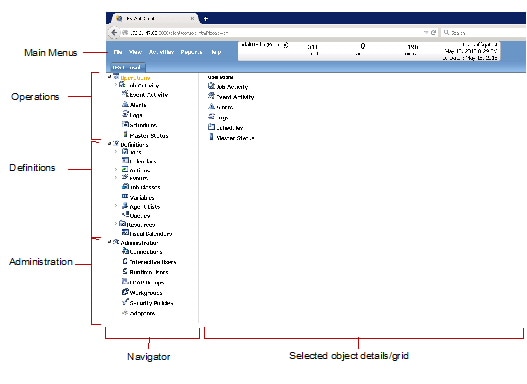
The two interfaces are essentially identical in their features and operation. The TES Client interface is shown below:
Adding Connections
You use the Connections link in the Navigator pane to add and manage connections. These connection types can be added:
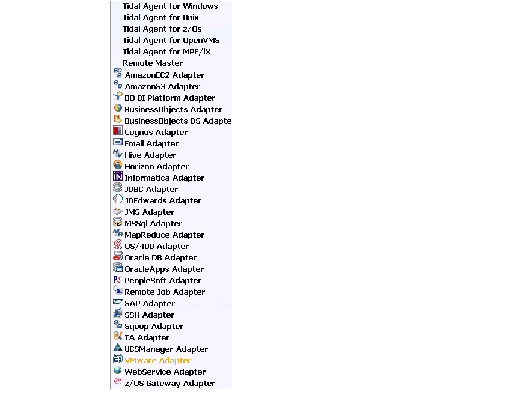

Note Agents and adapters (except Email and SSH) require separate licenses, so the options in this list might vary at your installation.
To add a connection to a new adapter:
Step 1 Open the TES Web or Java Client.
Step 2 From the Navigator pane, choose Administration > Connections.
Step 3 Above the Connections table, click the Add button or choose Add Connection from a context menu.
Step 4 Select the connection type: one of the Tidal Agents, the Remote Master, or one of the Adapters.
Step 5 In the Connection Definition dialog, provide the General, Connection, and Description information on each tab,
The tabs and options displayed on each tab vary depending on the connection type. See the Cisco TES User Guide for more information.
Here’s an example of the Connections panel with a number of defined connections:
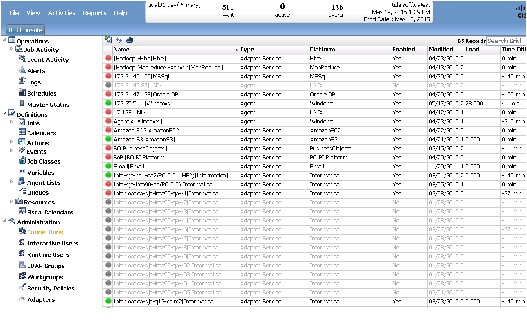
Note This is only a partial display of the available columns. You can change what columns are displayed using the Preferences option for each pane.
Defining Calendars
A job is assigned a calendar which specifies when that job will run. TES provides many default calendars which you can use as is or edit for your purposes. You can also define new calendars for your TES system. Here’s a partial display of some of the defined calendars in TES:
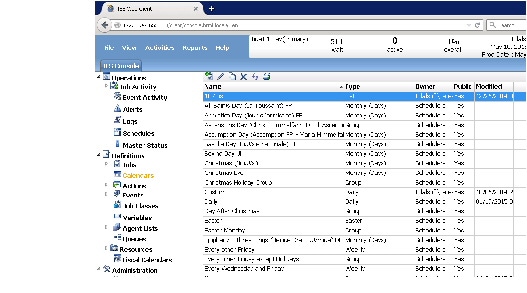
This section gives a brief overview of how to define and edit calendars. See the Cisco TES User Guide for details about the calendar interface and how to use it to control your production environment.
All tasks are performed using the TES Web Client or the Java Client:
Adding a Calendar
Step 1 Open the TES Web or Java Client.
Step 2 From the Navigator pane, select Definitions > Calendars to display the Calendars pane.
Step 3 Click the Add button on the TES toolbar or right-click and select Add Calendar from the context menu.
Step 4 Select the type of calendar you want to add, then follow the instructions for editing a calendar in Editing Calendars. You can add these calendar types:
You can also create fiscal calendars. See the “Controlling Production” chapter in the Cisco TES User Guide for information about each calendar type and other calendar details.
Editing Calendars
Existing calendars can be customized for your use as described in this section.
Note Whenever you edit a calendar that has already been assigned to a job, or is being used by another calendar (for example, as a subset) you will be presented with a warning message informing you that the calendar is in use.
When you modify a calendar assigned to a job, the Effective Date dialog displays providing options for when the changes to the already compiled production schedule should take effect. You can select a date during the current production schedule for the calendar changes to take effect or let the changes occur during a manual or automatic compilation.
Step 1 Open the TES Web or Java Client.
Step 2 From the Navigator pane, select Definitions > Calendars to display the Calendars pane.
Step 3 Double-click the calendar you want to edit or select the calendar and click the Edit button or right-click the calendar and select Edit Calendar from the context menu.
Step 4 Edit the name of the calendar in the Calendar Name field (up to 60 characters). The name must be unique.
Step 5 In the Starting On field, select or type the date that the calendar starts.
A seven-day period begins on the date you specify. For example, if you select an interval of every two weeks, starting on Wednesday of this week, and include Monday through Friday, you will get Wednesday through Friday of this week, and Monday and Tuesday of next week, which completes the seven day period. The seven-day period is then repeated every other Wednesday. The calendar has no ending date.
Step 6 To make the calendar public, select the Public option. Public calendars can be used by all TES users, within the restrictions of their Security Policy.
Step 7 On the Forecast tab, select dates for a calendar:
a. Use the calendar control bar to select the month for which to add or delete dates.
b. The outer buttons move the calendar in one year increments.
c. The inner buttons move the calendar in one month increments.
d. Double click the dates in the calendar section to select and deselect the dates for your calendar. The date cell text turns red, and the date appears in the Selected Dates section.
Note Calendar options vary by type; some of the following steps only apply to some calendar types.
Step 8 To remove dates from a calendar:
b. Select the date to remove from the Selected Dates section.
c. Click Delete. The date moves back to the Calendar section and the date cell text turns black.
Note This option is not available for subset calendars.
Step 9 Based on the calendar type, edit the calendar options on the tabs as described below:
b. Optionally, click Add to add a calendar to the group:
– Select an existing calendar.
– In the Adjust by... days field, you select the number of days, if any, by which to shift the list calendar forward (positive numbers) or backward (negative numbers).
– Select Include Dates or Exclude dates.
c. Optionally, select a calendar and click Edit to edit a calendar group definition.
d. Optionally, select a calendar and click Delete to remove the calendar from the group.
b. Navigate the calendar and double-click dates to add or remove them.
b. In the Frequency drop-down menu, select the frequency of the interval (in days).
c. In the Include the following days section, select the days to include in the seven day period.
b. In the Frequency drop-down menu, select the frequency of the interval (in weeks).
c. In the Include the following days section, select the days to include in the seven day period.
b. In the Months section, select the months when the job should run.
c. In the Days in Month section, select the dates in the month(s) when the job should run.
b. In the Months section, select the months when the job should run.
c. In the Days in Week section, select the days of the week when the job should run.
d. In the Occurrence section, select the occurrence for the day(s) selected. For example, 2nd means the second time the day(s) selected in the Days of Week section occurs in the month.
e. In the Adjust by field, select the number of days by which to offset all the dates forecasted. For example, three days after the last Friday of each month. If the last Friday is the 31st, the job will run on the 3rd day of the next month.
f. Click the Forecast tab. The results of the computation from the specification made on the Details tab are shown.
b. From the Occurrence drop-down menu, select the instance of the dates of the calendar that you want to use. For example, if you want to use all the days this calendar includes, select Every.
c. From the Calendar field drop-down menu, select the calendar for which this calendar will be a subset. The drop-down menu lists all available calendars.
d. From the Time Frame field, select the exact time period for your calendar to run. For example, you can select the 13th week or the month of March.
e. If you want to base your list calendar on a fiscal calendar, you must already have a fiscal calendar defined. If you have any fiscal calendars defined, they will be listed and available from the Based on Fiscal field drop-down menu.
f. In the Adjust by... days field, you select the number of days, if any, by which to shift the list calendar forward (positive numbers) or backward (negative numbers).
Step 10 Click the Conditions tab, and set any conditions you want to place on your calendar.
Step 11 To type a description for the calendar, click the Description tab. You can add or edit a description for the calendar (up to 255 characters).
Adding Jobs
This section describes some of the basic tasks you need to perform to add jobs and job groups. Here’s an example of what defined jobs and job groups look like in the TES Web Client. Note that many of the job definition columns are not visible here; you need to scroll to see all fields.
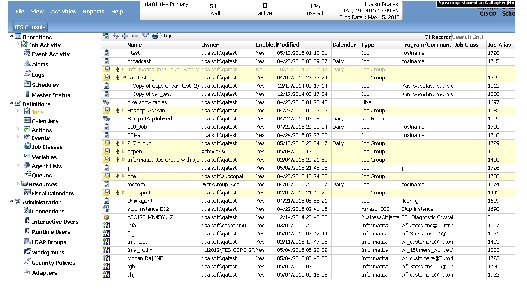
All tasks are performed using the TES Web Client or the Java Client:
- Adding a Job or Job Group
- Adding Jobs Automatically to the Production Schedule
- Adding Jobs Automatically to the Production Schedule
- Adding a File Dependency
- Adding a Variable Dependency
See the Cisco TES User Guide for information about the panels referenced in each task.
Adding a Job or Job Group
You can add a job or group rule and have it added to the production schedule simultaneously. Adding a job to the production schedule is optional. When jobs are added to groups, many properties can be inherited from the parent group.
Step 1 Open the TES Web or Java Client.
Step 2 From the Navigator pane, select Definitions > Jobs to display the Jobs pane.
Step 3 Click the location where you want to insert your job as follows:
- To add a job or job group under a job group, right-click the job group under which you want to add your job or job group.
- To add a job or job group at the root level of the hierarchy, right-click a root-level job or on a white section of the pane.
Step 4 Select Job or Job Group from the context menu or click the Add, then choose Job or Job Group on the TES toolbar.
Note Depending on what Agents and Adapters you have licensed and configured, you can choose to create a job of a specific adapter type.
Step 5 Depending on your selection, the Job Definition or the Job Group Definition dialog appears. For more information on the definition dialogs, see the “Jobs Pane Interface” section in the Cisco TES User Guide for details.
Adding Jobs Automatically to the Production Schedule
Jobs with associated calendars are automatically added to the production schedule through the TES automatic compilation process. Jobs with calendars are only added to the schedule for days that are in the set of days defined for the calendar. No intervention is necessary, but you can customize its operation to tailor compilation to your needs. For more information, the “Defining Jobs” section in the Cisco TES User Guide for details. Another way of automatically adding jobs to the production schedule is through new job actions. For more information about new job actions, see the “Actions and Alerts” section in the Cisco TES User Guide for details.
Adding Jobs Manually
Step 1 From the Navigator pane, select Definitions > Jobs to display the Jobs pane.
Step 2 Right-click the job or job group to add to the production schedule and select Insert Into Schedule from the context menu.
Or, select the job or job group to add to the production schedule, and from the Activities main menu select Insert Into Schedule .
The Insert Job Into Schedule dialog displays. The Job/Group field should contain the name of the job or group you right-clicked, and the Date field should contain the current date. If the job or group you selected has a time window, this will be displayed in the From and Until fields. Any parameters that were set in the job’s or group’s definition will be listed in the Parameters field. If the job or group has dependencies, you may want to select the Override job’s dependencies option so that your job or group will enter the schedule without checking for its dependencies.
Step 3 Click Yes at the confirmation dialog.
The job is added to today’s production schedule regardless of its calendar dates (if any). If the job is defined to repeat, only one instance of the job will be added to the schedule. Only jobs with the Unscheduled Allowed option selected (definition dialog, Options tab) can be added in this manner.
Adding a Job or Job Group Dependency
Jobs can depend on the status of other jobs and job groups. For example, you can set Job B to run when Job A completes normally using a job dependency for Job B.
To add a job or job group dependency:
Step 1 From the Navigator pane, select Definitions > Jobs to display the Jobs pane.
Step 2 Double-click the job or job group that you want to edit.
Step 3 Click the Dependencies tab.
Step 4 Click Add and select Add Job Dependency from the drop-down menu.
Step 5 In the Job/Group field, click the Browse button to open the Search dialog to search for the job that this job will depend on. You can also view a drop-down list of jobs by clicking the down-arrow button. If you used the Browse button to narrow your search for jobs, the drop-down list will be that job subset.
Step 6 In the Operator field, select whether the file dependency Equals or Does not equal the following status to satisfy the dependency. For example, you can set the job dependency to Equal the Completed Normally status.
Step 7 In the Status field, select the status to use to satisfy the dependency. You can choose between Active , Completed Abnormally , Completed Normally , Error Occurred, Externally Defined and Completed.
Note A job group becomes active when any of its associated jobs become active. If all jobs in a job group depend on the job group becoming active, no jobs will launch.
Step 8 If the job repeats during the day, select which instance of the job will trigger the dependency from the Occurrence drop-down menu.
a. Select First Occurrence if you want the first instance of the preceding job to match the status criterion.
b. Select Last Occurrence if you want the last instance of the preceding job to match the status criterion.
c. Select Match Occurrence when both jobs repeat during the day, and the dependency should match instance numbers.
There are two ways to apply the First/Last/Match dependency logic: by day instance or group instance.
Step 9 To specify an instance offset, you can do so in the Offset field. This field only applies to First Occurrence and Last Occurrence. When applied to First Occurrence, specifies which instance after the first to use in satisfying the dependency. When applied to Last Occurrence, specifies which instance from the last.
Step 10 If you want to specify an instance of a job that occurred a certain number of days in the past, go to the Date Offset field, and type the number of days in the past for the required job dependency. For example, if Job A repeats daily, but you want your job to be dependent on Job A’s instance 3 days ago, specify 3 in this field.
Step 11 Select Ignore this dependency if Job not in schedule if the dependency only applies when the job is part of the production schedule.
Step 12 Click OK to add the job dependency.
Note If your job has more than one dependency (file, job, variable or time), all dependencies must be satisfied for the job to run. It is possible for a dependency’s state to change from satisfied to unsatisfied. If this occurs, the job will only run when all dependencies have been satisfied at the same time.
Adding a File Dependency
You can have a job that depends on the status of a file on any system in your network. For example, Job A can be defined to run only when file data.txt exists in the c:\data directory.
To add a file dependency to a job:
Step 1 From the Navigator pane, select Definitions > Jobs to display the Jobs pane.
Step 2 Double-click the job or job group that you want to edit to display the Job or Job Group Definition dialog.
Step 3 Click the Dependencies tab.
Step 4 Click Add and select Add File Dependency from the dependency context menu to display the File Dependency Definition dialog.
Step 5 Type the path and filename for the required file or click the Browse button to select a file on the local Tidal Web client.
Click the Variables button to add System or Job variables as a file name.
Step 6 Select the agent where the file needs to exist.
Step 7 Select the dependency type for the file from the following options:
- Exists – The file exists at the path and on the agent specified.
- Does Not Exist – The file no longer exists, or is not found at the path or on the agent specified.
- Has Changed In DD:HH:MM – The file dependency is satisfied when the file changed within the specified time in days, hours, and minutes after the job entered the production schedule. For example, if the job entered the schedule at 1:00 PM, the period specified is 6 hours, and the file changed after 7:00 PM (or later), the dependency is met.
- Stable For DD:HH:MM – The file dependency is satisfied when the file size has not changed for the specified time in days, hours, and minutes from the present time. For example, if the file’s modified time is 1:00 PM, the period specified is 6 hours, and the job enters the schedule at 3:00 PM, the dependency is satisfied in 4 hours, i.e., 7:00 PM.
- Size >= – The size of the file is greater than or equal to the specified amount in bytes.
- Size <= – The size of the file is less than or equal to the specified amount in bytes.
Note If your job has more than one dependency (file, job, variable or time), all dependencies must be satisfied for the job to run. It is possible for a dependency’s state to change from satisfied to unsatisfied. If this occurs, the job will only run when all dependencies have been satisfied at the same time.
Adding a Variable Dependency
You can make a job depend on the value of a user-defined variable. For example, Job A should only run when the variable RunVar is equal to ten. For more information on variables, see the “Jobs” chapter in the Cisco TES User Guide.
To add a variable dependency to a job:
Step 1 From the Navigator pane, select Definitions > Jobs to display the Jobs pane.
Step 2 Double-click the job or job group that you want to edit.
Step 3 Click the Dependencies tab from the Job Definition dialog.
Step 4 Click Add and select Add Variable Dependency from the drop-down menu to display the Variable Dependency Definition dialog.
Step 5 If you are creating an intermaster dependency, select from the Master drop-down list a master to manage the variable dependency. Leave the default field selection, if you are not creating an intermaster dependency.
Step 6 In the Variable Name field, choose a variable from the drop-down menu that the job or job group will depend on.
Step 7 In the Operator field, select from the drop-down list an operator to make the appropriate comparison to the value of the variable.
Step 8 When text strings are used in comparison, “lower” letters of the alphabet are of greater value than “higher” letters. For example, Z > A. If the first letters of the string match, succeeding letters are used for comparison. For example, AZ > AA. The operation works similar to sorting strings in ascending order. Upper versus lower case is not considered (i.e., a=A, b=B, etc.).
Step 9 In the Variable Value field, enter the value of the variable required for the dependency to be met. You can also select from a list of system, job, user-defined and public variables to which the variable should be compared. For example, suppose you are using a variable dependency to repeat a job a specific number of times, and this amount changes periodically. You can define how many times to repeat the job by changing its variable value instead of changing its job definition.
Monitoring Jobs
This section gives an overview of some of the typical tasks you perform to monitor jobs. Here is an example of the Job Activity panel:
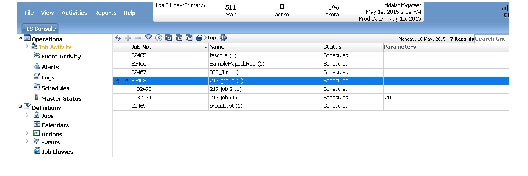
All tasks are performed using the TES Web Client or the Java Client:
- Adding or Removing Columns in the Job Activity Pane
- Adding a New Job or Group Occurrence to the Schedule
- Adjusting Column Widths in the Job Activity Pane
- Deleting Jobs or Groups from the Production Schedule
- Filtering Jobs in the Job Activity Pane Based on Job Status
- Moving to Different Dates and Times in the Job Activity Pane
- Pausing the Production Schedule
- Rearranging Columns in the Job Activity Pane
- Recreating the Production Schedule
- Refreshing the Job Activity Pane
- Resuming the Production Schedule or Job Launching
- Saving a Job’s Output on the Master
- Selecting or Removing All Job Filters in the Job Activity Pane
- Setting the Completion Status of a Job
- Sorting Jobs in the Job Activity Pane Using Column Headers
- Sorting Jobs Using the Job Filter Dialog
- Stopping or Starting Jobs in the Job Activity Pane
- Viewing a Job’s Output
- Viewing Other Dates in the Production Schedule
See the Cisco TES User Guide for information about the panels referenced in each task.
Adding or Removing Columns in the Job Activity Pane
Step 1 From the Navigator pane, select Operations > Job Activity to display the Job Activity pane.
Step 2 Select View>Preferences from the main menu bar or right-click the Navigator pane and select Preferences from the context menu to display the Preferences dialog.
Step 3 Click the Columns tab. By default, all columns are used.
Adding a New Job or Group Occurrence to the Schedule
To add a new job or group occurrence:
Step 1 From the Navigator pane, select Operations > Job Activity to display the Job Activity pane.
Step 2 Right-click the job or job group occurrence to add to the production schedule and select Insert Job Into Schedule from the context menu or click the job or job group, and from the Activities main menu, select Insert Job Into Schedule.
Step 3 Click Yes at the confirmation prompt.
Another occurrence of the selected job or job group is added to today’s production schedule regardless of its calendar dates (if any). If the job is defined to repeat, only one occurrence of the job enters the schedule. Note that a job must have the Unscheduled Allowed option selected in its Job Definition to be added in this manner.
Adjusting Column Widths in the Job Activity Pane
Step 1 Place the cursor on the right vertical border of the column heading. The mouse pointer turns into the separator icon.
Step 2 Hold down the left mouse button and resize the width.
Deleting Jobs or Groups from the Production Schedule
To remove jobs that have not yet launched from the production schedule:
Step 1 From the Navigator pane, select Operations > Job Activity to display the Job Activity pane.
Step 2 Right-click the job or job group occurrence to remove, and from the context menu select Remove Job(s) from Schedule. In the resulting confirmation dialog, select Yes if you only want to delete the selected job occurrence. If you wish to delete all future scheduled occurrences of the job, select the All option.
You can select multiple jobs or job groups simultaneously.
Step 3 Click Yes at the confirmation prompt.
Remove Job(s) from Schedule will remove any pre-launch job occurrence from the schedule, for any date. Only the job occurrence you select is removed. If a job group occurrence is selected, all of the group’s child jobs are removed.
Filtering Jobs in the Job Activity Pane Based on Job Status
Step 1 From the Navigator pane, select Operations > Job Activity to display the Job Activity pane.
Step 2 Click the Filter button on the TES toolbar or right-click the Navigator pane and select Filter from the context menu to display the Job Filter dialog.
The statuses that are presently displayed are the ones with a check mark.
Moving to Different Dates and Times in the Job Activity Pane
You can view job occurrences for past, present or future days. Each job’s retention history value in its job definition determines how far back you can see its job occurrences. The Future Days value in the System Configuration dialog determines how far you can see into the future.
Note When you are viewing the current day in the Job Activity pane, you may also see jobs from previous dates if those jobs have not yet completed.
To move to different dates and times:
From the Navigator pane, select Operations > Job Activity to display the Job Activity pane.
- To move backward one day in the production schedule, right-click in the Job Activity pane and select Prior Day from the context menu.
- To move forward one day in the production schedule, right-click in the Job Activity pane and select Next Day from the context menu.
- To move to today’s date and time, right-click the Job Activity pane and select Goto Now from the context menu.
- To move to a job’s graphical start location, right-click the job’s record and select Goto Job Time from the context menu to display the job’s start time.
Pausing the Production Schedule
You can pause and then resume the production schedule at any time. You can also pause and resume job launching without having any affect on scheduling.
When you pause a production schedule, the master service is stopped and waiting jobs are prevented from running, even if their dependencies are met. Jobs that are already in Active status will continue to run on their respective agents; however, their updated status (for example, Completed Normally) will not be displayed in the Job Activity pane until the master service is restarted.
When you pause job launching, jobs can still be scheduled and calendars compiled, but jobs will not actually launch until job launching is resumed.
To pause the production schedule or job launching:
Step 1 From the Navigator pane, select Operations > Job Activity to display the Job Activity pane.
Step 2 From the Activities main menu, select Pause Scheduler or Pause Job Launching.
Rearranging Columns in the Job Activity Pane
Step 1 From the Navigator pane, select Operations > Job Activity to display the Job Activity pane.
Step 2 From the View main menu, select Preferences or right-click the Navigator pane and select Preferences from the context menu to display the Preferences dialog.
Step 4 Select the column and click the up or down arrows to arrange the titles into the desired order.
Recreating the Production Schedule
To recreate the production schedule:
Step 1 From the Navigator pane, select Operations > Job Activity to display the Job Activity pane.
Step 2 From the Activities menu, select Create Schedule to display the Create Schedule dialog.
Step 3 Select the date range for which to create the schedule.
Step 4 If you want repeating jobs with no time window to start immediately, rather than after midnight, select the For today’s repeating jobs with no time window, start repeating ASAP option.
Step 5 TES searches for all qualified jobs to add to the production schedule for the selected dates.

Warning All job occurrences that were added manually and all records of jobs that ran will be lost. Furthermore, the Create Schedule recreates the schedule at the time you issue the command. This means that jobs whose dependencies have not been met can qualify to run immediately. Use this command with caution.
Refreshing the Job Activity Pane
Step 1 From the Navigator pane, select Operations>Job Activity to display the Job Activity pane.
Resuming the Production Schedule or Job Launching
To resume the production schedule or job launching:
Step 1 From the Navigator pane, select Operations>Job Activity to display the Job Activity pane.
Step 2 From the Activities main menu, select Resume Scheduler or Resume Job Launching.
Saving a Job’s Output on the Master
You can view the output of a job after the job finishes running. In order to view the output of a job from the Job Activity pane, you must save the output for the job on the master (this is the default).
To save a job’s output on the master:
Step 1 From the Navigator pane, select Definitions>Jobs to display the Jobs pane.
Step 2 Select the job for which to save output.
Step 3 Click the Edit button to display the Job Definition dialog.
Step 5 In the Save Output option, select Append or Replace.
Step 6 Click OK. The next time the job completes, you can view its output from the Job Detail dialog.
Selecting or Removing All Job Filters in the Job Activity Pane
To select or remove all job filters:
Step 1 From the Navigator pane, select Operations>Job Activity to display the Job Activity pane.
Step 2 Click the Filter button on the TES toolbar or right-click the Navigator pane and select Filter from the context menu to display the Job Filter dialog.
Step 3 Right-click in the Statuses section and select Check All or Uncheck All from the context menu.
Setting the Completion Status of a Job
Note You should only set the completion status of jobs that have already finished running. Setting completion status of a job that is still active, may adversely affect job activity.
Step 1 From the Navigator pane, select Operations>Job Activity to display the Job Activity pane.
Step 2 Select the job on which to perform job control.
Step 3 Right-click the job to open the Job Activity context menu.
Step 4 From the Job Control submenu, select Set and from the Set submenu, select the desired job completion status.
Note When job completion statuses are changed in this way, an asterisk appears to the right of it, for example, Completed Normally*.
Sorting Jobs in the Job Activity Pane Using Column Headers
You can sort the job occurrences displayed in the Job Activity pane by two different sorting criteria. You can sort on a primary criteria and in turn, organize the primary sort by secondary criteria. The sorts are done by column header in either alphabetical or numerical order depending on the type of data contained in the column.
To sort a job using a column header:
Step 1 From the Navigator pane, select Operations>Job Activity to display the Job Activity pane.
Step 2 Click the column header to select it for a primary sort. The jobs sort alphabetically (in text data) or numerically (if numerical data). A single arrow displays beside the column header to denote the primary sort.
If you click the header more than once, the sort order toggles back and forth from ascending to descending order.
Step 3 To perform a secondary sort, hold down the ALT key while clicking the column header. The secondary sort displays a double arrow in the column header.
For example, click the Name column heading. The items in the column are alphabetized from a to z (because the column contains alphabetical data). Clicking again reverses the order z to a. Click the Time column header while holding down the ALT key and the jobs remain in alphabetical order but are now organized also by numerical order (since this column contains numerical data). Now the jobs are arranged in alphabetical order and each numerical segment is organized from earliest time to latest time. Clicking again on the secondary sort column while holding down the ALT key reverses the secondary sort to latest time to earliest time.
If you click the header more than once, the sort order toggles back and forth from ascending to descending order.
Sorting Jobs Using the Job Filter Dialog
To sort jobs using the Job Filter dialog:
Step 1 From the Navigator pane, select Operations>Job Activity to display the Job Activity pane.
Step 2 Click the Filter button on the TES toolbar or right-click the Navigator pane and select Filter from the context menu to display the Job Filter dialog.
Step 3 Checking or clearing the options for status or hours enables you to sort jobs using those criteria. You can also sort using other criteria listed including by job name, by agent, by queue, by command, etc.
Note The Job Filter dialog includes filter options that affect sorting. For example, if you want to sort by the status column, and some statuses have been filtered out, those statuses will not be used for sorting.
Note When a Status column is clicked for sorting within the Job Activity pane, the order is defined by the settings on the Job Status Order tab in the System Configuration dialog.
Stopping or Starting Jobs in the Job Activity Pane
Step 1 From the Navigator pane, select Operations>Job Activity to display the Job Activity pane.
Step 2 Select the job on which to perform job control.
Step 3 Right-click the job to display the Job Activity context menu.
Step 4 From the Job Control submenu, select one of the following job control options:
- Select Override to override a job’s dependencies. The job enters a queue and becomes active. Override ignores all dependencies and launches the job immediately.
- Select Hold/Stop to stop a job from running or to keep a job from launching. The job enters the Held or Stopped status. If the job cannot be held or stopped, you cannot select this menu item.
Note Windows jobs cannot be suspended, therefore this menu item is unavailable for active Windows jobs.
- Select Release/Resume to release a held job, or a job waiting for operator release or to start a stopped job. The job enters the Active or Waiting On Dependencies status. If the job can’t be released or resumed, you won’t be able to select this menu item.
- Select Cancel/Abort to cancel a job before running or to abort a job while running (Canceled jobs cannot be rerun). The job enters the Canceled or Aborted status. If the job can’t be canceled or aborted, you won’t be able to select this menu item.
- Select Cancel/Abort All to cancel all occurrences of a job before running or to abort all occurrences of a job while running. All occurrences of the same job enter the Canceled or Aborted status.
- Select Rerun to rerun a job. The job re-enters the schedule and is re-executed with the same job ID number. A new occurrence ID is not created. If the job can’t be rerun, you won’t be able to select this menu item.
Viewing a Job’s Output
You can view the output of a job after the job finishes running. In order to view the output of a job from the Job Activity pane, you must first have the Save Output option selected in the job’s or job group’s definition.
Note Scheduler’s default is to discard job output.
Step 1 From the Navigator pane, select Operations>Job Activity to display the Job Activity pane.
Step 2 Double-click the completed job to display the Job Detail dialog.
Viewing Other Dates in the Production Schedule
Step 1 From the Navigator pane, select Operations>Job Activity to display the Job Activity pane.
Step 2 Click the Select Day button or right-click in the Job Activity pane and select the Select Day option to display a Calendar tab.
Step 3 Click the date to go to. You can use the arrow controls in the title bar to move to different months.
 Feedback