Install CWM using OVA

This section contains the following topics:

Install CWM using OVA

The Crosswork Workflow Manager 1.0 is installed as a guest virtual machine by deploying an OVA image using the vSphere vCenter 7.0 virtualization platform.

Prerequisites

  • vSphere vCenter 7.0 account with an ESXi 7.0 host.

Download CWM package

Before you begin

To get the Crosswork Workflow Manager 1.0 software package:

Procedure


Step 1

Go to the Cisco Software Download service and in the search bar, type in 'Crosswork Workflow Manager', then select it from the search list.

Step 2

From Select a software type, select Crosswork Workflow Manager Software.

Step 3

Download the Crosswork Workflow Manager software package for Linux.

Step 4

In a terminal, run the self-extracting signed binary. This extracts the cwm-1.0.tar.gz file and validates using the signature file.

Step 5

To extract the cwm-1.0.tar.gz file, double click on it (Mac users) or use gzip utility (Linux and Windows users). This will extract the CWM OVA file.


Deploy OVA and start VM

To create a virtual machine using the downloaded OVA image:

Procedure


Step 1

Log in to your vSphere account.

Step 2

In the Hosts and Clusters tab, expand your host and select your resource pool.
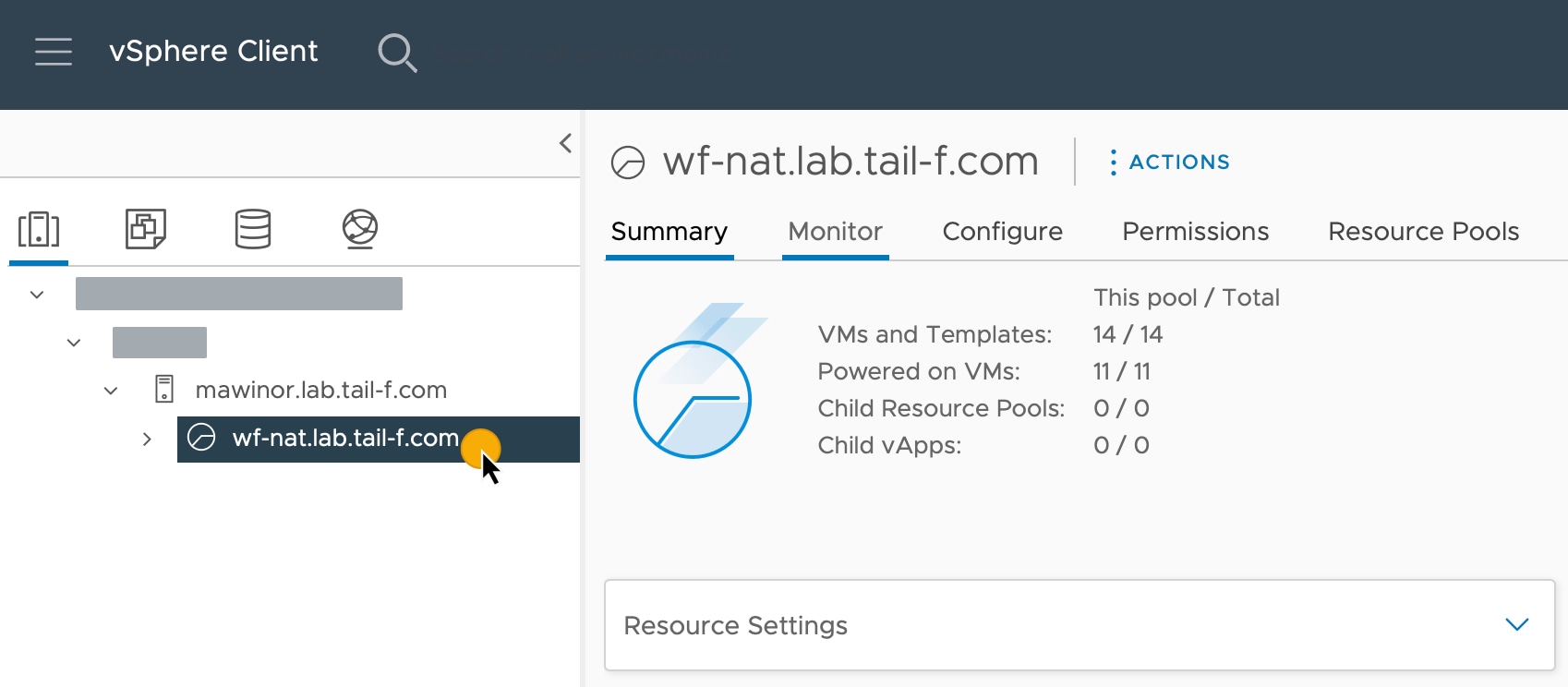
Figure 1. Resource pool

Step 3

Click the Actions menu and select Deploy OVF Template.
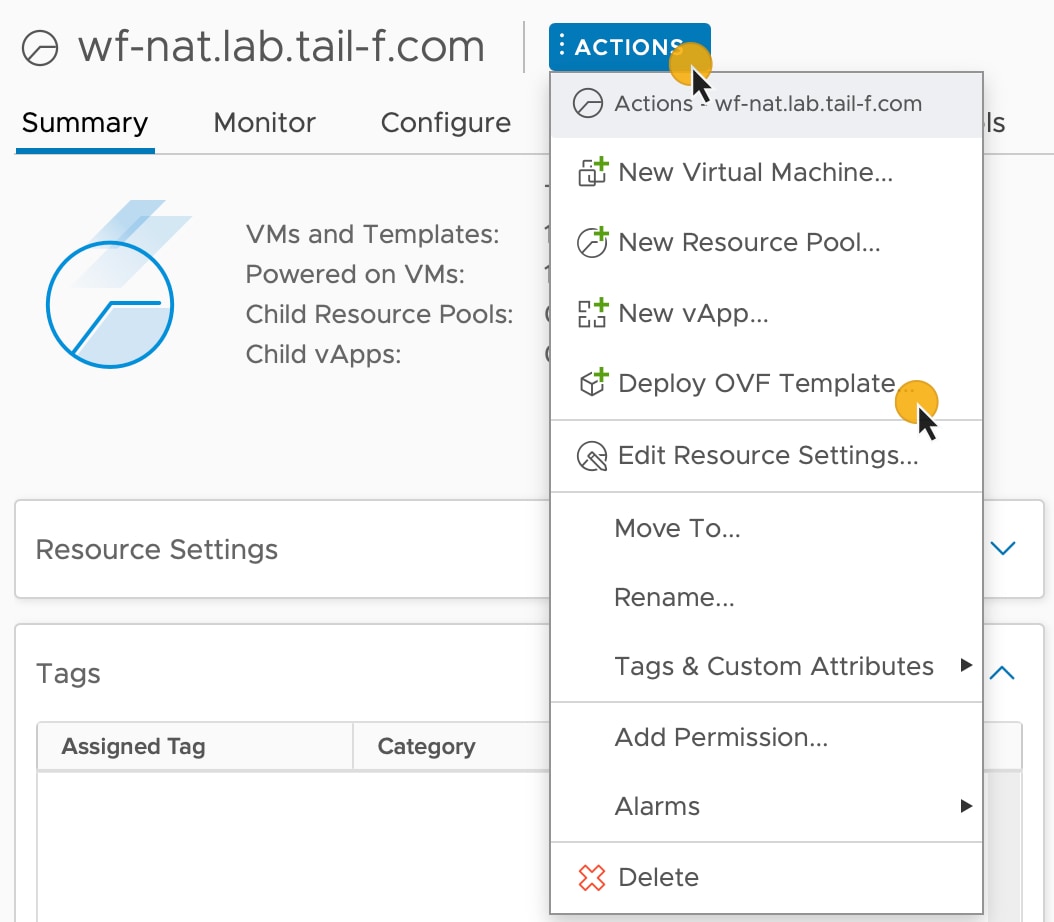
Figure 2. Deploy OVF template

Step 4

In the Select an OVF template step, click Local file, Select files, and select the CWM OVA image. Click Next.

Step 5

In the Select a name and folder step, provide a name for your VM and select it's location. Click Next.

Step 6

In the Select a compute resource step, select your resource pool. Click Next.

Step 7

In the Review details step, click Next.

Step 8

In the Select storage step, set Select virtual disk format to Thin provision and select your storage, then click Next.

Step 9

In the Select network step, you need to select destination networks for the Control Plane and Northbound:

  1. Note


    Control plane settings are essential only in case of an HA cluster setup. For single-node setups, control plane settings need to be provided, but are not essential and should not conflict with any other devices connected to the control network.

    Control Plane: select PrivateNetwork. If not available, select VM Network.

  2. Northbound: select VM Network.

  3. Click Next.

Step 10

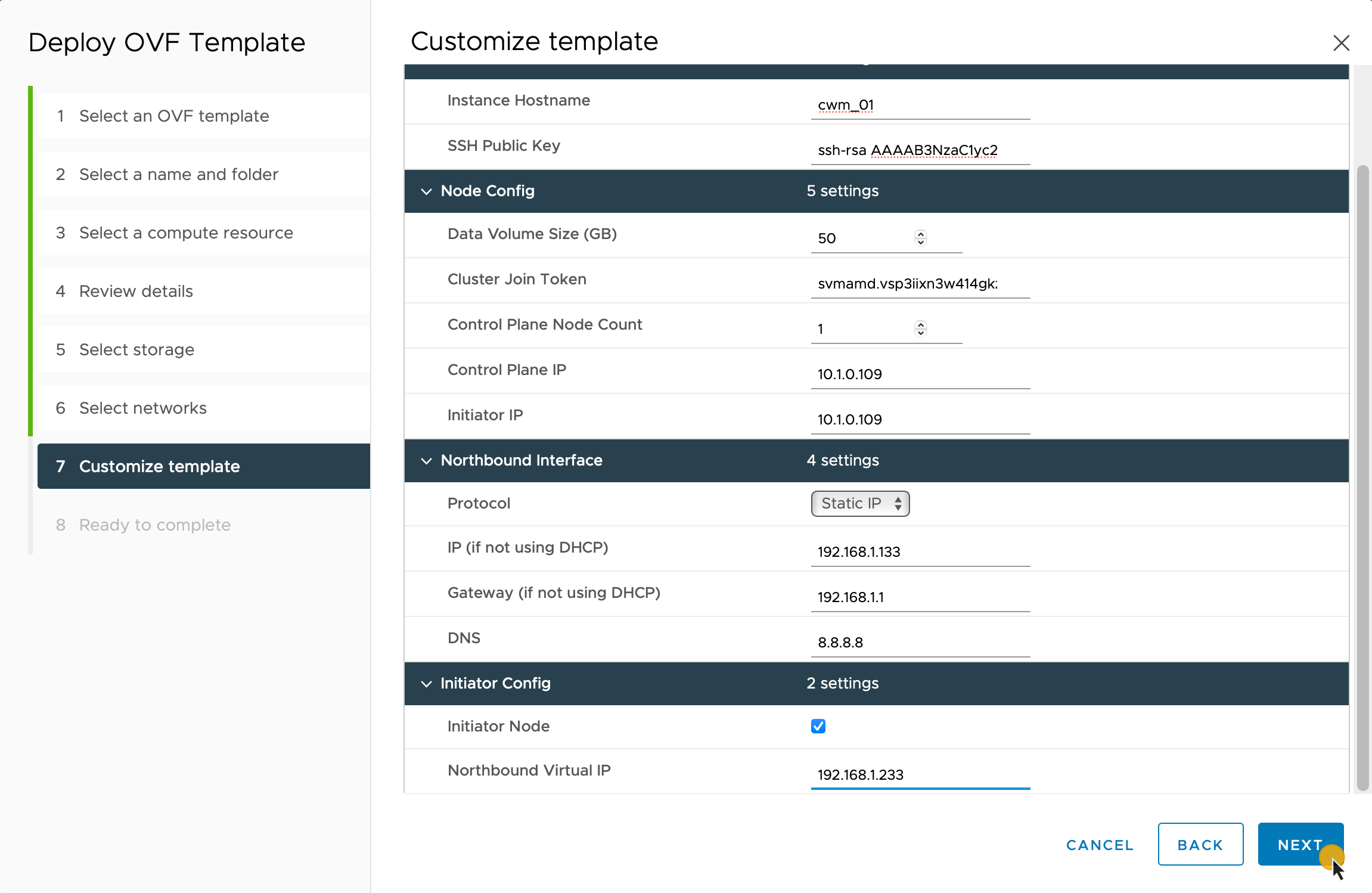
In the Customize template step, provide the following selected properties:

  1. Instance Hostname: type a name for your instance.

  2. SSH Public Key: provide an SSH public key used for command-line access to the VM.

  3. Control Plane Node Count: change to more than 1 only in case of HA cluster setup. Not supported for CWM version 1.0.

  4. Control Plane IP: provide a network address for the control plane. This address cannot conflict with any other devices in the control network, but is otherwise inessential in a single-node setup.

  5. Initiator IP: set the initiator IP for the starter node. In a single-node setup, it is the same address as Control Plane IP*.

  6. IP (if not using DHCP): provide the network address for the node.

  7. Gateway (if not using DHCP): provide the gateway address. By default, it is 192.168.1.1.

  8. DNS: provide the address for the DNS. By default, it is 8.8.8.8, or you can use your local DNS.

  9. Northbound Virtual IP: provide the network address for the active cluster node. In a single-node setup this address is also required, as this is where the HTTP service is working.

  10. Click Next.

    Figure 3. Customize template

Step 11

In the Ready to complete, click Finish. The deployment may take a few minutes.

Step 12

From the Resource pool list, select you newly created virtual machine and click the Power on icon.
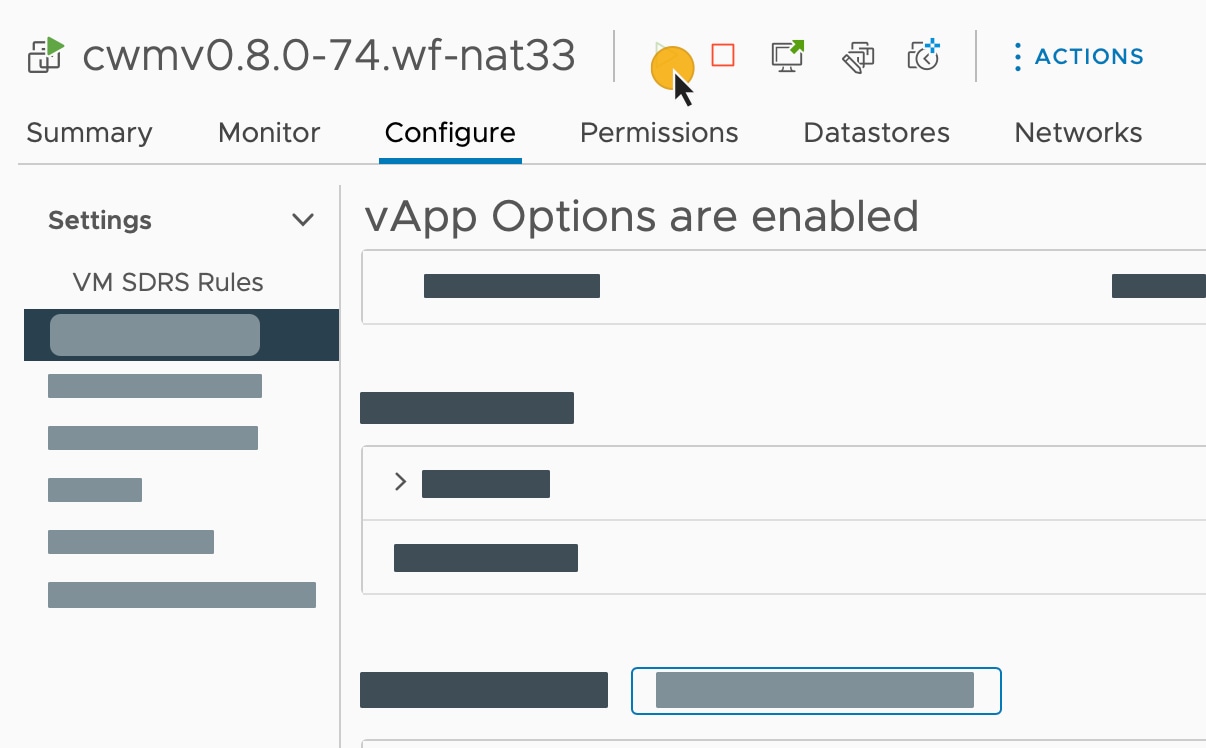
Figure 4. Power on VM

Note


If the VM doesn't power on successfully, this might be due to an intermittent infrastructure error caused by NxF. As a workaround, remove the existing VM and redeploy the OVA on a new one.


Create user

You can create CWM platform user accounts using the command-line access to the VM. Here's how to do it:

Procedure


Step 1

Using a command-line terminal, log in to the NxF in your guest OS with SSH:

ssh -o UserKnownHostsFile=/dev/null  -p 22  nxf@<your_resource_pool_address>

Note


The default port for SSH is 22, change it to your custom port if applicable.

  1. Optional: If you are logging in for the first time, provide the path name for your private key:

    ssh -i <your_ssh_private_key_name_and_location> nxf@<your_resource_pool_address>
    

Step 2

To create a user, run the following command:

echo -en "test" | sedo security user add --password-stdin --access permission/admin --display-name Tester test

Step 3

Go to the address that you selected for your node and default port 8443. For example, https://wf.lab.cisco.com:8443/.

Step 4

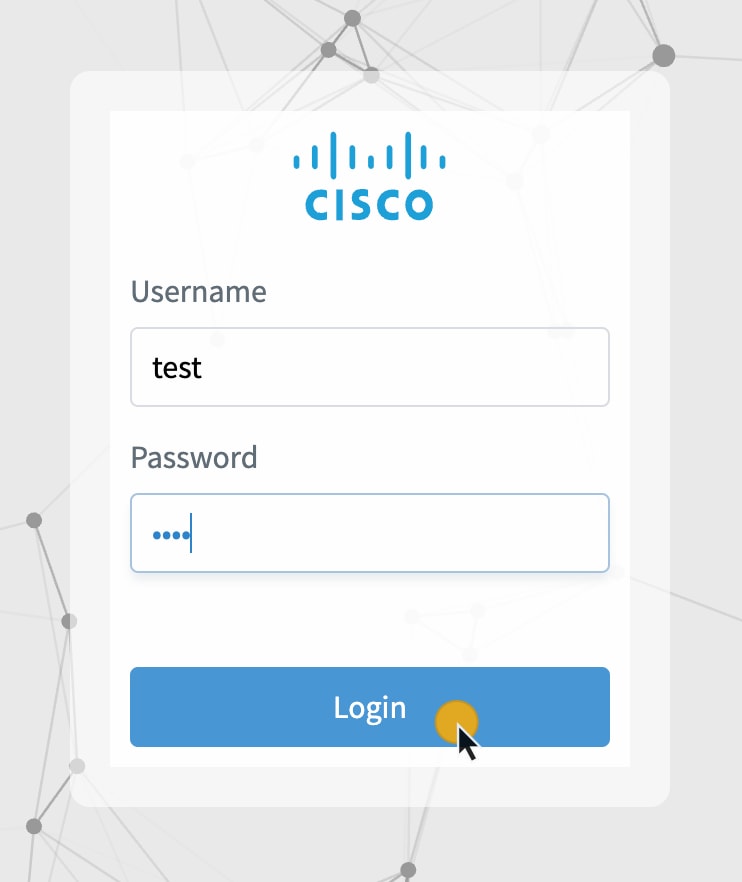
Log in using the test username and password.

Figure 5. Log in